grandMA2: grandMA2 user manual.
# grandMA2 User Manual
 ## Subtopics [Section titled “Subtopics”](#subtopics) * [New in the Manual](/grandma2/key_new_in_the_manual/) * [Introduction](/grandma2/key_introduction/) * [Safety Information](/grandma2/key_safety_information/) * [Device Overview](/grandma2/key_device_overview/) * [System Overview](/grandma2/key_so_system_overview/) * [First Steps](/grandma2/key_first_steps/) * [Keys & Buttons on the Console](/grandma2/key_keys_and_buttons_on_the_console/) * [Workspace](/grandma2/key_workspace/) * [Windows in General](/grandma2/key_windows/) * [Command Syntax and Keywords](/grandma2/key_command_syntax_and_keywords/) * [Using the Backup Menu](/grandma2/key_backup_menu/) * [Single User and Multi User Systems](/grandma2/key_single_multi_systems/) * [Networking](/grandma2/key_network/) * [Patching, DMX, and Fixture Setup](/grandma2/key_patch/) * [Basic Fixture Types](/grandma2/key_basic_fixture/) * [Operate Fixtures](/grandma2/key_operate_fixtures/) * [Pools in General](/grandma2/key_pools/) * [Groups](/grandma2/key_groups/) * [Presets](/grandma2/key_presets/) * [Cues and Sequences](/grandma2/key_cues_and_sequences/) * [Executors](/grandma2/key_exec/) * [Advanced Sequence Functionality](/grandma2/key_adv_seq/) * [Advanced Executor Functionality](/grandma2/key_adv_exec/) * [Clone](/grandma2/key_clone/) * [Search and Replace](/grandma2/key_search_replace/) * [Image Pool](/grandma2/key_image/) * [Layouts](/grandma2/key_layouts/) * [Worlds, Filters and Masks](/grandma2/key_wfm_world_filter_mask/) * [MAtricks](/grandma2/key_matricks/) * [Chasers](/grandma2/key_chaser/) * [Effects](/grandma2/key_effects/) * [Bitmap Fixture](/grandma2/key_bitmapfixture/) * [XYZ](/grandma2/key_xyz/) * [Remote Controlling the System](/grandma2/key_remote_control/) * [Timecode](/grandma2/key_timecode/) * [Timer](/grandma2/key_timer/) * [Agenda](/grandma2/key_agenda/) * [Macros](/grandma2/key_macro/) * [Plugins](/grandma2/key_plugins/) * [Partial Show Read](/grandma2/key_psr/) * [RDM](/grandma2/key_rdm/) * [DMX Profiles](/grandma2/key_dmx_profiles/) * [Other System Tools](/grandma2/key_ost/) * [Export and Import](/grandma2/key_export_and_import/) * [Update the Software](/grandma2/key_update/) * [Advanced Fixture Types](/grandma2/key_advanced_fixture_types/) * [grandMA2 onPC Details](/grandma2/key_onpc_details/) * [Control the MA NDPs](/grandma2/key_control_ma_ndp/) * [Control the MA Network Switch](/grandma2/key_control_ma_switch/) * [Control the MA xPort Nodes](/grandma2/key_control_ma_xport_node/) * [Console Settings](/grandma2/key_console_settings/) * [Shut Down the System](/grandma2/key_shut_down_the_system/) * [Error Messages](/grandma2/key_error_messages/) * [Technical Data](/grandma2/key_technical_data/) * [Glossary](/grandma2/key_glossary/)
# Advanced Executor Functionality
> This section describes some of the more advanced functions regarding the executors.
This section describes some of the more advanced functions regarding the executors. If you have not read the [Executors](/grandma2/key_exec/) section, then please have a look at it for the more common uses and details on how to use sequences with executors. ## Subtopics [Section titled “Subtopics”](#subtopics) * [Executor pages](/grandma2/key_adv_exec_pages/) * [Channel pages](/grandma2/key_adv_exec_ch_pages/) * [Executor options](/grandma2/key_adv_exec_options/) * [Masters window](/grandma2/key_adv_exec_master_window/) * [Special masters](/grandma2/key_adv_exec_spec_master/)
# Channel pages
> The Fader Executors can be changed to be Channel Faders instead of Executors.
The Fader Executors can be changed to be Channel Faders instead of Executors. **Important:**\ Changing to the Channel Pages does not remove or turn off the Executors. There are two types of Channel Pages: **Static** pages that can have dimmer attributes for specific fixtures. **Dynamic** pages that will be populated by the attributes and selected fixtures. ## Static Channel Pages [Section titled “Static Channel Pages”](#static-channel-pages) Static Channel Pages can have attributes of fixtures assigned to the faders. In the Channel Pages the faders are called ChannelFaders. The static Channel pages are organized in a Channel Pool. The pool could look like this: 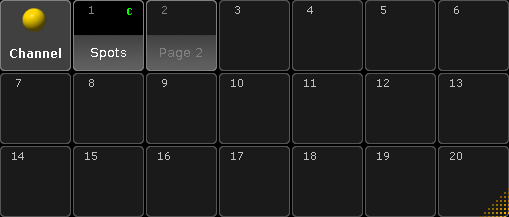 *Channel page pool* This works as any of the pool - if you have not read the [Pools in General section](/grandma2/key_pools/), then please read it. This is what it looks like in Sheet Style: 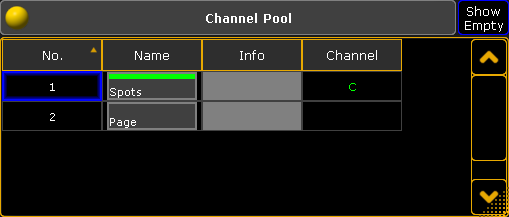 *Channel page pool - Sheet Style* The green **C** indicates that this Channel Page is currently active. A gray **C** indicates that this is the last viewed page (It is probably back to en Executor page). Tapping one of the objects in the pool will change to the Channel page. It is also possible to change the page using the Ch Pg + and Ch Pg - keys or the [ChannelPage](/grandma2/key_keyword_channelpage/) command. Keeping the Ch Pg - key pressed for a second will jump back to page number 1. ## Assigning fixtures [Section titled “Assigning fixtures”](#assigning-fixtures) Static Channel Pages needs to be build - that means fixtures needs to be assigned to the ChannelFaders. This can be gone using the keys: Assign Chanel (or Fixture) \[number or range] Page Page (this gives the ChannePage command) \[page number].\[fader number] Please. If an attribute is not specified then the dimmer will be assigned. Other attributes can be assigned, but it takes a little bit of investigation to find out the attribute number or name. This is the general syntax: Assign Fixture \[id number].\[subfixture number].\[attribute] (At) ChannelPage \[page number].\[fader number] The best way to show how to find an attribute number is by an example. ### Example [Section titled “Example”](#example) In my show I have a fixture patched that has pan and tilt attributes it is Fixture ID 1. I would like to have the dimer assigned to ChannelFader 1 on ChannelPage 1. And then the Pan on fader 2 and Tilt on fader 3. Before we can assign anything, we need to create the page. Simply press Ch Pg + once to open the first Channel Page - this also creates the page. Assigning the dimmer to fader 1 is simple: Assign Fixture 1 and then press on of the keys associated with fader number 1. Now we need to find the attribute numbers for fixture 1. Open a **Command Line Feedback** window. We need to explore fixture 1 so type the following command and execute it with a please: \[Channel]> CD Fixture 1 **CD** is short for the ChangeDirectory command. The command line shows that we have navigated to the fixture. We need to list the subfixtures in fixture 1. Type the following command (you do not need to type anything before the **>**) \[LiveSetup/Layers 4/Spots 3/Spot 1 1]>List Depending on your show it might look exactly like above. The important part is the List command. Now the Command Line Feedback window show that there are at least one subfixture. In my show it is a Vari-Lite with only one subfixture. Navigate to the subfixture using the CD command again: \[LiveSetup/Layers 4/Spots 3/Spot 1 1]>CD 1 If I know that my fixture only has one subfixture (or if I need subfixture 1), then it is possible to navigate to this location using the following command CD Fixture 1.1 - Do not run this command now. Now we need to do another **List** command to see the attribute list for this fixture. The list displayed in the Command Line Feedback window shows that the PAN is number 3 and the TILT is number 4. With this knowledge we can go back to the root of the command line and assign the two attributes. Type the follwoing: \[LiveSetup/Layers 4/Spots 3/Spot 1 1/Spot 1 1]>CD/ This returns to the root command. \[Channel]> Assign Fixture 1.1.3 ChannelPage 1.2 \[Channel]> Assign Fixture 1.1.4 ChannelPage 1.3 This is how it is done using the attribute numbers. It is actually a lot easier to use the attribute names. If we knew that fixture number 1 is a simple fixture with only one subfixture, then we could just have done this: \[Channel]> Assign Fixture 1.1.PAN ChannelPage 1.2 \[Channel]> Assign Fixture 1.1.TILT ChannelPage 1.3 It is still useful to know how to find the attribute numbers and names of fixtures. That enables you to find and assign any attribute. ### Auto Create Channel Pages [Section titled “Auto Create Channel Pages”](#auto-create-channel-pages) Channel pages can be auto created using **Setup -> Show -> Auto Create** and then select the **Channel Pages** tab. It could look like this: 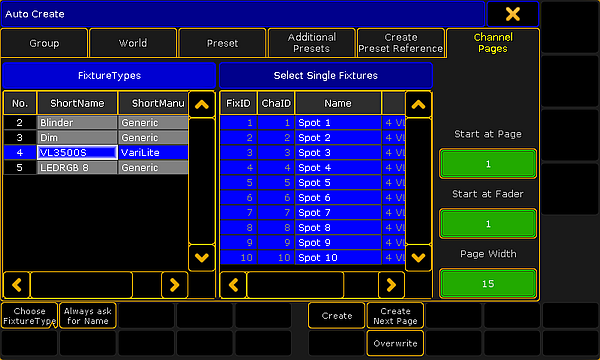 *Auto Create menu - Channel Page tab* This menu is separated into a left and a right side. The left side can show to different things: FixtureTypes or Layers. These two things can be toggled by tapping the Choose button at the bottom left. The right side displays the content of what is selected on the left side. The workflow is selecting one or more elements in the list on the left side and then selecting or deselecting fixtures from right side. Each selected fixture will create a Dimmer attribute fader. On the far right side there are three green input fields. The top one set the ChannelPage number for the auto created faders. The middle one sets the fader number for the first ChannelFader. The bottom one sets the width of the page. It can be a good idea to set the width to match your hardware. Tap the Always ask for Name button if you wish to name the Channel Pages when they are created. The Overwrite button does not do any difference. Assigning attributes to ChannelFaders always overwrites the current assigned attributes. Tap the Create button to create the ChannelFaders. Notice that this action will change the Start page and the start fader input fields to the next available ChannelPage and ChannelFader. The Create Next Page will also do a create action but it will start at the next page number. *** ## []()Dynamic Channel Page [Section titled “Dynamic Channel Page”](#dynamic-channel-page) The Dynamic Channel Pages are channel pages that are created based on the selection of fixtures and the currently active Feature. The Dynamic Channel Pages can be accessed when the [Channel Sheets](/grandma2/key_of_channel_sheet/) and the [Fixture Sheets](/grandma2/key_of_fixture_sheet/) have activated the **Link Faders** option. Read more about activating this in the [Title Buttons topic](/grandma2/key_of_sheet_options_title_buttons/). Dynamic Channel Pages can also be called using the [ChannelLink](/grandma2/key_keyword_channellink/) command. This allows you to turn On or Off the Dynamic Channel Page. It can also be used to create special combinations of attributes. Read more about it following the link to the ChannelLink above.
# Masters window
> The Masters Window collects the Group, Speed, Rate, and Playback masters in one view.
The Masters Window collects the Group, Speed, Rate, and Playback masters in one view. It can be created using the [Create Basic Windows pop-up](/grandma2/key_windows/). It can be found in the **Other** tab. It could look like this: 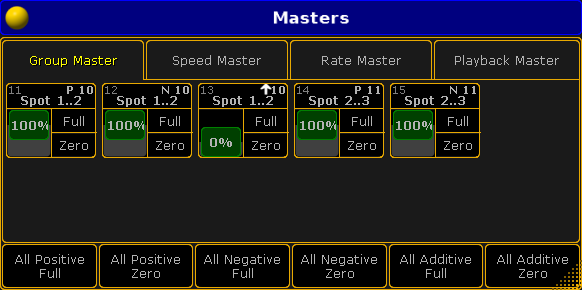 *Masters Window - Group Master tab* The four tabs have each of the four different master types. Each master is represented by a square inside the tap. Each master is divided into three areas. The top part labels the master. Pressing and holding the top part will perform a [Locate](/grandma2/key_keyword_locate/) command as long as it is pressed. Locate will change to the page where the master is assigned - if it is assigned. It will also change the look of the mini executor. It will write “Here” on a reds background for as long as the top part is pressd. It could look like this:  *Located master* The lower part of the master is divided into a left and right side. The left side represents the master fader. The right side represents the relevant buttons for the master. At the bottom of each tab there are different buttons that can be used to command several masters at the same time. Read more about the Master Squares and the buttons in each section below. The Masters Window can also be opened as a temporary view. This can be done by pressing and holding the Group key for 1 second. It could look like this: 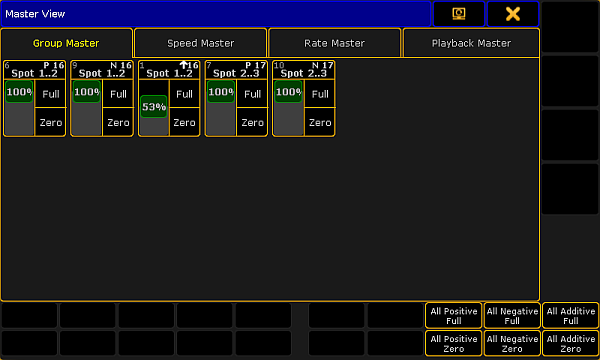 *Temporary Master View - Group Master tab* It is similar to the Master Window. Except the buttons below, are moved to be able to be controlled by X-keys. ## Group Master [Section titled “Group Master”](#group-master) Group masters are described in details in the [Group Master topic](/grandma2/key_groups_master/). This is what each master could look like in the Group Master tab: 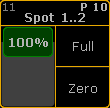 *Group Master* The top area labels the master and in the group masters it also provides information about the executor number where it is assigned, the group number and the masters Mode. The two buttons in the lower right side of the square gives access to set the master to **Full** and to **Zero**. There are 6 buttons below the master squares. They are: * **All Positive Full** * **All Positive Zero** * **All Negative Full** * **All Negative Zero** * **All Additive Full** * **All Additive Zero** They can be used to set each of the three types of masters to either Full or Zero. ## Speed Master [Section titled “Speed Master”](#speed-master) Speed masters can be used to synchronize multiple Effects or Chasers to a common speed. Read more about the speed masters in the [Speed Master topic](/grandma2/key_adv_exec_spec_master_speed/). This is what each speed master looks like: 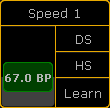 *Speed Master* The three buttons in the master gives access to double the speed (DS), half the speed (HS), or “tap” the speed using the [Learn](/grandma2/key_keyword_learn/) command. There are three buttons below the speed masters. They are: * **All Double Speed**:\ This will double the speed on all the speed masters. * **All Half Speed**:\ This will double the speed on all the speed masters. * **All Learn**:\ This will perform the Learn command on all the speed masters. ## Rate Master [Section titled “Rate Master”](#rate-master) The Rate Masters can be used to synchronize the Rate across multiple Executors. Read more about the rate masters in the [Rate Masters topic](/grandma2/key_adv_exec_spec_master_rate/). This is what each rate master looks like: 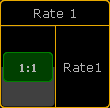 *Rate Master* The Rate Master only has one relevant button: **Rate1**. This will reset the rate master to the center position and set the rate to 1:1. This means that there is also only one button below the masters: **All Rate1** - it resets all the rate masters. ## Playback Master [Section titled “Playback Master”](#playback-master) Playback masters are used as submasters for Executors. Read more about the playback masters in the [Playback Masters topic](/grandma2/key_adv_exec_spec_master_playback/). This is what each playback master looks like: 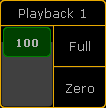 *Playback Master* Each master has two buttons to set the master at **Full** and at **Zero**. Below all the playback master are two buttons: **All Full** and **All Zero**. They set all the playback master to full or zero.
# Executor options
> Each executor can have a lot of options. This topic lists all the options and links to topics where they are described. If an option is not described anywhere e
Each executor can have a lot of options. This topic lists all the options and links to topics where they are described. If an option is not described anywhere else, then it is described here. The Executor Options can be seen when there is a sequence or group assigned to an Executor. Pressing the Assign key following one of the keys associated with the executor will open the Assign Menu. On the right side of the Assign Menu there are a button called Options. This opens the Options part of the menu. It could look like this: 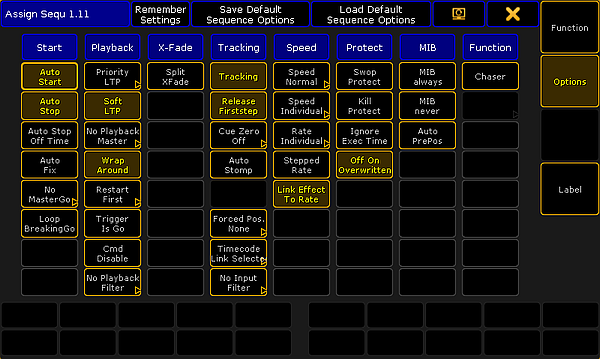 *Assign Menu - Options section* Each column has a topic or headline. The options are described below and they are organized in those topics. Some of the options here are options for the executor and some are options for the sequence assigned to the executor. The tile bar has three buttons that are relevant for the options. The left one is the Remember Settings button. Tapping this button will store the current options into the sequence and they will then apply if the sequence is played back from the Sequence Pool. Save Default Sequence Options will store the current options as the default. This default will be used when a new sequence is assigned to an Executor or when the Load Default Sequence Options button is tapped. ## Start [Section titled “Start”](#start) **Auto Start** The Auto Start function is described in the [Common Executor Options topic](/grandma2/key_exec_common_options/). **Auto Stop** The Auto Stop function is described in the [Common Executor Options topic](/grandma2/key_exec_common_options/). **Auto Stop Off Time** The Auto Stop Off Time function is described in the [Common Executor Options topic](/grandma2/key_exec_common_options/). **Auto Fix** The Auto Fix feature can be activated for each executor. It will automatically Fix active executors and keep it visible even when pages are changed. The executor is automatically Unfixed when it is switched off. **[]()MasterGo** The MasterGo function is described in the [Common Executor Options topic](/grandma2/key_exec_common_options/). **Loop BreakingGo** Loop BreakingGo is described in the [Looping Cues topic](/grandma2/key_adv_seq_loop/). ## Playback [Section titled “Playback”](#playback) **Priority** The priorities are described in the [Playing Back Cue topic](/grandma2/key_cs_playback/). **Soft LTP** The Soft LTP function is described in the [Playing Back Cue topic](/grandma2/key_cs_playback/). **Playback Master** Here it is possible to select a Playback Master. This is all described in the [Playback Master topic](/grandma2/key_adv_exec_spec_master_playback/). **Wrap Around** The Wrap around function is described in the [What is Tracking topic](/grandma2/key_cs_what_is_tracking/). **Restart** The Restart function is described in the [Common Executor Options topic](/grandma2/key_exec_common_options/). **[]()Trigger Is Go** This option will disable automatic cue triggers like follow and time. The information is not deleted or removed. It is just temporary ignored. Everything in the Trig column in a Sequence Executor Sheet turns red. []()**Cmd Disable** This option disables the execution of the commands in the CMD columns in a sequence. The stored commands are not deleted or removed, they are just disabled. The commands get a red text color when they are disabled. **Playback Filter** The playback filter is described in the [Apply Worlds or Filters to Executors and Sequences topic](/grandma2/key_wfm_apply_to_exec_seq/). ## []()XFade [Section titled “XFade”](#xfade) **XFade** This is used to set how the two CrossfadeA/XfadeA and CrossfadeB/XfadeB faders works. The button has two options: * **Split**:\ The dual crossfaders work as masters for current/next cue. * **AB**:\ The dual crossfaders work as crossfaders for increasing/decreasing values. ## Tracking [Section titled “Tracking”](#tracking) **Tracking** The Tracking function is described in the [What is Tracking topic](/grandma2/key_cs_what_is_tracking/). **Release Firststep** The Release Firststep function is described in the [What is Tracking topic](/grandma2/key_cs_what_is_tracking/). **Cue Zero** The Cue Zero function is described in the [Cue Zero topic](/grandma2/key_adv_seq_cue_zero/). **Auto Stomp** The Auto Stomp function will add **Stomp** values to attributes effect layer when the value layer for that attribute is asserted. **Cue Zero Extract** The Cue Zero function is described in the [Cue Zero topic](/grandma2/key_adv_seq_cue_zero/). **Forced Position** It is possible to force the sequence to use only XYZ values or Pan/Tilt values when moving from one position to another. The default is Active position data. This will use the stored position data. Read more in the [XYZ vs. Pan/Tilt topic](/grandma2/key_xyz_vs_pan_tilt/). **Timecode** A sequence can have a link to the selected Timecode Slot or a specific Timecode Slot. This can be chosen here. It is relevant if there are cues that uses the timecode signal as the trigger. Read more about timecode in the [Timecode section](/grandma2/key_timecode/). **Input Filter** The playback filter is described in the [Apply Worlds or Filters to Executors and Sequences topic](/grandma2/key_wfm_apply_to_exec_seq/). ## Speed [Section titled “Speed”](#speed) **[]()Speed Factor** If an executor is assigned to an global Speed Master (read below) then it can be useful to adjust a speed factor. Tapping this button will open the Select Speed Factor pop-up. It looks like this: 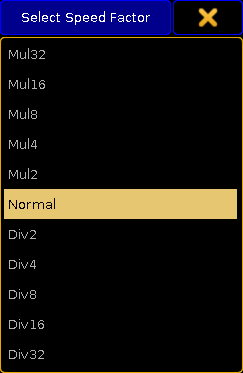 *Small Select Speed Factor pop-up* Here it is possible to select one of the multipliers or dividers. This multiply or divide the speed by the selected factor. **[]()Speed Master** The executor has a speed master. It can be linked to a shared global Speed Master or it can have an individual speed master. Tapping this button will open the Select Speed Master pop-up. It looks like this: 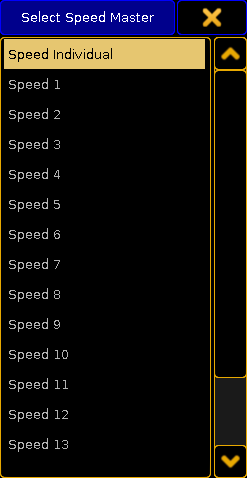 *Small Select Speed Master pop-up* Here it is possible to select the **Speed Individual** option for having an individual speed master for the executor or select one of the global Speed Masters. Read more details in the [Speed Masters topic](/grandma2/key_adv_exec_spec_master_speed/). **[]()Rate Master** The Executor has a rate master. It can be linked to a shared global Rate Master or it can have an individual rate master. Tapping this button will open the Select Rate Master pop-up. It looks like this: 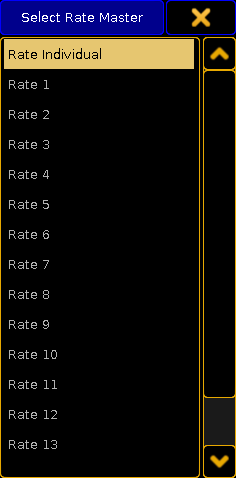 *Small Select Rate Master pop-up* Here it is possible to select the **Rate Individual** option for having an individual rate master for the executor or select one of the global Rate Masters. Read more details in the [Rate Masters topic](/grandma2/key_adv_exec_spec_master_rate/). **Stepped Rate** Enabling this will bind the rate to defined steps instead of a variable value. **Link Effect To Rate** This setting will link the effect speed to the rate. Read more about effects and speed in the [Effects section](/grandma2/key_effects/). ## Protect [Section titled “Protect”](#protect) **[]()Swop Protect** Enabling this will protect this executor from being swopped (temporary turned down) by other executors. **[]()Kill Protect** Enabling this will protect this executor from being killed (= turned off) by other executors. **[]()Ignore Exec Time** When enabled, it will make the executor use the stored timing and not allow the Exec Time fader to overwrite the timing. The Exec Time fader is described in the [Time Control Topic](/grandma2/key_ws_time_control/). **Off On Overwritten** The Off On Overwritten function is described in the [Common Executor Options topic](/grandma2/key_exec_common_options/). ## MIB [Section titled “MIB”](#mib) Move In Black is described in [Working with MIB topic](/grandma2/key_adv_seq_mib/). **[]()MIB always** This setting will set the MIB to “Early” for every cue. This is marked with a white colored ”!Y” in the MIB column all the cues that is able to MIB. Any other settings in the MIB column will stay. They will become active again if this setting is turned Off. **[]()MIB never** This setting will disable MIB for all the cues. This is marked with a red colored ”!N” in the MIB column all the cues that is able to MIB. Any other settings in the MIB column will stay. They will become active again if this setting is turned Off. **[]()Auto PrePos** This function affects all other attributes than dimmers. If this is Off, then the attribute values will use the cue timing to fade from a value to the next. If this is On, then the attributes will change without any fade timing moving as fast as possible. Individual attributes timing is also ignored. Attributes that uses MIB will use the MIB timing. ## Function [Section titled “Function”](#function) **Chaser** This will turn the sequence into a Chaser. Read more about chaser in the [Chasers section](/grandma2/key_chaser/). **Group Master Mode** This option is only visible if there is an group master assigned to the executor. This option is explained in the [Group Masters topic](/grandma2/key_groups_master/).
# Executor pages
> The Executors are arranged in pages.
The Executors are arranged in pages. The pages gives access to several sets of Executors. Changing the page does not remove or turn off the Executors. It is just another set of Executors. The pages are arranged in a pool. For more general information about pools please read the [Pools in General section](/grandma2/key_pools/). The Executor pool could look like this: 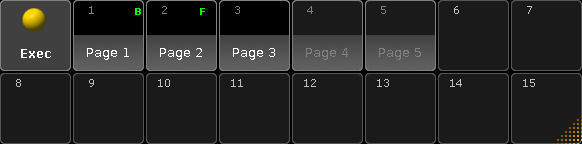 *Executor pool - pool style* It can be changed to Sheet Style in the options, then it looks like this: 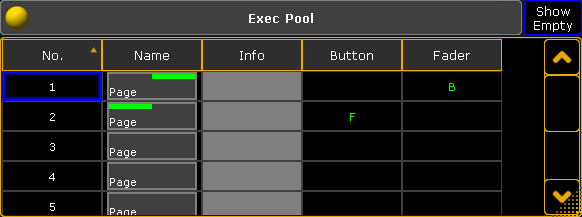 *Executor pool - sheet style* The pool show the different executor pages. The pool can be used to name the pages. The pool offers a visual indication of the currently active page for the Fader Executors and the Button Executors. Notice that they can be on two different pages. Their current page is indicated by an **F** and a **B**. If the **F** is gray, then a Channel page is currently active - Read more in the [Channel Pages topic](/grandma2/key_adv_exec_ch_pages/). Pages that have something assigned will have a white label text when the pool is in pool style. Pages that have been accessed but is empty will have a gray text color. Pages that has not been accessed and does not have anything stored are empty in the pool. ## Change page [Section titled “Change page”](#change-page) Pages can be access by tapping the pool objects. This will make both the Fader Executors and the Button Executors jump to this page. Pages can also be changed using the dedicated Fd Pg + and Fd Pg - keys to change the page for the Fader Executors. Read about the keys in the [Fd Pg+](/grandma2/key_key_faderpageplus/) and [Fd Pg-](/grandma2/key_key_faderpageminus/) topics. Keeping the Fd Pg - key pressed for 2 seconds will jump to page 1 for the faders. The Button Executor pages can be changed using the Bt Pg + and Bt Pg - keys. Read about the keys in the [Bt Pg+](/grandma2/key_key_buttonpageplus/) and [Bt Pg-](/grandma2/key_key_buttonpageminus/) topics. Keeping the Bt Pg - key pressed for 2 seconds will jump to page 1 for the buttons. In **Setup -> User -> Grand Master & Misc Keys** there is a setting called **Link Fader & Button Page**. If this is active then there is no separation between the Fader and Button page changes. Chaining pages using any the four keys mentioned above will change page for both Faders and Buttons at the same time. Pages can also be changed using the command line. There are three different relevant commands: [FaderPage](/grandma2/key_keyword_faderpage/), [ButtonPage](/grandma2/key_keyword_buttonpage/), and [Page](/grandma2/key_keyword_page/). Click them to read the details about the commands. There are three different commands to make it possible to change the Fader Executors and Button Executors independently using each of the two commands. But it is also possible to change both at the same time using the **Page** command. Pages can be changed by using the page number or page name. ### Examples [Section titled “Examples”](#examples) Change the Fader Executors to page 5: \[Channel]> FaderPage 5 Change the Button Executors to page 20: \[Channel]> ButtonPage 20 Change both faders and buttons to a page called **Rainbow**: \[Channel]> Page Rainbow
# Special masters
> The Special Masters are five groups of masters. They are physical representations of masters that exists in the software.
The Special Masters are five groups of masters. They are physical representations of masters that exists in the software. The masters needs to be assigned to Fader Executors or to the 100mm master faders. They can all be assigned using the [Assign Menu](/grandma2/key_exec_assign/). They are found in the Special Masters section. Selecting this in the Assign Menu will reveal a tree structure separated into the five groups of Special Masters. They can also be assigned (or adjusted) using the [SpecialMaster](/grandma2/key_keyword_specialmaster/) keyword. Assigning Special Masters to the 100mm faders are done by tapping the label above the faders. For more information see the [Master Section topic](/grandma2/key_widget_master_section/). There are no options for the Special Masters and they have a limited selection of different functions to assign to the keys. Special Masters cannot be more that 1 Executor Width. Please read about the Special Masters in the subtopics. ## Subtopics [Section titled “Subtopics”](#subtopics) * [Default masters](/grandma2/key_adv_exec_spec_master_default/) * [Grand masters](/grandma2/key_adv_exec_spec_master_grand/) * [Speed masters](/grandma2/key_adv_exec_spec_master_speed/) * [Rate masters](/grandma2/key_adv_exec_spec_master_rate/) * [Playback masters](/grandma2/key_adv_exec_spec_master_playback/)
# Default masters
> The Default Masters are the 11 masters that each executor with a sequence can have assigned.
The Default Masters are the 11 masters that each executor with a sequence can have assigned. These Masters can be assigned to Executors and they will adjust to the levels on the selected executor. Read about the functions of the masters in the [Assign a function topic](/grandma2/key_exec_assign/). The 11 masters are: * **SpecialMaster 1.1 ‘Master’** * **SpecialMaster 1.2 ‘XFade’** - this is also called Crossfade * **SpecialMaster 1.3 ‘XFade A’** - this is also called CrossfadeA * **SpecialMaster 1.4 ‘XFade B’** - this is also called CrossfadeB * **SpecialMaster 1.5 ‘Rate’** * **SpecialMaster 1.6 ‘Fade’** - this is also called StepFade * **SpecialMaster 1.7 ‘MFade’** - this is also called MasterFade * **SpecialMaster 1.8 ‘Temp’** * **SpecialMaster 1.9 ‘Speed’** * **SpecialMaster 1.10 ‘IFad’** - this is also called StepInFade * **SpecialMaster 1.11 ‘OFad’** - this is also called StepOutFade
# Grand masters
> The Grand Masters are a selection of 6 different masters that can be assigned to executors.
The Grand Masters are a selection of 6 different masters that can be assigned to executors. They are: * **SpecialMaster 2.1 ‘Grand’** * **SpecialMaster 2.2 ‘Program Time’** * **SpecialMaster 2.3 ‘Exec Time’** * **SpecialMaster 2.4 ‘Snd Out’** * **SpecialMaster 2.5 ‘Snd In’** * **SpecialMaster 2.6 ‘Snd Fade’** The **Grand** is the Grand Master. This has a dedicated physical fader, but can also be assigned to any Executor. **Program Time** and **Exec time** are described in the [Time Control topic](/grandma2/key_ws_time_control/). They are used to modify the fade time used by the programmer and to temporary overwrite the stored cue timing. **Snd Out or Sound Out** is the volume of the console. There is a small build in speaker that can be used to play different system sounds. The **Snd In or Sound In** is the master for the incoming sound. Read more about this and the **Snd Fade** in the [Sound Input topic](/grandma2/key_ost_sound_input_window/).
# Playback masters
> It is possible to a assign 50 different Playback Masters to fader executors.
It is possible to a assign 50 different Playback Masters to fader executors. The Playback Masters can be assigned to sequence executors. They function as a sub-master for the assigned sequence executors. If a Playback Master is assigned then the small representation of the fader level in the Mini Executor will be split in two. It could look like this:  *Executor with a Playback Master* The left of the two fader representations are the fader for the local executor. The right representation is the level of the Playback Master. Read more about assigning playback masters to sequence executors in the [Executor Options](/grandma2/key_adv_exec_options/) topic. All the Playback Masters can be seen and adjusted in the [Masters window](/grandma2/key_adv_exec_master_window/).
# Rate masters
> It is possible to a assign 15 different Rate Masters to executors.
It is possible to a assign 15 different Rate Masters to executors. The Rate Masters can be assigned to sequences executors or effects. This makes it possible to sync multiple elements to the same rate. Read more about assigning rate masters to sequences executors in the [Executor Options](/grandma2/key_adv_exec_options/) topic. Read about assigning a rate master to an effect in the [Use Predefined Effects topic](/grandma2/key_effects_predefined/). All the Rate Masters can be seen and adjusted in the [Masters window](/grandma2/key_adv_exec_master_window/).
# Speed masters
> It is possible to a assign 15 different Speed Masters to executors.
It is possible to a assign 15 different Speed Masters to executors. This group of masters also include the BMP Master. This master is controlled by the incoming sound and will adjust to the detected Beats Per Minute. Read more about it in the [Sound Input topic](/grandma2/key_ost_sound_input_window/). The Speed Masters can be assigned to Sequence executors, chasers or effects. This makes it possible to sync multiple elements to the same speed. Read more about assigning masters to executors in the [Executor Options](/grandma2/key_adv_exec_options/) topic. Read about assigning a Speed Master to an effect in the [Assign Effect to Executor topic](/grandma2/key_effects_assign_to_executor/). All the Speed Masters can be seen and adjusted in the [Masters window](/grandma2/key_adv_exec_master_window/).
# Anatomy of a fixture type
> A fixture type, or the structure of how a fixture is described, is divided into different sections. This makes it possible to have quite advanced fixtures and s
A fixture type, or the structure of how a fixture is described, is divided into different sections. This makes it possible to have quite advanced fixtures and still be able to control all aspects of the fixture. A fixture has at least one **Module** and one **Instance** of this module. There might be several instances of the same module, for example a LED bar with four instances of the same RGB LED module build into one fixture. This will create four sub-fixtures. There might be different modules in the same fixture, for instance a LED moving head might have a “main” module with pan/tilt, zoom, master intensity, and then several RGB modules for different sections of the head. The modules contains a list of different **Attributes** that are mapped to DMX channels. The modules are added and defined in the [Module Manager](/grandma2/key_adv_fixture_anatomy_modules/). The module amount and possible physical relationship between the modules is defined in the [Instance Manager](/grandma2/key_adv_fixture_anatomy_instance/). Inside a module there might be different **Wheels**. A wheel can be color wheels, gobo wheels, animation wheels, or other types of wheels. A color scroller is also often defined as a wheel even though it technically is a roll. All the wheels are defined in the [Wheel Manager](/grandma2/key_adv_fixture_anatomy_wheel/). Fixtures can be build or modified in the grandMA2 software. It is possible to import downloaded fixture types. Please read the [Adding fixtures to the show topic](/grandma2/key_patch_add_fixtures/) for information about this. Everything about the fixture types are done in the **Fixture Types Editor**. Open it by pressing Setup then tap Patch & Fixture Schedule followed by taping the Fixture Types button on the top right corner. This is a list of the fixtures in the show file. Tapping a fixture in the list and then the Edit button in the lower left corner will open the editor. It could look like this: 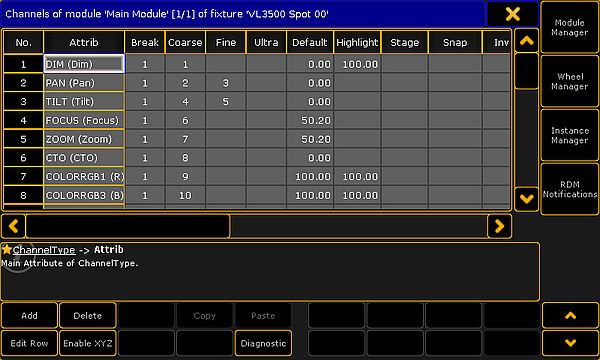 Module view in the fixture type editor Here is a view of the first module of the fixture. There are four buttons on the right side of this editor. The top three open the three managers mentioned above. The bottom button on the right side opens the RDM Notification - Read about RDM and creating notifications in the [Configure RDM Notifications topic](/grandma2/key_rdm_notifications/). There are some buttons at the bottom of the editor. There are buttons to Add and Delete rows in the different sections in the editor. Edit Row opens the editor for the selected row, it goes “into” the row. Read below for more information about this. The Enable XYZ and Disable XYZ is used to control if the fixture can use [XYZ programming](/grandma2/key_xyz/). Diagnostic opens a pop-up that shows errors or warnings for the selected element. In the lower right corner there can be up to four different arrow buttons. Up and Down arrows will move up and down in the rows. Left and Right arrows will change between different elements. The elements can be modules or when editing a row it can change between different row in the upper level (read more below). Grayed out buttons do not have any functions. ## []()Edit Module [Section titled “Edit Module”](#edit-module) The title bar in the **Fixture Type Editor** shows what is being displayed in the editor. In the picture above it is displaying the **Channels** of the module called “Main Module” of the fixture called “VL3500 Spot 00”. Here the word “channel” is used as DMX channels and the list is actually the different **Attributes** in the module. There are several columns in this part of the editor. This is a short description of them: * **No.**:\ This is a number for the row. Each attribute has its own row. This number cannot be edited * **Attrib**:\ This is the attribute. Editing this opens the Select Attribute pop-up. 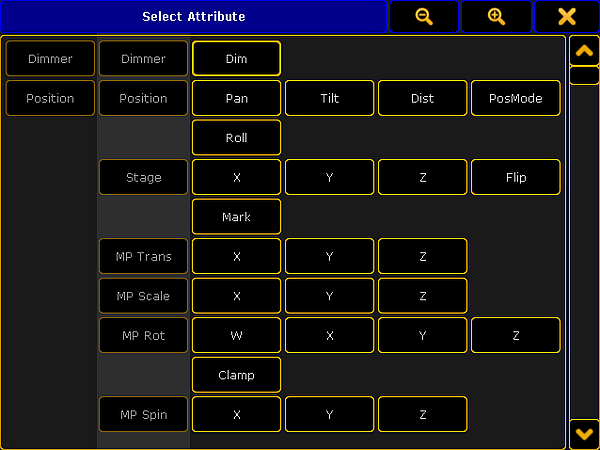 *Select an attribute for the module* This is a long list of all the existing attributes in the show. The list can be edited in the [Attribute & Encoder Grouping](/grandma2/key_adv_fixture_attribute_encoder_grouping/). * **Break**:\ Breaks are used if a fixture needs more than one start address.\ This could be a LED bar with four individually LED instances build in one fixture. Each instance can be address on the back of the fixture, thus there need to be four different DMX start addresses for the fixture. This would be four different DMX breaks.\ Another example is when a scroller is added to an existing conventional fixture and the fixture is connected to a dimmer - patched in one universe - and the scroller is connected to a PSU - patched in another universe but it is to be treated as one combined fixture.\ A fixture can have up to 8 different breaks. * **Coarse**:\ This is the 8-bit DMX number. This number describes the DMX address offset for the attribute. “1” is the same as the start patch address. * **Fine**:\ This is the 16-bit DMX number - the attribute uses two DMX channels. * **Ultra**:\ This is the 24-bit DMX number - the attribute uses three DMX channels. * **Default**:\ This is the default value for the attribute. This value is used when the attribute does not get a value from anything else. * **Highlight**:\ This value is used when the **Highlight** function is activated. * **Stage**:\ This value is used, if the “Output Stage Value” function is activated in the [Calibrate menu](/grandma2/key_patch_autocalibrate/). This could be values that makes the fixtures open in full output in open white and with a narrow beam. * **Snap**:\ Snap can be turned On. If it is then the attribute will not fade between values - it will jump directly to the new value. When this jump is performed is controlled by the **Snap Percent** value in the cues ([Sequence Executor Sheet](/grandma2/key_cs_cue_sequence/)). * **Invert**:\ Invert can be turned On. When it is On it will invert the DMX output for the channel. * **React to Master**:\ For dimmer attributes this function is always On. Other attributes can have this On as well. It will make the value of the attribute react to the value of the **Grand Master**. * **MIB disable**:\ MIB disable can be turned On. It makes the attribute ignore the move in black feature. * **MIB Fade**:\ This time is used when this attribute is changing values by the move in black feature. The “Default” value means that it will use the time specified in the Setup -> Show -> Playback MIB Timing. * **Profile**:\ DMX profiles can be added to an attribute. Editing this opens the Select DMX Profile pop that will list all the existing profiles. Profiles can be added or edited in the Graph Editor - read about it in the [DMX Profiles section](/grandma2/key_dmx_profiles/). * **Mode**:\ This indicates if the attribute is depended of a different attribute. Read more about Mode channels [below](#mode_channels). * **React to DIM**:\ This can be turned On. It makes the attribute react to the dimmer value. Editing this opens the **Select React to Dim** pop-up. 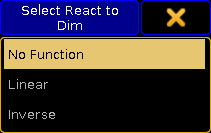 *Select a mode for React to Dim* There are three options: **No Function** (default), **Linear** (follows the dimmer value), and **Inverse** (is the inverted value of the dimmer). * **Color**:\ This is used to visualize colors and light output in the stage window and the MA 3D. It defines the color for LEDs. It can only be edited for color attributes. * **Minimum DMX time**:\ Setting a time here defines the minimum time an attribute will use to change value. This can be useful for scrollers or moving head where fast movement is undesirable. * **Trigger**:\ This can be turned On. It completely changes the function of the attribute. It will make the value count up each time a cue is triggered in a sequence. This function can be used by some media servers to detect a cue change. **Hint:**\ More modules can be added in the [Module Manager](/grandma2/key_adv_fixture_anatomy_modules/). Editing one of the row will move “into” the channel and the editor changes to match. Keep reading for details on the editor for channels. ## []()Edit channel/row [Section titled “Edit channel/row”](#edit-channelrow) Each row in the module is an **Attribute**. This is also called a **Channel** in the editor. There is automatically a subattribute defined for most attributes. Often it is only one with the entire DMX range for the attribute. Some attributes can have several subattributes. For instance a color wheel attribute might have different functions depending on the DMX value (as shown in the image below). Other examples could be a Pan attribute that have a position index function in one part of the DMX range and a continuous rotation speed in the rest of the DMX range. 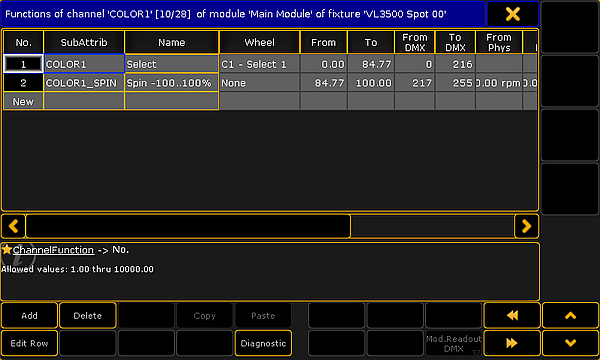 *Edit channels of modules* * **No.**:\ This is an internal row number. It cannot be changed. * **SubAttrib**:\ Here the subattribute is defined. Editing this cell will open a pop-up much like the **Select Attribute** shown above, but instead it is **Select Subattribute**. Subattributes are defined in the [Attribute & Encoder Grouping](/grandma2/key_adv_fixture_attribute_encoder_grouping/). * **Name**:\ This is the name that will be displayed as a tap in the calculator pop-up when editing the value of the attribute. * **Wheel**:\ Here it is possible to attach a wheel to the subattribute. Editing this cell will open the **Select Wheel** pop-up that lists the different defined wheels. Wheels can be defined in the[ Wheel Manager](/grandma2/key_adv_fixture_anatomy_wheel/). * **From**:\ This value is being shown on the encoders if the sheet readout is “Natural”. This is the first or lowest values. This is often “0” or the minimum value for the attribute. It can make sense to defined this values as a negative values for pan and tilt attributes - often half of the complete rotation for instance “-270”. * **To**:\ This value is being shown on the encoders if the sheet readout is “Natural”. This is the last or highest values. This is often “100” or the maximum value for the attribute. It can make sense to defined this values as a positive degree value for pan and tilt attributes - often half of the complete rotation for instance “270”. * **From DMX**:\ This is the lowest DMX value for the subattribute. * **To DMX**:\ This is the highest DMX value for the subattribute. * **From Phys**:\ This is the minimum physical value. It could be the minimum rotation speed (rpm), strobe frequency (Hz), pan value (degree), or the lowest intensity value. The default here is **0.00\***. For some attributes the values is multiplied with a different value. For instance the intensity. The maximum intensity is defined in the Module Manager. This means that the “0” value is multiplied by the intensity value and the result is also “0” equal to no output.\ This is used by MA 3D and is displayed in sheets if the readout is “Physical”. * **To Phys**:\ This is the maximum physical value. It could be the maximum rotation speed (rpm), strobe frequency (Hz), or pan value (degree). The default here is **1.00\***. For some attributes the values is multiplied with a different value. For instance the intensity. The maximum intensity is defined in the Module Manager. This means that the “1” value is multiplied by the intensity value and the result is also maximum value equal to full output.\ This is used by MA 3D and is displayed in sheets if the readout is “Physical”. * **Additional Phys**:\ This is used to define additional physical values. This is used by prisms. Here the number of facets can be defined. This is used by MA 3D. * **Minimum 3D Time**:\ This is the fastest time used to travel from start to end of the range. It is only used in MA 3D. * **Mode Start**:\ This column is only visible if the attribute has a defined mode channel. Read more about the Mode channels [below](#mode_channels). This defines the first DMX value of the mode range. * **Mode End**:\ This column is only visible if the attribute has a defined mode channel. Read more about the Mode channels [below](#mode_channels). This defines the last DMX value of the mode range. Each of the rows here can be edited to add **Channel Sets**. ## []()Channel Sets for a subattribute [Section titled “Channel Sets for a subattribute”](#channel-sets-for-a-subattribute) **Channel Sets** are specific DMX values or ranges of values that has a name. The channel sets are the basis for information when auto creating presets. The channel sets are shortcuts to easy access to the values. The names are displayed in Fixture Sheets, Channel Sheets, and other places where the attribute values is displayed. The channel sets are also displayed and selectable in the [Smart Window](/grandma2/key_of_smart_view/). When a row is edited in the Channel Editor, it changes to edit the channel sets. It would look like this: 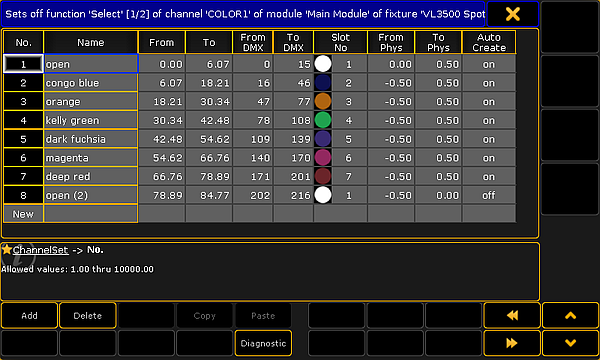 *Editing Channel Sets* Each row here is a channel set whit a defined values range. The columns have changed a little. This is a short description: * **No.**:\ This is again an auto created number for the row. It cannot be edited. * **Name**:\ This is the name of the channel set. It will be displayed where the values are displayed and in the Smart window. It is customary that all the names are unique. This is to avoid confusion. * **From**:\ This number is linked with the range set for the channel and the value typed in the **From DMX**. It is the minimum range value for the channel set. A value can be typed here but often it is easier to type the DMX values. * **To**:\ This number is linked with the range set for the channel and the value typed in the **To DMX**. It is the maximum range value for the channel set. A value can be typed here but often it is easier to type the DMX values. * **From DMX**:\ This is the first (lowest) DMX value of the channel set. It can be the same number in the **To DMX**, then it only this specific value that represents the channel set. This is relevant for many sets like the minimum value for an attribute. * **To DMX**:\ This is the last (highest) DMX value of the channel set. It can be the same number in the **From DMX**, then it only this specific value that represents the channel set. This is relevant for many sets like the maximum value for an attribute. * **Slot No**:\ If the subattribute has a wheel attached, then the slot number in the wheel can be typed here. Read more about wheels in the [Wheel Manager](/grandma2/key_adv_fixture_anatomy_wheel/). * **From Phys**:\ For some attributes it makes sense to also add physical values. It can be the a specific strobe frequency, a revolution value, or as the example above a way to set a rotation range for a wheel. This is the lowest physical value. * **To Phys**:\ This is the highest physical value. * **Auto Create**:\ This can be On or Off. If it is On then this channel set will be used when presets are auto created. In the image above the second “open” is turned Off. This means that there will only be one “open” color preset for this color wheel. The rows in channel sets cannot be edited. ## []()Details about Mode channels [Section titled “Details about Mode channels”](#details-about-mode-channels) Some attributes change function based on the value of a different attribute. The attribute that controls the other attributes is called the **Mode Channel**. Examples could be an attribute that control the rotation mode of a gobo. Imagine a fixture that has an attribute that is used to select a gobo on a gobo wheel. First half of the DMX range will select the different gobos on the wheel, but the gobos are in an “index” mode. A second attribute controls the rotation of the gobo. When the selected gobo is in index mode the rotation is set to be a degree number. The second half of the selection attribute also selects all the gobos on the wheel, but now in a continuous rotation mode. Now the rotation attribute will control the rotation speed and direction. A real example of this is the VL3500 Spot from Vari-Lite. This is the settings in the “Main Modul” in the Fixture Type Editor. Notice that the GOBO1 attribute is the mode channel for the GOBO1\_POS attribute. The mode setting is changed in the GOBO1\_POS attribute. Editing the mode cell opens a pop-up called **Select Mode Channel**. 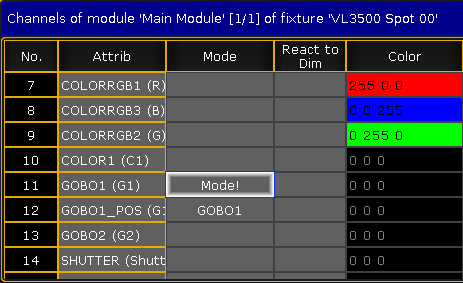 *Mode channel on a Gobo wheel* When the GOBO1\_POS attribute is edited, it is possible to set **Mode Start** and **Mode End** values. This will make the subattribute row active if the mode channel is in the set range. In the example below each of the three rows cover a range of the mode channel. If there where no mode ranges then these rows would cause errors because the DMX ranges are the same for each row. But since they are in different mode range then it is not an error. 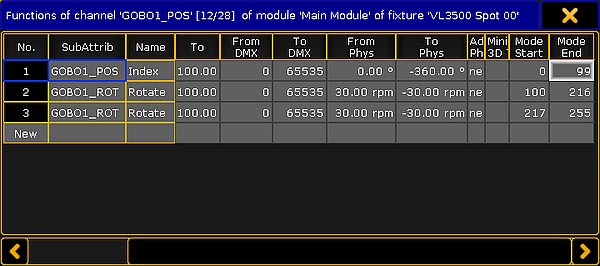 *Mode range set in Gobo Position attribute* In the VL3500 there are three line because the first is the index mode, the second is the rotation of the gobos, the last is the continuous rotation of the gobo wheel. ## []()Virtual Attributes [Section titled “Virtual Attributes”](#virtual-attributes) Virtual attributes can be added to a fixture by adding the attribute as normal but without giving the attribute any DMX numbers in the Coarse, Fine, or Ultra column in the [Module editor](#edit_module). Virtual attributes are often dimmer attributes that acts as virtual master intensity control in fixtures that do not have this attribute build in. It could be a LED fixture that only has Red, Green, and Blue attributes. LED fixtures like this fades the MixColor attributes (RGB) with cross fades. Most programmers prefer that the fixtures have the extra (virtual) intensity control. ## Subtopics [Section titled “Subtopics”](#subtopics) * [Module manager](/grandma2/key_adv_fixture_anatomy_modules/) * [Instance manager](/grandma2/key_adv_fixture_anatomy_instance/) * [Wheel manager](/grandma2/key_adv_fixture_anatomy_wheel/)
# Instance manager
> If you have arrived at this topic from a link without reading the previous topic, then please read Anatomy of a Fixture Type first.
If you have arrived at this topic from a link without reading the previous topic, then please read [Anatomy of a Fixture Type](/grandma2/key_adv_fixture_anatomy/) first. The **Instance Manager** is used to add and arrange existing **Modules** to the fixture. It could look like this: 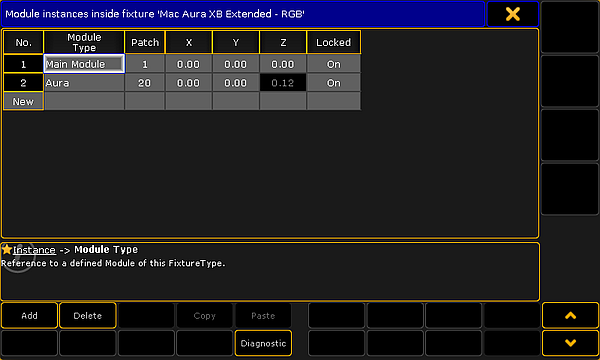 *Instance manager* There are buttons at the bottom to add or delete rows. The Diagnostics button opens a pop-up listing errors or warning regarding the instance setup. Each row is an instance of the modules. A simple fixture might only have one module and one instance. But if the fixture has multiple color control elements or LED pixels then there are often multiple instances. The instances need to be arranged physically between each other and there needs to be set a DMX start address offset. This is done by editing the columns in the instance manager. This is short description of the columns: * **No.**:\ This is an auto generated number for the row. It cannot be edited. * **Module Type**:\ Here the module is selected. Editing this cell opens a **Select DMX Module pop-up**. Here one of the modules can be selected and used for this instance. * **Patch**:\ This is the DMX address offset based on the fixture start address. Often each module start with no DMX address offset and then the instances have the offset. This makes it a lot easier to create one LED pixel module that can be used for multiple LED instances where the DMX offset is set based on the fixture documentation. * **X**, **Y**, and **Z**:\ The is the location of the instance in relation the center of the fixture. This is often used to position LED pixel instances in relation to each other. This is needed for correct visualization in MA 3D and in the Stage window. * **Locked**:\ Enable if instance should not be individually movable, but move together with the other instance, keeping the relative distance between them.
# Module manager
> If you have arrived at this topic from a link without reading the previous topic, then please read Anatomy of a Fixture Type first.
If you have arrived at this topic from a link without reading the previous topic, then please read [Anatomy of a Fixture Type](/grandma2/key_adv_fixture_anatomy/) first. All fixtures needs a minimum of one **Module**. Some fixtures have more than one. For instance a fixture that has one pan attribute but several tilt attributes (several small heads mounted on same yoke). Or more commonly one module with pan, tilt, zoom, master intensity, and other common functions and then another module for each LED pixel in a wash moving head. In the **Module Manager**, it is possible to edit the module information. The manager can be opened from the **Fixture Type Editor**. It could look like this: 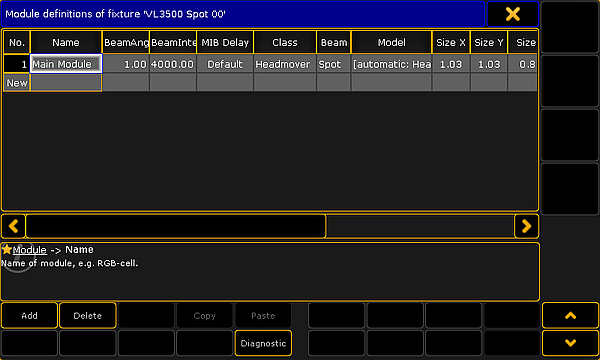 *Module manager* There are buttons at the bottom to add more modules or delete the existing ones. The Diagnostics button opens a pop-up listing errors or warnings for the modules. The module manager displays the different modules in rows and several columns are used to display and edit the module elements. Here is a short description of the columns: * **No.**:\ This is an auto generated number for the row. It cannot be edited. * **Name**:\ This is the name of the module. * **BeamAngle**:\ Here it is possible to set a static beam angle. If the fixture has a variable zoom, then it is best to set this value to “1” and defined the physical zoom degrees in the zoom attribute. * **BeamIntensity**:\ Here it is possible to set a lumen intensity. This value is used in MA 3D. * **MIB Delay**:\ The module can have a custom MIB delay value. The “Default” value will use the **MIB Delay** time defined in the **Playback & MIB Timing** settings in the **Setup**. Read more about MIB in the [Working with MIB topic](/grandma2/key_adv_seq_mib/). * **Class**:\ The **Class** describes the type of module. Editing this cell will open the **Select Class pop-up**. Please read more [below](#class). * **Beam**:\ The **Beam** option defines how the light beam is visualized in MA 3D. Editing the cell opens the **Select Beam pop-up**: 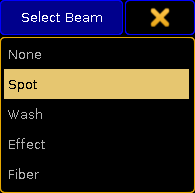 *Select Beam type* The options are: **None**, **Spot**, **Wash**, **Effect**, and **Fiber**. Be aware that the LED class does not display a beam - no matter what is selected in this option. Often it is only the **Spot** and **Wash** beam types that are used and visualized correctly in MA 3D. * **Model**:\ The model is the 3D model used in MA 3D. Editing this cell opens the **Model pop-up**. It list all the different 3D models in the show file. To read more about custom 3D models please read the [3D Modeling and Import topics](https://help.malighting.com/grandMA2/en/help/ma_3d/key_3d-modeling-and-import.html) in the MA 3D manual. * **Size X**, **Size Y**, **Size Z**, **Axis X**, **Axis Y**, and **Axis Z**:\ The size and the axis column describe the physical size of the fixture and where the movement axis are for the fixture. Editing one of these cells opens the **Body Description pop-up**. It looks different depending on the selected Class. Most classes do not have a body description and the cells are locked for editing. * **Local**:\ Setting this cell to On, will make this module be calculated locally. This should be used with great care. It is intended to be used for tracking systems. It might help if there is a small latency in the tracking system to have the Stage Marker fixtures calculated locally instead of distributed in the system. If local calculation is applied to many fixtures then it might have the reverse effect and actually add more latency. ## []()Module Classes [Section titled “Module Classes”](#module-classes) The **Class** is used to describe the type of fixture. It defines how it is visualized in MA 3D. The Select Class pop-up opens when the cell is edited in the module manager. 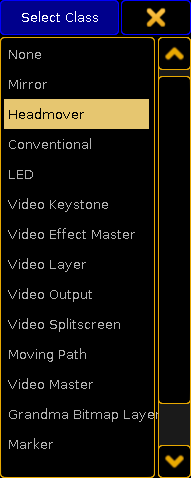 *Select Class* This is a show description of the different classes: * **None**:\ This class does not display any 3D models in MA 3D. * **Mirror**:\ This class is for moving mirror fixtures. The default 3D model type is a classic “scanner” model. * **Headmover**:\ This is a moving head or moving body fixture type. The default 3D model type is a classic “yoke” model. * **Conventional**:\ This is used for non moving fixtures. The default 3D model type is a classic “parcan” model. This might also be a useful class for non-moving LED fixtures where the beam is to be visualized in MA 3D and the Stage window. * **LED**:\ This class is used for non moving LED fixtures. There is no light beam from this class. It is a light emitting surface. The default 3D model type is a “box” model. * **Video Keystone**:\ This class is used by some media servers. There is no 3D model associated with the class. * **Video Effect Master**:\ This class is used by some media servers. There is no 3D model associated with the class. * **Video Layer**:\ This class is used by some media servers. There is no 3D model associated with the class. * **Video Output**:\ This class is used by some media servers. There is no 3D model associated with the class. * **Video Splitscreen**:\ This class is used by some media servers. There is no 3D model associated with the class. * **Moving Path**:\ The moving path class is used by the **Moving Path** fixtures from MA Lighting. They can be used to move other 3D elements in MA 3D. There is no 3D model associated with the class. * **Video Master**:\ This class is used by some media servers. There is no 3D model associated with the class. * **Grandma Bitmap Layer**:\ This class is used by the **Bitmap** fixture from MA Lighting. This virtual fixture can be used to apply values to other fixtures - Read more in the [Bitmap Fixture section](/grandma2/key_bitmapfixture/). There is no 3D model associated with the class. * **Marker**:\ This class is used by the **Stage Marker** fixtures from MA Lighting. These virtual fixtures can be used to move a marker around the 3D space. There is no 3D model associated with the class. * **Camera Controller**:\ This class is used by the **Camera Controller** fixture from MA Lighting. This virtual fixture can be used to move a camera around the 3D space. There is no 3D model associated with the class. * **Preset**:\ This class is used by the auto generated “Fixture Type” fixtures that appear in the Fixture Sheet and Channel Sheet. It should not be used by other fixtures.
# Wheel manager
> If you have arrived at this topic from a link without reading the previous topic, then please read Anatomy of a Fixture Type first.
If you have arrived at this topic from a link without reading the previous topic, then please read [Anatomy of a Fixture Type](/grandma2/key_adv_fixture_anatomy/) first. The **Wheel Manager** lists the different wheels for the fixture. It can be color wheels, gobo wheels, but also scrollers are defined as a wheel. The wheel manager could look like this: 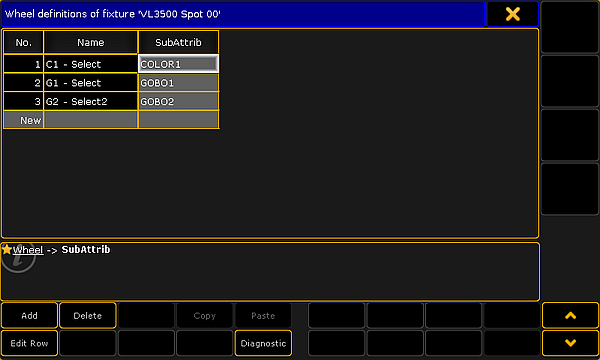 *Wheel manager* There are some buttons at the bottom that add or delete rows in the manager. The Diagnostic button will open a pop-up that list the errors and warnings for the selected row. The Edit Row button will open an editor where the selected wheel can be defined. Read more [below](#edit_wheel). Each row is a wheel. The wheels needs to be connected to a subattribute. This is also the only column that can be edited. The **No.** column auto generates a number for the row. The **Name** columns auto generates a name based in the selected subattribute. Editing the **SubAttrib** column opens the Select Subattribute pop-up. It lists all the defined subattributes. ## []()Editing wheels [Section titled “Editing wheels”](#editing-wheels) The wheels contain slots. These slots contain a color or a gobo. The editor could look like this: 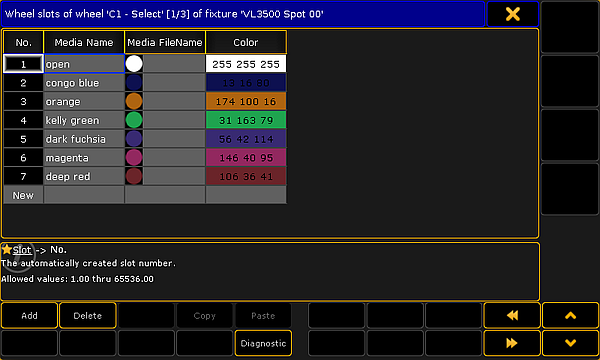 *Wheel editor* There are two buttons at the bottom that adds or delete rows or slots in the wheel. This is a short description of the columns in the editor: * **No.**:\ This is an auto generated number for the row. It cannot be edited. It is this number that is reference when editing the [Channel Sets](/grandma2/key_adv_fixture_anatomy/#edit_channelsets) as the **Slot** number. * **Media Name**:\ A name can be added to the row. This name is not used anywhere else. * **Media Filename**:\ This cell can be edited if a gobo image needs to be added. Editing this cell opens the **Open File pop-up** browser. It can be used to browse trough the folders and select an image. If a color is selected in the Color column, then a color image is auto generated. * **Color**:\ This cell can be edited to add a color to the slot. Editing this cell opens the **Select Color pop-up** where a color can be selected. Close the editor when the wheel is correct.
# Attribute & Encoder Grouping
> Full access to the Attribute and Encoder Grouping can be by pressing Setup -> Patch & Fixture Schedule -> Fixture Types -> Attribute & Encoder Grouping.
Full access to the Attribute and Encoder Grouping can be by pressing Setup -> Patch & Fixture Schedule -> Fixture Types -> Attribute & Encoder Grouping. It could look like this: 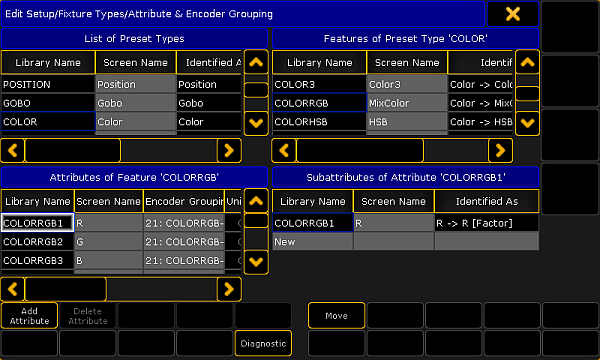 *Attribute & Encoder Grouping menu* This menu can do a lot of different things. The attribute part is connected to the structure in the console and it is one of the structures behind fixtures. ## Attribute Control [Section titled “Attribute Control”](#attribute-control) The menu is divided into four squares. Top left is the top level it is the **Preset Types**. Top right is the **Features** inside the selected preset type. Bottom left is the **Attributes** inside the selected feature. Bottom right is the **Subattribute** inside the selected attribute. Each of these four squares has rows and columns. Each row is an element in structure. Rows can be added or deleted, but be very careful since this is the structure all show data is base on. Especially deleting can remove stored data. Rows are added or deleted using the two buttons at the bottom. They change name depending on which square has focus. This help you keep an eye on where you are currently adding or deleting. An element cannot be deleted before there is no other elements inside it. So the lowest level needs to be deleted first. The two other buttons at the bottom can be used to open the Diagnostics pop-up listing errors or warnings regarding the selected element. The Move button can be used to move elements. An element can be moved within the selected parent element or it can be moved to a different parent element. Moving within the same parent element is fairly safe, but moving to another parent can be more serious. It is best to do this before starting to program values in the show file. There are three columns that are common for all four squares: * **Library Name**:\ This cannot be edited. It is an auto generated name. * **Screen Name**:\ This is the name used and displayed places where the preset, feature, attribute, or subattribute names can be seen. * **Identify As**:\ This is used internally by the system and cannot be edited. ### Preset Types [Section titled “Preset Types”](#preset-types) The preset types are the highest structural level regarding the attributes and the control of fixtures. When something is added to the fixture schedule, then there is automatically created 10 different preset types. Depending on the functions of the fixtures patched and the current world they can be visible in the [Preset Control Bar](/grandma2/key_ws_preset_control_bar/) present most of the time on screen 2. \*\*[]()\*\*There is a special column in the preset type. It is called **Default Scope**. Each preset type has a default scope to be used when storing values in the preset pools. Read more about it in the [Preset Pool Options](/grandma2/key_presets_pool_options/). ### Features [Section titled “Features”](#features) In each preset type there is at least one feature. The features are visible most of the time in the [Encoder Toolbar](/grandma2/key_ws_encoder_toolbar/). There are no special columns in the feature. ### Attributes [Section titled “Attributes”](#attributes) In each feature there is at least one attribute. The attributes are often controllable and visible at the bottom of the [Encoder Toolbar](/grandma2/key_ws_encoder_toolbar/). The values can often be changed using the four encoders below screen 2. There are several special columns in the attributes. **[]()Encoder Grouping** Encoder grouping is used to activate the values of other attributes if a single attribute becomes active in the programmer. For instance when the pan attribute is activated, the Tilt is also activated in the programmer. There are are several grouped encoders (attributes) defined from the factory. They can be modified and new ones can be made. Editing the cell opens the **Select Group pop-up** that lists all the existing groups. The listing shows the encoder group number and the attributes in the group. At the top of the list is a **\[No Group]** option. Choosing this removes the attribute from any groups. At the bottom of the list is a **\[New Group]** option. Choosing this adds a new group with the selected attribute in it. An attribute can only be in one encoder grouping. If a group does not have any attributes, then the group disappears. Attributes can be grouped across features. For instance the gobo attributes can be grouped with the focus attribute. **[]()Encoder Resolution** Each attribute can have a default encoder resolution. The resolution can always be changed when needed. Changing the resolution in the [Encoder Toolbar](/grandma2/key_ws_encoder_toolbar/) or the [Encoder Settings](/grandma2/key_ws_encoder_settings/#adjust_encoder_resolution) will also change this default setting. Editing the cell opens the Select Encoder Resolution pop-up. It looks like this: 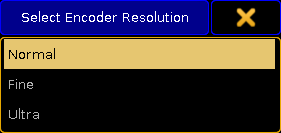 *Select encoder resolution* Read more about the resolution in the encoder settings - link above. **Universal** This cannot be edited. Universal presets only works as real Universal preset for attributes with this column switch on. When it is empty then Universal presets will act like Global presets. **Color** The **MixColor** (COLORRGB) attributes have a color defined as the color of the LED. This color can be edited here. ### Subattributes [Section titled “Subattributes”](#subattributes) Every attribute needs at least one subattribute. Some have more than one. For instance a gobo wheel might have a selection subattribute and a rotation subattribute.
# Advanced Sequence Functionality
> The following sub topics describes some of the more advanced functions regarding sequences. It is good idea to have a look at the Cues and Sequence section befo
The following sub topics describes some of the more advanced functions regarding sequences. It is good idea to have a look at the [Cues and Sequence section](/grandma2/key_cues_and_sequences/) before reading these topics. ## Subtopics [Section titled “Subtopics”](#subtopics) * [Using different view sets in the sheets](/grandma2/key_adv_seq_view_sets/) * [Working with MIB](/grandma2/key_adv_seq_mib/) * [Using cue modes](/grandma2/key_adv_seq_cue_modes/) * [Cue zero](/grandma2/key_adv_seq_cue_zero/) * [Sequence info window](/grandma2/key_adv_seq_info/) * [Looping cues](/grandma2/key_adv_seq_loop/) * [Cue path](/grandma2/key_adv_seq_cue_path/)
# Using cue modes
> Each cue has a mode that can be changed in the Sequence Executor Sheet.
Each cue has a mode that can be changed in the [Sequence Executor Sheet](/grandma2/key_cs_cue_sequence/). The cells in the Mode column can be edited. Doing so will open the small Select Mode pop-up. It looks like this: 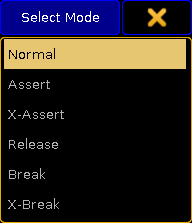 *Small Select Mode pop-up* The pop-up allows for the following modes: * **Normal**:\ This is the default mode. It does not do anything special. * **Assert**:\ This will force attributes to the current tracking status using the basic timing of the cue the tracking status is coming from. * **X-Assert**:\ This will force attributes to the current tracking status using the basic timing of the current called cue. * **Release**:\ Turns off the executor when the fade is complete. * **Break**:\ Will create a tracking break (stops tracked values) and performs an Assert. * **X-Break**:\ Will create a tracking break (stops tracked values) and performs a X-Assert. ## Example and Explenation [Section titled “Example and Explenation”](#example-and-explenation) In a tracking sequence, the content of a cue represent the changes happening in that cue. Any unchanged values will track from earlier cues, and the state - the actual look - of the cue is a combination of what has happened earlier and what is happening in the cue. This tracking philosophy works similar to how the staging, set design and any props may be handled. Cue 1: Place sofa on stage left. Cue 2: Actor 1 enters from rear. Cue 3: Actor 2 enters from left and gets seated. Cue 4: Actor 1 exits stage right. Even though Cue 3 only tells us that Actor 2 will be in the sofa, when we are in Cue 3, we also have the sofa and Actor 1 on stage. Unless we take out the sofa, it will stay on stage. In some scenarios, you may want this tracking behavior to stop. When starting the second act, you do not want any additional props added to first act to stay on the stage, just because you did not tell the stage crew to carry these out when you originally created the look of the first cue of second act. You want this tracking behavior to **Break**. The Break mode of a cue will make sure that any later addition or changes in **earlier** cues is reverted back to its original state in the break cue, similar to how a Cue Only store would work for the next cue. **Hint:**\ A **Break** is indicated in both [Sequence Executor Sheet](/grandma2/key_cs_cue_sequence/) and [Sequence Tracking Sheet](/grandma2/key_cs_cue_content/) with a white line above the cue. By default when calling a cue with a normal “Go”, only the content of the cue is called, not the tracking state. If you are only using one executor/playback this behavior is irrelevant, however if you have other executors that might have overwritten the state of the fixtures, you might in some scenarios want the called cue to also call the tracking state. This may be achieved with the cue mode **Assert**. Assert will call the state of the sequence, by using the basic cue timing from where the value is stored. This will affect any ongoing fades (for example a 30 minutes sunset still on its way out). In other scenarios, you might want to re-establish the state, and assert the sequence, but terminate any ongoing fades. The cue mode **X-Assert** will fade to the current tracking state - with the timing of the currently called cue. This may be used if you for instance want to make sure that your zero second Blackout Cue is cutting to black, even if you have to run the cue earlier than usual and the sunset has not yet finished. The **Release** mode might come in handy in shows where there is a lot of sequences that run through once and then turn off - until it is re-triggered. This could be a flash sequence being triggered by the main sequence. Instead of manually programming the sequence to turn Off, then it can be done automatically.
# Cue path
> Each cue and cue part can have a path assigned. It is done in the Sequence Executor Sheet, where there is a Path column.
Each cue and cue part can have a path assigned. It is done in the [Sequence Executor Sheet](/grandma2/key_cs_cue_sequence/), where there is a **Path** column. The path is used by attributes fading from a value and into the value stored in the cue where the path is assigned. The path defines the transition form/path. Editing a cell in this column will open a **Select Fade Path pop-up** like this: 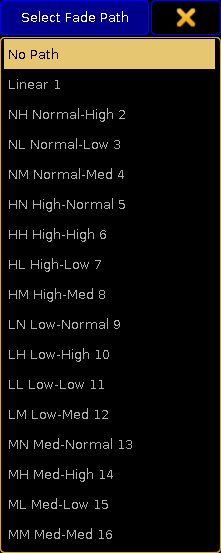 *Select Fade Path pop-up* This lists the predefined fade paths including the **No Path** option. Most of the paths in this list only exist as fade paths. They cannot be imported or edited. Read below for a description of the predefined paths for cues and cue parts. The path is assigned different than most other elements. This is because the fade path is an object that is assigned to a different object. Use the following syntax: Assign Fadepath \[path number] (At) Cue \[cue number] (Part \[par number] ) Once a fade path is assigned to a cue, then it cannot be removed. Assigning the **Linear** path will give the same result as not having a path defined. Custom paths can be made in the [DMX Profiles Graph Editor](/grandma2/key_dmx_profiles/). If there are customs paths, then they will appear at the bottom of the **Select Fade Path pop-up**. *** ## []()Predefined Fade Paths [Section titled “Predefined Fade Paths”](#predefined-fade-paths) There are some predefined paths in the pop-up pictured above. The **No Path** option is actually not a path but selecting this will remove any path assigned to the cue or cue part. The **Linear** path is the same as not having a path assigned. This path can be assigned using the command line. This means that it can be used to replace any other paths. There are four different forms. Each form can be at the beginning at the fade and at the ending of the fade. Resulting in the list of combination in the predefined fade path pop-up. The beginning of the path defines the acceleration of the fade. The end of the path is the de-acceleration of the fade. The **Normal** form is the same as linear. Having this at either end will not add any softening of the fade. The **Low** form offers the lowest or slowest acceleration/de-acceleration. The **Mid** form is between the Low and High forms. The **High** form offers the highest or fastest acceleration/de-acceleration. It is still a softening of the fade compared to the linear path. The following picture displays four different paths for comparison. They might not be completely correct but is exaggerated to make the differences more visible. The white path is the **Linear** path - this is the same as having the Normal form at both the beginning and the ending. The blue path is the **High-High** path. The green path is the **Mid-Mid** path. Finally the red path is the **Low-Low** path. 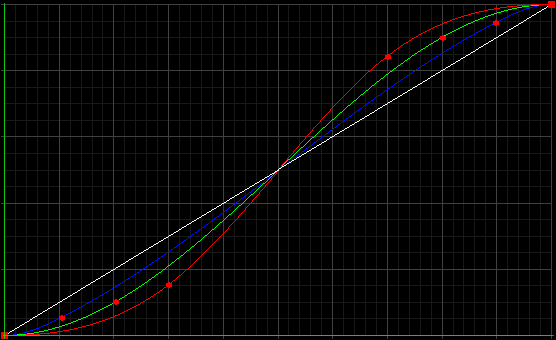 *Four paths for comparison* The vertical axis is the fade time. The horizontal axis describes the fade from one value to the next.
# Cue zero
> Cue Zero is an automatically created cue containing a link to default values of attributes. Cue Zero cannot be modified manually. A sequence with activated Cue
Cue Zero is an automatically created cue containing a link to default values of attributes. Cue Zero cannot be modified manually. A sequence with activated Cue Zero will start at the first cue after Cue Zero. This cue provides default values when starting the sequence and provides the missing default data when moving or copying cues. Cue Zero is only available in sequences where [Tracking](/grandma2/key_cs_what_is_tracking/) is activated and there needs to be more than one cue. The settings are all made in the **Assign Menu**. This can be opened by pressing the Assign key followed by one of the keys associated with the executor you want to change. In the Assign Menu please tap the Options button on the right side of the menu. This is the options we will be looking at in this topic: 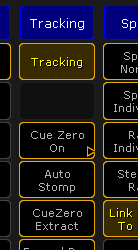 *Cue Zero options in the Assign Menu* Tapping the Cue Zero button will open a small **Select Cue Zero Mode pop-up** like this: 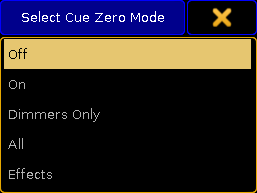 *Select Cue Zero Mode pop-up* This pop-up offers the following options: * **Off**:\ Cue Zero is turned off and cue zero is not created - if cue zero exist, then it is removed. * **On**:\ Cue zero will be created and will contain default values for all attributes used by this sequence. * **Dimmers Only**:\ Cue zero will be created and will contain default values for dimmer attributes only. * **All**:\ Cue zero will be created and will contain default values for all attributes of fixtures that have any of its attributes stored in the sequence. * **Effects**:\ This is like the On option with the addition of a Stomp is added to cue zero for each attribute stored in any cue of the related sequence. **Restriction:**\ Activating Cue Zero will hide the **Release Firststep** option - except for the **Dimmers Only** option. When Cue Zero is activated, then it will appear in Sequence Executor Sheets. It could look like this: 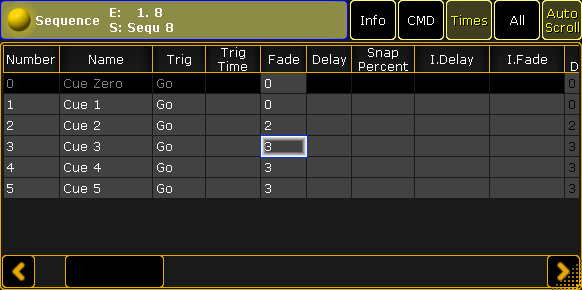 *Sequence Executor Sheet - Cue Zero On* The cue is locked and cannot the called or edited. Activating the first cue in the sequence will not activate Cue Zero but the first cue made by a user (cue number 1 in the image above). The only thing that can be edited in the Cue Zero is the timing. These timings will be used for example when GoBack, with option **cuetiming**, is used to fade from a values or effect value back to values tracking from cue zero. Cue Zero timing is also used when using **Autostomp** setting of executors. ## CueZero Extract [Section titled “CueZero Extract”](#cuezero-extract) When Cue Zero is activated then it is possible to activate **CueZero Extract**. When Extract is not activated then cue zero creates **links** to default values of the attributes. This means that if the default values is changed after the cue is created then Cue Zero will use the new default values without any need to update the sequence. When CueZero Extract is activated then, Cue Zero will get the actual default values when CueZero Extract or Cue Zero is activated and when new attributes are added. It is not a link to the default values, but the actual default value. This means that changing the default values afterwards will not change the look of the sequence. Deactivating CueZero Extract (or Cue Zero) and activating it again will store the new defaults.
# Sequence info window
> Cues can have an info text. This text can be multi line.
Cues can have an info text. This text can be multi line. The first line can be visible in the Sequence Executor Sheet, but the next lines cannot be seen. The Sequence Info window displays all the cue info text in one window in an easy to read overview. The window can be created using the [Create Basic Windows pop-up](/grandma2/key_windows/) and is found in the “Other” tab. It could look like this: 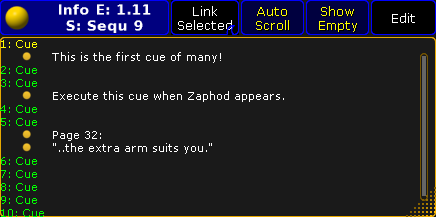 *Sequence Info window* The title bar shows the number of the executor and the sequence name and number, of the currently displayed info. Each line of information has a yellow ball next the info text. The title bar also has four buttons that changes the main part of the window. * **Link**:\ This swipe button offers two options. **Link Last Go** or **Link Selected**. This determine what sequences info the window displays. * **Auto Scroll**:\ The active cue will have a yellow cue number and name - other cues have a green text color. In long sequences it might be nice to activate Auto Scroll. Then the window will automatically scroll the list so the active cue is always visible. * **Show Empty**:\ This allows the option to show or hide cues, in the list, that does not have any information. * **Edit**:\ When **Edit** is active, then all cues got a small yellow ball. Tapping the small white dot next the yellow ball will open the **Edit Info pop-up** - see more about editing cue info below. Opening the Options for this window give the option to change the font size of the Info window. ## []()Editing the Cue info [Section titled “Editing the Cue info”](#editing-the-cue-info) The cue information can be edited by editing the Info cell in the [Sequence Executor Sheet](/grandma2/key_cs_cue_sequence/) or Edit Mode can be activated in this Sequence Info Window. Editing the info will open the Edit Info pop-up. It could look like this: 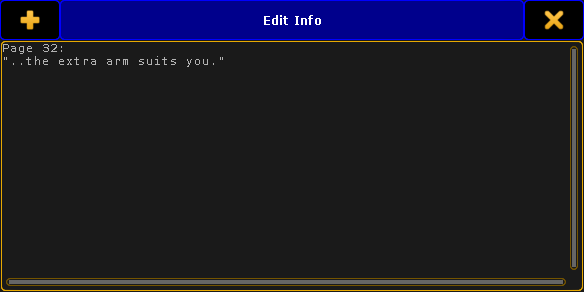 *Edit Info pop-up* Here it is possible to write multiple line of information. Pressing Enter/Please will close the pop-up. To add multiple lines it is necessary to press and hold shift while pressing Enter/Please.
# Looping cues
> Cues can be looped. They can loop indefinitely or loops can be limited by time or number of loops.
Cues can be looped. They can loop indefinitely or loops can be limited by time or number of loops. In the [Sequence Executor Sheet](/grandma2/key_cs_cue_sequence/) there are three columns that control looping. They are: **Loop**, **Ltime**, and **Lcount**. Editing a cell in the Loop column will open a Select Loop Destination pop-up. It could look like this (if you have five cues): 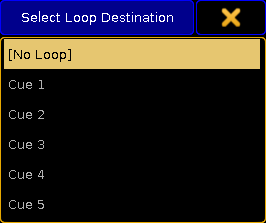 *Select Loop Destination pop-up* Here it is possible to select the cue that should be looped to next. It is possible to loop to a cue that has a higher cue number that the cue where you set the loop. This will result in jumping ahead in the cue list. The **\[No Loop]** option removes any loop information. If loops are assigned using the command line then setting the loop value to **none** will remove the loop. If the selected cue is before the cue where the loop is set, then it will jump back to the previous cue. Then the next trigger will activate the loop and jump. When a loop is active, then the frame around the active cue is changed from yellow to magenta. It could look like this: 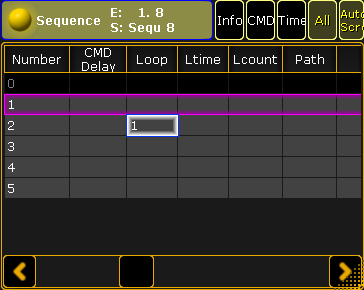 *Sequence Executor Sheet - Active loop* If nothing is defined in the Ltime and Lcount cells with the loop number, then it will loop indefinitely. The **Ltime** allows you to set a time where the loop should be active. The time will start a count down when the loop is activated the first time. When the time reaches 0 then the looping is disabled and the next trigger will run the cue **after the cue where the loop is defined** - no matter what the current active cue is. In the example above it would run cue 3 as the next cue. The **Lcount** allows you to set a number of times the loop should happen. The count will start when the loop is activated the first time. The the count reaches 1 and the looping triggering cue is reached then it will loop one final time and passing the cue again will disable the loop and continue with the following cue. If both an Ltime and Lcount is set then it is the one that first reaches 0 that defines when the loop is disabled. Editing the Ltime and Lcount cell will open the Calculator. This is where you type the time or count number. There is also an option to select **Indefinite** - this will remove the value. If command line is used to set the Ltime and Lcount, then assigning **-1** will remove the value. ## Loop BreakingGo [Section titled “Loop BreakingGo”](#loop-breakinggo) The Executors have an options called **Loop BreakingGo**. It can be found in the Options page of the Assign Menu - read more about it in the [Executor Options topic](/grandma2/key_adv_exec_options/). When this is active, then a Go or Goto command will overrule the looping function and the cue after the loop will be called. All other triggers will keep the loop running. This can be a nice function for rehearsals or situations where you need the loop running until the executor is triggered again.
# Working with MIB
> This topic is about some of the details concerning MIB (Move In Black). The What is MIB topic might be a good place to start if MIB is new to you.
This topic is about some of the details concerning MIB (Move In Black). The [What is MIB topic](/grandma2/key_cs_what_is_mib/) might be a good place to start if MIB is new to you. ## MIB values [Section titled “MIB values”](#mib-values) The MIB value is assigned in the MIB column in the [Sequence Executor Sheet](/grandma2/key_cs_cue_sequence/). An asterisk ”\*” in the MIB cell indicates that a cue is capable of MIB, but no MIB value is given. A MIB value in red, indicates that a MIB value is given, but the cue is not capable to MIB. “MIB capability” is defined as a cue with one or more fixtures with dimmer-value above zero, and previous state of dimmer-value not above zero (= fixture is fading up) - and one or more other additional attributes (= something to preposition). Editing the MIB cell, will open a pop-up like this: 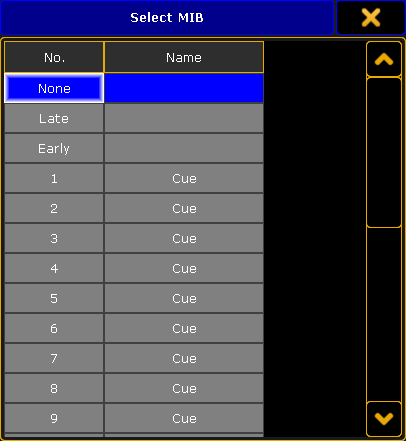 *Select MIB pop-up* This provide three options at the top, and then a list of all the previous cues. This list of cues only displays the cues that are before the cue being edited. There are more options than this pop-up displays. This is a complete list: * **None** / **Off** / **O** (the letter “o” - not number) :\ Same as no value, do not preposition. * **Late** / **L** :\ Same as the numeric value “-1”, preposition 1.000 Cue-numbers before. * **Early** / **E :**\ Same as numeric value “0” (zero), preposition as early as possible. * **\[x.xxx] :**\ Preposition from Cue number x.xxx. * **-\[x.xxx] :**\ Preposition x.xxx Cue-numbers before. This option can only be set using the command line - keep reading. ## Setting MIB via Command line [Section titled “Setting MIB via Command line”](#setting-mib-via-command-line) MIB is a property of cues and its value may be assigned with standard syntax: \[Channel]> Assign Cue /MIB=late Assign MIB value “Late” to current cue and all its parts. \[Channel]> Assign Cue 101 /MIB=99 Assign cue 99 as MIB value for cue 101. \[Channel]> Assign Cue 1 Thru 10 / MIB=Off Removes MIB from Cue 1 thru 10. \[Channel]> Assign Cue 15 / MIB=-4 Assign MIB value “-4” to cue 15. This will make the prepositioning to cue 15 happen in cue 11 - assuming cue 11 through 15 exist. A useful MIB macro could be something like this: Assign Cue /mib=off SetVar $mibvalue=(“Please enter MIB”) Assign Cue /mib=$mibvalue Pressing the macro and the Please key, will disable MIB for the current cue, while pressing the macro, then a number followed by Please, will set the MIB value for the current cue. ## MIB timing [Section titled “MIB timing”](#mib-timing) MIB uses two general time settings: **MIB Delay** and **MIB Fade**. **MIB Delay** is the time to wait from a fixture have faded out until it starts to MIB, while **MIB fade** is the actual time used to preposition. Increasing MIB Delay may be useful for fixtures with slow dimmer or afterglow. Increasing MIB Fade may be useful for noisy fixtures, or if the movement of the fixture body is visually disturbing for the audience. These two settings can be found in Setup -> Show -> Playback MIB Timing. In addition to the general MIB timing, it is also possible via the **Fixture Types Editor** to set individual MIB Fade and it is possible to disable MIB per Attribute per Fixture Type. It is also possible to disable MIB for each fixture. This can be set in the **Fixture Editor pop-up**. It is possible to set a MIB Delay for each “module definition” per Fixture Type. ## MIB feedback [Section titled “MIB feedback”](#mib-feedback) When MIB Delay is active, or MIB is “put on hold” the backlight of the executor keys will blink fast. When MIB Fade is active (fixtures are moving to preposition), the backlight of the executor keys will blink slowly Attributes which have positioned using MIB will be displayed in the ExecutorID and SequenceID layer of the Fixture Sheet with a slightly paler shade of the usual background color (green for selected Executor, yellow for others), to indicate that the source of the value is from a future cue. Please read more about the colors in the [System Colors topic](/grandma2/key_ws_colors_system/). ## Pitfalls [Section titled “Pitfalls”](#pitfalls) When using MIB, the desk is not only tracking values from earlier cues, it is also tracking forward and outputting values from future, non-executed cues. This is sort of “Back to the Future”, with dilemmas you find in time-travel-theory. Looking at the example above the fixture is turned on in cue 1 in a blue color, then it turns off in cue 2. In cue 4 it is back on in a red color. As we do not want to see the scroll to red in cue 4, we mark this cue as MIB Early. * everything is fine, fixture 1 preposition after fading out in cue 2 Now we might be in cue 2.5 and want to make some changes… * We turn On fixture 1, - it is red - looks good * update the cue using Cue Only Next time we play back the sequence, cue 2.5 does not look the same! Last time we played back the sequence, fixture 1 was red because it had prepositioned to cue 4, however as it is now used in cue 2.5 it cannot preposition until after the fade out in cue 3. Thus is will be blue when it is faded up in cue 2.5. These issues may be minimized by not prepositioning too early, or by activating “MIB Never” in the Executor options, if you are to make major changes to your cues - Executor Options are described in the [Executor Options topic](/grandma2/key_adv_exec_options/).
# Using different view sets in the sheets
> Most of the Sheets have the option to add "Sets" title bar buttons.
Most of the Sheets have the option to add “Sets” title bar buttons. For the [Channel Sheet](/grandma2/key_of_channel_sheet/), [Fixture Sheet](/grandma2/key_of_fixture_sheet/), [Sequence Content Sheet](/grandma2/key_cs_cue_content/#content_sheet), [Sequence Tracking Sheet](/grandma2/key_cs_cue_content/#tracking_sheet) they offer fast access to masks - please read the [Use Masks in the Sheets topic](/grandma2/key_wfm_use_masks/) for more details on this. The [Sequence Executor Sheet](/grandma2/key_cs_cue_sequence/) is different. It has 5 Sets that can be accessed as [Title Buttons](/grandma2/key_of_sheet_options_title_buttons/). In an empty Sequence Executor Sheet with only the Set button visible it could look like this:  *Sequence Executor Sheet with Set buttons* The sets are used to hide columns in the sheet. This allows for each user to create five different sets, per saved view, of different column arrangements. Each column can be changed in width and columns can be moved around by simply pressing the title and while pressing the screen moving the column to the new location. ## Editing the Sets [Section titled “Editing the Sets”](#editing-the-sets) Pressing the Edit key followed by one of the set buttons, or use any other way of editing, will open a pop-up like this: 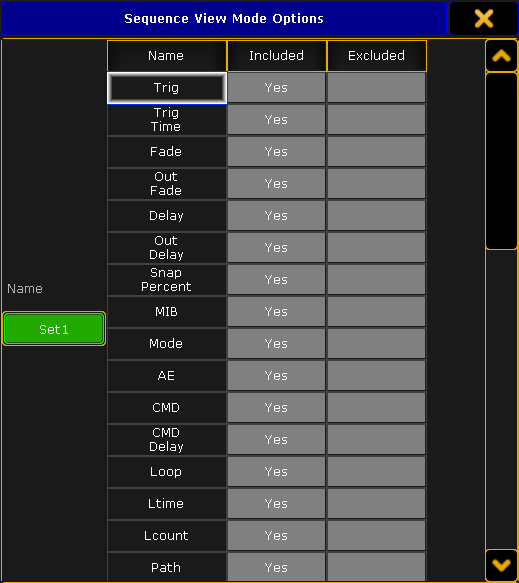 *Sequence View Mode Options pop-up* In this pop-up it is possible to give the Set button a name. Tap the green input field on the left side and type a new name in the pop-up that opens. There are three columns in the pop-up. The left column is called “Name” this is the name of the column in the Sequence Executor Sheet. The middle column is called “Included” and the right column is called “Excluded”. If a column is to be included in the set, then the “Yes” needs to be in the “Included” column. If it is not to be in the set then the “Yes” needs to be moved to the “Excluded” column. The “Yes” is moved by editing (right clicking with a mouse or trackball might be easiest) the cell where the “Yes” should be. With the mouse or a lasso marking it is possible to select several cells at the same time, and editing them all will move the “Yes”. **Important:**\ Remember to save your view after editing the Set Buttons - otherwise the changes are lost next time a view is recalled.
# Advanced Fixture Types
> This section provides detailed information about the fixture types also called fixture profiles.
This section provides detailed information about the fixture types also called fixture profiles. The first topics are about the **Fixture Type Editor** and it also describes the [Anatomy of Fixture Types](/grandma2/key_adv_fixture_anatomy/). A very important part of the structure, not only in fixtures, but in the entire show is the setup and arrangement of the Preset Types, Features, Attributes, and Subattributes. This is all arranged in the [Attribute & Encoder Grouping](/grandma2/key_adv_fixture_attribute_encoder_grouping/) menu. ## Subtopics [Section titled “Subtopics”](#subtopics) * [Anatomy of a fixture type](/grandma2/key_adv_fixture_anatomy/) * [Attribute & Encoder Grouping](/grandma2/key_adv_fixture_attribute_encoder_grouping/)
# Agenda
> Use the Agenda to execute scheduled commands on the console, according to the calendar.
Use the Agenda to execute scheduled commands on the console, according to the calendar. * [What is agenda](/grandma2/key_agenda_what_is/) * [Create an appointment in the agenda](/grandma2/key_agenda_create_appointment/) ## Subtopics [Section titled “Subtopics”](#subtopics) * [What is agenda](/grandma2/key_agenda_what_is/) * [Create an appointment in the agenda](/grandma2/key_agenda_create_appointment/)
# Create an appointment in the agenda
> To create an appointment in the agenda, tap on a date in the Agenda window. To get to the Agenda window, see the What is agenda topic.
To create an appointment in the agenda, tap on a date in the Agenda window. To get to the **Agenda window**, see the [What is agenda](/grandma2/key_agenda_what_is/) topic. The Agenda window will now change, and it could look like this: 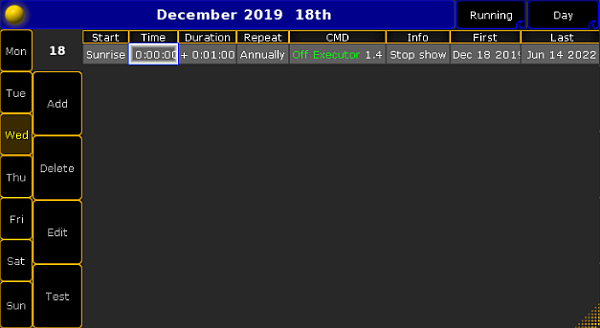 *Agenda appointment window* In the left side of the window, 4 new buttons become visible: * Add - will add a new appointment to the schedule * Delete - will delete the highlighted appointment * Edit - will edit the highlighted appointment * Test - will test the CMD in the highlighted appointment When adding a new appointment, it is possible to fill in 8 fields. Tap on the fields to edit them. ## Start [Section titled “Start”](#start) The field Start handles what time the appointment should start. This could be at an exact time (Absolute) or it could be set to Dawn, Sunrise, Sunset or Dusk according to the time and place the console is set to. For more information about time and place, see the [Date & time](/grandma2/key_date_time/) topic. ## Time [Section titled “Time”](#time) If the Start field is set to Absolute, then it is possible to enter a specific time for the appointment by using the Calculator in the Time field. ## Duration [Section titled “Duration”](#duration) The Duration field will manage how long time the appointment is active. For most commands, this is not relevant. It has to be at least 1 second. Hint:\ It is not possible to make a duration on a flash button. It will take a Flash Off command to turn it off. ## Repeat [Section titled “Repeat”](#repeat) This field will manage how often the appointment will be repeated. Tap on the field and a pop-up will appear with different options: 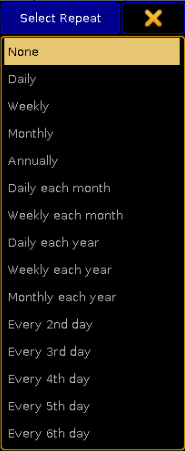 *Repeat options* Select the interval you need. CMD This is the command that will be executed for this appointment. For more information about commands and keywords, see the [Command Syntax and Keywords](/grandma2/key_command_syntax_and_keywords/) topic. ## Info [Section titled “Info”](#info) This field is free to use for information about the appointment. It has no relevance for the appointment, but can be used to remember what it will execute. ## First [Section titled “First”](#first) This is the first day the appointment will be executed. ## Last [Section titled “Last”](#last) This is the last day the appointment will be executed. ## Encoderbar [Section titled “Encoderbar”](#encoderbar) When starting an appointment, the encoderbar will change.  *Agenda encoderbar* Here it is possible to navigate in the calendar by using the encoders. ## Yellow Ball [Section titled “Yellow Ball”](#yellow-ball) Tap the yellow ball in the upper left corner to get a list of all scheduled appointments.
# What is agenda
> The agenda is a tool to execute commands according to a calendar. This could be on a specific day and time or every sunset for example.
The agenda is a tool to execute commands according to a calendar. This could be on a specific day and time or every sunset for example. To access the \*\*Agenda \*\*window, tap on an empty part of a screen. This must be at least 6 columns wide and 4 rows high. Tap Other and then Agenda. This will open the Agenda window. 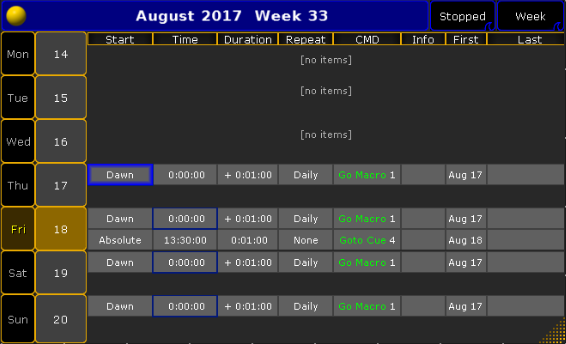 *Agenda window* This is a calendar that contains all the scheduled appointments. By default it displays the calendar by weeks. This can be changed by tapping on Week in the upper right corner. Then it will shuffle by month, year, day and week. ## Start or stop the Agenda [Section titled “Start or stop the Agenda”](#start-or-stop-the-agenda) To start the agenda, tap Stopped in the upper right corner. To stop the agenda, tap the button again. To create an appointment, see the [Create an appointment in the agenda](/grandma2/key_agenda_create_appointment/) topic
# Using the Backup Menu
> The Backup Menu is where show files are managed. It is also here shows are saves and loaded.
The Backup Menu is where show files are managed. It is also here shows are saves and loaded. ## What is show file management [Section titled “What is show file management”](#what-is-show-file-management) Show file management is the handling of show files. Shows can be saved internally in the console, and there is also the option to save on USB sticks and file servers. Being able to save the show and load it again is a vital part of modern lighting consoles. Show files can also be deleted to make more room on the hard drive or just to clean the console. A show file can only be moved forward. A show saved on a USB stick that was programmed in a previous version can be loaded in a newer version. If the show is then re-saved on the stick in this new version, then it cannot be taken back to the old software. If this is important then it is needed to load the show and save it with a new name. Then the old version is not saved as the new version and it can still be accessed by an older version. ## Show file content [Section titled “Show file content”](#show-file-content) The show files contain all the data needed to run the show. This includes all the Users and User Profiles in the show. It also contains any 3D models that are used in MA 3D. If MA VPUs (= Video Processing Unit) are used, then the programming of the MA VPU is of cause store in the show, but the Media Files are not. Make sure they are backed up on an external device - just in case. ## The backup menu and the different tabs [Section titled “The backup menu and the different tabs”](#the-backup-menu-and-the-different-tabs) The Backup Menu can be opened by pressing the Backup key or using the dedicated command: \[Channel]> Menu “Backup” The Backup Menu is organized in two section. The top section is for manual show file management. The bottom part is the Backup Options. This is what it could look like: 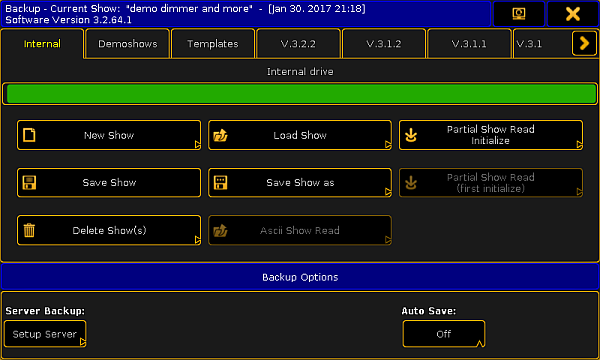 *Backup Menu* The top part have a title bar that shows the file name and saved date of the current show. It also shows the current software version. There is also the button that can be used to move the menu to a different screen and finally the button to close the menu. Below this there are different tabs. There is always minimum three called “Internal”, “Demoshows” and “Templates”. There might be more. Each software version installed will have its own tab. This allows the option to load a show from a previous version. It is not possible to save a show from a newer software version in one of the tabs from previous versions. If a USB stick is connect to the console/onPC, then it will get its own tab. Select this tab will change the default storage drive to the USB stick. Read the [Using a USB stick](/grandma2/key_backup_menu_usb_stick/) to learn more about specific USB stick handling. If a file server is added to the system, then this will also get its own tab. This tab can be selected to save or load shows using the storage space on the server. Read the [Setting up a file server](/grandma2/key_backup_menu_file_server/) to learn more about server setup. The selected tab is then the selected “drive” and the location where shows will be saved. The selected drive can also be selected using the command line - it is a command called SelectDrive or just SD - read more about it [here](/grandma2/key_keyword_selectdrive/). ### Internal [Section titled “Internal”](#internal) This tab is the hard drive in the console or onPC. If you are working on an onPC solution, then the SelectDrive command can be used without setting a drive number to see the storage location in the computer. The internal drive can do everything except ASCII Show Read. If the console is updated then the current Internal tab is made a tab with the version number. A full install that formats the drive will delete all show files and remove all previous version tabs. ### Demoshows [Section titled “Demoshows”](#demoshows) The demo show tab is a read only tab. It is only possible to load shows from the demo tab. It is possible to do a Partial Show Read from the shows in this folder. If the console is updated, then the shows in this folder will be overwritten. ### Templates [Section titled “Templates”](#templates) The templates tab functions as the Demoshows with the exception that updating the console software will not overwrite the shows in the tab. A format and install still deletes the shows in this tab! The idea behind this tab is that a place that have basically the same rig but do many shows, can copy a show with the patch and basic setup in this folder. This can then be loaded and stored as a new show in the Internal tab. Thus protecting the basic show from accidental changes. It is only possible to copy the shows into this tab using a [FTP connection](/grandma2/key_network_ftp/). ### Server tab [Section titled “Server tab”](#server-tab) If a working connection is set up to a file server, then an extra tab with the defined name will appear. This functions as the internal tab. This tab is only visible on the console that is the master in the session. grandMA2 onPC as Master does not support server backup Read [here](/grandma2/key_backup_menu_file_server/) for more about setting up a File Server. ### USB tabs [Section titled “USB tabs”](#usb-tabs) When a compatible USB stick is connected, then it gets its own tab named after the name of the USB stick. It works as the internal tab with the addition that it is possible to do an ASCII Show Read. Doing a Quick Save will store the show on the USB stick **and** on the Internal drive. Read [here ](/grandma2/key_backup_menu_usb_stick/)for more info about USB sticks and what advice and restrictions there might be. ### Version tabs [Section titled “Version tabs”](#version-tabs) Previous versions installed on the console or computer will have their own tab. Shows can be loaded and delete in these tabs. ## Backup Options [Section titled “Backup Options”](#backup-options) The backup options allows access to setup a file server and activate Auto Save. The server setup can be complicated, so it has it own help topic - please read about it [here](/grandma2/key_backup_menu_file_server/). ### Auto Save [Section titled “Auto Save”](#auto-save) Auto Save can be set up to automatically store show file after a certain amount of time. The default setting is “Off”. The other options are 15, 30, 60 and 120 minutes. If auto save is activated - by selecting a time interval - then a count down can be seen next to the label. When the count down reaches Zero, then it will save the show on the selected drive/tab. If a tab is selected that does not allow for saving, then it will save in the Internal drive. Read the following pages to read about the different operations that can be done in the tabs. ## Subtopics [Section titled “Subtopics”](#subtopics) * [New show](/grandma2/key_backup_menu_new_show/) * [Load show](/grandma2/key_backup_menu_load_show/) * [Save show](/grandma2/key_backup_menu_save_show/) * [Save show as…](/grandma2/key_backup_menu_save_show_as/) * [Delete shows](/grandma2/key_backup_menu_delete_show/) * [Using a USB stick](/grandma2/key_backup_menu_usb_stick/) * [Setting up a file server](/grandma2/key_backup_menu_file_server/) * [Partial show read](/grandma2/key_backup_menu_partial_show_read/) * [ASCII show read](/grandma2/key_backup_menu_ascii_show_read/) * [grandMA2 to grandMA3 show file converter](/grandma2/key_backup_menu_save_as_grandma3/)
# ASCII show read
> The grandMA2 can currently import shows from Strand, Transtechnik,nd ADBonsoles, that have made an ASCII export of the show.
The grandMA2 can currently import shows from **Strand**, **Transtechnik**,\*\*\*\* and **ADB** consoles, that have made an ASCII export of the show. The import will read the ASCII file and and create fixture profiles based on the text. It does not import fixture profiles from the library. ASCII importing does not give you a perfect show. You can get the setup and the show data, but might need to make a lot of adjustments to have a show that look the same. It is only possible to import an ASCII show from the USB tab in the Backup Menu. When the ASCII Show Read button is selected in the tab, then a ASCII file needs to be selected. ## The Overview [Section titled “The Overview”](#the-overview) After a file have been selected, then the ASCII Show Read pop-up is displayed. This pop-up is separated into different tabs. The first one is called **Overview** and could look like this: 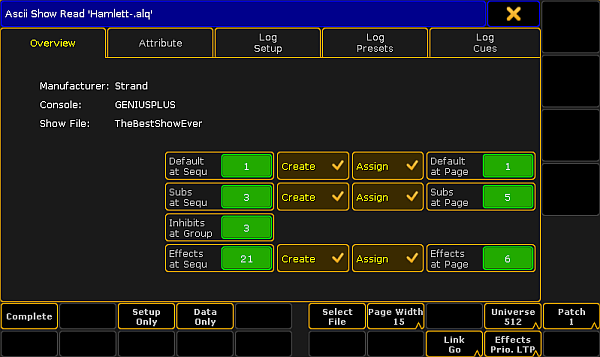 *ASCII Show Read pop-up - Overview* In the overview the console manufacturer and console type that made the export can been seen. It is also possible see the show file name from the ASCII file. In the Overview tab it can be decided where the Default Sequence should be. And if should be created and assigned to an Executor and Executor page. It can be decided if the submasters from the ASCII file are wanted and what page they are desired. It can be chosen from what group number the inhibits from the ASCII file are wanted. It is also possible to choose the first sequence number from the Effects. And if they should be assigned to Executors and then the first Executor page. Effects from ASCII shows are imported as sequences. ## Attribute [Section titled “Attribute”](#attribute) Before importing any data, you need to make sure the attributes from the ASCII file matches the attributes in the grandMA. This can be matched and changed in the Attribute tab. It could look like this:  *ASCII Show Read pop-up - Attribute* If it is empty then you can try to press the Default button.\ Now the attributes from the ASCII file can be matched with the grandMA2 attributes. If this is not matched correctly show data will be lost. Selecting one of the MA attribute allows this to be changed to any of the existing attributes in the MA. Attributes that does not exist can be created in the [Attributes and Encoder Grouping](/grandma2/key_patch_attributes/) window. ## Adjusting the settings [Section titled “Adjusting the settings”](#adjusting-the-settings) When the attributes matches, then you need to make sure the settings match the ASCII show file. The settings are the ones in the lower right corner. ### Page Width setting [Section titled “Page Width setting”](#page-width-setting) The first setting is the Page Width - it does not have anything to do with the ASCII file, but it has to do with the console. If you are working on a grandMA2 light or grandMA2 ultra-light, then you might want to set the width to 15. If you are working on a grandMA2 full-size, then you could set the width to 30. Those are the two options. ### Universe size setting [Section titled “Universe size setting”](#universe-size-setting) Some older consoles are set to only have 500 DMX channels per Universe. This Universe setting allows you to change if the patch should be regarded as 500 or 512 DMX channels. ### Patch setting [Section titled “Patch setting”](#patch-setting) Some consoles allowed an alternative DMX address. This Patch setting allows you to import the primary patch “Patch 1” or the secondary patch “Patch 2”. If you are in any doubt, then just leave this setting at “Patch 1”. ### Link setting [Section titled “Link setting”](#link-setting) The Link setting has two options: “Go” or “Toggle”. This decides whether the triggered effects gets a Go or Toggle commend in the CMD column in the Default sequence. All Effects are sequences that are executed from the CMD column. ### Effects priority setting [Section titled “Effects priority setting”](#effects-priority-setting) The **Effect Prio.** setting have two options: “LTP” or “High”. The imported effects will use the setting chosen here. Remember that Effects are imported as sequences and depending on your settings in the Overview they are assigned to Executors. It is always possible to change the priority later if needed. ## Importing the Setup and Data [Section titled “Importing the Setup and Data”](#importing-the-setup-and-data) When the settings are correct then you can import setup and show data. This can be done all at once by tapping the Complete button. This will load the Setup and the Show Data. This is good if you know that it will work and there are no errors. It is also possible to do it in two steps. If the Setup Only button is tapped, then the fixture schedule and the patch is displayed. Then you can check that all is there and the patch is ok, simply by opening the setup. **Restriction:**\ If the Setup is not correct, then the Show Data will not import correctly. After you have checked the setup, then go back to the ASCII Show Read in the Backup Menu. You might be asked for the show file again. Please select the same file. Now tap the Data Only button, this imports the Show Data. Using the Setup Only and Data Only buttons also allows you to import the separate parts. For instance if you only need the setup and patch from a show or if you already have everything patched and just need the show data. The Data Only import is looking for the ID numbers when it imports. So if a fixture exists and is correctly patched then the data will import. ## Log files [Section titled “Log files”](#log-files) Importing from the show file will create different log files. These files can be seen in the three remaining tabs. The log files also exists in the “temp” folder in the consoles structure. To get to them a FTP connection is needed. Read about it in the [FTP Connection to Console and NPU topic](/grandma2/key_network_ftp/).
# Delete shows
> Show can be deleted in all the tabs except the "Demoshows" and "Template" tabs.
Show can be deleted in all the tabs except the “Demoshows” and “Template” tabs. ## Using the GUI [Section titled “Using the GUI”](#using-the-gui) Pressing the Delete Show(s) button in the Backup Menu opens a pop-up like this:  *Delete Show(s) pop-up* This pop-up lists all the show in the tab. The currently active show cannot be deleted. More than one show can be selected. A selected show gets an orange background. Each time a line is tapped it will toggle the selected status. In the title bar the information button can be toggled. It looks like this (active): . When it is active then information can be seen about the selected show. It is information about the different software versions it has been through and when it was last saved in those versions. As a default the list of show only show the different main shows, but you can also choose to see the backups. In the picture above, there is a button called “Viewing Shows”. This is a button with three different modes: * **Viewing Shows**:\ This only shows a list of the main show files. * **Viewing Shows & Backups**:\ This shows the main show files and the backup files. * **Viewing Backups only**:\ This only shows the backup files. Tapping the Delete Show(s) button will delete the selected show files. Deleting shows can be canceled by tapping Cancel or the closing X in the upper right corner. ## Using the Command Line [Section titled “Using the Command Line”](#using-the-command-line) Show files can be deleted using the command line. The command is called DeleteShow. Read more about it [here](/grandma2/key_keyword_deleteshow/).
# Setting up a file server
> The session Master can be connected to a file server in the network.
The session **Master** can be connected to a file server in the network. There are three different server systems that can be use. Each type is described below. Generally you need to tap the Setup Server button in the **Backup Menu**. Then select the type wanted in the drop down menu called “Connection Type”. If the console succeeds connecting to the server, then it will create a new tab with the label you provide in the setup (read below). **Restriction:**\ grandMA2 onPC cannot be a session Master and connect to a server. **Restriction:**\ Consoles needs enough free memory to mount a file server. It will most likely not be able to successfully connect using a console with only 2GB RAM. **Restriction:**\ The server tab is only available for the master in the session. ## FTP [Section titled “FTP”](#ftp) In the FTP setup you need to connect to a FTP server (using port 21). The pop-up looks like this (empty):  *File Server Configuration pop-up - FTP mode* Here you need to fill out the green input fields. The following is a short description of the different fields. **Label:** This is the text written on the tab used to select the server as a location or “drive”. **Server Name/IP:** This is the name or IP address of the server. **Subdirectory:** Here it is possible to add a subdirectory in the server location. Leave it empty to use the location chosen in the server. Inside this location there will be created a gma2 folder and several folders will be create inside this. It is just like using a USB memory stick. **Username:** It is recommended to have a username and password on the FTP server. This input field can be used to write the username. **Password:** This field is to write the password for the FTP server. When all fields are filled out correctly, then tap the Please button. If the console can mount/connect to the server, a new tab will appear in the Backup Menu and other places where it is possible to select a tab to store or export/import objects. ## Shared Folder (windows) [Section titled “Shared Folder (windows)”](#shared-folder-windows) The Shared Folder option for windows. A folder on the Windows computer needs to be shared for this to work. It is a good idea to have this folder on the primary drive on the computer The File Server Configuration pop-up looks like this (empty):  *File Server Configuration pop-up - Shared Folder mode* Many of the input fields are the same as in the FTP setup - read above for the description. The “Subdirectory” is however replaced with “Sharename”. Here you need to input the folder name. The location of the shared folder is also needed if it is not directly in the root of the hard drive. When you are happy with your setting, then tap Please to mount the server. If successful then a tab will appear with the label specified. ## NFS [Section titled “NFS”](#nfs) The NFS file share system was developed by Sun Microsystems. It is mostly used in Unix and Unix-like (For instance Linux) operating system. There are less input fields with NFS. The pop-up looks like this (empty): 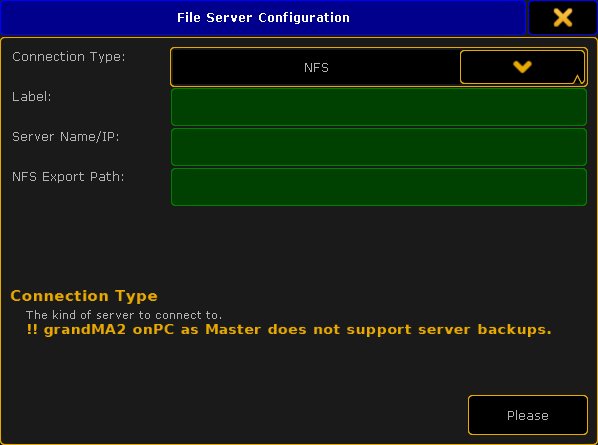 *File Server Configuration pop-up - NFS mode* The **Label** and **Server Name/IP** are the same as above. The special input field for NFS is **NFS Export Path**. It is the path or directory in your server where the files will be stored. When you are happy with your setting, then tap Please to mount the server. If successful then a tab will appear with the label specified.
# Load show
> A show can be loaded from any tab in the Backup Menu.
A show can be loaded from any tab in the Backup Menu. ## Using the GUI [Section titled “Using the GUI”](#using-the-gui) When Load Show is tapped in the Backup Menu then it will open a pop-up like this: 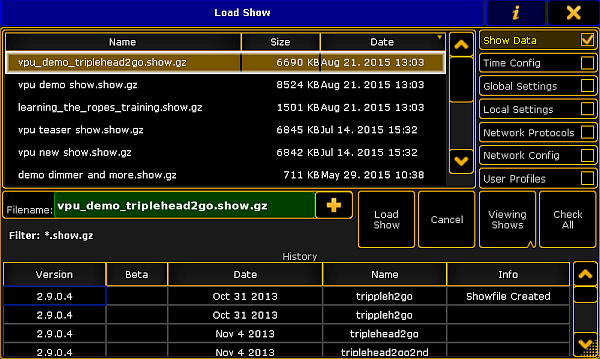 Load Show pop-up Here is a list of the shows in the selected tab. On the right side it is possible to choose what data that will be loaded from the selected show. The idea is that it is possible to load just a small part of a different show into the currently loaded show. ### Show Data [Section titled “Show Data”](#show-data) This is activated as a default. The show data is the patch and fixture schedule, stored sequences, presets, groups, effects, and so on. Basically everything that is in a pool somewhere and the imported 3D elements and their location in the 3D stage. If the Show Data is loaded and **not** the User Profiles (read below), then the existing **User Profiles** will be overwritten with the ones from the show being loaded and it will add the additional User Profiles from the show. It will not add **Users**. ### Time Config [Section titled “Time Config”](#time-config) The time configuration is the time, location, daylight savings settings and NTP (Network Time Protocol) setup. ### Global Settings [Section titled “Global Settings”](#global-settings) The global settings are the ones found in Setup -> Console -> Global Settings. The settings here are shared in the session and includes enabling and disabling the Remote and Telnet, RDM, WYSIWYG, and so on. ### Local Settings [Section titled “Local Settings”](#local-settings) The local settings are the ones found in Setup -> Console -> Local Settings. These settings only affects the local console and not all consoles in a session. It includes settings like the console language and LED background light settings. ### Network Protocols [Section titled “Network Protocols”](#network-protocols) Network protocols are the settings for outputting DMX via an Ethernet connection. It includes ArtNet, sACN, ETC-Net2, KiNet1, Pathport and Shownet. These are found in Setup -> Network -> Network Protocols. ### Network Config [Section titled “Network Config”](#network-config) Network configuration is the settings for what devices should be in the session and the DMX port settings on the Consoles, onPC Wings and NPU’s. ### User Profiles [Section titled “User Profiles”](#user-profiles) User Profiles keep all the data that is connected to the Users. Loading this data will delete all the Users and User Profiles in the current show and load all the Users and User Profiles from the show file being loaded. There is a Check All button that selects all the above boxes. As a default only the main show files are displayed, but it is possible to also choose to load data from a backup version of the show. In the picture above there is a button called “Viewing Shows”. This is a button with three different modes: * **Viewing Shows**:\ This only shows a list of the main show files. * **Viewing Shows & Backups**:\ This shows the main show files and the backup files. * **Viewing Backups only**:\ This only shows the backup files. All columns in this pop-up can be sorted in ascending or descending order. This can be done by pressing the Edit key and then the column title. If a mouse or trackball is connected, then it is also possible to right click the column title. In the title bar it is possible to toggle the information button. It looks like this (active): . When it is active then the information about the selected show are displayed at the bottom. It is information about the different software versions it has been through and when it was last saved in those versions. It is also possible to see the information that has been saved into the show by the users. Read more about this in [Save Show topic](/grandma2/key_backup_menu_save_show/). When the desired show file and the wanted data type is selected, then tap the Load Show button. It is possible to cancel the load process by tapping the Cancel button or the big X in the upper right corner on the pop-up. **Hint:**\ Executing onPC.exe with parameter -s allows to specify a show file for loading. ## Example: [Section titled “Example:”](#example) \/gma2onpc.exe -s:my\_showfile Loads the show file my\_showfile.show\.gz from the gma2/shows folder of the corresponding software version. ## Using the Command Line [Section titled “Using the Command Line”](#using-the-command-line) Show files can be loaded using the command line. The command is called LoadShow. Read more about it [here](/grandma2/key_keyword_loadshow/).
# New show
> Several tabs in the backup menu offers the option to start a new show. It is not possible in the read only tabs.
Several tabs in the backup menu offers the option to start a new show. It is not possible in the read only tabs. ## The New Show pop-up [Section titled “The New Show pop-up”](#the-new-show-pop-up) Pressing the new show button in the backup menu opens a pop-up that could look like this: 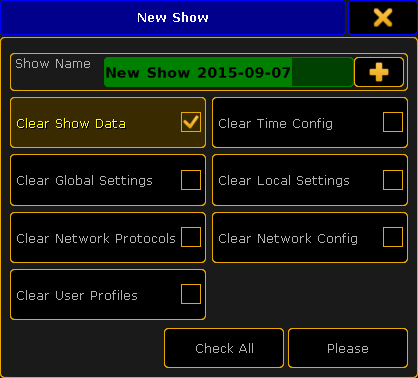 *New Show pop-up* In this pop-up it can be chosen what show information from the currently loaded show will be cleared or removed. In the top it is possible to write the name for the new show. Pressing the  opens an on-screen keyboard. Below the name there are different boxes that can be selected. This is the different parts of the show file. The idea is that when a new show is started there is the option to keep some of the existing data from the currently loaded show. ### Clear Show Data [Section titled “Clear Show Data”](#clear-show-data) This is activated as a default. The show data is the patch and fixture schedule, stored sequences, presets, groups, effects, and so on. Basically everything that is in a pool somewhere and the imported 3D elements. ### Clear Time Config [Section titled “Clear Time Config”](#clear-time-config) The time configuration is the current time, location, daylight savings settings and NTP (Network Time Protocol) setup. If this is cleared then the console will reset the location to the default location (The parking lot outside McFIT Fitnessstudio in Würzburg, Germany) and take the time from the computer Bios. ### Clear Global Settings [Section titled “Clear Global Settings”](#clear-global-settings) The global settings are the ones found in Setup -> Console -> Global Settings. The settings here are shared in the session and includes enabling and disabling the Remote and Telnet, RDM, WYSIWYG, and so on. ### Clear Local Settings [Section titled “Clear Local Settings”](#clear-local-settings) The local settings are the ones found in Setup -> Console -> Local Settings. These settings only affects the local console and not all consoles in a session. It includes settings like the console language and LED background light settings. ### Clear Network Protocols [Section titled “Clear Network Protocols”](#clear-network-protocols) Network protocols are the settings for outputting DMX via an Ethernet connection. It includes ArtNet, sACN, ETC-Net2, KiNet1, Pathport and Shownet. These settings are found in Setup -> Network -> Network Protocols. ### Clear Network Config [Section titled “Clear Network Config”](#clear-network-config) Network configuration is the settings for what devices should be in the session and the DMX port setup. ### Clear User Profiles [Section titled “Clear User Profiles”](#clear-user-profiles) User profiles keep all the data that is connected to the users. Clearing this data leaves only the Administrator and Guest users and the Default user profile. There is a Clear All button that selects all the above boxes. When the desired selection is made, then tap the Please button in the pop-up. ## New show using the command line [Section titled “New show using the command line”](#new-show-using-the-command-line) It is possible to create a new show using the command line. The command is called NewShow. Read more about it [here](/grandma2/key_keyword_newshow/).
# Partial show read
> Partial Show Read is a function used to import elements from one show into a different show.
Partial Show Read is a function used to import elements from one show into a different show. The setup of the two shows are compared and you can choose what setup is wanted or a mix can be chosen. After the comparison - called initialization - then access is granted to a new menu where different wanted elements can be chosen for import. The actual process is more complex, but this is the idea. Please read the [Partial Show Read](/grandma2/key_psr/) chapters to learn more about it.
# grandMA2 to grandMA3 show file converter
> A grandMA2 show file saved as a grandMA3 show file exports the following elements:
A grandMA2 show file saved as a grandMA3 show file exports the following elements: 1. Patch (Setup). 2. DMX Profiles. 3. DMX Universes. 4. Presets with values that include timings. 5. Sequences, Cues, and Cue Timings. 6. Groups, Worlds and Filters. 7. Timecodes. 8. Layouts. 9. Macros. 10. DMX-, MIDI-, and Analog Remotes. 11. Special Masters are converted into Masters in grandMA3. 12. Object appearances are converted into the grandMA3 appearance pool. 13. Executors and Pages are converted. 14. Effect pool objects are converted into preset pool 22 (All 2). This pool will be renamed to Effects. grandMA2 effects will be converted into acceleration and deceleration values. Stomp will be converted to a hard value of 0 with a single step on the relative layer. After this conversion, the user will see instances where the relative layer contains a 0 value and can then decide how to proceed with the absolute layer. 15. Barndoor attributes are converted to shaper attributes in grandMA3 for visualization. 16. Infos in objects are converted to notes in grandMA3. ## Known Limitations [Section titled “Known Limitations”](#known-limitations) * Only the simple predefined forms of effects in grandMA2 are convertible, yet. * Effect data in presets and presets that contain only timings without values are not convertible, yet. * Only executors that have sequences or selective effects assigned are converted. * Fixture types with more than 8 192 channel sets in an attribute do not convert the channel sets after the 8 192th channel set. * The grandMA2 Xkeys X5, X6, X15, and X16 are not converted. * The option “Save to grandMA3” is not supported on grandMA2 onPC running in the Parallels Desktop application. * Macro commands can not be converted. Macro syntax have to be verified manually by the user in grandMA3. * Type and target of remotes are not converted. ## Save as grandMA3 [Section titled “Save as grandMA3”](#save-as-grandma3) **Important:**\ The option “Save as grandMA3” works only on a grandMA2 onPC or in Mode2 on a grandMA3 console. For more information, see [Mode2](https://help.malighting.com/Page/grandMA2/mode2_introduction/en).\ If the button Save as grandMA3 x.x.x is not visible, the system requirements for this feature are not fulfilled. For more information, see [system requirements](/grandma2/key_introduction_system_requirements_grandma2_onpc/). **Requirements:** A created grandMA2 show file. To save the currently open grandMA2 show file as a grandMA3 show file, follow the steps below: 1. Open the Backup menu, tap Backup or press Backup. The **Backup menu** opens. 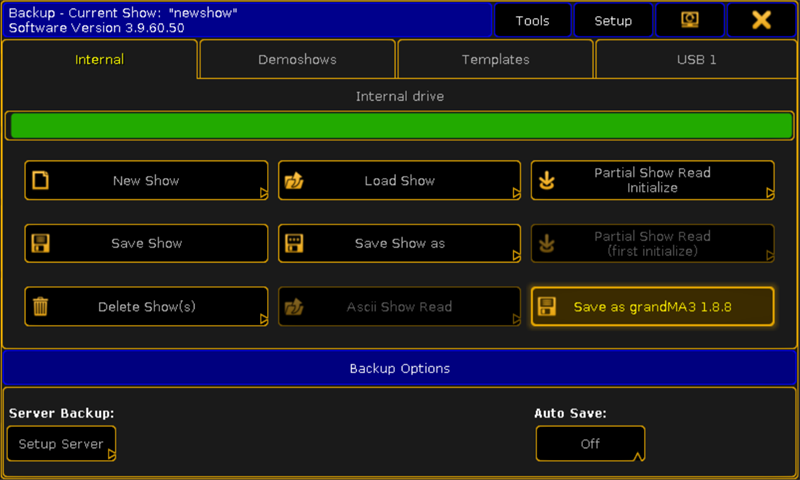 Backup 2. Tap Save as grandMA3 x.x.x (x.x.x is a place holder for the installed grandMA3 version number). A pop-up opens.  Pop-up 3) Tap Ok to confirm the pop-up. The current grandMA2 show file is saved in **C:\ProgramData\MALightingTechnology\gma3\_x.x.x\shared\shows**. When saving on an USB stick, the grandMA2 show file is saved in **D:\grandMA3\shared\shows**. Now, this show file can be opened in the grandMA3 software.
# Save show
> The Save Show button immediately saves the show using the current show name.
### Using the GUI [Section titled “Using the GUI”](#using-the-gui) The Save Show button immediately saves the show using the current show name. There is a green input line in the top part of the Backup Menu. This is used to add information to the show file. This info is visible when loading or deleting a show file and can be used to mark different version or information to the saves. It creates a backup of the previous saved show. Each show file (or unique file name) can have 10 backups. So it is possible to load a backup from ten saves ago. ### Using the command line [Section titled “Using the command line”](#using-the-command-line) A show file can be saved with the same name using the command line. The command is SaveShow. Read about it [here](/grandma2/key_keyword_saveshow/). ### Using the Quick Save function [Section titled “Using the Quick Save function”](#using-the-quick-save-function) There is also a fast way to save the show. It is called “Quick Save”. When the backup menu is **not** open then press the Backup key twice (like a double click on a mouse) will perform the Quick Save.
# Save show as...
> The current show can be saved using a new name.
The current show can be saved using a new name. ## Using the GUI [Section titled “Using the GUI”](#using-the-gui) Pressing the Save Show as button opens the “Please enter filename” pop-up where a new name, for the show file, can be typed. Pressing the  button will open the on-screen keyboard. When pressing Please/Enter the the show file is save using the entered name. The save action can be canceled by pressing the X in the upper right corner of the pop-up. ## Using the Command Line [Section titled “Using the Command Line”](#using-the-command-line) The show file can also be saved, with a new name, using the command line. The command is SaveShow \[new name]. Read about it [here](/grandma2/key_keyword_saveshow/).
# Using a USB stick
> There are different things to keep in mind when using a USB stick.
There are different things to keep in mind when using a USB stick. Here is a list of good advice for the USB stick. * Do not use a big stick. Do not go above 16Gb. * Name the stick, but **do not** use a space in the name. Underscore or Dash are ok. * It should be formatted in FAT32. * If the stick have been in a Mac or PC make sure it has not been configured as something other than a “removable disk”. This is not rules in all software versions. But it is a list of advice that have been gathered by limitations in different software version. So maybe not rules, but at least a good advice.
# Basic Fixture Types
> This section describes the basic concept behind the Fixture Types.
This section describes the basic concept behind the Fixture Types. There is a small description about the different primary types of fixtures - this also called “Class”. And an explanation about the the structural elements in the fixtures. Finally a topic about the difference between ColorMix and MixColor. Please have a look at the external MA Fixture Builder software for more details on how to build fixtures - find the manual at [MA Fixture Builder manual](https://help.malighting.com/grandMA2/en/help/help2.malighting.com/Topic) (external link). The MA Fixture Builder software can be downloaded from the MA dot2 site - MA dot2 download page (external link). ## Subtopics [Section titled “Subtopics”](#subtopics) * [What are attributes, features & preset types](/grandma2/key_basic_fixture_attribute_feature_preset/) * [ColorMix vs. MixColor](/grandma2/key_basic_fixture_colormix_mixcolor/) * [Different fixture types](/grandma2/key_basic_fixture_type/)
# What are attributes, features & preset types
> These are the building blocks and structure behind the fixtures.
These are the building blocks and structure behind the fixtures. **Attributes** are what is actually controlled. Attributes are organized into features. For instance both the Attribute for selecting a Gobo on GoboWheel 1 and the Attribute that rotates the selected Gobo are in the same Gobo1 **Feature**. Features are organized in **Preset Types**. ### Example [Section titled “Example”](#example) The best way to understand the structure is to look at the Encoder Bar - This is explained in details in the [Encoder Bar topic](/grandma2/key_ws_encoder_bar/). In short: The top row here is the **Preset Types**. The button on the left side in the middle row is the **Feature** swipe button. This can be used to toggle through the Features of the selected Preset Type. The bottom row is the **Attributes** in the selected Feature. Sometimes there are more than four Attributes in a Feature. Then the Feature will have pages named alphabetically on the Feature button. 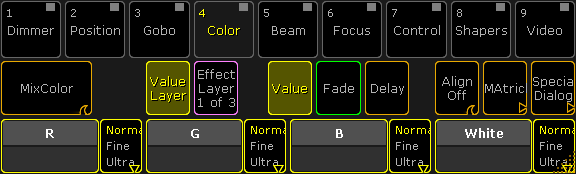 *Encoder Bar* If we look at the Preset Type Color, then it can have several Features, including color wheels and a MixColor system. The MixColor Feature can have several Attributes, including Red, Green, Blue, and White. Every fixture has a minimum of one attribute, but possibly multiple attributes to be controlled. A generic dimmer typically has only one attribute - **Dimmer**, while an advanced moving light may have 30+ different attributes. Read more about controlling fixture and changing Attribute values in the [Operate Fixtures section](/grandma2/key_operate_fixtures/). grandMA2 counts in Attributes and not in DMX channel - read more about that in the [Parameters vs. DMX channels topic](/grandma2/key_so_parameters_vs_dmx_channels/).
# ColorMix vs. MixColor
> There are two words used when talking about color systems in the fixtures. They are very similar and can be confused - especially because what is now called Mix
There are two words used when talking about color systems in the fixtures. They are very similar and can be confused - especially because what is now called MixColor has been called ColorMix in the past! This topic explains the difference between the two. Please read the [What are Attributes, Features and Preset Types topic](/grandma2/key_basic_fixture_attribute_feature_preset/) before reading this if you have any doubts what it is. ## ColorMix [Section titled “ColorMix”](#colormix) ColorMix is currently used as an attribute for build in color functions in fixtures. Some fixtures have an attribute that allows for the operator to select a factory defined color in the fixtures. These are often tried to match defined colors from the gel manufacturers. These can use a variety of colors systems (color wheels, LED, and variable color wheels or flags) to produce the selected color. Another use for the ColorMix word is as a speed attribute in the **Control** preset type. This often refers to a build in function in the fixture that allows the use of a DMX channel to change the fade time for all color systems in the fixture. **Important:**\ ColorMix (CM) was used in previous software versions as a name for what is now called MixColor ## MixColor [Section titled “MixColor”](#mixcolor) MixColor is word used by MA for color systems that mixes the desired color using additive (colored LEDs) or subtractive (CMY systems) color systems in the fixtures. The common element is that the color system uses three or more variable colors. LED systems can have more than three colors. The Attribute is called COLORRGB in the library. There is currently 22 defined ColorRGBs. They are: 1. Red 2. Green 3. Blue 4. Amber 5. White 6. Warm White 7. Cool White 8. Orange 9. Red Orange 10. Purple 11. Indigo 12. Cyan 13. Magenta 14. Yellow 15. UV 16. Green Cyan 17. Medium White 18. Mint Green 19. Lime 20. Congo Blue 21. Royal Blue 22. Light Green **Important:**\ MixColor has been called ColorDim and ColorMix (CM) in the past. These names are now obsolete and depreciated
# Different fixture types
> The name Fixture Type covers a wide range of different actual fixtures but also elements like Media Servers and virtual elements like Cameras for MA 3D.
The name Fixture Type covers a wide range of different actual fixtures but also elements like Media Servers and virtual elements like Cameras for MA 3D. It is important that a Fixture Type definition includes information about the correct type. It has influence on how the fixture is handled by the grandMA2 software - especially MA 3D. It is called **Class** in the Fixture Types Module Manager. When grandMA2 handles variable color systems it is called MixColor (see [ColorMix vs. MixColor topic](/grandma2/key_basic_fixture_colormix_mixcolor/) for details). Independent on it being a CMY or LED color system in the fixtures, it is still the same attribute defined in the fixture profile. It is the ColorRGB1 to ColorRGB22 - see the [ColorMix vs. MixColor topic](/grandma2/key_basic_fixture_colormix_mixcolor/) for a list of the ColorRGBs. The difference in how the grandMA2 interprets the ColorRGBs are in physical range the attributes are given. If the light is added then the physical range is set from 0 to 1. If the attribute subtracts color then the physical range is set from 1 to 0. The following subtopics explains some of the difference between the types. ## Subtopics [Section titled “Subtopics”](#subtopics) * [Conventional](/grandma2/key_basic_fixture_type_conv/) * [LED](/grandma2/key_basic_fixture_type_led/) * [Mirror](/grandma2/key_basic_fixture_type_mirror/) * [Moving lights](/grandma2/key_basic_fixture_type_moving/) * [Media server](/grandma2/key_basic_fixture_type_server/) * [Virtual fixtures](/grandma2/key_basic_fixture_type_virtual/)
# Conventional
> The Conventional fixture type is used for fixtures that primarily only contains a dimmer attribute. It is the most simple fixture type there is.
The **Conventional** fixture type is used for fixtures that primarily only contains a dimmer attribute. It is the most simple fixture type there is. Selecting this type will give a 3D model that looks like a traditional parcan.
# LED
> The LED fixture type is for static (non moving) fixture with LED light sources.
The LED fixture type is for static (non moving) fixture with LED light sources. The fixture type is a fixture that has a surface that emits light in MA 3D. There is no beam of light coming out of the fixture. The LED fixture is usually set up with different colored LEDs. The grandMA2 will expect it to be colored LEDs and have their default value at 100%. If the fixture do not have an intensity attribute, then it is customary to add a virtual dimmer to the fixture. The Virtual dimmer will make the color attribute fade up and down when the dimmer attribute is changed. Having only the red, green, and blue MixColor attributes and no (virtual or real) intensity attribute makes the color attributes fade up and down. This is not the behavior most users expect. Read about adding virtual attributes in the [Anatomy of a Fixture Type](/grandma2/key_adv_fixture_anatomy/#virtual_attributes) topic.
# Mirror
> The Mirror fixture type defines a type of fixtures with typically a discharge light source like the HDI types. Typically it is a single body fixture with a whit
The Mirror fixture type defines a type of fixtures with typically a discharge light source like the HDI types. Typically it is a single body fixture with a white light source that is shaped, colored, filtered and the resulting beam shines into a motorized mirror that will move the light beam. Compared to modern moving head fixture, mirrors often have a limited pan and tilt range. It could be a pan range of 180° and a tilt range of 90°. The default model used in MA 3D is a classic Scanner type.
# Moving lights
> The Moving Light fixture type is the moving head or moving body fixtures.
The Moving Light fixture type is the moving head or moving body fixtures. They are historically fitted with a discharge light source. Especially in the later years then is no longer necessarily the truth. LED light sources are currently a big factor in modern small to medium size moving lights. For Profile type fixtures it is still the primary idea that it is a white light source that we filter wavelengths from to create different colors. For the Wash light fixtures it is now mostly LED light sources with multiple colors that changes the colors based on additive color mixing. The default 3D model is a mowing head fixture.
# Media server
> Media Servers are a fixture type that could be characterized as virtual fixtures, but it is software being controlled often on dedicated hardware.
**Media Servers** are a fixture type that could be characterized as virtual fixtures, but it is software being controlled often on dedicated hardware. Media servers can take up an massive amount of attributes. Some media servers use several DMX universes. It is also in media servers that attributes using 3 DMX channel appear (24-bit control). Every media server is different. Some are flexible with their configuration, others have a fixed set of attributes. Most are configured around a set of (video) layers, that needs to be patched. Some have master layers and even camera layers. Other elements in media servers could be pixel mappers, 3D mapping/warping, sound, effects, particle systems, and so on. It can be very complex to create good fixture profiles for media servers. Selecting the **Media Server** fixture type does not necessary assign a class to the fixture profile. Since the server is not visualized as a fixture in MA 3D, then this OK. The video output from the server might be used as a CITP stream into the MA 3D (read more about CITP in the [Using CITP topics](/grandma2/key_network_citp/)).
# Virtual fixtures
> The Virtual Fixture Types are elements that might be patched into the show, but it is not actually a lighting fixture.
The Virtual Fixture Types are elements that might be patched into the show, but it is not actually a lighting fixture. It can include: * MA Bitmap Fixture * Stage Marker for MA 3D * Virtual Cameras for MA 3D * Moving Paths for moving elements in MA 3D * Figure in MA 3D
# Bitmap Fixture
> The MA Lighting Bitmap fixture replaces the previous bitmap effects. The bitmap fixture is a virtual fixture and available in the fixture library.
The MA Lighting Bitmap fixture replaces the previous bitmap effects. The bitmap fixture is a virtual fixture and available in the fixture library. The bitmap fixture allows to use images and videos from the image pool and map these images or videos to the patched fixtures. The visualization of the bitmap fixtures is realized in the layout view. Use the grandMA2 effect engine to animate bitmap fixtures. **Hint:**\ There are predefined BMP (= Bitmap) effects provided in the effect editor. The bitmap fixture has its own dimmer and color attributes, like an MA VPU layer fixture. The playback priority of the bitmap fixture is always the lowest priority in one priority range. Attribute values will overwrite bitmap fixture attribute values, if the same fixtures are used. If you want to use a video for the bitmap fixture here´s what it takes: * Minimum of 30 frames per second * Resolution double of the output. E.g. If you have an output of a pixel raster of 200 x 200, the video should have a minimum resolution of 400 x 400.\ Recommended are triple fold to four fold of the output. * Only video data without audio data * Constant bit rate (= CBR) Make sure to use the supported image and video formats only. For more details see [supported file formats](/grandma2/key_image_supported_file_formats/). We recommend to test the videos during the show preparation before using them in a show situation. ## Subtopics [Section titled “Subtopics”](#subtopics) * [Import bitmap fixture](/grandma2/key_bitmapfixture_import/) * [Apply bitmap fixture in the layout](/grandma2/key_bitmapfixture_layout/) * [Control bitmap fixture](/grandma2/key_bitmapfixture_control/) * [Edit bitmap fixture](/grandma2/key_bitmapfixture_edit/) * [Example](/grandma2/key_bitmapfixture_example/) * [Priorities for bitmap effects](/grandma2/key_bitmapfixture_priorities/) * [Disable bitmap for fixtures](/grandma2/key_bitmapfixture_disable/)
# Control bitmap fixture
> After you imported a bitmap fixture in your show, you can control the bitmap fixture in the fixture sheet. For more information, see fixture sheet.
After you imported a bitmap fixture in your show, you can control the bitmap fixture in the fixture sheet. For more information, see [fixture sheet](/grandma2/key_of_fixture_sheet/). The following table describes the specific bitmap fixture attributes. For more basic information about control fixtures or channels, see [control channels and fixtures](/grandma2/key_operate_fixtures/). | Attribute | Description | | ---------------------------------- | ------------------------------------------------------------------------------------------------------------------------------------------------------------------------------------------------------------------------------------------------------- | | Dimmer | Controls the dimmer intensity. | | Mix Color (RGB) | Controls red, green, and blue. | | HSB (Hue, Saturation, Brightness) | Controls hue shift, saturation, and brightness. HSB is a color correction of the selected RGB values. | | VObj (= Video Object) Images | Select the image from the image pool, used for the bitmap fixture. For more information, see [import image](/grandma2/key_image_import/). **Important:** By default are 100 images displayed, even if less images are in the image pool. | | VObj Output | Select the layout from the layout pool, used for the bitmap fixture. For more information, see [layouts](/grandma2/key_layouts/). **Important:** By default are 100 layouts displayed, even if less layouts are in the layout pool. | | VPos (= Video Position) | Moves the position of the image on a relative x, y, z axis in the layout view. If you have two images about each other, the one with the lower z axis value is in front. | | VRot (= Video Rotation) | Rotates the images around the z axis. The combination between CX (= Center X) and CY (= Center Y) moves the rotation midpoint of the z axis relative in the layout view. 0 is the center of the z axis. | | VImg (= Video Image) | Select the video image: (See screenshots below the table for better visualization). **Tile -:** Image will be added behind. Every second image is mirrored. **No Tile:** No image will be added. **Tile +:** Image will be added behind. | | VPlayer (= Video Player) Play Mode | Select the video play mode: - \*\*Loop \*\*loops endlessly. - \*\*Play \*\*plays once and stops with the last frame. - **Play and Off** plays once and fades out with the last frame. - **Pause** pauses the video clip. | | VPlayer Speed | Controls the speed of playing back videos. | | VScale (= Video Scale) | Scales the image on the x and y axis. - **1:1** - **1:-1** mirrored | | VPreset (= Video Preset) Mode | Select the video preset mode: - **Dimmer** (default for only dimmer fixtures) - **RGB + Dim** - **RGB** (default for fixtures using RGB) - **Preset Types** allows to have the bitmap fixture running between two presets of a preset type VP1 and VP2 | | VPreset VP1 | Set the preset pool index of the low value (black), e.g. 1 (= red color). | | VPreset VP2 | Set the preset pool index of the high value (white), e.g. 2 (= green color). | **Important:**\ If you pause a video clip in the VPlayer and subsequently tap Play or Loop, the clip is played back from the start. After you have modified all the attributes, you can store the look in a cue. For more information, see [cues and sequences](/grandma2/key_cues_and_sequences/). ## Examples for VImg Attributes [Section titled “Examples for VImg Attributes”](#examples-for-vimg-attributes) 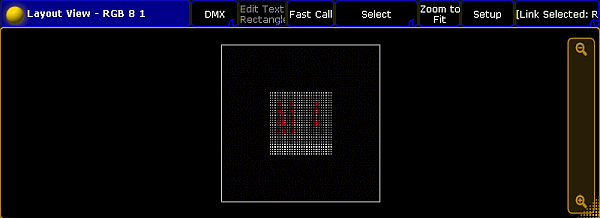 *Layout view with bitmap VImg attribute no tile* 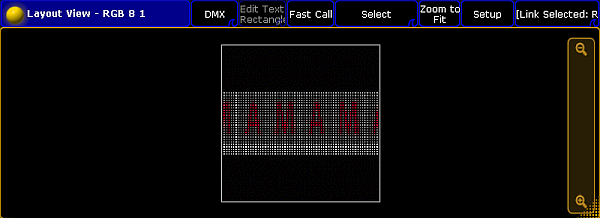 *Layout view with bitmap VImg attribute split x tile+*  *Layout view with bitmap VImg attribute split x tile-*  *Layout view with bitmap VImg attribute split x tile- split y tile-*  *Layout view with bitmap VImg attribute split y tile+*  *Layout view with bitmap VImg attribute split y tile-*  *Layout view with bitmap VImg attribute split x tile+ split y tile+*
# Disable bitmap for fixtures
> To disable the bitmap visualization for specific fixtures, follow the steps below.
To disable the bitmap visualization for specific fixtures, follow the steps below. 1. Press Setup and tap at Patch & Fixture Schedule.\ The **Edit Setup** opens. 2. Tap at the layer in the which the fixture is. 3. Tap at the fixture and scroll to the column **Bitmap Disable**. 4. Press the screen encoder until **Yes** is displayed in the cell. 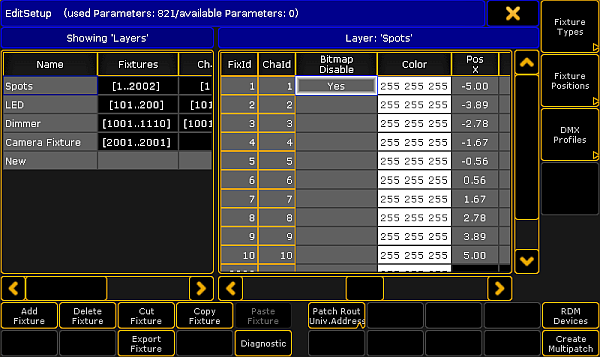 *Edit Setup - Disable Bitmap* 5. To leave the **Edit Setup**, tap the **yellow**  in the upper right corner.\ A warning asks if you want to save the changes. 6. Tap Yes. The bitmap visualization is disabled for the fixture.
# Edit bitmap fixture
> The bitmap fixture has 100 images and 100 layouts by default. If you need more than the 100 images or 100 layouts, you need to edit the bitmap fixture.
The bitmap fixture has 100 images and 100 layouts by default. If you need more than the 100 images or 100 layouts, you need to edit the bitmap fixture. **Requirement:** [Imported bitmap fixture.](/grandma2/key_bitmapfixture_import/) 1. To select the bitmap fixture, tap at the **bitmap fixture** in the fixture sheet.\ The bitmap fixture has a yellow font. 2. To select the attribute you like to edit, tap at the **attribute** in the fixture sheet, e.g. Images. 3. To open the smart view, tap at an empty space in the **user defined area**, tap at Other, and then Smart.\ The **Smart** window opens.  *Smart view with images attributes of the bitmap fixture* 4. Turn the encoder to e.g. 101, press Store and tap at the last **empty object tile** in the smart view. The bitmap fixture is edited and has 101 images to select. For more information about the smart view, see [using smart view](/grandma2/key_of_smart_view/).
# Example
> This topic describes the bitmap fixtures on an example.
This topic describes the bitmap fixtures on an example. This example requires a few basic functions, like [storing cues](/grandma2/key_cues_and_sequences/), [create presets](/grandma2/key_presets_create/), and [assign effects](/grandma2/key_effects_assign_to_executor/). If you are not familiar with these functions, read the manual for these functions first. **Initial situation:**\ A stage with many fixtures. The task is to create a pan tilt effect for these fixtures.  *Stage view* **Requirement:** * [An imported bitmap fixture](/grandma2/key_bitmapfixture_import/). * [A created layout including the fixtures for using the bitmap fixture](/grandma2/key_bitmapfixture_layout/). **Important:**\ Position presets have to have the values of pan tilt, since the values X, Y and Z are not supported. 1. Select all the fixtures in the fixture sheet for the pan tilt effect, press At 100 Please, and then Store and press the executor. 2. Draw a **rectangle** around the fixtures in the layout. The **Edit Layout Element** pop-up opens. Tap under Visualization Bitmap. 3. Import an image, which only displays a white bar, in the image pool.  *Image white bar* **Note:**\ It is possible to use predefined images and videos also. For more information on how to import predefined images and videos see [Import an image](/grandma2/key_image_import/). 4. Create two position presets in the position preset pool, the first with the lowest pan 0 and tilt 30, the second position preset with pan 0 and tilt -5. 5. Program the bitmap fixture in the programmer with the following values:\ \- **Dimmer**: 100\ \- **Images**: The white bar image from the image pool, e.g., 15.\ \- **Output**: The layout including the bitmap fixture visualization, e.g., Layout 1.\ \- **Mode**: Position Preset\ \- **VP1**: Select position preset with low value\ \- **VP2**: Select position preset with high value 6. Tap in the encoder bar effect layer, tap **VPos** (= Video Position) in the fixture sheet, turn the encoder for the x value and select Ramp Plus 10. 7. To store a sequence with the bitmap fixture, press Store and then another executor button than before. 8. Start both playbacks. You have a pan tilt effect by using the bitmap fixture. 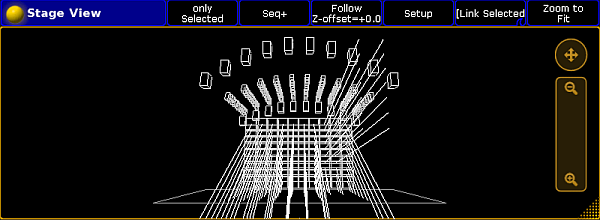 *Stage view with running bitmap fixture*
# Import bitmap fixture
> To use the bitmap fixture it is necessary to import it in the show. The bitmap fixture is a virtual fixture. A DMX address is not required. For more general inf
To use the bitmap fixture it is necessary to import it in the show. The bitmap fixture is a virtual fixture. A DMX address is not required. For more general information about patch a fixture or channel, see [patching](/grandma2/key_patch/). To import the bitmap fixture: 1. Press Setup and tap at Patch & Fixture Schedule.\ The **Edit Setup** opens. 2. Tap in the last row in the layer and press the screen encoder.\ The **Fixture Wizard** opens. 3. Tap in the structure tree at From Library.\ The **Import Fixture Type** window opens. 4. Type in the **Fixture** field **Bitmap**.\ The MA Lighting Bitmap fixture appears in the list. 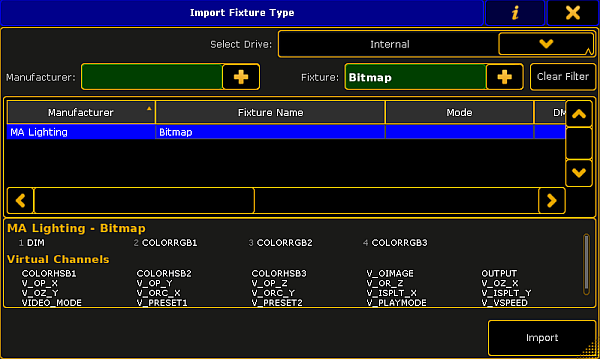 *Import bitmap fixture* 5. Tap Import.\ You are back in the **Fixture Wizard**. 6. Tap Apply.\ You are back in the **Edit Setup**. 7. Close the Edit Setup by a tap at the  and tap Yes in the Warning. The MA Lighting Bitmap fixture is imported in the show and visible in the fixture sheet. Now, you can control the bitmap fixture. For more information, see [control bitmap fixture](/grandma2/key_bitmapfixture_control/).
# Apply bitmap fixture in the layout
> After the bitmap fixture is imported, it is necessary to have a layout containing the fixtures or channels, to use the bitmap fixture. The layout is the VObj (=
After the bitmap fixture is imported, it is necessary to have a layout containing the fixtures or channels, to use the bitmap fixture. The layout is the VObj (= Video Object) Output. **Requirement:** * [An imported bitmap fixture](/grandma2/key_bitmapfixture_import/) * [A created layout view containing the fixtures using the bitmap fixture](/grandma2/key_layouts_create/) 1. Tap in the title bar of the layout view Setup.\ The **layout encoder bar** opens. 2. Tap in the layout encoder bar at the **rectangle** . 3. Tap in the layout view and draw a rectangle around the fixtures or channels using the bitmap fixture. 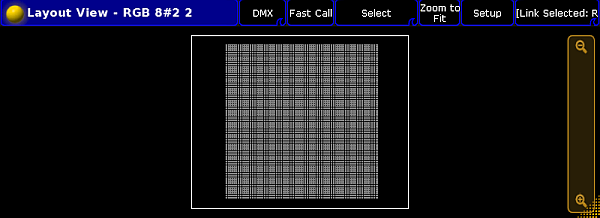 *Layout view with rectangle* 4. The **Edit Layout Element** pop-up opens. 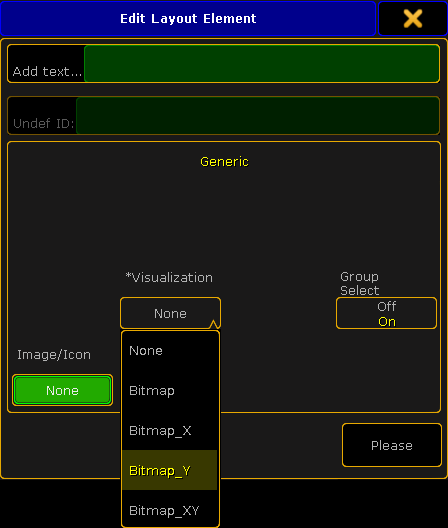 *Edit layout element pop-up - visualization* 5. Choose if the fixtures or channels should visualize the content of the bitmap fixture:\ \- Not mirrored, tap Bitmap  *Layout view bitmap not mirrored* \- Horizontally mirrored on the x-axis, tap Bitmap\_X  *Layout view bitmap x* \- Vertically mirrored on the y-axis, tap Bitmap\_Y  *Layout view bitmap y* \- Horizontally and vertically mirrored on the x- and y-axis, tap Bitmap\_XY  *Layout view bitmap xy* 6. Press Please or tap Please. **Important:**\ The rectangle is a visual display and it represents the side ratio of the picture or the video. It is possible to use several rectangles in a layout. The rectangles can be mirrored individually as shown above. **Hint:**\ To move the rectangle, use the **move x** or **move y** encoder or tap and hold the rectangle in the layout view and move it around.\ To adjust the size of the rectangle for e.g. a 16:9 ratio, tap in the layout encoder bar at Position 1 of 3 to get **Size 2 of 3**. Use the encoder to adjust **size x** and **size y**. The bitmap visualization is assigned to the fixtures or channels in the layout.
# Priorities for bitmap effects
> When working with bitmap effects in the programmer and in playbacks attention should be paid to the following priorities:
When working with bitmap effects in the programmer and in playbacks attention should be paid to the following priorities: 1. Bitmap effects always have the lowest priority within a level of priorities. \ Level of priorities are:\ \- Super\ \- Swp\ \- HTP\ - High\ \- LTP\ \- Low 2. Bitmap effects are only visible within a sequence – **cue list:**\ \- When the fixtures, which are running the bitmap effects, have no values and no effect values on the attributes in use. For more information on priorities in general see [executor options](/grandma2/key_adv_exec_options/). ## Example: [Section titled “Example:”](#example) If a dimmer value is saved in a cue for Fixture 1, the bitmap effect can only be used for Fixture 1 in the following cue when the dimmer value is released. For more information on how to release see [What is tracking](/grandma2/key_cs_what_is_tracking/). **This is a visual explanation of the example by means of illustration for Fixture 1:** | Tracking cue list | Dimmer | Explanation | | ----------------- | ---------- | ------------------------------------------------------------------------------------- | | cue 1 | **––––––** | Bitmap effect operatesFixture 1 (dimmer) | | cue 2 | 100 | Value overwritesFixture 1 (dimmer) | | cue 3 | (R) | Value is released,thus the bitmap effect from cue 1 or a new bitmap effectis visible | | | | |
# Chasers
> A chaser is a sequence that runs in a loop. It ignores the timing in the sequence and uses the speed setting to run through all the cues. Cues are referred to a
A chaser is a sequence that runs in a loop. It ignores the timing in the sequence and uses the speed setting to run through all the cues. Cues are referred to as steps. Each cue is a step in the chaser. Read more about cues in the [What are cues and sequences](/grandma2/key_cs_what_are/) topic.\ **Hint:**\ Chasers are used whenever you need a loop with more than two steps. If you only need two steps, then use an effect. ## Subtopics [Section titled “Subtopics”](#subtopics) * [Create a chaser](/grandma2/key_chaser_create/) * [Chaser settings](/grandma2/key_chaser_settings/) * [Chaser mini executor](/grandma2/key_chaser_mini_executer/)
# Create a chaser
> To create a chaser, create a sequence with at least 2 cues assigned to an executor.
To create a chaser, create a sequence with at least 2 cues assigned to an executor. 1. Change the sequence to a chaser by pressing Assign and one of the keys associated with the executor. 2. This opens the Assign menu. Tap Options on the right side. 3. To change the sequence to a chaser, tap Chaser located below the tab **Function**. The mini executor is now cyan. It is possible to change the functions of keys and fader associated with the Executor. For more information, see [Assign a function](/grandma2/key_exec_assign/). All timing and loop information in the sequence is ignored. Commands (CMD) are executed and the **CMD Delay** is the only timing from the sequence that is actually used. For more information, see [Commands in cues](/grandma2/key_cs_cmd_in_cues/). *** ## Start, Stop and Pause the Chaser [Section titled “Start, Stop and Pause the Chaser”](#start-stop-and-pause-the-chaser) * To **start** the chaser, press Go+ and one of the keys associated with the executor. To fade in the chaser, press Go+ Time and the fade time in seconds, for example 5. * To **stop** the chaser, press Off and one of the keys associated with the executor. To fade out the chaser, press Off Time and the fade time in seconds, for example 5. * To **pause** the chaser, press Pause. The chaser stops in the current step and contains the output from this step. To start the chaser again, press Pause once more.
# Chaser mini executor
> If a chaser is assigned to an executor, the mini executor view displays relevant chaser informations.
If a chaser is assigned to an executor, the mini executor view displays relevant chaser informations. It could look like this:  *Mini Executor - Chaser* The cyan colored frame indicates that a chaser has been assigned to this executor. The Mini Executor is divided into tree sections: a top part, a middle part and a lower part. The top part and the lower part is similar to **Sequence Mini Executors**. Read more about [Sequence\_Mini\_Executor](/grandma2/key_cs_sequence_mini_executor/). The middle part is divided into three lines. * The first line reads the speed measured in beats per minute. * The second line is the fade time set by the encoder **Step Fade**. * The third line shows the current step out of the total steps. Pay attention to the numbers. These do not refers to the cue number or cue name, but only the current step out of total steps in the chaser.
# Chaser settings
> The Chaser Encoder Toolbar is useful to edit the chaser. To open the toolbar, press Edit and one of the keys associated with the executor.
## The Chaser Encoder Toolbar [Section titled “The Chaser Encoder Toolbar”](#the-chaser-encoder-toolbar) The **Chaser Encoder Toolbar** is useful to edit the chaser. To open the toolbar, press Edit and one of the keys associated with the executor. There are several options to set up and play back the chaser, in the cyan **Chaser Encoder Toolbar**.  *Chaser encoder toolbar* *** ## The Edit chaser key [Section titled “The Edit chaser key”](#the-edit-chaser-key) Tap the Edit Chaser key. This opens an **Edit Chaser Window**. 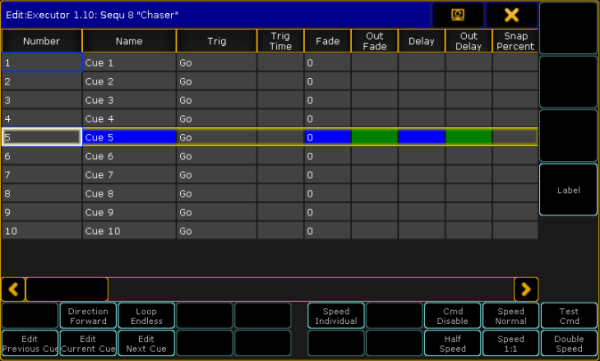 *Edit chaser window* To name the chaser tap Label. To manages the direction of the chaser, tap Direction. The default direction is Forward. This key opens the **p**op-up **Select Chaser Run Mode** with four different directions.  *Select Chaser Run Mode* * **Forward** and **Backward** runs the Chaser in the given direction. * **Bounce** runs through the steps to the end and then backwards to the first step. It continues to bounce between the first and the last step. * **Random** runs the steps in a random pattern. Tap Loop Endless and the pop-up **Loop Options** opens, with three different **Loop** options:  *Select Chaser Loop Mode pop-up* * **Endless** keeps the chaser running until it receives new information. * **Shoot-Off** runs the steps once, then turns off the chaser. * **Shoot-On** runs the steps once, and leaves the chaser in the last step. \*\* \*\*Edit Current, Edit Previous and Edit Next buttons edits cues. For more information, see the topic [Looking at the cue sequence](/grandma2/key_cs_cue_sequence/#edit_cue). Set the **Speed** of the Chaser with Speed Individual. This opens the **Select Speed Group** Pop-up.  *Select Speed Group* * **Individual speed** lets the chaser run with the speed set by the **Speed Encoder** * **Speed 1** through **Speed 15** limits the speed of the chaser by a **Speed Master**. This is useful to keep the chaser in sync with other chasers and effects. For more information, see [Assign a Function](/grandma2/key_exec_assign/). * The **BPM** option measures the Beat from the Audio In signal. For more information, see [Sound In](/grandma2/key_ost_sound_input_window/). To enable or disable the **CMD** field in the Chasers Executor sheet, tap the Cmd Disable button. If the CMD is disabled, the CMD Disable turns cyan and all the Commands in the **CMD** row of the **Executor sheet** are displayed in red. There is also the opportunity to test the command in the **CMD** field. If a current step is present and a command is entered in the **CMD** field, tap Test Cmd to test the function. Sometimes the chaser has to keep the beat but double or half the speed. * To half of the current value, tap Half Speed. * To double the current value tap Double Speed. * Speed 1:1 resets the speed to the value set by the Speed Encoder, the Speed Master or the Audio In, depending on the selected Speed Group. Another option is to tap Speed. This opens the pop-up **Select Speed Factor.** This is useful to multiply or divide the speed by 2, 4, 8, 16, or 32 of the selected Speed Group. To exit the **Edit Chaser** window tap  *** ## The Playback Buttons [Section titled “The Playback Buttons”](#the-playback-buttons) The buttons to start, stop and pause the chaser: * To start the chaser, tap . This starts the chaser from the first cue to the last, and then loop to the first again. * To start the chaser, running from the last cue to the first, and then loop to the last again, tap  . * To stop the chaser, tap  . * To pause the chaser in the current step, and keep the actual output, tap . Tap the  to start the chaser again, from the current step. * To stop the chaser and step thru the steps one by one, tap  or  . *** ## The Encoders [Section titled “The Encoders”](#the-encoders) The four encoders have 6 different functions. The four basic functions are available when the button shows Basic 1 of 2. By tapping the button again, it will change to Advanced 2 of 2. Basic buttons starting from left: 1. The first encoder is a **Master**. This master controls the intensity of the chase measured in percent. 2. The second encoder is the **Speed,** default displayed in BPM (beats per minute). This will affect the time between the cues in the chaser. So if the speed is set to 60 BPM, the cues change every 1 second. The speed readout can be changed in Setup->User->Settings. 3. The third encoder is the **Step** fade measured in percent. This encoder is used to set the fade time between the steps. If the percent is 0, the chaser snaps between the steps. If it is set to 100 % it uses the time restricted by the speed encoder. If the percent is over 100, the chaser will start fading down, before the step is at full. The in-fade and the out-fade percent, can be adjusted individually. Read more below. 4. The fourth encoder is called **Master Fade** and manage the in-fade and the out-fade time of the chaser. The time is measured in seconds. To enable two more options, tap the Basic 1 of 2 key. The key changes to Advanced 2 of 2. The two encoders, starting from left: 1. On the first encoder, the **In-fade** of the steps is set. If the percent is 0, the chaser snaps between the steps, and if it is set to 100 % it will use the time restricted by the speed encoder. If the percent is over 100, the chaser will start fading down, before the step is at full. 2. On the second encoder, the **Out-fade** of the steps is set. If the percent is 0, the chaser will snap the steps to zero, and if it is set to 100 % it will use the time restricted by the speed encoder.
# Clone
> Clone is used to add fixtures to the rig which suppose to behave exactly the same as existing fixtures.
## Function [Section titled “Function”](#function) Clone is used to add fixtures to the rig which suppose to behave exactly the same as existing fixtures. **Requirements:** * Program your show using presets. * Program relevant parameters in your presets. **Important:**\ Avoid using fixture specific functions, e.g. build-in fixture macros. Use generic functions only. *** ## How to Use Clone [Section titled “How to Use Clone”](#how-to-use-clone) ### It is possible: [Section titled “ It is possible:”](#it-is-possible) 1. To clone in order to copy values from fixture to fixture. 2. To clone a selection of fixtures to another selection of fixtures. 3. To clone using the [keyword Clone](/grandma2/key_keyword_clone/) or the [screen](/grandma2/key_clone_clone_in_user_interface/). **Important:**\ It is not possible to clone values from several fixtures to a single fixture. Cloning is only possible with one set of values. **Important:**\ It is possible to limit the scope of cloning by using the [keyword If](/grandma2/key_keyword_if/). By default, the cloning is done with low priority. This means that data is preserved wherever the destination fixtures or fixture types already contain data. The data from the source fixtures or fixture types is added to objects such as presets, cues, effects etc. where data does not exist yet. **Hint:**\ The console automatically clones dependencies, e.g. presets and effects by reference to the cloned sequence whenever cloning with a limited scope. To protect existing data these dependencies are cloned with the default low priority clone option. *** ## Replace [Section titled “Replace”](#replace) Contrary to clone, replace does not preserve data, i.e. data is overwritten. For more information on replace see [Search and Replace](/grandma2/key_search_replace/). ## Subtopics [Section titled “Subtopics”](#subtopics) * [Clone in user interface](/grandma2/key_clone_clone_in_user_interface/) * [Examples](/grandma2/key_clone_examples/) * [Clone presets](/grandma2/key_clone_clone_presets/)
# Clone in user interface
> It is possible to clone using the user interface.
It is possible to clone using the user interface. **Requirement:** * Prepare cloning 1. To prepare cloning click on Setup -> Show -> Cloning. It is also possible to use the command section: 2. Select source an destination of objects by using the command section. 1. Click on copy twice (shortcut for clone) 2. Fixture 3. Number of fixtures to be in the source 4. At 5. Number of fixtures to be in the destination 6. Please **Hint:**\ It is also possible to use the command line to type in your source and destination objects. For more information see the [keyword Clone](/grandma2/key_keyword_clone/). After selecting the source and destination objects the pop-up **Prepare Cloning** opens. 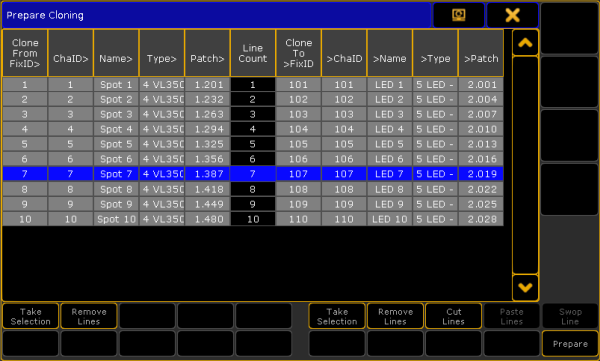 *Prepare cloning pop-up* **Prepare Cloning** consists of two parts divided by **Line Count** \*\*– left side and right side of the pop-up. \*\* **Left side:** \- Lists source fixtures and/or fixture types. **Right side:** \- Lists destination fixtures and/or fixture types. *** ## How to Prepare [Section titled “How to Prepare”](#how-to-prepare) **Important:**\ The source of the objects matches the destination of objects. 1. To select the source fixtures or fixture types click on Take Selection on the left side of the pop-up. 2. To apply the selected fixtures or fixture types to their destination click on Take Selection on the right side of the pop-up. 3. The button Remove Lines on the right and left removes selected lines of the corresponding side of the button.\ 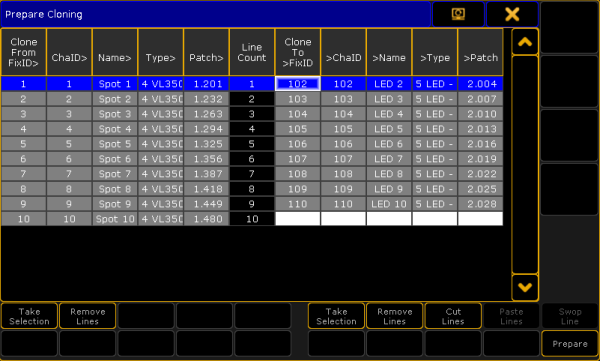 *Prepare cloning - remove lines* 4. To activate the buttons Paste Lines and Swop Lines click on the button Cut Lines first. 5. To paste fixtures into another cell in the source click on the left side of the column and then click on the button Paste Lines. To paste fixtures into another cell in the destination click on the right side of the column and then click on Paste Lines. \ 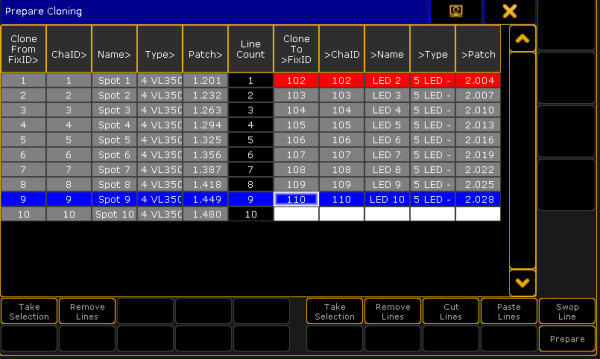 *Prepare cloning - paste lines* 6. Click on Paste Lines once again to paste the fixture 102. Now, fixture 102 is located between fixtures 109 and 110. \ \- The data of source fixture 8 now corresponds to the destination fixture 102. 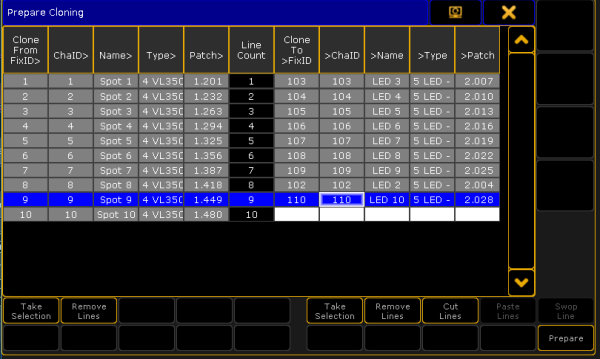 *Prepare cloning - pasted line in the destination column* 7. To swap a line click on Cut Lines first. 8. Then click on the fixture you would like to swap. Here it is fixture 110. 9. Click on the fixture you would like to swap fixture 110 with. Here it is 103, which is now marked in blue; fixture 110 is now marked in red. 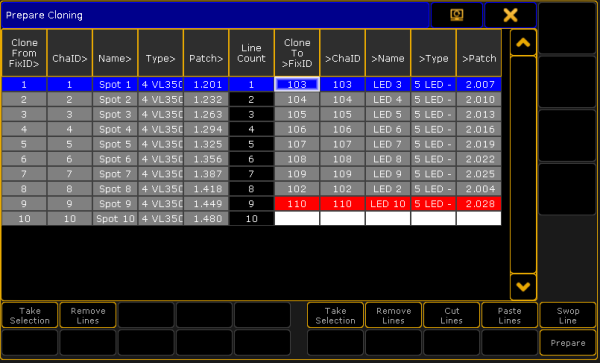 *Prepare cloning - swap lines* 10. Fixture 110 and fixture 103 swapped places. Fixture 1 now has the data of destination fixture 110. Fixture 9 now has the data of destination fixture 103. 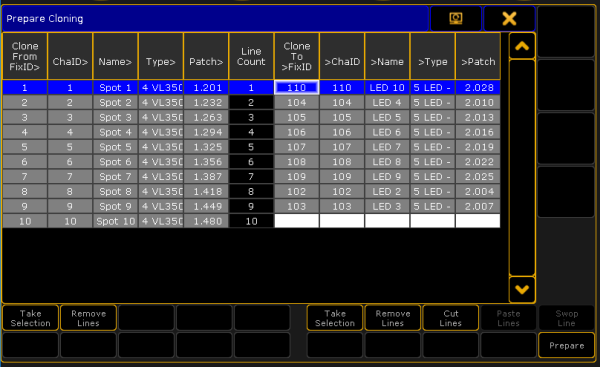 *Prepare cloning - swapped lines* 11. To complete the preparing process click on the button Prepare. *** ## Cloning [Section titled “Cloning”](#cloning) If you click on the button Prepare\*\*, \*\*the pop-up **Cloning** opens. 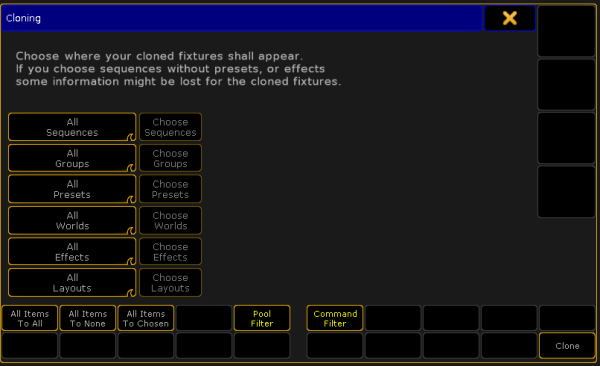 *Cloning pop-up* It is possible to address all elements by the buttons All Items To All, All Items To None, and All Items To Chosen. Here you choose in which elements the fixtures you have assigned are cloned in: * Sequences * Groups * Presets * Worlds * Effects * Layouts There is a swipe button for each of the elements containing the options: * **No:**\ This element will not be cloned. * **All:**\ Data will be cloned for all objects of this element. * **Chosen:**\ This button activates the button **Choose** on the right of each element. If you click on the button **Choose**, an additional window opens within the pop-up **Cloning.** Here it is the window **Select Sequences**. Choose sequences to which you copy the objects first and then clone these objects. The info column displays information on corresponding objects. **Hint:**\ It is also possible to select several cells in the column by holding the button CTRL on your keyboard while clicking on the cells you would like to select. 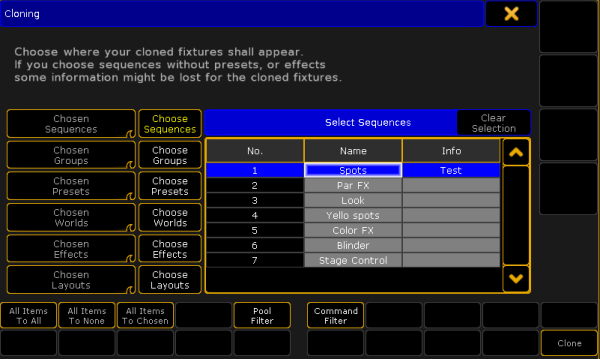 *Cloning - select sequences* **Important:**\ Using All Items To All, All Items To None, and All Items To Chosen deletes the previous selection. All Items To All: -Addresses all elements for cloning. All Items To None: -Does not clone in any of the elements. **Important:**\ However, you can use All Items To None to select single objects of single elements. To clone single objects of a single element: \- Press All Items To None * This sets all elements to status “No” \- Swipe the element you would like to clone single objects in \- Click Chosen in the element you are in activating the button Choose on the right of the element \- Select single objects you would like to clone All Items To Chosen: * Sets all elements to **Chosen**. **Important:**\ Clicking on All Items To Chosen allows you to select single objects in every element. *** ## Set Filters [Section titled “Set Filters”](#set-filters) It is also possible to set filters in the window **Cloning**. ### Set Pool Filter [Section titled “Set Pool Filter”](#set-pool-filter) 1. Click on Pool Filter. 2. The window **Select Filters** appears on the right side of the pop-up **Cloning**. 3. Choose a filter by clicking on a cell. 4. To reset the filter click on **Clear Selection** in the upper right corner of the window **Select Filters**. 5. To perform cloning click on Clone in the lower right corner of the window **Select Filters**. **Hint:**\ It is also possible to set a filter via the Filter Pool. For more information see [What are filters](/grandma2/key_wfm_what_are_filters/). 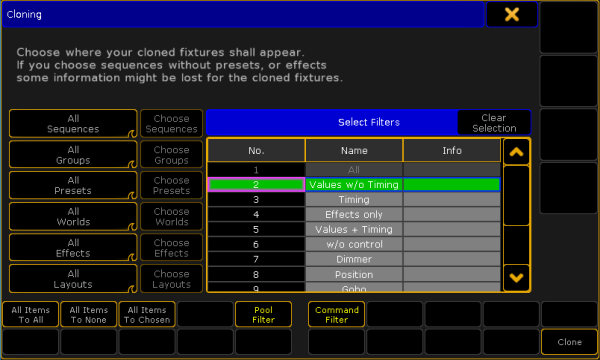 *Window cloning - select filters* *** ### Set Command Filter [Section titled “Set Command Filter”](#set-command-filter) * To open this filter click on Command Filter and the window **Add Filter 1 opens**. 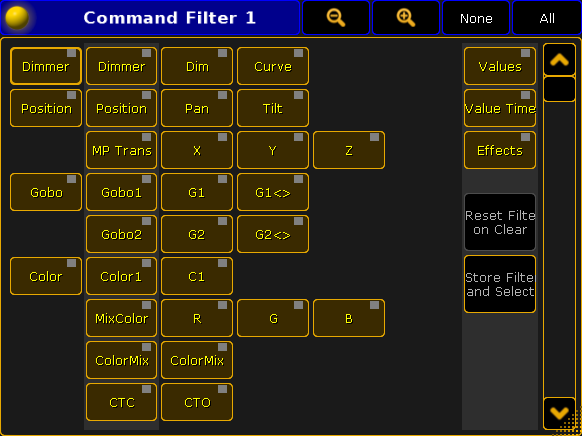 *Command filter window* **Important:**\ This is a temporary filter which displays current filtering and allows you to create temporary modifications. However, if you would like to set several filters use the Pool Filter. For more information on how to use the Command Filter see [Create filters](/grandma2/key_wfm_create_filters/). *** ## How to Perform Cloning [Section titled “How to Perform Cloning”](#how-to-perform-cloning) After preparing and setting filters for the cloning process perform cloning by clicking on Clone. The pop-up **Please Confirm** appears displaying four options: 1. **Cancel:**\ Choosing this option cancels cloning and returns to the pop-up **Cloning**. 2. **Low Prio Merge:**\ Choosing this option generates simple cloning with low priority. Here, values of source objects are cloned to the destination with no existing data only. No data will be overwritten or deleted. 3. **Merge:**\ Choosing this option merges values from source objects with values from destination objects overwriting existing values. Values which are only located in the destination objects will not be overwritten. 4. **Overwrite:**\ Choosing this option overwrites all values of the destination objects with existing and non-existing values in the source objects.  *Pop-up please confirm - perform cloning*
# Clone presets
> Table of content:
Table of content: * [Clone fixture to fixture](#Clone%20fixture%20to%20fixture) * [Clone fixture to fixture type](#Clone%20fixture%20to%20fixture%20type) * [Clone fixture type to fixture](#Clone%20fixture%20type%20to%20fixture) * [Clone fixture type to fixture type](#Clone%20fixture%20type%20to%20fixture%20type) * [Clone to universal fixture type](#Clone%20to%20universal%20fixture%20type) **Important:**\ As mentioned in \*\*Examples \*\*cloning from or to fixture types is only possible in presets. *** ## Where to Use Clone [Section titled “Where to Use Clone ”](#where-to-use-clone) It is possible: * To clone from fixture to fixture * To clone from fixture to fixture type * To clone from fixture type to fixture * To clone from fixture type to fixture type **Important:**\ Cloning to fixtures adds selective data to presets.\ Cloning to fixture types adds global data to presets. **Requirements:** * Create a show file with presets * Prepare cloning For more information on how to prepare cloning see [Clone using screens](/grandma2/key_clone_clone_in_user_interface/). *** ## [Clone Fixture to Fixture]() [Section titled “Clone Fixture to Fixture”](#clone-fixture-to-fixture) ### Example [Section titled “Example”](#example) * **Clone fixture 1 to fixture 11** 1. Initial situation before cloning:\ -Fixture 1 with pan and tilt values of min.  *Clone Fixture to Fixture – Initial Situation* 2. Initial preset situation before cloning:\ -The preset contains selective data for fixture 1. 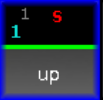 *Preset Pool – Selective Data* 3. Final result after cloning:\ -This process created selective data for fixture 11. \ -Fixture 11 now has the exact same pan and tilt values as fixture 1.  *Clone Fixture to Fixture – Final Situation* 4. Final result after cloning:\ -The preset now contains selective data for fixture 11.  *Preset Pool – Selective Data* *** ## [Clone Fixture to Fixture Type]() [Section titled “Clone Fixture to Fixture Type”](#clone-fixture-to-fixturetype) ### Example [Section titled “Example”](#example-1) * **Clone fixture 1 to fixture type 4.1** 1. Initial preset situation before cloning:\ -Fixture 1 with pan and tilt values of min.  *Clone Fixture to Fixture Type – Initial Situation* 2. Initial preset situation before cloning:\ -The preset contains selective data for fixture 1.  *Preset Pool – Selective Data* 3. Final result after cloning:\ -This process created global data for fixture type 4.1. \ -Fixture type 4.1 now has the exact same pan and tilt values as fixture 1.  *Clone from Fixture to Fixture Type – Final Result* 4. Final result after cloning:\ -The preset now contains global data for fixture type 4.1. 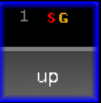 *Preset Pool – Selective and Global Data* *** ## [Clone Fixture Type to Fixture]() [Section titled “Clone Fixture Type to Fixture”](#clone-fixture-type-to-fixture) ## Example [Section titled “Example”](#example-2) * **Clone fixture type 4.1 to fixture 1** 1. Initial preset situation before cloning:\ -Fixture type 4.1 with pan and tilt values of min.  *Clone Fixture Type to Fixture – Initial Situation* 2. Initial preset situation:\ -The preset contains global data for fixture type 4.1. 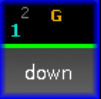 *Preset Pool – Global Data* 3. Final result after cloning:\ -This process created selective data for fixture 1.\ -Fixture 1 now has the exact same pan and tilt values as fixture type 4.1  *Clone Fixture Type to Fixture – Final Result* 4. Final result:\ -The preset now contains selective data for fixture 1.  *Preset Pool – Global and Selective Data* *** ## [Clone Fixture Type to Fixture Type]() [Section titled “Clone Fixture Type to Fixture Type”](#clone-fixture-type-to-fixture-type) ### Example [Section titled “Example”](#example-3) * **Clone fixture type 4.1 to fixture type 7.1** 1. Initial situation:\ -Fixture type 4.1 with pan and tilt values of min.  *Clone Fixture Type to Fixture Type – Initial Situation* 2. Initial situation:\ -The preset contains global data for fixture type 4.1.  *Preset Pool - Global Data* 3. Final result after cloning:\ -This process created global data for fixture type 7.1.\ -Fixture type 7.1 now has the exact same pan and tilt values as fixture type 4.1.  *Clone Fixture Type to Fixture Type – Final Result* 4. Final result:\ -The preset now contains global data for fixture type 7.1.  Preset Pool - Global Data *** ## []()Clone to Universal Fixture Type [Section titled “Clone to Universal Fixture Type”](#clone-to-universal-fixture-type) **Important:**\ Universal data is data of all fixtures that have the same attribute. Also, it is redundant to clone universal preset data. If the target data is to be universal, then clone to fixture type 1.1. \[Channel]> Clone Fixture 1 At FixtureType 1.1 If Preset 2.4
# Examples
> Important:
**Important:**\ It is possible to clone from fixture types or to fixture types in presets only. For more information see [Clone presets](/grandma2/key_clone_clone_presets/). ## **Important:**\ The cloning option **Overwrite** removes and replaces original data of the destination by new data. ## [Section titled “ ”](#-1) ## Clone Fixture to Fixture [Section titled “Clone Fixture to Fixture”](#clone-fixture-to-fixture) ### 1. Example: [Section titled “1. Example:”](#1-example) If you clone fixture 1 to fixture 2 with the default option, i.e., **Low Prio Merge**: * This process creates selective data for fixture 2. * Fixture 2 now does the exact same thing it did before cloning. * Fixture 2 keeps the data of fixture 1 in case fixture 2 should not have any data for specific objects. ### 2. Example: [Section titled “2. Example:”](#2-example) If you clone fixture 1 to fixture 2 with the option **Merge**: * This process creates selective data for fixture 2. * Fixture 2 now does the exact same thing as fixture 1. * Fixture 2 keeps its data in case fixture 1 should not have any data for specific objects. ### 3. Example: [Section titled “3. Example:”](#3-example) If you clone fixtures 1 and 2 to fixtures in group 10 in sequences 1 through 10: * This process copies data from fixtures 1 and 2 to fixtures in group 10 within sequence 1 through 10 only. ### 4.Example: [Section titled “4.Example:”](#4example) If you clone fixture 1 to fixture 2 with the option **Overwrite**: * This process creates selective data for fixture 2. * Fixture 2 now does the exact same thing as fixture 1. *** ## Clone Fixture to Fixture Type [Section titled “Clone Fixture to Fixture Type”](#clone-fixture-to-fixture-type) **Important:**\ Cloning fixtures to fixture types clones selective data to global data. ### 1. Example: [Section titled “1. Example:”](#1-example-1) If you clone fixture 1 to fixture type 2 with the default option, i.e., **Low Prio Merge**: * This process creates global data for fixture type 2. * Fixture type 2 now does the exact same thing it did before cloning. * Fixture type 2 keeps the data of fixture 1 in case fixture type 2 should not have any data for specific objects. ### 2. Example: [Section titled “2. Example:”](#2-example-1) If you clone fixture 1 to fixture type 2 with the option **Merge**: * This process creates global data for fixture type 2. * Fixture type 2 now does the exact same thing as fixture 1. * Fixture type 2 keeps its data in case fixture 1 should not have any data for specific objects. ### 3.Example: [Section titled “3.Example:”](#3example) If you clone fixture 1 to fixture type 2 with the option **Overwrite**: * This process creates global data for fixture type 2 * Fixture type 2 now does the exact same thing as fixture 1. *** ## Clone Fixture Type to Fixture [Section titled “Clone Fixture Type to Fixture”](#clone-fixture-type-to-fixture) **Important:**\ Cloning fixture types to fixtures clones global data to selective data. ### 1. Example: [Section titled “1. Example:”](#1-example-2) If you clone fixture type 1 to fixture 2 with the default option, i.e., **Low Prio Merge**: * This process creates selective data for fixture 2. * Fixture 2 now does the exact same thing it did before cloning. * Fixture 2 keeps the data of fixture type 1 in case fixture 2 should not have any data for specific objects. ### 2. Example: [Section titled “2. Example:”](#2-example-2) If you clone fixture type 1 to fixture 2 with the option **Merge**: * This process creates selective data for fixture 2. * Fixture 2 now does the exact same thing as fixture type 1. * Fixture 2 keeps its data in case fixture type 1 should not have any data for specific objects. ### 3. Example: [Section titled “3. Example:”](#3-example-1) If you clone fixture type 1 to fixture 2 with the option **Overwrite**: * This process creates selective data for fixture 2. * Fixture 2 now does the exact same thing as fixture type 1. *** ## Clone Fixture Type to Fixture Type [Section titled “Clone Fixture Type to Fixture Type”](#clone-fixture-type-to-fixture-type) **Important:**\ Cloning fixture types to fixture types clones global data to global data. ### 1. Example: [Section titled “1. Example:”](#1-example-3) If you clone fixture type 1 to fixture type 2 with the default option, i.e., **Low Prio Merge**: * This process creates global data for fixture type 2. * Fixture type 2 now does the exact same thing it did before cloning. * Fixture type 2 keeps the data of fixture type 1 in case fixture type 2 should not have any data for specific objects. ### 2. Example: [Section titled “2. Example:”](#2-example-3) If you clone fixture type 1 to fixture type 2 with the option **Merge**: * This process creates global data for fixture type 2. * Fixture type 2 now does the exact same thing as fixture 1. * Fixture type 2 keeps its data in case fixture type 1 should not have any data for specific objects. ### 3.Example: [Section titled “3.Example:”](#3example-1) If you clone fixture type 1 to fixture type 2 with the option **Overwrite**: * This process creates global data for fixture type 2. * Fixture type 2 now does the exact same thing as fixture type 1.
# Command Syntax and Keywords
> The usage of the command line is an essential way of communication between the console and its operator.
The usage of the command line is an essential way of communication between the console and its operator. Using reserved words, keywords and numerical identifiers is how the operator tells the console to perform a task. **Important:**\ Most of the commands have to be completed with a **Please**. Type the word **Please**\*\*\*\* into the command line or press the key Please in the command section. ### Example: [Section titled “Example:”](#example) \[Channel]> Delete Group 4 \- or - Del + Group + 4 + Please *** ## Keywords [Section titled “Keywords”](#keywords) Most commonly used keywords have their own keys. Others may only be accessed by repeatedly pressing a key or press and hold a key. For more information on multiple functions of keys see [Key overview](/grandma2/key_keys_key_overview/). **Important:**\ All keywords can be typed into the command line using the keyboard. Moreover, you see the content being typed into the command line in the input field. If you would like to see the commands you ordered the console to fulfill: * Click  on the left of the command line to open the pop-up Command Line Feedback. Here you will see the history of your commands. ### Example: [Section titled “Example:”](#example-1) \[time] : Executing: Delete Group 4 For more information on how to use the command line in detail see [Command line](/grandma2/key_widget_command_line/). ## Subtopics [Section titled “Subtopics”](#subtopics) * [General syntax rules](/grandma2/key_cs_general_syntax_rules/) * [All keywords](/grandma2/key_cs_all_keywords/) * [Work with lists](/grandma2/key_cs_work_with_lists/)
# Console Settings
> Use the console settings to adjust the console to the environment.
Use the console settings to adjust the console to the environment. For more information on the various settings see the links below: ## Subtopics [Section titled “Subtopics”](#subtopics) * [Adjust the intensity of desk lights](/grandma2/key_window_desklights/) * [Change screen options](/grandma2/key_window_screenoptions/) * [Local settings](/grandma2/key_local_settings/) * [Wing & monitor setup](/grandma2/key_window_faderwing_commandwing_setup/) * [Date & Time](/grandma2/key_date_time/)
# Control the MA NDPs
> MA Lighting's dimMA dimming system is used in the grandMA1 series. It can be mixed within an installation as it has the same dimming curves and rise times. All
MA Lighting’s dimMA dimming system is used in the grandMA1 series. It can be mixed within an installation as it has the same dimming curves and rise times. All dimmers can be controlled by any DMX source. The MA NDP (Network Dimmer Processor) sends and receives different Ethernet protocols as well as DMX. Once the grandMA console or any other control system is switched off, the MA NDP takes over the control and starts operating as the “heart” of the entire network. This functionality provides a detailed overview and control of the entire system. The settings can be centrally organized while the entire control of all parts of the network remains. For more information on the NDP see [What is the Network Dimmer Processor](/grandma2/key_so_what_is_the_network_dimmer_processor_ndp/). ## Subtopics [Section titled “Subtopics”](#subtopics) * [Add the MA NDPs](/grandma2/key_control_ndp_add/) * [Configure the MA NDPs](/grandma2/key_control_ma_ndp_configure/) * [Delete the MA NDPs](/grandma2/key_control_ma_ndp_delete/)
# Configure the MA NDPs
> Important:
**Important:**\ This topic deals with settings that can be made in the **MA Network Configuration** of MA NDPs. General settings are dealt with in [Adding devices to your session](/grandma2/key_network_session_add_device/). For information on the configuration of MA NDPs in the view **MA Dimmer Network** see [Network dimmer](/grandma2/key_ost_network_dimmer/) and this topic´s corresponding subtopics. **Requirements:** * Add an MA NDP to the network configuration. For more information see [Add the MA NDPs](/grandma2/key_control_ndp_add/). 1. Open the **MA Network Configuration**.\ -Press Setup and tap MA Network Configuration. 2. The window **MA Network Configuration** opens.\ -Tap NDP Dimmer. 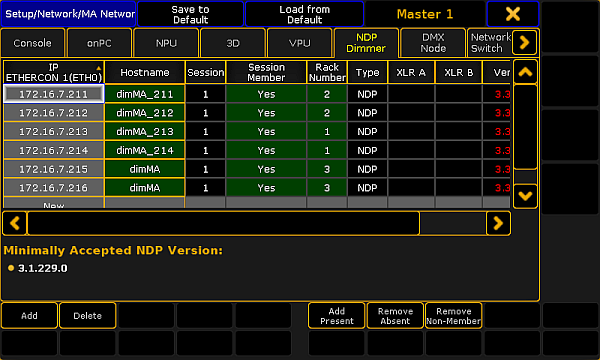 *Open NDP Dimmer in Network Configuration* **Hint:**\ The columns displayed in green are editable. 3. To edit the hostname, tap and hold a cell in the column **Hostname**.\ -The calculator opens.\ -Enter the name. 4. To remove an MA NDP from the session, tap and hold a cell in the column **Session Member**.\ **Yes** disappears and the cell turns gray. 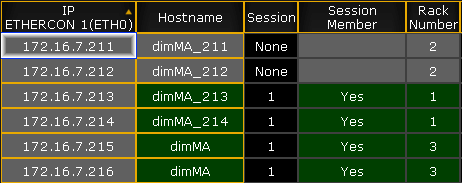 *Remove MA NDP from session* **Hint:**\ Remove MA NDPs from the session before deleting them. For more information see [Delete the MA NDPs](/grandma2/key_control_ma_ndp_delete/). 5. To edit the rack number, tap and hold a cell in the column **Rack Number**.\ -The calculator opens.\ -Enter the number of the rack. **Hint:**\ Changing the rack number proves handy if you have configured specific settings in the view **MA Dimmer Network**. For more information on the settings in MA Dimmer Network see [Network dimmer](/grandma2/key_ost_network_dimmer/) and this topic´s corresponding topics. The MA NDPs are configured and the settings are applied.
# Delete the MA NDPs
> Follow these guidelines to delete the MA NDPs in the network configuration.
Follow these guidelines to delete the MA NDPs in the network configuration. 1. Open the **MA Network Configuration**. \ -Press Setup and tap MA Network Configuration.\ -The window **MA Network Configuration** opens. 2. Tap NDP Dimmer.  *MA Network Configuration – NDP Dimmer* **Important:**\ To delete MA NDPs, remove them form the session. To do so, tap and hold a cell in the column **Session Member** until **Yes** disappears. The cell turns gray. 3. Tap Delete. **Hint:**\ To select several MA NDPs, use the “lasso” selection in the column **Session Member**. The MA NDPs have been deleted in the network configuration.
# Control the MA Network Switch
> The MA Network Switch is the perfect device for a full lighting control solution. The combination of console, switch and networking devices provides the easiest
The MA Network Switch is the perfect device for a full lighting control solution. The combination of console, switch and networking devices provides the easiest solution even for complex lighting systems. You can control the MA Network Switch by using the web interface or directly with a grandMA2 console or grandMA2 onPC. For more information about how to control the MA Network Switch by using the web interface see [MA Network Switch manual](https://help.malighting.com/network/en/help/). This chapter explains how to control the MA Network Switch from a grandMA2 console or grandMA2 onPC. You will find out how to add the MA Network Switch to the network configuration, configure ports, or edit groups and presets. ## Subtopics [Section titled “Subtopics”](#subtopics) * [Add MA Network Switch](/grandma2/key_control_ma_switch_add/) * [Change IP address](/grandma2/key_control_ma_switch_ip_address/) * [Enable DHCP client](/grandma2/key_control_ma_switch_dhcp/) * [Change hostname](/grandma2/key_control_ma_switch_hostname/) * [Change switch ID](/grandma2/key_control_ma_switch_switch_id/) * [Configure ports](/grandma2/key_control_ma_switch_ports/) * [Edit groups](/grandma2/key_control_ma_switch_groups/) * [Edit presets](/grandma2/key_control_ma_switch_presets/) * [Edit LAGs](/grandma2/key_control_ma_switch_lags/) * [Mirror ports](/grandma2/key_control_ma_switch_mirror_ports/) * [Work with the switch configuration](/grandma2/key_control_ma_switch_configuration/) * [Disable SNMP](/grandma2/key_control_ma_switch_snmp/) * [Change password](/grandma2/key_control_ma_switch_password/) * [Update firmware](/grandma2/key_control_ma_switch_update/) * [Reset to factory defaults](/grandma2/key_control_ma_switch_reset/) * [Delete MA Network Switch](/grandma2/key_control_ma_switch_delete/)
# Add MA Network Switch
> Use these steps to add the MA Network Switch to the network configuration.
Use these steps to add the MA Network Switch to the network configuration. **Requirements:** * The default IP address of the switch is a 192.168.100.xxx. It is displayed at the front end display.\ The default subnet mask of the switch is 255.255.255.0. This means your PC or grandMA2 station needs to be set to a compatible IP address. For more information about how to change the IP address see chapter [Networking](/grandma2/key_network/). * Power on (indicates by a green power LED) * Hardware connection between the MA Switch and a computer (indicates by a green or orange blinking link LED) 1. Open the MA Network Configuration.\ \- Press Setup, and tap under **Network** MA Network Configuration.\ The MA Network Configuration window opens. 2. Tap at Network Switch. 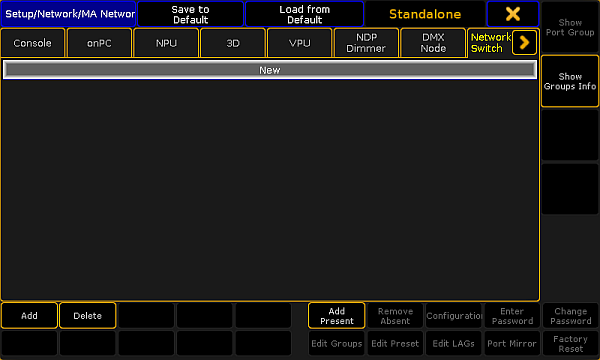 *MA Network Configuration window* 3) To add every present MA Network Switch, tap Add Present.\ Every present MA Network Switch is added to the MA Network Configuration. Continue with step 6. 4) To open a pop-up to select the station you like to add, tap Add or press the screen encoder.\ The Select Station pop-up opens. 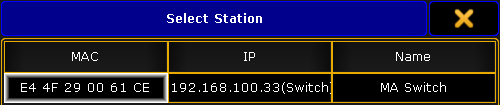 *Select Station pop-up* 5. Tap at the station you like to add. 6. Scroll at the right screen side and check if the MA Network Switch has an active password protection. 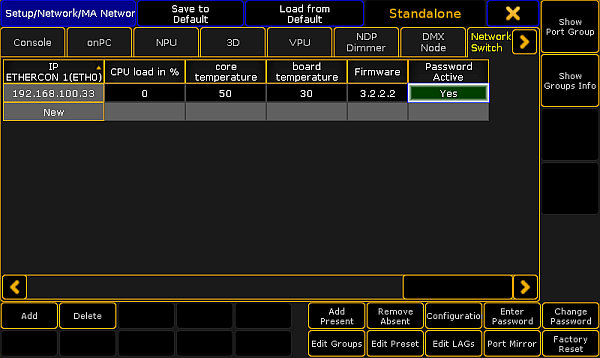 *MA Network Configuration - Password Active* 7) If **Yes** is set and the cell is red the MA Network Switch has an active password protection. **Important:**\ The default password admin of the MA Network Switch is not an active password protection. An active password protection is when the default password was change to an individual password. 8. Tap Enter Password.\ The **Enter switch password pop-up** opens.\ Type the MA Network Switch password in the green edit line and press Please. If the input was successful the Password Active cell changes the color to green. The MA Network Switch is added to the network configuration and ready for further configuration.
# Work with the switch configuration
> The configuration is the customized set of parameters that you have selected to run the switch.
The configuration is the customized set of parameters that you have selected to run the switch. You can get the current switch configuration or upload a previous exported switch configuration. **Requirements:** * [Added MA Network Switch to the network configuration](/grandma2/key_control_ma_switch_add/) * grandMA2 console and MA Network Switch needs to be in the same subnet ## []()Get switch configuration [Section titled “Get switch configuration”](#get-switch-configuration) To get the switch configuration for later import is useful, if the same configuration must be used in multiple switches. 1. Open the MA Network Configuration.\ \- Press Setup, and tap under **Network** MA Network Configuration. 2. The MA Network Configuration window opens.Tap at Network Switch. 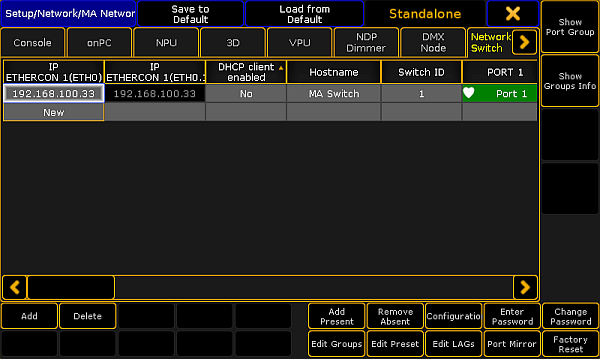 *MA Network Configuration - Network Switch* 3. Tap Configuration.\ The **Network Switch Configuration pop-up** opens.  *Network Switch Configuration pop-up* 4. Tap Get Configuration.\ The Save Configuration pop-up opens.  *Save Configuration pop-up* 5. Select drive and folder and type the file name in the green edit line. Tap at the \*\*plus \*\* to open the virtual keyboard. 6. Tap Save. The MA Network Switch configuration is saved on the selected drive. If you are using a grandMA2 onPC the MA Network Switch configuration is in the hidden folder C:\ProgramData\MA Lighting Technologies\grandma\gma2\_V\_3.1\\. **Important:**\ The configuration file uploaded via the onPC does not affect the IP address. The configuration file uploaded via the web interface, however, does affect the IP address. *** ## Send Configuration [Section titled “Send Configuration”](#send-configuration) **Important:**\ The configuration file has to be written in a JSON (JavaScript Object Notation) data format. If the configuration is not in a JSON data format, the switch can not read the configuration file. **Hint:**\ If you are not sure how to write the configuration file, [get the current switch configuration](#Get%20switch%20configuration) and modify this file. **Important:**\ If you upload only parts of switch configuration, e.g. only the filters, it is necessary that the entire filters configuration part is included in the configuration file. If parts are missing in the configuration file, the configuration upload does not work. 1. Open the MA Network Configuration.\ \- Press Setup, and tap under **Network** MA Network Configuration. 2. The MA Network Configuration window opens.Tap at Network Switch. 3. Tap Configuration.\ The **Network Switch Configuration pop-up** opens. 4. Tap Send Configuration.\ The Load Configuration pop-up opens.\ \ If you are using a grandMA2 onPC the MA Network Switch configuration is in the hidden folder C:\ProgramData\MA Lighting Technologies\grandma\gma2\_V\_3.1\\.  *Load Configuration pop-up* 5. Select the MA Network Switch configuration .json file for upload. 6. Tap Open. The switch configuration is uploading. The update process can take about 60 seconds. The switch configuration is uploaded and saved in the startup configuration.
# Delete MA Network Switch
> Use these steps to delete the MA Network Switch from the network configuration.
Use these steps to delete the MA Network Switch from the network configuration. 1. Open the MA Network Configuration.\ \- Press Setup, and tap under **Network** MA Network Configuration.\ The MA Network Configuration window opens. 2. Tap at Network Switch.  *MA Network Configuration window* 3. Tap Delete. The MA Network Switch is deleted from the network configuration.
# Enable DHCP client
> If the network is equipped with a DHCP server enable the DHCP client of the switch for it to receive automatically an IP address from the DHCP server.
If the network is equipped with a DHCP server enable the DHCP client of the switch for it to receive automatically an IP address from the DHCP server. The previous assigned IP address will be used if there is no DHCP server available. **Requirement:** [Added MA Network Switch to the network configuration](/grandma2/key_control_ma_switch_add/). 1. Open the MA Network Configuration.\ \- Press Setup, and tap under **Network** MA Network Configuration.\ The MA Network Configuration window opens. 2. Tap at Network Switch.  *MA Network Configuration - Network Switch* 3. Tap and hold the cell in the column DHCP client enabled until **Yes** is displayed. The DHCP client is enabled. The DHCP settings are saved in the startup configuration.  *MA Network Configuration - Network Switch - DHCP yes* The column IP ETHERCON 1(ETH0) displays the used DHCP IP address. The column IP ETHERCON 1(ETHO.1) displays the default IP address of the MA Network Switch. If DHCP is on, the MA Network Switch is reachable only with the DHCP IP address. **Hint:**\ You can also enable the DHCP client by using the command line.\ \- Change the destination of the command line to NetConfig/Network Switch 8. For more information see [ChangeDest keyword](/grandma2/key_keyword_changedest/).\ \- Type in the command line Assign 1 / DHCPclientenabled = “Yes”.\ The DHCP client of the NetworkSwitch 1 is enabled.
# Edit groups
> This topic describes the different group settings and how to edit the groups.
This topic describes the different group settings and [how to edit the groups](#Edit%20Groups). You can edit the following option: * [Group Name](#Group%20Name) * [IGMP Snooping](#IGMP%20Snooping) * [IGMP Querier](#IGMP%20Querier) * [Unknown Flooding](#Unknown%20Flooding) * [VLAN ID](#VLAN%20ID) *** ## []()Group Name [Section titled “Group Name”](#group-name) You can change the group name of every group except Trunk and Manage. For a better overview every group name is displayed in a different color. **Important:**\ The group name is a label for better overview and does not affect the VLAN. *** ## []()IGMP Snooping [Section titled “IGMP Snooping”](#igmp-snooping) IGMP snooping avoids ports to be flooded with undesired multicast packets.\ It is a smart way to manage multicast packets, and forward them to the registered ports. IGMP snooping is disabled by default. **Hint:**\ To forward only known multicast network packets, enable IGMP Snooping and IGMP Querier. Disable unknown flooding. *** ## []()IGMP Querier [Section titled “IGMP Querier”](#igmp-querier) **Important:**\ IGMP snooping requires at least one switch in a group (VLAN) to act as a querier to ensure IGMP snooping functionality. Querier register the multicast packets to the corresponding ports.\ If more than one querier is activated per group, the switch with the lowest IP address will be elected as querier.\ This election process is automated. IGMP querier is disabled by default. *** ## []()Unknown Flooding [Section titled “Unknown Flooding”](#unknown-flooding) Unknown flooding is for multicasted frames destined for an address for which the switch has not seen a join.\ In that case the switch uses the flooding mask to forward that frame to every port. Unknown flooding can be global enabled or disabled for all groups.\ By default, unknown flooding is enabled. * Yes = All unknown packages will be forwarded * No = All unknown packages will be dropped **Hint:**\ To forward only known multicast network packets, enable IGMP Snooping and IGMP Querier. Disable unknown flooding. *** ## []()VLAN ID [Section titled “VLAN ID”](#vlan-id) All groups of the switch have a default VLAN ID, except Trunk.\ If you implement the switch in an existing network, it can be necessary to change the VLAN ID of the groups.\ You can change the VLAN ID of group 1 through group 6. The VLAN ID of group 8 (= manage group) is 1 and fixed.\ Possible VLAN IDs are from 1 to 4094. | Group | Default VLAN ID | | ----- | --------------- | | 1 | 100 | | 2 | 200 | | 3 | 300 | | 4 | 400 | | 5 | 500 | | 6 | 600 | **Important:**\ If you change the VLAN ID of a group, you need to change the VLAN ID of each switch using this group.\ The VLAN IDs of the groups which should communicate to each other, have to be the same.\ If the VLAN IDs of groups are not the same, they do not communicate with each other. *** ## []()Edit Groups [Section titled “Edit Groups”](#edit-groups) **Requirement:** [Added MA Network Switch to the network configuration](/grandma2/key_control_ma_switch_add/). To edit groups: 1. Open the MA Network Configuration.\ \- Press Setup, and tap under **Network** MA Network Configuration.\ The MA Network Configuration window opens. 2. Tap at Network Switch.  *MA Network Configuration - Network Switch* 3. Tap at a cell in the row of the MA Network Switch you like to edit and tap Edit Groups.\ The **Configure Switch Groups pop-up** opens.  *Configure Switch Groups pop-up* 4. Tap and hold the cell you like to edit or tap in the cell and press the screen encoder. 5. Edit the group and press Please or tap Please. The groups are configured and the changes are saved in the startup configuration.
# Change hostname
> You can change the name of the MA Network Switch.
You can change the name of the MA Network Switch.\ The name is displayed at the front end display and in the title bar of the web interface. The maximum length of the name are 12 characters.\ The following characters are allowed. * Upper case letters A…Z * Lower case letters a…z * Numbers 0…9 * Spaces, minus (-), plus (+), underscore (\_) **Requirement:** [Added MA Network Switch in the network configuration](/grandma2/key_control_ma_switch_add/). 1. Open the MA Network Configuration.\ \- Press Setup, and tap under **Network** MA Network Configuration.\ The MA Network Configuration window opens. 2. Tap at Network Switch.  *MA Network Configuration - Network Switch* 3. Tap and hold the cell in the column hostname or tap in the cell and press the screen encoder until the **Edit Hostname pop-up** opens. 4. Enter the new name, e.g. Stage Left. Tap at the \*\*plus \*\* to open the virtual keyboard. 5. Press Please. The new name is applied and saved in the startup configuration. The front end display of the MA Network Switch displays the new name. **Hint:**\ You can change the hostname by using the command line.\ \- Change the destination of the command line to NetConfig/Network Switch 8. For more information see [ChangeDest keyword](/grandma2/key_keyword_changedest/).\ \- Type in the command line Assign 1 / Hostname = “Stage Left”.\ The hostname of the NetworkSwitch 1 is changed.
# Change IP address
> You can change the IP address of the MA Network Switch from a connected grandMA2 console or a connected grandMA2 onPC.
You can change the IP address of the MA Network Switch from a connected grandMA2 console or a connected grandMA2 onPC.\ The IP address will be used to reach the web interface and to reach the connected grandMA2 console or the connected grandMA2 onPC.\ The current IP address is displayed in the IP ETHERCON 1(ETH0) or in the IP ETHERCON 1(ETH0.1) column, depending on the used Ethernet connector. **Important:**\ If you change the IP address and the new IP address is within another subnet, it is necessary to set the IP address on your computer or grandMA2 console to connect to the web interface. For more information about how to change the IP address see [Networking](/grandma2/key_network/).\ If the computer or the grandMA2 console and the switch are in different subnet, the connection is not possible. **Important:**\ Make sure that every device in the network has its unique IP address. If two devices have the same IP address in a network the devices might not be reachable. **Requirement:** [Added MA Network Switch in the network configuration](/grandma2/key_control_ma_switch_add/). 1. Open the MA Network Configuration.\ \- Press Setup, and tap under **Network** MA Network Configuration.\ The MA Network Configuration window opens. 2. Tap at Network Switch.  *MA Network Configuration - Network Switch* 3. Navigate to the cell with the IP address you like to change and press the screen encoder or tap and hold in the cell.\ The **Edit IP ETHERCON 1 pop-up** opens. 4. Type the new IP address in the green edit line. Tap at the \*\*plus \*\* to open the virtual keyboard. 5. Press Please. The IP address is changed and saved in the startup configuration.
# Edit LAGs
> The Link Aggregation Group (= LAG) combines several physical ports to create a single high-bandwidth data path as well as to implement the traffic load shared a
The Link Aggregation Group (= LAG) combines several physical ports to create a single high-bandwidth data path as well as to implement the traffic load shared among the member ports in a group. LAG enhances the connection reliability and efficiency. The first port joining an LAG sets its settings – group, speed, etc., – to default settings of the LAG. **Requirement:** * [Add MA Network Switch to the network configuration](/grandma2/key_control_ma_switch_add/) To edit LAGs: 1. Open the **MA Network Configuration**:\ -Press Setup and tap **Network** MA Network Configuration.\ -The window **MA Network Configuration** opens.  *MA Network Configuration – Network Switch* 2. Tap Network Switch. 3. Tap a cell in the row of the MA Network Switch you would like to edit and tap Edit LAGs.\ -The **pop-up Configure MA Network Switch LAGs** opens.  *Configure LAGs* 4. To individually label an LAG, tap and hold a cell in the column LAG.\ -A calculator opens.\ -Enter the name of the LAG and press Please. **Important:**\ Use a maximum of 8 characters. 5. After adjusting the names of the LAGs tap Please. 6. The LAGs are now edited.
# Mirror ports
> In port mirroring, the entire traffic that arrives at a port is mirrored onto a mirror port of the MA Network Switch.
In port mirroring, the entire traffic that arrives at a port is mirrored onto a mirror port of the MA Network Switch. Port mirroring is most commonly used in debugging or for the analysis of the network traffic such as the network load. **Important:**\ The MA Network Switch mirrors several source ports to one destination port. Vice versa, it is possible to set a single destination port at a time. **Requirement:** * [Add MA Network Switch to the network configuration](/grandma2/key_control_ma_switch_add/) To mirror ports: 1. Open the **MA Network Configuration**:\ -Press Setup and tap **Network** MA Network Configuration.\ -The window **MA Network Configuration** opens.  *MA Network Configuration – Network Switch* 2. Tap Network Switch. 3. Tap a cell in the row of the MA Network Switch you would like to edit and tap Port Mirror.\ -The **pop-up Configure MA Network Switch Port Mirrors** opens. 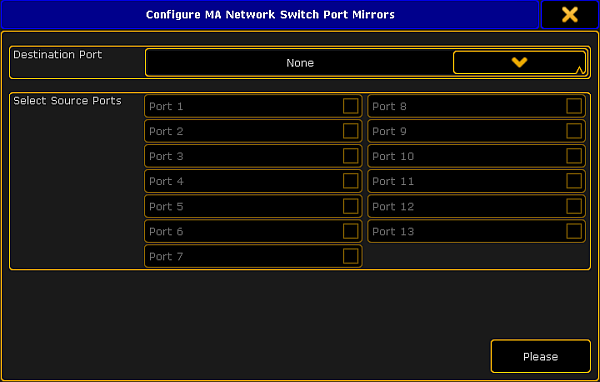 *Mirror ports* 4. Select destination port:\ -Tap the button in the field **Destination Port** and select a port. 5. Select source ports:\ -Check the checkboxes corresponding to the source ports. 6. After checking one or several source ports tap Please. 7. The ports are now mirrored. **Hint:**\ A port is never destination and source at the same time.
# Change password
> You can change the password of the MA Network Switch.
You can change the password of the MA Network Switch. The password is necessary to login into the web interface and to unlock the MA Network Switch on the grandMA2 console or grandMA2 onPC if the switch is password protected. The default password is **admin**. The following characters are allowed. * Upper case letters A…Z * Lower case letters a…z * Numbers 0…9 * Spaces, minus (-), plus (+), underscore (\_) **Requirement:** [Added MA Network Switch in the network configuration](/grandma2/key_control_ma_switch_add/). 1. Open the MA Network Configuration.\ \- Press Setup and tap under **Network** MA Network Configuration.\ The MA Network Configuration window opens. 2. Tap at Network Switch.  *MA Network Configuration - Network Switch* 3. Tap Change Password.\ The **Enter Switch Password pop-up** opens.  *Enter Switch Password pop-up* 4. Type the old password, type the new password, type the new password again to confirm it, and then tap Please or press Please. The password is changed and you are logged in with the new password. If you have forgotten the password you can reset the password to the default by a [factory reset](/grandma2/key_control_ma_switch_reset/).
# Configure ports
> This topic describes the different port settings and how to configure the ports.
This topic describes the different port settings and [how to configure the ports](#Configure%20ports). You can configure the following options: * [Port description](#Port%20description) * [Group](#Groups) * [RSTP](#RSTP) (= Rapid Spanning Tree Protocol) * [Speed](#Speed%20settings) * [LAG](#LAG) (= Link Aggregation Group) *** ## []()Port description [Section titled “Port description”](#port-description) To have a better overview about what is connected to what port, you can change the port description of each port. The port description has a maximum length of 8 characters. The following characters are allowed. * Upper case letters A…Z * Lower case letters a…z * Numbers 0…9 * Spaces, minus (-), plus (+), underscore (\_) *** ## []()Groups [Section titled “Groups”](#groups) You can assign one group for each port. Two devices must be part of the same group to communicate. Groups are a logical segment of network users (= VLAN). With groups it is possible to send different signals in different groups via the same network cable without affect the other signal. For example sound and light signals. The groups for port 1 through 13 can be manually configured. By default, all groups are managed groups.\ The assigned group is visible at the front end display of the MA Network Switch and indicated by the group LED. The switch has eight different groups. 1. Group01 (Red) 2. Group02 (Yellow) 3. Group03 (Green) 4. Group04 (Cyan) 5. Group05 (Blue) 6. Group06 (Magenta) 7. Trunk (White) 8. Manage (Gray) If more than one switch is in a network and more than one group is in use, the Trunk is needed to forward all group packets to the other switches. The Trunk bundles all other groups. **Important:**\ You need at least one manage group in the network.\ If no manage port is in the network you can not configure the switch anymore. A [factory reset](/grandma2/key_control_ma_switch_reset/) is necessary. **Hint:**\ Use port 13 on the front panel as management port to connect the PC for switch configuration via the web interface. *** ## []()RSTP [Section titled “RSTP”](#rstp) Rapid Spanning Tree Protocol (RSTP) uses point-to-point wiring and provides rapid convergence of the spanning tree. If there are more than one point-to-point connections between two switches RSTP manages the redundant link unless the original connection fails. **Important:**\ The MA Network Switch supports an implementation of RSTP that is compatible with the IEEE 802.1w standard and does not support per VLAN RSTP. This means that the MA Network Switch will send out and expect to receive untagged RSTP messages. By default, RSTP is enabled. * Disabled\ The switch does not run RSTP for this port. If RSTP is disabled, LLDP (Link Layer Discovery Protocol) is disabled as well. * Enabled\ The switch runs RSTP for this port. If RSTP is enabled, LLDP (Link Layer Discovery Protocol) is enabled as well. *** ## []()Speed settings [Section titled “Speed settings”](#speed-settings) You can edit the port speed of each port on the MA Network Switch.\ The selected speed is visible at the status page on the web interface.\ If a port is connected, the link LED is blinking in the speed color. For more information see [MA Network Switch manual](https://help.malighting.com/Page/Network/MA_network_switch/en/3.1). There are three speed settings available: * Auto: The port detects automatically the speed of the connected device (default). * 100Mbit * 1Gbit *** ## []()LAG [Section titled “LAG”](#lag) The Link Aggregation Group (LAG) combines a number of physical ports for them to behave as one connection. Configure the LAGs via the web interface or in the [MA Network Configuration menu – Edit LAGs](/grandma2/key_control_ma_switch_lags/). For more information see [MA Network Switch](https://help.malighting.com/Page/Network/MA_network_switch/en/3.3). Select between 6 LAGs: * None * LAG01 * LAG02 * LAG03 * LAG04 * LAG05 * LAG06 **Hint:**\ Set a port to an LAG in the same manner as in setting a group to a port. **Important:**\ -If a port is set to an LAG, its settings – group, speed etc., – are adjusted to the default settings of the LAG.\ \ -Changing settings on a port that has an LAG membership, changes these settings in other ports of the LAG. *** ## []()Configure ports [Section titled “Configure ports”](#configure-ports) **Requirement:** [Added MA Network Switch to the network configuration](/grandma2/key_control_ma_switch_add/). To configure the ports: 1. Open the MA Network Configuration.\ \- Press Setup, and tap under **Network** MA Network Configuration.\ The MA Network Configuration window opens. 2. Tap at Network Switch.  *MA Network Configuration - Network Switch* 3. Tap and hold in the cell of a port or tap in the cell and press the screen encoder.\ The Configure Switch Port pop-up opens. 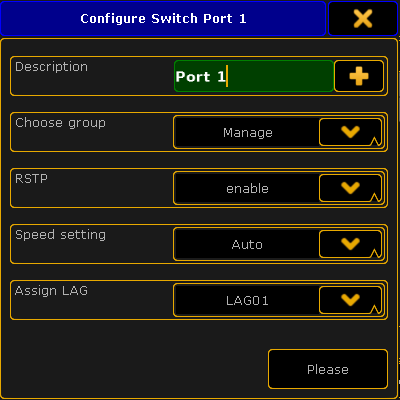 *Configure Switch Port pop-up* 4. Configure the port.\ \- Enter in the green edit line a new port description.\ \- To choose a group tap in the groups field at the arrow down and tap at a group in the drop-down.\ \- To disable RSTP tap in the RSTP field at the arrow down and tap at disable.\ \- To change the speed settings tap in the speed setting field at the arrow down and at a speed setting in the drop-down.\ -To assign an LAG, tap the drop-down in the filed **Assign LAG**. 5. Press Please or tap Please. The port is configured and the changes are saved in the startup configuration.
# Edit presets
> It is useful to apply presets to ports for a higher network performance or for safety reasons, e.g. to block Telnet.
It is useful to apply presets to ports for a higher network performance or for safety reasons, e.g. to block Telnet. A preset contains collection of filters. For more information about filter see the [MA Network Switch manual](https://help.malighting.com/Page/Network/MA_network_switch/en/3.1). Presets are used to allow or to block the selected output. If a preset is set to allow (= green), the network packets matching the filters in the preset are allowed. All other network packets not matching the filters of this preset, will be blocked.\ If a preset is set to block (= red), the network packets matching the filters in the presets are blocked. All other network packets not matching the filters of this preset, will be allowed. **Important:**\ Presets are applied in the outbound as well as in the inbound network traffic of the specific physical connector. There are seven predefined presets available: * MA-Net2 * dot2-Net * Art-Net * MA-Remote * MA-Net1 * grandMA2 * sACN **Requirement:** [Added MA Network Switch to the network configuration](/grandma2/key_control_ma_switch_add/). To edit presets: **Important:**\ If manual filters are assigned to a port an assigned preset will delete the previous assigned filter from the port. 1. Open the MA Network Configuration.\ \- Press Setup, and tap under **Network** MA Network Configuration.\ The MA Network Configuration window opens. 2. Tap at Network Switch.  *MA Network Configuration - Network Switch* 3. Tap at a cell in the row of the MA Network Switch you like to edit and tap Edit Preset.\ The **Set Switch Presets pop-up** opens. 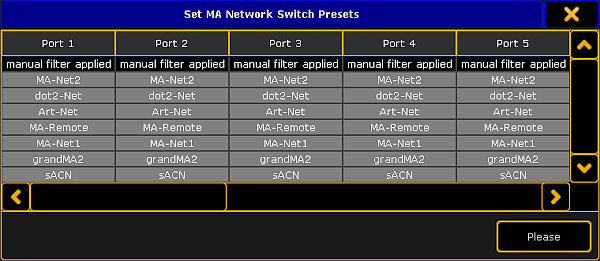 *Set Switch Presets pop-up* 4. Navigate to the to be edited port.\ To block the preset press the screen encoder once until the background of the preset cell is red.\ To allow the preset only press the screen encoder twice until the background of the preset cell is green. 5. Press Please or tap Please. The preset is assigned to the port and saved in the startup configuration. The **filter icon**  is visible in the port cell and on the front end display of the MA Network Switch.
# Reset to factory defaults
> By resetting the MA Network Switch, you return the switch to the state it was in when it was first time powered.
By resetting the MA Network Switch, you return the switch to the state it was in when it was first time powered.\ This is useful for troubleshooting problems that might be caused by manual changes after first time powered.\ Refer to the [MA Network Switch manual](https://help.malighting.com/Page/Network/factory_defaults/en/3.2) for a complete list of all settings and information they are reset. Resetting the MA Switch is not reversible. After a reset, all previous settings are lost and cannot be recovered. 1. Open the MA Network Configuration.\ \- Press Setup, and tap under **Network** MA Network Configuration.\ The MA Network Configuration window opens. 2. Tap at Network Switch.  *MA Network Configuration - Network Switch* 3. Tap at the line of the Network Switch you like to reset and tap Factory Reset.\ A warning asks if you want to reset all MA Network switch settings to factory defaults. 4. Tap Ok. It might take a little while for the process to complete. The MA Network Switch restarts. All settings are set back to the factory defaults. To see the MA Network Switch in the MA Network Configuration window again, it is necessary to add the MA Network Switch again. For more information see [Add MA Network Switch](/grandma2/key_control_ma_switch_add/). For more information to the MA Network Switch factory defaults, see MA Network Switch - Factory Defaults.
# Disable SNMP
> SNMP (Simple Network Management Protocol) is an Internet Standard that collects and organizes information about devices managed on IP networks.
SNMP (Simple Network Management Protocol) is an Internet Standard that collects and organizes information about devices managed on IP networks. **Hint:**\ The SNMP is enbled by default. **Requirement:** * [Add MA Network Switch to the network configuration](/grandma2/key_control_ma_switch_add/) To disable SNMP: 1. Open the **MA Network Configuration**:\ -Press Setup and tap **Network** MA Network Configuration.\ -The window **MA Network Configuration** opens.  *MA Network Configuration – Network Switch* 3. Tap Network Switch. 4. Move the scrollbar to the right. 5. Tap and hold the cell in the column SNMP enabled.\ \- **No** is displayed.  *Disable SNMP* The SNMP is disabled. The settings are saved in the startup configuration.
# Change switch ID
> The switch ID is used for better identification in the network.
The switch ID is used for better identification in the network. You can change the switch ID of the MA Network Switch. The allowed characters are 1…999. **Requirement:** [Added MA Network Switch to the network configuration](/grandma2/key_control_ma_switch_add/). 1. Open the MA Network Configuration.\ \- Press Setup, and tap under **Network** MA Network Configuration.\ The MA Network Configuration window opens. 2. Tap at Network Switch.  *MA Network Configuration - Network Switch* 3. Tap and hold the cell in the column Switch ID or tap in the cell and press the screen encoder until the **Calculator** opens. 4. Enter the new switch ID, for example 2. 5. Press Please. The MA Network Switch has a new ID. The new ID is saved in the startup configuration.
# Update firmware
> You can update the firmware of the MA Network Switch by using a grandMA2 console or grandMA2 onPC.
You can update the firmware of the MA Network Switch by using a grandMA2 console or grandMA2 onPC. The current firmware is displayed at the bottom right corner at the front end display of the MA Network Switch, in the MA Network Configuration window, and in the web interface. Download the latest version of the switch at [www.malighting.com](http://www.malighting.com). **Requirements:** * grandMA2 console and MA Network Switch needs the same subnet * Inserted USB stick with the new software version in the root directory **Important:**\ It is necessary that only one update files for the MA Network Switch is on the USB stick. If two or more update files are on the USB stick the update files has to be in separate folders. 1. Open the Software Update window.\ \- Press Setup, and tap under console Software Update.\ The Software Update window opens. 2. Tap at Network Switch.  *Software Update - MA Network Switch* 3. Tap Choose Folder. The file browser opens. Select the folder in which the update file is. 4. Tap in the table at the MA Network Switch you want to update and tap Update Devices!.\ The **Enter MA Network Switch password** pop-up opens.  *Enter MA Network Switch password* 4) Enter the password of the MA Network Switch and tap Please or press Please. If no password is set enter the default password **admin**. The switch is updating and reboots. This can take up to 5 minutes.
# Control the MA xPort Nodes
> The
The * MA 8Port Node * MA 4Port Node * MA 4Port Node WM * MA 2Port Node * MA 2Port Node WM set an additional benchmark in MA Lighting´s networking product range as they feature the 1 Gbit/s bandwidth capability. They allow the conversion of Ethernet data into DMX and vice versa. It is possible to configure all xPort nodes of the grandMA2 series in a browser. Furthermore, it is possible to configure the nodes via splitters and mergers. Moreover, you can use a MA NSP (Network Signal Processor) as a MA 4Port Node and the MA 2Port Node from the grandMA1 series in the grandMA2 system. For more information on nodes see [What are MA nodes](/grandma2/key_so_what_are_the_ma_nodes/). This chapter deals with the configuration of xPort Nodes of the grandMA2 series, splitters and mergers and their corresponding functions. For more information read the corresponding topics. ## Subtopics [Section titled “Subtopics”](#subtopics) * [Add the MA xPort Nodes](/grandma2/key_control_node_add/) * [Configure the MA xPort Nodes in the console](/grandma2/key_control_ma_xport_node_configure_on_console/) * [Configure the MA xPort Nodes in a browser](/grandma2/key_control_ma_xport_node_configure_in_browser/) * [Configure the MA xPort Nodes as splitters or mergers](/grandma2/key_control_ma_xport_node_configure_as_splitters_merg/) * [Delete the MA xPort Nodes](/grandma2/key_control_node_delete/)
# Configure the MA xPort Nodes as splitters or mergers
> It is possible to configure MA xPort Nodes as a splitter or a merger on one universe.
It is possible to configure MA xPort Nodes as a splitter or a merger on one universe. To do so: * Configure the node on the console or in a browser first. For information on how to configure nodes see [Configure nodes on the console](/grandma2/key_control_ma_xport_node_configure_on_console/) or [Configure nodes in a browser](/grandma2/key_control_ma_xport_node_configure_in_browser/). The following example displays how to configure the nodes as splitters or mergers on a console. *** ## Configure the Node as a Merger [Section titled “Configure the Node as a Merger”](#configure-the-node-as-a-merger) If the node is used as a merger, it is possible to merge one or two DMX inputs into one universe. 1. To configure the node as a merger:\ -Add an MA xPort Node to the network configuration.\ For more information see [Adding devices to your session](/grandma2/key_network_session_add_device/). 2. Select the same universe for all ports in the pop-up **Configure DMX Port (MA-Net2 Mode)**.\ For more information see [Configure nodes on the console](/grandma2/key_control_ma_xport_node_configure_on_console/#configureDMX_universe). \ -Then, set a maximum of 2 ports to the port mode “IN” and 1 port to the port mode “OUT”.  *Configure node as a merger* **Important:**\ If the xPort node is used as a merger, it must not be used in a session or connected to other xPort nodes via the network. You have successfully configured the node as a merger. *** ## Configure the Node as a Splitter [Section titled “Configure the Node as a Splitter ”](#configure-the-node-as-a-splitter) 1. To configure the node as a splitter:\ -Add an MA xPort Node to the network configuration.\ For more information see [Adding devices to your session](/grandma2/key_network_session_add_device/). 2. Select the same universe for all ports in the pop-up **Configure DMX Port (MA-Net2 Mode)**.\ For more information see [Configure nodes on the console](/grandma2/key_control_ma_xport_node_configure_on_console/#configureDMX_universe). \ -Then, set at least 3 ports to the port mode “OUT” and 1 port to the port mode “IN”. 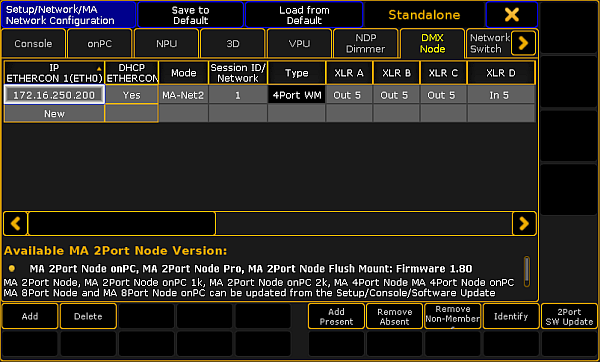 *Configure node as splitter* You have successfully configured the node as a splitter.
# Configure the MA xPort Nodes in a browser
> Besides configuring nodes on the console, it is also possible to configure MA xPort Nodes in a browser.
Besides configuring nodes on the console, it is also possible to configure MA xPort Nodes in a browser. **Important:**\ This topic treats subject areas that are important for the configuration of nodes in a browser. General settings are treated in the topics [Adding devices to your session](/grandma2/key_network_session_add_device/) and [Configure the DMX ports on MA devices](/grandma2/key_network_dmx_configure_ports/). **Requirement:** * Connect the MA xPort Node directly to your PC using a network cable. Or connect the xPort Node with a network cable via an MA Network Switch or a network hub. * Change the IP address of your PC to the same IP address space of the node (the last block of the IP address has to differ from the node). **Important:**\ The IP address of the node is located on its display. 1. Type the IP address of the node into the address bar of the browser. 2. The status window opens. 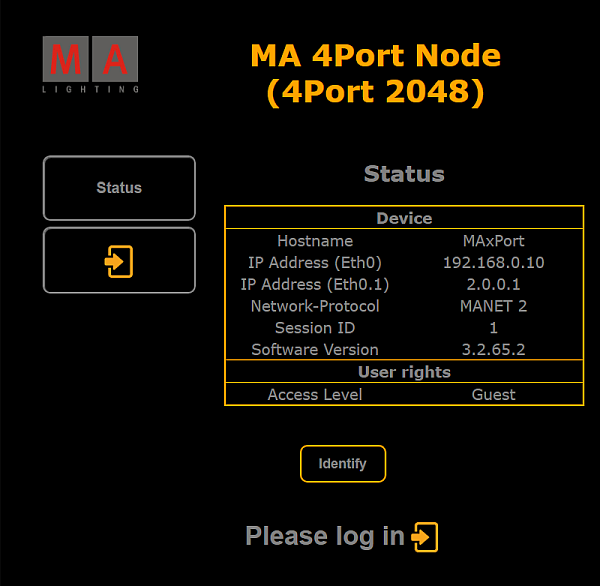 *Status window – Configuration of nodes in browser* **Hint:**\ Also, see the status of the node on its display. 3. To light up the display of the node, **click Identify** – located below the status table – **once**.\ The browser page turns green.\ To turn off the illumination of the display, **click Identify once again** and the background of the browser page turns black again. 4. Next, log in:\ -Click **Please log in** below the button \*\*Identify \*\*or click the button with the arrow pointing right below the button **Status**. 5. The login form opens.  *Login form – Configuration of nodes in browser* 6. Type **admin** into the password input mask and then click **Please**. **Hint:**\ To return to the status window, click the button **Status** on the left. 7. If you have successfully logged in, a window opens showing the login credentials.  *Successful login – Configuration of nodes in browser* 8. If you would like to leave this window, click **Logout** now. 9. To proceed, click **Configuration**.\ The window **Node - Configuration** opens.  *Node Configuration* 10. Adjust the settings:\ -Enter the name of the node, the two IP addresses and the ID of the session in the corresponding input fields.\ -Select the mode and light mode in the corresponding drop-down menus.\ -Check the checkbox **DHCP**.\ For more information on DHCP see [Using DHCP in MA devices](/grandma2/key_network_dhcp/). 11. Adjust the ports in **XLR A**, **XLR B**, **XLR C**, and **XLR D**:\ -Select the port in the drop-down menu **Port Dir.**\ For more information on the port and merge modes see [Configure the DMX ports on MA devices – Port Mode](/grandma2/key_network_dmx_configure_ports/#port_modes) and [Configure the DMX ports on MA devices – Merge Mode](/grandma2/key_network_dmx_configure_ports/#merge_modes).\ -Enter the number of the universe.\ -Then, select the merge mode in the drop-down menu **Merge Mode**.\ -Select the DMX fail mode in the corresponding drop-down menu.\ -And enter the timeout outfade time if necessary. 12. To apply the settings you have made, click **Please**.\ Your settings have now been applied. 13. If you would like to reset the settings that have not been applied yet, click **Clear**. 14. You can now log out:\ -Click the button with the arrow pointing to the left below the button **Configuration**.\ Then, click **Logout** in the box. You have successfully logged out.
# Configure the MA xPort Nodes in the console
> The configuration is a customized set of parameters you have set to run an xPort node.
The configuration is a customized set of parameters you have set to run an xPort node. **Important:**\ This topic deals with subject areas that are important for the configuration of nodes. General settings are dealt with in the topics [Adding devices to your session](/grandma2/key_network_session_add_device/)[ ](/grandma2/key_network_dmx_configure_ports/)and [Configure the DMX ports on MA devices](/grandma2/key_network_dmx_configure_ports/). **Requirements:** * Add an MA xPort Node to the network configuration. For more Information on adding an MA xPort see [Add the MA xPort Node](/grandma2/key_control_node_add/). 1. Open the **MA Network Configuration**. \ -Press Setup and tap MA Network Configuration. 2. The window **MA Network Configuration** opens.\ -Tap DMX Node. 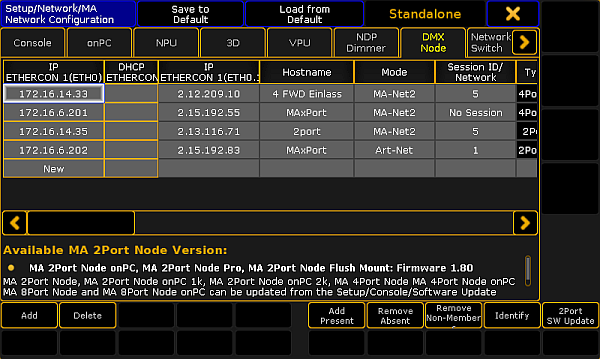 *MA Network Configuration – DMX Node* 3. Then, tap a cell in the column **Mode**.\ -The **pop-up Select Mode** opens.\ -Select one of the modes here.  *Pop-up Select Mode* For more information on the four modes see [Adding devices to your session](/grandma2/key_network_session_add_device/#node_mode). 4. []()To configure the ports, tap a cell in one of the **XLR columns**. \ -The pop-up **Configure DMX Port** opens. 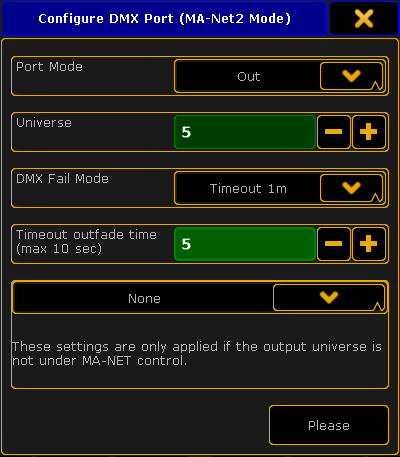 *Pop-up – Configure DMX Port (MA-Net2 Mode)* 5. Next, set the **Port Mode** by tapping the drop-down box.\ -Set the port mode to “Out”. 6. Select the universe by tapping the minus or the plus sign.\ -Enter universe 5. For more information on the different port modes and merge settings of DMX data see [Configure the DMX ports on MA devices](/grandma2/key_network_dmx_configure_ports/#port_modes). **Important:**\ The **DMX Fail Mode** can be set in DMX xPort Nodes from the version 3.3 on. 7. Now, select a **DMX Fail Mode**.\ -Tap the drop-down box and select for example the fail mode Timeout 1m. For more information on the DMX Fail Mode see [DMX Fail Mode in Configure DMX ports on MA devices](/grandma2/key_network_dmx_configure_ports/#fail_mode). 8. Set the outfade time.\ -Enter 5 seconds using the plus or the minus sign. 9. After you have adjusted the configuration settings, tap Please. The configuration settings have now been applied to the node.
# Add the MA NDPs
> Follow these guidelines to add the MA NDPs to the network configuration.
Follow these guidelines to add the MA NDPs to the network configuration. **Requirements:** * Connect the MA NDPs with the console or the onPC via a network cable. * Make sure that the session ID corresponds to the session ID of the NDPs. For more information on sessions see [Session control – How to create a session](/grandma2/key_network_session_create/) or [How to end or leave a session](/grandma2/key_network_session_end_leave/). 1. Open the **MA Network Configuration**.\ -Press Setup and tap MA Network Configuration. 2. The window **MA Network Configuration** opens.  \_Add MA NDPs to the Network Configuration \_ 3. Tap NDP Dimmer and then Add Present.\ -All NDPs present in the network are now displayed.\ -To invite the MA NDPs into the session, tap and hold a cell in the column **Session Member**. For more information on the status of the devices in a session see [Adding devices to your session – Status Colors](/grandma2/key_network_session_add_device/).  *MA Network Configuration – NDP Dimmer* The MA NDPs have been added to the network configuration and can now be edited. For more information on how to edit the MA NDPs see [Configure the MA NDPs](/grandma2/key_control_ma_ndp_configure/).
# Add the MA xPort Nodes
> Follow these guidelines to add the MA xPort Nodes to the network configuration.
Follow these guidelines to add the MA xPort Nodes to the network configuration. **Requirements:** * Connect the MA XPort Nodes with the console or the onPC via a network cable. * The grandMA2 console and the MA xPort Nodes have to be in the same subnet if DMX is to be output. 1. Open the **MA Network Configuration**. \ -Press Setup and tap MA Network Configuration. 2. The window **MA Network Configuration** opens.  *Add xPort Nodes to the network configuration* 3. Tap DMX Node and then Add Present.\ All nodes present in the network are displayed.  *MA Network Configuration – DMX Node* The MA xPort Nodes have been added to the network configuration and can now be configured.
# Delete the MA xPort Nodes
> Follow these guidelines to delete the MA xPort Nodes in the network configuration.
Follow these guidelines to delete the MA xPort Nodes in the network configuration. 1. Open the **MA Network Configuration**. \ -Press Setup and tap MA Network Configuration.\ -The window **MA Network Configuration** opens. 2. Tap DMX Node.  *MA Network Configuration – DMX Node* 3. []()To delete single MA xPort Nodes, select the corresponding MA xPort Node and tap Delete. 4. To delete several MA xPort Nodes, use the “lasso” selection in one of the columns following IP ETHERCON 1, and tap Delete. The MA xPort Nodes have been deleted in the network configuration.
# All keywords
> This topic displays a list of all keywords.
This topic displays a list of all keywords. To view the individual keywords, either use the tree structure of the manual or click the links here. ## Subtopics [Section titled “Subtopics”](#subtopics) * [Special characters](/grandma2/key_cs_special_characters/) * [<<< GoFastBack](/grandma2/key_keyword_skipminus/) * [>>> GoFastForward](/grandma2/key_keyword_skipplus/) * [- Minus](/grandma2/key_keyword_minus/) * [+ Plus](/grandma2/key_keyword_plus/) * [AddUserVar](/grandma2/key_keyword_adduservar/) * [AddVar](/grandma2/key_keyword_addvar/) * [Agenda](/grandma2/key_keyword_agenda/) * [Alert](/grandma2/key_keyword_alert/) * [Align](/grandma2/key_keyword_align/) * [AlignFaderModules](/grandma2/key_keyword_alignfadermodules/) * [All](/grandma2/key_keyword_all/) * [AllButtonExecutors](/grandma2/key_keyword_allbuttonexecutors/) * [AllChaseExecutors](/grandma2/key_keyword_allchaseexecutors/) * [AllFaderExecutors](/grandma2/key_keyword_allfaderexecutors/) * [AllRows](/grandma2/key_keyword_allrows/) * [AllSequExecutors](/grandma2/key_keyword_allsequexecutors/) * [And](/grandma2/key_keyword_and/) * [Appearance](/grandma2/key_keyword_appearance/) * [Asterisk \*](/grandma2/key_keyword_asterisk/) * [Assign](/grandma2/key_keyword_assign/) * [At](/grandma2/key_keyword_at/) * [At @](/grandma2/key_keyword_at_-/) * [Attribute](/grandma2/key_keyword_attribute/) * [AutoCreate](/grandma2/key_keyword_autocreate/) * [Backup](/grandma2/key_keyword_backup/) * [Black](/grandma2/key_keyword_black/) * [Blackout](/grandma2/key_keyword_blackout/) * [BlackScreen](/grandma2/key_keyword_blackscreen/) * [Blind](/grandma2/key_keyword_blind/) * [BlindEdit](/grandma2/key_keyword_blindedit/) * [Block](/grandma2/key_keyword_block/) * [ButtonPage](/grandma2/key_keyword_buttonpage/) * [Call](/grandma2/key_keyword_call/) * [Camera](/grandma2/key_keyword_camera/) * [ChangeDest](/grandma2/key_keyword_changedest/) * [Channel](/grandma2/key_keyword_channel/) * [ChannelFader](/grandma2/key_keyword_channelfader/) * [ChannelLink](/grandma2/key_keyword_channellink/) * [ChannelPage](/grandma2/key_keyword_channelpage/) * [Chat](/grandma2/key_keyword_chat/) * [CircularCopy](/grandma2/key_keyword_circularcopy/) * [Clear](/grandma2/key_keyword_clear/) * [ClearActive](/grandma2/key_keyword_clearactive/) * [ClearAll](/grandma2/key_keyword_clearall/) * [ClearSelection](/grandma2/key_keyword_clearselection/) * [Clone](/grandma2/key_keyword_clone/) * [CmdDelay](/grandma2/key_keyword_cmddelay/) * [CmdHelp](/grandma2/key_keyword_cmdhelp/) * [Copy](/grandma2/key_keyword_copy/) * [CrashLogCopy](/grandma2/key_keyword_crashlogcopy/) * [CrashLogDelete](/grandma2/key_keyword_crashlogdelete/) * [CrashLogList](/grandma2/key_keyword_crashloglist/) * [Crossfade](/grandma2/key_keyword_crossfade/) * [CrossfadeA](/grandma2/key_keyword_crossfadea/) * [CrossfadeB](/grandma2/key_keyword_crossfadeb/) * [Cue](/grandma2/key_keyword_cue/) * [Cut](/grandma2/key_keyword_cut/) * [Default](/grandma2/key_keyword_default/) * [DefGoBack](/grandma2/key_keyword_defgoback/) * [DefGoForward](/grandma2/key_keyword_defgoforward/) * [DefGoPause](/grandma2/key_keyword_defgopause/) * [Delay](/grandma2/key_keyword_delay/) * [Delete](/grandma2/key_keyword_delete/) * [DeleteShow](/grandma2/key_keyword_deleteshow/) * [DisconnectStation](/grandma2/key_keyword_disconnectstation/) * [Dmx](/grandma2/key_keyword_dmx/) * [Dollar $](/grandma2/key_keyword_dollar/) * [DmxUniverse](/grandma2/key_keyword_dmxuniverse/) * [Dot .](/grandma2/key_keyword_dot/) * [DoubleRate](/grandma2/key_keyword_doublerate/) * [DoubleSpeed](/grandma2/key_keyword_doublespeed/) * [Down](/grandma2/key_keyword_down/) * [DropControl](/grandma2/key_keyword_dropcontrol/) * [Edit](/grandma2/key_keyword_edit/) * [Effect](/grandma2/key_keyword_effect/) * [EffectAttack](/grandma2/key_keyword_effectattack/) * [EffectBPM](/grandma2/key_keyword_effectbpm/) * [EffectDecay](/grandma2/key_keyword_effectdecay/) * [EffectDelay](/grandma2/key_keyword_effectdelay/) * [EffectFade](/grandma2/key_keyword_effectfade/) * [EffectForm](/grandma2/key_keyword_effectform/) * [EffectHigh](/grandma2/key_keyword_effecthigh/) * [EffectHZ](/grandma2/key_keyword_effecthz/) * [EffectID](/grandma2/key_keyword_effectid/) * [EffectLow](/grandma2/key_keyword_effectlow/) * [EffectPhase](/grandma2/key_keyword_effectphase/) * [EffectSec](/grandma2/key_keyword_effectsec/) * [EffectSpeedGroup](/grandma2/key_keyword_effectspeedgroup/) * [EffectWidth](/grandma2/key_keyword_effectwidth/) * [Empty](/grandma2/key_keyword_empty/) * [EndIf](/grandma2/key_keyword_endif/) * [EndSession](/grandma2/key_keyword_endsession/) * [Escape](/grandma2/key_keyword_escape/) * [ExecButton1](/grandma2/key_keyword_execbutton1/) * [ExecButton2](/grandma2/key_keyword_execbutton2/) * [ExecButton3](/grandma2/key_keyword_execbutton3/) * [Executor](/grandma2/key_keyword_executor/) * [Exit](/grandma2/key_keyword_exit/) * [Export](/grandma2/key_keyword_export/) * [Extract](/grandma2/key_keyword_extract/) * [Fade](/grandma2/key_keyword_fade/) * [FadePath](/grandma2/key_keyword_fadepath/) * [Fader](/grandma2/key_keyword_fader/) * [FaderPage](/grandma2/key_keyword_faderpage/) * [Feature](/grandma2/key_keyword_feature/) * [Filter](/grandma2/key_keyword_filter/) * [Fix](/grandma2/key_keyword_fix/) * [Fixture](/grandma2/key_keyword_fixture/) * [FixtureType](/grandma2/key_keyword_fixturetype/) * [Flash](/grandma2/key_keyword_flash/) * [FlashGo](/grandma2/key_keyword_flashgo/) * [FlashOn](/grandma2/key_keyword_flashon/) * [Flip](/grandma2/key_keyword_flip/) * [Form](/grandma2/key_keyword_form/) * [Freeze](/grandma2/key_keyword_freeze/) * [Full](/grandma2/key_keyword_full/) * [FullHighlight](/grandma2/key_keyword_fullhighlight/) * [Gel](/grandma2/key_keyword_gel/) * [Go](/grandma2/key_keyword_go/) * [GoBack](/grandma2/key_keyword_goback/) * [Goto](/grandma2/key_keyword_goto/) * [Group](/grandma2/key_keyword_group/) * [HalfRate](/grandma2/key_keyword_halfrate/) * [HalfSpeed](/grandma2/key_keyword_halfspeed/) * [Help](/grandma2/key_keyword_help/) * [Highlight](/grandma2/key_keyword_highlight/) * [IdentifyFaderModule](/grandma2/key_keyword_identifyfadermodule/) * [If](/grandma2/key_keyword_if/) * [IfActive](/grandma2/key_keyword_ifactive/) * [IfOutput](/grandma2/key_keyword_ifoutput/) * [IfProg](/grandma2/key_keyword_ifprog/) * [Image](/grandma2/key_keyword_image/) * [Import](/grandma2/key_keyword_import/) * [Info](/grandma2/key_keyword_info/) * [Insert](/grandma2/key_keyword_insert/) * [Interleave](/grandma2/key_keyword_interleave/) * [Invert](/grandma2/key_keyword_invert/) * [InviteStation](/grandma2/key_keyword_invitestation/) * [Item3D](/grandma2/key_keyword_item3d/) * [JoinSession](/grandma2/key_keyword_joinsession/) * [Kill](/grandma2/key_keyword_kill/) * [Label](/grandma2/key_keyword_label/) * [Layer](/grandma2/key_keyword_layer/) * [Layout](/grandma2/key_keyword_layout/) * [Learn](/grandma2/key_keyword_learn/) * [LeaveSession](/grandma2/key_keyword_leavesession/) * [List](/grandma2/key_keyword_list/) * [ListEffectLibrary](/grandma2/key_keyword_listeffectlibrary/) * [ListFaderModules](/grandma2/key_keyword_listfadermodules/) * [ListLibrary](/grandma2/key_keyword_listlibrary/) * [ListMacroLibrary](/grandma2/key_keyword_listmacrolibrary/) * [ListOops](/grandma2/key_keyword_listoops/) * [ListOwner](/grandma2/key_keyword_listowner/) * [ListPluginLibrary](/grandma2/key_keyword_listpluginlibrary/) * [ListShows](/grandma2/key_keyword_listshows/) * [ListUpdate](/grandma2/key_keyword_listupdate/) * [ListUserVar](/grandma2/key_keyword_listuservar/) * [ListVar](/grandma2/key_keyword_listvar/) * [Load](/grandma2/key_keyword_load/) * [LoadNext](/grandma2/key_keyword_loadnext/) * [LoadPrev](/grandma2/key_keyword_loadprev/) * [LoadShow](/grandma2/key_keyword_loadshow/) * [Locate](/grandma2/key_keyword_locate/) * [Lock](/grandma2/key_keyword_lock/) * [Login](/grandma2/key_keyword_login/) * [Logout](/grandma2/key_keyword_logout/) * [Lua](/grandma2/key_keyword_lua/) * [Macro](/grandma2/key_keyword_macro/) * [ManualXFade](/grandma2/key_keyword_manualxfade/) * [Mask](/grandma2/key_keyword_mask/) * [Master](/grandma2/key_keyword_master/) * [MasterFade](/grandma2/key_keyword_masterfade/) * [MAtricks](/grandma2/key_keyword_matricks/) * [MAtricksBlocks](/grandma2/key_keyword_matricksblocks/) * [MAtricksFilter](/grandma2/key_keyword_matricksfilter/) * [MAtricksGroups](/grandma2/key_keyword_matricksgroups/) * [MAtricksInterleave](/grandma2/key_keyword_matricksinterleave/) * [MAtricksReset](/grandma2/key_keyword_matricksreset/) * [MAtricksWings](/grandma2/key_keyword_matrickswings/) * [MediaServer](/grandma2/key_keyword_mediaserver/) * [Menu](/grandma2/key_keyword_menu/) * [Message](/grandma2/key_keyword_message/) * [Messages](/grandma2/key_keyword_messages/) * [MidiControl](/grandma2/key_keyword_midicontrol/) * [MidiNote](/grandma2/key_keyword_midinote/) * [MidiProgram](/grandma2/key_keyword_midiprogram/) * [Model](/grandma2/key_keyword_model/) * [Move](/grandma2/key_keyword_move/) * [Move3D](/grandma2/key_keyword_move3d/) * [NetworkInfo](/grandma2/key_keyword_networkinfo/) * [NetworkNodeInfo](/grandma2/key_keyword_networknodeinfo/) * [NetworkNodeUpdate](/grandma2/key_keyword_networknodeupdate/) * [NetworkSpeedTest](/grandma2/key_keyword_networkspeedtest/) * [NewShow](/grandma2/key_keyword_newshow/) * [Next](/grandma2/key_keyword_next/) * [NextRow](/grandma2/key_keyword_nextrow/) * [Normal](/grandma2/key_keyword_normal/) * [Off](/grandma2/key_keyword_off/) * [On](/grandma2/key_keyword_on/) * [Oops](/grandma2/key_keyword_oops/) * [Or](/grandma2/key_keyword_or/) * [OutDelay](/grandma2/key_keyword_outdelay/) * [OutFade](/grandma2/key_keyword_outfade/) * [Page](/grandma2/key_keyword_page/) * [Parentheses ( )](/grandma2/key_keyword_parentheses/) * [Park](/grandma2/key_keyword_park/) * [Part](/grandma2/key_keyword_part/) * [Paste](/grandma2/key_keyword_paste/) * [Pause](/grandma2/key_keyword_pause/) * [Plugin](/grandma2/key_keyword_plugin/) * [PMArea](/grandma2/key_keyword_pmarea/) * [Preset](/grandma2/key_keyword_preset/) * [PresetType](/grandma2/key_keyword_presettype/) * [Preview](/grandma2/key_keyword_preview/) * [PreviewEdit](/grandma2/key_keyword_previewedit/) * [PreviewExecutor](/grandma2/key_keyword_previewexecutor/) * [Previous](/grandma2/key_keyword_previous/) * [PrevRow](/grandma2/key_keyword_prevrow/) * [Profile](/grandma2/key_keyword_profile/) * [Protocol](/grandma2/key_keyword_protocol/) * [PSR](/grandma2/key_keyword_psr/) * [PSRList](/grandma2/key_keyword_psrlist/) * [PSRPrepare](/grandma2/key_keyword_psrprepare/) * [Quotation marks ” ”](/grandma2/key_keyword_marks/) * [Rate](/grandma2/key_keyword_rate/) * [Rate1](/grandma2/key_keyword_rate1/) * [RdmAutomatch](/grandma2/key_keyword_rdmautomatch/) * [RdmAutopatch](/grandma2/key_keyword_rdmautopatch/) * [RdmFixtureType](/grandma2/key_keyword_rdmfixturetype/) * [RdmInfo](/grandma2/key_keyword_rdminfo/) * [RdmList](/grandma2/key_keyword_rdmlist/) * [RdmSetParameter](/grandma2/key_keyword_rdmsetparameter/) * [RdmSetpatch](/grandma2/key_keyword_rdmsetpatch/) * [RdmUnmatch](/grandma2/key_keyword_rdmunmatch/) * [Reboot](/grandma2/key_keyword_reboot/) * [Record](/grandma2/key_keyword_record/) * [Release](/grandma2/key_keyword_release/) * [ReloadPlugins](/grandma2/key_keyword_reloadplugins/) * [Remote](/grandma2/key_keyword_remote/) * [RemoteCommand](/grandma2/key_keyword_remotecommand/) * [Remove](/grandma2/key_keyword_remove/) * [RemoveIndividuals](/grandma2/key_keyword_removeindividuals/) * [Replace](/grandma2/key_keyword_replace/) * [ResetDmxSelection](/grandma2/key_keyword_resetdmxselection/) * [ResetGuid](/grandma2/key_keyword_resetguid/) * [Restart](/grandma2/key_keyword_restart/) * [Root](/grandma2/key_keyword_root/) * [Rotate3D](/grandma2/key_keyword_rotate3d/) * [SaveShow](/grandma2/key_keyword_saveshow/) * [Screen](/grandma2/key_keyword_screen/) * [Search](/grandma2/key_keyword_search/) * [SearchResult](/grandma2/key_keyword_searchresult/) * [Select](/grandma2/key_keyword_select/) * [SelectDrive](/grandma2/key_keyword_selectdrive/) * [Selection](/grandma2/key_keyword_selection/) * [SelFix](/grandma2/key_keyword_selfix/) * [Semicolon ;](/grandma2/key_keyword_semicolon/) * [Sequence](/grandma2/key_keyword_sequence/) * [SetHostname](/grandma2/key_keyword_sethostname/) * [SetIP](/grandma2/key_keyword_setip/) * [SetNetworkSpeed](/grandma2/key_keyword_setnetworkspeed/) * [Setup](/grandma2/key_keyword_setup/) * [SetUserVar](/grandma2/key_keyword_setuservar/) * [SetVar](/grandma2/key_keyword_setvar/) * [ShuffleSelection](/grandma2/key_keyword_shuffleselection/) * [ShuffleValues](/grandma2/key_keyword_shufflevalues/) * [Shutdown](/grandma2/key_keyword_shutdown/) * [SnapPercent](/grandma2/key_keyword_snappercent/) * [Slash /](/grandma2/key_keyword_slash/) * [Solo](/grandma2/key_keyword_solo/) * [SpecialMaster](/grandma2/key_keyword_specialmaster/) * [Square brackets](/grandma2/key_keyword_square_brackets/) * [Speed](/grandma2/key_keyword_speed/) * [StepFade](/grandma2/key_keyword_stepfade/) * [StepInFade](/grandma2/key_keyword_stepinfade/) * [StepOutFade](/grandma2/key_keyword_stepoutfade/) * [Stomp](/grandma2/key_keyword_stomp/) * [Store](/grandma2/key_keyword_store/) * [StoreLook](/grandma2/key_keyword_storelook/) * [Surface](/grandma2/key_keyword_surface/) * [Swop](/grandma2/key_keyword_swop/) * [SwopGo](/grandma2/key_keyword_swopgo/) * [SwopOn](/grandma2/key_keyword_swopon/) * [SyncEffects](/grandma2/key_keyword_synceffects/) * [TakeControl](/grandma2/key_keyword_takecontrol/) * [Telnet](/grandma2/key_keyword_telnet/) * [Temp](/grandma2/key_keyword_temp/) * [TempFader](/grandma2/key_keyword_tempfader/) * [Thru](/grandma2/key_keyword_thru/) * [Timecode](/grandma2/key_keyword_timecode/) * [TimecodeSlot](/grandma2/key_keyword_timecodeslot/) * [Timer](/grandma2/key_keyword_timer/) * [ToFull](/grandma2/key_keyword_tofull/) * [Toggle](/grandma2/key_keyword_toggle/) * [Tools](/grandma2/key_keyword_tools/) * [Top](/grandma2/key_keyword_top/) * [ToZero](/grandma2/key_keyword_tozero/) * [Unblock](/grandma2/key_keyword_unblock/) * [Unlock](/grandma2/key_keyword_unlock/) * [Unpark](/grandma2/key_keyword_unpark/) * [Up](/grandma2/key_keyword_up/) * [Update](/grandma2/key_keyword_update/) * [UpdateFirmware](/grandma2/key_keyword_updatefirmware/) * [UpdateSoftware](/grandma2/key_keyword_updatesoftware/) * [UpdateThumbnails](/grandma2/key_keyword_updatethumbnails/) * [User](/grandma2/key_keyword_user/) * [UserProfile](/grandma2/key_keyword_userprofile/) * [Value](/grandma2/key_keyword_value/) * [Version](/grandma2/key_keyword_version/) * [View](/grandma2/key_keyword_view/) * [ViewButton](/grandma2/key_keyword_viewbutton/) * [ViewPage](/grandma2/key_keyword_viewpage/) * [WebRemoteProgOnly](/grandma2/key_keyword_webremoteprogonly/) * [With](/grandma2/key_keyword_with/) * [World](/grandma2/key_keyword_world/) * [Zero](/grandma2/key_keyword_zero/)
# Attribute list
> An attribute list is an object list of attributes.
An attribute list is an object list of attributes. ### Syntax [Section titled “Syntax”](#syntax) **Attribute** \[list] Feature \[list] PresetType \[list] **Important:**\ An attribute list has the same syntax as an object list. Each object type is broken down to attribute objects. These attribute objects form the attribute list. ### Example: [Section titled “Example:”](#example) \[Channel]> **On Feature** “GOBO1” Activates attributes in feature “GOBO1”. \[Channel]> **Off Attribute** 8.1.1 **Thru** 4 Knocks out the first 4 shaper attributes out of the programmer.
# Commands in cues
> Each cue can execute a command. The commands are written in the CMD column in the Sequence Executor Sheet.
Each cue can execute a command. The commands are written in the CMD column in the [Sequence Executor Sheet](/grandma2/key_cs_cue_sequence/). The commands are executed as soon as the cue is triggered. It is possible to delay the command by adding a time in the CMD Delay column. If you want to run multiple commands in the same cue, you can separate the commands with a semicolon. As an alternative you could make cue parts and add each command in each part - remember to add a small CMD Delay, so all commands are not executed at the same time. The commands are executed by the logged in user on the master station in a session. So be aware that it might not be the user who triggers the cue that runs the commands. A useful keyword to know, if you need to trigger a command on a specific station, is the [RemoteCommand](/grandma2/key_keyword_remotecommand/).
# Looking at the cue content
> There are two sheets that can be used to look at the content stored in cues - the stored values can also be edited using the sheet.
There are two sheets that can be used to look at the content stored in cues - the stored values can also be edited using the sheet. They are the Sequence Content Sheet and the Sequence Tracking Sheet. Both are windows that can be created and stored as views using the Create Basic Window pop-up. Both sheets can be configured using the [Sheet Options](/grandma2/key_of_sheet_options/) - access by tapping the yellow ball in the upper left corner. ## []()Sequence Content Sheet [Section titled “Sequence Content Sheet”](#sequence-content-sheet) The Sequence Content Sheets is used to see the fixtures and values stored in cues. It looks a lot like the [Fixture Sheet](/grandma2/key_of_fixture_sheet/), but it has a masking function that only displays what is stored in a cue. It is like a combined Sequence Tracking (read below) and Fixture Sheet. It could look like this:  *Sequence Content Sheet* The Title Bar show the number of the executor and the name and number of the sequence the sheet is displaying the content from. If a world other than the default Full world is selected, then this is also displayed in the title bar (Small World icon with a number underneath). The Title Bar will also display any masks assigned (small Ghost icon).  *Sequence Content Sheet - Title Bar example* There can be many [Title Buttons](/grandma2/key_of_sheet_options_title_buttons/) in the Title Bar. These can be shown or hidden using the [Sheet Options](/grandma2/key_of_sheet_options/) - they are access by tapping the yellow ball in the upper left corner. Some of these buttons and their functions are specific for the Content Sheet. Some are shared with the Sequence Tracking Sheet (reed below). This is short description of their function. ### Edit Cue Only [Section titled “Edit Cue Only”](#edit-cue-only) This function is shared with the Tracking Sheet. Turning it On will make any changes you make to values as cue only changes - otherwise it will be made as tracking changes. If you are in doubt about what this means then please read the [What is Tracking topic](/grandma2/key_cs_what_is_tracking/). ### []()Cue Mode [Section titled “Cue Mode”](#cue-mode) The Cue Mode swipe button is unique for the Content Sheet. It changes what cue in the sequence is displayed. It has four different options: * **Current Cue:**\ This will make the sheet display the information related to the current active cue. * **Previous Cue:**\ This will display the values from the previous cue. This is the last cue that was active even if you jump in the cue sequence. * **Next Cue:**\ This displays the values for the next cue if you perform a Go to the sequence. If a cue is “Loaded” then this cue will be displayed. * **Manual:**\ This will add a vertical scroll bar on the right side of the sheet. This scroll bar can be used to scroll through the cues in the sequence and manually select the cue you want to see. ### Tracking [Section titled “Tracking”](#tracking) This toggle button is also a setting in the Sheet Options in the [Layer Mask tab](/grandma2/key_of_sheet_options_layer_mask/). This function will hide or show tracked values. If it is On then the tracked values will be shown. If a fixture only has tracked values, then it will also be shown in the sheet. If this is Off then all tracked values will be hidden. If a fixture only has tracked values then the fixture will also be hidden in the sheet. Hiding the tracked values will make the sheet display only the data that is actually stored in the cue. ### Link Mode [Section titled “Link Mode”](#link-mode) The Link Mode swipe button is shared with the Tracking and Executor Sheets. It is used to select what sequence is displayed in the sheets. It has three options: * **Link Selected:**\ This means that the sheet displays the sequence assigned to the selected executor. * **Not Linked:**\ This will stop automatic linking and display the sequence assigned to the executor selected in the [Assign Executor tab](/grandma2/key_of_sheet_options_assign_executor/) in the sheet options. * **Link Last Go:**\ This will display the sequence assigned to the executor where you last performed a Go. It is also in the sheets options. In the [Layer Mask tab](/grandma2/key_of_sheet_options_layer_mask/) - here it is described in a little more details. Values can be edited directly in the sheet. This will immediately change the values stored in the cues without using the programmer. ## Sequence Tracking Sheet [Section titled “Sequence Tracking Sheet”](#sequence-tracking-sheet) The Sequence Tracking Sheet is used to display all your fixtures and attributes stored in a sequence. It shows a spreadsheet type window where all the cues are rows and all the attributes stored are columns. In the intersection between the rows and column are the stored values displayed. This window allows for a nice overview and a visual flow of attributes through the cues. An active cue will be displayed using a yellow frame around the row. If a cue is being previewed or edited then this cue will have a red frame. It could look like this:  *Sequence Tracking Sheet* The Title bar of the Tracking Sheet functions exactly as the Title Bar of the Content Sheet. There is one Title Button that is unique to the Tracking Sheet. ### Selection Only [Section titled “Selection Only”](#selection-only) This toggle button is a masking button that will hide non-selected fixtures in the sheet - but it also hides cues where the selected fixture only have tracked values. The result is that you only see the selected fixtures and where they have active stored values. This function is also accessible in the [Layer Mask tab](/grandma2/key_of_sheet_options_layer_mask/) in the Sheet Options. Remember that the Sheet Options can be access by tapping the yellow ball in the upper left corner. ### Editing values in the Tracking Sheet [Section titled “Editing values in the Tracking Sheet”](#editing-values-in-the-tracking-sheet) The cue numbers can be renumbered by editing the number. Read more about this function the [Looking at the cue sequence topic](/grandma2/key_cs_cue_sequence/). The names can also be edited in this sheet. The stored attribute values can also be edited. Doing so will immediately change the values in the cues, bypassing the use of the programmer. If you edit any value in the sheet, then a Tracking Options pop-up appears. It can do a lot more than just edit the selected values. It looks like this:  *Tracking options pop-up* There are three parts of this pop-up. The first is the “Destination”. This drop down has three options: * **Attribute:**\ Apply the changes to the selected attributes only (for example only tilt). * **Encoder Grouping:**\ Apply the changes to every attribute with the same encoder grouping (for example both pan and tilt). * **Feature:**\ Apply the changes to the entire feature (for example the entire shaper module). The next part is the “Action” part. There are several buttons here: * **Remove individual Fade:**\ Delete the individual fade times and set it back to the overall cue timing. * **Remove individual Delay:**\ Delete the individual delay times and assign the overall cue delay time. * **Remove individual Effect values:**\ Delete any individual effect values and assign the values from the effect. * **Remove Effect:**\ Remove any effects. * **Extract Preset:**\ Remove the reference to a preset, but keep the values essentially coping the values stored in the preset into the cue. * **Block:**\ Block the “Source” with regards to the “Destination”. Tracked values (default colored magenta) are converted into stored values (default colored white). * **Unblock:**\ Unblock the “Source” with regards to the “Destination”. Blocked values (default colored white) are converted into tracked values (default colored magenta). * **Delete:**\ Delete the “Source” with regards to tracking and the “Destination”. * **Delete Cue Only:**\ Delete the value using cue only (and keep the original values in the following cue). The left action column can all be selected at the same time, but the right column is mutually exclusive allowing only one action being selected. The last part is the “Source”. It is only selectable when an action is chosen. There are several buttons: * **Selection:**\ Make the change in the selected cells (with regards to the “Destination”). Cells can be selected as individual, but it is also possible to lasso both vertical and horizontal in the sheet. It is even possible to selected multiple single cells by keeping the Ctrl key on the keyboard pressed while selecting cells. You can even do multiple lassos and single cells with the Ctrl key pressed. * **Selected Cue(s):**\ Make the change in the entire selected cues. * **Complete:**\ Make the change in the entire sequence. * **Selected Channels for All Cues:**\ Make the change for the selected attributes (with regards to the “Destination”). Tapping a source button will perform the action and close the pop-up. Beside the three parts there is also a button called “Edit”. This opens the calculator. Using this allows to change the selected values or assign any relevant presets (with respect to the destination setting). Valid presets are shown in the calculator pop-up. If you want to edit a value as Cue Only, then you need to remember to activate the Cue Only function before editing the value. This is easiest with the Cue Only button visible in the Title Bar. With a combination of the different parts and the Edit button you can make almost any desired changes in the Tracking Sheet. The pop-up can be closed by tapping the yellow X in the upper right corner of the pop-up. This will cancel any actions.
# Looking at the cue sequence
> If your show has sequences with multiple cues, then it is very useful to be able to see the sequence and see the active cue and the settings for the cue change.
If your show has sequences with multiple cues, then it is very useful to be able to see the sequence and see the active cue and the settings for the cue change. There are several ways to see what cue is running. This topic describes views that do not show the values stored in the cues, but they show the list of cues. To see the content of the cues please read the [Looking at the Cue Content topic](/grandma2/key_cs_cue_content/). ## Sequence Executor Sheet [Section titled “Sequence Executor Sheet”](#sequence-executor-sheet) The most common way to look at the Cue Sequence is the Sequence Executor Sheet. It is a window that can be made using the [Create Basic Window pop-up](/grandma2/key_windows/#create_basic_windows). It could look like this: 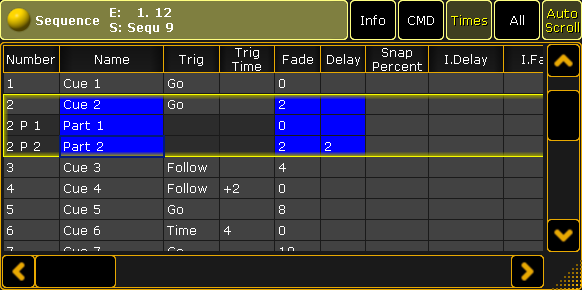 *Sequence Executor Sheet* This sheet has a lot of columns. Each column is a setting, information, or action that has to do with each of the cues. The cues are represented by rows in the sheet. The active cue will have a yellow frame around it. If a cue is split up into different parts then the “main” cue and the parts all have the yellow frame around them. The sheet can be customized to display only the relevant columns and the columns can be arranged just like you prefer it - this functionality is described in the [Using different view sets in the sheets topic](/grandma2/key_adv_seq_view_sets/). The width of a column can be changed. This is done by placing the mouse pointer on the line between two column. When the pointer is the right place then it changes shape and gets a double ended arrow. Then do a left click and hold it while moving the mouse in the direction you wish to change the column. A white box appears above the pointer showing the size of the column and the size change is written in the parentheses. It could look like this:  *Changing the column width* This can also be done using the touch screens and fingers, but it can be easier with the mouse or trackball. The sheet can be customized and title buttons changed using the Sheet Options - read about them in the [Sheet Options topics](/grandma2/key_of_sheet_options/). ## The different columns in the Sequence Executor Sheet [Section titled “The different columns in the Sequence Executor Sheet”](#the-different-columns-in-the-sequence-executor-sheet) There are many columns in this sheet. The following is a short description of them. The ones that takes a little bit more explaining have links to the relevant topics. If you cannot see all the columns in your sheet then try to tap the “All” button in the title bar or a blank one. If you do not have any of these, then follow the link above to read about using the view sets. * **Number:**\ This is the cue number. * **Name:**\ This is the name of the cue. * **Trig:**\ This is the cue trigger. The options here are explained in the [Playing back Cues topic](/grandma2/key_cs_playback/#trigger). * **Trig Time:**\ This is connected to the trigger. Follow the link above for more information. * **Fade:**\ This is the fade time for all non-snap attributes and dimmer values that does up in value. The [Cue Timings topic](/grandma2/key_cs_cue_timings/) describes all the different timing columns and their effect on the cue values. * **Out Fade:**\ This is the fade time for dimmer values that does down in value. This is default set to the same as the “Fade” time. * **Delay:**\ This is the delay or wait time between the trigger and the actual fade begins. * **Out Delay:**\ This is the delay for the Out Fade (only dimmer values). Its default value is the “Delay”. * **Snap Percent:**\ This can be used to control when “Snap” attributes changes values. It is a percent related to the fade time. This is explained in the [Cue Timings topic](/grandma2/key_cs_cue_timings/#snap_percent). * **MIB:**\ MIB is “Move In Black”. This is introduced in the [What is MIB topic](/grandma2/key_cs_what_is_mib/). * **Mode:**\ Cues can have different modes. They are described in the [Using Cue Modes topic](/grandma2/key_adv_seq_cue_modes/). * **AE:**\ AE is “Assert Effects”. Read more about effects in the [Effects section](/grandma2/key_effects/). * **CMD:**\ CMD is “Command”. Commands (like the ones written the command line input) can be written in the cues. They will then be executed on the Master or Standalone station when the cue is triggered. Have a look at the [Commands in Cues topic](/grandma2/key_cs_cmd_in_cues/) for more details. * **CMD Delay:**\ This will ad a delay between the triggering of the cue and the execution of the command. * **Loop:**\ Here it is possible to select a cue that should be looped to. Loops are described in details in the [Looping Cues topic](/grandma2/key_adv_seq_loop/). * **Ltime:**\ This is “Loop Time”. It is used with loops. Follow link above to learn more. * **Lcount:**\ This is “Loop Count”. It is used with loops. Follow link above to learn more. * **Path:**\ Here it is possible to select a path for the cue transition. This is described in details in the [Cue Path topic](/grandma2/key_adv_seq_cue_path/). * **Info:**\ Here it is possible to add multiple lines of information to a cue. Please have a look at the [Sequence Info View topic](/grandma2/key_adv_seq_info/) to learn more. * **I.Delay:**\ This is “Individual Delay”. It displays the time for attributes that have individual stored delay times. This is discussed in the [Cue timings topic](/grandma2/key_cs_cue_timings/). * **I.Fade:**\ This is “Individual Fade”. It displays the time for attributes that have individual stored fade times. Follow the link above to learn more. * **Forced Pos. Mode:**\ This will open a pop-up that allows you to select a position mode for the cue. Learn more about position modes in the [XYZ and Pan/Tilt in Sequences topic](/grandma2/key_xyz_pan_tilt_in_cues_sequences/). * **Preset types Fade / Delay:**\ Each preset type has two columns called “Delay” and “Fade”. These are discussed in the [Cue timings topic](/grandma2/key_cs_cue_timings/). ## Temporary Sequence Executor Sheet or Executor Editor [Section titled “Temporary Sequence Executor Sheet or Executor Editor”](#temporary-sequence-executor-sheet-or-executor-editor) It is possible to open a temporary version of the Sequence Executor Sheet. It appears when an executor is edited. This can be done by pressing the Edit key followed by one of the executor keys associated with the executor you want to edit. The other way to edit a sequence assigned to an executor is by tapping the middle part of the mini executor, marked here with red:  *Sequence Mini Executor - middle part marked* The editor that appears could look like this: 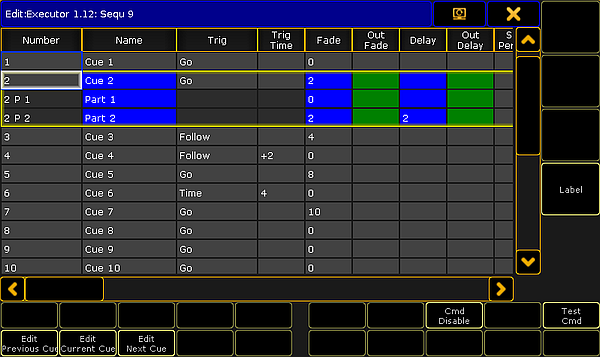 *Executor Editor* This view has all the columns and rows as the Sequence Executor Sheet. It cannot be customized as the sheet. []()It has a few buttons around that is not available in the sheet version: * **Edit Previous Cue:**\ This will edit the previous cue. Editing a cue means that values stored in the cue will become active values in the programmer. Values can be changed and the Update key can be pressed to update the cue. The cue that is being edited has a red frame around it. Pressing the Esc key will cancel the edit function - and close the pop-up. * **Edit Current Cue:**\ Same as above except the cue being edited is the current active cue. * **Edit Next Cue:**\ Same as above except it is the next cue that is being edited. * **Cmd Disable:**\ This will disable all the commands written in the “CMD” column. If the commands are disabled then the command text color will be red. * **Test Cmd:**\ This will execute the command written in the selected row. * **Label:**\ This can be used to give the sequence a label. Notice that when this pop-up is open, then the Encoder Toolbar is different. It could look like this:  *Encoder Toolbar - Edit Sequence - Page 1 Basics* The top row have some buttons and information. Starting from the left there is an information “button” that shows the executor number, the sequence number and name, and the cue number and name. It is not actually a button. Next to this is a button that enters or exits the “Edit” mode - This will also change the Encoder Toolbar. Next are six buttons that can be used to control the sequence playback - Please read the [Playing back cues topic](/grandma2/key_cs_playback/) for more on this. The last button in the top row is used to change between three different pages for the bottom encoder row. The image above shows the first page - called “Basics”. This gives access to change the: Trigger, Trig Time, Mode, and Loop. They are each assigned to one of the four encoders. The settings will change for the selected cues (rows). The next page is called “Fade Delay” and could look like this:  *Encoder Toolbar - Edit Sequence - Page 2 Fade Delay* The top row is the same. It is only the bottom encoder row that changes. Now the encoders control Fade, Out Fade, Delay, and Out Delay. The third page is called “Part cont.” and could look like this:  *Encoder Toolbar - Edit Sequence - Page 3 Part cont.* Now the encoders control Snap Percent, CMD, CMD Delay, and Info. ## Edit the Sequence [Section titled “Edit the Sequence”](#edit-the-sequence) The last way to see the cue sequence is by editing the sequence. This is a command line action. The syntax is: Edit Sequence \[number] This can be done using the keys or by writing in the command line input. The result is that the Sequence Editor pop-up appears. It could look like this: 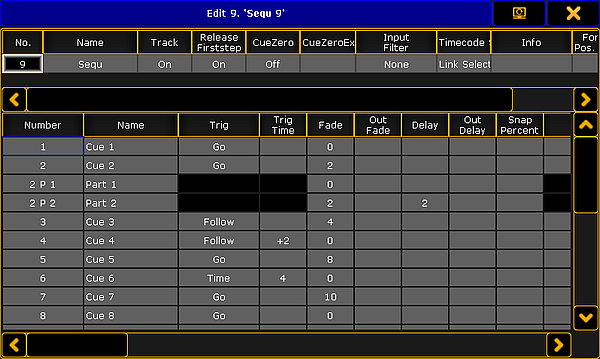 *Sequence Editor* This pop-up has two parts: The top part and the bottom part. The top part is all the settings that can be changed regarding the sequence. They are all described in the [What are Cues and Sequences topic](/grandma2/key_cs_what_are/). The bottom part is all the columns and rows from the Sequence Executor Sheet. Everything with a gray background can be edited.
# Cue timings
> Cue timing is about the stored values transition from one cue to the next.
Cue timing is about the stored values transition from one cue to the next. There are several levels of timing that can be relevant for a values transition time. There are different timing levels. They are: * **General Cue Timing** * **Preset Type Timing** * **Individual Timing** * **Rate** * **Executor Time** There is also manual cross fading. This overwrites any timing. Read more about cross fading in the [Playing back Cues topic](/grandma2/key_cs_playback/#crossfade). ## General Cue Timing [Section titled “General Cue Timing”](#general-cue-timing) This is the general timing columns that can be seen in the [Sequence Executor Sheet](/grandma2/key_cs_cue_sequence/). These timings have the lowest priority. If a value has a different Preset Type Timing or an Individual Timing then they have a higher priority. They are: * **Fade:**\ This is the time used by all attributes and dimmer values going “up” in value. It can also be called “InFade”. * **OutFade:**\ This is time used by dimmer values going “down” in value. This only effects Dimmer values. The default for this is “InFade” - automatically making it the same as the “Fade” value. * **Delay:**\ This is the time used to wait before executing the “Fade”. It can also be called “InDelay”. * **OutDelay:**\ This is the time used to wait before executing the “OutFade”. This only effects Dimmer values.The default for this is “InDelay” - automatically making it the same as the “Delay” value. * **Snap Percent:**\ This is the percent number used to control when the “Snap” is performed. Read more about [Snap Percent](#snap_percent) at the bottom of this topic. The defaults are a user setting and can be changed in the Setup -> User -> Defaults -> Sequence Defaults. ## Preset Type Timing [Section titled “Preset Type Timing”](#preset-type-timing) Each preset type has two columns in the Sequence Executor Sheet. One is **Fade** the other is **Delay**. These times will will be used by all changing the values of that preset type. Overwriting the General Cue Timings for that Preset Type. **Important:**\ Dimmer values changing to a lower value are not effected by the ""Fade Dimmer” time. They are controlled by the “OutFade”. The default value for these are “Cue” making the automatically the same as the General Cue Timings. The defaults are a user default and this can be changed in the Setup -> User -> Defaults -> Sequence Defaults. ## Individual Timing [Section titled “Individual Timing”](#individual-timing) Each individual attribute can have a special individual fade and/or delay time. This is called individual time. There are two columns in the Sequence Executor Sheet called **I.Fade** and **I.Delay**, they display the range if the individual times - the lowest and the highest time. If there are individual times stored then the background of the **Fade** or the **Delay** columns will have a green or orange color. This is a visual indicator that there are some individual times stored. ### Storing Individual Timing [Section titled “Storing Individual Timing”](#storing-individual-timing) Individual times are usually stored together with active values in the programmer. The Encoder Toolbar should look like this when working with values:  *Encoder Toolbar - Value Layer* Here in the Encoder toolbar there are three buttons in the center of the top row called: Value, Fade, and Delay. They control if the encoders below the buttons are used to set a value or to set an individual time. They change between different layers. An attribute needs to have values stored in the cue where the individual time is stored. The time can be stored at the same time as the value, but can also be added (merged) into the cue after the values is stored. To get the fade or delay times into your programmer, you need to select the layer you want to work with. You can tap the buttons in the Encoder Toolbar or you can press the Time key to toggle between the layers. When the correct layer is selected then you can use the encoders to set a time or you can use the keys to type a time - pay attention to your command line input. This is what the Encoder Toolbar looks like when Pan and Tilt have 2 seconds as individual fade time in the programmer  *Encoder Toolbar - Fade Layer with active fade times* When the individual time is in the programmer then it needs to be stored like any other value. Depending on what is stored with individual times, please consider if using [Part Cues](/grandma2/key_cs_store/) might be a better solution for you. ## []()Rate Fader [Section titled “Rate Fader”](#rate-fader) All executors have a Rate Fader. This fader might not be assigned to a physical fader but it is still there. For details about this please have a look at the [Executors section](/grandma2/key_exec/). A Rate fader is used to modulate or dynamically adjust the stored times. It does not change the stored times, it simply adjust the time to be faster or slower. When the time is adjusted by the Rate fader then the time displayed in the Sequence Executor Sheet is also visually adjusted. There is an asterisk symbol in front of the time to show you that the time is adjusted. It could look like this: 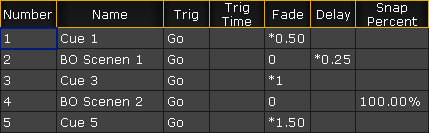 *Sequence Executor Sheet with adjusted times* The default value for the Rate fader is “1:1”. This means that times will not be adjusted. If the rate is changed then the stored time is divided by the value of the rate - this includes the individual times. In the image above the stored fade time for cue 1 is “1”. The Rate is set to “2”. The result is 1 divided by 2 equals 0.5. Moving the Rate fader above “1:1” will make the rate time larger and the result is that the times are faster. Moving the Rate below the “1:1” will make the rate time smaller than 1 and the result is that the cue times are slower. The Rate fader can be reset to “1:1” by typing: \[Channel]> Rate 1 Or by having the “Rate1” function assigned to one of the associated executor keys. ## Exec Time faders [Section titled “Exec Time faders”](#exec-time-faders) The “Exec Time” or “Executor Time” fader can be used to override the stored times in the cues. It is a fader visible in the lower right corner of screen 2 (unless you are on a grandMA2 onPC with the “CmdWing Bar” turned on). It can also be assigned to a physical fader - read about it in the [Special Masters topic](/grandma2/key_adv_exec_spec_master/). If the Exec Time fader is On, then all the stored cue timing is ignored and the time set on the Exec Time fader is used instead. The default range for the fader is 0 seconds to 10 seconds. The maximum is a user setting and it can be changed in Setup -> User -> Settings. It it called “Max. Exec Time”. The Exec Time fader also has a “Manual XFade” function. This will allow you to use the move from one end position to the other as the timing for the cue change. Exec Time ignores any individual times. The Rate Fader is effecting the Exec Time, except when doing the Manual XFade. It is possible to activate **Ignore Exec Time** in the options for each Executor - see the [Executor Options topic](/grandma2/key_adv_exec_options/). This will exclude the executor from being effected by the Exec Time. *** ## []()Snap Percent [Section titled “Snap Percent”](#snap-percent) Some attributes are defined as “Snap” attributes in the Fixture Type definition. This means that the attribute will not fade from one value to the next but it will instantly change to the new value. This could be Gobo wheels, Prism In/Out, Mode channels, or any other attribute where fading is not desired. The Snap Percent is a percent number that defines when in the cue fade these attributes shall perform the Snap. The default is 0% and this value is hidden in the Sequence Executor Sheet. This value means that the Snap will be performed when 0% of the fade time is executed - immediately when the cue is triggered. If the Snap Percent is set to 100% then the Snap will be performed when all fade times in the cue is done - at the very end of the fade. This includes the time of individual fades! The Snap Percent can be set to anything between 0% and 100%, allowing you to choose when the Snap is performed.
# Delete cues
> Deleting a cue will remove the values stored in the cue.
Deleting a cue will remove the values stored in the cue. The easy way to delete a cue is using the keys or keyboard. The syntax to delete a cue on the selected executor is: Delete Cue \[cue number]. If it is a different executor then you can tap a key associated to the executor after the above syntax or add the information in the syntax: Delete Cue \[cue number] Executor \[executor number]. When this command is run then a pop-up will appear. It could look like this:  *Delete Cue pop-up* There are two mutually exclusive options here. They are called **Normal** and **Cue Only**. **Normal** delete will remove the cue and all values stored in the cue. This will effect stored values that normally tracks through the sequence. **Cue Only** delete will remove the cue and all the values stored in the cue. It will store values that would track into the following cues if they otherwise would be lost by the deletion of the cue. ### Example [Section titled “Example”](#example) We have the following sequence: 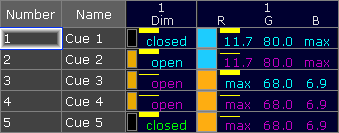 *Sequence with 5 cues before deletion* Now we are going to delete cue number 3. This is the result with **Normal** delete: 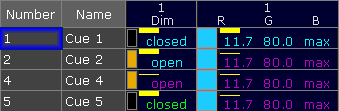 *Sequence after a Normal delete* Cue number 3 is gone. The orange color stored in the cue is deleted and the orange values that normally tracked from cue 3 into cue 4 and 5 are gone. Now it is the blue color stored in cue 1 that tracks through the sequence. The result is that cue 4 and 5 are now blue. This is the result if we deleted with **Cue Only**: 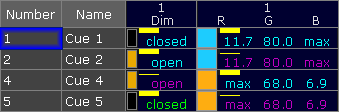 *Sequence after a Cue Only delete* Cue number 3 is gone. The orange color stored in the cue is now stored in cue number 4. This means that cue number 4 and 5 are still orange.\ Tracking is discussed in details in the [What is Tracking topic](/grandma2/key_cs_what_is_tracking/).
# Executor list
> An executor list is an object list of executors.
An executor list is an object list of executors. ### Syntax [Section titled “Syntax”](#syntax) Executor \[list] Page \[list] FaderPage \[list] ButtonPage \[list] **Important:**\ An executor list has the same syntax as an object list. Each object type is broken down to executor objects. These executor objects form the executor list. ### Example: [Section titled “Example:”](#example) \[Channel]> **Pause Page** 1 **Thru** 3 Pauses executors on pages 1, 2, and 3. \[Channel]> Delete Executor 10 Thru 13 Deletes executors 10 through 13 of the current page.
# Function keywords
> Function keywords perform a task or a function.
Function keywords perform a task or a function. These keywords are often followed by objects to which the function or task is to be applied. **Important:**\ Function keywords are the verbs of the console, so to speak. ### Example: [Section titled “Example:”](#example) \[Channel]> **Goto** Cue 3 \- or - \[Channel]> **Delete** Preset “Blue” **Important:**\ Some functions are global and do not need to be followed by objects, for example **Blackout**. *** ### List of Function Keywords [Section titled “List of Function Keywords”](#list-of-function-keywords) * [>>> keyword](/grandma2/key_keyword_skipplus/) * [<<< keyword](/grandma2/key_keyword_skipminus/) * [AddUserVar keyword](/grandma2/key_keyword_adduservar/) * [AddVar keyword](/grandma2/key_keyword_addvar/) * [Align keyword](/grandma2/key_keyword_align/) * [AlignFaderModules keyword](/grandma2/key_keyword_alignfadermodules/) * [All keyword](/grandma2/key_keyword_all/) * [AllRows keyword](/grandma2/key_keyword_allrows/) * [Assign keyword](/grandma2/key_keyword_assign/) * [At keyword](/grandma2/key_keyword_at/) * [Backup keyword](/grandma2/key_keyword_backup/) * [Black keyword](/grandma2/key_keyword_black/) * [Blackout keyword](/grandma2/key_keyword_blackout/) * [Blind keyword](/grandma2/key_keyword_blind/) * [BlindEdit keyword](/grandma2/key_keyword_blindedit/) * [Block keyword](/grandma2/key_keyword_block/) * [Call keyword](/grandma2/key_keyword_call/) * [ChangeDest keyword](/grandma2/key_keyword_changedest/) * [ChannelLink keyword](/grandma2/key_keyword_channellink/) * [Clear keyword](/grandma2/key_keyword_clear/) * [CircularCopy keyword](/grandma2/key_keyword_circularcopy/) * [ClearActive keyword](/grandma2/key_keyword_clearactive/) * [ClearAll keyword](/grandma2/key_keyword_clearall/) * [ClearSelection keyword](/grandma2/key_keyword_clearselection/) * [Clone keyword](/grandma2/key_keyword_clone/) * [CmdHelp keyword](/grandma2/key_keyword_cmdhelp/) * [Copy keyword](/grandma2/key_keyword_copy/) * [Delete keyword](/grandma2/key_keyword_delete/) * [DeleteShow keyword](/grandma2/key_keyword_deleteshow/) * [DisconnectStation keyword](/grandma2/key_keyword_disconnectstation/) * [DoubleRate keyword](/grandma2/key_keyword_doublerate/) * [DoubleSpeed keyword](/grandma2/key_keyword_doublespeed/) * [Edit keyword](/grandma2/key_keyword_edit/) * [EndSession keyword](/grandma2/key_keyword_endsession/) * [Export keyword](/grandma2/key_keyword_export/) * [Extract keyword](/grandma2/key_keyword_extract/) * [Fix keyword](/grandma2/key_keyword_fix/) * [Flash keyword](/grandma2/key_keyword_flash/) * [Flip keyword](/grandma2/key_keyword_flip/) * [Freeze keyword](/grandma2/key_keyword_freeze/) * [Go keyword](/grandma2/key_keyword_go/) * [GoBack keyword](/grandma2/key_keyword_goback/) * [Goto keyword](/grandma2/key_keyword_goto/) * [HalfRate keyword](/grandma2/key_keyword_halfrate/) * [HalfSpeed keyword](/grandma2/key_keyword_halfspeed/) * [Help keyword](/grandma2/key_keyword_help/) * [Highlight keyword](/grandma2/key_keyword_highlight/) * [If keyword](/grandma2/key_keyword_if/) * [IfActive keyword](/grandma2/key_keyword_ifactive/) * [IfOutput keyword](/grandma2/key_keyword_ifoutput/) * [IfProg keyword](/grandma2/key_keyword_ifprog/) * [Import keyword](/grandma2/key_keyword_import/) * [Info keyword](/grandma2/key_keyword_info/) * [Insert keyword](/grandma2/key_keyword_insert/) * [Invert keyword](/grandma2/key_keyword_invert/) * [InviteStation keyword](/grandma2/key_keyword_invitestation/) * [JoinSession keyword](/grandma2/key_keyword_joinsession/) * [Kill keyword ](/grandma2/key_keyword_kill/) * [Label keyword](/grandma2/key_keyword_label/) * [Layer keyword](/grandma2/key_keyword_layer/) * [Learn keyword](/grandma2/key_keyword_learn/) * [LeaveSession keyword](/grandma2/key_keyword_leavesession/) * [List keyword](/grandma2/key_keyword_list/) * [ListFaderModules keyword](/grandma2/key_keyword_listfadermodules/) * [ListLibrary keyword](/grandma2/key_keyword_listlibrary/) * [ListEffectLibrary keyword](/grandma2/key_keyword_listeffectlibrary/) * [ListMacroLibrary keyword](/grandma2/key_keyword_listmacrolibrary/) * [ListShows keyword](/grandma2/key_keyword_listshows/) * [ListUserVar keyword](/grandma2/key_keyword_listuservar/) * [ListVar keyword](/grandma2/key_keyword_listvar/) * [Load keyword](/grandma2/key_keyword_load/) * [LoadShow keyword](/grandma2/key_keyword_loadshow/) * [Lock keyword](/grandma2/key_keyword_lock/) * [Login keyword](/grandma2/key_keyword_login/) * [Logout keyword](/grandma2/key_keyword_logout/) * [MasterFade keyword](/grandma2/key_keyword_masterfade/) * [MAtricksBlocks keyword](/grandma2/key_keyword_matricksblocks/) * [MAtricksFilter keyword](/grandma2/key_keyword_matricksfilter/) * [MAtricksGroups keyword](/grandma2/key_keyword_matricksgroups/) * [MAtricksInterleave keyword](/grandma2/key_keyword_matricksinterleave/) * [MAtricksReset keyword](/grandma2/key_keyword_matricksreset/) * [MAtricksWings keyword](/grandma2/key_keyword_matrickswings/) * [Menu keyword](/grandma2/key_keyword_menu/) * [MidiControl keyword](/grandma2/key_keyword_midicontrol/) * [MidiNote keyword](/grandma2/key_keyword_midinote/) * [MidiProgram keyword](/grandma2/key_keyword_midiprogram/) * [Move keyword](/grandma2/key_keyword_move/) * [NetworkInfo keyword](/grandma2/key_keyword_networkinfo/) * [NetworkNodeInfo keyword](/grandma2/key_keyword_networknodeinfo/) * [NetworkNodeUpdate keyword](/grandma2/key_keyword_networknodeupdate/) * [NetworkSpeedTest keyword](/grandma2/key_keyword_networkspeedtest/) * [NewShow keyword](/grandma2/key_keyword_newshow/) * [NextRow keyword](/grandma2/key_keyword_nextrow/) * [Off keyword](/grandma2/key_keyword_off/) * [On keyword](/grandma2/key_keyword_on/) * [Oops keyword](/grandma2/key_keyword_oops/) * [Park keyword](/grandma2/key_keyword_park/) * [Pause keyword](/grandma2/key_keyword_pause/) * [Preview keyword](/grandma2/key_keyword_preview/) * [PreviewEdit keyword](/grandma2/key_keyword_previewedit/) * [PreviewExecutor keyword](/grandma2/key_keyword_previewexecutor/) * [PrevRow keyword](/grandma2/key_keyword_prevrow/) * [PSR keyword](/grandma2/key_keyword_psr/) * [PSRList keyword](/grandma2/key_keyword_psrlist/) * [PSRPrepare keyword](/grandma2/key_keyword_psrprepare/) * [Rate1 keyword](/grandma2/key_keyword_rate1/) * [Reboot keyword](/grandma2/key_keyword_reboot/) * [Record keyword](/grandma2/key_keyword_record/) * [SaveShow keyword](/grandma2/key_keyword_saveshow/) * [Select keyword](/grandma2/key_keyword_select/) * [SelectDrive keyword](/grandma2/key_keyword_selectdrive/) * [SelFix keyword](/grandma2/key_keyword_selfix/) * [SetIP keyword](/grandma2/key_keyword_setip/) * [Setup keyword](/grandma2/key_keyword_setup/) * [SetUserVar keyword](/grandma2/key_keyword_setuservar/) * [SetVar keyword](/grandma2/key_keyword_setvar/) * [ShuffleSelection keyword](/grandma2/key_keyword_shuffleselection/) * [ShuffleValues keyword](/grandma2/key_keyword_shufflevalues/) * [Shutdown keyword](/grandma2/key_keyword_shutdown/) * [Solo keyword](/grandma2/key_keyword_solo/) * [Speed keyword](/grandma2/key_keyword_speed/) * [StepFade keyword](/grandma2/key_keyword_stepfade/) * [StepInFade keyword](/grandma2/key_keyword_stepinfade/) * [StepOutFade keyword](/grandma2/key_keyword_stepoutfade/) * [Stomp keyword](/grandma2/key_keyword_stomp/) * [Store keyword](/grandma2/key_keyword_store/) * [StoreLook keyword](/grandma2/key_keyword_storelook/) * [Swop keyword](/grandma2/key_keyword_swop/) * [SwopGo keyword](/grandma2/key_keyword_swopgo/) * [SwopOn keyword](/grandma2/key_keyword_swopon/) * [Temp keyword](/grandma2/key_keyword_temp/) * [TempFader keyword](/grandma2/key_keyword_tempfader/) * [Toggle keyword](/grandma2/key_keyword_toggle/) * [Tools keyword](/grandma2/key_keyword_tools/) * [Top keyword](/grandma2/key_keyword_top/) * [Unblock keyword](/grandma2/key_keyword_unblock/) * [Unpark keyword](/grandma2/key_keyword_unpark/) * [Update keyword](/grandma2/key_keyword_update/) * [UpdateFirmware keyword](/grandma2/key_keyword_updatefirmware/) * [UpdateSoftware keyword](/grandma2/key_keyword_updatesoftware/) * [UpdateThumbnails keyword](/grandma2/key_keyword_updatethumbnails/) * [Version keyword](/grandma2/key_keyword_version/)
# General syntax rules
> The command line syntax is used to create valid expressions out of keywords.
The command line syntax is used to create valid expressions out of keywords. ### General Rules [Section titled “General Rules”](#general-rules) The general rules are: **Important:**\ Basic syntax is: \[Function] \[Object] * All objects have a default function which is used if no function is given. * Most functions have a default object or an object type which is used if no object is given. * Objects are arranged in a hierarchical tree structure. * If an object does not support the function applied, the function will be passed on to a child or parent object. *** ### Terminology [Section titled “Terminology”](#terminology) * \[Square brackets]:\ Description of a non-literal content. * (Parentheses):\ Description of an optional content. * “Quotation marks”:\ Quotation marks are used to enter a definite name or content. If the line ends after the word in quotation marks, the quotation marks at the end may be omitted. If the name or content is not a keyword and does not contain special characters, the quotation marks can be left out altogether. * Capitalization:\ The console does not distinguish between upper case and lower case. Capitalization is used to improve readability only. ## Subtopics [Section titled “Subtopics”](#subtopics) * [Helping keywords](/grandma2/key_cs_helping_keywords/) * [Object keywords](/grandma2/key_cs_object_keywords/) * [Function keywords](/grandma2/key_cs_function_keywords/)
# Helping keywords
> Helping keywords are used to create a relation between functions and objects.
Helping keywords are used to create a relation between functions and objects. **Important:**\ Helping keywords are the prepositions and conjunctions of the console, so to speak. ### Example: [Section titled “Example:”](#example) **Helping keyword At:** \[Channel]> Copy Cue 3 **At** Cue 5 **Helping keyword Thru:** \[Channel]> Delete Effect 4 **Thru** 6 *** ## List of Helping Keywords [Section titled “ List of Helping Keywords”](#list-of-helping-keywords) * [+ \[Plus\] keyword](/grandma2/key_keyword_plus/) * [- \[Minus\] keyword](/grandma2/key_keyword_minus/) * [And keyword](/grandma2/key_keyword_and/) * [At keyword](/grandma2/key_keyword_at/) * [CmdDelay keyword](/grandma2/key_keyword_cmddelay/) * [Delay keyword](/grandma2/key_keyword_delay/) * [EndIf keyword](/grandma2/key_keyword_endif/) * [Fade keyword](/grandma2/key_keyword_fade/) * [If keyword](/grandma2/key_keyword_if/) * [Off keyword](/grandma2/key_keyword_off/) * [On keyword](/grandma2/key_keyword_on/) * [Or keyword](/grandma2/key_keyword_or/) * [OutFade keyword](/grandma2/key_keyword_outfade/) * [OutDelay keyword](/grandma2/key_keyword_outdelay/) * [SnapPercent keyword](/grandma2/key_keyword_snappercent/) * [Thru keyword](/grandma2/key_keyword_thru/) * [Toggle keyword](/grandma2/key_keyword_toggle/)
# Object keywords
> Object keywords are used to allocate objects in your show file.
Object keywords are used to allocate objects in your show file. **Important:**\ Object keywords are the nouns of the console, so to speak. ## Example: [Section titled “Example:”](#example) \[Channel]> Store **Fixture** 3\*\* \*\* \- or- \[Channel]> Delete **Preset** “Red” **Important:**\ Object keywords are object types which are usually **used with numbers, IDs, names, and labels**. *** ### List of Object Keywords [Section titled “List of Object Keywords ”](#list-of-object-keywords) * [Agenda keyword](/grandma2/key_keyword_agenda/) * [Attribute keyword](/grandma2/key_keyword_attribute/) * [ButtonPage Keyword](/grandma2/key_keyword_buttonpage/) * [Camera Keyword](/grandma2/key_keyword_camera/) * [Channel keyword](/grandma2/key_keyword_channel/) * [ChannelFader keyword](/grandma2/key_keyword_channelfader/) * [Cue keyword](/grandma2/key_keyword_cue/) * [Default keyword](/grandma2/key_keyword_default/) * [Dmx keyword](/grandma2/key_keyword_dmx/) * [Effect keyword](/grandma2/key_keyword_effect/) * [ExecButton1 keyword](/grandma2/key_keyword_execbutton1/) * [ExecButton2 keyword](/grandma2/key_keyword_execbutton2/) * [ExecButoon3 keyword](/grandma2/key_keyword_execbutton3/) * [Executor keyword](/grandma2/key_keyword_executor/) * [Fader keyword](/grandma2/key_keyword_fader/) * [FaderPage keyword](/grandma2/key_keyword_faderpage/) * [Feature keyword](/grandma2/key_keyword_feature/) * [Filter keyword](/grandma2/key_keyword_filter/) * [Fixture keyword](/grandma2/key_keyword_fixture/) * [FixtureType keyword](/grandma2/key_keyword_fixturetype/) * [Form keyword](/grandma2/key_keyword_form/) * [Full keyword](/grandma2/key_keyword_full/) * [Group keyword](/grandma2/key_keyword_group/) * [Layout keyword](/grandma2/key_keyword_layout/) * [Macro keyword](/grandma2/key_keyword_macro/) * [Mask keyword](/grandma2/key_keyword_mask/) * [MAtricks keyword](/grandma2/key_keyword_matricks/) * [Normal keyword](/grandma2/key_keyword_normal/) * [Page keyword](/grandma2/key_keyword_page/) * [Part keyword](/grandma2/key_keyword_part/) * [Preset keyword](/grandma2/key_keyword_preset/) * [PresetType keyword](/grandma2/key_keyword_presettype/) * [PreviewExecutor keyword](/grandma2/key_keyword_previewexecutor/) * [Remote keyword](/grandma2/key_keyword_remote/) * [Root keyword](/grandma2/key_keyword_root/) * [Screen keyword](/grandma2/key_keyword_screen/) * [Selection keyword](/grandma2/key_keyword_selection/) * [Sequence keyword](/grandma2/key_keyword_sequence/) * [SpecialMaster keyword](/grandma2/key_keyword_specialmaster/) * [Timecode keyword](/grandma2/key_keyword_timecode/) * [Timer keyword](/grandma2/key_keyword_timer/) * [User keyword](/grandma2/key_keyword_user/) * [UserProfile keyword](/grandma2/key_keyword_userprofile/) * [View keyword](/grandma2/key_keyword_view/) * [ViewButton keyword](/grandma2/key_keyword_viewbutton/) * [ViewPage keyword](/grandma2/key_keyword_viewpage/) * [World keyword](/grandma2/key_keyword_world/) * [Zero keyword](/grandma2/key_keyword_zero/)
# Object list
> An object list is a list of objects of the same type.
An object list is a list of objects of the same type. ### Syntax [Section titled “Syntax”](#syntax) \[Object-type1] \[ID1] \[Object-type1] \[ID1] \[Object-type1] \[ID2] \[Object-type1] \[ID1] + \[ID2] \[Object-type1] \[ID1] Thru \[ID2] - \[ID3] \[Object-type1] \[ID1] Thru \[Object-type1] Thru \[ID1] \[Object-type1] Thru \[Object-type1] “Name” \[Object-type1] “Nam\*” * If no object type is given, the list contains items of your current destination. * If no object type is given and the current destination is root – no destination – the list contains the default object types for the function applied. * If no object type is given and no function is applied, the list contains the current object type default of the command line. ### Example: [Section titled “Example:”](#example) \[Channel] > **Fixture** 3 **Thru** 6 Selects fixture 3 through 6 (1, 2, 3, 4, 5, 6). \[Channel]> **Fixture Thru** 3 \ Selects fixture 1 through 3 (1, 2, 3). \[Channel]> **Delete** 3 **Thru** \ Deletes cue 3 and the following upper cues. \[Channel]> **Channel Thru** Selects all channels. \[Channel]> **Channel** 1 **Channel** 5 Selects channel 1 and 5. \[Channel] > **Fixture** mac\* Selects all fixtures with a name starting with mac.
# Playing back cues
> Cues are played back from the sequence.
Cues are played back from the sequence. Sequences can be played back from two different locations. They can be assigned to an executor and run from there or they can be played back from the Sequence Pool. You can always see the actively running playbacks in the [Running Playbacks window](/grandma2/key_exec_running_playbacks/#running_playbacks). ## Sequence assigned to an Executor [Section titled “Sequence assigned to an Executor”](#sequence-assigned-to-an-executor) When a sequence is assigned to an executor, then it can easily be played back. This is the most common way to run the sequence. There are many commands related to running the cues. The most used ones can be assigned to the keys associated with the executor. The default for an executor with an sequence is that one of the keys has the “Go” command assigned. Pressing this key will run the cues using the Cue Timing. If the executor has a fader then the default function for this fader is “Master”. A master fader works as an intensity master, meaning that it effects the dimmer values. []()A fader can also have the CrossFade function. If a CrossFader is moved from one of the outer positions (top or bottom) towards the other then the movement is used to fade from the current cue to the next. This will disregard any cue timings and simply use the movement of the fader as the time. It is even possible to go backwards. When the fader reaches the other outer position then it becomes the new normal position and moving the fader again will start the manual cross fade to the next cue. Any command related to playing back the cues can be used with the executor. For instance if you run the following command: \[Channel]> Goto Cue 4 Executor 8 Then cue number will be played back on executor number 8 on your currently active page - if there is a cue number 4. Using the command input makes it possible to overwrite the stored cue timing. If you for instance wanted to run cue number 4 on executor number 8 on executor page 1 using 5 seconds fade you could type the following command: \[Channel]> Goto Cue 4 Executor 1.8 Fade 5 Using the keys you would need to press the following: Goto Cue 4 Exec 1 . 8 Time 5 Please This will overwrite any cue and individual timing and use the time specified in the command. For details about the executors and the related commands, please read the [Executor section](/grandma2/key_exec/). also have a look at the [Sequence Mini Executor topic](/grandma2/key_cs_sequence_mini_executor/). ## Sequence running in the Sequence Pool [Section titled “Sequence running in the Sequence Pool”](#sequence-running-in-the-sequence-pool) It is possible to play the sequence directly from the sequence pool. Pressing the small Go+ key followed by any of the sequences in the pool will run the first cue in the sequence. Repeating this will continue to run the next cues just as if the same go command was run on an executor. In fact any of the commands regarding playing back cues works in the sequence pool. For instance if you run the following command: \[Channel]> Goto Cue 4 Sequence 8 then cue number 4 will be actively playing back from the sequence pool. It can be hard to see this in the sequence pool, but the Call Mode can be changed to “Pool Playback”. Then the sequence sheet could look like this: 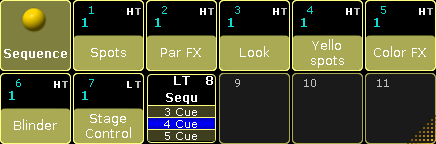 *Sequence Pool - playing back cues in sequence 8* Making it a lot easier to see that sequence number 8 is actually running cue number 4. If “Direct Action” is active then tapping the pool objects is the same as pressing Go+ followed by the pool object. ## []()Trigger [Section titled “Trigger”](#trigger) Each cue has an assigned trigger. This can be seen and edited in the **Trig** column in the [Sequence Executor Sheet](/grandma2/key_cs_cue_sequence/). Some trigger are connected to a time. This can be edited in the **Trig Time** column - also in the Sequence Executor Sheet. The Trig defines what actually triggers the execution of the cue. Editing the cell will open the Select Trig pop-up. It looks like this: 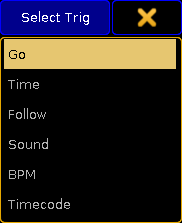 *Select Trig pop-up* The options here are: * **Go:**\ This is the factory default. It requires a Go action to active the cue. * **Time:**\ This is a countdown timer that starts the count down when the previous cue is triggered. If you have cue 1 and 2 and cue 2 has a Time trigger set to 2 seconds, then the countdown starts when cue 1 is triggered. The time is set in the Trig Time column. * **Follow:**\ This trigger will activate when the previous cue has completed all fades and delays - including individual times. The Trig Time column can be used to add an additional delay between the completion of the fade in the previous cue and the triggering of the cue. * **Sound:**\ This will trigger the cue using a sound peak as the trigger. It is possible to choose one of 11 different frequency areas in the Trig Time column. * **BPM:**\ This will trigger the cue using the beats in the sound input. This can become useful with several cues being triggered by the BPM (Beats Per Minute). * **Timecode:**\ A cue can have a timecode time as a trigger. The sequence is connected to a Timecode Slot. When the sequence is active and the specified time (in the Trig Time column) is received, then the cue is triggered. Read more about it in the [Record a Timecode Show topic](/grandma2/key_timecode_record/). **Important**\ When a cue is triggered by timecode, then it always **Asserts**. Read more about assert in the [Using Cue Modes topic](/grandma2/key_adv_seq_cue_modes/). The default trigger can be changed in the Setup -> User -> Defaults -> Sequence Defaults. This is a setting that follows the User Profile. ## []()Priority [Section titled “Priority”](#priority) When several sequences are affecting the same fixtures then priorities become important. The priority setting is actually an option to the executor. These options can be opened by pressing the Assign key and then one of the executors keys where there is a sequence you want to change. This opens the **Assign Menu**. On the right side of the menu there are some buttons. Please press Options button. This is all the options available for a sequence assigned to an executor. These options are discussed in the [Executor Options topic](/grandma2/key_adv_exec_options/). The top button in the second column sets the priority. Tapping it will open a small select pop-up like this: 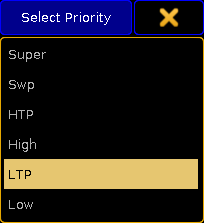 *Small Select Priority pop-up* This is the list of possible priorities. This is a short explanation of the priorities: * **Super:**\ This priority is the LTP priority above any other playbacks and even above the programmer. * **Swp (Swap):**\ Intensity is working as LTP with higher priority than HTP. * **HTP (Highest Takes Precedence):**\ The highest intensity value will be used. Other parameters will use LTP. * **High:**\ High LTP priority - like LTP but a higher priority than normal LTP. * **LTP (Latest Takes Precedence):**\ This is the normal LTP priority. The newest attribute value is prioritized over the the old value. * **Low:**\ Low LTP - This is a lower LTP priority. ### []()Soft LTP [Section titled “Soft LTP”](#soft-ltp) This option is related to how intensities change from one executor to the other. When it is active then the intensity will fade from the old intensity to the new, when the fixture is “transferred” from one executor to the other. When it is deactivated, the intensity will snap to the new value, then starting the new (higher priority) executor.
# Renumber cues
> Cue numbers can be changed. This cannot be used to move the cues around and change the cue order.
Cue numbers can be changed. This cannot be used to move the cues around and change the cue order. When editing a cue number in the Sequence Executor Sheet, a pop-up like this will appear: 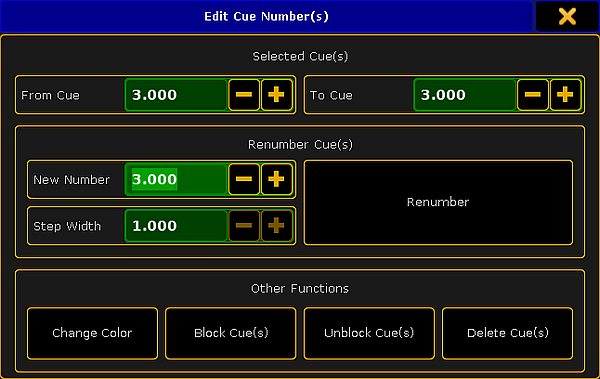 *Edit Cue Numbers pop-up* A range of cues can be selected for renumbering, but remember that the new numbers cannot exceed the numbers before and after the selection. The two top input fields in this pop-up can be used to set a range or simply have a range of one. Below this is the renumber section. Here is the option to set the “New Number”. This will be the number of the first cue if a range of cues are selected. A “Step Width” can be defined. This is relevant if a range of cues are selected. This will then be used to set the step size between the cue range. With the input fields correctly filled out, tapping the Renumber button will do the renumbering - this will also close the pop-up. ## Other Functions [Section titled “Other Functions”](#other-functions) The Other Functions section at the bottom have four buttons. “Change Color” is described below. “Block Cue(s)”, “Unblock Cue(s)” are related to tracking. This is described in the [What is Tracking topic](/grandma2/key_cs_what_is_tracking/). “Delete Cue(s)” will delete the selected cues. This is discussed in the [Delete Cues topic](/grandma2/key_cs_delete_cues/). ## []()Change cue color [Section titled “Change cue color”](#change-cue-color) A cue can have a color assigned to the row in the Sequence Executor Sheet. This can be done using the command line or by tapping the Change Color button in the Edit Cue Numbers pop-up. The [Appearance keyword](/grandma2/key_keyword_appearance/) is used to do this via the command line. Unless you use the command line input to specify a color then the **Select Color pop-up** appears. The sheet options control if this color is visible and how may cells will have the background color. Read more about this in the [Sheet Options - Display - Cue Color Columns](/grandma2/key_of_sheet_options_display/#cue_color_columns).
# Selection list
> A selection list is a list of fixtures.
A selection list is a list of fixtures. ### Syntax [Section titled “Syntax”](#syntax) \[Object] \[Object-type1] \[ID1] \[Object-type1] \[ID1] + \[Object-type2] \[ID2] \[Object-type1] \[ID1] \*\*Thru \*\*\[Object-type2] \[ID2] \[Object-type1] \[ID1] \*\*Thru \*\*\[Object-type2] \[ID2] - \[Object-type 3] \[ID3] \[Object-type1] \[ID1] **Thru** \[Object-type1] \*\*Thru \*\*\[ID1] \[Object-type1] **Thru** \[Object-type1] “Name” \[Object-type1] “Nam\*” **Important:**\ In a selection list, contrary to the object list, each object type is broken down to its corresponding fixture objects. These fixture objects form the selection list. * If an object type is missing, the object type that was entered last will be used. * If no object type is given altogether, the current object type default of the command line will be used. * If there is no ID before or after **Thru**,\*\* \*\*the first or last available ID will be used. * If there is no ID for an object type, the current, active or next ID will be used, depending on the function applied. * If the reference of an object type is nonexclusive, significant parent objects will be broken down by user defaults and currently selected or active objects. ### Example: [Section titled “Example:”](#example) \[Channel]> **Fixture** 3 **+ Channel** 6 Selects fixture 3 and channel 6. \[Channel]> **Cue Thru** 3 **- Channel** 4 Selects fixtures in first 3 cues, but does not select channel 4. \[Channel]> **Group** 3 **+ Cue** 4 Selects fixtures in group 3 and fixtures in cue 4.
# Sequence mini executor
> When a sequence is assigned to an executor, the mini executor view is displaying relevant information.
When a sequence is assigned to an executor, the mini executor view is displaying relevant information. It could look like this: 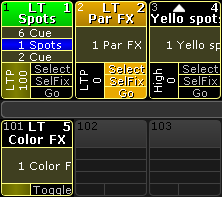 *Mini Executor - Sequences* The image above shows three fader executors with assigned sequences and one button executor with an assigned sequence. The yellow colored frame identifies that the executor has a sequence assigned. The mini executor is divided into three section: a top part, a middle part, and a lower part. ## Top Part [Section titled “Top Part”](#top-part) There are two lines of information in the top part. The top line has a number on the left side. This number is the **executor** number. If this number has a different background color, then there is a [Playback filter](/grandma2/key_wfm_apply_to_exec_seq/) applied. Next to this there might be different letters or symbols. This is list of the different possibilities: * **! (exclamation mark):**\ This symbol means that the executor is currently assigned the “Super” priority. * **S:**\ This symbol means that the executor is currently assigned the “SWP” priority. * **H:**\ This symbol means that the executor is currently assigned the “HTP” priority. * **Triangle pointing up:**\ This symbol means that the executor is currently assigned the “High LTP” priority. * **L:**\ This symbol means that the executor is currently assigned the “LTP” priority. * **Triangle pointing down:**\ This symbol means that the executor is currently assigned the “Low LTP” priority. * **T:**\ The “T” is there if the sequence is set as a tracking sequence. Read about tracking in the [What is Tracking topic](/grandma2/key_cs_what_is_tracking/). The different priorities are described in the [Playing back Cues topic](/grandma2/key_cs_playback/). On the right side there is another number. This is the **sequence** number. If this number has a different background color, then there is a [Input filter](/grandma2/key_wfm_apply_to_exec_seq/) applied. The second line in the top part is the name of the sequence. The background color have different meanings: * **Black**:\ This is the normal background color. * **Green**:\ The executor is selected. * **Orange**:\ The executor is fixed. * **Red**:\ The Assign Menu is open for this executor. * **Dark Red**:\ The temporary Edit Sequence pop-up is open. ## Middle Part [Section titled “Middle Part”](#middle-part) The middle part usually displays one or three cues. If a sequence only has one cue, then only one is displayed. If there are multiple cues in the sequence then three lines with cues are displayed. The top cue is the previous active cue or the cue that will be active should a GoBack action be performed. The middle cue is the currently active cue - if there are no active cue, then this line will be empty. The bottom cue will be the next active cue if a Go (forward) action is applied. If a cue is active, it will have a blue background. If the cue is fading in, then the blue background is visualized as a blue bar moving from the left to the right. Pressing or clicking in this area will open a temporary [Sequence Executor window](/grandma2/key_cs_cue_sequence/). The middle part can look very different if it is “located” using the [Locate command](/grandma2/key_keyword_locate/). It will look like this:  *Located sequence* ## Lower Part [Section titled “Lower Part”](#lower-part) The lower part labels and simulates physical keys and fader. This is the part that is different depending on the sequence being assigned to a fader executor or button executor. The left side show two different things depending on the executor being a button executor or a fader executor. If it is a button executor then it shows the intensity master for the sequence. If the executor is a fader executor then the left area lapels what kind of master it is, and possibly the priority. It will also try to display the current value of the fader. This area might be split into two parts. It could look like this:  *Mini Executor - Sequences - With Playback Master* This happens if the executor have a Playback Master assigned - Read about Playback Masters in the [Playback Masters topic](/grandma2/key_adv_exec_spec_master_playback/). The right side have three squares or one, depending on the amount of physical buttons. These graphical representations of the real physical key labels the function of the keys. In grandMA2 onPC they can be clicked or pressed just like the real physical keys. ## Wide Executors [Section titled “Wide Executors”](#wide-executors) The executors might span up to five executors wide. The top and middle part stay the same - just wider. The bottom part will show the amount of faders and keys that are now relevant for the sequence. It could look like this: 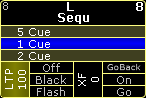 *Two wide executor* Read about making wider executors in the [Assign a Function topic](/grandma2/key_exec_assign/).
# Special characters
> Special characters execute special functions.
Special characters execute special functions. They can substitute terms or complement the syntax in the command line. For more information see the corresponding characters. [Asterisk \*](/grandma2/key_keyword_asterisk/) [At @](/grandma2/key_keyword_at_-/) [Dollar $](/grandma2/key_keyword_dollar/) [Dot .](/grandma2/key_keyword_dot/) [Parentheses ( )](/grandma2/key_keyword_parentheses/) [Quotation marks ” ”](/grandma2/key_keyword_marks/) [Semicolon ;](/grandma2/key_keyword_semicolon/) [Slash /](/grandma2/key_keyword_slash/) [Square brackets \[ \]](/grandma2/key_keyword_square_brackets/)
# Station list
> Syntax
Syntax \[IP-address] \[IP-address] Thru \[IP-address] \[Host-ID] \[Host-ID] Thru \[Host-ID] **Important:**\ The **IP address** is a 32-bit dotted decimal notation consisting of four numbers ranging from 0 to 255 and separated by dots, for example 192.168.0.101. * The **host ID** is a unique part of the IP address within a network. The host ID usually comprises the last three decimal numbers of the IP address. The host ID of the IP address 192.168.0.101 is 101 and the network ID is 192.168.0. * If the beginning or the end of the command **Thru** is missing, the first or the last occurrence will be used. ### Example: [Section titled “Example:”](#example) \[Channel]> SetIP ethO **192.168.0.101** Sets the IP address. \[Channel]> **Shutdown** 1 **Thru** 4 Shuts down all the devices with the host IDs 1, 2, 3, and 4. For more information on how to set the IP address see [SetIP](/grandma2/key_keyword_setip/).
# Store cues
> Storing cues is actually quite simple.
Storing cues is actually quite simple. Simply press the Store key and then one of the executor buttons where you want to store. There are of course more details to storing, so please keep reading. ## Store a new cue on an empty Executor [Section titled “Store a new cue on an empty Executor”](#store-a-new-cue-on-an-empty-executor) If you store a cue on an empty executor then the grandMA2 software automatically stores the cue in a new sequence and assigns this sequence to the executor using the default settings. Going back to the example in the top of this topic: just pressing the Store key and then an executor button on the empty executor is enough. The software assumes that you are storing a cue. This will automatically be cue number 1 - nothing else was specified. Storing cues obeys Worlds and Filters. This enables a control of what is stored. Filters and Worlds can also be assigned to the sequence. This will function as an input filter allowing only the elements in the worlds and filters to be stored in the sequence. Read more about then in the [World, Filters, and Mask section](/grandma2/key_wfm_world_filter_mask/). ## Cue numbers [Section titled “Cue numbers”](#cue-numbers) When a cue is stored, it is possible to specify a cue number. This is done using the following syntax: Store Cue \[cue number]. It is also possible to specify a sequence or an executor, using the keys in the command section, while storing:\ Store Cue \[cue number] Sequence \[sequence number] or\ Store Cue \[cue number] Executor \[executor number]. Notice that the cues are stored in the sequence, but using the executor number will store the cue into the sequence assigned to that executor. Cue numbers have three decimal numbers. If all are zero then they are not displayed. But cue number “42” is the same as cue number “42.000” - it is not “42 thousand”, it is “42 point 0 0 0”. The currently highest cue number that can be stored is “9 999.999”. The lowest number that can be stored is “0.001”. **Restriction:**\ Storing nearly 10 000 000 cues will completely fill the memory and make the show file VERY big.\ The software will cancel the store process before the system crashes, but almost any operation after this will make the software shutdown!! The software hide the trailing decimal zeros, but they are still there. This means that cue “5.2” is after cue “5.11” because they are actually cue “5.200” and “5.110”. It is not limited to only store a single cue number at a time. It can just as easily be a range of numbers - this means that it is possible to use Thru, +, and - keys to create number ranges to be stored. If you are going to be working with or adding a lot of cues to the same sequence, then it can be a good idea to select the executor with the sequence. This can be done by pressing the Select key and then one of the keys associated with the executor. ## Store the second cue [Section titled “Store the second cue”](#store-the-second-cue) If the store function is used again on the same executor - without adding cue number details - then the grandMA2 does not know what is wanted and a pop-up appears giving the different choices.  *Choose store method pop-up with second cue option* The right most button is called Create Second Cue - tapping this will store a cue with the next whole number. Over write and the two merge options are explained below. Remove and Release are covered in the [What is Tracking topic](/grandma2/key_cs_what_is_tracking/). ## Store into cues that are not empty [Section titled “Store into cues that are not empty”](#store-into-cues-that-are-not-empty) If the store operation is used to store into already existing cues then a pop-up like this appears:  *Choose store method pop-up* It only appears if you have not specified what should happen. Have a look at the [Store Options and Defaults topic](/grandma2/key_cs_store_options_default/) for information about specifying this while storing. “Cue Only”, “Tracking Shield”, “Remove”, and “Release” are described in the [What is Tracking topic](/grandma2/key_cs_what_is_tracking/). The three relevant options are: * **Overwrite:**\ This will remove what is already stored in the cue and only store the new values. * **Merge:**\ This will merge the new values into the existing values. New values has a higher priority and will overwrite existing values. * **Status Merge:**\ This will do a merge of the new values, but will also store any values from the actual cues in the selected executor. ### Examples [Section titled “Examples”](#examples) In the following examples we have a cue list with the following two cues (looking at the Sequence Tracking Sheet - read about it [here](/grandma2/key_cs_cue_content/#tracking_sheet)):  *Cues before any store action* Now we turn on fixture 3 at 100 % and store this into cue 2. This is the result if “Overwrite” is chosen: 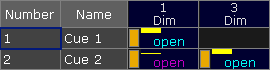 *Cues after an Overwrite store action* Now fixture 2 is gone. This is because it only had values stored in cue number 2. If we had chosen “Merge” instead it would have looked like this: 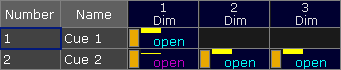 *Cues after a Merge store action* Now the values from fixture 3 are added to the existing values. “Status Merge” had resulted in this if cue 1 or 2 is active and the executor is selected: 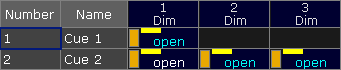 *Cues after a Status Merge store action* The (tracked) value from fixture 1 is stored into cue 2. ## Store cues with timings [Section titled “Store cues with timings”](#store-cues-with-timings) When storing a cue it is possible to also store the different cue timings. This is described in detail the [Cue Timings topic](/grandma2/key_cs_cue_timings/), but here is the short version. The Fade key will add different timing keywords to the command when storing. For instance storing cue 4 with a fade time of 6 seconds and a delay of 1 second, the following keys can be pressed: Store Cue 4 Time 6 Time Time 1 Please This is the result in the command line feedback: \[time] : Executing : Store Cue 4 Fade 6 Delay 1 Pressing the Fade repeatedly will change what timing it adds. ## Adding and using Cue Labels [Section titled “Adding and using Cue Labels”](#adding-and-using-cue-labels) A cue can be given a name - called label - while it is stored. This is the syntax: Store Cue \[cue number] “my cue name”. The keyboard is needed for writing this. You need to write the quotation marks to tell the software that this is text - then it is not interpreted as a command. Labels can also automatically be numerated while storing. Have a look at this command: \[Channel]> store cue 2 + 4 “BO Scene 1” This will not label both cue 2 and 4 the same - it will add 1 to the number for each cue. The result is that cue 2 is called “BO Scene 1” and cue 4 is “BO Scene 2”. This enumeration only works if the number is the last part of the label and if there is a space between the last word and number. Cue labels can be used when storing. This means that if there are several cues whose labels starts with “BO”, then it is possible to store into all these cues in one operation using BO plus an asterisk. See the following example. ### Example [Section titled “Example”](#example) This is the cue sequence and content before storing 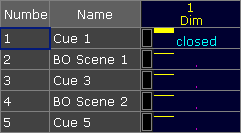 *Cues before storing* With an active value of 100% for fixture 1, we use the keyboard to type the following command: \[Channel]> store cue “BO\*” /merge /cueonly This is the result: 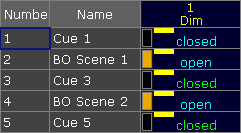 *Cue after storing using names* The two cues whose label begins with BO now got the new value - it was stored as Cue Only. See more details about the command at the end of this topic. ## Store cue parts [Section titled “Store cue parts”](#store-cue-parts) Besides the almost 10 million cues that could be stored in each sequence, if there was enough memory, it is also possible to store 199 cue parts to each cue. Cue parts are a division of the “main” cue. The “main” cue is actually part 0 (zero). The first part that can be stored is number 1. A value can only be in one of the parts. Have a look at this example from the Sequence Tracking Sheet: 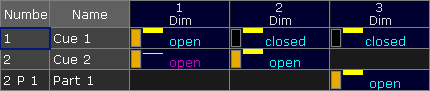 *Cue 2 part 2 only containing fixture 3* Notice that the value for fixture 3 is stored in cue 2 part 1. It does not have a value in cue 2 part 0 (the main cue). And the values from fixtures 1 and 2 are in the main cue and therefore do not have any value in cue 2 part 1. Storing something in a part is almost as easy as storing the main cue. Using the example above the key presses would be: Store Cue 2 Cue 1 Please The second press on the cue key will result in the [Part keyword](/grandma2/key_keyword_part/) and the command line feedback looks like this: \[time] : Executing : Store Cue 2 Part 1 ## Using command line input to add more while storing [Section titled “Using command line input to add more while storing”](#using-command-line-input-to-add-more-while-storing) In the example using the cue labels to store, there was a command that showed some of the other possibilities while storing cues. The command line gives access to all the store options that can be found in the GUI Store Options - read about them in the [Store Options and Defaults topic](/grandma2/key_cs_store_options_default/). All the different elements are described in the [Store Keyword topic](/grandma2/key_keyword_store/). ### Examples [Section titled “Examples”](#examples-1) The following is just a few extra command line examples showing some of the possibilities while storing. \[Channel]> Store Cue 1.2 Executor 1.4 Stores cue number 1.2 in the sequence assigned to executor 4 on executor page 1. \[Channel]> Store Sequence 8 Cue 20 /overwrite Short version: \[Channel]> S Seq 8 Cu 20 /o Stores cue number 20 in sequence number 8 using the overwrite function. It does not matter if you write sequence or cue first. So this could also have been: \[Channel]> Store Cue 20 Sequence 8 /overwrite \[Channel]> Store Cue 42 “Return of the Paranoid Android” /merge /use=Look This will store the cue with a name and it is merged but it is also stored with the “Look” option. Read more about the store options including Look in the next topic. ## []()Store Remove [Section titled “Store Remove”](#store-remove) A version of storing is the Store Remove, where the Remove button is selected in the Store pop-up (described above). This will remove the stored values for the attributes that currently have active values in the programmer. The values in the programmer are irrelevant in this case. They are simply an indicator of what attributes you want to remove from the cue. For removal of a few values, the Sequence Tracking Sheet or Sequence Content Sheets might be good tools. Read about them in the [Looking at the Cue Content topic](/grandma2/key_cs_cue_content/).
# Store options and defaults
> When cues are stored then there are some options that will be used.
When cues are stored then there are some options that will be used. Each user (profile) can have their own default options. During the store it is also possible to add commands that will use a specific set of store options. In this topic the options regarding storing cues are described. Some of these options will impact how other cues will respond. Elements regarding tracking are described in the [What is Tracking topic](/grandma2/key_cs_what_is_tracking/). ## Store Options [Section titled “Store Options”](#store-options) The default store options are found by pressing the Setup key followed by the Store Options below the “User” tab. It could look like this: 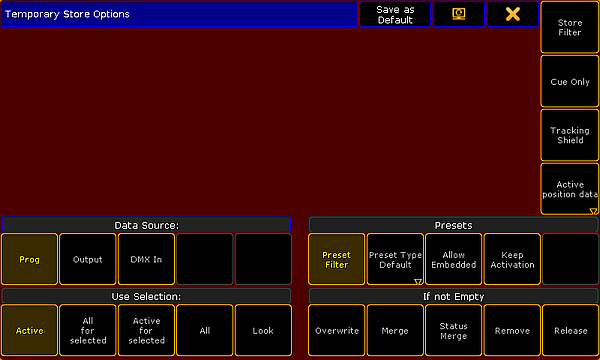 *Store Options* On the left side are two areas called “Data Source” and “Use Selection”. It is these two sections that are described here. The “Presets” options are described in the [Create Presets topic](/grandma2/key_presets_create/). “If not Empty” is described in the [Store Cues topic](/grandma2/key_cs_store/). **Store Filter** is described in the [What are Filters topics](/grandma2/key_wfm_what_are_filters/). **Cue Only** and **Tracking Shield** is discussed in the [What is Tracking topic](/grandma2/key_cs_what_is_tracking/). Position data (**Active Position Data**, **XYZ**, and **Pan/Tilt**) is relevant when XYZ position programming is activated. Read more about it in the [Programming XYZ section](/grandma2/key_xyz/). ### Data Source [Section titled “Data Source”](#data-source) This is the source that will used when storing. * **Prog. (Programmer) - This is the default option:**\ Stores the content in the programmer. * **Output:**\ Stores the status of the current output from the console. The output can be affected by masters and DMX profiles. The [DMX sheet](/grandma2/key_patch_dmx_sheet/) will show what the output actually is. * **DMX In:**\ Stores the current DMX input. ### Use Selection [Section titled “Use Selection”](#use-selection) This decides what values, from the source, will be used when storing. * **Active - This is the default option:**\ Stores the values that are active in the programmer, but with respect for the source selected above. * **All for selected:**\ Stores all attributes of the fixtures selected in the programmer, also with respect for the source selected above. * **Active for selected:**\ Stores only all active attributes but only for the fixtures selected in the programmer, also with respect for the source selected above. * **All:**\ Stores all attributes for all fixtures. * **Look:**\ Look stores all dimmer attributes and for the fixtures that have a dimmer values above 0 all attributes will be stored. ## Temporary Store Options [Section titled “Temporary Store Options”](#temporary-store-options) The store options can also be opened as a temporary version. This can be done by pressing and holding the Store key for approximately one second. This looks like the normal Store Options except it got two extra buttons in the title bar. One is the “Change Screen” button that allows you to move the pop-up to a different screen. The other is called Save as Default. This can be used to save the current temporary options as the new default options into the current User Profile. ## Store Encoder Toolbar [Section titled “Store Encoder Toolbar”](#store-encoder-toolbar) When “Store” is the active keyword, then the Encoder Toolbar will display the “Store Encoder Toolbar”. It could look like this:  *Encoder Toolbar - Store - Page 1 Basics* The top row has a lot of buttons. Short description from left to right: * **Data Source:**\ This is the data source swipe button - read description above. * **Use Selection:**\ This is the use selection swipe button - read description above. * **If not Empty:**\ This is the if not empty swipe button - read description in the [Store Cues topic](/grandma2/key_cs_store/). * **Store Filter:**\ This button opens the Store Filter pop-up - read about it in the [Use Temporary Filters topic](/grandma2/key_wfm_temporary_filters/). * **Value Layers:**\ This on/off button filters the Value Layers - read about the layers in the [Layers in Sheets topic](/grandma2/key_of_layers_in_sheets/). * **Value Time Layers:**\ This on/off button filters the Value Time Layers - read about it by following the link above. * **Effect Layers:**\ This on/off button filters the Effect Layers - read about it by following the link above. * **Cue Only:**\ This on/off button will activate the Cue Only function. It is mutually exclusive with the Tracking Shield function. Read about Cue Only in the [What is Tracking topic](/grandma2/key_cs_what_is_tracking/). * **Tracking Shield:**\ This on/off button will activate the Tracking Shield function. It is mutually exclusive with the Cue Only function. Read about Tracking Shield following the link above. * **Page change:**\ This will toggle the pages for the bottom row. The bottom row has four options. These can be adjusted using the encoders. For page one it is the “Fade”, “OutFade”, “Delay” and “OutDelay” times. The values here are the values that will be used when the store action is carried out. As mentioned above there are two pages to this Encoder Toolbar. The second page could look like this:  *Encoder Toolbar - Store - Page 2 Next* It is only the bottom row that changes. Now the encoders control the “SnapPercent”, CmdDelay”, “Trig”, and “TrigTime” values.
# Update cues
> The stored values in a cue can always be changed by storing new values into them.
The stored values in a cue can always be changed by storing new values into them. But if there are active cues and active values in the programmer, then it is also possible to update the cue. When this scenario is valid then the Update key will light up. Pressing the key will open the **Update Menu**. ## []()Update Menu [Section titled “Update Menu”](#update-menu) The update menu could look like this: 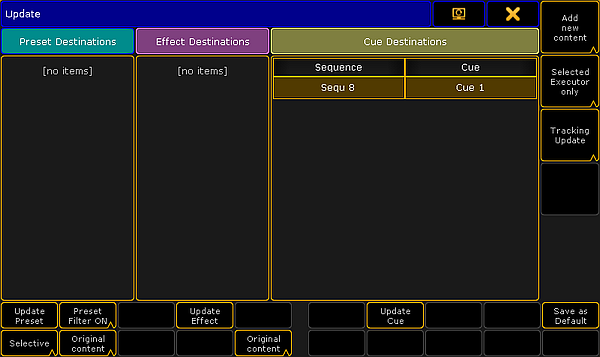 *Update Menu* There are three sections of this menu and there are buttons that allow to change some options and perform some actions. The three section are **Preset**, **Effect**, and **Cue**. Each section handles each type of data. If there is something that can be updated then it will be listed in each section. The following is an explanation of the different options. * **Original content only** or **Add new content** (all sections):\ You can choose if it is only possible to update the existing values at their original location - possibly a previous cue - or if the values including possible new values should be updated at the currently active location. * **Update Preset**, **Update Effect**, and **Update Cue**:\ Tapping this button will update the location with the values. * **Preset Filter** (Preset section only):\ Here the Preset Filter can be turned On or Off. When this is On then it is only possible to update values of the corresponding Preset Type in the presets. * **Selective**, **Global**, **Universal**, or **Preset Type Default** (Preset section only):\ This allows you to choose to add the new updated values as a different type of data. * Executor filter (Cue section only):\ This button toggle through four different options. They define what executors are visible in the list of sequences. The four options are: * **Selected Executor only**:\ This will only display the first or primary selected executor. * **Executors Called By Me**:\ This will display the executors that last was triggered by the active user. * **Last called Executor only**:\ This will only display the sequence that was triggered last. * **All possible Executors**:\ This will display all the sequences with active cues. * **Tracking update**, **Update Cue Only**, or **Update Tracking Shield** (Cue section only):\ * **Save as Default**:\ This button will store the current options as the new default for the current User Profile. This is the only location where you can see and change these defaults. If you have the Update menu visible on screen 1 then you might be able to use the X-keys and the U1 , U2, and U3 to selected the different options and buttons. Please read details about Presets and Effects in the [Preset section](/grandma2/key_presets/) and the [Effect section](/grandma2/key_effects/). These include explanations of the different relevant options. For updating a cue, tap the sequence you want to update or if you have selected the sequence using the screen encoder you can tap the Update Cue button or the screen encoder. ## Updating or editing in the Sheets [Section titled “Updating or editing in the Sheets”](#updating-or-editing-in-the-sheets) It is also possible to change the values directly in the Sequence Tracking Sheet and the Sequence Content Sheet. These two sheets and the editing process are described in the [Looking at the Cue Content topic](/grandma2/key_cs_cue_content/).
# What are cues and sequences
> Being able to store and recall a set of attribute values is one of the most important features of a control system.
Being able to store and recall a set of attribute values is one of the most important features of a control system. One of the primary ways of doing this is using a **Cue**. Cues contain the stored values. Cues are organized in **Sequences**. A sequence can be assigned to an **Executor** for convenient playback control. Read more about the executors in the [Executors section](/grandma2/key_exec/). Cues can be split up in different parts called “Part Cues”. An attribute value can only be in one of the parts. This will be described in the next topics. With sequences we also have control of how values change from one cue to the other and a lot other relevant settings. These are described in the following topics. ## []()The Sequence Pool [Section titled “The Sequence Pool”](#the-sequence-pool) The sequences are organized in a pool. It could look like this:  *Sequence Pool - pool mode* If pools are new to you, then please see the [Pools in General section](/grandma2/key_pools/). Each pool element (equals each sequence in the show) shows some information about the sequence settings and other relevant information. The lower half of the pool object shows the name of the sequence. The top row displays the sequence number on the left. If this number is cyan then the sequence is assigned to an executor. If it is not assigned then the number is gray. There is a letter indicating the sequences priority. Priorities are described in the [Playing back cues topic](/grandma2/key_cs_playback/). The different letters are listed in the [Text indicators topic](/grandma2/key_ws_text_indicators/). There can be a “T” letter next to priority letter. This shows if tracking is turned On (visible T) or Off for the sequence. Tracking is described in the [What is tracking topic](/grandma2/key_cs_what_is_tracking/). There can be two icons in the top row. It can have the Filter icon if the sequence have assigned an input filter. Filters are described beginning from the [What are Filters topic](/grandma2/key_wfm_what_are_filters/). The other icon is the information icon. This is present if there are any information written for the sequence (it has nothing to do with information in cues - it is about the sequence). Below the top row there might be cyan number below the sequence number on the left side. This shows the amount of executors that have the sequence assigned. ## Sheet Mode [Section titled “Sheet Mode”](#sheet-mode) The Sequence Pool can also be in “Sheet Mode”. This is changed in the Pool Options - read about them in the the [Pools in General section](/grandma2/key_pools/). It could look like this: 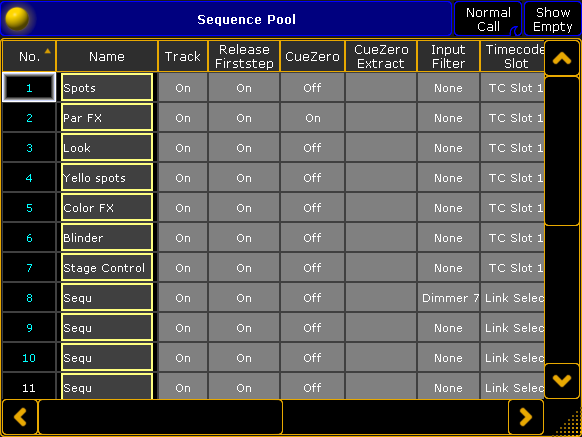 *Sequence Pool - sheet mode* The title bar can have up to three buttons. The right one will hide or show all the empty pool elements in the Sequence Sheet. The next on the left changes the Call Mode for the sequence Pool/Sheet. If the “Pool Playback” mode is selected then an extra button appears. This is called “Direct Action” and it toggles the direct action mode pool playback. The different Call Modes are described in the [Call Mode topic](/grandma2/key_pools_call_modes/). Pool playback is described in the [Playing back Cues topic](/grandma2/key_cs_playback/). The Sequence Sheet displays each sequence as a row. The columns are the settings that belongs to the sequence. Everything with a gray background can be changed. * **No.:**\ This is the sequence number. It cannot be changed here - but the sequence can be moved in the sequence pool. * **Name:**\ This is the name of the sequence. It has the frame color from the pool. Editing the cell will allow you to change the name. * **Track:**\ Here you can turn On or Off tracking for the sequence. Tracking is described in the [What is Tracking topic](/grandma2/key_cs_what_is_tracking/). * **Release Firststep:**\ Here you can turn On or Off “Release First Step”. This is related to tracking - follow link above. * **CueZero:**\ Editing this gives you the pop-up used to select the Cue Zero mode. Read more about Cue Zero in the [Cue Zero topic](/grandma2/key_adv_seq_cue_zero/). * **CueZero Extract:**\ The Cue Zero Extract can be turned On or Off. It is related to the Cue Zero function - follow link above. * **Input Filter:**\ Here you can set an input filter. Filters and sequences are described in the [Apply worlds and filters to executors and sequences topic](/grandma2/key_wfm_apply_to_exec_seq/). * **Timecode Slot:**\ Here you can select a timecode slot for the sequence. Read the [Timecode section](/grandma2/key_timecode/) to learn more about using timecode with sequences. * **Info:**\ Here it is possible to add multiple lines of information to the sequence. * **Forces Pos. mode:**\ The entire sequence can have a forced position mode. This is relevant when working with a mix of Pan/Tilt values and XYZ values. Read more about this in the [XYZ and Pan/Tilt in Sequences topic](/grandma2/key_xyz_pan_tilt_in_cues_sequences/). * **Used Count:**\ This is the number that indicates the amount of executors that have the sequence assigned. This is not a setting you can change here - it is for information.
# What is MIB
> This topic is about the concept of Move In Black (MIB). See the Working with MIB topic for information on how to actually use MIB.
This topic is about the concept of Move In Black (MIB). See the [Working with MIB topic](/grandma2/key_adv_seq_mib/) for information on how to actually use MIB. MIB (Move In Black) is a function which in a tracking sequence will look ahead and preposition attributes of fixtures that are fading the dimmer in from zero, to automatically prevent “ugly” transitions where you would normally see the fixture move the attributes into position, while the fixture is fading in. MIB is enabled on a cue-per-cue basis, by giving the MIB-property of the cue a value which tells the console when it should do the prepositioning. * A zero or positive MIB-value indicates an specific cue number from where MIB is allowed * A negative MIB-value indicates a relative cue number from where MIB is allowed - please read more about this in the [Working with MIB topic](/grandma2/key_adv_seq_mib/). ## Example: [Section titled “Example:”](#example) Have a look at the following cue sequence: 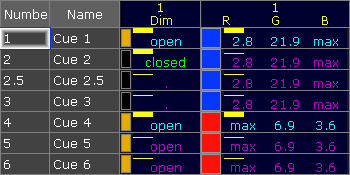 *Sequence with MIB possibility* If this cue list is played back not using MIB, there would be a visible fade in color from cue 3 to cue 4 while the fixture was fading up the intensity. MIB can be used to make the fixture preposition the color, before the intensity is faded up. If cue 4 is given a MIB value of “Early”, the console will **as soon as possible**\_ \_from Cue 2 (from the intensity is faded to 0%) and forward try to preposition fixtures for Cue 4. If cue 4 is given a MIB value of “Late”, the console will try to preposition the values **as late as possible** - when cue 3 is done fading. If cue 4 is given a MIB value of “1”, the console will **as soon as possible**\_ \_from Cue 1 and forward try to preposition fixtures for Cue 4. If cue 4 is given a MIB value of “-2”, the console will **as soon as possible**\_ \_from Cue 2.5 and forward try to preposition fixtures for Cue 4. (cue number 4 then 2 cues back in the list equals cue number 2.5). The actual prepositioning of each attribute will not necessarily take place in the cue indicated by the MIB value. “when possible” means that for each attribute, the prepositioning will be put “on hold” if any of the scenarios below is present. * Dimmer-output is above zero * Dimmer has a value above zero in any of the cues between the current cue and the cue to prepare for * The attribute is included in any of the cues between the current cue and the cue to prepare for
# What is tracking
> Tracking is the principle to only store the changes in the cues.
Tracking is the principle to only store the **changes** in the cues. If a fixture is turned on in a blue color, it will stay like this until it is told to change. It does not matter how many cues that are between it is told to turn On and the cue where it is told to turn Off. Instead of each cue between turning it On and Off having the information that the fixture should be On in a blue color, we only have to store it once - from there it is tracked. Quite simply, tracking is the idea that once a parameter is set to a level, it stays there until it is told to go somewhere else. ### Example [Section titled “Example”](#example) Fixture number 1 is stored in a blue color, at 100 percent dimmer value in cue number 1. If the are 8 cues and fixture number 1 does not get any new information then it will stay at 100% in blue color in all 8 cues. The best way to see this information is the [Tracking Sheet](/grandma2/key_cs_cue_content/#tracking_sheet). It would look like this:  *Sequence with 8 cues - fixture 1 stored values in cue 1* Notice the difference in text color between the values in cue 1 and the others. The magenta color indicates that the values are not actually stored in the cues, but it is a tracked value from a previous cue. Now we change the color of the fixture to red and the dimmer is set to 100% again. We store this as cue 4 (using Merge), it would look like this:  *Sequence with 8 cues - fixture 1 has a new color in cue 4 - blocked dimmer* The text color of the dimmer value is now white. This shows us that the values is stored here, but it is the same value as the tracked value. This is called a “Blocked” value. This would mean that if we change the value in any of the previous cues, then it would still be 100% in cue number 4. It is currently blocking the tracked value from cue 1 (the same value) and the value stored in cue 4 is tracking to the end. Notice that the text color for the new RGB values in cue 4 are now cyan. This means that the value is stored here, it is a new value, and it will track the changed value into the rest of the cues. If we remove the redundant stored value, then we remove the dimmer data from the cue - this is also called to “unblock”.  *Sequence with 8 cues - fixture 1 has a new color in cue 4 - unblocked dimmer* There are several way to do this. One would be to simply edit the value in tracking sheet - follow the link above to read details about the tracking sheet. Another way is to have the dimmer value for fixture number 1 as active value in your programmer and then store cue 4 with the “Remove” option. This would remove the dimmer value from the cue. A third option could be using a command like this: \[Channel]> Unblock Sequence 9 This would remove all redundant white values from the entire sequence number 9. ## []()Cue Only [Section titled “Cue Only”](#cue-only) When tracking is turned on and a value is stored in a cue, then the values tracks to the following cues. Just described above. If a value is stored using **Cue Only**, the new values is not tracked if the attribute has previous tracking values. The old tracking values are automatically stored in the cue after the new values. ## Example [Section titled “Example”](#example-1) Have a look at the following sequence:  *Sequence before any changes* Now fixture number 2 gets a new intensity value and a new position. This is stored in cue number 1 using **Cue Only**. This is the result:  *New values stored using Cue Only* The new values are stored in cue 1. Notice that cue 2 and the following cues are not changed. This is the cue only function that stores the previous tracked intensity and position values for fixture 2 in cue 2. If we had stored the values without Cue Only, it would have look like this: 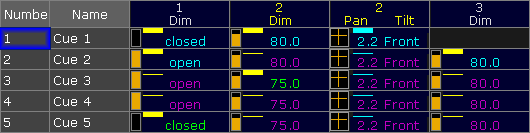 *Sequence changed without using Cue Only* Now number 2 looks different, and all the following cues uses the new position stored in cue 1. ## []()Release [Section titled “Release”](#release) It is possible to store using the **Release** option. This will put an **(R)** in the Sequence Tracking Sheet When an attribute is released in the sequence then it is the same as the sequence no longer sending any information to the attribute. If a different sequence is sending values to the attribute then these values are now used. Sequence priority can be important in this case - read about priorities in the [Playing back Cues topic](/grandma2/key_cs_playback/#priority). ## []()Release First Step [Section titled “Release First Step”](#release-first-step) There is an option in the [Executor Options](/grandma2/key_adv_exec_options/) that is called **Release Firststep**. This becomes relevant if another option called **Wrap Around** is active. You can enter the Executor options by pressing the Assign key and then one of the keys associated with an executor using a sequence - this opens the **Assign Menu**. Tap the Options button on the right side of the menu. Wrap Around allows the sequence to return to the top/first cue if you perform a Go (forward) command after you have reached the last cue in the sequence. Release First Step controls what should happen with tracked values. They can track from the last cue to the first (Release First Step Off) or any tracked values can be released when the sequence is started from the top (Release First Step On). Release first step is an option that effects the sequence. This means that this option is synchronized on all executors that uses the same sequence. Wrap around is a setting of the executor - so executors with the same sequence can have different options regarding Wrap Around. ## Turning Tracking On or Off [Section titled “Turning Tracking On or Off”](#turning-tracking-on-or-off) Also in the Executor Options there is the option to turn On or Off the tracking function. This option belongs to the sequence, meaning that it will be synchronized across all executors that uses the sequence. When Tracking is Off, the tracked values are gone and where the value was tracked it will be released instead. If you look at the sequence used in the Cue Only example, it would look like this without Tracking: 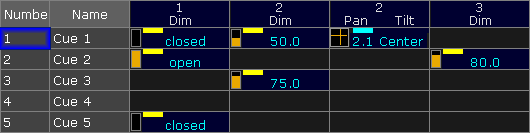 *Sequence with Tracking turned Off* Fixtures 1 and 3 would only be On in cue 2. Fixture 2 would be On and in a position in cue 1. In cue 2 it would turn Off and the position would be released and go back to the default for the fixture. Fixture 2 would turn On again in cue 3 and Off in cue 4. You would not need to store the Off (closed) values, unless other sequences might also try to control the same fixtures and you want to make sure they turn Off.
# Work with lists
> There are several lists you can work with:
There are several lists you can work with: * [Object list](/grandma2/key_cs_object_list/) * [Selection list](/grandma2/key_cs_selection_list/) * [Executor list](/grandma2/key_cs_executor_list/) * [Attribute list](/grandma2/key_cs_attribute_list/) * [Station list](/grandma2/key_cs_station_list/) For more information see the the single topics on the existing lists. ## Subtopics [Section titled “Subtopics”](#subtopics) * [Object list](/grandma2/key_cs_object_list/) * [Selection list](/grandma2/key_cs_selection_list/) * [Executor list](/grandma2/key_cs_executor_list/) * [Attribute list](/grandma2/key_cs_attribute_list/) * [Station list](/grandma2/key_cs_station_list/)
# Cues and Sequences
> This section is about creating, editing and viewing the cues and sequences. This is some of the primary functions of a lighting console.
This section is about creating, editing and viewing the cues and sequences. This is some of the primary functions of a lighting console. The topics here describe all the basic functions and operations regarding cues and sequences. Sequences are closely related to Executors. Taking a look at the [Executors section](/grandma2/key_exec/) might also be a good idea. The more advanced options and functions for sequences are described in the [Advanced Sequence Functionality section](/grandma2/key_adv_seq/). For instance this section only describes the most used elements in the Sequence Executor Sheet - the advanced section describes the rest. ## Subtopics [Section titled “Subtopics”](#subtopics) * [What are cues and sequences](/grandma2/key_cs_what_are/) * [Looking at the cue sequence](/grandma2/key_cs_cue_sequence/) * [Store cues](/grandma2/key_cs_store/) * [Store options and defaults](/grandma2/key_cs_store_options_default/) * [Cue timings](/grandma2/key_cs_cue_timings/) * [Renumber cues](/grandma2/key_cs_renumber_cues/) * [Delete cues](/grandma2/key_cs_delete_cues/) * [Playing back cues](/grandma2/key_cs_playback/) * [Looking at the cue content](/grandma2/key_cs_cue_content/) * [Update cues](/grandma2/key_cs_update_cues/) * [What is tracking](/grandma2/key_cs_what_is_tracking/) * [What is MIB](/grandma2/key_cs_what_is_mib/) * [Sequence mini executor](/grandma2/key_cs_sequence_mini_executor/) * [Commands in cues](/grandma2/key_cs_cmd_in_cues/)
# Date & Time
> Sometimes the console needs to know the current date and time, and sometimes also the location of the console. These settings are important if an Agenda is used
Sometimes the console needs to know the current date and time, and sometimes also the location of the console. These settings are important if an **Agenda** is used. For more information, read the **[Agenda](/grandma2/key_agenda/)** topic. The date and time settings are located in the **Setup I Console I Date & Time**. 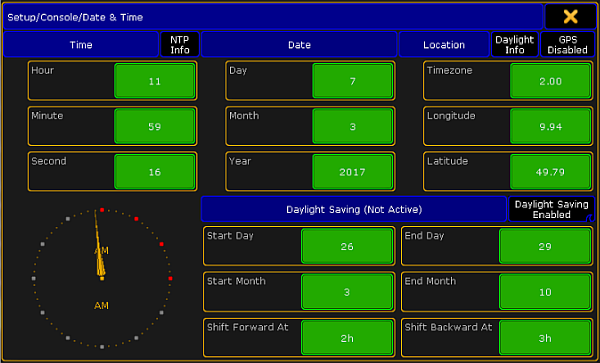 *Date & Time window* ## Date and Time [Section titled “Date and Time”](#date-and-time) To adjust the date and time, tap the green squares with hour, minute, second, day, month or year. This will open a calculator where it is possible to enter the current value. **Important:**\ If the console is connected to an NTP server or a GPS, the date and time will be synchronized from the server or maybe the GPS and it will not be possible to set these manually. Read more about NTP server and GPS below. *** ## Location [Section titled “Location”](#location) In the **Location** tab, it is possible to enter the current timezone and the current longitude and latitude. The Timezone refers to international standard GMT or UTC. Tap the green square and a calculator appears. Enter the current timezone, for example +1 for Central Europe, -5 for New York or +3 for Moscow. It is also possible to enter the current location by tapping the green squares at Longitude and Latitude. The default position (9.94 - 49.79) is the center of Würzburg in Germany. If the longitude is above zero, the position is north of the equator, and if it is below zero, the position will be placed on the southern hemisphere. If the latitude is above zero, the position will be east of Greenwich (London) and if it is below zero, the position will be west of Greenwich. *** ## Daylight Saving [Section titled “Daylight Saving”](#daylight-saving) Daylight Saving is the practice of setting the clocks forward 1 hour from standard time during the summer months, and back again in the fall, in order to make better use of natural daylight. Use the green squares to set the day, month and time where the daylight saving starts and stops. To enable or disable daylight saving, tap Daylight Saving Enable. *** ## NTP [Section titled “NTP”](#ntp) Network Time Protocol (NTP) is a networking protocol for clock synchronization. There are NTP servers all over the world, and it is a good idea to find a server in the local area. **Important:**\ To use this function, a station with an internet connection (onPC) or connection to an NTP server must be in the session.\ The NTP Server must be connected with the station that is the session master. *** Tap NTP info and a pop-up appear.  *NTP info pop-up* The steps to let all of the consoles in the session synchronize to an NTP server. This has to be done on a station with a connection to the NTP server: 1. Tap the green field and type in the IP-address of the NTP server 2. Tap Sync with NTP, until it shows **Enable** A note in the bottom of the pop-up labeled **NTP server found: Received Time stamp** appears when there is a connection to the server. **Hint:**\ The IP address on the image above is the NTP server on VirginiaTech University, connected by an onPC with an internet connection. *** ## Daylight Info [Section titled “Daylight Info”](#daylight-info) To get information about Sunrise, Sunset, Dusk, and Dawn according to the position or timezone, tap Daylight Info.  *Daylight info pop-up* These are the times the **Agenda** uses. *** ## GPS [Section titled “GPS”](#gps) Tap GPS to open the GPS pop-up **Important:**\ To use the GPS function, an NMEA 0183 (4800/8-N-1) USB GPS receiver has to be connected.  *GPS info pop-up* To use a GPS on the system do as followed: 1. Connect the GPS to one of the USB ports 2. Tap GPS until it is labeled Enable 3. \[Optional] Tap Sync with GPS to synchronize the system time with the GPS UTC time. Tap until it is labeled Enabled. Then, it is not possible to set the time manually. 4. \[Optional] Tap Timezone until it is labeled **Auto**, to let the GPS manage the timezones. Then, it is not possible to set the timezone manually. The GPS Master refers to the console where the GPS is connected.
# Device Overview
> The following chapters provide an overview of the grandMA2 products.
The following chapters provide an overview of the grandMA2 products. ## Subtopics [Section titled “Subtopics”](#subtopics) * [grandMA2 console](/grandma2/key_device_overview_grandma2_console/) * [grandMA2 replay unit (RPU)](/grandma2/key_device_overview_grandma2_replay_unit_rpu/) * [grandMA2 fader wing](/grandma2/key_device_overview_grandma2_fader_wing/) * [MA onPC command wing](/grandma2/key_device_overview_ma_onpc_command_wing/) * [MA onPC fader wing](/grandma2/key_device_overview_ma_onpc_fader_wing/)
# grandMA2 console
> grandMA2 full-size front panel
## Front Panel [Section titled “Front Panel”](#front-panel) 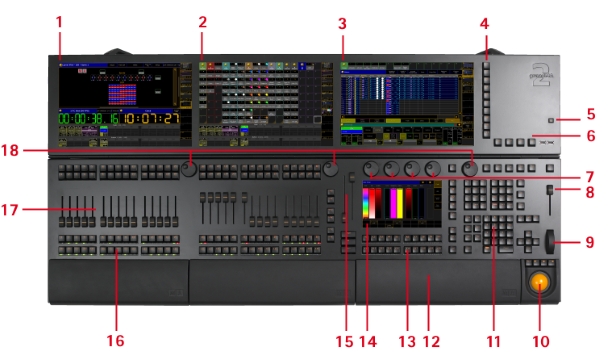 *grandMA2 full-size front panel* 1. Screen 4 (grandMA2 full-size) 2. Screen 3 (grandMA2 light & grandMA2 full-size) 3. Screen 2 4. View Buttons 5. Power Key 6. Menu Keys 7. Attribute Encoders 8. Grand Master 9. Dimmer Wheel 10. Trackball 11. Command Area 12. Keyboard (inside) 13. X-Buttons 14. Screen 1 Command Screen 15. 100 mm Fader 16. Button Executors 17. Fader Executors 18. Screen Encoders ## Rear Panel [Section titled “Rear Panel”](#rear-panel)  *grandMA2 full-size rear panel* 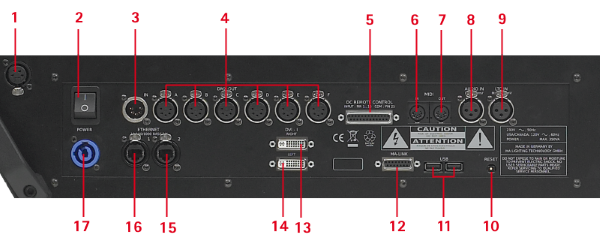 *grandMA2 full-size rear panel in detail* 1. Desk Lamp 2. Power Switch 3. DMX In Female 4. 6 x DMX Out A - F Male 5. DC Remote Control 6. MIDI In 7. MIDI Out 8. LTC / SMPTE In 9. Audio In 10. Reset Button 11. USB 12. MA-Link 13. DVI Right 14. DVI Left 15. Ethernet 2 (= eth1) 16. Ethernet 1 (= eth0) 17. PowerCon Connector
# grandMA2 fader wing
> grandMA2 fader wing front panel
## Front Panel [Section titled “Front Panel”](#front-panel) 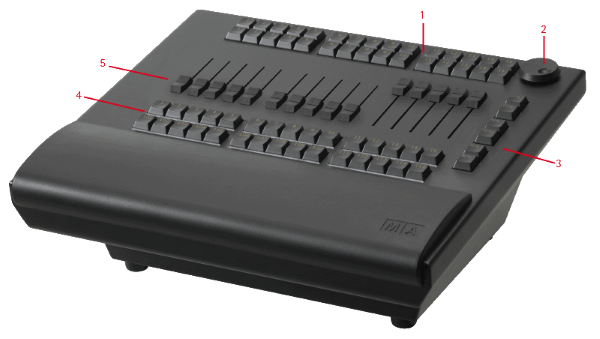 *grandMA2 fader wing front panel* 1. 30 x Fader Executor Buttons 2. Screen Encoder 3. Page Buttons 4. 15 x Fader Executor Buttons and 15 x Executor Buttons 5. 15 x Motorized Executor Fader ## Rear Panel [Section titled “Rear Panel”](#rear-panel)  *grandMA2 fader wing rear panel* 1. Connection to a grandMA2 fader wing. 2. Connection to the console or from a grandMA2 fader wing.
# grandMA2 replay unit (RPU)
> grandMA2 replay unit (RPU) front panel
## Front Panel [Section titled “Front Panel”](#front-panel) 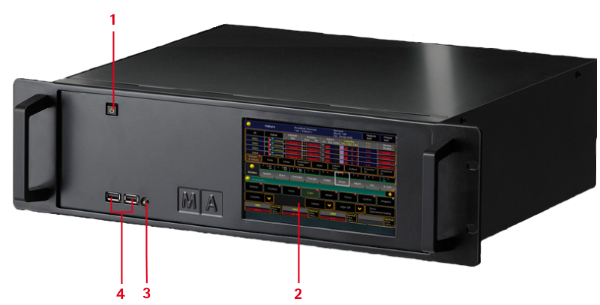 *grandMA2 replay unit (RPU) front panel* 1. Power Button 2. Internal Command Touch Screen 3. Reset Button 4. 2 USB 2.0 connectors *** ## Rear Panel [Section titled “Rear Panel”](#rear-panel)  *grandMA2 replay unit (RPU) rear panel* 1. Ethernet 1 2. Ethernet 2 3. DVI Right 4. DVI Left 5. MA-Link 6. USB 7. Fan 8. PowerCon Out 9. On / Off Button 10. PowerCon In 11. Audio In 12. LTC / SMPTE In 13. MIDI Out 14. MIDI In 15. DC Remote Control 16. 6 x DMX Out 17. 1 x DMX In
# MA onPC command wing
> MA onPC command wing front panel
## Front Panel [Section titled “Front Panel”](#front-panel)  *MA onPC command wing front panel* 1. Screen Encoder 2. Grand Master 3. Dimmer Wheel 4. Command Area 5. 100 mm Fader 6. Page Buttons ## Rear Panel [Section titled “Rear Panel”](#rear-panel)  *MA onPC command wing rear panel* 1. Power Connector 2. On / Off Switch 3. USB Type B connector 4. LTC / SMPTE In 5. DMX IN 6. DC Remote Control 7. MIDI Out 8. MIDI In 9. 2 x DMX Out
# MA onPC fader wing
> 1. 45 x Fader Executor Buttons
## Front Panel [Section titled “Front Panel”](#front-panel)  1. 45 x Fader Executor Buttons 2. 15 x Fader Executor 3. 15 x Button Executor *** ## Rear Panel [Section titled “Rear Panel”](#rear-panel)  1. Power Connector 2. On / Off Button 3. USB Type B Connector 4. USB Type A Connector 5. USB Type A Connector, 5V for desklamp 6. 4 x DMX Out
# DMX Profiles
> DMX profiles are used in attributes or in DMX channels. They can be displayed graphically with the help of the graph editor.
DMX profiles are used in attributes or in DMX channels. They can be displayed graphically with the help of the graph editor. Open the the menu DMX Profiles: 1. Press Setup. 2. Tap Patch & Fixture Schedule. 3. \*\*EditSetup \*\*opens.\ For more information on patching see [Adding fixtures to your show](/grandma2/key_patch_add_fixtures/). 4. Tap DMX Profiles on the right of the menu. 5. The menu **DMX Profiles** opens. 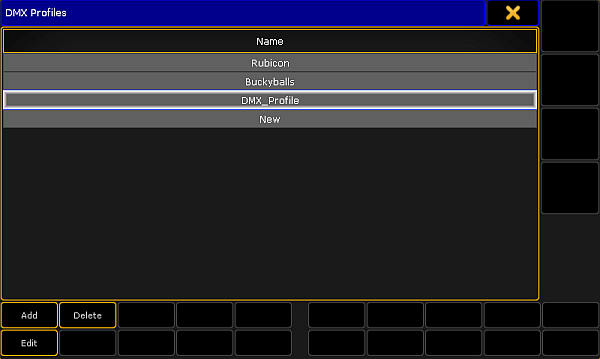 *Creating DMX profiles* 6. To add DMX profiles, tap Add or tap and hold the row **New** in the menu.\ -A new row appears displaying DMX\_Profile. 7. Label the newly created row:\ -Tap and hold the row DMX\_Profile.\ -The **pop-up Edit Name** opens.\ -Label the DMX profile.\ -Press Please or Enter on the keyboard of your PC. 8. Edit a DMX profile:\ -Select a row you would like to edit.\ -Tap Edit. \ -The graph editor opens. 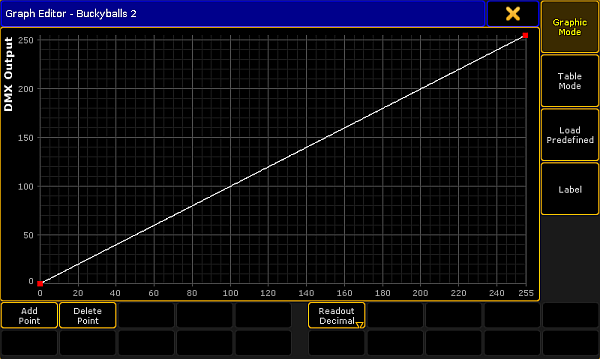 *Graph editor – graphic mode* 9. Make settings in the DMX profile graph. **Hint:**\ The general settings Add Point, Delete Point, Graphic Mode, Table Mode, Load Predefined, and Label are set in the same manner as in the graph editor in the form pool. For more information on these settings see [Settings in the Graph Editor in Create effect forms](/grandma2/key_effects_create_forms/#settings_graph_editor). 10. After the general settings were made, select the mode of display:\ -To display the DMX profile graph in percentage, tap Readout Decimal to toggle it to Readout Percent.\ -The graph is now displayed in percentage.\ -To display the graph in decimal digits, tap it once again to toggle it back to Readout Decimal. The settings are now applied. Now, close the graph editor:\ -Tap the  in the upper right corner of the window.
# Effects
> An effect is an automated movement or change of color. In other words, it is an automated modulation of attributes.
An effect is an automated movement or change of color. In other words, it is an automated modulation of attributes. **Example:** Dimmer channel that runs the fixtures in a sinusoid between two values – high and low. *** ## []()Effect Modes [Section titled “Effect Modes”](#effect-modes) There are four effect modes that are displayed in form of letters in the upper right corner of each object in the effect pool: * **A:**\ A stands for an absolute effect. It moves in an absolute manner between the low and high values. * **R:**\ R stands for a relative effect. The low and high values are added onto the actual value. **Hint:**\ Relative values are mainly used in pan and tilt. * **S:**\ S stands for a selective effect. It is only valid for fixtures that are linked to this effect. * **T:**\ T stands for a template effect. It is valid for all fixtures that contain the attributes of a particular effect. For more information on the selective and template effects see [Use template and selective effects](/grandma2/key_effects_template_and_selective/). ## Subtopics [Section titled “Subtopics”](#subtopics) * [Use predefined effects](/grandma2/key_effects_predefined/) * [Use template and selective effects](/grandma2/key_effects_template_and_selective/) * [Create an effect in the programmer](/grandma2/key_effects_create_in_programmer/) * [Create an effect that uses presets](/grandma2/key_effects_effect_using_presets/) * [Create effect forms](/grandma2/key_effects_create_forms/) * [Pool options](/grandma2/key_effects_pool_options/) * [Effects in a cue](/grandma2/key_effects_in_cue/) * [Assign effect to executor](/grandma2/key_effects_assign_to_executor/) * [Live edit an effect](/grandma2/key_effects_live_edit/) * [Running effects](/grandma2/key_effects_running/) * [Update effects](/grandma2/key_effects_update/) * [Delete effects](/grandma2/key_effects_delete/)
# Assign effect to executor
> It is possible to assign effects to executors.
It is possible to assign effects to executors. If an effect is assigned to an executor, the information regarding the effect is displayed in form of an effect mini executor. **Important:**\ However, this only works using selective effects. To assign an effect to an executor: 1. Press Assign and tap an effect in the effect pool. 2. Then, tap an executor. 3. The effect mini executor is displayed in purple. 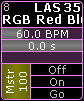 *Selective effect assigned to an executor* Much the same as other mini executors, the effect mini executor is divided into different sections. For more information on the general sections see [Sequence mini executor](/grandma2/key_cs_sequence_mini_executor/). *** ## Sections Corresponding to the Effect Mini Executor [Section titled “Sections Corresponding to the Effect Mini Executor”](#sections-corresponding-to-the-effect-miniexecutor) The third line (displaying BPM) and the forth line (displaying s) correspond to the speed master.  Speed master in an effect assigned to an executor * **BPM** corresponds to the executor time that is applied to the effect as a factor. 60 BPM correspond 1:1. **Important:**\ If you tap the upper area of the mini executor, the [assign menu](/grandma2/key_exec_assign/) opens.\ Tapping the lower area of the mini executor opens the [effect editor](/grandma2/key_effects_predefined/#effect_editor). Generally speaking, the speed of an executor influences the speed of an effect. For more information on the speed master in an executor see [Speed Masters](/grandma2/key_adv_exec_spec_master_speed/). **Important:**\ The master of an effect executor affects the size of an effect. * **s** corresponds to the master fade time that is applied to an effect when turning it on or off. **Important:**\ Speed groups only work if they were assigned to the executor and not the effect itself.
# Create effect forms
> The form is the basis of an effect.
The form is the basis of an effect. []()To create a form, open the form pool first: 1. Tap anywhere in the **user-defined area**. 2. The pop-up **Crate Basic Window** opens. 3. Next, tap Pools. 4. Then, tap Forms. 5. The pool Forms opens. 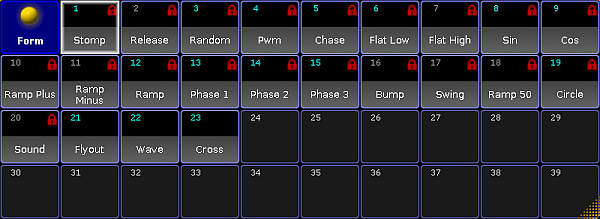 *Form pool* Like the image pool, the form pool displays red padlocks. For more information on padlocks and their meanings see [Image Pool](/grandma2/key_image/). **Important:**\ Forms are locked so that predefined effects can fall back to the default values. 6. To edit an already existing object blocked by a red padlock, press Copy, then tap the object containing the red padlock, and then tap an empty cell in the pool. 7. Then, press Edit and tap the object you have copied. 8. To create a new form, press Edit and tap an empty cell in the form pool. 9. The graph editor opens. 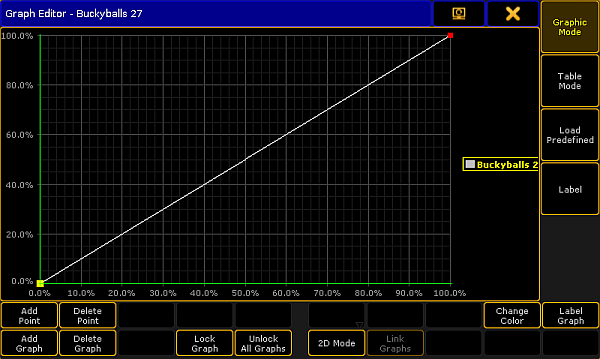 *Form pool – graph editor* *** ## []()Settings in the Graph Editor [Section titled “Settings in the Graph Editor”](#settings-in-the-graph-editor) 1. Then, set the focus by tapping the line. 2. Tap Add Point and move the line in one of the four directions. **Important:**\ If the focus is not precise, the line jumps to the point that was inaccurately set. 3. To remove a point, tap Delete Point. 4. To add an additional graph, add Add Graph. **Hint:**\ It is also possible to lock graphs so that you do not slip when editing various graphs in a row. 5. To lock a graph, tap Lock Graph. 6. To unlock graphs, tap Unlock all Graphs. 7. Depending on the form of the graph, it is possible to visualize it in 2D.\ -Tap 2D Mode. 8. If you have several graphs, it is possible to link them.\ -Tap Link Graphs. Editing in one of the graphs linked together, applies the modification in all graphs linked. If the button is enabled, the font is displayed in yellow. \ -To delink the graphs, tap Link Graphs again. The font is now white. 9. Change the color of the graph:\ -Tap the name of the form displayed on the right or tap the graph you would like to change and then tap Change Color.\ -The pop-up **Select Color** opens containing a color picker.\ -Select the color and tap Please.\ -The color of the graph is now adjusted. 10. Label the graphs of a form:\ -Tap the name of a graph displayed on the right or tap the graph in the editor and then tap Label Graph.\ -The pop-up for entering names opens. Type the name and press Please.\ -The graph is now labeled. 11. Label the form in the form pool:\ -Tap Label.\ -The pop-up for entering name opens. Type the name and press Please.\ -The form is now labeled. 12. It is possible to use predefined graphs as well:\ -Tap Load Predefined on the right of the graph editor.\ -The pop-up **Load Predefined Graph** opens. 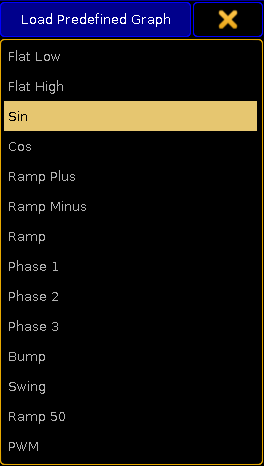 Pop-up – predefined graphs Tap to choose a form.\ -The form is instantly applied. *** ## Table Mode [Section titled “Table Mode”](#table-mode) 1. To display the graph in form of a table, tap Table Mode on the right of the graph editor.\ The graph editor is now displayed in the table mode. 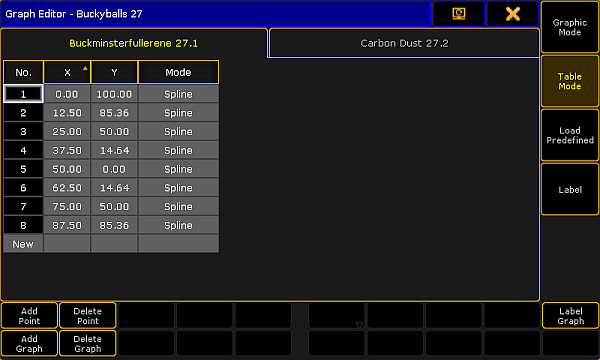 *Graph editor in table mode* The table mode consists of a table and tabs. * Each **tab** stands for a graph. * The columns **X and Y** represent the position of points. * The column **Mode** stands for modes of points. 2. To manually adjust the positions X and Y, tap and hold a cell or press the key Edit and tap a cell in the corresponding column.\ -The calculator opens.\ -Adjust the position and tap Please.\ -Position is modified. 3. Set the mode:\ -Tap and hold a cell or press the key Edit and tap a cell in the column **Mode**.\ -The pop-up Select Mode opens. 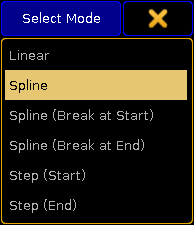 *Pop-up showing modes* -Tap to choose a mode.\ -The mode is applied. 4. To add a new point, tap and hold the cell in the line **New** at the bottom of the table. To switch back to the graphic display, tap Graphic Mode. *** ## Modes [Section titled “Modes”](#modes) The modes are applied between two points. * **Linear:**\ Creates a straight line between two points. * **Spline:**\ Creates a soft-edged line intersecting the points. * **Spline (Break at Start):**\ Creates an edged corner on the point that was marked (tapped) and a curve between the point marked (tapped) and the following point. * **Spline (Break at End):**\ Creates an edged corner on the point following the point that was marked (tapped) and a curve between these two points. * **Step (Start):**\ Creates a step leading from the point marked (tapped). * **Step (End):**\ Creates a mirror-inverted step form the point following the point that was marked (tapped). *** If all setting were adjusted accordingly, close the graph editor:\ -Tap  in the upper right corner of the window and the editor closes.
# Create an effect in the programmer
> It is possible to generate an effect in the programmer.
It is possible to generate an effect in the programmer. **Requirements:** * Patch fixtures or channels.\ For more information on patching see [Adding fixtures to your show](/grandma2/key_patch_add_fixtures/). * Enable Auto in the fixture or channel sheet so that it obeys the encoder bar. To create an effect in the programmer: 1. Select fixtures. 2. Then, select a preset type in the preset control bar.\ For more information see [Preset control bar](/grandma2/key_ws_preset_control_bar/). 3. Then, tap Effect Layers in the layer bar.\ For more information see [Layers in sheets – Channel sheet and fixture sheet](/grandma2/key_of_layers_in_sheets_channel_and_fixture/). 4. Select a layer. 5. Now, select the attribute of your effect:\ To select, tap and swipe Link Feature.\ For more information on the different link settings see [Encoder toolbar](/grandma2/key_ws_encoder_toolbar/#link_settings). **Important:**\ An effect starts as soon as it has been select, since all effect layers have default values. 5. To adjust the values of a layer, turn the encoder left or right. **Important:**\ If you create an effect in the programmer, the layer **ID** does not have a red marker. **ID** only displays a red marker if the effect was started in the effect pool. 6. Adjust the values of the preset type:\ -Tap Special Dialog.\ -The **Effect Value** opens. 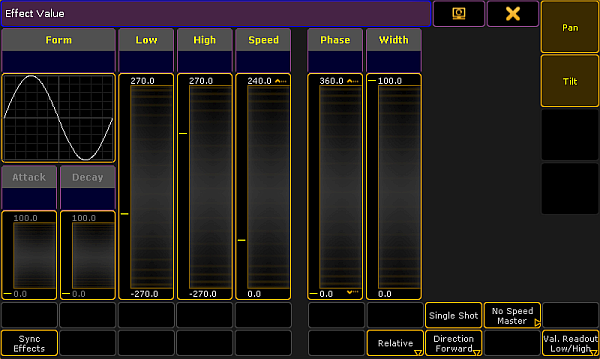 *Pop-up – effect value* **Hint:**\ This dialog looks similar to the effect editor, but has different functions. 7. To deselect the attributes of the effect, tap one of the buttons on the right next to  in the title bar. 8. If effects are set one after another, it is possible to synchronize them.\ To start all effects located in the programmer, tap Sync Effects. **Hint:**\ Pressing  + Effect also triggers synchronization of effects. 9. It is also possible to adjust the values in the effect value by tapping the yellow headings above each fader in the dialog.\ -To adjust values, tap a heading.\ -The calculator opens.\ -Set the value.\ -Values now appear in red bold font below the headings.\ -This means that the values adjusted were actively taken into the programmer. 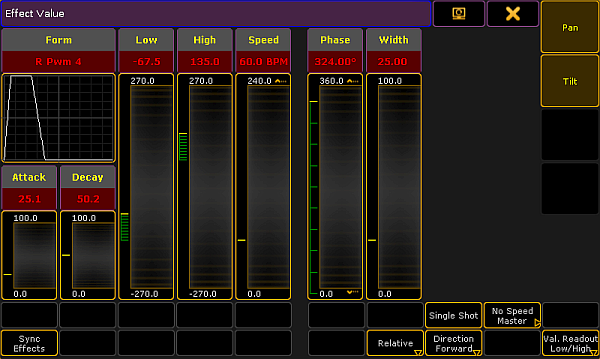 *Pop-up – effect value containing programmer values* 10. To store the effect that was created in the programmer, press Store and then tap a cell in the effect pool or an executor button. The effect is now saved in the pool or in a cue.
# Delete effects
> Delete single, several or all effects.
Delete single, several or all effects. * To delete an effect in the effect pool, press Del and tap an object in the pool. -or- * Type into the command line: \[Channel]> Delete Effect “number” * To delete several effects in the effect pool, type into the command line: \[Channel]> Delete Effect “number” Thru “number” * To delete all effects in the effect pool, type into the command line: \[Channel]> Delete Effect 1 Thru
# Create an effect that uses presets
> There are three methods to create an effects that uses presets.
There are three methods to create an effects that uses presets. It is possible to create such an effect in the: * [Effect editor](#effect_editor) * [Effect line editor](#effect_line_editor) * [Programmer](#programmer) *** ## []()Effect Editor [Section titled “Effect Editor”](#effect-editor) Create a new effect first: 1. Press Edit and tap an empty cell in the effect pool. 2. An empty effect editor opens. 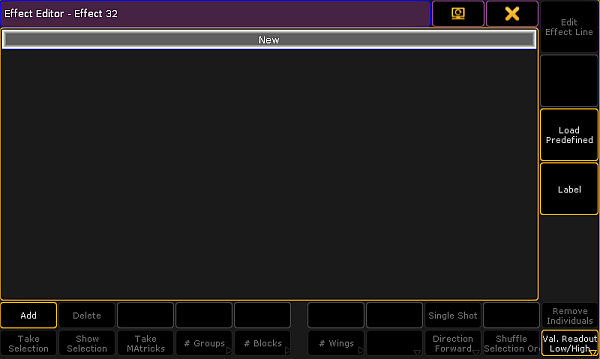 *Empty effect editor* 4. To select the attribute of an effect, tap Add in the lower left corner of the editor. 5. The pop-up **Select Effect Attribute** opens. 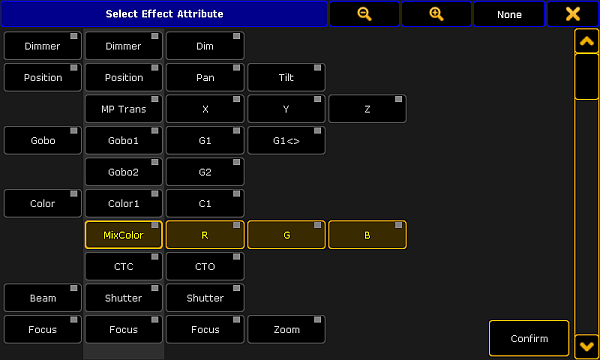 *Pop-up select effect attribute* 5. Select the attribute and tap Confirm. 6. The attribute is now in the editor. 7. If you would like to use a preset for the low value, press Edit and tap or tap and hold the cell below the column **Low Value**. 8. []()The calculator opens displaying the presets for the value. 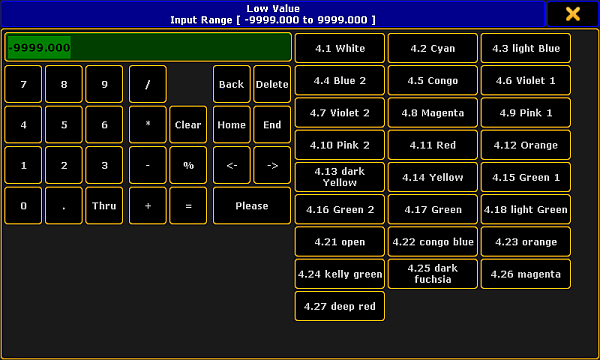 \_Calculator – effect presets of low value \_ 9. To apply a preset, tap one displayed on the right of the calculator. 10. The preset for the effect is now applied. 11. To use the preset for the high value as well, proceed the same as described in steps 7 to 9. Make sure to tap the corresponding cell. *** ## []()Effect Line Editor[]() [Section titled “Effect Line Editor”](#effect-line-editor) Create an effect that uses presets in the effect line editor: 1. Tap Edit Effect Line in the effect editor. 2. The effect line editor opens. 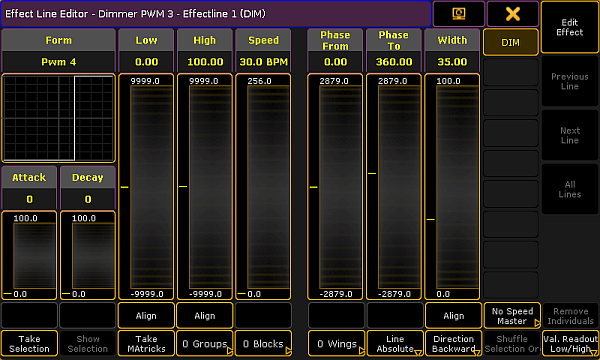 *Pop-up – effect line editor* 3. Toggle the button Align to Preset. To do so, tap Align two times. 4. Tap inside the fader **Low** or **High**. 5. The [calculator displaying presets](#calculator_effect_preset) opens. 6. To apply a preset, tap one on the right of the calculator. The preset for the effect is now applied. *** ## []()Programmer [Section titled “Programmer”](#programmer) **Important:**\ Unlike in and editor, when creating an effect in the programmer there is no calculator. Create an effect that uses presets in the programmer: 1. Open the programmer. For more information see [What is the programmer](/grandma2/key_of_what_is_the_programmer/). 2. Select fixtures. 3. Tap Effect Layers and then tap for example the effect layer Low. 4. Then, tap a preset in the preset pool. The preset is instantly applied and executed.
# Effects in a cue
> It is possible to store effects in cues.
It is possible to store effects in cues. The following is explained with the help of a color effect. 1. Select fixtures. 2. Tap a color effect in the effect pool. 3. The fixtures are now actively in the programmer. 4. Now, press Store and press an executor. The color effect is now saved on an executor in cue 1. **Important:**\ Depending on the mode used in the effect, the color might not be applied correctly.\ Relative effects add values on top of existing values when creating second cue. Change the mode to “Absolute” in the effect editor. For more information see [Use predefined effects](/grandma2/key_effects_predefined/).
# Live edit an effect
> It is possible to live edit effects during a show if necessary.
It is possible to live edit effects during a show if necessary. To live edit an effect: 1. Select fixtures. 2. Tap a template effect. **Hint:**\ The sense and purpose of an template effect is that it is possible to select a template, adjust it without modifying the actual effect. 3. The encoder toolbar for live effects – also called the “Quick & Dirty Encoder Toolbar” – opens.  *Encoder toolbar for live edit* **Important:**\ All adjustments made with the help of the encoder toolbar for live effects are taken into the live programmer. Thus, being taken over into the next cue if stored. 4. Adjust the values by turning the encoders. **Important:**\ If the value Low is set to 0, tapping Prop. to toggle it to Incr. enables the encoders. 5. If you have more than two effects in the programmer, tapping Select Effect opens the pop-up **Select Effect**.\  *Pop-up – select effect* To edit the values of an effect, select the effect in the pop-up first.\ If you have less than three effects in the programmer, tapping Select Effect toggles between the different effects. 6. **Edit Program.** indicates that editing currently takes places in the programmer.\ To open the effect editor, tap Edit Progr. It is then possible to edit the actual effect. For more information see [Use predefined effects – effect editor](/grandma2/key_effects_predefined/#effect_editor). 7. To toggle between different modes, tap Low/High Mode. 8. To toggle between relative and absolute values, tap Relative <> Absolute. 9. Change the direction of the effect:\ -Tap Direction <>. 10. To turn off the effect and remove it in the programmer, tap Off Effect. 11. To take the release value into the programmer, tap Release Effect. 12. To take stomp values into the programmer, tap Stomp Effect. 13. To toggle the functionality of encoders, tap Basics 1 of 2. For more information on the different functionalities see [Use predefined effects](/grandma2/key_effects_predefined/). **Important:**\ If you accidentally tap anywhere, the encoder toolbar for live edit disappears. To regain it, tap the cell with displaying the name of the effect pool.
# Pool options
> There are two pools and their options that are related to the effects in general.
There are two pools and their options that are related to the effects in general. 1. Options – effect pool  *Options of the effect pool* -and- 2. Options – form pool  *Options of the form pool* * To open and to adjust the pool options, see [Pools in General – Adjust pool options](/grandma2/key_pools_options/). Additionally to the general settings, the effect pool has also the setting of different call modes. For more information see [Pools in General – Call modes](/grandma2/key_pools_call_modes/).
# Use predefined effects
> The simplest way to use effects in the grandMA2 is to work with predefined effects.
The simplest way to use effects in the grandMA2 is to work with predefined effects. **Requirement:** * Apply fixtures in the **Patch & Fixture Schedule**.\ For more information on patching see [Adding fixtures to your show](/grandma2/key_patch_add_fixtures/). * Import predefined effects.\ For more information on how to import effects see [Import via user interface](/grandma2/key_ei_export_gui/). To apply the predefined effects: 1. Select fixtures in the fixture sheet. 2. Tap anywhere in the **user-defined area**. 3. []()The pop-up **Create Basic Window** opens. 4. Next, tap Pools. 5. Then, tap Effects. 6. The pool with predefined effects opens. 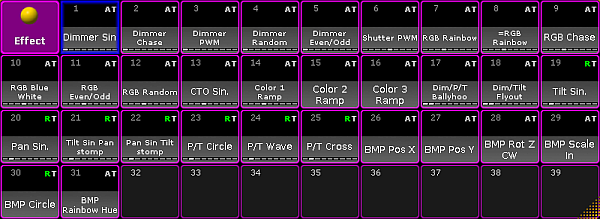 *Predefined effect pool* 7. Tap an effect in the effect pool. 8. The effect has successfully been applied to the fixtures that were selected. **Hint:**\ It is also possible to add single predefined effects to the pool. To do so: 1. Press Edit and tap an empty cell in the pool with predefined effects. 2. An empty effect editor opens.  *Empty effect editor* 3. Tap Load Predefined on the right of the window and the pop-up **Select Predefined Effect** opens. 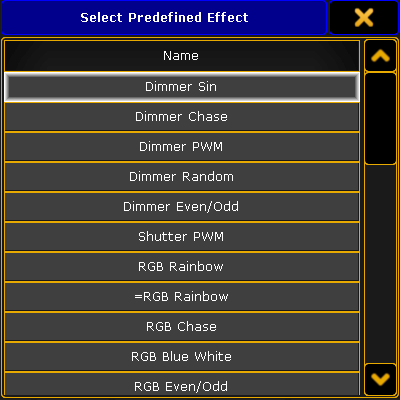 *Pop-up – select predefined effect* 4. To add an effect, tap a name in the pop-up. 5. The [effect editor opens](#effect_editor) and the effect is now displayed in the pool. *** ## Edit a Predefined Effect [Section titled “Edit a Predefined Effect”](#edit-a-predefined-effect) To edit a predefined effect: 1. Press Edit and then tap an effect in the effect pool.\ -or-\ Use the command line entering for example: \[Channel]> Edit Effect 1 2. []()The **Effect Editor** opens. 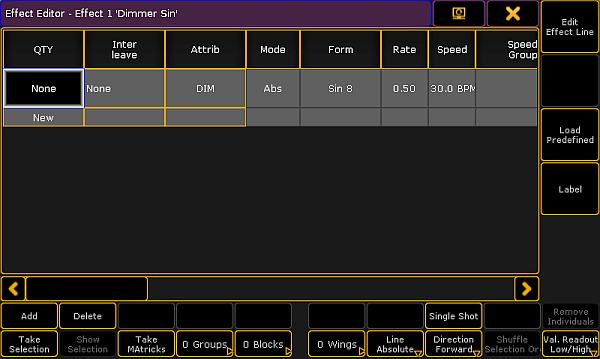 *Pop-up – effect editor* *** ## Columns in the Effect Editor [Section titled “Columns in the Effect Editor”](#columns-in-the-effect-editor) The effect editor contains the following columns and buttons: * **QTY:**\ The column **QTY** stands for quantity. \ []()If it is set to **None**, it is a template effect. []()To set the mode: 1. Select fixtures in the fixtures sheet. 2. Tap Take Selection. 3. This template effect is now a selective effect.\ To turn the selective effect back to a template effect:\ Press Clear and tap Take selection. **Important:**\ The following columns are all edited a similar manner, except for tapping different columns. * **Interleave:**\ Defines the fixtures that are to use the effect. Interleave only works in selective effects. []()To set the interleave: 1. Press Edit and tap a cell or tap and hold a cell in the column **Interleave**. 2. The pop-up **Select Interleave** opens. 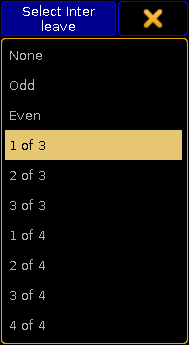 *Pop-up – select interleave* 3. Now, select the interval in which the effect is to run. * **Attrib:**\ Displays which attribute is used in the effect line. 1. To change the attribute, tap the corresponding column. 2. The pop-up **Select Effect Attribute** opens.  *Pop-up – select effect attribute* 3. Tap an attribute and then tap Confirm. 4. The effect lines now have the selected attribute. * **Mode:**\ The column mode corresponds to the effect [modes absolute and relative](/grandma2/key_effects/#effect_modes). It is also possible to change the mode in the column via the button Line Absolute:\ To toggle the button to Line Relative, tap Line Absolute and vice versa. * **Form:**\ Displays all 23 forms of predefined effects. To apply a form: 1. Tap the corresponding column. 2. The pop-up **Select Form** opens. 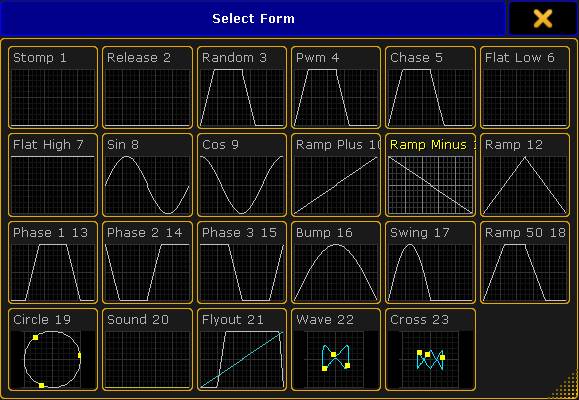 *Pop-up – select form* 4. To take over the form automatically into the editor, tap a form. 5. The fixtures now run in an effect that was selected. **Important:**\ Both, rate and speed set the speed of an effect. * **Rate:**\ Rate represents the factor of speed. \ The default setting is Rate 1 which corresponds to 60.0 BPM. * **Speed:**\ Speed represents the unit of the speed in BPM, hertz or seconds. **Hint:**\ Set the default of the unit of speed in Setup – User – Settings – Speed Mode. Apply rate and speed: 1. Tap the corresponding column. 2. The calculator opens. 3. Set the rate or speed and tap Please. 4. The value is now applied. **Important:**\ It is sufficient to set either rate or speed, since the modes adjust to each other. * **Speed Group:**\ Links an effect to rate or the speed master. **Important:**\ Using the effect on a speed master overwrites the speed set in an executor. For more information on the speed in an executor see [Advanced Executor Functionality – Speed masters](/grandma2/key_adv_exec_spec_master_speed/). To set a speed group: 1. Tap the corresponding column. 2. The pop-up **Select Speed / Rate Master** opens. 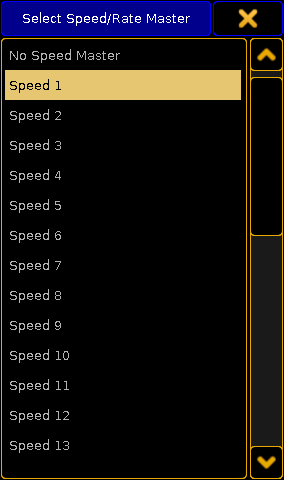 *Pop-up – select speed / rate master* 4. Select the speed group. 5. The group is now applied. * **Dir:**\ Dir displays the direction of the effect. To select the direction: 1. Tap the corresponding column. 2. The pop-up **Select Dir** opens. 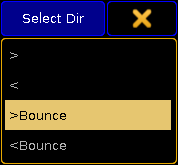 *Pop-up – select direction* 4. To apply the direction, select one. 5. The direction is now applied. It is also possible to change the direction of an effect by tapping the button Direction Forward. To toggle between the directions, tap the button accordingly. * **Low Value:**\ Sets the lowest point an effect reaches. * **High Value:**\ Sets the highest point an effect reaches. To set the low and the high values: 1. Tap the corresponding column. 2. The calculator opens. 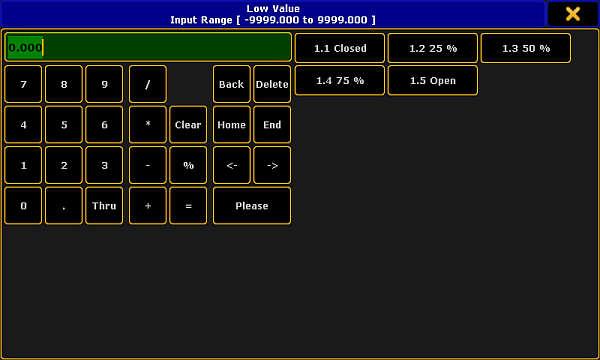 *Calculator – low values* 4. Set the value or tap a preset on the right of the calculator and then tap Please. 5. The value is now set. **Hint:**\ It is also possible to set a range of values in **Low Value** and **High Value**.\ 1\. Type in the calculator the value starting the range.\ 2\. Tap Thru.\ 3\. Then type the second value ending the range. * **Phase:**\ Displays the time setting that single fixtures use within an effect. \ Phase is distributed among the number of fixtures. To set the phase: 1. Tap the corresponding column. 2. The calculator **Edit EffectLine Phase** opens. 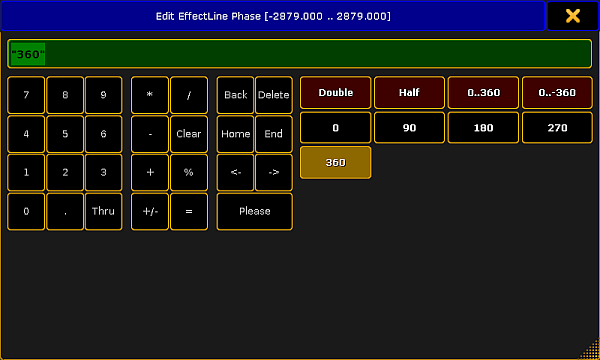 *Pop-up – phase* 4. Set the degrees in the numeric pad or tap the buttons on the right of the calculator. 5. The phase is now applied. * **Width:**\ Sets the width of an effect. **Important:**\ Width is not applied with the form Chase. **Example:** If you set the width of the form Pwm to 20 %, this percentage is displayed as the high value and the residual 80 % display the low value. To set the width: 1. Tap the corresponding column. 2. []()The calculator opens. 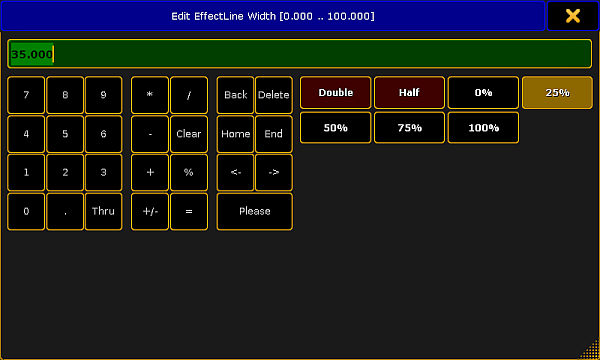 *Pop-up – edit width* 4. Set the value and tap Please. 5. The value set is now applied to the effect. * **Attack:**\ Appears quickly and outfades the values. []()To set the attack: 1. Tap the corresponding column. 2. The [same calculator](#width_calculator) as in editing the width opens. 3. Set the value and tap Please. 4. The value is now applied to the effect. * **Decay:**\ Appears quickly and infades the values. Set the decay in the same manner as the [attack](#set_attack). Both, Attack and Decay display fade in and fade out times. **Important:**\ It is possible to apply **Attack** and **Decay** for the forms Random, Pwm and Chaser. * **Groups:**\ Phases are divided corresponding the number of groups. To set the number of groups: 1. Tap the corresponding column.\ -or-\ Tap 0 Groups at the bottom of the effect editor. 2. []()The calculator opens.  *Pop-up – edit groups* 3. []()Set the number of groups and tap Please. 4. The number set is applied to the effect. * **Blocks:**\ Blocks collaborate with Phase. Fixtures next to each other execute the same phase. To set the number of blocks: 1. Tap the corresponding column.\ -or-\ Tap 0 Blocks at the bottom of the effect editor. 2. The same calculator as in **[Groups](#groups_calculator)** opens. 3. To proceed see numbers [3 and 4](#groups) in **Groups**. * **Wings:**\ The Phase is applied starting outwards and moving inwards. To set the number of wings: 1. Tap the corresponding column.\ -or-\ Tap O Wings at the bottom of the effect editor. 2. To proceed see numbers [3 and 4](#groups) in **Groups**. **Important:**\ There is an exception to the cycle of wings. In Pan effects which consist of 2 wings, one of the wings is inverted. Hence, fixtures run towards each other. * **Single Shot:**\ Displays one execution of effects. To set a single execution of an effect: 1. Tap the corresponding column. 2. The cell now displays **Yes** and the button Single Shot is enabled (highlighted in yellow).\ -or-\ To disable the single execution, tap the button Single Shot at the bottom of the effect editor. 3. To disable the single execution, tap and hold the cell displaying **Yes** or tap the button Single Shot. *** ## Buttons in the Effect Editor [Section titled “Buttons in the Effect Editor”](#buttons-in-the-effect-editor) This paragraph deals with buttons contained in the effect editor and their corresponding functions: 1. Add an new attribute to an effect, tap New in the column **QTY** and then tap Add.\ -or-\ Tap Add in the lower left corner of the effect editor and the pop-up **Select Effect Attribute** opens.  *Pop-up – select effect attribute* 2. Select the attribute you would like to add to the effect line. 3. Then, tap Confirm.\ A new attribute is now applied to the effect line. 4. To delete effect lines, tap Delete. 5. Display all fixtures that are assigned to an effect line.\ To do so, tap Show Selection.\ If fixtures are selected, this button is enabled. If it is a template effect, it is grayed out. 6. To randomly rearrange the execution of an effect, tap Shuffle Selection.\ The succession of the effect changes every time you tap the button.\ This button is enabled if fixtures were selected in the effect. 7. To take over the current MAtricks settings into an effect line, tap Take MAtricks. 8. Then, select the display of the values.\ To display the the values for relative values in the effect line, tap Val. Readout Low/High to toggle it to Val. Readout Center/Size.\ To set the readout of values automatically so it adjust to the values, tap to toggle to Val. Readout Auto.\ Relative effects are then automatically readout as Center/Size and absolute effects as high and low values. 9. To remove effects that deviate from the majority of the effects in an effect line, tap Remove Individuals. For more information on the keyword see [RemoveIndividuals](/grandma2/key_keyword_removeindividuals/). ### []()Example: [Section titled “Example:”](#example) 1. Select 10 fixtures in the fixture sheet. 2. Apply the effect cosine to 8 of the fixtures. 3. Then apply the effect sinus to the residual fixtures. If you create two different effects in the programmer and store them into the effect pool, they are displayed in a dusky pink in the effect editor. 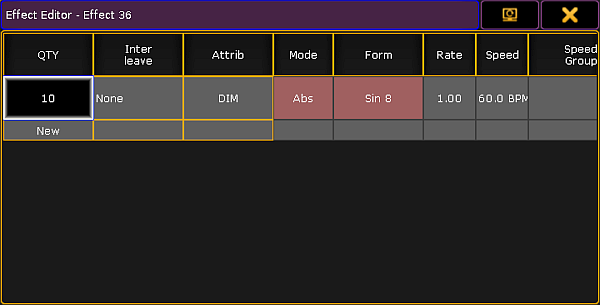 *Effect editor displaying individual values* If you tap Remove Individuals, a warning appears.  *Warning pop-up – remove individuals* To close the pop-up, tap Cancel or  in the upper right corner of the pop-up. To remove the individual settings, tap Ok. **Important:**\ Removing the individual settings modifies the effect. 10. Label the effect:\ -Tap Label on the right of the editor.\ -The calculator opens.\ -Type the name and press Please.\ -The effect is now labeled. 11. Edit the effect line:\ -Select an effect line in the effect editor.\ -Tap Edit Effect Line.\ -The **Effect Line Editor** opens.  *Pop-up – effect line editor* **Hint:**\ It is also possible to select and deselect the attributes on the right of the effect line editor, right below the . * To deselect the effect line, tap the button. * To select it, tap the button once again. **Form:**\ Displays the graphic representation of the form in an effect. **Attack and Decay:**\ Modifies the form of the effect with the help of faders. * To modify the form of the effect, tap and move the faders in the columns **Attack** or **Decay** accordingly. The faders on the right of **Form**, **Attack** and **Decay** represent the values of **Low**, **High**, **Speed**, **Phase** and **Width**. * To set the values, tap and move the faders in the corresponding columns accordingly. It is also possible to set the values via a calculator: 1. Tap a heading, for example **Low**. 2. The calculator opens. 3. Type the value and tap Please. 4. The values have been set via the calculator. **Align:**\ Sets the range of a value. 1. To define the range of a value, tap Align below the corresponding fader. 2. The fader divides into two. 3. Set the range by moving the faders that were divided. 4. To select a preset, tap Align once more. 5. The button is now toggled to Preset. For more information on effects that use presets see [Create an effect that uses presets](/grandma2/key_effects_effect_using_presets/#effect_preset). 6. Tap Preset to toggle the button back to Align. To close the effect line editor, tap  in the upper right corner. ##
# Running effects
> The window Running Effects displays all the effects that are currently running.
The window **Running Effects** displays all the effects that are currently running. To open Running Effects: 1. Tap somewhere in the **user-defined area**. 2. **Create Basic Window** opens. 3. Tap Playbacks. 4. Then tap Running effects. 5. The window opens. 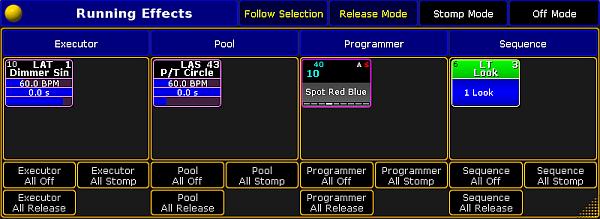 *Running effects* The window Running Effects consists of four sections: **Executor:**\ Displays all effects running in an executor. **Pool:**\ Displays effects that were started as a pool playback. **Programmer:**\ Displays effects in the programmer. Whereas the effect is stored in the effect pool and is running the programmer. Effects created in the programmer are not displayed in this window. For more information see [Create an effect in the programmer](/grandma2/key_effects_create_in_programmer/). **Sequence:**\ Displays sequences containing effects that are currently running. 6. To apply the following functions to the fixtures or channels currently in selection, tap Follow Selection in the title bar of the window. 7. Turn off all effects in the section **Programmer**:\ Tap Programmer All Off. 8. Then, turn off a single effect in the section **Sequence**:\ Tap Off Mode in the title bar and then tap a sequence in the column Sequence. **Important:**\ Please note that tapping Off Mode turns off the entire sequence. 9. To actively take the stomp values of all effects running in the in the section **Pool**, tap All Stomp in the corresponding column.\ To take stomp values of single effects into the programmer, tap Stomp Mode on the title bar of the window and then tap the effect. 10. Now, take the release values of all effects into the programmer in the section **Executor**:\ Tap All Release in the corresponding column. 11. Pressing Release Mode in the title bar and then tapping an effect in the corresponding column of the window, takes release values of single effects into the programmer. 12. The settings are now applied. *** ## Running Effect Options [Section titled “Running Effect Options”](#running-effect-options) 1. To open the options, tap the  in the upper left corner of the window **Running Effects**. 2. The options open. 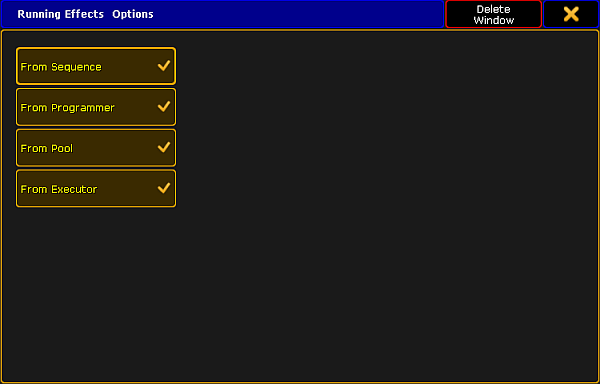 *Options of running effects* 3. To delete columns **Pool** and **Executor** in the window, tap From Pool and From Executor.\ The window **Running Effects** now displays two columns – **Sequence** and **Programmer**. 4. After setting the options, close them:\ Tap  in the upper right corner of the window. 5. To close the entire window, tap Delete Window.
# Use template and selective effects
> This topic deals with template and selective effects.
This topic deals with template and selective effects. **Requirement:** * Import predefined effects.\ For more information see [Import via user interface](/grandma2/key_ei_export_gui/). *** ## Template Effects [Section titled “Template Effects”](#template-effects) To apply a template effect: 1. Create a template effect:\ Edit an object in the effect pool if no fixtures are selected. The column **QTY** is set to None in the effect editor.\ For more information see [Use predefined effects](/grandma2/key_effects_predefined/#create_template). 2. Select fixtures in the fixture sheet. 3. To take the effects into the programmer, tap a template effect in the effect pool. All effect layers are taken into the programmer. And the effect is instantly executed. *** ## Selective Effects [Section titled “Selective Effects”](#selective-effects) Selective effects are similar to presets. There is only a link in the object of the effect pool leading to the programmer. To apply a selective effect: 1. Create a selective effect:\ Edit an object in the effect pool if fixtures are selected and tap Take Selection. The column **QTY** displays the number of the fixtures assigned.\ For more information see [Use predefined effects](/grandma2/key_effects_predefined/). 2. To select the fixtures, tap a selective effect. 3. To take the effect into the programmer, tap the selective effect once again. The effect is executed.
# Update effects
> It is possible to update selective effects that have been modified.
It is possible to update selective effects that have been modified. To do so: 1. Tap the effect to be updated once. 2. The fixtures using this effect are now selected. 3. Tap the same effect once again. 4. The fixtures using this effect are now actively in the programmer. 5. Modify the value of this effect. 6. Then, press Update. 7. The **pop-up Update** opens. 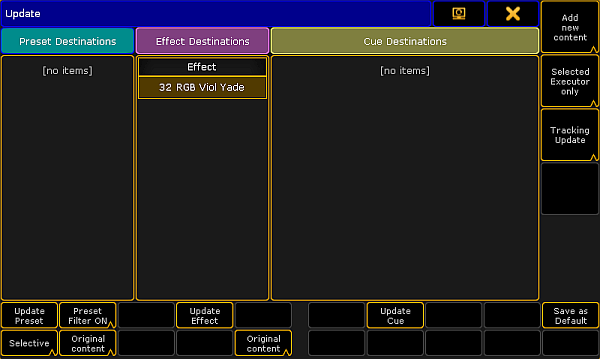 *Update effect* 8. Tap Original content to toggle it to Add new content:\ -To update the effect by the new values, tap Original content. Add new content is now displayed.\ -If you would like to add additional data, on top of existing values, tap Add new content. Original content is now displayed. 9. Now, tap Update Effect. 10. The effect is now updated.
# Export by using command line
> It is possible to use the Command Line to export all objects. For more information about the keyword and syntax, see the Export keyword topic.
It is possible to use the **Command Line** to export all objects. For more information about the keyword and syntax, see the [Export keyword](/grandma2/key_keyword_export/) topic. ## Example 1 [Section titled “Example 1”](#example-1) The **Command Line** syntax to export group 1 thru 4 to a file named Front\_groups.xml \[Channel]> Export Group 1 Thru 4 “Front\_groups” ## Example 2 [Section titled “Example 2”](#example-2) The **Command Line** syntax to export a User Profile named Designer and overwrite the existing Designer.xml file \[Channel]> Export UserProfile “Designer” /Overwrite ## Export objects to a USB stick [Section titled “Export objects to a USB stick”](#export-objects-to-a-usb-stick) To export objects to a USB stick, in this example a color, a USB stick has to be plugged in the console or onPC. A Command Line Feedback window has to be open. ### Steps: [Section titled “Steps:”](#steps) 1. To find the drive to export the objects to, type “SelectDrive” in the Command Line. The Command Line Feedback displays a list of the available drives. 2. \[Channel]> SelectDrive 3. Select the USB stick (it might be number four), typing “SelectDrive 4”. Drive number 4 is now the default drive. 4. \[Channel]> SelectDrive 4 5. Export the color named cyan. 6. \[Channel]> export preset 4 “Cyan”
# Export by using user interface
> There is a dedicated GUI for exporting Macros, Effects, Masks, MAtricks, Gobo Bitmaps, User Profiles and DMX Nodes.
There is a dedicated GUI for exporting **Macros**, **Effects**, **Masks**, **MAtricks**, **Gobo Bitmaps**, **User Profiles** and **DMX Nodes**. All of these, except **Gobo Bitmaps** and **DMX Nodes**, works similar. In the following example, it is an effect that has to be exported. **Requirement:** To be able to export an effect, there needs to be at least one effect in the effect pool. If exporting to a USB stick, then a stick needs to be connected to the console or onPC. Open the **Setup menu** and tap Import Export followed by Export and finally Effects This opens a pop-up like this: 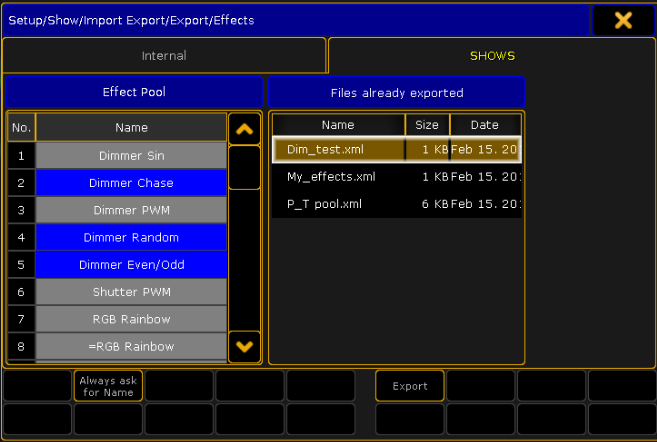 *Export effect pop-up* **Steps:** 1. Select the tab where to export the effect to. A USB stick called “Shows” is selected in the image above. 2. Pick the effects to export on the left side. Select multiple effects by holding Ctrl on the keyboard and tapping the effects in the effect list. The selected effects get a blue background. The effects are exported to an XML file, that can contain one or more effects. 3. On the right side, there are a list of existing XML files on the destination, selected in the tab above. 4. Activating Always ask for Name (tap it until the text is yellow), gives an opportunity to give the XML file a different name than the effect. If more than one effect is selected, you will always be asked for a new name. 5. Tap Export 6. Depending on the selections, you might be prompted for a name for the XML file. **Result:** The selected effects are exported to the selected drive (Internal or to an USB stick) *** ## Export a Gobo Bitmap [Section titled “Export a Gobo Bitmap”](#export-a-gobobitmap) To export a Gobo Bitmap, a USB stick has to be plugged in the console or the onPC. Open the **Setup menu** and tap Import Export followed by Export and finally Gobo Bitmap This opens a pop-up like this: 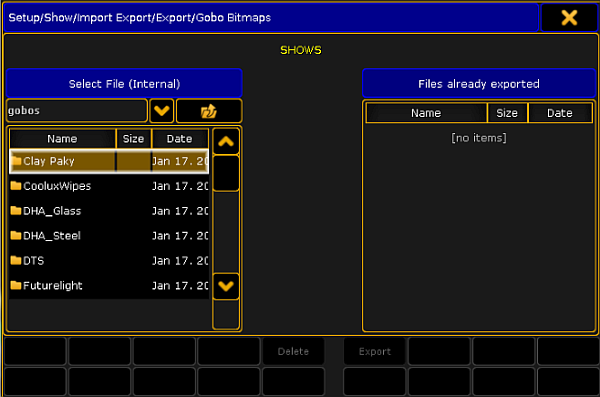 *Export gobo bitmap pop-up* **Steps:** 1. If more than one USB stick is connected, select the tab where to export the gobo bitmap to. A USB stick called “Shows” is selected in the image above. 2. Select the manufacture and then pick the bitmap to export on the left side. Select multiple bitmaps by holding Ctrl on the keyboard and tapping the bitmaps in the list. The selected bitmaps get a yellow background. 3. On the right side, there is a list of existing bitmaps on the destination, selected in the tab above. 4. Tap Export 5. If a bitmap has to be deleted from the internal gobo library or the USB stick, select the bitmap and tap Delete **Result:** The selected bitmaps are exported to the selected USB stick.
# Import by using command line
> It is possible to use the Command Line to import all objects. For more information about the keyword and syntax, see the Import keyword topic.
It is possible to use the **Command Line** to import all objects. For more information about the keyword and syntax, see the [Import keyword](/grandma2/key_keyword_import/) topic. Example The Command Line syntax to import the groups from a .xml file named “Front groups” to the group pool, starting from group 20. \[Channel]> Import “Front Groups” At Group 20 It is possible to import Macros, Effects, Masks, MAtricks, Gobo Bitmaps, User Profiles and DMX Nodes by using the import GUI For more information, see the [Import by user interface](/grandma2/key_ei_import_gui/) topic. It is not possible to import a show, or a part of a show from any other console manufactures or from ASCII files. Hint:\ To import a bigger part of an other showfile, see the [Partial Show Read](/grandma2/key_psr/) topic.
# Import by using user interface
> There is a dedicated GUI for importing Macros, Effects, Masks, MAtricks, Gobo Bitmaps, User Profiles, and DMX Nodes.
There is a dedicated GUI for importing **Macros**, **Effects**, **Masks**, **MAtricks**, **Gobo Bitmaps**, **User Profiles**, and **DMX Nodes.** In the following example is a macro that has to be imported from a USB stick. But it is the same procedure for the other objects. **Requirement:** To be able to import an object it is needed to have the object exported to an .XML file. Please read the [Export by using commandline](/grandma2/key_ei_export_commandline/) to learn how to do this. If the object is stored on a USB stick, plug the USB stick into the console or onPC. **Steps:** 1. Open the **Setup menu** and then tap the Import Export button followed by the Import button and then finally the Macro button. This opens a pop-up like this: 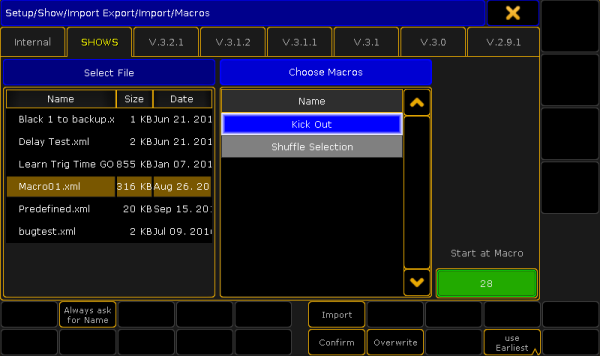 *Import macro pop-up* 2. Select the tab that matches the USB stick. 3. Select the .XML file on the left side, that contains the macro to import. 4. On the right side is a list of the macros that are stored inside the XML file. An XML file may contain one or more macros. Select the ones to import. Select multiple macros by holding the Ctrl key on the keyboard and tapping the macros on the screen. The selected macros get a blue background. 5. \[Optional] Activate Always ask for Name (tap it until the text is yellow) to rename the macros when imported. 6. \[Optional] Activate Confirm (tap it until the text is yellow) to have a confirm pop-up to appear, after the import. 7. \[Optional] Activate Overwrite (tap it until the text is yellow) to overwrite any macros that might already exist on the location where to import to. 8. Select where to place the imported macros in the macro pool. This can be done by specifying a number in the green input field or tap Use to toggle between the **Use Earliest** and **Use Latest** options. Earliest means the first available free macro pool object. Latest means the next available pool object after the last one used. 9. Tap Import 10. \[Optional] If the “ask for name” button is selected, then a dialog box is now prompted for a new name - for each macro to import. 11. \[Optional] If the “confirm” option is selected, tap Ok in the pop-up that informs about the amount of imported macros. **Result:** The selected macros are imported to the selected location in the macro pool.
# Import predefined objects
> The predefined macros and effects are a collection made by MA Lighting.
The predefined macros and effects are a collection made by MA Lighting. They can be used to make programming faster and more convenient. They are also a great source for learning how macros and effects work. The predefined macros are all inside a single XML file in the software. All the predefined effects are in another XML file. These XML files can be imported, as any other, using the methods described in the [Import by using command line topic](/grandma2/key_ei_import_commandline/) - although it is imported from the internal hard drive instead of a USB stick. The predefined macros and effects are a little bit different because there is an extra way to import them. In the following example, a predefined macro is imported. Effects can be imported in this way too. ## Import a predefined macro [Section titled “Import a predefined macro”](#import-a-predefined-macro) In the [Manually create a macro topic](/grandma2/key_macro_create/) it is described how the Edit Macro pop-up works. For instance edit an empty macro object in the pool. It could look like this (not an empty macro): 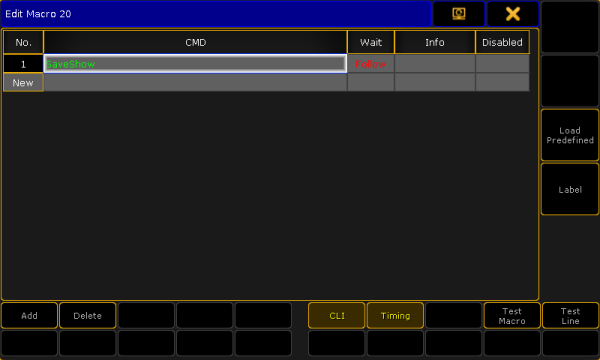 *Edit Macro pop-up* Notice that on the right side is a button called Load Predefined. If this is tapped then a small **Select Predefined Macro pop-up** appears. It look like this: 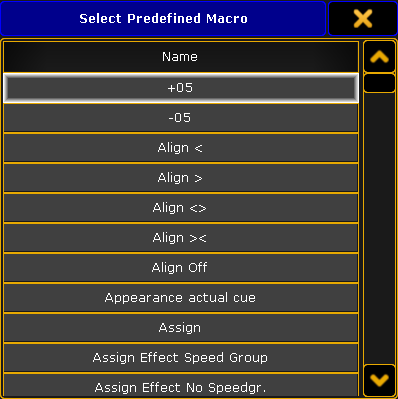 *Select Predefined Macros pop-up* This lists all the predefined macros in the internal hard drive. The list can be scrolled and selecting an element in the list will import the selected macro. The import will label the macro and it may turn off CLI. This is the fastest way to import single macros from the predefined macros. If you need to import more or all then it is faster to use the normal import methods where you can select multiple macros - links at the top of this topic.
# Error Messages
> If the following error messages do not solve the problem, please call or send an email to the tech support. See the email address in the footer of this web page
If the following error messages do not solve the problem, please call or send an email to the tech support. See the email address in the footer of this web page. Phone: +49 5251 688 865 30 Phone for emergency services only: +49 5251 688 865 99 **(Use this hotline only if troubles occur shortly before an upcoming event.)** | Error | Reason | | ---------------------------------------------- | ------------------------------------------------------------------------------------------------------------------------------------------------- | | # 0 Unknown error | There is an unknown error in the console. | | # 1 Unknown command | The command entered is unknown. | | # 2 Input too long | The command entered is too long. | | # 3 Illegal character | The command entered is illegal. | | # 4 Command not implemented | The console does not support the command entered. | | # 5 Number expected | The console expects a number. | | # 6 IP expected | The console expects an IP address. | | # 7 Number too large | The number entered is too large. | | # 8 Number too small | The number entered in the command is too small (minimum 1 character). | | # 9 Number too large | The number entered in the command is too large (maximum 1 character). | | # 10 Expected | The console expects more input. | | # 11 Expected argument | The command entered is missing an argument. | | # 12 Expected name | The console expects a name, for example if the [keyword Label](/grandma2/key_keyword_label/) was canceled. | | # 13 Illegal name | The object name entered is not allowed. Use English characters only. | | # 14 Object does not exist | The object you tried to work with does not exist (for example if you tried to assign a function to an executor without any cues stored). | | # 15 Object not accessible | The object entered is not accessible. | | # 16 Resize forbidden | It is forbidden to resize the command entered. | | # 17 Delete forbidden | It is forbidden to use the command Delete to delete an object. | | # 18 Create forbidden | Is is forbidden to use the command Create to create an object. | | # 19 Illegal range | The value entered exceeds the range of the value allowed. | | # 20 Multi user access conflict | Another user is currently trying to execute the same action. | | # 21 Cannot leave current destination | You cannot leave the current destination as this may cause a multi user conflict. | | # 22 Cannot enter destination | Another user is currently accessing the destination. | | # 23 File not found | You are trying to import a non-existing file. | | # 24 File format invalid | The format of the file is incorrect for the destination. | | # 25 No unique sequence given | You are trying to access a cue of multiple sequences. | | # 26 No unique page given | The command entered needs a unique page number. | | # 27 Syntax error | The syntax entered is incorrect. | | # 28 No cue source given | Cue number is missing in the source. | | # 29 Illegal cue number | The number of the cue entered is invalid. | | # 30 No default executor | You are trying to access a default executor, but you have not selected one yet. | | # 31 Limit exceeded | You are exceeding the limit. | | # 32 Unknown option | The option you have selected does not exist. | | # 33 Destination not empty, no copy mode given | You are trying to copy an object to a destination already occupied by another object, and you have not specified yet how the console is to react. | | # 34 No cue for part given | The number of cue required is missing. | | # 35 Edit single object only | You are trying to edit multiple objects, but you only can edit one. | | # 36 Too many numbers | There are too many numbers in the command. | | # 37 Copy N to M elements not supported | You are trying to copy a larger number of objects to a smaller number of objects. | | # 38 Move N to M elements not supported | You are trying to move a larger number of objects to a smaller number of objects. | | # 39 Move 1 to M elements not supported | You are trying to move one object to several destinations. | | # 40 Missing hardware | You are trying to access hardware you do not have. | | # 41 Illegal layer | The layer you are trying to access is illegal. | | # 42 Illegal file name | The file name entered is invalid. | | # 43 Login needed | Login is required. | | # 44 Insufficient user rights | You do not have sufficient user rights. | | # 45 Not a valid clone source | The source of your clone action is invalid. There may be a mismatch between the source fixture and the destination fixture. | | # 46 Not a valid clone destination | The destination of your clone action is invalid. There may be a mismatch between the source fixture and the destination fixture. | | # 47 Clone source fixture list expected | The console expects a list of the source fixture. | | # 48 Clone destination fixture list expected | The console expects a list of the destination fixture. | | # 49 Expected object to be cloned | The console expects more fixtures. | | # 50 Invalid version | This version does not support this function. | | # 51 Illegal time format | The time format entered is invalid. | | # 52 Operation aborted by user | You canceled the operation. | | # 53 PSR not available | You cannot use Partial Show Read in the shows you have selected. | | # 54 Variable not found | The variable entered is empty or does not exist. | | # 55 Preview is only for cues | The object entered does not support preview. | | # 56 Object does not support info command | The object entered does not have information. | | # 57 Object is locked | You are trying to access an object that is locked. | | # 58 Illegal destination | The object cannot be moved to the destination. | | # 59 Edit not possible | You cannot edit the object. | | # 60 Move not possible | You cannot move the object. | | # 61 Copy not possible | You cannot copy the object. | | # 62 Command not supported | The command entered is invalid. | | # 63 Insert forbidden | You cannot insert the object. | | # 64 Can not assign | You cannot assign the object. | | # 65 Value too small | The value entered is too small. | | # 66 Value too big | The value entered is too large. | | # 67 No cut or copy buffer for paste | You cannot paste since the clipboard is empty. | | # 68 Cut buffer is empty | You cannot paste since the clipboard is empty. | | # 69 Paste not possible | You cannot paste since the clipboard is empty. | | # 70 Command not executed | The execution of the command entered cannot be fulfilled (for example if you try to enable an executor without cues). | | # 71 Illegal timer | The timer selected is invalid. |
# Executors
> This section explains some of the most common executor concepts and functions. The section called Advanced Executor Functionality explains the rest.
This section explains some of the most common executor concepts and functions. The section called [Advanced Executor Functionality](/grandma2/key_adv_exec/) explains the rest. Executors are handles used to control and execute stored content. The most obvious use for an executor is to assign a sequence with cues for playback. However executors may also be used as handles for other objects, for example a physical key for a specific macro or a speedfader for a group of chasers. Executors are arranged in Executor Pages. This enables you to easy get a new set of executors merely by changing page. **Hint:**\ Changing page will not load new content into the physical executors, like on some other consoles. Changing page just instructs the console to **display** another set of executors on your physical hardware. This enables you to have executors from multiple pages active and running at the same time. Read more about this in the [Executor Pages topic](/grandma2/key_adv_exec_pages/) (Advanced Executor Functionality section). A more detailed explanation of the executors are found in the [What are Executors topic](/grandma2/key_exec_what_are/). Executors are physical keys and faders, but they can also be represented as virtual executors on the screens - [Executors on the Screens](/grandma2/key_exec_on_screen/). There are two ways to see all the active executors, this also provides a fast way to turn Off executors - read about it in the [Looking at the Active Executors topic](/grandma2/key_exec_running_playbacks/). Assigning an object to an executor and changing the function on the faders and keys are explained in the [Assign a Function topic](/grandma2/key_exec_assign/). Finally some of the common options that are not already covered in this section and in the [Cues and Sequences section](/grandma2/key_cues_and_sequences/), are explained in the [Common Executor Options topic](/grandma2/key_exec_common_options/). ## Subtopics [Section titled “Subtopics”](#subtopics) * [What are executors](/grandma2/key_exec_what_are/) * [Executors on the screens](/grandma2/key_exec_on_screen/) * [Assign a function](/grandma2/key_exec_assign/) * [Looking at the active executors](/grandma2/key_exec_running_playbacks/) * [Common executor options](/grandma2/key_exec_common_options/)
# Assign a function
> This topics describes how to assign an object to an executor and how to assign functions to executor keys and faders.
This topics describes how to assign an object to an executor and how to assign functions to executor keys and faders. ## Assigning objects using keys and pools [Section titled “Assigning objects using keys and pools”](#assigning-objects-using-keys-and-pools) It is quite easy to assign something to an executor. Press the Assign key followed by what you want to assign and then where you want to assign it. Here are three variations on how it works. The examples uses sequences, but it can be any of the allowed types: ### Example 1 [Section titled “Example 1”](#example-1) Using only the keys to assign sequence 3 at executor number 5 on the current page: Assign Sequ 3 Exec 5 Please ### Example 2 [Section titled “Example 2”](#example-2) It is also possible to use a combination of keys and pools. Having pool visible on one of the screens makes it possible to combine keys presses with pool selection. 1. Press the Assign key 2. Tap the sequence in the pool 3. Press one of the keys associated with the executor where you want the sequence ### Example 3 [Section titled “Example 3”](#example-3) Pressing the keys are putting keywords into the command line. This means that it is of course also possible to type it as a command line input. \[Channel]> as seq 4 ex 2.5 This command will assign (short version is “as”) sequence (short version is “seq”) to executor (short version is “ex”) 5 on executor page 2. ## Assign objects using the Assign Menu [Section titled “Assign objects using the Assign Menu”](#assign-objects-using-the-assign-menu) The Assign Menu offers a visual approach to assign something to the executors. Using the Assign Menu makes you select the executor first and then select the function. There are two main way to open the Assign Menu. 1. Press the Assign key followed by any of the keys associated with the executor. 2. Tap the top part of the [Mini Executor Bar](/grandma2/key_ws_mini_executor_bar/). The assign menu can look like this: 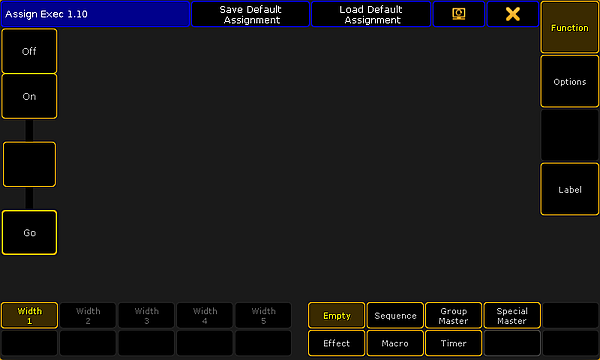 *Assign Menu - Function page* This is the **Function** page of the Assign Menu. You can select this page by tapping the Function button on the right side - or U1 if the menu is on screen 1. On the lower right side of the menu, there are seven buttons. Most of them will open a selection list above the buttons. The list will contain the possible object of each type. The exception to this functionality is the Empty button. This will empty the executor. Tapping the Sequence button will open the list of possible sequences. It could look like this: 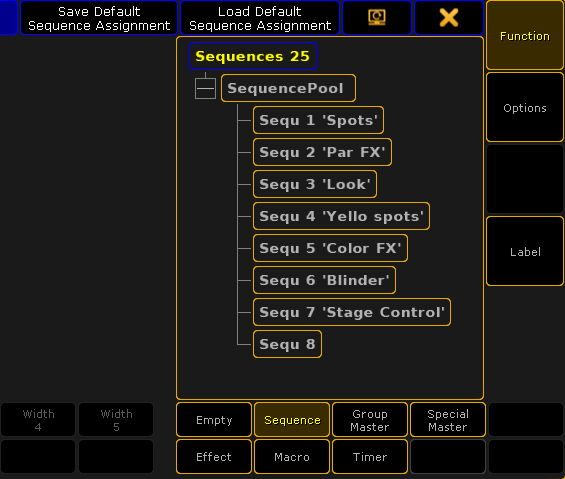 *Assign Menu - selection a sequence* Each of the six allowed types that can be assigned to an executor will provide a tree structured list of the options. Select the object you want to have on the executor by tapping it or use the screen encoder to scroll through the list and tap the encoder to select the desired object. *** ## Change Key function [Section titled “Change Key function”](#change-key-function) When the executor has something assigned, then it is possible to change the functions assigned to the executor keys. If continuing to work in the Assign menu, then the executor is symbolized on the left side. It could look like this: 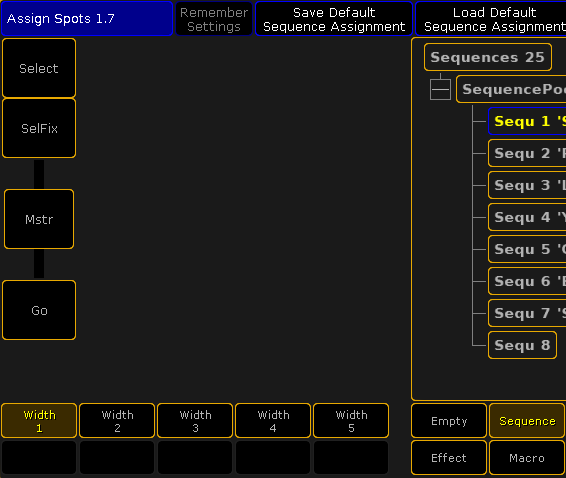 *Assign Menu - Executor key assignment* Here is an example showing a Fader Executor. There are two buttons above the fader, the fader, and the bottom button. Tapping any of the three buttons will open the Select Function pop-up. It looks like this: 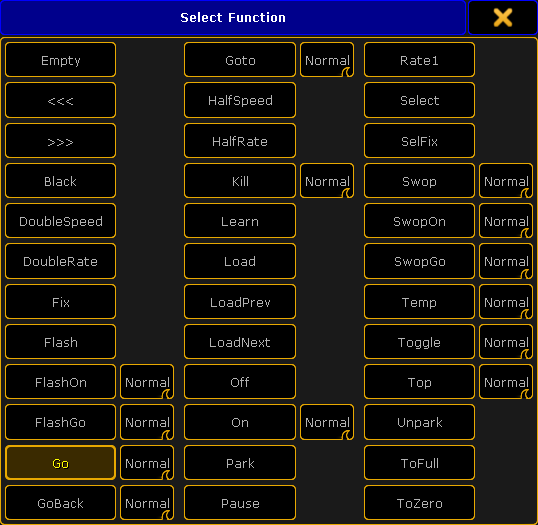 *Small Select Function (Executor Key) pop-up* There are many functions here. The pop-up might show a smaller selection. This depends on what type of object that is assigned to the executor. Some of the functions have and extra option. These are the swipe buttons next to function. The options are: * **Normal**:\ This is the normal function. * **Assert**:\ This option will perform the function using the Assert option. Assert will force tracked values to the fixtures. * **XAssert**:\ This variation of Assert will force the values using a fade time - typically from the cue going into. * **Release**:\ This option will perform the main function and then turn off the executor. The main function are: * **Empty**:\ The key has no function. * **<<< (GoFastBack)**:\ This jumps one cue back - The fade timing can be changed in Setup -> Show -> Playback & MIB Timing. * **>>> (GoFastForward)**:\ This jumps one cue forward and will not trigger other cues - The fade timing can be changed in Setup -> Show -> Playback & MIB Timing. * **Black**:\ This turns off the intensity of the executor as long as you have the button pressed. * **DoubleSpeed**:\ This will double the speed. * **DoubleRate**:\ This will double the rate. * **Fix**:\ This fixes or unfixes the executor. * **Flash**:\ This turns the executor on and set a virtual intensity master at 100, as long as you have the button pressed. When the button is released it will go back to the status before the button was pressed. * **FlashOn**:\ This performs the same action as the Flash, but it also executes an On command. * **FlashGo**:\ This performs the same action as the Flash, but it also executes a Go command. * **Go**:\ This executes a “Go”. It uses the fade and delay times. * **GoBack**:\ This fades backwards - The fade timing can be changed in Setup -> Show -> Playback & MIB Timing. Default is the cue timing. * **Goto**:\ This gives you the **Select Cue for Goto pop-up** that allows you to select a cue to go to. It could look like this: 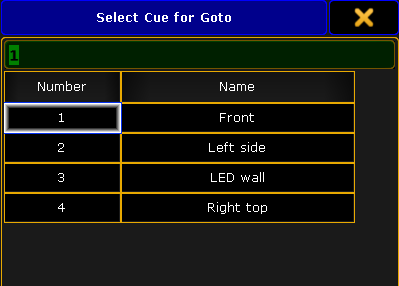 *Select Cue for Goto pop-up* The fade timing can be changed in Setup -> Show -> Playback & MIB Timing. Default is the cue timing. * **HalfSpeed**:\ This will half the speed. * **HalfRate**:\ This will half the rate. * **Kill**:\ This is the same as a “Go” but it also turns of all other executors (except those that has “Kill protect” turned on - see [Executor Options topic](/grandma2/key_adv_exec_options/)). * **Learn**:\ This sets the speed. By pressing it at least two times it automatically adjusts the speed. * **Load**:\ This gives you the **Select Cue for Load pop-up** that allows you to select a cue to load. It looks like the **Select Cue for Goto pop-up** pictured above. * **LoadPrev**:\ This will load the previous cue. If it is pressed multiple times, then it will load the previous cues based on the currently loaded cue. * **LoadNext**:\ This will load the next cue. If it is pressed multiple times, then it will load the next cues based on the currently loaded cue. * **Off**:\ This turns the executor Off. * **On**:\ This turns the executor On. * **Park**:\ This parks the fixtures in the object assigned to the executor. * **Pause**:\ This holds a active fade and/or delay. This also pauses a timecode show. * **Rate1**:\ This resets Rate and Speed faders. * **Select**:\ This selects the executor. * **SelFix**:\ This selects the fixtures used in the object assigned to the executor. * **Swop**:\ When this is pressed, all other fixtures will fade out the dimmer (except those that has “Swop protect” turned on - see [Executor Options topic](/grandma2/key_adv_exec_options/)). They return when it is released. * **SwopOn**:\ This performs the same action as the Swop, but it also executes an On command. * **SwopGo**:\ This performs the same action as the Swop, but it also executes a Go command. * **Temp**:\ This turns the executor on as long as it is pressed. The temp function uses the fade times from the cues and it uses the level set by the intensity master. * **Toggle**:\ This turns an active executor Off and an inactive executor On. * **Top**:\ This fades to the first cue in an assigned sequence. * **Unpark**:\ This unparks the parked fixtures used in the object assigned to the executor. * **ToFull**:\ This will move the intensity master at full. * **ToZero**:\ This will move the intensity master to zero. These main functions are keywords - they can be found in the [All keywords topics](/grandma2/key_cs_all_keywords/). Here are detailed descriptions of all keywords. The functions can be assigned using the keys or commands. Not all functions has a physical key that can be used, then you will need to write the command. ### Key Example [Section titled “Key Example”](#key-example) If the desired function has a physical key, then it is very easy to assign it to an executor key. Simply press the Assign key, then function key you want, and finally the executor key where you want the function. **Example 1** For instance to assign the Off function to the top key associated with executor number 1, you need to press the following keys: Assign Off (the top executor key labeled:) 1 **Example 2** Assign in a Load function to an executor key Assign Goto Goto \[desired executor key] Pressing the the “Goto” key twice will give the “Load” command. ### Command Example [Section titled “Command Example”](#command-example) Functions can be assigned using the command line. This is the general syntax: Assign \[function] (at) \[location] The location needs to be a specific physical key associated with an executor. The keys are called “ExecButtons”. They are numbered. The key below the fader and the single key for executors without faders are named “ExecButton1”. The key right above the fader is “ExecButton2” and the top key is called “ExecButton3”. To assign the ToFull function to the top key associated with executor 5 on executor page 8 you would need to type the following command \[Channel]> Assign ToFull ExecButton3 8.5 ## Change Fader function [Section titled “Change Fader function”](#change-fader-function) It might be possible to change the function of the fader. This depends on what type of object an executor has. They are changed just as the executor keys - by tapping the onscreen representation in the Assign menu (see above). The Select pop-up could look like this: 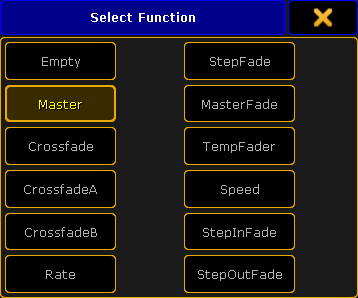 *Small Select Function (Executor Fader) pop-up* The pop-up might present a smaller selection. This depends on the object on the executor. * **Empty**:\ Fader has no function. * **Master**:\ Controls the intensity. * **Crossfade**:\ Crossfades between two cues. Current cue and next cue. The current cue will change when the fader reaches the other end position from where it started. * **CrossfadeA**:\ Is the first of a two fader manual crossfade between two cues. Works along with CrossfadeB. The crossfade function can be changed in the [Executor options](/grandma2/key_adv_exec_options/). * **CrossfadeB**:\ Is the second of a two fader manual crossfade between two cues. Works along with CrossfadeA. The crossfade function can be changed in the [Executor options](/grandma2/key_adv_exec_options/). * **Rate**:\ Divides the fade and delay time in a sequence by the value of the fader. If **Link Effect to Rate** is on, it is also valid for effect speed stored in cues - see [Executor options topic](/grandma2/key_adv_exec_options/). * **StepFade**:\ Controls the fade time between steps in a chaser (=softness). * **MasterFade**:\ Controls the on and off fade time of chasers and effects. It controls also the off time of executors. * **TempFade**:\ Cossfades the cue on when pulled up, and off when pulled down. * **Speed**:\ Controls the fade and delay times in effects in a cue, and chase speed in chasers. * **StepInFade**:\ Controls the step in time of the chaser steps. * **StepOutFade**:\ Controls the step out time of the chaser steps. The above functions are described in more details in each of their keyword topics. They can be found under [All Keywords](/grandma2/key_cs_all_keywords/). The functions can also be assigned using the command line. The syntax is the same as the key functions. The difference is that there is only one fader per executor. ### Examples [Section titled “Examples”](#examples) **Example 1** To assign the rate function to executor number 9 on the current page, you will need to type the following command: \[Channel]> Assign Rate Executor 9 Or address the actual fader: \[Channel]> Assign Rate Fader 9 **Example 2** If you want to assign the “Empty” function to the executor fader, then it is necessary to use the fader as the location \[Channel]> Assign Empty Fader 9 ## Save the Key and fader assignment [Section titled “Save the Key and fader assignment”](#save-the-key-and-fader-assignment) The current assignment of key and fader functions can be saved, to the current user profile, using the Assign Menu. In the Title bar there are two buttons. Tapping the Save Default \[object type] Assignment will store the current assignment to the defaults for that type of object. This means that a sequence have one set of defaults and an assigned Effect will have a different set of defaults. The defaults are used when the executor gets something assigned. Tapping the Load Default \[object type] Assignment will load the currently saved default to the keys and faders. Executors can be extended to use up to 5 executors in the width. Read more about this below. The number of keys and faders are then changed. Each width size has a different set of default key and fader assignment for each object type. This means that a sequence using 1 executor width have one set of defaults and the same sequence using two executor widths will have a different set of defaults. *** ## []()Change the Width of Executors [Section titled “Change the Width of Executors”](#change-the-width-of-executors) Sequence and Effects assigned to an executor can use more than one executor in the width - up to five. A timer assigned to Button Executors can use up to two executors in the width. This is changed using the Assign Menu (see the top of this topic for more about using the Assign menu). The left side of the Function page of the Assign Menu could look like this:  *Assign Menu - Width control* The bottom of the left side will show how much the executor can be extended. The executors are organized in groups of five. It is not possible to extend into a different group of five. It is also not possible to extend into executor that already has something assigned. So to extend an executor to five in width, it needs to be originally assigned to executor 1, 6, 11, 16, 21, 26, and so on AND the following five executors needs to be empty. When fully extended it could look like this: 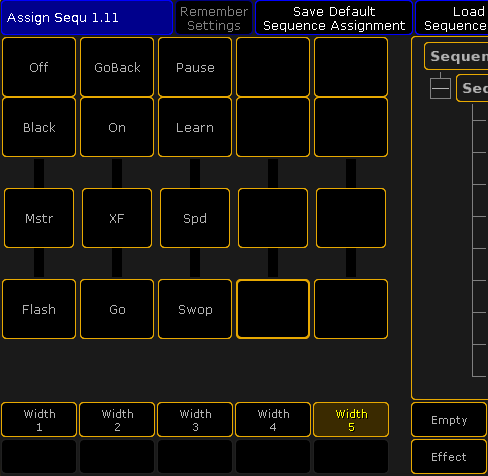 *Assign Menu - Width 5* Each key and fader can have a function that will execute the selected function to the assigned sequence or effect.
# Common executor options
> The executors most common options, and their associated options, are explained in this topic. The rest are explained in the Executor Options topic.
The executors most common options, and their associated options, are explained in this topic. The rest are explained in the [Executor Options topic](/grandma2/key_adv_exec_options/). There are many options available for executors - especially sequences assigned to executors. They are accessed using the Assign Menu. One way to open the menu is to press the Assign key followed by a key associated with the executor you want to change. On the right side of the menu there are a button called Options. Tapping this opens the options part of the Assign Menu. This is what it looks like with a sequence assigned to the executor:  *Assign Menu - Options* The options look different depending on what is assigned to the executor. ## Auto Start and Auto Stop [Section titled “Auto Start and Auto Stop”](#auto-start-and-auto-stop) The **Auto Start** feature switches the executor ‘On’ when master is moved above zero. The **Auto Stop** feature switches the executor ‘Off’ when master is moved down to zero. There are some other options that are relevant for Auto Start and Auto Stop: ### []()Auto Stop Off Time [Section titled “Auto Stop Off Time”](#auto-stop-off-time) If Auto Stop is active, then this option is visible. When **Auto Stop Off Time** is active, then performing the auto stop will use the Off time for the Executor. ### Master Go [Section titled “Master Go”](#master-go) The **MasterGo** function is active if Auto Stop is turned Off. Tapping this button will open the Select Master Go pop-up. It looks like this: 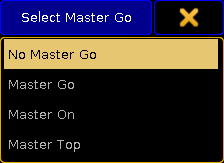 *Small Select Master Go pop-up* There are four options here. They all take effect when the master fader is moved from zero and up. The options are: * **No Master Go**:\ The cue is still running. * **Master Go**:\ It executes a Go. * **Master On**:\ The current cue is reloaded (fading in again). * **Master Top**:\ The first cue is activated. ### Restart [Section titled “Restart”](#restart) Restart is used when the executor has been Off and is turned On again. Tapping the button will open the small Select Restart Mode pop-up. It looks like this: 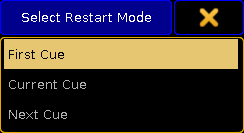 *Small Select Restart Mode pop-up* There are three options here: * **First Cue**:\ This always restarts the sequence with the first cue. * **Current Cue**:\ This restarts the sequence with the cue where it was when the sequence was turned Off. * **Next Cue**:\ This restarts the sequence with the next cue based on where it was when the executor was turned Off. ## Priority [Section titled “Priority”](#priority) The priorities are one of the common options to change. The description of the priorities are found in the [Playing Back Cues topic](/grandma2/key_cs_playback/#priority). ## Tracking [Section titled “Tracking”](#tracking) Explanations about tracking and how to turn it On or Off is found in the [What is Tracking topic](/grandma2/key_cs_what_is_tracking/). Here are also the explanations about **Release Firststep** and **Wrap Around**. ## []()Off On Overwritten [Section titled “Off On Overwritten”](#off-on-overwritten) The **Off On Overwritten** function will allow that an executor is turned Off if another executor has taken control with all the attributes = this executor has no longer control of any attributes. ### Example [Section titled “Example”](#example) There are two sequences. Sequence one have values for fixture 1 at 100% and using a red color. Sequence two has the same fixture also at 100% and in a blue color. Both sequences are assigned to executors with Off On Overwritten, AutoStart, and AutoStop active. 1. Moving up the fader on the first executor will turn the fixture to 100% and in a red color. 2. Fading in the second executor will make the fixture turn blue.\ When the second fader is completely faded in (at the top), then it has control of all the attributes stored in the first sequence. 3. The first executor is then turned Off by **Off On Overwritten**. 4. Taking the second fader down will make the fixture fade out. If **Off On Overwritten** is *not* active then the same scenario would be: 1. Moving up the fader for the first executor will turn the fixture On in a red color. 2. Moving up the second fader will make the fixture turn blue. 3. Moving down the second fader will make the fixture red (when the fader is at 0) because the first executor is still active.
# Executors on the screens
> The grandMA2 supports a lot of executors. Most system are not set up for physical control of all these executors. They are still reachable as virtual executors
The grandMA2 supports a lot of executors. Most system are not set up for physical control of all these executors. They are still reachable as virtual executors on the screens. The different virtual executors are windows that can be created using the [Create Basic Windows pop-up](/grandma2/key_windows/). They are all in the **Playbacks** tab. ## []()Action Buttons [Section titled “Action Buttons”](#action-buttons) The **Action Buttons** can show executor 101 to 190. That is all the possible Button Executors. To have them all in one big window you will need to have it on one of the big screens. If the window does not get all that space, then it will adapt and show the possible amount of executors. They are arrange in groups of 5 executors. The smallest possible size is 3 x 5 squares (H x W). Then it could look like this: 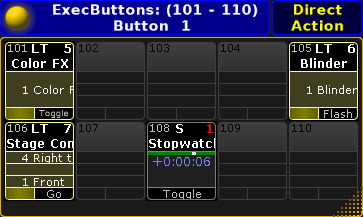 *Action Buttons - smallest* In the title bar there is the yellow ball that opens the options. The title bar shows what executors are being displayed in the window and the Executor Page number. On the right side there is a **Direct Action** toggle button. Direct Action changes how the executor buttons work. If it is disabled, then they work as described in the [Sequence Mini Executor](/grandma2/key_cs_sequence_mini_executor/), but in relation to what is assigned to the executor. Please also have a look at the [Mini Executor Bar topic](/grandma2/key_ws_mini_executor_bar/). This window functions more as a label and indicator when Direct Action is disabled. With Direct Action enabled, then the entire button will perform the action assigned to the Executor Button, or physical key, when it is tapped on the screen. ### Options [Section titled “Options”](#options) Opening the options allows you to choose what section of executors the windows should begin with. The choices are: Intern 1 (101 through 115), Intern 2 (116 through 130), Wing 1 (131 through 145), Wing 2 (146 through 160), Wing 3 (161 through 175), and Wing 4 (176 through 190). At the bottom of the options window there are two buttons. They control what executor page is displayed. The button called Button Page Floating will make the Action Buttons change page following the Button Page selection. Tapping the Select Page button will open a Select Page pop-up like this:  *Small Select Page pop-up* Here you can choose to lock the Action Buttons to a specific Button page. ## []()Playback Big [Section titled “Playback Big”](#playback-big) The Playback Big window displays what is assigned to the executors. It also provide virtual faders and buttons. The button and fader label area, known from the [Mini Executor Bar](/grandma2/key_ws_mini_executor_bar/), is replaced by labeled buttons and faders providing the same information but with better control. Tapping the buttons will perform the action. Touching and moving the virtual faders will be the same as moving the real faders. The window adapts to the size. The width can span from a minimum of 5 through the maximum amount of available squares. It can display up to three groups (of 5) executors. The height can be from 4 through the maximum amount of squares. If the height is only 4 or 5 squares then the window will only display the Fader Executors. From 6 and more i height it will also display the corresponding Button Executors. This is an example of what it could look like: 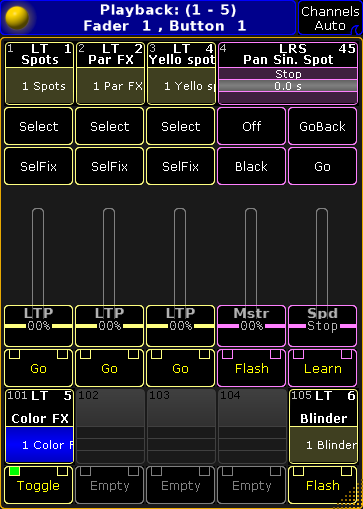 *Playback Big* The title bar have the yellow ball that opens the options. The title bar shows what executors are being displayed and the number and possible name of the Executor Fader Pages and the Executor Button Page. The button on the right side has three different settings related to Channel pages. The options are * **Channel Auto**:\ This will change the virtual Fader Executors to Channel Faders if this is changed on the real executors. * **Channels Forced**:\ This will force the virtual Fader Executors to always be Channel Faders. * **Channels Never**:\ This will prevent the virtual Fader Executors to ever change to Channel Faders. Read about the Channel Faders in the [Channels Pages topic](/grandma2/key_adv_exec_ch_pages/). ### Options [Section titled “Options”](#options-1) The options could look like this: 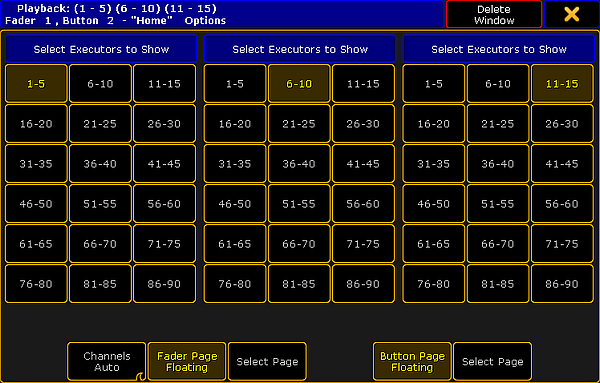 *Playback Big - Options pop-up* If you have three groups (of 5 executors) visible executors, then you also have three selection sections - as in the image above. If you only have one group of executors, then there will only be one selection section. Here you can choose what executor group each section should display. Even though the numbers are for the Fader executors, the Button Executors are also selected using this section selection. They will follow the selected Fader Executors. At the bottom of options pop-up, there are two groups of buttons. They control what executor page is displayed. One group is for the Fader Executors and the other is for the Button Executors. The “Floating” button will make the executors change page following the general page selection. The Select Page buttons will allow you to select a specific page for the executors. Tapping the button will open the small Select Page pop-up described options for the **Action Buttons** (see above). The Fader Executors group has an extra button. This is the same as the one in the title bar - please read the description above. ## []()Playback Small [Section titled “Playback Small”](#playback-small) The small playback window is the same as the [Mini Executor Bar](/grandma2/key_ws_mini_executor_bar/). It is fixed in 3 squares height but can be extended from minimum 5 and up to the maximum about of possible squares. It will adapt to the about of groups (of 5 executors) displayed depending on the width of the window. The minimum size could look like this: 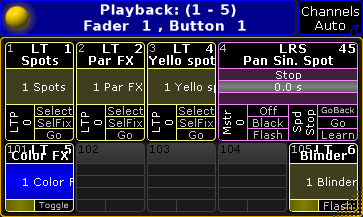 *Playback Small* The title bar have the yellow ball that opens the options. The title bar shows what executors are being displayed and the number and possible name of the Executor Fader Pages and the Executor Button Page. The button on the right side has three different settings related to Channel pages. The options are * **Channel Auto**:\ This will change the virtual Fader Executors to Channel Faders if this is changed on the real executors. * **Channels Forced**:\ This will force the virtual Fader Executors to always be Channel Faders. * **Channels Never**:\ This will prevent the virtual Fader Executors to ever change to Channel Faders. Read about the Channel Faders in the [Channels Pages topic](/grandma2/key_adv_exec_ch_pages/). ### Options [Section titled “Options”](#options-2) The options look and functions exactly as the Playback Big options. Please read the description above.
# Looking at the active executors
> There are two ways to see all the active executors. They actually display all the "Playbacks". This means that they display everything that is currently activel
There are two ways to see all the active executors. They actually display all the “Playbacks”. This means that they display everything that is currently actively doing something. So it displays running Sequences, Chaser, Effects, Macros, Timecode shows, Timers, and Plugins. ## []()Off Menu [Section titled “Off Menu”](#off-menu) Tapping the Off key twice will open the **Off Menu**. It could look like this: 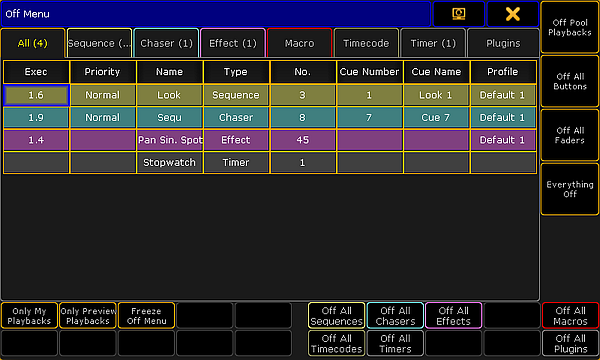 *Off Menu* The main part of this menu is an area with several tabs. Each tab represent one of the different types of playbacks. Each tab has a different color. After the name in the tap there might be a number in parentheses. This number is the amount of playbacks in that category. There is also a tab called “All”. This will display all the different playbacks in one list. Each row on the list will have the same color as the tab color. This is to make it easy to distinguish the different types of playbacks in the list. The columns in the main part will vary depending on what tab is selected. The “All” tab displays all possible columns. They are: * **Exec**:\ This is the executors number of the playback. Only relevant for Sequence, Chaser, and Effect. * **Priority**:\ This displays the executor priority. Only relevant for Sequence and Chaser. * **Name**:\ This is the name of the active playback. * **Type**:\ This is only visible in the “All” tab. It tells what kind of playback it is. * **No.**:\ This displays the number of the active playback. * **Cue Number**:\ This will display the active cue number. This is only relevant for Sequence and Chaser. * **Cue Name**:\ This will display the name of the active cue. This is only relevant for Sequence and Chaser. * **Profile**:\ This is the name and number of the User Profile that has last activated the playback. Only relevant for Sequence, Chaser, and Effect. Around the main part, there are several buttons. Assuming this menu is on screen 1, then it is possible to use the X-keys and the U1 through U4 keys to execute various actions. It is also possible to tap the buttons on the screens. There are two types of buttons. There are “filter” buttons and there are “Off” buttons. The filter buttons are: * **Only My Playback**:\ This will hide playbacks from the list that has been triggered by a different user profile. * **Only Preview Playbacks**:\ This will hide playbacks that are not only running in the Previewer. The list will only display the playback running in previewers. * **Freeze Off Menu**:\ This is not a filter. When this is deactivated, then a row will disappear when the playback is turned off. Activating the Freeze Off Menu will make the row stay - it becomes empty when the playback is turned off. The Off buttons are: * **Off Pool Playbacks**:\ This will turn off all the playbacks that are running the respective pools - so not running on a Fader Executor or a Button Executor. * **Off All Buttons**:\ This will turn off all playbacks running on Button Executors. * **Off All Faders**:\ This will turn off all playbacks running on Fader Executors. * **Everything Off**:\ This will turn off every running playback and close the Off Menu. * **Off All \[playback types]**:\ At the bottom right side of the menu there are seven buttons. Each turn off each of the seven sections. For example Off All Sequences, turns off all the running sequences. ## []()Running Playbacks [Section titled “Running Playbacks”](#running-playbacks) A window similar to the Off Menu is called **Running Playbacks**. It can be made like any other window - using the [Create Basic Windows pop-up](/grandma2/key_windows/). This window can be found in the **Playbacks** tab. It could look like this: 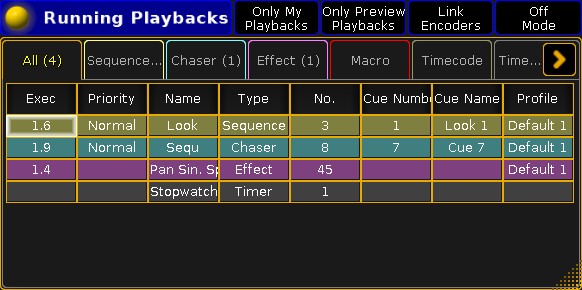 *Running Playbacks window* The main part of this window looks like the **Off Menu** (see above). The difference is the buttons around the window are gone. Instead some of the functions can be added in the Title Bar. This can be changed in the options. ### Options [Section titled “Options”](#options) The options can be accessed by tapping the yellow ball in the upper left corner. The options have two tabs. One is called **Options**, the other is **Title Buttons**. The title bar of the options has the options to store the settings as the new default, load the defaults settings, delete the window, and finally close the options pop-up. ### The Options Tab [Section titled “The Options Tab”](#the-options-tab) Here are the different options for the Running Playbacks window. * **Off Mode**:\ Activating the Off Mode will change what happens if one of the rows are tapped. When this is active then tapping rows will turn off the tapped playback. This is mutually exclusive with **Link Encoders**. * **Only My Playbacks**:\ This is the filter described in the Off Menu above. * **Only Preview Playbacks**:\ This is also the filter described in the Off Menu above. * **Link Encoders**:\ When this active, then selecting a row will display the relevant Encoder Toolbar. Here it is possible to control the playback. This is mutually exclusive with **Off Mode**. * **Show Info**:\ This can add another column to the main part. It will add a Info column to all the tabs. * **Font**:\ Here you can selected the font size. Tapping it will open a small **Select Font pop-up**. Here you can select a font size from size 10 through size 22. ### The Title Buttons Tab [Section titled “The Title Buttons Tab”](#the-title-buttons-tab) Here you can turn On or Off title bar buttons for all the options described above - except the font size.
# What are executors
> Executors are the handles that are usually preferred when controlling sequences and other playback elements on the grandMA2.
Executors are the handles that are usually preferred when controlling sequences and other playback elements on the grandMA2. The different elements that can be assigned to an executor are: * [Sequences](/grandma2/key_cues_and_sequences/) * [Group Masters](/grandma2/key_groups_master/) (only Fader Executors) * [Special Masters](/grandma2/key_adv_exec_spec_master/) (only Fader Executors) * [Effects](/grandma2/key_effects_assign_to_executor/) * [Macros](/grandma2/key_macro_assign/) * [Timers](/grandma2/key_timer/) Read the [Assign a Function topic](/grandma2/key_exec_assign/) to learn how to assign the different elements to the executors. Executors exist in two variations. One is called “Fader Executor”, the other is “Button Executor”. The difference is in the hardware associated with the executor. A Fader Executor has a physical fader and three associated keys with the same number. A Button Executor only has one physical key and a virtual fader. The executors are grouped in blocks of 5 executors. Three blocks of 5 is a section with 15 executors. A grandMA2 full size has 30 Fader Executors (numbered 1 through 30) and 30 Button Executors (numbered 101 through 130). There are also 20 X-Keys, they can also function as Button Executors (numbered X1 through X20). A grandMA2 light has 15 Fader Executors (numbered 1 through 15) and 15 Button Executors (numbered 101 through 115). There are also 20 X-Keys, they can also function as Button Executors (numbered X1 through X20). A grandMA2 ultra light has 15 Fader Executors (numbered 1 through 15) and 15 Button Executors (numbered 101 through 115). There are also 10 X-Keys, they can also function as Button Executors (numbered X1 through X10). The X-keys can be changed to Executors by pressing the List key. If there is a screen above your executors on your console, then the bottom part of the screen will show the [Mini Executor Bar](/grandma2/key_ws_mini_executor_bar/). This functions as labeling and information about what is assigned to the executors. The different Mini Executor Bars are described in the relevant topics - depending on the function assigned to the executor. The Executors can also be represented virtually on the screens - please read about this in the [Executors on the Screens topic](/grandma2/key_exec_on_screen/). *** ## Select Executor [Section titled “Select Executor”](#select-executor) There is always at least one selected executor. It is the executor with a green background at the top of the executor representation in the Mini Executor Bar.  *Selected Executor number 1* In the image above the left executor is the selected executor. The selected executor is used by the Master Section and the two 100mm faders - see more in the [Master section topic](/grandma2/key_widget_master_section/). The selected executor is also often used in sheets. It is possible to select more than one executor, but the first one selected is a little bit more selected then the others - it is the one displayed in sheets and in the Master Section. The three big Go+ , Go- and Pause keys executes the commands on all selected executors. Commands not sent to a specific executor is executed on all the selected executors. For instance Store Cue 21 will store the cue on all selected executors. Selecting multiple executors can be done by keeping the Select key pressed while pressing executor keys. It is also possible using the command line. For instance Select Exec 1 + 2 Please will select both executor 1 and 2. *** ## Executor Encoder Toolbar [Section titled “Executor Encoder Toolbar”](#executor-encodertoolbar) If the executor have a sequence assigned then the Encoder Toolbar might change to look like this:  *Encoder Toolbar - Executor* This toolbar appears if you have opened the sequence editor and closes the editor. The top row have some buttons and information. Starting from the left there is an information “button” that shows the executor number, the sequence number and name. It is not actually a button. Next to this is a button that enters or exits the Sequence Editor - This will also change the Encoder Toolbar. Next are six buttons that can be used to control the sequence playback - please read more about these controls in the [Playing back Cues topic](/grandma2/key_cs_playback/). The bottom encoder row gives access to change the: Master, Rate, and Off Time. They are each assigned to one of the four encoders. The **Master** is the same as a Master fader - this control the intensity level. The **Rate** is the same as the Rate master - this manipulates the fade times in the cues. Read about Rate in the [Cue Timings topic](/grandma2/key_cs_cue_timings/#rate_fader). The **OFF Time** is used when the executor is turned off. This can be used to fade out the intensity and keep other attributes (color, position, and so on) until the fade out is complete. The Off time can also be set using a **MFade** fader - read the [Assign a Function topic ](/grandma2/key_exec_assign/)to learn more about assigning a fader function or read more about the MFade in the [Default Masters topic](/grandma2/key_adv_exec_spec_master_default/).
# Export and Import
> The export and import function is a tool to copy a part of the show file, and use it in another show. This may be an effect, a cue, a preset or something else.
## General Export and Import function [Section titled “General Export and Import function”](#general-export-and-import-function) The export and import function is a tool to copy a part of the show file, and use it in another show. This may be an effect, a cue, a preset or something else. Using the export and import function can be done, either by the **Command Line** or the Graphical User Interface **(GUI)**. The exported content stores in a .XML file. This is located in an importexport directory on the console, an USB stick in gma2/importexport and on an onPC solution it might be located C:\ProgramData\MA Lighting Technologies\grandMA\gma2\_V\_3.3\importexport. ## Export and import objects [Section titled “Export and import objects”](#export-and-import-objects) Almost all objects from the showfile can be exported and imported. For example: * Effects * Macros * Masks * MAtricks * Gobo bitmaps * User Profiles * Users * Nodes * Views * Channels * Pages * Presets * Sequences * Cues * Executors * Groups * Filters * Cameras * Forms * Timecodes * Fixtures * Screens To export or import **Macros**, **Effects**, **Masks**, **MAtricks**, **Gobo Bitmaps**, **User Profiles** and **DMX nodes**, it is easier to use the GUI. For more information see the [Export by using user interface](/grandma2/key_ei_export_gui/) and [Import by using user interface](/grandma2/key_ei_import_gui/) topics. To Import an image to the Image Pool, read more in the [Import images and video](/grandma2/key_image_import/) topic. **Restriction:**\ It is not possible to export or import the show, or a part of the show to any other console format for example other manufactures consoles. To handle a ASCII file, see the [ASCII Show Read](/grandma2/key_backup_menu_ascii_show_read/) topic. **Hint:**\ It is possible to open show files from a dot2 console directly on a grandMA2 console or onPC. ## Subtopics [Section titled “Subtopics”](#subtopics) * [Export by using command line](/grandma2/key_ei_export_commandline/) * [Export by using user interface](/grandma2/key_ei_export_gui/) * [Import by using command line](/grandma2/key_ei_import_commandline/) * [Import by using user interface](/grandma2/key_ei_import_gui/) * [Import predefined objects](/grandma2/key_ei_import_predefined/)
# First Steps
> This chapter describes how to prepare the console and your PC to use it.
This chapter describes how to prepare the console and your PC to use it. ## Subtopics [Section titled “Subtopics”](#subtopics) * [Unpack the device](/grandma2/key_fs_unpack_the_device/) * [Check scope of delivery](/grandma2/key_fs_check_scope_of_delivery/) * [Position the device](/grandma2/key_fs_position_the_device/) * [Connect power](/grandma2/key_fs_connect_power/) * [Connect desk lamps](/grandma2/key_fs_connect_desk_lamps/) * [Connect external screens](/grandma2/key_fs_connect_external_screens/) * [Connect USB mouse and USB keyboad](/grandma2/key_fs_connect_usb_mouse_and_usb_keyboad/) * [Connect DMX](/grandma2/key_fs_connect_dmx/) * [Connect sound](/grandma2/key_fs_connect_sound/) * [Connect SMPTE (LTC)](/grandma2/key_fs_connect_smpte_ltc/) * [Connect Ethernet](/grandma2/key_fs_connect_ethnert/) * [Connect analog remote control](/grandma2/key_fs_connect_analog_remote_control/) * [Connect grandMA2 fader wing](/grandma2/key_fs_connect_grandma2_fader_wing/) * [Setup your PC](/grandma2/key_fs_setup_your_pc/) * [Turn on the console the first time](/grandma2/key_fs_turn_on_the_console_the_first_time/)
# Check scope of delivery
> The list below shows the scope of delivery. If anything is missing, contact your local distributor.
The list below shows the scope of delivery. If anything is missing, contact your local distributor. [grandMA2 full-size](#grandMA2%20full-size) [grandMA2 light](#grandMA2%20light) [grandMA2 ultra-light](#grandMA2%20ultra-light) [grandMA2 fader wing](#grandMA2%20fader%20wing) [MA onPC command wing and MA onPC fader wing](#MA%20onPC%20command%20wing%20and%20MA%20onPC%20fader%20wing) ## []()grandMA2 full-size [Section titled “grandMA2 full-size”](#grandma2-full-size) * Built-in keyboard * 2 x MA LED desk lamp grandMA2 * 1 x Dust cover grandMA2 full-size * 1 x Quick Start Manual ## []()grandMA2 light [Section titled “grandMA2 light”](#grandma2-light) * Built-in keyboard * 2 x MA LED desk lamp grandMA2 * 1x Dust cover grandMA2 light and ultra-light * 1 x Quick Start Manual ## []()grandMA2 ultra-light [Section titled “grandMA2 ultra-light”](#grandma2-ultra-light) * 2 x MA LED desk lamp grandMA2 * 1x Dust cover grandMA2 light and ultra-light * 1 x Quick Start Manual ## []()grandMA2 fader wing [Section titled “grandMA2 fader wing”](#grandma2-fader-wing) * Connecting cable MA-link ## []()MA onPC command wing and MA onPC fader wing [Section titled “MA onPC command wing and MA onPC fader wing”](#ma-onpc-command-wing-and-ma-onpc-fader-wing) * 1 x Dust cover * USB cable 1.9 m * Power Cord 1.9 m IECC plug (lockable) open end * 1 x Quick Start Manual
# Connect analog remote control
> To use the analog remote control, connect a contact closure switch e.g., a light barrier or a push button.
To use the analog remote control, connect a contact closure switch e.g., a light barrier or a push button. Generate a switch that sends between +5 and +15 volts to pin 1 for the console to react to analog input number 1. There are two ways to generate a switch: 1. Take the +5V voltage from pin 21-22.\ -or- 2. Take an external voltage (+5V up to +15V), connect the ground of the external voltage source to the common ground pin of the grandMA2 console or MA onPC command wing. Then connect the switch to one input pin 1-16 with a potential free contact (switcher, buzzer, motion detector, or any other switching device) in between. To configure the remote see [Remote Controlling the System - Remote Input](/grandma2/key_remote_control_input/). **Pin layout for grandMA2 consoles:** \ The grandMA2 consoles have a 25 pin D-sub, enabling 16 remote inputs:\ Pin 1-16 = input\ Pin 21-22 = + 5V\ Pin 25 = common ground **Pin layout for MA onPC command wings:**\ The MA onPC command wing has a 15 pin D-sub, enabling 12 remote inputs:\ Pin 1-6 = input channels 1,3,5,7,9,11\ Pin 9-14 = input channels 2,4,6,8,10,12\ Pin 7 = + 5V\ Pin 8 = common ground\ Pin 15 = not used * Connect a D-sub plug to the DC remote control connector on the rear panel. The analog remote control is connected to the DC remote control. 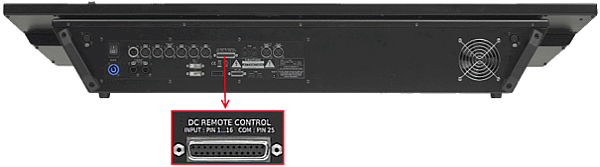 *grandMA2 full-size DC remote control connector* 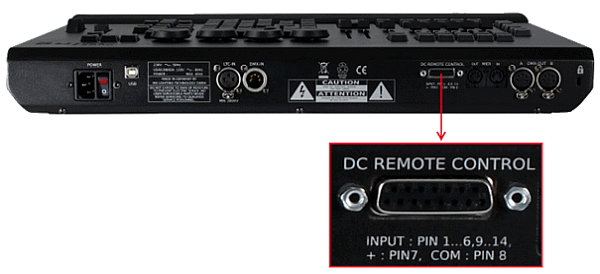 *MA onPC command wing DC remote control connector*
# Connect desk lamps
> The console comes with two MA LED desk lamps.
The console comes with two MA LED desk lamps. * Connect the 4 pin XLR connector to the desk lamp connectors on the rear panel. The desk lamps are connected.  *grandMA2 full-size desk lamp connectors* To adjust the intensity of the desk lamp see [adjust desk lights](/grandma2/key_window_desklights/).
# Connect DMX
> You can connect DMX IN and DMX OUT on the console.
You can connect DMX IN and DMX OUT on the console. The console has six DMX OUT ports (A - F) and one DMX IN port. You can configure the DMX ports in the network configuration. For more information see [Configure the DMX ports on MA devices](/grandma2/key_network_dmx_configure_ports/). 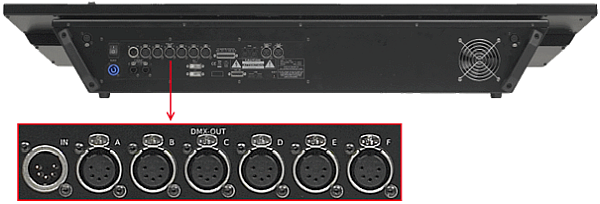 *DMX IN* 1. Connect one end of a 5 pin XLR DMX cable to one of the DMX connectors. 2. Connect the other end to a suitable DMX device. The console is connected to a DMX device.
# Connect Ethernet
> The grandMA2 console has two Ethernet ports on its rear panel.
The grandMA2 console has two Ethernet ports on its rear panel. 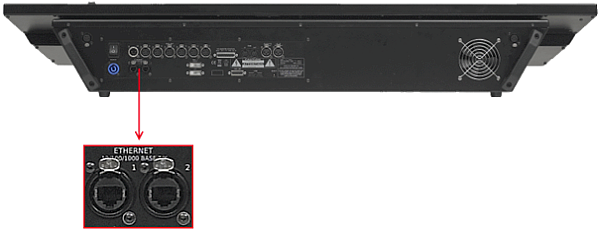 *Location Ethernet ports* ## Ethernet Port 1 [Section titled “Ethernet Port 1”](#ethernet-port-1) **Information:**\ The Ethernet port 1 is called eth0 in the grandMA2 software. **Information:**\ The Ethernet port 1 can be used for the following network protocols:\ \- MA-Net2\ \- ETC Net2\ \- Pathport\ \- sACN\ \- Shownet\ \- Kinet1\ \- CITP\ \- PSN **Requirement:**\ STP (shielded twisted pair) cable with RJ45 connector, min. Cat 5e. To connect Ethernet port 1: 1. Connect one end of an Ethernet cable to the **Ethernet 1** port. 2. Connect the other end to a suitable switch. 3. Connect other grandMA2 equipment to the switch and turn on the power on the switch. Ethernet is connected to port 1. ## Ethernet Port 2 [Section titled “Ethernet Port 2”](#ethernet-port-2) **Information:**\ The Ethernet port 2 is called eth1 in the grandMA2 software. **Information:**\ The Ethernet port 2 can be used for the following network protocols:\ \- Art-Net\ \- CITP **Information:**\ The IP address is set by default in a 2.x.x.x range. An IP address is required in a 2.x.x.x or 10.x.x.x range for Art-Net. **Requirement:**\ STP (shielded twisted pair) cable with RJ45 connector, min. Cat 5e. To connect Ethernet port 2: 1. Connect one end of a Ethernet cable to the **Ethernet 2** port. 2. Connect the other end to a suitable switch. 3. Connect other grandMA2 equipment to the switch and turn on the power on the switch. Ethernet is connected to port 2.
# Connect external screens
> You can connect up to two external screens or touch screens on a console – right and left.
You can connect up to two external screens or touch screens on a console – right and left. **Information:**\ We recommend ELO touch screens with the following specifications:\ \- Certification: Microsoft WIN8 compliant\ \- Connectivity: A USB interface\ \- Video Interface: VGA or DVI or HDMI\ \- Resolution: Monitors are to have a minimum resolution of 1024x768. **Requirement:** * Console is turned off * DVI cable **Information:**\ If the external screen has a VGA connector, a DVI adapter is necessary for VGA. 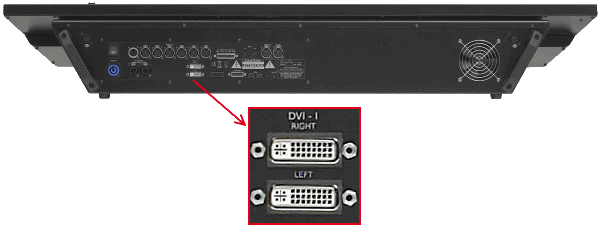 *DVI connectors for external screens* 1. Connect the DVI cable for the right external screen with the **Right DVI-I connector**. 2. Place the external screen on the right, above the internal screen 2.\ The screen number for the external screen on the right is 5. 3. Connect the DVI cable for the left external screen with the **Left DVI-I connector**. 4. Place the external screen on the left, beside the external screen on the right.\ The screen number for the external screen on the left is 6. 5. Connect power to the external screens. The external screens are connected. For more information see [change screen options](/grandma2/key_window_screenoptions/).
# Connect grandMA2 fader wing
> To extend the console by 15 motorized faders and 15 executor buttons, connect a grandMA2 fader wing.
To extend the console by 15 motorized faders and 15 executor buttons, connect a grandMA2 fader wing. **Hint:**\ You can connect up to four grandMA2 fader wings to one grandMA2 console. 1. Connect one end of a 15 pin D-Sub cable to the MA-LINK connector on the rear panel. 2. Connect the other end to the grandMA2 fader wing. The grandMA2 fader wing is connected to the console. 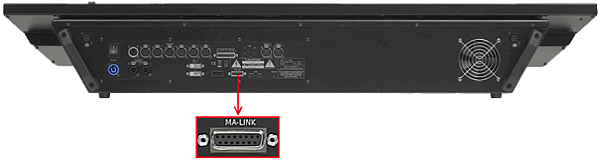 *grandMA2 full-size MA-LINK connector* To configure the wings see [wing & monitor setup](/grandma2/key_window_faderwing_commandwing_setup/).
# Connect power
> Warning:
**Warning:**\ If only the powerCon connector is provided, you need to attach a suitable cable to the connector.\ To attach a suitable cable to the powerCon connector, contact your local dealer. 1. Insert the blue powerCon connector in the powerCon plug and twist it to lock 90 degrees clockwise. 2. Connect the other end of the cable to a suitable power source. The console is connected to power. 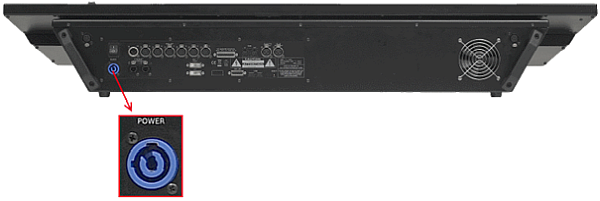 *grandMA2 full-size power connector*
# Connect SMPTE (LTC)
> To synchronize the console with an SMPTE timecode source, connect an SMPTE source to the console.
To synchronize the console with an SMPTE timecode source, connect an SMPTE source to the console. **Information:**\ The supported time formats are:\ \- 24 fps (frames per second)\ \- 25 fps\ \- 30 fps\ If you send 29.97 or 30 drop frame, it will be interpreted as 30 fps. **Information:**\ The signal strength should be a minimum of 200 millivolts.\ Pin 1: Ground\ Pin 2: - (minus)\ Pin 3: + (plus) * Connect the SMPTE source to the LTC IN connector on the rear panel. The SMPTE source is connected to the LTC IN connector. 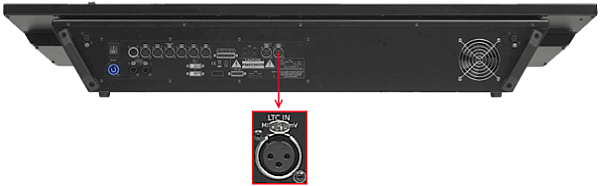 *grandMA2 full-size LTC IN connector*
# Connect sound
> To use a sound trigger, BPM or sound as an effect form, connect a sound source to the console.
To use a sound trigger, BPM or sound as an effect form, connect a sound source to the console. **Information:**\ The signal strength should be a minimum of 20 millivolts.\ Pin 1: Ground\ Pin 2 and Pin 3: Balanced Input * Connect the 3 pin XLR sound source cable to the Audio IN connector on the rear panel. The sound source is connected to the Audio IN connector. 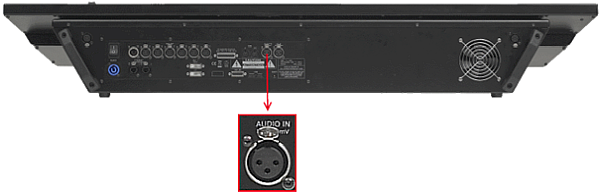 *grandMA2 full-size Audio IN connector* For more information see [adjust sound input](/grandma2/key_ost_sound_input_window/) and [create effect form](/grandma2/key_effects_create_forms/).
# Connect USB mouse and USB keyboad
> You can connect an external USB mouse and / or an external USB keyboard to the console.
You can connect an external USB mouse and / or an external USB keyboard to the console. There are 5 USB connectors on the console. Two on the front panel, two on the rear panel and one in the drawer of a grandMA2 light and grandMA2 full-size. The console supports keyboards with US key layout. **Information:**\ It is recommended to use a wired keyboard.\ If you use a wireless keyboard, a proper function is not guaranteed. * Connect the USB connector of the USB mouse / or USB keyboard to one of the USB plugs on the front or rear panel of the console. The USB mouse and / or USB keyboard is connected to the console. 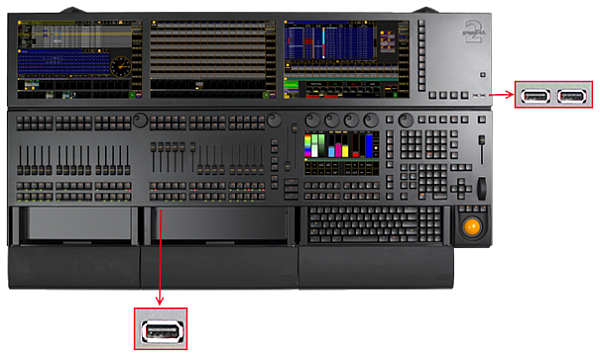 *grandMA2 full-size USB connector front panel* 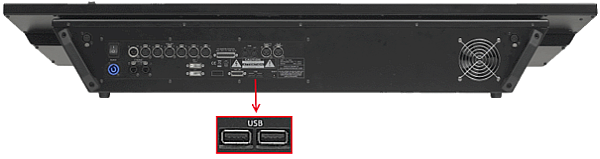 *grandMA2 full-size USB connector rear panel*
# Position the device
> Follow the instructions below:
Follow the instructions below: * Do not place the device in humid rooms. * Place the device onto a stable, flat and dry area. * Do not cover the ventilation holes. * Do not place the device directly into the sun. * Keep a minimum distance of 15 cm ( 5.91 inches) between multi-touch screen surface and radio intercom systems. If you go below the minimum distance, this may lead to unexpected behaviors such as unwanted multi-touch actions or mouse movements.
# Setup your PC
> To run grandMA2 onPC with the best result, we recommend to adjust the following settings on your PC.
To run grandMA2 onPC with the best result, we recommend to adjust the following settings on your PC. *** ## Turn on High Performance Power Plan [Section titled “Turn on High Performance Power Plan”](#turn-on-high-performance-power-plan) To turn on the high performance power plan: * Click the **Start** button , and then click **Control Panel**. In the search box, type power options, and then click **Power Options**. Under Select a power plan, click **Show additional plans**, and then click **High performance**. The high performance power plan is turned on. *** ## Optimize High Performance Power Options [Section titled “Optimize High Performance Power Options”](#optimize-high-performance-power-options) Turn off everything what can interrupt the grandMA2 onPC. To optimize the power options: 1. Click **Change plan settings**, and then **Change advance power settings**. 2. Choose for turn off the hard disk, **Never**. 3. Choose for USB selective suspend setting, **Disabled**. 4. **Click Save changes**. The power options are optimized. *** ## Choose Windows® Design Classic [Section titled “Choose Windows® Design Classic”](#choose-windows-design-classic) To conserve the graphic card resources, select the Windows® Classic design. * Click the **Start** button , and then click **Control Panel**. In the search box, type personalization, and then click **Personalization**. Under Basic and High Contrast Themes, click **Windows® Classic.** The Windows Classic design is selected. *** ## Disable the Screen Saver [Section titled “Disable the Screen Saver”](#disable-the-screen-saver) To conserve the graphic card resources, disable the screen saver. * Click the **Start** button , and then click **Control Panel**. In the search box, type personalization, and then click **Personalization**. Click **Screen Saver**, and select in the drop down **None**. The screen saver is disabled. *** ## Optimize System Settings [Section titled “Optimize System Settings”](#optimize-system-settings) To optimize the system settings: 1. Click the **Start** button , and then click **Control Panel**. In the search box, type system, and then click **System**. Click **Advanced system settings,** and select the tab **Advanced**, click under Performance, **Settings…** . 2. Select tab **Advanced** and click **Background service**. 3. For low performance graphic cards only:\ Select tab **Visual Effects** and change the performance options to **best performance**.\ Click **Adjust for best performance**. The system settings are optimized. *** ## Assign grandMA2 onPC to the High Performance Graphic Card [Section titled “Assign grandMA2 onPC to the High Performance Graphic Card”](#assign-grandma2-onpc-to-the-high-performance-graphic-card) **Information:**\ Only if the PC has a on-board graphic card and an additional High Performance Graphic card. To assign the grandMA2 onPC software to the high performance graphic card: * Open the Control Panel of the high performance graphic card. For more information, see the manual of the high performance graphic card. The grandMA2 onPC software is assigned to the high performance graphic card. *** ## Select dedicated AMD Graphic Card [Section titled “Select dedicated AMD Graphic Card”](#select-dedicated-amd-graphic-card) **Information:**\ Only if you have an integrated Intel HD graphic card and a dedicated AMD graphic card in your computer, it is necessary to select the dedicated AMD graphic card manually. To select the dedicated AMD graphic card: 1. Right mouse click on desktop and select **Catalyst Graphics Properties**. 2. Click under Power at **Switchable Graphics Application Settings.** 3. Click at **All Applications**. 4. Search for grandMA2 onPC and select in the drop down menu under Graphic Settings **High Performance.** 5. Click **Apply.** grandMA2 onPC is using the dedicated AMD graphic card.
# Turn on the console the first time
> Requirement:he console is placed on a stable surface and is connected to power.
**Requirement:** The console is placed on a stable surface and is connected to power. 1. Switch on the power switch on the console´s rear panel. 2. Press the power button on the console´s front panel. The console starts to boot and the pop-up **Confirm End User License Agreement** opens. 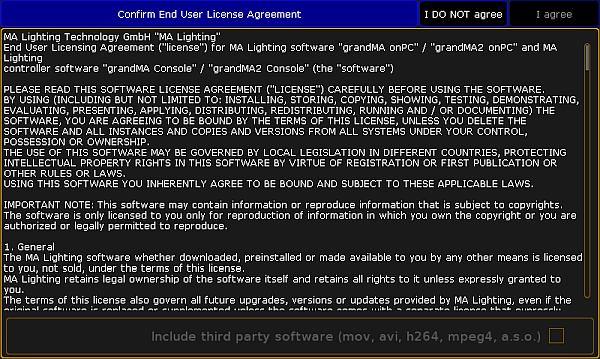 *Pop-up end user license agreement* To activate the button **I agree** in the upper right corner of the pop-up, scroll all the way down. **Important:**\ The MA Software package provides the capability to use additional proprietary third-party software, which allows the usage of diverse media content. This is subject to license terms and to responsibility of fulfillment of license terms including proper licensing. If you decide to install the MA Software package along with the third-party software, check the box in the lower right corner. The MA Software package without the third-party software still allows the usage of non-proprietary media software (VP8, VP9).  *Confirm end user license agreement* **Note:**\ If you should subsequently decide to use third-party software, you can do so by checking the box in **Setup**:\ Press Setup, then tap Console – Software Update – End User License Agreement. Eventually, check the box in the lower right corner of the pop-up. **Important:**\ Note that you cannot check the box while the session is running. The console has to be in the standalone mode. Now open the gma2\_start\_show\.show\.gz by pressing Backup and then tapping Demoshows – Load Show. Select the show, tap Check All and then Load Show. To close the backup menu, tap  in the upper right corner of the menu.  *grandMA2 start show on screen 1*
# Unpack the device
> Information:
* Unpack the device. Remove all packing material, strips and protection films. * Keep the packing material for transport. **Information:**\ The device was tested for proper function at the factory.
# Glossary
> Art-Net:
## A [Section titled “A”](#a) **Art-Net:**\ Art-Net 3 Ethernet communication standard. A protocol for transmitting the lighting control protocol DMX 512-A via the User Datagram Protocol of the Internet Protocol suite. For information on how to use Art-Net see [Network Protocols](/grandma2/key_network_dmx_protocols/). For information on how to assign Art-Net Presets on ports for the MA Network Switch see [Control the MA Network Switch - Edit Presets](/grandma2/key_control_ma_switch_presets/). **Attributes:**\ Controllable function of a fixture, e.g., pan or gobo wheel3. **Auto Fixed:**\ If you change the page, all executors which are on will automatically be fixed. ## B [Section titled “B”](#b) **Blind:**\ Create values without DMX output. For more information see [Blind Key](/grandma2/key_key_blind/) and [Blind Command](/grandma2/key_keyword_blind/). **B.O.** (black out):\ Brings dimmer values to zero. For more information see [B.O. Key](/grandma2/key_key_blackout/). **BPM** (beats per minute):\ Speed of chasers or effects is counted in beats per minute. ## C [Section titled “C”](#c) **Channel:**\ For more information see [Channel Sheet](/grandma2/key_of_channel_sheet/). **Channel Sets:**\ Predefined values within the fixture type for fast access. **Chaser:**\ A chaser is an executor mode that runs randomly, in a loop or bounces in the cue list. For more information see [Chasers](/grandma2/key_chaser/). **Cmd** (Command):\ Instructions you enter into the console. **Command Section:**\ Area on the right of the console used to enter commands into the command line using keys. For more information see [Command section](/grandma2/key_ws_command_section/). **Command Line:**\ The command line is located at the bottom of screen 1 and screen 2. It is used to enter commands into the console. For more information see [Workspace - User Interface - Command Line](/grandma2/key_widget_command_line/). **Constant bit rate (CBR):**\ Constant bit rate defines the bit rate images are encoded with. The data stream is constant. This means that every image has the same size. Constant bit rate is used in [bitmap fixtures](/grandma2/key_bitmapfixture/). **Control:**\ Control attributes are, for example lamp control, fixture global and scan rate. **Cue:**\ Cues contain values that were stored. For more information see [What are cues and sequences](/grandma2/key_cs_what_are/). **Cue List:**\ List containing more than one cue and which is stored on an executor. ## D [Section titled “D”](#d) **DHCP** (Dynamic Host Control Protocol):\ Is a standardized network protocol used on Internet Protocol (IP) networks for dynamically distributing network configuration parameters, such as IP addresses for interfaces and services. With DHCP, computers request IP addresses and networking parameters automatically from a DHCP server, reducing the need for a network administrator or a user to configure these settings manually. To enable or disable DHCP for the MA Network Switch see [Control the MA Network Switch - Enable DHCP client](/grandma2/key_control_ma_switch_dhcp/). **Dimmer Wheel:**\ The wheel located rightmost on the console. It is always assigned to the dimmer attributes of the selected fixtures. **DMX** (digital multiplex, DMX 512):\ Communication protocol that connect light consoles with fixture types. **DMX address:**\ Is the start address which you have on the fixture and in console. **[]()DMX channel:**\ Each attribute of a fixture needs one (8bit) or two (16bit) DMX channels. 512 DMX channels are one DMX universe. **DMX footprint:**\ Is an indicator for how many DMX channels the fixture type needs. **[]()DMX universe:**\ One DMX universe contains 512 DMX channels. You can connect one universe to one XLR connector. **DVI-D** (digital visual interface - digital):\ Connection for external screen. For more information see [Device Overview](/grandma2/key_device_overview/). ## E [Section titled “E”](#e) **Effect:**\ Manipulates and creates looping changes of values from attributes. **Encoder:**\ The five round rotary knobs below screen 1, to control values of attributes or scroll on the screen. For more information see [Device Overview](/grandma2/key_device_overview/). **Ethernet:**\ Is a local network with bus topology, what allows multiply devices access at the same time. It is used for communication between light consoles. The grandMA2 consoles have two Ethernet connectors. For more information see [Device Overview](/grandma2/key_device_overview/). **Executor:**\ Button and fader executor on the console and executor in the virtual playbacks. You store cues on an executor. For more information see [What are executors](/grandma2/key_exec_what_are/). **Executor Button:**\ Physical key on the console to execute cues. **Executor Fader:**\ Physical fader on the console to execute cues. **Executor Time Master:**\ Overrides cue fade and on/off times and sets the cue delay to zero. ## F [Section titled “F”](#f) **Fade time:**\ Time for changing from one value to another value. **Fader Wing:**\ Is an extension for the console with additional faders and executor Buttons. **Feature:**\ Group of attributes. **Fixture ID:**\ Unique identifier for each fixture. Set the fixture ID in the [Patch & Fixture Schedule](/grandma2/key_patch_add_fixtures/). **Fixture Library:**\ Library with all common fixture types to import fixture types into the show file. **Fixture Type:**\ Every device you can control from the console. In the fixture type is the assignment of the attributes to the DMX channels. **Flip:**\ Flip is a function to change the pan and tilt combination and point your fixture in the same direction. Refer to, Position Preset Type View. **Frame** (fps = frames per second):\ Is a picture frequency. The default setting is 30 fps. From this follows that 1 frame is equivalent to 0.03 seconds. ## G [Section titled “G”](#g) **Grand master:**\ Fader rightmost at the console to reduce all dimmer values. For more information see [Device Overview](/grandma2/key_device_overview/). Groups relating to the Groups Pool: **[]()Groups** relating to the MA Network Switch:\ A logical segment of network users and resources grouped by function, team, or application. This segmentation is without regard to the physical location of the users and resources. Also known as VLAN. To edit groups see [Control the MA Network Switch - Edit Groups](/grandma2/key_control_ma_switch_groups/). ## H [Section titled “H”](#h) **Hue:**\ The color of a color notation in an angle between 0 and 360 degrees. ## I [Section titled “I”](#i) **IGMP** (Internet Group Management Protocol):\ A protocol that manages how adapters and other components join and leave multicast groups. IGMP snooping is a feature of IGMP that allows Ethernet switches to look (snoop) inside packets to determine which destinations really need to receive the data. To edit IGMP settings for the MA Network Switch see [Control the MA Network Switch - Edit Groups](/grandma2/key_control_ma_switch_groups/). **Instances:**\ Single controls of the fixture types, e.g. one pixel of a LED panel. **Iris:**\ An aperture that controls the beam size of a fixture. ## L [Section titled “L”](#l) **LLDP** (Link Layer Discovery Protocol):\ Used by network devices for advertising their identity, capabilities, and neighbors on an IEEE 802 local area network. LLDP will be disabled or enabled along with RSTP. To enable or disable RSTP see [Control the MA Network Switch - Configure Ports](/grandma2/key_control_ma_switch_ports/). **Lua:**\ Is a multi-paradigm programing language primarily designed for embedded systems and clients. ## M [Section titled “M”](#m) **Macro:**\ Prerecorded command combinations. **MA-Net2**:\ Integral part of the MA System architecture. All MA series 2 devices are connected via the MA-Net2 as if they were one device. All of these components contain all system data that is needed to control the processes and to synchronize the outputs in real-time. To use MA-Net2 see [Network Protocols](/grandma2/key_network_dmx_protocols/). To assign MA-Net2 Presets on ports for the MA Network Switch see [Control the MA Network Switch - Edit Presets](/grandma2/key_control_ma_switch_presets/). **Master Rate:**\ The master rate multiplies all timings by a factor.\ The factors from the master rate goes from Stop (= no further output) via 1:1 (=stored timings) up to 256 (=multiplies the timing by 256).\ The master rate is a dynamic fader that means, if that fader has the position of 50 % the rate fader has the factor 1:1. From 1:1 the fader goes dynamic up to 256 that equates a fader position from 100 %. It is the same from 1:1 down to Stop. **Master Speed:**\ Controls the speed of effects and the playback speed of chasers. **Mbps** (Megabit per second):\ Unit of data transfer rate. The data transfer rate of the etherCON ports is 10/100/1000 Mbps. **MIDI** (musical instrument digital interface):\ A standard to exchange control signals with the console. **MSC** (MIDI Show Control):\ MSC sends the executor functions via MIDI signal to another device, e.g. another console or a MIDI sequencer. ## N [Section titled “N”](#n) **Natural Values:**\ The dot2 displays all raw channel views in natural values with one decimal place.\ Usually the range is from 0 to 100 and equates the DMX values from 0 to 255.\ Exception: The range from pan is -270 to 270 and from tilt is -125 to 155. ## O [Section titled “O”](#o) **Out Delay**:\ Wait time for dimmer values going to a lower intensity level. ## P [Section titled “P”](#p) **Pan:**\ Horizontal movement axis of an fixture. **Presets:**\ There are nine preset types to control from the console. Refer to, Preset Pool View and Preset Type Bar. **Priority:**\ Some values have a higher priority than others. In other words, they will not be overwritten by those with a lower priority. The programmer, for instance, has a higher priority than an executor. **Programmer:**\ Is a container with the current selection of fixtures and values of manual adjusted attributes. Programmer values are red values. For more information about the colors see [Workspace – Colors](/grandma2/key_ws_colors/). **Program Time Master:**\ The program time master controls the fade times of all program values and effects between the 0 and 10 seconds. Adjust time in **Setup – User – Settings – Max. Program Time**. \ This affects both, the adding of new values into the programmer, and the removing of values from the programmer with the Clear key.\ The program time master can be a fader. Refer to, Empty Executor Window. ## R [Section titled “R”](#r) **RDM** (= Remote Device Management Protocol):\ Permits intelligent bidirectional communication between devices from multiple manufacturers using a modified DMX512 data link. RDM is an EF 1.0 implementation of ANSI E1.11 (DMX512-A). To use RDM see [RDM](/grandma2/key_rdm/). **Rpm** (revolutions per minute):\ Rotation speed of a gobo wheel in the unit revolutions per minute. **RSTP** (Rapid Spanning Tree Protocol):\ Provides significantly faster spanning tree convergence after a topology change, introducing new convergence behaviors and bridge port roles to do this. To enable or disable RSTP for a port see [Control the MA Network Switch - Configure Ports](/grandma2/key_control_ma_switch_ports/). ## S [Section titled “S”](#s) **sACN** (streaming Architecture for Control Networks)\ ANSI E1.31-2009. A protocol to transport DMX512 data over IP networks. To use [sACN see Network Protocols](/grandma2/key_network_dmx_protocols/). **Shutter:**\ Fast open and close of the light output of a fixture type. **SMPTE** (society of motion picture and television engineers):\ Is a timecode to synchronize different devices from different manufacturers in the audio and video technology. **Snap:**\ A lot of fixture types with gobo and color wheels have snap channels.\ That means those attributes will be directly executed disregarding the cue fade time. **Snap Percent:**\ Is a setting after how much percent of the fade time the attribute will be executed.\ The default value for snap channels is 0 %. **Spanning Tree**:\ Used with network topologies that provide more than one physical path between two devices, spanning tree protocol manages path redundancies while preventing undesirable loops in the network. If a fault should occur on an active port, the switch will begin transmitting out one of the blocked ports. **Special Master:**\ Is an executor with a special function, e.g. Program Time Master or Master Rate. **Speed Master:**\ See Master Speed. **Strobe:**\ Repeating fast open and close of the light output of a fixture. ## T [Section titled “T”](#t) **Tilt:**\ Vertical movement axis of an fixture. **Trig** (Trigger):\ Call of a cue. **Trunk**:\ This is the name given to the interconnection links between switches in a network. The Trunk links are meant to forward the groups based packets. In most case, the Trunk links will be the redundant links. To assign a port the Trunk group see [Control the MA Network Switch - Configure Ports](/grandma2/key_control_ma_switch_ports/). ## U [Section titled “U”](#u) **UID** (= Unique Identifier):\ All RDM devices have a unique identifier (UID) that consists of a manufacturer ID and serial number. The UID can be used as an option for several RDM keywords. To get a list of all available RDM keywords, see [specific RDM keywords](/grandma2/key_rdm_keywords/). **Universe:**\ See [DMX Universe](#DMX%20universe). ## V [Section titled “V”](#v) **VLAN** (Virtual local-area network):\ For more information see [Groups](#Groups%20relating%20to%20the%20MA%20Network%20Switch) relating to the MA Network Switch. ## W [Section titled “W”](#w) **Web remote:**\ Grants remote access to the grandMA2 console via a web browser. ## X [Section titled “X”](#x) **XFade**:\ Is the right fader next to the Master Fader. With the XFade you fade manual from one cue to the next cue. **XLR A-D:**\ Four pin connector for DMX signal at the back of the console. For more information see [Technical Data](/grandma2/key_technical_data/).
# Groups
> Groups are collections of fixtures used for fast selection.
Groups are collections of fixtures used for fast selection. Combinations of fixtures that you often use can be stored as Groups so you don’t have to manually select them every time you use them. Groups are merely shortcuts for selecting fixtures: Group 5 At 50 , Store Cue 3 will set the\_ fixtures \_in Group 5 to 50%, not Group 5 to 50, so any later changes to Group 5 will not be reflected in Cue 3. **Important:**\ Groups remember the \_order \_of the selection. Fixture 1 + 2 is not the same as Fixture 2 + 1. The order of a selection is important when applying effects and value-ranges, which will be distributed along the selection. ## Group Pool Window [Section titled “Group Pool Window”](#group-pool-window) Your groups are displayed in the Group pool Window.  *Group pool - Pool style* There are different colored horizontal bars in the middle of each group pool button. Some colors can be changed by you, others are fixed. Each Group pool button can also have an individual frame color. There might be an information “i” on the group. This is visible if there’s any information attached to the group. The Group pool can also be displayed in a Sheet style. The then above groups would look like this:  *Group pool - Sheet style* Read below about the Group pool options to learn how to change the pool style. In the sheet style you can see all the same things as in the pool style. Plus you can read any information that are written on a group. In the title bar you can choose if you want the group sheet to display or hide empty groups. All columns can be sorted in ascending or descending order by pressing the Edit key and then the column title or if you have a mouse or trackball you can right click the column title. ## Group pool options [Section titled “Group pool options”](#group-pool-options) In the options you can set colors for corresponding options. For more information see [change specific group colors](/grandma2/key_groups_change_specific_group_colors/). For more information on general pool options see [adjust pool options](/grandma2/key_pools_options/). The following pages tells you how to [Create and name Groups](/grandma2/key_groups_create_groups/). How to [Auto Create Groups](/grandma2/key_groups_auto_create/). A little bit about [using the Groups in your programming](/grandma2/key_groups_using/). How to [Delete, Copy and Move Groups](/grandma2/key_groups_choose_copy_method/). ## Subtopics [Section titled “Subtopics”](#subtopics) * [Create groups](/grandma2/key_groups_create_groups/) * [Auto create groups](/grandma2/key_groups_auto_create/) * [Using groups when programming](/grandma2/key_groups_using/) * [Choose copy method](/grandma2/key_groups_choose_copy_method/) * [Change specific group colors](/grandma2/key_groups_change_specific_group_colors/) * [Group masters](/grandma2/key_groups_master/)
# Auto create groups
> You can auto create groups.
You can auto create groups. You do this by using the Auto Create menu. You will find this in the Setup -> Show -> Auto Create. This menu is separated into different tabs. One is called “Group” and it could look like this: 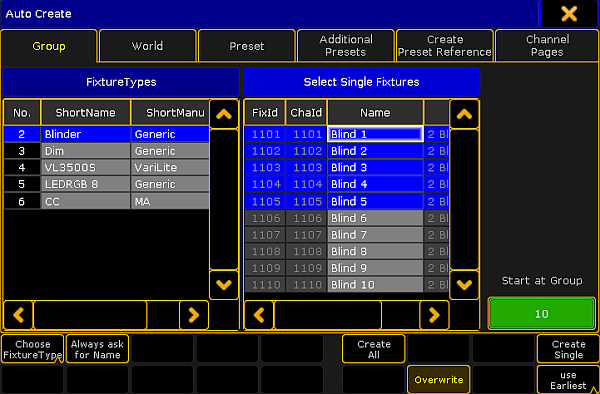 *Auto Create menu - Group* There are two different sections of this window. The left one can displays the Fixture Types or the Layers (depending on your settings - read below). The right one displays the single fixtures of the selection in the left section. On the far right side there is a small green input box where you can manually select the group number where the first created group should begin. Everything that has a blue background is selected. Multiple selection is possible using the Ctrl key on the keyboard. The bottom part of the menu have different buttons: **Choose:** This button has two different modes: **Layer** and **Fixture Type**. It chooses what the left section displays. **Always ask for Name:** When this is On (yellow text and background), you will get a name pop-up for each selected Layer or Fixture Type when you create “All” groups. **Create All:** This will create “All” groups for each of the selected Fixture Types or Layers. **Create Single:** This will create single groups for every one of the selected fixtures. **Overwrite:** This will allow for auto create groups to overwrite existing groups. If this is off, and there is a conflict, the console will present you with a Auto Create Conflict pop-up (read more about this below). **Use:** This button has two modes. When it is **Earliest** the console will use the first free pool button. When it is **Latest** the console will use the first pool button after the last one used. ## Work flow when auto creating groups [Section titled “Work flow when auto creating groups”](#work-flow-when-auto-creating-groups) So the work flow is that you select the separation order in the left section using the Choose button. ### All groups [Section titled “All groups”](#all-groups) If you want to create “All” groups then you need to select the Fixture Types or Layers. Then select the first group number. Either by typing the number in the green input box or by the Use button. Now you need to select if you want to name each group manually (activating the Always ask for Name button) and if you want to overwrite existing groups (using the Overwrite button). Last thing is to tap the Create All button. ### Single groups [Section titled “Single groups”](#single-groups) If you want to create “Single” groups then you need to select the Fixture Types or Layers and then the one of the sections in the left side. You can then select the fixture you want in the right side. You can use a lasso function to select several fixtures or you can hold the Ctrl key and select or de-select fixtures in the list. Then select the first group number. Either by typing the number in the green input box or by the Use button. Now you need to select if you want to name each group manually (activating the Always ask for Name button) and if you want to overwrite existing groups (using the Overwrite button). Last thing is to tap the Create Single button. ## []()Auto Create Conflict pop-up [Section titled “Auto Create Conflict pop-up”](#auto-create-conflict-pop-up) If “Overwrite” is not active and there is a conflict, then you will get a pop-up like this:  *Auto Create Conflict pop-up* This pop-up has four options: **Overwrite:** This will delete the current content in the group (world, preset, or channel page) and store the new selection instead. **Merge:** This will add the new content to the current content (group, world, preset, or channel page). The new content will be added after the existing content. For example if you have a group with fixture 1, 3 and 5 and you merge in fixtures 2, 4 and 6. Then your group will have fixtures 1 to 6, but the selection order will be 1,3,5,2,4,6. **Skip to next Empty:** This will store the new content (group, world, preset, or channel page) at the first empty position. **Skip to latest Empty:** This will store the content at the pool object after the currently last used pool object. For example if the highest group number you have is 11 then it will create group 12.
# Change specific group colors
> The following describes how to set colors in All in Order and All out of Order in Group Options.
The following describes how to set colors in All in Order and All out of Order in Group Options. * All in Order shows that the fixtures are selected in the same order they were initially stored in the corresponding group. * All Out of Order shows that the fixtures are selected in a different order they were initially stored in the corresponding group. To change the group colors in All in Order and All Out of Order: 1. Open the\*\* \*\*pool Groups.\ \- Tap on an empty space on the screen. Create Basic Window opens.\ \- Tap Pools, then tap Groups. 2. Tap the **yellow ball**  in the upper left corner of the Group Pool Window. \ Group Options opens. \ \ \ *Group Options*\ 3. Tap All In Order and then choose a color from the **color table** or the **color circle.** \ \- The color you have chosen is displayed as a line within the pool object right above the font of the pool object. 4. Tap All Out of Order and then choose a color from the **color table** or the **color circle.**\ \- The color you have chosen is displayed as a line within the pool object right above the font of the pool object. Let´s say we have selected the color green in All in Order and the color yellow in All Out of Order. This is what it would look like:  *Group colors* For more information on how to reset and adjust colors, change the pool into sheet style and/or how to use the **Hue**, \*\*Saturation \*\*and the \*\*Brightness \*\*slider see [Adjust pool options](/grandma2/key_pools_options/). **Important:**\ Some fixtures may have a red line within the pool object right above the font of the pool object. This red line is automatically generated when all fixtures or a part of fixtures are not available due to storing onto another [world](/grandma2/key_keyword_world/). The pool options are now adjusted to your needs and are saved in your user profile. **Hint:**\*\*\*\*\ You can also use the [Appearance keyword](/grandma2/key_keyword_appearance/) to change the color of one or more pool objects.
# Choose copy method
> Requirements:
**Requirements:** * Copy a group object in the group pool * Target group object has to be occupied For more information how to copy pool objects see [Manage pool objects](/grandma2/key_pools_manage/). When you copy a group to a location where there’s already a group then a pop-up opens. This pop-up shows three options: **Overwrite -** This will delete the current content in the group at the location and add the new content. It’ won’t change the group name. **Merge** - Adds new fixtures to the existing fixtures in the group. The order of the selected fixtures depends on which fixtures you selected first, e.g., the new fixtures are attached to the existing fixtures in their selection order. It won’t change the group name. **Cancel -** This will cancel the copy operation. You can also cancel copy by closing the pop-up by tapping the X in the upper right corner.
# Create groups
> Groups contain a selection of fixtures and the selection order of the fixtures.
Groups contain a selection of fixtures and the selection order of the fixtures. To create groups you’ll need to select some fixtures first. ## Create group using Group pool (GUI) [Section titled “Create group using Group pool (GUI)”](#create-group-using-group-pool-gui) When you have a selection of fixtures, then you can store it as a group. For more information on how to store group objects see [Manage pool objects](/grandma2/key_pools_manage/). ## Store a group on an existing group [Section titled “Store a group on an existing group”](#store-a-group-on-an-existing-group) If you store a selection of fixtures into an existing group then you are presented with some options. It’s the Choose store Method pop-up: 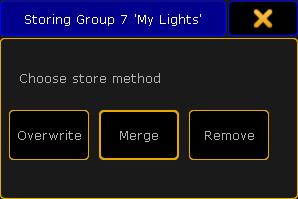 *Choose store method pop-up* There’s three options here: * Overwrite This will delete the current content in the group and store the new selection instead. * Merge This will add the new fixtures to the current fixtures. The new fixtures are added after the existing fixtures. I.e. if you have a group with fixture 1, 3 and 5 and you merge in fixtures 2, 4 and 6. Then your group will have fixtures 1 to 6 but the selection order will be 1,3,5,2,4,6. * Remove This will remove your currently selected fixtures from the group (should they be there). If you tap the X in the upper right corner of the pop-up then you cancel the store operation. ## Labeling the groups [Section titled “Labeling the groups”](#labeling-the-groups) The grandMA2 will try to give the group a name when you store it. But if your selection is to complex for the console, then it’ll just call it “Group” and then the group number. Immediately after you have stored the group, you can start typing on the keyboard. This will name the group you just stored. If you wish to name the group later then you can use the [Label command](/grandma2/key_keyword_label/). For more information on how to label the groups see [Manage pool objects](/grandma2/key_pools_manage/). ## Editing groups [Section titled “Editing groups”](#editing-groups) When you are in the edit mode, then you get the group content as selected fixtures in your programmer. You can then change this selection. If you want to save the new selection then you press the Update key and confirm that you want to update the group in the small confirmation pop-up. For more information on how to edit groups see [Manage pool objects](/grandma2/key_pools_manage/).
# Group masters
> Groups can be assigned to Executors and be used as group masters.
Groups can be assigned to Executors and be used as group masters. The idea is that you create the group in the pool and this group can be assigned to an executor with a fader. The fader can then be used to set a limit of the groups dimmer output. There is also a special mode that allows you to use the fader to produce dimmer output. Read about the different modes below. When a fixture is limited then the Fixture/Channel ID and Name gets a lavender background color. It could look like this: 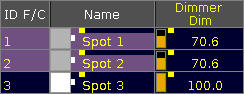 *A Fixture sheet with fixtures limited by a Group Master* The two limiting Group Masters (positive and negative modes) works as relative masters - not maximum masters. This means that if a fixture is told to be at 50% by a cue and is limited by a Group Master by 50%, then the output from the fixture is 25%: 50% of 50%. ## Assigning a group to an Executor [Section titled “Assigning a group to an Executor”](#assigning-a-group-to-an-executor) There are several ways to assign a group to an executor. ### Using the keys [Section titled “Using the keys”](#using-the-keys) If you want to assign group number 1 at executor 3 on page 2 then you need to press the following keys: Assign Group 1 At Exec 2 . 3 Please ### Using the Screens [Section titled “Using the Screens”](#using-the-screens) When we say using the screens, we cannot just use the touch screens - it a combination of keys and screens. Have a group pool visible. Press the Assign key, then the group in the group pool, and then any of the keys associated with the executor where you want the group master. ### Using the assign menu [Section titled “Using the assign menu”](#using-the-assign-menu) You can also open the **Assign Menu** for the executor and use that to assign a group. Tap the area on the mini executor view (at the bottom of screen 3 and 4) marked red in this picture:  *Mini executor with open Assign Menu* This will open the Assign Menu on one of the screens (default is screen 1) - read more about the Assign Menu [here](/grandma2/key_exec_assign/). Make sure the **Function** part of the Assign Menu is visible by tapping Function on the right side of the menu - or possible pressing U1 if the menu is on screen 1. In the lower right side of the view you will find a button called Group Master - tap this or press the X8 key (if it is on screen 1). This will list all the available groups on the right side of the menu. Here you can select the group you want to assign. When you are done you can close the **Assign menu** by tapping the X in the upper right corner. ## Group master modes [Section titled “Group master modes”](#group-master-modes) The group masters can have three different modes. They are called **Positive**, **Negative**, and **Additive**. When a group is assigned to an Executor, then open the Assign Menu and look at the **Options** part of it. You can change to it by tapping the Options button on the right side of the menu - or possible by pressing the U2 key if the menu is on screen 1. In this menu there is only one button called “Mode”. Tapping this will open the **Select Group Master Mode pop-up**: 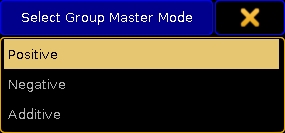 *Select Group Master Mode pop-up* Here you can select what mode the Group Master should use. ### The difference between Positive and Negative Group Masters [Section titled “The difference between Positive and Negative Group Masters”](#the-difference-between-positive-and-negative-group-masters) The only situation where the two modes have an effect is when there is an overlap of fixtures in several Group Masters. A Positive Group Master works by a “highest takes precedence” principle. This means that a fixture will be allowed to output light it is allowed by any one of several Group Masters. This is what the **Mini Executor** looks like with a positive Group Master assigned - notice the “P” in the top center part:  *Positive Group Master - Mini Executor* ### Positive example [Section titled “Positive example”](#positive-example) We have two Group Masters. One has fixture 1 and 2. The other has fixture 2 and 3. All three fixtures are told to be at 100% by the programmer or a cue. Both Group Masters are at 100%. If you limit the first Group Master (the one with 1 + 2) then you are only limiting fixture 1 because fixture 2 is allowed in the second Group Master. A Negative Group Master works by a “lowest takes precedence” principle. This means that a fixture will be limited in outputting light if it is limited in any of several Group Masters. This is what the **Mini Executor** looks like with a negative Group Master assigned - notice the “N” in the top center part:  *Negative Group Master - Mini Executor* ### Negative example [Section titled “Negative example”](#negative-example) We have two Group Masters. One has fixture 1 and 2. The other has fixture 2 and 3. All three fixtures are told to be at 100% by the programmer or a cue. Both Group Masters are at 100%. If you limit the first Group Master (the one with 1 + 2) then you are limiting both fixture 1 and 2 even though fixture 2 is allowed in the second Group Master. ### Additive Group Master [Section titled “Additive Group Master”](#additive-group-master) The last mode is the Additive Group Master. This mode gives values to the fixtures in your group. So they do not need to have a values from cues or the programmer. So turning up the master will give the fixtures the corresponding output. If the fixture already has a value, then the Group Master will not take affect before the Master goes above that value. This is what the **Mini Executor** looks like with an additive Group Master assigned - notice the white arrow in the top center part:  *Additive Group Master - Mini Executor* When a fixture gets a value from an additive Group Master, then it gets a small white arrow next to ID number and a darker lavender background color. It could look like this: 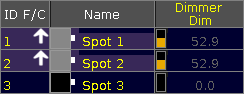 *Fixtures with values from an Additive Group Master* ## Locate a Group Master [Section titled “Locate a Group Master”](#locate-a-group-master) You can use the Locate command to find a Group Master for a group. The locate function will only find (and change page to) the first location for the group. For example if you want to find the group master for group number 3, then you can write the following command: \[Channel]> locate group 3 This will change to the page where the Group Master is and the middle part of the Mini Executor will look like this:  *Located Group Master - Mini Executor* To exit the locate function, you will need to execute the locate command without anything specified. Read more about the [locate command here](/grandma2/key_keyword_locate/). ## []()Group Master view [Section titled “Group Master view”](#group-master-view) A better way the see or find your Group Masters might the **Masters Window** or the temporary **Masters view**. They provide an overview off all the group masters in the show. They are described in the [Masters Window topic](/grandma2/key_adv_exec_master_window/).
# Using groups when programming
> When some groups have been created, then they can be used during programming.
When some groups have been created, then they can be used during programming. Groups are shortcuts to select fixtures. There is no reference to the group stored anywhere. This means that if the group is changed after being used, then it will not affect the stored cues. The work flow is to tap a group in the pool, give it some values, and then maybe storing the values. ## Using names or numbers [Section titled “Using names or numbers”](#using-names-or-numbers) Groups can be accessed by their names or numbers. If group number 7 is named **My Lights**, then it is possible to use the command line and write Group 7 at 50 or g “My Lights” at 50 (“g” is the command shortcut for group). If there are more groups called **My Lights** then all the groups with that name will get the value. Capital letters are ignored. So **My Lights** and **my lights** are considered the same. It is possible to use an asterisk as a joker. Let us imagine that there are three groups called **Wash 1**, **Wash 2** and **Wash 3**. If all three groups needs to get 50%, then all is needed is to write g wash\* at 50. In the last example we did not need the quotation marks. They are needed if the name have a space in it. But if an asterisk is used then quotation is not needed, even though the resulting groups actually have a space in their names. The asterisk can also be used in front of the name. If there are several groups with the word **cold** in the name and all of them needs to go to 60, then write the following g \*cold\* at 60.
# Image limitations & guidelines for symbols
> There are few limitations regarding the size of images and the pool there.
There are few limitations regarding the size of images and the pool there. ## Limitations [Section titled “Limitations”](#limitations) * Each image has a maximum of 64MB. * The overall size of the image pool has a maximum of 100MB. * Resolutions higher than 1920 x 1080 are scaled down automatically. ## Guidelines for symbols: [Section titled “Guidelines for symbols:”](#guidelines-for-symbols) * Use the supported file formats (for more information see [supported file formats](/grandma2/key_image_supported_file_formats/)). * Maximum size of the canvas is 240 x 240. * Maximum size of the image is 180 x 180. * Outline of the symbol has to be 2 pixels in 50 % gray. * Symbols have to be in alpha fill (transparent). * The area around a symbol has to be black.
# Image Pool
> The grandMA2 has an image pool with predefined images, which cannot be edited.
The grandMA2 has an image pool with predefined images, which cannot be edited. ## Open the Image Pool [Section titled “Open the Image Pool”](#open-the-image-pool) To open the image pool: 1. Tap anywhere in the **user-defined area**. 2. The pop-up **Create Basic Window** opens. 3. Next, tap the tab Pools. 4. Then, tap Images. 5. The image pool opens.  *Image pool* Images in the image pool are either marked by: * (red padlock) symbolizes that the images are predefined. -or- *  (orange padlock) symbolizes that the image was locked by the user. These images, however, can be unlocked. To lock or unlock an image, use the command line. ### Example: [Section titled “Example: ”](#example-) \[Channel]> Lock Image 14 Locks image 14 and displays an orange padlock within the pool object. *** ## Usage of Images [Section titled “Usage of Images”](#usage-of-images) It is possible to use the images in the grandMA2: * In bitmap effects * As background in layouts and assign images to objects in layouts * As background in Desk Lock *** ## Image Options [Section titled “Image Options”](#image-options) To open the options of the image pool, tap  in the upper left corner of the pool. The options of the image pool generally behave the same as in the most pools. Hence, see [adjust pool options](/grandma2/key_pools_options/). ## Subtopics [Section titled “Subtopics”](#subtopics) * [Import images and videos](/grandma2/key_image_import/) * [Image limitations & guidelines for symbols](/grandma2/key_imag_limitations_guidelines/) * [Supported file formats](/grandma2/key_image_supported_file_formats/) * [Delete images and videos](/grandma2/key_image_delete/)
# Delete images and videos
> It is possible to delete an imported image or video in two different ways.
It is possible to delete an imported image or video in two different ways. 1. To delete single images: * Press Del and then tap the image or video you would like to delete. 2. To delete several images at once, type into the command line: \[Channel] > Delete Image 14 Thru 24 Deletes images 14 to 24 in the image pool. **Important:**\ It is not possible to delete or edit predefined images or videos for that matter.
# Import images and videos
> To import images or videos:
To import images or videos: 1. Open the image pool first.\ For information on how to open the image pool see [Image Pool](/grandma2/key_image/). 2. Then press Edit and tap the pool object you would like to store your image or video to. 3. The **Image Viewer** opens.  *Image viewer* 4. Next, tap Import Image. 5. The dialog **Open File** opens. 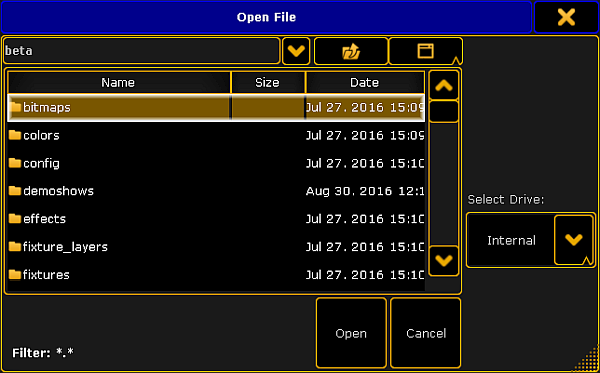 *Image viewer – open file* 6. To select the display of folder in the dialog, tap the screen symbol on the right of the title bar. 7. To select the drive, tap the triangle symbol on the right of the dialog. 8. Tap the folder symbol in the title bar of the dialog and then tap the folder **images** and subsequently the folder **predefined**.\ or:\ Tap the folder **bitmaps** and subsequently **predefined\_images** or **predefined\_videos**. 9. After choosing the folder, tap Open to import the image or Cancel to close the dialog. 10. To label the image or video you have just imported, tap Label on the right of the dialog **Image Viewer**. 11. The image or video you have imported is now in the image pool. **Important:**\ The MA software provides the capability to use additional proprietary third-party software which allows the usage of diverse media content. Proprietary third-party software is subject to license terms included with its documentation. If you decide to install the MA software package including the third-party software, you agree to be alone responsible to fulfill the terms of such license terms including proper licensing. If you install the MA software package without the third-party software, you can still use non-proprietary media software (VP8, VP9 etc.). For more information on the file formats see [Supported file formats](/grandma2/key_image_supported_file_formats/). \ To use the proprietary third-party software:\ -Check the box during the initial startup.\ -or-\ 1\. Press Setup.\ 2\. Tap Console, Software Update, End User License Agreement.\ 3\. Check the box where it says **Include third-party software**. **Important:**\ To import videos or images from a USB, save images or videos in the subfolder **gma2** on your USB first.
# Supported file formats
> If you are not sure which format you can save your videos or images in, see the tables below.
If you are not sure which format you can save your videos or images in, see the tables below. Make sure that you are using one of the following formats: ## Video file formats [Section titled “Video file formats”](#video-file-formats) | Format and File Name Extension | Licensing | | ------------------------------------------------ | --------------------------- | | VP8 (.webm) | Not necessary | | VP9 (.webm) | Not necessary | | MPEG-2 Elementary Stream (for example .mpv, m2v) | Additional license required | | MPEG-4 (.avi, .mov) | Additional license required | ## Image file formats [Section titled “Image file formats”](#image-file-formats) | Format and File Name Extension | | --------------------------------------- | | Bitmap (.bmp) | | JPG and JPEG (.jpg, .jpeg) | | CompuServe GIF (.gif) | | Portable Network Graphics (.png) | | Tagged Image File Format (.tif, .tiff) | If you are using a file format that is not listed above, convert your file first before importing it into the grandMA2.
# Introduction
> The grandMA2 represents MA Lighting’s most powerful console and offers the control of conventional light, moving lights, LED fixtures and media from one platfor
The grandMA2 represents MA Lighting’s most powerful console and offers the control of conventional light, moving lights, LED fixtures and media from one platform. Equipped with the most up-to-date technology and even some special features (e.g., keyboard drawer and multi-touch command screen), the grandMA2 is suitable for all lighting segments. It supplies an intuitive and fast control of all connected fixtures and channels. Furthermore, the grandMA2 fader wing provides up to 60 extra motorized executor faders for an almost unlimited number of pages.\ Moreover, grandMA series 1-showfiles can be converted to be used with the grandMA2. And for yet easier operation, all command keys can be found in the same place on every console of the grandMA2 series. The grandMA2 offers extremely flexible and comfortable ways of programming, including nearly infinite numbers of presets, cues, pages, sequences and effects. All grandMA2 consoles are optionally available as Silent Version with optimized fan for noise-sensitive environments. ## Subtopics [Section titled “Subtopics”](#subtopics) * [About this manual](/grandma2/key_introduction_about_this_manual/) * [System requirements grandMA2 onPC](/grandma2/key_introduction_system_requirements_grandma2_onpc/) * [Installation of grandMA2 onPC](/grandma2/key_introduction_installation_of_grandma2_onpc/) * [Help from MA technical support](/grandma2/key_introduction_help_from_ma_technical_support/)
# About this manual
> Navigation in the Help
[Navigation in the Help](#navigation) [Presentation of Content](#presentation_content) *** ## []()Navigation in the Help [Section titled “Navigation in the Help”](#navigation-in-the-help) Navigate in the help via: * Product Family is displayed in form of a dot. * Tree structure is located on the left of the view. * Search field is located in the upper right corner of the view. *** ## []()Presentation of Content [Section titled “Presentation of Content”](#presentation-of-content) | Display | Definition | | ------------ | ------------------------------------------------------------------------------------------------ | | At | Keys on the console are displayed in an orange font with an orange frame and a black background. | | Dimmer | Buttons on the screen are displayed within a frame. | | 1. Open the… | | 2. Select the… | Step-by-step instructions are displayed in a numeric list. | | - Tap… | One-step instruction are displayed with the help of bullet points. | | **MA Network Control I Join Session** | Navigation to specific menus in the console is displayed in bold. | Syntax descriptions are underlined and displayed in bold. Command line entry is displayed with the help of the command line. Command line response is displayed in the command line feedback.
# Help from MA technical support
> If the grandMA2 is not working as described in the manual, you can take the following steps:
If the grandMA2 is not working as described in the manual, you can take the following steps: * **Error message**: You cannot proceed with the next step of the description and you receive an error message:\ Refer to [Error Messages ](/grandma2/key_error_messages/)and repeat the procedure.\ If the problem is still there, contact the technical support. * **System is not working:** If you cannot proceed with the next step of the description and you do not receive an error message:\ Contact the technical support and describe the last steps you took. ## Technical Service and Support [Section titled “Technical Service and Support”](#technical-service-and-support) MA Lighting and its extensive distributor network offer an unparalleled technical service.\ Call on our expertise for help with any problem, no matter if it is regarding operation, software features, software installations or trouble shooting.\ \ Please send an email (in English or German) to the tech support with your contact details and the technical question. See the email address of the technical support in the footer of this website.\ This email service is monitored during MA Lighting’s regular business hours in Germany from 8.30 a.m. until 5 p.m., Monday through Friday.\ \ **For emergency services please contact your local MA distributor or the MA Lighting Service Hotline.\ Call: +49 5251 688865-99. Please note that this is a 24/7 hotline which is used for emergency cases only. Use this hotline only if troubles occur shortly before an upcoming event.**
# Installation of grandMA2 onPC
> To run the grandMA2 onPC software, it is necessary to copy and install the program files on your PC.
To run the grandMA2 onPC software, it is necessary to copy and install the program files on your PC. It is possible to perform the installation in every root directory or in the **standard directory** “C:\ProgramData\MA Lighting Technologies\grandma”. To make sure that there are no troubles with the installation, deactivate your safety software. 1. Go to [www.malighting.com to](http://www.malighting.com%C2%A0to) download the installation file. 2. Start the file by double-clicking on it. The installation program opens and you receive hints and detailed information regarding the installation. Pay attention to the suggested directory and change it if you want to.\ The installation directory is not modifiable in the grandMA2 onPC. After confirmation, the program files will be copied into the selected directory.
# System requirements grandMA2 onPC
> If you want to run the grandMA2 onPC your PC, here´s what it takes.
If you want to run the grandMA2 onPC your PC, here´s what it takes. | Type | Minimum | Recommended | | ---------------- | ------------------------------------------------------ | ----------- | | Operation system | Windows® 7 | | | | Windows® 8 | | | | Windows® 8.1 | | | | Windows® 10 | | | | Windows® 11 | | | | all with admin rights | | | Processor | CPU Dual Core 2.4 GHz or faster | | | | with SSE2 support | | | RAM | 2 GB | 8 GB | | Hard disk | 32 GB available space | type SSD | | Graphic card | Any graphic card with hardware acceleration and 512 MB | | | Resolution | 1600 x 900 or higher | 1920 x 1080 | | Network card | 100BASE-TX, 1000BASE-T | 1000BASE-T | IBM® compatible PC or notebook is necessary. Additional requirements: * Make sure your Windows® always runs using the latest service pack and updates. * To save a grandMA2 show file as a grandMA3 show file, Windows® 10 is required. For more information see [Save as grandMA3](/grandma2/key_backup_menu_save_as_grandma3/). * To use the online help and to download the latest version of grandMA2 onPC, you need internet access. * To save to a USB stick, you need a USB 2.0 or 3.0 port. We recommend that you visit your PC manufacturer´s website for information about updated drivers and hardware compatibility.
# Align
> The key Align is located in the command area on the right of the key Assign.
The key Align is located in the command area on the right of the key Assign.  \_Location k\_\_ey A\_\_lign \_ Pressing Align toggles between the five align modes for the encoders. The [Align command](/grandma2/key_keyword_align/) will be executed. By default, the align mode is off. 1. **Align <** mode is on. The encoder proportionally adjusts the fixture or channel values. The highest value is on the **last** fixture or channel of the selection. \ 2. **Align >** mode is on. The encoder proportionally adjusts the fixture or channel values. The highest value is on the **first** fixture or channel of the selection.\ 3. **Align ><** mode is on. The encoder proportionally adjusts the fixture or channel values. The highest value is on the **first and last** (inverted) fixture or channel of the selection.\ 4. **Align <>** mode is on. The encoder proportionally adjusts the fixture or channel values. The highest value is on the **center** of the fixture or channel selection.\ 5. **Align** mode is **off**. The encoder **equally** adjusts the fixture or channel selection. The Align mode is displayed in the encoder bar. If you choose an other preset type in the preset control bar, the align mode turns off.
# Assign
> The key Assign is located in the command area on the right of the key Prvw.
The key Assign is located in the command area on the right of the key Prvw.  \_Location k\_\_ey \_\_Assign \_ * Pressing Assign enters [Assign keyword](/grandma2/key_keyword_assign/) into the command line. \[Channel]> Assign * Pressing Assign Assign enters [Label keyword](/grandma2/key_keyword_label/) into the command line. \[Channel]> Label * Pressing Assign Assign Assign enters [Appearance keyword](/grandma2/key_keyword_appearance/) into the command line. \[Channel]> Appearance
# At
> The key At is located in the command area on the right of the key If.
The key At is located in the command area on the right of the key If.  \_Location k\_\_ey \_\_At \_ * Pressing At enters [At keyword](/grandma2/key_keyword_at/) into the command line. \[Channel]> At * Pressing At At executes the [Normal command](/grandma2/key_keyword_normal/). The values of the selected fixtures or channels are set to their defined normal values. Executing: Normal * Pressing and holding At for 2 seconds, opens the pop-up At Filter.\  *Pop-up At Filter* If the At key is flashing, an attribute filter is active. * Pressing and holding  + At enters the [Stomp keyword](/grandma2/key_keyword_stomp/) into the command line. \[Channel]> Stomp * Pressing and holding  + At At enters the [Extract keyword](/grandma2/key_keyword_extract/) into the command line. \[Channel]> Extract
# Backg [Background]
> The key Backg (Background) is located in the command area below the key U 4.
The key Backg (Background) is located in the command area below the key U 4. **Information:**\ The Backg key has no function.
# Backup
> The key Backup is located on the right of the key Setup.
The key Backup is located on the right of the key Setup.  \_Location k\_\_ey \_\_Backup \_ Pressing Backup executes [Backup keyword](/grandma2/key_keyword_backup/) and opens the [Backup Menu](/grandma2/key_backup_menu/). Pressing Backup Backup executes [SaveShow keyword](/grandma2/key_keyword_saveshow/) and saves the show data on the currently selected drive.
# B.O. [Blackout]
> The key B.O. is located in the command area on the right of the key Align.
The key B.O. is located in the command area on the right of the key Align.  \_Location k\_\_ey \_\_B.O. \_ As long as you press and hold B.O., the blackout mode is on. For more information see [Blackout keyword](/grandma2/key_keyword_blackout/). The command line stays unaffected. To disable the B.O. key see [User Settings](/grandma2/key_single_multi_systems_user_settings/).
# Blind
> The key Blind is located in the command area on the left of the key Freeze.
The key Blind is located in the command area on the left of the key Freeze.  \_Location k\_\_ey \_\_Blind \_ Pressing Blind executes the [Blind keyword](/grandma2/key_keyword_blind/). It toggles Blind on or off. Pressing and holding Blind for 2 seconds executes [BlindEdit keyword](/grandma2/key_keyword_blindedit/). It toggles BlindEdit on or off. To change the function of the Blind key see [User Settings](/grandma2/key_single_multi_systems_user_settings/).
# Bt Pg -
> The key Bt Pg - is located left the 100 mm fader.
The key Bt Pg - is located left the 100 mm fader. 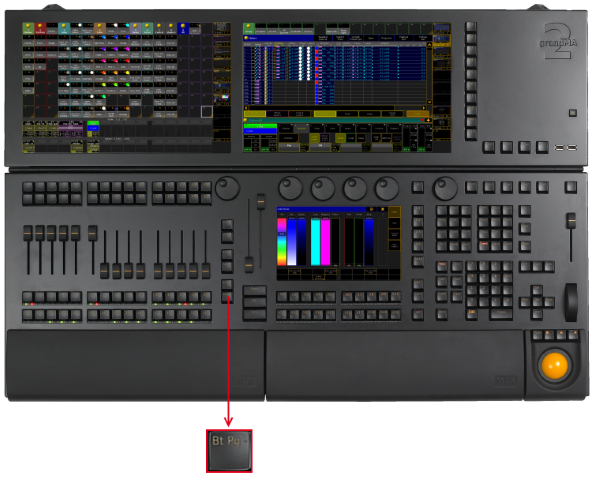 *Location key Bt Pg -* * Pressing Bt Pg - executes the [ButtonPage command](/grandma2/key_keyword_buttonpage/). That is: jumping to the previous ButtonPage. \ * If you press and hold Bt Pg -, you will automatically jump to the first ButtonPage.
# Bt Pg +
> The key Bt Pg + is located on the left of the 100 mm fader.
The key Bt Pg + is located on the left of the 100 mm fader. 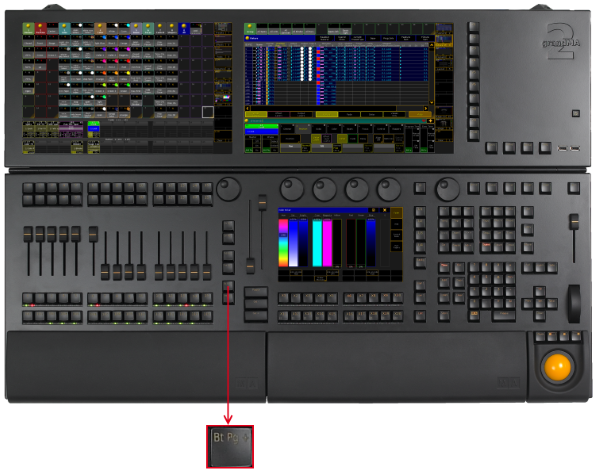 *Location key Bt*\_ Pg + \_ * Pressing Bt Pg + executes the [ButtonPage command](/grandma2/key_keyword_buttonpage/). The button page switches to the next page.
# Channel
> The key Channel is located on the left of the key Fixture.
The key Channel is located on the left of the key Fixture.  \_Location k\_\_ey \_\_Channel \_ * Pressing Channel enters the [Channel keyword](/grandma2/key_keyword_channel/) into the command line. \[Channel]> Channel * Pressing Channel Channel enters the [Dmx keyword](/grandma2/key_keyword_dmx/) into the command line. \[Channel]> Dmx * Pressing Channel Channel Channel enters the [DmxUniverse keyword](/grandma2/key_keyword_dmxuniverse/) into the command line. \[Channel]> DmxUniverse
# Ch Pg -
> The key Ch Pg - is located on the left of the 100 mm fader.
The key Ch Pg - is located on the left of the 100 mm fader.  \_Location k\_\_ey \_\_Ch Pg - \_ * Pressing Ch Pg - executes the [ChannelPage command](/grandma2/key_keyword_channelpage/).\ The channel pages are displayed on screen 3 and 4.\  \_Channel Page \_ * By pressing Ch Pg - again, you will jump to a previous channel page. \ * If the option **Link Faders** in the fixture sheet is active, the Ch Pg - key jumps to the dynamic channel pages on screen 3 and 4.\  *Dynamic Channel Page* * If you press and hold the Ch Pg -, you will automatically jump to the first channel page or the first dynamic channel page.
# Ch Pg +
> The key Ch Pg + is located on the left of the 100 mm fader.
The key Ch Pg + is located on the left of the 100 mm fader.  \_Location k\_\_ey \_\_Ch Pg + \_ * Pressing Ch Pg + executes the [ChannelPage command](/grandma2/key_keyword_channelpage/). The channel pages are displayed on screen 3 and 4.  \_Channel Page \_ * By pressing Ch Pg + again, you will jump to the next channel page.\ * If the option **Link Faders** in the fixture sheet is active, the key Ch Pg + jumps to the dynamic channel pages on screen 3 and 4.\  *Dynamic Channel Page*
# Clear
> The key Clear is located in the command area right beside the key Update.
The key Clear is located in the command area right beside the key Update.  \_Location k\_\_ey \_\_Clear \_ * Pressing Clear executes the [Clear keyword](/grandma2/key_keyword_clear/). If fixtures are selected in the programmer, pressing Clear deselects the fixtures. If only active values are in the programmer, pressing Clear deactivates all active programmer values. The values are still in the programmer, but they are no longer active. If only inactive values are in the programmer, pressing Clear removes the values in the programmer. If fixtures are selected and active values are in the programmer, pressing Clear once deselects the fixtures. Pressing Clear two times deactivates the values. Pressing Clear three times removes the values in the programmer. Pressing and holding Clear for 2 seconds executes the [ClearAll keyword](/grandma2/key_keyword_clearall/).
# Copy
> The key Copy is located in the command area below the key Del.
The key Copy is located in the command area below the key Del.  \_Location k\_\_ey \_\_Copy \_ * Pressing Copy enters the [Copy keyword](/grandma2/key_keyword_copy/) into the command line. \[Channel]> Copy * Pressing Copy Copy enters the [Clone keyword](/grandma2/key_keyword_clone/) into the command line. \[Channel]> Clone
# Cue
> The key Cue is located in the command area on the right of the key Sequ.
The key Cue is located in the command area on the right of the key Sequ.  *Location k\_\_ey*\_ Cue \_ * Pressing Cue enters the [Cue keyword](/grandma2/key_keyword_cue/) into the command line. \[Channel]> Cue * Pressing Cue Cue enters the [Part keyword](/grandma2/key_keyword_part/) into the command line. \[Channel]> Part
# Go - [large]
> The large key Go - is located above the large key Go + .
The large key Go - is located above the large key Go + .  \_Location k\_\_ey L\_\_arge Go - \_ * Pressing Go - executes [DefGoBack keyword](/grandma2/key_keyword_defgoback/) for the selected executor. \[time] : Macro: DefGoBack
# Go + [large]
> The large key Go + is located below the large key Go - .
The large key Go + is located below the large key Go - .  \_Location k\_\_ey \_\_Go + (large) \_ * Pressing Go + executes [DefGoForward keyword](/grandma2/key_keyword_defgoforward/) for the selected executor. \[time] : Macro: DefGoForward
# Pause [large]
> The large key Pause is located above the large key Go - .
The large key Pause is located above the large key Go - .  \_Location k\_\_ey \_*Pause (large)* * Pressing Pause executes the [DefGoPause keyword](/grandma2/key_keyword_defgopause/). The executors selected will be paused. \[time] : Macro : DefGoPause * Pressing Pause again executes the [DefGoPause keyword](/grandma2/key_keyword_defgopause/) again. The pause of the selected executors ends. \[time] : Macro : DefGoPause
# Del [Delete]
> The key Del (= Delete) is located in the command area on the right of the key Goto.
The key Del (= Delete) is located in the command area on the right of the key Goto.  *Location key Delete*\_ \_ Pressing Del enters the [Delete keyword](/grandma2/key_keyword_delete/) into the command line. \[Channel]> Delete Pressing Del Del enters the [Remove keyword](/grandma2/key_keyword_remove/) into the command line. \[Channel]> Remove Pressing Del Del Del enters the [Release keyword](/grandma2/key_keyword_release/) into the command line. \[Channel]> Release
# . [Dot]
> The key . is located in the command area on the left of the key If.
The key . is located in the command area on the left of the key If.  \_Location k\_\_ey \_\_. \[dot] \_ * Pressing . enters the . into the command line. The . is used as a separator to enter numbers with decimal fractions or to enter hierarchical object IDs. \[Channel]> . * Pressing . . executes the [Zero keyword](/grandma2/key_keyword_zero/). The dimmer values of the selected fixtures are set to 0 %.\ * Pressing and holding  + . enters the [Default keyword](/grandma2/key_keyword_default/) into the command line. \[Channel]> Default
# Down
> The key Down is located in the command area below the key Set.
The key Down is located in the command area below the key Set.  \_Location k\_\_ey \_\_Down \_ * Pressing Down moves the scroll bar of windows or the focus downward. * Pressing and holding  + Down moves the monitor wing of the console downward.
# Edit
> The key Edit is located in the command area on the left of the key Oops.
The key Edit is located in the command area on the left of the key Oops.  \_Location k\_\_ey \_\_Edit \_ * Pressing Edit enters the [Edit keyword](/grandma2/key_keyword_edit/) into the command line.
# Effect
> The key Effect is located on the right of the key View.
The key Effect is located on the right of the key View.  \_Location k\_\_ey \_\_Effect \_ * Pressing Effect enters the [Effect keyword](/grandma2/key_keyword_effect/) into the command line. \[Channel]> Effect * If a function keyword such as Store is already in the command line, pressing Effect Effect enters the [Form keyword](/grandma2/key_keyword_form/) into the command line. \[Channel]>Form * Pressing and holding Effect for about 2 seconds opens the pop-up Running Effects.\ 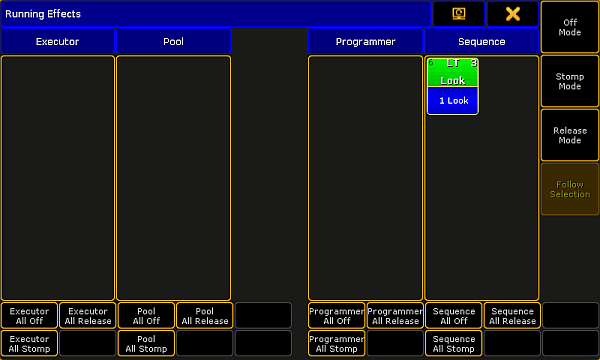 *Pop-up Running Effects* * Pressing  + Effect executes the [SyncEffects](/grandma2/key_keyword_synceffects/) command.\ * Pressing and holding List + Effect opens the temporary effect pool.\ 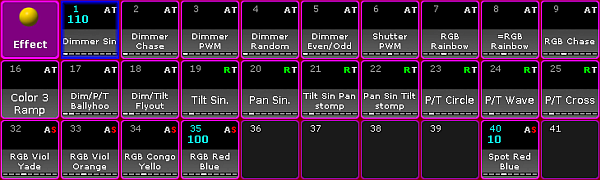 *Temporary effect pool*
# [Encoder]
> The key !encoder is located between the four attribute encoders and the right screen encoder.
The key  is located between the four attribute encoders and the right screen encoder.  \_Location k\_\_ey \_\_Encoder \_ * Pressing the key  toggles the focus of the right screen encoder between screen 2 and screen 1. * Pressing and holding the key  opens the [encoder settings](/grandma2/key_ws_encoder_settings/).
# Esc
> The key Esc is located in the command area on the right of the key Time.
The key Esc is located in the command area on the right of the key Time.  *Location k\_\_ey*\_ Esc \_ * Pressing Esc deletes unexecuted commands in the command line and closes pop-ups.
# Executor Buttons
> The executor buttons are located above and below the faders.
The executor buttons are located above and below the faders.  *Location executor buttons* Each executor button has a number. By default, the executor buttons interact with the command line. To disable the interaction of the executor with the command line (= Exec CLI), go to **Setup I Local Settings**. * Pressing an executor button on a fader or a button page executes the assigned function. \[time] : Executing: Select ExecButton 1.1 \[time] : Realtime: Go Executor 1.6 * Pressing an executor button on a channel page executes the functions off, on or flash. \[time] : Executing: Off ChannelFader 1.1
# Exec [Executor]
> The key Exec is located in the command area on the right of the key Cue.
The key Exec is located in the command area on the right of the key Cue.  *Location key*\_ \_\_Exec \_ * Pressing Exec enters the [Executor keyword](/grandma2/key_keyword_executor/) into the command line. \[Channel]> Executor * Pressing Exec Exec enters the [SpecialMaster keyword](/grandma2/key_keyword_specialmaster/) into the command line. \[Channel]> SpecialMaster
# Fd Pg -
> The key Fd Pg - is located on the left of the 100 mm fader.
The key Fd Pg - is located on the left of the 100 mm fader.  \_Location k\_\_ey \_\_Fd Pg - \_ Pressing Fd Pg - executes the [FaderPage keyword](/grandma2/key_keyword_faderpage/). If you are on a channel page, press Fd Pg - to open the fader pages. If you press and hold the key Fd Pg - for 2 seconds, you will switch over to fader page 1.
# Fd Pg +
> The key Fd Pg + is located on the left of the two 100 mm faders.
The key Fd Pg + is located on the left of the two 100 mm faders.  \_Location k\_\_ey \_\_Fd Pg + \_ Pressing Fd Pg + executes the [FaderPage keyword](/grandma2/key_keyword_faderpage/). The fader page switches to the next page. If you are on a channel page, press Fd Pg + to open the fader pages.
# Fix
> The key Fix is located in the command area on the left of the key Select.
The key Fix is located in the command area on the left of the key Select.  \_Location k\_\_ey \_\_Fix \_ Pressing Fix enters [Fix keyword](/grandma2/key_keyword_fix/) into the command line. \[Channel]> Fix
# Fixture
> The key Fixture is located in the command area on the right of the key Channel.
The key Fixture is located in the command area on the right of the key Channel.  \_Location k\_\_ey \_\_Fixture \_ * Pressing Fixture enters [Fixture keyword](/grandma2/key_keyword_fixture/) into the command line. \[Channel]> Fixture * Pressing Fixture Fixture enters [Selection keyword](/grandma2/key_keyword_selection/) into the command line. \[Channel]> Selection * Pressing and holding  + Fixture enters [FixtureType keyword](/grandma2/key_keyword_fixturetype/) into the command line. \[Channel]> FixtureType
# Freeze
> The key Freeze is located in the command area on the right of the key Blind.
The key Freeze is located in the command area on the right of the key Blind.  \_Location k\_\_ey \_\_Freeze \_ Pressing Freeze executes the [Freeze keyword](/grandma2/key_keyword_freeze/) and turns on or off the freeze mode. The command line stays unaffected.
# Full
> The key Full is located in the command area on the left of the key Highlt.
The key Full is located in the command area on the left of the key Highlt.  \_Location k\_\_ey \_\_Full \_ * Pressing Full executes the [Full keyword](/grandma2/key_keyword_full/). The dimmer values, for the selected fixtures or channels, will be set to 100 % .\ * Pressing Full Full loads the highlight values, for the selected fixtures or channels, into the programmer.\ *  + Full executes the [FullHighlight keyword](/grandma2/key_keyword_fullhighlight/). The highlight values, for the selected fixtures or channels, will be loaded into the programmer.
# Go - [small]
> The key Go - (small) is located in the command area on the left of the key Pause.
The key Go - (small) is located in the command area on the left of the key Pause.  \_Location k\_\_ey \_*Go - (small)* * Pressing Go - enters the [GoBack keyword](/grandma2/key_keyword_goback/) into the command line. \[Channel]> GoBack
# Go + [small]
> The key Go + (small) is located in the command area on the right of the key Pause.
The key Go + (small) is located in the command area on the right of the key Pause.  \_Location k\_\_ey \_*Go + (small)* * Pressing Go + enters the [Go keyword](/grandma2/key_keyword_go/) into the command line. \[Channel]> Go * Pressing Go + Go + enters the [Unpark keyword](/grandma2/key_keyword_unpark/) into the command line. \[Channel]> Unpark
# Goto
> The key Goto is located in the command area on the right of the key Effect.
The key Goto is located in the command area on the right of the key Effect.  \_Location k\_\_ey \_\_Goto \_ * Pressing Goto enters the [Goto keyword](/grandma2/key_keyword_goto/) into the command line. \[Channel]> Goto * Pressing Goto Goto enters the [Load keyword](/grandma2/key_keyword_load/) into the command line. \[Channel]> Load * Pressing and holding  + Goto enters the [LoadNext keyword](/grandma2/key_keyword_loadnext/) into the command line. \[Channel]> LoadNext * Pressing and holding  + Goto Goto enters the [LoadPrev keyword](/grandma2/key_keyword_loadprev/) into the command line. \[Channel]> LoadPrev
# Group
> The key Group is located in the command area on the right of the key Fixture.
The key Group is located in the command area on the right of the key Fixture.  \_Location k\_\_ey \_\_Group \_ * Pressing Group enters the [Group keyword](/grandma2/key_keyword_group/) into the command line. \[Channel]> Group * Pressing Group for about 2 seconds opens the [master view](/grandma2/key_adv_exec_master_window/). * Pressing Group Group enters the [World keyword](/grandma2/key_keyword_world/) into the command line. \[Channel]> World * Pressing Group Group Group enters the [Filter keyword](/grandma2/key_keyword_filter/) into the command line. \[Channel]> Filter * Pressing  + Group enters the [Layout keyword](/grandma2/key_keyword_layout/) into the command line. \[Channel]> Layout * Pressing  + Group Group enters the [SearchResult keyword](/grandma2/key_keyword_searchresult/) into the command line. \[Channel]> SearchResult * Pressing  + Group Group Group enters the [Mask keyword](/grandma2/key_keyword_mask/) into the command line. \[Channel]> Mask
# Help
> The key Help is located on the right of the key Backup.
The key Help is located on the right of the key Backup.  \_Location k\_\_ey \_\_Help \_ * Pressing Help enters the [Help keyword](/grandma2/key_keyword_help/) into the command line. \[Channel]> Help * Pressing Help Help enters the [CmdHelp keyword](/grandma2/key_keyword_cmdhelp/) into the command line. \[Channel]> CmdHelp * Pressing and holding Help + pressing any other key on the console, for example Fixture, opens the [help window](/grandma2/key_ost_help_viewer/) to the key pressed.
# Highlt [Highlight]
> The key Highlt is located in the command area on the left of the key Solo.
The key Highlt is located in the command area on the left of the key Solo.  \_Location k\_\_ey \_\_Highlight \_ Pressing Highlt executes the [Highlight keyword](/grandma2/key_keyword_highlight/) and turns on or off the Highlight mode. Pressing and and holding Highlt causes the selected fixture or channel to flash. Highlt is flashing between the dimmer default value and the dimmer highlight value. The command line stays unaffected.
# If
> The key If is located in the command area on the left of the key At.
The key If is located in the command area on the left of the key At.  \_Location k\_\_ey \_\_If \_ If the command line is empty, * pressing If enters the [IfOutput keyword](/grandma2/key_keyword_ifoutput/) \[Channel]> IfOutput * pressing If If enters the [IfActive keyword](/grandma2/key_keyword_ifactive/) \[Channel]> IfActive * pressing If If If enters the [IfProg keyword](/grandma2/key_keyword_ifprog/) \[Channel]> IfProg * pressing If If If If enters the [If keyword](/grandma2/key_keyword_if/) \[Channel]> If into the command line. If the command line contains previous input, the If key toggles. * Pressing If enters the [If keyword](/grandma2/key_keyword_if/) into the command line. * Pressing If again enters the [EndIf keyword](/grandma2/key_keyword_endif/) into the command line. \[Channel]> Store If Group 5 EndIf
# Learn
> The key Learn is located in the command area on the right of the key <<<.
The key Learn is located in the command area on the right of the key <<<.  \_Location k\_\_ey \_\_Learn \_ * Pressing Learn enters the [Learn keyword](/grandma2/key_keyword_learn/) into the command line. \[Channel]> Learn * Pressing Learn Learn enters the [Rate1 keyword](/grandma2/key_keyword_rate1/) into the command line. \[Channel]> Rate1
# List
> The key List is located in the command area on the left of the key Store.
The key List is located in the command area on the left of the key Store.  \_Location k\_\_ey \_\_List \_ * Pressing List displays the X-Key labels for the executor buttons 201-220 on the current button page.\  *Button page on screen 1* * Pressing and holding  + List enters the [List keyword](/grandma2/key_keyword_list/) into the command line. \[Channel]> List *** ## Open Temporary Pools [Section titled “Open Temporary Pools”](#open-temporary-pools) The following short cuts open the temporary pool on screen 2 respectively (except for grandMA2 onPC without MA onPC wing). Temporary pools can be identified by the red background color between the objects. * Pressing and holding List + Channel opens the temporary channel page pool.\ 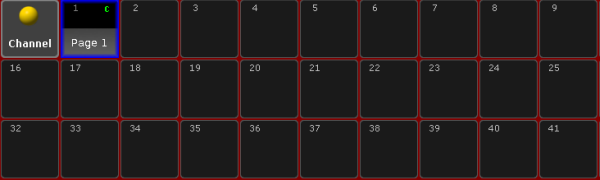 *Temporary Channel Pool* \[time] : Macro: Menu ChannelPage * Pressing and holding List + Group opens the temporary group pool.\  *Temporary Group Pool* \[time] : Macro: Menu Group * Pressing and holding List + Sequence opens the temporary sequence pool.\  *Temporary Sequence Pool* \[time] : Macro: Menu Sequence * Pressing and holding List + Page opens the temporary executor page pool.\ 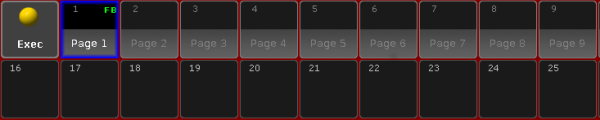 *Temporary Executor Page Pool* \[time] : Macro: Menu Page * Pressing and holding List + Macro opens the temporary macro pool.\  *Temporary Macro Pool* \[time] : Macro: Menu Macro * Pressing and holding List + Preset opens the temporary preset pool for the selected preset type in the preset control bar.\ 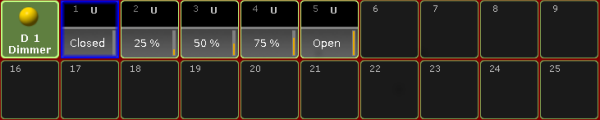 *Temporary Dimmer Preset Pool* \[time] : Macro: Menu Preset * Pressing and holding List + View opens the temporary view pool.\  *Temporary View Pool* \[time] : Macro: Menu View * Pressing and holding List + Effect opens the temporary effect pool.\  *Temporary Effect Pool* \[time] : Macro: Menu Effect
# MA
> The !ma key is located in the command area below the 0.
The  key is located in the command area below the 0.  \_Location \_\_key \_\_MA \_ Press  to see all active icons of the message center in the command line. This command shows the icons even if the status is set to No (= empty) in the message center options. For more information on the icons of the message center see [icons](/grandma2/key_ws_icons/). For more information on the message center see [message center](/grandma2/key_message_center/). The following table contains shortcuts that work in combination with the  key. | Press this key | Command | Description | | ----------------------------------------------------------------- | ----------------------------------------------------- | -------------------------------------------------------------------------------------- | |  + number | No command | Selects the preset type in the preset control bar indicated by the preset type number. | |  + number + same number again | No command | Toggles through the features of a preset type in the preset type bar. | |  + . | [Default](/grandma2/key_keyword_default/) | Enters the keyword Default into the command line. | |  + At | [Stomp](/grandma2/key_keyword_stomp/) | Enters the keyword Stomp into the command line. | |  + At + At | [Extract](/grandma2/key_keyword_extract/) | Enters the keyword Extract into the command line. | |  + Down | No command | Moves down the monitor wing. | |  + Effect | [SyncEffects](/grandma2/key_keyword_synceffects/) | Executes the keyword SyncEffects. | |  + Fix | No command | Switches the Desk Lock on/off. | |  + Fixture | [FixtureType](/grandma2/key_keyword_fixturetype/) | Enters the keyword FixtureType into the command line. | |  + Full | [FullHighlight](/grandma2/key_keyword_fullhighlight/) | Executes the keyword FullHighlight into the command line. | |  + Goto | [LoadNext](/grandma2/key_keyword_loadnext/) | Enters the keyword LoadNext into the command line. | |  + Goto + Goto | [LoadPrev](/grandma2/key_keyword_loadprev/) | Enters the keyword LoadPrev into the command line. | |  + Group | [Layout](/grandma2/key_keyword_layout/) | Enters the keyword Layout into the command line. | |  + Group + Group | [SearchResult](/grandma2/key_keyword_searchresult/) | Enters the keyword SearchResult into the command line. | |  + Group + Group + Group | [Mask](/grandma2/key_keyword_mask/) | Enters the keyword Mask into the command line. | |  + List | [List](/grandma2/key_keyword_list/) | Enters the keyword List into the command line. | |  + Macro | [Timer](/grandma2/key_keyword_timer/) | Enters the keyword Timer into the command line. | |  + Macro + Macro | [Plugin](/grandma2/key_keyword_plugin/) | Enters the keyword Plugin into the command line. | |  + Move | [Search](/grandma2/key_keyword_search/) | Enters the keyword Search into the command line. | |  + Next | [NextRow](/grandma2/key_keyword_nextrow/) | Executes the keyword NextRow . | |  + Preset | [PresetType](/grandma2/key_keyword_presettype/) | Enters the keyword PresetType into the command line. | |  + Prev | [PrevRow](/grandma2/key_keyword_prevrow/) | Executes the keyword PrevRow . | |  + Set | No command | Releases the monitor wing brake to adjust the angle of the monitor manually. | |  + Store | [Record](/grandma2/key_keyword_record/) | Enters the keyword Record into the command line. | |  + Time | No command | Opens the effect layer in the encoder bar. | |  + Time + Time | No command | Switches to the next effect layer in the encoder bar. | |  + Up | No command | Moves up the monitor wing. | |  + Update | No command | Lists updates in the command line feedback view. | |  + View | [Screen](/grandma2/key_keyword_screen/) | Enters the keyword Screen into the command line. | |  + V key | No command | Selects the view page indicated by the V key number. |
# Macro
> The key Macro is located in the command area on the right of the key Page.
The key Macro is located in the command area on the right of the key Page.  \_Location k\_\_ey \_\_Macro \_ * Pressing Macro enters the [Macro keyword](/grandma2/key_keyword_macro/) into the command line. \[Channel]> Macro * Pressing Macro Macro enters the [Timecode keyword](/grandma2/key_keyword_timecode/) into the command line. \[Channel]> Timecode * Pressing Macro Macro Macro enters the [Agenda keyword](/grandma2/key_keyword_agenda/) into the command line. \[Channel]> Agenda * Pressing and holding  + Macro enters the [Timer keyword](/grandma2/key_keyword_timer/) into the command line. \[Channel]> Timer * Pressing and holding  + Macro Macro enters the [Plugin keyword](/grandma2/key_keyword_plugin/) into the command line. \[Channel]> Plugin * Pressing and holding List + Macro temporarily opens the Macro Pool on screen 2 (except for grandMA2 onPC without MA onPC wing).  *Temporary Macro Pool*
# [Minus] -
> The key - is located on the right of the numeric keys in the command area.
The key - is located on the right of the numeric keys in the command area.  \_Location k\_\_ey \_\_\[Minus] - \_ Pressing - once enters the [\[Minus\] - keyword](/grandma2/key_keyword_minus/) into the command line. \[Channel]> - Pressing - twice subtracts 10 % dimmer value of the selected fixture or channel. \[time] :Macro: At - 10
# Mouse
> The key Mouse is located in the left corner above the trackball.
The key Mouse is located in the left corner above the trackball.  \_Location k\_\_ey \_\_Mouse \_ The key Mouse toggles between the selected trackball sequences. To select the trackball sequence see [User Settings](/grandma2/key_single_multi_systems_user_settings/). If the key Mouse is: * On – the trackball controls the mouse function. * Blinking – the trackball controls pan and tilt for the selected fixtures or channels. * Off – the trackball has no function. * Off and the middle key above the trackball is on – the trackball functions as a dimmer wheel.
# Move
> The key Move is located in the command area on the right of the key Group.
The key Move is located in the command area on the right of the key Group.  *Location k\_\_ey*\_ Move \_ * Pressing Move enters the [Move keyword](/grandma2/key_keyword_move/) into the command line.\ As long as the keyword Move is in the command line you can move pool objects by\ pressing and holding a pool object and move it with your finger to a new position of the pool object \ \- or -\ pressing and holding the key Move and moving pool objects by tapping a pool object and then tapping the new position of the pool object. \[Channel]> Move * Pressing Move Move enters the [Replace keyword](/grandma2/key_keyword_replace/) into the command line. \[Channel]> Replace * Pressing Move Move Move enters the [Insert keyword](/grandma2/key_keyword_insert/) into the command line. \[Channel]> Insert * Pressing and holding  + Move enters the [Search keyword](/grandma2/key_keyword_search/) into the command line. \[Channel]> Search
# Next
> The key Next is located in the command area on the right of the key Set.
The key Next is located in the command area on the right of the key Set.  \_Location k\_\_ey \_\_Next \_ * If a pop-up dialog is open, for example the pop-up Choose store method, you can set the focus on the following options by pressing the key Next.\ * Pressing Next executes the [Next keyword](/grandma2/key_keyword_next/). The fixture with the lowest fixture ID is selected. \[time] : Executing : Next * Pressing and holding  + Next executes the [NextRow keyword](/grandma2/key_keyword_nextrow/). For more information see [MAtricks](/grandma2/key_matricks/). \[time] : Executing : NextRow * Pressing Next + Prev executes the [All keyword](/grandma2/key_keyword_all/). \[time] : Executing : All
# [Numeric]
> The numeric keys 0 trough 9 are located in the command area of the console.
The numeric keys 0 trough 9 are located in the command area of the console.  *Location numeric keys* * Pressing a numeric key enters the number in the line focused. * Pressing and holding  + a numeric key, for example 2, selects the respective preset type for the number entered in the preset control bar.\  *Select preset type in the preset control bar* \[time] : Executing: PresetType “POSITION” * Pressing  + a numeric key several times changes the attributes in the encoder bar to the selected preset control bar.\  *Select attribute in the encoder bar* \[time] : Executing: Attribute “MP\_TR\_X”
# Off
> The key Off is located in the command area on the right of the key Select.
The key Off is located in the command area on the right of the key Select.  \_Location k\_\_ey \_\_Off \_ * Pressing Off enters the [Off keyword](/grandma2/key_keyword_off/) into the command line. \[Channel]> Off * Pressing and holding Off and pressing several executor buttons turns off the executors.\ * Pressing Off Off opens the Off Menu. 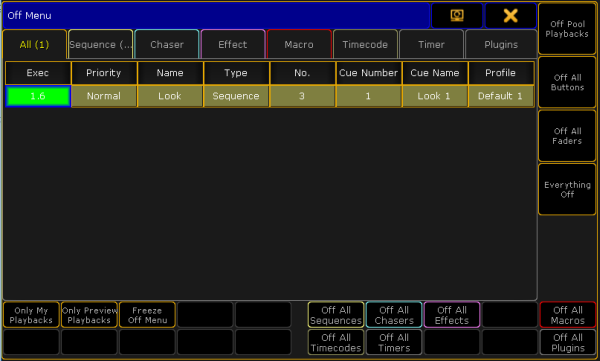 *Off Menu*
# On
> The key On is located in the command area on the right of the key Top.
The key On is located in the command area on the right of the key Top.  \_Location k\_\_ey \_\_On \_ * Pressing On enters the [On keyword](/grandma2/key_keyword_on/) into the command line. \[Channel]> On * Pressing On On enters the [Call keyword](/grandma2/key_keyword_call/) into the command line. \[Channel]> Call
# Oops
> The key Oops is located in the command area on right of the key Edit.
The key Oops is located in the command area on right of the key Edit.  \_Location k\_\_ey \_\_Oops \_ * Pressing Oops deletes the last keyword or number you entered in the command line.\ * If the command line is empty, pressing Oops executes the [Oops keyword](/grandma2/key_keyword_oops/).\ The pop-up Confirm Undo opens.  *Pop-up Confirm Undo* * Pressing and holding the key Oops for about 2 seconds, opens the pop-up Multi-Oops. 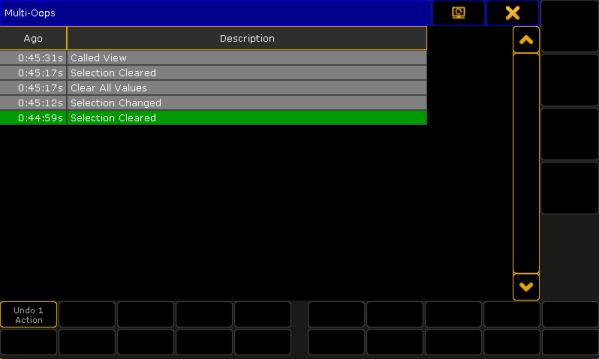 *Pop-up Multi-Oops*
# Page
> The key Page is located in the command area on the left of the key Macro.
The key Page is located in the command area on the left of the key Macro.  \_Location k\_\_ey \_\_Page \_ * Pressing Page enters the [Page keyword](/grandma2/key_keyword_page/) into the command line. \[Channel]> Page * Pressing Page Page enters the [ChannelPage keyword](/grandma2/key_keyword_channelpage/) into the command line. \[Channel]>ChannelPage * Pressing Page Page Page enters the [FaderPage keyword](/grandma2/key_keyword_faderpage/) into the command line. \[Channel]>FaderPage * Pressing Page Page Page Page enters the [ButtonPage keyword](/grandma2/key_keyword_buttonpage/) into the command line. \[Channel]>ButtonPage * Pressing and holding List + Page opens the temporary Pages Executor pool on screen 2 (except for grandMA2 onPC without MA onPC wing).\  *Temporary executor page pool*
# Pause [small]
> The small key Pause is located in the command area on the right of the small key Go -.
The small key Pause is located in the command area on the right of the small key Go -.  \_Location k\_\_ey \_*Pause (small)* * Pressing Pause enters the [Pause keyword](/grandma2/key_keyword_pause/) into the command line. \[Channel]> Pause * Pressing Pause Pause enters the [Park keyword](/grandma2/key_keyword_park/) into the command line. \[Channel]> Park
# Please
> The key Please is located in the command area below the number pad.
The key Please is located in the command area below the number pad. \ \_Location key Please \_ * Pressing Please executes keywords entered into the command line. This is the same function as pressing Enter on an external keyboard or pressing Please on the keyboard in the keyboard drawer. * Pressing Please Please activates all attributes of the current fixture or channel selection in the programmer.\ \ \ *Fixture sheet with active attributes in the programmer*\ * Pressing Please again deactivates all attributes of the current fixture or channel selection in the programmer.\ \ \ *Fixture sheet with deactivated attributes in the programmer* \_\_ **Important:**\ If values are already active in the programmer, times and effect values in playbacks will not be activated pressing Please Please. If these values are to be taken into the programmer (to be knocked in), press Please Please again. * Pressing and holding  + Please sets the cursor in the command line.\ \ \ *Command line displaying the cursor*
# [Plus] +
> The key + is located next to the numeric keys in the command area.
The key + is located next to the numeric keys in the command area.  \_Location k\_\_ey \_\_\[Plus] + \_ * Pressing + enters [+ \[Plus\] keyword](/grandma2/key_keyword_plus/) into the command line. \[Channel]> + * Pressing + + adds 10 % of dimmer value to the selected fixture or channel. Macro: At +10
# Preset
> The key Preset is located in the command area on the right of the key Macro.
The key Preset is located in the command area on the right of the key Macro.  \_Location k\_\_ey \_*Preset* \_ \_ * Pressing Preset enters the [Preset keyword](/grandma2/key_keyword_preset/) into the command line. \[Channel]> Preset * Pressing Preset Preset enters the [Attribute keyword](/grandma2/key_keyword_attribute/) into the command line. \[Channel]> Attribute * Pressing Preset Preset Preset enters the [Gel keyword](/grandma2/key_keyword_gel/) into the command line. \[Channel]> Gel * Pressing and holding  + Preset enters the [PresetType keyword](/grandma2/key_keyword_presettype/) into the command line. \[Channel]> PresetType * Pressing and holding List + Preset opens the temporary preset pool on screen 2 for the selected preset in the preset control bar.\  *Temporary preset pool*
# Prvw [Preview]
> The key Prvw (Preview) is located in the command area on the left of the key Assign.
The key Prvw (Preview) is located in the command area on the left of the key Assign.  \_Location \_\_Key \_\_Prvw (Preview) \_ * Pressing Prvw enters the [Preview keyword](/grandma2/key_keyword_preview/) into the command line and opens the **preview encoder bar**. \[Channel]> Preview  *Encoder Bar - Preview* * Pressing Prvw Prvw executes the [PreviewEdit keyword](/grandma2/key_keyword_previewedit/). Preview Edit is on. To close Preview Edit press Prvw Prvw again. \[time] : Executing : PreviewEdit * If there is already a function keyword in the command line, pressing Prvw executes the function keyword with the [PreviewExecutor keyword](/grandma2/key_keyword_previewexecutor/). \[time] : Executing : Go PreviewExecutor * Pressing and holding Prvw + and pressing an executor button, for example 1, executes the [Preview keyword](/grandma2/key_keyword_preview/) with the option **/add**. \[time] : Executing : Preview ExecButton 1 /add
# Prev [Previous]
> The key Prev is located in the command area on the left of the key Set.
The key Prev is located in the command area on the left of the key Set.  \_Location \_\_Key \_\_Prev (Previous) \_ If a pop-up dialog is open, for example the pop-up Choose store method, you can set the focus on the following options by hitting the key Prev. * Pressing Prev executes the [Previous keyword](/grandma2/key_keyword_previous/). The fixture or channel with the highest ID will then be selected. \[time] : Executing : Previous * Pressing and holding  + Prev executes the [PrevRow keyword](/grandma2/key_keyword_prevrow/). For more information see [MAtricks](/grandma2/key_matricks/). \[time] : Executing : PrevRow * Pressing Prev + Next executes the [All keyword](/grandma2/key_keyword_all/). \[time] : Executing : All
# Select
> The key Select is located in the command area on the left of the key Off.
The key Select is located in the command area on the left of the key Off.  \_Location \_\_Key \_*Select* * Pressing Select enters the [Select keyword](/grandma2/key_keyword_select/) into the command line. \[Channel]> Select * Pressing Select Select enters the [SelFix keyword](/grandma2/key_keyword_selfix/) into the command line. \[Channel]> SelFix
# Sequ [Sequence]
> The key Sequ (Sequence) is located in the command area on the left of the key Cue.
The key Sequ (Sequence) is located in the command area on the left of the key Cue.  \_Location \_\_Key \_\_Sequ \_ * Pressing Sequ enters the [Sequence keyword](/grandma2/key_keyword_sequence/) into the command line. \[Channel]> Sequence
# Set
> The key Set is located in the command area below the key Up.
The key Set is located in the command area below the key Up.  \_Location \_\_Key \_\_Set \_ *** ## Key Set as the Key Enter [Section titled “Key Set as the Key Enter ”](#keyset-as-the-key-enter) If a pop-up dialog is open, for example the pop-up **Choose store method**, the key Set has the function of the key **Enter**. * Pressing Set confirms the selected button in the pop-up. *** ## Key Set and MAtricks [Section titled “Key Set and MAtricks”](#keyset-and-matricks) * Pressing Set enables and disables the MAtricks settings. \[time] : Executing : MAtricks Toggle If the MAtricks button is green, the MAtricks are enabled.\  *Encoder Bar - Enabled MAtricks* * Pressing and holding Prev + Set executes the [MAtricksInterleave](/grandma2/key_keyword_matricksinterleave/) -. \[time] : Executing : MAtricksInterleave - * Pressing and holding Next + Set executes [MAtricksInterleave](/grandma2/key_keyword_matricksinterleave/) +. \[time] : Executing : MAtricksInterleave + * Pressing and holding  + Prev + Set executes [MAtricksBlocks](/grandma2/key_keyword_matricksblocks/) -. \[time] : Executing : MAtricksBlocks - * Pressing and holding  + Next + Set executes [MAtricksBlocks](/grandma2/key_keyword_matricksblocks/) +. \[time] : Executing : MAtricksBlocks + For more information see [MAtricks](/grandma2/key_matricks/). *** ## Key Set for Adjustment of Monitor Wing Angle [Section titled “Key Set for Adjustment of Monitor Wing Angle”](#keyset-for-adjustment-of-monitor-wing-angle) To manually adjust the monitor wing angle, release the torque of the monitor wing engine. * Pressing and holding  + Set.
# Setup
> The key Setup is located in the command area on the right of the key Tools.
The key Setup is located in the command area on the right of the key Tools.  \_Location \_\_Key \_\_Setup \_ Pressing Setup executes the [Setup keyword](/grandma2/key_keyword_setup/) and opens the setup on the screen which was opened last. 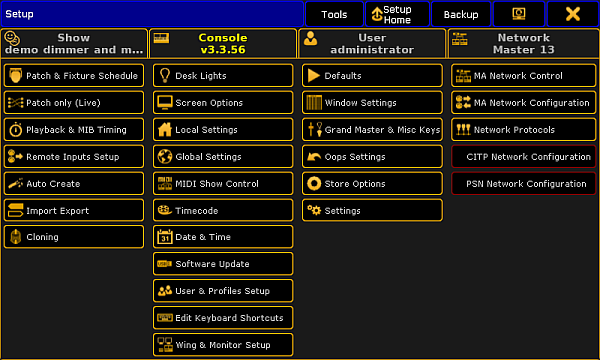 *Setup*
# <<< [GoFastBack]
> The key <<< [GoFastBack] is located in the command area on the left of the key Learn.
The key <<< \[GoFastBack] is located in the command area on the left of the key Learn.  *Location <<< \[GoFastBack]* * Pressing <<< enters [<<< \[GoFastBack\] keyword](/grandma2/key_keyword_skipminus/) into the command line. \[Channel]> <<< * Pressing <<< <<< enters [Black keyword](/grandma2/key_keyword_black/) into the command line. \[Channel]> Black * Pressing <<< <<< <<< enters [ToZero keyword](/grandma2/key_keyword_tozero/) into the command line. \[Channel]> ToZero
# >>> [GoFastForward]
> The key >>> [GoFastForward] is located in the command area on the right of the key Learn.
The key >>> \[GoFastForward] is located in the command area on the right of the key Learn.  *Location >>> \[GoFastForward] key* * Pressing >>> enters [>>> \[GoFastForward\] keyword](/grandma2/key_keyword_skipplus/) into the command line. \[Channel]> >>> * Pressing >>> >>> enters [Flash keyword](/grandma2/key_keyword_flash/) into the command line. \[Channel]> Flash * Pressing >>> >>> >>> enters [ToFull keyword](/grandma2/key_keyword_tofull/) into the command line. \[Channel]> ToFull
# Solo
> The key Solo is located in the command area on the right of the key Highlt.
The key Solo is located in the command area on the right of the key Highlt.  \_Location \_\_Key \_\_Solo \_ Pressing Solo executes the [Solo keyword](/grandma2/key_keyword_solo/) and turns the solo mode on or off. The command line stays unaffected. To disable the Solo key function, see [User Settings](/grandma2/key_single_multi_systems_user_settings/).
# Store
> The key Store is located in the command area on the left of the key
The key Store is located in the command area on the left of the key .  \_Location \_\_Key \_\_Store \_ * Pressing Store enters the [Store keyword](/grandma2/key_keyword_store/) into the command line and changes the encoder bar to the [store encoder bar](/grandma2/key_ws_encoder_bar/). \[Channel]> Store  *Store Encoder Bar* * Pressing and holding Store opens the pop-up Temporary Store Options.  \_Pop-up Temporary Store Options \_ * Pressing and holding  and Store enters the [Record keyword](/grandma2/key_keyword_record/) into the command line. \[Channel]> Record
# Temp
> The key Temp is located in the command area on the left of the key Top.
The key Temp is located in the command area on the left of the key Top.  *Location Key Temp*\_ \_ * Pressing Temp enters the [Temp keyword](/grandma2/key_keyword_temp/) into the command line. \[Channel]> Temp * Pressing Temp Temp enters the [Toggle keyword](/grandma2/key_keyword_toggle/) into the command line. \[Channel]> Toggle
# Thru
> The key Thru is located in the command area on the right of the number key 6 in the number pad.
The key Thru is located in the command area on the right of the number key 6 in the number pad.  \_Location \_\_Key \_\_Thru \_ * Solely pressing Thru, enters the default keyword and the [Thru keyword](/grandma2/key_keyword_thru/) into the command. \[Channel]> Channel Thru * If you press Thru after pressing another keyword, only the [Thru keyword](/grandma2/key_keyword_thru/) will be entered into the command line. \[Channel]> Fixture Thru
# Time
> The key Time is located in the command area on the left of the key Esc.
The key Time is located in the command area on the left of the key Esc.  \_Location \_\_Key \_\_Time \_ *** * Pressing Time enters the [Fade keyword](/grandma2/key_keyword_fade/) into the command line and changes the encoder bar to **Fade**.\  *Encoder Bar Fade* \[Channel]> Fade * If **Auto** is selected in the layer control bar of the fixture or channel sheet, pressing Time changes to the **Fade Layer**.\  *Layer Control Bar - Fade Layer* *** * Pressing Time Time enters the [Delay keyword](/grandma2/key_keyword_delay/) into the command line and changes the encoder bar to **Delay**.\  *Encoder Bar Delay* \[Channel]>Delay * If **Auto** is selected in the layer control bar of the fixture or channel sheet, pressing Time Time changes to the **Delay Layer**.\  *Layer Control Bar - Delay Layer* *** * Pressing and holding Time for about 2 seconds changes the encoder bar to **Value**.\  *Encoder Bar Value* * If **Auto** is selected in the layer control bar of the fixture or channel sheet, pressing and holding Time for about 2 seconds changes to the **Values Layer**.\  *Layer Control Bar - Values Layer* *** If you enter [Store](/grandma2/key_keyword_store/) or [Assign](/grandma2/key_keyword_assign/) keyword into the command line, * pressing then Time enters the [Fade keyword](/grandma2/key_keyword_fade/) into the command line. \[Channel]> Store Fade * pressing then Time Time enters the [OutFade keyword](/grandma2/key_keyword_outfade/) into the command line. \[Channel]> Store OutFade * pressing then Time Time Time enters the [Delay keyword](/grandma2/key_keyword_delay/) into the command line. \[Channel]> Store Delay * pressing then Time Time Time Time enters the [OutDelay keyword](/grandma2/key_keyword_outdelay/) into the command line. \[Channel]> Store OutDelay * pressing Time Time Time Time Time enters the [SnapPercent keyword](/grandma2/key_keyword_snappercent/) into the command line. \[Channel]> Store SnapPercent * pressing then Time Time Time Time Time Time enters the [CmdDelay keyword](/grandma2/key_keyword_cmddelay/) into the command line. \[Channel]> Store CmdDelay *** * Pressing and holding  + Time opens the **Effect Layer** in the encoder bar.\  *Encoder Bar - Effect Layer* * Pressing and holding  + Time again, changes to the next **Effect Layer**.\ * If **Auto** is selected in the layer control bar of the fixture or channel sheet, pressing and holding  + Time changes to the next **Effect Layer**.\  *Layer Control Bar - Effect Layer* ***
# Tools
> The key Tools is located in the command area on the left of the key Setup.
The key Tools is located in the command area on the left of the key Setup.  \_Location \_\_Key \_\_Tools \_ Pressing Tools executes the [Tools keyword](/grandma2/key_keyword_tools/). The menu Tools opens.  *Tools menu*
# Top
> The key Top is located in the command area on the right of the key Temp.
The key Top is located in the command area on the right of the key Temp.  *Location Key Top*\_ \_ * Pressing Top enters the [Top keyword](/grandma2/key_keyword_top/) into the command line. \[Channel]> Top * Pressing Top Top enters the [Kill keyword](/grandma2/key_keyword_kill/) into the command line. \[Channel]> Kill
# U1 - U4
> The U-Keys are located on the right of screen 1.
The U-Keys are located on the right of screen 1.  *Location U-Keys* The U-Keys have a function if function buttons are visible on screen 1. 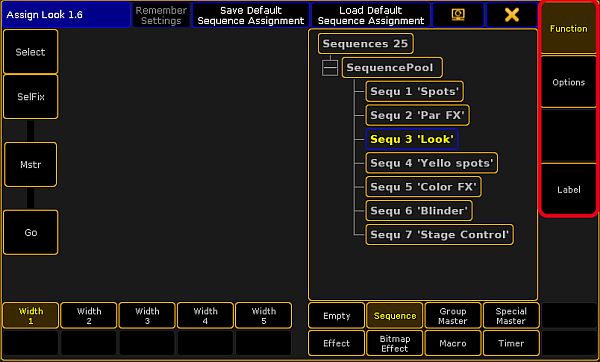 *Assign Menu U-Key Function Buttons*
# Up
> The key Up is located in the command area above the key Set.
The key Up is located in the command area above the key Set.  \_Location \_\_Key \_\_Up \_ * If you press the key Up, the scroll bar of the window or pop-up, in which the focus is set, moves up. * If you press and hold  + Up, the monitor wing of the console moves up.
# Update
> The key Update is located in the command area on the left of the key Clear.
The key Update is located in the command area on the left of the key Clear.  \_Location \_\_Key \_\_Update \_ Pressing Update, enters the [Update keyword](/grandma2/key_keyword_update/) into the [command line](/grandma2/key_widget_command_line/). Pressing Update while a sequence or an effect is running, or while a preset is being called, plus when active different values are in the programmer, opens the pop-up Update.  *Pop-up Update* Related Links * [Update Presets](/grandma2/key_presets_update/) * [Update Cues](/grandma2/key_cs_update_cues/) * [Update Effects](/grandma2/key_effects_update/)
# User 1
> The key User 1 is located on the right of screen 1.
The key User 1 is located on the right of screen 1.  \_Location \_\_Key \_\_User 1 \_ If you press User 1, the [X-Keys](/grandma2/key_key_xkey/) and [X-Key labels](/grandma2/key_widget_x_key_labels/) on screen 1 change to the User 1 page.  *X-Key Labels on Screen 1, User 1*
# User 2
> The key User 2 is located on the right of screen 1.
The key User 2 is located on the right of screen 1.  \_Location \_\_Key \_\_User 2 \_ If you press User 2, the[ X-Keys](/grandma2/key_key_xkey/) and [X-Key labels](/grandma2/key_widget_x_key_labels/) change to the User 2 page on screen 1.
# V1 - V10
> The keys V1 through V10 are located on the right of screen 2.
The keys V1 through V10 are located on the right of screen 2.  *Location V-Keys* If you press a V-Key, the [ViewButton keyword](/grandma2/key_keyword_viewbutton/) will be executed. The displayed view on the [view button](/grandma2/key_widget_view_buttons/) will be called. If you press and hold  and a V-Key, the [ViewPage keyword](/grandma2/key_keyword_viewpage/) will be executed.\ The view page corresponding the V-Key number you have pressed, will be called.
# View
> The key View is located in the command area on the left of the key Effect.
The key View is located in the command area on the left of the key Effect.  \_Location \_\_Key \_\_View \_ * Pressing View, enters the [View keyword](/grandma2/key_keyword_view/) into the command line. \[Channel]> View * Pressing View View, enters the [ViewButton keyword](/grandma2/key_keyword_viewbutton/) into the command line. \[Channel]>ViewButton * Pressing View View View, enters the [ViewPage keyword](/grandma2/key_keyword_viewpage/) into the command line. \[Channel]>ViewPage * Pressing and holding  and View, enters the [Screen keyword](/grandma2/key_keyword_screen/) into the command line. \[Channel]>Screen
# X1 - X20
> The X-Keys are located below screen 1.
The X-Keys are located below screen 1. **Information:**\ The grandMA2 ultra-light has only X1 - X10. 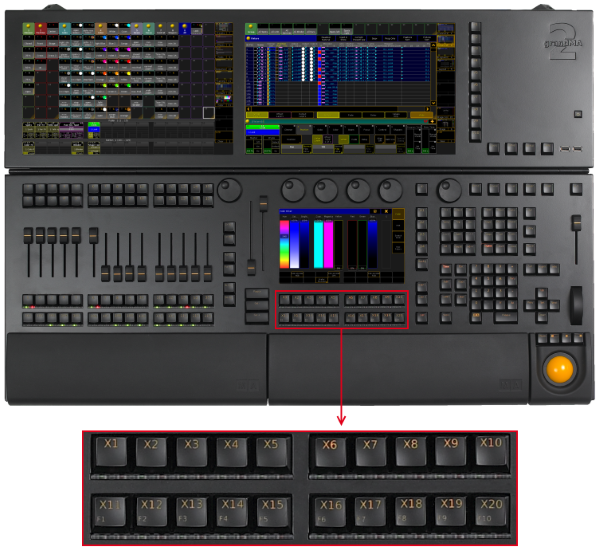 *Location X-Key* If you press User1 or User2, the X-Keys will work just like [view buttons](/grandma2/key_widget_view_buttons/). If you press List, the X-Keys will work just like [executor buttons](/grandma2/key_key_execbuttons/).
# Keyboard
> Keyboard keys are either located in the keyboard drawer or on any external keyboard connected to the console.
Keyboard keys are either located in the keyboard drawer or on any external keyboard connected to the console. | Press this key | Function | | ---------------------------- | --------------------------------------------------------------------------------------------------------------------------------------------------------------------------------------------------------------- | | ScrLck | Always sets the cursor into the command line or on pop-ups which are temporarily opened. | | Pause | Locks the desk. | | Up or down arrow | If the focus is set on the command line, you can scroll in the command history and bring the entered keywords back into the command line. If the focus is set on a pool, you can scroll up or down in the pool. | | Ctrl + C | Copies the text selected. | | Ctrl + V | Pastes the text that was previously copied. | | Shift + left or right arrow | Selects text. | | Ctrl + left mouse button | Selects multiple cells in sheets. | | Shift + left mouse button | Selects range of cells in sheets. |
# Keys & Buttons on the Console
> This chapter describes every key and button on the console along with their functions.
This chapter describes every key and button on the console along with their functions. ## Subtopics [Section titled “Subtopics”](#subtopics) * [Key overview](/grandma2/key_keys_key_overview/) * [>>> GoFastForward](/grandma2/key_key_skipplus/) * [<<< GoFastBack](/grandma2/key_key_skipminus/) * [. Dot](/grandma2/key_key_dot/) * [Align](/grandma2/key_key_align/) * [Assign](/grandma2/key_key_assign/) * [At](/grandma2/key_key_at/) * [Backg Background](/grandma2/key_key_background/) * [Backup](/grandma2/key_key_backup/) * [Blind](/grandma2/key_key_blind/) * [Bt Pg +](/grandma2/key_key_buttonpageplus/) * [Bt Pg -](/grandma2/key_key_buttonpageminus/) * [B.O. Blackout](/grandma2/key_key_blackout/) * [Channel](/grandma2/key_key_channel/) * [Ch Pg +](/grandma2/key_key_channelpageplus/) * [Ch Pg -](/grandma2/key_key_channelpageminus/) * [Clear](/grandma2/key_key_clear/) * [Copy](/grandma2/key_key_copy/) * [Cue](/grandma2/key_key_cue/) * [Del Delete](/grandma2/key_key_delete/) * [Down](/grandma2/key_key_down/) * [Edit](/grandma2/key_key_edit/) * [Effect](/grandma2/key_key_effect/) * [Encoder](/grandma2/key_key_encoder/) * [Esc](/grandma2/key_key_escape/) * [Exec Executor](/grandma2/key_key_executor/) * [Executor Buttons](/grandma2/key_key_execbuttons/) * [Fd Pg +](/grandma2/key_key_faderpageplus/) * [Fd Pg -](/grandma2/key_key_faderpageminus/) * [Fix](/grandma2/key_key_fix/) * [Fixture](/grandma2/key_key_fixture/) * [Freeze](/grandma2/key_key_freeze/) * [Full](/grandma2/key_key_full/) * [Go + small](/grandma2/key_key_goplus/) * [Go + large](/grandma2/key_key_defgoplus/) * [Go - small](/grandma2/key_key_gominus/) * [Go - large](/grandma2/key_key_defgominus/) * [Goto](/grandma2/key_key_goto/) * [Group](/grandma2/key_key_group/) * [Help](/grandma2/key_key_help/) * [Highlt Highlight](/grandma2/key_key_highlight/) * [If](/grandma2/key_key_if/) * [Keyboard](/grandma2/key_keyboard_keys/) * [Learn](/grandma2/key_key_learn/) * [List](/grandma2/key_key_list/) * [MA](/grandma2/key_key_ma/) * [Macro](/grandma2/key_key_macro/) * [Minus -](/grandma2/key_key_minus/) * [Mouse](/grandma2/key_key_mouse/) * [Move](/grandma2/key_key_move/) * [Next](/grandma2/key_key_next/) * [Numeric](/grandma2/key_key_numeric/) * [Off](/grandma2/key_key_off/) * [On](/grandma2/key_key_on/) * [Oops](/grandma2/key_key_oops/) * [Page](/grandma2/key_key_page/) * [Pause small](/grandma2/key_key_pause/) * [Pause large](/grandma2/key_key_defpause/) * [Please](/grandma2/key_key_please/) * [Plus +](/grandma2/key_key_plus/) * [Preset](/grandma2/key_key_preset/) * [Prev Previous](/grandma2/key_key_previous/) * [Prvw Preview](/grandma2/key_key_preview/) * [Select](/grandma2/key_key_select/) * [Sequ Sequence](/grandma2/key_key_sequence/) * [Set](/grandma2/key_key_set/) * [Setup](/grandma2/key_key_setup/) * [Solo](/grandma2/key_key_solo/) * [Store](/grandma2/key_key_store/) * [Temp](/grandma2/key_key_temp/) * [Thru](/grandma2/key_key_thru/) * [Time](/grandma2/key_key_time/) * [Top](/grandma2/key_key_top/) * [Tools](/grandma2/key_key_tools/) * [Up](/grandma2/key_key_up/) * [Update](/grandma2/key_key_update/) * [User 1](/grandma2/key_key_user1/) * [User 2](/grandma2/key_key_user2/) * [View](/grandma2/key_key_view/) * [U1 - U4](/grandma2/key_key_u1-u4/) * [V1 - V10](/grandma2/key_key_v1-v10/) * [X1 - X20](/grandma2/key_key_xkey/)
# Key overview
> This overview displays shortcuts for a quick execution of commands.
This overview displays shortcuts for a quick execution of commands. **Important:**\ For information on how to use the  key in combination with shortcuts see the [MA key](/grandma2/key_key_ma/). | Press this Key | Command | Description | Example | | ----------------------------- | ----------------------------------------- | ------------------------------------------------------------------------------------------------------- | ------------------------- | | <<< | [<<<](/grandma2/key_keyword_skipminus/) | Goes fast backward and ignores the cue timing. | - <<< Executor 1 | | <<< <<< | [Black](/grandma2/key_keyword_black/) | Blacks out an executor without timing. Sets the master of an executor to 0 while holding the executor. | \* <<< <<< Executor 1 | | <<< <<< <<< | [ToZero](/grandma2/key_keyword_tozero/) | Sets the master level of objects to zero. | - <<< <<< <<< Executor 1 | | >>> | [>>>](/grandma2/key_keyword_skipplus/) | Goes fast forward and ignores the cue timing. | \* >>> Executor 1 | | >>> >>> | [Flash](/grandma2/key_keyword_flash/) | Flashes an executor without timing. | - >>> >>> Executor 1 | | >>> >>> >>> | [ToFull](/grandma2/key_keyword_tofull/) | Sets the master level of objects to full. | \* >>> >>> >>> Executor 1 | | Align | [Align](/grandma2/key_keyword_align/) ”<“ | Fans from the first object selected to the right. | No example | | Align Align | Align ”>“ | Fans from first object selected to the left. | No example | | Align Align Align | Align ”><“ | Fans from the center of the selection. | No example | | Align Align Align Align | Align ”<>“ | Fans between first and last objects selected. | No example | | Align Align Align Align Align | Align Off | Switches off the fan function. | No example | | Assign | [Assign](/grandma2/key_keyword_assign/) | Assigns functions to buttons or opens the assign menu. | - Assign Executor 1 | * Assign Flash Executor 1 | | Assign Assign | [Label](/grandma2/key_keyword_label/) | Labels the objects. | \* Label Cue 1 | | Assign Assign Assign | [Appearance](/grandma2/key_keyword_appearance/) | Changes the frame color for pool objects and cues. | - Appearance Cue 1 | | Assign Effect Effect | Assign Form | Forms objects. | \* Assign Form 8 Effect 1 | | At | [At](/grandma2/key_keyword_at/) | Enters the keyword At into the command line. | - Channel 1 At 100 * Fixture 1 At Fixture 2 | | At At | [Normal](/grandma2/key_keyword_normal/) | Sets the selection to normal value. It is possible to change the normal value in **Setup - User - Settings**. | \* Normal Fixture 1 | | At press & hold | [Filter](/grandma2/key_keyword_filter/) | Opens the command “Filter”. | No example | | Blind | [Blind](/grandma2/key_keyword_blind/) | Switches on/off the live programmer to black. | No example | | Blind press & hold | [BlindEdit](/grandma2/key_keyword_blindedit/) | Switches on/off the second blind programmer. | No example | | Bt Pg - | ButtonPage - | Switches to previous ButtonPage. | No example | | Bt Pg - press & hold | ButtonPage 1 | Switches to first ButtonPage. | No example | | Bt Pg + | ButtonPage + | Switches to next ButtonPage. | No example | | Ch Pg - | ChannelPage - | Switches to previous ChannelPage. | No example | | Ch Pg - press & hold | Channel Page 1 | Switches to first ChannelPage. | No example | | Ch Pg + | ChannelPage + | Switches to next ChannelPage. | No example | | Channel | [Channel](/grandma2/key_keyword_channel/) | Enters the keyword Channel into the command line. | - Channel 1 At 50 | | Channel Channel | [Dmx](/grandma2/key_keyword_dmx/) | Enters the keyword DMX into the command line. | \* DMX 2.1 At 50 | | Channel Channel Channel | [DmxUniverse](/grandma2/key_keyword_dmxuniverse/) | Enters the keyword DMXUniverse into the command line. | - Unpark DMX Universe 1 | | Clear | [ClearSelection](/grandma2/key_keyword_clearselection/) | Deselects all fixtures or channels in the programmer. | No example | | Clear press & hold | [ClearAll](/grandma2/key_keyword_clearall/) | Releases everything and clears the programmer. | No example | | Clear Clear | [ClearActive](/grandma2/key_keyword_clearactive/) | Deactivates all values in the programmer. | No example | | Clear Clear Clear | ClearAll | Releases everything and clears the programmer. | No example | | Copy | [Copy](/grandma2/key_keyword_copy/) | Copies source object to destination object. | \* Copy Cue 1 At 5 | | Copy Copy | [Clone](/grandma2/key_keyword_clone/) | Clones source object to destination object. | - Clone Fixture 1 to 21 If Sequence 1 | | Cue | [Cue](/grandma2/key_keyword_cue/) | Enters the keyword Cue into the command line. | \* Store Cue 5 | | Cue Cue | [Part](/grandma2/key_keyword_part/) | Enters part cue object into the command line. | - Store Cue 5 Part 2 | | Delete | [Delete](/grandma2/key_keyword_delete/) | Deletes objects. | \* Delete Sequence 1 - Delete Executor 11 | | Delete Delete | [Remove](/grandma2/key_keyword_remove/) | Loads “Remove” into the programmer. | - Remove Position | | Delete Delete Delete | [Release](/grandma2/key_keyword_release/) | Loads “Release” into the programmer. | \* Release Fixture 1 | | . | . | Enters the keyword . into the command line to indicate values separated by a dot. | - Preset 4.1 * Fixture 1 At 10.5 | | . . | [Zero](/grandma2/key_keyword_zero/) | Sets the selection at dimmer value zero. | \* Fixture 5 Zero | | Down | No command | The last focus goes a page down in the window. | No example | | Edit | [Edit](/grandma2/key_keyword_edit/) | Loads a cue in the programmer. | - Edit Cue 1 | | Edit + Next/Previous | No command | Loads the next/previous cue in the programmer. | No example | | Effect | [Effect](/grandma2/key_keyword_effect/) | Enters the keyword Effect into the command line. | \* Off Effect 2 | | Effect press & hold | No command | Temporarily opens the view Running Effects. | No example | | Exec | [Executor](/grandma2/key_keyword_executor/) | Enters the keyword Executor into the command line. | - Executor 1 At 100 Fade 5 | | Exec Exec | [SpecialMaster](/grandma2/key_keyword_specialmaster/) | Enters the keyword SpecialMaster into the command line. | \* Assign SpecialMaster 3.1 Executor 15 | | Fd Pg - | FaderPage - | Switches to previous FaderPage. | No example | | Fd Pg - press & hold | FaderPage 1 | Switches to first FaderPage. | No example | | Fd Pg + | FaderPage + | Switches to next FaderPage. | No example | | Fix | [Fix](/grandma2/key_keyword_fix/) | Fixes and unfixes an executor for all pages. | - Fix Executor 1.2 | | Fixture | [Fixture](/grandma2/key_keyword_fixture/) | Enters the keyword Fixture into the command line. | \* Fixture 2 At 50 | | Fixture Fixture | [Selection](/grandma2/key_keyword_selection/) | Enters the current programmer selection into the command line. | - Park Selection | | Full | [Full](/grandma2/key_keyword_full/) | Sets selection to dimmer value 100%. | \* Fixture 1 Full | | Full Full | No command | Loads the highlight values into the programmer. | - Fixture 1 Full Full | | Go - | [GoBack](/grandma2/key_keyword_goback/) | Jumps back in a sequence list. | \* Go - Executor 2 | | Go + | [Go](/grandma2/key_keyword_go/) | Switches to next cue in the sequence with cue timing. | - Go Executor 2 | | Go + Go + | [Unpark](/grandma2/key_keyword_unpark/) | Enters the keyword Unpark into the command line. | \* Unpark Selection | | Go+ Prvw | [PreviewExecutor](/grandma2/key_keyword_previewexecutor/) | Steps through a cue list in preview mode. | No example | | Goto | [Goto](/grandma2/key_keyword_goto/) | Jumps to a cue. | - Goto Executor 1 * Goto Cue 1 (Executor 11) | | Goto Goto | [Load](/grandma2/key_keyword_load/) | Enters the keyword Load into the command line. | \* Load Executor 11 - Load Cue 1 (Executor 11) | | Group | [Group](/grandma2/key_keyword_group/) | Enters the keyword Group into the command line. | - Group 2 At 100 | | Group press & hold | No command | Opens group master view temporarily. | No example | | Group Group | [World](/grandma2/key_keyword_world/) | Enters “World” into the command line. | \* World 1 | | Group Group Group | [Filter](/grandma2/key_keyword_filter/) | Calls or selects a filter. | - Select Filter 1 | | Help + Object | No command | Opens help for an object. | \* Help Fixture | | Help Please | [Help](/grandma2/key_keyword_help/) | Opens the help view temporarily. | No example | | Help Help | [CmdHelp](/grandma2/key_keyword_cmdhelp/) | Displays all shortcuts in the command window. | No example | | Highlt | [Highlight](/grandma2/key_keyword_highlight/) | Sets the selection to the highlight values. | No example | | Highlt press & hold | No command | Sets the selection to the highlight values and the highlight value of the dimmer starts to pulse. | No example | | IF | [IfOutput](/grandma2/key_keyword_ifoutput/) | Selects fixtures with a dimmer value higher than 0%. | - IfOutput At 70 thru 100 | | IF IF | [IfActive](/grandma2/key_keyword_ifactive/) | Selects fixtures with active values in the programmer. | No example | | IF IF IF | [IfProg](/grandma2/key_keyword_ifprog/) | Selects fixtures with active or inactive values in the programmer. | No example | | IF IF IF IF | [If](/grandma2/key_keyword_if/) | Selects fixtures which exist in both groups. | \* Group 1 If Group 2 | | Learn | [Learn](/grandma2/key_keyword_learn/) | Learns speed for a chaser or effect. | No example | | Learn press & hold + executor button | No command | Holding the key Learn and tapping the executor at a certain speed teaches the chaser to run at this particular speed. | No example | | Learn Learn | [Rate1](/grandma2/key_keyword_rate1/) | Sets the rate of an executor back to 1:1. | - Rate1 Executor 1 | | List | No command | Switches the x-keys to button executors. | No example | | Macro | [Macro](/grandma2/key_keyword_macro/) | Enters the keyword Macro into the command line. | \* Macro 1 | | Macro Macro | [Timecode](/grandma2/key_keyword_timecode/) | Enters the keyword Timecode into the command line. | - Go Timecode 1 | | Macro Macro Macro | [Agenda](/grandma2/key_keyword_agenda/) | Enters the keyword Agenda into the command line and executes the first entry in the agenda list. | \* Agenda 1 | | minus | No command | Sets a relative value when used with spaces. Sets an absolute value when used without spaces. | - Group 5 - Fixture 10 * Attribute “Tilt” At -22 | | minus minus | At - 10 | Dimmer goes down by 10 percent. | \* Fixture 1 At - 10 | | Move | [Move](/grandma2/key_keyword_move/) | Moves source objects to destination objects. | - Move Executor 1 At 2 | | Move Move | [Replace](/grandma2/key_keyword_replace/) | Replaces objects or values. | \* Replace Fixture 1 with 2 | | Move Move Move | [Insert](/grandma2/key_keyword_insert/) | Moves objects to a new ID. | No example | | Next | [Next](/grandma2/key_keyword_next/) | Selects next fixture or fixture of a selection. | No example | | Off | [Off](/grandma2/key_keyword_off/) | Knocks out values or releases executors. | - Off Executor 1 | | Off Off | No command | Temporarily opens the Off Menu. | \* Off Off | | On | [On](/grandma2/key_keyword_on/) | Enters the keyword On into the command line. | - On Cue 1 * On Selection | | On On | [Call](/grandma2/key_keyword_call/) | Calls the status of the cue in the programmer. | \* Call Cue Thru 2 | | Oops | [Oops](/grandma2/key_keyword_oops/) | Undoes the last action. | No example | | Oops press & hold | No command | Temporarily opens the Oops Menu. | No example | | Page | [Page](/grandma2/key_keyword_page/) | Enters the keyword Page into the command line. | - Page 3 | | Page Page | [ChannelPage](/grandma2/key_keyword_channelpage/) | Enters the keyword ChannelPage into the command line. | \* ChannelPage 2 | | Page Page Page | [FaderPage](/grandma2/key_keyword_faderpage/) | Enters the keyword FaderPage into the command line. | - FaderPage 3 | | Page Page Page Page | [ButtonPage](/grandma2/key_keyword_buttonpage/) | Enters the keyword ButtonPage into the command line. | \* ButtonPage 4 | | Pause | [Pause](/grandma2/key_keyword_pause/) | Pauses the current cue fade. | - Pause Executor 1 | | Pause Pause | [Park](/grandma2/key_keyword_park/) | Parks objects. | \* Park Fixture 10 | | Please | Please | Executes commands. | No example | | Please Please | No command | Activates all attributes for the selection. | No example | | plus | [+](/grandma2/key_keyword_plus/) | Functions as an “and”. | - Fixture 1 + fixture 2 | | plus plus | At + 10 | Dimmer goes up by 10 percent. | No example | | Preset | [Preset](/grandma2/key_keyword_preset/) | Enters the keyword Preset into the command line. | \* At Preset 4.2 | | Preset Preset | [Attribute](/grandma2/key_keyword_attribute/) | Enters the keyword Attribute into the command line. | - Attribute “Tilt” At 50 | | Preset Preset Preset | [Gel](/grandma2/key_keyword_gel/) | Calls the keyword Gel from the Swatch Book. | \* At Gel “Manufacturer”.”Number or name of color” | | Previous | [Previous](/grandma2/key_keyword_previous/) | Selects previous fixture or fixture of a selection. | No example | | Previous + Next | [All](/grandma2/key_keyword_all/) | Leaves the Next/Previous MAtricks selection and selects all. | No example | | Previous + Set + Next | [MAtricksInterleave](/grandma2/key_keyword_matricksinterleave/) Off | Turns off MAtricksInterleave. | No example | | Prvw | [Preview](/grandma2/key_keyword_preview/) | Shows the preview of a cue. Preview does not generate a DMX output. | - Preview Cue 1 | | Prvw Prvw | [PreviewEdit](/grandma2/key_keyword_previewedit/) | Switches on/off the preview mode. | No example | | Select | [Select](/grandma2/key_keyword_select/) | Enters the keyword Select into the command line. | \* Select Executor 1 | | Select Select | [Selfix](/grandma2/key_keyword_selfix/) | Selects all channels and fixtures of an executor. | - Selfix Executor 1 | | Sequ | [Sequence](/grandma2/key_keyword_sequence/) | Enters the keyword Sequence into the command line. | \* Assign Sequence 1 Executor 2 | | Set | [MAtricks](/grandma2/key_keyword_matricks/) Toggle | Toggles between the entire and the current selection of MAtricks Next/Previous. | No example | | Set + Next | MAtricksInterleave + | Toggles MAtricks Interleave to +1. | No example | | Set + Previous | MAtricksInterleave - | Toggles MAtricks Interleave to -1. | No example | | Store | [Store](/grandma2/key_keyword_store/) | Enters the keyword Store into the command line. | - Store Executor 1.10 | | Store press & hold | No command | Opens the Temporary Store Options. | | | Temp | [Temp](/grandma2/key_keyword_temp/) | Flashes an executor with timing and executor master level. | \* Temp Executor 3 | | Temp Temp | [Toggle](/grandma2/key_keyword_toggle/) | Switches on/off an executor. | - Assign Toggle Executor 101. | | Thru | [Thru](/grandma2/key_keyword_thru/) | Selects several objects. | \* Fixture 1 Thru 10 - Fixture 1 Thru 10 At 0 Thru 100 | | Time | [Fade](/grandma2/key_keyword_fade/) | Switches to layer Fade. | No example | | Time Time | [Delay](/grandma2/key_keyword_delay/) | Switches to layer Delay. | No example | | Time Time Time | [Value](/grandma2/key_keyword_value/) | Switches to layer Value. | No example | | Top | [Top](/grandma2/key_keyword_top/) | Jumps to the first cue of a sequence or the beginning of a time code. | - Top Timecode 1 | | Top Top | [Kill](/grandma2/key_keyword_kill/) | Releases all executors, which are not kill-protected, on all pages except for the executor you kill. | \* Kill Executor 5 | | Up | No command | Pages up in the window with the last focus. | No example | | Update | [Update](/grandma2/key_keyword_update/) | Temporarily opens the Update View. | No example | | View | [View](/grandma2/key_keyword_view/) | Enters the keyword View into the command line. | No example | | View View | [ViewButton](/grandma2/key_keyword_viewbutton/) | Enters the keyword ViewButton into the command line. | - Store ViewButton 1.1 | | View View View | [ViewPage](/grandma2/key_keyword_viewpage/) | Switches to a ViewPage. | \* ViewPage 2 |
# AddUserVar
> AddUserVas a function used to change/extend content of user specific variables.
AddUserVar\*\* \*\*is a function used to change/extend content of user specific variables. To execute the keyword AddUserVar type **AddUserVar** or the shortcut **AddU** into the command line. ## Syntax: [Section titled “Syntax:”](#syntax) AddUserVar $variablename = numericvalue AddUserVar $variablename = “text” ## Example: [Section titled “Example:”](#example) \[Channel]> SetUserVar $myname = “John” Sets the variable $myname to **John.** \[Channel]> AddUserVar $myname = ” Doe” Sets the variable $myname to **John Doe.** \[Channel]> SetUserVar $mycounter = 5 Sets the variable $mycounter to 5. \[Channel]> AddUserVar $mycounter = 6 Sets the variable $mycounter to 11. For more information see the following links: $ \[Dollar-sign] ListUserVar Keyword ListVar Keyword SetVar Keyword SetUserVar Keyword AddVar Keyword AddUserVar Keyword \[ ] \[Square Brackets]
# AddVar
> To get the AddVar keyword in the command line type AddVarr the shortcut Adn the command line.
To get the AddVar keyword in the command line type **AddVar** or the shortcut **Ad** in the command line. ## Description [Section titled “Description”](#description) AddVar is a function keyword to change or extend content of show specific variables. ## Syntax [Section titled “Syntax”](#syntax) AddVar $variablename = numericvalue AddVar $variablename = “text” ## Examples [Section titled “Examples”](#examples) \[Channel]> SetVar $myname = “John” - Sets the variable $myname to John \[Channel]> AddVar $myname = ” Doe” - Sets the variable $myname to John Doe \[Channel]> SetVar $mycounter = 5 - Sets the variable $mycounter to 5 \[Channel]> AddVar $mycounter = 6 - Sets the variable $mycounter to 11
# Agenda
> To execute the keyword Agenda, type Agendar the shortcut Agnto the command line.
To execute the keyword Agenda, type **Agenda** or the shortcut **Ag** into the command line. ## Description [Section titled “Description”](#description) Agenda is an object type which holds scheduled tasks to be executed at specific dates and times. ## Syntax [Section titled “Syntax”](#syntax) Agenda \[ID] Assign Agenda \[Object-list]/Start Assign Agenda \[Object-list]/Time Assign Agenda \[Object-list]/Duration Assign Agenda \[Object-list]/Repeat Assign Agenda \[Object-list]/CMD Assign Agenda \[Object-list]/Info Assign Agenda \[Object-list]/First Assign Agenda \[Object-list]/Last Options To receive a list of all options for the keyword Agenda, type the following into the command line: \[Channel]> Agenda /? | Option | Option Value | Description | | -------- | ------------------------------------------------------------------------------------------------------------------------------------------------------------------------------------------------------------- | -------------------------------------------------- | | Start | Absolute, Dawn, Sunrise, Sunset, Dusk | Sets the start of a task. | | Time | hh/mm/ss | Sets the time of a task. | | Duration | hh/mm/ss | Sets the duration of a task. | | Repeat | None, Daily, Weekly, Monthly, Annually, Daily each month, Weekly each month, Daily each year, Weekly each year, Monthly each year, Every 2nd day, Every 3rd day, Every 4th day, Every 5th day, Every 6th day | Sets the recurrence of a task. | | CMD | ”Your command” | Sets the command of a task. | | Info | ”Your info text” | Sets the info regarding a task. | | First | MM/DD/YYYY | Sets the date of the kick off of the first task. | | Last | MM/DD/YYYY | Sets the date of the completion of the last task. | ## Example [Section titled “Example”](#example) \[Fixture]> List Agenda Lists all agenda items stored. \[Fixture] > Agenda 1 Executes the command which was stored in agenda 1. **Hint:**\ It is also possible to enter agenda into the command line by pressing the key Macro three times on the console. For more information see the key [Macro](/grandma2/key_key_macro/).
# Alert
> Alerts a keyword which generates an alert message in the message center.
**Alert** is a keyword which generates an alert message in the message center. To execute the keyword Alert type **Alert** or the shortcut **Ale** into the command line. ## Syntax [Section titled “Syntax”](#syntax) Alert “text” Typing the keyword **Alert** into the command line displays an alert message marked in red in the message center. For more information on the icons, the colors of messages, and the center itself see [Message center](/grandma2/key_message_center/). ## Example: [Section titled “Example: ”](#example) \[Channel]> Alert “coffee break” The text **coffee break** is displayed in red in the message center.
# Align
> To toggle through the different align modes press Align.
To toggle through the different align modes press Align. ## Description [Section titled “Description”](#description) Align is a function keyword to change the mode of the attribute encoders. Call the mode by its name or index number. | Name | Index Number | | ---- | ------------ | | Off | 0 | | < | 1 | | > | 2 | | >< | 3 | | <> | 4 | When activating an Align-mode, the encoders will no longer adjust the whole selection equally, but adjust proportionally according to selection order, either most at the last, most at the first, most at the last & first (inverted), or most at the center of the selection. ## Syntax: [Section titled “Syntax:”](#syntax) Align \[mode] Align Off ## Example [Section titled “Example”](#example) * To set the encoders to first align mode type in the command line: \[Channel]> Align ”<” * To turn off any align mode type in the command line: \[Channel]> Align 0
# AlignFaderModules
> AlignFaderModules is a function used to configure connected external wings.
**AlignFaderModules** is a function used to configure connected external wings. To execute this keyword type **AlignFaderModules** or the shortcut **AlignF** into the command line. **Note:**\ Wings are fader extensions and are intended to follow the faders built-in in the console. ## ## Syntax: [Section titled “Syntax:”](#syntax) AlignFaderModules Entering AlignFaderModules into the command line automatically sets up a surface with connected faders next to each other without overlapping. * Command wing with faders 1 to 15 * Command wing with faders 16 to 30 * Command wing with faders 31 to 45 ## Example [Section titled “Example”](#example) \[Channel]> **AlignFaderModule** If a default surface already exists, this command sets automatically a second surface. For more information on how to set surfaces see the keyword [Surface](/grandma2/key_keyword_surface/). **Hint:**\ It is also possible to configure external wings on the screen via Wing & Monitor Setup. For more information see [Wing & Monitor Setup](/grandma2/key_window_faderwing_commandwing_setup/).
# All
> To get the All keyword in the command line type Alln the command line.
To get the All keyword in the command line type **All** in the command line. ## Description [Section titled “Description”](#description) All is a function used to set the MAtricks property Single X to *none (0)*, which means to reselect all fixtures, (or reselect all columns of fixtures, if Interleave is active). For more information see [MAtricks](/grandma2/key_matricks/). ## Syntax [Section titled “Syntax”](#syntax) All ## Example [Section titled “Example”](#example) * To reselects all fixtures or columns type in the command line: \[Channel]> All
# AllButtonExecutors
> To get the AllButtonExecutors keyword in the command line type AllButtonExecutorsr the shortcut AllBn the command line.
To get the AllButtonExecutors keyword in the command line type **AllButtonExecutors** or the shortcut **AllB** in the command line. ## Description [Section titled “Description”](#description) AllButtonExecutors is an alias for all button executors. AllButtonExecutors may be used as an alias to address executor 101 and upwards, on all pages. ## Syntax [Section titled “Syntax”](#syntax) \[Function] AllButtonExecutors ## Example [Section titled “Example”](#example) * To turn off all button executors type in the command line: \[Channel]> Off AllButtonExecutors
# AllChaseExecutors
> To get the AllChaseExecutors keyword in the command line type AllChaseExecutorsr the shortcut AllCn the command line.
To get the AllChaseExecutors keyword in the command line type **AllChaseExecutors** or the shortcut **AllC** in the command line. ## Description [Section titled “Description”](#description) AllChaseExecutors is used as an alias to address all executors with chasers assigned. ## Syntax [Section titled “Syntax”](#syntax) \[Function] AllChaseExecutors ## Example [Section titled “Example”](#example) * To turn off all executors with chasers type in the command line: \[Channel]> Off AllChaseExecutors
# AllFaderExecutors
> To get the AllFaderExecutors keyword in the command line type AllFaderExecutorsr the shortcut AllFn the command line.
To get the AllFaderExecutors keyword in the command line type **AllFaderExecutors** or the shortcut **AllF** in the command line. ## Description [Section titled “Description”](#description) AllFaderExecutors is an alias for all fader executors. AllFaderExecutors may be used as an alias to address executor 1 through 90, on all pages. ## Syntax [Section titled “Syntax”](#syntax) \[Function] AllFaderExecutors ## Example [Section titled “Example”](#example) * To turn off all fader executors. \[Channel]> Off AllFaderExecutors
# AllRows
> To get the AllRows keyword in the command line type AllRowsr the shortcut AllRn the command line.
To get the AllRows keyword in the command line type **AllRows** or the shortcut **AllR** in the command line. ## Description [Section titled “Description”](#description) AllRows is a function used to set the MAtricks property Single Y to *none (0)*, which means to reselect all rows of fixtures in a virtual array created with MAtricksInterleave. For more information see [MAtricks](/grandma2/key_matricks/). ## Syntax [Section titled “Syntax”](#syntax) AllRows ## Example [Section titled “Example”](#example) * To reselect all rows of fixtures in an interleave array. \[Channel]> AllRows
# AllSequExecutors
> To get the AllSequExecutors keyword in the command line type AllSequenceExecutorsr the shortcut AllSn the command line.
To get the AllSequExecutors keyword in the command line type **AllSequenceExecutors** or the shortcut **AllS** in the command line. ## Description [Section titled “Description”](#description) AllSequExecutors is an alias for all executors assigned with a sequence. ## Syntax [Section titled “Syntax”](#syntax) \[Function] AllSequExecutors ## Example [Section titled “Example”](#example) * To turn off all executors with sequences. \[Channel]> Off AllSequExecutors
# And
> To execute the keyword, type Andr the shortcut Annto the command line.
To execute the keyword, type **And** or the shortcut **An** into the command line. ## Description [Section titled “Description”](#description) The keyword \*\*And \*\*is a helping keyword that adds selection or values. ## Syntax [Section titled “Syntax”](#syntax) \[Function] \[Object] \[Number] \[If] \[Object] \[Number] \[Attribute] And \[Object] \[Number] \[Attribute] ## Example [Section titled “Example”](#example) \[Channel]> Delete Cue 1 If Fixture 5 Attribute “Pan” **And** Fixture 5 Attribute\*\* \*\*“Tilt” Deletes attributes pan and tilt of fixture 5 in cue 1.
# Appearance
> You can change the frame color of pool objects and the background color of cues with the Appearanceeyword.
You can change the frame color of pool objects and the background color of cues with the **Appearance** keyword. **Important:**\ **Appearance** is used directly on objects. Thus, changing the color in all user profiles. To execute this keyword press Assign Assign Assign, type **Appearance** or the shortcut **Ap** into the command line. To reset assigned colors repeat the appearance command and select color pop-up \*\*Reset \*\*in the edit, then tap **Please**. ## Syntax [Section titled “Syntax”](#syntax) Appearance \[Object-list] **Appearance \[Object-list] At \[Source-object]** ## Options [Section titled “Options”](#options) To see a list of all options of the keyword Appearance in the command line feedback window, type the following into the command line: \[Channel]> Appearance /? The keyword Appearance has the following options: | Option | Shortcut | Option value | Description | | ---------- | ----------- | --------------------------------------------------------------------------------------------------- | -------------------------------------------------------------------------------------- | | reset | r | no option value | Resets appearance. | | color | no shortcut | Gel name from the Swatch Book in the color picker, e.g., medium amber; or hex value (000000-FFFFFF) | Sets color appearance. | | red | r | 0-100 | Sets red component of the color appearance (0 by default). | | green | g | 0-100 | Sets green component of the color appearance (0 by default). | | blue | b | 0-100 | Sets blue component of the color appearance (0 by default). | | hue | h | 0-360 | Sets hue of the color appearance (saturation and brightness 100 by default). | | saturation | s | 0-100 | Sets saturation of the color appearance (hue 0 by default; brightness 100 by default). | | brightness | br | 0-100 | Sets brightness of the color appearance (saturation and hue 0 by default). | ### Example: 1 - Change Frame Color of a Single Object [Section titled “Example: 1 - Change Frame Color of a Single Object”](#example-1---change-frame-color-of-a-single-object) Assign preset object 1 a red frame in the preset pool. 1\. Press Assign Assign Assign (=Appearance) and tap preset 1 in the preset pool . The Edit Color pop-up opens. 2\. Select a red color and tap **Please**. Preset object 1 has a red frame around it. **Hint:**\ Executors display the appearance of objects assigned. To view the appearance of objects on executors, open **Playback big**. For more information see [Executors on the screens](/grandma2/key_exec_on_screen/#playback_big). ## Example: 2 - Change Frame Color of Several Objects [Section titled “Example: 2 - Change Frame Color of Several Objects”](#example-2---change-frame-color-of-several-objects) Assign group object 1 thru 5 a blue frame in the group pool. 1\. Press Assign Assign Assign (=Appearance) Group 1 Thru 5 Please. The Edit Color pop-up opens. 2\. Select a blue color and tap **Please**. Group objects 1 thru 5 have a blue frame around them. ## Example: 3 - Change Background Color of Cues [Section titled “Example: 3 - Change Background Color of Cues”](#example-3---change-background-color-of-cues) Change the background color of cue 1 of the selected executor. For more information see [change cue color](/grandma2/key_cs_renumber_cues/#cue_color). **Important:**\ Cue color columns have to be enabled in the option menu. 1\. Press Assign Assign Assign (=Appearance) Cue 1 Please. The Edit Color pop-up opens. 2\. Choose the color and tap **Please**. Cue 1 of the selected executor has a new background color. ## Example: 4 - Cue Background Color same as Group Color [Section titled “Example: 4 - Cue Background Color same as Group Color”](#example-4---cue-background-color-same-as-group-color) Cue 1 is to have the same color as group 2. Press Assign Assign Assign (=Appearance) Cue 1 At Group 2 Please. Cue 1 has the same color as group 2. ## Example: 5 - Use Command Line Only [Section titled “Example: 5 - Use Command Line Only”](#example-5---use-command-line-only) Assign the All preset pool (0) object 1 a red frame using the command line only. Type in the command line: \[Channel]> Appearance Preset 0.1 /h=0 /s=100 /br=50 Press Please. \- or - \[Channel]> Appearance Preset 0.1 /r=100 /g=0 /b=0 Press Please. Pool object 1 has a red frame around it. ## Example: 6 – Assign the Appearance from Source Object to Destination Object [Section titled “Example: 6 – Assign the Appearance from Source Object to Destination Object”](#example-6--assign-the-appearance-from-source-object-to-destination-object) Assign the appearance of one macro to another. Type in the command line: \[Channel]> Appearance Macro 2 At Macro 13 Press Please. Macro 2 receives the same appearance as macro 13.
# Assign
> Assigns a function used to define relationships between objects or give values to properties.
**Assign** is a function used to define relationships between objects or give values to properties. To execute the keyword Assign press the key Assign, type **Assign** or the shortcut **As** into the command line. ## Syntax [Section titled “Syntax”](#syntax) Assign \[Object-list 1] (At) \[Object-list 2] Assign \[Function] (At) \[Object-list] Assign \[Helping-keyword] \[Value-list] \[Object-list] Assign \[Object-list] /\[property1]=\[value] /\[property2]=\[value] Assign \[Object] ## Options [Section titled “Options”](#options) To get a list of all available options for the keyword Assign in the command line feedback window type the following into the command line: \[Channel]> Assign /? The keyword Assign has the following options: | Option | Shortcut | Option value | Description | | ---------- | -------- | --------------------------------------- | ------------------------------- | | break | b | 1-8 | Sets patch break. | | multipatch | m | 0 to 10,000 | Sets multi patch slot. | | reset | r | no option value | Removes existing patch. | | x | | -10,000 to +10,000 | Sets the x-coordinate. | | y | | -10,000 to +10,000 | Sets the y-coordinate. | | noconfirm | nc | no option value | Suppresses confirmation pop-up. | | special | | normal; default; highlight | Sets special mode of Preset. | | cue\_mode | cm | assert; xassert; break; xbreak; release | Sets cue mode. | If no object type is given for the object list, the objects at the current destination are used. If the current destination is root (no destination), the current default object type of the command line is used. **Hint:**\ Assign is the only function that may be directly proceeded by another function. ## Example: [Section titled “Example:”](#example) \[Channel]> Assign Dmx 2.101 At Channel 5 Patches DMX address 101 on the second universe to channel 5. \[Channel]> Assign Sequence 1 Thru 5 At Executor 6 Thru 10 Assigns Sequence 1 thru 5 to Executor 6 thru 10. \[Channel]> Assign Toggle At Executor 101 Assigns a toggle button to Executor 101. \[Channel]> Assign Fade 3 Cue 5 Assigns a fade time of 3 seconds to cue 5 of the selected executor. \[Channel]> Assign User JohnDoe /password=qwerty Sets the password for JohnDoe to “qwerty”. \[Channel]> Assign Executor 1 Opens the Assign Menu dialog for executor 1. \[Channel]> Assign Group 1 Layout 1 /x=5 /y=2 Assigns group 1 into layout 1 at position x 5 and y 2. \[Channel]> Assign Go ExecButton1 1.1 /cue\_mode=xassert Assigns Go button with cue mode “xassert” to ExecButton1 of the executor 1 on page 1.
# Asterisk *
> To get the Asterisk in the command line press and hold Shift + 8.
To get the Asterisk \* in the command line press and hold Shift + 8. ## Description [Section titled “Description”](#description) The Asterisk \* is a wildcard character to substitute for any other character or characters in a name. ## Examples [Section titled “Examples”](#examples) * Select all fixtures stored in a group and a name beginning with “Mac”. \[Channel]> Group Mac\* *** * Select all fixtures with a name beginning with “backt” and ending with “blue”. \[Channel]> Fixture backt\*blue
# At
> At may be used as a function to apply values or as a helping keyword for other functions to indicate destinations.
At may be used as a function to apply values or as a helping keyword for other functions to indicate destinations. To execute this keyword press the key At, or type **At** or the shortcut **A** into the command line. ## Syntax [Section titled “Syntax”](#syntax) At \[Value-list] At \[Value-type] \[Value-list] At \[Object-list] \[Object-list] At \[Value-list] \[Object-list] At \[Value-type] \[Value-list] \[Object-list] At \[Object-list] \[Function] \[Object-list] At \[Object-list] (as a helping keyword) ## Options [Section titled “Options”](#options) To get a list of all available options for the keyword At in the command line feedback window type the following into the command line: \[Channel]> At /? The keyword At has the following options: | Option | Shortcut | Option value | Description | | --------------------- | ----------- | --------------------------------------------------------------------------------------------------------------------------------------------------------------------------------------------------------------------------------- | -------------------------------------------------------------- | | LAYER | no shortcut | Value; Fade; Delay; EffectForm; EffectBPM; EffectSpeedGroup; EffectLow; EffectHigh; EffectPhase; EffectWidth; EffectFade; EffectDelay; EffectID; Auto; Valueonly; Output; IDValueExec; IDEffectExec; IDValueCue; IDEffectCue; DMX | Sets destination layer. | | ignoreselection | is | no option value | Ignores current selection. | | values | v | =False; =True | Filters by layer, enables value layer. | | valuetimes | vt | =False; =True | Filters by layer, enables fade and delay layer. | | effects | ef | =False; =True | Filters by layer, enables effect layers. | | disablecolortransform | dct | no option value | Disables color transformation (fetch hard attribute values). | | prefercolorwheel | pcw | no option value | Prefers transforming colors to color wheel. | | prefermixcolor | pmc | no option value | Prefers transforming color to MIXColor and color wheel. | | prefercolorboth | pcb | no option value | Prefers transforming color to both MIXColor and color wheel. | | status | s | =False; =True | At with tracking values. | At is “the exception that proves the rule”. At is one of the few functional keywords which accept objects before the function. As a starting keyword, At is a function that applies values in the programmer to the current selection. If value type Fade or Delay is used, the value list will be applied as individual fade/delay times. Following an object list, At is a function that applies values to the object list. If the object list does not support the At function, the object list is resolved into a selection list and At applies values in the programmer. Following an object list that follows a function, At is a helping keyword for the starting function. **Important:**\ When At applies a range/list the values/objects are usually spread across the receiving objects, e.g., Fixture 1 Thru 3 At 0 Thru 100 will set 1 At 0, 2 At 50, and 3 At 100. However, there is one exception to this rule: If the applied range is a list of cues from a tracking sequence, all fixtures will be set to all cues. Thus, you can apply the tracking status of a cue with the At function (At Cue Thru x). ## Example: [Section titled “Example:”](#example) \[Channel]> At 75 Sets the dimmer attributes of current selection to 75%. \[Channel]> At Cue 3 Sets the current selection to the values of Cue 3 from the selected executor. \[Channel]> Fixture 2 At Fixture 3 Selects Fixture 2 and sets it to the values of Fixture 3. \[Channel]> Executor 3 At 50 Sets the fader of Executor 3 to 50%. \[Channel]> Attribute “Pan” At 20 Sets the pan attributes of current selection to 20. \[Channel]> PresetType 2 Thru 9 At Delay 2 Sets individual delay time of 2 seconds to all attributes, except for dimmers, for the current selection. \[Channel]> Copy Group 4 At 10 Copies Group 4 to Group 10.
# At @
> To enter @ into the command line press and hold Shift + 2.
To enter @ into the command line press and hold Shift + 2. ## Description [Section titled “Description”](#description) The character @ functions as a place holder for user input in front or in the end of a macro line. For more information see [Command line interaction](/grandma2/key_macro_cli/). **Important:**\ If you enter the character @ in the front of a macro line, you have to disable CLI (= command line interaction) in the macro. For more information see [Command line interaction](/grandma2/key_macro_cli/). If CLI is enabled, the macro line does not work. ## Examples [Section titled “Examples”](#examples) To create a macro that enters \*\*Load \*\*into the command line type the following into the macro line: * Load @ Tap at the macro, then press the executor and select the cue for load. The selected cue is now loaded. *** To create a macro that enters \*\*Attribute Pan At **into the command line** \*\*type the following into the macro line: * **Attribute** Pan **At @** Tap the macro and then enter the value. Press Please. *** To create a macro line that adds Fade 20 to the command line type the following into the macro line: * @ Fade 20 After you have entered, for example Fixture 1 Thru 10 into the command line, tap the macro.
# Attribute
> Attribute is an object type used as reference attributes of a fixture.
Attribute is an object type used as reference attributes of a fixture. To execute this keyword type **Attribute** or the shortcut **Att** into the command line. ## Syntax [Section titled “Syntax”](#syntax) Attribute “Name” Attribute \[number] The default function for attributes is Call. Calling attributes will bring them to the encoder and select them in the fixture sheet (blue column header). Pressing the button Preset twice takes over Attributes into the command line. Attributes are organized by Features, which in turn are organized by PresetType. This means that you can also call attributes with the Feature and PresetType keyword using numbers separated by a dot. **Important:**\ The attribute number may change when new fixtures and attributes are added to the show file. We recommend you use the unique attribute library name in e.g., macros. **Note:**\ By typing “List Attribute” into the command line presents you a list of attributes with their corresponding names and numbers used in the show file. ## Examples [Section titled “Examples”](#examples) \[Channel]> Off Attribute 1 Knocks out first attribute (Dim) for current selection. \[Channel]> Attribute “pan” At 120 Sets attribute “pan” to 120 degrees for the current selection. \[Channel]> Feature 3.1 Calls the first Attribute of the third Feature. \[Channel]> Feature $feature.1 At + 1 Increments the value of the first attribute of the current feature for the current selection. \[Channel]> PresetType 3.2.1 Calls the first Attribute of the second feature of the third preset type.
# AutoCreate
> To execute the keyword AutoCreate, type AutoCreater the shortcut Aunto the command line.
To execute the keyword AutoCreate, type **AutoCreate** or the shortcut **Au** into the command line. ## Description [Section titled “Description”](#description) The keyword **AutoCreate** automatically creates preset objects. **Important:**\ To auto create presets, create preset reference first. For more information on AutoCreate in the Setup see [Auto create presets](/grandma2/key_presets_auto_create/). ## Syntax [Section titled “Syntax”](#syntax) AutoCreate \[Object] ## Options [Section titled “Options”](#options) To get a list of all options of the keyword AutoCreate, type the following into the command line: \[Channel]> AutoCreate /? The keyword AutoCreate has the following options: | Option | Shortcut | Description | | ------ | ----------- | ------------------------------- | | Add | No shortcut | Adds new objects. | | Merge | m | Adds data to existing content. | ## Example [Section titled “Example”](#example) \[Channel]> AutoCreate FixtureType 2. “PresetReferences” Generates all presets with preset references of fixture type 2 and merges them with the existing presets.
# Backup
> To get the Backup keyword in the command line, type Backup or the shortcut Ban the command line.
To get the Backup keyword in the command line, type **Backup** or the shortcut **Ba** in the command line. ## Description [Section titled “Description”](#description) The Backup keyword opens and close the Backup menu. For more information, see [Using the Backup Menu](/grandma2/key_backup_menu/).  *Backup menu* **Hint:**\ Another way to open and close the Backup menu is to press the Backup key. ## Syntax [Section titled “Syntax”](#syntax) Backup ## Example [Section titled “Example”](#example) To open the Backup menu type in the command line: \[Channel]> Backup
# Black
> Blacks a function used to temporary override master level to zero on executing objects.
**Black** is a function used to temporary override master level to zero on executing objects. To execute this keyword type **Black** into the command line. ## Syntax [Section titled “Syntax”](#syntax) Black \[Executor-list] Black On \[Executor-list] Black Off \[Executor-list] ## Description [Section titled “Description”](#description) When the Black function is used with an Executor button the Black On command is executed when the button is pressed. The Black Off is executed when the button is released. ## Examples [Section titled “Examples”](#examples) \[Channel]> Black On Executor 1 Overrides master level of Executor 1 to zero. \[Channel]> Black Off Executor 1 Returns master level of Executor 1 to the master fader.
# Blackout
> Blackout is a function used to force zero values on output for dimmer parameter of channels and fixtures. Fixtures with "React to Master" = off in the fixture e
Blackout is a function used to force zero values on output for dimmer parameter of channels and fixtures. Fixtures with “React to Master” = off in the fixture edit menu do not react to Blackout. As long as Blackout is enabled the “B.O.” button is on i.e.,\*\* \*\* it is permanently burning. To execute this keyword press the key B.O., or type **Blackout** or the shortcut **Bl** into the command line. ## Syntax [Section titled “Syntax”](#syntax) Blackout Blackout On Blackout Off Blackout is a toggle function. This means that entering Blackout without any helping keyword will toggle Blackout mode on/off. ## Examples [Section titled “Examples”](#examples) \[Channel]> Blackout On Turns on Blackout mode. Blackout On Command line response
# BlackScreen
> To execute this keyword, type BlackScreenr the shortcut BlackSnto the command line.
To execute this keyword, type **BlackScreen** or the shortcut **BlackS** into the command line. ## Description [Section titled “Description”](#description) The keyword BlackScreen is used to make single or all screens of the console turn black. It is possible to revert the command for single and all screens of the console: * Tap either Show Display or Show All Displays in the lower right corner of the screen. ## Syntax [Section titled “Syntax”](#syntax) BlackScreen ## Options [Section titled “Options”](#options) To get a list of all options of the keyword BlackScreen, type the following into the command line: \[Channel]> BlackScreen /? The keyword BlackScreen has the following options: | Option | Shortcut | Description | | ------ | ----------- | ------------------------- | | On | No shortcut | All screens turn black. | | Off | No shortcut | All screens turn back on. | ## Examples [Section titled “Examples”](#examples) \[Channel]> BlackScreen All screens of the console turn black. \[Channel]> BlackScreen Off All screens of the console turn back on. \[Channel]> BlackScreen 1 Screen 1 turns black.
# Blind
> Blinds a function that suppresses the output of the live programmer. Programming is possible without a live output. Switching off the blind mode brings back the
**Blind** is a function that suppresses the output of the live programmer. Programming is possible without a live output. Switching off the blind mode brings back the live programmer including changes made during blind mode. To execute this keyword press the key Blind, or type **Blind** or the shortcut **Bli** into the command line. ## Syntax [Section titled “Syntax”](#syntax) Blind Blind On Blind Off ## Description [Section titled “Description”](#description) Blind is a toggle function. This means that entering Blind without any helping keyword will toggle Blind mode on/off. ## Example [Section titled “Example”](#example) \[Channel]> Blind On Turns on Blind mode (turns off output of programmer).
# BlindEdit
> BlindEdit is a function used to switch the console between the Live and a separate Blind programmer.
**BlindEdit** is a function used to switch the console between the Live and a separate Blind programmer. To execute this keyword type \*\*BlindEdit \*\*or the shortcut **BlindE** into the command line. **Hint:**\ Pressing the button Blind for over two seconds takes over the command **BlindEdit** into the command line. ## Syntax [Section titled “Syntax”](#syntax) BlindEdit BlindEdit On BlindEdit Off ## Description [Section titled “Description”](#description) BlindEdit is a toggle function. This means that entering BlindEdit without any helping keyword will toggle between the Live and the Blind programmer. ## Example [Section titled “Example”](#example) \[Channel]> BlindEdit On Turns BlindEdit on, opens the Blind programmer. ##
# Block
> Blocks a function used to add data to prevent tracking. Tracking values (magenta colored) are converted to stored values (white colored).
**Block** is a function used to add data to prevent tracking. Tracking values (magenta colored) are converted to stored values (white colored). To execute this keyword type **Block** or the shortcut **Blo** into the command line. ## Syntax [Section titled “Syntax”](#syntax) Block \[Object-list] If \[Selection-list] If \[Attribute-list] ## Options [Section titled “Options”](#options) To get a list of all available options for the keyword Block in the command line feedback window type the following into the command line: \[Channel]> Block /? The keyword Block has the following options: | Option | Shortcut | Option value | Description | | -------------- | -------- | --------------- | ------------------------ | | defaultvalues | dv | no option value | Removes default values. | | trackingshield | ts | no option value | Uses tracking shield. | If the object list does not contain any references to any cues, the Block function is applied to the current cue of the selected executor. If syntax does not contain any selection list filter, all fixtures will be used. If syntax does not contain any attribute list filter, all attributes will be used. ## Examples [Section titled “Examples”](#examples) \[Channel]> Block Blocks all parameters in current cue of the selected executor. \[Channel]> Block Cue 5 If Fixture 4 If Feature “Position” Blocks pan and tilt of Fixture 4 in cue 5 of the selected executor.
# ButtonPage
> ButtonPages an object type representing the button executor part of a page.
**ButtonPage** is an object type representing the button executor part of a page. To execute this keyword type \*\*ButtonPage \*\*or **BP** into the command line. **Important:**\ **ButtonPage** enables executors 101 to 190. ## Syntax [Section titled “Syntax”](#syntax) ButtonPage \[ID] The default function for this object is Call. Calling a ButtonPage will change your physical executors to this page. **Important:**\ The ButtonPage keyword currently supports its default function Call only.\ The command **ButtonPage** can only call pages which were previously created, e.g., by saving an executor. For more information on the default function for ButtonPage see [Call](/grandma2/key_keyword_call/). ## Example: [Section titled “Example:”](#example) \[Channel]> ButtonPage 5 Changes your physical button executors to Page 5.
# Call
> Calls a function used to apply/engage an object or its content (press 2x button "ON").
**Call** is a function used to apply/engage an object or its content (press 2x button “ON”). To execute this keyword type **Call** or the shortcut **Ca** into the command line. If the Call function is used on objects which contain parameters (fixture values) these values will be loaded (added) into the programmer without a selection of the fixtures. If Call is used on other object types, their content will be applied in its context. ## Syntax [Section titled “Syntax”](#syntax) Call \[Object-list] **Call \[Object-list] / \[option]** ## Options [Section titled “Options”](#options) To get a list of all available options for the keyword Call in the command line feedback window type into the command line: \[Channel]> Call /? The keyword Call has the following options: | Option | Shortcut | Option value | Description | | ------------------ | -------- | --------------- | ----------------------------------------------------------------------------- | | status | s | =False; =True | Takes all values along with the tracking values actively into the programmer. | | LAYER | | no option value | Sets destination layer. | | SCREEN | | no option value | Sets destination screen. | | toggle\_activation | t | no option value | | ## Examples [Section titled “Examples”](#examples) \[Channel]> Call Preset 3.1 Loads the content of Preset 3.1 into programmer without selecting the fixtures. At universal presets all fixtures supporting these attributes are affected. \[Channel]> Call Sequence 1 Status of the last cue of sequence 1 is loaded into the programmer without selecting the fixtures. \[Channel]> **Call Cue** 3 Takes all values of Cue 3 of the selected executors actively and all values of Cue 1 and 2 non-actively into the programmer. **Note:**\ All values which can be stored are called active values; Values which cannot be stored are called non-active values. \[Channel]> Call Cue 3 /status Takes all values along with the tracking values actively into the programmer.
# Camera
> To enter this keyword into the console, type Camerar the shortcut Camnto the command line.
To enter this keyword into the console, type **Camera** or the shortcut **Cam** into the command line. ## Description [Section titled “Description”](#description) The keyword \*\*Camera \*\*is an object keyword. ## Syntax [Section titled “Syntax”](#syntax) \[Function] Camera \[ID] ## ## Example [Section titled “Example”](#example) \[Channel]> Select Camera 1 Displays the front view in the stage view.
# ChangeDest
> To execute this keyword type ChangeDestr one of the shortcuts – CDr Chang – into the command line.
To execute this keyword type \*\*ChangeDest \*\*or one of the shortcuts – **CD** or **Chang** – into the command line. ## Description [Section titled “Description”](#description) \*\*ChangeDest \*\*is a function used to change the destination of your command line. ## Syntax [Section titled “Syntax”](#syntax) CD \[Element-index] CD “Element name” CD \[Object-type] \[Object-ID] CD .. CD / ## Changing the destination is done by drilling down through a tree-structured database. To display the elements at a given destination use the function List. For more information on the function List see [List](/grandma2/key_keyword_list/). ## Example: [Section titled “Example:”](#example) \[Channel] > CD 3 Enters the 3rd element of the current destination: Settings 3 > \[Channel] > CD “Edit Setup” Enters the element of the current destination named “Edit Setup”: Edit Setup > \[Channel] > CD Group Enters the predefined destination Groups: Groups/Global > Edit Setup/Universes > CD .. Exits one level up in the tree structure: Edit Setup > Edit Setup/Universes > CD / Exits all levels up the root (no destination): \[Channel] >
# Channel
> Channel is an object type used to access fixtures with a Channel ID.
Channel is an object type used to access fixtures with a Channel ID. To execute this keyword type **Channel** or the shortcut **C** into the command line. ## Syntax [Section titled “Syntax”](#syntax) Channel \[ID] Channel \[ID].\[Sub-ID] The default function for channel objects is SelFix. This means that entering channels without any specific function will select the channels in programmer. For more information on default function for channel objects see [SelFix](/grandma2/key_keyword_selfix/). ## Examples [Section titled “Examples”](#examples) \[Channel]> Channel 34 Selects Channel 34. \[Channel]> Channel 11.5 Selects the fifth subfixture of the fixture Channel 11. \[Channel]> Channel 11 Selects all subfixtures of the fixture Channel 11.
# ChannelFader
> ChannelFaders an object type representing a fader of the ChannelPages.
**ChannelFader** is an object type representing a fader of the ChannelPages. To execute this keyword type ChannelFader or one of the shortcuts – **CF** or \*\*ChannelF \*\*– into the command line. ## Syntax [Section titled “Syntax”](#syntax) ChannelFader \[ID] **Important:**\ To use ChannelFader create a ChannelPage first. For more information on how to create a channel page see [ChannelPage](/grandma2/key_keyword_channelpage/). The default function for ChannelFader is Call. Calling a ChannelFader will change the executor faders to Channel mode. For more information on call see [Call](/grandma2/key_keyword_call/). ## Example: [Section titled “Example:”](#example) \[Channel]> Assign Fixture 301 At ChannelFader 5 Assigns the dimmer of fixture 301 to fader 5 of the current channel page. \[Channel]> Assign Channel 201 Thru 215 At ChannelFader 2.1 Assigns Channel 201 thru 215 to fader 1 thru 15 of channel page 2. \[Channel]> Assign Fixture 3.2.1 At ChannelFader 2.11 Assigns the first attribute of the second subfixture of Fixture 3 to fader 11 of channel page 2.
# ChannelLink
> ChannelLinks a function used to toggle the Channel faders to dynamic mode.
**ChannelLink** is a function used to toggle the Channel faders to dynamic mode. To execute this keyword type **ChannelLink** or the shortcut **ChannelL** into the command line. ## Syntax [Section titled “Syntax”](#syntax) ChannelLink ChannelLink On ChannelLink Off ChannelLink \[Attribute-List] If no attribute list is given, the ChannelLink mode will be Dimmer (fader controls the dimmer attributes of the current selection). ## Examples [Section titled “Examples”](#examples) \[Channel]> ChannelLink Toggles ChannelLink mode on or off. \[Channel]> ChannelLink PresetType “Position” Toggles ChannelLink mode on for pan and tilt. \[Channel]> ChannelLink Attribute “Iris” + “Focus” Toggles ChannelLink mode on for iris and focus.
# ChannelPage
> ChannelPages an object type representing a page of channel faders.
**ChannelPage** is an object type representing a page of channel faders. To execute this keyword, type **ChannelPage** or one of the shortcuts – **CP** or \*\*ChannelP \*\*– into the command line. **Important:**\ To create ChannelPage, type the command “Store ChannelPage” and the number into the command line or press Ch Pg+. By doing so you automatically jump to a ChannelPage. For more information on Ch Pg+ see the key [Ch Pg+](/grandma2/key_key_channelpageplus/). ## Syntax [Section titled “Syntax”](#syntax) ChannelPage \[ID] The default function of ChannelPage is Call. Calling a ChannelPage will change the executor faders to channel mode. For more information on the default function of ChannelPage see [Call](/grandma2/key_keyword_call/). ## Examples [Section titled “Examples”](#examples) \[Channel]> ChannelPage 5 Changes your physical faders to ChannelPage 5 \[Channel]> ChannelPage + Changes your physical faders to the next ChannelPage. \[Channel]> Delete ChannelPage 2 Deletes ChannelPage 2.
# Chat
> The keyword Chatenerates an information message in the message center.
The keyword **Chat** generates an information message in the message center. To execute this keyword type **Chat** into the command line. ## Syntax [Section titled “Syntax”](#syntax) Chat “text” Typing the keyword **Chat** into the command line generates an information message marked in gray in the message center. For more information on the icons, the colors of messages, and the center itself see [Message center](/grandma2/key_message_center/). ## Example: [Section titled “Example:”](#example) \[Channel]> Chat “text” The text you typed in in the quotation marks is displayed in gray in the message center.
# CircularCopy
> CircularCopys a function used to move attribute values within your current selection.
**CircularCopy** is a function used to move attribute values within your current selection. To execute this keyword type **CircularCopy** or one of the shortcuts – **CC** or **Ci** – into the command line. ## Syntax [Section titled “Syntax”](#syntax) CircularCopy \[offset] CircularCopy moves the attribute values within your currently selected fixtures in accordance with the selection order. This function obeys the At filter. For more information on how to use filters see [What are filters](/grandma2/key_wfm_what_are_filters/). ## Example: [Section titled “Example:”](#example) \[Channel]> CircularCopy 1 Fixture 1 copies its values to fixture 2, fixture 2 to fixture 3, and the last fixture copies its values back to fixture 1. \[Channel]> CircularCopy -2 Fixture 4 copies its values to fixture 2, fixture 3 to fixture 1, and the last fixture copies its values back to fixture 4. **Hint:**\ -It is also possible to use the Circular Copy in the MAtricks toolbar. For more information see [MAtricks toolbar - Circular Copy](/grandma2/key_matricks_toolbar/#circular_copy).\ -To access the Circular Copy in a window, press Tools. For more Information see the [Tools key](/grandma2/key_key_tools/).
# Clear
> Clears a function used to clear selection, active values or programmer.
**Clear** is a function used to clear selection, active values or programmer. To execute this keyword type **Clear** or the shortcut **Cl** into the command line. ## Syntax [Section titled “Syntax”](#syntax) Clear The keyword Clear has three functions. Depending on status of the programmer the function will sequentially: 1. Clear selection (unselects all fixtures) 2. Clear active values (deactivates all values) 3. Clear all (empties programmer) For more information on each function of the keyword Clear see [ClearSelection](/grandma2/key_keyword_clearselection/), [ClearActive](/grandma2/key_keyword_clearactive/) and [ClearAll](/grandma2/key_keyword_clearall/). ## Example: [Section titled “Example:”](#example) \[Channel]> Clear Clears selection, active values or programmer depending on the status/content of the programmer.
# ClearActive
> ClearActives a function used to inactivate all values in programmer.
**ClearActive** is a function used to inactivate all values in programmer. To execute this keyword type **ClearActive** or the shortcut **ClearAc** into the command line. ## Syntax [Section titled “Syntax”](#syntax) ClearActive The ClearActive function will inactivate any active values in the programmer. Press the button Clear twice to inactivate all values. For more information on further functions of the keyword [Clear](/grandma2/key_keyword_clear/) see [ClearAll](/grandma2/key_keyword_clearall/) and [ClearSelection](/grandma2/key_keyword_clearselection/).
# ClearAll
> ClearAlls a function used to empty the entire programmer.
**ClearAll** is a function used to empty the entire programmer. To execute this keyword type \*\*ClearAll \*\*or the shortcut **ClearA** into the command line. ## Syntax [Section titled “Syntax”](#syntax) ClearAll The ClearAll function clears the selection and discards all values in the programmer. Press the button Clear for slightly over two seconds to clear the selection and to discard all programmer values. For more information on how to use further functions of the keyword [Clear](/grandma2/key_keyword_clear/) see [ClearActive](/grandma2/key_keyword_clearactive/) and [ClearSelection](/grandma2/key_keyword_clearselection/).
# ClearSelection
> ClearSelections a function used to deselect any selected fixtures.
**ClearSelection** is a function used to deselect any selected fixtures. To execute this keyword type **ClearSelection** or the shortcut **ClearS** into the command line. ## Syntax [Section titled “Syntax”](#syntax) ClearSelection The ClearSelection function clears the selection (deselects all fixtures). To clear the selection press the button Clear once. For more information on further functions of the keyword [Clear](/grandma2/key_keyword_clear/) see [ClearActive](/grandma2/key_keyword_clearactive/) and [ClearAll](/grandma2/key_keyword_clearall/).
# Clone
> It is possible to clonerom fixture to fixture; from fixture to fixture type; from fixture type to fixture; or from fixture type to fixture type.
It is possible to **clone** from fixture to fixture; from fixture to fixture type; from fixture type to fixture; or from fixture type to fixture type. To execute this keyword, press Copy twice, type **Clone** or the shortcut \*\*Clo \*\*into the command line. **Note:**\ Cloning to fixtures adds selective data to presets. \ Cloning to fixture types adds global data to presets. ## Syntax [Section titled “Syntax”](#syntax) Clone \[Source Selection-list] At \[Destination Selection-list] Clone \[Source Selection-list] At \[Destination Selection-list] If \[Scope Object-list] ## Options [Section titled “Options”](#options) To get a list of all options available for the keyword **Clone** in the command line feedback window, type the following into the command line: \[Channel]> Clone /? The keyword **Clone** has the following options: | Option | Shortcut | Option value | Description | | --------------------- | -------- | --------------- | ----------------------------------------------------------------------- | | overwrite | o | no option value | Removes and replaces original data of the destination by new data. | | merge | m | no option value | Adds data to existing content. | | lowmerge | lm | no option value | Adds data to existing content and never destroys the existing content. | | disablecolortransform | dct | no option value | Disables transformation of color (fetches hard attribute values). | | prefercolorwheel | pcw | no option value | Prefers transforming color to color wheel. | | prefermixcolor | pmc | no option value | Prefers transforming color to MIXColor. | | prefercolorboth | pcb | no option value | Prefers transforming color to both MIXColor and color wheel. | | noconfirm | nc | no option value | Suppresses confirmation pop-up. | **Important:**\ However, using the keyword If may limit the scope of cloning to just cloning parts of your show file. **Note:**\ The keyword clone obeys the world and does not change data outside your current world. For more information see [World](/grandma2/key_keyword_world/). *** ## 1.Example: [Section titled “1.Example:”](#1example) **Cloning fixtures to fixtures** \[Channel]> Clone Fixture 1 At Fixture 2 Creates selective data for fixture 2. Fixture 2 now does the exact same thing it did before cloning. Additionally, fixture 2 keeps the data of fixture 1 in case fixture 2 should not have any data for specific objects. \[Channel]> Clone Fixture 1 + 2 At Group 10 If Sequence 1 Thru 10 Copies data from fixture 1 and 2 to fixtures in Group 10 within sequence 1 thru 10 only. \[Channel]> Clone Fixture 1 At Fixture 2 /merge Creates selective data for fixture 2. Fixture 2 now does the exact same thing as fixture 1. Additionally, fixture 2 keeps its data in case fixture 1 should not have any data for specific objects. \[Channel]> Clone Fixture 1 At Fixture 2 /overwrite Creates selective data for fixture 2. Fixture 2 now does the exact same thing as fixture 1. *** ## 2.Example: [Section titled “2.Example:”](#2example) \*\*Cloning fixture to fixture type \*\* \[Channel]> Clone Fixture 1 At FixtureType 2 Creates global data for fixture type 2. Fixture type 2 now does the exact same thing it did before cloning. Additionally, fixture type 2 keeps the data of fixture 1 in case fixture type 2 should not have any data for specific objects. \[Channel]> Clone Fixture 1 At FixtureType 2 /merge Creates global data for fixture type 2. Fixture type 2 now does the exact same thing as fixture 1. Additionally, fixture type 2 keeps its data in case fixture 1 should not have any data for specific objects. \[Channel]> Clone Fixture 1 At FixtureType 2 /overwrite Creates global data for fixture type 2. Fixture type 2 now does the exact same thing as fixture 1. *** ## 3. Example: [Section titled “3. Example:”](#3-example) **Cloning fixture type to fixture** \[Channel]> Clone FixtureType 1 At Fixture 2 Creates selective data for fixture 2. Fixture 2 now does the exact same thing it did before cloning. Additionally, fixture 2 keeps the data of fixture type 1 in case fixture 2 should not have any data for specific objects. \[Channel]> Clone FixtureType 1 At Fixture 2 /merge Creates selective data for fixture 2. Fixture 2 now does the exact same thing as fixture type 1. Additionally, fixture 2 keeps its data in case fixture type 1 should not have any data for specific objects. \[Channel]> Clone FixtureType 1 At Fixture 2 /overwrite Creates selective data for fixture 2. Fixture 2 now does the exact same thing as fixture type 1. *** ## 4.Example: [Section titled “4.Example:”](#4example) \*\*Cloning fixture type to fixture type \*\* \[Channel]> Clone FixtureType 1 At FixtureType 2 Creates global data for fixture type 2. Fixture type 2 now does the exact same thing it did before cloning. Additionally, fixture type 2 keeps the data of fixture type 1 in case fixture type 2 should not have any data for specific objects. \[Channel]> Clone FixtureType 1 At FixtureType 2 /merge Creates global data for fixture type 2. Fixture type 2 keeps its data in case fixture type 1 should not have any data for specific objects. \[Channel]> Clone FixtureType 1 At FixtureType 2 /overwrite Creates global data for fixture type 2. Fixture type 2 now does the exact same thing as fixture type 1. **Note:**\ It is also possible to clone using the screen. For more information on how to clone on screen see [Clone – Clone using screens](/grandma2/key_clone_clone_in_user_interface/).
# CmdDelay
> CmdDelays a helping keyword used to indicate delay times for the cmd link.
**CmdDelay** is a helping keyword used to indicate delay times for the cmd link. To execute this keyword type **CmdDelay** or the shortcut \*\*CmdD \*\*into the command line. ## Syntax [Section titled “Syntax”](#syntax) CmdDelay \[Value-list] As a helping keyword for programming functions (e.g., Store) this keyword sets the cmd delay time of the object in question. For more information see key [Time](/grandma2/key_key_time/). ## Example [Section titled “Example”](#example) \[Channel]> Store Cue 3 CmdDelay 4 Creates cue 3 and sets its cmd delay time to 4 seconds.
# CmdHelp
> CmdHelps a function used to list all keywords in the response window of the command line.
**CmdHelp** is a function used to list all keywords in the response window of the command line. To execute this keyword type \*\*CmdHelp \*\*or the shortcut **Cm** into the command line. Pressing the key Help twice enters the keyword CmdHelp into the command line. For more information see the key [Help](/grandma2/key_key_help/). ## Syntax [Section titled “Syntax”](#syntax) CmdHelp \[filter] This function lists all keywords with their corresponding shortcuts in green. ## Examples [Section titled “Examples”](#examples) \[Channel]> CmdHelp Lists all keywords. \[Channel]> CmdHelp f\* Lists all keywords starting with an f.
# Copy
> Copys a function used to create copies of an object.
**Copy** is a function used to create copies of an object. To execute this keyword type **Copy** or the shortcut **Co** into the command line. ## Syntax [Section titled “Syntax”](#syntax) Copy \[Object] At \[target-ID] Copy \[Object-list] At \[target-start] Copy \[Object] At \[target-list] Copy \[Object-list] ## Options [Section titled “Options”](#options) To get a list of all options available for the keyword **Copy** in the command line feedback window type the following into the command line: \[Channel]> Copy /? The keyword **Copy** has the following options: | Option | Shortcut | Option value | Description | | --------- | -------- | --------------- | ------------------------------------------ | | overwrite | o | no option value | Replaces existing content. | | merge | m | no option value | Adds to existing content. | | status | s | =False; =True | Adds tracking status to existing content. | | cueonly | co | =False; =True | Prevents changes to track forward. | | noconfirm | nc | no option value | Suppresses confirmation pop-up. | If no object type is given and the command line destination is root (no destination), the default object type **–** \*\*Cue – \*\* is used for this function. If no target is given, the objects will be exported to clipboard.xml. The objects are used with the keyword Paste. For more information see [Paste](/grandma2/key_keyword_paste/). ## Examples [Section titled “Examples”](#examples) \[Channel]> Copy Group 1 At 5 Copies group 1 to group 5. \[Channel]> Copy Group 1 Thru 3 At 11 Copies group 1 to group 11; group 2 to group 12; and group 3 to group 13. \[Channel]> Copy Group 2 At 6 Thru 8 Copies group 2 to group 6, 7, and 8. \[Channel]> Copy 2 At 6 Copies cue 2 to cue 6. \[Channel]> Copy Macro 2 At 6 Copies macro 2 to macro 6. \[Channel]> Copy Cue 5 Exports cue 5 to the temporary xml.-file clipboard.xml.
# CrashLogCopy
> CrashLogCopys a function used to copy crash log files from the internal drive to USB flash drive.
**CrashLogCopy** is a function used to copy crash log files from the internal drive to USB flash drive. To execute this keyword type **CrashLogCopy** or the shortcut **CrashLogC** into the command line. ## Syntax [Section titled “Syntax”](#syntax) CrashLogCopy ## Example [Section titled “Example”](#example) \[Channel]> CrashLogCopy If there are any crash log files on the internal drive, these are copied to the first USB flash drive. The files are available on your USB in the folder gma2 / temp. ##
# CrashLogDelete
> CrashLogDeletes a function used to delete crash log files on the internal drive.
**CrashLogDelete** is a function used to delete crash log files on the internal drive. To execute this keyword type \*\*CrashLogDelete \*\*or the shortcut \*\*CrashLogD \*\*into the command line. ## Syntax [Section titled “Syntax”](#syntax) CrashLogDelete ## Example [Section titled “Example”](#example) \[Channel]> CrashLogDelete If there are any crash log files on the internal drive, these are deleted. ##
# CrashLogList
> CrashLogLists a function used to list existing crash log files in command line response window.
**CrashLogList** is a function used to list existing crash log files in command line response window. To execute this keyword type **CrashLogList** or the shortcut **Cr** into the command line. ## Syntax [Section titled “Syntax”](#syntax) CrashLogList ## Example [Section titled “Example”](#example) \[Channel]> CrashLogList If there are any crash log files, these are listed in the command line response window. ##
# Crossfade
> Crossfades a function that is assigned for executors.
**Crossfade** is a function that is assigned for executors. To execute this keyword, type **Crossfade** or the shortcut **Cro** into the command line. ## Syntax [Section titled “Syntax”](#syntax) Assign Crossfade (At) \[Executor-list] **Crossfade**\*\* \[value] \[Executor-list] (Fade \[seconds])\*\* Crossfade is a function that gradually activates the next step of an executor in accordance with the position of the fader. ## Example: [Section titled “Example:”](#example) \[Channel]> Assign Crossfade At Executor 1 Thru 5 Gives fader 1 thru 5 the functionality of Crossfade. \[Channel]> Crossfade 70 Executor 1 Fade 3 Sets the Crossfade of executor 1 to 70% in 3 seconds.
# CrossfadeA
> CrossfadeAs a function assigned for executors.
**CrossfadeA** is a function assigned for executors. To execute this keyword, type **CrossfadeA** into the command line. ## Syntax [Section titled “Syntax”](#syntax) Assign CrossfadeA (At) \[Executor-list] **CrossfadeA**\*\* \[value] \[Executor-list] (Fade \[seconds])\*\* CrossfadeA is a function that gradually fades down dimmer attributes of the current step of an executor in accordance with the position of the fader. Depending on the executor option AB/Split this function will either act as a Crossfader for decreasing values or as a Master for the current cue (for dimmer attributes). ## Example: [Section titled “Example:”](#example) \[Channel]> Assign CrossfadeA At Executor 1 Assigns fader 1 the functionality of CrossfadeA.
# CrossfadeB
> CrossfadeBs a function that is assigned for executors.
**CrossfadeB** is a function that is assigned for executors. To execute this keyword, type **CrossfadeB** into the command line. ## Syntax [Section titled “Syntax”](#syntax) Assign CrossfadeB (At) \[Executor-list] **CrossfadeB**\*\* \[value] \[Executor-list] (Fade \[seconds])\*\* ## CrossfadeB is a function that gradually fades in dimmer attributes of the next step of an executor in accordance with the position of the fader. Depending on the executor option AB/Split this function either acts as a crossfader for increasing values or as a master for next cue (for dimmer attributes). No matter the option, CrossfadeB gradually activates the next step of an executor in accordance with the position of the fader for non dimmer attributes. ## Example: [Section titled “Example:”](#example) \[Channel]> Assign CrossfadeB At Executor 1 Assigns fader 1 the functionality of CrossfadeB.
# Cue
> Cues an object type holding a look on stage.
**Cue** is an object type holding a look on stage. To execute this keyword type **Cue** or the shortcut **Cu** into the command line. ## Syntax [Section titled “Syntax”](#syntax) Cue \[ID.ID] **Important:**\ Cue is the only object type that accepts numerical ID as decimal fractions. The ID allowed for cues ranges from 0.001 to 9999.999. In all other objects a dot indicates the ID of a parent or a child object. The default function for cue objects is SelFix. This means that calling cues without any specific function selects the fixtures of the cue. For more information on the default function for cue objects see [SelFix](/grandma2/key_keyword_selfix/). Cues are arranged in sequences and are divided in parts. If only cue ID is entered, you are applying functions to all parts of cues of the sequence assigned to the selected executor. For more information see [Sequence](/grandma2/key_keyword_sequence/). To access cues of unselected sequences/executors add a parent object to the syntax, i.e., Cue 3.001 Executor 1 or Sequence 5 Cue 3.999 **Hint:**\ The object\_ \_order in the command line is irrelevant: Sequence 1 Cue 2 is the same as Cue 2 Sequence 1 ## Example: [Section titled “Example:”](#example) \[Channel]> Cue 3 Selects fixtures in cue 3 of sequence assigned to selected executor.
# Cut
> To enter the Cut keyword into the command line, type Cutnto the command line.
To enter the Cut keyword into the command line, type **Cut** into the command line. ## Description [Section titled “Description”](#description) **Cut** is a function used to specify the source objects for a two-step move action. ## Syntax [Section titled “Syntax”](#syntax) Cut \[Object-list] The given object list is temporarily stored for later use as source objects for the following Paste command. For more information on cut and paste see [Paste](/grandma2/key_keyword_paste/). **Important:**\ Cut & Paste does not work in cue objects. To move cues, use the Move keyword. ## Example [Section titled “Example”](#example) \[Channel]> Cut Preset 4.1 Prepares color preset 1 to be moved via the Paste command.
# Default
> To execute the keyword Defaultress and hold !ma + . .
To execute the keyword **Default** press and hold  + . . You can also type **Default** or the shortcut **D** into the command line. ## Description [Section titled “Description”](#description) The Default keyword sets the given attributes for the fixture or channel selection to default values. If no attribute list is given, all attributes of fixture or channel selection will be set to their default values. If **individual default values** for the fixture or channel are set in the edit menu, the individual default value will be used.\ If only **general default values** for the fixture or channel are set in the Patch and Fixture Schedule, the general default values will be used. You can also use the Default Link in the calculator. For more information, see [Calculator](/grandma2/key_ws_calculator/). Default values are displayed in the fixture or channel sheet in brackets.  *Fixture sheet color default values* ## Syntax [Section titled “Syntax”](#syntax) Default Fixture \[Fixture ID] Default PresetType \[PresetType Number] Channel \[Channel ID] Default PresetType “PresetType Name” ## Examples [Section titled “Examples”](#examples) * Set pan and tilt of the fixture selection to their default values. \[Channel]> Default PresetType “Position” *** * Set all attributes of fixture 1 to their default values. \[Channel]> Fixture 1 Default
# DefGoBack
> DefGoBacks a keyword which refers to the selected executor.
\*\*DefGoBack \*\*is a keyword which refers to the selected executor. To execute this keyword type \*\*DefGoBack \*\*or the shortcut **DefGoB** into the command line. ## Syntax [Section titled “Syntax”](#syntax) DefGoBack \*\*DefGoBack \*\*calls the previous cue in the selected executor. ## Example: [Section titled “Example:”](#example) \[Channel]> DefGoBack Calls the previous cue in the selected executor. **Hint:**\ It is also possible to enter this command by pressing the large Go - button on the console. For more information on the key Go - see [Go - (large)](/grandma2/key_key_defgominus/).
# DefGoForward
> DefGoForwards a keyword which refers to the selected sequence.
**DefGoForward** is a keyword which refers to the selected sequence. To execute this keyword type **DefGoForward** or the shortcut **DefG** into the command line. ## Syntax [Section titled “Syntax”](#syntax) DefGoForward DefGoForward calls the next cue in the selected executor. ## Example: [Section titled “Example: ”](#example) \[Channel]> DefGoForward Calls the next cue in the selected executor. **Hint:**\ It is also possible to enter this command by pressing the large Go + button on the console. For more information see [Go + (large)](/grandma2/key_key_defgoplus/).
# DefGoPause
> DefGoPauses a keyword which refers to the selected executor.
**DefGoPause** is a keyword which refers to the selected executor. To execute this keyword type **DefGoPause** or the shortcut **DefGoP** into the command line. ## Syntax [Section titled “Syntax”](#syntax) DefGoPause \*\*DefGoPause \*\*pauses the current fade between cues and effects in the selected executor if the option “Link effect to rate” is on in the assign menu. ## Example: [Section titled “Example:”](#example) \[Channel]> DefGoPause Pauses the current cue in the selected executor. **Note:**\ It is also possible to enter this command by pressing the large Pause button on the console. For more information see [Pause (large)](/grandma2/key_key_defpause/).
# Delay
> Delays a helping keyword used to indicate delay times.
**Delay** is a helping keyword used to indicate delay times. To execute this keyword type **Delay** or the shortcut **Dela** into the command line. ## Syntax [Section titled “Syntax”](#syntax) Delay \[Value-list] As a helping keyword for programming functions (e.g., Store) this keyword sets the time of an object. Used as a starting keyword, Delay applies individual timing in the programmer for the current selection and attributes. ## Examples [Section titled “Examples”](#examples) \[Channel]> Store Cue 3 Delay 4 Creates cue 3 and sets its delay time to 4 seconds. \[Channel]> Delay 4 Sets individual delay time for the current selection/attributes.
# Delete
> Deletes a function used to remove data from the show file.
**Delete** is a function used to remove data from the show file. To execute this keyword type **Delete** or the shortcut **Del** into the command line. Delete is a function used to remove data from your show file. If the object itself cannot be removed, any assignment to the objects will be removed. If no object type or destination is given, the default object type for this function – Cue – is used. For more information see [Cue](/grandma2/key_keyword_cue/). If a selection list filter is given, only specified fixtures are deleted from the object list. ## Syntax [Section titled “Syntax”](#syntax) Delete \[Object-list] / \[option] = \[option value] Delete \[Object-list] \[Selection-list filter] ## Options [Section titled “Options”](#options) To get a list of all options available for the keyword **Delete** in the command line feedback window type the following into the command line: \[Channel]> Delete /? The keyword **Delete** has the following options: | Option | Shortcut | Option value | Description | | ------------ | -------- | -------------------------------------------------------- | -------------------------------------------------------- | | deletevalues | dv | no option value | Deletes values from cue if cue part is deleted. | | cueonly | co | no option value | Prevents changes to track forward. | | noconfirm | nc | no option value | Suppresses confirmation pop-up. | | region | r | no option value | Deletes a region of elements in layout view. | | element | e | no option value | Deletes a certain element in layout view. | | condition | cnd | See [messages keyword](/grandma2/key_keyword_messages/). | See [messages keyword](/grandma2/key_keyword_messages/). | ## Examples [Section titled “Examples”](#examples) \[Channel]> Delete 7 Deletes Cue 7 in the selected executor. \[Channel]> Delete Messages Deletes all messages in the message center. \[Channel]> Delete Group 3 Deletes Group 3. \[Channel]> Delete World 6 Deletes World 6. \[Channel]> Delete Fixture 4 Unpatches fixture 4 (removes assigned DMX objects).
# DeleteShow
> DeleteShows a function used to remove show files from hard drives.
**DeleteShow** is a function used to remove show files from hard drives. To execute this keyword type **DeleteShow** or the shortcut **DeleteS** into the command line. ## Syntax [Section titled “Syntax”](#syntax) DeleteShow \[filename] DeleteShow \[filename] /noconfirm DeleteShow \[filename] /backup DeleteShow \[filename] /show ## ## Options [Section titled “Options”](#options) To get a list of all options available for the keyword **DeleteShow** in the command line feedback window type the following into the command line. \[Channel]> DeleteShow /? The keyword **DeleteShow** has the following options: | Option | Shortcut | Option value | Description | | --------- | -------- | --------------- | ---------------------------------------- | | backup | b | no option value | Deletes backup files ending in .backup. | | show | s | no option value | Deletes show files ending in .show\.gz. | | noconfirm | nc | no option value | Suppresses confirmation pop-up. | This function deletes show files on the currently selected hard drive. Use wildcards (\*) in filename to delete multiple files. If /noconfirm option is included, the deletion of each file needs to be confirmed. To avoid constant confirmation add “nonconfirm” at the end of the command. ## Example: [Section titled “Example:”](#example) \[Channel]> DeleteShow /backup The corresponding shortcut \[Channel]> DeleteShow /b Deletes show file backups only (file ending .backup). ## [Section titled “ ”](#-1) \[Channel]> DeleteShow /show The corresponding shortcut \[Channel]> DeleteShow /s Deletes show files only (file ending .show\.gz).
# DisconnectStation
> DisconnectStations a function used to throw stations out of your session.
**DisconnectStation** is a function used to throw stations out of your session. To execute this keyword type **DisconnectStation** or the shortcuts – **DS** or \*\*Di \*\*– into the command line. ## Syntax [Section titled “Syntax”](#syntax) DisconnectStation \[Station-list] ## ## Options [Section titled “Options”](#options) To get a list of all options available for the keyword **DisconnectStation** in the command line feedback window type into the command line: \[Channel]> DisconnectStation /? The keyword \*\*DisconnectStation \*\*has the following option: | Option | Shortcut | Option value | Description | | --------- | -------- | --------------- | -------------------------------- | | noconfirm | nc | no option value | Suppresses confirmation pop-up. | ## Example: [Section titled “Example:”](#example) \[Channel]> DisconnectStation 192.168.0.10 Disconnects station with IP address 192.168.0.10. \[Channel]> DisconnectStation 10 Disconnects station with host ID 10 on your Network. \[Channel]> DisconnectStation Thru Disconnects all stations on your subnet.
# Dmx
> Dmxs an object type representing the DMX outputs of the console.
**Dmx** is an object type representing the DMX outputs of the console. To execute this keyword type **Dmx** or the shortcut **Dm** into the command line. ## Syntax [Section titled “Syntax”](#syntax) Dmx \[Address] Dmx \[Universe].\[Address] ## DMX Tester [Section titled “DMX Tester”](#dmx-tester) Entering a DMX address opens the DMX encoder bar which may be used for testing. You may also set a test level directly by combining the DMX address with the keyword **At**. For more information see [At](/grandma2/key_keyword_at/). The DMX tester has priority over the normal output of the console (parked, executors, programmer) and HTP priority with DMX input. ## Patching [Section titled “Patching”](#patching) Assign \[Fixture-list] (At) \[DMX start] Assigning fixtures to a DMX start address removes all existing patch for the fixtures, and assigns the new DMX addresses. Assign \[DMX-list] (At) \[Fixture] Assigning a list of DMX addresses adds them to the existing patch (multi patch) of the fixture. This does not add more fixtures to your grandMA2 3D visualizer. Delete \[DMX-list] Deletion of DMX addresses unpatches the fixtures using this addresses. Delete \[Fixture-list] Deletion of fixture unpatches all assigned DMX addresses. ## Patching of fixtures with multiple breaks [Section titled “Patching of fixtures with multiple breaks”](#patching-of-fixtures-with-multiple-breaks) Assign \[DMX address] (At) \[Fixture] /break=n Assigning a DMX address to a specific break. ## Examples [Section titled “Examples”](#examples) \[Channel]> Dmx 2.101 Selects address 101 on second universe in the DMX tester. \[Channel]> Assign Dmx 2.101 At Channel 5 Patches DMX address 101 on the second universe to channel 5. \[Channel]> Dmx 513 At 100 Sets the first address on the second universe to 100% in the DMX tester. \[Channel]> Off Dmx Thru Releases all values in the DMX tester. \[Channel]> Assign Dmx 1.101 At Fixture 2 /break=1 Patches DMX address 101 to the first break of fixture 2 (i.e., the dimmer of a VL5).
# DmxUniverse
> DmxUniverses an object type representing the DMX universes of the console.
**DmxUniverse** is an object type representing the DMX universes of the console. To execute this keyword press the button Channel on the console three times or type **DmxUniverse** or the shortcut **DmxU** into the command line. ## Syntax [Section titled “Syntax”](#syntax) DmxUniverse \[Universe] ## The keyword DmxUniverse may be used to access DMX universes or all DMX channels of a universe. ## Example: [Section titled “Example:”](#example) \[Channel]> Unpark DmxUniverse 1 Thru 4 Unparks all DMX channels of universe 1 thru 4. \[Channel]> Delete DmxUniverse 2 Unpatches all DMX channels of universe 2. \[Channel]> Edit DmxUniverse 3 Opens universe editor to change its properties. \[Channel]> Move DmxUniverse 2 at 12 Moves DmxUnvierse 2 to DmxUniverse 12.
# Dollar $
> To get the $ character in the command line, press and hold Shift + 4.
To get the $ character in the command line, press and hold Shift + 4. ## Description [Section titled “Description”](#description) The $ character indicates variables in the command line. For more information about variables, see [use variables](/grandma2/key_macro_create_variables/). ## Examples [Section titled “Examples”](#examples) Create and use a variable to turn the chaser executor off. 1\. To create the variable enter in the command line: \[Channel]> SetVar\*\*\*\* $mychasers = “Executor 11 Thru 15” 2\. To use the variables $mychasers to turn executor 11 through 15 off, enter in the command line: \[Channel]> Off\*\*\*\* $mychasers 3. Press Please. Executor 11 trough 15 are turned off by using the variable $mychasers. For more information to the SetVar keyword, see [SetVar keyword](/grandma2/key_keyword_setvar/). *** Create and use a variable to login into a user profile. 1\. To create the variable enter in the command line: \[Channel]> SetVar\*\*\*\* $myname = “Ben Dover” 2\. To use the variable to login into the user profile, enter in the command line: \[Channel]> Login\*\*\*\* $“myname” You are logged in.
# Dot .
> To get the . dot in the command line, press . .
To get the . dot in the command line, press . . ## Description [Section titled “Description”](#description) The . dot is a separator for decimal fractions and hierarchical object IDs. Two .. dots used along with the keyword ChangeDest, changes the destination one level up. For more information, see [ChangeDest keyword](/grandma2/key_keyword_dot/). ## Examples [Section titled “Examples”](#examples) * To set the pan attribute to 50.5 degrees, type in the command line: \[Channel]> Attribute “Pan” At 50.5 *** * To go one level backwards in the structure tree, from Edit Setup/Universes to Edit Setup, type in the command line: Edit Setup/Universes> CD ..
# DoubleRate
> DoubleRates a function used to double the current rate.
**DoubleRate** is a function used to double the current rate. To execute this keyword type \*\*DoubleRate \*\*or the shortcut **DoubleR** into the command line. ## Syntax [Section titled “Syntax”](#syntax) DoubleRate \[Object-list] ## ## Example: [Section titled “Example:”](#example) \[Channel]> DoubleRate Executor 5 Doubles the rate of Executor 5. ## [Section titled “”](#-1)
# DoubleSpeed
> To get the DoubleSpeed keyword in the command line type DoubleSpeedr the shortcut DSn the command line.
To get the DoubleSpeed keyword in the command line type **DoubleSpeed** or the shortcut **DS** in the command line. ## Description [Section titled “Description”](#description) DoubleSpeed is a function to multiply the speed or the executor by 2. ## Syntax [Section titled “Syntax”](#syntax) DoubleSpeed \[Object-list] ## Example [Section titled “Example”](#example) * To double the speed of executor 5 type in the command line: \[Channel]> DoubleSpeed Executor 5
# Down
> To execute the keyword Down, press the key Down, type Downr the shortcut Donto the command line.
To execute the keyword Down, press the key Down, type **Down** or the shortcut **Do** into the command line. For more information on the key Down see the [key Down](/grandma2/key_key_down/). ## Description [Section titled “Description”](#description) The keyword Down scrolls down one page in the window you are currently in. Down is a function keyword. ## Syntax [Section titled “Syntax”](#syntax) Down ## Example [Section titled “Example”](#example) \[Channel]> Down Scrolls down one page in the fixture sheet.
# DropControl
> Type DropControlr the shortcut Drnto the command line.
Type \*\*DropControl \*\*or the shortcut **Dr** into the command line. ## Description [Section titled “Description”](#description) DropControl is used if multiple users are in a session. It drops the exclusive control over channel or attributes in playbacks in a current user profile. The user that executes the keyword DropControl drops the sole control over playbacks in TakeControl fixtures and gains back the control over other playbacks. To take control over fixtures and playbacks see the [keyword TakeControl](/grandma2/key_keyword_takecontrol/). ## Syntax [Section titled “Syntax”](#syntax) DropControl \[fixture-list] ## Example [Section titled “Example”](#example) \[Channel]> DropControl Regains full control over all playbacks in the current user profile.
# Edit
> To enter the keyword Edit into the command line, press the key Edit or type Editr the shortcut Ento the command line.
To enter the keyword Edit into the command line, press the key Edit or type **Edit** or the shortcut **E** into the command line. ## Description [Section titled “Description”](#description) Edit is a function keyword and it is used to modify values. ## Syntax [Section titled “Syntax”](#syntax) Edit \[Object] ## Options [Section titled “Options”](#options) To get a list of all options of the keyword Edit, type the following into the command line: \[Channel]> Edit /? The keyword Edit has the following options: | Option | Shortcut | Option Value | Description | | --------- | -------- | --------------- | -------------------------------- | | noconfirm | nc | No option value | Suppresses confirmation pop-up. | ## Examples [Section titled “Examples”](#examples) \[Channel]> Edit Effect 2 Opens the effect editor to modify the effect 2. \[Channel]> Edit Takes the first cue in the sequence of a selected executor. If the executor is in a certain cue, then this cue is edited.
# Effect
> To enter the keyword into the console, press Effect or type Effectr the shortcut Efnto the command line.
To enter the keyword into the console, press Effect or type **Effect** or the shortcut **Ef** into the command line. ## Description [Section titled “Description”](#description) The keyword Effect is an object keyword. ## Syntax [Section titled “Syntax”](#syntax) \[Function] Effect \[ID]/\[Name]/\[Number] ## Example [Section titled “Example”](#example) \[Channel]> Move Effect 1 At 37 Moves the effect 1 to the cell 37 of the effect pool. \[Channel]> SelFix Effect 1 Selects fixtures in the fixture sheet that can run effect 1 if it is a selective effect.
# EffectAttack
> To get the EffectAttack keyword in the command line type EffectAttackr the shortcut EffectAn the command line.
To get the EffectAttack keyword in the command line type **EffectAttack** or the shortcut **EffectA** in the command line. ## Description [Section titled “Description”](#description) EffectAttack is a helping keyword used to indicate individual EffectAttack of a pulse width modulation form. For more information on effect attack see [effects](/grandma2/key_effects/). ## Syntax [Section titled “Syntax”](#syntax) EffectAttack EffectAttack \[value list] ## Examples [Section titled “Examples”](#examples) * To switch the encoder to adjust the effect attack layer type in the command line: \[Channel]> EffectAttack * To knock out any EffectAttack values of the programmer for the selection or feature type in the command line: \[Channel]> Off EffectAttack * To set the effect attack for the selection or feature to 50 % of the pulse width modulation width type in the command line: \[Channel]> EffectAttack 50 * To set the effect attack for “pan” for the selection to 50 % of the pulse width modulation width type in the command line: \[Channel]> Attribute “pan” At EffectAttack 50
# EffectBPM
> To get the EffectBPM keyword in the command line type EffectBPMr the shortcut EffectBn the command line:
To get the EffectBPM keyword in the command line type **EffectBPM** or the shortcut **EffectB** in the command line: ## Description [Section titled “Description”](#description) EffectBPM is a helping keyword to indicate individual effect speed in BPM (= beats per minute). For more information on effect speed see [effects](/grandma2/key_effects/). ## Syntax [Section titled “Syntax”](#syntax) EffectBPM EffectBPM \[value list] ## Examples [Section titled “Examples”](#examples) * To switch the encoder to adjust the effect speed layer type in the command line: \[Channel]> EffectBPM * To knock out any effect speed values of the programmer for the selection or feature type in the command line: \[Channel]> Off EffectBPM * To sets the effect speed for the selection or feature to 120 beats per minute type in the command line: \[Channel]> EffectBPM 120 * To set the effect speed for “pan” for the selection to 90 beats per minute type in the command line: \[Channel]> Attribute “pan” At EffectBPM 90
# EffectDecay
> To get the EffectDecay keyword in the command line type EffectDecayr the shortcut EffectDecn the command line.
To get the EffectDecay keyword in the command line type **EffectDecay** or the shortcut **EffectDec** in the command line. ## Description [Section titled “Description”](#description) EffectDecay is a helping keyword to indicate individual EffectDecay of a pulse width modulation form. For more information on effect decay see [effects](/grandma2/key_effects/). ## Syntax [Section titled “Syntax”](#syntax) EffectDecay EffectDecay \[value list] ## Examples [Section titled “Examples”](#examples) * To switch the encoders to adjust the effect decay layer type in the command line: \[Channel]> EffectDecay * To knock out any effect decay values of the programmer for the selection or feature type in the command line: \[Channel]> Off EffectDecay * To set the effect decay for the selection or feature to 50% of the pulse width modulation width type in the command line: \[Channel]> EffectDecay 50 * To set the effect decay for “pan” for the selection to 50% of the pulse width modulation width type in the command line: \[Channel]> Attribute “pan” At EffectDecay 50
# EffectDelay
> To get the EffectDelay keyword in the command line type EffectDelayr the shortcut EffectDn the command line:
To get the EffectDelay keyword in the command line type **EffectDelay** or the shortcut **EffectD** in the command line: ## Description [Section titled “Description”](#description) EffectDelay is a helping keyword to indicate individual effect delay times. For more information on effect delay see [effects](/grandma2/key_effects/). ## Syntax [Section titled “Syntax”](#syntax) EffectDelay EffectDelay \[value list] ## Example: [Section titled “Example:”](#example) * To switch the encoders to adjust the effect delay layer type in the command line: \[Channel]> EffectDelay * To knock out any effect delay values of the programmer for the selection or feature type in the command line: \[Channel]> Off EffectDelay * To set the effect delay for the selection or feature to 4 seconds type in the command line: \[Channel]> EffectDelay 4 * To set the effect delay for “pan” for the selection to 2 seconds type in the command line: \[Channel]> Attribute “pan” At EffectDelay 2
# EffectFade
> To get the EffectFade keyword in the command line type EffectFader the shortcut EffectFn the command line.
To get the EffectFade keyword in the command line type **EffectFade** or the shortcut **EffectF** in the command line. ## Description [Section titled “Description”](#description) EffectFade is a helping keyword to indicate individual effect fade times. For more information on effect fade times see [effects](/grandma2/key_effects/). ## Syntax [Section titled “Syntax”](#syntax) EffectFade EffectFade \[value list] ## Examples: [Section titled “Examples:”](#examples) * To switch the encoder to adjust the effect fade layer type in the command line: \[Channel]> EffectFade * To knock out effect fade values of the programmer for the selection or feature type in the command line: \[Channel]> Off EffectFade * To set the effect fade time for the selection or feature to 4 seconds type in the command line: \[Channel]> EffectFade 4 * To set the effect fade for “pan” for the selection to 2 seconds type in the command line: \[Channel]> Attribute “pan” At EffectFade 2
# EffectForm
> To get the EffectForm keyword in the command line type EffectFormr the shortcut EffectFn the command line:
To get the EffectForm keyword in the command line type **EffectForm** or the shortcut **EffectF** in the command line: ## Description [Section titled “Description”](#description) EffectForm is a helping keyword to indicate individual effect form values. For more information on effect form values see [effects](/grandma2/key_effects/). ## Syntax [Section titled “Syntax”](#syntax) EffectForm EffectForm \[value list] ## Examples [Section titled “Examples”](#examples) * To switch encoders to adjust the effect form layer type in the command line: \[Channel]> EffectForm * To knock out any effect form values of the programmer for the selection or feature type in the command line: \[Channel]> Off EffectForm * To set the effect form for the selection or feature to the 6th form type in the command line: \[Channel]> EffectForm 6 * To set the effect form for “pan” for the selection to the 6th form type in the command line: \[Channel]> Attribute “pan” At EffectForm 6
# EffectHigh
> To get the EffectHigh keyword in the command line type EffectHighr the shortcut EffectHin the command line.
To get the EffectHigh keyword in the command line type **EffectHigh** or the shortcut **EffectHi** in the command line. ## Description [Section titled “Description”](#description) EffectHigh is a helping keyword to indicate individual effect high values. For more information see [effects](/grandma2/key_effects/). ## Syntax [Section titled “Syntax”](#syntax) EffectHigh EffectHigh \[value list] ## Examples [Section titled “Examples”](#examples) * To switch the encoders to adjust the EffectHigh layer type in the command line: \[Channel]> EffectHigh * To knock out any EffectHigh values of the programmer for the selection or feature type in the command line: \[Channel]> Off EffectHigh * To set the EffectHigh value for the selection or feature to 80 type in the command line: \[Channel]> EffectHigh 80 * To set the EffectHigh for “pan” for the selection to 20 type in the command line: \[Channel]> Attribute “pan” At EffectHigh 20
# EffectHZ
> To get the EffectHZ keyword in the command line type EffectHZr the shortcut EffectHn the command line.
To get the EffectHZ keyword in the command line type **EffectHZ** or the shortcut **EffectH** in the command line. ## Description [Section titled “Description”](#description) EffectHZ is a helping keyword to indicate individual effect speed in Hertz. For more information see [Effects](/grandma2/key_effects/). ## Syntax [Section titled “Syntax”](#syntax) EffectHZ EffectHZ \[value list] ## Examples [Section titled “Examples”](#examples) * To switch the encoder to the effect speed layer type in the command line: \[Channel]> EffectHZ * To knock out any effect speed values of programmer for the selection or feature type in the command line: \[Channel]> Off EffectHZ * To set the effect speed for the selection or feature to 4 Hertz type in the command line: \[Channel]> EffectHZ 4 * To set the effect speed for “pan” for the selection to 2 Hertz type in the command line: \[Channel]> Attribute “pan” At EffectHZ 2
# EffectID
> To get the EffectID keyword in the command line type EffectIDr the shortcut EffectIn the command line:
To get the EffectID keyword in the command line type **EffectID** or the shortcut **EffectI** in the command line: ## Description [Section titled “Description”](#description) EffectID is a helping keyword to indicate the EffectID layer. The EffectID value cannot be adjusted the same way as other effectlayers. This value is given by calling an Effect. For more information on effects see [effects](/grandma2/key_effects/). ## Syntax [Section titled “Syntax”](#syntax) EffectID ## Examples [Section titled “Examples”](#examples) * To switch the encoder to display the EffectID layer type in the command line: \[Channel]> EffectID * To knock out any EffectID values (effect reference) of the programmer for the selection/feature type in the command line: \[Channel]> Off EffectID
# EffectLow
> To get the EffectLow keyword in the command line type EffectLowr EffectLn the command line:
To get the EffectLow keyword in the command line type **EffectLow** or **EffectL** in the command line: ## Description [Section titled “Description”](#description) EffectLow is a helping keyword used to indicate individual effect low values. For more information on effects see [effects](/grandma2/key_effects/). ## Syntax [Section titled “Syntax”](#syntax) EffectLow EffectLow \[Value-list] ## Examples [Section titled “Examples”](#examples) * To switch the encoders to adjust the effect low layer type in the command line: \[Channel]> EffectLow * To knock out any effect low values of programmer for the selection/feature type in the command line: \[Channel]> Off EffectLow * To set the effect low for the selection/feature to 20 type in the command line: \[Channel]> EffectLow 20 * To set the effect low for “pan” for the selection to -20 type in the command line: \[Channel]> Attribute “pan” At EffectLow -20
# EffectPhase
> To get the EffectPhase keyword in the command line type EffectPhaser EffectPn the command line.
To get the EffectPhase keyword in the command line type **EffectPhase** or **EffectP** in the command line. ## Description [Section titled “Description”](#description) EffectPhase is a helping keyword to indicate individual effect phases. ## Syntax [Section titled “Syntax”](#syntax) EffectPhase EffectPhase \[Value-list] ## Examples [Section titled “Examples”](#examples) * To switch the encoders to adjust the effect phase layer type in the command line: \[Channel]> EffectPhase * To knock out any effect phase values of the programmer for the selection/feature type in the command line: \[Channel]> Off EffectPhase * To set the effect phase for the selection/feature to 180 degrees type in the command line: \[Channel]> EffectPhase 180 * To Set the effect phase for “pan” for the selection to 180 degrees type in the command line: \[Channel]> Attribute “pan” At EffectPhase 180
# EffectSec
> To get the EffectSec keyword in the command line type EffectSecr EffectSn the command line.
To get the EffectSec keyword in the command line type **EffectSec** or **EffectS** in the command line. ## Description [Section titled “Description”](#description) EffectSec is a helping keyword to indicate individual effect speed in seconds. ## Syntax [Section titled “Syntax”](#syntax) EffectSec EffectSec \[Value-list] ## Examples [Section titled “Examples”](#examples) * To switches the encoders to adjust the EffectSpeed layer type in the command line: \[Channel]> EffectSec * To knocks out any effect speed values of the programmer for the selection/feature type in the command line: \[Channel]> Off EffectSec * To set the effect speed for the selection/feature to 2 seconds per cycle type in the command line: \[Channel]> EffectSec 2 * To set the effect speed for “pan” for the selection to 4 seconds per cycle type in the command line: \[Channel]> Attribute “pan” At EffectSec 4
# EffectSpeedGroup
> To enter the keyword EffectSpeedGroup into the console, type EffectSpeedGroupr the shortcut EffectSpnto the command line.
To enter the keyword EffectSpeedGroup into the console, type **EffectSpeedGroup** or the shortcut **EffectSp** into the command line. ## Description [Section titled “Description”](#description) EffectSpeedGroup calls the effect layer **Speed Group**. For more information on effect layers see [Layers in sheets – Channel sheet and fixture sheet](/grandma2/key_of_layers_in_sheets_channel_and_fixture/). To change to different layers, press  + Time. ## Syntax [Section titled “Syntax”](#syntax) EffectSpeedGroup ## Example [Section titled “Example”](#example) \[Channel]> EffectSpeedGroup Jumps to the effect layer Speed Group.
# EffectWidth
> To get the EffectWidth keyword in the command line type EffectWidthr the shortcut EffectWn the command line.
To get the EffectWidth keyword in the command line type **EffectWidth** or the shortcut **EffectW** in the command line. ## Description [Section titled “Description”](#description) EffectWidth is a helping keyword to indicate individual EffectWidth. ## Syntax [Section titled “Syntax”](#syntax) EffectWidth EffectWidth \[Value-list] ## Examples [Section titled “Examples”](#examples) * To switch the encoders to adjust the EffectWidth layer type in the command line: \[Channel]> EffectWidth * To knocks out any EffectWidth values of programmer for the selection/feature type in the command line: \[Channel]> Off EffectWidth * To set the EffectWidth for the selection/feature to 50 % of the cycle type in the command line: \[Channel]> EffectWidth 50 * To set the EffectWidth for “pan” for the selection to 50 % of the cycle type in the command line: \[Channel]> Attribute “pan” At EffectWidth 50
# Empty
> To get the Empty keyword in the command line, type Emptyr the shortcut Emn the command line.
To get the Empty keyword in the command line, type **Empty** or the shortcut **Em** in the command line. ## Description [Section titled “Description”](#description) With the Empty keyword, you can assign the function empty to executors. Empty means that the executors is deactivated. For more information, see [executors - assign a function](/grandma2/key_exec_assign/). The Empty keyword is a function keyword. ## Syntax [Section titled “Syntax”](#syntax) Assign Empty \[Executor list] ## Example [Section titled “Example”](#example) To deactivate executor button 101, type in the command line: \[Channel]> Assign Empty Executor 101 Press Please. Executor 101 is deactivated. The function empty is assigned.  *Deactivated executor indicated by the empty executor function field*
# EndIf
> To get the EndIf keyword in the command line type EndIfr the shorcut En in the command line.
To get the EndIf keyword in the command line type **EndIf** or the shorcut **En** in the command line. ## Description [Section titled “Description”](#description) EndIf is a helping keyword to indicate the end of an If statement. For more information see [If keyword](/grandma2/key_keyword_if/). The EndIf keyword enables If statements to be entered in the middle of a syntax. Upon processing, the If statement is moved to the end of the syntax, and is used as a filter/condition. This enables If syntax to be used in conjunction with pool items. ## Syntax [Section titled “Syntax”](#syntax) \[function] If \[object condition/filter] EndIf \[object] ## Example [Section titled “Example”](#example) * To create preset 1.1 only for group 5 type in the command line: Store If Group 5 EndIf Preset 1.1 Store Preset 1.1 If Group 5
# EndSession
> To get the EndSession keyword in the command line type EndSessionr the shortcut EndSn the command line.
To get the EndSession keyword in the command line type **EndSession** or the shortcut **EndS** in the command line. ## Description [Section titled “Description”](#description) EndSession is a function keyword to end a session for all session members. The EndSession keyword disconnects all linked devices in the session. It is not possible to join an ended session again. ## Syntax [Section titled “Syntax”](#syntax) EndSession / \[noconfirm] ## Options [Section titled “Options”](#options) To get a list of all available options to the EndSession keyword in the command line feedback window, type in the command line \[Channel]> EndSession /? The EndSession keyword has the following options. | Option | Shortcut | Option Value | Description | | --------- | -------- | --------------- | ------------------------------- | | noconfirm | nc | no option value | Suppresses confirmation pop-up. | ## Examples [Section titled “Examples”](#examples) * To end the session for all session members with a confirmation pop-up type in the command line: \[Channel]> EndSession * To end the session directly without a confirmation pop-up type in the command line: \[Channel]> EndSession /noconfirm
# Escape
> Important:
**Important:**\ The keyword Escape is only used within a macro. To cancel commands that have not been executed, press Esc. For more information see the [key Esc](/grandma2/key_key_escape/). To enter the keyword into the console, type **Escape** or the shortcut **Es** into the command line. ## Description [Section titled “Description”](#description) The keyword Escape closes modal dialogs within a macro. ## Syntax [Section titled “Syntax”](#syntax) Escape
# ExecButton1
> To get the ExecButton1 keyword in the command line type ExecButton1n the command line.
To get the ExecButton1 keyword in the command line type **ExecButton1** in the command line. ## Description [Section titled “Description”](#description) ExecButton1 is an object keyword for the first button of an executor. If you apply a function or reference a property not supported by the ExecButton1 object, the command will be passed on to the parent Executor object. **Hint:**\ For Fader Executors, the buttons are numbered from the bottom and upwards; 1 is right below fader, 2 is right above fader, 3 is on the top. ## Syntax [Section titled “Syntax”](#syntax) ExecButton1 \[Executor] ExecButton1 \[Page].\[Executor] ExecButton1 \[Pagepool].\[Page].\[Executor] ## Examples [Section titled “Examples”](#examples) * To assign the toggle function to the first button of executor 5 type in the command line: \[Channel]> Assign Toggle At ExecButton1 5 * To delete executor 5 type in the command line: \[Channel]> Delete ExecButton1 5
# ExecButton2
> To get the ExecButton2 keyword in the command line type ExecButton2n the command line.
To get the ExecButton2 keyword in the command line type **ExecButton2** in the command line. ## Description [Section titled “Description”](#description) ExecButton2 is an object keyword for the second button of an executor. If you apply a function or reference a property not supported by the ExecButton2 object, the command will be passed on to the parent Executor object. **Hint:**\ For Fader Executors, the buttons are numbered from the bottom and upwards; 1 is right below fader, 2 is right above fader, 3 is on the top. ## Syntax [Section titled “Syntax”](#syntax) ExecButton2 \[Executor] ExecButton2 \[Page].\[Executor] ExecButton2 \[Pagepool].\[Page].\[Executor] ## Examples [Section titled “Examples”](#examples) * To assign the toggle function to the second button of executor 5 type in the command line: \[Channel]> Assign Toggle At ExecButton2 5 * To delete executor 5 type in the command line: \[Channel]> Delete ExecButton2 5
# ExecButton3
> To get the ExecButton3 keyword in the command line type ExecButton3n the command line.
To get the ExecButton3 keyword in the command line type **ExecButton3** in the command line. ## Description [Section titled “Description”](#description) ExecButton3 is an object keyword for the third button of an executor. If you apply a function or reference a property not supported by the ExecButton3 object, the command will be passed on to the parent Executor object. **Hint:**\ For Fader Executors, the buttons are numbered from the bottom and upwards; 1 is right below fader, 2 is right above fader, 3 is on the top. ## Syntax [Section titled “Syntax”](#syntax) ExecButton3 \[Executor] ExecButton3 \[Page].\[Executor] ExecButton3 \[Pagepool].\[Page].\[Executor] ## Examples [Section titled “Examples”](#examples) * To assign the toggle function to the third button of executor 5 type in the command line: \[Channel]> Assign Toggle At ExecButton 3 5 * To delete executor 5 type in the command line: \[Channel]> Delete ExecButton 3 5
# Executor
> To get the Executor keyword in the command line press Exec.
To get the Executor keyword in the command line press Exec. You can also type **Executor** or the shortcut **Ex** directly in the command line. ## Description [Section titled “Description”](#description) Executor is an object keyword acting as a control handle for other objects. The default function for Executor objects is [SelFix](/grandma2/key_keyword_selfix/). This means that calling executors without any function specified selects the fixtures of the executor in programmer. If you apply a function or reference a property not supported by the Executor object, the command will be passed on its child: Button/fader or the object assigned to the executor. ## Syntax [Section titled “Syntax”](#syntax) Executor \[ID] Executor \[Page].\[ID] Executor \[Pagepool].\[Page].\[ID] Assign Executor \[ID] / \[Parameter] = \[Parameter Value] ## Parameter [Section titled “Parameter”](#parameter) The following table displays the assignable parameters via command line. | Parameter | Parameter Value | Description | | -------------- | ---------------------------------------------------------------------------------- | -------------------------------------------------------------------------------------------------------------------------------------------------------------------------------------------------------------- | | AutoFix | ”on”, “off” | Assigns if auto fix is on or off. Page changes will not affect the executor while it is on. | | AutoStart | ”on”, “off” | Assigns if auto start is on or off. Executor will turn on as soon as the fader is above zero. | | AutoStomp | ”on”, “off” | Assigns if auto stomp is on or off. Effects from other executors do not affect values in this executor. | | AutoStop | ”on”, “off” | Assigns if auto stop is on or off. Executor will turn off as soon as the fader reaches zero (ignores off-time). | | BreakingGo | ”on”, “off” | Assigns if Loop Breaking Go is on or off. For more information see [Looping Cues](/grandma2/key_adv_seq_loop/). | | Chaser | ”on”, “off” | Assigns if the executor is a chaser or not. | | Crossfade | ”on”, “off” | on = AB XFade off = Split XFade Assigns if the executor is an AB XFade or a Split XFade. For more information see [Advanced executor functionality - Executor options](/grandma2/key_adv_exec_options/#xfade). | | CmdDisable | ”on”, “off” | Assigns if CMD (= command) disable is on or off. For more information see [Advanced executor functionality - Executor options](/grandma2/key_adv_exec_options/#cmd_disable). | | EffectSpeed | ”on”, “off” | Assigns if “Link Effect To Rate” is on or off. | | IgnoreExecTime | ”on”, “off” | Assigns if ignore exec time is on or off. For more information see [Advanced executor functionality - Executor options](/grandma2/key_adv_exec_options/#ignore_exec_time). | | KillProtect | ”on”, “off” | Assigns if kill protect is on or off. For more information see [Advanced executor functionality - Executor options](/grandma2/key_adv_exec_options/#kill_protect). | | MasterGo | ”on”, “off”, “go”, “top” | Assigns the action that is executed if the master fader is above zero. For more information see [Common executor options](/grandma2/key_exec_common_options/). | | MIBAlways | ”on”, “off” | Assigns if MIB always is on or off. For more information see [Advanced executor functionality - Executor options.](/grandma2/key_adv_exec_options/#mib_always) | | MIBNever | ”on”, “off” | Assigns if MIB never is on or off. For more information see [Advanced executor functionality - Executor options.](/grandma2/key_adv_exec_options/#mib_never) | | OffTime | e.g. “3” (= 3 seconds) | Assigns executor off time in seconds. | | OoO | ”on”, “off” | Assigns if off on overwritten is on or off. For more information see [Executors - Common executor options](/grandma2/key_exec_common_options/#on_off_overwritten). | | PlaybackMaster | ”1 - 50” 0 = No Playback Master | Assigns the executor to the specified playback master. For more information see [Advanced executor functionality - special masters - playback masters](/grandma2/key_adv_exec_spec_master_playback/). | | Prepos | ”on”, “off” | Assigns if Auto Prepos is on or off. For more information see [Advanced executor functionality - executor options](/grandma2/key_adv_exec_options/#prepos). | | Priority | ”super” or 0 “swap” or 2 “htp” or 3 “high” or 4 “ltp” or 5 “low” or 6 | Assigns the executor priority. For more information see [Cues and sequences - Playing back cues](/grandma2/key_cs_playback/#priority). | | RateMaster | 0 - 16, 0 = Rate Individual | Assigns the rate master. For more information see [Advanced executor functionality - Executor options](/grandma2/key_adv_exec_options/#rate_master). | | Restart | ”First” “Current” “Next” | Assigns the restart mode. For more information see [Common executor options](/grandma2/key_exec_common_options/). | | SoftLTP | ”on”, “off” | Assigns if soft LTP is on or off. For more information see [Cues and sequences - Playing back cues](/grandma2/key_cs_playback/#soft_ltp). | | Speed | ”Mul2” “Mul4” “Mul8” “Mul16” “Mul32” “Normal” “Div2” “Div4” “Div8” “Div16” “Div32” | Assigns the speed factor. For more information see [Advanced executor functionality - Executor options](/grandma2/key_adv_exec_options/#speed_factor). | | Speedmaster | 0 - 16, 0 = Speed individual | Assigns the speed master. For more information see [Advanced executor functionality - Executor options](/grandma2/key_adv_exec_options/#speed_master). | | SwopProtect | ”on”, “off” | Assigns if swop protect is on or off. For more information see [Advanced executor functionality - Executor options](/grandma2/key_adv_exec_options/#swop_protect). | | TriggerIsGo | ”on”, “off” | Assigns if trigger is go is on or not. For more information see[ Advanced executor functionality - Executor options](/grandma2/key_adv_exec_options/#trigger_is_go). | | Width | 1 - 5 | Assigns the width of the executor. For more information see [Executors - Assign a function - Change the Width of Executors](/grandma2/key_exec_assign/#executor_width). | | Wrap | ”on”, “off” | Assigns if Wrap Around is on or off. For more information see [What is tracking](/grandma2/key_cs_what_is_tracking/#release_first_step). | ## Examples [Section titled “Examples”](#examples) * To remove the fifth executor on the current page type in the command line: \[Channel]> Delete Executor 5 * To set the fader of executor 5 to 50 % type in the command line: \[Channel]> Executor 5 At 50 * To delete cue 3 of the sequence assigned to executor 5 type in the command line: \[Channel]> Delete Cue 3 Executor 5 * To select the second executor on page 4 type in the command line: \[Channel]> Select Executor 4.2
# Exit
> To enter the keyword Exit into the console, type Exitr the shortcut Exi into the command line.
To enter the keyword Exit into the console, type **Exit** or the shortcut **Exi** into the command line. ## Description [Section titled “Description ”](#description) Exit disconnects the connection to Telnet. For more information see the keyword [Telnet](/grandma2/key_keyword_telnet/). ## Syntax [Section titled “Syntax”](#syntax) Exit ## Example [Section titled “Example”](#example) \[Channel]> Exit Disconnects Telnet.
# Export
> To get the Export keyword in the command line type Exportr the shortcut Expn the command line.
To get the Export keyword in the command line type \*\*Export \*\*or the shortcut **Exp** in the command line. ## Description [Section titled “Description”](#description) Export is a function keyword to transfer data from the show file to the libraries in the console. If no filename is entered to the keyword, one .xml file will be created for each object in object list, with file names generated based on object name/properties. The Export keyword writes to the current selected hard drive. For export to an USB stick select it at the Backup Menu, or type “selectdrive 4” in the command line - 4 is for the first USB stick. For commonly exported object types, the files will be organized in folders according to object type, e.g. Effect-folder, Macro-folder, FixtureType (library-folder). Object types without a dedicated folder will be placed in the importexport folder. ## Syntax [Section titled “Syntax”](#syntax) Export \[Object-list] \[“filename”] / \[option] = \[option value] ## Options [Section titled “Options”](#options) To get a list of all available options to the Export keyword in the command line feedback window, type in the command line: \[Channel]> Export /? The Export keyword has the following options. | Option | Shortcut | Option Value | Description | | --------- | ------------- | -------------------------------------------------------------------------------------------------------- | -------------------------------------------------------- | | condition | cnd | See [messages keyword](/grandma2/key_keyword_messages/). | See [messages keyword](/grandma2/key_keyword_messages/). | | noconfirm | nc | no option value | Suppress the confirmation pop-up. | | overwrite | o | no option value | Replaces existing file in the folder. | | path | p | for example “/data/ma/actual/gma2/ImportExport” | Specifies the path for the to be exported file. | | schema | not available | no option value | Exports MA .xml schema definition. | | style | | html, csv, default (= xml with style sheet for timecode, messages, sequence, fixture, layer, and layers) | Specifies the style of the exported file. | | transform | t | no option value | Transforms the file into the defined style. | ## Examples [Section titled “Examples”](#examples) * To create an .xml file labeled mymacros in the macro folder with macro 1 thru 10, type in the command line: \[Channel]> Export Macro 1 Thru 10 “MyMacros” * To create an .xml file labeled based on Effectname in the effect directory with effect 1, type in the command line: \[Channel]> Export Effect 1
# Extract
> To get the extract keyword in the command line type Extractr the shortcut Extn the command line.
To get the extract keyword in the command line type **Extract** or the shortcut **Ext** in the command line. ## Description [Section titled “Description”](#description) Extract is a function that applies hard values in the programmer and breaks any referenced links. The Extract function used the same syntax as the At keyword. For more information see [At keyword](/grandma2/key_keyword_at/). Extract works recursively and breaks references also in subobjects, for example, a preset in a cue in an extracted sequence. Extract will obey the At filter and the program time. ## Syntax [Section titled “Syntax”](#syntax) Extract \[Object list] ## Examples [Section titled “Examples”](#examples) * To set the fixture selection to the preset “drummer”. later changes to preset “drummer” will update the values, type in the command line: \[Channel]> At Preset “drummer” * To set the fixture selection to hard values of preset “drummer”. later changes to preset “drummer” will not affect the values, type in the command line: \[Channel]> Extract Preset “drummer” * To break the references (converts attributes to hard values in the programmer) for the fixture selection type in the command line: \[Channel]> Extract Selection * To set the fixture selection to the hard values of Cue 4 type in the command line: \[Channel]> Extract Cue 4
# Fade
> To get the Fade keyword in the command line press Time.
To get the Fade keyword in the command line press Time. Another way is to type **Fade** or the shortcut **Fa** directly in the command line. ## Description [Section titled “Description”](#description) Fade is a helping keyword to indicate fade times. As a helping keyword for playback functions (for example Goto), this keyword sets the time used to execute the function. As a helping keyword for programming functions (for example Store), this keyword sets the fade time of an object. Used as a starting keyword, Fade applies individual timing in the programmer for the current selection and attributes. **Hint:**\ As long as the command line starts with a function, the fade keyword and value may appear anywhere in the command line. ## Syntax [Section titled “Syntax”](#syntax) Fade \[Value-list] ## Examples [Section titled “Examples”](#examples) * To crossfade to cue 3 in the selected executor in 4 seconds type in the command line: \[Channel]> Goto Cue 3 Fade 4 * To create cue 3 in the selected executor and set its fade time to 4 seconds type in the command line: \[Channel]> Store Cue 3 Fade 4 * To set the fade time of cue 2 in the selected executor to 3 seconds type in the command line: \[Channel]> Assign Fade 3 Cue 2 * To set the individual fade time of 2 seconds to the current selection/attributes type in the command line: \[Channel]> Fade 2 * To set the fixture selection to 50 % and give them an individual fade time of 2 seconds to the selected attributes type in the command line: \[Channel]> At 50 Fade 2
# FadePath
> To get the FadePath keyword in the command line type FadePathr the shortcut FadePn the command line.
To get the FadePath keyword in the command line type **FadePath** or the shortcut **FadeP** in the command line. ## Description [Section titled “Description”](#description) FadePath is an object type representing the possible transition paths of a cue part. ## Syntax [Section titled “Syntax”](#syntax) FadePath \[ID] ## Example [Section titled “Example”](#example) To assign a high-low fadepath to the main part of cue 4 type in the command line: \[Channel]> Assign FadePath 7 At Cue 4 Part 0
# Fader
> To get the Fader keyword in the command line type Fadern the command line.
To get the Fader keyword in the command line type **Fader** in the command line. ## Description [Section titled “Description”](#description) Fader is an object keyword representing the fader of an executor. If you apply a function or reference a property not supported by the fader object, the command will be passed on to the parent executor object. **Hint:**\ Even though button executors do not have a physical fader, they still have a virtual fader assigned as a master. ## Syntax [Section titled “Syntax”](#syntax) Fader \[Executor] Fader \[Page].\[Executor] Fader \[Pagepool].\[Page].\[Executor] ## Examples [Section titled “Examples”](#examples) * To assign the speed functionality to the fader of executor 5 type in the command line: \[Channel]> Assign Speed At Fader 5 * To set the level/position of fader of executor 5 to 50 % type in the command line: \[Channel]> Fader 5 At 50
# FaderPage
> To get the FaderPage keyword in the command line press Page Page Page (= FaderPage).
To get the FaderPage keyword in the command line press Page Page Page (= FaderPage). Another way is to type **FaderPage** or one of the shortcuts **FP** or **FaderP** directly in the command line. ## Description [Section titled “Description”](#description) FaderPage is an object keyword representing the fader executor part of a page. The default function for this object is [Call](/grandma2/key_keyword_call/). Calling a FaderPage changes the physical executors to that page. If you apply a function not supported by the FaderPage object, the function will be passed on to the executor child objects of the FaderPage. ## Syntax [Section titled “Syntax”](#syntax) FaderPage \[ID] FaderPage \[Pagepool].\[ID] ## Example [Section titled “Example”](#example) To change the physical fader executors to page 5 type in the command line: \[Channel]> FaderPage 5
# Feature
> To get the Feature keyword in the command line type Featurer the shortcut Fen the command line.
To get the Feature keyword in the command line type **Feature** or the shortcut **Fe** in the command line. ## Description [Section titled “Description”](#description) Feature is an object keyword representing features of a fixture. The default function for features is [Call](/grandma2/key_keyword_call/). Calling features brings them to the encoders, and select them in the fixture sheet (yellow column header). Features are organized by PresetType, which means that you can also call features with the PresetType keyword. Features contains attributes, which means that you can also call attributes with the Feature keyword, using dot separated numbers. **Important:**\ The feature number may change when new fixtures and attributes are added to the show file. It is recommended to use the unique feature name, for example macros. ## Syntax [Section titled “Syntax”](#syntax) Feature \[number] Feature “Name” Feature \[Feature].\[Attribute] ## Examples [Section titled “Examples”](#examples) \[Channel]> Feature 2 Calls the second feature type in the command line. \[Channel]> List feature Shows a current list of all feature numbers and names in the command line feedback view. \[Channel]> Feature “Gobo1” Calls feature “Gobo1” type in the command line. \[Channel]> Feature “Position”.2 Calls the second attribute of the feature “Position” type in the command line. \[Channel]> Feature $feature.2 Calls the second attribute of the current feature type in the command line. \[Channel]> PresetType “gobo”.2 Calls the second feature of the preset type gobo type in the command line.
# Filter
> To execute the keyword Filter in the command line press Group Group Group (= Filter).
To execute the keyword Filter in the command line press Group Group Group (= Filter). Another way is to type **Filter** or the shortcut **Fil** directly in the command line. ## Description [Section titled “Description”](#description) Filter is an object keyword representing attribute filter and layer filter from the filter pool. The default function for this object is [Call](/grandma2/key_keyword_call/). Calling a filter applies the filter temporary and limits the next programmer action. Selecting a filter limits all programmer actions until filter 1 is selected. For more information see [worlds, filters, and masks](/grandma2/key_wfm_world_filter_mask/). ## Syntax [Section titled “Syntax”](#syntax) Filter \[ID] ## Examples [Section titled “Examples”](#examples) \[Channel]> Filter 4 Calls filter 4 (next programmer action uses this filter). \[Channel]> Select Filter 5 Selects filter 5 (all programmer actions use this filter).
# Fix
> To get the Fix keyword in the command line press Fix.
To get the Fix keyword in the command line press Fix. You can also type **Fix** directly in the command line. ## Description [Section titled “Description”](#description) Fix is a function keyword to fix objects on a page. Fix is a toggle function. This means that using Fix without any helping keyword toggles the fixing of the objects on and off. ## Syntax [Section titled “Syntax”](#syntax) Fix \[executor list] Fix On \[executor list] Fix Off \[executor list] ## Examples [Section titled “Examples”](#examples) * To fix executor 1 through 5 on the current page type in the command line: \[Channel]> Fix On Executor 1 Thru 5 * To toggle executor 3 from changing page, or not to changing page, type in the command line: \[Channel]> Fix Executor 3
# Fixture
> To get the Fixture keyword in the command line press Fixture.
To get the Fixture keyword in the command line press Fixture. Another way is to type **Fixture** or the shortcut **F** in the command line. ## Description [Section titled “Description”](#description) Fixture is an object keyword to access fixtures with a fixture ID. The default function for fixture objects is [SelFix](/grandma2/key_keyword_selfix/). This means that entering fixtures without any function specified selects the fixtures. ## Syntax [Section titled “Syntax”](#syntax) Fixture \[ID] Fixture \[ID].\[Sub-ID] ## Examples [Section titled “Examples”](#examples) * To select fixture 34 type in the command line: \[Channel]> Fixture 34 * To select the fifth subfixture of the fixture cluster fixture 11 type in the command line: \[Channel]> Fixture 11.5 * To select all subfixtures of the fixture cluster fixture 11 type in the command line: \[Channel]> Fixture 11
# FixtureType
> To execute the keyword FixtureType press !ma and Fixture or type FixtureTyper one of the shortcuts FT or FixtureTnto the command line.
To execute the keyword FixtureType press  and Fixture or type **FixtureType** or one of the shortcuts **FT** or **FixtureT** into the command line. ## Description [Section titled “Description”](#description) FixtureType is an object keyword for the fixture types in the show file. Fixture types also contain global data in presets. **Important:**\ Most edits and command line actions with the keyword FixtureType has to be done while in the Edit Setup mode. For more information, see [ChangeDest keyword](/grandma2/key_keyword_changedest/). **Hint:**\ Fixture types are displayed at the bottom of channel and fixture sheets. ## Syntax [Section titled “Syntax”](#syntax) FixtureType \[ID] ## Examples [Section titled “Examples”](#examples) Edit Setup/Layers 4/Dimmer 2> Assign FixtureType 2 At 1 Thru 4 Assigns fixture type 2 to fixtures 1 through 4. \[Channel]> Clone FixtureType 2 at 3 if Preset “Color”.\* Clones global color presets of fixture type 2 to fixture type 3.
# Flash
> To execute the keyword Flash press >>> >>> (= Flash).
To execute the keyword Flash press >>> >>> (= Flash). Another way is to type **Flash** or the shortcut **Fla** in the command line. ## Description [Section titled “Description”](#description) Flash is a function used to temporary overwrite master level to full on executing objects without using times. When the Flash function is used with an executor button, the Flash On command is executed when the button is pressed and the Flash Off is executed when the button is released. If this function is used without the helping keywords On/Off, the function will toggle between on or off. If the executor is not On when this function is applied, the executor will be temporary activated with zero timing. ## Syntax [Section titled “Syntax”](#syntax) Flash \[Executor-list] Flash On \[Executor-list] Flash Off \[Executor-list] ## Examples [Section titled “Examples”](#examples) \[Channel]> Flash On Executor 1 Overwrites the master level of executor 1 to full and starts first cue. \[Channel]> Flash Off Executor 1 Returns master level of executor 1 to the master fader and sets executor to off if it was not on.
# FlashGo
> To execute the keyword FlashGo, type FlashGor the shortcut FlashGnto the command line.
To execute the keyword FlashGo, type **FlashGo** or the shortcut **FlashG** into the command line. ## Description [Section titled “Description”](#description) FlashGo executes the keyword Flash and jumps into the next cue. For more information see the keyword [Flash](/grandma2/key_keyword_flash/). Syntax FlashGo \[Executor-list] ## Options [Section titled “Options”](#options) To get a list of all options of the keyword FlashGo, type the following into the command line: \[Channel]> FlashGo /? The keyword FlashGo has the same options as the keyword Goto. For further information see the keyword [Goto](/grandma2/key_keyword_goto/). ## Example [Section titled “Example”](#example) \[Channel]> FlashGo Executor 1 Overwrites master level temporarily and jumps into the next cue.
# FlashOn
> To execute the keyword FlashOn, type FlashOnr the shortcut FlashO into the command line.
To execute the keyword FlashOn, type **FlashOn** or the shortcut **FlashO** into the command line. ## Description [Section titled “Description”](#description) FlashOn activates the cue and ignores the fade times and the master level. ## Syntax [Section titled “Syntax”](#syntax) FlashOn \[Executor-list] ## Options [Section titled “Options”](#options) To get a list of all options of the keyword FlashOn, type the following into the command line: \[Channel]> FlashOn /? The keyword FlashOn has the same options as the keyword Goto. For further information see the keyword [Goto](/grandma2/key_keyword_goto/). ## Example [Section titled “Example”](#example) \[Channel]> FlashOn Executor 1 Activates the cue of the executor and ignores its fade times.
# Flip
> To get the Flip keyword in the command line type Flipr the shortcut Fl in the command line.
To get the Flip keyword in the command line type **Flip** or the shortcut **Fl** in the command line. ## Description [Section titled “Description”](#description) Flip is a function keyword to access the different pan/tilt combinations that points a moving head in the same direction. Flip adds 180 degrees to the pan value of the fixtures and inverts the tilt angle. If the fixture reaches its physical end stop, the pan and tilt value will be set to the smallest possible value. Flip points the fixture in the same direction but with another pan/tilt combination. If no selection list is entered, Flip is applied to the fixture selection. If no flip number is entered, the function toggles through the different possible combinations. ## Syntax [Section titled “Syntax”](#syntax) Flip \[flip number] \[selection list] ## Examples [Section titled “Examples”](#examples) * To set the pan and tilt of the fixture selection to the next pan/tilt combination that points in the same direction, type in the command line: \[Channel]> Flip * To set the pan and tilt of group 7 to the second of the pan/tilt combination that points in the same direction, type in the command line: \[Channel]> Flip 2 Group 7
# Form
> To execute the keyword Form type Formr the shortcut Fonto the command line.
To execute the keyword Form type **Form** or the shortcut **Fo** into the command line. ## Description [Section titled “Description”](#description) Form is an object type with shapes used for dynamic effects. Forms are used as source for effects to generate dynamic values. **Hint:**\ Forms are generated and edited in the form pool. ## Syntax [Section titled “Syntax”](#syntax) Form \[ID] Form \[ID].\[subID] ## Example [Section titled “Example”](#example) \[Channel]> At Form 10 Sets the first attribute of the current feature to Form 10, “Ramp Plus”.
# Freeze
> Important:
**Important:**\ If the Freeze keyword is entered in the command line by pressing the Freeze key, the keyword will be directly executed. To execute the keyword Freeze directly press Freeze. Another way is to type **Freeze** or the shortcut **Fre** directly into the command line. ## Description [Section titled “Description”](#description) **Important:**\ If Freeze is on, programmer values have a higher priority as playbacks. \ Only executor priority “Super” has a higher priority than Freeze. Freeze is function keyword to change the priority of the programmer. Freeze is a toggle function. This means that entering Freeze without any helping keyword toggles the Freeze-mode on/off. ## Syntax [Section titled “Syntax”](#syntax) Freeze Freeze On Freeze Off ## Example [Section titled “Example”](#example) \[Channel]> Freeze On Turns the freeze mode on.
# Full
> Important:
**Important:**\ If you enter the Full keyword in the command line by pressing the Full key, the keyword will be directly executed. To get the Full keyword in the command line press Full.\ The Full keyword will be directly executed. Another way is to type **Full** or the shortcut **Fu** directly in the command line. ## Description [Section titled “Description”](#description) Full is an function keyword to set the dimmer values to 100 %. The default function is At. This means that entering Full without any object sets the dimmer attributes of the current selection to 100 %. ## Syntax [Section titled “Syntax”](#syntax) Full ## Example [Section titled “Example”](#example) * To select channel 53 and set the dimmer to 100 % type in the command line: \[Channel]> Channel 53 Full
# FullHighlight
> To execute the keyword FullHighlight, press !ma + Full or press Full twice. It is also possible to type Fullhighlightr the shortcut FullHnto the command line.
To execute the keyword FullHighlight, press  + Full or press Full twice. It is also possible to type **Fullhighlight** or the shortcut **FullH** into the command line. ## Description [Section titled “Description”](#description) Fullhighlight takes all highlight values of the fixtures that are currently selected into the programmer. ## Syntax [Section titled “Syntax”](#syntax) Fullhighlight ## Example [Section titled “Example”](#example) \[Channel]> Fullhighlight Takes the highlight values actively into the programmer.
# Gel
> To get the Gel keyword in the command line press Preset Preset Preset .
To get the Gel keyword in the command line press Preset Preset Preset . Another way is to type **Gel** or the shortcut **Ge** into the command line. ## Description [Section titled “Description ”](#description) The keyword gel provides the opportunity to edit or apply swatch book colors via command line. ## Syntax [Section titled “Syntax”](#syntax) Gel “Swatch name”.”Gel Name” Gel “**Swatch name**”.”Key” Gel \[Swatch Id].\[Gel Id] **Gel \[Swatch Id]** **Gel “****Swatch name****”** ## ## Examples [Section titled “Examples”](#examples) \[Channel]> At Gel “Lee”.”Mauve” Sets the color of the selected fixtures to Lee´s color Mauve. \[Channel]> At Gel “Lee”. “126” Sets the color of the selected fixtures to Lee´s key 126 in swatch book. \[Channel]> At Gel 7.44 Sets the color of the selected fixtures to the 44th color of the seventh swatch book. \[Channel]> Export Gel 7 Exports the “Lee” swatch book.
# Go
> To get the Go keyword in the command line press Go.
To get the Go keyword in the command line press Go. Another way is to type **Go** in the command line. ## Description [Section titled “Description”](#description) Go is a function keyword to activate the next step of an executing object. If the target object have steps, it will go to the next step. If the object is step-less it will start running forward. ## Syntax [Section titled “Syntax”](#syntax) Go \[Object-list] / \[Option] = \[Option Value] ## Options [Section titled “Options”](#options) To get a list of all available options to the Go keyword type in the command line: \[Channel]> Go /? The Go keyword has the following options: | Option | Option Shortcut | Option Value | Option Value Shortcut | Description | | ----------- | --------------- | ---------------------------------------- | --------------------- | ------------------------------------------------------ | | cue\_mode | cm | Normal | N | Normal Go mode. | | cue\_mode | cm | Assert | A | Go with assert in the original timing. | | cue\_mode | cm | XAssert | XA | Go with assert in the cuetiming of current cue. | | cue\_mode | cm | Release | R | Go finishes the fade-in and switches the executor off. | | userprofile | upr | ”Name of the user profile”, e.g. “Klaus” | not available | Normal Go mode with specified user profile. | ## Examples [Section titled “Examples”](#examples) * To go to the next step of executor 3 type in the command line: \[Channel]> Go Executor 3 * To start macro 2 type in the command line: \[Channel]> Go Macro 2
# GoBack
> To get the GoBack keyword in the command line press Go -.
To get the GoBack keyword in the command line press Go -. Another way is to type **GoBack** or the shortcut **GoB** in the command line. ## Description [Section titled “Description”](#description) GoBack is a function keyword to activate previous step of an executing object. If the target object has steps, it will go to the previous step. If the object is stepless, it will start running backwards. Set the default fade time for GoBack in the **Setup I Show I Playback & MIB Timing I GoBack**. ## Syntax [Section titled “Syntax”](#syntax) GoBack \[Object-list] / \[Option] = \[Option Value] ## Options [Section titled “Options”](#options) To get a list of all available options to the GoBack keyword type in the command line: \[Channel]> GoBack /? The GoBack keyword has the following options: | Option | Option Shortcut | Option Value | Option Value Shortcut | Description | | ----------- | --------------- | ---------------------------------------- | --------------------- | ---------------------------------------------------------- | | cue\_mode | cm | Normal | N | Normal GoBack mode. | | cue\_mode | cm | Assert | A | GoBack with assert in the original timing. | | cue\_mode | cm | XAssert | XA | GoBack with assert in the cuetiming of current cue. | | cue\_mode | cm | Release | R | GoBack finishes the fade-in and switches the executor off. | | userprofile | upr | ”Name of the user profile”, e.g. “Klaus” | not available | Normal GoBack mode with specified user profile. | ## Example [Section titled “Example”](#example) To go to the previous step of executor 3 type in the command line: \[Channel]> GoBack Executor 3
# Goto
> To get the Goto keyword in the command line press Goto.
To get the Goto keyword in the command line press Goto. Another way is to type **Goto** or the shortcut **Got** in the command line. ## Description [Section titled “Description”](#description) Goto is a function keyword to jump in a list. Set the fade time for Goto in the **Setup I Show I Playback & MIB Timing I Goto**. ## Syntax [Section titled “Syntax”](#syntax) Goto \[Cue object] \[Executor object] / \[Option] = \[Option Value] ## Options [Section titled “Options”](#options) To get a list of all available options to the Goto keyword type in the command line: \[Channel]> Goto /? The Goto keyword has the following options: | Option | Option Shortcut | Option Value | Option Value Shortcut | Description | | ----------- | --------------- | ---------------------------------------- | --------------------- | -------------------------------------------------------- | | cue\_mode | cm | Normal | N | Normal Goto mode. | | cue\_mode | cm | Assert | A | Goto with assert in the original timing. | | cue\_mode | cm | XAssert | XA | Goto with assert in the cuetiming of current cue. | | cue\_mode | cm | Release | R | Goto finishes the fade-in and switches the executor off. | | userprofile | upr | ”Name of the user profile”, e.g. “Klaus” | not available | Normal Goto mode with specified user profile. | ## Examples [Section titled “Examples”](#examples) * To go to cue 3 of the selected executor type in the command line: \[Channel]> Goto Cue 3 * To go to cue 5 of executor 4 type in the command line: \[Channel]> Goto Cue 5 Executor 4
# Group
> To get the Group keyword into the command line, press Group or type Groupr the shortcut G in the command line.
To get the Group keyword into the command line, press Group or type \*\*Group \*\*or the shortcut **G** in the command line. ## Description [Section titled “Description”](#description) Group is an object type that contains a collection of fixtures and a selection sequence. The default function for the group keyword is SelFix. This means that calling groups without any function specified selects the fixtures of the group. For more information see [SelFix keyword](/grandma2/key_keyword_selfix/). ## Syntax [Section titled “Syntax”](#syntax) Group \[ID] ## Example [Section titled “Example”](#example) \[Channel]> Group 3 Selects the fixtures stored in group 3.
# HalfRate
> To get the HalfRate keyword in the command line type HalfRater the shortcut HalfRn the command line.
To get the HalfRate keyword in the command line type **HalfRate** or the shortcut **HalfR** in the command line. ## Description [Section titled “Description”](#description) HalfRate is a function keyword to divide the current rate by 2. ## Syntax [Section titled “Syntax”](#syntax) HalfRate \[Object-list] ## Example [Section titled “Example”](#example) * To halves the rate of executor 5 type in the command line: \[Channel]> HalfRate Executor 5
# HalfSpeed
> To get the HalfSpeed keyword in the command line type HalfSpeedr the shortcut Ha in the command line.
To get the HalfSpeed keyword in the command line type **HalfSpeed** or the shortcut **Ha** in the command line. ## Description [Section titled “Description”](#description) HalfSpeed is a function keyword to divide the current speed by 2. ## Syntax [Section titled “Syntax”](#syntax) HalfSpeed \[Object-list] ## Example [Section titled “Example”](#example) * To halves the speed of executor 5 type in the command line: \[Channel]> HalfSpeed Executor 5
# Help
> To get the Help keyword in the command line press Help.
To get the Help keyword in the command line press Help. Another way is to type **Help** or the shortcut **H** directly in the command line. ## Description [Section titled “Description”](#description) Help is a function keyword to open the help window. ## Syntax [Section titled “Syntax”](#syntax) Help Help \[keyword] Help “Search text” ## Examples [Section titled “Examples”](#examples) * To open the help window type in the command line: \[Channel]> Help * To open the help to the Fixture keyword type in the command line: \[Channel]> Help Fixture
# Highlight
> Important:
**Important:**\ If you enter the Highlight keyword in the command line by pressing the Highlt key, the keyword will be directly executed. To get the Highlight keyword in the command line press Highlt.\ The Highlight keyword will be directly executed. Another way is to type **Highlight** or the shortcut **Hi** directly in the command line. ## Description [Section titled “Description”](#description) Highlight is a function to apply the defined highlight values on selected fixtures. Highlight is a toggle function. This means entering Highlight without a helping keyword toggles the Highlight mode on or off. If Highlight is on the **highlight icon**  is displayed in the command line. For more information see [icons](/grandma2/key_ws_icons/). For more information see [Highlight key](/grandma2/key_key_highlight/). ## Syntax [Section titled “Syntax”](#syntax) Highlight Highlight On Highlight Off ## Examples [Section titled “Examples”](#examples) To turn on the highlight mode type in the command line: \[Channel]> Highlight On
# IdentifyFaderModule
> To execute the keyword, type IdentifyFaderModule or the shortcut Id.
To execute the keyword, type **IdentifyFaderModule** or the shortcut **Id**. ## Description [Section titled “Description”](#description) IdentifyFaderModule defines which module corresponds to which wing. That is, the wing starts to flash. The flashing automatically stops after approximately 10 seconds. ## Syntax [Section titled “Syntax”](#syntax) IdentifyFaderModule \[Number] ## Example [Section titled “Example”](#example) \[Channel]> IdentifyFaderModule 1 Wing 1 starts to flash.
# If
> To get the If keyword into the command line as a starting function, press If If If If (= If).
To get the If keyword into the command line as a starting function, press If If If If (= If). To get the If keyword into the command line as a helping keyword, press If or type **If** or the shortcut **I** in the command line. ## Description [Section titled “Description”](#description) The If keyword as a function keyword deselects fixtures not in the entered selection list. As a helping keyword keyword to the Clone function, If sets the scope of the cloning. For more information see [clone keyword](/grandma2/key_keyword_clone/) and [clone or replace fixtures](/grandma2/key_clone/). As a helping keyword keyword to other operational functions, If sets a filter for the operation. To end an if statement in the middle of a longer syntax, use the [EndIf keyword](/grandma2/key_keyword_endif/). ## Syntax [Section titled “Syntax”](#syntax) If \[Selection-list] Clone \[Selection-list] At \[Selection-list] If \[Object-list] \[General syntax] If \[Object-list] ## Examples [Section titled “Examples”](#examples) * To deselect fixtures not in group 5 type in the command line: \[Channel]> If Group 5 * To select fixtures which are a part of group 3 and group 5 type in the command line: \[Channel]> Group 3 If Group 5 * To delete channel 4 from cue 3 type in the command line: \[Channel]> Delete Cue 3 If Channel 4 * To delete fixture 4 and attribute “pan” from cue 3 type in the command line: \[Channel]> Delete Cue 3 If Fixture 4 Attribute “pan” * To delete attribute “pan” of fixture 4 from cue 3 type in the command line: \[Channel]> Delete Cue 3 If Fixture 4 If Attribute “pan”
# IfActive
> To get the IfActive keyword in the command line press If If (= IfActive).
To get the IfActive keyword in the command line press If If (= IfActive). Another way is to type **IfActive** or the shortcut **IfA** in the command line. ## Description [Section titled “Description”](#description) IfActive is a function keyword to select fixtures with active values in the programmer. If no filter is entered IfActive selects all fixtures with active values in programmer. If a filter is entered, IfActive selects fixtures which are in the filter and have active values in programmer. ## Syntax [Section titled “Syntax”](#syntax) IfActive IfActive \[filter] ## Examples [Section titled “Examples”](#examples) * To select all fixtures with active values in the programmer type in the command line: \[Channel]> IfActive * To select only fixtures of group 5 which have active values in programmer type in the command line: \[Channel]> IfActive Group 5
# IfOutput
> To get the IfOutput keyword in the command line press If.
To get the IfOutput keyword in the command line press If. Another way is to type **IfOutput** or the shortcut **IfO** directly in the command line. ## Description [Section titled “Description”](#description) IfOutput is a function keyword to select fixtures based on their current output. IfOutput selects fixtures that have values originating from the object list, or with dimmer attribute values, fade or delay times within the range of the value list. If no argument is entered, the fixtures with a dimmer value above zero will be selected. ## Syntax [Section titled “Syntax”](#syntax) IfOutput IfOutput \[Object-list] IfOutput At \[Value-list] IfOutput At Fade \[Value-list] IfOutput At Delay \[Value-list] ## Examples [Section titled “Examples”](#examples) * To select all fixtures with a dimmer value above zero type in the command line: \[Channel]> IfOutput * To select all fixtures currently using the color preset “Red” type in the command line: \[Channel]> IfOutput Preset “color”.”Red” * To select all fixtures with dimmer value between 50 % and 75 % type in the command line: \[Channel]> IfOutput At 50 Thru 75
# IfProg
> To get the IfProg keyword in the command line press If If If (= IfProg).
To get the IfProg keyword in the command line press If If If (= IfProg). Another way is to type **IfProg** or **IfP** in the command line. ## Description [Section titled “Description”](#description) IfProg is a function keyword to select fixtures with values in the programmer. If no filter is entered, IfProg selects all fixtures with values in programmer. If a filter is entered, IfProg selects the fixtures which are in the filter and have values in programmer. ## Syntax [Section titled “Syntax”](#syntax) IfProg IfProg \[filter] ## Examples [Section titled “Examples”](#examples) * To select all fixtures with values in the programmer type in the command line. \[Channel]> IfProg * To select only the fixtures of group 5 which have values in programmer type in the command line: \[Channel]> IfProg Group 5
# Image
> To execute the keyword, type Image or the shortcut Ima into the command line.
To execute the keyword, type **Image** or the shortcut **Ima** into the command line. ## Description [Section titled “Description”](#description) The keyword Image is an object keyword. It is used to handle images via command line. It can be used in bitmap fixtures. ## Syntax [Section titled “Syntax”](#syntax) Image \[ID] \[Function] Image \[ID] ## Examples [Section titled “Examples”](#examples) \[Channel}> Edit Image 14 Opens the image viewer to edit image 14. \[Channel]> At Image 16 Takes the images into the programmer if a bitmap fixture is selected. \[Channel]> Delete Image 14 Deletes the image 14 in the image pool.
# Import
> To get the Import keyword in the command line type Importr the shortcut Imn the command line.
To get the Import keyword in the command line type **Import** or the shortcut **Im** in the command line. ## Description [Section titled “Description”](#description) Import is a function keyword to bring data from external .xml and .xmlp libraries into the show file. The Import command loads data into the current command line destination after the existing objects, if no destination object is given. The Import command will look for files on the currently selected hard-drive. **Important:**\ Importing FixtureTypes is only allowed in the Edit Setup. ## Syntax [Section titled “Syntax”](#syntax) Import “filename” \[destination-object] / \[option] = \[option value] ## Options [Section titled “Options”](#options) To get a list of all available options to the Import keyword in the command line feedback window, type in the command line \[Channel]> Import /? The Import keyword has the following options. | Option | Shortcut | Option Value | Description | | --------- | -------- | ----------------------------------------------- | -------------------------------------------------------------------------- | | noconfirm | nc | no option value | Suppresses the confirmation pop-up of the import. | | quiet | q | no option value | Suppresses the feedback of the import in the command line feedback window. | | path | p | for example “/data/ma/actual/gma2/importexport” | Specifies the path for the to be imported file. | ## Examples [Section titled “Examples”](#examples) * To import a generic dimmer as a new fixture type in the show file type in the command line: EditSetup/FixtureTypes 3> Import “generic\@dimmer\@00” * To import macros from the file MyMacros.xml after the last used macro ID type in the command line: Macros/Global 1> Import “MyMacros” * To import macros from files with names starting with “macr” type in the command line: Macros/Global 1> Import “macr\*” * To import the effect MyCoolEffect.xml as Effect 101 type in the command line: \[Channel]> Import “MyCoolEffect” Effect 101 * To import “MyMacro” as Macro 20 from the importexport folder of a gma2 console type in the command line: \[Channel]> Import “MyMacro” At Macro 20 /path = “/data/ma/actual/gma2/importexport”
# Info
> To get the Info keyword in the command line type Infor the shortcut Inn the command line.
To get the Info keyword in the command line type **Info** or the shortcut \*\*In \*\*in the command line. ## Description [Section titled “Description”](#description) Info is a function keyword to add or display user info to an object. If text is included to the command, this will be set as the info for the objects. If no text is included to the command, existing info will be displayed in the Info window and the Commandline Feedback window. ## Syntax [Section titled “Syntax”](#syntax) Info \[Object-list] “Some info to add” Info \[Object-list] ## Examples [Section titled “Examples”](#examples) * To add a info to group 3 type in the command line: Info Group 3 “these fixtures are in the backtruss” * To get the info of group 3 displayed in the command line feedback window type in the command line: Info Group 3
# Insert
> To get the Insert keyword in the command line press Move Move Move (= Insert).
To get the Insert keyword in the command line press Move Move Move (= Insert). You can also type **Insert** or the shortcut **Ins** in the command line. ## Description [Section titled “Description”](#description) The Insert keyword is a function keyword to insert pool objects between two other already taken pool objects. The following pool objects will be moved to the next empty destination. When the Insert keyword is in the command line by pressing Move Move Move, you can insert pool objects by drag and drop. ## Syntax [Section titled “Syntax”](#syntax) **Insert** \[Object-list] **At** \[Destination Start-ID] ## Example [Section titled “Example”](#example) * To insert Group 5 between Group 8 and 9, type in the command line: \[Channel]> Insert Group 5 At 9
# Interleave
> To execute the keyword Interleave, type Interleave or the shortcut Int into the command line.
To execute the keyword Interleave, type **Interleave** or the shortcut **Int** into the command line. ## Description [Section titled “Description”](#description) Interleave is used to set ranges in the MAtricks or to create a virtual array of the fixtures selected. The keyword Interleave is a synonym for the keyword MAtricksInterleave. For more information see [MAtricksInterleave](/grandma2/key_keyword_matricksinterleave/). ## Syntax [Section titled “Syntax”](#syntax) Interleave \[Number] ## Example [Section titled “Example”](#example) \[Channel]> Interleave 10 If you selected from fixture 11 to 100, pressing the key Next selects fixture 11, 21, 31 etc.
# Invert
> To enter the Invert keyword into the command line, type Invertr the shortcut Inv into the command line.
To enter the Invert keyword into the command line, type \*\*Invert \*\*or the shortcut **Inv** into the command line. ## Description [Section titled “Description”](#description) Invert is a function to invert the selection status of fixtures. Invert acts in the fixtures that were selected. If a fixture is selected, using this keyword deselects the fixtures. If a fixture was not selected, using the keyword Invert selects the fixtures. If no selection list is given, Invert functions on all fixtures and channels. ## Syntax [Section titled “Syntax”](#syntax) Invert \[Selection-list] ## Example [Section titled “Example”](#example) If fixtures 1, 3 and 5 were already selected, Invert selects fixtures 2, 4 and 6. \[Channel]> Invert Fixture 1 Thru 6
# InviteStation
> To get the InviteStation keyword in the command line type InviteStationr one of the shortcuts IS or Invin the command line.
To get the InviteStation keyword in the command line type **InviteStation** or one of the shortcuts **IS** or **Invi** in the command line. ## Description [Section titled “Description”](#description) InviteStation is a function keyword to bring other stations into the session. InviteStation asks stations on the list to join the session. If they accept the invitation, your show file will be uploaded to them and they will become part of the session. ## Syntax [Section titled “Syntax”](#syntax) InviteStation \[Station-list] ## Examples [Section titled “Examples”](#examples) * To invite the station with IP-address 192.168.0.10 type in the command line: \[Channel]> InviteStation 192.168.0.10 * To invite the station with Host ID 10 on your network type in the command line: \[Channel]> InviteStation 10 * To invite all stations on your network type in the command line: \[Channel]> InviteStation Thru
# Item3D
> To enter the keyword into the command line, type Item3Dr the shortcut Itnto the command line.
To enter the keyword into the command line, type **Item3D** or the shortcut **It** into the command line. ## Description [Section titled “Description”](#description) Item3D is an object keyword used to modify 3D objects in grandMA 3D. For more information see [3D objects](https://help.malighting.com/grandMA2/en/help/ma_3d/key_3dobjects.html). ## Syntax [Section titled “Syntax”](#syntax) \[Assign] Item3D \[ID] \[Delete] Item3D \[ID] ## Example [Section titled “Example”](#example) \[Channel]> Delete Item3D Thru Deletes all unused 3D objects in a show.
# JoinSession
> To get the JoinSession keyword in the command line type JoinSessionr one of the shortcuts J or JS in the command line.
To get the JoinSession keyword in the command line type **JoinSession** or one of the shortcuts **J** or **JS** in the command line. ## Description [Section titled “Description”](#description) JoinSession is a function used to join or create a session. If no option is given the recent entered settings in the MA Network Control will be used. ## Syntax [Section titled “Syntax”](#syntax) JoinSession \[option value] ## Options [Section titled “Options”](#options) To get a list of all available options to the JoinSession keyword, type in the command line: \[Channel]> JoinSession /? The JoinSession keyword has the following options: | Option | Option Shortcut | Option Value Examples | Description | | ------------- | --------------- | --------------------- | ---------------------------- | | password | pw | ”1234” | Enters the session password. | | sessionnumber | s | ”1” | Enters the session number. | | sessionname | n | ”FOH” | Enters the session name. | ## Example [Section titled “Example”](#example) To join the session called FOH with the session name and the password 1235 type in the command line: \[Channel]> JoinSession 1 “FOH” /pw = “1235”
# Kill
> To get the Kill keyword in the command line press Top Top (= Kill).
To get the Kill keyword in the command line press Top Top (= Kill). You can also type **Kill** or the shortcut **K** in the command line. ## Description [Section titled “Description”](#description) Kill is a Go+ function that additionally will turn off all other executor objects. Kill works as an ordinary Go+ function on the executors it is applied, but will additionally send an Off command to all other executors - if they are not protected by kill protect - function (see Assign executor menu). ## Syntax [Section titled “Syntax”](#syntax) Kill \[Executor-list] /\[Option] = \[Option Value] ## Options [Section titled “Options”](#options) To get a list of all available options to the Kill keyword type in the command line: \[Channel]> Kill /? The Kill keyword has the following options: | Option | Option Shortcut | Option Value | Option Value Shortcut | Description | | ----------- | --------------- | ---------------------------------------- | --------------------- | -------------------------------------------------------- | | cue\_mode | cm | Normal | N | Normal Kill mode. | | cue\_mode | cm | Assert | A | Kill with assert in the original timing. | | cue\_mode | cm | XAssert | XA | Kill with assert in the cuetiming of current cue. | | cue\_mode | cm | Release | R | Kill finishes the fade-in and switches the executor off. | | userprofile | upr | ”Name of the user profile”, e.g. “Klaus” | not available | Normal Kill mode with specified user profile. | ## Example [Section titled “Example”](#example) To go to next cue on executor 1 and turn off other executors type in the command line: \[Channel]> Kill Executor 1
# Label
> To get the Label keyword in the command line press Assign Assign (= Label).
To get the Label keyword in the command line press Assign Assign (= Label). You can also type \*\*Label \*\*or the shortcut **L** in the command line. ## Description [Section titled “Description”](#description) Label is a function used to give names to objects. If multiple objects are labeled, and the name contains a free-standing number, the number will be enumerated for each object. If no name is given, you will be prompted with a dialog to enter the name. ## Syntax [Section titled “Syntax”](#syntax) Label \[Object-list] “Name” For more information on quotes see [Special Characters - Quotes](/grandma2/key_keyword_marks/). ## Examples [Section titled “Examples”](#examples) To label group 4 as “All Studiocolors” type in the command line: \[Channel]> Label Group 3 “All Studiocolors” To label Fixture 1 thru 10 as “Mac700 1”, “Mac700 2” an so on type in the command line: \[Channel]> Label Fixture 1 Thru 10 “Mac700 1” To rename the color-preset “Red” to “Dark Red” type in the command line: \[Channel]> Label Preset “color”.”Red” “Dark Red”
# Layer
> To get the Layer keyword in the command line type Layerr the shortcut Layen it.
To get the Layer keyword in the command line type **Layer** or the shortcut **Laye** in it. ## Description [Section titled “Description”](#description) Layer is a function keyword to change the working layer of the attribute encoders. The layer can be called by its name or by its layer ID (1-9). | Layer ID | Layer Name | | -------- | ---------------- | | 1 | Value | | 2 | Fade | | 3 | Delay | | 4 | EffectForm | | 5 | EffectSpeed | | 6 | EffectSpeedgroup | | 7 | EffectLow | | 8 | EffectHigh | | 9 | EffectPhase | | 10 | EffectWidth | | 11 | EffectFade | | 12 | EffectDelay | | 13 | EffectAttack | | 14 | EffectDecay | | 15 | EffectID | ## Syntax [Section titled “Syntax”](#syntax) Layer \[layer ID] Layer \[layer name] ## Examples [Section titled “Examples”](#examples) To switch the encoder to adjust delaytime layer type in the command line: \[Channel]> Layer 3 To switch the encoders to adjust EffectForm layer type in the command line: \[Channel]> Layer EffectForm
# Layout
> To get the Layout keyword in the command line press !ma + Group (= Layout).
To get the Layout keyword in the command line press  + Group (= Layout). You can also type **Layout** or the shortcut **Lay** in the command line. ## Description [Section titled “Description”](#description) **Layout** is an object-type representing a layout of fixtures and other objects. The default function for Layout objects is Select. This means that calling Layouts without any function specified selects the Layout, and any Layout Views with **Link Selected** enabled shows this Layout. ## Syntax [Section titled “Syntax”](#syntax) Layout \[ID] ## Examples [Section titled “Examples”](#examples) To select Layout 3 for display in the Layout View, type in the command line: \[Channel]> Layout 3 To create Layout 5 and add the fixture selection to this layout, type in the command line: \[Channel]> Store Layout 5 To add Group 5 as a button in Layout 4, type in the command line: \[Channel]> Assign Group 5 Layout 4 To add the selected bitmap effect to Layout 1, type in the command line: \[Channel]> At Layout 1
# Learn
> This page describes the syntax and how to use the learn command.
This page describes the syntax and how to use the learn command. To go to the learn command press Learn on the console.\ Learn is in the command line now. \[Channel]> Learn ## Description [Section titled “Description”](#description) With the learn command you set the speed by tapping for: * Chaser * Effects * Master rate * Master speed ## Syntax [Section titled “Syntax”](#syntax) Learn \[Object-list] ## Examples [Section titled “Examples”](#examples) Here are a few examples how you can use the learn command. ### Example 1 [Section titled “Example 1”](#example-1) Let´s assume you will set the speed of a chaser. Press and hold Learn and press the executor button of the chaser several times in that speed you like to have it. The chaser learns the speed of the tapping of the executor button. ### Example 2 [Section titled “Example 2”](#example-2) Let´s assume you will set the speed of an effect. Press and hold Learn and press the executor button of the effect several times in that speed you like to have it. The effect learns the speed of the tapping of the executor button. ### Example 3 [Section titled “Example 3”](#example-3) Let´s assume you will set the speed of the master rate. Press and hold Learn and press the executor button of the master rate several times in that speed you like to have it. The master rate learns the speed of the tapping of the executor button.
# LeaveSession
> To get the LeaveSession keyword in the command line, type LeaveSessionr one of the shortcuts LSr Len the command line.
To get the LeaveSession keyword in the command line, type **LeaveSession** or one of the shortcuts **LS** or **Le** in the command line. ## Description [Section titled “Description”](#description) The LeaveSession keyword is a function keyword to leave the current session. ## Syntax [Section titled “Syntax”](#syntax) LeaveSession ## Example [Section titled “Example”](#example) * To leave the current session, type in the command line: \[Channel]> LeaveSession
# List
> To get the List keyword into the command line, press and hold !ma + List.
To get the List keyword into the command line, press and hold  + List. You can also type **List** or the shortcut **Li** in the command line. ## Description [Section titled “Description”](#description) The List keyword displays show data in the command line feedback window. You can list any object, for example: * Cues of the selected executor * Groups * Presets * Messages If the list does not specify any type of object, the data from the current destination will be displayed. The List keyword is a function keyword. ## Syntax [Section titled “Syntax”](#syntax) **List** \[Object-list] / \[Option]= \[Option Value] ## Options [Section titled “Options”](#options) To get a list of all available option to the List keyword, type in the command line: \[Channel]> List /? | Option | Option Shortcut | Option Value | Description | | --------- | --------------- | --------------------- | --------------------------------------------------------------------------------------------------------------- | | condition | cnd | See Messages command. | The option condition is only valid in combination with the [Messages command](/grandma2/key_keyword_messages/). | | filename | f | Name of file | Creates a csv file in the reports folder with the List data. | ## Examples [Section titled “Examples”](#examples) * To list all cues of the selected executor in the command line feedback window type in the command line: \[Channel]> List Cue * To list the first ten groups of the groups pool in the command line feedback window type in the command line: \[Channel]> List Group Thru 10 * To list all attribute names existing in the show file in the command line feedback window type in the command line: \[Channel]> List Attribute * To list all color presets starting with the letter m in the command line feedback window type in the command line: \[Channel]>List Preset “color”.“m\*” \- or - \[Channel]>List Preset 4. “m\*”
# ListEffectLibrary
> To get the ListEffectLibrary keyword in the command line, type ListEffectLibraryr the shortcut ListEfn the command line.
To get the ListEffectLibrary keyword in the command line, type **ListEffectLibrary** or the shortcut **ListEf** in the command line. ## Description [Section titled “Description”](#description) The ListEffectLibrary is a function keyword to displays the .xml files in effects folder of the selected drive in the command line feedback window. To change the drive, see [SelectDrive keyword](/grandma2/key_keyword_selectdrive/). ## Syntax [Section titled “Syntax”](#syntax) ListEffectLibrary \[filter] ## Example [Section titled “Example”](#example) * To list all effect .xml files starting with **My**, type in the command line: \[Channel]> ListEffectLibrary “My\*”
# ListFaderModules
> To get the ListFaderModules keyword in the command line, type ListFaderModulesr the shortcut ListFn the command line.
To get the ListFaderModules keyword in the command line, type **ListFaderModules** or the shortcut **ListF** in the command line. ## Description [Section titled “Description”](#description) The ListFaderModules keyword is a function keyword to display all available internal and external wings (= executor modules) in the command line feedback window. ## Syntax [Section titled “Syntax”](#syntax) ListFaderModules ## Example [Section titled “Example”](#example) * To get all available internal and external wings displayed in the command line feedback window, type in the command line: \[Channel]> ListFaderModules
# ListLibrary
> To get the ListLibrary keyword in the command line, type ListLibraryr the shortcut ListLn the command line.
To get the ListLibrary keyword in the command line, type **ListLibrary** or the shortcut **ListL** in the command line. ## Description [Section titled “Description”](#description) The ListLirbrary keyword is a function keyword to display the fixture type library in the command line feedback window. ## Syntax [Section titled “Syntax”](#syntax) ListLibrary \[filter] ## Example [Section titled “Example”](#example) * To get all fixture types from the fixture type library displayed in the command line feedback window starting with **Martin**, type in the command line: \[Channel]> ListLibrary “Martin\*”
# ListMacroLibrary
> To get the ListMacroLibrary keyword in the command line, type ListMacroLibraryr the shortcut ListMn the command line.
To get the ListMacroLibrary keyword in the command line, type **ListMacroLibrary** or the shortcut **ListM** in the command line. ## Description [Section titled “Description”](#description) The ListMacroLibrary is a function keyword to displays the .xml files in macro folder of the selected drive in the command line feedback window. To change the drive, see [SelectDrive keyword](/grandma2/key_keyword_selectdrive/). ## Syntax [Section titled “Syntax”](#syntax) ListMacroLibrary \[filter] ## Example [Section titled “Example”](#example) * To list all macro .xml files starting with **My**, type in the command line: \[Channel]> ListMacroLibrary “My\*”
# ListOops
> To get the ListOops keyword in the command line, type ListOopsr the shortcut ListOn the command line.
To get the ListOops keyword in the command line, type **ListOops** or the shortcut **ListO** in the command line. ## Description [Section titled “Description”](#description) The ListOops keyword is a function keyword to get the Oops list in the command line feedback window displayed. The Oops list displays all oopsable actions. ## Syntax [Section titled “Syntax”](#syntax) ListOops ## Example [Section titled “Example”](#example) * To get all oopsable actions in the command line feedback window displayed, type in the command line: \[Channel]> ListOops
# ListOwner
> To enter the keyword ListOwner into the console, type ListOwnerr the shortcut ListOwnto the command line.
To enter the keyword ListOwner into the console, type **ListOwner** or the shortcut **ListOw** into the command line. ## Description [Section titled “Description”](#description) ListOwner is used as a troubleshooting keyword in case of a multi user access conflict. If a multi user access conflict occurs, execute the ListOwner keyword. The ListOwner keyword lists the users currently editing the same in a session and hence causing the conflict. ## Syntax [Section titled “Syntax”](#syntax) ListOwner ## Example [Section titled “Example”](#example) \[Channel]> ListOwner The command feedback displays all the owners which to show the reason for the conflict.
# ListPluginLibrary
> To get the ListPluginLibrary keyword in the command line type ListPluginLibraryr the shortcut ListPn the command line.
To get the ListPluginLibrary keyword in the command line type **ListPluginLibrary** or the shortcut **ListP** in the command line. ## Description [Section titled “Description”](#description) The ListPluginLibrary is a function keyword to displays the .xml files in the plugins folder of the selected drive in the command line feedback window. To change the drive, see [SelectDrive keyword](/grandma2/key_keyword_selectdrive/). ## Syntax [Section titled “Syntax”](#syntax) ListPluginLibrary \[filter] ## Example [Section titled “Example”](#example) * To list all plugin .xml files starting with **My**, type in the command line: \[Channel]> ListPluginLibrary “My\*”
# ListShows
> To get the ListShows keyword in the command line, type ListShowsr the shortcut ListSn the command line.
To get the ListShows keyword in the command line, type **ListShows** or the shortcut **ListS** in the command line. ## Description [Section titled “Description”](#description) The ListShows keyword is a function keyword to display the show files on the selected drive in the **Command Line Feedback** window. ## Syntax [Section titled “Syntax”](#syntax) ListShows \[Filter] ## Examples [Section titled “Examples”](#examples) * To get all show files in the command line feedback window displayed, type in the command line: \[Channel]> ListShows * To get all show files beginning with f in the command line feedback window displayed, type in the command line: \[Channel]> ListShows f\*
# ListUpdate
> Important:
**Important:**\ If you enter the ListUpdate keyword in the console, by press and hold  + Update, the keyword will be directly executed.\ You can also use the command line along with the keyboard and type the word ListUpdate in. To get the ListUpdate keyword in the command line, press and hold  + Update. You can also type **ListUpdate** one of the shortcut **LU** or **ListUp** in the command line. ## Description [Section titled “Description”](#description) The ListUpdate keyword is a function keyword to get the objects in the command line displayed that can be updated. **Hint:**\ Another way to get the objects displayed that can be updated is press Update if the Update key is highlighted. ## Syntax [Section titled “Syntax”](#syntax) ListUpdate ## Example [Section titled “Example”](#example) * To get the objects displays that can be updated if a sequence is running and you have values in the programmer, type in the command line: \[Channel]> ListUpdate
# ListUserVar
> To get the ListUserVar keyword in the command line, type ListUserVarr the shortcut ListUsn the command line.
To get the ListUserVar keyword in the command line, type **ListUserVar** or the shortcut **ListUs** in the command line. ## Description [Section titled “Description”](#description) The ListUserVar keyword is a function keyword to get the user specific variables and their values in the **Command Line Feedback** window displayed. ## Syntax [Section titled “Syntax”](#syntax) **ListUserVar** \[Filter] ## Examples [Section titled “Examples”](#examples) * To get all user specific variables in the command line feedback window displayed, type in the command line: \[Channel]> ListUserVar * To get all user specific variables beginning with f in the command line feedback window displayed, type in the command line: \[Channel]> ListUserVar f\*
# ListVar
> To get the ListVar keyword in the command line, type ListVarr the shortcut ListVn the command line.
To get the ListVar keyword in the command line, type **ListVar** or the shortcut **ListV** in the command line. ## Description [Section titled “Description”](#description) The ListVar keyword is a function keyword to get the variables and their values in the **Command Line Feedback** window displayed. ## Syntax [Section titled “Syntax”](#syntax) **ListVar** \[Filter] ## Examples [Section titled “Examples”](#examples) * To get all variables in the command line feedback window displayed, type in the command line: \[Channel]> ListVar * To get all variables beginning with f in the command line feedback window displayed, type in the command line: \[Channel]> ListVar f\*
# Load
> To get the Load keyword into the command line, press Goto Goto or type Loadn the command line.
To get the Load keyword into the command line, press Goto Goto or type **Load** in the command line. ## Description [Section titled “Description”](#description) The load keyword is a function keyword used to prepare an executor to jump to another cue rather than jumping to the next cue when a Go+ is performed on the executor. ## Syntax [Section titled “Syntax”](#syntax) **Load**\*\* \[Cue object] \[Executor object]\*\* ## Example [Section titled “Example”](#example) * To load cue 3 on the selected executor, type in the command line: \[Channel]> Load Cue 3 Cue 3 is loaded. To indicate that a cue is loaded, a red **Loaded 3** (= Cue 3) starts flashing. 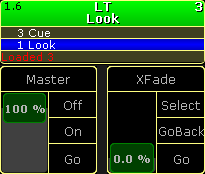 *Selected executor - cue 3 loaded* * To load cue 5 on executor 4, type in the command line: \[Channel]> Load Cue 5 Executor 4 * To select from a list which cue to load on executor 3, type in the command line: \[Channel]> Load Executor 3
# LoadNext
> To execute the keyword LoadNext, type LoadNextr the shortcut LoadNnto the command line.
To execute the keyword LoadNext, type **LoadNext** or the shortcut **LoadN** into the command line. ## Description [Section titled “Description”](#description) LoadNext is a function keyword. If an executor stands in a cue, LoadNext loads the next cue. If a cue was already loaded, LoadNext loads the subsequent cue of the cue that was already loaded. ## Syntax [Section titled “Syntax”](#syntax) LoadNext \[Executor object] ## Example [Section titled “Example”](#example) \[Channel]> LoadNext Executor 2 If executor 2 has loaded cue 5, LoadNext loads cue 6. “Loaded 6” starts flashing in red at the bottom of the sequence. For more information see the [keyword Load](/grandma2/key_keyword_load/).
# LoadPrev
> To execute the keyword LoadPrev, type LoadPrevr the shortcut LoadPnto the command line.
To execute the keyword LoadPrev, type **LoadPrev** or the shortcut **LoadP** into the command line. ## Description [Section titled “Description”](#description) LoadPrev is a function keyword. If an executor stands in a cue, LoadPrev loads the previous cue. If a cue was already loaded, LoadPrev loads the preceding cue of the one that was already loaded. ## Syntax [Section titled “Syntax”](#syntax) LoadPrev ## Examples [Section titled “Examples”](#examples) \[Channel]> LoadPrev Executor 2 If the executor 2 stands in cue 5, LoadPrev loads cue 4. “Loaded 4” starts flashing in red at the bottom of the mini executor. If cue 4 was loaded on the executor 2, LoadPrev loads cue 3. “Loaded 3” starts flashing in red at the bottom of the mini executor. For more information see the [keyword Load](/grandma2/key_keyword_load/) and the [keyword LoadNext](/grandma2/key_keyword_loadnext/).
# LoadShow
> To go to the LoadShow keyword, type LoadShowr the shortcut Loan the command line.
To go to the LoadShow keyword, type **LoadShow** or the shortcut **Loa** in the command line. ## Description [Section titled “Description”](#description) The LoadShow keyword loads a show from the selected drive. For more information, see [SelectDrive keyword](/grandma2/key_keyword_selectdrive/). If the show file does not exist on the selected drive, a new empty show file will be loaded. If the console is in a session, the show file will be uploaded to all connected stations. The LoadShow keyword is a function keyword. ## Syntax [Section titled “Syntax”](#syntax) \*\*LoadShow “\*\*Showname” / \[Option] ## Options [Section titled “Options”](#options) To get a list all available options to the LoadShow keyword, type in the command line: \[Channel]> LoadShow /? The LoadShow has the following options: | Option | Option shortcut | Description | | -------------- | --------------------- | ------------------------------------------------------------------------------------------------------------------------------------------------------------------------------------------------------------------------------------------------ | | full | f | Clears the following data if from a new show will be loaded. Loads the following data if from an existing show will be loaded. - Show data - Global Settings - Network Protocols - User Profiles - Time Config - Local Settings - Network Config | | globalsettings | g | Clears the global settings if from a new show will be loaded. Loads the global settings if from an existing show will be loaded. | | localsettings | l | Clears the local settings if from a new show will be loaded. Loads the local settings if from an existing show will be loaded. | | network | n | Clears the network configuration if from a new show will be loaded. Loads the network configuration if from an existing show will be loaded. | | noconfirm | nc | Suppress the warning pop-up that asks if you want to save the show file first. | | nodata | No shortcut available | Keeps the current show data in the new show (column one in the setup). | | nosave | ns | Does not save the current show file. | | protocols | p | Clears the network protocols if from a new show will be loaded. Loads the network protocols if from an existing show will be loaded. | | save | s | Saves the current show file. | | timeconfig | t | Clears the time config. | | user | u | Clears the user profiles. | ## Examples [Section titled “ Examples”](#examples) * To load the show file with the file name “Macbeth”, type in the command line: \[Channel]> LoadShow “Macbeth” * To load the show file with the file name “Macbeth” and clear the\ \- Show data\ \- Global Settings\ \- Network Protocols\ \- User Profiles\ \- Time Config\ \- Local Settings\ \- Network Config ,\ type in the command line: \[Channel]> LoadShow “Macbeth” /full
# Locate
> To get the Locate keyword in the command line, type Locater the shortcut Locan the command line.
To get the Locate keyword in the command line, type **Locate** or the shortcut **Loca** in the command line. ## Description [Section titled “Description”](#description) The locate keyword is a function keyword to locate assigned objects on executors. The page will change to that page where the object is assigned and a HERE is displayed. To turn locate off, repeat the Locate keyword with no object. ## Syntax [Section titled “Syntax”](#syntax) Locate \[Object] Locate ## Example [Section titled “Example”](#example) * To locate sequence 1 and see where it is assigned, type in the command line. \[Channel]> Locate Sequence 1  *Executor with located sequence 1*
# Lock
> To get the Lock keyword in the command line, type Lockr the shortcut Locn the command line.
To get the Lock keyword in the command line, type **Lock** or the shortcut **Loc** in the command line. ## Description [Section titled “Description”](#description) The lock keyword is a function keyword to lock objects. A locked object is indicated by a **yellow lock icon** . A locked cue is indicated by a **black background** and a **red font** in the sequence executor sheet. A locked executor or sequence is indicated by a **red executor number** or **red sequence number** in the [mini executor bar](/grandma2/key_ws_mini_executor_bar/). A locked object can not be changed or deleted. ## Syntax [Section titled “Syntax”](#syntax) **Lock** \[Object-list] **Lock Off** \[Object-list] ## Example [Section titled “Example”](#example) * To lock cue 3 of the selected executor, type in the command line: \[Channel]> Lock Cue 3
# Login
> To get the Login keyword in the command line, type Loginr the shortcut Logn the command line.
To get the Login keyword in the command line, type **Login** or the shortcut **Log** in the command line. ## Description [Section titled “Description”](#description) The Login keyword is a function keyword to login another user. ## Syntax [Section titled “Syntax”](#syntax) **Login** **Login** “User-name” “password” ## Example [Section titled “Example”](#example) To logout the current user and login as user Jimmy Page with the password mac, type in the command line: \[Channel]> Login “Jimmy Page” “mac”
# Logout
> To get the Logout keyword in the command line, type Logoutr the shortcut Logon the command line.
To get the Logout keyword in the command line, type **Logout** or the shortcut **Logo** in the command line. ## Description [Section titled “Description”](#description) The logout keyword is a function keyword to logout the current user and change to the guest user. ## Syntax [Section titled “Syntax”](#syntax) Logout ## Example [Section titled “Example”](#example) To logout the current user and change to the guest user, type in the command line: \[Channel]> Logout
# Lua
> To get the Lua keyword in the command line type Luanto the command line.
To get the Lua keyword in the command line type \*\*Lua \*\*into the command line. ## Description [Section titled “Description”](#description) This keyword is used to execute commands written in the script language Lua. After entering Lua into the command line, type in the script language Lua version 5.3. The grandMA2 will directly execute the commands written in Lua. ## Syntax [Section titled “Syntax”](#syntax) Lua “Lua code” ## Example [Section titled “Example”](#example) \[Channel]> Lua “gma.feedback(‘hello world’)” “hello world” is displayed in the command line feedback in yellow. For more information see [Plugins](/grandma2/key_plugins/). ##
# Macro
> To go to the Macro keyword, press Macro.
To go to the Macro keyword, press Macro. You can also type **Macro** in the command line or the shortcut **Ma**. ## Description [Section titled “Description”](#description) The Macro keyword is an object keyword access Macros. The default function for macro is **Go +**. This means calling macros without any function specified starts the macro. For more information, see [Macros](/grandma2/key_macro/). ## Syntax [Section titled “Syntax”](#syntax) **\[Function] Macro** \[ID] **\[Function] Macro** \[Macro-pool]. \[ID].\[macro-line] Assign Macro \[Macro-pool]. \[ID].\[macro-line] / \[Parameter] = \[Parameter Value] ## Parameter [Section titled “Parameter”](#parameter) The following table displays the assignable parameters for the **macro object** via the command line. | Parameter | Parameter Value | Description | | --------- | ------------------ | ----------------------------------------------------------- | | Name | ”Macro name” | Assign the macro name. | | CLI | ”On”, “Off” | Assign if the command line interacts with the macro or not. | | Timing | ”On”, “Off” | Assign if the macro follows the timing or not. | | Info | ”Information Text” | Assign additional information to the macro object. | The following table displays the assignable parameters for the **macro lines** via the command line. | Parameter | Parameter Value | Description | | --------- | ---------------------------------- | ----------------------------------------------------------------------- | | CMD | ”A valid command” | Assign the command executed by the macro line. | | Wait | ”Go”, “Follow”, “0.000 - 9999.000” | Assign a delay time or a go or follow after the macro line is executed. | | Info | ”Information Text” | Assign additional information to the macro line. | | Disabled | ”Yes”, “No” | Assign if the macro line is disabled or not. | ## Examples [Section titled “Examples”](#examples) * To start macro 5, type in the command line: \[Channel]> Macro 5 * To set the wait time of macro 3 line 4 to go, type in the command line: \[Channel]> Assign Macro 1.3.4 /wait=“Go” * To store a new empty macro 2, type in the command line: \[Channel]> Store Macro 2
# ManualXFade
> To enter the keyword ManualXFade, type ManualXFader the shortcut Mannto the command line.
To enter the keyword ManualXFade, type **ManualXFade** or the shortcut **Man** into the command line. ## Description [Section titled “Description”](#description) ManualXFade activates the function Crossfade of the Special Masters “Exec Time” and “Program Time”. The green marker starts flashing if Crossfade is active. For more information see [Time control](/grandma2/key_ws_time_control/). ## Syntax [Section titled “Syntax”](#syntax) ManualXFade SpecialMaster \[ID] ## Example [Section titled “Example”](#example) \[Channel]> ManualXFade SpecialMaster 2.3 Activates the ManualXFade mode for the Special Master “Exec Time”. \[Channel]> Off SpecialMaster 2.3 Deactivates the Special Master “Exec Time”.
# Quotation marks " "
> To enter " " quotation marks into the command line press and hold Shift and " .
To enter ” ” quotation marks into the command line press and hold Shift and ” . ## Description [Section titled “Description”](#description) With ” ” quotation marks you can enter text strings into the command line. **Important:**\ If you do not enter text strings using ” ” quotation marks, the console interprets the text strings as a command, which can lead to incorrect results. ## Examples [Section titled “Examples”](#examples) * To label a macro by using the command line enter into the command line: \[Channel]> Label Macro 3 “on” Macro 3 is labeled as “on”. *** * To assign an info text for cue 1 enter into the command line: \[Channel]> Assign Cue 1 /info=“run after music stops” Cue 1 contains the information “run after music stops”.
# Mask
> To execute the keyword Mask press and hold
To execute the keyword Mask press and hold  and Group Group Group or type **Mask** into the command line. ## Description [Section titled “Description”](#description) The Mask keyword is an object keyword to access Masks in the Mask pool. The default function is [Select](/grandma2/key_keyword_select/). For more information, see [worlds, filters, and masks](/grandma2/key_wfm_world_filter_mask/). ## Syntax [Section titled “Syntax”](#syntax) **\[Function] Mask** \[ID] ## Examples: [Section titled “Examples:”](#examples) \[Channel]> Mask 3 Selects mask 3 in the mask pool. \[Channel]> Mask “My Mask” Selects mask with the name “My Mask”.
# Master
> To get the Master keyword in the command line, type Masterr the shortcut Masn the command line.
To get the Master keyword in the command line, type **Master** or the shortcut **Mas** in the command line. ## Description [Section titled “Description”](#description) The Master keyword is a function keyword to assign an executor the function master. Master is a function that will scale the output of intensity-values of an executor, according to the position of the fader. ## Syntax [Section titled “Syntax”](#syntax) **Assign Master** (**At**) \[Object-list] ## Example [Section titled “Example”](#example) * To assign executor 28 as a master, type in the command line: \[Channel]> Assign Master Exec 28
# MasterFade
> To get the MasterFade keyword in the command line, type MasterFader the shortcut MasterFn the command line.
To get the MasterFade keyword in the command line, type **MasterFade** or the shortcut **MasterF** in the command line. ## Description [Section titled “Description”](#description) MasterFade keyword is a function to adjust the on and off fade time of chasers and effects, and the off fade time for sequence executors. ## Syntax [Section titled “Syntax”](#syntax) Assign Masterfade (At) \[Executor-list] **Masterfade**\*\* \[value] \[Executor-list] (Fade \[seconds])\*\* Set the Masterfade to a negative value, to link the Master fade to the default Off time ## Example [Section titled “Example”](#example) \[Channel]> Assign Masterfade At Executor 1 Thru 5 Gives fader 1 thru 5 Masterfade functionality. \[Channel]> Masterfade 5 Executor 1 Sets the on and off fade time of executor 1 to 5 seconds.
# MAtricks
> To get the MAtricks keyword in the command line type MAtricksr the shortcut MAtn the command line.
To get the MAtricks keyword in the command line type **MAtricks** or the shortcut **MAt** in the command line. ## Syntax [Section titled “Syntax”](#syntax) MAtricks \[ID] MAtricks On MAtricks Off MAtricks Toggle ## Description [Section titled “Description”](#description) The MAtricks keyword acts as an object type and as a mode. Used with an ID, MAtricks represents MAtricks objects stored in the MAtricks pool. With the helping keywords On, Off and Toggle, MAtricks may temporary be enabled/disabled. Calling an MAtricks will enable the MAtricksmode. For more information on MAtricks see [MAtricks](/grandma2/key_matricks/). ## Examples [Section titled “Examples”](#examples) * To store the current MAtricks settings as MAtricks 2 in the MAtricks pool type in the command line: \[Channel]> Store MAtricks 2 * To recall the MAtricks settings stored in MAtricks 3 type in the command line: \[Channel]> MAtricks 3 * To temporary disable the MAtricks mode type in the command line: \[Channel]> Matricks Off
# MAtricksBlocks
> To get the MAtricksBlocks keyword in the command line type MAtricksBlocksr one of the shortcuts MBr MAtricksBn the command line.
To get the MAtricksBlocks keyword in the command line type **MAtricksBlocks** or one of the shortcuts **MB** or **MAtricksB** in the command line. ## Description [Section titled “Description”](#description) MAtricksBlocks is a function to set the MAtricks Blocks values. With the function MAtricksBlocks, x fixtures are treated as one block when aligning or sub selecting. For more information on MAtricks see [MAtricks](/grandma2/key_matricks/). ## Syntax [Section titled “Syntax”](#syntax) MAtricksBlocks \[block-size] MAtricksBlocks \[block-size x].\[block-size y] MAtricksBlocks + x | - x MAtricksBlocks Off ## Examples [Section titled “Examples”](#examples) * To set the block size 2 columns wide type in the command line: \[Channel]> MatricksBlocks 2 * To set the block size 2 columns wide and 3 rows high (if MAtricksInterleave is active) type in the command line: \[Channel]> MatricksBlocks 2.3
# MAtricksFilter
> To get the MAtricksFilter keyword in the command line type MAtricksFilterr one of the shortcuts MFr MAtricksFn the command line.
To get the MAtricksFilter keyword in the command line type **MAtricksFilter** or one of the shortcuts **MF** or **MAtricksF** in the command line. ## Description [Section titled “Description”](#description) MatricksFilter is a function keyword to set the Matricks filter values. With the function MatricksFilter, fixtures of the current selection that matches the given filter, will be sub selected. For more information see [MAtricks](/grandma2/key_matricks/). ## Syntax [Section titled “Syntax”](#syntax) MatricksFilter \[filter number] MatricksFilter “filter name” MatricksFilter + | - MatricksFilter Off ## Examples [Section titled “Examples”](#examples) * To select the second filter (EvenID), only Channels/fixtures with last digit 2/4/6/8/0 will be actively selected type in the command line: \[Channel]> MF 2 * To select the “OddID” filter, only channels/fixtures with last digit 1/3/5/7/9 will be actively selected type in the command line: \[Channel]> MatricksFilter “OddID”
# MAtricksGroups
> To get the MAtricksGroups keyword in the command line type MAtricksGroupsr one of the shortcuts MGr MAtricksGn the command line.
To get the MAtricksGroups keyword in the command line type **MAtricksGroups** or one of the shortcuts **MG** or **MAtricksG** in the command line. ## Description [Section titled “Description”](#description) MAtricksGroups is a function keyword to set the Align Groups. With the MAtricksGroups function the distribution of aligned values may be limited to n fixtures, for then to be repeated. For more information see [MAtricks](/grandma2/key_matricks/). ## Syntax [Section titled “Syntax”](#syntax) MAtricksGroups \[group size] MAtricksGroups \[group size x].\[group size y] MAtricksGroups + x | - x MAtricksGroups Off ## Examples [Section titled “Examples”](#examples) * To set the aligning for four fixtures always type in the command line: \[Channel]> MAtricksGroups 4 * To repeat the aligning for every sixth column an every third row of an interleave array type in the command line: \[Channel]> MAtricksGroups 6.3
# MAtricksInterleave
> To get the MAtricksInterleave keyword in the command line type MAtricksInterleaver one of the shortcuts MI or MAtricksIn the command line.
To get the MAtricksInterleave keyword in the command line type **MAtricksInterleave** or one of the shortcuts **MI** or **MAtricksI** in the command line. ## Description [Section titled “Description”](#description) MatricksInterleave is a function keyword to create a virtual array of the fixture selection. With the function MatricksInterleave the selection is wrapped onto a new row for every n’th fixture, creating a virtual array. For more information see [MAtricks](/grandma2/key_matricks/). ## Syntax [Section titled “Syntax”](#syntax) MatricksInterleave \[array width] MatricksInterleave \[column].\[array width] MatricksInterleave + | - MatricksInterleave Off ## Examples [Section titled “Examples”](#examples) * To select the first column of a 2 column wide array = first of every second fixture = “Odd” type in the command line: \[Channel]> MatricksInterleave 1.2 * To increase the array width type in the command line: \[Channel]> MatricksInterleave +
# MAtricksReset
> To get the MAtricksReset keyword in the command line, type MAtricksResetr one of the shortcuts MRr MAtricksRn the command line.
To get the MAtricksReset keyword in the command line, type **MAtricksReset** or one of the shortcuts **MR** or **MAtricksR** in the command line. ## Description [Section titled “Description”](#description) The MAtricksReset is a function keyword to turn off all active MAtricks settings. ## Syntax [Section titled “Syntax”](#syntax) **MatricksReset** ## Example [Section titled “Example”](#example) * To turn off all active MAtricks settings, type in the command line: \[Channel]>MatricksReset
# MAtricksWings
> To get the MAtricksWings keyword in the command line type MAtricksWingsr one of the shortcuts MWr MAtricksWn the command line.
To get the MAtricksWings keyword in the command line type **MAtricksWings** or one of the shortcuts **MW** or **MAtricksW** in the command line. ## Description [Section titled “Description”](#description) MAtricksWings\*\*\*\* is a function keyword to set the MAtricks Wings value. With the MAtricksWings the fixture selection is splitted in x parts and each part is mirroring the previous part. For more information see [MAtricks](/grandma2/key_matricks/). ## Syntax [Section titled “Syntax”](#syntax) MAtricksWings \[parts] MAtricksWings + | - MAtricksWings Off ## Example [Section titled “Example”](#example) To divide the fixture selection in two parts and the second part mirrors the adjusted values type in the command line: \[Channel]> MatricksWings 2
# MediaServer
> To enter the keyword, type MediaServerr the shortcut Mednto the command line.
To enter the keyword, type **MediaServer** or the shortcut **Med** into the command line. ## Description [Section titled “Description ”](#description) The keyword MediaServer is an object keyword and is used in connection with CITP. For more information see [Streaming CITP](/grandma2/key_network_citp_stream/). ## Syntax [Section titled “Syntax”](#syntax) MediaServer \[Id] ## ## Example [Section titled “Example”](#example) \[Channel]> List MediaServer Thru Displays all defined CITP Mediaservers in the Command Line Feedback window
# Menu
> To go to the Menueyword type Menu or the shortcut Menn the command line.
To go to the **Menu** keyword type Menu or the shortcut **Men** in the command line. ## Description [Section titled “Description”](#description) With the Menu keyword you can open and close menus. If the Menu keyword is used without an On or Off keyword, it toggles. ## Syntax [Section titled “Syntax”](#syntax) Menu \[On or Off keyword] “\[menu name]” / \[option] ## Options [Section titled “Options”](#options) To get the list of the available options to the Menu keyword in the command line feedback window, type in the command line: \[Channel]> Menu /? The Menu keyword has the following options: | Option | Shortcut | Description | | ------ | -------- | ------------------------------------------------------------------------------------------------------------------------------------ | | list | li | Lists all menus you can open by using the Menu keyword. | | reset | r | Switches all dialogs back to their default screen. For more information, see [encoder settings](/grandma2/key_ws_encoder_settings/). | ## Examples [Section titled “Examples”](#examples) * Open the Setup. \[Channel]> Menu “setup” The Setup opens. *** * List all menus you can open by using the Menu keyword. \[Channel]> Menu /list The command line feedback window lists all menu you can open by using the Menu keyword.
# Message
> To get the Message keyword in the command line, type Messager the shortcut Mesn the command line.
To get the Message keyword in the command line, type **Message** or the shortcut **Mes** in the command line. ## Description [Section titled “Description”](#description) The Message keyword is a function keyword to create Messages in the system monitor. This is useful if you want to export the system monitor as an .xml file and you will set specific markers in the system monitor. ## Syntax [Section titled “Syntax”](#syntax) Message “message text” ## Example [Section titled “Example”](#example) * To enter in the system monitor a message “test marker 1”, type in the command line: \[Channel]> Message “test marker 1”
# Messages
> To get the Messages keyword in the command line, type Messagesn the command line.
To get the Messages keyword in the command line, type **Messages** in the command line. ## Description [Section titled “Description”](#description) With the Messages keyword you can * list messages in the command line feedback window. * export messages as a messages.xml file. * delete messages from the message center, for example, from previous show files. For more information to export files, see [general export function](/grandma2/key_ei_export_commandline/). The Messages keyword is an object keyword. ## Syntax [Section titled “Syntax”](#syntax) \[Function] Messages / Condition = \[Condition] \[Operation Syntax] \[Condition Value] ## Conditions [Section titled “Conditions”](#conditions) The Messages keyword can only be used with the option **condition**. The short cut for condition is **cnd**. The following table displays the supported condition values. **Important:**\ String comparison with wild cards are possible. Values are case-insensitive. | Condition | Condition Value | | -------------------------------- | ------------------------------------------------------------------------------------------------------------------------------------------------------------------------------------------------------------------------------------------------------------------------------------------------------------------------------------------------------------------------------------------------------------------------------- | | ”new”, “unread“ | ‘true’, ‘false’, ‘yes’, ‘no‘ | | “time” (= message receive time) | ‘YYYY-MM-DDThh:mm:ss’, ‘YYYY-MM-DD’, ‘hh:mm:ss’ When the date is used standalone, the time will be set to 00:00:00, for example, 2016-03-20T00:00:00. When the time is used standalone, the date of today will be set, for example, 2016-03-20T12:05:00. | | ”sender” | message sender user profile name | | ”station” | message sender station IP + type | | ”msg” | message | | ”type” (= message type) | ‘Info’, ‘Warning’, ‘Alert’, ‘Error‘ | | “cat” (= message category) | ‘General’, ‘Power’, ‘Network’, ‘Show’, ‘Chat’, ‘CITP’, ‘RDM’, | | “subcat” (= message subcategory) | ‘Backup Server’, ‘Blind’, ‘CITP Traffic’, ‘DMX Tester Output’, ‘Exec CLI’, ‘Filter’, ‘Highlight’, ‘IP Conflict’, ‘Macro’, ‘Masters’, ‘Missed Stations’, ‘Network’, ‘Parameters’, ‘Parked’, ‘Patch’, ‘Power’, ‘Preview’,‘RDM Alert’,‘Session’, ‘Solo’, ‘Stage’, ‘Timecode(MIDI)’, ‘Timecode(SMPTE)’, ‘Unassigned Ports’, ‘World’, ‘Global Autofix’, ‘Exec. Time’, ‘Prog. Time’, ‘Rate 1’, ‘Speed 1’, ‘Default Go’, ‘RDM Warning’ | The following table displays the supported operation syntax via command line. **Important:**\ If you use operation syntax, the operation has to be surrounded by spaces.\ ”condition1 = ‘conditionvalue1‘“ | Operation | Syntax | | --------------------------------------------------- | ---------- | | and | ”and”, ”&“ | | or | ”or”, “I” | | not | ”not”, ”!“ | | greater (only for condition time and type) | ”>“ | | less (only for condition time and type) | ”<“ | | greater or equal (only for condition time and type) | ”>=“ | | less or equal (only for condition time and type) | ”<=“ | | equal (only for condition time and type) | ”=“ | ## Examples [Section titled “Examples”](#examples) * List all messages in the command line feedback window, with the condition type and condition value alert. \[Channel]> List Messages /cnd = “type = ‘alert’” * Export all warning, alert, and error messages before 12:45 as a messages.xml. \[Channel]> Export Messages /cnd=“(type >= ‘warning’ or time <= ‘12:45:00’) and !(new = ‘true’)” * Delete all alert messages from the message center. \[Channel]> Delete Messages /condition=“type = ‘alert’”
# MidiControl
> To get the MidiControl keyword in the command line, type MidiControln the command line or the shortcut MidiC.
To get the MidiControl keyword in the command line, type **MidiControl** in the command line or the shortcut **MidiC**. ## Description [Section titled “Description”](#description) The MidiControl keyword is a function keyword to transmit MIDI control change messages via the MidiOut port. If no MIDI channel is given, the MIDI channel of the MIDI Show Control in the Setup is used. ## Syntax [Section titled “Syntax”](#syntax) **MidiControl** \[controller] \[value] **MidiControl** \[midichannel].\[controller] \[value] ## Example [Section titled “Example”](#example) * To transmit a value of 64 for controller 1, type in the command line: \[Channel]> MidiControl 1 64
# MidiNote
> To use to the MidiNote keyword, type MidiNote or the shortcut Mnn the command line.
To use to the MidiNote keyword, type **MidiNote** or the shortcut **Mn** in the command line. ## Description [Section titled “Description”](#description) With the MidiNote command, you send MIDI Note messages via the Midi Out port at the back of the console. For more information, see [Device Overview](/grandma2/key_device_overview/). If a MIDI channel is entered in the command, the entered MIDI channel will be used.\ If no MIDI channel is entered, the MIDI channel in the **Setup -> Midi Show Control** is used. If a velocity is entered in the command, the entered velocity will be used.\ If no velocity is entered, a velocity full (127) will be used. If the Off command is used, a MidiNote Off is sent. For more information on the configuration of MIDI Remotes see [Remote Inputs Setup](/grandma2/key_remote_control_input/). ## Syntax [Section titled “Syntax”](#syntax) **MidiNote** \[note] **MidiNote** \[midichannel] . \[note] **MidiNote** \[note] \[velocity] **MidiNote** \[midichannel] . \[note] \[velocity] **MidiNote** \[note] **Off** **MidiNote** \[midichannel] . \[note] **Off** **MidiNote** \[note] \[velocity] **Off** **MidiNote** \[midichannel] . \[note] \[velocity] **Off** ## Example [Section titled “Example”](#example) Let´s assume, you will send a MIDI note on a specific cue to trigger a sound station. **Requirements:** * Connected sound station device e.g. computer on the MIDI Out connector. * Stored cue in a sequence on an executor. Open the sequence executor sheet and type in the CMD (= command) column the following syntax: MidiNote 12  *Sequence Sheet with MidiNote command* The MIDI note will be send if the cue is executed and will trigger the connected sound station.
# MidiProgram
> To get the MidiProgram keyword in the command line, type MidiProgramn the command line or the shortcut MidiP.
To get the MidiProgram keyword in the command line, type **MidiProgram** in the command line or the shortcut **MidiP**. ## Description [Section titled “Description”](#description) The MidiProgram keyword is a function keyword to transmit MIDI program change messages via the MidiOut port. If no MIDI channel is given, the MIDI channel of the MIDI Show Control in the Setup is used. ## Syntax [Section titled “Syntax”](#syntax) **MidiProgram** \[program] **MidiProgram** \[midichannel].\[program] ## Examples [Section titled “Examples”](#examples) * To transmit a program change of 12. \[Channel]> MidiProgram 12
# - [Minus]
> To execute the keyword - [Minus] type -nto the command line.
- \[Minus] is a helping keyword with various functions. To execute the keyword **- \[Minus]** type **-** into the command line. ## Syntax: [Section titled “Syntax:”](#syntax) - \[Minus] is used to remove objects from a list or to indicate a negative value. When used as a relative indicator, with no value given, the value of 1 will be used. When used to indicate a value it can indicate an absolute or relative value. Adding a space between - \[Minus] and the value makes it relative. No space makes it an absolute value. E.g., giving a Pan attribute a value of - 10 subtracts 10 degrees from the current location. Giving the Pan attribute a value of -10 sets the pan at -10 degrees. See the difference between adding and not adding a space. Using the numeric keys automatically adds the space. If used as a starting keyword, - \[Minus] creates a selection list, which is removed from the current selection. ## Example: [Section titled “Example:”](#example) \[Channel]> Group 5 - Channel 2 Selects group 5 but not channel 2. \[Channel]> At - 10 Subtracts 10% from the current dimmer value of the selected fixtures. \[Channel]> - 5 Thru 7 Removes channel 5, 6 and 7 from the current selection. \[Channel]> Page - Same as Page - 1, which calls previous page. **Hint:**\ To execute this function you can also use the key - on the console. For more information see the key [-](/grandma2/key_key_minus/).
# Model
> To get the Model keyword in the command line, type Modelr the shortcut Modn the command line.
To get the Model keyword in the command line, type **Model** or the shortcut **Mod** in the command line. ## Description [Section titled “Description”](#description) The Model keyword is an object keyword to access 3D models. ## Syntax [Section titled “Syntax”](#syntax) \[Function] Model ## Examples [Section titled “Examples”](#examples) * To list all 3D model of the show file in the command line feedback window, type in the command line: \[Channel]> List Model * To assign a 3D model to a fixture, type in the command line: \[Channel]> Assign Model 2 At Item3d 10
# Move
> To get the Move keyword into the command line, press Move.
To get the Move keyword into the command line, press Move. You can also type **Move** or the shortcut **Mo** in the command line. ## Description [Section titled “Description”](#description) The Move keyword is a function keyword to move objects and give them a new object ID. If the destination is already taken, the object that was moved and the destination object will swap. ## Syntax [Section titled “Syntax”](#syntax) **Move** \[Object-list] **At** \[Object start] \*\*Move \*\*\*\*\[Object-list] \*\*\*\*At \*\***\[Object-list]** **Important:**\ If the destination is a list, the number of elements in the destination list must be the same as in the source list. ## Example [Section titled “Example”](#example) * To move group 5 at group 9, type in the command line: \[Channel]> Move Group 5 At 9
# Move3D
> To go to the Move3D keyword, type Move3Dn the command line or use the shortcut Move3.
To go to the Move3D keyword, type **Move3D** in the command line or use the shortcut **Move3**. ## Description [Section titled “Description”](#description) The Move3D keyword moves 3D objects in the [Stage View](/grandma2/key_patch_stage/). If the Move3D keyword is used without values, the selected fixtures will be reset to zero. If the option relative is used, the move function uses the relative position. Move3D is a function keyword. ## Syntax [Section titled “Syntax”](#syntax) Move3D At \[x y z] /relative ## Example [Section titled “Example”](#example) Move the selected 3D object in the [Stage View](/grandma2/key_patch_stage/). \[Channel]> Move3D At 2.5 -5 3.3
# NetworkInfo
> To get the NetworkInfo keyword in the command line, type NetworkInfo or the shortcut Net in the command line.
To get the NetworkInfo keyword in the command line, type **NetworkInfo** or the shortcut **Net** in the command line. ## Description [Section titled “Description”](#description) The NetworkInfo keyword is a function keyword to display information about the network in the command line feedback window. ## Syntax [Section titled “Syntax”](#syntax) NetworkInfo / \[Option] = \[Option Value] ## Options [Section titled “Options”](#options) To get a list of all available option to the NetworkInfo keyword, type in the command line: \[Channel]> NetworkInfo /? | Option | Option Shortcut | Option Value | Description | | ------ | ----------------------------- | ---------------- | ---------------------------------------------------------------- | | number | g | No option value. | Displays only the devices in my session. | | type | t | Undefined | Displays only undefined devices. | | type | t | Console | Displays only consoles. | | type | t | NPU | Displays only MA NPUs (Network Processing Unit). | | type | t | 3D | Displays only MA 3Ds. | | type | t | Video | Displays only MA VPUs (Video Processing Unit). | | type | t | Node | Displays only MA Nodes. | | type | t | NDP | Displays only NDPs (Network Dimmer Processor). | | type | t | Remote | Displays only MA Remotes. | | type | t | Bridge | Displays only bridges. | | type | t | Switch | Display only MA Network Switches. | | ipv4 | No option shortcut available. | No option value. | Displays the ipv4 addresses in the command line feedback window. | | ipv6 | No option shortcut available. | No option value. | Displays the ipv6 addresses in the command line feedback window. | ## Example [Section titled “Example”](#example) * To get information about the network, type in the command line: \[Channel]> NetworkInfo The network info is displayed in the command line feedback window.  *Command Line Feedback Window - NetworkInfo*
# NetworkNodeInfo
> To get the NetworkNodeInfo keyword in the command line, type NetworkNodeInfo or the shortcut NNI or NetworkN.
To get the NetworkNodeInfo keyword in the command line, type **NetworkNodeInfo** or the shortcut **NNI** or **NetworkN**. ## Description [Section titled “Description”](#description) The NetworkNodeInfo keyword displays all in the network available MA Nodes in the command line feedback window. To get only the MA Nodes of the session, use the option **number**. For more information, see [Configure DMX ports](/grandma2/key_network_dmx_configure_ports/). ## Syntax [Section titled “Syntax”](#syntax) NetworkNodeInfo / number ## Example [Section titled “Example”](#example) * To get information about all in the network available MA Nodes, type in the command line: \[Channel]> NetworkNodeInfo 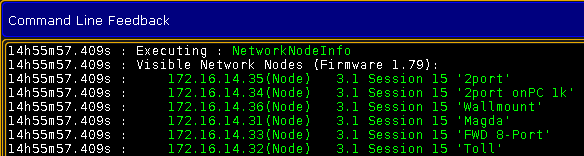 *Command Line Feedback Window - NetworkNodeInfo*
# NetworkNodeUpdate
> To execute the keyword NetworkNodeUpdate, type NetworkNodeUpdate or one of the shortcuts NNU or NetworkNodeUnto the command line.
To execute the keyword NetworkNodeUpdate, type **NetworkNodeUpdate** or one of the shortcuts **NNU** or **NetworkNodeU** into the command line. ## Description [Section titled “Description”](#description) NetworkNodeUpdate is a function keyword used for the update of the following MA Nodes: * MA 2Port Node onPC * MA 2Port Node Pro * MA 2Port Node Flush Mount It is also possible to update the ports of the grandMA 1 series via Setup – MA Network Configuration – 2Port SW Update. For more information see [Adding devices to your session](/grandma2/key_network_session_add_device/#dmx_nodes). **Important:**\ The keyword NetworkNodeUpdate is only used for the MA nodes of the grandMA1 series. To update the xPort nodes of the grandMA2 series use the keyword [UpdateSoftware](/grandma2/key_keyword_updatesoftware/) or see [Update via setup](/grandma2/key_update_setup/). ## Syntax [Section titled “Syntax”](#syntax) NetworkNodeUpdate ## ## Example [Section titled “Example”](#example) \[Channel]> NetworkNodeUpdate Automatically updates all nodes of the grandMA1 series.
# NetworkSpeedTest
> To get the NetworkSpeedTest keyword in the command line, type NetworkSpeedTest or the shortcut NetworkS in the command line.
To get the NetworkSpeedTest keyword in the command line, type **NetworkSpeedTest** or the shortcut **NetworkS** in the command line. ## Description [Section titled “Description”](#description) **Important:**\ Do not use the NetworkSpeedTest keyword in show situations.The NetworkSpeedTest keyword blocks all other network traffic and DMX traffic for some seconds. The NetworkSpeedTest keyword checks the current network performance in the network of the following MA devices in the session: * grandMA2 consoles * grandMA2 replay unit * grandMA2 onPC * MA 3D * MA VPU (Video Processing Unit) * MA NPU (Network Processing Unit) Use the NetworkSpeedTest keyword as a troubleshooting tool. NetworkSpeedTest UDP (=User Datagram Protocol) packets will be send at port 29998. The result of the NetworkSpeedTest is displayed in the MAnet Speed Test pop-up.  *MAnet SpeedTest pop-up* The console what sends the command is not listed in the MAnet SpeedTest pop-up. In the MAnet SpeedTest pop-up are five columns: **IP:**\ Displays the IP address of the tested network device. **Time:**\ Displays the duration between sending and receiving the packets. In a 1000 Mbit network the time for a console should be 0.1 s. **Sequence Errors:**\ Displays of how many packets the order was swapped. **Data Errors**:\ Displays how many packets are damaged. **Packets Received:**\ Displays the percentage of correctly delivered packages. In a 1000 Mbit network the received packets should be 100%. If this is not the case, the reason could be a bad network connection or an overloaded device. ## Syntax [Section titled “Syntax”](#syntax) NetworkSpeedTest / \[Option] ## Options [Section titled “Options”](#options) To get a list of all available option to the NetworkSpeedTest keyword, type in the command line: \[Channel]> NetworkSpeedTest /? | Option | Option Shortcut | Description | | --------- | --------------- | --------------------------------------- | | noconfirm | nc | Suppress the danger and warning pop-up. | | data | d | Network speed test at UDP port 29999. | ## Example [Section titled “Example”](#example) To perform a network speed test of the MA devices in the network for troubleshooting: 1\. Type in the command line: \[Channel]> NetworkSpeedTest A danger pop-up asks if you really want to perform the network test. 2\. Tap Ok.\ A continue pop-up asks that the network traffic will disrupt for some seconds. 3\. Tap Ok. The network speed test will be performed and the MAnet SpeedTest pop-up displays the result.
# NewShow
> To get the NewShow keyword in the command line, type NewShown the command line or use the shortcut New.
To get the NewShow keyword in the command line, type **NewShow** in the command line or use the shortcut **New**. ## Description [Section titled “Description”](#description) The NewShow keyword is a function keyword to create new shows. ## Syntax [Section titled “Syntax”](#syntax) \*\*NewShow “\*\*Showname” / \[Option] ## Options [Section titled “Options”](#options) To get a list all available options to the NewShow keyword, type in the command line: \[Channel]> NewShow /? The NewShow keyword has the following options: | Option | Option shortcut | Description | | -------------- | --------------------- | ----------------------------------------------------------------------------------------------------------------------------- | | full | f | Clears the: - Show data - Global Settings - Network Protocols - User Profiles - Time Config - Local Settings - Network Config | | globalsettings | g | Clears the global settings. | | localsettings | l | Clears the local settings. | | network | n | Clears the network config. | | noconfirm | nc | Suppress the warning pop-up that asks if you want to save the show file first. | | nodata | No shortcut available | Keeps the current show data in the new show (column one in the setup). | | nosave | ns | Does not save the current show file. | | protocols | p | Clears the network protocols. | | save | s | Saves the current show file. | | timeconfig | t | Clears the time config. | | user | u | Clears the user profiles. | ## Examples [Section titled “Examples”](#examples) * To create a new show file with the file name “Macbeth”, type in the command line: \[Channel]> NewShow “Macbeth” * To create a new show file with the file name “Macbeth” and clear the\ \- Show data\ \- Global Settings\ \- Network Protocols\ \- User Profiles\ \- Time Config\ \- Local Settings\ \- Network Config ,\ type in the command line: \[Channel]> NewShow “Macbeth” /full
# Next
> Important:
**Important:**\ If you type the Next keyword in the console, by press the Next key, the keyword will be directly executed.\ You can also use the command line along with the keyboard and type the word Next in. To get the Next keyword in the command line and directly execute it, press Next. You can also type **Next** or the shortcut **N** in the command line. ## Description [Section titled “Description”](#description) If no fixtures or channels are selected and the default keyword is Fixture or Channel, the Next keyword selects the fixture with lowest fixture or channel ID. If only one fixture selected and the default keyword is Fixture or Channel, the Next keyword selects the fixture with the next fixture or channel ID. If multiple fixtures or channels are selected, the Next keyword selects the next fixture or channel in the selection order. For more information, see [MAtricks](/grandma2/key_matricks/). ## Syntax [Section titled “Syntax”](#syntax) Next ## Example [Section titled “Example”](#example) * To step thru the fixtures of the fixture selection in the selection order, press Next.  *Fixture selection is fixture 1 thru 7, current selected with next is fixture 2*
# NextRow
> To get the NextRow keyword in the command line type NextRowr the shortcut NextRn the command line.
To get the NextRow keyword in the command line type **NextRow** or the shortcut **NextR** in the command line. If fixtures are selected in the fixture sheet and single y is defined for MAtricks, press and hold  + Next to execute NextRow directly. ## Description [Section titled “Description”](#description) NextRow is a function keyword to increase the MAtricks property single y. If MAtricksInterleave is active, NextRow will increases the MAtricks Single y property, effectively subselecting fixtures row by row. For more information see [MAtricks](/grandma2/key_matricks/). ## Syntax [Section titled “Syntax”](#syntax) NextRow ## Example [Section titled “Example”](#example) To select the first row of 4 fixtures type in the command line: \[Channel]> MatricksInterleave 4 \[Channel]> NextRow
# Normal
> Important:
**Important:**\ If you enter the Normal keyword in the console, by double press the At key, the keyword will be directly executed.\ You can also use the command line along with the keyboard and type the word Normal in. To get the Normal keyword in the command line and directly execute it, press At At. You can also type **Normal** or the shortcut **No** in the command line. ## Description [Section titled “Description”](#description) With the Normal keyword you set the dimmer of the fixtures to the defined Normal value. To change the Normal percent, see [user settings](/grandma2/key_single_multi_systems_user_settings/). Normal is an object keyword. ## Example [Section titled “Example”](#example) * To set the dimmer of the selected fixtures to the defined Normal value of 60 percent, press At At. The selected fixtures have a dimmer value of 60 percent in the programmer.
# Off
> To get the Off keyword into the command line, press Off.
To get the Off keyword into the command line, press Off. You can also type **Off** or the shortcut **Of** in the command line. ## Description [Section titled “Description”](#description) The Off keyword can be a function keyword or a helping keyword. With the Off keyword as a function keyword you can: * Stop an executor. * Knock out parameters of the programmer. * Knock out selections of the programmer. * Knock out active attributes of the programmer. With the Off keyword as a helping keyword you indicate the end of a temporary function, or the disabled state of a toggling function. ## Syntax [Section titled “Syntax”](#syntax) **Off** \[Object-list] (function keyword) \[Function] **Off** \[Object-list] (helping keyword) \[Function] **Off** (helping keyword) ## Examples [Section titled “Examples”](#examples) * To knockout the parameters of cue 1 of the selected executor from the programmer, type in the command line: \[Channel]> Off Cue 1 *** * To knockout the parameters of fixture 1 and 3 from the programmer, type in the command line: \[Channel]> Off Fixture 1 + 3 *** * To indicate a released flash executor 1.2.4, type in the command line: \[Channel]> Flash Off Executor 1.2.4 *** * To turn off highlight, type in the command line: \[Channel]> Highlight Off
# On
> To get the On keyword in the command line press On or type On in the command line.
To get the On keyword in the command line press On or type **On** in the command line. ## Description [Section titled “Description”](#description) The On keyword can be a function keyword or a helping keyword. With the On keyword as a function keyword you can: * Start or restart an executor. * Activate parameters in the programmer. * Activate selections in the programmer. * Activate attributes in the programmer. With the On keyword as a helping keyword you indicate the start of a temporary function, or the enabled state of a toggling function. ## Syntax [Section titled “Syntax”](#syntax) **On** \[Object-list] / \[Option] = \[Option Value] (function keyword) \[Function] **On** \[Object-list] / \[Option] = \[Option Value] (helping keyword) \[Function] **On** (helping keyword) ## Options [Section titled “Options”](#options) To get a list of all available options to the On keyword, type in the command line: \[Channel]> On /? The On keyword has the following options: | Option | Option Shortcut | Option Value | Option Value Shortcut | Description | | ----------- | --------------- | ------------------------------------------ | --------------------- | ------------------------------------------------------ | | cue\_mode | cm | Normal | N | Normal on mode. | | cue\_mode | cm | Assert | A | On asserts the original timing. | | cue\_mode | cm | XAssert | XA | On asserts the cuetiming of current cue. | | cue\_mode | cm | Release | R | On finishes the fade-in and switches the executor off. | | userprofile | upr | ”Name of the user profile”, e.g. “Dominik” | not available | Normal On mode with specified user profile. | ## Examples [Section titled “Examples”](#examples) * To activate the parameters of cue 1 from the selected executor, type in the command line: \[Channel]> On Cue 1 *** * To activate the parameter of fixture 1 and 3 in the programmer, type in the command line: \[Channel]> On Fixture 1 + 3 *** * To flash executor 1.2.4, type in the command line: \[Channel]> Flash On Executor 1.2.4 *** * To turn highlight on, type in the command line: \[Channel]> Highlight On
# Oops
> To get the Oops keyword in the command line, type Oops or the shortcut O in it.
To get the Oops keyword in the command line, type **Oops** or the shortcut **O** in it. ## Description [Section titled “Description”](#description) The Oops keyword is a function keyword to undo the last: * Command line actions * Fixture selections * Programmer actions Oops can undo the last 100 actions. For more information, see [Oops and undo](/grandma2/key_ws_oops/). ## Syntax [Section titled “Syntax”](#syntax) **Oops / \[Option]** ## Options [Section titled “Options”](#options) To get a list of all available option to the Oops keyword, type in the command line: \[Channel]> Oops /? | Option | Option Shortcut | Description | | --------- | --------------- | ---------------------------------------- | | noconfirm | nc | Suppress the confirm undo pop-up. | | clear | c | Clears the oops list in the oops pop-up. | ## Examples [Section titled “Examples”](#examples) * To undo the recent done action, type in the command line: \[Channel]> Oops The confirm undo pop-up opens.  *Confirm undo pop-up* *** * To undo the recent done action and suppress the confirm undo pop-up, type in the command line: \[Channel]> Oops /noconfirm
# Or
> To enter the keyword, type Ornto the command line.
To enter the keyword, type **Or** into the command line. ## Description [Section titled “Description”](#description) Or is a helping keyword and is usually used along with the keyword If. For more information see [keyword If](/grandma2/key_keyword_if/). ## Syntax [Section titled “Syntax”](#syntax) \[Function] \[Object-list] \[If] \[Object-list] Or \[Object-list] ## ## Example [Section titled “Example”](#example) \[Channel]> Delete Cue 1 If Channel 2 or 3
# OutDelay
> To get the OutDelay keyword in the command line by using the command keys, it is necessary to press another function key before, e.g. Store and then press Time
To get the OutDelay keyword in the command line by using the command keys, it is necessary to press another function key before, e.g. Store and then press Time Time Time Time (= OutDelay). You can also type **OutDelay** or the shortcut **OutD** in the command line. ## Description [Section titled “Description”](#description) The OutDelay keyword is a helping keyword to set an outdelay time. Out delay is a waiting time for getting smaller dimmer values. ## Syntax [Section titled “Syntax”](#syntax) **\[Function] OutDelay** \[Value-list] ## Examples [Section titled “Examples”](#examples) * To store cue 3 with an outdelay time of 4 seconds, type in the command line: \[Channel]> Store Cue 3 OutDelay 4
# OutFade
> To get the OutFade keyword in the command line by using the command keys, it is necessary to press another function key before, e.g. Store and then press Time T
To get the OutFade keyword in the command line by using the command keys, it is necessary to press another function key before, e.g. Store and then press Time Time (= OutFade). You can also type **OutFade** or the shortcut **Ou** in the command line. ## Description [Section titled “Description”](#description) The OutFade keyword is a helping keyword to set an outfade time. Indicate out fade times for getting smaller dimmer values. ## Syntax [Section titled “Syntax”](#syntax) **\[Function] OutFade** \[Value-list] ## Examples [Section titled “Examples”](#examples) * To store cue 3 with an outfade time of 4 seconds, type in the command line: \[Channel]> Store Cue 3 OutFade 4
# Page
> To get the Page keyword in the command line, press Page.
To get the Page keyword in the command line, press Page. You can also type **Page** or the shortcut **Pag** in the command line. ## Description [Section titled “Description”](#description) The Page keyword is an object keyword to access pages. The default function is Call. For more information, see [Call keyword](/grandma2/key_keyword_call/). If you apply a function not supported by the page object, the function will be passed on to the executor child objects of the page. ## Syntax [Section titled “Syntax”](#syntax) **\[Function] Page** \[ID] Assign Page / \[Parameter] = \[Parameter Value] ## Parameter [Section titled “Parameter”](#parameter) The following table displays the assignable parameter by using the command line. | Parameter | Parameter Value | Description | | --------- | --------------- | ------------------------------- | | Name | ”Page name” | Assign name of the page. | | Info | ”Page info” | Assign information to the page. | ## Examples [Section titled “Examples”](#examples) * To change to page 5, type in the command line: \[Channel]> Page 5 * To pause all executors on page 3, type in the command line: \[Channel]> Pause Page 3 * To assign an information to page 3, type in the command line: \[Channel]> Assign Page 3 / Info = “This are all my executors on page 3” * To call a page by using the page name, type in the command line: \[Channel]> Page “song name”
# Parentheses ( )
> To get the ( ) parentheses in the command line, press and hold Shift + 9 or Shift + 0.
To get the ( ) parentheses in the command line, press and hold Shift + 9 or Shift + 0. ## Description [Section titled “Description”](#description) With the ( ) parentheses you create pop-up dialog in macros, to get user input. The user will be prompted with the text inside the round brackets, and a text input field. The macro line will be executed with the user input. For more information, see [create pop-ups in macros](/grandma2/key_macro_create_popup/). ## Example [Section titled “Example”](#example) * Create a macro line with a pop-up that asks for the cue number and stores the cue. Enter in the macro line: Store Cue (“Please enter the cue number to store”) If the macro is running, the pop-up opens and expect user input.  *Macro pop-up*
# Park
> To get the Park keyword in the command line, press Pause Pause (= Park).
To get the Park keyword in the command line, press Pause Pause (= Park). You can also type **Park** in the command line. ## Description [Section titled “Description”](#description) The Park keyword is a function keyword to lock DMX output values of attributes. You can also lock DMX output values of a fixture selection, or group of attributes for the current selection. If no value is given, the attribute is parked at current value. **Hint:**\ Parked DMX channels are indicated by a blue marker. For more information, see [marker colors](/grandma2/key_ws_colors_marker/). **Hint:**\ To unpark previous parked values, use the [Unpark keyword](/grandma2/key_keyword_unpark/). ## Syntax [Section titled “Syntax”](#syntax) **Park** \[Selection-list] (**At** \[Value] ) **Park** \[Attribute-list] (**At** \[Value] ) \*\*Park \*\*\*\*\[DMX-list] (\*\*\*\*At \*\***\[Value] )** ## Examples [Section titled “Examples”](#examples) * To park the current values of fixture 5, type in the command line: \[Channel]> Park Fixture 5 * To park the pan attributes of the fixture selection, type in the command line: \[Channel]> Park Attribute “pan” * To park channel 1 through 10 at 100 %, type in the command line: \[Channel]> Park Channel 1 Thru 5 At 100 * To park DMX channel 1.2 type in the command line: \[Channel]> Park DMX 1.2
# Part
> To get the Part keyword in the command line, press Cue Cue (= Part).
To get the Part keyword in the command line, press Cue Cue (= Part). You can also type **Part** or the shortcut **P** in the command line. ## Description [Section titled “Description”](#description) The Part keyword is an object keyword to segment cues in parts. Parts are useful to assign and edit different timings of groups of fixture parameters. ## Syntax [Section titled “Syntax”](#syntax) **\[Function] Part** \[ID] ## Example [Section titled “Example”](#example) * To create a second part of cue 3 for the selected executor, type in the command line: \[Channel]> Store Cue 3 Part 2 * To move part 2 of cue 2 at part 3 of cue 2 for the selected executor, type in the command line: \[Channel]> Move Cue 2 Part 2 At Cue 2 Part 3 * To delete part 2 of cue 1 for the selected executor, type in the command line: \[Channel]> Delete Cue 1 Part 2 The choose delete cue part method pop-up opens. 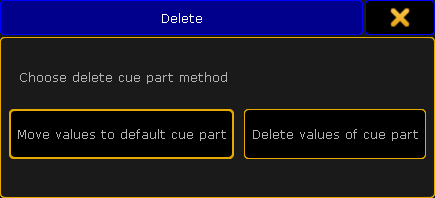 *Choose delete cue part method pop-up* To move the fixture or channel values to the main cue tap, move values to default cue part.\ Timings will be deleted. To delete the part with all values tap, delete values of cue part. The part is deleted.
# Paste
> To get the Paste keyword in the command line, type Paste or the shortcut Pas in the command line.
To get the Paste keyword in the command line, type **Paste** or the shortcut **Pas** in the command line. ## Description [Section titled “Description”](#description) With the Paste keyword, you will paste previous copied content from the clipboard.xml, or move previous Cut object-lists. If no object type is given and the command line destination is root (no destination) the default object is Cue. For more information, see [Cut keyword](/grandma2/key_keyword_cut/) and [Copy keyword](/grandma2/key_keyword_copy/). The Paste keyword is a function keyword. ## Syntax [Section titled “Syntax”](#syntax) **Paste** \[start object] ## Example [Section titled “Example”](#example) To move group 1 at group 5, type in the command line: \[Channel]> Cut Group 1 \[Channel]> Paste Group 5 To copy cue 5 at cue 15: \[Channel]> Copy 5 \[Channel]> Paste 15
# Pause
> To get the Pause keyword in the command line, press the small Pause.
To get the Pause keyword in the command line, press the small Pause. You can also type **Pause** or the shortcut **Pau** in the command line. ## Description [Section titled “Description”](#description) The Pause keyword is a function keyword to pause: * Crossfades between cues * Chaser executors * Timers * Selective effect executors * Timecode shows * Macros Pause is a toggle function between pause on and pause off. ## Syntax [Section titled “Syntax”](#syntax) Pause \[Object-list] Pause On \[Object-list] Pause Off \[Object-list] ## Example [Section titled “Example”](#example) * To pause the running chaser executor 3, type in the command line: \[Channel]> Pause Executor 3 *** * To start running again paused chaser executor 3, type in the command line: \[Channel]> Pause Executor 3
# Plugin
> To get the Plugin keyword in the command line, type Plugin or the shortcut Pl in the command line.
To get the Plugin keyword in the command line, type **Plugin** or the shortcut **Pl** in the command line. ## Description [Section titled “Description”](#description) The Plugin keyword is an object keyword to access Plugins. The default function for the Plugin keyword is [Go+](/grandma2/key_keyword_go/). Plugin 1 is a predefined plugin and not editable. For more information, see [Plugins](/grandma2/key_plugins/). ## Syntax [Section titled “Syntax”](#syntax) \[Function] Plugin \[ID] Assign Plugin \[ID] /\[Parameter]=\[Parameter Value] ## Parameter [Section titled “Parameter”](#parameter) The following table displays the assignable parameter via command line. | Parameter | Parameter Value | Description | | ------------- | ------------------------ | ------------------------------------------------------------- | | Name | ”Create Sequence” | Assign the plugin name. | | ExecuteOnLoad | ”Yes”, “No” | Assign if the plugin be directly executed during show upload. | | Info | ”Additional Information” | Assign additional information. | ## Examples [Section titled “Examples”](#examples) 1\. To executor plugin 2, type in the command line: \[Channel]> Plugin 2 2. Press Please. Plugin 2 is executed. *** 1\. To change the name of plugin 2 to “Create Sequence”, type in the command line: \[Channel]> Assign Plugin 2/name=“Create Sequence” 2\. Press Please. Plugin 2 has the name “Create Sequence”.
# + [Plus]
> + [Plus] is a helping keyword with various functions.
+ \[Plus] is a helping keyword with various functions. To execute the keyword **+ \[Plus]**, type **+** in the command line. ## Syntax: [Section titled “Syntax:”](#syntax) + \[Plus] is used to combine multiple objects in a list or to indicate a relative value. When used as a relative indicator, with no value given, the value of 1 will be used. If used as a starting keyword, + creates a selection list, which will be added to the current selection. ## Examples: [Section titled “Examples:”](#examples) \[Channel]> Delete Cue 1 + 2 Deletes cue 1 and 2 from the selected executor. \[Channel]> At + 5 Adds 5 % to the current dimmer value. \[Channel]> + 5 Thru 7 Adds channel 5, 6 and 7 to the current selection. \[Channel]> Page + Same as Page + 1, which calls the next page. **Hint:**\ To execute this function, you can also use the key + on the console. For more information see [+](/grandma2/key_key_plus/).
# PMArea
> To get the PMArea (= Pixel Mapper Area) keyword in the command line, type PMArea or the shortcut PMn the command line.
To get the PMArea (= Pixel Mapper Area) keyword in the command line, type **PMArea** or the shortcut **PM** in the command line. ## Description [Section titled “Description”](#description) The PMArea keyword is an object keyword to access pixel mapper areas and pixel mapper outputs. You can store, copy, and delete pixel mapper setups. For more information, see [MA VPU pixel mapper](/grandma2/key_keyword_vpupixelmapperview/). The default function for the PMArea keyword is SelFix. For more information, see [SelFix keyword](/grandma2/key_keyword_selfix/). ## Syntax [Section titled “Syntax”](#syntax) \[Store / Copy / Delete] PMArea \[pixel mapper area ID].\[pixel mapper output ID] / \[option] Assign PMArea \[pixel mapper area ID].\[pixel mapper output ID] / \[parameter] = \[parameter value] ## Options [Section titled “Options”](#options) To get a list of all available options to the PMArea keyword, type in the command line: \[Channel]> PMArea /? | Option | Option Shortcut | Option Value | Description | | ---------------------------------------- | --------------------- | ------------------------------------------------------ | ------------------------------------------------------------------------------- | | merge | m | no option value | Adds to the existing content. By default, the 3D coordinates will be used. | | overwrite | o | no option value | Replace the existing content. By default, the 3D coordinates will be used. | | remove | r | no option value | Removes the selected content. | | autoalign | aa | no option value | Ignores the 3D position data and stores as a matrix (equal to the layout view). | | x (only if the option autoalign is used) | no shortcut available | 1.000…500.000 | Defines the position of the x axis in the pixel mapper area. | | y (only if the option autoalign is used) | no shortcut available | 1.000…500.000 | Defines the position of the y axis in the pixel mapper area. | | axis | no shortcut available | All possible combination with + and -, e.g. +x+y, +x+z | Defines the horizontal and vertical axis. | | 3dcoordinates | no shortcut available | no option value | Uses the 3D position coordinates of the fixture. See Patch & Fixture Schedule. | | noconfirm | nc | no option value | Suppress the storing output pop-up. | ## Parameter [Section titled “Parameter”](#parameter) The following table displays the assignable parameter for **pixel mapper areas** via command line. | Parameter | Parameter Value | Description | | --------- | --------------- | -------------------------------------------- | | Name | ”Area 1” | Assign the pixel mapper area name. | | DimX\[m] | 1.000…500.000 | Assign the dimension of the x axis in meter. | | DimY\[m] | 1.000…500.000 | Assign the dimension of the y axis in meter. | The following table displays the assignable parameter for **pixel mapper outputs** via command line. | Parameter | Parameter Value | Description | | ----------------------------------------------------- | ----------------------------------------------- | ------------------------------------------------------------------------------------------------------------------------------------------------------------------------------------------------------------------------------------------------------------------------------------------------------------------------------------------------------------------ | | Name | ”Output 1” | Assign the pixel mapper output name. | | RenderIP | ”192.168.0.4” | Assign the VPU IP address. | | Camera | ”Camera 4” | Assign one of the patched cameras. | | ResX\[Px] | 1…4096 | Assign the resolution of the x axis in pixel. | | ResY\[Px] | 1…4096 | Assign the resolution of the y axis in pixel. | | VirtOut | ”None”, “Virtual Output 1”… “Virtual Output 16” | Assign if the camera, and resolution in pixel should be use for a virtual output. | | Protocol | ”Art-Net”, “sACN”, “MA-Net2” | Assign the protocol. | | Priority | ”Super”, “Swp”, “HTP”, “High”, “LTP”, “Low” | Assign the pixel mapper priority. | | Art-NetMode (only if the protocol is Art-Net) | “Broadcast”, “Unicast”, “Auto” | Assign the Art-Net mode. | | Art-NetStartAddress (only if the protocol is Art-Net) | 1…128 : 0..F : 0..F | Assign the Art-Net start address. | | sACNMode (only if the protocol is sACN) | “Multicast”, “Unicast” | Assign the sACN mode. | | sACNVersion (only if the protocol is sACN) | “Final”, “Draft” | Assign the sACN version. | | sACNPriority (only if the protocol is sACN) | 0…200 | Assign the priority. The highest number has the highest priority. | | sACN TTL (only if the protocol is sACN) | 0…255 | TTL = Time to liveAssign the number of routers (hops) that multicast traffic is permitted to pass through before expiring on the network. For each router (hop), the original specified TTL is decremented by one (1). When its TTL reaches a value of zero (0), each multicast datagram expires and is no longer forwarded through the network to other subnets. | | sACN Start (only if the protocol is sACN) | 0…63999 or “Original” | Assign the sACN universe. Original uses the same as patched. | | Delay(ms) (only if the protocol is sACN or Art-Net) | 0.000…2.500 | Assign the packet delay. | | FrameDelay (1/30s) | 0…8 | Assign the frame delay. | ## Examples [Section titled “Examples”](#examples) * To store the selected fixtures in the existing pixel mapper area 1 output 2 with a horizontal +x axis and a vertical +z axis, type in the command line: \[Channel]> Store PMArea 1.2 /axis=+X+Z /noconfirm *** * To assign the pixel mapper area 1 the name “Sunstrips”, type in the command line: \[Channel]> Assign PMArea 1 /name=“Sunstrips”
# Preset
> To get the Preset keyword in the command line, press Preset.
To get the Preset keyword in the command line, press Preset. You can also type **Preset** or the shortcut **Pres** in the command line. ## Description [Section titled “Description”](#description) With the Preset keyword you can: * Select the fixtures stored in a preset. * At a preset to the fixture or channel selection. If no fixtures or channels are selected in the programmer, the default function is **SelFix**. For more information, see [SelFix keyword](/grandma2/key_keyword_selfix/).\ If fixtures or channels are selected in the programmer, the default function is **At**. For more information, see [At keyword](/grandma2/key_keyword_at/). ## Syntax [Section titled “Syntax”](#syntax) **Preset** \[ID] **Preset** \[Preset-type].\[ID] **Preset** “Name” Assign **Preset** \[ID] / \[Parameter] = \[Parameter Value] ## Parameter [Section titled “Parameter”](#parameter) The following table displays the assignable parameters via command line. | Parameter | Parameter Value | Description | | --------- | ----------------------------------------- | ------------------------------------------------------------------------------------------------------------------ | | Name | ”PresetName” | Assign the preset pool name. | | Special | ”Normal”, “Default”, “Highlight”, “Stage” | Assign the special mode. For more information, see [What are special modes?](/grandma2/key_presets_special_modes/) | | Info | ”additional information” | Assign additional information. Assigned information are displayed in the [info window](/grandma2/key_ws_info/). | ## Examples [Section titled “Examples”](#examples) * Select the fixtures stored in preset 5 of the selected preset type, e.g. dimmer. \[Channel]> Preset 5 *** * Sets current selection to the second preset of preset type 3 (gobo). \[Channel]> At Preset 3.2 *** * Select all fixtures stored in any preset with the label “DarkRed”. \[Channel]> Preset \*.”DarkRed”
# PresetType
> To get the PresetType keyword in the command line, press and hold !ma + Preset.
To get the PresetType keyword in the command line, press and hold  + Preset. You can also type **PresetType**, **PresetT**, or **PT** in the command line. ## Description [Section titled “Description”](#description) With the PresetType keyword you can: * Call PresetTypes and select them in the preset type bar. * Select PresetTypes in the fixture sheet. A selected preset type is indicated by a yellow font in the column header. * Activate PresetTypes for the selected fixtures in the programmer. * Store only values of the given preset type. Preset types contains features and attributes, which means that you can also call features and attributes with the PresetType keyword, using dot-separated numbers. ## Syntax [Section titled “Syntax”](#syntax) **PresetType** \[PresetType Number] **PresetType** “PresetType Name” **PresetType** \[PresetType Number] . \[Feature Number] **PresetType** \[PresetType Number] . \[Feature Number] . \[Attribute Number] \[Function Keyword] PresetType \[PresetType Number] . \[Feature Number] ## Examples [Section titled “Examples”](#examples) * Call preset type 3 in the fixture sheet and in the preset type bar. \[Channel]> PresetType 3 *** * Call preset type color in the fixture sheet and in the preset type bar. \[Channel]> PresetType “Dimmer” *** * Call preset type 3, feature 1, in the fixture sheet and in the encoder bar. \[Channel]> PresetType 3.1 *** * Activate the second color feature for the selected fixtures. \[Channel]> On PresetType “Color”.2 *** * Call the second feature of the current selected preset type. \[Channel]> PresetType $preset.2 *** * Call preset type 3, feature 2, attribute 1, in the fixture sheet and in the encoder bar. \[Channel]> PresetType 3.2.1 *** * Store only the pan/tilt values for the fixture selection. \[Channel]> Store If PresetType Position If Selection
# Preview
> To go to the Preview keyword, press Prvw.
To go to the Preview keyword, press Prvw. You can also type **Preview** in the command line. ## Description [Section titled “Description”](#description) The Preview keyword creates a preview of the programmed output without having an actual DMX output. Preview loads the given cue or part in Previeweditor and enables this editor. (PreviewEdit On) If no cue is given, the current cue of the selected executor will be used. The Preview keyword is a function keyword. **Hint:**\ If the console is in the preview editor, the Prvw key is blinking and the title bar from the sheets changes into red. **Hint:**\ To leave the preview editor, press Esc or Off Prvw or Prvw Prvw on the console. ## Syntax [Section titled “Syntax”](#syntax) Preview \[cue-object] / \[option] = \[option value] Preview \[part-object] Preview Next Preview Previous ## Options [Section titled “Options”](#options) To get a list of all available options to the preview keyword, type in the command line \[Channel]> Preview /? The preview keyword has the following options. | Option | Option Shortcut | Option Value | Description | | -------------- | --------------- | ------------ | ----------------------------------------------- | | add | not available | False, True | Additional preview playback. | | autoupdate | au | False, True | Every programmer value updates automatically. | | keepselection | ks | False, True | Keeps selection when entering preview. | | keepprogrammer | kp | False, True | Keeps programmer content when entering preview. | ## Examples [Section titled “Examples”](#examples) * Load cue 5 from the selected executor in the preview editor. \[Channel]> Preview Cue 5 * Load cue 5, part 2 of the selected executor in the preview editor. \[Channel]> Preview Cue 5 Part 2 * Load current cue of executor 3 in the preview editor. \[Channel]> Preview Executor 3
# PreviewEdit
> To go to the PreviewEdit keyword, press Prvw Prvw (= PrvwEdit).
To go to the PreviewEdit keyword, press Prvw Prvw (= PrvwEdit). You can also type **PreviewEdit** in the command line or use the shortcut **PreviewEd**. To close the PreviewEdit, press Prvw Prvw again. ## Description [Section titled “Description”](#description) The PreviewEdit toggles between the live programmer and the blind preview editor. The PreviewEdit keyword is an object keyword. ## Syntax [Section titled “Syntax”](#syntax) PreviewEdit PreviewEdit On PreviewEdit Off ## Example [Section titled “Example”](#example) Turn the preview editor on. \[Channel]>PreviewEdit On The preview encoder bar is displayed. The title bar of the fixture sheet, channel sheet, and layout view is red. The Prvw key is flashing.  *Preview Encoder Bar*
# PreviewExecutor
> To execute the PreviewExecutor keyword, enter a functional keyword and press Prvw . For example Go + Prvw (= Go PreviewExecutor).
To execute the PreviewExecutor keyword, enter a functional keyword and press Prvw . For example Go + Prvw (= Go PreviewExecutor). To enter the PreviewExecutor keyword into the command line you can also type **PreviewExecutor** or use the shortcut **Pre**. ## Description [Section titled “Description”](#description) **Requirement:** A sequence loaded in the preview editor. The PreviewExecutor keyword is an alias for sequence in the preview editor. The PreviewExecutor keyword is an object keyword. ## Syntax [Section titled “Syntax”](#syntax) \[Function] PreviewExecutor ## Examples [Section titled “Examples”](#examples) * **Requirement:** Selected sequence in the preview editor.\ Run the next cue in PreviewEditor with timing. \[Channel]> Go PreviewExecutor * **Requirement:** Selected sequence in the preview editor.\ Store cue 5 in the preview sequence. \[Channel]> Store Cue 5 PreviewExecutor
# Previous
> To go to the Previous keyword, press Prev.
To go to the Previous keyword, press Prev. You can also type **Previous** in the command line or use the shortcut **Previo**. ## Description [Section titled “Description”](#description) The Previous keyword has multiple functions. * If no fixture or channel is selected, the fixture or channel with the highest ID will be selected. * If one fixture or channel is selected, the fixture or channel with the previous ID will be selected. * If MAtricks are active, the Previous keyword has special functions depending on the selected MAtricks options. For more information, see [MAtricks](/grandma2/key_matricks/). ## Syntax [Section titled “Syntax”](#syntax) Previous ## Example [Section titled “Example”](#example) Select the last fixture of the selected group 5 in the selection order. \[Channel]>Previous
# PrevRow
> To go to the PrevRow keyword, press and hold !ma + Prev.
To go to the PrevRow keyword, press and hold  + Prev. You can also type **PrevRow** in the command line or use the shortcut **PrevR**. ## Description [Section titled “Description”](#description) If MAtricksInterleave is on, PrevRow reduce the Single Y value by one.\ If Single Y was at 0, the last Single Y value will be used. For more information, see [MAtricks](/grandma2/key_matricks/). The PrevRow keyword is a function keyword. ## Syntax [Section titled “Syntax”](#syntax) PrevRow ## Example [Section titled “Example”](#example) Select the last row of fixtures, if MAtricksInterleave is on. \[Channel]> PrevRow
# Profile
> To get the Profile keyword in the command line, type Profiler the shortcut Pro in the command line.
To get the Profile keyword in the command line, type **Profile** or the shortcut **Pro** in the command line. ## Description [Section titled “Description”](#description) The Profile keyword is an object keyword to access DMX profiles and DMX profiles points. For more information, see [DMX profiles](/grandma2/key_dmx_profiles/). ## Syntax [Section titled “Syntax”](#syntax) \[Function] Profile \[DMX Profile ID].\[DMX Profile Point ID] Assign Profile \[DMX Profile ID].\[DMX Profile Point ID] /\[Parameter]=\[Parameter Value] ## Parameter [Section titled “Parameter”](#parameter) The following table displays the assignable parameter for **DMX profiles** via command line. | Parameter | Parameter Value | Description | | --------- | --------------- | ------------------------ | | Name | ”80%“ | Name of the DMX profile. | The following table displays the assignable parameter for **DMX profile points** via command line. | Parameter | Parameter Value | Description | | --------- | --------------- | ------------------------------------------------------ | | X | 0…1 | Assign the x position in physical values of the point. | | Y | 0…1 | Assign the y position in physical values of the point. | ## Example [Section titled “Example”](#example) To export DMX profile 1 from the grandMA2 onPC to the folder C:\ProgramData\MA Lighting Technologies\grandma\gma2\_V\_3.1\importexport: 1\. Type in the command line: \[Channel]> Export Profile 1 2\. Press Please. The DMX profile 1 is exported as a .xml file.
# Protocol
> To go to the Protocol keyword, type Protocol in the command line or use the shortcut Prot.
To go to the Protocol keyword, type **Protocol** in the command line or use the shortcut **Prot**. ## Description [Section titled “Description”](#description) The Protocol keyword is an object keyword to access the network protocols. You can store or delete network protocols and assign parameters. For more information, see [Network DMX Protocols](/grandma2/key_network_dmx_protocols/). ## Syntax [Section titled “Syntax”](#syntax) \[Function] Protocol \[Network Protocol ID] . \[Row ID] Assign Protocol \[Network Protocol ID] / \[Parameter] = \[Parameter Value] Assign Protocol \[Network Protocol ID] . \[Row ID] / \[Parameter] = \[Parameter Value] The following table displays the available network protocol along with their ID. | Network Protocol | ID | | ---------------- | -- | | Art-Net | 1 | | ETC Net2 | 2 | | Pathport | 3 | | sACN | 4 | | Shownet | 5 | | Kinet1 | 6 | ## Parameter [Section titled “Parameter”](#parameter) The following table displays the assignable parameter by use the command Assign Protocol \[Network Protocol ID] / \[Parameter] = \[Parameter Value]. | Network Protocol | Parameter | Parameter Value | Description | | -------------------------------------------------- | ----------- | ----------------------------------------------------------- | -------------------------------------------------------------------------------------------------------------------------------------------------------------------------------------------------------------------------------------------------------------------------------------------------------------------------------------------------------------------- | | Art-Net, sACN, Kinet1 | OutActive | ”On”, “Off” | Assign if the output is set to on or off. | | Art-Net, sACN, Kinet1 | InActive | ”On”, “Off” | Assign if the input is set to on or off. | | Art-Net | MaxUnicast | 0…10 | **Only if the mode is OutputAuto:** Assign the maximal amount of members until Art-Net switches from unicast to broadcast. | | Art-Net, ETC Net2, Pathport, sACN, Shownet, Kinet1 | Info | ”Information text” | Assign additional information. | | ETC Net2, Pathport, Shownet | Active | ”On”, “Off” | Assign if the console transmit or hide the network protocol. | | ETC Net2, Pathport, Shownet | LocalStart | 1…256 | Assign the DMX universe to transmit or receive the network protocol. | | ETC Net2, Pathport, Shownet | Amount | **ETC Net2 and Pathport:** 1…64**Shownet:** 1…256 or “None” | Assign the amount of DMX universes to transmit the network protocol. | | ETC Net2, Pathport, Shownet | ExternStart | 1…64 | Assign the transmitted or received DMX universe. | | ETC Net2 | Groups | 1…6 | ETC Net2 uses multicast groups to simplify and optimize the transmission. Assign the group to transmit to. | | ETC Net2, Shownet, | Priority | **ETC Net2:** 1…20**Shownet:** 0…16 | Assign the priority to decide who a node should listen to in a conflict. **ETC Net2:** The lowest number has the highest priority. **Shownet:** A DMX512 slot can be patched to multiple Netslots with each Netslot assigned to a different priority. The DMX512 slot outputs the level of the Netslot with the highest priority if HTP is not selected. | | ETC Net2, Pathport | TTL | 0…255 | TTL = Time to live Assign the number of routers (hops) that multicast traffic is permitted to pass through before expiring on the network. For each router (hop), the original specified TTL is decremented by one (1). When its TTL reaches a value of zero (0), each multicast datagram expires and is no longer forwarded through the network to other subnets. | The following table displays the assignable parameter by use the command Assign Protocol \[Network Protocol ID] . \[Row ID] / \[Parameter] = \[Parameter Value]. Only available for: * Art-Net * sACN * Kinet1 | Network Protocol | Parameter | Parameter Value | Description | | --------------------- | ------------- | ----------------------------------------------------------------------------------------------------------------------------------------------------- | -------------------------------------------------------------------------------------------------------------------------------------------------------------------------------------------------------------------------------------------------------------------------------------------------------------------------------------------------------------------- | | Art-Net, sACN | Mode | **Art-Net:** “OutputBroadcast”, “OutputUnicast”, “OutputAuto”, “Input” **sACN:** “OutputMulticast”, “OutputUnicast”, “InputMulticast”, “InputUnicast” | Assign the output or input mode. | | Art-Net, sACN | DestinationIP | ”1.2.3.4” | **Only if the mode is OutputUnicast.** Assign the the destination IP address. | | Art-Net, sACN, Kinet1 | LocalStart | 1…256 | Assign the DMX universe to transmit or receive the network protocol. | | Art-Net, sACN, Kinet1 | Amount | 1…256 | Assign the amount of DMX universes to transmit or receive the network protocol. | | Art-Net | Network | 1…128 | Assign the network. | | Art-Net | Subnet | 0…15 | Assign the subnet. | | Art-Net | Universe | 0…15 | Assign the universe. | | Art-Net, sACN | Delay(ms) | 0.000…5.000 | **Only if the mode is an output mode.** Assign the milliseconds between the packets. | | sACN | sACNUniverse | 1…64000 | Assign the sACN universe. | | sACN | Priority | 0…200 or “None” | Assign the priority to decide who a node should listen to in a conflict. The highest number has the highest priority. | | sACN | Protocol | ”Final” or “Draft” | Assign a sACN protocol. Some equipment have implemented the draft version of sACN before the final release. | | sACN | TTL | 0…255 | TTL = Time to live Assign the number of routers (hops) that multicast traffic is permitted to pass through before expiring on the network. For each router (hop), the original specified TTL is decremented by one (1). When its TTL reaches a value of zero (0), each multicast datagram expires and is no longer forwarded through the network to other subnets. | | sACN, Kinet1 | Info | ”Information text” | Assign additional information. | | Kinet1 | ExternStart | 0…255 or “None” | Assign the transmitted universe number. | | Kinet1 | IPAddress | ”1.2.3.4” | Assign the IP address. | ## Example [Section titled “Example”](#example) * Set the sACN output to active. \[Channel]> Assign Protocol 4 /outactive=on * Send grandMA2 universe 10 to Art-Net universe 9. **Important:**\ Art-Net universe 0 is the first Art-Net universe. \[Channel]> Assign Protocol 1.1 /mode=outputauto /localstart=10 /amount=1 /network=1 /subnet=0 /universe=9
# PSR
> To go to the PSR keyword, type PSR in the command line.
To go to the PSR keyword, type **PSR** in the command line. ## Description [Section titled “Description”](#description) **Requirement:** The partial show read is prepared. The PSR keyword executes a partial show read for the specified object. The PSR keyword is a function keyword. For more information, see [Partial Show Read (PSR)](/grandma2/key_psr/). ## Syntax [Section titled “Syntax”](#syntax) PSR \[Object] If \[Object-list] /\[Option] ## Options [Section titled “Options”](#options) To get a list of all available options to the PSR keyword, type in the command line \[Channel]> PSR /? The PSR keyword has the following options. | Option | Short Cut | Description | | --------- | --------- | -------------------------- | | merge | m | Adds to existing content. | | overwrite | o | Replaces existing content. | ## Examples [Section titled “Examples”](#examples) * Partial show read on sequence 1. \[Channel]> PSR Sequence 1 * Partial show read on sequence 1, if channel 1 through 3 are used. \[Channel]> PSR Sequence 1 If Channel 1 Thru 3
# PSRList
> To use to the PSRList keyword, typPSRList or the shortcut PSRL in the command line.
To use to the PSRList keyword, type **PSRList** or the shortcut **PSRL** in the command line. ## Description [Section titled “Description”](#description) The PSRList keyword lists all available and changed objects of the show file which can be inserted.\ The PSRList keyword displays the same as the partial show read pop-up tree. For more information, see [Partial Show Read (PSR)](/grandma2/key_psr/). 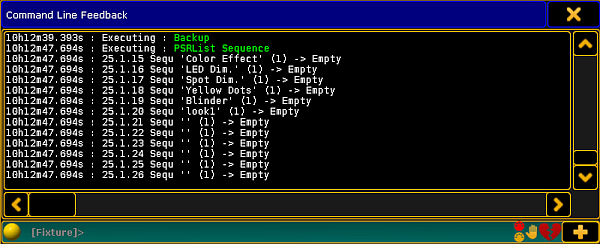 *Command Line Feedback - PSRList Sequence* The PSRList keyword is a function keyword. ## Syntax [Section titled “Syntax”](#syntax) PSRList \[Object type] ## Example [Section titled “Example”](#example) **Requirement:** A prepared partial show read. Show all available and changed sequences of the show file which can be inserted. \[Channel]> PSRList Sequence ##
# PSRPrepare
> To use to the PSRPrepare keyword, type PSRPrepare or the shortcut PSRn the command line.
To use to the PSRPrepare keyword, type **PSRPrepare** or the shortcut **PSR** in the command line. ## Description [Section titled “Description”](#description) PSRPrepare prepares a showfile for PartialShowRead. The PSRPrepare keyword used standalone opens the Partial Show Read Prepare Window. For more information, see [Partial Show Read (PSR)](/grandma2/key_psr/). The PSPPrepare keyword is a function keyword. ## Syntax [Section titled “Syntax”](#syntax) PSRPrepare \[filename] / \[option] ## Options [Section titled “Options”](#options) To get a list of all available options to the PSRPrepare keyword, type in the command line \[Channel]> PSRPrepare /? The PSRPrepare keyword has the following options. | Option | Short Cut | Description | | ---------- | --------- | ---------------------------------------------------- | | usemine | u | Uses the current setup. | | mergeother | mo | Merges with the new setup. | | useother | uo | Overwrites the current setup and uses the new setup. | ## Example [Section titled “Example”](#example) Open the Partial Show Read Prepare Window for the demo dimmer and more show. \[Channel]> PSRPrepare “demo dimmer and more.show\.gz”
# Rate
> To get the Rate keyword into command line type Rate.
To get the Rate keyword into command line type **Rate**. ## Description [Section titled “Description”](#description) The Rate keyword is a function to adjust the Rate of an executor. ## Syntax [Section titled “Syntax”](#syntax) Assign Rate (At) \[Executor-list] **Rate \[value] \[Executor-list] (Fade \[seconds])** ## Example [Section titled “Example”](#example) * To assign a rate fader for a sequence on executor 6. \[Channel]> Assign Rate Exec 6 * Set the rate for a sequence on executor 1 and 5 to 2. \[Channel]> Rate 2 Executor 1 + 5
# Rate1
> To get the Rate1 keyword in the command line, press Learn Learn (= Rate1).
To get the Rate1 keyword in the command line, press Learn Learn (= Rate1). You can also type **Rate1** or the shortcut **Rat** in the command line. ## Description [Section titled “Description”](#description) The Rate1 keyword resets the rate to 1:1. The Rate1 keyword is a function keyword. ## Syntax [Section titled “Syntax”](#syntax) Rate1 \[Object-list] ## Example [Section titled “Example”](#example) Reset the rate of executor 5 back to 1:1. \[Channel]> Rate1 Executor 5
# RdmAutomatch
> To get the RdmAutomatch keyword in the command line, type RdmAutomatch or the shortcut RdmA in it.
To get the RdmAutomatch keyword in the command line, type **RdmAutomatch** or the shortcut **RdmA** in it. ## Description [Section titled “Description”](#description) **Requirements:**\ \- MA Fixture is not matched\ \- MA Fixture and RDM Fixture have the same DMX address\ \- MA Fixture Type has no or the same RDMFixtureType ID as the RDM Fixture\ \- MA Fixture Type has the same DMX footprint as the RDM Fixture\ \- All Subfixtures of the MA Fixture are in the current World and Filter The RdmAutomatch keyword automatches RDM Fixtures. Possible objects are: * Channel * Fixture * FixtureType * RDMFixtureType * Group * Sequence * Cue * Executor * Preset (only selective Presets) * Selection * World If no object is given, the current selection will be used. RdmAutomatch is a function keyword. For more information, see [RDM](/grandma2/key_rdm/). ## Syntax [Section titled “Syntax”](#syntax) RdmAutomatch \[Object List] ## Examples [Section titled “Examples”](#examples) * To automatch the selected fixtures, type in the command line: \[Channel]> RdmAutomatch *** * To automatch the fixtures used in group 1, type in the command line: \[Channel]> RdmAutomatch Group 1 *** * To automatch only the fixtures used in group 1 and also used in sequence 2, type in the command line: \[Channel]> RdmAutomatch Group 1 If Sequence 2
# RdmAutopatch
> To get the RdmAutopatch keyword in the command line, type RdmAutopatch in the command line or use the shortcut RdmAutop.
To get the RdmAutopatch keyword in the command line, type **RdmAutopatch** in the command line or use the shortcut **RdmAutop**. ## Description [Section titled “Description”](#description) **Requirements:**\ \- MA Fixture is matched\ \- MA Fixture is patched\ \- MA Fixture and RDM Fixture have the same universe The RdmAutopatch keyword patches the RDM fixtures to the DMX address in the setup. Possible objects are: * Channel * Fixture * FixtureType * RDMFixtureType * Group * Sequence * Cue * Executor * Preset (only selective Presets) * Selection * World If no object is given, the current selection will be used. RdmAutopatch is a function keyword. For more information about, see [RDM](/grandma2/key_rdm/). ## Syntax [Section titled “Syntax”](#syntax) RdmAutopatch \[Object List] ## Examples [Section titled “Examples”](#examples) * To autopatch the selected fixtures, type in the command line: \[Channel]> RdmAutopatch *** * To autopatch the fixtures used in group 1, type in the command line: \[Channel]> RdmAutopatch Group 1 *** * To autopatch only the fixtures used in group 1 and also used in sequence 2, type in the command line: \[Channel]> RdmAutopatch Group 1 If Sequence 2
# RdmFixtureType
> To get the RdmFixtureType keyword in the command line, type RdmFixtureType or the shortcut Rd in the command line.
To get the RdmFixtureType keyword in the command line, type **RdmFixtureType** or the shortcut **Rd** in the command line. ## Description [Section titled “Description”](#description) The RdmFixtureType is an object keyword to access Rdm fixtures with a Rdm fixture type ID. To get the RdmFixtureType ID, go to **Setup -> Patch & Fixture Schedule -> RDM Devices**. The RdmFixtureType ID is displayed in the information field. **Hint:**\ To get the RdmFixtureType ID you can also enter in the command line, CD RDM\_Data.RDM\_Fixture\_Types. Then enter in the command line List, press Please, and open the command line feedback window. For more information, see [RDM](/grandma2/key_rdm/). ## Syntax [Section titled “Syntax”](#syntax) \[RDM Function] RdmFixtureType \[ID] ## Examples [Section titled “Examples”](#examples) * To automatch RDM fixture type 1, type in the command line: \[Channel]> RdmAutomatch RdmFixtureType 1 *** * To unmatch RDM fixture type 1, type in the command line: \[Channel]> RdmUmatch RdmFixtureType 1
# RdmInfo
> To get the RdmInfo keyword in the command line, type RdmInfo or the shortcut RdmI in the command line.
To get the RdmInfo keyword in the command line, type **RdmInfo** or the shortcut **RdmI** in the command line. ## Description [Section titled “Description”](#description) The RdmInfo keyword opens the RDM info pop-up with the actual RDM information to the entered fixture or channel. The RdmInfo keyword is a function keyword. For more information, see [RDM](/grandma2/key_rdm/). ## Syntax [Section titled “Syntax”](#syntax) RdmInfo \[Channel / Fixture] \[ID] RdmInfo \[Channel / Fixture] \[ID] / \[screen] \[ID] ## Examples [Section titled “Examples”](#examples) To open the RDM Info pop-up for fixture 3, type in the command line: \[Channel]> RDMInfo Fixture 3 The RDM Info pop-up opens. 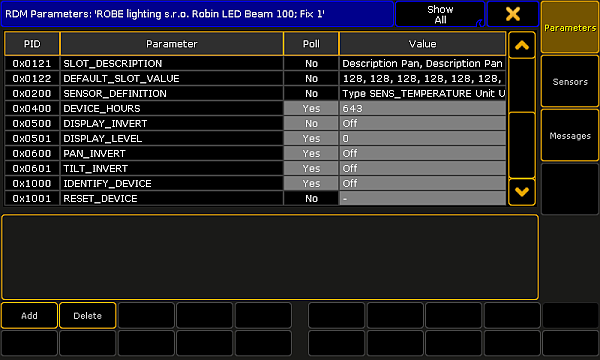 *RDM Info pop-up* *** To open the RDM Info pop-up for fixture 3 on screen 3: 1\. Type in the command line: \[Channel]> RDMInfo Fixture 3/screen = 3 2. Press Please. The RDM Info pop-up opens on screen 3.
# RdmList
> To get the RdmList keyword in the command line, type RdmList or the shortcut RdmL in the command line.
To get the RdmList keyword in the command line, type **RdmList** or the shortcut **RdmL** in the command line. ## Description [Section titled “Description”](#description) The RdmList keyword generates a list of the received RDM data. The list is displayed in the command line feedback window. If no fixture or channel ID is given, all RDM data will be listed. The RdmList keyword is a function keyword. ## Syntax [Section titled “Syntax”](#syntax) RdmList \[Channel / Fixture] \[ID] / \[Option] = \[Option value] ## Options [Section titled “Options”](#options) To get a list all available options to the RdmList keyword, type in the command line: \[Channel]> RdmList /? The RdmList has the following options: | Option | Option shortcut | Option value | Description | | ---------- | --------------------- | ------------------- | ------------------------------------------------------------------------------------------------------------------- | | filename | f | e.g. “data” | Generates the RDM list in the temp folder called data.txt. If no filename is given, the filename is called RDM.txt. | | multipatch | m | e.g. 3 | Generates the RDM list only for the third multipatch fixture. | | UID | no shortcut available | e.g. “43500F019FCB” | Generates the RDM list for this specific UID. | ## Examples [Section titled “Examples”](#examples) * To get the RDM list of fixture 3 in the command line feedback window, type in the command line: \[Channel]> RdmList Fixture 3 * To get the RDM list of fixture 3 in the command line feedback window and as a .txt file called **RDM Fixture 3** in the temp folder, type in the command line: \[Channel]> RdmList Fixture 3 / filename = “RDM Fixture 3”
# RdmSetParameter
> To get the RdmSetParameter keyword in the command line, type RdmSetParameter in the command line or use the shortcut RdmS.
To get the RdmSetParameter keyword in the command line, type **RdmSetParameter** in the command line or use the shortcut **RdmS**. ## Description [Section titled “Description”](#description) With the RdmSetParameter keyword you can set RDM parameters by using the command line. If no Unique ID is given, the fixture selection will be used. The RdmSetParameter keyword is a function keyword. ## Syntax [Section titled “Syntax”](#syntax) RdmSetParameter \[Parameter ID ] \[Parameter Value] / \[Option] = \[Option value] ## Parameter ID (= PID) [Section titled “Parameter ID (= PID)”](#parameter-id--pid) You can enter the PIDs in the command line by using the PID name or the PID hex number. **Important:**\ If you enter manufacturer specific PIDs or PID values in the command line, it is necessary to use the hex value. A manufacturer specific PID name or PID value name can not be processed from a grandMA2 command line. The following table lists the supported PIDs along with the command line and the parameter value. The PIDs will be processed only, if the RDM device supports the PID. | PID name | PID hex value | PID value name | PID value hex value | Description | | --------------------- | ------------- | -------------------------------------------------------------------------------------------------------------------------- | ------------------------------------------ | ----------------------------------------------------------------------------------------------------------------------------------------------------------------------------- | | CLEAR\_STATUS\_ID | 0x0032 | No value. | --- | Clears the status message queue. | | DEVICE\_HOURS | 0x0400 | 32 bit number. | --- | Retrieves or sets the number of hours of operation. | | DEVICE\_LABEL | 0x0082 | ASCII text label. Up to 32 characters. | --- | Provides a means of setting a descriptive label for each device. | | DEVICE\_POWER\_CYCLES | 0x0405 | Power Cycle Count (32-bit) | --- | Retrieves or sets the number of power-up cycles. Some devices may only support the GET\_COMMAND for this operation and not allow the device’s power-up cycles to be set. | | DISPLAY\_INVERT | 0x0500 | Off On Auto | 0x00 0x01 0x02 | Retrieves or changes the display invert setting. Invert is often used to rotate the display image by 180 degrees. | | DISPLAY\_LEVEL | 0x0501 | Display Level | Manufacturer specific. See fixture manual. | Retrieves or changes the display intensity setting. | | DMX\_PERSONALITY | 0x00E0 | Current Personality # of Personalities | --- | Sets the responder’s DMX512 personality. Many devices such as moving lights have different DMX512 personalities. Many RDM parameters may be affected by changing personality. | | DMX\_START\_ADDRESS | 0x00F0 | DMX512 Address (16-bit). | --- | Sets the DMX512 start address | | FACTORY\_DEFAULTS | 0x0090 | False True | 0x00 0x01 | Reverts the device to its factory default user settings or configuration. | | IDENTIFY\_DEVICE | 0x1000 | Off, Stop On, Start | 0x00 0x01 | Physically identifies the device represented by the UID. | | LAMP\_HOURS | 0x0401 | Lamp Hours (32-bit) | --- | Retrieves the number of lamp hours or to sets the counter to a specific start value. | | LAMP\_ON\_MODE | 0x0404 | LAMP\_ON\_MODE\_OFF LAMP\_ON\_MODE\_DMX LAMP\_ON\_MODE\_ON LAMP\_ON\_MODE\_AFTER\_CAL Manufacturer-Specific Modes | 0x00 0x01 0x02 0x03 0x80 – 0xDF | Retrieves or changes the current Lamp On Mode. The Lamp On Mode defines the conditions under which a lamp will be struck. | | LAMP\_STATE | 0x0403 | LAMP\_OFF LAMP\_ON LAMP\_STRIKE LAMP\_STANDBY LAMP\_NOT\_PRESENT LAMP\_ERROR Manufacturer Specific States | 0x00 0x01 0x02 0x03 0x04 0x7F 0x80 – 0xDF | Retrieves or changes the current operating state of the lamp. | | LAMP\_STRIKES | 0x0402 | Lamp Strikes (32-bit) | --- | Retrieves the number of lamp strikes or to sets the counter to a specific start value. | | LANGUAGE | 0x00B0 | 2 character alpha code for ISO 639-1 | --- | Changes the language of the messages. | | PAN\_INVERT | 0x0600 | Off On | 0x00 0x01 | Retrieves or changes the pan invert setting. | | PAN\_TILT\_SWAP | 0x0602 | Off On | 0x00 0x01 | Retrieves or changes the pan/tilt swap setting. | | PERFORM\_SELFTEST | 0x1020 | SELF\_TEST\_OFF Manufacturer Tests SELF\_TEST\_ALL | 0x00 0x01 – 0xFE 0xFF | Executes any built in self-test routine that may be present. | | POWER\_STATE | 0x1010 | POWER\_STATE\_FULL\_OFF POWER\_STATE\_SHUTDOWN POWER\_STATE\_STANDBY POWER\_STATE\_NORMAL | 0x00 0x01 0x02 0xFF | Retrieves or changes the power state. | | REAL\_TIME\_CLOCK | 0x0603 | Year (16-bit), Month, Day, Hour, Minute, Second | --- | Retrieves or set the real-time clock in a device. | | RECORD\_SENSORS | 0x0202 | Sensor Number | --- | Instructs devices such as dimming racks that monitor load changes to store the current value for monitoring sensor changes. | | RESET\_DEVICE | 0x1001 | Warm Reset Cold Reset | 0x01 0xFF | Resets the responder. | | SENSOR\_VALUE | 0x0201 | Sensor #, Present Value (16-bit), Lowest Detected Value (16-bit), Highest Detected Value (16-bit), Recorded Value (16-bit) | --- | Retrieves or reset sensor data. | | TILT\_INVERT | 0x0601 | Off On | 0x00 0x01 | Retrieves or changes the tilt invert setting. | ## Options [Section titled “Options”](#options) To get a list all available options to the RdmSetParameter keyword, type in the command line: \[Channel]> RdmSetParameter /? The RdmSetParameter has the following options: | Option | Option shortcut | Option value | Description | | ---------- | --------------------- | ------------------------------------------------------------------------ | ----------------------------------------------------- | | multipatch | m | 0 = multipatch for all fixtures 1 = multipatch for one fixture and so on | Sets the multipatch index. | | UID | No shortcut available | e.g. “43500F019FCB” | Sets the RDM UID to send RDM Parameter to the device. | ## Examples [Section titled “Examples”](#examples) * To set the DMX start address to 3 of a RDM device, type in the command line: \[Channel]> RdmSetParameter dmx\_start\_address 3 / UID = 43500F019FCB *** * To invert the display of a RDM device for the selected fixture, type in the command line: \[Channel]> RdmSetParameter display\_invert 1
# RdmSetpatch
> To get the RdmSetPatch keyword in the command line, type RdmSetPatch or the shortcut RdmSetPat in it.
To get the RdmSetPatch keyword in the command line, type **RdmSetPatch** or the shortcut **RdmSetPat** in it. ## Description [Section titled “Description”](#description) With the RdmSetPatch keyword you set the DMX address of a RDM fixture by using the command line. If no Unique ID is given, the fixture selection will be used. The RdmSetPatch keyword is a function keyword. For more information, see [RDM](/grandma2/key_rdm/). ## Syntax [Section titled “Syntax”](#syntax) RdmSetPatch \[DMX address] / \[Option] = \[Option Value] ## Options [Section titled “Options”](#options) To get a list all available options to the RdmSetPatch keyword, type in the command line: \[Channel]> RdmSetPatch /? The RdmSetpatch has the following options: | Option | Option shortcut | Option value | Description | | ---------- | --------------------- | -------------------------------------------------------------------------------------------------- | ----------------------------------------------------- | | multipatch | m | 0 = for all multipatches and the fixture 1 = multipatch for the first multipatch fixture and so on | Sets the multipatch index. | | UID | No shortcut available | e.g. “43500F019FCB” | Sets the RDM UID to send RDM Parameter to the device. | ## Examples [Section titled “Examples”](#examples) * To set the fixtures of the current fixture selection to the DMX address 25, type in the command line: \[Channel]> RdmSetPatch 25 * To set the fifth multipatch fixture of the current fixture selection to the DMX address 25, type in the command line: \[Channel]> RdmSetPatch 25 / multipatch = 5 * To set the DMX address of the fixture with the UID 43500F019FCB to 25, type in the command line: \[Channel]> RdmSetPatch 25 / UID = 43500F019FCB
# RdmUnmatch
> To get the RdmUnmatch keyword in the command line, type RdmUnmatchr the shortcut Rdmn the command line.
To get the RdmUnmatch keyword in the command line, type **RdmUnmatch** or the shortcut **Rdm** in the command line. ## Description [Section titled “Description”](#description) The RdmUnmatch keyword unmatches previous matched RDM devices in the show file. If no object is given, the current selection will be used. Possible objects are: * Channel * Fixture * FixtureType * RDMFixtureType * Group * Sequence * Cue * Executor * Preset (only selective Presets) * Selection * World The RdmUnmatch keyword is a function keyword. ## Syntax [Section titled “Syntax”](#syntax) RDMUnmatch \[Object-List] ## Examples [Section titled “Examples”](#examples) * To unmatch the selected fixtures, type in the command line: \[Channel]> RdmUnmatch * To unmatch the fixtures used in group 1, type in the command line: \[Channel]> RdmUnmatch Group 1 * To unmatch the fixtures used in group 1 and in sequence 2, type in the command line: \[Channel]> RdmUnmatch Group 1 If Sequence 2
# Reboot
> To go to the Reboot keyword, type Rebootn the command line or use the shortcut R.
To go to the Reboot keyword, type **Reboot** in the command line or use the shortcut **R**. ## Description [Section titled “Description”](#description) The Reboot keyword, shutdown the station and boot it up again. If the station is a session member, the reboot a confirmation pop-up opens on the local station.\ If the confirmation is missing, after 10 seconds the reboot function will be executed. The Reboot keyword is a function keyword. ## Syntax [Section titled “Syntax”](#syntax) Reboot / \[option] Reboot \[station-list] / \[option] ## Options [Section titled “Options”](#options) To get the list of the available options to the reboot keyword in the command line feedback window, type in the command line. \[Channel]> Reboot /? The reboot keyword has the following options. | Option | Option Shortcut | Description | | --------- | --------------- | ----------------------------------------- | | save | s | Saves the show file before reboot. | | nosave | ns | Do not saves the show file before reboot. | | noconfirm | nc | Suppress reboot confirmation pop-up. | | force | f | Forces a reboot. | ## Examples [Section titled “Examples”](#examples) * Reboot the current console. \[Channel]> Reboot * Reboot a station with the IP address 192.168.0.32 in the network. \[Channel]> Reboot 192.168.0.32 **Hint:**\ To be faster, type only the part of the IP address in the command line what is differently.\ If the console which sends the command has the IP address 192.168.0.11, the command Reboot 32 is enough.
# Record
> To get the Record keyword in the command line, press !ma + Store (= Record).
To get the Record keyword in the command line, press  + Store (= Record). You can also type **Record** or the shortcut **Rec** in the command line. ## Description [Section titled “Description”](#description) The Record keyword records real time actions as timecodes or macros. For more information, see [record a timecode show](/grandma2/key_timecode_record/) or [record a macro](/grandma2/key_macro_record/). It toggles between start and stop. The Record keyword is a function keyword. ## Syntax [Section titled “Syntax”](#syntax) Record \[Object] ## Examples [Section titled “Examples”](#examples) * Start to record executor actions as timecode 1. \[Channel]> Record Timecode 1 *** * Stop all running timecode records from the timecode pools. \[Channel]> Record Timecode *** * Start to record command line actions as macro 5. The **macro record icon**  is visible in the command line, if in the message center options for macro status yes selected is. The keys Learn and Macro are flashing. \[Channel]> Record Macro 5 *** * Stops all running macro records from the macro pools. \[Channel]> Record Macro *** * Record the receiving timecode as **trig time** by calling the cue, if the selected trigger is **timecode**. The **timecode record icon**  is visible in the command line. \[Channel]> Record Executor 1 *** * Turn off the timecode executor record from executor 1. \[Channel]> Record Off Executor 1
# Release
> To go to the Release keyword, press Delete Delete Delete (= Release).
To go to the Release keyword, press Delete Delete Delete (= Release). You can also type **Release** in the command line or use the shortcut **Rel**. ## Description [Section titled “Description”](#description) The Release keyword enters release values in the programmer for attributes by the given object list, filtered by the current selection. Release values used with a store merge, release previous tracked values from the tracking list and the fixtures uses their default values. If you release an object, the release is applied to the value layer.\ If you release an effect, the release is applied to the effect layer for the running effect attributes. The effect form release is used. ## Syntax [Section titled “Syntax”](#syntax) Release \[Object-list] Release \[Effect-list] ## Examples [Section titled “Examples”](#examples) * Enter release values in the programmer for all attributes of the fixture selection in the value layer. A **(R)** is displayed in the value layer. \[Channel]> Release Selection * Enter release values in the programmer for pan and tilt attributes of the fixture selection. \[Channel]> Release PresetType “position” * Enter release values in the programmer for the running effect 4 . \[Channel]> Release Effect 4 **Hint:**\ To enter release values in the programmer for effects you could also type in the command line, At Form 2.
# ReloadPlugins
> Important:
**Important:**\ The creation and use of plugins can go deeper into the system as the normal use of a console. Therefore the technical support team of MA Lighting may not be able to help you in all circumstances when using complex LUA plugins. LUA plugins might have to be rewritten when migrating show files to future grandMA2 software version. To go to the ReloadPlugins keyword, type **ReloadPlugins** or the shortcut **Relo** in the command line. ## Description [Section titled “Description”](#description) The ReloadPlugins keyword restarts the LUA engine. The restart of the LUA engine is necessary after you did any changes regarding LUA because this could change how the LUA behaves. You may want to test the integrity of the LUA system to make sure that it behaves as expected also next time you load the show. This is important as the saved show file does not contain a snapshot of the LUA memory, it only contains the inbuilt functions and the code in the defined plugins. When the show file is loaded, the LUA engine and plugins code are (re)loaded, which may result in a different state than when you switched off the console or saved the show. The ReloadPlugins keyword is a function keyword. **Hint:**\ Double-check the executed command in the [system monitor](/grandma2/key_ost_system_monitor/). ## Syntax [Section titled “Syntax”](#syntax) ReloadPlugins ## Example [Section titled “Example”](#example) Restart the LUA engine after LUA programming. \[Channel]> ReloadPlugins
# Remote
> To go to the Remote keyword, type Remote in the command line or use the shortcut Rem.
To go to the Remote keyword, type **Remote** in the command line or use the shortcut **Rem**. ## Description [Section titled “Description”](#description) The Remote keyword is an object keyword to access the remote input types. You can store or delete remote input types and assign parameters. For more information, see [What are Remote Inputs?](/grandma2/key_remote_control_input/) and [Set up Remote Inputs](https://help.malighting.com/grandMA2/en/help/20f90287-abfe-47a7-b198-fe08e5e1f2b1.html). ## Syntax [Section titled “Syntax”](#syntax) \[Function] Remote \[Remote Input Type ID] . \[ID] Assign Remote \[Remote Input Type ID] . \[ID] / \[Parameter] = \[Parameter Value] The following table displays the available remote input types along with their remote input type ID. | Remote Input Type | Remote Input Type ID | | ----------------- | -------------------- | | Analog Remote | 1 | | MIDI Remote | 2 | | DMX Remote | 3 | If you store a remote input type, the IDs needs to be in an order and beginning from 1. ## Parameter [Section titled “Parameter”](#parameter) The following table displays the assignable parameter via the command line, using the [Assign keyword](/grandma2/key_keyword_assign/). | Parameter | Parameter Value | Description | | --------------------------------- | ---------------------------------------------------------------------- | ------------------------------------------------------------------------------- | | name | ”remote name” | Assign the remote name. | | **Only for analog remote:** input | 1…64 | Assign the input from the conntected DC remote control. | | **Only for MIDI remote:** note | 0…1023 | Assign the MIDI note. | | **Only for MIDI remote:** channel | 1…16 or “All” | Assign the MIDI channel. | | **Only for DMX remote:** DMX | 1.001 to 256.512 \[universe]. \[dmx address] | Assign DMX universe and address. | | type | ”None”, “Exec”, “CMD”, “Hardkey” **Only for DMX remote:** “Programmer” | Assign the type of action the console does when the contact is active. | | page | 0…9999 or “current” | For type Exec. Assign the executor page number. Current is for the active page. | | executor | 1…220 | For type Exec. Assign the executor number. | | button | ”Button 3”, “Button 2”, “Button 1”, “Fader” | For type Exec. Assign the button or fader the console should activate. | | keycode | ”every hardkey”, e.g. “X1”, “Go”, “List” | For type Hardkey. Assign the hardkey the console should activate. | | cmd | ”a command” e.g. “Group 1” | For type CMD. Assign the command the console should execute. | | info | ”additional information” | Assign additional information. | ## Examples [Section titled “Examples”](#examples) * Store new DMX remote. \[Channel]> Store Remote 3.1 * Assign an existing remote a DMX address, a remote type and a command. \[Channel]> Assign Remote 3.1 /dmx=5.1 /type=cmd /cmd=“Group 1”
# RemoteCommand
> To go to the RemoteCommand keyword, type RemoteCommandn the command line or use the shortcut RemoteC.
To go to the RemoteCommand keyword, type **RemoteCommand** in the command line or use the shortcut **RemoteC**. ## Description [Section titled “Description”](#description) The RemoteCommand keyword executes commands at a specific console. RemoteCommand is a function keyword. ## Syntax [Section titled “Syntax”](#syntax) RemoteCommand \[IP address] “Command” ## Examples [Section titled “Examples”](#examples) * Call view 3 at the station with the IP address 192.168.0.4. \[Channel]> RemoteCommand 192.168.0.4 “View 3” * Start macro 4 only on a specific console. \[Channel]> RemoteCommand 192.168.0.4 “Macro 4”
# Remove
> To go to the Remove keyword, press Delete Delete (= Remove).
To go to the Remove keyword, press Delete Delete (= Remove). You can also type **Remove** in the command line or use the shortcut **Remov**. ## Description [Section titled “Description”](#description) The Remove keyword enters remove values in the programmer for attributes by the given object list, filtered by the current selection. Remove values used with a store merge function, removes previous stored values. If a stored value is removed, values from the previous cue will be tracked again. The remove values are applied to all layers by default. ## Syntax [Section titled “Syntax”](#syntax) Remove \[Object-list] Remove \[Effect-list] ## Examples [Section titled “Examples”](#examples) * Enter remove values in all layers for all attributes of the current selection. \[Channel]> Remove Selection * Enter remove values for pan and tilt in all layers for the current selection, or for all fixtures if no selection. \[Channel]> Remove PresetType “position” * Enter remove values for dimmer attribute for fixture 1. \[Channel]> Remove Fixture 1 If PresetType 1
# RemoveIndividuals
> To get the RemoveIndividualseyword in the command line, type RemoveIndividualsr the shortcut Removein the command line.
To get the \*\*RemoveIndividuals \*\*keyword in the command line, type \*\*RemoveIndividuals \*\*or the shortcut \*\*Removei \*\*in the command line. ## Description [Section titled “Description”](#description) **RemoveIndividuals** is a command used to delete individual values of effects and effect lines. ## ## Syntax [Section titled “Syntax”](#syntax) RemoveIndividuals \[Object-list] **Important:**\ If you type the command into the command line, a warning pop-up appears. Note that removing individual settings of an effect alters the effect altogether. For more information see the example in [Use predefined effects](/grandma2/key_effects_predefined/#remove_individuals). ## Example: [Section titled “Example: ”](#example) \[Channel]> RemoveIndividuals Effect 1 Thru 10 Removes the individual values in effect 1 through 10. \[Channel]> RemoveIndividuals Effect 1.11.2 /nc Removes the individual values in the second effect line of the effect 11 without confirmation.
# Replace
> To get the Replace keyword in the command line, press Move Move (= Replace).
To get the Replace keyword in the command line, press Move Move (= Replace). You can also type \*\*Replace \*\*or the shortcut **Rep** in the command line. ## Description [Section titled “Description”](#description) The replace keyword replaces object and values. For more information, see [search and replace](/grandma2/key_search_replace/). The replace keyword is a function keyword. ## Syntax [Section titled “Syntax”](#syntax) \*\*Replace \[\*\*search for objects] \*\*With \[\*\*replace with objects] ( If \*\* \[\*\*search in objects] ) ## Examples [Section titled “Examples”](#examples) * Add 10° to all pan values in all cues and presets. \[Channel]> Replace Attribute “Pan” At - 270 Thru 270 With - 260 Thru 280 * Subtract 10 % from all dimmer values in all cues from sequences 3. \[Channel]> Replace Attribute “Dim” At 0 Thru 100 With 0 Thru 90 If Sequence 3 * Replace the individual fade time of 5 by 10 for attribute tilt. \[Channel]> Replace Attribute “Tilt” Fade 5 with Fade 10 **Hint:**\ If you would like to replace two fixtures with each other, use a third fixture. See the examples below this box. Replace fixtures with each other in three steps: 1. Replace fixture 2 with 3. \[Channel]> Replace Fixture 2 with 3 2. Replace fixture 1 with 2. \[Channel]> Replace Fixture 1 with 2 3. Replace fixture 3 with 1. \[Channel]> Replace Fixture 3 with 1 * Delete a specific fixture from everywhere where it is linked to. \[Channel]> Replace Fixture 1 With
# ResetDmxSelection
> To go to the ResetDmxSelection keyword, type ResetDmxSelection in the command line or use the shortcut ResetD.
To go to the ResetDmxSelection keyword, type **ResetDmxSelection** in the command line or use the shortcut **ResetD**. ## Description [Section titled “Description”](#description) The ResetDmxSelection keyword clears the selection in the [DMX tester](/grandma2/key_patch_dmx_testing/). ResetDmxSelection is a function keyword. ## Syntax [Section titled “Syntax”](#syntax) ResetDmxSelection ## Example [Section titled “Example”](#example) * Reset DMX Selection in the DMX tester. \[Channel]> ResetDmxSelection
# ResetGuid
> To execute the keyword, type ResetGuidr the shortcut Resento the command line.
To execute the keyword, type **ResetGuid** or the shortcut **Rese** into the command line. ## Description [Section titled “Description”](#description) ResetGuid resets the identifiers that are unique in every object. This command is mainly used with the Partial Show Read. For more information see [How to do a PSR](/grandma2/key_psr_how_to/). **Important:**\ Note that once executed, there is no opportunity to reverse this command! Once the command was entered into the command line and Please was pressed, the following pop-up appears:  *Attention pop-up – keyword ResetGuid* * To reset the identifiers, tap Ok. * To abort the execution of the command, tap Cancel or the  in the upper right corner of the pop-up. ## Syntax [Section titled “Syntax”](#syntax) ResetGuid ## Example [Section titled “Example”](#example) \[Channel}> ResetGuid Resets the identifiers of the objects.
# Restart
> To go to the Restart keyword, type Restart in the command line or use the shortcut Res.
To go to the Restart keyword, type Restart in the command line or use the shortcut **Res**. ## Description [Section titled “Description”](#description) The Restart keyword restarts the application. This is the same as close the program and open it again. A restart is necessary after an IP address change. The Restart keyword is a function keyword. ## Syntax [Section titled “Syntax”](#syntax) Restart Restart \[IP address] / \[option] ## Options [Section titled “Options”](#options) To get the list of the available options to the restart keyword in the command line feedback window, type in the command line. \[Channel]> Restart /? The restart keyword has the following options. | Option | Option Shortcut | Description | | --------- | --------------- | ------------------------------------------ | | save | s | Saves the show file before restart. | | nosave | ns | Do not saves the show file before restart. | | noconfirm | nc | Suppress restart confirmation pop-up. | | force | f | Forces a restart. | ## Examples [Section titled “Examples”](#examples) * Restart the application of the console. \[Channel]> Restart * Restart the application of the console with the IP address 192.168.0.32 in the network. \[Channel]> Restart 192.168.0.32 **Hint:**\ To be faster, type only the part of the IP address in the command line what is differently.\ If the console which sends the command has the IP address 192.168.0.11, type Restart 32 only.
# Root
> To go to the Root keyword, type Rootn the command line or use the shortcut Roo.
To go to the Root keyword, type **Root** in the command line or use the shortcut **Roo**. ## Description [Section titled “Description”](#description) The Root keyword access the root in the object tree. **Important:**\ We recommend to use the actual root index name. If you use root index numbers, it is necessary to double-check after every release if the root index number is still valid. If the root index number changed, you need to adjust the macros. The Root keyword is an object keyword. ## Syntax [Section titled “Syntax”](#syntax) Root \[root-index] Root \[root-index] . \[sub-index] Root \[root-index] . \[sub-index] . \[sub-sub-index] etc ## Examples [Section titled “Examples”](#examples) * Change the destination of the command line to DMX\_Protocols/Art-Net. \[Channel]> ChangeDest Root DMX\_Protocols.Art-Net * Export all live setup layers from the grandMA2 onPC to the folder C:\ProgramData\MA Lighting Technologies\grandma\gma2\_V\_3.1\fixture\_layers. \[Channel]> Export Root LiveSetup.Layers **Hint:**\ Another way to export layers is, press Setup I tap Patch only (Live)\*\*\*\* I tap Export Layer\*\*.\*\*
# Rotate3D
> To go to the Rotate3D keyword, type Rotate3Dn the command line or use the shortcut Ro.
To go to the Rotate3D keyword, type **Rotate3D** in the command line or use the shortcut **Ro**. ## Description [Section titled “Description”](#description) The Rotate3D keyword rotates 3D objects in the [Stage View](/grandma2/key_patch_stage/). If the Rotate3D keyword is used without values, the rotation of the selected fixtures will be reset to zero. If the option relative is used, the rotate function uses the relative rotation position. Rotate3D is a function keyword. ## Syntax [Section titled “Syntax”](#syntax) Rotate3D At \[x y z] /relative ## Example [Section titled “Example”](#example) Rotate the selected 3D object in the [Stage View](/grandma2/key_patch_stage/). \[Channel]> Rotate3D At 2.5 -5 3.3
# SaveShow
> To go to the SaveShow keyword, type SaveShow in the command line or use the shortcut Sa.
To go to the SaveShow keyword, type **SaveShow** in the command line or use the shortcut **Sa**. ## Description [Section titled “Description”](#description) The SaveShow keyword saves the show on the selected drive. For more information, see [SelectDrive Keyword](/grandma2/key_keyword_selectdrive/). If no show name is entered, the show will be saved with the current show name. If already an other show file exist with the entered show name, the console asks if you want to overwrite the existing show file or cancel. The SaveShow keyword is a function keyword. ## Syntax [Section titled “Syntax”](#syntax) SaveShow “Showname” /noconfirm The option noconfirm suppress the save show confirmation pop-up. ## Examples [Section titled “Examples”](#examples) * Save the show as “Macbeth”. \[Channel]> SaveShow “Macbeth” * Save the show. \[Channel]> SaveShow **Hint:**\ To save the show file by a shortcut, press Backup Backup .
# Screen
> To get the Screen keyword in the command line, press !ma + View (= Screen).
To get the Screen keyword in the command line, press  + View (= Screen). You can also type **Screen** or the shortcut **Scr** in the command line . ## Description [Section titled “Description”](#description) The Screen keyword represents the screens. The Screen keyword is an object keyword. ## Syntax [Section titled “Syntax”](#syntax) Screen \[screen-number] Screen \[screen-number].\[window-number] ## Example [Section titled “Example”](#example) * Clear screen 2 to get an empty screen. \[Channel]> Delete Screen 2 **Hint:**\ Another way to clear the screen is, press and hold the  key and tap Clear Screen. * Assigns mask 5 to the third window of the second screen. \[Channel]> Assign Mask 5 Screen 2.3
# Search
> To get the Search keyword in the command line, press !ma + Move (= Search).
To get the Search keyword in the command line, press  + Move (= Search). You can also type \*\*Search \*\*or the shortcut **Sea** in the command line. ## Description [Section titled “Description”](#description) The Search Keyword searches for objects and values in the show. For more information see [search and replace](/grandma2/key_search_replace/). **Information:**\ If you search only for a value, it will be searched for dimmer attributes. The Search keyword is a function keyword. ## Syntax [Section titled “Syntax”](#syntax) \*\*Search \[\*\*search for objects] ( **At** \[search values] ) \*\*If \[\*\*search in objects] ## Example [Section titled “Example”](#example) * Search for places in which fixtures 1 through 10 are used, e.g. presets, groups, or sequences. Type the following into the command line: \[Channel]> Search Fixture 1 Thru 10 * A search pop-up opens. 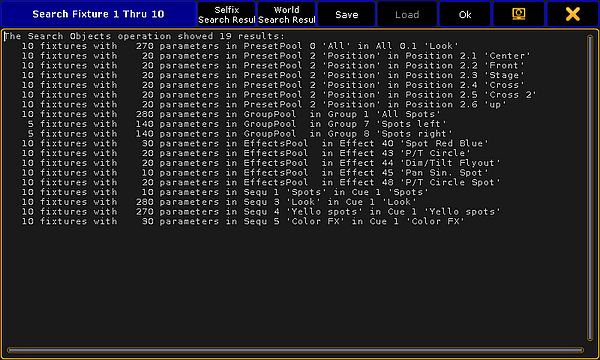 *Search results* For more information on the search function and further examples see [Search](/grandma2/key_search_replace_search/).
# SearchResult
> To get the SearchResult keyword in the command line, press and hold !ma + Group Group (= SearchResult).
To get the SearchResult keyword in the command line, press and hold  + Group Group (= SearchResult). You can also type **SearchResult** or the shortcut **SR** in the command line. ## Description [Section titled “Description”](#description) The SearchResult keyword opens the world search result after an executed search command. The search result world includes only the fixtures or channels from the last search command.  *Fixture Sheet World Search Result* To close the SearchResult world, select another world in the world pool. To select all fixtures from the last search command, use the SelFix SearchResult. **Hint:**\ You can also use the Selfix Search Result button and/or the World Search Result button in the title bar of the search result pop-up. The SearchResult keyword is a function keyword. ## Syntax [Section titled “Syntax”](#syntax) SearchResult SelFix SearchResult Search \[object-list] If SearchResult ## Examples [Section titled “Examples”](#examples) * Opens the search result world with the fixtures from the last search command. \[Channel]> SearchResult * Select only the fixtures from the last search result. \[Channel]> SelFix SearchResult * Search in the last search result for fixtures with the attribute green at 20. \[Channel]> Search Fixture Thru Attribute “G” At 20 If SearchResult
# Select
> To get the Select keyword in the command line, press Select.
To get the Select keyword in the command line, press Select. You can also type **Select** or the shortcut **Se** in the command line. ## Description [Section titled “Description”](#description) The Select keyword, selects objects as default objects. The **selected executor** is the target for all executor related commands, e.g. Store Cue 4. The selected executor is displayed in the [master section](/grandma2/key_widget_master_section/) in indicated by green color.\ The selected executor is displayed in the Sequence Executor and Sequence Tracking Sheet, if the **Link Mode** is **Link Selected**. The **selected layout** is displayed in the Layout View, if the **Layout Selection** is **Link Selected**. For more information, see [layouts](/grandma2/key_layouts/). The **selected mask** is used by any sheet (except DMX sheet), if the option **Follow Selected Mask** is **On**. The **selected filter** is used by any action involving fixture parameters, e.g. store or delete a cue. The **selected timer** is displayed in the clock, if the option **Select Timer** is **Link Selected**. The **selected timecode slot** is displayed in the clock, if the option **Select TC Slot** is **Link Selected**. The **selected timecode** is displayed in the timecode view, if the option **Timecode** is **Link Selected**. The **selected camera** is displayed in the stage view and in the MA 3D, if the **Camera Selection** is **Link Selected**. ## Syntax [Section titled “Syntax”](#syntax) Select \[Executor-object] Select Layout \[ID] Select Mask \[ID] Select Filter \[ID] Select TimecodeSlot \[ID] Select Timecode \[ID] Select Timer \[ID] Select Camera \[ID] ## Examples [Section titled “Examples”](#examples) * Select executor 5 as the default. \[Channel]> Select Executor 5 * Select layout 2 in the layout view.\ **Requirement:** Layout Selection is set to Link Selected. \[Channel]> Select Layout 2
# SelectDrive
> To get the SelectDrive keyword in the command line, type SelectDrive or the shortcut SD in the command line.
To get the SelectDrive keyword in the command line, type **SelectDrive** or the shortcut **SD** in the command line. ## Description [Section titled “Description”](#description) The SelectDrive keyword select the drive in the [Backup Menu](/grandma2/key_backup_menu/), for the following functions: * [SaveShow](/grandma2/key_keyword_saveshow/) * [LoadShow](/grandma2/key_keyword_loadshow/) * [Import](/grandma2/key_keyword_import/) * [Export](/grandma2/key_keyword_export/) If the SelectDrive keyword is executed standalone, the available showfile drives, mounted USB-sticks and earlier software installations will be listed along with their ID in the command line feedback window. If a read only media (like older installations) is selected, write functions will change the selected drive to 1 (Internal). The SelectDrive keyword is a function keyword. ## Syntax [Section titled “Syntax”](#syntax) SelectDrive \[ID] ## Examples [Section titled “Examples”](#examples) * Display all available drives in the command line feedback window. \[Channel]> SelectDrive * Load demoshow “demo dimmer and more”. \[Channel]> SelectDrive 2; LoadShow “demo dimmer and more”
# Selection
> To go to the Selection keyword, press Fixture Fixture (= Selection).
To go to the Selection keyword, press Fixture Fixture (= Selection). You can also type **Selection** in the command line or use the shortcut **Selecti**. ## Description [Section titled “Description”](#description) The Selection keyword represent the current channels and fixtures selection in the programmer. The Selection keyword is an object keyword. ## Syntax [Section titled “Syntax”](#syntax) Selection ## Example [Section titled “Example”](#example) Knockout all programmer values of the current fixture selection from the programmer. \[Channel]> Off Selection
# SelFix
> To go to the SelFix keyword, press Select Select (= SelFix).
To go to the SelFix keyword, press Select Select (= SelFix). You can also type **SelFix** in the command line or use the shortcut **SelF**. ## Description [Section titled “Description”](#description) The SelFix keyword creates fixture selections in the programmer. If fixtures are only selected, the SelFix keyword adds additional fixtures to the selection.\ If fixtures are selected and active in the programmer, the SelFix keyword replaces the selection by the SelFix selection. If the exact same SelFix command is used multiple times in a row, the second command starts to activate values in the programmer, the third deactivates the values in the programmer. SelFix is the default function for the most objects, e.g. Fixture or Channel. SelFix is a function keyword. To clear the selection, press Clear. ## Syntax [Section titled “Syntax”](#syntax) SelFix \[Object-list] ## Examples [Section titled “Examples”](#examples) * Select all fixtures or channels stored in a sequence on executor 1. \[Channel]> SelFix Executor 1 * Select all fixtures stored in preset 1. \[Channel]> SelFix Preset 1 * Select all fixtures used in effect 3. \[Channel]> SelFix Effect 3
# Semicolon ;
> To get the ; semicolon in the command line, press ; .
To get the ; semicolon in the command line, press ; . ## Description [Section titled “Description”](#description) The semicolon separates multiple commands. **Important:**\ In front and after the ; semicolon has to be a space. If the space is missing, the console executes the first command and the further commands will be dropped. ## Example [Section titled “Example”](#example) * To turn off executor 5 and delete group 3, enter in the command line: \[Channel]> Off Executor 5 ; Delete Group 3
# Sequence
> To get the Sequence keyword in the command line, press Sequ.
To get the Sequence keyword in the command line, press Sequ. You can also type **Sequence** or the shortcut **Seq** in the command line . ## Description [Section titled “Description”](#description) The default function of the sequence keyword is [SelFix](/grandma2/key_keyword_selfix/). If the Sequence keyword is used with an ID, all fixtures in the sequence will be selected.\ If the Sequence keyword is used with a function, the function will be passed on to the object child cue. ## Syntax [Section titled “Syntax”](#syntax) Sequence \[ID] Sequence \[Sequence pool].\[ID] ## Example [Section titled “Example”](#example) * Select all fixtures used in sequence 5. \[Channel]> Sequence 5 * Block all cues of sequence 5. \[Channel]> Block Sequence 5
# SetHostname
> To get the SetHostname keyword in the command line, type SetHostname in the command line.
To get the SetHostname keyword in the command line, type **SetHostname** in the command line. ## Description [Section titled “Description”](#description) The SetHostname keyword, sets the station name of the console. **Important:**\ The SetHostname keyword works only on grandMA2 consoles. It is not possible to change the station name in a grandMA2 onPC. The station name on a grandMA2 onPC is the computer name.To change the station name on a grandMA2 onPC you need to change the computer name. The SetHostname keyword is a function keyword. ## Syntax [Section titled “Syntax”](#syntax) SetHostname “text” ## Example [Section titled “Example”](#example) Change the host name to grandMA2. \[Channel]> SetHostname “grandMA2”
# SetIP
> To execute keyword SetIP type SetIP into the command line.
To execute keyword SetIP type **SetIP** into the command line. ## Description [Section titled “Description”](#description) The SetIP keyword changes the IP address of the Ethernet interfaces of the console or station. If SetIP is used standalone, the command line feedback window lists the available Ethernet interfaces with their IP addresses. A grandMA2 console has two network interfaces, **eth0** and **eth1**, which are on the back of the console labeled as **Ethernet 1** and **Ethernet 2**. **Important:**\ To apply the changed IP address, a reboot is necessary. **Hint:**\ Another way to change the IP address of the Ethernet-interfaces of the console or station is, press Setup I tap MA Network Configuration I column **IP ETHERCON 1(ETH0)** or **IP ETHERCON 2 (ETH1)**. For more information see [Networking - Set the IP address in onPC](/grandma2/key_network_set_ip_onpc/). ## Syntax [Section titled “Syntax”](#syntax) SetIP \[network interface] \[IP address] / \[option] = \[option value] ## Options [Section titled “Options”](#options) To get a list of all available options to the SetIP keyword in the command line feedback window, type in the command line \[Channel]> SetIP /? The SetIP keyword has the following options. | Option | Shortcut | Option Value | Description | | --------- | ------------- | ---------------- | -------------------------------------------------- | | mask | m | e.g. 255.0.0.0 | Sets the subnet mask of the Ethernet adapter. | | dhcp | not available | no option value | Enables DHCP for the Ethernet adapter. | | gateway | not available | e.g. 192.168.0.1 | Sets the default gateway for the Ethernet adapter. | | noconfirm | nc | no option value | Suppress the SetIP confirmation pop-up. | ## Example: [Section titled “Example:”](#example) \[Channel]> SetIP eth0 192.168.0.5 Sets the IP address of the first Ethernet interface. \[Channel]> SetIP eth0 /DHCP Activates DHCP client which takes over the IP address automatically from the server. \[Channel]> SetIP eth1 2.0.0.10 /mask=255.0.0.0 Sets IP address and network mask for the second Ethernet interface. \[Channel]> SetIP Lists available Ethernet interfaces along with their IP addresses in the command line feedback window. **Important:**\ Do not use DHCP on eth1, unless you are a skilled network operator. For more information on what DHCP is see the [Glossary](/grandma2/key_glossary/). For more information on how to use DHCP see [Using DHCP in MA devices](/grandma2/key_network_dhcp/).
# SetNetworkSpeed
> To go to the SetNetworkSpeed keyword, type SetNetworkSpeed in the command line or use the shortcut SNS.
To go to the SetNetworkSpeed keyword, type **SetNetworkSpeed** in the command line or use the shortcut **SNS**. ## Description [Section titled “Description”](#description) The SetNetworkSpeed keyword, changes the port speed of the first network adapter of grandMA2 consoles and MA NPU. It makes sense to reduce the port speed, if grandMA series 2 devices are together with grandMA series 1 devices. **Important:**\ To apply the changed port speed by using the SetNetworkSpeed keyword, a restart is necessary. If you do not restart the device, the new port speed is not applied. **Hint:**\ To double-check the link speed, use the [NetworkInfo keyword](/grandma2/key_keyword_networkinfo/) or press Setup **I column Network I tap** MA Network Control **I column Link Speed.** The SetNetworkSpeed keyword is a function keyword. ## Syntax [Section titled “Syntax”](#syntax) SetNetworkSpeed 100 \[IP address] SetNetworkSpeed 1000 \[IP address] ## Example [Section titled “Example”](#example) Set the port speed of the first network adapter to 100 Mbit. \[Channel]> SetNetworkSpeed 100 192.168.0.32
# Setup
> To get the Setup keyword in the command line, type Setup or the shortcut Setn the command line.
To get the Setup keyword in the command line, type **Setup** or the shortcut **Set** in the command line. ## Description [Section titled “Description”](#description) The Setup keyword opens or closes the setup menu.  *Open Setup* **Hint:**\ Another way to open or close the Setup is, press the Setup key. The Setup keyword is a function keyword. ## Syntax [Section titled “Syntax”](#syntax) Setup ## Example [Section titled “Example”](#example) Open the setup menu. \[Channel]> Setup
# SetUserVar
> To get the SetUserVar keyword in the command line, type SetUserVar or the shortcut SetUsn the command line.
To get the SetUserVar keyword in the command line, type **SetUserVar** or the shortcut **SetUs** in the command line. ## Description [Section titled “Description”](#description) The SetUserVar keyword sets user profile specific variables. For more information, see [Macros - Use Variables](/grandma2/key_macro_create_variables/). ## Syntax [Section titled “Syntax”](#syntax) SetUserVar $variablename = numericvalue SetUserVar $variablename = “text” SetUserVar $variablename = (“text”) SetUserVar $variablename = nothing **Hint:**\ To see the set user variables in the command line feedback window, use the [ListUserVar keyword](/grandma2/key_keyword_listuservar/). ## Examples [Section titled “Examples”](#examples) Create a macro in the macro pool that asks “Cue number to store?”, stores and labels the cue for the selected executor. 1. Open the Macro Pool. 2. Press Edit and tap on a empty macro pool tile.\ The Edit Macro pop-up opens.\  *Edit Macro Pop-Up* 3. Tap Add.\ The Edit CMD pop-up opens.\  *Edit CMD (= Command) Pop-Up* 4. Type SetUserVar $CueNumber = (“Cue number to store?”) 5. Type Store Cue $CueNumber 6. Type Label Cue $CueNumber The macro is ready to use. *** * Delete a variable. \[Channel]> SetUserVar $CueNumber =
# SetVar
> To go to the SetVar keyword, type SetVar in the command line or use the shortcut SetV.
To go to the SetVar keyword, type **SetVar** in the command line or use the shortcut **SetV**. ## Description [Section titled “Description”](#description) The SetVar keyword sets global show variables. Every user profile can use these variables. For more information, see [Macros - Use Variables](/grandma2/key_macro_create_variables/). ## Syntax [Section titled “Syntax”](#syntax) SetVar $variablename = numericvalue SetVar $variablename = “text” SetVar $variablename = (“text”) SetVar $variablename = nothing **Hint:**\ To see the set variables in the command line feedback window, use the [ListVar keyword](/grandma2/key_keyword_listvar/). ## Examples [Section titled “Examples”](#examples) Create a macro in the macro pool that asks “Which song?”, and opens the respective page. 1\. Open the Macro Pool. 2\. Press Edit and tap on a empty macro pool tile.\ The Edit Macro pop-up opens.  *Edit Macro Pop-Up* 3\. Tap Add.\ The Edit CMD pop-up opens.  *Edit CMD (= Command) Pop-Up* 4\. Type SetVar $Songname = (“Which song?”) **Important:**\ Quotes are necessary to indicate a text string. If you do not indicate a text string by quotes, the console interprets the text as commands. 5\. Type Page $“Songname” The macro is ready to use. *** * Delete a variable. \[Channel]> SetVar $CueNumber =
# ShuffleSelection
> To get the ShuffleSelection keyword in the command line, type ShuffleSelectionr the shortcut Shufn the command line .
To get the ShuffleSelection keyword in the command line, type **ShuffleSelection** or the shortcut **Shuf** in the command line . ## Description [Section titled “Description”](#description) The ShuffleSelection keyword mix-up the order of the selected fixture or channel. **Hint:**\ Another ways to shuffle the selection is,\ \- go to the Tools menu and tap a Shuffle Selection Order\ or\ \- use the predefined macro ShuffleSelection. ## Syntax [Section titled “Syntax”](#syntax) ShuffleSelection ## Example [Section titled “Example”](#example) Mix-up the order of the selected fixtures or channels. \[Channel]> ShuffleSelection
# ShuffleValues
> To get the ShuffleValues keyword in the command line, type ShuffleValues or the shortcut ShuffleVn the command line .
To get the ShuffleValues keyword in the command line, type **ShuffleValues** or the shortcut **ShuffleV** in the command line . ## Description [Section titled “Description”](#description) The ShuffleValues keyword mix-up the values of the selected fixtures or channels. **Hint:**\ To deselect attributes from the shuffle values keyword, press and hold the At key and use the At filter. **Hint:**\ Another way to shuffle values is, open the Tools menu and tap Shuffle Values. The ShuffleValues keyword is a function keyword. ## Syntax [Section titled “Syntax”](#syntax) ShuffleValues ( If \[Attribute list] ) ## Example [Section titled “Example”](#example) * Mix up the values of the fixture selection. \[Channel]> ShuffleValues * Mix up the pan and tilt values of the fixture selection. \[Channel]> ShuffleValues If PresetType “Position”
# Shutdown
> To go to the Shutdown keyword, type Shutdownn the command line or use the shortcut Sh.
To go to the Shutdown keyword, type **Shutdown** in the command line or use the shortcut **Sh**. ## Description [Section titled “Description”](#description) The shutdown keyword switches the grandMA2 console off or close the grandMA2 onPC. A shutdown needs a confirmation at the local station. The shutdown can be canceled on a remote station within 10 seconds. ## Syntax [Section titled “Syntax”](#syntax) Shutdown Shutdown \[station-list] / \[option] ## Options [Section titled “Options”](#options) To get the list of the available options to the shutdown keyword in the command line feedback window, type in the command line. \[Channel]> Shutdown /? The shutdown keyword has the following options. | Option | Option Shortcut | Description | | --------- | --------------- | -------------------------------------- | | save | s | Saves the show file. | | nosave | ns | Do not saves the show file. | | noconfirm | nc | Suppress shutdown confirmation pop-up. | | force | f | Forces a shutdown. | ## Examples [Section titled “Examples”](#examples) 1\. Switch station off, by using the IP address. \[Channel]> Shutdown 192.168.0.10 2\. Switch station off, by using the host ID of the network. \[Channel]> Shutdown 10 3\. Switch current console off. \[Channel]> Shutdown
# <<< [GoFastBack]
> The keyword <<< GoFastBack is a function used to jump quickly to previous step (default without timing can be changed in setup).
The keyword **<<<** **GoFastBack** is a function used to jump quickly to previous step (default without timing can be changed in setup). To execute the keyword **<<< GoFastBack** type **<<<** or the shortcut **<** in the command line. ## Syntax [Section titled “Syntax”](#syntax) <<< \[Executor-list] <<< \[Timecode-list] The time used by this function may be adjusted via the GoFast property found in Setup -> Show -> Playback + MIB Timing. For more information see [Working with MIB](/grandma2/key_adv_seq_mib/) and [Running playbacks](/grandma2/key_exec_running_playbacks/#running_playbacks). ## Example [Section titled “Example”](#example) \[Channel]> <<< Executor 3 Jumps to previous cue on executor 3. **Hint:**\ To execute this function you can also use the key <<< on the console. For more information see the key [<<<](/grandma2/key_key_skipminus/).
# >>> [GoFastForward]
> The keyword >>> GoFastForward is a function used to jump quickly to next step (default without timing can be changed in setup).
The keyword **>>> GoFastForward** is a function used to jump quickly to next step (default without timing can be changed in setup). To execute the keyword **>>> GoFastForward** type **>>>** or the shortcut **>** into the command line. ## Syntax [Section titled “Syntax”](#syntax) \>>> \[Executor-list] \>>> \[Timecode-list] The time used by this function may be adjusted via the GoFast property found under Setup -> Show -> Playback + MIB Timing. For more information see [Working with MIB](/grandma2/key_adv_seq_mib/) and [Running playbacks](/grandma2/key_exec_running_playbacks/#running_playbacks). ## Example [Section titled “Example”](#example) \[Channel]> >>> Executor 3 Jumps to the next cue on executor 3. **Hint:**\ To execute this function you can also use the key >>> on the console. For more information see the key [>>>](/grandma2/key_key_skipplus/).
# Slash /
> To get the slash / in the command line, press / .
To get the slash / in the command line, press / . ## Description [Section titled “Description”](#description) The slash separates entered object properties or parameter options. The slash along with the function ChangeDest\*\*\*\* changes the destinations to the root level. For more information, see [ChangeDest keyword](/grandma2/key_keyword_changedest/). The slash along with a keyword and a question mark displays all available options to the keyword in the command line feedback window. ## Syntax [Section titled “Syntax”](#syntax) \[keyword] /? **Assign** \[object-list] /parameter = parameter value \[commandline-syntax] /option1 /option2 /option3 = value ## Examples [Section titled “Examples”](#examples) To display the available options to the copy keyword in the command line feedback window: 1\. Type in the command line: \[Channel]> Copy /? 2\. Press Please. The copy options are displayed in the command line feedback window. 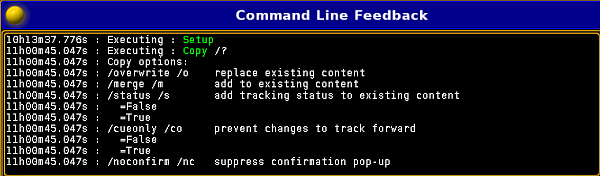 *Figure 1: Command line feedback window - copy options* *** To change the parameters for cue 5 on the selected executor: 1\. Type in the command line: \[Channel]> Assign Cue 5 /mib = early /trig = follow 2\. Press Please. The parameters are assigned to cue 5 on the selected executor. *** To exit the structure tree and go back to the root level: 1\. Type in the command line: \[Edit Setup/Universes]> CD / 2\. Press Please. You are back in the root level.
# SnapPercent
> To get the SnapPercent keyword in the command line by using the keys, it is necessary to press another function key before, e.g. Store and then five times Time.
To get the SnapPercent keyword in the command line by using the keys, it is necessary to press another function key before, e.g. Store and then five times Time. You can also type, **SnapPercent** or the shortcut **Sn** in the command line. ## Description [Section titled “Description”](#description) **Important:**\ To use the SnapPercent it is necessary that attributes of the fixture types must have Snap On.\ Go to the **Patch & Fixture Schedule I Fixture Types**. Select a fixture type and click Edit, in the column **Snap** select **On.** With the SnapPercent keyword, you set a snap time in percent.\ The snap time is a delay time for not fading attributes, eg. gobo or colorwheel. **Hint:**\ To see the assigned snap percent, press Edit and then the executor button. The edit executor pop-up opens. In the table is a column snap percent, what displays the assigned snap percent. ## Syntax [Section titled “Syntax”](#syntax) SnapPercent \[Value-list] ## Examples [Section titled “Examples”](#examples) * Store a cue with a snap percent of 4. \[Channel]> Store Cue 1 SnapPercent 4 * Assign a snap percent to an existing cue. \[Channel]> Assign Cue 1 SnapPercent 4
# Solo
> To get the Solo keyword in the command line, type Solo or the shortcut Son the command line.
To get the Solo keyword in the command line, type **Solo** or the shortcut **So** in the command line. If you press Solo, the command will be directly executed. ## Description [Section titled “Description”](#description) The Solo keyword forces zero values for intensity output for attributes of all unselected fixtures or channels.\ Only the selected fixtures or channels will have intensity output for attributes. To remove a fixture from the solo function, go to the **Setup I Patch & Fixture Schedule**. In the column **React to Master** remove the On. If Solo is used standalone, it toggles between Solo On and Solo Off. If Solo is on and in the message center options yes is selected for Solo the status, the **solo icon** is visible in the command line. The Solo keyword is a function keyword. ## Syntax [Section titled “Syntax”](#syntax) Solo Solo On Solo Off ## Example [Section titled “Example”](#example) * Turn Solo on. \[Channel]> Solo On
# SpecialMaster
> To enter the keyword SpecialMaster, press Exec Exec (= SpecialMaster).
To enter the keyword SpecialMaster, press Exec Exec (= SpecialMaster). Type **SpecialMaster** into the command line or use the shortcut **SM**. ## Description [Section titled “Description”](#description) Specialmaster is an object type that holds predefined objects for global control. For more information on the 5 special master groups see [Special masters](/grandma2/key_adv_exec_spec_master/). ## Syntax [Section titled “Syntax”](#syntax) **SpecialMaster** \[ID] **SpecialMaster** “GroupName” . “Name” ## Examples [Section titled “Examples”](#examples) \[Channel]> SpecialMaster “grandmaster” . “grand” At 50 * Sets the grand master level to 50 %. \[Channel}> Assign SpecialMaster 2.4 At Executor 15 * Tuns the executor 15 into a fader to control the volume of the sound output.
# Speed
> To get the Speed keyword, type Speedr the shortcut Speen the command line.
To get the Speed keyword, type \*\*Speed \*\*or the shortcut **Spee** in the command line. ## Description [Section titled “Description”](#description) With the Speed keyword, you assign faders the function speed. Speed adjust the effect speed in the cues and the speed of a chasers for the selected executor. The unit for the value is depending on the selected speed mode (BPM/Hz/Sec) in the **Setup I User I Settings I Speed Mode**. For more information see [executors - assign a function](/grandma2/key_exec_assign/). The Speed keyword is a function keyword. ## Syntax [Section titled “Syntax”](#syntax) Assign Speed \[Executor-list] Speed \[Value\*\*] \[Executor-list]\*\* ## Examples [Section titled “Examples”](#examples) **Requirement:** A sequence or a chaser is assigned to the executor 28. * After executing this command you are able to control the speed of the sequence or the chaser with a fader. \[Channel]> Assign Speed Exec 28 **Requirement:** A sequence or a chaser is assigned to the executor 3. * Sets speed of the sequence or chaser to 120. \[Channel]> Speed 120 Executor 3
# Square brackets [ ]
> To enter square brackets [ ] into the command line press [ or ].
To enter square brackets \[ ] into the command line press \[ or ]. ## Description [Section titled “Description”](#description) Square brackets \[ ] are used in macros. For more information see [macros](/grandma2/key_macro/). Using square brackets in macros sets a conditional expression which has to have the solution “True” to be able to execute the following commands. The expression takes user defined variables and logical operators. | | | | ---- | -------------------------- | | a==b | a equals b | | a>b | a greater than b | | a\=b | a greater than or equals b | **Important:**\ The two arguments a and b are treated as text strings and not as numbers – character by character. For example “61” is considered to be greater than “599”, as 6 is greater than 5. ## Examples [Section titled “Examples”](#examples) * To turn off page 3 only if $myvar equals 5, type into the macro line: \[$myvar==5]**Off Page** 3 *** * To goto Cue 1 if $var is less than 5, and goto Cue 35 if $var is greater or equals 5, type into the macro line: **Goto Cue** \[$var<5]1 \[$var>=5]35
# StepFade
> To get the StepFade keyword, type StepFader the shortcut Sten the command line.
To get the StepFade keyword, type **StepFade** or the shortcut **Ste** in the command line. ## Description [Section titled “Description”](#description) With the StepFade keyword, you assign executors as a step fader. A step fader controls the fade time between the steps of a chaser. For more information, see [executors - assign a function](/grandma2/key_exec_assign/). The StepFade keyword is a function keyword. ## Syntax [Section titled “Syntax”](#syntax) StepFade \[Executor-list] ## Examples [Section titled “Examples”](#examples) * Assign executor 28 as a step fader. \[Channel]> Assign StepFade Exec 28 * Set the stepfade to 50 % on executor 3. \[Channel]> StepFade 50 Exec 3
# StepInFade
> To get the StepInFade keyword, type StepInFader the shortcut StepIn the command line.
To get the StepInFade keyword, type \*\*StepInFade \*\*or the shortcut **StepI** in the command line. ## Description [Section titled “Description”](#description) The StepInFade keyword assigns executors as a step in fader. A step in fader controls the step in time of each step of a chaser. For more information, see [executors - assign a function](/grandma2/key_exec_assign/). ## Syntax [Section titled “Syntax”](#syntax) StepInFade \[Executor-list] StepInFade \[Percent] ## Examples [Section titled “Examples”](#examples) * Assign existing executor 28 as a step in fader. \[Channel]> Assign StepInFade Exec 28 * Set the step in fade level to 50 % on executor 3. \[Channel]> StepInFade 50 Executor 3
# StepOutFade
> To get the StepOutFade keyword, type StepOutFade or the shortcut StepOn the command line.
To get the StepOutFade keyword, type **StepOutFade** or the shortcut **StepO** in the command line. ## Description [Section titled “Description”](#description) With the StepOutFade keyword, you assign executors as a step out fader. A step out fader controls the step out time of each step of a chaser. For more information, see [executors - assign a function](/grandma2/key_exec_assign/). The StepOutFade keyword is a function keyword. ## Syntax [Section titled “Syntax”](#syntax) StepOutFade \[Executor-list] StepOutFade \[Percent] ## Examples [Section titled “Examples”](#examples) * Assign executor 28 as a step out fader. \[Channel]> Assign StepOutFade Exec 28 * Set the step out fader level to 50 % on executor 3. \[Channel]> StepOutFade 50 Exec 3
# Stomp
> To get the Stomp keyword in the command line, press and hold !ma + At (= Stomp).
To get the Stomp keyword in the command line, press and hold  + At (= Stomp). You can also type **Stomp** in the command line or use the shortcut **Stom**. ## Description [Section titled “Description”](#description) The Stomp keyword applies values and stops running effects. Stomp will be applied only if an effect is running. If no effect is running, stomp can not be applied. If you stomp channels, fixtures, or groups, all attributes of the selection will be stomped. If you stomp attributes, features, or preset types, the given attributes for the current fixture or channel selection will be stomped. If you stomp attributes, features, or preset types, without any fixture or channel selection, all fixtures or channels with running effect will be stomped. If you stomp a running effect, a stomp will be applied and added to the affected parameters. ## Syntax [Section titled “Syntax”](#syntax) Stomp \[Selection-list] Stomp \[Attribute-list] Stomp \[Value-list] Stomp \[Object-list] ## Examples [Section titled “Examples”](#examples) * Set the dimmer attributes to 75 % and stop running dimmer effects of the current fixture selection. \[Channel]> Stomp 75 * Move the current fixture selection to preset “drummer” and stop the current running circle effect. \[Channel]> Stomp Preset “drummer” * Select fixture 2, set its dimmer to zero and stop the current running dimmer effects. \[Channel]> Fixture 2 Stomp 0
# Store
> To go to the Store keyword, press Store.
To go to the Store keyword, press Store.\ You can also type **Store** in the command line or use the shortcut **S**. ## Description [Section titled “Description”](#description) The store keyword, stores functions in the show file. If no object-type or destination is given, the object-type **Cue** will be used for the sequence of the selected executor. Store is a function keyword. ## Syntax [Section titled “Syntax”](#syntax) Store \[object-list] “Name” / \[option] = \[option value] ## Options [Section titled “Options”](#options) To get a list of all available options to the store keyword, type in the command line \[Channel]> Store /? The store keyword has the following options. | Option | Option Shortcut | Option Value | Description | | --------------- | --------------- | ---------------------------------------------------- | ------------------------------------------------------------------------------------------------------------------------------------------------------------------------------------- | | addnewcontent | an | False, True | False is the same as originalcontent. | | auto | not available | no option value | Stores preset values with the default preset scope. | | cueonly | co | False, True | Prevents changes to track forward. | | effects | ef | False, True | Filters or enables effect layer. | | embedded | e | False, True | Creates embedded preset. | | global | g | no option value | Stores preset with global values. | | keepactive | ka | False, True | Keeps values active. | | merge | m | no option value | Merges the new values into the existing values. New values have a higher priority and will overwrite existing values. If no new value is given, the values of the existing cue stays. | | noconfirm | nc | no option value | Suppress stores confirmation pop-up. | | originalcontent | or | False, True | Stores the original content of the preset, effect, or cue. False is the same as addnewcontent. | | overwrite | o | no option value | Removes stored values in the cue and stores the new values. | | presetfilter | p | False, True | Sets preset filter on or off. | | remove | not available | no option value | Removes stored values for attributes with active programmer values. | | screen | not available | 1..6 | Stores view with selected screen. | | selective | s | no option value | Stores preset with selective values. | | source | so | Prog, Output, Dmx In | Defines data source. | | tracking | t | False, True | Stores with tracking. False is the same as cueonly. | | trackingshield | ts | no option value | Use tracking shield for store. | | universal | u | no option value | Stores preset with universal values. | | useselection | use | Active, Allforselected, Activeforselected, All, Look | Sets selection. | | values | v | False, True | Filters or enables value layer. | | valuetimes | vt | False, True | Filters or enables value times layer. | | x | not available | x coordinate in the layout view, e.g. -9.17441 | Sets the x coordinate in the layout view. For more information, see [Layouts](/grandma2/key_layouts/). | | y | not available | y coordinate in the layout view, e.g. 7.93822 | Sets the y coordinate in the layout view. For more information, see [Layouts](/grandma2/key_layouts/). | ## Example [Section titled “Example”](#example) 1\. Store cue 7 in the sequence of the selected executor. For more information, see [Store Cues](/grandma2/key_cs_store/). \[Channel]> Store 7 2\. Store dimmer preset 3 with all attributes and keep the values active in the programmer. For more information, see [Store Presets](/grandma2/key_presets_create/). \[Channel]> Store Preset 1.3 /presetfilter=false /ka 3\. Store the programmer values as cue 1 through cue 10 and cue 20 through cue 30. \[Channel]> Store Cue 1 Thru 10 + 20 Thru 30
# StoreLook
> To go to the StoreLook keyword, type StoreLook in the command line or use the shortcut StoreL.
To go to the StoreLook keyword, type **StoreLook** in the command line or use the shortcut **StoreL**. ## Description [Section titled “Description”](#description) StoreLook stores all dimmer values from all fixtures in the show. If the dimmer value is bigger than 0, it stores additional all further attributes.\ If the dimmer value is 0, it stores only the dimmer value because there is no further visible output. **Hint:**\ To exclude channels or fixtures from StoreLook, deactivate **React to Master** in the Patch & Fixtures Schedule. For more information, see [What are the store options?](/grandma2/key_cs_store_options_default/). StoreLook is a function keyword. ## Syntax [Section titled “Syntax”](#syntax) StoreLook \[object] / \[option] = \[option value] ## Options [Section titled “Options”](#options) To get a list of all available options to the storelook keyword, type in the command line \[Channel]> StoreLook /? The storelook keyword has the following options. | Option | Option Shortcut | Option Value | Description | | --------------- | --------------- | -------------------- | ---------------------------------------------------------------------------------------------- | | append | a | no option value | Adds new cue. | | cueonly | co | False, True | Prevents changes to track forward. | | effects | ef | False, True | Filters or enables effect layer. | | merge | m | no option value | Adds to existing content. | | originalcontent | or | False, True | Stores the original content of the preset, effect, or cue. False is the same as addnewcontent. | | overwrite | o | no option value | Replace existing content. | | release | rea | no option value | Releases content. | | remove | r | no option value | Removes content. | | source | so | Prog, Output, Dmx In | Defines data source. | | statusmerge | sm | no option value | Adds tracking status to existing cue. | | tracking | t | False, True | Stores with tracking. False is the same as cueonly. | | trackingshield | ts | no option value | Use tracking shield for storelook. | | values | v | False, True | Filters or enables value layer. | | valuetimes | vt | False, True | Filters or enables fade and delay layer. | ## Example [Section titled “Example”](#example) Store all dimmer values from all fixtures in the show as cue 1 on executor 1. \[Channel]> StoreLook Executor 1
# Surface
> To go to the Surface keyword, type Surfacen the command line or use the shortcut Su.
To go to the Surface keyword, type **Surface** in the command line or use the shortcut **Su**. ## Description [Section titled “Description”](#description) The Surface keyword, loads a created surface form the [Wing & Monitor Setup](/grandma2/key_window_faderwing_commandwing_setup/). The default function for this object is **Call**. Call a Surface activates the settings of the given surface. Surface 1 is non-editable and configures all fadermodules and screens 1:1. The Surface keyword is an object keyword. ## Syntax [Section titled “Syntax”](#syntax) Surface \[ID] ## Example [Section titled “Example”](#example) Load surface 2 from the wing & monitor setup. \[Channel]> Surface 2
# Swop
> To go to the Swop keyword, type Swopn the command line or use the shortcut Sw.
To go to the Swop keyword, type **Swop** in the command line or use the shortcut **Sw**. ## Description [Section titled “Description”](#description) The Swop keyword temporary overrides the master level of executors to full and set all other master levels to zero. If Swop is assigned as an executor button function, pressing the executor button is Swop On, release the executor button is Swop Off.\ The executor is off after releasing the executor button. If Swop is used standalone, Swop toggles between Swop On and Swop Off. To protect an executor from the swop function, assign Swop Protect in the Assign Menu. To open the Assign menu, press Assign , then the executor button, tap Options and then tap under **Protect** Swop Protect. The Swop keyword does not react to any assigned timing. ## Syntax [Section titled “Syntax”](#syntax) Swop \[Executor-list] Swop On \[Executor-list] Swop Off \[Executor-list] ## Options [Section titled “Options”](#options) To get a list of all options of the keyword Swop, type the following into the command line: \[Channel]> Swop /? The keyword Swop has the same options as the keyword Goto. For further information see keyword [Goto](/grandma2/key_keyword_goto/). ## ## Examples [Section titled “Examples”](#examples) * Override master level of executor 1 to full and all other master levels to zero. \[Channel]> Swop Executor 1 * Returns the master level to the master fader position and turns the executor off. \[Channel]> Swop Off Executor 1
# SwopGo
> To go to the SwopGo keyword, type SwopGo in the command line or use the shortcut SwopG.
To go to the SwopGo keyword, type **SwopGo** in the command line or use the shortcut **SwopG**. ## Description [Section titled “Description”](#description) The SwopGo keyword temporary overrides the master level of executors to full and all other master levels to zero, and goes to the next cue. If SwopGo is assigned as an executor button function, pressing the executor button is SwopGo On, release the executor button is SwopGo Off.\ The executor stays tuned on. If SwopGo is used standalone, it toggles between SwopGo On and SwopGo Off. To protect an executor from the swop function, assign Swop Protect in the [Assign Menu](/grandma2/key_exec_assign/). The SwopGo keyword do not react to any assigned timing. ## Syntax [Section titled “Syntax”](#syntax) SwopGo \[Executor-list] SwopGo On \[Executor-list] SwopGo Off \[Executor-list] ## Options [Section titled “Options”](#options) To get a list of all options of the keyword SwopGo, type the following into the command line: \[Channel]> SwopGo /? The keyword SwopGo has the exact same options as the keyword Goto. For further information see keyword [Goto](/grandma2/key_keyword_goto/). ## ## Example [Section titled “Example”](#example) 1\. Step to the next cue, override master level of executor 1 to full and all other master levels to zero. SwopGo Executor 1 2. Returns the master level to the master fader position. The executor stays on after releasing the executor button. SwopGo Off Executor 1
# SwopOn
> To go to the SwopOn keyword, type SwopOn in the command line or use the shortcut SwopO.
To go to the SwopOn keyword, type **SwopOn** in the command line or use the shortcut **SwopO**. ## Description [Section titled “Description”](#description) The SwopOn keyword temporary overrides the master level of executors to full and all other master levels to zero. If SwopOn is assigned as an executor button function, pressing the executor button is SwopOn On, release the executor button is SwopOn Off.\ The executor stays tuned on. If SwopOn is used standalone, SwopOn toggles between SwopOn On and SwopOn Off. To protect an executor from the swop function, assign Swop Protect in the [Assign Menu](/grandma2/key_exec_assign/). The Swop keyword do not react to any assigned timing. ## Syntax [Section titled “Syntax”](#syntax) SwopOn \[Executor-list] SwopOn On \[Executor-list] SwopOn Off \[Executor-list] ## ## Options [Section titled “Options”](#options) To get a list of all options of the keyword SwopOn, type the following into the command line: \[Channel]> SwopOn /? The keyword SwopOn has the exact same options as the keyword Goto. For further information see keyword [Goto](/grandma2/key_keyword_goto/). ## [Section titled “ ”](#-1) ## Example [Section titled “Example”](#example) 1\. Override master level of executor 1 to full and all other master levels to zero. \[Channel]> SwopOn Executor 1 2. Returns the master level to the master fader position. The executor stays on after releasing the executor button. \[Channel]> SwopOn Off Executor 1 ## [Section titled “”](#-2)
# SyncEffects
> To get the SyncEffects keyword in the command line, press and hold !ma + Effects (= SyncEffects).
To get the SyncEffects keyword in the command line, press and hold  + Effects (= SyncEffects). You can also type **SyncEffects** in the command line or use the shortcut **Sy**. ## Description [Section titled “Description”](#description) The SyncEffects keyword starts all running effects synchronous. **Hint:**\ You can also use the Sync Effects button in the **Special Dialog I Effect Value**. ## Syntax [Section titled “Syntax”](#syntax) SyncEffects ## Example [Section titled “Example”](#example) Synchronize the PWM (= Pulse-width modulation) effect for the selected fixtures. \[Channel]> SyncEffects
# TakeControl
> To go to the TakeControl keyword, type TakeControln the command line or use the shortcut Ta.
To go to the TakeControl keyword, type **TakeControl** in the command line or use the shortcut **Ta**. ## Description [Section titled “Description”](#description) TakeControl is a keyword used if multiple users are in a session. The TakeControl keyword, takes the exclusive control of channels or attributes from fixtures, for the current user profile. All other users can not start these fixtures or channels anymore as playback. The fixtures or channels are still controllable in the programmer. The user who executes the TakeControl command has only the control about playbacks with the Takecontrol fixtures. The control about all other playbacks is lost. 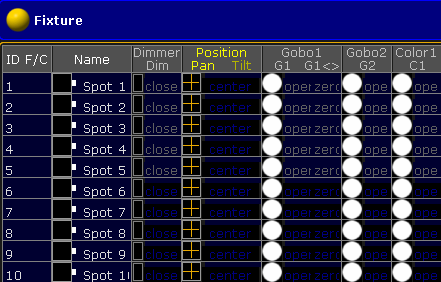 *Fixture Sheet with controllable (gray font) and not controllable (dark blue font) attributes from playbacks* For more information about the system colors, see [Colors](/grandma2/key_ws_colors/). To drop the control of the fixtures or channels back, use the [DropControl keyword](/grandma2/key_keyword_dropcontrol/). ## Syntax [Section titled “Syntax”](#syntax) TakeControl \[fixture-list] TakeControl \[channel-list] TakeControl \[sequence-list] ## Example [Section titled “Example”](#example) Take the exclusive control of fixture 1 through 10 for the current user profile. All other fixtures are not controllable from playbacks anymore. \[Channel]> TakeControl Fixture 1 Thru 10
# Telnet
> To go to the Telnet keyword, type Telnet in the command line or use the shortcut Tel.
To go to the Telnet keyword, type **Telnet** in the command line or use the shortcut **Tel**. ## Description [Section titled “Description”](#description) **Important:**\ The telnet receiver needs to read the commands without a telnet login.\ If the telnet receiver asks for a login, the command can not be processed. The Telnet keyword sends Telnet commands via grandMA2 command line directly to a telnet receiver. The Telnet keyword is a function keyword. For more information, see [What is Telnet remote?](/grandma2/key_remote_control_telnet/). ## Syntax [Section titled “Syntax”](#syntax) Telnet \[IP address] : \[Port] “String” ## Example [Section titled “Example”](#example) The telnet receiver starts an specific function, if the receiver gets the command “Artist1”. \[Channel]> Telnet 192.168.0.1 : 23 “Artist1”
# Temp
> To get the Temp keyword in the command line, press Temp.
To get the Temp keyword in the command line, press Temp. You can also type **Temp** in the command line or use the shortcut **Te**. ## Description [Section titled “Description”](#description) The Temp keyword turns an executor on, as long as you hold the executor button.\ The Temp keyword follows cue timing, off timing and the position of the master fader from the executor. If you keep the hands off from the executor button, the executor is off again. The Temp Off keyword will be executed. The Temp keyword is a function keyword. ## Syntax [Section titled “Syntax”](#syntax) Temp \[Object-list] / \[Option] = \[Option Value] Temp On \[Object-list] / \[Option] = \[Option Value] Temp Off \[Object-list] / \[Option] = \[Option Value] ## Options [Section titled “Options”](#options) To get a list of all available options to the Temp keyword, type in the command line: \[Channel]> Temp /? The Temp keyword has the following options: | Option | Option Shortcut | Option Value | Option Value Shortcut | Description | | ----------- | --------------- | ------------------------------------------ | --------------------- | ---------------------------------------------------- | | cue\_mode | cm | Normal | N | Normal temp mode. | | cue\_mode | cm | Assert | A | Temp state asserts the original timing. | | cue\_mode | cm | XAssert | XA | Temp state asserts cuetiming of current cue. | | cue\_mode | cm | Release | R | Temp finishes fade-in and switches the executor off. | | userprofile | upr | ”Name of the user profile”, e.g. “Dominik” | not available | Normal temp mode with specified user profile. | ## Examples [Section titled “Examples”](#examples) * To turn executor 1 temporary on, type in the command line: \[Channel]> Temp On Executor 1 * To turn executor 1 temporary off, type in the command line: \[Channel]> Temp Off Executor 1
# TempFader
> To get the TempFader keyword in the command line, type TempFaderr the shortcut TempFn the command line .
To get the TempFader keyword in the command line, type **TempFader** or the shortcut **TempF** in the command line . ## Description [Section titled “Description”](#description) The TempFader keyword, is a function that crossfades the cue on when pulled up, and crossfades the cue off when pulled down. For more information, see [executors - assign a function](/grandma2/key_exec_assign/). ## Syntax [Section titled “Syntax”](#syntax) Assign **TempFader** \[Executor-list] TempFader \[Value] \*\* \[Executor-list]\*\* ## Examples [Section titled “Examples”](#examples) * Assign executor 28 as a temp fader. \[Channel]> Assign TempFader Exec 28 * Set the temp fader to 50 % for the selected executor. \[Channel]> TempFader 50
# Thru
> To go to the Thru keyword, press Thru.
To go to the Thru keyword, press Thru. You can also type **Thru** in the command line or use the shortcut **T**. ## Description [Section titled “Description”](#description) The Thru keyword reference a range of objects / values.\ If the start or end is not defined, it will be used the first or last available object / values. ## Syntax [Section titled “Syntax”](#syntax) \[Start of range] Thru \[End of range] ## Example [Section titled “Example”](#example) 1\. Select fixture 3 through 6. \[Channel]> Fixture 3 Thru 6 2\. Select all fixture from the beginning through 10. \[Channel]> Fixture Thru 10 3\. Delete all cues, beginning with cue 3, from the selected executor. \[Channel]> Delete Cue 3 Thru 4\. Select all fixtures. Press Thru (= Fixture Thru). \[Channel]> Fixture Thru 5\. Turn off all executor from the current page. \[Channel]> Off Thru 6\. Start executors from 4.2 to 5.9. \[Channel]> Go Page 4 thru 5 Exec 4 thru 5 **Hint:**\ Calling x.y Thru a.b is not a supported range, e.g., “Go Executor 4.2 Thru 5.9” because you cannot call executor ranges across pages.
# Timecode
> To get the Timecode keyword in the command line, press Macro Macro (= Timecode).
To get the Timecode keyword in the command line, press Macro Macro (= Timecode). You can also type **Timecode** in the command line or use the shortcut **TC**. ## Description [Section titled “Description”](#description) The Timecode keyword, select the timecode by default. With the Timecode keyword, you can * store * play (go) * record * edit * label * assign * rewind (top) timecode shows. The Timecode keyword, is an object keyword. For more information, see [Timecode](/grandma2/key_timecode/). ## Syntax [Section titled “Syntax”](#syntax) \[Function] Timecode \[ID] Assign Timecode \[ID] / \[Parameter] = \[Parameter Value] ## Parameter [Section titled “Parameter”](#parameter) The following table displays the assignable parameters by using the [Assign keyword](/grandma2/key_keyword_assign/). | Parameter | Parameter Value | Description | | --------- | -------------------------------------------------------------------------- | ------------------------------------------------------------------------------------------------------------------------ | | Name | ”Timecode show name” | Assign the timecode show name. | | Slot | ”Intern” (-1), “Link Selected” (0), “1”, “2”, “3”, “4”, “5”, “6”, “7”, “8” | Assign the timecode show to a timecode slot. | | Length | 0s to 255h59m58.96s | Assign the timecode show length in total. | | Offset | 0s to 255h59m58.96s | Assign an offset to the timecode show, to move the entire timecode show forward. | | Runs | ”Endless Repeat” (0), “No Repeat” (1), 2..1000 | **Only for timecode shows syncing to the internal clock.** Assign, if the timecode show runs:\* Endless (Endless Repeat) | * Once and stop (No Repeat) * A specific number of times (number between 2 and 1000) | | SwitchOff | “Playbacks Off”, “Keep Playbacks” | Assign, if the playbacks running during a timecode show:\* Turns off (Playbacks Off) * Stays on (Keep Playbacks)when the timecode show turns off. | | StatusCall | “On”, “Off” | Assign, if the timecode show will:\* Sync with the timecode signal instantly (on) * Execute the signal when they are reached (off) | | TimeUnit | “1/100 Seconds”, “24 FPS”, “25 FPS”, “30 FPS” | Assign the time unit for the graphic display mode. | | WhenEnding | “Stop”, “Pause” | **Only for timecode shows syncing to the internal clock.** Assign what happens when the timecode show runs out of recorded time. | | WhenStopping | “Do Nothing”, “Rewind” | Assign what happens when the timecode show is stopped. | | AutoStart (only available with external timecode slot) | “Off”, “On” | **Only available when syncing to an external source.** If a timecode signal is received, the timecode show switches from the off mode into the play mode. | | User Bits | 0 .. FFFFFFFF, 0 .. 4294967296 | **Only available when syncing to an external source.** Assign user bits in hex or decimal to distinguish several timecode streams. | | Info | “Information Text” | Assign additional information. | ## Examples [Section titled “Examples”](#examples) * Store new timecode show 2 in the timecode pool. \[Channel]> Store Timecode 2 *** * Record executor action for timecode show 2. \[Channel]> Record Timecode 2  *Pool Object Record Timecode* *** * Play timecode show 2. \[Channel]> Go Timecode 2  *Pool Object Go Timecode* *** * Rewind timecode show 2. \[Channel]> Top Timecode 2 *** * Label timecode show 2 in the timecode pool. The Enter Name for Timecode pop-up opens. \[Channel]> Label Timecode 2  *Enter Name for Timecode pop-up* *** * Assign timecode show 1 the timecode slot 3. \[Channel]> Assign Timecode 1/Slot = 3 Timecode slot 3 is assigned to timecode show 1.
# TimecodeSlot
> To get the TimecodeSlot keyword, type TimecodeSlot or the shortcut TimecodeSn the command line.
To get the TimecodeSlot keyword, type **TimecodeSlot** or the shortcut **TimecodeS** in the command line. ## Description [Section titled “Description”](#description) TimecodeSlot is an object type representing the 8 different possible timecode streams. The default function of the TimecodeSlot keyword is Select. ## Syntax [Section titled “Syntax”](#syntax) TimecodeSlot \[ID] ## Examples [Section titled “Examples”](#examples) * Select timecode slot 3. \[Channel]> TimecodeSlot 3  *Timecode Slot 3*
# Timer
> To get the Timer keyword in the command line, press and hold !ma + Macro (= Timer).
To get the Timer keyword in the command line, press and hold  + Macro (= Timer).\ You can also type **Timer** in the command line. ## Description [Section titled “Description”](#description) With the Timer keyword you can edit, start, pause, restart, switch off, select, lock, unlock, and assign timers. Timer 1 is a predefined stopwatch and not editable. For more Information see [Timer pool](/grandma2/key_timers_timer_pool/). The Timer keyword is an object keyword. ## Syntax [Section titled “Syntax”](#syntax) \[Function] Timer \[ID] Assign Timer \[ID] / \[Parameter] = \[Parameter Value] ## Parameter [Section titled “Parameter”](#parameter) The following table displays the assignable parameters via command line. | Parameter | Parameter Value | | ------------------------------------------------- | -------------------------------------------------------------------------------------------------- | | Name | ”Timername” | | TimerMode | ”Stopwatch”, “Countdown” | | WhenRestarting | ”Continue”, “Reset” | | TimeUnit | ”Seconds”, “1/10 Seconds”, “1/100 Seconds”, “24 FPS”, “25 FPS”, “30 FPS” | | ExecTrigger | ”LinkSelected-Start”, “Not Linked”, “LinkLastGo-Start”, “LinkSelected-Toggle”, “LinkLastGo-Toggle” | | AlertType (only if timer mode is countdown) | “None”, “Popup”, “Popup & Beep”, “Command”, “Command & Popup”, “Command, Popup & Beep” | | AlertRange (only if timer mode is countdown) | “Local”, “Global” | | Countdowntime (only if timer mode is countdown) | 0.01S .. 23H59M59.99S | ## Examples [Section titled “Examples”](#examples) * Edit timer 4. The Edit Timer pop-up opens. \[Channel]> Edit Timer 4 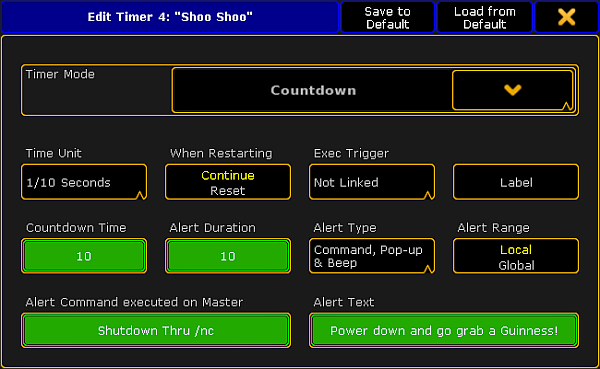 *Edit the timer Countdown* *** * Assign a countdown time of 20 seconds to the existing timer 4. \[Channel]> Assign Timer 4 /countdowntime = 20
# ToFull
> To get the ToFull keyword in the command line, press >>> >>> >>> (= ToFull).
To get the ToFull keyword in the command line, press >>> >>> >>> (= ToFull).\ You can also type **ToFull** or the shortcut **ToF** in the command line. ## Description [Section titled “Description”](#description) The ToFull keyword sets the masterlevel of objects to 100 %. ToFull is a function keyword. **Important:**\ ToFull adjusts only masterlevels to 100 % and NOT e.g. speedmaster or crossfader.\ To set all faders to 100 %, use the [At keyword](/grandma2/key_keyword_at/). ## ## Syntax [Section titled “Syntax”](#syntax) ToFull \[Executor-list] / \[Option] = \[Option Value] ToFull SpecialMaster \[ID] / \[Option] = \[Option Value] ## [Section titled “ ”](#-1) ## Examples [Section titled “Examples”](#examples) * Sets the masterlevel of executor 1 to 100 %. \[Channel]> ToFull Executor 1 * Sets the grandmaster to full. \[Channel]> ToFull SpecialMaster “grandmaster” . “grand” * \- or - \[Channel]> ToFull SpecialMaster 2.1 * Sets the fader of executor 1 with cue mode assert to full. \[Channel]> ToFull Executor 1 / cm = A
# Toggle
> To go to the Toggle keyword press Temp Temp (= Toggle).
To go to the Toggle keyword press Temp Temp (= Toggle). You can also type **Toggle** in the command line or use the shortcut **Tog** ## Description [Section titled “Description”](#description) The Toggle keyword acts as an on or off keyword, depending of the on/off-status of the object or function/mode it is applied to.\ If object or function/mode is on, it turns it off. If object or function/mode is off, it turns it on. For further information see the keywords [On](/grandma2/key_keyword_on/) and [Off](/grandma2/key_keyword_off/). Toggle is a function and helping keyword. ## Syntax [Section titled “Syntax”](#syntax) Toggle \[Object-list] \[Function/Mode]Toggle ## Options [Section titled “Options”](#options) To get a list of all options of the keyword Toggle, type the following into the command line: \[Channel]> Toggle /? The keyword Toggle has the exact same options as the keyword Goto. For further information see the keyword [Goto](/grandma2/key_keyword_goto/). ## Examples [Section titled “Examples”](#examples) * To turn the running executor 4 off by using the toggle keyword, type in the command line: \[Channel]> Toggle Executor 4 * To turn the running sequence 1 off by using the toggle keyword, type in the command line: \[Channel]> Toggle Sequence 1
# Tools
> To go to the Tools keyword, type Tools in the command line or use the short cut To.
To go to the Tools keyword, type **Tools** in the command line or use the short cut **To**. ## Description [Section titled “Description”](#description) The Tools keyword opens or closes the tools menu.  *Tools menu* The Tools keyword is a function keyword. **Hint:**\ Another way to open the Tools menu is, press the Tools key. ## Syntax [Section titled “Syntax”](#syntax) Tools ## Example [Section titled “Example”](#example) Open the tools menu. \[Channel]> Tools
# Top
> To go to the Top keyword, press Top or type Topn the command line.
To go to the Top keyword, press Top or type **Top** in the command line. ## Description [Section titled “Description”](#description) The Top keyword jumps to the beginning of the cue list or sets the timecode marker at the beginning of the timecode show. The Top keyword is a function keyword. ## Syntax [Section titled “Syntax”](#syntax) Top \[Executor-list] / \[Option] = \[Option Value] Top \[Timecode-list] ## Options [Section titled “Options”](#options) To get a list of all available options to the top keyword, type in the command line \[Channel]> Top /? The top keyword has the following options. **Important:**\ The cue mode options along with the top keyword are only necessary if the cue zero mode is set to on, all, dimmers only, or effects. For more information, see [Using cue modes](/grandma2/key_adv_seq_cue_modes/). | Option | Option Shortcut | Option Value | Option Value Shortcut | Description | | ----------- | --------------- | ------------------------------------------ | --------------------- | ----------------------------------------------------------------------------------------- | | cue\_mode | cm | Normal | N | Goes to the top of the sequence and calls the first cue normal. | | cue\_mode | cm | Assert | A | Goes to the top of the sequence and calls the first cue with an assert. | | cue\_mode | cm | XAssert | XA | Goes to the top of the sequence and calls the first cue with a xassert. | | cue\_mode | cm | Release | R | Goes to the top of the sequence and calls the first cue and release it. | | cue\_mode | cm | Break | B | Goes to the top of the sequence and calls the first cue and sets a break before the cue. | | cue\_mode | cm | XBreak | XB | Goes to the top of the sequence and calls the first cue and sets a xbreak before the cue. | | userprofile | upr | ”Name of the user profile”, e.g. “Dominik” | not available | Goes to the top of the sequence and calls the first cue with specified user profile. | ## Examples [Section titled “Examples”](#examples) * Go to the top of the cue list on executor 5. \[Channel]> Top Executor 5 * Go to the top of the cue list on executor 5 in 3 seconds. \[Channel]> Top Executor 5 Fade 3
# ToZero
> To go to the ToZero keyword, press <<< <<< <<< (= ToZero).
To go to the ToZero keyword, press <<< <<< <<< (= ToZero). You can also use the command line and type **ToZero** or use the shortcut **ToZ**. ## Description [Section titled “Description”](#description) The ToZero keyword sets the masterlevel of objects to zero. ToZero is a function keyword. **Important:**\ ToZero sets only masterlevels to zero and NOT e.g. speedmaster or crossfader.\ To set all faders to zero, use the [At keyword](/grandma2/key_keyword_at/). ## Syntax [Section titled “Syntax”](#syntax) ToZero \[Executor-list] / \[Option] = \[Option Value] ToZero SpecialMaster \[ID] / \[Option] = \[Option Value] ## ## Examples [Section titled “Examples”](#examples) * Sets the masterlevel of executor 1 to zero. \[Channel]> ToZero Executor 1 * Sets the grandmaster to zero. \[Channel]> ToZero SpecialMaster “grandmaster” . “grand” \- or - \[Channel]> ToZero SpecialMaster 2.1 * Sets the fader of executor 1 with cue mode assert to zero. \[Channel]> ToZero Executor 1 / cm = A
# Unblock
> To go to the Unblock keyword, type Unblockn the command line or use the shortcut UB / Unb.
To go to the Unblock keyword, type **Unblock** in the command line or use the shortcut **UB** / **Unb**. ## Description [Section titled “Description”](#description) The unblock keyword convert blocked values in cues (displayed white) into tracking values (displayed magenta). If the selected executor is on, the unblock keyword will be applied for the current cue of selected executor.\ If the selected executor is off, the unblock keyword will be applied for all cues of the selected executor. If unblock does not contain any selection-list, all fixtures will be used. If unblock does not contain any attribute-list, all attributes will be used. Unblock is a function keyword. ## Syntax [Section titled “Syntax”](#syntax) Unblock \[Object-list] If \[Selection-list] If \[Attribute-list] / \[Option] ## Options [Section titled “Options”](#options) The following table displays the available Unblock options. | Option | Shortcut | Description | | ------------- | -------- | --------------------------- | | defaultvalues | dv | Removes the default values. | ## Examples [Section titled “Examples”](#examples) * Unblock all values after programming from the selected executor. The selected executor is off. \[Channel]> Unblock * Unblock all values from the current cue. The selected executor is on. \[Channel]> Unblock * Unblock all values from feature position, fixture 1 in cue 3. \[Channel]> Unblock Cue 3 If Fixture 1 If Feature “Position” * Unblock all default values from sequence 1. \[Channel]> Unblock Sequ 1 /dv
# Unlock
> To use to the Unlock keyword, type Unlockn the command line or use the shortcut UL / Unl.
To use to the Unlock keyword, type **Unlock** in the command line or use the shortcut **UL** / **Unl**. ## Description [Section titled “Description”](#description) With the unlock keyword, you can unlock previous locked objects. **Information:**\ A yellow lock indicates a locked object what can be unlocked.\ A red lock indicates a locked object what is fixed by default. It can not be unlocked.\ \ \ *Locked Pool Objects* The Unlock keyword is a function keyword. ## Syntax [Section titled “Syntax”](#syntax) Unlock \[Object-List] ## Examples [Section titled “Examples”](#examples) 1\. Unlock cue 3 to edit the cue. \[Channel]> Unlock Cue 3 2\. Unlock world 3 to edit the world. \[Channel]> Unlock World 3
# Unpark
> To go to the Unpark keyword, press the small Go + twice (= Unpark).
To go to the Unpark keyword, press the small Go + twice (= Unpark). You can also type **Unpark** in the command line or use the shortcut **Unp**. ## Description [Section titled “Description”](#description) With the Unpark keyword, you can unpark previous parked DMX channels. **Information:**\ Parked channels are displayed with a blue indicator.\ The park icon in the command line indicates that there are DMX channels parked. ## Syntax [Section titled “Syntax”](#syntax) Unpark \[Selection-list] Unpark \[Attributes-list] ## Examples [Section titled “Examples”](#examples) 1\. Unpark previous parked DMX channels. \[Channel]> Unpark DMX 1.1 Thru 1.10 2\. Unpark all fixtures and channels. \[Channel]> Unpark DmxUnivers Thru 3\. Unpark PresetType Dimmer, of the current fixture selection. \[Channel]> Unpark PresetType Dimmer 4\. Unpark Fixture 2. \[Channel]> Unpark Fixture 2 ## Related Links [Section titled “Related Links”](#related-links) * [Park Keyword](/grandma2/key_keyword_park/) * [Go + Key (small)](/grandma2/key_key_goplus/) * [Command Line](/grandma2/key_widget_command_line/)
# Up
> To go to the Up keyword type Upn the command line.
To go to the Up keyword type **Up** in the command line. ## Description [Section titled “Description”](#description) The Up keyword scrolls one page up in focused window. It is the same as press the Up key on the console. See [Up Key](/grandma2/key_key_up/). The Up keyword is a function keyword. ## Syntax [Section titled “Syntax”](#syntax) Up ## Example [Section titled “Example”](#example) Scroll one page up in the fixtures sheet. \[Channel]> Up
# Update
> To go to the Update keyword, press Update.
To go to the Update keyword, press Update.\ You can also type **Update** in the command line or use the shortcut **Upd**. ## Description [Section titled “Description”](#description) The update keyword, updates functions in its source objects. Update is a function keyword. ## Syntax [Section titled “Syntax”](#syntax) Update \[object-list] / \[option] = \[option value] ## Options [Section titled “Options”](#options) To get a list of all available options to the update keyword, type in the command line \[Channel]> Update /? The update keyword has the following options. | Option | Option Shortcut | Option Value | Description | | --------------- | --------------- | ---------------------------------------------------- | ----------------------------------------------------------------------------------------------- | | addnewcontent | an | False, True | False is the same as originalcontent. | | auto | not available | no option value | Updates preset values with default preset scope. | | cueonly | co | False, True | Prevents changes to track forward. | | effects | ef | False, True | Filters or enables effect layer. | | embedded | e | False, True | Creates embedded preset. | | global | g | no option value | Updates preset with global values. | | keepactive | ka | False, True | Keeps values active. | | noconfirm | nc | no option value | Suppress update confirmation pop-up. | | originalcontent | or | False, True | Updates the original content of the preset, effect, or cue. False is the same as addnewcontent. | | presetfilter | p | False, True | Sets preset filter on or off. | | screen | not available | 1..6 | Updates view with selected screen. | | selective | s | no option value | Updates preset with selective values. | | source | so | Prog, Output, Dmx In | Defines data source. | | tracking | t | False, True | Update tracking. False is the same as cueonly. | | trackingshield | ts | no option value | Use tracking shield for update. | | universal | u | no option value | Updates preset with universal values. | | useselection | use | Active, Allforselected, Activeforselected, All, Look | Sets selection. | | values | v | False, True | Filters or enables value layer. | | valuetimes | vt | False, True | Filters or enables value times layer. | ## Example [Section titled “Example”](#example) 1\. Update current cue of the selected executor, according to the update defaults. For more information, see [Update a Cue](/grandma2/key_cs_update_cues/). \[Channel]> Update 2\. Update cue 4 with values that originates from cue 4, as cue only. \[Channel]> Update Cue 4 /originalcontent /cueonly 3\. Update color preset 2 with global values, keep them active in the programmer, and without confirmation pop-up. For more information, see [Update Presets](/grandma2/key_presets_update/). \[Channel]> Update Preset 4.2 /global /keepactive=true /noconfirm
# UpdateFirmware
> To go to the UpdateFirmware keyword type UpdateFirmware in the command line or use the shortcut UpdateF.
To go to the UpdateFirmware keyword type **UpdateFirmware** in the command line or use the shortcut **UpdateF**. ## Description [Section titled “Description”](#description) **Important:**\ The update firmware process can take up to 60 seconds. To double-check if the update firmware process is still running, use the [Version keyword](/grandma2/key_keyword_version/).\ If the update process is still running, the version keyword will display it. If not, the version keyword function is as usual.\ You can also use the system monitor window, **Create Basic Window -> System -> System Monitor**. With the UpdateFirmware keyword, you update the firmware of the hardware components at the console. This is useful if you have hardware issues.\ If the UpdateFirmware does not solve the issue, contact the MA tech support. See the email address of tech support in the footer of this website. The UpdateFirmware keyword is an object keyword. ## Syntax [Section titled “Syntax”](#syntax) UpdateFirmware ## Example [Section titled “Example”](#example) Update the hardware components of the firmware. \[Channel]> UpdateFirmware
# UpdateSoftware
> To go to the UpdateSoftware keyword, type UpdateSoftware in the command line or use the shortcut UpdateS.
To go to the UpdateSoftware keyword, type **UpdateSoftware** in the command line or use the shortcut **UpdateS**. You can also update the software in the Setup. For more information, see [update the software](/grandma2/key_update/). ## Description [Section titled “Description”](#description) **Requirement:**\ An inserted USB stick with a .update file for the appropriate device or program in the root directory.\ Download the latest software on [www.malighting.com](http://www.malighting.com). With the UpdateSoftware keyword, you can update the software of every MA device or program in the network. The UpdateSoftware keyword is a function keyword. ## Syntax [Section titled “Syntax”](#syntax) UpdateSoftware \[IP address] ## Example [Section titled “Example”](#example) Update the MA 4Port Node with the IP address 192.168.0.32 in the network. \[Channel]> UpdateSoftware 192.168.0.32 **Hint:**\ To be faster, type only the part of the IP address in the command line what is differently.\ If the console which sends the command has the IP address 192.168.0.11, then type UpdateSoftware 32.
# UpdateThumbnails
> To go to the UpdateThumbnails keyword, type UpdateThumbnails in the command line.
To go to the UpdateThumbnails keyword, type **UpdateThumbnails** in the command line. ## Description [Section titled “Description”](#description) The UpdateThumbnails keyword updates the thumbnails of the media servers. For more information on media servers see the [keyword MediaServer](/grandma2/key_keyword_mediaserver/). ## Syntax [Section titled “Syntax”](#syntax) UpdateThumbnails MediaServer \[RowID] The row ID is the row in the window CITP Network Configuration. For more information see [Thumbnail exchange](/grandma2/key_network_citp_thumbnail/). ## Example [Section titled “Example”](#example) Update the thumbnails of media server, row 2. UpdateThumbnails MediaServer 2 ##
# User
> To use to the User keyword, type Userhe shortcut Usn the command lin.
To use to the User keyword, type **User** the shortcut **Us** in the command line\*\*.\*\* ## Description [Section titled “Description”](#description) The User keyword displays user details in the command line feedback window. * Name * Password * UserProfile * Rights * LoggedIn * Info  *Command Line Feedback List User* The User keyword is an object keyword. For more information, see [create user profiles and user](/grandma2/key_single_multi_systems_create/). ## Syntax [Section titled “Syntax”](#syntax) User \[ID] ## Example [Section titled “Example”](#example) * List user details of user 1. \[Channel]> List User 1 * List all user details. \[Channel]> List User
# UserProfile
> To execute the keyword UserProfile, type UserProfile or the shortcut UPR into the command line.
To execute the keyword UserProfile, type **UserProfile** or the shortcut **UPR** into the command line. ## Description [Section titled “Description”](#description) The keyword UserProfile displays the user profiles in the command line feedback. * Number * Name * Used * LoggedIn * Info * Subtrees in parantheses UserProfile is an object keyword.  *Keyword UserProfile* For more information see [create user profiles](/grandma2/key_single_multi_systems_create/). ## Syntax [Section titled “Syntax”](#syntax) UserProfile \[ID] ## Examples [Section titled “Examples”](#examples) * Lists all user profiles that are available. \[Channel]> List UserProfile * Lists user profile 1. \[Channel]> List UserProfile 1 **Hint:**\ User profiles can be limited to a specific world. There are three commands that generate the same result: * Assigns the user profile 2 to world 1. \[Channel]> Assign UserProfile 2 At World 1 \[Channel]> Assign World 1 UserProfile 2 \[Channel]> Assign UserProfile 2/World=1
# Value
> To go to the Value keyword, type Value in the command line or use the shortcut Va.
To go to the Value keyword, type **Value** in the command line or use the shortcut **Va**. ## Description [Section titled “Description”](#description) With the value keyword you can: * Search values * Replace values * Change to value layers ## Syntax [Section titled “Syntax”](#syntax) Value \[Value-List] \[Function] \[Object-List] Value \[Value-List] \[Function] \[Value-List] ## Examples [Section titled “Examples”](#examples) * Search fixtures and channels with dimmer value 50. \[Channel]> Search Value 50 * Replace value 50 at channel 1 through 10 with value 60. \[Channel]> Replace Channel 1 Thru 10 Value 50 With 60 * Change to the value layer. \[Channel]> Value
# Version
> To go to the version keyword, type Version in the command line or use the shortcut Ve.
To go to the version keyword, type **Version** in the command line or use the shortcut **Ve**. ## Description [Section titled “Description”](#description) The version keyword gives you access to version details of the console or software in the commandline feedback window. It displays the following details. * version number * build date * build time * vhash * showfile * showpath * current user * parameter count The version keyword is a function keyword. ## Syntax [Section titled “Syntax”](#syntax) Version ## Example [Section titled “Example”](#example) To see the version details of the console or the software. * Type Version in the command line and press Please. \[Channel]> Version  *Version details in the commandline Feedback pop-up* The version details are displayed in the commandline feedback pop-up.
# View
> To get the View keyword in the command line, press View or type View in the command line.
To get the View keyword in the command line, press View or type **View** in the command line. ## Description [Section titled “Description”](#description) The view keyword calls views on a screen. With the option **/screen** you select on which screen the view will be called \- or - which screens will be stored in a view. ## Syntax [Section titled “Syntax”](#syntax) View \[ID] View \[ID] / screen = \[ID] View \[ID] / \[option] = \[option value] ## Options [Section titled “Options”](#options) The following table displays the assignable options along with the [Assign keyword](/grandma2/key_keyword_assign/). | Option | Option Value | | ------ | ------------------------------------------------------ | | Name | View name, e.g. “Stage Extern”. | | Info | Additional information to the view, e.g. “all I need”. | ## Examples [Section titled “Examples”](#examples) * Call view 2 from the view pool on that screen where it is stores from. \[Channel]> View 2 * Call view 5 on screen 2. \[Channel]> View 5 /screen = 2 * Store the content of screen 2, 3, and 4 at view object 5. \[Channel]> Store View 5 /screen = 234 * Assign view 2 the name Stage Extern. \[Channel]> Assign View 2/name = “Stage Extern”
# ViewButton
> To go to the ViewButton keyword, press View View (=ViewButton).
To go to the ViewButton keyword, press View View (=ViewButton).\ You can also use the commandline and type ViewButton or use the shortcut **VB**. ## Description [Section titled “Description”](#description) The ViewButton keyword calls the assigned function on the [view button](/grandma2/key_widget_view_buttons/). The call function works only if the assigned object supports a call. The ViewButton keyword is an object keyword. ## Syntax [Section titled “Syntax”](#syntax) ViewButton \[ID] ViewButton \[ViewPage].\[ID] ## Example [Section titled “Example”](#example) Delete the assigned function of view button 4 from the current view page. \[Channel]> Delete ViewButton 4 Label the assigned view button 5 at view page 2. \[Channel]> Label ViewButton 2.5 “Layout” Store a view at key X1. \[Channel]> Store ViewButton 11.1 ## Related Links [Section titled “Related Links”](#related-links) * [ViewPage Keyword](/grandma2/key_keyword_viewpage/) * [View Key](/grandma2/key_key_view/) * [V-Keys](/grandma2/key_key_v1-v10/) * [X-Keys](/grandma2/key_key_xkey/)
# ViewPage
> To go to the ViewPage keyword, press View View View (=ViewPage).
To go to the ViewPage keyword, press View View View (=ViewPage).\ The commandline shortcut is **VP**. ## Description [Section titled “Description”](#description) The ViewPage keyword calls the view pages. There are 11 view pages available.\ This is the same as press and hold the  and a V-Key. The ViewPage keyword is an object keyword. ## Syntax [Section titled “Syntax”](#syntax) ViewPage \[ID] ## Example [Section titled “Example”](#example) Call view page 2. \[Channel]> ViewPage 2 ## Related Links [Section titled “Related Links”](#related-links) * [View Key 1 - 10](/grandma2/key_key_v1-v10/) * [View Key](/grandma2/key_key_view/)
# VPU pixel mapper view
> To access the VPU Pixel Mapper View, tap on an empty part of a screen. This must be at least 4 columns wide and 4 rows high. Tap Other and then VPU Pixel Mapper
To access the **VPU Pixel Mapper View**, tap on an empty part of a screen. This must be at least 4 columns wide and 4 rows high. Tap Other and then VPU Pixel Mapper View. The VPU pixel mapper view is described in the manual for the VPU. For more information about pixelmapping, see the [Pixelmapper](https://help.malighting.com/grandMA2/en/help/ma_vpu/key_pixelmapper.html) topic. For more information about the view, see the [Console - VPU Pixel Mapper View](https://help.malighting.com/grandMA2/en/help/ma_vpu/key_console-vpu-pixelmapper-view.html)
# WebRemoteProgOnly
> To go to the WebRemoteProgOnly keyword, type WebRemoteProgOnly in the command line or use the shortcut W.
To go to the WebRemoteProgOnly keyword, type **WebRemoteProgOnly** in the command line or use the shortcut **W**. ## Description [Section titled “Description”](#description) The WebRemoteProgOnly keyword, selects in the [web remote](/grandma2/key_remote_control_web_remote/) fixture sheet the option **Prg Only** (= Programmer Only). The WebRemoteProgOnly is a function keyword. ## Syntax [Section titled “Syntax”](#syntax) WebRemoteProgOnly ## Example [Section titled “Example”](#example) Select function Prg Only in the web remote fixture sheet. \[Channel]> WebRemoteProgOnly
# With
> To go to the With keyword, press Move Move (= Replace), enter search for object values, press Move (= With) again.
To go to the With keyword, press Move Move (= Replace), enter search for object values, press Move (= With) again. You can also type **With** in the command line or use the shortcut **Wi**. ## Description [Section titled “Description”](#description) The With keyword is necessary for the replace function. The With keyword is a helping keyword. ## Syntax [Section titled “Syntax”](#syntax) With replace\_with\_objects \[IF search\_in\_objects] ## Example [Section titled “Example”](#example) 1\. Add 10 degrees to all pan values for all cues and presets. \[Channel]> Replace Attribute “Pan” At - 270 Thru 270 With - 260 Thru 280 2\. Replace dimmer value 50 by dimmer value 55 in the programmer, in all sequences, and cues. \[Channel]> Replace PresetType 1 At 50 With 55 3\. Replace dimmer value 50 by dimmer value 55 only in the programmer. **Information:**\ This command structure works only, if you type the command by using the keyboard.\ If you type the command by using the command keys, the At key will interrupt the replace command. \[Channel]> Replace At 50 With 55 If Programmer ## Related Links [Section titled “Related Links”](#related-links) * [Search and Replace](/grandma2/key_search_replace/) * [Replace Keyword](/grandma2/key_keyword_replace/) * [Move Key](/grandma2/key_key_move/)
# World
> To go to the world keyword, type Worldn the command line.
To go to the world keyword, type **World** in the command line. ## Description [Section titled “Description”](#description) The world keyword call worlds along with its filter, and limit the access to the parameters in the word.\ World 1 is fixed by default and includes all parameters (fixtures and attributes) in the show. World is an object keyword. ## Syntax [Section titled “Syntax”](#syntax) World \[ID] ## Examples [Section titled “Examples”](#examples) Call a world. \[Channel]> World 4 Label a world. \[Channel]> Label World 4 “All Fixtures” ## Related Links [Section titled “Related Links”](#related-links) * [World, Filters, and Masks](/grandma2/key_wfm_world_filter_mask/)
# Zero
> Important:
**Important:**\ If you enter the keyword Zero into the console by pressing two times the key ., the keyword will be directly executed.\ You can also type the keyword Zero into the command line. To execute this keyword, double-press the . on the console, type **Zero** or the shortcut **Z** into the command line.\ ## Description [Section titled “Description”](#description) The keyword Zero sets the intensity of the dimmer to zero: * If fixtures or channels are selected * In a selection of fixtures or channels * From an executor This keyword is a helping keyword. ## Syntax [Section titled “Syntax”](#syntax) Zero ## Examples [Section titled “Examples”](#examples) Sets the intensity of the selected fixtures or channels to zero. \[Channel]> Zero Sets the intensity of fixture 1 trough 10 to zero. \[Channel]> Fixture 1 Thru 10 Zero Sets the master of executor 1 to zero. \[Channel]> Executor 1 Zero
# Layouts
> Layouts are basically two-dimensional drafts where it is possible to arrange channels and fixtures, draw shapes and add text, macros, presets and other pool obj
Layouts are basically two-dimensional drafts where it is possible to arrange channels and fixtures, draw shapes and add text, macros, presets and other pool objects. Layouts are created in the layout pool and are displayed and edited in the layout view. ## Subtopics [Section titled “Subtopics”](#subtopics) * [Create a layout](/grandma2/key_layouts_create/) * [Layout pool options](/grandma2/key_layouts_pool_options/) * [Edit layout](/grandma2/key_layouts_edit/) * [Layout view options](/grandma2/key_layouts_view_options/)
# Create a layout
> It is possible to create layouts for each part of the stage.
It is possible to create layouts for each part of the stage. **Important:**\ Create a layout in the layout pool and edit the layout in the layout view. For more information see [Edit layout](/grandma2/key_layouts_edit/). To create a layout: 1. Tap anywhere in the **user-defined area**. 2. The pop-up **Create Basic Window** opens. 3. Next, tap Pools. 4. Then, tap Layout Pool. 5. The layout pool opens. 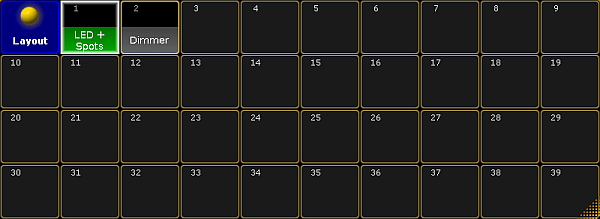 *Layout pool* 6. Select fixtures or channels in the fixture sheet. 7. To add the fixtures or channels you have selected, press Store and tap a cell in the layout pool or tap the area in the layout view in which you would like to save fixtures or channels.\ To add pool elements in the layout view, press for instance Assign Group 3 and then tap the area to which you would like to assign this group. \ To merge objects in the layout view:\ -Select fixtures or channels in the fixture sheet first.\ -Press Store and then tap the layout view.\ -A pop-up appears asking you to choose the store method.  *Pop-up – Store layout* -Tap Merge. \ -The objects have now been merged in the layout view. **Important:**\ Fixtures and channels can only appear once in the layout view. The console does not take fixtures or channels twice into the layout view. **Hint:**\ To operate the layouts faster and to have all at a glance, arrange the layouts and the layout view on one screen.  *All at a glance – layouts, groups and the layout view*
# Edit layout
> Requirement:
**Requirement:** * Create a layout first. ## Open the Layout View [Section titled “Open the Layout View”](#open-the-layout-view) 1. Tap anywhere in the **user-defined area**. 2. The pop-up **Create Basic Window** opens. 3. Next, tap Other. 4. Then, tap Layout View. 5. The layout view opens.  *Layout view* *** ## Edit the Layout View [Section titled “Edit the Layout View”](#edit-the-layout-view) **Hint:**\ It is possible to copy pool elements within the layout view:\ -Select the pool element you would like to copy in the view.\ -Then, press Copy and tap the spot you would like to copy the pool element to. 1. After you have opened the layout view, enable Setup in the title bar. **Important:**\ Enabling Setup in the layout view allows editing of single objects. Whereas, disabling Setup allows editing as in the programmer. 2. The layout view encoder bar appears.  *Layout view encoder bar* 3. Select an object in the view. 4. To toggle between position, size and style, tap Position 1 of 3. *** ## Edit Selected [Section titled “Edit Selected”](#edit-selected) 1. To edit objects, tap Edit Selected in the encoder bar. 2. The pop-up **Edit Layout Element** opens.  *Pop-up Edit Layout Element* 3. To add a name or a number on top of an object, tap  on the right of the pop-up, right below the title bar where it says **“Add text…”** .\ -The calculator opens.\ -Tap number or name you would like to be displayed on top of an element. 4. To exchange fixture and channel IDs, tap  on the right in the upper section of the pop-up where it says **“Fixture ID:”** and **“Channel ID:”**.\ -The calculator opens.\ -Tap the number you would like to exchange. 5. To see the name in an object, tap **Show Name**. 6. To see the dimmer bar in an object, tap **Show Dimmer Bar**. 7. To see the value of a dimmer in an object, tap **Show Dimmer Value**. 8. To choose between three different displays of color in an object, tap the drop-down button below **Visualization**. 9. To change the size of images, tap the drop-down button below **Image Size**. 10. []()To change the image or an icon, tap the button below **Image/Icon**.\ -The pop-up **Select Image opens**.[]()  *Pop-up Select Image* -To exchange an image or an icon (tab Icons), tap an image or an icon.\ -Then, tap Please.\ -To import a new image into the image pool, tap Load image. For more information on the image viewer see [Import images and videos](/grandma2/key_image_import/). 11. To define the angular degree of the rotation of an image or an icon, tap the drop-down button below **Image/Icon Rotation**. 12. To apply the settings directly, tap Please. 13. To take over the settings for pool objects, channels or fixtures to the current user profile, tap Save to Default. 14. To load settings from current user profile, tap Load from Default. *** ## Arrange [Section titled “Arrange”](#arrange) 1. To edit several objects at a time, tap Arrange in the encoder bar. 2. The encoder bar adjusts to the function **Arrange**.  *Arrange – encoder bar* 3. To arrange the objects of the layout view in different arrays, select the objects first and then select the array you would like to apply. 4. Once you have selected an array, you have the option to apply it or cancel it. 5. To return to the encoder bar of the layout view, tap Element Properties. \ *** ## T [Section titled “ T”](#t) The button T in the encoder bar stands for text. 1. To add text in the layout view, tap T in the encoder bar. 2. Then, select an area where your text is to be displayed via the “Lasso” gesture. 3. The calculator opens. 4. Label the area in the calculator. 5. Next, tap Please. 6. Right after tapping Please in the calculator, the pop-up **Edit Layout Element** opens.  *Pop-up Edit Layout Element – T* 7. The settings **Image/Icon** and **Image/Icon Rotation** are basically the same as in the pop-up [Edit Layout Element of the button Edit Selected](#Image/Icon%20and%20Image/Icon%20Rotation) (article 10-12). *** ## Rectangle [Section titled “Rectangle”](#rectangle) The rectangle button in the layout view encoder bar has three different functions: 1. **Group select:**\ To select a group of objects, tap the rectangle button and tap in the layout view. Then draw the “Lasso”.\ The pop-up **Edit Layout Element[]()** opens.  Pop-up Edit Layout Element – Rectangle symbol -To disable group select, tap Group Select. 2. **Bitmap:**\ To generate the function of a bitmap, tap the rectangle button in the layout view and draw the “Lasso”. The pop-up [**Edit Layout Element**](#Pop-up%20Edit%20Layout%20Element) opens.\ -To apply the bitmap effect, tap the drop-down button **Visualization** and select a bitmap effect. **Important:**\ All fixtures that are located within the rectangle generate the bitmap effect. Thus, the rectangle is a canvass here. 3. **Background:**\ The rectangle symbol can also be used to generate a background.\ -Tap the rectangle button in the layout view and then draw the “Lasso”. The pop-up [**Edit Layout Element opens**](#Pop-up%20Edit%20Layout%20Element).\ -To select an image or an icon as a background, tap the button below **Image/Icon** and the pop-up [**Select Image**](#Pop-up%20Select%20Image) opens.\ -You can now select your background. *** ## Move [Section titled “Move”](#move) The button Move moves the screen of the layout view. 1. To move the entire screen of the layout view, tap the button Move and then tap the layout view. 2. Now, move your finger and see how the screen displaces. *** ## Select [Section titled “Select”](#select) The button Select selects the objects via “Lasso”. * To select the objects, tap Select and then tap in the layout view and move your finger. **Hint:**\ To select several objects, press and hold **Ctrl** on the keyboard in the drawer or an external keyboard and tap the objects you would like to add to your selection. \*\* Important:\*\*\ It is possible to use the Double tap mode here. For more information see [Layout view options](/grandma2/key_layouts_view_options/). *** ## Delete Pool Elements [Section titled “Delete Pool Elements”](#delete-pool-elements) To delete single objects, press Del and then tap the object you would like to delete in the layout view.
# Layout pool options
> Important:
**Important:**\ This section comprises the description of functions specific for the layout pool. Please see all the general settings in [Adjust pool options](/grandma2/key_pools_options/). ## Open the Options [Section titled “Open the Options”](#open-the-options) 1. Open the layout pool first. For more information on how to open the layout pool see [Create a layout](/grandma2/key_layouts_create/). 2. Then, tap  in the upper left corner of the layout pool. 3. The option dialog opens.  *Layout pool options* 4. To adjust the frame color, reset colors or to apply a different style and font size see [Adjust pool options](/grandma2/key_pools_options/). 5. To display the single layouts in the layout view, tap and swipe the button to Select below the button Frame Color. 6. If you want to set the layout for the bitmap fixture, tap and swipe the button to At below the button Frame Color. 7. If you have adjusted the options of the layout pool to your liking, leave the options:\ -Tap  in the upper right corner of the dialog and the dialog closes.\ -If you would like to close the layout pool altogether, tap Delete Window.
# Layout view options
> 1. To open the options of the layout view, tap ! in the upper left corner of the view.
## Open the Options [Section titled “Open the Options”](#open-the-options) 1. To open the options of the layout view, tap  in the upper left corner of the view. 2. The option dialog opens.  *Layout view options* 3. To navigate through different functions of the options, tap the corresponding tabs below the title bar of the layout view options. *** ## []()Pool Element Defaults [Section titled “Pool Element Defaults”](#pool-element-defaults) **Important:**\ Settings that are made in the tabs **Pool Element Default** and **Fixt./Chan. Defaults** will be applied with the next elements you add to the layout. 1. To change the size of pool elements, tap the buttons below **Size X** and **Size Y** accordingly\*\*. \*\*\ -The calculator opens.\ -Type the size of the elements here. 2. Next, adjust the font size:\ -Tap the drop-down box below **Font Size**.\ -The pop-up **Select Font Size** opens.  *Pop-up – Select Font Size* -Now, tap to select one of the three font sizes. 3. To enable or disable the ID, name or type of the element in the layout view, tap the buttons below **Show ID**, **Show Name** or **Show Type**. 4. After setting this option, adjust the background color, border color and the text color of an element:\ -Tap the buttons below **Background Color**, **Border Color** and **Text Color**. \ -The pop-up **Select Color** opens.  *Pop-up – Select Color* -[]()Now, set set the display of colors and tap to choose between Predefined Colors, Swatch Book, HSB and Fader. \ -To change the color, tap the color diagram or tap the buttons with the percentage number at the bottom of the diagram.\ -To apply the color selected, tap Please.\ -To reset the color, tap Reset or Reset to White. 5. Then, set the display of the symbols:\ -Tap the drop-down button below Symbol and the pop-up **Select Symbol** opens.  *Pop-up – Select Symbol* -Now, tap to select one of the three options. 6. To enable or disable the display of the dimmer bar and dimmer value, tap the buttons below **Show Dimmer Bar** and **Show Dimmer Value**. 7. Then, select the image size:\ -Tap the drop-down button below **Image Size**.\ -The pop-up **Select Image Size** opens.  *Pop-up – Select Image Size* -Tap to select one of the three image sizes. 8. Select the display of objects:\ -Tap the drop-down button below **Visualization**.\ -The pop-up **Select Visualization** opens.  *Pop-up – Select Visualization* -Tap to select one of the options. You have now adjusted the defaults for the pool elements in the current layout to your liking. **Important:**\ If you would like to apply these settings to new layouts, tap Save to Default in the title bar of the **Layout Options**. *** ## Fixt. / Chan. Defaults [Section titled “Fixt. / Chan. Defaults”](#fixt--chan-defaults) The default options of fixtures and channels are similar to those of the pool elements. See [Pool Element Defaults](#Pool%20Element%20Defaults) for orientation. However, there are still few differences there. 1. To enable or disable the display of the fixture or channel IDs in the layout view, tap the buttons below **Show Fixture ID** or **Show Channel ID**. 2. Next, enable or disable the notification of RDM in the layout view:\ -Tap the button below **RDM Notifications**.\ If you enable the notification of RDM, RDM alert or warning will be shown in the layout view. For more information on RDM notifications see [Configure RDM notifications](/grandma2/key_rdm_notifications/). *** ## Layout Data [Section titled “Layout Data”](#layout-data) Layout data refers to single layouts only. 1. Set the size of the grids:\ -To adjust the width and length of the grid or the snap grid, tap either the buttons below **Grid X** and **Grid Y** or the buttons\*\* \*\*below **Snap Grid X** and \*\*Snap Grid Y. \*\*\ -The calculator opens.\ -Now, type the size of of the corresponding grid. **Hint:**\ The grid stays visible whenever you edit its size. To make the grid invisible again, set one of the axes to zero. 2. Enable or disable the snap grid:\ -It is possible for the snap grid to stay always visible whenever moving an object.\ -To do so, tap the button below **Snap Always** to toggle it to Yes. 3. After setting the grid, select the background color:\ -Tap the button below **Background**.\ -The pop-up **Select Color** opens.\ -To manage the color diagram, see [Pool Element Defaults](#Color%20diagram). 4. To display the markers in the fixtures and channels, toggle the button below **Marker** to Yes. 5. To turn on the fast call, toggle the button below **Fast Call** to Yes. **Hint:**\ If the fast call is enabled in the tab Title Buttons, the button Fast Call will be highlighted in red in the title bar of the layout view. 6. Next, select the playback you would like to use:\ -Tap the button below **Pool Playback**.\ -The pop-up **Select Pool Playback** opens.  *Pop-up – Select Pool Playback* For more information on playback see [Cues and sequences – Playing back cues](/grandma2/key_cs_playback/).\ \ -Select one option here. 7. Then, select a layer by tapping the drop-down button below **Select Layer**.\ The pop-up Select Layer opens.  *Pop-up – Select Layer* For more information on layers see [Layers in sheets – channel sheet and fixture sheet](/grandma2/key_of_layers_in_sheets_channel_and_fixture/).\ \ \ -Select one of the three layers here. 8. To visualize the effects Gobo and Color even if the dimmer is closed, tap the button below **Symbols Features** and toggle it to Always.\ If the features are to comply with the dimmer, tap and toggle to with Dimmer. *** ## Tools [Section titled “Tools”](#tools) The following settings are applied to the current layout view. 1. To reverse the respective selection – select or move – enable the button below **Double tap mode**:\ Tap the exact same spot twice and then move your finger either to move the screen or to select the objects. 2. Next, set the cue colors:\ -Tap the drop-down button below **Cue Colors**.\ -The pop-up **Select Cue Colors** opens. 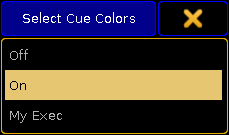 *Pop-up – Select Cue Colors* * **Off**: Does not display cue colors. * **On**: Displays the cue colors of a selected executor. * **My Exec**: Displays the cue colors of the executor you have activated. 3. To display the zoom bar on the right of the layout view, enable the button below **Zoom Bar visible**. 4. To use the screen encoder for zooming in and out of the layout view, enable the button below **Zoom Encoder**. 5. Enable the horizontal and vertical scroll bar by tapping on the corresponding buttons below **ScrollBar horizontal** and **ScrollBar vertical**. 6. To enable ruler, tap the button below **Rulers visible**. **Hint:**\ When adjusting the grid the ruler proves itself to be very useful. 7. Choose an edit mode to select certain objects:\ -Tap the drop-down button below **Select Edit Mode**.\ -The pop-up **Select Edit Mode** opens.  *Pop-up – Select Edit Mode* *** ## Title Buttons [Section titled “Title Buttons”](#title-buttons) Tap the button you would like to be displayed in the title bar of the layout view. * Enabled buttons have a yellow check mark and are highlighted in yellow. * Disabled buttons have a black background. *** ## Close the Options [Section titled “Close the Options”](#close-the-options) After adjusting the options to your liking tap  in the upper right corner of the dialog. The window **Layout Options** closes. To close the layout view altogether, tap Delete Window.
# Local settings
> The local settings are located in the Setup I Console I Local Settings.
The local settings are located in the **Setup I Console I Local Settings**.  *Edit local settings* *** ## Default Language [Section titled “Default Language”](#default-language) It is not possible to change this setting, as the console, at the moment, only supports English language. *** ## Network DMX if alone [Section titled “Network DMX if alone”](#network-dmx-if-alone) When this is “On”, the console will output DMX over network when only one desk (as master) is in the session. **Important**\ This setting can conflict with other console (as master), sending out DMX in the network. *** ## Example [Section titled “Example”](#example) In the following example, 3 consoles are in a session, connected with one switch to manage MANet on the first ethernet port, and another one to manage Art-Net on ethernet port 2. All the consoles have **Network DMX if alone** enabled. If the switch that distribute MANet fails, all 3 consoles will be “Alone” in the network, become Master and will send out Art-Net. This will make a conflict in the fixtures because they will receive Art-Net from 3 different sources. To avoid this conflict, make sure that only one of the consoles have **Network DMX if alone** enabled. This will make sure that when the consoles are “Alone” in the network, only the console with **Network DMX if alone** will send out Art-Net. *** ## Show release notes on start [Section titled “Show release notes on start”](#show-release-notes-on-start) Turn **Show Release Notes on Start** “On” or “Off”, to see the release notes on startup. *** ## Flashing error LED on wrong fader position [Section titled “Flashing error LED on wrong fader position”](#flashing-error-led-on-wrong-fader-position) Turn **Flashing error LED on wrong fader position** “On” or “Off” to let a red LED flash, if the fader is in a wrong position. **Important:**\ This function is only available on a grandMA2 ultra-light and a grandMA2 onPC with a wing. On a grandMA2 ultra-light it relates the red LEDs under the faders. In the grandaMA2 onPC it relates the LEDs in the keys over the faders. *** ## Exec CLI [Section titled “Exec CLI”](#exec-cli) Turn **Exec CLI** (Command Line Interaction) “On” or “Off” to let the Command Line interact with the executors. In the following example **Exce CLI** is “Off”. If Select is pressed, followed by an **Executor button**, this will NOT select the executor, but perform the action assigned to the button. *** ## Default Go, Goback, Pause CLI [Section titled “Default Go, Goback, Pause CLI”](#default-go-goback-pause-cli) Turn **Default Go, Goback, Pause CLI** “On” or “Off” to let the Command Line interact with the big Default Go, Goback and Pause keys. In the following example **Default Go, Goback, Pause CLI** is “Off”. If a macro is edited and Default Go is pressed, the system will NOT enter DefaultGo in the macro-line, but execute the next cue in the selected executor. *** ## Intensity Btn Background [Section titled “Intensity Btn Background”](#intensitybtnbackground) The background light of the keys on the console can be set. Follow these steps: 1. Tap the green square in the **Intensity Btn Background** area. 2. Tap the intensity as a number between 0 and 79. 0 is no light and 79 is full. *** ## Intensity Btn Highlight [Section titled “Intensity Btn Highlight”](#intensitybtnhighlight) The highlight light of the keys on the console can be set. Follow these steps: 1. Tap the green square in the **Intensity Btn Highlight** area. 2. Tap the intensity as a number between 0 and 255. 0 is no light and 255 is full. *** ## Intensity Exec LED [Section titled “Intensity Exec LED”](#intensity-exec-led) The background light of the executors on the console can be set. Follow these steps: 1. Tap the green square in the **Intensity Exec LED** area. 2. Tap the intensity as a number between 0 and 255. 0 is no light and 255 is full. *** ## Intensity Desk Lamp [Section titled “Intensity Desk Lamp”](#intensity-desk-lamp) The desklight on the console can be set. Follow these steps: 1. Tap the green square in the **Intensity Desk Lamp** area. 2. Tap the intensity as a number between 0 and 255. 0 is no light and 255 is full. *** ## Intensity 9 Inches [Section titled “Intensity 9 Inches”](#intensity-9-inches) The backlight of the screens on the console can be set. Follow these steps to set the backlight of the 9-inch screens: 1. Tap the green square in the **Intensity 9-inch** area. 2. Tap the intensity as a number between 0 and 255. 0 is dark and 255 is bright. *** ## Intensity 15 Inches [Section titled “Intensity 15 Inches”](#intensity-15-inches) The backlight of the screens on the console can be set. Follow these steps to set the backlight of the 15-inch screens: 1. Tap the green square in the **Intensity 15-inch** area. 2. Tap the intensity as a number between 0 and 255. 0 is dark and 255 is bright. **Important:**\ The **Intensity** functions are not available on a grandMA2 onPC. *** ## Desklock background [Section titled “Desklock background”](#desklockbackground) It is possible to lock the console, so no faders and keys can be used, by pressing **Pause** on the keyboard or press and hold MA and press Fix. **Desk Locked** appears on the screen\*\*.\*\* To unlock the console, press \*\*Pause \*\*or press and hold MA and press Fix again. The background of the desklock screen can be set to either **Black**, **Image Pool Picture** or **Current Desk UI** * **Black** will let the background be black. * **Image Pool Picture** opens the Image Pool for the current show file, to select one of these to be the background. * **Current Desk UI** leaves the screens as they are, but places a red Desk Locked sign above the content.
# Macros
> The macro system is a very powerful tool that can help with the programming and can be used to do make repetitive task simpler and faster.
The macro system is a very powerful tool that can help with the programming and can be used to do make repetitive task simpler and faster. All macros are kept in the macro pool. This pool is shared by all users in the show file. Read the [What are Macros topic](/grandma2/key_macro_what_are/) to get a more general understanding about macros. Read the [Manually create a macro topic](/grandma2/key_macro_create/) and the subtopics to learn about creating simple and complex macros. It is also possible to record key presses into a macro. Read the [Record a macro topic](/grandma2/key_macro_record/) to learn how. ## Subtopics [Section titled “Subtopics”](#subtopics) * [What are macros](/grandma2/key_macro_what_are/) * [Manually create a macro](/grandma2/key_macro_create/) * [Record a macro](/grandma2/key_macro_record/) * [Edit a macro](/grandma2/key_macro_edit/) * [Command line interaction](/grandma2/key_macro_cli/) * [Assign a macro to a key](/grandma2/key_macro_assign/) * [Example macros](/grandma2/key_macro_examples/)
# Assign a macro to a key
> Macros can be assigned to Executors, View buttons, and X-keys.
Macros can be assigned to Executors, View buttons, and X-keys. This can make it faster and easier to run and use the macros. The Macro pool is shared by all users, but the assignment of macro to View buttons and X-keys/User is stored in your user profile. So this is not share by different users profiles (different users can use the same user profile). Macros assigned to Executors are shared by all users. The easy way to assign a macro is to press the Assign key, then tap the macro, and then the destination where you want it. Read below for more details about the three different locations. ## Executor [Section titled “Executor”](#executor) Any executor can have a macro assigned. You can use the method described above, the command line, or you can use the **Assign Menu**. ### Command line method [Section titled “Command line method”](#command-line-method) Macros can be assigned using the command line input. For example to assign macro number 1 to executor number 7 on page 2 you could write: \[Channel]> Assign Macro 1 At Exec 2.7 ### Assign menu method [Section titled “Assign menu method”](#assign-menu-method) Macros can be assigned using the Assign Menu. The menu can be opened by pressing the Assign key and then press any key belonging of the executor where you want to assign a macro. The menu could look like this: 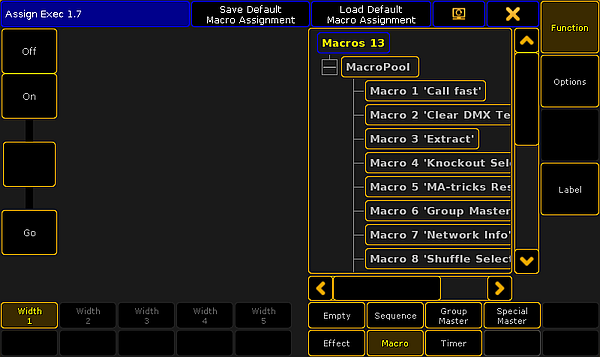 *Assign menu with Macro selected* In this topic we are not going into details about the Assign Menu. If it opens and does not look like the image above then you might need to tap the Function button on the right side. Now you need to select that you want to assign a macro. Tap the Macro button at the bottom of the menu. Now the right side displays a list of all the available macros. Tap the one you want. There are no options to an executor with a macro assigned and the “Width” can only be 1. You can change what the executor buttons do. There is limited possibilities of functions for executor keys when a macro is assigned (compared with assigned sequences). You can choose the function by tapping one of the virtual executor keys on the left side of the menu. This opens a **Select Function pop-up**. It looks like this: 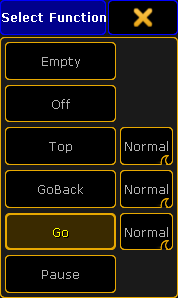 *Select Function pop-up for macros* Here you can select the function wanted for the keys. The different options next to “Top”, GoBack”, and “Go” are not relevant for macros. The most used function is the “Go” function. This is the one needed to run or activate the macro. Read the [Macro Timing topic](/grandma2/key_macro_create_timing/) for details about these functions. You can close the Assign Menu using the “X” in the upper right corner of the menu when you are happy with your assigned macro and the executor button functions. ### Mini executor [Section titled “Mini executor”](#mini-executor) When macros are assigned to executors you can see them in the Mini Executor Bar. It could look like this: 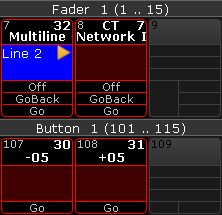 *Macros assigned to executor faders and executor buttons* In the Mini Executor Bar you can see the macro name in the top part of the mini executor. The number on the right side of each executor is the macro number. The number on the left side is the executor number. If CLI is turned off then there is a “C” in the top middle part. If timing is turned off then there is a “T” in the top middle part. The middle part displays the macro line number on a blue background when the macro is active. It will also display an icon showing the play mode. The lower part shows the functions assigned to the executor buttons. Notice the difference between the macros assigned to an executor with a fader (three buttons) and the ones assigned to an executor without a fader (one button). The frame is displayed in the same color as your macro pool. Macros with individual colored frames are also showing the individual colors in the frame on the Mini Executor Bar. ## View button [Section titled “View button”](#view-button) The view buttons can also have macros assigned. The easiest way to assign a macro is to use the method described above with the Assign key, tapping the macro pool, and then the View button where you want it. You can also use the command line. For example to assign macro number 2 at view button number 5 on view page 1 you could write the following: \[Channel]> Assign Macro 2 At ViewButton 1.5 Macros assigned to view buttons could look like this: 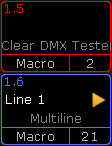 *View buttons with assigned macros* Since the view button assignment is a user profile setting, it can also display the same frame color as the macro in the macro pool - this includes individually colored macros. The top left corner of the view button displays the view button page and number. Below this you can see the active line number and play mode - if it is active. Below this is the macro name. At the bottom you can see that it is macro assigned to the view button and the macro number. You cannot see the “C” (CLI turned off) or “T” (timing turned off) letters in view buttons. ## User key / X-key [Section titled “User key / X-key”](#user-key--x-key) The X-keys or User keys function as either **Executors** or **View buttons**. Depending on what you have visible (List, User 1, or User 2) then they function as described above. When macros are assigned to **Executor buttons** on screen 1, it could look like this:  *X-keys as executor with assigned macros* The same three macros would look like this, when they are assigned to **View Buttons**, on screen 1:  *X-keys as view button with assigned macros* The location, on screen 1, is very convenient for often used macros. Remember that macros assigned to Executors are shared by all users and macros assigned to View Buttons are a user profile setting.
# Command line interaction
> Command line interaction can mean two different things when we talk about macros - they are however connected.
Command line interaction can mean two different things when we talk about macros - they are however connected. It can be the execution of the macro that you can choose to go to the command line - This is called CLI. And it can be the commands in the macros that interact with the command line - This can be done using the special character ”@”. ## CLI [Section titled “CLI”](#cli) You can turn on or off the CLI when you create or edit a macro - read more about this in the [Manually create a macro topic](/grandma2/key_macro_create/) and the [Edit a macro topic](/grandma2/key_macro_edit/). When CLI is turned off for a macro, the actual press of the macro will no longer interact with your command line, but directly execute its commands. This means that if you, for instance, want to edit or delete a macro, you cannot just press the command key and then the macro button, you will need to type the actual keyword and ID - using keys or type in the command line. For example, Edit Macro 5 will allow you to edit macro 5 if CLI is off. Delete ViewButton 11.5 will remove a macro from the User1 X5 key. By disabling the command line interaction of the current button or key press, you can make the commands of the macro lines interact by the use of the @ character. ## @ This special command is only relevant in macros. It can be used ahead of a macro command or behind it. It is a placeholder for user commands. This allows you to interact with macro commands. ### Ending a macro line with @ [Section titled “Ending a macro line with @”](#ending-a-macro-line-with-) When it is used at the end of a macro line, the line will not execute the command line. It will simply put the command in the Command Line Input and then wait for you to complete the command. If your macro has several lines, it will then continue with the next macro line after your input. ### Example: [Section titled “Example:”](#example) You have a group (number 4) that you want to give a value and store as the next cue. You want to manually type the value. | No. | CMD | | --- | ------------ | | 1 | Group 4 At @ | | 2 | Store Cue | Running this macro will give you the following command line input: \[Channel]> Group 4 At Then it waits for you to type the value and finish with a Please. After the please it will run macro line 2 and store the (next) cue. ### Beginning a macro line with @ [Section titled “Beginning a macro line with @”](#beginning-a-macro-line-with-) If you begin the macro line with @, it will append the macro line to already typed input. **Important:**\ It is important that you turn off CLI for your macro for this to work properly - otherwise, your commands will fail. ### Example: [Section titled “Example:”](#example-1) Let us imagine that you like two different fade times: 5 seconds and 10 seconds. Every cue you make uses these twice. You can create the following macro (Macro 1): | No | CMD | | -- | -------- | | 1 | @ Fade 5 | And the other macro (Macro 2): | No. | CMD | | --- | --------- | | 1 | @ Fade 10 | Now you can use these macros when you store a cue. For instance cue number 5: Store Cue 5 and before pressing Please you tap the macro 2 instead. This is how your command line responds: \[time] : Executing : Store Cue 5 Fade 10 This can also be used to give individual fade time to fixtures: Fixture 8 At 80 Macro 1 Will give fixture number 8 a dimmer value of 80 % and an individual fade time of 5 seconds. ### @ before and after [Section titled “@ before and after”](#-before-and-after) You can surround a command in @s. This will just put the command in the command line. This allows you to create your own keys with commands that you use often but that do not have their own dedicated keys. ### Example: [Section titled “Example:”](#example-2) You often use the “Layout” command and you do not want to press MA+Group to execute the command. Then you can create the following macro (remember to turn off CLI) | No. | CMD | | --- | ---------- | | 1 | @ Layout @ | Now you can assign this macro to an executor or view button and just press that whenever you want to use the layout command. Read more about assigning macros in the [Assign a macro to a key topic](/grandma2/key_macro_assign/). You can read more about the @ command in the [At @ topic](/grandma2/key_keyword_at_-/).
# Manually create a macro
> Quick steps:
**Quick steps:** 1. Edit an empty macro pool object. 2. Add a new line by tapping the Add button. 3. Type the desired command. 4. Add more lines if needed. 5. Label the macro by tapping the Label button and type the macro name. 6. Close the editor by tapping the X in the upper right corner. This were the quick steps - Keep reading for more details. You can create your own macros - this is one of the very powerful features of the grandMA2. Macros are stored in the Macro Pool. The easiest way to create a new macro is to edit an empty macro pool object. There are several ways to edit a pool object: 1. Right-click with a mouse or trackball on the pool object. 2. Press the Edit key and then tap the pool object. 3. Tap the pool object and then tap the screen encoder. 4. Using the keys Edit Macro pool object number Please. 5. Type it in the command line. The **Edit Macro pop-up** is used when editing a macro. It could look like this:  *Edit Macro pop-up* In the image above you see a macro that is **not** empty. There is already a line with a command. ## Buttons in the editor [Section titled “Buttons in the editor”](#buttons-in-the-editor) There are buttons on the right side and the bottom to help with the macro creation, settings, and modifications. The following is a short description of the buttons: **Add:** Tapping this button will add a line, in your macro, above the currently highlighted line (if there are any). It will also open the **Edit CMD pop-up** that allows you to type the desired command immediately.  *Edit CMD pop-up* **Delete:** Tapping this button will delete the currently selected line in the macro. **CLI:** CLI is short for Command Line Interaction. CLI is activated when the text is yellow - it is active by default. CLI allows you to interact with the pool object. This means that the command line will react to you tapping the macro in the pool. Read more details about CLI and Macros in the [Command line interaction topic](/grandma2/key_macro_cli/). **Timing:** The Timing button allows you to turn on the timing defined in each macro line or to just run it as fast as possible. Read more about macro timing in the [Macro timing subtopic](/grandma2/key_macro_create_timing/). **Test Macro:** This button allows you to test run the macro before closing the editor. All commands are executed, so this is not a macro simulation. **Test Line:** This can be used to test the highlighted macro line (white or blue frame). This can be useful in the creation process. **Load Predefined:** This button is used to load one of the predefined (factory-made) macros. For more about this please read the [Import predefined macros topic](/grandma2/key_ei_import_predefined/). **Label:** If you want to label the macro, then you can tap this button. It opens the **Enter Name for.. pop-up**. Here you can write the macro name. ## Main part [Section titled “Main part”](#main-part) The main part of the editor is where you can add, edit, see and delete the lines with the commands. There are five columns in this part. **No.:** This is the macro line number. You cannot edit it, but it can be useful to see the macro line number for instance when the macro is executed. **CMD (Command):** The CMD is short for Command. This is where you type your macro command. You can use the keyboard to write the command. But when the **Edit CMD pop-up** is active then your command line input has a red background - like this:  *Command Line input with red background* This means that you can also use the physical keys to type your command without executing the command - it is sent to the Edit CMD pop-up. Each macro line has an automatic “Please” at the end of the line - even though it is not displayed. This executes the macro line. The exception to this is if the macro line finishes with a ”@”. This is a special character used to allow the macros to interact with user input. Please read more about this in the [Command line interaction topic](/grandma2/key_macro_cli/). **Wait:** This is used to add a wait time until the next macro line is executed. This wait time is only used if Timing is activated. There are two special options here: **Go** and **Follow**. “Go” is used if you want the macro to wait until there is a new Go command to the macro. “Follow” means that the macro will continue as fast as possible. “Follow” is the same as setting the time to 0. Read more about macro timing in the [Macro timing subtopic](/grandma2/key_macro_create_timing/). **Info:** Here you can write information that explains the macro line. Might be a good idea for others to understand complex macros. **Disable:** Disabled macro lines are not executed. You can change the state by editing the cell in this column. If the line is disabled it is displayed with red text color. When you are done creating your macro then you can close the pop-up by tapping the big X in the upper right corner. Please read the subtopics for more options in advanced macros. ## Subtopics [Section titled “Subtopics”](#subtopics) * [Use variables](/grandma2/key_macro_create_variables/) * [Create pop-ups](/grandma2/key_macro_create_popup/) * [Conditional expressions](/grandma2/key_macro_create_condition/) * [Macro timing](/grandma2/key_macro_create_timing/)
# Conditional expressions
> In some situation you may want to only process a command, if the user has answered something specific in a popup, or if a variable is set to a specific value.
In some situation you may want to only process a command, if the user has answered something specific in a popup, or if a variable is set to a specific value. The grandMA2 supports simple conditional expressions, which must resolve to “True” for the following command line to be executed. **Example:** | No. | CMD | | --- | --------------------------------------------------- | | 1 | SetVar $answer=(“Really delete all groups? yes/no”) | | 2 | \[$answer==“yes”] Delete Group Thru | This macro will create a pop-up asking if you want to delete all groups. The answer is stored in a variable. Then the variable content is compared to a text string. If they are equal then the rest of the macro line is executed. If they are not equal then the rest of the line is ignored and the macro will continue to the next line if there are more. Conditional expressions are recognized by Square Brackets, and accept the following logical operators: * **a == b**\ a equals b * **a > b**\ a greater than b * **a < b**\ a less than b * **a <= b**\ a less than or equal b * **a >= b**\ a greater than or equal b **Important:**\ The two arguments a and b are not compared as numbers, but as text-strings, character by character, e.g. “61” is considered to be greater than “599”, as 6 is larger than 5.
# Create pop-ups
> Sometimes it can be very useful to create macros that can collect user input while running.
Sometimes it can be very useful to create macros that can collect user input while running. A macro can create a pop-up that prompts the user for input. The macro will halt and wait for the user to type the input before continuing. Pop-ups are created by the use of parentheses. The text inside the parentheses is used as text prompted to the user, while the response entered by the user will replace the parentheses and the prompting text. **Important:**\ When you are using pop-ups to assign text to variables, you should use quotes inside the parentheses: (“What address?”) but when using pop-ups for commands and numbers, do not use quotes inside the parentheses: (Which Fixture ID?). ## Example 1: [Section titled “Example 1:”](#example-1) We want a macro that selects the fixture patched to a specific DMX address. The macro should ask the user for a universe number and the DMX address. This is done using two prompts - one for each user input. Since we are asking for numbers, the text entered in the parentheses cannot be in quotes - the console would interpret it as text instead of numbers. The macro looks like this: 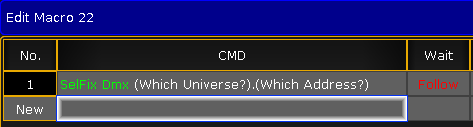 *Edit macro pop-up with macro line* When running the macro, the console first prompts for the universe number:  *First prompt of the macro - asking for universe number* After the user types the number and finishes with Please/Enter, then it asks for the DMX address:  *Second prompt of the macro - asking for DMX address* Processed, the macro executes the command. It could look like this:  *Command line feedback of the macro* ### Example 2: [Section titled “Example 2:”](#example-2) We want a macro that we can use to login as a different user. We want to be prompted for the user name and password. In this macro, we choose to store the user input in variables. All users need a password for this macro to work. This is the macro: | No. | CMD | | --- | ---------------------------------------------------- | | 1 | SetVar $my\_user=(“What User do you want to login?“) | | 2 | SetVar $my\_password=(“What is the password?“) | | 3 | Login $my\_user $my\_password | | 4 | SetVar $my\_password= | Notice that we store the user input as text. The fourth macro line removes the my\_password variable. Otherwise, the password would have been readable by anyone. It can often be a good idea to treat the user input as text. This, for instance, allows the use of names instead of just numbers. See more examples in the [Example macros topic](/grandma2/key_macro_examples/).
# Macro timing
> As you may have noticed within the Edit Macro pop-up, in addition to the command text field, there is also a wait field for each macro line.
As you may have noticed within the Edit Macro pop-up, in addition to the command text field, there is also a wait field for each macro line. By default the macro will proceed immediately and start processing the next line, however this “Follow” may be changed to either a wait time in seconds, or a trigger to pause and wait for next Go (to the macro), before the macro proceeds with next line. The last wait time is not needed and the value here will be displayed in red text. ## Setting a time [Section titled “Setting a time”](#setting-a-time) Wrong timing is the major pitfall when creating complex macros. The console is multi-tasking so when a command immediately follows another, the second command will start processing, even if the previous has not yet finished processing. If a macro-line depends on an earlier line, to be processed correctly, you may need to add a wait-time, to prevent the next command to follow immediately and be processed too early. If you experience that a command works if you type it manually but not when you run it in a macro, then it can also be a sign that you need to add a small wait time. ### Example: [Section titled “Example:”](#example) Let us create a Macro that Parks Channel 10 at 50%: | No. | CMD | Wait | | --- | ---------------- | ------ | | 1 | Channel 10 At 50 | Follow | | 2 | Park Channel 10 | Follow | With the default “Follow” trigger, this macro does not work. Setting channel 10 to 50% takes a little bit of time, and our second macro line parks the channel before the first line has been fully processed. Giving the first line 50 millisecond to be processed, before proceeding to the next line, solves the problem in this case: | No. | CMD | Wait | | --- | ---------------- | ------ | | 1 | Channel 10 At 50 | 0.05 | | 2 | Park Channel 10 | Follow | When creating complex macros it is wise to start with a small timing of something like 100 milliseconds per line (0.1 seconds). Then you might be able to speed it up by setting a smaller wait or set lines to “Follow” if the commands are running correctly. **Important:**\ Necessary processing-time is not fixed. You may experience that a timing that worked when in Standalone is not enough in a session with multiple stations and NPUs. ## Using Go [Section titled “Using Go”](#using-go) You can use a “Go” instead of a wait time or the “Follow” time. This means that the macro will halt when it reaches a “Go” in the wait column. It will continue running only when receiving a go command. Go is the default function for an executor key, when the macro is assigned to executors. ### Example: [Section titled “Example:”](#example-1) Here is a fun example of a macro that turns on or off the sACN output and input. It also re-labels the macro depending on the status **and** it change the frame color. | No. | CMD | Wait | | --- | ---------------------------------------------------------------- | ------ | | 1 | Assign Root “DMX\_Protocols”.“sACN” /OutActive=on /InActive=on | Follow | | 2 | Appearance Macro “sACN OFF/on” /h=100 /s=100 /br=100 | Follow | | 3 | Label Macro “sACN OFF/on” “sACN ON/off” | Go | | 4 | Assign Root “DMX\_Protocols”.“sACN” /OutActive=off /InActive=off | Follow | | 5 | Appearance Macro “sACN ON/off” /h=30 /s=100 /br=100 | Follow | | 6 | Label Macro “sACN ON/off” “sACN OFF/on” | Follow | The macro needs to be labeled “sACN OFF/on” before running it the first time. Line 1 and 4 are the ones that actually change the settings for sACN output and input. Line 2 and 5 changes the frame color (appearance). Line 3 and 6 re-labels the macro. All line are have a “Follow” in the wait column except line 3. This is the one that separates the “on” and “off” parts, so this is where the macro needs to halt and wait for a new “Go”. If the “[Top](/grandma2/key_keyword_top/)” command is sent to the macro then it will run the macro from the first line. “[GoBack](/grandma2/key_keyword_goback/)” will execute the previous macro line in a multi line macro. Looking at the example above it will run line 2 if the macro is at line 3 waiting for a Go. If the macro is not active then “GoBack” will run the last macro line.\ \ Running macros can be paused using the “[Pause](/grandma2/key_keyword_pause/)” command. This only makes sense for timed macros with enough time to actually pause it before it is done.\*\*\*\* You need to do a Go command for the macro to continue.
# Use variables
> It is possible to use variables in your macros and in any command line entry in the show.
It is possible to use variables in your macros and in any command line entry in the show. Variables are containers of text that may be reused. Variables may be used to store phrases of text, for later reuse by command line and macros, similar to what Presets are for Attributes. ## SetVar [Section titled “SetVar”](#setvar) Variables are defined using the [SetVar keyword](/grandma2/key_keyword_setvar/) and the [$ character](/grandma2/key_keyword_dollar/): SetVar $nameofvariable=“content of variable” Whenever the variable is later referenced in the command line, the variable is replaced by its content. The variables can contain text strings - like names. They should be put in quotation marks. That makes the grandMA2 interpret that as a text string and it can contain a space in the name. If you do not put it in quotation marks, then the text would be interpreted as commands. For instance, if you want to create a variable containing **This is Us** and write: \[Channel]> SetVar $song\_name = This is us Then the grandMA2 would interpret it as you defining a variable containing the text “This” and then the commands **InviteStation User** \[time] : Executing : SetVar $song\_name = This InviteStation User This is not what you wanted and it is not even a valid command. So remember the quotation marks. Variables can also contain numbers. If you create the variable and the content is a number then it is defined as an integer (whole number) or fixed-point number (a whole number with 6 decimals after the point). If a number has become a fixed-point number then you cannot convert it back to an integer. That was a little bit of technical math, that you most likely do not have to worry about. ### Example [Section titled “Example”](#example) This is an example of using a variable in a cue list. See the [Example macros topic](/grandma2/key_macro_examples/) for more examples of using variables in macros. A common way to program lighting for a song is to create a sequence of cues holding the base looks and major changes for each verse and chorus, and additionally trigger different chasers on and off via the command (CMD) column in the main sequence: * … * Cue 5:“Chorus”: CMD:Go Executor 201 * Cue 6:“Verse 2”: CMD:Off Executor 201 * etc. If only one chaser needs to be triggered, this simple syntax usually does the job. By using variables, triggering of multiple chaser may be easily managed: * Cue 1:“Intro”: CMD:SetVar $chorus\_Chasers=“Executor 201 + 204 + 205” * … * Cue 5:“Chorus”:CMD:Go $chorus\_Chasers * Cue 6:“Verse2”:CMD:Off $chorus\_Chasers * etc. \[Channel]> SetVar $chorus\_Chasers=“Executor 201 + 204 + 205” \[time] : Executing : SetVar $chorus\_Chasers=“Executor 201 + 204 + 205” \[Channel]> Go $chorus\_Chasers \[time] : Executing : Go Executor 201 + 204 + 205 **Hint:**\ Your console will only process valid commands. If none of the Executors exist, the console will not bother to process the command, and you will not see this last line ## SetUserVar [Section titled “SetUserVar”](#setuservar) Similar to the SetVar keyword is the [SetUserVar keyword](/grandma2/key_keyword_setuservar/). The only difference is that a variable defined with the SetVar is a global variable for all users, while variables defined with SetUserVar applies to the current user only. *** ## ListVar and ListUserVar [Section titled “ListVar and ListUserVar”](#listvar-and-listuservar) With the keyword ListVar and ListUserVar, the command line feedback window will list current variables and their content. \[Channel]> ListVar \[time] : Global : $CHORUS\_CHASERS = Executor 201 + 204 + 205 The list is longer. ListVar shows both user and global variables. ListUserVar only shows the variables for the current user. Notice that the variables are stored with capital letters. This means that the grandMA2 does not distinguish between two variables called $thisISgreat and $thisisGREAT. For the grandMA2 it will just be $THISISGREAT. ## Predefined Variables [Section titled “Predefined Variables”](#predefined-variables) If you try the ListVar command then you will see the list of all the variables. There are a lot of predefined variables in the grandMA2 that automatically gets updated. Some of the most useful are: **$SELECTEDEXEC:** This is the number of the currently selected executor. **$SELECTEDEXECCUE:** This is the current active cue on the selected executor. **$FADERPAGE:** This is the page number of the Executor Fader page. **$BUTTONPAGE:** This is the page number for the Executors without faders. **$SHOWFILE:** This is the name of the show. **$USER:** This is the currently logged in user. Even though these are listed as “Global” some are actually user variables. Two different users in the same session will not get the same result in some of these - for instance, the $USER will be different and they can also be on different pages and have different executors selected. *** ## Additions with Variables [Section titled “Additions with Variables”](#additions-with-variables) There are two commands that allow you to do a little addition with variables: [AddVar](/grandma2/key_keyword_addvar/) and [AddUserVar](/grandma2/key_keyword_adduservar/). You can do math with numbers and you can append text to text or numbers (this will convert a number to text). This is the possible syntax: AddVar $variable = number AddVar $variable = “text” AddVar $variable = $variable The only difference between AddVar and AddUserVar is that the first is used with the global variables and the second is for the current users’ own variables. The variable needs to exist before you use AddVar/AddUserVar on it. ### Examples [Section titled “Examples”](#examples) Adding numbers: SetVar $my\_number = 1 AddVar $my\_number = 1 Result is that the variable $my\_number is the number **2**. Adding text: SetVar $my\_executor = “Executor 10” AddVar $my\_executor = ” + 11” Result is the text in the variable $my\_executor is **Executor 10 + 11**. Adding variables: SetVar $date\_time = $DATE AddVar $date\_time = ”\_” AddVar $date\_time = $TIME Result of $date\_time is a text string and is off coarse based on when you do this, but it could look like this: **12.8.2016\_12h31m37.963s** notice that for better readability we added an underscore between the date and the time. Adding a number to text: SetVar $num\_text = 23 AddVar $num\_text = ” bananas” The result is converted to text and it will be: **23 bananas**. Adding a text to a number: SetVar $text\_num = “The answer is ” AddVar $text\_num = 42 The result is a text that reads: **The answer is 42**. For more practical examples please read the [Example macros topic](/grandma2/key_macro_examples/).
# Edit a macro
> Editing or changing an existing macro is just like creating the macros. You need to open the Edit Macro pop-up.
Editing or changing an existing macro is just like creating the macros. You need to open the Edit Macro pop-up. You can open this by pressing the Edit key and then tapping the the macro you want to edit. This will open the Edit Macro pop-up. It could look like this:  *Edit Macro pop-up* Please have a look at the [Manually create a macro topic](/grandma2/key_macro_create/) for a detailed explanation about this pop-up. In this editor you can select the line you want to edit and then press the Please/Enter key on the keyboard to open the **Enter CMD pop-up**. If you are on a console it might be easier to tap the screen encoder to edit the line. If you are using an onPC then you can right click the line to edit it. Type the new command. finish by pressing Please/Enter and close the pop-up. You have now edited the macro. If you want learn more about creating macros, then please read the [Manually create a macro topic](/grandma2/key_macro_create/).
# Example macros
> Here you can find some examples of macros.
Here you can find some examples of macros. Most can be found in the predefined macros. Read the [Import predefined objects topic](/grandma2/key_ei_import_predefined/) for information about importing them. ## +05 [Section titled “+05”](#05) This short macro will simply put 5% more on the dimmer value on the selected fixtures. | No.: | CMD: | Info: | | ---- | ------ | ----- | | 1 | At + 5 | | ## Executor CLI = off [Section titled “Executor CLI = off”](#executor-cli--off) This macro will turn off the **Exec CLI** setting in the Local settings in Setup. | No.: | CMD: | Info: | | ---- | -------------------------------------------- | ----- | | 1 | Assign Root .”Settings”.”Local” /ExecCLI=off | | It assigns a new value for the “ExecCLI” option in the local settings. The local settings are addressed using the names of the settings and the “local” part of the settings. ## ExecTime on/off [Section titled “ExecTime on/off”](#exectime-onoff) This macro can be used to turn on or off (toggle) the Executor Time fader (the one shown on screen 2 lower right corner). | No.: | CMD: | Info: | | ---- | ---------------------------------------------- | ----------------------------------------------------------- | | 1 | Toggle SpecialMaster “grandmaster”.“exec time” | Toggles the “Set Time” function on the Executor Time fader. | It sends a command to a special master in the “grandmaster” group. The special master is called “exec time” (Executor Time). ## Replace Fixture in Sequence [Section titled “Replace Fixture in Sequence”](#replace-fixture-in-sequence) You can use this macro if you need to replace a fixture with a different one in a specific sequence. | No.: | CMD: | Info: | | ---- | ----------------------------------------------------------------------------------------- | ----- | | 1 | Replace Fixture (old Fixture?) With Fixture (New Fixture?) If Sequence (Sequence number?) | | This macro uses three pop-ups asking for the old and new fixture numbers and the sequence number. The pop-ups a re displayed when the macro reaches the parentheses. The title bar of the pop-up displays the text written inside the parentheses. ## Preset Live Fade [Section titled “Preset Live Fade”](#preset-live-fade) This macro is used to fade into a preset in 2 seconds. The idea is that you tap the macro and then the preset (in a preset pool) you want to fade to. | No.: | CMD: | Info: | | ---- | ----------------------------------------------- | ---------------------------------------------------------- | | 1 | On SpecialMaster “grandmaster”.“program time” | Turn on the Program Time fader | | 2 | SpecialMaster “grandmaster”.“program time” At 2 | Sets the Program time to 2 seconds | | 3 | At Preset @ | Selects a preset - waiting for the user to select a preset | | 4 | Off SpecialMaster “grandmaster”.“program time” | Turn off the Program Time fader | The first two lines turn on the Program Time fader and sets the fade time to 2 seconds. The third line will put the “At Preset” part in the command line and then wait for you to tap the preset. The last line turns off the Program Time fader. ## Set Show Running Status [Section titled “Set Show Running Status”](#set-show-running-status) This multi line macro is an example of the commands you could use to setup your console ready for a show start. | No.: | CMD: | Info: | | ---- | ------------------------------------------ | ------------------------------------------- | | 1 | ChangeDest “settings” | Enters the settings | | 2 | Assign “Global” /Telnet= “Login Disabled” | Turns off telnet connections | | 3 | Assign “Global” /Remotes= “Login Disabled” | Disables remote access | | 4 | Assign “Global” /Agenda= “stopped” | Turns off any agendas | | 5 | ChangeDest / | Exits the settings | | 6 | Highlight Off | | | 7 | Solo Off | | | 8 | Blind Off | | | 9 | BlindEdit Off | | | 10 | PreviewEdit Off | | | 11 | Off Executor 0.1.1 Thru | Turns off all the executors | | 12 | World 1 | Goes into the full world | | 13 | ClearAll | Clears the programmer | | 14 | ResetDmxSelection | This clears the selection in the DMX tester | | 15 | Off DmxUniverse Thru | This clears the values in the DMX tester | | 16 | SpecialMaster “grandmaster”.”Grand” At 100 | Sets the grand master to 100% | This is a macro that can be used as the foundation for a start show macro. You might want to add your own line after line 16. Your own lines would typically turn on the relevant executors and make sure they are turned up and in the right cue. ## SaveShow Enumerate [Section titled “SaveShow Enumerate”](#saveshow-enumerate) This is not a predefined macro. This macro will allow you to save your show with an enumerate number each time you run the macro. The first time it runs it will save the show with number 1 and then it will enumerate from there. You need to edit the macro and change the “base” name of the show file (line number 4). The macro needs to be labeled “SaveShow Enumerate” or you need to edit line 2 to match the macro name. | No.: | CMD: | Info: | | ---- | ------------------------------------------------------------------------- | -------------------------------------------------------------------------- | | 1 | SetVar $show\_number = 0 | This defines a counter variable | | 2 | Assign Root .”Macros”.”Global”.”SaveShow Enumerate”.1 + 2 /Disabled=“Yes” | This line will turn disable line 1 and 2 after the first run of the macro. | | 3 | AddVar $show\_number = 1 | This adds 1 to the counter. | | 4 | SetVar $show\_name\_base = “My Show\_“ | This is the base name. Numbers will be added to this. | | 5 | SetVar $show\_name\_current = $show\_name\_base | This create a new variable with the “base” name. | | 6 | AddVar $show\_name\_current = $show\_number | This adds the number to the name variable. | | 7 | SaveShow $show\_name\_current /nc | This saves the show with the name. “/nc” suppresses any pop-ups. | In this macro you can see the use of variables and how you can use the AddVar command to append text to other text.
# Record a macro
> You can make a live recording of a macro.
You can make a live recording of a macro. This is the workflow when recording macros: 1. Start the macro recording 2. Type the needed commands 3. Stop the macro recording The recording only contains commands that are visible in the Command Line Feedback and the time between the commands. It does not record fader movement and screen presses (unless they trigger a command). The [Record command](/grandma2/key_keyword_record/) is needed to start and stop the recording of macros. You can easily reach the Record keyword by pressing the MA key together with the Store key. When you have the Record keyword in your command line then you press the Macro key and then type the macro number you want to record to - execute the command with a Please. If the macro you want to recording to, has already some content, the new recorded content will be added after the existing commands. To stop the recording you will need to use the Record keyword again. You can, but you do not need to specify the macro number. MA+Store (Record) Macro Please ends the recording. Different things happen while you are recording a macro: * The background light of the Store and Macro keys are flashing. * There is a small red circle in the upper right corner of the macro pool object you are recording to. * There is a  icon in the message center part of the command line input. The recorded macro will be a timed macro. This means that it will execute the commands with the same speed as they where recorded. If you have a macro pool visible then you can also tap the pool object to start and stop the recording: 1. Press MA + Store (Record) 2. Tap the macro pool object It is the same workflow for starting and stopping the recording.
# What are macros
> Macros are commands stored in a pool object.
Macros are commands stored in a pool object. The commands can be simple, very complex, and everything in between. This makes programming faster and more convenient. This allows you to do trivial or complex operations by a push of a button. Macros are stored in the **Macro Pool** but can be assigned to physical keys. The macro pool is shared between all Users in the show file. This means that if user number 1 is storing a macro on pool object number ten then it will also be available for User number 2 as macro number ten. If you do not know about pools, then please read the [Pools in General topic](/grandma2/key_pools/). ## Macro Pool [Section titled “Macro Pool”](#macro-pool) The Macro pool could look like this:  *Macro Pool - pool style* This is what it looks like in the pool style. It can be changed in the options to Sheet Style. Then it looks like this:  *Macro Pool - sheet style* Read the [Manually create a macro topic](/grandma2/key_macro_create/) to learn more about creating macros. ## Running Macros [Section titled “Running Macros”](#running-macros) You can run the macros by tapping them in the pool, using the keys, or using the command line. For example, press Macro 5 Please to run macro number 5. Type macro 5 followed by Enter/Please to run it from the command line. Read more details about the macro command in the Macro keyword topic. Macros can also be assigned to Executors, X Keys, or View buttons. To learn more please read the [Assign a macro to a button topic](/grandma2/key_macro_assign/). ## Advanced macros [Section titled “Advanced macros”](#advanced-macros) Macros can be advanced. This means that you can make macros that present a pop-up asking for user input, calculations, conditional macros lines, and user-definable or system-wide variables. Since the grandMA2 is a command line driven software, you can do almost anything with macros. Please read the [Manually create a macro topic](/grandma2/key_macro_create/) and the subtopics for more about advanced macros. If you need even more advanced access to the system behind the grandMA2 then you can use the grandMA2 Plugins. They allow for LUA scripts to be used to interact with the software. This is for the very advanced users. Read more about this in the [Plugins section](/grandma2/key_plugins/). ## Timed or triggered macro lines [Section titled “Timed or triggered macro lines”](#timed-or-triggered-macro-lines) Macros can run as fast as possible, where a macro with multiple lines will run the commands in each line as fast as possible. But they can also be timed so there is a delay between the execution of the next macro line. This can be a good idea if the command is something that might take a little while for the software to execute. For instance, if a macro line is storing 1000 cues. It does not take the macro a long time to run the command, but the software might need half a second to actually to it. Then if the next macro line jumps to cue number 999, then you need to delay this macro line - the software needs to create the cues before you can jump to it. A third option is a macro line that waits until it is triggered again by a user. Read more about these options in the [Macro timing topic](/grandma2/key_macro_create_timing/). ## Import and Export [Section titled “Import and Export”](#import-and-export) Macros can also be imported and exported. You can import macros stored on a USB stick or from the predefined macros in the software. Read more in the [Export and Import section](/grandma2/key_export_and_import/) to learn more about how to export and import. ## Learn how to write macros [Section titled “Learn how to write macros”](#learn-how-to-write-macros) Macros are basically lines of text. The lines are executed as command line input for processing by the grandMA2 software. The power of macros is based on the power of the command line. If something can be done using the command line then a macro can do it. To learn macros, you need to learn the grandMA2 command line syntax. This is described in details in the [Command Syntax and Keywords section](/grandma2/key_command_syntax_and_keywords/). Sitting down and learn everything about the grandMA2 syntax and keywords is a very big task. The easier way to begin to understand how it works is to always have a **Command line Feedback window** visible on one of your screens:  *Command Line Feedback window* Most of your actions on the console will result in an entry in this window and will be listed as “Executing”, “Realtime”, or “Macro”. \[time] : Executing : Channel 1 At 50 \[time] : Realtime : Go Executor 1.8 \[time] : Macro : SaveShow You do not have to worry about these three different classifications. This indicates the source of the processed command. **Executing** means that you have executed a command by pressing keys or other normal user input. **Realtime** means that the command originated from your pushing executor buttons and has been processed with a high priority. **Macro** means that the command is originating from some direct key press (like double-tapping the Backup key), or a macro. If it comes from a macro in the macro pool, then it also writes the macro number and the line number that executed the command. If the commands come from a command in a cue, then it displays the sequence and cue number. This makes it easy to identify where the command comes from.
# MAtricks
> MAtricks are used to modify the order of your selection.
MAtricks are used to modify the order of your selection. The keys Next and Previous are the two basic MAtricks. The following explains the order of the selection using Next and Previous: 1. []()Select fixtures 1 to 10 in the fixture or channel sheet. For more information on how to open and use the fixture or channel sheet see [Fixture sheet](/grandma2/key_of_fixture_sheet/) or [Channel sheet](/grandma2/key_of_channel_sheet/). * To do so, use the command line: \[Channel]> Fixture 1 Thru 10 -or- Press the following keys on the console: * Fixture 1 Thru 10 Please The fixtures are now selected.  2. Press Highlt and the fixtures go on.  3. To select fixtures one after the other, press Next. 4. Pressing Next in succession, selects the adjacent fixture.    5. To select the previous fixture, press Prev.\ Pressing Prev in succession selects the fixtures in the opposite direction.   6. To temporarily disable the MAtricks, press Set.  The fixture are selected and go back on. 7. To temporarily enable MAtricks, press Set once more.  Reselects the last MAtricks selection. 8. To reselect all fixtures, press simultaneously Prev + Next.  **Hint:**\ Prev + Next execute the All keyword. For more information see the [All keyword](/grandma2/key_keyword_all/). 9. To begin the selection from the start, press Next.  ## Subtopics [Section titled “Subtopics”](#subtopics) * [MAtricks toolbar](/grandma2/key_matricks_toolbar/) * [MAtricks pool](/grandma2/key_matricks_pool/) * [MAtricks interleave](/grandma2/key_matricks_interleave/) * [MAtricks blocks](/grandma2/key_matricks_blocks/) * [MAtricks wings](/grandma2/key_matricks_wings/) * [MAtricks groups](/grandma2/key_matricks_groups/)
# MAtricks blocks
> This topic illustrates how to use the Block X based on an example.
This topic illustrates how to use the Block X based on an example. For information on the keyword see [MAtricksBlocks](/grandma2/key_keyword_matricksblocks/). **Requirement:** * Fixtures are selected via the command line or keys. For more information on how to select fixtures for the usage of MAtricks see [MAtricks](/grandma2/key_matricks/). ### 1. Example [Section titled “1. Example”](#1-example) * Apply Block X \*\*Initial situation: \*\*  1. To apply Block X, tap the button on the left of the  sign displayed below **Block X** in the MAtricks toolbar. For more information on the toolbar see [MAtricks toolbar](/grandma2/key_matricks_toolbar/). 2. The calculator opens.\ -Enter 3. 3. Press Please. -or- 1. Use the command line as follows: \[Channel]> MAtricksBlocks 3 2. Press Please. 3. MAtricks button turns green in the MAtricks toolbar. 4. Press Next. The fixtures are selected in a block of 3 on the x-axis.  5. To jump to the next block, press Next.  6. To increase the number of fixtures in a block, press and hold  and Set and press Next.  7. To decrease the number of fixtures in a block, press and hold  and Set and press Prev.  8. To disable MAtricks blocks, simultaneously press  + Set + Prev + Next. The MAtricksBlocks are disabled. *** ### 2. Example [Section titled “2. Example”](#2-example) * Apply blocks on both axes – x and y **Important:**\ Apply Interleave before adjusting the settings on the y-axis. 1. Apply Interleave of 4. **Initial situation:** \ \  2. To set the Block X to 3 and the Block Y to 2, type the following into the command line: \[Channel]> MAtricksBlocks 3.2 3. Press Please. 4. Press Next. **Result:** A block of 3 fixtures is applied on the x-axis and a block of 3 fixtures on the y-axis.   
# MAtricks groups
> This topic illustrates how to use MAtricksGroups based on an example.
This topic illustrates how to use MAtricksGroups based on an example. For information on the keyword see [MAtricksGroups](/grandma2/key_keyword_matricksgroups/). **Requirement:** * Fixtures are selected via the command line or keys. For more information on how to select fixtures for the usage of MAtricks see [MAtricks](/grandma2/key_matricks/). ### 1. Example [Section titled “1. Example”](#1-example) * Set the fan function in fixtures that are not grouped 1. Use the command line as follows: \[Channel]> At 0 Thru 100 2. \*\* \*\*Press Please. **Result:** The fan function is applied on the fixtures selected.  ### 2. Example [Section titled “2. Example”](#2-example) * Apply groups with 4 fixtures in each group and set the fan function. 1. To apply groups, use the command line as follows: \[Channel]> MAtricksGroups 4 2. Press Please. 3. To set the fan function within the groups with 4 fixtures, use the command line as follows: \[Channel]> At 0 Thru 100 4. Press Please. **Result:** The fan function is applied within the MAtricksGroups.  ### 3. Example [Section titled “3. Example”](#3-example) * Apply the MAtricksInterleave and use the fan function 1. To apply an interleave, for example of 4, use the command line as follows: \[Channel]> MAtricksInterleave 4 2. Press Please. **Result:** MAtricksInterleave of 4 is now applied.    3. To apply the fan function within the MAtricksInterleave, use the command line as follows: \[Channel]> At 0 Thru 100 4. Press Please. **Result:** The fan function starts in the upper corner on the left and fans out toward the lower corner on the right.    ### 4. Example [Section titled “4. Example ”](#4-example) * Align groups with an interleave on the x or the y-axis using periods For the example on the alignment of the x-axis see the [example Align Group X in the MAtricks toolba](/grandma2/key_matricks_toolbar/#align_x_axis)[r](/grandma2/key_matricks_toolbar/#align_x_axis). 1. To apply 3 groups on the y-axis and setting the fan function within this group, successively type the following into the command line: \[Channel]> MAtricksGroups 1.3 2. Press Please. \[Channel]> At 0 Thru 100 3. Press Please. **Result:** The fan starts in the first group and fans out toward the third group.    The fan function is set within the group.
# MAtricks interleave
> This topic illustrates how to use MAtricksInterleave based on an example.
This topic illustrates how to use MAtricksInterleave based on an example. For information on the keyword see [MAtricksInterleave](/grandma2/key_keyword_matricksinterleave/). **Requirement:** * Fixtures are selected via the command line or keys. For more information on how to select fixtures for the usage of MAtricks see [MAtricks](/grandma2/key_matricks/#select_fixtures_matricks). ### Example [Section titled “Example”](#example) **Initial situation:**  1. To apply the MAtricksInterleave, tap the button on the left of the  sign displayed below **Interleave** in the MAtricks toolbar. For more information on the toolbar see [MAtricks toolbar](/grandma2/key_matricks_toolbar/). 2. The calculator opens.\ -Enter 4. 3. Press Please. -or- -Use the command line as follows: \[Channel]> MAtricksInterleave 4 -Press Please. The fixtures are selected in an interval of 4.    4. To jump to the adjacent fixture holding the interval of 4, press Next.    5. To jump to the next fixture, press Next.    6. To reselect the fixtures, simultaneously press Prev and Next.    7. To move through the selection in the interval of 4, press and hold  and press Next.    8. To move further through the selection, press and hold  and press Next.    9. To reselect all rows, press and hold  and simultaneously press Prev and Next.    **Hint:**\ To jump to the third fixture in the second row:\ 1\. Press Next Next Next.\ 2\. Press and hold  and press Next.\ 3\. Press and hold  and press Next.\ \ \  10. To disable the MAtricksInterleave, press and hold Set and simultaneously press Prev and Next. The MAtricksInterleave is now disabled.
# MAtricks pool
> Manage the MAtricks of your show in the MAtricks pool.
Manage the MAtricks of your show in the MAtricks pool. 1. Open the MAtricks pool:\ -Tap Pools in **Create Basic Window**. For more information on how to open a basic window see [Manage windows](/grandma2/key_windows/).\ -Tap MAtricks and the Matricks pool opens. 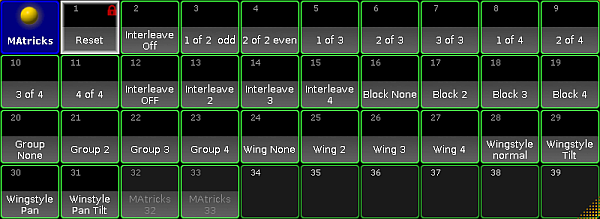 *Open the MAtricks pool* 2. Create new MAtricks:\ -Press Edit and tap an empty pool object in the MAtricks pool.\ -The window **Edit MAtricks** opens. 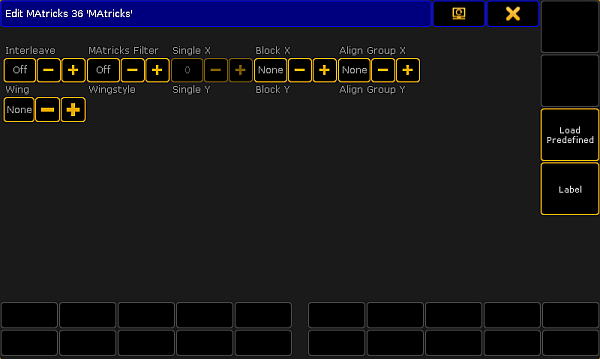 *Edit MAtricks* -To set **Interleave, MAtricks Filter, Single X, Block X, Align Group X, Wing, Wingstyle, Single Y, Block Y,** and **Align Group Y**, tap the plus or the minus sign displayed right below the name of the settings or tap the buttons **Off** or **None**: 3. To use predefined MAtricks, tap Load Predefined.\ -The **pop-up Select Predefined MAtricks** opens. 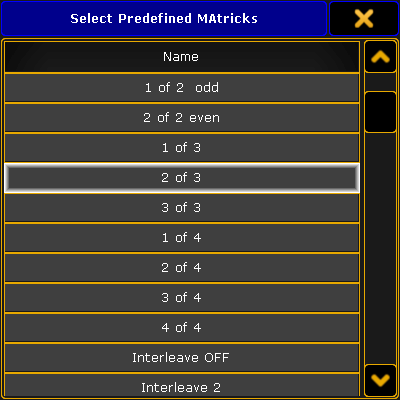 *Select predefined MAtricks* -Tap to select predefined MAtricks.\ -The pop-up closes and the MAtricks you have selected are now applied. **Hint:**\ You can also import predefined MAtricks in Setup – Import Export – Import – MAtricks. For more information on import see [Import using user interface](/grandma2/key_ei_import_gui/). 4. Label the MAtricks:\ -Tap Label and a calculator opens.\ -Enter the name of the MAtricks and press Please. 5. To reset single MAtricks in use, tap Reset. **Hint:**\ By default, **Reset** is always displayed in the first pool object of the MAtricks pool. You can set the MAtricks without selecting an object in the MAtricks pool. These settings can also be reset by tapping the pool object **Reset**. **Hint:**\ For information on how to access the MAtricks pool options and how to use them see [Adjust pool options](/grandma2/key_pools_options/).
# MAtricks toolbar
> Use the MAtricks toolbar to control the MAtricks.
Use the MAtricks toolbar to control the MAtricks. **Requirement:** * Activate MAtricks in the toolbar. 1. Select the fixtures or channels you would like to apply the MAtricks to. 2. Open the encoder bar. For more information see [Encoder toolbar](/grandma2/key_ws_encoder_toolbar/).\ For information on how to open the encoder bar via the **Create Basic Window** see [Encoder bar](/grandma2/key_ws_encoder_bar/). 3. To enable MAtricks, press the Set key.\ For more information on the Set key see [Set](/grandma2/key_key_set/). \ -or-\ -Tap an object in the MAtricks pool.\ For more information see [MAtricks pool](/grandma2/key_matricks_pool/).\ -or-\ -Tap MAtricks in the encoder toolbar and the MAtricks toolbar opens.  *Open the MAtricks toolbar* -Tap MAtricks Active.\ -MAtricks Active turns green. This indicates that MAtricks have been activated.  *Activate MAtricks* 4. To adjust the settings, tap the button displayed on the left of the  sign. \ -Depending on the setting, a calculator opens or a pop-up appears.\ -Enter or select a value. 5. If you have adjusted the settings, the corresponding button turns green and the settings are instantly applied. **Important:**\ Only settings with a green background can be saved in the MAtricks pool. 6. Store the settings you have just made in the MAtricks toolbar:\ -Press Store and tap an empty object in the MAtricks pool.\ For more information on the MAtricks pool see [MAtricks pool](/grandma2/key_matricks_pool/). 7. Close the MAtricks toolbar:\ Tap  in the upper right corner of the toolbar. *** ## MAtricks Settings [Section titled “MAtricks Settings”](#matricks-settings) **Hint:**\ Adjust settings using  or  in the MAtricks toolbar. **Important:**\ Settings that can be made on the y-axis – **Single Y, Block Y, Align Group Y** – are enabled only if the interleave is applied. **Interleave:** Sets the interval. 1. To increase the interval of the MAtricks, press and hold Set and press Next. 2. To decrease the interval of the MAtricks, press and hold Set and press Prev. \ **MAtricks Filter:** Sets the filters Off, OddID, EvenID. Off: No filter.\ OddID: Selects fixtures with an odd number.\ EvenID: Selects fixtures with an even number. 1. To set a filter, tap MAtricks Filter and the **pop-up Select Input** opens.  *Select filter* 2. Tap to select the filter. **Single X:** Selects the MAtricks in the vertical order. * To move through the selection, use Prev or Next. **Single Y:** Selects the MAtricks in the horizontal order. * To move through the selection, press and hold  and press Prev or Next. **Block X:** Creates blocks in the vertical order. \*\*Block Y: \*\* Creates blocks in the horizontal order. * To move through the selection of Block X or Block Y, press and hold  and Set and simultaneously press Prev or Next. **Align Group X:** Aligns groups of the selection in the vertical order – for example creating a fan. **Align Group Y:** Aligns groups of the selection in the horizontal order – creating a fan. ### []()Example: [Section titled “Example:”](#example) Align selection in four groups. 1. Set the **Align Group X** to 4. 2. Type into the command line: \[Channel]> At 10 Thru 100 This command created a fan function culminating in every fourth fixture. 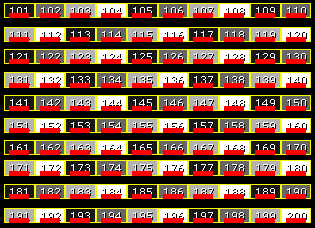 *Set the fan function using LEDs displayed in the Layout View* **Wing:** Creates wings in the selection. * To move through the selection, press Prev or Next. **Wingstyle:** Sets the following styles – None: No style.\ Pan: The wing affects fixtures with pan values. \ Tilt: The wing affects fixtures with tilt values. \ PanTilt: The wing affects fixtures with pan and tilt values. \ X: The wing affects fixtures with X values. \ Y: The wing affects fixtures with Y values. \ Z: The wing affects fixtures with Z values. \ XY: The wing affects fixtures with X and Y values. 1. To set a wing style, tap Wingstyle and the **pop-up Select Input** opens. 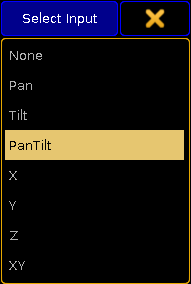 *Select wing style* 2. Tap to select a wing style. **Reset:** Resets the MAtricks settings. * To reset the MAtricks, tap Reset. **Hint:**\ It is also possible to reset the MAtricks using the [ClearAll](/grandma2/key_keyword_clearall/) or the [MAtricksReset](/grandma2/key_keyword_matricksreset/) keyword. **[]()Circular Copy:** Copies values in a circular manner in the MAtricks. For more information see [CircularCopy](/grandma2/key_keyword_circularcopy/) keyword. * To move through the selection downward, tap the arrow pointing to the right. * To move through the selection upward, tap the arrow pointing to the left. **Shuffle Selection:** Applies the function Shuffle to the selection in the MAtricks. For more information see [ShuffleSelection](/grandma2/key_keyword_shuffleselection/) keyword. * To apply this function, tap Shuffle Selection. **Hint:**\ Settings stored in the MAtricks pool can be assigned to the User keys. For more information see [User 1](/grandma2/key_key_user1/) key and [User 2](/grandma2/key_key_user2/) key.
# MAtricks wings
> This topic illustrates how to use the wings in the MAtricks with the help of an example.
This topic illustrates how to use the wings in the MAtricks with the help of an example. Wings split the selection into parts. Each wing mirrors the opposite wing. For explanation see [2. Example](#2_example). For information on the keyword see [MAtricksWings](/grandma2/key_keyword_matrickswings/). **Requirement:** * Fixtures are selected via the command line or keys. For more information on how to select fixtures for the usage of MAtricks see [MAtricks](/grandma2/key_matricks/). ### 1. Example [Section titled “1. Example”](#1-example) * Apply wings **Hint:**\ To move through selection, you usually press Next to jump to the adjacent fixture see illustration below this box. **Initial situation:** **** 1. To apply wings, tap the button on the left of the  sign displayed below **Wing** in the MAtricks toolbar. For more information see [MAtricks toolbar](/grandma2/key_matricks_toolbar/). 2. The calculator opens.\ -Enter 2. 3. Press Please. -or- 1. Use the command line as follows: \[Channel]> MAtricksWings 2 2. Press Please. 3. Press Next. **Result:** The fixtures form two wings from left and right. \*\* **** | \*\* 4. To move the fixtures toward each other, tap Next. ### []()2. Example [Section titled “ 2. Example”](#2-example) 1. Set 3 wings using the command line: \[Channel]> MAtricksWings 3 2. Press Please. 3. Press Next. \*\*Result: \*\* The wing on the right – the third wing – mirrors the adjacent wing in the middle.  **|**  \*\*| \*\*
# Message center
> To access the Message Centerindow, tap on an empty part of a screen. This must be at least 4 columns wide and 3 rows high. Tap System and then Message Center.
To access the \*\*Message Center \*\*window, tap on an empty part of a screen. This must be at least 4 columns wide and 3 rows high. Tap System and then Message Center. This will open the **Message Center** window.  *Message center window* The **Message Center** is a great help, to debug the system. It is an activity log of different messages from the system. If there are any unstable devices or an error on the network, this window will be a great help. It is possible to filter the information by **Category**, **Subcategory**, **Type** or **Sender**. This will give the opportunity to only display messages about power or network for example, or only display errors. It is also possible to filter which device sent the message. It is possible to export the messages to an xlm file. Read more about export in the [Export Keyword](/grandma2/key_keyword_export/) topic. All the messages that are written in green are new. They will become gray, if you scroll up the window. **Hint:**\ The messages are a part of the show file, and all messages will be stored into the file. To clear the messages, use the command line and type \[Channel] > Delete Messages **Important:**\ **Messages** and **Message** is two different keywords. Read more about keywords in the [All Keyword](/grandma2/key_cs_all_keywords/) topic ## Icons on the Command Line [Section titled “Icons on the Command Line”](#icons-on-the-command-line) Another part of the Message Center are the icons on the right side of the **Command Line**. These could look like this:  *Command line icons* These will display important information about the console and the network. Tap the icons to get the description of what they mean. It could look like this:  *Message center pop-up* Tap Show All in the upper right corner to get a list over all the icons that can be displayed. Tap  in the upper left corner to manage the messages icons on the **Command Line**. Here, it is possible to select which information that must display a status icon and which that must give an information pop-up.
# Networking
> This section is about networking in grandMA2.
This section is about networking in grandMA2. There is a short description of [what is networking](/grandma2/key_network_what_is_network/). There are some useful information about setting IP addresses in [Consoles](/grandma2/key_network_set_ip_console/) and in [grandMA2 onPC](/grandma2/key_network_set_ip_onpc/). MA devices communicate and connect in a session. There is a section describing all the [relevant topics about sessions](/grandma2/key_network_session/). The network can be used to get [DMX in and out of system](/grandma2/key_network_dmx_get_in_out/). There is a section about [CITP](/grandma2/key_network_citp/). There is a topic about [PosiStageNet or PSN](/grandma2/key_network_psn/). It is a protocol used to exchange real-time position values. ## Subtopics [Section titled “Subtopics”](#subtopics) * [What is networking](/grandma2/key_network_what_is_network/) * [Set the IP address in the console](/grandma2/key_network_set_ip_console/) * [Set the IP address in the onPC](/grandma2/key_network_set_ip_onpc/) * [Using DHCP in MA devices](/grandma2/key_network_dhcp/) * [Session control](/grandma2/key_network_session/) * [Getting DMX in and out of the system](/grandma2/key_network_dmx_get_in_out/) * [Using CITP](/grandma2/key_network_citp/) * [PosiStageNet (PSN)](/grandma2/key_network_psn/) * [FTP connection to console and NPU](/grandma2/key_network_ftp/)
# Using CITP
> CITP (Controller Interface Transport Protocol) is a suite of Protocols used to exchange pictures and Video streams through a network. It is developed and mainta
CITP (Controller Interface Transport Protocol) is a suite of Protocols used to exchange pictures and Video streams through a network. It is developed and maintained by Capture, Sweden - The protocol suite supports many different things. The grandMA2 console and onPC only supports two elements of the protocol. Thumbnail exchange from 3rd party media servers and viewing a CITP video stream. Read about the two different types in the following pages or follow these links: [Streaming CITP](/grandma2/key_network_citp_stream/) and [Thumbnail Exchange](/grandma2/key_network_citp_thumbnail/). The MA 3D supports one element (streaming CITP video). ## Enabling CITP [Section titled “Enabling CITP”](#enabling-citp) CITP is enabled in Setup and CITP Network Configuration in the Network tab. In this menu you can enabled CITP generally by tapping the CITP Enable. This will turn on CITP in your session. ## Important Information [Section titled “Important Information”](#important-information) There are some things you should be aware of when using CITP. A CITP connection is not possible in MA when running CITP sender and CITP receiver at the same computer. The CITP Multicast address can be configured by pressing the title bar button in the CITP Network Configuration menu (in Setup). The CITP Multicast address 224.0.0.180 is not forwarded by many switches as soon as IGMP Snooping is enabled. The CITP Multicast address of MA products can be switched to 239.224.0.180 in order to use CITP in combination with IGMP Snooping. Be aware that the alternative multicast address 239.224.0.180 is not yet supported by many other media server manufacturers. Please check the compatibility with the manufacturer of your media server prior to changing the CITP Multicast address and enabling the IGMP Snooping while using CITP. Changing the multicast address in the CITP Network Config, will change the address for all MA stations (consoles, MA VPU and MA 3D) throughout the session. Streaming videos via network needs bandwidth. A single CITP video stream of 30fps generates up to 15Mbit/s. Video streams are sent as multicast. Requesting the same video stream from different grandMA2 consoles or MA 3Ds will not generate additional network traffic. ### Some hints to keep network stability when using CITP: [Section titled “Some hints to keep network stability when using CITP:”](#some-hints-to-keep-network-stability-when-using-citp) The list below gives a brief overview over the data rate of one 30 Frames per second CITP video stream. When having compressed streams, the data rate varies depending on the compressibility of the video content. * Uncompressed RGB8 stream: 15Mbit/s * PNG compressed stream: 7Mbit/s up to 15Mbit/s depending on video content. * JPG compressed stream: 1Mbit/s up to 8Mbit/s depending on video content. The minimum network speed is 1000MBit/s. Do not enable CITP in an 100Mbit/s network environment! The maximum amount of CITP network data rate should not exceed 30Mbit/s per physical network. When exceeding this limit, reduce the video stream quality by choosing a higher compression (jpg) or request less different video streams. Otherwise visualizers and video stream viewers running at computers with installed operating system Microsoft® Windows® may not receive all video stream data resulting in CITP video stream fps dropping below 1 fps. The MA VPU CITP video streams frame rate is limited to 30fps shared by all requested outputs and 10fps shared by all requested layers of CITP video streams. E.g.: When requesting CITP video streams of Output1 and Output2, each stream will have a maximum refresh rate of 15 fps. The MA VPU reduces CITP video streams frame rate if the CITP network traffic of current connected network exceeds 30Mbit. ## Subtopics [Section titled “Subtopics”](#subtopics) * [Streaming CITP](/grandma2/key_network_citp_stream/) * [Thumbnail exchange](/grandma2/key_network_citp_thumbnail/)
# Streaming CITP
> CITP can be used to stream a video feed through the network.
CITP can be used to stream a video feed through the network. This video stream can be viewed on the MA console and onPC in the **CITP Video Viewer** window - create it using the [Create Basic Windows](/grandma2/key_windows/#create_basic_window). In MA 3D you can use a CITP stream on a surface, thus mimicking a screen. For the console or onPC viewer to display a video stream, you need to set it up. Make sure the CITP is activated in the console/onPC. Have a look at the [Using CITP](/grandma2/key_network_citp/) topic. Tap the yellow ball in the upper left corner. This opens the Options pop-up. It could look like this:  *CITP Video Viewer Options with one active CITP stream source* This view displays a list of all the CITP servers that can stream video. You see the IP address, Port, Name and connection state. At the bottom there are two buttons. The left one allows you set the requested frames per second. The actual feed might be faster or slower. The right button is used to select what the viewer displays. This can be layers or Outputs (for MA VPU). With a selected source and layer/output, the Viewer can display the stream. The viewer could look like this:  *CITP Video Viewer - with a feed* The main part of this window displays the video stream. The title bar shows you that it is the CITP Video Viewer and the CITP source. In the picture above the source is a MA VPU. It also tells you if you are looking at a single layer or an output. There are two buttons in the title bar. The first one show you the frames per second. It shows the actual FPS and the requested. The second button allows you to start or stop the live video viewing. It has been tested with MA VPU, MSEX Lord, Green Hippo Hippotizer, PRG MBOX, Arkaos MediaMaster, and Coolux Desktop Streamer.
# Thumbnail exchange
> CITP/MSEX protocols are used to transfer information between consoles, media server and visualizers. You can use it to transfer thumbnail pictures of media file
CITP/MSEX protocols are used to transfer information between consoles, media server and visualizers. You can use it to transfer thumbnail pictures of media files from a media server to the console. This puts the thumbnails in the smart view and in the calculator pop-up. **Hint**\ This is not needed with MA VPU. They will automatically exchange the thumbnails using MA-Net. **Restriction**\ The video layers need to be positioned and patched first in the fixture schedule layer containing the fixtures profiles for the media server for CITP thumbnail exchange to function correctly. Open the CITP Network Configuration window by pressing the Setup key and then tap the CITP Network Configuration in the menu. The CITP Enabled button in the upper right corner enables the CITP protocol on all consoles in the session. The IP address listed next to the close button is the Multicast address used by CITP. Pressing it allows you to change the used IP address, please only do this if there is a really good reason for it. The configuration have four tabs. Only the MediaServers tab is active right now. ## LightingConsoles tab [Section titled “LightingConsoles tab”](#lightingconsoles-tab) This part is not implemented yet. ## MediaServers tab [Section titled “MediaServers tab”](#mediaservers-tab) Here you add the 3rd party media servers. Press the Add button to manually add a media server. Or you can use Add Present to automatically add all the Media Server in your network (the ones using CITP). The IP address of the server needs to match the IP address in the IP column. The Delete button deletes the highlighted line. It could look like this:  *CITP Network Configuration - Media Servers with active server* If the line has a red background then the server is not present or it have CITP disabled. A green background indicates an active media server. You need to specify the Fixture Layer and have a fixture setup here that matches the Media Server. If the Library and Image Subattributes is not automatically recognized by the system, then you need to manually select the Library and Image SubAttribute. This is important for the images to go to the correct folder. The Media Server will provide information like the server “Name”, “Port”, “Device State”, “CITP command”, “CITP Version” and “MSEX Version”. When all is set up correctly then you can press the Update Thumbnail button. This will start the transfer of the thumbnails to the console. This might take a while and there will be a progress bar in the “CITP Command” cell. It can also be done using the command line. Please read more about it in the [UpdateThumbnails](/grandma2/key_keyword_updatethumbnails/) command. ## Visualizers tab [Section titled “Visualizers tab”](#visualizers-tab) This part is not implemented yet. ## OperationHubs tab [Section titled “OperationHubs tab”](#operationhubs-tab) This part is not implemented yet.
# Using DHCP in MA devices
> The grandMA2 supports the use of DHCP (Dynamic Host Configuration Protocol). Use the normal procedure for setting static IP addresses in your devices, if you do
The grandMA2 supports the use of DHCP (Dynamic Host Configuration Protocol). Use the normal procedure for setting static IP addresses in your devices, if you do not know what DHCP is. DHCP is enabled as a default when you do a full install. It can also be enabled on Consoles, NPU, and DMX Nodes from the Setup->Network->MA Network Configuration. Read more about this in the [Adding devices to your session topic](/grandma2/key_network_session_add_device/). The device will look for a DHCP server in the network during the boot process. If a DHCP server is not found, then the device will assign an IP address in the APIPA (Automatic Private IP Addressing) range. This address will begin with 169.254.x.y. DHCP can also be used to define a gateway address. This can also be done with static address, but only when using the [SetIP keyword](/grandma2/key_keyword_setip/) in the command line.
# Setting up DMX ports on MA devices
> If there is only one station (console or onPC) in the system, then only the DMX ports on the station can be used.
If there is only one station (console or onPC) in the system, then only the DMX ports on the station can be used. If a session is running and other MA devices are in the session, then it is also possible to change the settings on the DMX ports on those devices.\ The operation is the same no matter the size of the system. It is done from the **MA Network Configuration**. This can be done by pressing the Setup key and then the MA Network Configuration button under “Network”. The MA Network Configuration is separated into different sections. One for each type of MA device. Read more about these section and adding devices in the [Adding devices to your session](/grandma2/key_network_session_add_device/) topic. The station you are using is always in the system, no matter if it is a console or onPC. All devices that have a DMX port will have columns for each port. The columns can be named from “XLR A” to “XLR H”. The consoles also have a “XLR In”. They could look like this:  *DMX Ports in the MA Network Configuration* If the mode or the universe of a port needs to be changed, then select the relevant cell in the window and edit the cell. This can be done by tapping the the screen encoder, if you are on a console. It is also possible to right click if a mouse or trackball is connected. Or press Edit followed by the cell you want to edit. When editing a DMX port cell, a pop-up like this appears:  *Configure DMX port pop-up - DMX node version* ### []()Port Mode [Section titled “Port Mode”](#port-mode) The “Port Mode” is a drop down list that has the following options: * **Off** - The DMX port is turned off and the device will not input or output any DMX. * **In** - The DMX port is functioning as an DMX input. It will merge values into the universe number typed in the green universe field - If “DMX In Merge” is activated in the Setup->Show->Patch only->[DMX List](/grandma2/key_patch_dmx_parameter_list/#dmx_list). * **Out** - The DMX port is outputting the DMX universe set in the green universe field. All DMX ports can be an Input or an Output. It is just a matter of maybe adding a XLR gender changer to the physical connector. The **exceptions** are: * grandMA2 onPC Command Wing: The connector called “DMX B” / “XLR B” can NOT be input! * MA NSP in **Art-Net mode** or **4-port mode**: The connector called “DMX A” / “XLR A” and “DMX B” / “XLR B” can NOT be input! **Important:**\ If a DMX port is turned off or do not transmit DMX data (for any reason), then the port is in **High-Z** mode. This means that there is no data being transmitted at all! ### []()Other limitations with DMX input [Section titled “Other limitations with DMX input”](#other-limitations-with-dmx-input) There is limitations regarding the number of DMX sources per universe. It is only allowed that a maximum of **two outside sources** send DMX data to the same Universe - this is **per universe**. It does not matter how the DMX is received. It can come from a DMX port on a console or from a Network Protocol. Only two outside sources per universe. If there is both an Art-Net and sACN source merging data into the same universe, then the limit of two different sources have been reached. There is also a limitation regarding the devices receiving the incoming DMX. Any grandMA2 device can only have one DMX port as input per universe. This means that for instance a 4 port can have the four DMX ports as input, but the ports need to send the DMX to different universes. It is the same if the DMX is connected to a console. The DMX ports can be set to receive DMX, but they need to merge it to different universes. A Master in a session can receive DMX data to universe 1 from Art-Net or sACN and use one of the DMX ports as input to universe 1. ### Universe [Section titled “Universe”](#universe) The green input field can be used to set the universe number. ### []()DMX Fail Mode - DMX nodes only [Section titled “DMX Fail Mode - DMX nodes only”](#dmx-fail-mode---dmx-nodes-only) The nodes have an extra option called **DMX Fail Mode**. This determine what should happen if the node loses connection to the session or the DMX stream is stopped. The DMX stream can stop if there is a show upload or the session has ended. The options are: * **Timeout 10s** * **Timeout 20s** * **Timeout 30s** * **Timeout 1m** * **Timeout 10m** * **Timeout 30m** * **Timeout 1h** * **Hold** The **Timeout** options are similar except the time. They will hold the DMX values for the chosen time and then stop the DMX stream (High-Z mode). The **Hold** option will make the node continue to send the DMX values as long as it got power. Read more about configuring the MA Nodes in the [Control the MA Node section](/grandma2/key_control_ma_xport_node/). ### Timeout outfade time [Section titled “Timeout outfade time”](#timeout-outfade-time) Here it is possible to set a fade time that will be used when a **Timeout** is selected. The DMX values will then fade from their last values to a value of 0. When it has completed the fade, then it will stop transmitting DMX (High-Z mode). The maximum fade time is 10 seconds. The **Hold** option also do not have a fade time option since it continues the DMX data stream. ### []()Merge Mode [Section titled “Merge Mode”](#merge-mode) The bottom drop down list is for setting how the device should merge incoming DMX data from outside sources, if the device is not under MA-Net control. This could be DMX nodes that are set to a session number that does not exist. Then they can be used to transport DMX through an Ethernet network - without any consoles or onPCs. The options in the drop down are: * **None:**\ There will be no merging. * **LTP:**\ The universes will merge following the LTP (Latest Takes Precedence) rules. * **HTP:**\ The universes will merge following the HTP (Highest Takes Precedence) rules. * **LoTP:**\ The universes will merge following the LoTP (Lowest Takes Precedence) rules. When the settings are correct, tap the Please button to confirm the settings or tap the X in the upper right corner of the pop-up to cancel the change. Please remember the limitations mentioned [above](#input_limitation). ## Where are the settings stored? [Section titled “Where are the settings stored?”](#where-are-the-settings-stored) Changes to the DMX ports on Consoles, onPCs and NPUs are stored as a part of the show file. The settings will be loaded into the devices when a show is loaded, but only if the “Network Config” settings are included when loading from the show file. For more info on loading show files, please have a look at the [Using the Backup Menu](/grandma2/key_backup_menu/) topics. The DMX nodes (MA nodes) and MA switches are different. Their settings are stored locally in the devices and a not loaded or changed with the show file. The configuration of the DMX nodes and switches can be exported and imported. This can be done to/from the hard drive or a USB stick. Please read the [Export and Import topics](/grandma2/key_export_and_import/) for more information about this.
# Getting DMX in and out of the system
> All the 5-pin XLR connectors in a grandMA2 system is a DMX port.
All the 5-pin XLR connectors in a grandMA2 system is a DMX port. A DMX port can (almost) always be an output, an input or turned off. What the DMX ports are doing and how they are configured is handle in the MA Network Configuration. All this is described in the [Configure the DMX ports on MA devices](/grandma2/key_network_dmx_configure_ports/). A different way to get DMX in and out of the system is using Ethernet protocols like Art-Net and sACN. Other Ethernet protocols are output only. The grandMA2 system can transmit ETC-Net2, Pathport, Shownet and Kinet1. Read more about configuring Ethernet protocols on the [Network DMX protocols](/grandma2/key_network_dmx_protocols/) topic. The [What affects my DMX output topic](/grandma2/key_networking_dmx_output/) explains a little bit about the different situations that affects the DMX output in a system. ## Subtopics [Section titled “Subtopics”](#subtopics) * [Setting up DMX ports on MA devices](/grandma2/key_network_dmx_configure_ports/) * [Network DMX protocols](/grandma2/key_network_dmx_protocols/) * [What affects my DMX output?](/grandma2/key_networking_dmx_output/)
# Network DMX protocols
> DMX can be transmitted or received using network DMX protocols instead of or together with the DMX ports in the system.
DMX can be transmitted or received using network DMX protocols instead of or together with the DMX ports in the system. This is all controlled from the Network Protocols menu. The menu can be opened by pressing the Setup key followed by a tap on the Network Protocols button. It could look like this:  *Network Protocols menu - Art-Net tap* The grandMA2 supports the following network DMX protocols, each having their own tab in the **Network Protocols** view: **Art-Net:** Both transmit and receive. Several ranges of universes can have different settings. **ETC-Net2:** Transmit only. Only one range of universes. **Pathport:** Transmit only. Only one range of universes. **sACN:** (streaming ACN) Both transmit and receive. Several ranges of universes can have different settings. **Shownet:** Transmit only. Only one range of universes. **KiNET:** Transmit only. Several ranges of universes can have different settings. It is always the Master in a session that transmit and receive the network DMX data. Each of the different network protocols have at least one configuration line. If the protocols support it, then there might be more lines. ## []()General buttons in Network Protocols [Section titled “General buttons in Network Protocols”](#general-buttons-in-network-protocols) There are up to three buttons on the right side of the view: * **Network DMX if Alone** - When this is active (the text is yellow), then the station will output DMX via the network. All network protocols are sent from the master station in a session. If there is no connected stations, you need to turn this on to output network DMX. This toggles all network DMX outputs. If the frame is red, then this station does not output network DMX. If the frame is green then this station outputs network DMX. This setting is shared across all network DMX protocols. * **\[Protocol name] Output Active** - When this is on (the text is yellow), then you can output the network DMX protocol. This needs to be enabled or disabled for each protocol. * **\[Protocol name] Input Active** - When this is on (the text is yellow), then you can input the DMX protocol. This is only possible in Art-Net and sACN. At the bottom of the view, there might be two buttons. They are only visible in Art-Net, sACN and Kinet1. They are used to **Add** and **Delete** lines in the table above. The three mentioned protocols can have more configurations lines. ## []()General settings in Network Protocols [Section titled “General settings in Network Protocols”](#general-settings-in-network-protocols) Some settings are shared by the different protocols. * **LocalStart** - This is the number of the first DMX universe in your console that you want to transmit, or the first universe you want to receive. * **Amount** - This is the amount of universes you want to receive or transmit. * **ExternStart** - Many of the protocols use this to set the protocol universe number. For example grandMA2 universe number 10 should be transmitted as Shownet universe 5, then the ExternStart should be 5 and LocalStart is 10. * **TTL (Time To Live)** - Specifies the number of routers (hops) that multicast traffic is permitted to pass through before expiring on the network. For each router (hop), the original specified TTL is subtracted by 1. When TTL reaches a value of 0, then the DMX data is no longer forwarded through the network. * **Priority** - Many network protocols uses a Priority setting. This is used to tell the receiver how important the DMX data from this transmitter is. This is only relevant if the receiver have multiple DMX sources. Usually the highest number equals a higher priority. * **Info** - In the Info cell you can write any relevant information. ## []()Art-Net [Section titled “Art-Net”](#art-net) Art-Net is a royalty free protocol developed by Artistic Licence (). MA supports Art-Net 1, 2 and 3. Art-Net 3 provides 128 networks of 256 universes. If the Network number is set to 1, then it is compatible with Art-Net 1 and 2. To add a line in the Art-Net window, tap **Add**. To remove a unwanted line, select it and tap **Delete**. There several options for each line (here is only mentioned the ones that are not mentioned in [General Settings above](#General%20Settings)): * **Valid** - This field is read only and tells if the line is valid. It is not allowed to transmit (or receive) the same universe more than once. A valid line will transmit or receive data. * **Requested** - Here you can set if the line is requested or not. A line that is not requested get a status of **Not valid** and will not transmit or receive Art-Net data. * **Mode** - Change between **OutputBroadcast**, **OutputUnicast**, **OutputAuto**, and **Input**. Read more below. * **Destination IP** - Only available if the mode is OutputUnicast. This is the IP address of the receiver. * **Network** - This is the Art-Net network setting (1-128). * **Subnet** - This is the Art-Net subnet setting (0-F). * **Universe** - This is the Art-Net universe setting (0-F). * **Delay** - Adding a number here will add milliseconds delay between the packets. This can be needed in slow networks. Only for Art-Net output. The **Mode** selection changes the functionality of the Art-Net line. Editing it opens a small pop-up giving the above mentioned options. The pop-up look like this:  *Select Mode pop-up - Art-Net mode* The last option is “Input”. This makes the line merge incoming Art-Net DMX into your system. DMX output via Art-Net supports Auto detection and manually setting of Broadcast or Unicast network traffic per universe. * **OutputBroadcast** - sends the DMX Universes as broadcast. * **OutputUnicast** - sends the DMX Universes as unicast to the IP address set in the **Destination IP** column. * **OutputAuto** - sends each DMX Universe as Unicast to up to 5 receivers detected via ArtPoll. If more than 5 receivers, or if there are no detected receivers requesting the universe, then the universe will be send as broadcast! **Hint:**\ The default limitation of 5 individual receivers can be changed to a maximum of 10. This can only be done using the command line configuration and by using the “MaxUnicast” property. **Important:**\ Art-Net is transmitted from Ethernet connector number 2. If you use a onPC, then you do not need to make a valid Art-Net IP address. The software will create one and use it. If your computer have a valid Art-Net address, then it will use it. If there are several valid addresses, then it will use the first it sees. **Do not** give your Ethernet connector number 1 a valid Art-Net IP address. ## []()ETC-Net2 [Section titled “ETC-Net2”](#etc-net2) ETC-Net2 is developed by ETC (Electronic Theater Control - ). It was introduced in 1997. MA supports transmission of one range of DMX universes as ETC-Net2. This was implemented to support communication to older ETC dimmers and DMX nodes. Using sACN might be a better option if the receivers supports it. There are several options (here is only mentioned the ones that are not mentioned in [General Settings above](#General%20Settings)): * **Active** - This is an ‘On’/‘Off’ option. When ‘On’ the console will transmit ETCNet2. When it is ‘Off’, then the text is hidden. This can also be toggled by the button on the right side. * **Groups** - ETC-Net2 uses multicast groups to simplify and optimize the transmission. Here you can select what group to transmit to. * **Priority** - The lowest number has the highest priority. ## []()Pathport [Section titled “Pathport”](#pathport) Pathport is created by Pathway Connectivity (). MA supports transmission of one range of DMX universes as Pathport. This was implemented to support communication to older Pathway DMX nodes. Using sACN might be a better option if the receivers supports it. There are several options (here is only mentioned the ones that is not mentioned in [General Settings above](#General%20Settings)): * **Active** - This is an ‘On’/‘Off’ option. When ‘On’ the console will transmit Pathport. When it is ‘Off’, the text is hidden. This can also be toggled by the button on the right side. ## []()sACN (streaming ACN) [Section titled “sACN (streaming ACN)”](#sacn-streaming-acn) ACN (and streaming ACN) is an ANSI/ESTA international standard. Further readings: . ACN (Architecture for Control Networks) is suite protocol. It uses a lot of elements that is currently not supported by grandMA. But the ACN protocols also have a lighter version for transporting DMX data. It is called ‘Lightweight streaming protocol for transport of DMX512 using ACN’ or more popular “streaming ACN” or “sACN”. It is international standard number E1.31. There are several options (here is only mentioned the ones that are not mentioned in [General Settings above](#General%20Settings)): * **Valid** - This displays a “Yes” if the line is valid. Only valid lines transmit or receive data. * **Requested** - Here you can set if the line is requested or not. A line that is not requested, get a status of **Not valid** and will not transmit or receive sACN data. * **Mode** - Change between **OutputMulticast**, **OutputUnicast**, **InputMulticast**, and **InputUnicast**. Read more below. * **Destination IP** - Only available if the mode is OutputUnicast. This is the IP address of the receiver. * **sACN Universe** - This is the sACN universe the DMX data should be transmitted to or received from (1 - 64000). * **Priority** - The allowed value is 0 to 200. The highest number has the highest priority. The default value should be 100. * **Protocol** - Here you can select between two different variations of the sACN protocol. You can choose the “Draft” or “Final” release of the sACN protocol. Some equipment have implemented the draft version of sACN before the final version was released. You might need to change to “draft mode” for those devices to work. * **Delay(ms)** - The delay can be used to slow down the traffic in the network. For some older and slower network nodes there is a big difference in receiving 10 universes in one burst or one by one. ### Mode [Section titled “Mode”](#mode) Editing the Mode cell will open a small select pop-up that allows you to choose the different input an output modes mentioned above. The pop-up looks like this:  *Select Mode pop-up - sACN mode* You can choose between input and output and each of them can be unicast or multicast. * **OutputMulticast:**\ When choosing Output Multicast, sACN will be sent as multicast to the relevant multicast addresses. * **OutputUnicast:**\ When choosing Output Unicast, a valid IP address has to be entered in the **Destination IP** column. Universes configured in this row will be sent as unicast to this IP address. * **InputMulticast:**\ Input Multicast will join the Multicast group of the relevant DMX Input Universe.\ Input Multicast is limited to max. 10 Universes. If more than 10 rows are configured as Input Multicast, all rows beyond multicast input row 10 will be invalid. * **InputUnicast:**\ Input Unicast is not limited and receives sACN data for the relevant universe without joining any multicast group. sACN input of grandMA2 console ignores sACN priorities. ## []()Shownet [Section titled “Shownet”](#shownet) Strand Shownet is created by Strand Lighting (). MA supports transmission of one range of DMX universes as Shownet. Using sACN might be a better option if the receivers supports it. There are several options (here is only mentioned the ones that is not mentioned in [General Settings above](#General%20Settings)): * **Active** - This is an ‘On’/‘Off’ option. When ‘On’ the console will transmit Strand Shownet. When it is ‘Off’, then the text is hidden. This can also be toggled by the button on the right side. **Important:**\ Shownet is a Broadcast protocol, but is transmitted from Ethernet connector 1. ## []()KiNET [Section titled “KiNET”](#kinet) KiNET is developed by Philips Color Kinetic (). MA supports transmission of several ranges of DMX universes. There are several options (here is only mentioned the ones that are not mentioned in [General Settings above](#General%20Settings)): * **Valid** - There will be a “Yes” for each line that is a valid line. Only valid lines will transmit data. * **IP Address** - This is the IP address of the receiver. **Important:**\ KiNET is a Broadcast protocol, but is transmitted from Ethernet connector 1.
# FTP connection to console and NPU
> The consoles and the grandMA2 NPU can be accessed using a FTP client program.
The consoles and the grandMA2 NPU can be accessed using a FTP client program. One such program could be FileZilla Client from the FileZilla Project (external link to internet webpage). The FTP client needs to be installed on a computer in the same network as the console or NPU. To access the console or NPU, the IP address of the device is needed. A user name and password is also required. Both username and password is: **data**. **WARNING:**\ Be very careful making any changes in the folders or files. This is direct access into the device. Deleting or moving files may cause serious harm to the device. Once the connection is made, it is possible to browse through the folders inside the device. The first level of folders should look something like this:  *FTP main folders* If the device has been updated, then there might be several version folders. Most often the needed folder are found in the currently installed and active running software. These folders can be accessed using the “actual” link. This will give access to a new folder called **gma2**. Accessing this folder will give access to the folders and files that constitutes the grandMA2. The first few of these folders could look like this:  *gMA2 folders* Some off these folders are also present on a USB stick if it has been used to save a show. There are many folders here that gives access to many of the elements that the grandMA2 software uses. ## Show folder [Section titled “Show folder”](#show-folder) The folder called “shows” contain all the show files save in this version of the software. If show files from a previous software is needed, then you will need to navigate to the correct version folder and find the show folder in that version. ## Template show folder [Section titled “Template show folder”](#template-show-folder) The Template show folder is found in the first layer of folders. Show files can be copied to this folder. Show files in this folder are read only, and cannot be overwritten. They can be loaded from the grandMA2 software and stored as a new show either internal or on a USB stick. Then only way to get show files into the template folder is using FTP access. The template folder is not overwritten when the device is updated. It is only overwritten when a Full Install is performed. ## Import Export [Section titled “Import Export”](#import-export) If something is exported using the Export keyword, then it most often ends up in the “importexport” folder. Depending on what it is it might end up in the “macro” folder or the “fixture\_layers” folder. The internal fixture library are found in the “library” folder. ## Crashlogs [Section titled “Crashlogs”](#crashlogs) It can happen that a device crashes. If this should happen then a crashlog is written and stored in the “temp” folder. On the consoles it is also possible to get these crash logs using the [CrashLogCopy](/grandma2/key_keyword_crashlogcopy/) keyword. This is not possible on the NPUs. ## Screenshots [Section titled “Screenshots”](#screenshots) It is possible to make a screenshot of the last touched screen by pressing the Prt Scr key on the keyboard. The screenshots are stored in the “temp” folder. It is a gz compressed tga file. It needs to be uncompressed before it can be opened.
# PosiStageNet (PSN)
> PosiStageNet or PSN is a open protocol developed by MA Lighting and VYV Corporation - http://www.posistage.net/.
PosiStageNet or PSN is a open protocol developed by MA Lighting and VYV Corporation - . **Restriction:**\ grandMA2 supports PSN version 2.0 It uses a PSN server that transmit position information from different trackers connected to the server. grandMA2 can connect to the server, as a client, and receive the position information from each tracker. Usually you then connect the tracker information to a patched StageMarker. The StageMarker will then move around based on the incoming position data. You can then tell the XYZ enabled fixtures to point their light at the moving StageMarker. **Hint:**\ It is possible to patch up to 1024 StageMarkers. ## Connect to a PSN server [Section titled “Connect to a PSN server”](#connect-to-a-psn-server) To add a PSN server you need to open PSN Network Configuration in Setup. Tap the Add button at the bottom of the window. Then you get a row in the table in the window above. The line needs to be enabled. Edit the **Enabled** cell in the configuration row until it says “Yes”. Then you should get an IP address in the **IP** column - this is the IP address of the server. The **Name** will also change to name of the server. If the connection is good, then the name will also get a green background color. The **World** column displays the PSN world the server is in. It is just for information. It is a setting in the server and is not used by the grandMA2. It is possible to change the **Port** and PSN **Multicast** address if the server does not follow the standard port and multicast address. If you want to use the PSN data, then you also need to turn on the general PSN function. This is the big Enabled button in the upper right side of the view. When a valid PSN server is present, then the view could look like this: 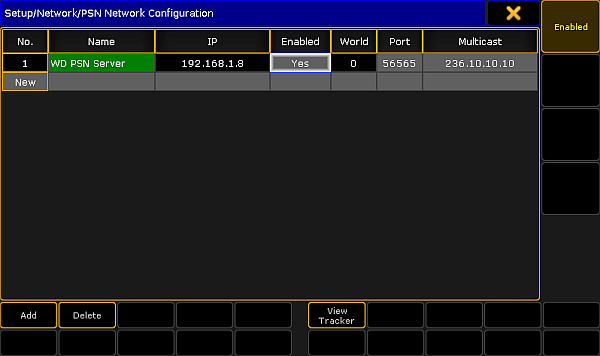 *PSN Network Configuration with valid server connection* ## Connect tracker to a StageMarker [Section titled “Connect tracker to a StageMarker”](#connect-tracker-to-a-stagemarker) If you want to view the incoming tracking information, then tap the View Tracker button in the bottom of the screen. This opens the **View Tracker window**. If you do not have a connection to a PSN server then this window is empty. If you have a server, then a table with the information from the server is visible. There are two things that can be edited in this view: A **Fixture ID** can be attached to the tracker. Type the Fixture ID of the StageMarker you want to be moved by the tracker. The **Predict** value can be changed. This will make the console try to predict the position of the tracker. The number type here is the number of seconds in the future the console should try to predict, based on the current speed and direction. If this is left at “0.00” then it is up to the server to do the calculation and prediction. It could look like this: 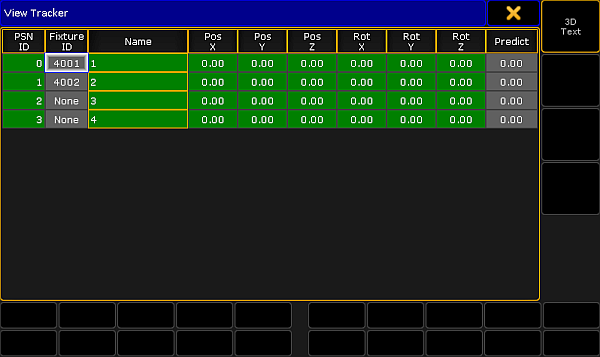 *View Tracker - PSN information from server with attached Fixture ID* In this example, the tracker with PSN ID number 0 is attached to the Fixture ID 4001 (a StageMarker). The current position and rotation is 0 meters and 0 degrees in all three planes. When the tracker starts to move then the information will update and the StageMarker will move accordingly. The 3D Text button in the picture above should just be ignored - it does not do anything and is not implemented.
# Session control
> To connect MA devices you need to create a session.
To connect MA devices you need to create a session. ## MA Network Control [Section titled “MA Network Control”](#ma-network-control) Sessions and Stations (consoles and onPC) relation to sessions are controlled in **MA Network Control** found in the Setup menu. It can be opened it by pressing Setup and then tap MA Network Control. It could look like this: 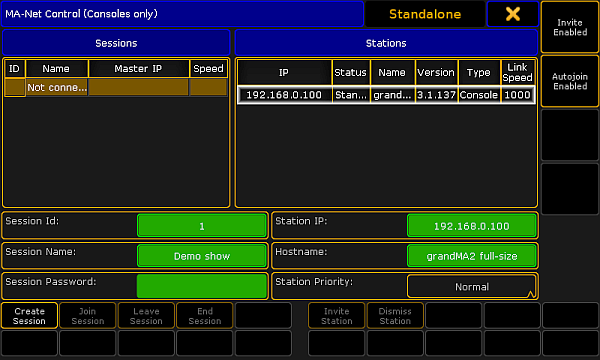 *Menu MA-Net Control* The left side of this menu displays the different sessions in the network. There can be a maximum of 31 sessions. Each session needs a unique session number (between 1 and 31). There is always a line in the session control that “holds” the stations that are not currently in a session. This line is called **Not connected**. The right side of the menu lists the different stations that are in the session selected on the left side (including the “Not connected”). ## Master and Connected [Section titled “Master and Connected”](#master-and-connected) In a session there is always one station that have the **Master** role. If there is more stations in the session, then the others will have the **Connected** role. The Master is the one that transmit DMX on the network. It is also the console that executes the commands that are triggered by the sequences. If you are using MIDI, then it is important to know that the Master is the one that will transmit the MIDI information, and the station that needs the MIDI signal. The Master is also the one that will upload the show file to new devices added to the network. The Master and the Connected stations are all equal members in the session any one can run cues and they share all the information. If you save the show on one station it is saved on all stations. If one session member changes the show while in a session, then all members will get the new show. ## Station priorities [Section titled “Station priorities”](#station-priorities) You can control what station gets the Master role using the **Station Priority** setting. If one station has the “High” priority, then this station will be the Master. There are four different priorities: * **Never:**\ A station with this priority will connect to a session, but it cannot create a session, and if it is the only station left then the session will end! * **Low:**\ A station with this priority will connect to a session. It will only be the Master if there is no one else with a higher priority. * **Normal:**\ This is the default priority. * **High:**\ In the ideal system you will have one station that have the high priority. It is only possible to change the priority when a station is not connected to a session. ## Speed and Link Speed [Section titled “Speed and Link Speed”](#speed-and-link-speed) The session list will display the session number, name, IP address of the master and a **Speed**. This speed can be Fast or Slow. A **Fast** session means that the session is running at maximum speed and data packets are sent as fast as possible and in burst. A **Slow** session means that data packets are being cued up and sent at a slower rate. Then older hardware (grandMA1 era) - with slower network cards - have a chance to keep up. The session speed is automatically changed if the master detects older hardware directly behind the network adapter and only when the station is switched on - when the first device is a gigabit switch, it is always fast. The only way to manually change the speed is to limit a Ethernet connection to 100Mbit in the switch or in the station. Each station also have a Link Speed column. Here it shows directly the Mbit speed connection for the station. You can change what the network card in the console is set to using the [SetNetworkSpeed command](/grandma2/key_keyword_setnetworkspeed/). Please read the following pages to learn about creating sessions and adding more devices to the session. ## Subtopics [Section titled “Subtopics”](#subtopics) * [How to create a session](/grandma2/key_network_session_create/) * [Protecting the session and station](/grandma2/key_network_session_protect/) * [Adding devices to the session](/grandma2/key_network_session_add_device/) * [How to end or leave a session](/grandma2/key_network_session_end_leave/) * [Session collision](/grandma2/key_network_session_collision/)
# Adding devices to the session
> MA devices can be added to the session. This will expand the system and allow for bigger systems where it is possible to control more lights (more parameters).
MA devices can be added to the session. This will expand the system and allow for bigger systems where it is possible to control more lights (more parameters). Devices like 3D visualizers, Media servers, Networked dimmers, MA Nodes, and MA Network Switches can also be added. It is all controlled in MA Network Configuration. This can be found by pressing Setup and then tap MA Network Configuration. It could look like this: 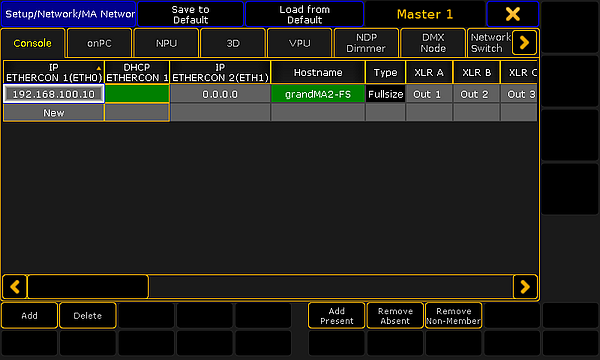 \_MA Network Configuration - \_*The Console tab* The configuration is divided into sections or tabs. The tabs represent each device type. There are tabs for: * Consoles * onPC * NPU * 3D * VPU * NDP Dimmer * DMX Nodes (MA Nodes only) * Network Switch (MA Network Switch only) Consoles and grandMA2 onPCs are called **Stations** and are connected to a session using the [MA Network Control](/grandma2/key_network_session_create/). They cannot be invited or forced to connect from this interface, but the DMX ports and timecode can be configured. Stations in the session will also appear in the MA Network Configuration. ## ## Status colors [Section titled “Status colors”](#status-colors) The devices in the MA Network configuration can have different colors to help identify problems and status of the devices in the network. ### Hostname, Offset and Bridge [Section titled “Hostname, Offset and Bridge”](#hostname-offset-and-bridge) The background color of the Hostname, Analog Offset, MIDI Offset and Bridge can have different colors. * **Red:** The device is not present in the network or it is already connected to a (different) session. * **Gray / Black:** The device is in the network, but is not in any session. The background is black for Stations - gray for all other devices. * **Dark green:** The device is in the network and is connected to the same session as you. * **Bright green:** This is the device you currently using, and it is in a session. ### Version number [Section titled “Version number”](#version-number) The version number has a default white text color and it can have a red color. The red color indicates that the device has an incompatible software version number and it cannot be used in the session. To add a device to the session, make sure the first three ranges of the version number match the other devices. ## Consoles [Section titled “Consoles”](#consoles) The consoles tab offers the possibility to configure the ports on a console that is connected to the network. []()At the bottom of the screen there are some buttons: * **Add** - Pressing this will open a small pop-up that lists all the available consoles in your network. If there are no consoles, that are not already added, then the list will be empty. Not adding any actual consoles, will create an “empty” console with the 0.0.0.0 IP address. * **Delete** - Tapping this button will delete the selected console. You cannot delete your own console. * **Add Present** - This will automatically add all the consoles that are present in the network. * **Remove Absent** - This will remove the consoles from the list, that are not present in the network. * **Remove Non-Members** - This will remove the consoles from the list, that are not a member of your session. When you have added a console to the list, then you get a table where the rows are the different consoles (if there are more than one). The columns are different settings. All the settings with a gray background color can be changed. If the console is not connected to the session, then the changes might not be made in the console. []()The columns are: * **IP ETHERCON 1 (ETH0)** - This is the IP address of the number 1 EtherCon connector on the back of the console. Changing this number will change the IP address on the console and requires a reboot. * **DHCP ETHERCON 1 (ETH0)** - Editing this cell will give a “Yes”. This enables DHCP for Ethernet port 1 and will prompt a reboot. Read more about DHCP in the [Using DHCP in MA devices topic](/grandma2/key_network_dhcp/). * **IP ETHERCON 2 (ETH1)** - This is the IP address of the number 2 EtherCon connector on the back of the console. This connector is for Art-Net and should have an Art-Net compatible IP address. Changing this number will change the IP address on the console and requires a reboot. * **Hostname** - This is the hostname of the console. This is only for information. It can only be changed in the MA Network Control. * **Type** - This displays the type of console. * **XLR A** to **XLR F** - These are the female DMX connectors on the back of the console. Editing this cell will open a pop-up that allows you to change the settings. It is described in details in the [Getting DMX in and out of the system](/grandma2/key_network_dmx_get_in_out/) topic. * **XLR In** - This is the male DMX port on the back of the console. Editing, works just as the female connectors - see above. * **MIDI TC** - Choose which Timecode slot the incoming MIDI timecode should be sent to. Please read the [Timecode](/grandma2/key_timecode/) topic for more details about Timecode slots. * **SMPTE TC** - Choose which Timecode slot the incoming LTC/SMPTE timecode should be sent to. Please read the [Timecode](/grandma2/key_timecode/) topic for more details about Timecode slots. * **Version** - This is the software version the console is currently running. * **Memory Complete/Free** - This displays the amount of memory (RAM) in the console and how much of that is not used. If the console uses all the available memory then it will stop working. You will also need an extra memory capacity to connect to a file server. * **x64** - Here it is displayed if the console is running the 64 -bit version of Linux or the 32-bit. A “Yes” indicates that it is 64-bit. * **Analog Offset** - Here remote analog inputs, on the back of the console, can be offset. This can be useful if there are more consoles and you need more analog remote inputs than the 16 a single console offers. The session can handle 64 unique remote inputs. To reach numbers above 16 (the number of inputs on the console) then you will need to offset the input on one or more consoles. An offset of 16 will map physical input number 1 to remote number 17. * **MIDI Offset** - This is the same as the analog remotes, but for MIDI Notes. Most MIDI systems support 128 notes (0-127). But the MA system can handle 1024 MIDI remote inputs. In combination with the 16 different channels, this allows you to map 16.384 unique MIDI remote inputs! * **Link Speed** - This is the current connection speed between the console and the switch. * **Bridge Mode** - The Bridge is not currently implemented. * **Bridge IP** - The Bridge is not currently implemented. ## grandMA2 onPC [Section titled “grandMA2 onPC”](#grandma2-onpc) grandMA2 onPCs are considered “Stations” and can only be added to a session in the [MA Network Control](/grandma2/key_network_session_create/). The onPC section has the [same buttons at the bottom as the console section](#Standard%20Control%20Buttons) - plus two more. They are called **Identify Fader 1** and **Identify Fader 2**. Each grandMA2 onPC can have one MA onPC command wing and two MA onPC fader wings connected. They are all connected through USB connectors. If you connect two MA onPC fader wings, then you need to tell the computer which fader wing is number 1 and which one is number 2. This is done by tapping one of the Identify buttons and then pressing any button on the corresponding fader wing. Repeat the previous described steps for the second fader wing. It is not needed to do this for the command wing. When a grandMA2 onPC is added to the network, then you will see that one grandMA2 onPC takes three rows in the table part - one row for each possible wing. There are not all the same columns in the onPC section as in the console section. Please read the description of the columns in the [Console section above](#Column%20Description). There are some small differences: There is only one Ethernet column - this is the primary connection used to communicate with other MA devices. Changing the number here won´t change the IP address on the computer. If you want to output Art-Net from your computer, then it is very recommended to add another Ethernet port. This could be done with a USB (3.0/3.1) to Ethernet dongle. Then give this Ethernet adaptor an IP address in the Art-Net range. Your onPC will then use this Ethernet adaptor to transmit the Art-Net. The MA onPC command wing has a male DMX port labeled “DMX In”. This is “XLR C” in the configuration table. Normally it is possible to use any DMX port as input or output but there is a limitation on the Command wing. It is only possible to use the “DMX A” and “DMX In” for **inputting** DMX to your system from the MA onPC command wing. ## MA NPU [Section titled “MA NPU”](#ma-npu) The MA NPUs (Network Processing Unit) are added and connected to the session in the MA Network Configuration. At the [bottom of this section you have the same buttons as the Console section](#Standard%20Control%20Buttons) and you can use these buttons to add MA NPUs that are in the network. When the MA NPU exists in the table, then you can edit the **Session Member** column. This is a toggle cell. It can be empty or it can be “Yes”. If it is yes, then the MA NPU is told to join the session. If a different session also would like the MA NPU to join their session, then the MA NPU will join the session it sees first in the network. The MA NPU cannot output or receive Art-Net, so there are only columns for one IP address including the DHCP column. Changing the IP number in the IP column, will change the IP address in the MA NPU and it will restart. The MA NPU has 8 DMX ports. They can all be changed in the table. Here they are called “XLR A” to “XLR H”. Read the description of the columns in the [Console section above](#Column%20Description). ## MA 3D [Section titled “MA 3D”](#ma-3d) The MA 3D visualizer is an integrated part of a MA system. It is a visualizer that communicate with the stations and changes made to the setup will automatically be visible in the MA 3D. It has [the same buttons at the bottom of the screen as the console](#Standard%20Control%20Buttons). When a MA 3D visualizer is added to the table then you will have the same **Session Member** column as the MA NPU and the process is the same. When connecting a MA 3D it can be chosen which **User** it should follow. The users in the show each have a [Stage view](/grandma2/key_patch_stage/). The MA 3D is connected to the Stage view, so changing the angle or location of the virtual camera in the Stage view or the MA 3D visualizer, they will both follow along. A MA 3D visualizer will also follow the user into Blind and Preview mode and show the blind and preview output instead of the live output. The MA 3D only have one IP address column and no DHCP column. It is the IP address of the computer running the software. Changing the number here will not change the IP address in the computer. ## MA VPU [Section titled “MA VPU”](#ma-vpu) The MA VPU (Video Processing Unit) has some extra buttons at the bottom of the screen. Besides the standard buttons, it also got: * **Edit** - This will open an editor for the selected MA VPU. Here many of the settings in the MA VPU can be changed. * **Backup Manager** - If a MA VPU is set as a Backup, then tapping this button allows to setup the relationship between the main and backup MA VPU. * **Content Distribution** - Pressing this button will distribute the content from the MA VPU set as distributor to the MA VPUs set as receivers. * **Make a Screenshot** - Pressing this button will trigger a screenshot creation in the MA VPU. * **Global VPU settings** - Tapping this button will open the Global MA VPU settings. For a short explanation of the other buttons please have look at the[ Console section](#Standard%20Control%20Buttons). There are also some special columns in the MA VPU table: * **Layer** - This is the layer in the Patch and fixture schedule that have the configuration of VPU layers, Masters and Cameras. * **Content** - Here it can be set if the MA VPU has some special settings regarding the central distribution of content. * **Backup VPU** - Here it can be toggled if the MA VPU is a backup or main MA VPU. There is only one IP address column - it is the primary IP address used to communicate with the other MA devices. The MA VPU has a secondary IP address for Art-Net. This can only be set on the MA VPU. MA VPUs run on windows computers and changing the IP address in the table will not change the IP address in the MA VPU. DHCP is only possible to activate in the MA VPU Network Settings. For details about the MA VPU or any of the things mentioned above, please have a look the [VPU Manual](https://help.malighting.com/grandMA2/en/help/ma_vpu/index.html). ## MA NDP [Section titled “MA NDP”](#ma-ndp) MA NDP (Network Dimmer Processors) are the processors in the discontinued dimMA system. They connect like the NPU or VPU. They are invited to be a part of a session in the **Session Member** column. It has the [standard buttons at the bottom](#Standard%20Control%20Buttons). There are some special columns for the MA NDP: * **Session** - This displays the session number the MA NDP is currently a part of. MA NDPs can run independent from a station created session (using the DMX ports), then this column will display the session ID the NDP created by it self. * **Rack number** - This is the rack number the MA NDP is controlling. You can set this number and the MA NDP will then use the configuration for that Rack number. * **XLR A** & **XLR B** - These two DMX ports are the outputs from the MA NDP. Here you can see which universe they are set to output. **Restriction:**\ Please be careful when changing the settings in your MA NDPs and dimMA system. ## []()DMX Nodes [Section titled “DMX Nodes”](#dmx-nodes) DMX nodes are the different nodes from MA. There are 2, 4 and 8 port versions in different variations. **Restriction:**\ If the Node is connected to a managed switch, then the port where the node is connected needs to be set to **Auto-negotiate** for the speed/connection method. There are two special buttons in this section - besides the [standard buttons at the bottom](#Standard%20Control%20Buttons): * **Identify** - Pressing this button will flash the display and LEDs on the grandMA1 era nodes and turn the background color green in the grandMA2 era nodes. * **2Port SW Update** - The software update process is different for the **grandMA1 era** 2 Port Nodes. To update those they need to be selected in the table and then tap this button. In the new (grandMA2 era) nodes there are two IP addresses with the option to activate DHCP on the Ethernet port. One will be used for all MA communication. The secondary IP address is the Art-Net address - it will be used if the mode of the node is changed to Art-Net. The grandMA1 era Nodes only have one IP address that can be defined - It will automatically change the IP address to a valid Art-Net address if the mode is changed. []()Speaking of modes. There is a **Mode** column. Here it is possible to select different modes for the node: * **MA-Net1** (only in the older Nodes) - This will switch the node to connect with the grandMA1 system. * **MA-Net2** - This is the mode needed to have full control and synchronized DMX output from a MA2 system. This is also needed for the onPC nodes to unlock parameters in an onPC system. Please read more in the [Parameter Expansion topic](/grandma2/key_so_parameter_expansion/). * **Art-Net** - This will switch the node to Art-Net mode and use the secondary IP address. And a Network number in the Session ID/Network column needs to be assigned. Use the number **1** for Art-Net I and Art-Net II and the first 256 universes in Art-Net III. If you are in doubt, set it to 1. * **sACN** - This will switch the node to sACN mode. * **None** - This will disable the node. Adding DMX Nodes to the session is different then all the other elements we have looked at so far. They are not invited to join what ever session you are currently in, they are assigned to listen to a specific session number - this is done in the **Session ID/Network** column. They hold their own configuration - it is not a part of the show file. It can however be [imported or exported](/grandma2/key_export_and_import/). Please read the [Getting DMX in and out of the system](/grandma2/key_network_dmx_get_in_out/) topics for more about the DMX configuration. Since it is possible to have up to 8 DMX ports, then there are “XLR A” to “XLR H” columns. The column called **Light Mode** allows for control of the backlight in the displays (and the Data LEDs in the old grandMA1 nodes). The **Light Intensity** column is only for the grandMA1 nodes. Three different levels of intensity in the LEDs and display can be set. There is a column called **Local**. This can turn On or Off (empty cell) the local yellow menu hardware button on the grandMA2 nodes. The last column is called **Remote**. This can turn On or Off (empty cell) the web remote access to the node. Only available in the grandMA2 nodes. ## Network Switch [Section titled “Network Switch”](#network-switch) MA Network Switches can be added to the system. They are not members of any session. But can be added to allow changing the configuration from a station in the network. The MA Network Switch has a lot of settings and controlling or configuring it from the console/onPC is all described in the [Control the MA Network Switch](/grandma2/key_control_ma_switch/) section. ## Bridge [Section titled “Bridge”](#bridge) The Bridge is not implemented, so there is nothing to do in this tab.
# Session collision
> You might experience a Session Collision at some point.
You might experience a Session Collision at some point. It is a situation that occurs when two stations believe that they are the master of the same session. This can happen if you have a faulty network cable, a bad switch or someone who manually unplugs and re-plugs network cables. When this happens, then the session is divided into two parts. One of the stations that have left the original session, will become master - if it was not already. The other part are the stations that are left in the original session. The session needs a master console, so if the station that left was the master, then one of the remaining stations will become the new master. When the two parts are reconnected, then you have a situation with two stations that think they are the masters. The system cannot automatically decide what is the right thing to do in this situation. So you get a big warning and are forced to make a decision. It could look like this:  *Session Collision pop-up* It shows the session number and name, plus the IP address of the console you have session collision with and finally the session speed. At the bottom of this pop-up you have three buttons: * **Join Other Session:**\ Pressing this will throw away the show file in the part of the session you are in, and join the other part (thus getting their show file). * **Take Over Session:**\ This will throw away the show file in the other part, and force the stations in that part to join your part (and getting your show file). * **Leave Session:**\ This will make the stations in your part leave the session and the other part will continue the session with their show file. This can be useful if both parts have made something important. The part that left the session can store the show file. This stored show can then be the source for a partial show read or elements can be exported and later imported into the running show. This big window will stay on all screens until someone presses one of the buttons. If you are working in a multi user environment, it might be good idea to talk about what to do if a session collision should appear - before it happens!
# How to create a session
> To create a session you need to give your station (console or onPC) a valid IP address.
To create a session you need to give your station (console or onPC) a valid **IP address**. If you are using an onPC then your station will get the **Hostname** from the computer name. On a console you can change the stations Hostname by tapping the green input field. Giving your station a meaning full name can help locating the console or onPC in bigger systems. Next you will need to select a **session number** that is not already used. Valid numbers are from 1 through 31. You can also give your session a **name**. This can be very useful in networks with more than one session. If you do not specify a session name, then the name from the show file is used. A session can also have a **password**. Please read the [Protect the session and your station](/grandma2/key_network_session_protect/) topic to learn more about this. Now you can tap the Create Session button. Your station will create a session and upload the show file to all devices that are linked to your session. Read more about this in the [Adding devices to your session](/grandma2/key_network_session_add_device/).
# How to end or leave a session
> A single station can be removed from a session or the entire session can be ended.
A single station can be removed from a session or the entire session can be ended. ## Leave a session [Section titled “Leave a session”](#leave-a-session) Leaving the session can be done using the [LeaveSession command](/grandma2/key_keyword_leavesession/). This will remove the station, where the command is executed, from the session. You can also open the **MA Network Control** (in Setup) and tap the Leave Session button. This only takes one console out of the session - the one you are operating. If there are other stations in the session, then the session will continue. If your station was the last one, then the session will end. ## Disconnect / Dismiss a station [Section titled “Disconnect / Dismiss a station”](#disconnect--dismiss-a-station) A station can be removed from the session by using the [DisconnectStation command](/grandma2/key_keyword_disconnectstation/). You can also open the **MA Network Control** (in Setup) select the station you want to remove and tap the Dismiss Session button. This will take the selected station out of the session. ## End Session [Section titled “End Session”](#end-session) You can end the session your are a part of using the [EndSession command](/grandma2/key_keyword_endsession/). You can also open the **MA Network Control** (in Setup) and tap the End Session button. Ending a session will dismiss all stations and the session is no longer running.
# Protecting the session and station
> In a networked solution multiple stations and devices might be connected to the same network. This can give some unfortunate situations.
In a networked solution multiple stations and devices might be connected to the same network. This can give some unfortunate situations. ## Password protect the session [Section titled “Password protect the session”](#password-protect-the-session) Anyone who connects to the network can choose to join your session. This will give a show upload. The system stops DMX output while the show upload is running. This can be catastrophic in a live situation. It can be prevented that unwanted stations join the session by giving the session a password. A running session cannot get a password. Passwords needs to set before the session is created. If a session has a password, then there will be a “PW” in front of the session name. A session member can invite stations without having to type the password on the invited stations. ## Disable invite [Section titled “Disable invite”](#disable-invite) Default settings allow a different station to invite a station where a user might be working on something else. This means that a different show file would be pushed to that station and unsaved work is lost - this might be unfortunate. This can be prevented by **Disable Invite** in **MA Network Control**. In the upper right corner, of the MA Network Control menu, there is a button. This can have two states: * **Invite Enabled:**\ The station can be invited into a session. * **Invite Disabled:**\ The station cannot be invited into a session. ## Autojoin [Section titled “Autojoin”](#autojoin) Autojoin is a function that is related to devices and stations in the session. If a device - assigned to the session - reboots, then Autojoin will tell the device to rejoin the session when it is done rebooting. This however can prompt a show upload - same as when a station joins the session. If this happens when a cue is suppose to run, then it can be catastrophic to the show. Of course if the system is one console and one NPU and all DMX comes from the NPU, then it is very important to get the NPU back as soon as possible. But there might be situations (typically in bigger setups), where it is more desirable to miss a section of the fixtures, until it is an optimal time to do the show upload, than having all the fixtures freeze while the show uploads. It is up to the user to decide what the system should do by toggling Autojoin in the MA Network Control - it is the second button from the top on the right side. It is not all devices that prompts a show upload. Nodes are generally just listening to the network traffic, and do not need a show upload.
# Set the IP address in the console
> An IP address in a matching range is needed to be able to connect devices. This page is about setting a static IP address in the console. If you need to set the
An IP address in a matching range is needed to be able to connect devices. This page is about setting a static IP address in the console. If you need to set the IP in the onPC, please [follow this link](/grandma2/key_network_set_ip_onpc/). If you have a network using DHCP, then you can might want to allow a DHCP server to set the IP address in the console. You can read more about this in the [Using DHCP in MA devices topic](/grandma2/key_network_dhcp/). There are three ways to set the IP address in the console. No matter what way you choose, you will need to reboot the console for the change to take affect. ## Set the IP address using the command line [Section titled “Set the IP address using the command line”](#set-the-ip-address-using-the-command-line) Use the [SetIP command](/grandma2/key_keyword_setip/) to see and change the IP addresses of the console. This command can be used to change both Ethernet connectors and even set a gateway. Follow the link to read about using the command. ## Set the IP address using MA Network Control [Section titled “Set the IP address using MA Network Control”](#set-the-ip-address-using-ma-network-control) You can change the IP address in the console by pressing Setup and then MA Network Control. Here it is only possible to change the IP address of Ethernet connector number 1, when the console is **not** connected to a session. In the title bar of the menu you can see the current status of the console. If it says anything other than “Standalone”, then you need to tap Leave Session. When the console is standalone, then tap the green input field next to “Station IP”. Then type the new IP address - and reboot. ## Set the IP address using MA Network Configuration [Section titled “Set the IP address using MA Network Configuration”](#set-the-ip-address-using-ma-network-configuration) You can change the IP addresses in the console by pressing Setup and then MA Network Configuration. In this menu you need to select the Consoles tab. Here are all the consoles in your system listed. Selecting a cell with an IP address in the table and pressing the screen encoder will give open an input box that allows changes to the IP address. Each console have two IP addresses - one for each Ethernet connector on the back. The second IP address should always be an Art-Net address. The Art-Net addresses have two ranges that are allowed - one starting with 2 and one starting with 10. Other manufacturers and networks specifiers often uses the “10” range for their primary address scheme. For this reason it is a good practice to keep the Art-Net in the “2” range. That could avoid problems in networks that are not only MA devices and not completely under your control. There is a column for activating DHCP. Read more about DHCP in the [Using DHCP in MA devices topic](/grandma2/key_network_dhcp/).
# Set the IP address in the onPC
> To change the IP address in the onPC, you first need to set the IP address in your computer.
To change the IP address in the onPC, you first need to set the IP address in your computer. You can only set the IP address equivalent to the Ethernet connector 1. If you need the onPC to output or input Art-Net, then it is not necessary to give the computer an IP address in the Art-Net range. MA onPC will automatically generate one. If you create an IP address in the Art-Net range, then the onPC will not generate one, but use the one you have set. This can be done on an secondary Ethernet adaptor or the same. The onPC will automatically use the adaptor with the Art-Net range to transmit the Art-Net data. You need to set the IP address in the computer before opening the onPC program - or restart the program after the IP address have been changed in the computer. If you are using DHCP, then you will need to make sure that the IP range is the same on all the MA devices that needs to be connected. ## Set the IP address using the command line [Section titled “Set the IP address using the command line”](#set-the-ip-address-using-the-command-line) When you have set the IP address in the computer, then you can use the [SetIP command](/grandma2/key_keyword_setip/) to set the IP address. It is important that you write the same IP address as the one set in the computer. Follow the link to read more about using the [SetIP command](/grandma2/key_keyword_setip/). ## Set the IP address using the GUI [Section titled “Set the IP address using the GUI”](#set-the-ip-address-using-the-gui) You can select the IP address by pressing the Setup key and then MA Network Control. Here you can only select the IP address when the onPC is **not** connected to a session. In the title bar of the menu you can see the current status of the onPC. If it says anything other than “Standalone”, then tap Leave Session. When the onPC is standalone, then you can open the drop down box next to “Station IP”. Here you can select the IP address set in Windows. Remember that onPC needs to restart before it uses the selected IP address.
# What is networking
> Networking in grandMA2 can be a lot of things. Generally when we talk about network, we are talking about the Ethernet connections on the consoles and devices.
Networking in grandMA2 can be a lot of things. Generally when we talk about network, we are talking about the Ethernet connections on the consoles and devices. To make any connections, the devices will need an IP addresses and physically connection using good Ethernet switches. ## Expand the system by adding more MA devices [Section titled “Expand the system by adding more MA devices”](#expand-the-system-by-adding-more-ma-devices) MA devices can be connected to expand the system. This allows for: * more synchronized DMX ports to the system * more parameters allowing control of more lights * create backed up systems that ensures a running show * controlling MA VPU media server giving output to big or small screens incl. sound output * and much more ### Sessions [Section titled “Sessions”](#sessions) When moving beyond the standalone console, sessions are needed. A session is like a chat room for MA devices. A device can be added to a session and then the device is a part of that system. It is possible to create 31 different sessions in one Ethernet network. One session can handle a maximum of 65 536 parameters (read more about parameters vs. DMX channels following [this link](/grandma2/key_so_parameters_vs_dmx_channels/)). The network limit in a Gigabit network is currently 3 maxed out session in one network. ### Connect to third party hardware [Section titled “Connect to third party hardware”](#connect-to-third-party-hardware) You can also use the network to communicate with third party equipment. grandMA2 support many of the industry standard network protocols for sending (and in some instances receive) DMX data using the Ethernet network. They include Art-Net III, sACN, Pathport, ETC-Net2, Shownet, and Kinet. grandMA2 also supports CITP and PSN. CITP is used for streaming video and image exchange over network. PSN is a 3D position protocol capable of exchanging real world position values from tracking systems.
# What affects my DMX output?
> Important:
## The following affects the DMX output: [Section titled “The following affects the DMX output:”](#the-following-affects-the-dmx-output) * A crash or a failure – this discontinues DMX output. * Show upload – this stops DMX output. * Changing the value of a fixture **–** this changes the DMX output. **Important:**\ In case of a failure or crash, the DMX lines should go off. This is called High-Z. ### What happens to the fixtures? [Section titled “What happens to the fixtures?”](#what-happens-to-the-fixtures) Fixtures have a function called the DMX hold. ### What is a DMX hold? [Section titled “What is a DMX hold?”](#what-is-a-dmx-hold) The end-device physically emits the latest value, e.g., the fixture is on or off. \*\*Note: \*\*\ DMX hold is the function of the end-device only, e.g., a fixture. How do I set the DMX hold on my end-device? * Set it either individually on your end-device **–** on or off. * The end-device goes back to default automatically \*\*– \*\*off. * If you have two individual inputs in your end-device, the DMX input automatically chooses the second input in case of a crash or failure. **Note:**\ If your end-device does not support the feature DMX hold, add a DMX booster or splitter featuring DMX hold. ### How does the output behave in case of a single console? [Section titled “How does the output behave in case of a single console?”](#how-does-the-output-behave-in-case-of-a-single-console) If a problem occurs, the console´s DMX outputs should go High-Z. ### How do I create backup? [Section titled “How do I create backup?”](#how-do-i-create-backup) With the grandMA2 system you have a seamless switch between the transmitting console (master) and the back-up console (connected) in case of a failure or crash. Here are three examples on how to create backup: * Use the grandMA2 console as master and the grandaMA2 onPC software version as connected, and DMX nodes for emission of the signal. * Use the grandMA2 console as master with a second grandMA2 console as connected, and DMX nodes for emission of the signal. * Use the grandMA2 replay unit (RPU) as master together with the grandMA2 onPC software as connected, and DMX nodes for emission of the signal.
# New in the Manual
> This is an outline of all changes that took place in the latest version compared to the previous version of the manual.
This is an outline of all changes that took place in the latest version compared to the previous version of the manual. After every software update the manual will be updated as well. | Topic | Description | | ------------------------------------------------------------------------------------------------------------------ | ----------------------------------------------------------------- | | [grandMA3 Screen Layout](https://help.malighting.com/grandMA2/en/help/grandma3_mode2/key_mode2_screen_layout.html) | It is possible to run a grandMA3 compact and compact XT in Mode2. |
# Channel sheet
> The channel sheet is where your fixtures with channel IDs and their corresponding values or presets are located. Moreover, you can select channels here.
The channel sheet is where your fixtures with channel IDs and their corresponding values or presets are located. Moreover, you can select channels here. **Requirement:** * Channels are patched. Patch channels in **Setup – Patch & Fixture Schedule**. For more information on how to patch channels see [Adding fixtures to your show](/grandma2/key_patch_add_fixtures/). 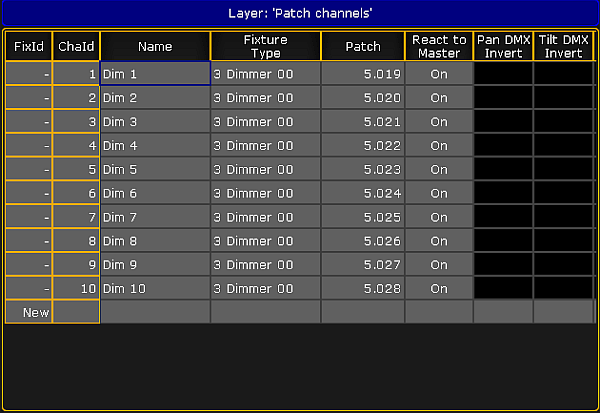 *Edit Setup – Patch Channels* To open the channel sheet: 1. Tap anywhere in an empty screen. 2. The pop-up **Create Basic Window** opens. 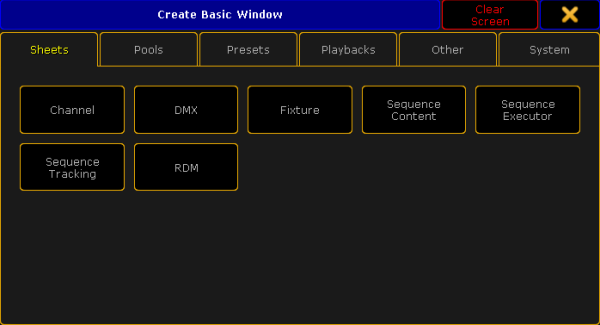 *Pop-up Create Basic Window* 3. Select the category **Sheets** in the tabs. 4. Tap **Channel**. 5. The channel sheet opens. This sheet contains all channels, fixtures and fixture types with a channel ID.  *Channel Sheet* **Important:**\ The title bar displays the world name and  if you are in a world. Furthermore, it displays the word “Mask” and  if a mask was applied. For general information on worlds see [What are worlds](/grandma2/key_wfm_what_are_worlds/). For general information on masks see [What are masks](/grandma2/key_wfm_what_are_masks/). The channel sheet also consists of different colors, markers and background colors. For more information see [Marker](/grandma2/key_ws_colors_marker/) and [System](/grandma2/key_ws_colors_system/). *** ## Layers [Section titled “Layers”](#layers) The channel sheet also comprises a bar of layers, which are located at the bottom of the sheet. For more information on each layer see [Layers in sheets – Channel sheet and fixture sheet](/grandma2/key_of_layers_in_sheets_channel_and_fixture/). *** ## Options [Section titled “Options”](#options) To open the options in the channel sheet, tap in the upper left corner of the sheet. The dialog **Channel Sheet** **Options** opens. 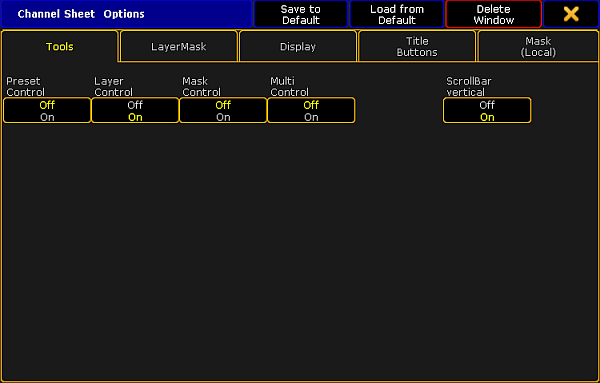 *Channel Sheet Options* To learn about the single options of the channel sheet see: * [Tools](/grandma2/key_of_sheet_options_tools/) * [Layer mask](/grandma2/key_of_sheet_options_layer_mask/) * [Display](/grandma2/key_of_sheet_options_display/) * [Title buttons](/grandma2/key_of_sheet_options_title_buttons/) * [Assign executor](/grandma2/key_of_sheet_options_assign_executor/) * [Mask (local)](/grandma2/key_of_sheet_options_mask_local/) To close the options, tap  in the upper right corner of the dialog. *** ## Close the Channel Sheet [Section titled “Close the Channel Sheet”](#close-the-channel-sheet) To close the channel sheet altogether, tap  in the upper left corner of the window and tap Delete Window.
# Using the color picker
> Based on the field you work in, the color picker provides the opportunity of displaying the colors of fixtures in various views.
Based on the field you work in, the color picker provides the opportunity of displaying the colors of fixtures in various views. **Requirement:** * Fixtures are patched. For more information on how to patch fixtures see [Adding fixtures to your show](/grandma2/key_patch_add_fixtures/). *** ## Open the Color Picker [Section titled “Open the Color Picker”](#open-the-color-picker) There are two options to open the color picker. **1. Option:** 1. Tap any empty space in the **user-defined area**. 2. The pop-up **Create Basic Window** opens. 3. Tap Other. 4. Then tap Color Picker. 5. The **Color Picker** opens. 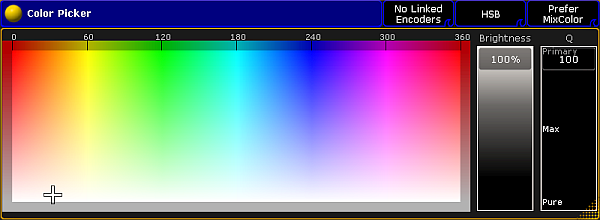 *Color Picker Opened Via Create Basic Window* **2. Option:** 1. Tap Color in the encoder bar. 2. Then tap Special Dialog. 3. The temporary color picker opens. 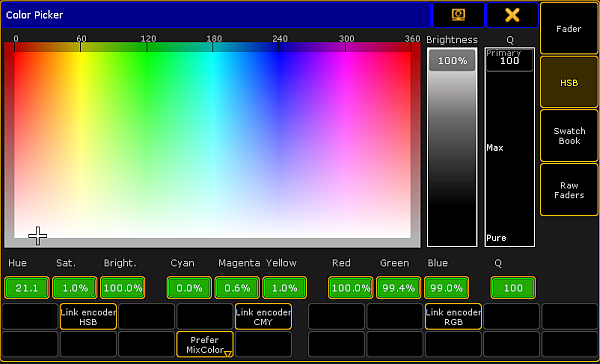 *Color Picker Opened Via Special Dialog* **Important:**\ If you open the color picker via the **Special Dialog**, you will see an additional bar with buttons that are not visible if you open the color picker via the dialog **Create Basic Window**. These buttons, however, can be enabled in the options of the color picker. The differences of each view in special dialog are explained further down in the corresponding views. *** As mentioned before the color picker consists of five views. ## 1. HSB: [Section titled “1. HSB:”](#1-hsb) **Hint:**\ HSB is the abbreviation for hue, saturation and brightness.  \_Color Picker – HSB \_ **Hue:**\ Is displayed in degrees and it is the horizontal axis of the screen.\ **Saturation:**\ Is displayed as a vertical axis of the screen.\ **Brightness:**\ Is displayed as an additional fader. **Q fader:** The Q fader is displayed at the far right of the screen. **Important:**\ The Q fader is disabled for fixtures with ColorWheel or MixColor attributes (RGB) only. Fixtures with more than three MixColor attributes enable the Q fader. It consists of three categories: **Primary:**\ Represents RGB only. 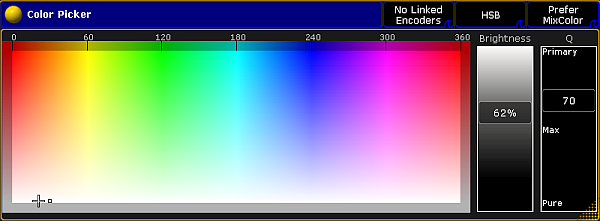 *HSB – Q Fader – Category Primary* **Max:**\ Represents a mixture of RGB and the special color attributes.  *HSB – Q Fader – Category Max* **Pure:**\ Represents a special color attribute.  *HSB – Q Fader – Category Pure* *** ## Bar In HSB – Special Dialog [Section titled “Bar In HSB – Special Dialog”](#bar-in-hsb-special-dialog)  *Bar Highlighted In HSB – Special Dialog* * **Percentage display:**\ Displays the value in percentage. The corresponding color spectrum is displayed on top of the percentage. \ * **Link encoder HSB:**\ Links the three encoders starting from the left with the display of HSB.\ * **Link encoder CMY:**\ Links the three encoders starting from the left with the display of CMY. \ * **Link encoder RGB:**\ Links the three encoders starting from the left with the display of RGB. \ * **Prefer MixColor only:**\ This is usually the default. Here MixColor attributes are preferably used to blend the color. \ * **MixColor only:**\ Here only MixColor attributes are used to blend the color. \ * **ColorWheel only:**\ Here only ColorWheel attributes are used to blend the color. *** ## 2. Swatch Book [Section titled “2. Swatch Book”](#2-swatch-book) The swatch book displays manufacturers and their corresponding gels. For more information on gel see the keyword [Gel](/grandma2/key_keyword_gel/).  *Color Picker – Swatch Book* **Important:**\ The swatch book displays the color in RGB and RGB number. * If you type a number into the filter on the top left, the swatch book will sort the list by the hints containing this number. * If you type a letter into the filter, the swatch book will sort by the name of the color. *** ## Bar In Swatch Book – Special Dialog [Section titled “Bar In Swatch Book – Special Dialog”](#bar-in-swatch-book--special-dialog)  *Special Dialog – Bar In Swatch Book* * **Clear Filter:**\ Empties the filter on the top left of the dialog. * **[]()Live Preview:**\ If you scroll using the encoder to change colors, these colors are directly shown live. *** ## 3. Raw Faders [Section titled “3. Raw Faders”](#3-raw-faders) Raw faders display all MixColor attributes in a show file.  *Color Picker – Raw Faders* *** ## 4. Predefined Colors [Section titled “4. Predefined Colors”](#4-predefined-colors) Predefined colors are displayed in a rod-shaped pattern in four columns.  *Color Picker – Predefined Colors* **Important:**\ Predefined colors are not available in the Special Dialog. *** ## 5. Faders [Section titled “5. Faders”](#5-faders) Faders display the three color systems – HSB, CMY and RGB along with the Q fader – in contrast to one another in form of faders.  *Color Picker – Faders* *** ## Options [Section titled “Options”](#options) To open the options in the color picker, tap in the upper left corner of the window.  *Color Picker – Options* Options display the following: **[Live Preview](#Live%20Preview):** See Bar in Swatch Book – Special Dialog. **Linked Encoders:** If you tap this button, the pop-up **Select Linked Encoders** opens. Choose which [encoders](#Link%20Encoders) you would like to link here. **Preferable Engine:** If you tap this button, the pop-up **Select Preferable Engine** opens. Choose the [color system](#Preferable%20Color%20Engine) you would prefer to use. **Active Page:** If you tap this button, the pop-up **Select Active Page** opens. Choose the view you would like to be displayed here. **Swatch Book View Mode:** If you tap this button, the pop-up **Select Swatch Book View Mode** opens. Choose the category you would like the Swatch Book to be displayed by. **Swatch Book Sort Mode:** If you tap this button, the pop-up **Select Swatch Book Sort Mode** opens. Choose the category you would like to sort the swatch book by. **Hide Labels:** If you disable this button, the values of HSB, CMY and RGB will be displayed in percentage. *** ### Title Buttons [Section titled “Title Buttons”](#title-buttons) To open the title buttons in the color picker, tap in the upper left corner of the window.  *Color Picker – Title Buttons* If you enable **Color Engine**, **Active Page** and **Link Encoders**, these buttons will be displayed in the title bar of the view. If you enable **Swatch Book** and **Swatch Book View**, these buttons will be displayed in the title bar in Swatch Book only. To close the **Color Picker Options**, tap  in the upper right corner. *** ## Close the Color Picker [Section titled “Close the Color Picker”](#close-the-color-picker) To close the color picker altogether, tap  in the upper left corner of the dialog and tap Delete Window. If you opened the color picker via the special dialog, then tap  in the upper right corner of the dialog.
# Edit a channel or fixture
> Contrary to editing in live patching where you can edit entire fixture types, here it is possible to edit single objects only.
Contrary to editing in [live patching](/grandma2/key_patch_livepatch/) where you can edit entire fixture types, here it is possible to edit single objects only. * Channels and / or fixtures are patched. Patch channels and fixtures in **Setup – Patch & Fixture Schedule**. For more information on how to patch channels and fixtures see [Adding fixtures to your show](/grandma2/key_patch_add_fixtures/). To edit a fixture or a channel: * Tap and hold name or ID number of the fixture or channel you would like to edit.\ -or- * Press Edit and tap a fixture or a channel in the corresponding sheet.\ -or- * Press Edit + Fixture + number of the fixture or channel to be edited + Please.\ The edit pop-up opens. 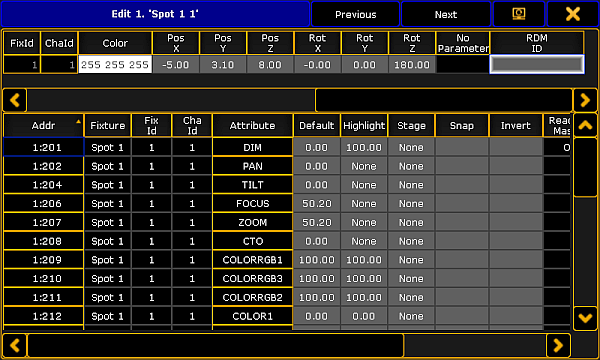 *Edit Pop-up* * The \*\*upper spreadsheet in the pop-up \*\*displays the modules of a fixture. * The \*\*lower spreadsheet in the pop-up \*\*displays the attributes of these modules. **Important:**\ It is possible to edit all fields marked in gray. For detailed information see [live patching](/grandma2/key_patch_livepatch/). **Hint:**\ To jump between fixtures or channels, tap either Previous or Next in the title of the edit pop-up. **Hint:**\ If a fixture is linked to an RDM address, RDM ID will be displayed in the header of the upper spreadsheet. \ Furthermore, it is possible to edit the order within the column in the pop-up. To change the order, tap and hold the title of the column and pull it up or down. To close the edit pop-up, tap  in the upper right corner.
# Encoder grouping
> Encoder grouping is used to collectively take attributes into the programmer.
Encoder grouping is used to collectively take attributes into the programmer. **Important:**\ It is advisable to set the encoder grouping before creating a new show. That is, before generating presets. Particularly when using the function “Encoder Grouping” in the menu **Auto Create Presets**. **Important:**\ Encoder groupings are non user-definable. That is, once created, they are valid for the entire show file. *** ### How To Group Encoders [Section titled “How To Group Encoders”](#how-to-group-encoders) 1. Tap **Setup -> Patch and Fixture Schedule** 2. Then tap Fixture Types on the right of the dialog **EditSetup** 3. Tap Attribute & Encoder Grouping on the right of the dialog Fixture Types. 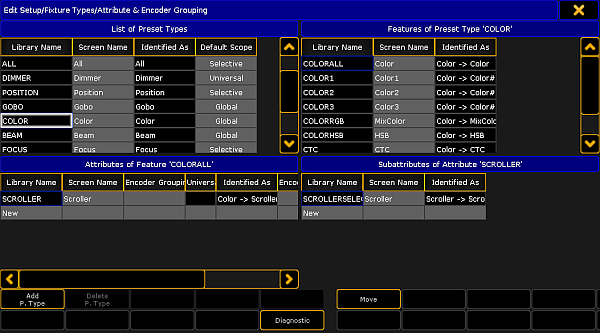 *Attribute & Encoder Grouping* 4. The dialog **Edit Setup/Fixture Type/Attribute & Encoder Grouping** opens. 5. To edit or create new encoder grouping:\ -Choose a preset type in the **List of Preset Types** at the top on the left.\ -After that, choose a feature in **Features of Preset Type** at the top on the right. \ -Then tap and hold the column “Encoder Grouping” in **Attributes of Feature** at the bottom on the left.\ -The pop-up **Select Group** opens.\ -Choose one of the groups in this pop-up.\ -To create a new group, scroll down and tap **New Group**. **Hint:**\ Many attributes are already grouped, for example the function pan and tilt or RGB.\ Pan and tilt is grouped since the position a fixture occupies has two directions. \ RGB is grouped, because the color consists of a mixture between red, green and blue. ###
# Fixture sheet
> The fixture sheet is where your attributes with their corresponding values are located. Moreover, you can select fixtures here.
The fixture sheet is where your attributes with their corresponding values are located. Moreover, you can select fixtures here. **Requirement:** * Fixtures are patched. Patch fixtures in **Setup – Patch & Fixture Schedule**. For more information on how to patch fixtures see [Adding fixtures to your show](/grandma2/key_patch_add_fixtures/).  *Edit Setup – Patch Fixtures* **Important:**\ It is possible to assign both – fixtures and channels. Hence, fixtures are displayed in their corresponding sheets depending on what ID you have assigned – **fixture ID or channel ID**. To open the fixture sheet: 1. Tap anywhere in an empty screen. 2. The pop-up **Create Basic Window** opens.  *Pop-up Create Basic Window* 3. Select the category **Sheets** in the tabs. 4. Tap **Fixture**. 5. The fixture sheet opens. This sheet contains all fixtures and fixture types with a fixture ID.  *Fixture Sheet* **Important:**\ The title bar displays the world name and  if you are in a world. Furthermore, it displays the word “Mask” and  if a mask was applied. For general information on worlds see [What are worlds](/grandma2/key_wfm_what_are_worlds/). For general information on masks see [What are masks](/grandma2/key_wfm_what_are_masks/). The fixture sheet also consists of different colors, markers and background colors. For more information see [Marker](/grandma2/key_ws_colors_marker/) and [System](/grandma2/key_ws_colors_system/). *** ## Layers [Section titled “Layers”](#layers) The fixture sheet also comprises a bar of layers, which is located at the bottom of the fixture sheet. For more information on each layer see [Layers in sheets – Channel sheet and fixture sheet](/grandma2/key_of_layers_in_sheets_channel_and_fixture/). *** ## Options [Section titled “Options”](#options) To open the options in the fixture sheet, tap in the upper left corner of the sheet. The dialog **Fixture Sheet** **Options** opens.  *Fixture Sheet Options* To learn about the single options of the fixture sheet see: * [Tools](/grandma2/key_of_sheet_options_tools/) * [Layer mask](/grandma2/key_of_sheet_options_layer_mask/) * [Display](/grandma2/key_of_sheet_options_display/) * [Title buttons](/grandma2/key_of_sheet_options_title_buttons/) * [Assign executor](/grandma2/key_of_sheet_options_assign_executor/) * [Mask (local)](/grandma2/key_of_sheet_options_mask_local/) To close the options, tap  in the upper right corner of the dialog. *** ## Close the Fixture Sheet [Section titled “Close the Fixture Sheet”](#close-the-fixture-sheet) To close the fixture sheet altogether, tap  in the upper left corner of the window and tap Delete Window.
# Layers in sheets
> Layers are displayed in form of a bar, which is located at the bottom of a sheet.
Layers are displayed in form of a bar, which is located at the bottom of a sheet. The layers in some sheets are conform. Others, on the other hand, may differ from one another. This chapter displays these differences as well as conformities. These are the following sheets: * [Channel sheet and fixture sheet](/grandma2/key_of_layers_in_sheets_channel_and_fixture/) * [Sequence content and sequence tracking sheet](/grandma2/key_of_layers_in_sheets_content_and_tracking/) ## Subtopics [Section titled “Subtopics”](#subtopics) * [Channel sheet and fixture sheet](/grandma2/key_of_layers_in_sheets_channel_and_fixture/) * [Sequence content and sequence tracking sheet](/grandma2/key_of_layers_in_sheets_content_and_tracking/)
# Channel sheet and fixture sheet
> Channel sheet and fixture sheet share identical layers.
Channel sheet and fixture sheet share identical layers. **Important:**\ The layers in the channel and fixture sheet display which values are currently being released. **Important:**\ If layers have colored markers, this means that the attributes are actively in the programmer.  *Layers With Markers* *** ### Value Layers [Section titled “Value Layers”](#value-layers) Value Layers comprise the following in the channel and fixture, sequence content and sequence tracking sheet:  *Value Layers* **Values:** Displays normal values, for example numbers of presets, names and channel sets. Example: \[Channel]> Channel 1 At Full Sets the dimmer of channel 1 to full and displays the value as “open”. **Fade:** Displays individual fade values. **Delay:** Displays individual delay values. **Values Only:** Displays the values in form of numbers. Example: \[Channel]> Channel 2 At 55 Sets dimmer of channel 2 to 55 and displays the value, depending on the readout, as 55.0. **Auto:** If you tap \*\*Auto, \*\*the sheet will obey the encoder bar. **Hint:**\ To jump to different layers within value layers, tap **Auto** and press Time. *** ### Effect Layers [Section titled “Effect Layers”](#effect-layers) **Hint:**\ To jump to different effect layers, tap Auto and press  + Time. Effect Layers comprise the following in the channel and fixture, sequence content and sequence tracking sheet:  *Effect Layers* **Form:** Displays names and numbers of values, which have been taken from the form pool. **Speed:** Displays time in a format that was set in user settings. **Speed Group:** Displays speed groups that are linked to active values. All in all, there are 16 speed groups. **Low:** Displays the values of low that are set for fixtures. **High:** Displays the values of high that are set for fixtures. **Important:**\ The effect “moves” between the values of high and low, so to speak. **Hint:**\ It is possible to set the values of high and low with the first encoder on the left, right above screen 1 on the console. **Phase:** This effect has a radius of 360° and displays the phase an effect is to start at, generating a wave form. **Width:** Displays the percentage of the fixtures that have the values of high and low. This determines the extent of effect modulations. **Fade:** Displays the individual fade time an effect is to start with. **Delay:** Displays the individual delay time an effect is to start at. **Attack:** Displays the difference of the fade-in times in single values. **Decay:** Displays the difference of fade-out times in single values. **ID:** Displays name and number if effect was started in the effect pool. *** ### Output Layers [Section titled “Output Layers”](#output-layers) Output Layers comprise the following in the channel and fixture sheet:  *Output Layers* **Output:** Displays values together with group masters and masters. However, it is not possible to see if a profile was set. **Value Exec ID:** Displays which executor the values come from stating the number of the page and the executor. For example, 1:11 means that the value is on page 1 and in executor 11. **Effect Exec ID:** Displays which executor the effects come from stating the number of the page and the executor. **Value Cue ID:** Displays which cue the values come from stating the number of the sequence and cue. For example, 8:1 means that the value is in sequence 8 and the sequence itself is in cue 1. **Effect Cue ID:** Displays which cue the effect comes from stating the number of the sequence and cue. **DMX:** Displays the DMX value that comes out of the console. Shows all values independently of masters or profiles.
# Sequence content and sequence tracking sheet
> Fundamentally, the value layers and the effect layers in sequence content and sequence tracking are identical to those in channel sheet and fixture sheet.
Fundamentally, the value layers and the effect layers in sequence content and sequence tracking are identical to those in channel sheet and fixture sheet. **Important:**\ The layers in the sheets **Sequence Content** and **Sequence Tracking**, however, refer to values that are stored in a sequence. For detailed information on value layers and effect layers see [Layers in sheets – channel sheet and fixture sheet](/grandma2/key_of_layers_in_sheets_channel_and_fixture/). *** ### Output Layers [Section titled “Output Layers”](#output-layers) Output Layers comprise the following in the sequence content and sequence tracking sheet:  *Output Layers – Sequence Content and Sequence Tracking* **Value Cue ID:** Displays which sequence and cue the value comes from stating the number of the sequence and the cue. For example, 2:1 means that the value is on sequence 2 and in cue 1. **Effect Cue ID:** Displays which sequence and cue the effect comes from stating the number of the sequence and the cue.
# Using the shaper dialog
> A shaper dialog is used to manipulate the beam of a fixture with the help of shaper blades. The Shapers displayed in three different modes:
A shaper dialog is used to manipulate the beam of a fixture with the help of shaper blades. The **Shaper** is displayed in three different modes: * Corner Mode * Blade Mode * Fader Mode **Requirement:** * Fixtures are patched. To open the shaper: 1. Select fixtures with the attribute of blades in the fixture sheet. 2. Tap Shapers in the [Preset Control Bar](/grandma2/key_ws_preset_control_bar/). 3. Next, tap Special Dialog in the [Encoder Toolbar](/grandma2/key_ws_encoder_toolbar/) right below Shapers in the preset control bar. 4. The dialog **Shaper** opens.  *Shaper Dialog* *** ## [Corner Mode]() [Section titled “Corner Mode”](#corner-mode) The corner mode is primarily used to illuminate beveled edges. To move the blades, tap either a number or a letter displayed around the circle and use the screen encoder. 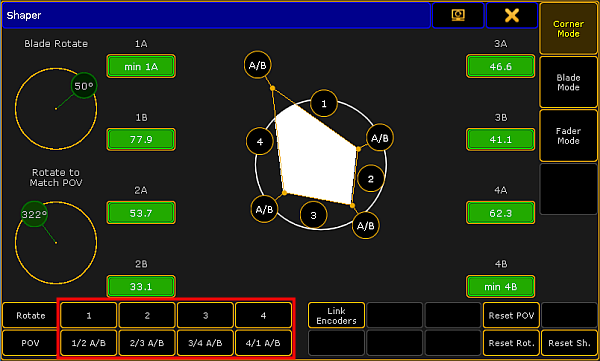 \_Corner Mode \_ **Hint:**\ It is also possible to set the focus on the numbers or letters of the beam by tapping the buttons on the left at the bottom of the dialog. See the red box. **The white circle in the middle of the dialog:** Represents the beam of light coming from the fixture. **Numbers around the beam:** Represent blades that can be pulled up and down accordingly. **Letters around the beam:** Represent blades that can be pulled up and down, and sideward as well. **Blade Rotate:** Displays the angle in which the entire blade system rotates. **Rotate to Match POV:** Rotates to match the point of view. **Green boxes with values:** Represent corresponding blade parameters. **Rotate:** Sets the focus on Blade Rotate. **POV:** Sets the focus on Rotate to Match POV. **Link Encoders:** Tapping Link Encoders enables the following: * **Angle Mode**:\ Moves the angles around a set point. * **Set All**:\ Selects all parameters. * **Invert All**:\ Inverts the selection. **Reset POV:** Sets the point of view into its initial position. **Reset Rot.:** Sets Blade Rotate to its initial position. **Reset Sh.:** Sets the beam of light to its initial shape. *** ## Blade Mode [Section titled “Blade Mode”](#blade-mode) The blade mode is primarily used to illuminate straight edges. 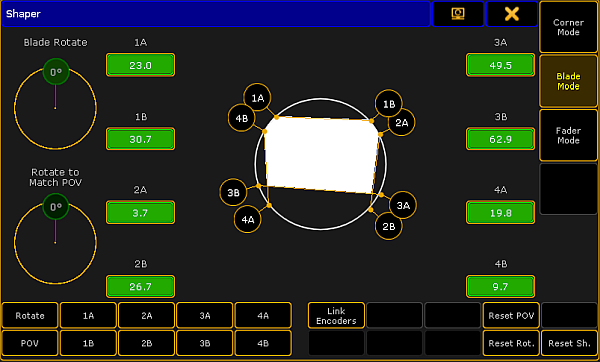 *Blade Mode* The **Blade Mode** basically behaves the same as the **Corner Mode**. For more information on the single buttons see [Corner Mode](#Blade%20Mode). *** ## Fader Mode [Section titled “Fader Mode”](#fader-mode) Displays the shaper parameters in form of faders. 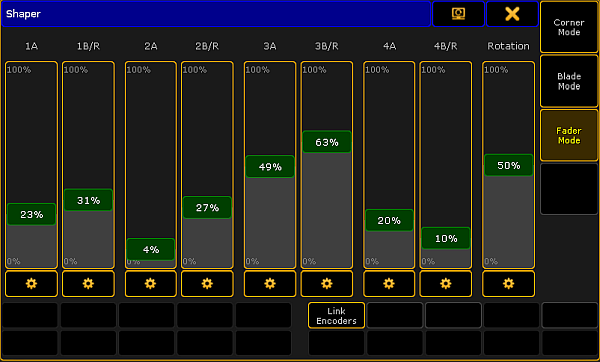 *Fader Mode* **Hint:**\ To jump to the single modes, press the U-keys U1, U2 or U3. Or tap Corner Mode, Blade Mode or Fader Mode on the right side of the dialog. **Cog wheel symbol:** Displays set values. Tapping on the cog wheel opens a pop-up with values and symbols:  *Cog wheel symbol* **Values in percentage:** Tapping a percentage value in this pop-up sets the fader automatically to the value you have tapped. **\*2:** Doubles the value in the fader. **/ 2:** Divides the value in the fader by two. **Magnifying glass:** Is used to zoom in and out of the fader scale. *** ## Close the Shaper Dialog [Section titled “Close the Shaper Dialog”](#close-the-shaper-dialog) To close the shaper, tap  in the upper right corner of the dialog.
# Sheet options
> The different sheets in the console have many options. A lot of them are shared by the different sheets. This topic and the following subtopics describe all the
The different sheets in the console have many options. A lot of them are shared by the different sheets. This topic and the following subtopics describe all the different options for the sheets. The sheets are described in the different sections where they are relevant. Follow the links below to read about the individual sheet. * [Channel Sheet](/grandma2/key_of_channel_sheet/) * [DMX Sheet](/grandma2/key_patch_dmx_sheet/) * [Fixture Sheet](/grandma2/key_of_fixture_sheet/) * [Sequence Content Sheet](/grandma2/key_cs_cue_content/) * [Sequence Executor Sheet](/grandma2/key_cs_cue_sequence/) * [Sequence Tracking Sheet](/grandma2/key_cs_cue_content/) * [RDM sheet](/grandma2/key_rdm_rdm_sheets/) - the sheet is listed here but it does not have any options ## General information about sheet options [Section titled “General information about sheet options”](#general-information-about-sheet-options) All the options regarding sheets are user based. This means that each user in a system can have their own sheet options to fit their preferences. The options can be changed from the [User Settings](/grandma2/key_single_multi_systems_user_settings/) in the Setup menu or they can be changed in each sheet. The options changed in the Setup menu are the default settings used when you create a new window on a screen. The options changed in the sheet on the screen are only for that version of the window (remember to store the view after applying changes). However you can copy the options from a sheet to the defaults - read below for more on this. Any change you do in the options are immediately applied to the sheet. To keep the options it is needed to store the view containing the sheet. ## Options title bar [Section titled “Options title bar”](#options-title-bar) The options pop-up has a title bar. This title bar have a few buttons that are worth describing. The title bar buttons look like this:  *Sheet options - title bar buttons* As mentioned above; the settings applied in the sheet options can be copied to the default settings. This is done by tapping the Save to Default button. It is also possible to load the setting from the default into the sheet options. This is done by tapping the Load from Default button. This will overwrite any local options. The Delete Window button will remove the sheet from the screen. The big yellow X will close the options pop-up. Please read the following subtopics to learn more about the different options. ## Subtopics [Section titled “Subtopics”](#subtopics) * [Tools](/grandma2/key_of_sheet_options_tools/) * [Layer mask](/grandma2/key_of_sheet_options_layer_mask/) * [Display](/grandma2/key_of_sheet_options_display/) * [Title buttons](/grandma2/key_of_sheet_options_title_buttons/) * [Assign executor](/grandma2/key_of_sheet_options_assign_executor/) * [Mask (local)](/grandma2/key_of_sheet_options_mask_local/)
# Assign executor
> This tap is only available in the Content, Executor, and Tracking Sheets.
This tap is only available in the Content, Executor, and Tracking Sheets. It shows a list of all the executors with assigned sequences. Tapping one of the executors in the list will make this the assigned executor for the sheet. This means that “Link Mode” is now set to “Not Linked”, which means that the sheet is locked to the executor you have tapped in this list. Read more about the Link Mode in the [Layer Mask topic](/grandma2/key_of_sheet_options_layer_mask/).
# Display
> The Display tab has potentially a lot of options - all dealing with how the data in the sheets are presented to you.
The Display tab has potentially a lot of options - all dealing with how the data in the sheets are presented to you. This topic lists all the possible options in the sheets, but each sheet does not have all options. ## Sheet Style [Section titled “Sheet Style”](#sheet-style) **Sheet Style** is an option in Fixture and Content sheets. This can be used to turn how the data is presented in the sheets. There are two options: * **Horizontal:**\ This will present the fixtures as rows and the Attributes as columns. * **Vertical:**\ This will organize the fixtures as columns and the Attributes as rows. The default is Horizontal, but some like to use the vertical in situation where you have few fixtures. For instance when programming Media Servers. ## Font [Section titled “Font”](#font) **Font** is an option in all sheets. There is currently only one font type available in the grandMA2 software. So the only thing to change regarding the Font is the size. Tapping the button opens the Small Select Font pop-up. It looks like this: 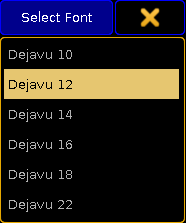 *Small Select Font pop-up* Here it is possible to select one of the six different sizes - ranging from 10 to 22. ## []()Readout [Section titled “Readout”](#readout) **Readout** is an option in Channel, DMX, Fixture, Content, and Tracking sheets. The readout determines how the values are displayed in the sheets. Tapping the button opens a small Select Readout pop-up like this: 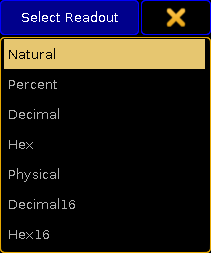 *Small Select Readout pop-up* Here it is possible to select one of the following options: * **Natural:**\ This displays the value defined in the “From” and “To” columns in the fixture profile. The range is customized, but is is always displayed with one decimal accuracy. It can even be a negative value. This can be useful when the attributes default values is not at the end of the range - for instance with Pan attributes. * **Percent:**\ Displays the attribute values as a percent without any decimal numbers. Range is 0 through 100. * **Decimal:**\ Displays the attribute values as an 8-bit DMX value. The range is from 0 through 255. * **Hex:**\ This displays the DMX values in 8-bit Hexadecimal numbers. The range is from 0 through FF. * **Physical:**\ This displays the value defined in the “From Phys” and “To Phys” columns in the fixture profile. Just as with the Natural readout, it is possible to customize the range but it is always displayed with one decimal accuracy. The idea is that values here matches the physical values for the fixtures. So for instance the zoom range of a fixture is matched to the physical range of the fixture making the sheets display the actual zoom degree. * **Decimal16:**\ This is just like the Decimal readout except the DMX value is displayed in a 16-bit range. The range is from 0 through 65 535. * **Hex16:**\ This is just like the Hex readout except the DMX value is displayed in a 16-bit range. The range is from 0 through FFFF. Changing the readout for a sheet and then tapping in the sheet will also change the readout on your Encoder Bar. Readout can also be a [Title Button](/grandma2/key_of_sheet_options_title_buttons/). ## []()Cue Color Columns [Section titled “Cue Color Columns”](#cue-color-columns) **Cue Color Columns** is an option in Executor and Tracking sheets. The [Appearance keyword](/grandma2/key_keyword_appearance/) can be used to give a color to individual cues. This option changes how this color is displayed in the sheets. Tapping the button opens the small Select Cue Color Columns pop-up. It has two different sizes regarding the options. There are more options in the Executor sheet than in the Tracking sheet. This is the pop-up from the Executor sheet: 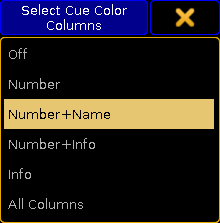 *Small Select Cue Color Columns pop-up* The options in the pop-up are: * **Off:**\ This wont display any cue colors. * **Number:**\ This will display the color in the cue number column. * **Number+Name:**\ This will display the color in the cue number and name columns. * **Number+Info:**\ This will display the color in the cue number and info columns. * **Info:**\ This will display the color in the info columns only. * **All Columns:**\ This will display the color in all columns. The Tracking sheet only has the three first options. ## Sort By [Section titled “Sort By”](#sort-by) **Sort By** is an option in Content and Tracking sheets. This option can be used to choose the sort method for the sheets. There are two options: **Fixture ID** or **Channel ID**. This option makes sense if your fixtures do not have the same number as Fixture ID or Channel ID. Then this chooses the priority for the sorting. ## Symbol Output [Section titled “Symbol Output”](#symbol-output) **Symbol Output** is an option in Channel and Fixture sheets. The Symbol Out is a small square next to the Channel ID in the Channel Sheet and next to the fixture name in the Fixture Sheet. This square shows the combined intensity and color output from the fixture. Tapping the button opens the small Select Symbol Output pop-up. It looks like this: 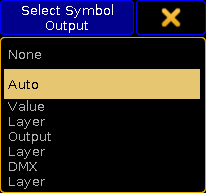 *Small Select Symbol Output pop-up* The options are: * **None:**\ The square is hidden. * **Auto:**\ The squares output follows the selected layer. * **Value Layer:**\ The square displays the output from the Value Layer. * **Output Layer:**\ The square displays the output from the Output Layer. * **DMX Layer:**\ The square displays the output from the DMX Layer. For more information about the different layers please read the [Layers in sheets topic](/grandma2/key_of_layers_in_sheets/). ## Symbol Feature [Section titled “Symbol Feature”](#symbol-feature) **Symbol Feature** is an option in Channel, Fixture, Content, and Tracking sheets. Each feature of the fixtures can have a small symbol displaying a graphic representations of the features value. This symbol can be shown or hidden. For instance the dimmer value is represented by a dimmer bar. The position values are represented by vertical and horizontal line intersecting. Gobos are displaying a small image of the gobo. Colors are displayed as small squares displaying the colors next to each color feature. ## Cue Colors [Section titled “Cue Colors”](#cue-colors) **Cue Colors** is an option in Channel, Fixture, Content, and Tracking sheets. This option allows you to select how attribute values should be presented in the sheets. Tapping the button opens the small Select Cue Colors pop-up. It looks like this: 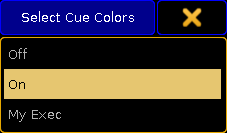 *Small Select Cue Colors pop-up* There are three options: * **Off**\ All attribute values are displayed with a yellow color. * **On**\ The attribute values from the primary selected executor displays the colors Cyan, Green, White, and Magenta. These colors are described in detail in the [Cue Colors Topic](/grandma2/key_ws_colors_cue/). Values from other executors are displayed in yellow. * **My Exec**\ This will color the values from the primary selected executor in Cyan, Green, White, and Magenta. Other executors triggered by your user are displayed in yellow. Values from executors triggered by other users are displayed in a gray color. ## Namefield [Section titled “Namefield”](#namefield) **Namefield** is an option in Channel, Fixture, Content, and Tracking sheets. The name field can be turned On or Off. When it is On then the name of the fixture is displayed in the sheet. ## Channel ID [Section titled “Channel ID”](#channel-id) **Channel ID** is an option in Channel, Fixture, Content, and Tracking sheets. The Channel ID can be turned On or Off. When it is On then the Channel ID will be displayed in the sheet. If the fixture has both a Channel ID and Fixture ID and the ID number is the same, then there is only displayed one number even if both Channel ID and Fixture ID is On. If the fixture has two different ID numbers and both are set to On, then they are shown separated by a colon. The Fixture ID is on the left side of the colon and the Channel ID is on the right side. ## Fixture ID [Section titled “Fixture ID”](#fixture-id) **Fixture ID** is an option in Channel, Fixture, Content, and Tracking sheets. The Fixture ID can be turned On or Off. When it is On then the Fixture ID will be displayed in the sheet. If the fixture has both a Channel ID and Fixture ID and the ID number is the same, then there is only displayed one number even if both Channel ID and Fixture ID is On. If the fixture has two different ID numbers and both are set to On, then they are shown separated by a colon. The Fixture ID is on the left side of the colon and the Channel ID is on the right side. ## Columns [Section titled “Columns”](#columns) **Columns** is an option in Channel, DMX, Fixture, and Content sheets. Tapping the green input field allows you to set a number of columns in the sheets. The column number is only used in Fixture and Content Sheets if the sheet is in Vertical Sheet Style. ## []()Autoscroll [Section titled “Autoscroll”](#autoscroll) **Autoscroll** is an option in Executor, and Tracking sheets. The Autoscroll function can be turned On or Off. When On it automatically scrolls the cue sequence list in the Executor and Tracking Sheets. This makes sure the active cue is always visible in the sheet. Autoscroll can also be a [Title Button](/grandma2/key_of_sheet_options_title_buttons/). ## []()Feature Sort [Section titled “Feature Sort”](#feature-sort) **Feature Sort** is an option in Fixture, Content, and Tracking sheets. The sheets can activate an automatic sorting of the features. This will move the attributes of the current feature so it is right next to the name of the fixture or cue. This should avoid a lot of scrolling in the sheets. Feature Sort can also be a [Title Button](/grandma2/key_of_sheet_options_title_buttons/). ## []()Fixture / Channel Sort [Section titled “Fixture / Channel Sort”](#fixture--channel-sort) **Fixture Sort** or **Channel Sort** is an option in Channel, Fixture, Content, and Tracking sheets. In the Channel Sheet it is called Channel Sort, in the other sheets it is called Fixture Sort. The function is the same. The selected fixtures are displayed first in the sheets and they are displayed in the selection order. Fixture Sort or Channel Sort can also be a [Title Button](/grandma2/key_of_sheet_options_title_buttons/). ## Marker [Section titled “Marker”](#marker) **Marker** is an option in Channel, Fixture, Content, and Tracking sheets. The colored markers in the sheets provide additional information of what is affecting the values and to display what information might be stored in cues. These markers may be turned On or Of. Read more about the markers in the [Maker Colors topic](/grandma2/key_ws_colors_marker/). ## Preset Readout [Section titled “Preset Readout”](#preset-readout) **Preset Readout** is an option in Channel, Fixture, Content, and Tracking sheets. Preset Readout is used to change how the preset ID is displayed in sheets. This is relevant when an attribute gets its values from a preset. Tapping the button opens the small Select Preset Readout pop-up. It looks like this:  *Small Select Preset Readout pop-up* The options are: * **Names:**\ The name of the preset will be displayed. * **Numbers:**\ The number of the preset will be displayed. * **Numbers & Names:**\ Both the number and the name of the preset will be displayed. ## Hide Empty Cells [Section titled “Hide Empty Cells”](#hide-empty-cells) **Hide Empty Cells** is an option in Channel, Fixture, Content, and Tracking sheets. When a mixture of fixture types are patched in a show it can often happen that not all the fixtures have the same features. This means that a sheet can have empty or unused cells. These cells can be hidden in the sheets. This can often provide a better overview of the features available in the fixtures. Turning Hide Empty Cells On will hide these unused cells. ## []()Hide Timing Countdown [Section titled “Hide Timing Countdown”](#hide-timing-countdown) **Hide Timing Countdown** is an option in the Executor sheets. In the Sequence Executor Sheet you can see the cue times. When a fade is running you can choose to have the time count down to 0 or just always display the time stored in the cue. Hide Timing Countdown is an On or Off function. When it is On, then there is no visible count down. When it is Off then the count down is displayed. Hide Timing Countdown can also be a [Title Button](/grandma2/key_of_sheet_options_title_buttons/). ## []()Show Additional [Section titled “Show Additional”](#show-additional) **Show Additional** is an option in the DMX sheets. This function is used to display more information in the DMX Sheet than just the DMX values. Tapping the button opens the small Select Show Additional pop-up. It looks like this:  *Small Select Show Additional pop-up* The options are: * **Show only Values:**\ No additional information are displayed.  *DMX values without additional information* - **Show IDs:**\ The fixtures ID numbers and names are displayed above the DMX values. They are only displayed once per fixture - the ID is nor displayed above each DMX value.  *DMX values with ID number and name* * **Show Attributes:**\ The attribute connected with the DMX address is displayed above the DMX value.  *DMX values with attribute name above the values* - **Show Address:**\ The DMX address is displayed above each DMX value.  *DMX values with DMX addresses above each value* Show Additional can also be a [Title Button](/grandma2/key_of_sheet_options_title_buttons/). ## []()Show Only Selected [Section titled “Show Only Selected”](#show-only-selected) **Show Only Selected** is an option in the DMX sheets. This will limit the DMX sheet to only display the universes of the selected fixtures. Show Only Selected can also be a [Title Button](/grandma2/key_of_sheet_options_title_buttons/). ## []()Programmer Colors [Section titled “Programmer Colors”](#programmer-colors) **Programmer Colors** is an option in the DMX sheets. There are two color schemes for the DMX values in the DMX sheet. There is the default where the background color changes from gray to light green depending on intensity of the value. But you can choose to use turn On Programmer Colors instead. This will then use the same color schema as the Channel and Fixture Sheets. Programmer Colors can also be a [Title Button](/grandma2/key_of_sheet_options_title_buttons/). ## Merge Same Values [Section titled “Merge Same Values”](#merge-same-values) **Merge Same Values** is an option in Fixture, Content, and Tracking sheets. Some features can combine or merge the values displayed in the sheets if the value is the same. For instance the MixColor attributes “R”, “G”, and “B”. If these three attributes have the same value then it is only displayed once - as a merged value. If they have different values then they are split up into each displaying the values they have. This merge function can be turned On or Off. ## []()MixColor Readout [Section titled “MixColor Readout”](#mixcolor-readout) **MixColor Readout** is an option in Fixture, Content, and Tracking sheets. The MixColor system is a way to present the same attributes to the operator no matter if the fixtures uses different color systems. This means that the operator does not have to change between the different colors systems. In the sheets it is then possible to change how this is displayed. Tapping the button opens the small Select MixColor Readout pop-up. It looks like this: 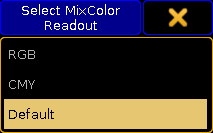 *Small Select MixColor Readout pop-up* The options are: * **RGB:**\ The MixColors are displayed as RGB attributes. * **CMY:**\ The MixColors are displayed as CMY attributes. * **Default:**\ The MixColors are displayed using the default selected in the setup - Read more about setting this in the [User Settings topic](/grandma2/key_single_multi_systems_user_settings/#settings). MixColor Readout can also be a [Title Button](/grandma2/key_of_sheet_options_title_buttons/). ## RDM Info [Section titled “RDM Info”](#rdm-info) **RDM Info** is an option in Channel, and Fixture sheets. The RDM info is a small RDM icon that will be displayed next to the fixture name or ID. Tapping the button opens the small Select RDM Info pop-up. It looks like this: 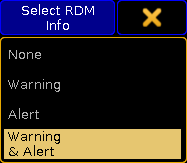 *Small Select RDM Info pop-up* The options are: * **None:**\ No icon is displayed in the sheet. * **Warning:**\ The yellow RDM warning icon is displayed in the sheet. * **Alert:**\ The red RDM alert icon is displayed in the sheet. * **Warning & Alert:**\ Both icons can be displayed in the sheets. Read more about RDM and how to configure the warning and alert notifications in the [RDM section](/grandma2/key_rdm/).
# Layer mask
> Select Layer is an option in Channel, Fixture, Content, and Tracking sheets.
## Select Layer [Section titled “Select Layer”](#select-layer) **Select Layer** is an option in Channel, Fixture, Content, and Tracking sheets. This is a drop down list that allows you to select one of the data layers. This will show the values in that layer. This can also be selected using the Layer Control bar - read about turning it on in the [Tools topic](/grandma2/key_of_sheet_options_tools/). Read about the layers in the [Layers in sheets topic](/grandma2/key_of_layers_in_sheets_channel_and_fixture/). ## Select Mask [Section titled “Select Mask”](#select-mask) **Select Mask** is an option in Channel, Fixture, Content, and Tracking sheets. This drop down list allows you to select one of the six predefined masks. This can also be selected using the Mask Control bar - read about turning it on in the [Tools topic](/grandma2/key_of_sheet_options_tools/). Read more about the masks in the [Mask topics](/grandma2/key_wfm_what_are_masks/). The default masks, in this list, also exists as [Title Buttons](/grandma2/key_of_sheet_options_title_buttons/) in the Channel and Fixture. ## []()Link Mode [Section titled “Link Mode”](#link-mode) **Link Mode** is an option in Content, Executor, and Tracking sheets. The link mode decides what executor the sheet is displaying. This drop down list has three options: * **Link Selected:**\ This will make the sheet display the content from the selected executor. This means that the sheet will change content when you selected different executors using the [Select](/grandma2/key_keyword_select/) command. * **Not Linked:**\ This will make the sheet display a specific executors content. The sheet will continue to display this executors content no matter if you select a different executor.\ You need to choose what executors to display. This is done in the Assign Executors tab - read more about it in the [Assign Executor topic](/grandma2/key_of_sheet_options_assign_executor/). * **Link Last Go:**\ This will change the sheets to display the content from the executor where you or precisely, your “User” last performed a Go action. The Link Selected option can also be a [Title Button](/grandma2/key_of_sheet_options_title_buttons/). ## []()Selection Only [Section titled “Selection Only”](#selection-only) **Selection Only** is an option in the Tracking sheet. This option will mask a lot of unnecessary rows and columns in the Tracking Sheet. It will hide cues where there are no changes to the selected fixtures. It will also only display the columns of the attributes that are stored in the sequence. This option can also be a [Title Button](/grandma2/key_of_sheet_options_title_buttons/). ## []()Show Tracked [Section titled “Show Tracked”](#show-tracked) **Show Tracked** is an option in the Content sheet. This can be used to show or hide the tracked values in the Content Sheet.\ Hiding the tracked values will only display the values stored in the cue currently displayed in the content sheet. This option can also be a [Title Button](/grandma2/key_of_sheet_options_title_buttons/). ## []()Enable Mask [Section titled “Enable Mask”](#enable-mask) **Enable Mask** is an option in Channel, Fixture, Content, and Tracking sheets. This turns on or off the mask function of the sheet. Masks can be local or follow a pool of masks. To learn more about mask please read the [What are Masks topics](/grandma2/key_wfm_what_are_masks/). The enable function is sometimes automatically turned on. This can happen if you select a mask or if you enable Follow Selected Mask - read more below. This option can also be a [Title Button](/grandma2/key_of_sheet_options_title_buttons/). ## []()Follow Selected Mask [Section titled “Follow Selected Mask”](#follow-selected-mask) **Follow Selected Mask** is an option in Channel, Fixture, Content, and Tracking sheets. When this option is On, then the sheet will activate masks and the sheet will use the mask selected in the Mask Pool - learn more about mask in the [What are Masks topics](/grandma2/key_wfm_what_are_masks/). This option can also be a [Title Button](/grandma2/key_of_sheet_options_title_buttons/). ## Save Mask Always [Section titled “Save Mask Always”](#save-mask-always) **Save Mask Always** is an option in Channel, Fixture, Content, and Tracking sheets. If the sheet has a local mask loaded from the mask pool and this mask is not locked, then you can activate the Save Mask Always function if you want changes made in the local settings to be saved back into the mask in the pool. Read more about this in the [Mask (Local) topic](/grandma2/key_of_sheet_options_mask_local/).
# Mask (local)
> This tab is available in the Channel, Fixture, Content, and Tracking Sheets.
This tab is available in the Channel, Fixture, Content, and Tracking Sheets. It is used to define a local mask for a specific sheet. You can load a mask from the Mask Pool or you can create a new one. The mask is applied when “Enable Mask” is On. If “Follow Selected Mask” is also on, then the local mask is not applied, but instead the mask selected in the mask pool is applied. Enable Mask and Follow Selected Mask is described in the [Layer Mask topic](/grandma2/key_of_sheet_options_layer_mask/). Please read the[ What are Masks topic ](/grandma2/key_wfm_what_are_masks/)for information about masks in general. The [Create Masks topic ](/grandma2/key_wfm_create_mask/)describes how to make masks and it describes the different buttons seen in this tab.
# Title buttons
> Many of the options described in Tools, Layer Mask, and Display can be assigned as a quick access button in the title bars of the relevant sheets. Some are uniq
Many of the options described in [Tools](/grandma2/key_of_sheet_options_tools/), [Layer Mask](/grandma2/key_of_sheet_options_layer_mask/), and [Display](/grandma2/key_of_sheet_options_display/) can be assigned as a quick access button in the title bars of the relevant sheets. Some are unique - meaning they do not appear as an option, but more as a quick access to a relevant function for the sheet. The title buttons that are described in the previous topics are mentioned here and there is a link to the topic with the description. The following is a complete list of all possible title buttons in sheets. After the list of title buttons are an overview if which title buttons are in what sheets - [Link](#sort_by_sheet). ## Fixture Sort [Section titled “Fixture Sort”](#fixture-sort) **Fixture sort** is available in Fixture, Content, and Tracking Sheets. Read about it in the [Sheet Options - Display topic](/grandma2/key_of_sheet_options_display/#fixture_channel_sort). ## Channel Sort [Section titled “Channel Sort”](#channel-sort) **Channel Sort** is available in Channel Sheets. Read about it in the [Sheet Options - Display topic](/grandma2/key_of_sheet_options_display/#fixture_channel_sort). ## Feature Sort [Section titled “Feature Sort”](#feature-sort) **Feature sort** is available in Fixture, Content, and Tracking Sheets. Read about it in the [Sheet Options - Display topic](/grandma2/key_of_sheet_options_display/#feature_sort). ## Auto Scroll [Section titled “Auto Scroll”](#auto-scroll) **Auto Scroll** is available in Executor, and Tracking Sheets. Read about it in the [Sheet Options - Display topic](/grandma2/key_of_sheet_options_display/#autoscroll). ## Link Mode [Section titled “Link Mode”](#link-mode) **Link Mode** is available in Content, Executor, and Tracking Sheets. Read about it in the [Sheet Options - Layer Mask topic](/grandma2/key_of_sheet_options_layer_mask/#link_mode). ## Tracking [Section titled “Tracking”](#tracking) **Tracking** is available in the Content Sheets. Read about it in the [Sheet Options - Layer Mask topic](/grandma2/key_of_sheet_options_layer_mask/#show_tracked). ## Selection Only [Section titled “Selection Only”](#selection-only) **Selection Only** is available in the Tracking Sheets. Read about it in the [Sheet Options - Layer Mask topic](/grandma2/key_of_sheet_options_layer_mask/#selection_only). ## Cue Mode [Section titled “Cue Mode”](#cue-mode) **Cue Mode** is available in the Content Sheets. The cue mode title button is used to select what cue is displayed in the Content sheet. Read about it in the [Looking at your cue content topic](/grandma2/key_cs_cue_content/#cue_mode). ## Link Faders [Section titled “Link Faders”](#link-faders) **Link Faders** is available in Channel and Fixture Sheets. When Link Faders are active, the selected fixtures and the currently selected feature is used for the Dynamic Channel Pages. Read about Dynamic Channel Pages in the [Channel Pages topic](/grandma2/key_adv_exec_ch_pages/). ## Release All [Section titled “Release All”](#release-all) **Release All** is available in the DMX Sheets. Release all is a function that will release all DMX addresses that are under the influence of the DMX tester. Read more about this in the [DMX testing topic](/grandma2/key_patch_dmx_testing/). ## Link Encoders [Section titled “Link Encoders”](#link-encoders) **Link Encoders** is available in DMX, Content, Executor, and Tracking Sheets. Read more about it in the [Sheet Options - Tools topic](/grandma2/key_of_sheet_options_tools/#link_encoders). ## Enable Mask [Section titled “Enable Mask”](#enable-mask) **Enable Mask** is available in Channel, Fixture, Content, and Tracking Sheets. Read about it in the [Sheet Options - Layer Mask topic](/grandma2/key_of_sheet_options_layer_mask/#enable_mask). ## Follow Mask [Section titled “Follow Mask”](#follow-mask) **Follow Mask** is available in Channel, Fixture, Content, and Tracking Sheets. Read about it in the [Sheet Options - Layer Mask topic](/grandma2/key_of_sheet_options_layer_mask/#follow_selected_mask). ## Set1 through Set10 [Section titled “Set1 through Set10”](#set1-through-set10) There can be up to 10 “Set” buttons. They are a little bit different depending on the sheet. They can all be edited by right clicking them with the mouse (or press Edit and then the button) in the title bar. **Channel Sheet & Fixture Sheet:** The set buttons functions as masks that can be toggled On or Off. The first 5 set buttons have a default loaded mask, but can be changed. Read mode below. Read more about masks in the [Use masks in the sheets topic](/grandma2/key_wfm_use_masks/). **Content Sheet & Tracking Sheet:** All 10 set buttons functions as masks that can be toggled On or Off. Read more about masks in the [Use masks in the sheets topic](/grandma2/key_wfm_use_masks/). **Executor Sheet:** There are only 5 set buttons available. The set buttons function as a special kind of mask. They can be used to select what columns in the sheet that should be visible. Read details about this in the [Using different view Sets in the Sheets topic](/grandma2/key_adv_seq_view_sets/). ## Prog Only [Section titled “Prog Only”](#prog-only) This is the Set1 button with a default assigned mask. This is default for Channel and Fixture Sheets. It can be changed. Read more about masks in the [Use masks in the sheets topic](/grandma2/key_wfm_use_masks/). ## Active Only [Section titled “Active Only”](#active-only) This is the Set2 button with a default assigned mask. This is default for Channel and Fixture Sheets. It can be changed. Read more about masks in the [Use masks in the sheets topic](/grandma2/key_wfm_use_masks/). ## Parked [Section titled “Parked”](#parked) This is the Set3 button with a default assigned mask. This is default for Channel and Fixture Sheets. It can be changed. Read more about masks in the [Use masks in the sheets topic](/grandma2/key_wfm_use_masks/). ## Seq+ [Section titled “Seq+”](#seq) This is the Set4 button with a default assigned mask. This is default for Channel and Fixture Sheets. It can be changed. Read more about masks in the [Use masks in the sheets topic](/grandma2/key_wfm_use_masks/). ## Seq- [Section titled “Seq-”](#seq-) This is the Set5 button with a default assigned mask. This is default for Channel and Fixture Sheets. It can be changed. Read more about masks in the [Use masks in the sheets topic](/grandma2/key_wfm_use_masks/). ## Readout [Section titled “Readout”](#readout) **Readout** is available in Channel, Fixture, Content, and Tracking Sheets. Read about it in the [Sheet Options - Display topic](/grandma2/key_of_sheet_options_display/#readout). ## Edit CueOnly [Section titled “Edit CueOnly”](#edit-cueonly) **Edit CueOnly** is available in Content, and Tracking Sheets. Read more about it in the [Sheet Options - Tools topic](/grandma2/key_of_sheet_options_tools/#edit_cueonly). ## Only Selected [Section titled “Only Selected”](#only-selected) **Only Selected** is available in the DMX Sheets. Read about it in the [Sheet Options - Display topic](/grandma2/key_of_sheet_options_display/#show_only_selected). ## Show Additional [Section titled “Show Additional”](#show-additional) **Show Additional** is available in the DMX Sheets. Read about it in the [Sheet Options - Display topic](/grandma2/key_of_sheet_options_display/#show_additional). ## Programmer Colors [Section titled “Programmer Colors”](#programmer-colors) **Programmer Colors** is available in the DMX Sheets. Read about it in the [Sheet Options - Display topic](/grandma2/key_of_sheet_options_display/#programmer_colors). ## MixColor Readout [Section titled “MixColor Readout”](#mixcolor-readout) **MixColor Readout** is available in Fixture, Content, and Tracking Sheets. Read about it in the [Sheet Options - Display topic](/grandma2/key_of_sheet_options_display/#mixcolor_readout). ## Hide Countdown Timing [Section titled “Hide Countdown Timing”](#hide-countdown-timing) **Hide Countdown Timing** is available in the Executor Sheets. Read about it in the [Sheet Options - Display topic](/grandma2/key_of_sheet_options_display/#hide_timing_countdown). *** []()The following is a listing of which title buttons are available in which sheets. It is listed per sheet type. ## Channel Sheet [Section titled “Channel Sheet”](#channel-sheet) * Channel Sort * Link Faders * Enable Mask * Follow Mask * Prog Only * Active Only * Parked * Seq+ * Seq- * Set6 * Set7 * Set8 * Set9 * Set10 * Readout ## DMX Sheet [Section titled “DMX Sheet”](#dmx-sheet) * Release All * Link Encoders * Only Selected * Show Additional * Programmer Colors ## Fixture Sheet [Section titled “Fixture Sheet”](#fixture-sheet) * Fixture Sort * Feature Sort * Link Faders * Enable Mask * Follow Mask * Prog Only * Active Only * Parked * Seq+ * Seq- * Set6 * Set7 * Set8 * Set9 * Set10 * Readout * MixColor Readout ## Sequence Content Sheet [Section titled “Sequence Content Sheet”](#sequence-content-sheet) * Fixture Sort * Feature Sort * Link Mode * Tracking * Cue Mode * Link Encoders * Enable Mask * Follow Mask * Set1 * Set2 * Set3 * Set4 * Set5 * Set6 * Set7 * Set8 * Set9 * Set10 * Readout * Edit CueOnly * MixColor Readout ## Sequence Executor Sheet [Section titled “Sequence Executor Sheet”](#sequence-executor-sheet) * Auto Scroll * Link Mode * Link Encoders * Set1 * Set2 * Set3 * Set4 * Set5 * Hide Countdown Timing ## Sequence Tracking Sheet [Section titled “Sequence Tracking Sheet”](#sequence-tracking-sheet) * Fixture Sort * Feature Sort * Auto Scroll * Link Mode * Selection Only * Link Encoders * Enable Mask * Follow Mask * Set1 * Set2 * Set3 * Set4 * Set5 * Set6 * Set7 * Set8 * Set9 * Set10 * Readout * Edit CueOnly * MixColor Readout ## RDM Sheet [Section titled “RDM Sheet”](#rdm-sheet) The RDM sheet do not have any options, but it does have two title buttons. They are described in the [Use the RDM sheet topic](/grandma2/key_rdm_rdm_sheets/).
# Tools
> The Tools tab contains a lot of different settings that turns on or off tools in the sheets. The tools can allow you to work more efficient.
The Tools tab contains a lot of different settings that turns on or off tools in the sheets. The tools can allow you to work more efficient. The last part of the options described here, is also available as [Title Buttons](/grandma2/key_of_sheet_options_title_buttons/). ## Preset Control [Section titled “Preset Control”](#preset-control) **Preset Control** is an option in Channel, Fixture, Content, and Tracking sheets. The Preset Control turn on or off the visibility of the Preset Control Bar at the bottom of the sheet. It is used to select different Preset Types. The bar is similar to to Preset Control Bar visible in the Encoder Bar. Read more about it in the [Preset Control Bar subtopic](/grandma2/key_ws_preset_control_bar/). **Restriction:**\ If Multi Control is on, then this control bar is hidden. ## Layer Control [Section titled “Layer Control”](#layer-control) **Layer Control** is an option in Channel, Fixture, Content, and Tracking sheets. The Layer Control option turn on or off the Layer Control Bar at the bottom of the sheet. The Layer Control Bar gives access to the different data layers for the fixtures. Read more about layers in the [Layers in the programmer topic](/grandma2/key_of_layers_in_sheets_channel_and_fixture/). **Restriction:**\ If Multi Control is on, then this control bar is hidden. ## Mask Control [Section titled “Mask Control”](#mask-control) **Mask Control** is an option in Channel and Fixture sheets. The Mask Control option turn on or off a small Mask Control Bar with the default masks. It could look like this:  *Mask Control Bar* The Masks are described in the [Mask topics](/grandma2/key_wfm_what_are_masks/). **Restriction:**\ If Multi Control is on, then this control bar is hidden. ## Multi Control [Section titled “Multi Control”](#multi-control) **Multi Control** is an option in Channel, Fixture, and Content Sheets. The multi control combines the Layer, Preset, and Mask control into one bar with three expanding buttons - in that order from left to right. It could look like this:  *Multi Control Bar* The options available for each button is the same as the ones in each of the control bars. **Restriction:**\ If Multi Control is on, then Preset Control, Layer Control, and Mask Control bars are hidden. ## ScrollBar horizontal [Section titled “ScrollBar horizontal”](#scrollbar-horizontal) **ScrollBar horizontal** is an option in Fixture, Content, Executor, and Tracking Sheets. With this option it is possible to turn on or off the horizontal scroll bar at the bottom of the sheet. The scroll bar is only visible if it is needed. ## ScrollBar vertical [Section titled “ScrollBar vertical”](#scrollbar-vertical) **ScrollBar vertical** is an option in Channel, DMX, Fixture, Content, Executor, and Tracking Sheets. With this option it is possible to turn on or off the vertical scroll bar at the right side of the sheet. The scroll bar is only visible if it is needed. ## []()Link Encoders [Section titled “Link Encoders”](#link-encoders) **Link Encoders** is an option in DMX, Content, Executor, and Tracking Sheets. If this option is on then activating the sheet (by tapping inside the sheet) will change the [Encoder Toolbar](/grandma2/key_ws_encoder_toolbar/). The result is different depending on the type of sheet. ### DMX Sheet [Section titled “DMX Sheet”](#dmx-sheet) The Encoder Toolbar will turn into the DMX tester. Read more about it in the[ DMX Testing topic](/grandma2/key_patch_dmx_testing/). ### Content Sheet and Tracking Sheet [Section titled “Content Sheet and Tracking Sheet”](#content-sheet-and-tracking-sheet) The Encoder Toolbar will turn into the Executor Toolbar. Read more about it in the [What are executors topic](/grandma2/key_exec_what_are/). ### Executor Sheet [Section titled “Executor Sheet”](#executor-sheet) It is bit hidden as an option for the Executor Sheet. You need to add it as a [title button](/grandma2/key_of_sheet_options_title_buttons/) to enable or disable it. It also opens the Executor Toolbar. Follow the link in the “Content Sheet” above to read about it. ## []()Edit CueOnly [Section titled “Edit CueOnly”](#edit-cueonly) **Edit CueOnly** is an option in Content and Tracking Sheets. With this option **on**, any changes made to values in the sheet are stored as Cue Only. Read more about editing values in the two sheets in the [Looking at your cue content topic](/grandma2/key_cs_cue_content/). ## DMX Readout Absolute [Section titled “DMX Readout Absolute”](#dmx-readout-absolute) **DMX Readout Absolute** is an option in the DMX Sheet. This option allows you to view the DMX addresses as Absolute or Separated in Universes. If it is Absolute readout, then it only displays one number. That means that the DMX addresses are displayed as continues numbers. So the first DMX address in universe number 2 is 513 (512 from the first universe plus 1). If it is Separated readout, the sheet will display two numbers separated by a colon. The first number is the universe and the second is the DMX address in that universe.
# Using the smart view
> The smart view displays default-defined channel sets of an attribute. These channel sets are stored in the library.
The smart view displays default-defined channel sets of an attribute. These channel sets are stored in the library. ## Open the Smart View [Section titled “Open the Smart View ”](#open-the-smart-view) **Important:**\ To see the default-defined channel sets of a fixture in the smart view, select a fixture and tap a preset in the [preset control bar ](/grandma2/key_ws_preset_control_bar/)first. To open the smart view: 1. Tap anywhere in the **user-defined area**. 2. The pop-up **Create Basic Window** opens. 3. Next, tap Other. 4. Then, tap Smart. 5. The window **Smart** opens. 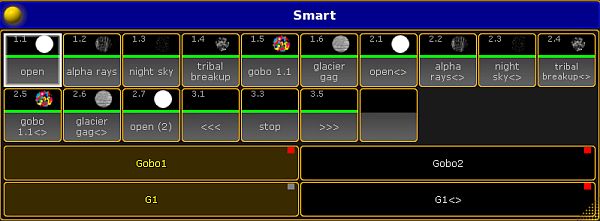 *Smart View – Gobo* **Hint:**\ The smart view displays all default channel sets of attributes in a neat way. It basically facilitates your working steps. *** ## Channel Sets [Section titled “Channel Sets”](#channel-sets) The tiles marked by a red box are **channel sets**.  *Channel Sets Marked by a Red Box* It is possible to create a new channel set. To do so: 1. Assign a value to the attribute that is currently in the programmer. 2. Press Store and then tap the empty tile. 3. Next, label it and press Please.  *Smart View – New Channel Set* **Important:**\ The new channel set applies to all fixtures of this fixture type. **Hint:**\ Creating a new channel set directly in the smart view is more efficient than editing in numerous steps via **Setup**. *** ## Features [Section titled “Features”](#features) The fields **Gobo1** and **Gobo2** marked by a red box in the smart view display features of a preset type.  *Smart View – Features* *** ## Attributes [Section titled “Attributes”](#attributes) The fields **G1** and **G1 <>** marked by a red box display the attributes of the features. 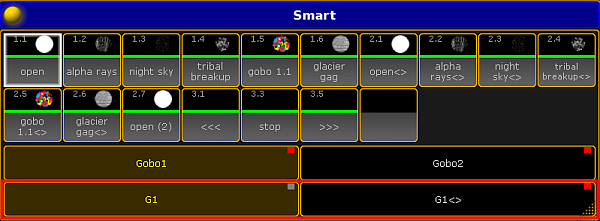 *Smart View – Attributes* *** ## Options [Section titled “Options”](#options) To open the options in the smart view, tap in the upper left corner of the window. The dialog **Smart Options** opens.  *Smart View – Options* If you tap Symbols, the pop-up **Select Symbols** opens displaying the following: **No Symbols:** Does not display symbols in the corresponding tiles of the channel sets. **Small Symbols:** Displays symbols in small. **Big Symbols:** Displays symbols in big. To close the options, tap  in the upper right corner. *** ## Close the Smart View [Section titled “Close the Smart View”](#close-the-smart-view) To close the smart view altogether, tap in the upper left corner of the dialog and tap Delete Window.
# What is the programmer
> The programmer is where all the active and nonactive values, which are not in the playbacks, are located.
The programmer is where all the active and nonactive values, which are not in the playbacks, are located. **Important:**\ Active values are storable values. *** ### How to Take Attributes into the Programmer [Section titled “How to Take Attributes into the Programmer”](#how-to-take-attributes-into-the-programmer) 1. Open the fixture sheet first.\ For more information on how to open the fixture sheet see [Fixture sheet](/grandma2/key_of_fixture_sheet/). 2. Select fixtures in the fixture or channel sheet. 3. Change values of the fixtures. 4. The fixtures with values, which have just changed, have red markers within the object in the sheet. **Hint:**\ To activate all attributes in the selection, press Please Please. \ To deactivate all attributes in the selection, press Please Please Please. ### Example [Section titled “Example”](#example) \[Channel]> Fixture 1 Thru 10 Full Selects fixtures 1 through 10 and sets the dimmer to full.  \_Fixture Sheet \_ The fixtures with the active values all have red markers, which means that they are actively in the programmer. The fixtures with nonactive values have white markers. For more information on the different colors of markers see [Marker](/grandma2/key_ws_colors_marker/). *** ### Layers [Section titled “Layers”](#layers) There are different Layers at the bottom of the fixture and the channel sheet. Active attributes also have color markers in layers.  *Layers With Markers* For more details on layers see [Fixture sheet](/grandma2/key_of_fixture_sheet/). To see the active values only, tap the tab **Active Only** in the mask of the title bar in the fixture sheet.  *Programmer with Active Dimmer Values* *** ### How to Remove Attributes in the Programmer [Section titled “How to Remove Attributes in the Programmer”](#how-to-remove-attributes-in-the-programmer) To remove single attributes in the programmer, press Off and tap the attribute you would like to remove. To remove all attributes from fixture 1 to 10 in the programmer, type the following command, which clears the programmer, into the command line: \[Channel]> Off Fixture 1 Thru 10 **Hint:**\ To clear the entire programmer, press Clear for approximately 2 seconds. The programmer is now empty.  *Empty Programmer*
# grandMA2 onPC Details
> The grandMA2 onPC has a special menu only available for the onPC.
The grandMA2 onPC has a special menu only available for the onPC. This menu can be opened from the “Command” screen. In the upper left corner there is a yellow ball. Clicking it with the mouse will open a menu like this:  *grandMA2 onPC menu* This menu has the following elements: * **Clear Screen**:\ This will clear the virtual screen on the “Command” page. * **Clear All Screens**:\ This will clear all the virtual screens. * **Debug Window**:\ This opens a new window that shows the [System Monitor](/grandma2/key_ost_system_monitor/) as a separate window (not a part of the onPC windows). * **Cascade Windows**:\ This will cascade all the open onPC windows (if there is more than one). * **Reset Size of Windows**:\ The onPC screens can be changed in size. This will reset them to a 1:1 pixel size - if possible. * **Reset Time to Systemtime**:\ This will set the time of the grandMA2 onPC to the time from the computer. * **Options…**:\ This opens an options pop-up. It is descried below. * **About grandMA2 onPC…**:\ This opens a small pop-up showing the version number and the date the software was build. * **Quit**:\ This will close the grandMA2 onPC. ## Options [Section titled “Options”](#options) The onPC options are divided into three tabs. ### View Tab [Section titled “View Tab”](#view-tab) This tab has multiple options. The **Mode** option changes how the onPC handles screens of the onPC. Changing this requires a reboot of the onPC software. The options are: * **MultiScreen**:\ This will open multiple screens on the onPC. It will make the screen buttons on the right side toggle buttons that will open or close screens. This is great if you have enough computer monitor resolution - multiple computer monitors or 4K monitors. * **SingleScreen**:\ This will only open one instance of the onPC. The screen buttons on the right side will change between the different screens. * **SingleScreen (Internal only)**:\ This is the same as the SingleScreen except for the External screens. They will open up in the resolution defined (read more below). The **Windows Frames** option is an On or Off option. It will display or hide the normal Windows frames around the onPC screen. Changing this option will require a reboot of the onPC software before taking effect. **Encoder Style** changes how the onPC encoders look and behave. There are two options: * **Rotation**:\ This is like the physical encoders. In the onPC it looks like this:  *Encoder in “Rotation” mode* - **MA**:\ This is a different way the encoder can be used in the onPC. Click and holding while moving the encoder Left and Right will change the value in a coarse resolution. Moving Up and Down will change the values in a normal resolution. The encoder looks like this:  Encoder in “MA” mode There are two options for setting the **resolution** on the two **external screens**. Tapping the resolution will open a list of all the available resolution options. The **CmdWing Bar** option can be turned On or Off. It changes how the bottom of screen 2 looks. It can match the look of the consoles or it can change to match the physical controls on the MA onPC Command Wing. See more in the [Command Wing Bar topic](/grandma2/key_ws_command_wing_bar/). ### Misc. Tab [Section titled “Misc. Tab”](#misc-tab) The only option here is the **Priority**. There are two options: * **Normal**:\ This will make the onPC software run with a normal priority in windows. * **High**:\ This will make the onPC run with a high priority in windows. This is a good idea if the onPC is the primary station in the system. ### MIDI Tab [Section titled “MIDI Tab”](#midi-tab) There are three options regarding the MIDI settings for onPC. There is the option called **MIDI from OnPC Command Wing** can be used to turn On or Off the MIDI input and output from a connected onPC Command Wing. The next two options needs a MIDI device connected to the computer. There is also a **MIDI In Device** option that can be used to selected the MIDI device that will be used to input MIDI. The **MIDI Out Device** can be used to choose the MIDI device that will output the MIDI. ## Keyboard shortcuts [Section titled “Keyboard shortcuts”](#keyboard-shortcuts) It is possible to activate the keyboard shortcuts by tapping the “Ins” key. Read more in the [Keyboard shortcuts topics](/grandma2/key_ws_keyboard_shortcuts/). ## The Wings [Section titled “The Wings”](#the-wings) Since version 3.3 it is needed to reboot the wings after the onPC has booted. When the wing connects there is a Confirm pop-up like this:  *Original hardware Confirm pop-up* Unfortunately there are an increasing number of counterfeit products on the market. MA Lighting reserves the right to verify the use of original hardware. This is done to ensure the continued development of the hardware and software. You must accept the pop-up by tapping Yes to continue using the wing. If No is tapped then another pop-up appears:  *Second Original hardware Confirm pop-up* The connected wing cannot be used unless the first pop-up is accepted. It is possible to connect 1 [grandMA2 onPC Command Wing](/grandma2/key_device_overview_ma_onpc_command_wing/) and 2 [grandMA2 onPC Fader Wings](/grandma2/key_device_overview_ma_onpc_fader_wing/) to 1 grandMA2 onPC. If there are 2 Fader Wings connected then they need to be identified. This is done in Setup->MA Network Configuration->onPC. Here are two buttons called Identify Fader 1 and Identify Fader 2. Tapping one of these followed by one of the keys on the Fader Wings will identify the wing in the system. It is only necessary if there are 2 Fader Wings connected to same onPC. It can be changed what block of 15 executors each wing should handle in the [Wing & Monitor Setup](/grandma2/key_window_faderwing_commandwing_setup/). There is a green check mark in the detected hardware.
# Operate Fixtures
> This chapter deals with the various ways of controlling fixtures.
This chapter deals with the various ways of controlling fixtures. It also comprises different sorts of sheets and their usage. *** ### Requirement [Section titled “Requirement”](#requirement) Before being able to control fixtures, the following requirement has to be fulfilled: * Fixtures have to be patched first For more information on how to patch fixtures see [Adding fixtures to your show](/grandma2/key_patch_add_fixtures/). ## Subtopics [Section titled “Subtopics”](#subtopics) * [Channel sheet](/grandma2/key_of_channel_sheet/) * [Fixture sheet](/grandma2/key_of_fixture_sheet/) * [Sheet options](/grandma2/key_of_sheet_options/) * [Layers in sheets](/grandma2/key_of_layers_in_sheets/) * [What is the programmer](/grandma2/key_of_what_is_the_programmer/) * [Encoder grouping](/grandma2/key_of_encoder_grouping/) * [Using the color picker](/grandma2/key_of_color_picker/) * [Using the shaper dialog](/grandma2/key_of_shaper_dialog/) * [Using the smart view](/grandma2/key_of_smart_view/) * [Edit a channel or fixture](/grandma2/key_of_edit_channel_or_fixture/)
# Other System Tools
> This is a collection of system windows, not described anywhere else. This is not sheets, pools or presets, but different windows to manage some overall system s
This is a collection of system windows, not described anywhere else. This is not sheets, pools or presets, but different windows to manage some overall system settings. The topics are: * [Message center](/grandma2/key_message_center/) * [Help](/grandma2/key_ost_help_viewer/) * [Clocks](/grandma2/key_ost_clock/) * [Sound input window](/grandma2/key_ost_sound_input_window/) * [VPU pixel mapper view](/grandma2/key_keyword_vpupixelmapperview/) * [Network dimmer](/grandma2/key_ost_network_dimmer/) * [Desk status](/grandma2/key_ost_desk_status/) * [Performance window](/grandma2/key_ost_performance_window/) * [System monitor](/grandma2/key_ost_system_monitor/) To access the windows, tap on an empty part of a screen and tap Other or System ## Subtopics [Section titled “Subtopics”](#subtopics) * [Message center](/grandma2/key_message_center/) * [Help](/grandma2/key_ost_help_viewer/) * [Clock](/grandma2/key_ost_clock/) * [Sound input window](/grandma2/key_ost_sound_input_window/) * [VPU pixel mapper view](/grandma2/key_keyword_vpupixelmapperview/) * [Network dimmer](/grandma2/key_ost_network_dimmer/) * [Desk status](/grandma2/key_ost_desk_status/) * [Performance window](/grandma2/key_ost_performance_window/) * [System monitor](/grandma2/key_ost_system_monitor/)
# Clock
> To access the Clockindow, tap on an empty part of a screen. This must be at least 2 columns wide and 2 rows high. Tap Other and then Clock.
To access the \*\*Clock \*\*window, tap on an empty part of a screen. This must be at least 2 columns wide and 2 rows high. Tap Other and then Clock. This will open the **Clock** window.  *Clock window* ## System Clock [Section titled “System Clock”](#system-clock) As default, the **Clock** will open as System Clock (yellow digits). This will display the current time, according to the console time. For more information see the [Date and Time](/grandma2/key_date_time/) topic. It is possible to change the settings and readout of the clock by tapping the yellow ball in the upper left corner of the clock window. This will open a Clock Option window.  *Clock option window* In the System Clock there are different readout options. To list these, tap the yellow box: * **Analog** displays the current time as an analog watch. * **Digital AM/PM** displays the current time as a 12-hour clock. This is a time convention in which the 24 hours of the day are divided into two periods: a.m. (from the Latin, ante meridiem, meaning before midday) and p.m. (post meridiem, meaning after midday) * **Digital 24h** displays the current time as a 24-hour clock. * **Date DD-MM-YYYY** displays the date in a day, month and year format. This is the most common format in Europe, Asia, Africa and South America. * **Date MM-DD-YYYY** displays the date in a month, day and year format. This is the most common format in North America. * **Dawn** counts up or counts down until dawn. * **Sunrise** counts up or counts down until sunrise. * **Sunset** counts up or counts down until sunset. * **Dusk** counts up or counts down until dusk. For more information about dawn, dusk, sunrise and sunset see the [Date and Time](/grandma2/key_date_time/) topic. It is also possible to offset the clock compared to the system time. To do this, tap the green square labeled **Offset from System Clock Time**. This will open a calculator where the time can be offset from -23.59. 995 hours to +23.59.995 hours. This setting is individual for every clock, so it is possible to have different clocks with different time zones for example. To label the clock, tap the green square labeled **Label of System Clock**. This will open a pop-up where it is possible to label each clock individually.  *Clocks with offset and label* **Hint:**\ In the top of the Clock Option window, it is possible to save the settings as default and load the default settings. ## Timecode [Section titled “Timecode”](#timecode) To display the timecode, tap the button in the upper right corner until it says Timecode This will display the selected timecode in gray digits. If the timecode is running, the digits turn green.  *Timecode window* For more information about **Timecodes** see the [Timecode](/grandma2/key_timecode/) topic. In the top of the window, there are four different action buttons:  *Action buttons* * Skip backwards * Pause * Play * Skip forwards These can be used to control the internal \*\*Timecode \*\*generator. Use **Link Selected Timecode** button to select one of the 8 timecode slots as default or the selected slot. For more information about timecodes see the [Timecode](/grandma2/key_timecode/) topic. ## Timer [Section titled “Timer”](#timer) To get to the stopwatch, tap the button in the upper right corner until it says Timer. This will display the Stopwatch 1 (blue digits).  *Timer window* To **Start** or **Stop** the Timer, tap Start/Stop. This can also be done by entering the following syntax in the command line: \[Fixture]> Toggle Timer 1 To **Reset** the timer, tap the reset key or enter the following syntax in the command line: \[Fixture]> Reset Timer 1 For more information about Timers see the [Timers](/grandma2/key_timer/) topics
# Desk status
> To access the Desk Statusindow, tap on an empty part of a screen. This must be at least 4 columns wide and 2 rows high. Tap System and then Desk Status.
To access the \*\*Desk Status \*\*window, tap on an empty part of a screen. This must be at least 4 columns wide and 2 rows high. Tap System and then Desk Status. This will open the Status window. 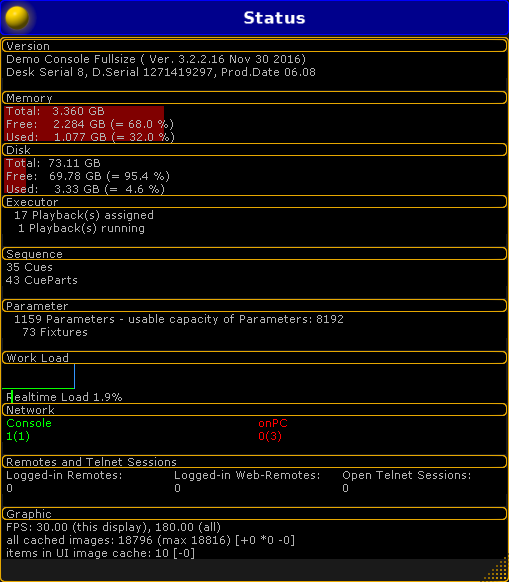 *Status Window* **Hint:**\ This window is only for information. It is not possible to make any changes in here. The Status window displays facts about the console. There are 10 sub categories in the window. ## Version [Section titled “Version”](#version) The version section tells what type of console you are working on. It also tells the software version and its build date. ## Memory [Section titled “Memory”](#memory) Displays the size of the memory and how much is currently used. Both in Gigabyte and percent. ## Disk [Section titled “Disk”](#disk) Displays the size of the hard drive and how much is currently used. Both in Gigabyte and percent. ## Executor [Section titled “Executor”](#executor) Displays how many playbacks are occupied and how many are currently running. ## Sequence [Section titled “Sequence”](#sequence) Displays the total amount of recorded cues. Part cues are included. ## Parameter [Section titled “Parameter”](#parameter) The parameter count displays how many parameters are used in the actual show; and the total capacity of unlocked parameters. ## Work load [Section titled “Work load”](#work-load) The work load displays a graph and a percentage of how busy the desk is. ## []()Network [Section titled “Network”](#network) Displays what is connected in the session. The number in the parentheses is the amount of devices in the **MA Network Configuration**. The number in front of the parentheses are the current devices in the session. If the numbers are green, the expected numbers of all MA Network devices, consoles, grandMA2 onPC, MA VPU (=Video Processing Unit), MA 3D,MA NDP (=Network Dimmer Processor), DMX Nodes, that can be part of a session is presented. If the number is red, there are less devises than expected. This means that there is not connection to all of the devices in the **MA Network Configuration** list. ## Remotes and Telnet Sessions [Section titled “Remotes and Telnet Sessions”](#remotes-and-telnet-sessions) Displays the amount of devices that are currently logged in. It will also tell how many Telnet sessions that are open. ## Graphic [Section titled “Graphic”](#graphic) Displays the current status of the graphic card on the device.
# Edit a module
> You can also edit modules.
You can also edit modules. **Requirement:** * Add MA NDPs to the network configuration For more information see [Adding devices to your session](/grandma2/key_network_session_add_device/). * Open **MA Dimmer Network** For more information on how to open the **MA Dimmer Network** see [Network dimmer](/grandma2/key_ost_network_dimmer/). 1. To edit a module, navigate down to the modules in the hierarchy of the dimmer network. For more information on how to navigate down in the hierarchy see [Network dimmer](/grandma2/key_ost_network_dimmer/). 2. Press Edit and tap a module.\ -The **pop-up Module Properties** opens. 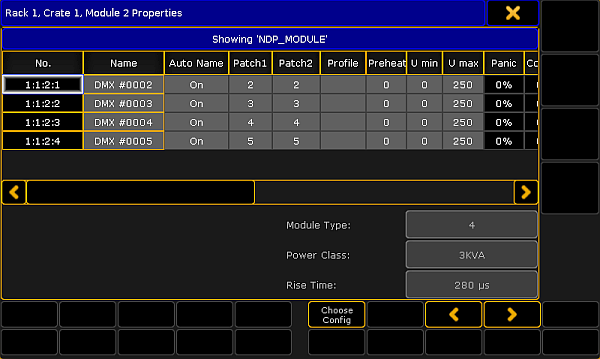 *Edit a module* 3. To select a type of configuration, tap Choose Config and the **pop-up Choose Configuration** opens. 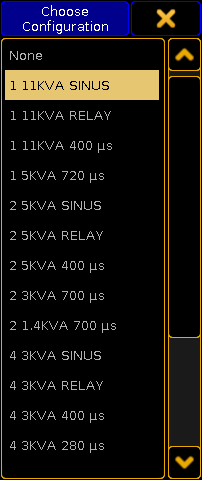 *Select configuration* -Tap to choose a type.\ -The configuration is now applied and can be edited. **Hint:**\ You can edit columns in the **pop-up Module Properties**. For more information on the single columns see [Views – Dimmer View](/grandma2/key_ost_views/#dimmer_view). 4. To edit the columns, tap and hold or press Edit and tap a cell of the corresponding column. Or select the cell and press the screen encoder.\ -Depending on which column is being edited, either the \*\*calculator \*\*opens, **On** is displayed, or the cell is empty. 5. To select the next or the previous module, tap  or . The module is now edited.
# Edit properties of a rack
> You can edit the properties of racks.
You can edit the properties of racks. **Requirement:** * Add MA NDPs to the network configuration For more information see [Adding devices to your session](/grandma2/key_network_session_add_device/). * Open **MA Dimmer Network** For more information on how to open the **MA Dimmer Network** see [Network dimmer](/grandma2/key_ost_network_dimmer/). 1. []()To edit the properties of a rack, press Edit and tap a rack. The window **Rack Properties** opens. 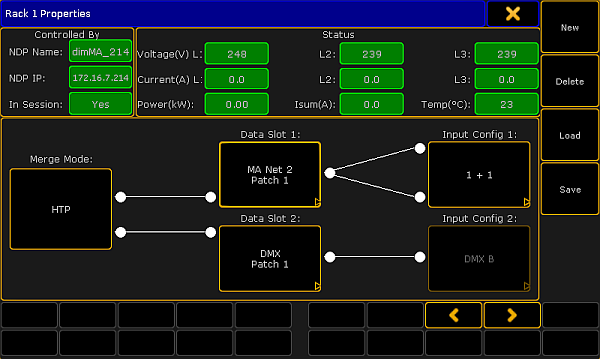 *Rack Properties* The upper sections **Controlled by** and **Status** cannot be edited. They solely display data such as: * Name of the NDP * IP of the NDP * If NDP is in session * Voltage * Current * Power * A total of the three-phase alternating current * Temperature of the rack **Important:**\ The lower section displaying the merge mode, data slots and input config can be edited. 2. To edit the merge mode, tap the button displayed below Merge Mode.\ -The **pop-up Select Slot Mode** opens.  *Select merge mode* -Select a mode. *** ## Merge Modes [Section titled “Merge Modes”](#merge-modes) * **HTP**\ Connects both slots. If both slots are active, the slot which values are higher takes precedence. * **LTP**\ Uses both slots. If both slots are active, the slot which values were modified the last takes precedence. * **1-Only**\ Only uses Slot 1. * **Only-2**\ Only uses Slot 2. * **1-Over-2**\ Connects both slots. However, Slot 1 has the higher priority. That is, in case there is a valid signal on Slot 1 (no matter the type), the NDP ignores the signal on Slot 2. If there is no signal on Slot 1 or if the NDP detects a faulty signal on Slot 1, the NDP automatically starts to use Slot 2. *** 3. To edit a slot, tap the button displayed below Data Slot 1 and Data Slot 2.\ -The **pop-up Slot Properties** opens. 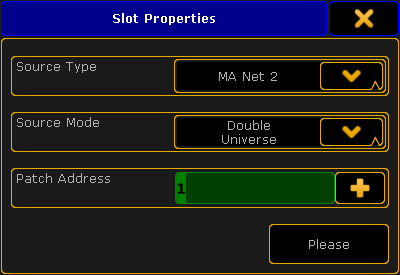 *Adjust slot properties* -To select a source type, tap the drop-down box and tap the corresponding protocol in the list.\ -To select a source mode, tap the drop-down box and tap a source mode in the list.\ -To enter a patch address, type into the green input field or tap the  and the calculator opens. 4. Now, tap Please. The properties of the slot are now applied. **Hint:**\ -To enable 1024 channels for the configuration patch, select **Double Universe** in the Source Mode and **DMX** in the Source Type. DMX In 1 and 2 of the NDP are used in one slot.\ -If you select **Art-Net, MA-Net2 or sACN** in the Source Type and **Double Universe** in the Source Mode, specify the two universes individually. 5. To edit universes, tap the button displayed below Input Config.\ -The **pop-up Input Properties** opens. 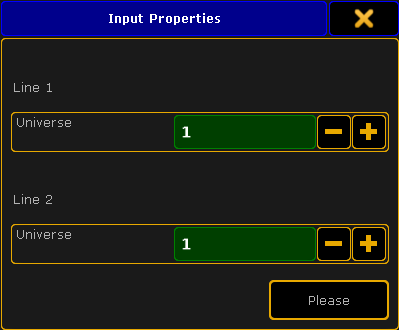 *Edit universes* -To edit the universes in Line 1 and Line 2, tap the  or  or type in the green input field using the keyboard.\ -If you have selected Art-Net as the source type, define which Art-Net universe is used. To do so, tap the Input Config and the **pop-up Art-Net Input Properties** opens. 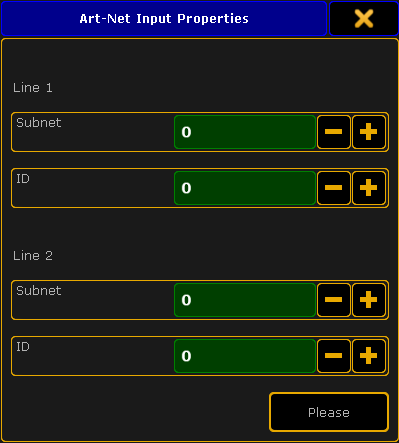 \_Adjust the input properties of Art-Net \_ -Adjust subnet and ID. **Hint:**\ -Subnet defines the upper 4bits of the Art-Net address. If you enter 0 in subnet, 1 is defined. If you enter 1, 2 is defined.\ -ID defines the lower 4bits of the Art-Net address. Entering numbers works the same as in subnet. 6. After you have edited the properties of the rack, save the settings.\ -Tap Save on the right of the window and the **pop-up Save Rack Configuration opens**. 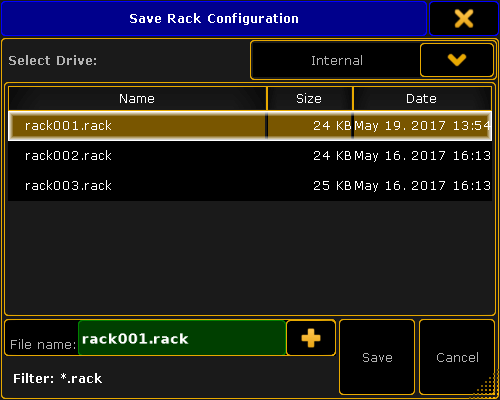 *Save the configuration* -The current rack is marked in a light brown color.\ -To save the settings of the current rack, tap Save.\ -To cancel the process, tap Cancel or  in the upper right corner of the pop-up. **Hint:**\ Configurations are saved on the desk ending in **\*.rack**. They can either be saved on the internal drive or a USB stick, hence they are not saved in the show file. 7. To delete a rack, tap Delete. **Important:**\ Racks can only be deleted if they are not in use or those that just have been created “offline” without the NDP controlling it. 8. To select the next or the previous rack, tap  or . 9. To create a rack, tap New and the **pop-up Select Rack Number** opens.  *Select rack number* -Select the rack number and edit the newly created rack as described in [Rack Properties](#rack_properties). 10. To load an existing rack, tap Load and the **pop-up Load Rack Configuration opens**.  *Load an existing rack* -Select the drive in the drop-down below the heading.\ Tap to select a rack and tap Open. **Hint:**\ It is possible to load racks from an internal drive and previous software versions. The rack is configured and the settings are applied.
# Errors
> If an error occurs, it is displayed in red.
If an error occurs, it is displayed in red. The following demonstrates an error in the Normal View. **Requirement:** * Add MA NDPs to the network configuration For more information see [Adding devices to your session](/grandma2/key_network_session_add_device/). * Open **MA Dimmer Network** For more information on how to access the different views see [Network dimmer](/grandma2/key_ost_network_dimmer/). For more information on the display of various views see [Views](/grandma2/key_ost_views/).  *Error displayed in the Normal View* If an error occurs, the entire rack turns red. Navigate down in the hierarchy to detect the error.  *Error in crate 1*  *Error in module 1 and 2*  *Error in dimmers 1 and 2* For more information on how to navigate in the hierarchy see [Network dimmer](/grandma2/key_ost_network_dimmer/). *** ## []()Confirm Errors [Section titled “Confirm Errors”](#confirm-errors) Confirm Errors is displayed in the title bar of the window **MA Network Dimmer** and is used to temporarily mask errors. **Hint:**\ To view the error messages, set No Load, Fuse, Overload, Excess DC to **On** when editing. For more information see the [setting Fuse in Views](/grandma2/key_ost_views/#fuse). 1. To mask an error in the view, select the rack that displays the error. 2. Tap Confirm Errors. 3. The error displayed in red now turns dark green.  *Confirm errors* 4. To toggle the error back to red, tap Confirm Errors once again.
# Help
> To access the Helpindow, tap on an empty part of a screen. This must be at least 5 columns wide and 3 rows high. Tap System and then Help.
To access the **Help** window, tap on an empty part of a screen. This must be at least 5 columns wide and 3 rows high. Tap System and then Help. This will open the Help window.  *Help window* To navigate in the help structure, tap the different topics on the left side of the window. In all the topics, there will be a list of sub-topics that contains more information of specific issues. In the top of the window, there are 6 icons  *Help keys* These are used to getting around in the **Help** topic: * The **Magnifying glass** will let you search for specific words in the manual. * The **English** key can be used, to change the language of the manual. At the moment, the only option is English. * **Arrow up**, will display the previous topic in the help structure. * **Arrow down** will display the next topic in the help structure. * **Arrow left** will let you go back in the resent seen topics. * **Arrow right** will let you go forward in the resent seen topics. **Hint:**\ The Help window contains help about the grandMA 2 consoles, onPC, MA 3D and MA VPU **Hint:**\ This manual is available online. The website provides help for grandMA 2 products, dot2 products, MA Network Switch and MA Fixture Builder.\ These manuals are edited regularly and are more up-to-date than the help viewer in the console.
# Network dimmer
> Monitor and configure a dimMA system in the window MA Dimmer Network.
Monitor and configure a dimMA system in the window **MA Dimmer Network**. **Important:**\ This section deals with the configuration of MA NDPs in the view **MA Dimmer Network**. The configuration of MA NDPs in the window **MA Network Configuration** is dealt with in [Control the MA NDP](/grandma2/key_control_ndp_add/). **Requirement:** * Add MA NDPs to the network configuration For more information see [Adding devices to your session](/grandma2/key_network_session_add_device/). 1. Open the **MA Dimmer Network**.\ -Open **Create Basic Window**. For more information see [Manage windows](/grandma2/key_windows/).\ -Tap System and then tap Network Dimmer. \ -**MA Dimmer Network** opens. 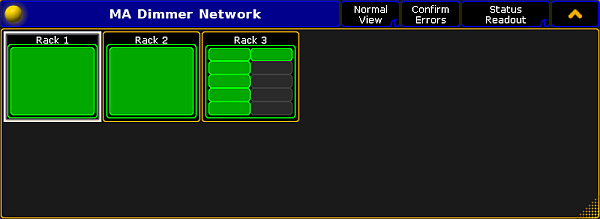 *Open MA Dimmer Network* 2. To navigate down in the hierarchy of the dimmer network:\ -Tap a rack and a window displaying crates opens. 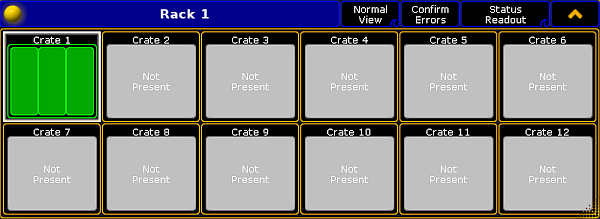 *Navigate down to the crates* -Tap a crate and a window displaying modules opens.  *Navigate down to the modules* -Tap a module and a window displaying dimmers opens.  *Navigate down to the dimmers* **Hint:**\ Dimmer is the deepest you can go in the hierarchy. 3. To navigate upward in the hierarchy, tap  in the upper right corner of the title bar. *** ## The dimMA Hierarchy [Section titled “The dimMA Hierarchy”](#the-dimmahierarchy) The dimMA hierarchy consists of racks, crates, modules, and dimmers. **Rack:** A rack consists of 1 or 2 NDPs and at least 1 crate. **Crate:** A crate consists of 3 modules. **Module:** A module consists of 1, 2 or 4 dimmers. \*\*Dimmer: \*\* A dimmer holds all the corresponding configuration data. ## Subtopics [Section titled “Subtopics”](#subtopics) * [Views](/grandma2/key_ost_views/) * [Errors](/grandma2/key_ost_errors/) * [Readout](/grandma2/key_ost_readout/) * [Edit properties of a rack](/grandma2/key_ost_edit_properties_of_rack/) * [Edit a module](/grandma2/key_ost_edit_module/)
# Performance window
> To access the Performanceindow, tap on an empty part of a screen. This must be at least 2 columns wide and 2 rows high. Tap System and then Performance.
To access the \*\*Performance \*\*window, tap on an empty part of a screen. This must be at least 2 columns wide and 2 rows high. Tap System and then Performance. The Performance window opens. 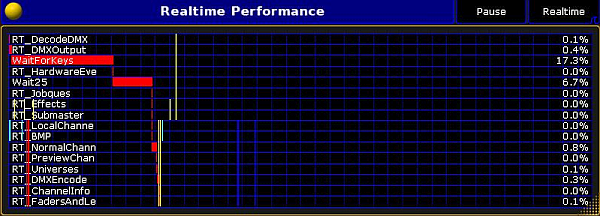 *Realtime performance window* The performance window is a monitor of internal workloads and a debug tool. It has two different modes, **Realtime** and **Draw**. As default it opens in realtime. It is a monitor of the workload of the desk. The first six rows are incoming traffic and the last rows are outgoing traffic. The different loads have different colors: * Red - DMX data * Green - MA Net feedback * Blue - Station feedback (MA stations = 1 ms / Windows > 1 ms) * Yellow - Network Protocols The lines on the left side of the view are showing tasks with a high calculation priority. The lines on the right side shows tasks with a normal priority. The small line that are only 2 rows high, show traffic via USB connections (Command and Fader Wing for example) while the long lines that are 8 rows high, show traffic via ethernet or DMX. The traffic for incoming USB connections are on line 7 and 8, while outgoing USB traffic is on line 9 and 10. If the yellow lines (Art-Net traffic for example) are shown side by side in the lower part, then there is a delay on the outputted universes. To adjust this delay go to Setup - Network – Network Protocols and adjust the Delay column. There are two buttons in the upper right corner of the Performance window * Pause freezes the display * Realtime/Draw switch the window between **Realtime** and **Draw** 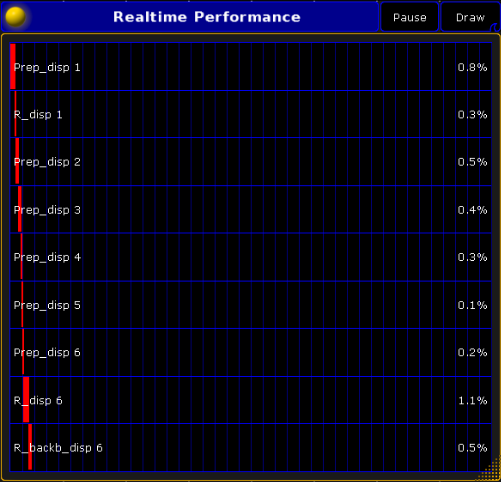 *Draw performance window* This window shows the resources allocated to drawing the screens. Each displays has its own row.
# Readout
> Display the readout of the MA Dimmer Network using one of the three readout views:
Display the readout of the MA Dimmer Network using one of the three readout views: * Status Readout * Error Readout * Property Readout * Consumption Readout **Requirement:** * Add MA NDPs to the network configuration For more information see [Adding devices to your session](/grandma2/key_network_session_add_device/). * Open **MA Dimmer Network** For more information on how to open the **MA Dimmer Network** see [Network dimmer](/grandma2/key_ost_network_dimmer/). To toggle between the readout views, tap the Readout button in the title bar of the window MA Dimmer Network. *** ## Status Readout [Section titled “Status Readout”](#status-readout) Status Readout displays the status of the NDP racks. If the readout is set to **Status Readout**, the display of the racks stays unaffected.  \_Status Readout \_ For more information on the display of the racks in **Status Readout** of different views see [Views](/grandma2/key_ost_views/). *** ## Error Readout [Section titled “Error Readout”](#error-readout) To track errors, toggle the readout to **Error Readout**. 1. To do so, tap Status Readout. 2. The display of racks changes.  *Track errors using Error Readout* The error message is displayed in red in the rack affected. **Hint:**\ Unlike in the **Status Readout**, confirming errors in the **Error Readout** displays the error message in yellow. For more information on on the confirmation of errors see [Errors](/grandma2/key_ost_errors/#confirm_errors).  *Confirm errors in Error Readout* *** ## Property Readout [Section titled “Property Readout”](#property-readout) Property Readout displays which NDP controls the corresponding rack. 1. To display the property of racks, tap Error Readout. 2. The button toggles to Property Readout and the display of the racks changes.  *Property Readout* The racks display the name and the IP of the master and slave NDP. *** ## Consumption Readout [Section titled “Consumption Readout”](#consumption-readout) To readout the consumption, toggle **Property Readout** to **Consumption Readout**. 1. To do so, tap Property Readout. 2. The button toggles to **Consumption Readout**.  *Consumption Readout* The view displays the following consumption data: * Voltage * Current * Power * Temperature **Hint:**\ To display the consumption of single elements in the hierarchy, navigate down in the hierarchy while in the mode **Consumption Readout**. For more information on the hierarchy see [Network dimmer](/grandma2/key_ost_network_dimmer/).
# Sound input window
> To access the Sound Input Window, tap on an empty part of a screen. This must be at least 2 columns wide and 2 rows high. Tap System and then Sound Input.
To access the **Sound Input Window**, tap on an empty part of a screen. This must be at least 2 columns wide and 2 rows high. Tap System and then Sound Input. This will open the **Sound Input Window**. 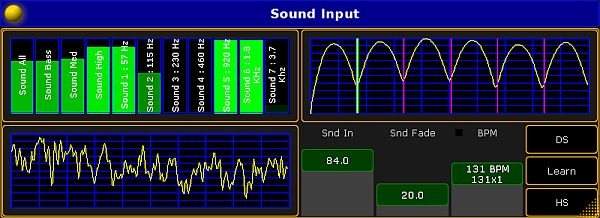 *Sound input window* The window is divided in four sections. ## The upper left section [Section titled “The upper left section”](#the-upper-left-section) This section displays the different frequencies of the incoming signal. The first row is an overall summary. The next three rows splits the signal in **Bass**, **Medium** and **High** frequencies. The seven last rows splits the signal in frequencies of 75 Hz to 3.7 KHz. **Hint:**\ It is possible to assign the different frequencies to an **Effect**. Select the form **Sound** and a pop-up will display the possibilities. ## The lower left section [Section titled “The lower left section”](#the-lower-left-section) This section displays the sound wave, received from the sound source. ## The upper right section [Section titled “The upper right section”](#the-upper-right-section) This section is a BMP (Beats per minute) counter. This section shows how the incoming sound is interpreted in BMP. ## The lower right section [Section titled “The lower right section”](#the-lower-right-section) This is the fader and button section. There are three faders: * **Snd In** sets the gain of the incoming sound signal * The **Snd Fade** fader is used with effects. When assigning one of the **Sound Forms** (form 20.x) to an effect, this fader will adjust how “hard” the effect will follow the sound. If **Snd Fade** is at 0 it will be hard and will smoothly fade up to be softer and softer, until the fader is set to 100. To read more about effects, see the [Effect](/grandma2/key_effects/) topic. * The **BPM fader** will adjust itself to the BPM from the incoming sound signal. Hint:\ These three faders can also be assigned to executor faders as **Special Masters**. To read more about Special Master, see the [Special Master](/grandma2/key_adv_exec_spec_master/) topic. The three buttons to the right are responding to the BPM. * DS will double the value of the BPM counter. * Learn will allow you to tap the beat manually, and adjust the BPM to this level. * HS will half the value of the BPM counter.
# System monitor
> To access the System Monitorindow, tap on an empty part of a screen. This must be at least 2 columns wide and 2 rows high. Tap System and then System Monitor.
To access the \*\*System Monitor \*\*window, tap on an empty part of a screen. This must be at least 2 columns wide and 2 rows high. Tap System and then System Monitor. This will open the System Monitor window.  *System monitor window* This is a debug screen. It displays the inner working of the desk. There is not much to see for the common user in this window. If the desk does not behave right, this might provide some hint to trouble shooting.
# Views
> Display the MA Dimmer Network using one of the three views:
Display the MA Dimmer Network using one of the three views: * Normal View * Dimmer View * Log View **Requirement:** * Add MA NDPs to the network configuration For more information see [Adding devices to your session](/grandma2/key_network_session_add_device/). * Open **MA Dimmer Network** For more information on how to open the **MA Dimmer Network** see [Network dimmer](/grandma2/key_ost_network_dimmer/). To toggle between the views, tap the View button in the title bar of the window MA Dimmer Network. *** ## Normal View [Section titled “Normal View”](#normal-view) The Normal View solely displays the dimMA hierarchy.  *Open Normal View* For more information on the dimMA hierarchy see [Network dimmer](/grandma2/key_ost_network_dimmer/). *** ## []()Dimmer View [Section titled “Dimmer View”](#dimmer-view) To toggle to Dimmer View, tap Normal View in the title bar.  *Open Dimmer View* The Dimmer View displays both: * dimMA hierarchy and * Dimmer channels **Hint:**\ To edit the dimmer channels, tap and hold or press Edit and tap a cell of the corresponding column. Depending on which setting is being edited,either the calculator opens, **On** is displayed, or the cell is empty. *** ## Settings [Section titled “Settings”](#settings) **Hint:**\ The following settings can also be edited in a module. For more information see [Edit a module](/grandma2/key_ost_edit_module/). **No.**: The number consists of a rack, crate, module and dimmer. For example, 1:1:3:4 is to be understood as rack 1, crate 1, module 3, and dimmer 4. **Name**: Is the name of the dimmer channel in the log files and in the configuration. **Auto Name**: If you have changed the name of the dimmer channel in the column **Name**, toggling **Auto Name** to **On** takes over the original name of the dimmer channel. \*\*Patch1 \*\*and **Patch2**: Reflect the patching of the two input slots of an NDP system. **Hint:**\ Patch higher quantities of dimmer channels by multi selecting the cells in the columns Patch1 and Patch2. Changing the patch address once automatically adjusts the following patch addresses. **Profile**: Create and edit profiles – assigned to each dimmer channel – in this column. Assign the same profile in several dimmer channels: 1. Multi select the cells in the column. 2. Press Edit and tap a cell in the column **Profile**. 3. The **pop-up Select Profile** opens. 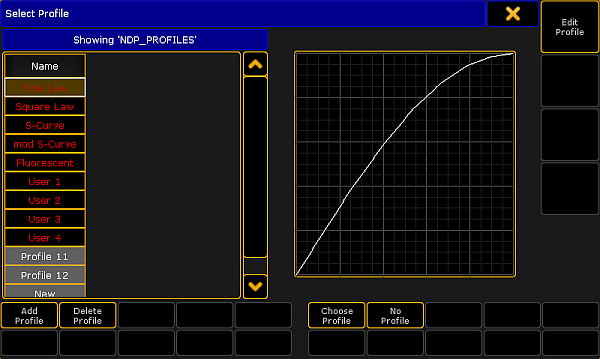 *Edit profile* 4. Select a profile and tap Choose Profile. 5. Tap  in the upper right corner of the pop-up. The profile is now applied in several dimmer channels. **Hint:**\ The general settings of profiles are similar to those in the graph editor of an effect. For more information on these settings see [Settings in the Graph Editor in Create effect forms](/grandma2/key_effects_create_forms/#settings_graph_editor). **Preheat**: Is the voltage level that is used to permanently preheat the fixtures. The value of the voltage level is displayed in percent. **U min** and **U max**: Limit the range of the dimmer channels in these two columns. **Important:**\ These values apply if the mode is set to Dim. **Panic** and **Control**: The values of Panic and Control are stored in the NDP and are solely displayed in this view. **Type**: Change the type of the dimmer channels in this column. **Important:**\ Make sure the patching here matches the patching in the setup of the console. Both settings have to correspond to each other. 1. Select the type, tap and hold a cell in the column **Type**. 2. The **pop-up Select Type** opens. 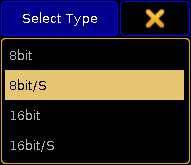 *Select a type* 3. Tap to select a type. The types are: * **8bit**: The dimmer channel is controlled in the 8bit mode containing 256 increments. * **8bit/S**: The dimmer channel is controlled in the 8bit mode and contains an additional dimmer channel that triggers the values that were changed with a set fade time. This type defines the fade time of the dimmer channel. If the additional dimmer channel is set to 100 %, the values are faded within 5 minutes. Setting a lower value on the additional channel, reduces the fade time linearly. * **16bit**: The dimmer channel is controlled in the 16bit mode containing 65536 increments. * **16bit/S**: The dimmer channel is controlled in the 16bit mode and contains an additional dimmer channel that triggers the values that have been changed with a set fade time. For more information on the fade time see the type **8bit/S**. **Mode**: Adjust the mode of the dimmer channel in this column. 1. To set a mode, tap and hold a cell in the column **Mode**. 2. The **pop-up Select Mode** opens. 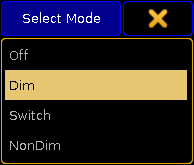 *Select a mode* 3. Tap to select a mode. The modes are: * **Off**: Disables any reaction toward incoming control data. * **Dim**: Represents the normal dimmer mode. * **Switch**: The dimmer behaves like a switch. The firing angle is 90° phase of the sinus voltage of the first sine cycle. * **NonDim**: The dimmer behaves like a switch. The firing angle is 0° phase of the sine cycle. **Threshold**: Defines the threshold value of the input control data. Threshold influences the behavior of the dimmer channel if it is in the NonDim or the Switch mode. **No Load**: Masks error messages if the minimum base load of a dimmer is not connected to the dimmer channel. It also masks error messages if the bulb is burnt out. **[]()Fuse**: Masks error messages if the fuse (MCB) of the dimmer channel has blown. **Overload**: Masks error messages if an overload occurs on the dimmer channel you have selected. **Excess DC**: Masks error messages if there is bias voltage, for example if a thyristor fails. **Response**: Smoothes out changes in the control signal. Fixtures connected to this dimmer channel respond slower. Entries between 0 and 5 are interpolated to 0. **Important:**\ The error reporting masks No Load, Fuse, Overload, and Excess DC affect the log files and the status readout. *** ## Log View [Section titled “Log View”](#log-view) To toggle to Dimmer View, tap Dimmer View in the title bar.  *Open Log View* The Log View displays both: * dimMA hierarchy and * Messages along with the corresponding date The messages may be displayed in white, yellow, or red. * White indicates regular messages * Yellow indicates warning messages * Red indicates error messages For more information on the display of errors see [Errors](/grandma2/key_ost_errors/). To change to Normal View, tap Log View in the title bar.
# Patching, DMX, and Fixture Setup
> Patching is one word for everything that has to do with the fixtures we have in our show, how they are addressed - both signal wise but also for selecting them
Patching is one word for everything that has to do with the fixtures we have in our show, how they are addressed - both signal wise but also for selecting them - and how they are arranged in a virtual 3D room. The following pages deals with adding fixtures to your show, giving them DMX addresses, arranging them in the Stage view and all the connected topics. We are not going to look at details about the Fixture types nor how to control the fixtures. For this please have a look at [Basic Fixture types](/grandma2/key_basic_fixture/), [Advanced Fixture types](/grandma2/key_advanced_fixture_types/) and [Controlling Fixtures](/grandma2/key_operate_fixtures/). ## Subtopics [Section titled “Subtopics”](#subtopics) * [What are channels & fixtures](/grandma2/key_patch_what_are_channel_fixture/) * [What is 3D and stage setup](/grandma2/key_patch_what_is_3d_stage/) * [Adding fixtures to the show](/grandma2/key_patch_add_fixtures/) * [Delete fixtures from the show](/grandma2/key_patch_delete_fixtures/) * [Working with layers](/grandma2/key_patch_layers/) * [Multipatching](/grandma2/key_patch_multipatch/) * [Live patching](/grandma2/key_patch_livepatch/) * [DMX sheet](/grandma2/key_patch_dmx_sheet/) * [DMX testing](/grandma2/key_patch_dmx_testing/) * [DMX and parameter lists](/grandma2/key_patch_dmx_parameter_list/) * [Universe pool](/grandma2/key_patch_universe_pool/) * [Stage view](/grandma2/key_patch_stage/) * [Virtual 3D cameras](/grandma2/key_patch_camera/) * [Position fixtures in the 3D stage](/grandma2/key_patch_position_fixtures/) * [Auto calibrate fixture positions](/grandma2/key_patch_autocalibrate/)
# Adding fixtures to the show
> Quick steps:
**Quick steps:** 1. Press Setup and Patch & Fixture Schedule to enter the EditSetup menu. 2. Add a new or select an existing layer. 3. In the layer, Add new fixture. 4. Follow the Fixture Wizard. 1. Import a fixture from library (internal or from USB) or select already imported fixtures from the list. 2. Change the quantity. 3. Set a Fixture ID and/or Channel ID. 4. Set the start address for the first fixture. 5. Tap Apply. 5. Check that the result is correct. 6. Exit the EditSetup menu. 7. Tap Yes to confirm the changes. This was the quick steps - Keep reading for more details. Adding fixtures to the show is done from the **EditSetup menu** - also called Patch & Fixture Schedule. This can be found by pressing the Setup key and then Patch & Fixture Schedule. It could look like this: 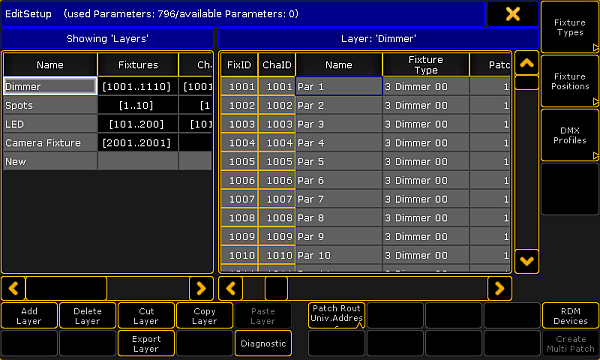 *EditSetup menu* This is one of the essential access points for everything that has to do with your entire fixture setup structure. A very important menu. It main part is divided into a left and a right side. There is a lot of buttons on the bottom and three important one on the right most side. The left side is **Layers** and the right side is the list of fixtures in the selected layer. In the picture above it is the “Dimmer” layer and all the Dimmer fixtures. ## Layers [Section titled “Layers”](#layers) Read more details about Layers in the [Working with Layers topic](/grandma2/key_patch_layers/). The left side of the main window is a list of Layers. Any fixture added to the show needs to be put in a layer. You can decide how you want to organize the layers. All fixtures can be put in the same layer or organized in multiple layers - by fixture type or location. It is completely up to you. But you need at least one layer. When you have a layer then select it by tapping it. Then you can see all the list of fixtures in the layer on the right side of the menu. At the bottom there is a lot of buttons. We are going to use some of them. Please notice that the text on them changes depending on what side was tapped last - the layer list or the fixture list. The function is the same it is just a matter of affecting layers or fixtures. ## Create a Layer to put fixtures in it [Section titled “Create a Layer to put fixtures in it”](#create-a-layer-to-put-fixtures-in-it) You can add a layer by tapping in the layer part of the screen. You could tap where it says “New”. Then tap where it says Add Layer. Now opens the Enter Name pop-up where you can give the new layer a name. Type a name and finish by pressing Please (Enter). When you create an empty layer, then the console will help you to the next logical step - to add fixtures in the layer. So the next thing you are presented with is the Fixture Wizard. ## Adding fixtures to an existing layer [Section titled “Adding fixtures to an existing layer”](#adding-fixtures-to-an-existing-layer) If you already have layers, then you can add new fixtures in them. Select the layer on the left side and then tap somewhere in the fixture list (the right side). Now you can tap the button that says Add Fixtures. If the menu is on screen 1 then you can also press the X1 key. This opens the Fixture Wizard. ## Using the Fixture Wizard - Part 1 [Section titled “Using the Fixture Wizard - Part 1”](#using-the-fixture-wizard---part-1) When you add a fixture to your layers you are guided by the Fixture Wizard. If you are not already presented with the wizard then you can get to it by tapping on the layer, tap new in the fixture list and then tap the Add Fixture button. The wizard could look like this: 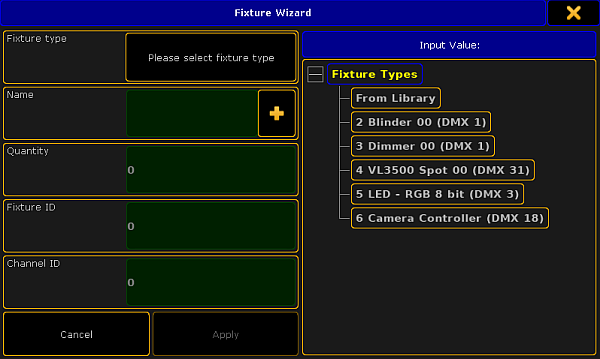 *Fixture Wizard* This pop-up is also divided into a left and right side. The left side is all the fields we need to fill out for the grandMA2 to add and be able to use the fixture. The right side is an area that changes depending on what input field you currently have selected on the left side. The first thing you need to select is what fixture type you want to add to your show. To make sure you are working with the correct input field, please tap where it says Please select fixturetype. The right side now shows you a three structure with minimum two objects: “From Library” and “Dimmer 00 (DMX1)”. The general idea is that the console have a large library of fixture types. You then import a fixture type into the show file. That is a copy from the library. It can then be modify this copied fixture type in your show file without it affecting the original fixture type in the library. You can of course export the fixture type from your show file back into library if you think you need the modified fixture type again in a different show file. The library does not have to be the one in the console - it can be a library on a USB stick. As a default you will always have the standard “Dimmer” fixture type imported when you create a new show. If this is all you need please jump directly to [Using the Fixture Wizard - Part 2](#fixture_wizard_part_2). Keep reading if you need to add other fixture types. ## Importing a fixture type from the library [Section titled “Importing a fixture type from the library”](#importing-a-fixture-type-from-the-library) When you tap the From Library button you get the **Import Fixture Type** pop-up. It looks like this: 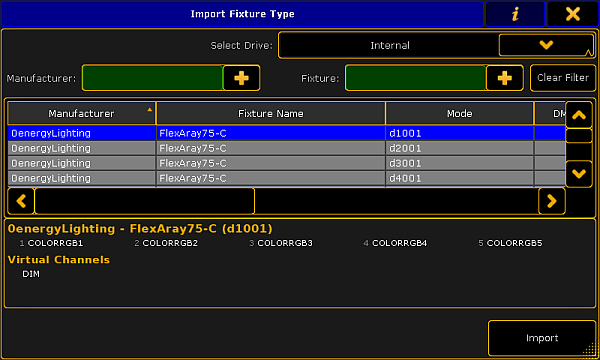 *Import Fixture Type* The library is basically one big long list of fixture types. This list can sorted and it can be filtered by manufacturer and/or fixture name. At the top of the list you can select what library you are using - it is the “Select Drive” drop down. For the grandMA2 to be able to see the fixture types they need to be in the correct folder. If you insert a USB stick and open the [Backup menu,](/grandma2/key_backup_menu/) then it automatically create the folder structure needed. Fixture types need to be in the folder called “library”. This folder need to be inside a folder called “gma2”. 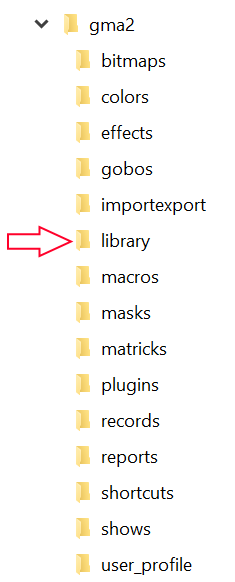 *USB file structure* When you have selected the drive then you will see all the fixture types in one list. The two green input fields are the two filters that you can apply. These can be used to filter on a manufacturer name and/or the name of the fixture. It is a good idea that you might type (some part of) the manufacturer name. You do not need to write the entire name, just a unique part of it. If for instance you want to find a fixture from Clay Paky, you only need to write “clay” or “paky”. Now the list only shows Clay Paky fixtures. The filter will show all manufacturers with the letters you write, in any part of their name. So if you write “ma” then you get a long list. The first manufacturer might be “Altman” - the letters “ma” are in it. Uppercase letters are not distinguished. Same goes for the fixture filter. This filters on the fixture name. Try not to be more specific then you need to be. If you are looking for a Clay Paky Alpha Spot QWO 800, they you just need a manufacturer filter “clay” and a fixture filter “qwo”. Since no one else currently have a fixture with “qwo” in the fixture name, we do not really need the manufacturer filter. On the right side of the two filters you will find a Clear Filter button. This will remove any input you have typed in your filters. Below the filters you have the list of fixtures. There are several columns in this list: * **Manufacturer:**\ This is the name of the manufacturer of the fixture. * **Fixture Name:**\ This is the name of the fixture. * **Mode:**\ Many fixtures have several different modes. This can be a way a LED bar might be separated into different sections or different operational modes in a moving head. If a fixture types doesn’t have a mode then it often have a “00” mode. The default Dimmer fixture type is an example of this. * **DMX Footprint:**\ Close connected to the Mode is the amount of DMX channels a fixture uses. * **Instances:**\ Some fixtures might be separated into different sections called Instances. This could be a LED bar with six individually controllable sections. It can also be a fixture like the Martin Aura where the fixture have two different color systems in the same moving head. * **Info:**\ Here you can see any relevant info text. * **Filename:**\ This is the actual name of the fixture type file. * **Filedate:**\ This is the date the file was saved. * **FileSize:**\ This is the size of the fixture type file. You can choose the display information about the DMX channels below the list. If you tap the  in the title bar then you will see the list of DMX channels and what function they have. When you have found the fixture you need to tap it in the list and the tap the Import button in the lower right corner. If you do not want to import any fixture type anyway, then you can close the pop-up by tapping the X in the upper right corner. ## []()Using the Fixture wizard - Part 2 [Section titled “Using the Fixture wizard - Part 2”](#using-the-fixture-wizard---part-2) If you have just imported a fixture type then this is automatically selected. If you have not, then you need to tap the, already imported, fixture type you want to add. Now the cursor jumps to the **Quantity** input field. This is where you set the amount of fixtures you want to add. You can see the top two input fields are the fixture type you selected and the second is the **Name** of the fixture. The suggested name comes from the fixture type definition. And it adds a space and a number (1) to the name. The result of this added space and number is that all the fixtures added will be enumerated from this number. You can of course change the name. After you have typed the quantity. You need to type the ID numbers. There are two types of ID number: The **Fixture ID** and the **Channel ID**. To use the fixture you need to give it at least one of the ID numbers. You can give it both a Fixture ID and Channel ID. It can be the same number but it does not have to be the same. The difference between the two are whether or not the fixture is visible in the Channel Sheet and the Fixture Sheet. A fixture with a Fixture ID is visible in the Fixture Sheet (This sheet displays all attributes for the fixture). A fixture with a Channel ID is visible in the Channel Sheet (This sheet only shows the Dimmer attributes for the fixture). The console also have a default beginning keyword. This is usually “Fixture” or “Channel”. This is what the console assume you are addressing if you do not specify something else. You can see it in your command line. It could look like these two examples: \[Channel]> \[Fixture]> **Hint:**\ If you want to change what the default keyword is, then you can press the key followed by Please. If you do not want to give the fixtures an ID number then you need to type “0” in the input field. But remember that you need to give them at least one ID number to be able to select and control them. Depending on what fixture type you have selected, you might have up to 8 different [Patch Breaks](/grandma2/key_patch_dmx_break/). Most fixture only need one, but some multi instance fixtures needs several DMX start addresses. You can type in the DMX address using the following pattern \[Universe].\[DMX address] - so if you need the fixture to have start address 1 in universe 2, then you need to write 2.1 You can also choose to type the absolute DMX address. In the same example as above you could also type 513 - this is because there are 512 possible DMX addresses in one universe, so the first number in the second universe will be 513. If you do not want to give the fixtures a DMX address now, then you can type “0” (zero) in the Patch Break. When you are happy with your input then you can tap the Apply button. This takes you back to the EditSetup menu. ## []()A closer look at the fixture list [Section titled “A closer look at the fixture list”](#a-closer-look-at-the-fixture-list) When you have added fixtures using the Fixture Wizard and tapped Apply, then you are back in the EditSetup. Here you can see the fixture you have added in the fixture list (right side of the screen). The fixture list shows us a lot of information and we can edit almost all of it. The following is a short description of the columns in the list. **FixID:**\ This is the Fixture ID number. If the fixture does not have an ID the there is a ”-” instead of the number. **ChaID:**\ This is the Channel ID number. If the fixture does not have an ID the there is a ”-” instead of the number. **Name:**\ This is the name if the fixture. Remember that if you are naming multiple fixtures at once, then you can add a space and a number to automatically enumerate the fixtures from that number. **Fixture Type:**\ This is the fixture type. If you edit this then you will get the Select Fixture type pop-up. It could look like this: 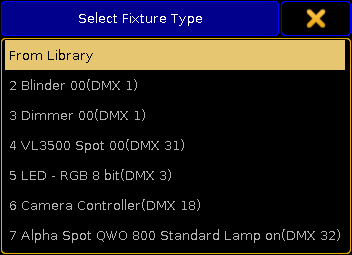 *Select Fixture Type* Here you can select an existing fixture type or you can import a new one (From Library). If you change the Fixture Type for an already used fixture then you are asked how colors should be transformed: 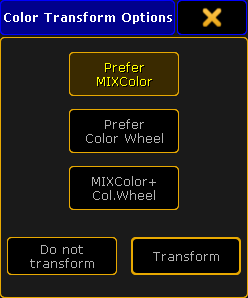 *Color Transform Options* Here are three buttons that selects how the colors should be transformed from one fixture to the other. The three options are: * **Prefer MIXColor:**\ This will prefer MIXColor and set all color wheels to open white. * **Prefer Color Wheel:**\ This will prefer the color wheels and set all MIXColors to open white. * **MIXColor + Col.Wheel:**\ This will do a combination of both MIXColors and color wheels. When you have selected the options you like then you can tap the Transform button or you can choose to not transform the colors by tapping the Do not transform button. []()**Patch:** This is the patch address of the fixture. If a fixture is unpatched then there is a ”(-)” here. Editing the patch cell opens the DMX Patch window. [Read below for more info on this](#dmx_patch_window). There are two ways you can have the patch address displayed. Below the list is a button called “Patch Readout”. This button has two different modes: “Univ.Address” or “Abs. Address”. The first one (Universe) will separate the DMX address into universes. First number is the universe, second number is the DMX address. They are separated by a dot. The other option (Absolute) will add the address and only display one number. So the first DMX address in the second universe will be displayed as “513”. This can be useful with equipment that are subsequently patched. For instance some network dimmer systems are patched using a single absolute DMX number for the address. The readout is a User setting and can also be changed in Setup -> User -> Settings. Here it is called “Patch Column Readout is absolute DMX address” and it is an On/Off setting. **React to Master:** This is “On” as a default. When it is on then the dimmer attribute of the fixture will be affected by the Grand Master, Group Masters and Solo. Turning this off makes sure the intensity is not affect by any such masters. This is great for power relays, blue lights and other stuff you do not want to accidently turn down. **Pan DMX Invert:** When this is “On”, then the console inverts the DMX values on the Pan attribute. **Tilt DMX Invert:** When this is “On”, then the console inverts the DMX values on the Tilt attribute. **Pan Enc. (Encoder) Invert:** This will invert the direction of the Pan movement when using the encoders. This will make it easier to match the 3D and real world pan movement with the encoder rotation. **Tilt Enc. (Encoder) Invert:** This will invert the direction of the Tilt movement when using the encoders. This will make it easier to match the 3D and real world tilt movement with the encoder rotation. **Pan Offset:** This can be used to offset the programmed Pan values. This can be very useful if the show has been preprogrammed or it is a touring show, and the fixtures are not hung the way they were planned to be. The offset value is not visible in the Fixture Sheet, but it can be seen in the DMX Sheet. It is a nice function as long the fixtures do not come all the way out to their endpoints in the programming. The number entered here is a degree number and can be a negative value. **Important:**\ The Pan and Tilt Offset values can also be edited with live output to the fixtures. This can be done in the [Live patching](/grandma2/key_patch_livepatch/), when editing fixtures, or via command line. When this is done for several hundred fixtures at the same time, then this information is distributed live to all stations and NPUs in the session and this is distributed with a small delay in the system. A progress bar is displayed. Please wait until the distribution is done before continuing working. If this is done live for a small group of fixtures, then there should be no delay. If the value is changed in the EditSetup then the values are updated with the show upload. **Tilt Offset:** This can be used to offset the programmed Tilt values. This can be very useful if the show has been preprogrammed or it is a touring show, and the fixtures are not hung the way they were planned to be. The offset value is not visible in the Fixture Sheet, but it can be seen in the DMX Sheet. It is a nice function as long the fixtures do not come all the way out to their endpoints in the programming. The number entered here is a degree number and can be a negative value. **Swap:** This will swap the Pan and Tilt DMX output. **Bitmap Disable:** Turning this “On” will exclude this fixture from being affected by any Bitmap Fixtures. **Color:** Here you can add a color to the light from your fixture. This is nice for dimmers, but does not make sense for any fixture with a color mixing system. It is like placing a color gel in front of the fixture. This color is visible in the Stage view, Layout view, the MA 3D and can be visible in Fixture and Channel Sheets. Editing this cell opens the Select Color pop-up: 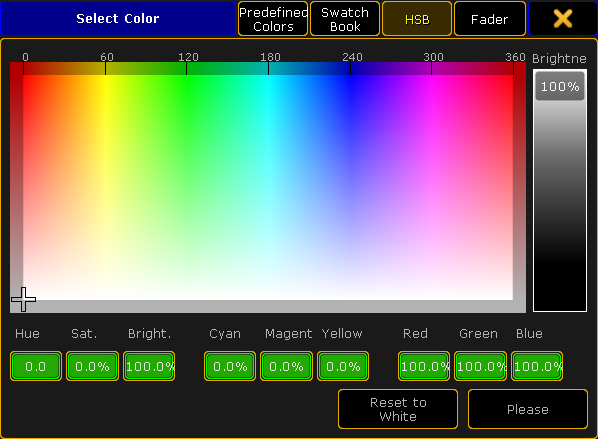 *Select color* Here you can use what ever method you like to select the color and tap Please when you are happy or you could tap Reset to White if you do not want any color. **Pos X, Pos Y, Pos Z:** This the XYZ position of the fixture in the 3D space. Read more about positioning fixtures in the [Position fixtures in the 3D stage topic](/grandma2/key_patch_position_fixtures/). **Rot X, Rot Y, Rot Z:** This the XYZ rotation of the fixture in the 3D space. Read more about positioning fixtures in the [Position fixtures in the 3D stage topic](/grandma2/key_patch_position_fixtures/). **No Parameter:** This is for use with MA VPU (= video processing unit) pixel mapping. If this column is set to “Yes”, all the programming for this fixture **is lost**, it does not consume any parameters any more in the grandMA2 and the MA VPU will send out the default values defined in the fixture profile additional to the Color RGB 1-3 values. **The idea:** if this flag has been set (No Parameter), the fixtures can still be selected, but only controlled by the MA VPU, not the console. Additionally the set default values for this fixture are transmitted. These values can be changed (for example Dimmer to 100%) in the grandMA2 / Patch & Fixture Schedule / Fixture Types. **RDM ID:** This will display the RDM ID of the fixture when it matched in the [RDM Devices](/grandma2/key_rdm_match/). This was all the different columns in the Fixture list. ## []()The DMX Patch pop-up [Section titled “The DMX Patch pop-up”](#the-dmx-patch-pop-up) When you edit one or several patch address in the fixture list, then the DMX Patch pop-up. It could look like this: 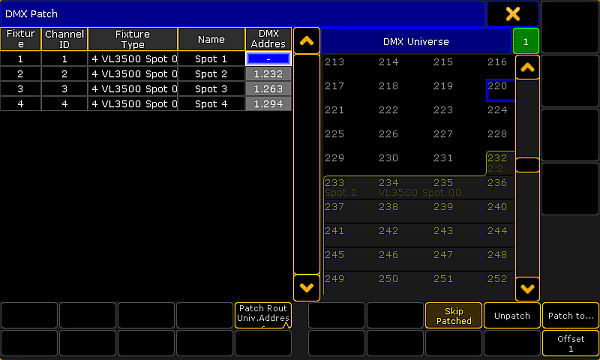 *DMX Patch* Again a window that is divided into two sides. The left side is the fixture you chose to edit. In the picture above it is four spots that was selected and the patch fields where edited. The right side displays the DMX universe and the DMX addresses. The Encoder Toolbar have changed to allow you to select a DMX address and actually text the DMX channel. At the bottom there is several buttons. ### The left side [Section titled “The left side”](#the-left-side) The left side shows you the fixtures. You can see the ID numbers, Fixture Type, Name and current DMX Address. If it is unpatched then there is a ”-” instead of a number. Below the fixtures you have a button to change if you want the DMX address to be written in Universe or Absolute readout ([follow this link to read details further up on this page](#readout_mode)). The fixtures here are the ones you selected before editing the patch. The only thing we can change here is the DMX address. The pop-up might close when you have given all your fixtures a DMX address. The workflow is that you select the”DMX Address” cell for the fixtures you want to give a new patch so the field is blue. Then you can use the right side to find the DMX address. ### The right side [Section titled “The right side”](#the-right-side) The right side shows you the DMX addresses in the selected universe. On the top right side (just below the yellow “X”) you will find a green input field. This shows you the currently selected universe. If you tap it then you can use the calculator to change the universe. Any DMX addresses that have something patched will have a frame around them. Inside the frame you will see the Fixture ID and Channel ID and maybe the fixture name (if the space allows it). Below the list of DMX addresses you have a button called **Skip Patched**. If this is active then you cannot select already patched DMX addresses. You are only allowed to select empty one. You can scroll the list using the vertical scroll bar or the encoder (read more about that below). When you have found the address you want, then you can tap it and this will assign it to the selected fixture (on the left side). If you have more than one fixture selected, then you will automatically patch all the fixtures starting from the address you selected - There might be a gap between them (see “Offset” below). There are three other buttons below the right side: * **Unpatch:**\ Tapping this button will remove any patch information from the selected fixtures. * **Patch to…:**\ You can tap this button if you know what DMX address your fixture should have. * **Offset:**\ This button can be used to set an offset. Offsets are used when you patch more than one fixture at a time and you want to add a gap between the fixtures. The number you define by tapping the button needs to be bigger, than the amount of DMX channels the fixture uses. If the number is lower than the amount of channels used, then the fixtures will be patched as close as possible. For example if you patch some fixtures that uses 12 DMX channel and you patch then from address 1 with the Offset at 20, then the fixtures will be patched at address 1, 21, 41, 61, and so on. ### The encoders [Section titled “The encoders”](#the-encoders) The Encoder Toolbar have changed when you enter the DMX Patch window. It could look like this:  *The DMX Patch Encoder Toolbar* The four encoders can be used to help you patch fixtures. The left encoder is used to select the fixtures - if you have selected more than one fixture going into the DMX patch window. The left center encoder is used to select the Universe. The right center encoder is used to select or scroll through the DMX addresses. The right encoder is a DMX tester. It can be used to test the DMX address. You can turn it to output a DMX value on the selected address. There is a button used to toggle between percent (0-100) or decimal (0-255) scale. This function is especially nice with dimmers and fixtures where the first channel is the dimmer. *** ## []()The Diagnostics [Section titled “The Diagnostics”](#the-diagnostics) At the bottom of the EditSetup menu, you will find a button called “Diagnostic”. You will find this button on other menus and windows as well. This opens the Diagnostic pop-up. It could look like this: 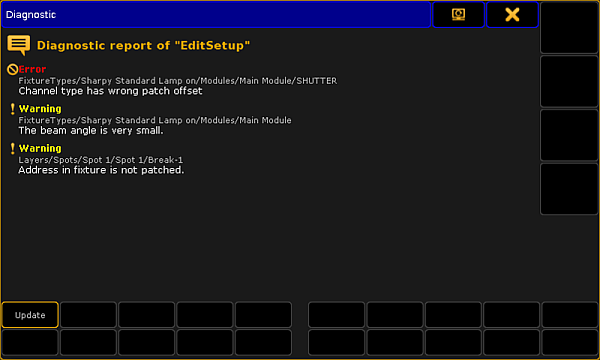 *Diagnostic* There are two types of messages: Errors and Warnings. Errors are more severe than warnings, but none of them prevents you from leaving the setup. The warnings and errors explain the problem. The warning might not be a problem at all. Often a narrow beam fixture, might be reported as a warning even though it is not a problem (The beam angle is very small). There is only one button for this pop-up. The “Update” button runs the diagnostics again and check if there are still warnings and errors. *** ### []()Leaving the Setup and save your changes [Section titled “Leaving the Setup and save your changes”](#leaving-the-setup-and-save-your-changes) When you are happy with your added fixtures, then you can leave the setup and save the changes. You do this by closing the EditSetup menu by tapping the yellow “X” in the upper right corner. This gives you a pop-up warning asking you what to do. There are always three options and if the Diagnostics got warnings or error then you have four options. It could look like this:  *Leaving Setup warning* * **Yes:**\ This will close the EditSetup and save your changes. * **No:**\ This will trough away what you have changed and keep the old settings. * **Cancel:**\ This will cancel the exit and you are returned to the EditSetup. * **Open Diagnostic and Cancel:**\ This will cancel the exit and return you to the Diagnostics pop-up. If you tap yes and you have made changes, then your console will upload the changes to the system. This is called a “show upload”. **Important:**\ The system will stop all DMX output while the show upload is running. ## Further readings [Section titled “Further readings”](#further-readings) [Fixture types](/grandma2/key_basic_fixture/) [Fixture position](/grandma2/key_patch_position_fixtures/) [DMX profiles](/grandma2/key_dmx_profiles/) [DMX List](/grandma2/key_patch_dmx_parameter_list/) [Live patching](/grandma2/key_patch_livepatch/) [Multipatch](/grandma2/key_patch_multipatch/) [Export/Import](/grandma2/key_export_and_import/) [Layers](/grandma2/key_patch_layers/) [RDM devices](/grandma2/key_rdm/)
# Attributes
> Attributes are the different functions in a fixture.
Attributes are the different functions in a fixture. It might just be a dimmer that uses 1 DMX channel, but can be something more complex like the Pan function that often use 2 DMX channels. In the grandMA2 it is just 1 Attribute no matter if it uses 1, 2 or 3 DMX channels. Attributes are organized in the grandMA2 into a structure. The top level of this structure are called **Preset Type** - This could be something like “Gobo”. In the Preset types there’s a new level called Feature - a Feature could be something like “Gobo Wheel 1”. In Features we find the **Attributes** - this is the specific function where you can select what gobo the fixture should project. There’s also something below an Attribute called **Subattributes** - this could be a function of the gobo wheel, like half of the DMX range is select a gobo and the other half is continues wheel rotation. The grandMA2 have a lot of predefined attributes. You can make your own and you can edit the ones that are there. For more details about all this please have a look at [What are attributes, features & preset types](/grandma2/key_basic_fixture_attribute_feature_preset/) under the [Basic Fixture types](/grandma2/key_basic_fixture/) topic.
# Auto calibrate fixture positions
> The Auto-calibration is a system where the software positions moving light fixtures based on four makers on the real floor. This can work, but you and the fixtu
The Auto-calibration is a system where the software positions moving light fixtures based on four makers on the real floor. This can work, but you and the fixtures needs to be precise. One of the big advantages with having a precise position and rotation of your moving lights is the option to use XYZ position programming. You can access this system using a [Stage View](/grandma2/key_patch_stage/) and opening the **Stage View Options**. Here is a tab called “Calibration”. In this tab you will find a single button called Calibrate Fixture Pos. Tapping this will open the Calibration pop-up. It could look like this: 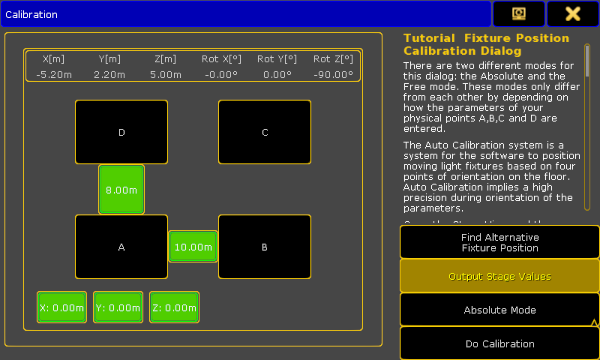 *Calibration pop-up - Absolute Mode* This is separated into a left and a right side. The left side is used to define the markers on the floor. The right side has short description of the workflow in this view. There are also four buttons used to control the calibration function. The first button is called **Find Alternative Fixture Position**. This can be used to change the rotation and/or position of the selected fixtures. The fixtures might move or rotate. It still points to the same spot in the 3D space, but use a different set of values for the fixture rotation and position. When the **Output Stage Values** button is active, then the currently selected fixtures will output the Stage values. Stage values can be edited in the [Parameter List](/grandma2/key_patch_dmx_parameter_list/#parameter_list), Fixture Types editor and in the Fixture editor. You can use two different modes for the calibration process. One is called **Absolute Mode** and the other is **Free Mode**. You can change between the two modes by tapping the Mode button on the right side of the pop-up. The difference is in the left side of the pop-up. The Free Mode could look like this:  *Calibration pop-up - Free Mode* The last button on the right side is the “Do calibrate” button. This is the one you press when you are ready for the automatic calibration. The left side is used to define the positions of the markers on your floor. At the top you will see the current position and rotation of the last fixture you selected. For the calibration you will need to mark the corners of a rectangle on your real stage - point A, B, C and D. And you need to tell the software where your rectangle is. If your rectangle is at a level plane of your stage, you can use the Absolute mode. If the rectangle needs to be on a sloping part of your stage then you need to use the Free mode. Each fixture can have its own rectangle but they can also share the same rectangle. If there is an **\*** symbol next to the A, B, C, or D then your selected fixtures do not share the same rectangle. In **Absolute mode** you define the X, Y and Z position of corner A and then you specify the distance from corner A to corner B and corner D. This will give you a rectangle. In **Free mode** you define the X, Y and Z position of three corners (A, B and C). This allows you to create a rectangle on a sloped plane. When you have selected one or more fixtures and created a rectangle in this pop-up you will see the markers it in the Stage view. ## Calibrating fixtures for the first time [Section titled “Calibrating fixtures for the first time”](#calibrating-fixtures-for-the-first-time) These are the steps needed to calibrate fixtures for the first time (sharing the same rectangle): 1. Create the markers/rectangle on the floor. 2. Patch the fixture(s) and **do not** switch on the XYZ support. 3. Setup the approximate XYZ positions for your fixtures. If you do not know how then you can read about it in the [Position fixtures in the 3D stage topic](/grandma2/key_patch_position_fixtures/). 4. Invert the Pan/Tilt channels to have the right movement in your Stage view and the real world. 5. Store 4 Pan/Tilt position presets for the 4 corners A, B, C and D for your real rectangle. (Here you can use the Stage View with Follow to get the positions a bit quicker than only with the Pan/Tilt encoders). 6. Open this calibration pop-up in the Stage View Options. 7. Put in the dimensions for the rectangle. 8. Call the Pan/Tilt preset A in your programmer, with all fixtures selected, and now press Store key and the A button on the calibration pop-up. 9. Repeat the procedure for corner B, C and D - pressing the respective buttons in the view. 10. Now select all fixtures and tap the Do Calibration button in the pop-up. 11. If you want to use XYZ positions programming, you can now go to the Fixture Type in the Setup and switch on the XYZ support. Now the fixtures are moved and rotated in the Stage View. If it look really weird, please try the calibration process again - maybe with a flipped set of values. Now you can use the XYZ encoders to store positions in your cues. ## Re-calibrating fixtures after the initial setup [Section titled “Re-calibrating fixtures after the initial setup”](#re-calibrating-fixtures-after-the-initial-setup) These are the steps needed to re-calibrate fixtures if they have moved position: 1. Open the Calibration pop-up from the Stage View Options. 2. Select the fixtures and bring up the dimmer channels or use Highlight. 3. Push the A button in the Calibration pop-up. 4. The position mode of the fixture will switch to Pan/Tilt and you can correct the positions for the fixtures. In this case do not use the “Follow” in the stage view because it automatically switch the position mode to XYZ. **Restriction:**\ You cannot store XYZ values on the A, B, C and D corners! 5. With the new Pan/Tilt values, press the Store key and overwrite the corner A. 6. Repeat the procedure for corner B, C and D. 7. Now select all (relevant) fixtures and push the Do Calibration button in the pop-up. All XYZ values in your show are now updated! ## Some rules and limitations [Section titled “Some rules and limitations”](#some-rules-and-limitations) There are some rules and limitations using XYZ position programming: * XYZ, Flip, Mark, and Dist. (Distance) are 6 parameters more you need per fixture. * Distance is used for conversion between XYZ and Pan/Tilt values. Do not delete it! * You cannot Park the new virtual XYZ, Flip, Mark, and Distance parameters. * After the calibration and programming do not invert the DMX Pan or Tilt attributes. * After the calibration and programming do not move the fixture position and rotation in the Stage View. * If your fixture positions are accurate made in the Stage View and you do not want to lose them, then you can use the Follow to use the XYZ parameters. * To fade fixture positions on the stage in a straight line between point A and B you need the XYZ parameters. * Do not unblock sequences containing a mixture of XYZ and Pan/Tilt position data and do not “store /remove” or remove values to remove single attributes of the position preset type of cues when using XYZ. This could result in unexpected loss of position data inside your sequence.
# Virtual 3D cameras
> In the Stage View topic we looked at the virtual 3D stage. It was mentioned that we are actually looking at the stage through virtual cameras.
In the Stage View topic we looked at the virtual 3D stage. It was mentioned that we are actually looking at the stage through virtual cameras. If there was no cameras then you cannot see the stage. The cameras are located in the Camera Pool. You can create a camera pool on your screens using the **Create Basic Window** pop-up. It is described in the [Manages windows topic](/grandma2/key_windows/). It is a pool. To learn general thing about the pools please read the [Pools in General section](/grandma2/key_pools/). The Camera pool could look like this:  *Camera Pool - pool style* If you change the pool to be in sheet style (in the pool options) it could look like this:  *Camera Pool - Sheet Style* Each of the cameras in your show file is represented by a pool object. There is always a **selected** camera. It is the one that have the green background color behind the name when in pool view and green background on the number when in sheet mode. Stage view and MA 3D can reference the selected camera. This means that you can change what camera you are looking through for many screens simply by tapping or clicking a different camera in this pool. ## Cameras controlled by a fixture [Section titled “Cameras controlled by a fixture”](#cameras-controlled-by-a-fixture) A camera can be linked to a special MA camera controller fixture. You will need to add this camera controller fixture to your fixture setup - read about it in the [Adding fixtures to your show topic](/grandma2/key_patch_add_fixtures/). When you have the fixture then you can link the camera with the controller fixture. When a camera is linked, then you can see the link icon in the upper right corner of the camera pool button and in the top half you will see the Fixture ID of the controller. When a camera is linked, then you cannot control it manually. You can use the same camera controller to control more than one camera. Then you can use the camera position values (read more below) to create an offset between the different cameras. Read below to learn how to link the two objects. ## Editing a camera [Section titled “Editing a camera”](#editing-a-camera) If you edit (right-click with mouse or press Edit followed by the object) a camera pool object, then you get the a window with all the options for a camera. It could look like this:  *Camera pool - Edit a camera.* Here you can see the different settings for the camera. In the title bar you will find two buttons that allows you fast access to the previous and next camera. There is also the button to move the editor to a different screen and the close editor X. Each cameras settings are displayed as a sheet with columns. The following is a description of each column: * **No.:**\ This is the camera number. You cannot edit this value, but you can of course move the camera in the pool. * **Name:**\ This is the name of the camera. * **X, Y, Z:**\ These three columns is the position of the camera in the 3D space. * **Rot. X, Rot. Y, Rot. Z:**\ These three columns are the rotation of the camera. * **FOV:**\ This is the cameras field of view. * **Step Through:**\ Turning off Step Through will exclude this camera from the cameras you can step through in the stage view and MA 3D by pressing the space bar. * **Fixture:**\ This is where you can assign a camera controller fixture to the camera. Editing this cell will open the small Select Camera Fixture Controller pop-up. It lists the available controller fixtures. It could look like this: 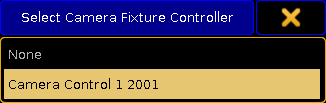 *Select Camera Fixture Controller pop-up* * **Info**:\ Here you can write any information you like.
# Delete fixtures from the show
> Quick steps:
**Quick steps:** 1. Press Setup and then Patch & Fixture Schedule. 2. Select the layer where the fixture is and select the fixture. 3. Tap the Delete Fixture button at the bottom and confirm the deletion. 4. Exit the EditSetup and tap Yes to confirm changes. This was the quick steps - Keep reading for more details. Deleting a fixture completely removes the fixture and the data associated with the fixture - all programming is lost for the fixture. If a fixture is unpatched then all data is still there and the fixture can be programmed, but it will not output anything since the system do not know where to send the data. If fixture ID numbers are removed, then the fixture does not go away and the programming is not lost. It cannot be selected or modified, but the data is still there. If the fixture was stored in groups then these group will get a little red marker. **The DMX data is still going to the output!** **Restriction:**\ It is not possible to Oops or undo the deletion and the data is gone! It is a good idea to save the show before deleting the fixtures. ## Deleting a fixture [Section titled “Deleting a fixture”](#deleting-a-fixture) It is all done from the setup. 1. Press the Setup key and then the Patch & Fixture Schedule button. The fixtures are organized in layers (or maybe just one layer) in the **EditSetup**. **Important:**\ For details about Layers please read the [Working with Layers](/grandma2/key_patch_layers/) topic.\ For details about the **EditSetup** menu please read the [Adding fixtures to your show](/grandma2/key_patch_add_fixtures/) topic. 2. Select the layer that have the fixture that needs to be deleted. 3. Select the fixture in the list. 4. Tap the Delete Fixture button at the bottom. If this window is on screen 1 and the console is a grandMA2 full-size or grandMA2 light, then it might also be possible to press the X13 key. A confirmation pop-up appears: 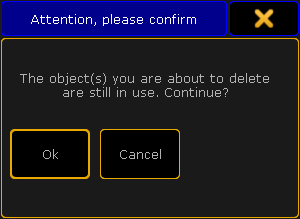 *Attention pop-up - Deleting an object in use* 5. Tap Ok to confirm deletion of the fixture. Tapping Cancel will cancel the deletion.\ When the fixtures are deleted then exit the EditSetup.\ A new pop-up asks if the changes should be saved to the active setup. 6. Tap Yes to confirm the changes and leave the EditSetup (No to discard any changes, Cancel to stay in the EditSetup). Read more details about the Warning pop-up at the end of the [Adding fixtures to the show](/grandma2/key_patch_add_fixtures/) topic. That was it for deleting a fixture. There is no easy way to delete the fixture using the command line or hard keys. Pressing Delete Fixture 1 0 1 Please, only unpatches fixture 101 - it will not be deleted.
# DMX break
> DMX breaks is a term used when a fixture needs more than one DMX start address.
DMX breaks is a term used when a fixture needs more than one DMX start address. It has nothing to do with how many address a fixture uses, just if it needs more than one start address. For example some fixtures have moved the dimmer out of the moving head. So the moving head needs to have one DMX address and the lamp inside is connected to an external dimmer in a rack in Dimmer City. The rack mounted dimmer have a different DMX address (might even be a different universe). In the grandMA2 we only look at this fixture as one device. It only have on ID number. To make this possible we have a fixture that uses two DMX breaks. We have broken the DMX range into two parts. There can be many examples of combining several devices and wanting to just use one ID number. It could be a color scroller and a mechanical dimmer unit on a big HMI fresnell with a DMX controlled ballast. So three separate units that each need a DMX address but we want to handle all of them using just one ID number. The grandMA2 can handle fixtures with up to 8 DMX breaks. Each DMX break have their own input field in the Fixture Wizard and their own column in the patch windows. It might be combined into one column in the Fixture Schedule. 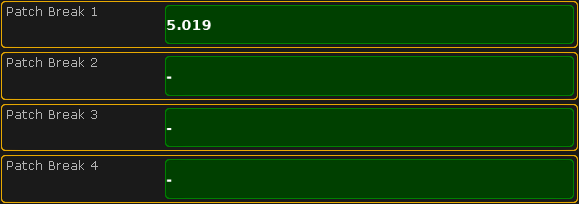 *DMX Break in the Fixture Wizard*  *DMX break in the Fixture Schedule window*  *DMX break in the DMX patch window*
# DMX and parameter lists
> In this topic we are going to have a look at two list that is available from the Live Setup menu.
In this topic we are going to have a look at two list that is available from the [Live Setup menu](/grandma2/key_patch_livepatch/). You can open these list by pressing the Setup key and then tap Patch Only (Live). ## []()DMX List [Section titled “DMX List”](#dmx-list) When you are in the Live Setup, then you can see a button on the right side called DMX List. If your menu is on screen 1 then you can press the U4 key or you can simply tap the DMX List button on the screen - even when the menu is on other screens. This is what it could look like: 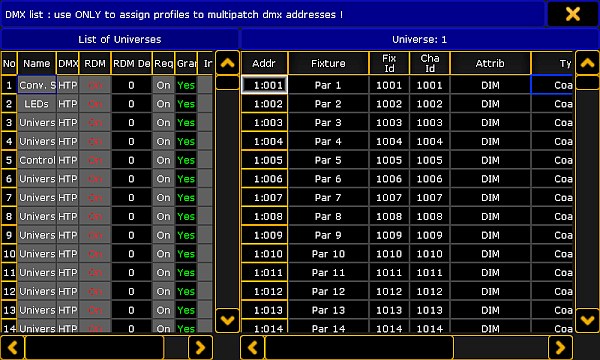 *DMX List* The DMX List is separated into two sides. The left side lists all the universes and the property for each universe. The right side displays all the DMX addresses in the, on the left side, selected universe. You can see what is patched to each address and you can assign a DMX profile to the DMX address. It only displays information for you. You cannot change anything except the DMX profile. Editing the DMX Profile cells will give you a small select pop-up with all the available DMX Profiles. Read more about DMX profiles following [this link](/grandma2/key_dmx_profiles/). The left side has a lot of columns and many of them can be edited - everything with a gray background can be changed. The following is a short description of each column on the left side: **Number:** This is the universe number. You cannot change this value. **Name:** This is the name of the DMX universe. Here you can write a name that makes it easy for you to identify what the universe is used for. **DMX In Merge:** Editing cells in this column gives you the following small select pop-up:  *Small Select pop-up - Select DMX In Merge* Here you have three options: **Off**, **HTP**, and **LoTP**. * **Off** - means that any incoming DMX is not merged into the universe. * **HTP** - is the default. HTP means that incoming DMX is merged with the DMX from the console and the highest DMX value is sent to the output. * **LoTP** - means that incoming DMX is merged with the DMX from the console and the lowest DMX value is sent to the output. **RDM:** Here you can turn RDM functionality On or Off for the DMX universe. Read more about [RDM here](/grandma2/key_rdm/). **RDM Devices:** This is the number of RDM devices discovered in the DMX universe. **Requested:** Here you can see what universes you have requested to control. You can turn On or Off (the cell is empty if it is Off) the output of the universe. **Granted:** Here you can see if the universe is granted. A universe can end up not being granted if you do not have enough parameters. The console will grant parameters to as many universes as possible starting with number 1. If you do not request a universe then it will not be granted. **Info:** Here you can write an info about the universe. The changes you make here are made immediately. That was the DMX List. *** ## []()Parameter List [Section titled “Parameter List”](#parameter-list) When you are in the Live Setup, then you can see a button on the bottom called Parameter List. If your menu is on screen 1 then you might be able to press the X16 key or you can simply tap the Parameter List button on the screen - even when the menu is on other screens. This is what it could look like: 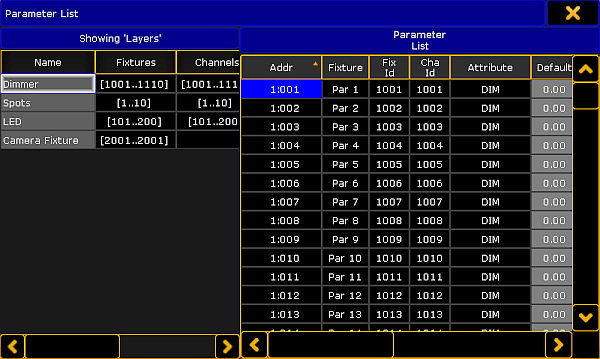 *Parameter List* Again a list that is divided into two sides. The left side displays the layers in your fixture schedule. The right side displays all the parameters in the (on the left side) selected layer. On the left side you can only change the name and information text to each layer. The right side has a lot more columns that you can edit. What you are editing here is connected to the parameter and follows it. So you can re-patch the fixture and the settings will follow. The columns can be sorted. So you can sort the list by ID number, name, address, attribute, and so on. The sorting can be both ascending and descending order. Next is a short description of each editable column. * **Default:**\ This is the default value for the parameter. * **Highlight:**\ This is the value that the parameter will get when you have activated the Highlight function. Many parameters (other than Dimmer) have a “None” value here. This means that the parameter will not be overwritten by the Highlight function. * **Stage:**\ The Stage value is used when you are in the [Auto-calibration of fixture position mode](/grandma2/key_patch_autocalibrate/). This is typically not defined (None value). * **Snap:**\ Here you can activate the Snap function for the parameter. Snap means that you cannot fade between values. The parameter will change to the new value defined by the “Snap Percent” in each cue. * **Invert:**\ Here you can invert the DMX output for the parameter. * **MIB disable:**\ Here you can turn off the MIB (Move In Black) functionality for the parameters. This might be a good idea for some scrollers. You set On, to disable MIB. * **Profile:**\ Here you can assign a DMX profile for the parameter. Editing the cell will open the Small Select DMX Profile pop-up. It will list all available DMX profiles. Read more about DMX profiles following [this link](/grandma2/key_dmx_profiles/). The changes you make here are executed immediately. You can change the same things by editing the fixture (Edit Fixture X).
# DMX sheet
> The DMX sheet is used to see the actual DMX output from the system. It shows the result from the executors, programmer, incoming merged DMX and any Masters that
The DMX sheet is used to see the actual DMX output from the system. It shows the result from the executors, programmer, incoming merged DMX and any Masters that might limit the output. The sheet can be created as a view on any empty space on you screens. Minimum size is 3 squares wide and 2 high. It could look like this:  *DMX Sheet window* The main part of this window displays a big grid with every DMX address, represented by its own cell. This makes it a very long list (all 256 universes are there). The DMX channel value is displayed in this cell. The gray vertical bar on the left side displays the DMX address of the first column - there are two ways to see the DMX address: Absolute DMX address and the normal Universe divided. This can be changed in the Options (read below). The absolute address mode will display the DMX addresses as a continuous number. This means that the first address in the second universe will not be written as “2:1” but as “513” (512 addresses from the first universe + 1 from the second). The top black bar displays the column number. The grid is a matrix, so the column number should be added to the address displayed in the gray vertical bar (except the first column). Fixtures can be selected using a DMX address by pressing the Select key twice and then the DMX address in the sheet - Have a look at the [DMX keyword](/grandma2/key_keyword_dmx/). The Assign key can be used in combination with the sheet to patch fixtures - please have a look at the [Live patching](/grandma2/key_patch_livepatch/) topic. Each fixture have a frame around the DMX channels it uses. If the fixture is selected, then the frame is yellow. Non selected fixtures will have a gray frame.  *DMX Sheet detail* If a DMX channel is parked then there is a blue square in the cell. If there is a white or yellow square then the DMX address is under influence of the [DMX Tester](/grandma2/key_patch_dmx_testing/). If the cursor is moved to a cell then the information about the cell is displayed in a green line text at the bottom of the window. The look of the sheet can be modified including what information it displays. This is controlled by the Sheet Options. Some options can be in the Title Bar as title buttons. This gives fast access to these options. ## DMX Sheet Options [Section titled “DMX Sheet Options”](#dmx-sheet-options) The options can be opened by tapping the yellow ball in the upper left corner. The options are all described in the [Sheet Options topics](/grandma2/key_of_sheet_options/).
# DMX testing
> You can send DMX values to any DMX address. This can be a great tool for you to locate the address of a fixture or even to just turn on a DMX address for work l
You can send DMX values to any DMX address. This can be a great tool for you to locate the address of a fixture or even to just turn on a DMX address for work light. The DMX tester have a higher priority than your programmer, executors, and parked values. A DMX address under the influence of the DMX tester has a white background color behind the value and a white marker. The currently selected DMX address also has a yellow marker. It could look like this: 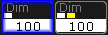 *DMX addresses turned on by the DMX tester* As usual there are several ways to use the DMX tester. ## Using the DMX tester with the GUI [Section titled “Using the DMX tester with the GUI”](#using-the-dmx-tester-with-the-gui) You can use the encoders and the encoder toolbar to test DMX channels. You’ll need to open a [DMX sheet](/grandma2/key_patch_dmx_sheet/) and make sure the “Link Encoders” option is activated. Now touch anywhere inside the sheet. This gives you a new encoder toolbar. It could look like this:  *Encoder Toolbar - DMX tester* The left encoder is used to select the Universe. There is a small button next to the encoder readout where you can change between **Universe** or **Absolute**. If you choose Absolute then you do not need to use this encoder. You can just use the center left encoder. The center left encoder is used to select the DMX address. The button next to the encoder readout has two options **Release** or **Retain**. Release means that when you scroll through the DMX address then it is only the selected channel that is affected by the DMX tester. Retain means that the addresses that you pass will keep the Test Output value when you select the next address. The center right encoder is used to set the Test Output. This is the value that will be sent to the selected DMX address. The button next to it is used to change between a percent (0 to 100) and decimal (0 to 255) value range. If you have not touched the encoder then it has a special “none” value. This means that you are not affecting the DMX address. You can actually also use the DMX tester to set a value of zero. This can be useful if for instance you want to force a rouge shutter channel to stay open. The easiest way to get to the “none” value is to shortly press or tap the encoder and use the Calculator pop-up. The right most encoder is used to patch a fixture to the selected DMX address. To learn more about this and live patching please [follow this link](/grandma2/key_patch_livepatch/). Above the encoder readout there are several buttons. The following is a short description of each button. **All / Patched / Unpatched:** This button toggles between three different options: All, Patched, and Unpatched. The selects what DMX address you are allowed to select and affect by the DMX tester. **Select All:** Tapping this button will select all the DMX addresses that you are affecting by the DMX tester. **Release Current:** This will release the currently selected DMX address from being affected by the DMX tester. **Release Others:** This will release all other DMX address but the currently selected DMX address from being affected by the DMX tester. **Release All:** This will release all DMX address from being affected by the DMX tester. **Park Current:** This can be used to park the currently selected DMX address at the current DMX value. Read more about the park function in the [Park Keyword](/grandma2/key_keyword_park/). **Unpark Current:** This can be used to unpark the currently selected DMX address. Read more about the unpark function in the [Unpark Keyword](/grandma2/key_keyword_unpark/). ## Using the DMX tester with the command line [Section titled “Using the DMX tester with the command line”](#using-the-dmx-tester-with-the-command-line) You can also do some DMX testing from the command line. To do this you need to use the [DMX keyword](/grandma2/key_keyword_dmx/). Please follow the link above to read details about the keyword. The general idea is that you type DMX \[address (range)] At \[Value (range)] This will set the DMX address at the value. To release a channel you type: Off DMX \[address (range)] to release a single address (range) from the DMX tester. Off DMX Thru Will release all DMX addresses.
# Working with layers
> All fixtures are organized in layers.
All fixtures are organized in layers. You can but all your fixtures in one layer or make a layer for each fixtures - it is all up to you. Usually people makes layers based on fixture types or locations. It is all handled from the EditSetup menu. Press Setup and then tap the Patch & Fixture Schedule button. The menu could look like this:  *EditSetup menu* The left side of this menu is the Layers. If you tap somewhere in the list then most the buttons below the list are referring to the layers. If you tap inside the list on the right side, then they refer to the fixtures (in the layers). ## Add Layer [Section titled “Add Layer”](#add-layer) Tapping this button will give you a new (empty) layer. When you make this layer then the console will open the Fixture Wizard (see Adding new fixtures to your show) to help you begin to add fixtures in the new layer. If you do not want to add new fixtures then you can simply close the wizard. ## Delete Layer [Section titled “Delete Layer”](#delete-layer) You can delete an entire Layer. This will delete all the fixtures in the layer and **the data will be lost!** **Restriction:**\ You can not oops or undo the deletion of layers or fixtures. Please save your show before deleting layers or fixture. ## Move Layer - Cut and Paste [Section titled “Move Layer - Cut and Paste”](#move-layer---cut-and-paste) You can rearrange your layers. This is done using the following steps: 1. Select the layer you want to move by tapping it on the screen. 2. Tap the Cut Layer button - this gives the layer a red background color. 3. Tap the layer where you want to insert the layer above. 4. Tap the Paste Layer button. You have now moved your layer to a new location. This does not affect your programming. It does not delete anything and does not add anything. ## Copy Layer - Copy and Paste [Section titled “Copy Layer - Copy and Paste”](#copy-layer---copy-and-paste) You can copy the structure of a layer. This means that you can copy all the fixtures that are in a layer. This include all information except the ID numbers and the Patch. These numbers are unique and cannot exist twice. **Restriction:**\ This does not copy your programming! The programming done on the fixtures in the source layer will not be copied with the layer. This is the steps for copying the layer: 1. Select the layer you want to copy by tapping it on the screen. 2. Tap the Copy Layer button. 3. Tap the layer where you want to insert the layer above. 4. Tap the Paste Layer button. Now you have a copy of the layer. ## Export Layer [Section titled “Export Layer”](#export-layer) You can export a layer (or even a fixture). This is meant for exporting the information about the structure. This can be used to document the setup and patch. Please have look at the [Export and Import](/grandma2/key_export_and_import/) topics. ## Move fixtures between layers [Section titled “Move fixtures between layers”](#move-fixtures-between-layers) You can move fixtures around in layers or even between different layers. This does not affect anything that might already be programmed with these fixture. This is the process: 1. Select the layer with the fixture you want to move. 2. Select the fixture. 3. Tap the Cut Fixture button. 4. Select the layer where you want to move the fixture to. 5. Tap the fixture where you want to insert the fixture above. 6. Tap the Paste Fixture button. When you are done working with your layers, please leave the **EditSetup** menu. Now you are asked if you want to save the changes you have made. Tap Yes to save. No to not save any changes and keep the fixture schedule as it was. Cancel to return to fixture schedule without saving.
# Live patching
> You can change the patch of fixtures without going into the full setup or "Edit Setup".
You can change the patch of fixtures without going into the full setup or “Edit Setup”. If you have not added any fixtures to your show yet, then you need to read the [Adding fixtures to your show](/grandma2/key_patch_add_fixtures/) topic. This is also a good idea to read if you are in doubt about anything described in this topic. The problem with the full access to the entire fixture schedule is that you might make structural changes to your show file. So when leaving the fixture schedule the console will do a show upload to all connected devices - this causes a stop in the DMX transmission while the upload is running. So, the thing that does not concern the fixture structure, can be changed without giving a show upload, this is called “Live editing/patching”. **Important:**\ Be aware that live editing a lot of fixtures at the same time might be distributed with a delay throughout all stations and NPUs in the session. For instance changing the pan or tilt offset for several hundred fixtures with one command will cause a delay in the distribution of the values. The real time DMX output has a higher priority and this needs to be calculated at the same time. If possible then only edit a small amount of fixtures at the same time or use the [EditSetup](/grandma2/key_patch_add_fixtures/) instead. ## Live patching using the Setup Menu [Section titled “Live patching using the Setup Menu”](#live-patching-using-the-setup-menu) You can access this in the Setup menu. Press the Setup key and then tap the Patch Only (Live) button. Then you get the LiveSetup menu. It could look like this:  *LiveSetup menu* This is very similar to the EditSetup menu (Long description in the [Adding fixtures to your show](/grandma2/key_patch_add_fixtures/) topic). Everything that has a gray background can be edited. Everything with a black background is locked and cannot be edited. Looking at the layers and their content, shows you what you can change “Live” - without causing a show upload. This includes the DMX address. ## Live patching using the Command Line [Section titled “Live patching using the Command Line”](#live-patching-using-the-command-line) If you are looking for multi patching then please read the [Multipatching](/grandma2/key_patch_multipatch/) topic. This is the process using the command line: \[Channel]> Assign Fixture \[Fixture-list] At DMX \[DMX-address] Assigning a list of fixtures (or just a single fixture) will remove all patch data from the fixtures and assign them DMX addresses beginning from the typed DMX address - without an Offset. You might get a warning pop-up telling you about any collisions. You can do the same with Channel IDs. You do not need to type the “At”. ### Examples: [Section titled “Examples:”](#examples) Patching fixture 101 at DMX address 2.1: \[Channel]> Assign Fixture 101 At DMX 2.1 Assigning fixture 101, 103, 105 DMX address beginning from address 5.61: \[Channel]> Assign Fixture 101 + 103 + 105 DMX 5.61 ## Live patching by editing the fixture [Section titled “Live patching by editing the fixture”](#live-patching-by-editing-the-fixture) If you edit the fixture then there is also have the possibility to change the DMX address. In the top part of the Edit pop-up you will find the fixture (and any multipatched fixtures) and there is a Patch column. Editing this values will change the address. ## Live patching using the DMX Sheet and the DMX Tester [Section titled “Live patching using the DMX Sheet and the DMX Tester”](#live-patching-using-the-dmx-sheet-and-the-dmx-tester) To read details about the **DMX sheet** [please follow this link](/grandma2/key_patch_dmx_sheet/). To read about the **DMX tester** [follow this link](/grandma2/key_patch_dmx_testing/). You can also patch using the DMX Sheet and the DMX tester. 1. Open the sheet 2. Activate “Link Encoders” 3. Locate the DMX address where you want to patch the fixtures and tap the location 4. Know you can tap the right encoder. It opens a screen like this:  *Patch Address to Fixture/Channel pop-up* This pop-up shows you all the fixtures in the show. It might look like you can edit the DMX address directly in this pop-up, but you cannot. You can filter the list by typing a Fixture ID or Channel ID in the respective green input fields at the top. There is also a dropdown list that allow you to filter the list to only show unpatched fixtures. 5. Select the fixture you want to patch to the address 6. 1. If you want to patch the selected fixture to the selected address then tap the Patch button 2. If you want to add a multipatched fixture to the selected fixture at the selected address, then tap the Add Multipatch button ([Follow this link to read more about ](/grandma2/key_patch_multipatch/)[Multipatchin](/grandma2/key_patch_multipatch/)g) A second option for the DMX sheet is to press the Assign key and the Channel or Fixture key followed by the ID and then directly in the DMX sheet, where you want the selected fixture. This was some different ways of editing the DMX address of a fixture without creating a show upload.
# Multipatching
> Multipatching is a function to add extra fixtures to a Fixture ID or Channel ID.
Multipatching is a function to add extra fixtures to a Fixture ID or Channel ID. Any extra fixture needs its own DMX patch. Adding multipatch fixtures to the fixture schedule will also add an extra virtual fixture in the stage view and MA 3D. It does not cost you any parameters to add multipatch fixtures. You cannot program the multipatched fixtures individually. It is connected to the same ID as the primary fixture. All fixtures, the primary and the multipatched do the same. Any programming that existed on the primary fixture are also outputted on the multipatched fixtures. This is the first process using the GUI: 1. Press the Setup key and then the Patch & Fixture Schedule button. 2. Select the layer and fixture you want to multipatch. 3. In the lower right corner you will find a button called Create Multipatch - tap it (if the fixture schedule is on screen 1 - and you are on a grandMA2 full-size or grandMA2 light console, then you can also press the X20 key. 4. This opens a calculator pop-up. Enter the amount of multipatched fixtures you want to add the the selected fixture. Confirm by tapping Please. 5. The extra fixtures now have their own line in the list. All the elements with a black background is non-editable. 6. You can change the name and the 3D position and rotation of the extra fixtures. 7. You can add the extra patch address to the extra fixtures. 8. Exit the Fixture schedule and the setup, and change save your changes. The second GUI process involves live patching and the DMX sheet. [Read about it here](/grandma2/key_patch_livepatch/). This is the process using the command line: \[Channel]> Assign \[DMX-list] At Fixture \[Fixture ID] Assigning a list of DMX addresses to an existing fixture will create as many multipatch fixtures to your fixture as the list. You can do the same with Channel ID. You do not need to type the “At”. ### Examples: [Section titled “Examples:”](#examples) Adding an extra multipatched fixture (address 2.1) to Fixture ID 101: \[Channel]> Assign DMX 2.1 At Fixture 101 Adding five multipatched fixtures (addresses 3.1 thru 3.5) to Fixture ID 201: \[Channel]> Assign DMX 3.1 Thru 3.5 Fixture 201 Short version: \[Channel]> as dmx 3.1 t 3.5 f 201 Now you have multipatched fixtures. For more about positioning the fixture in MA 3D or the Stage view, please have look at the [Position fixtures in the 3D stage](/grandma2/key_patch_position_fixtures/) topic.
# Position fixtures in the 3D stage
> To fully enjoy the Stage view you will need to position your fixtures in the virtual 3D stage.
To fully enjoy the [Stage view](/grandma2/key_patch_stage/) you will need to position your fixtures in the virtual 3D stage. There are several places where you can change the location of the fixtures in the 3D stage. One option is directly in the Stage view, but there are also several places in the setup where you can do this. It can also be done in a connected MA 3D. ## Stage view [Section titled “Stage view”](#stage-view) The Stage view can be in a Setup mode. To activate this you will need the “Setup” title button. When you activate the setup mode then you can select one or more fixtures. The encoder toolbar is then changed to look like this:  *Encoder Toolbar - Stage setup - Position* This toolbar have two lines. The top line has different buttons that assists your setup. The right most button changes between to sets of encoder modes. Page 1 is “Position”. This means that the second line is current allowing you to change where the fixture is in the 3D space. If you tap the right most button then you get to the second page “Rotation”. It could look like this:  *Encoder Toolbar - Stage setup - Rotation* Now the second line shows you that the encoders rotate the fixture. The left most swipe button selects the move / rotation axis. There is two options. * **Object Axis:**\ Move or rotate along the axis of the object/fixture. * **Stage Axis:**\ Move or rotate along the world/stage axis. The next swipe button chooses how the fixtures should rotate when you have multiple fixtures selected. * **Single:**\ This will rotate the individual fixture around each fixtures/world axis. * **Group:**\ This will rotate the entire group of fixtures around the combined axis. The next swipe button allows you to use the **Align** functions in your placement of fixtures. The next button opens the **Wizard** pop-up. The wizard allows you to arrange multiple fixtures in different formations. Read below for details about the Arrangement Wizard. The next button is the **Reset Position**. Tapping this will put the fixture at the default zero position. ## Arrangement Wizard [Section titled “Arrangement Wizard”](#arrangement-wizard) The arrangement wizard is used to easily arrange multiple fixtures. It has three different tabs: Move, Circle and Matrix. ### Move [Section titled “Move”](#move) This is the move section of the **Arrangement Wizard**:  *Arrangement Wizard - Move* This gives you the possibility to move a selection of fixtures. There are four settings: * **Value:**\ This is the value that tells you how far you want to move the fixtures. A positive number usually moves things to the right or up (depending on your view position). A negative number moves the selection in the opposite direction. * **Align Mode:**\ This is the usual Align options. This allows you to combine the move function with Align. * **Axis:**\ This is the axis plane in which the fixtures will move. * **Relative:**\ With this you can move the fixture to its relative position. When you are happy with your settings you can tap the Apply button once or several times to keep moving the fixtures (relative). If you only want to move it once more and then close the pop-up you can use the Apply & Close button. If you are done moving or just want to close the pop-up without applying any new values you can use the big X in the upper right corner. ### Circle [Section titled “Circle”](#circle) This is the circle view of the Arrangement Wizard:  *Arrangement Wizard - Circle* It can be used to arrange in circles or spirals. There are six settings here. * **Radius Start:**\ This specifies the radius at the beginning of the circle. If this is different than the **End** radius the result will be a spiral. * **Radius End:**\ This specifies the radius at the end of the circle. If this is different than the **Start** radius the result will be a spiral. * **Angle Start:**\ Used to specify the beginning angle of the circle. * **Angle End:**\ Used to specify the end angle of the circle. If the Start and End angle is not the same “degree” number then you will create arcs. * **Plane:**\ With this you can choose in what (stage) plane your circle will be made. * **Relative:**\ With this you expand your circle every time you tap the Apply button. When you are happy with your settings you can tap the Apply button once or several times (and make the circle bigger with Relative on). If you only want to make one circle and then close the pop-up you can use the Apply & Close button. If you are done making circles or just want to close the pop-up without applying any new values you can use the big X in the upper right corner. ### Matrix [Section titled “Matrix”](#matrix) This is the Matrix view of the Arrangement Wizard:  *Arrangement Wizard - Matrix2D* With this you can arrange your selected fixtures in columns and rows. There are nine settings here. * **Horizontal Interval:**\ This specifies the horizontal width between the fixtures (depending on your point of view). * **Vertical Interval:**\ This specifies the vertical width between the fixtures (depending on your view). * **Columns:**\ Here you set the number of columns you want. * **Rows:**\ Here you set the number of rows you want. * **Plane:**\ With this you can choose the plane in which your matrix will be created. * **Horizontal Direction:**\ With this you can change the horizontal direction your fixtures should be placed in. * **Vertical Direction:**\ With this you can change the vertical direction your fixtures should be placed in. * **Matrix Direction:**\ Here you can chose if it should place fixture horizontal or vertical first. * **Relative:**\ With this you can expand your matrix every time you tap the Apply button. When you are happy with your settings you can tap the Apply button once or several times (and make the matrix bigger with Relative on). If you only want to make one matrix and then close the pop-up you can use the Apply & Close button. If you are done making matrixes or just want to close the pop-up without applying any new values you can use the big X in the upper right corner. ## Layers in setup [Section titled “Layers in setup”](#layers-in-setup) You can also position and rotate the fixtures in the [EditSetup](/grandma2/key_patch_add_fixtures/#fixture_list) or [LiveSetup](/grandma2/key_patch_livepatch/). In the menu you need to select the layer containing the fixtures you want to position. Then scroll the right side almost all the way to the right. Here you’ll find position and rotation XYZ values for each fixture. ## Fixture positions window [Section titled “Fixture positions window”](#fixture-positions-window) In both EditSetup and LiveSetup you’ll find a button on the right side called Fixture Positions. Tapping this (or the U2 key if the view is on screen 1) will open the **Fixture Positions** pop-up. It could look like this:  *Fixture Positions pop-up* The top half works a lot like the [Stage View](/grandma2/key_patch_stage/). Although there is an extra swipe button in the title bar. This is a layer selection. Swiping this will show you all the layers in your setup, but it will also include a layer with all the “3D objects”. The default is that there is always a “Stage plane” and a non-editable “Stage Markers”. If you have added 3D elements in your show file then they will also be listed here. The “all layers” does not include the 3D objects only the fixtures in your Patch & Fixture schedule. Below the stage area is a list of all the fixtures/objects in the selected layer. This is used to arrange the fixtures/objects in a 3D environment. Each line is a fixture/object. There are several columns: **ID:** This is the ID of the fixtures. If the Channel ID and Fixture ID is not identical, then it displays the Fixture ID and then the Channel ID. **Name:** This is the name of the fixture. **Pos. X, Pos. Y, Pos. Z:** These cells are used to move the fixture in the 3D environment. **Size X, Size Y, Size Z:** These cells are used to change the physical size of the fixture. **Rot. X, Rot. Y, Rot. Z:** These cells are used to rotate the fixtures in the 3D environment. **Visible in 3D:** If this is “Yes” then you can see the fixture in MA 3D. Empty cell is the same as “No” and then the fixture/object will be hidden in MA 3D. **Sunshade:** If this is “On” then the Sunshade function in the MA 3D visualizer is active. This has to do with the object casting shadows. **Follow Target:** If this is “On” then the Follow Target function in the MA 3D visualizer is active. This has to do with the Follow function in the Stage view. It is relevant for 3D stage elements. **Model:** Here you can see and change the model used for the fixture/object. Editing this cell will open the small select Model pop-up. It could look like this: 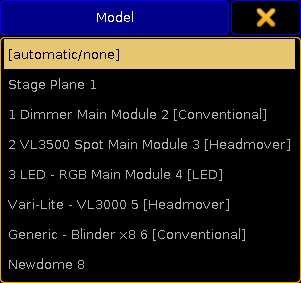 *Small Select Model pop-up* If you have custom models for your fixtures then you need to import them into your show (in MA 3D) and then select the imported model here for the relevant fixtures. At the bottom part of the Fixture Positions pop-up there are three buttons: **Stage Smaller, Stage Bigger:** These two buttons are used to change the relationship between the stage area and the fixture/object list. **Unit:** This toggles between **Size** and **Scale**. The size is in meters. Scale is based on the model information. This is a User setting and can also be changed in Setup -> User -> Settings. Here it is called “3D Item Units”. When the Fixture Positions pop-up is visible then you also have the same Encoder Toolbar as when you are using the Stage view to edit the position (read above). ## Edit Fixture [Section titled “Edit Fixture”](#edit-fixture) Editing a fixture gives you the same position and rotation XYZ options as the using the EditSetup and LiveSetup layer view (read above).
# Stage view
> The Stage View is a virtual 3D space where you can position your fixtures and stage elements.
The Stage View is a virtual 3D space where you can position your fixtures and stage elements. It is a view you can create using the [Create Basic Window](/grandma2/key_windows/) pop-up. It could look like this:  *Stage View* The default is that there is a stage floor. Each fixture you add are represented by a wireframe square. The size is taken from the Fixture Type definition. New fixtures are positioned at the 0,0,0 XYZ location. You can move your fixtures position to match your real world positions. To learn more about positioning the fixtures please read the [Position fixtures in the 3D stage](/grandma2/key_patch_position_fixtures/) topic. ## []()Moving around in the Stage View [Section titled “Moving around in the Stage View”](#moving-around-in-the-stage-view) You can freely move around in the virtual 3D space. What you are moving is actually a virtual camera. The cameras are described in more details in the [Virtual 3D Cameras topic](/grandma2/key_patch_camera/). On the right side of the view you can see two controls. There is a circle with cross arrows inside. This can be used to move the camera. press or click inside the circle and move your finger or cursor while pressing. Below the move circle is a zoom bar. Pressing here and moving the finger/cursor up or down will zoom the view. If you have a mouse with a scroll wheel attached and you scroll inside the Stage view then you will rotate left and right around the center point. On a console you can also use a screen encoder to rotate the view. If you press the encoder while you scroll, then you will rotate up and down. Often you can have a button in the title bar that is called Mouse Mode. This can be used to control the camera. In the picture above it is the button called “Select”. This button has several modes: **Select**, **Move**, **Orbit**, **Panning**, and **Zoom**. **Select** is used to select fixtures in the view. When **Move** is active, then you move the camera around when you click or press inside the stage view and move your finger or mouse around. With **Orbit** you can rotate around the point where click or press. **Panning** allows you to turn the camera without moving it. **Zoom** will zoom in and out. Remember that you are moving a camera. There are several default cameras that you select. The stage view can show you the stage from a specific camera or from the camera that you have selected in the [Camera Pool](/grandma2/key_patch_camera/). In the title bar of the stage view, you might see the camera swipe button. In the picture above it is the button called **\[Link Selected]**. If you swipe it, then it might give you the following options:  *Stage view - Camera selection* Here you wiil see a list of all available camera. The one you select here is the one you are moving.There is the special option here called \[Link Selected]. This will always use the camera you have selected in the Camera Pool. **Hint:**\ A connected MA 3D logged in as the same user as you, will use the same list of cameras and there location. This means that if you have the same camera selected in both your 3D and the stage view, then you can move the view in MA 3D. Tapping the Zoom to Fit button will reset the camera position. If you tap the space bar on your keyboard, then you will step through the different cameras. **Important:**\ If your Stage view is completely empty even though you have patched some fixtures. Then you might want to check if you have any cameras. Without cameras, then the stage view cannot show you the stage. ## Stage View Options [Section titled “Stage View Options”](#stage-view-options) You can open the Stage view options by tapping the yellow ball in the upper left corner. There are four taps in the options. The first one is called **Calibration**. This has one button. Tapping this will open the auto-calibration of moving light position. This has its own topic - please read about it here [Autocalibrate fixture positions](/grandma2/key_patch_autocalibrate/). The next tap is about the **Follow** function. Here you can set the follow height. Please read more about the follow function below. Next tap is the **Mask** function. Here you can set up a mask for the view. You can create a mask that hides fixtures based on a set of four rules. Read more about masks in the [What are masks topic](/grandma2/key_wfm_what_are_masks/). The right most tap is **Title Buttons**. There are quite a few buttons that you can have in the title bar. The following is short description of them: * **Zoom to Fit**:\ Pressing this button will reset to position of the selected camera. * **Camera:**\ This is the swipe button that allows you to select a camera. * **Setup**:\ This button is used to enter the Stage Setup mode. Here you can change the arrangement and position of fixtures. * **Follow**:\ This button will activate the Follow function. It also displays the “Z-offset”. Read more about the follow function below. * **Mouse Mode**:\*\*\*\*\ This button is used to control what happens if you click/press inside the stage view and move the cursor. Please read the [Moving around the stage view](#Move%20around) above. * **Prog Only, Active Only, Parked, Seq+, Seq-, Only Selected, Mask 7, Mask 8, Mask 9, Mask 10**:\ These buttons are actually different mask buttons. The first six are the default mask. The last four are mask buttons that you can define. For more about the masks please read the [What are masks topic](/grandma2/key_wfm_what_are_masks/). * **Enable Mask**:\ This button will enable or disable the mask function in the Stage view. For more about the masks please read the [What are masks topic](/grandma2/key_wfm_what_are_masks/). * **Follow Mask**:\ This button will make the Stage view use the selected mask (In the Mask Pool). For more about the masks please read the [What are masks topic](/grandma2/key_wfm_what_are_masks/). ## Follow function in Stage view [Section titled “Follow function in Stage view”](#follow-function-in-stage-view) The follow function is a very nice way to point your moving lights at a location in your 3D space and then in your real world. The idea is that you position your fixtures in the 3D space at the same location as they have in the real world. Then you select the fixtures you want to use, activate the Follow function and tap or click on your 3D stage where you want the fixtures to point. And then the real fixtures will point at that location. In the options (see above) or by pressing the Edit key and then the Follow button in the title bar, you can set a Z-offset. This is the height of the point. The Follow function overwrite all other Mouse Modes.
# Universe pool
> The Universe pool displays all the 256 universes that the system can handle.
The Universe pool displays all the 256 universes that the system can handle. You can create a Universe pool on your screens using the **Create Basic Window** pop-up. It is described in the [Manages windows topic](/grandma2/key_windows/). It is a pool. To learn general thing about the pools please read the [Pools in General section](/grandma2/key_pools/). Each universe with something patched is displayed as a pool object. The Universe pool could look like this (Pool Mode): 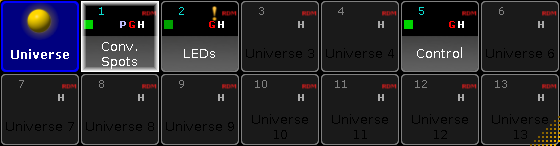 *Universe pool - pool style* If you change the pool to be displayed in sheet style (in the pool options) it could look like this: 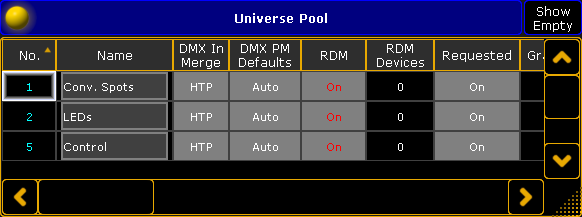 *Universe pool - sheet style* Each pool object (universe) has some icons and indicators displaying different properties of the universe. They correlate to the columns displayed in the sheet style. Many off the options related to the DMX universe is explained in the [DMX List part of the DMX and Parameter lists topic](/grandma2/key_patch_dmx_parameter_list/#dmx_list). * **No.:**\ This is the universe number. * **Name:**\ This is the universe name. * **DMX In Merge:**\ Here you can select how any incoming DMX is merged into the universe. If incoming DMX is merged as HTP then there is a white “H” in the pool button. If it is LoTP then there is a white “L”. If DMX is not merged then there is no white character.\ This is explained in more details the [DMX List](/grandma2/key_patch_dmx_parameter_list/#dmx_list). * **RDM:**\ Here you can turn on or off the RDM functionality in the universe. If RDM is tuned on then there is a “RDM” icon on the pool button. The icon is red if RDM is not on in global settings. It is green if RDM is globally on.\ For more details about this please read the [Turn RDM on per universe part of Turn RDM on topic](/grandma2/key_rdm_turn_on/#rdm_on_universe). * **RDM Devices:**\ Here you can see the amount of RDM fixtures found in the universe.\ For more details about the RDM feature please read the [RDM section](/grandma2/key_rdm/). * **Requested:**\ Here you can request or un-request the control/calculation of the universe. If the universe is not requested then there is red “R” in the pool button.\ This is explained in more details the [DMX List](/grandma2/key_patch_dmx_parameter_list/#dmx_list). * **Granted:**\ Here you can see if the universe is granted by the system. If the universe is requested but not granted (lack of parameters) then there is red “G” in the pool button.\ This is explained in more details the [DMX List](/grandma2/key_patch_dmx_parameter_list/#dmx_list). * **Info:**\ This is where you can see or edit the information attached to the universe. If there is any information attached to the universe then there is the  icon in the pool button. * **Sync:**\ The sync is displayed as a green square. this square is flashing bright green when the DMX data is updated. If none of the DMX channels change value then the sync flash approximately once every second. If the data is constantly changing, then it flashes approximately 30 times a second - this looks like it is constantly bright green. * **Parked:**\ If there is something parked in the universe then there is a light blue “P” on the pool button. This is also indicated by the “P” in the column.\ Read more about the park function in the [Park Keyword topic](/grandma2/key_keyword_park/). * **DMX Tester:**\ When there are DMX channels affected by the DMX tester then there is an  icon in the pool button and a ”!” in the column.\ Read more details about the DMX tester function in the [DMX testing topic](/grandma2/key_patch_dmx_testing/).
# What are channels & fixtures
> The two words Channel and Fixtures can be several things and it can be a little bit confusing. Even in this manual we might use both words.
The two words Channel and Fixtures can be several things and it can be a little bit confusing. Even in this manual we might use both words. When talking (or writing) about the actual device that emits light, we are referring to that as a fixture. This might be all sorts of devices from different manufacturers. They may have one function or many different functions. All these functions are called [Attributes](/grandma2/key_patch_attributes/). When you program a show, you will need to be able to select these devices, so they have an ID number - something we can type on a numeric keypad. The grandMA2 have the option to give each device two ID numbers. They can be the same number or they can be different numbers for the same physical device. The ID numbers are called **Channel ID** and **Fixture ID**. A device needs at least one ID number to be select-able and programmable. Two different devices cannot have the same Channel ID or the same Fixture ID. But one device can have Channel ID number 1 and another device can have Fixture ID number 1. A device with a **Channel ID** will be visible in the **Channel Sheet** and a device with a **Fixture ID** will be visible in a **Fixture Sheet**. If the device have two different ID numbers, then you can choose to hide one of the numbers in the sheets. If you have already programmed something with a device and you later change the ID numbers, then you will not loose any programmed information. If you remove the ID number so the device does not have any, then the values are still there and it will still output DMX even though you cannot select the device. When you cannot select it, then you cannot edit it or the stored values. It is not visible in sheets. You cannot delete the values either. You should pay attention to what your default beginning keyword is. You can see it in the Command Line input. The default on a new empty show is “Channel”. Your Command Line input will look like this: \[Channel]> If you are trying to select a device that only have a Fixture ID, then you need to specify that it is a Fixture ID by pressing the Fixture key before entering the ID number. You can change the default keyword by pressing the key corresponding to the one you want and the press Please. So to sum up. We call each device a fixture and each fixture can have a Channel ID and/or a Fixture ID and to be able to control it it will need at least one ID number. ## Subtopics [Section titled “Subtopics”](#subtopics) * [Attributes](/grandma2/key_patch_attributes/) * [DMX break](/grandma2/key_patch_dmx_break/)
# What is 3D and stage setup
> The grandMA2 have a virtual 3D space. In this space are all the patched fixtures and there position. The 3D space can also have other objects and elements. This
The grandMA2 have a virtual 3D space. In this space are all the patched fixtures and there position. The 3D space can also have other objects and elements. This could be a model of your venue and the set. There are generally two ways to see this 3D space. In the grandMA2 software and in the MA 3D visualizer running on a windows computer. Both of these are linked and display the information stored in the show file. It only makes sense to use these if you take the time to [arrange your virtual fixtures according to the real world locations](/grandma2/key_patch_position_fixtures/). In the grandMA2 software you can see a very simplified version of the 3D space. This can be seen in the [Stage Window](/grandma2/key_patch_stage/). In this view you’ll see a simple wireframe model with the light from the fixtures just visualized as a single line showing the direction, intensity and color. Each fixture is represented by a box and all 3D elements are also represented by simple boxes. The in-build 3D Stage Window is a useful tool during programming and can be a big help. In the MA 3D visualizer you can have a more realistic display of what the fixtures are doing and what our 3D model look like. The software is free and can be downloaded from MA Lightings webpage. It runs on a windows computer connected the same network as your console or onPC. If you have a good computer, then you can run both grandMA2 onPC and MA 3D on the same computer. You will need to have a [session running](/grandma2/key_network_session/) on the console/onPC and then you invite the MA 3D into your session. Besides getting the patch and fixture position from the show it also allows you to select a user. If you select the same user for the 3D as the one you are using on the console /onPC then the 3D will follow you if you use the Blind or Preview functions. This can be really useful if you need to change something in your programming in a live onsite situation. The main idea behind the MA 3D is for pre-programming a show. It allows you to visualize and program your entire show without the need for all the MA hardware you might need onsite. You can download both grandMA2 onPC and MA 3D for free and start programming a show with the maximum amount of parameters. It is first when you need to output all these parameters to real world fixtures, that you need real MA hardware.
# Plugins
> A plugin is a software component that adds on features to an existing program.
A plugin is a software component that adds on features to an existing program. The grandMA2 supports such plugins, thus allowing customization. The plugin used in the grandMA2 is the scripting language Lua. For more information on Lua see the subtopic or click the link above. ## Subtopics [Section titled “Subtopics”](#subtopics) * [What is Lua](/grandma2/key_plugins_what_is_lua/) * [Edit plugins](/grandma2/key_plugins_edit/)
# Edit plugins
> Hint:
**Hint:**\ -To view the specific Lua commands and their structure, import plugin\_1.lua into the plugin pool or follow this path on the grandMA2 onPC:\ **C:\ProgramData\MA Lighting Technologies\grandma\gma2\_V\_x.x.x\plugins\plugin\_1.lua**\ -A plugin has always two files – an .xml and a .lua file. Open the plugin pool: 1. Tap System in **Create Basic Window**. For more information on how to open a basic window see [Manage windows](/grandma2/key_windows_create_manage/). 2. Tap Plugin and the plugin pool opens.  *Open the plugin pool* 3. Open the editor:\ -Press Edit and tap an empty object in the pool.\ -The **window Edit Plugin** opens.  *Open the plugin editor* 4) To import the .xml file from the drive, tap Import and the **pop-up Import Plugins** opens.  *Import plugins* -Select the file and tap Import.\ -To cancel the process, tap Cancel. **Hint:**\ It is also possible to write the Lua code directly in the editor. 5. Label the plugin:\ -Tap Label and type the name of the plugin in the calculator.\ -Press Please. 6. To save the plugin, tap Save. 7. To export the plugin created, tap Export. 8. To reload the plugin engine, tap Reload.\ -A confirmation pop-up opens.  *Reload the plugin engine* -To reload the engine, tap Ok.\ -To cancel the process, tap Cancel. 9. To enable execution on load, tap Execute on Load.\ -The button is highlighted in a yellow font. The Lua code is applied.
# What is Lua
> Lua is a scripting language designed to support general procedural programming. It offers support for object-oriented programming, functional programming, and
Lua is a scripting language designed to support general procedural programming. It offers support for object-oriented programming, functional programming, and data-driven programming. Lua is implemented as a library, written in *clean* C (common subset of ANSI C and C++). For more information on Lua see [www.lua.org](http://www.lua.org)
# Pools in General
> This chapter describes pools in general. Pools are windows that display objects in the show file.
This chapter describes pools in general. Pools are windows that display objects in the show file. 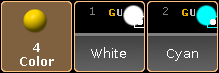 *Preset pool – Color* To open a pool see [workspace - manage windows](/grandma2/key_windows/). There are 19 different pools. For information on specific pools click on one of the following links. * [Camera Pool](/grandma2/key_patch_camera/) * [Effects Pool](/grandma2/key_effects_predefined/) * [Filters Pool](/grandma2/key_wfm_what_are_filters/) * [Forms Pool](/grandma2/key_effects_create_forms/) * [Groups Pool](/grandma2/key_groups/) * [Images Pool](/grandma2/key_image/) * [Layout Pool](/grandma2/key_layouts_create/) * [Macros Pool](/grandma2/key_macro_what_are/) * [Masks Pool](/grandma2/key_wfm_what_are_masks/) * [MAtricks Pool](/grandma2/key_matricks_pool/) * [Page Channels Pool](/grandma2/key_adv_exec_ch_pages/) * [Pages Exec Pool](/grandma2/key_adv_exec_pages/) * [Sequence Pool](/grandma2/key_cs_what_are/#sequence_pool) * [Timecode Pool](/grandma2/key_timecode_what_is/#timecode_shows) * [Timecode Slots Pool](/grandma2/key_timecode_what_is/#timecode_slots) * [Timer Pool](/grandma2/key_timers_timer_pool/) * [Views Pool](/grandma2/key_ws_work_with_views/) * [Universes Pool](/grandma2/key_patch_universe_pool/) * [Worlds Pool](/grandma2/key_wfm_what_are_worlds/) To navigate in the pool, use the arrow keys on the keyboard in the drawer of the console or on a external keyboard. ## Pool objects [Section titled “Pool objects”](#pool-objects) Every pool contains pool objects. Every pool object with content has a brighter frame compared to an empty pool object. The first pool object tile displays the name of the pool. If the focus is set to a pool, the first pool tile is blue. 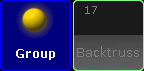 *Group pool with focus* The number in the upper left corner of a pool object is the pool object number. A pool displays at least a full screen of pool object tiles, for example 127 pool object tiles on screen 2 of a grandMA2 console. If the empty object tiles do not exceed 100, a further page with empty object tiles will be added. In total, there are 9999 object tiles per pool. **Hint:**\ To expand the group pool for example by 1000 empty pool object tiles, type into the command line:\ \- Store Group 1000 and press Please\ \- Delete Group 1000 and press Please\ The group pool is expanded by empty group pool objects. For information about the pool object colors see [workspace - colors - system](/grandma2/key_ws_colors_system/). ## Subtopics [Section titled “Subtopics”](#subtopics) * [Manage pool objects](/grandma2/key_pools_manage/) * [Adjust pool options](/grandma2/key_pools_options/) * [Call modes](/grandma2/key_pools_call_modes/)
# Call modes
> Some pool options have the setting of three different call modes.
Some pool options have the setting of three different call modes. These call modes are: * [Normal call](#normal_call) * [Fast call](#fast_call) * [Pool playback](#pool_playback) *** ## []()Normal Call [Section titled “Normal Call”](#normal-call) The following modes are explained by the example of the effect pool. ## Example [Section titled “Example”](#example) 1. Select fixtures. 2. Open the options of the effect pool and set the button below Frame Color to Normal Call. 3. Tap a pool object in the effect pool. 4. The effect object that was tapped is now applied to the fixtures that were previously selected. The background of the pool objects in the pool stays unaffected (gray). *** ## []()Fast Call [Section titled “Fast Call”](#fast-call) Fast call is used in all fixtures without selection and in all fixtures that were previously selected and that are assigned to a pool object. ## Example [Section titled “Example”](#example-1) 1. Open the options of the effect pool and tap the button Normal Call to toggle it to Fast Call. 2. Tap a pool object in the effect pool. 3. The effect object is instantly applied to all fixtures in the fixture sheet. The background of the pool objects turns crimson. **Important:**\ Note that fast calling a template effect, triggers all fixtures in the fixture sheet. Fast calling a selective effect only triggers those that are set selectively for an object. *** ## []()Pool Playback [Section titled “Pool Playback”](#pool-playback) Activates a temporary playback. The pool object turns into a mini executor.  *Mini executor in the effect pool* ## Example [Section titled “Example”](#example-2) 1. Open the options of the effect pool and tap Normal Call to toggle it to Pool Playback. 2. To toggle the mini executor between the states “on” or “off”, tap Direct Action. 3. Direct Action is enabled and displayed below the name of the pool.  *Direct action – enabled* For more information see [Assign effect to executor](/grandma2/key_effects_assign_to_executor/).
# Manage pool objects
> The following examples explains on the group pool how to manage and organize pool objects in pools. These examples are valid for all pool objects.
The following examples explains on the group pool how to manage and organize pool objects in pools. These examples are valid for all pool objects. Every of the following actions is oopsable. For more information see [oops and undo](/grandma2/key_ws_oops/). *** ## Store new empty pool objects [Section titled “Store new empty pool objects”](#store-new-empty-pool-objects) Empty pool objects are useful for preprogramming and to fill them later with content in the venue. You can also use them to organize the pool as a label for the following pool objects. **Requirement:** [Open groups pool](/grandma2/key_windows/). To store new empty pool objects: * Press Store and tap on an empty pool tile. \- or - * Press Store Group 17 Please.  *Groups pool - empty pool object* An empty group pool object is stored in the group pool. An empty pool object is indicated by a gray font. **Hint:**\ You can also use the [Store command](/grandma2/key_keyword_store/) to store new empty pool objects. Pool object numbers may also differ in color. For more information see [Workspace - Colors - System](/grandma2/key_ws_colors_system/). *** ## Label pool objects [Section titled “Label pool objects”](#label-pool-objects) Clear and unique pool object labels will help you and other people running the show to keep organized. **Requirements:** * [Open groups pool](/grandma2/key_windows/) * Existing groups pool object To label pool objects: 1. Press Assign Assign (= Label) and tap at the to be labeled group object tile.\ \- or -\ Press Assign Assign (= Label) Group 17 Please.  *Enter Name for Group pop-up* 2. Use a keyboard or open the virtual keyboard by tapping at the \*\*plus \*\* to enter the new group name in the green edit line for example **Backtruss**. 3. Press Please.  *Group pool - labeled empty pool object* The group is labeled as Backtruss. **Hint:**\ You can also use the [Label command](/grandma2/key_keyword_label/) to label pool objects. *** ## Move pool objects [Section titled “Move pool objects”](#move-pool-objects) **Requirements:** * [Open groups pool](/grandma2/key_windows/) * Existing groups pool object To move pool objects around in a pool: * Press Move, tap at the to be moved pool object and then tap at the new pool object place. \- or - * Press Move Group 17 At 18 Please. If the destination of the pool object is already taken the pool objects will switch the places. The group pool object is moved. **Hint:**\ You can also use the [Move command](/grandma2/key_keyword_move/) to move pool objects. *** ## Copy pool objects [Section titled “Copy pool objects”](#copy-pool-objects) **Requirements:** * [Open groups pool](/grandma2/key_windows/) * Existing groups pool object To copy pool objects in a pool: * Press Copy, tap at the to be copied pool object and then tap at the copied pool object destination. \- or - * Press Copy Group 16 At 17 Please.  *Group pool - copied pool object* Group 16 is copied at group 17. The copied group is indicated by a **#2**. **Hint:**\ You can also use the [Copy keyword](/grandma2/key_keyword_copy/) to copy pool objects. *** ## Edit pool objects [Section titled “Edit pool objects”](#edit-pool-objects) **Restriction:**\ The Pages Channel Pool, the Pages Exec Pool, and the Views Pool does not support the Edit pool objects function. **Requirements:** * [Open groups pool](/grandma2/key_windows/) * Existing groups pool object To edit pool objects: * Press Edit and tap at the to be edited pool object. \- or- * Press Edit Group 17 Please. The respective edit mode or editor opens. **Hint:**\ You can also use the [Edit command](/grandma2/key_keyword_edit/) to edit pool objects. *** ## Insert pool objects [Section titled “Insert pool objects”](#insert-pool-objects) **Requirements:** * [Open groups pool](/grandma2/key_windows/) * Existing groups pool object To insert an existing pool object between two other pool objects: * Press Move Move Move (= Insert) and tap and hold Group 8 and move by drag and drop at Group 2. \- or - * Press Move Move Move (= Insert) Group 8 At 2 Please Group 8 is moved at Group 2. All other groups are moved to the next empty pool object. **Hint:**\ You can also use the [Insert command](/grandma2/key_keyword_insert/) to insert pool objects. *** ## Lock pool objects [Section titled “Lock pool objects”](#lock-pool-objects) **Requirements:** * [Open groups pool](/grandma2/key_windows/) * Existing groups pool object To lock pool objects in a pool: * Type Lock in the command line and tap at the to be locked pool object tile. Group 17 is locked. A locked pool object is indicated by a **yellow lock** . **Hint:**\ You can also use the [Lock keyword](/grandma2/key_keyword_lock/) to lock pool objects. *** ## Unlock pool objects [Section titled “Unlock pool objects”](#unlock-pool-objects) **Important:**\ You can unlock only pool objects indicated by a yellow lock . **Requirements:** * [Open groups pool](/grandma2/key_windows/) * Existing locked group pool object To unlock pool objects in a pool: * Type Unlock in the command line and tap at the to be unlocked pool object tile. Group 17 is unlocked. **Hint:**\ You can also use the Unlock keyword to unlock pool objects. *** ## Delete pool objects [Section titled “Delete pool objects”](#delete-pool-objects) **Requirements:** * [Open groups pool](/grandma2/key_windows/) * Existing groups pool object To delete pool objects in a pool: * Press Del and tap the to be deleted pool object tile. \- or - * Press Del Group 17 Please. \- or - * Press and hold the Del and then tap several pool objects. Group 17 is deleted. **Hint:**\ You can also use the [Delete command](/grandma2/key_keyword_delete/) to delete pool objects.
# Adjust pool options
> The following example of the Camera pool displays how to adjust the pool options. These options apply to all pools. Some pools have more specific options. Speci
The following example of the Camera pool displays how to adjust the pool options. These options apply to all pools. Some pools have more specific options. Specific options are explained in their corresponding chapters. The pool options will be saved in the user profile. 1. Open the **Camera pool**.\ \- Tap an empty space of the screen. The pop-up **Create Basic Window** opens.\ \- Tap Pools and then tap Camera Pool. 2. Tap  in the upper left corner.\ The pop-up **Camera Options** opens.  *Camera Options* 3. []()Choose the frame color of the camera pool. The frame color is the color around the pool objects and the color of the first pool object tile which displays the pool name.\ \- Tap one of the predefined colors in the **color table**, or tap the **color circle**, or move the **Hue**, **Saturation**, or **Brightness** slider.\ The selected frame color is displayed right beside the button Frame Color.\ \- To reset the Frame color back to default, tap Reset Colors. 4. To change the pool from the pool style into the sheet style, tap Sheet Style. 5. If the sheet style is selected, choose the font size used in the sheet.\ \- Tap and swipe the button Dejavu and tap the font size. 6. To close the **Camera Options**, tap  in the upper right corner of the pop-up . The pool options are adjusted to your needs and are saved in the user profile. **Hint:**\ To change the color of one or more pool objects, you can also use the [Appearance Keyword](/grandma2/key_keyword_appearance/).
# Presets
> Presets are stored presettings of parameters. They allow fast access and standardized usage.
Presets are stored presettings of parameters. They allow fast access and standardized usage. These presettings can be: * \*\*Universal: \*\*\ Universal settings, abbreviated as **U**, apply to all fixtures types that contain the corresponding attributes. * **Global:**\ Global settings, abbreviated as **G**, apply to the corresponding fixture types. * **Selective:**\ Selective settings, abbreviated as **S**, apply to single fixtures. **Hint:**\ Make sure to use presets when programing as this facilitates your work, especially when working with a show which is used in different locations and for various customers. ## Subtopics [Section titled “Subtopics”](#subtopics) * [What are special modes](/grandma2/key_presets_special_modes/) * [Preset pools](/grandma2/key_presets_pools/) * [Preset pool “Dynamic”](/grandma2/key_presets_dynamic_pool/) * [Create presets](/grandma2/key_presets_create/) * [Preset pool options](/grandma2/key_presets_pool_options/) * [Create preset reference](/grandma2/key_presets_create_preset_reference/) * [Auto create presets](/grandma2/key_presets_auto_create/) * [Auto create additional presets](/grandma2/key_presets_auto_create_additional/) * [Embedded presets](/grandma2/key_presets_embedded/) * [Edit presets](/grandma2/key_presets_edit/) * [Update presets](/grandma2/key_presets_update/) * [Delete presets](/grandma2/key_presets_delete/)
# Auto create presets
> It is possible to auto create a complete set of presets at once.
It is possible to auto create a complete set of presets at once. **Important:**\ If a fixture type does not contain channel sets or a preset reference, it is not possible to auto create presets. To auto create presets: 1. Press Setup. 2. Tap Auto Create. 3. The dialog **Auto Create** opens. 4. Tap Preset. 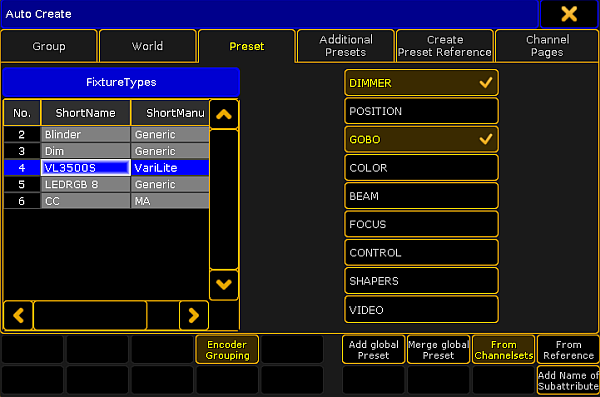 *Menu auto create preset* 5. Choose a fixture type in the table **FixtureTypes**. 6. Then, tap the preset type you would like to auto create a preset for. **Important:**\ Auto-created presets are always global since they are generated in fixture types. 7. To link attributes with the same term and of the same preset type, tap Encoder Grouping.\ Thereby, only one attribute is really physically visible on the stage. 8. To create presets for single fixture types, tap Add global Preset. 9. To merge presets for several fixture types, tap Merge global Preset. 10. To determine that presets come from channel sets of a fixture type, tap From Channelsets. 11. To determine that presets refer to fixture types that were previously stored, tap From Reference. For more information see [Create preset reference](/grandma2/key_presets_create_preset_reference/). 12. To add the name of a subattribute to the name of a channel set, tap Add Name of Subattribute. 13. To close the menu, tap  in the upper right corner of the window.
# Auto create additional presets
> In addition to the functionality of auto creating presets, it is also possible to auto create additional presets.
In addition to the functionality of auto creating presets, it is also possible to auto create additional presets. **Important:**\ This functionality, only applies to the preset type **Color**, since channel sets can only be generated with the values min and max in RGB. To auto create additional presets: 1. Press Setup. 2. Tap Auto Create. \ The dialog **Auto Create** opens. 3. Tap Additional Presets. 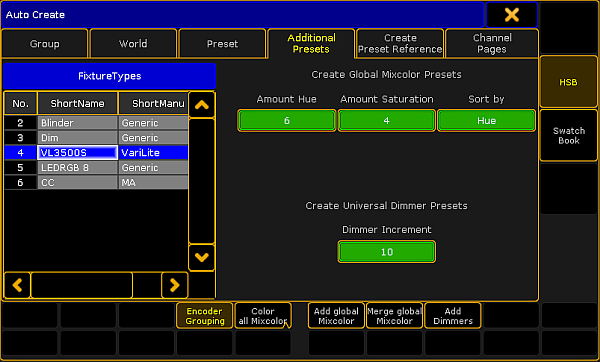 *Menu auto create additional presets* 5. Choose a fixture type in the table **FixtureTypes**. 6. Tap Amount Hue and the calculator opens.\ -To set the range of hue, tap a number in the calculator. **Important:**\ No matter the amount of hue you have selected, the color white will always be added to the presets raising the amount by one. 7. Tap Amount Saturation and the calculator opens.\ -To set the depth of the saturation, tap a number in the calculator. 8. To set the sort by saturation or hue, tap Sort by.\ This button toggles between these two values. 9. []()If you made your amount and sort settings, choose how the presets are to be displayed.\ -To blend all attributes summarized in the preset pool, tap Encoder Grouping. \ -To create presets with all Mixcolor attributes that the corresponding fixtures contain, e.g., Amber, tap Color all Mixcolor. \ -To create presets with RGB only, tap Color RGB only.\ -To create colors for single fixture types, tap Add global Mixcolor. \ -To merge colors for several fixture types, tap Merge global Mixcolor. 10. Tap Dimmer Increment and the calculator opens.\ -To additionally create universal dimmer presets, tap a number in the calculator. This number represents the interval in percentage in which the presets is to be created. ## HSB [Section titled “HSB”](#hsb) **Important:**\ The button HSB, on the right of the dialog, is enabled by default.\ If the dialog is enabled in HSB, the percentage of saturation and brightness are displayed within the pool objects. 11. Color presets have now been created in HSB.  *Additional presets – HSB* 12. Furthermore, dimmer presets in an interval of 10 percent have been created as well.  *Dimmer presets* *** ## Swatch Book [Section titled “Swatch Book ”](#swatch-book-) To see the dialog in Swatch Book, tap Swatch Book on the right of the dialog. The dialog then converts to Swatch Book. 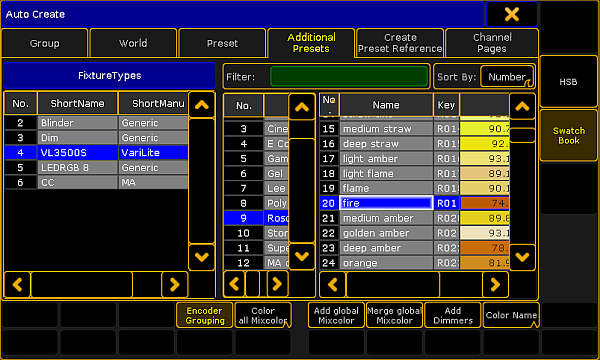 *Additional presets – Swatch Book* 1. Choose a fixture type in the table Fixture Types on the left of the dialog. 2. Then, tap a name in the gel pool in the table on the right. 3. Next, tap a gel. **Important:**\ The buttons below the table within the dialog have the same function as in HSB.\ For further information see [step 9](#Swatch%20Book). 4. After setting up further settings – as stated in [step 9](#Swatch%20Book) – choose how you would like your presets to be displayed.\ -To display the name of the color within the pool objects, tap Color Name.\ -To display the key of the color within the pool objects, tap Color Key.\ -To display the name as well as the key of the color, tap Color Name + Key. **Important:**\ This button toggles between Color Name, Color Key and Color Name + Key. 5. To close the menu, tap  in the upper right corner of the window. 6. Color presets have now been created in Swatch Book.  *Color presets*
# Create presets
> Requirement:
**Requirement:** * Fixtures are patched. For more information on how to patch fixtures see [Adding fixtures to your show](/grandma2/key_patch_add_fixtures/). To create presets: 1. Select fixtures. 2. Assign values to fixtures. 3. Press and hold Store until the pop-up **Temporary** \*\*Store Options \*\*opens. 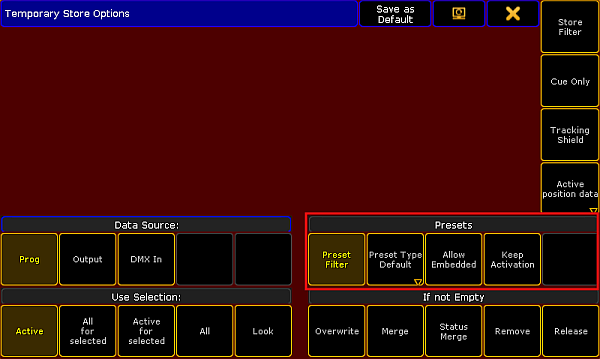 *Temporary store options* 4. Enable the buttons marked by the red box in the screenshot above.  *Presets – store options* 5. To disable the filter, tap Preset Filter. **[]()Important:**\ Every preset pool – **except for the preset pool All** – has a filter as a default setting. This filter allows to store the value equivalent to the pool only. 6. To choose the store option of the preset type, tap Preset Type Default and then toggle between default, selective, global or universal. **Important:**\ The store option is Preset Type Default by default. This setting falls back on the default store option of a preset pool. 7. To allow that presets are stored within other presets, tap Allow Embedded.\ For more information see [Embedded presets](/grandma2/key_presets_embedded/). 8. To take the preset link actively into the programmer after storing the preset, tap Keep Activation. 9. To keep the previous settings when storing another preset, tap Save as Default in the header of this dialog. 10. To close the **Temporary Store Options**, tap  in the upper right corner of the pop-up. 11. Eventually, tap an empty object you would like to store the preset to.
# Create preset reference
> A preset reference is very handy when it comes to color presets since the colors of every fixture and manufacturer may vary greatly.
A preset reference is very handy when it comes to color presets since the colors of every fixture and manufacturer may vary greatly. Requirement: * Presets have already been created. To create preset reference: 1. Press Setup. 2. Tap Auto Create. 3. The dialog **Auto Create** opens. 4. Then, tap the tab Create Preset Reference. 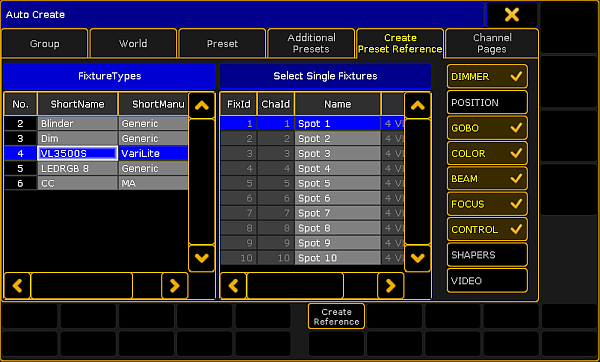 *Create preset reference* 5. Choose a fixture type in the table **FixtureTypes**. 6. Next, tap a fixture as reference for your preset in the table **Select Single Fixtures**. 7. After that, select the preset types, on the right of the dialog, to which the reference is to relate. 8. Eventually, tap Create Reference. 9. The preset reference has now been created in the fixture type within this show file. **Important:**\ To use preset references in other show files, export the fixture type after creating the reference. 10. To close the menu, tap  in the upper right corner of the window.
# Delete presets
> It is possible to delete presets in three different ways. Use either the keys of the console or the command line.
It is possible to delete presets in three different ways. Use either the keys of the console or the command line. 1. To delete single presets: * Press Del and then tap the preset you would like to delete. 2. To delete several presets, type into the command line: \[Channel]> Delete Preset 4.1 Thru 4.5 Deletes presets 1 to 5 in the preset pool **Color**. 3. To delete all presets in all pools, type into the command line: \[Channel]> Delete Preset \*.\* Empties all pools completely. **Important:**\ If you store a preset in a sequence and then delete the preset, the link to the preset pool will be removed from the sequence. Instead, the actual values will be displayed in the sequence. Oopsing the action will recover the preset but not the link.
# Preset pool "Dynamic"
> The preset pool Dynamics a pool that automatically displays the preset type which is currently enabled in the preset control bar.
The preset pool **Dynamic** is a pool that automatically displays the preset type which is currently enabled in the [preset control bar](/grandma2/key_ws_preset_control_bar/). ## Open the Preset Pool “Dynamic” [Section titled “Open the Preset Pool “Dynamic””](#open-the-preset-pool-dynamic) To open the preset pool **Dynamic**: 2. Tap anywhere in the **user-defined area**. 3. The pop-up **Create Basic Window** opens. 4. Tap Presets. 5. Tap Dynamic. 6. The preset pool **Dynamic** opens. 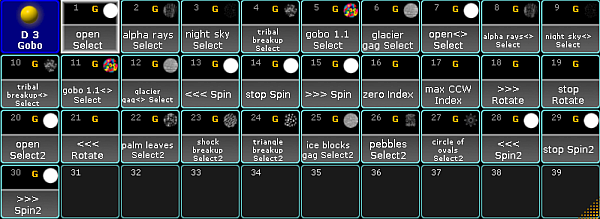 *Dynamic pool – Gobo* *** ## Close the Preset Pool “Dynamic” [Section titled “Close the Preset Pool “Dynamic””](#close-the-preset-pool-dynamic) To close the preset pool, tap  in the upper left corner of the pool and tap Delete Window.
# Edit presets
> It is possible to edit the presets in two different ways.
It is possible to edit the presets in two different ways. * 1\. Way of editing presets: 1. Press Edit and tap the preset to be edited. The entire content of the preset will then be loaded into the live programmer. 2. To see the values in an overseeable manner, open the fixture sheet and tap Prog Only in the title bar of the fixture sheet. 3. The programmer opens.  *Prog only* 4. Fixture 1 contains selective preset values and fixture type 4.1 contains global preset values. 5. Press Update and subsequently press Please. 6. The **pop-up Update Last Object?** opens.  *Pop-up – Update last object?* 7. Tap Ok. **Hint:**\ If you do not want to update the preset you have edited or you would like to close the pop-up, either tap Cancel or  in the upper right corner of the pop-up. To deactivate the edit mode, press Esc. -or- * 2\. Way of editing presets: See [Update presets](/grandma2/key_presets_update/).
# Embedded presets
> Embedded presets are stored within other presets.
Embedded presets are stored within other presets. To create embedded presets: 1. Select fixtures in the fixture sheet. 2. Assign a preset to the fixtures selected. 3. Assign an additional preset to these fixtures. 4. Press and hold Store. 5. The dialog **Temporary Store Options** opens.  Presets – Temporary store options 7. To create an embedded preset, tap Allow Embedded. 8. Then, tap an empty store object in the preset pool where the embedded preset is to be stored. 9. To close the dialog, tap  in the upper right corner. *** ## Example [Section titled “Example”](#example) This example demonstrates an embedded preset based on a color, position and gobo preset. 1. Select fixtures. 2. Assign a color, position and gobo preset to these fixtures. 3. Press and hold Store. 4. The pop-up **Temporary Store Options** opens. 5. Tap Allow Embedded. 6. To store the embedded preset in the preset pool **All**, tap an empty pool object in this preset pool. **Hint:**\ If you update one of the presets selected for the fixtures, the embedded preset will automatically be updated as well. 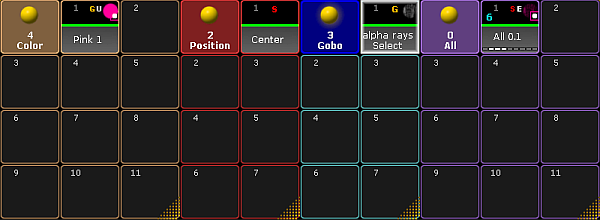 *Embedded preset in the pool All* 7. You have now created an embedded preset marked by a white E within the object.
# Preset pool options
> The following example of the preset pool Dimmerisplays how to adjust options that are specific for a preset pool.
The following example of the preset pool **Dimmer** displays how to adjust options that are specific for a preset pool. ## Open the Options [Section titled “Open the Options”](#open-the-options) 1. Tap anywhere in the **user-defined area**. 2. The pop-up **Create Basic Window** opens. 3. Next, tap Presets. 4. Then, tap a preset pool you would like to open. 5. To open the options in the preset pools, tap  in the upper left corner of the pool you have opened. 6. The option dialog opens.  *Preset pool options* **Hint:**\ All preset pools have the same pool options. 3. To adjust the frame color, to reset colors or apply a different style and font see [Adjust pool options](/grandma2/key_pools_options/#preset_options). \*\* Hint:\*\*\ To reset the colors in all preset pools, press Setup and tap User Settings – Window Settings – Presets and then subsequently tap Reset All Preset Pool Colors. 4. Tap All Active and then choose a color from the color table or the color circle, to display that all of the fixtures selected contain this preset.\ - The color you have chosen is displayed as a line within the pool object right above the font of the pool object. 5) Tap Some Active and then choose a color form the color table or the color circle, to display that only some of the fixtures selected contain this preset. \ \- The color you have chosen is displayed as a line within the pool object right above the font of the pool object. *** ### Example “All Active” and “Some Active”: [Section titled “Example “All Active” and “Some Active”:”](#example-all-active-and-some-active) Select fixture 1 (spot) and fixture 101 (LED lamp) by typing into the command line: \[Channel]> Fixture 1 + Fixture 101 Please Fixture 1 and fixture 101 have both the **preset Dimmer**. Fixture 1 contains the **preset Position**, fixture 101 does not. 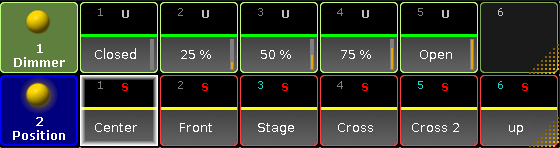 *Option – all active and some active* *** 6. To change the modes Normal Call and Fast Call see [Call modes](/grandma2/key_pools_call_modes/). 7. To choose the default store option of the preset, tap Default Store Universal. This mode is usually the default for the preset type **Dimmer**. For more information on the store options of presets see [Create presets](/grandma2/key_presets_create/). **Hint:**\ It is also possible to set the default of the preset type via **Setup**:\ - Press Setup and tap Patch & Fixture Schedule – Fixture Types – Attribute & Encoder Grouping.\ - Then, tap and hold a cell in the column **Default Scope**.\ - The pop-up **Select Default Scope** opens. 6. To close the options, tap  in the upper right corner of the dialog. **Hint:**\ To close the preset pool altogether, tap Delete Window.
# Preset pools
> All in all, there are 10 preset pools by default. Each of the pools stores values corresponding their preset type.
All in all, there are 10 preset pools by default. Each of the pools stores values corresponding their preset type. ## Open the preset pools [Section titled “Open the preset pools”](#open-the-preset-pools) To open the single preset pools: 1. Tap anywhere in the **user-defined area**. 2. The pop-up **Create Basic Window** opens. 3. Next, tap Presets. 4. Then, tap single presets to open the corresponding pools. 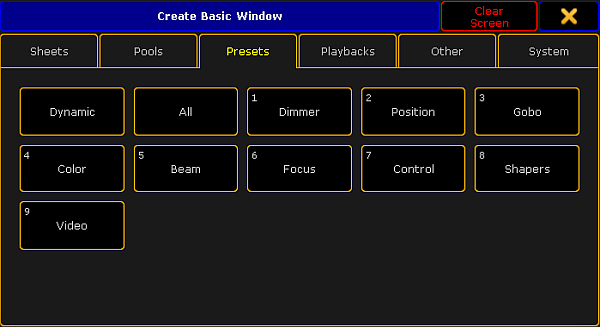 *Pop-up create basic window – presets* There are two pools that are not numerated: * **Dynamic:**\ For more information on the pool **Dynamic** see [Dynamic preset pool](/grandma2/key_presets_dynamic_pool/). -and- * **All:**\ Contrary to the numerated preset pools, it is possible to store all values without a preset type filter in the preset pool **All**. To close the pop-up **Create Basic Window**, tap  in the upper right corner of the window. *** ## All Preset Pools at a Glance [Section titled “All Preset Pools at a Glance”](#all-preset-pools-at-a-glance) Here is an outline of all preset pools. 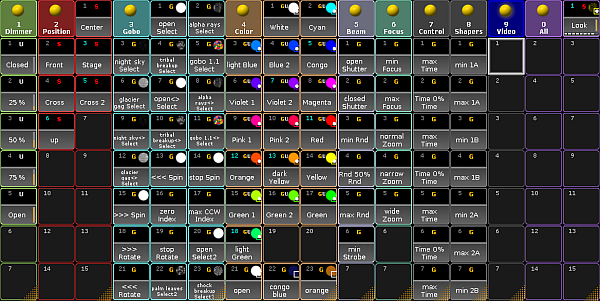 *Preset pools*
# What are special modes
> In addition to normal, there are three different special modes in the presets.
In addition to **normal**, there are three different special modes in the presets. * **Default:**\ Default is used to modify the default values of attributes in single fixtures. * **Highlight:**\ Highlight is used to modify the highlight values of attributes in single fixtures. * **Stage:**\ Stage is used to modify the stage values of attributes in single fixtures. Stage values are enabled and disabled in the dialog **Calibrate Fixture Pos**. For more information see [Auto calibrate fixture positions](/grandma2/key_patch_autocalibrate/).\ * **Normal:**\ Normal reverts the special mode of a preset.  *Presets – special modes* To choose a mode: 1. First, store a preset with attributes which values are to be modified. 2. Press Assign and then tap the preset you would like to change. 3. Then press Please. 4. The pop-up **Assign Preset** opens. 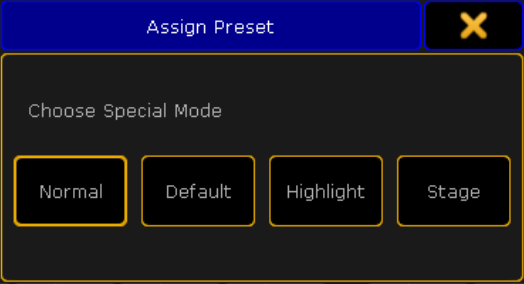 *Pop-up assign preset* 5. Choose the special mode you would like to save your preset as. 6. After choosing a special mode, apply the fixtures to be modified with this preset.
# Update presets
> It is possible to update the presets which you have altered.
It is possible to update the presets which you have altered. To do so: 1. Tap the preset you would like to update once. 2. The fixtures are now selected. 3. Tap the same preset once again. 4. The fixtures are now actively in the programmer. 5. Change the value of this preset. 6. Then, press Update. 7. The **pop-up Update** opens.  *Update preset* 8. To disable the filter, tap Preset Filter ON. The button toggles to Preset Filter OFF. 9. To choose the update option of the preset type, tap Selective. The button toggles between Selective, Global, Universal and Preset Type Default. 10. The button Original content toggles to Add new content. \ -To update existing values by the new values, tap Original content.\ -To add additional data to the preset, along with existing values, tap Add new content. 11. If you have adjusted the settings to your needs, tap Update Preset. 12. The preset has now been updated. **Hint:**\ For more information on filter, selective, global, universal and default see [Create presets](/grandma2/key_presets_create/#preset_filter).
# Partial Show Read
> Partial Show Read is a function that allows for an easy import of elements from one show to another.
Partial Show Read is a function that allows for an easy import of elements from one show to another. This section introduces Partial Show Read and describes the process and the interface. ## Subtopics [Section titled “Subtopics”](#subtopics) * [What is partial show read (PSR)](/grandma2/key_psr_what_is/) * [How to do a PSR](/grandma2/key_psr_how_to/)
# How to do a PSR
> This topic illustrates the steps needed to perform a Partial Show Read.
This topic illustrates the steps needed to perform a Partial Show Read. **Hint:**\ It is a good idea to save the show before doing PSR. This makes it possible to return to the initial state before the PSR. ## Prepare the PSR [Section titled “Prepare the PSR”](#prepare-the-psr) The Partial Show Read (PSR) is initiated from the **Backup Menu**. 1. To access the menu, press the Backup key. 2. Load the show where you would like to import these elements to – Destination Show. 3. Open the Backup Menu again and tap Partial Show Read Initialize.\ A window opens. 4. Select the show that has the elements you would like to import – Source Show. 5. The window Partial Show Read Prepare opens. 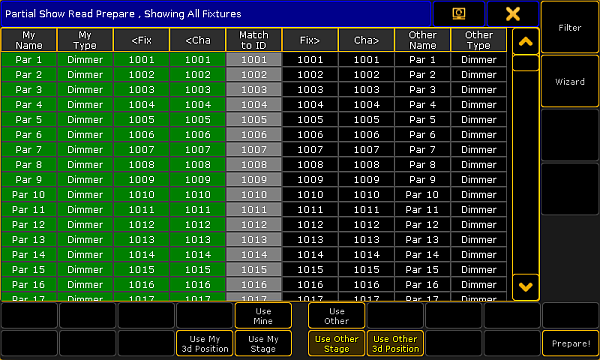 *Prepare PSR* The window consists of two parts: * **Left side:**\ Displays the current patch. * **Gray column – Match to ID**:\ Is used to match the source fixture to a different (or new) fixture ID. * **Right side:**\ Displays the patch in the source show. **Hint:**\ The green background color indicates the patch that will be used after the prepare. 6. To change the patch, right-click the desired fixture on the corresponding side. 7. To change the patch of two fixtures, select a line and tap Use Mine or Use Other. 8. The green background is shifted. **Important**:\ A Partial Show Read can cause double patched addresses. If this is the case, a warning pop-up appears advising to check the patch. *** ## Buttons [Section titled “Buttons”](#buttons) 1. To select the source information regarding the 3D position of the fixtures, tap Use My 3D Position or Use Other 3D Position. 2. To select which 3D stage setup is to be used, tap Use My Stage or Use Other Stage. 3. To filter or mask the fixture list in the main part, tap Filter. 4. To do an initial selection of the patch, tap Wizard. -Tapping the Filter opens the pop-up **Select Display Filter.** 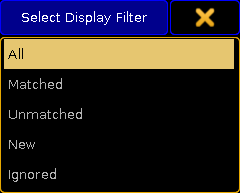 *Select filter* * **All:**\ Displays all fixtures in the two shows. * **Matched**:\ Displays the fixtures that are matched in the two shows. * **Unmatched**:\ Displays fixtures that only exist in one of the shows. * **New**:\ Displays new fixtures (from the source show). * **Ignored**:\ Displays the fixtures that have been ignored. -Tapping Wizard opens the pop-up **Select Wizard**. 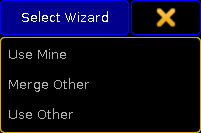 *Select fixtures* Select fixtures that are to be used in the Partial Show Read. There are three options: * **Use Mine**:\ Uses fixtures in the destination show. * **Merge Other**:\ Merges fixtures from the source show in the current show. If there is an overlap of two fixtures, the fixtures in the destination show are used. * **Use Other**:\ Uses fixtures from the source show. 5. To prepare the patch and close the window **Partial Show Read**, tap Prepare! **Important:**\ Data of fixtures matched by ID numbers is used in the current Partial Show Read. 6. The two shows are now prepared. *** ## PSR Menu [Section titled “PSR Menu”](#psr-menu) After preparing the two shows, the Backup Menu opens. 1. Tap Partial Show Read. **Important:**\ If the station is in a session, leave the session to do the PSR. 2. The window **Partial Show Read** opens. 3. To display the details of filters, tap **Filters (13)**.\ The tables **My Filters** and **Other Filters** open. 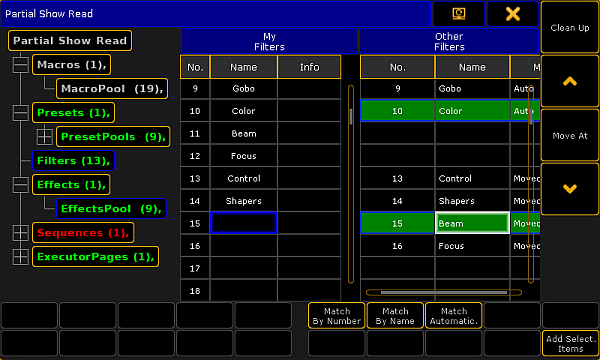 *Open the window Partial Show Read* * Left side:\ Displays a menu that shows all the elements which can be imported.\ * Green font:\ Indicate new elements in the source show.\ * Red font:\ Indicate new elements in the destination show. - White font:\ Indicate the same elements.\ - Table “My..”:\ Displays the elements of the current destination show.\ - Table “Other…”:\ Displays the elements of the source show. **Important:**\ The two lists exactly match the pools. It is possible to select one or more elements in the “Other” table. Elements selected are displayed in background. 4. To move the elements selected, tap arrows on the right side of the window. 5. To move the elements selected to the next location, tap Move At. 6. To match the tables by the numbers of the pool, tap Match By Number. 7. To match the elements from the column **Other Filters** by name, tap Match By Name. **Important:**\ In case multiple elements are used with the same name, data from **Other Filters** is matched to the first matching element in **My Filters**. 8. To automatically search for matching names and numbers and match the elements, tap Match Automatically. 9. To import the elements, tap Add Selected Items.\ The elements have been imported. 10. To remove the elements that have already been matched from the structure menu, tap Clean Up. After the import close the **window Partial Show Read**:\ -Tap  in the upper right corner of the window. **Hint:**\ If there is a match between the content in the source show and the destination show, the font of the element changes to white in the menu structure. *** ## Location Occupied When Importing [Section titled “Location Occupied When Importing”](#location-occupied-when-importing) If you import to a location that is occupied, the **pop-up Please Confirm** appears. 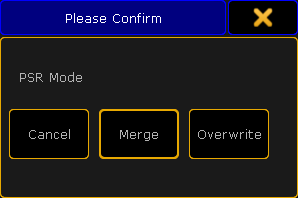 *Select PSR mode* It has three options: * **Cancel:**\ Cancels the import. * **Merge:**\ Merges the content in the element. * **Overwrite:**\ Deletes the existing content and imports the new content. **Hint:**\ If the show has not been structurally changed or has not been reloaded, it is possible to open the Partial Show Read again without preparing it first. For example, entering **Patch & Fixture Schedule** forces a new PSR Prepare.
# What is partial show read (PSR)
> The Partial Show Read (PSR) is a function that allows you to load or import elements from one show into another.
The Partial Show Read (PSR) is a function that allows you to load or import elements from one show into another. The following elements can be imported from the source show: * Macros * Presets * Filters * Groups * Effects * Sequences * Timers * Executors and ExecutorPages * Layouts Partial Show Read respects the worlds. This means that elements will only be imported if the selected world allows to do so. If objects imported need other elements, these elements are also imported. For example, if a sequence uses presets, these presets are automatically imported as well. PSR is a two-step process. First, the two shows are compared and it is chosen which fixtures from the two shows need to be used. It is also possible to choose the 3D environment and the fixtures´ 3D positions. After the prepare phase, it is possible to open the PSR menu and choose the elements that are to be imported. Store the source show in the same version number as the destination show. If you load a previous version, a warning pop-up appears: 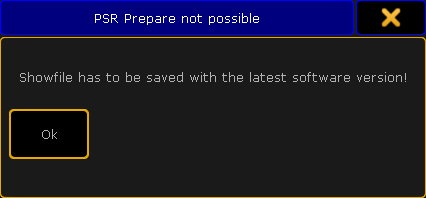 *Warning pop-up* To save the show, please load the source show and store it in the latest version. Import single executors or entire executor pages. *** ## Limitations [Section titled “Limitations”](#limitations) * Special Master cannot be imported. * Executors with a width exceeding 1 will only be imported correctly if the entire executor page is imported. The current Partial Show Read cannot be done on a station that is in a session. Please leave the session before doing the Partial Show Read.
# RDM
> Requirements:
**Requirements:**\ A Remote Device Management (= RDM) directly connected to one of the devices of the following grandMA2 series:\ \- grandMA2 consoles\ \- MA onPC command wing\ \- MA onPC fader wing\ \- MA NPU\ - MA 8Port Node, MA 8Port Node onPC\ - MA 4Port Node, MA 4Port Node onPC, MA 4Port WM\ - MA 2Port Node, MA 2Port Node onPC 2K, MA 2Port Node onPC 1K, MA 2Port WM **Restriction:**\ RDM does not support the following devices of the grandMA1 series:\ \- MA 2Port Node\ \- MA 2Port Node PRO\ \- MA 2Port Node Flush-mounted\ \- MA NSP in 4Port Node Mode RDM is a protocol that allows bi-directional communication between the grandMA2 and RDM-ready devices attached to it (= RDM-ready fixtures) over a standard DMX line. ANSI E1.20 - 2010 by PLASA specifies the RDM standard as an extension of the DMX512 protocol. Manual settings, such as adjusting the DMX starting address, are no longer needed. This is especially useful for devices installed in a remote area. RDM is integrated in DMX without influencing the connections. The RDM data is transmitted via the standard XLR-poles – new DMX cables are not required. RDM-ready devices and conventional DMX devices can be operated in one DMX line. The RDM protocol sends its own data packages in the DMX512 data feed and does not influence conventional devices. Furthermore, RDM works simultaneously via Art-Net and MA-Net2. This allows configuration, status monitoring, and management of these devices. RDM can provide the following uses, depending on the RDM device: * Identification of the connected devices * Addressing of devices controllable by DMX512 * Status reporting of fixtures (alerts and warnings) * Configuration of fixtures by setting RDM parameters RDM starts a discovery (= search) for the RDM device every six seconds. If an RDM device is offline, a timeout will be reported after three unsuccessful discoveries for RDM (= 18 seconds). ## Subtopics [Section titled “Subtopics”](#subtopics) * [Turn RDM on](/grandma2/key_rdm_turn_on/) * [Match RDM devices](/grandma2/key_rdm_match/) * [Auto patch RDM devices](/grandma2/key_rdm_auto_patch/) * [Work with RDM parameters](/grandma2/key_rdm_setparameter/) * [Work with RDM sensors](/grandma2/key_rdm_sensors/) * [Configure RDM notifications](/grandma2/key_rdm_notifications/) * [Use the RDM sheet](/grandma2/key_rdm_rdm_sheets/) * [Unmatch RDM devices](/grandma2/key_rdm_unmatch/) * [Splitters and mergers that support RDM](/grandma2/key_rdm_list_of_splitters_mergers/) * [Turn RDM off](/grandma2/key_rdm_turn_off/) * [RDM specific keywords](/grandma2/key_rdm_keywords/)
# Auto patch RDM devices
> If the RDM fixture DMX address and the DMX address of the patch is not the same, you can auto-patch the fixture and send the patch DMX address via RDM to the fi
If the RDM fixture DMX address and the DMX address of the patch is not the same, you can auto-patch the fixture and send the patch DMX address via RDM to the fixture. **Requirements:**\ \- MA Fixture is matched\ \- MA Fixtures is patched\ \- MA Fixture and RDM Fixture have the same universe 1. Open the RDM devices window. Press Setup, and tap under **Show** at Patch & Fixture Schedule.\ The **Edit Setup** opens. 2. Tap in the lower right corner at RDM devices.\ The **RDM devices window** opens. 3. To select the fixture type you like to auto-patch, tap at the corresponding fixture type under **Discovered RDM FixtureTypes**.\ The fixtures to the selected fixture type are displayed on the right side of the RDM devices window. 4. To select the fixture, tap at the fixture in the table on the right screen side. 5. Tap Auto-Patch. The patched DMX address will be sent via RDM to the RDM fixture. The selected fixture is auto-patched. The green check marks in the field below the fixture table indicates a successful match and patch. 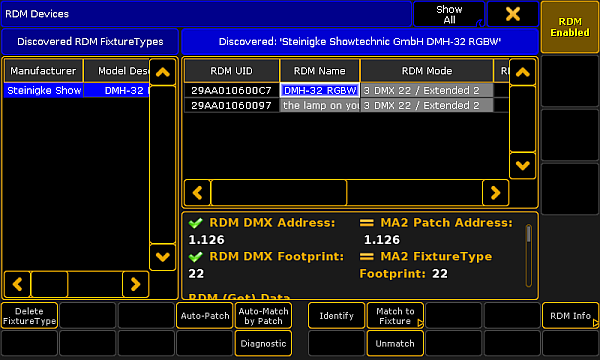 *Auto-patched RDM fixture* **Hint:**\ You can also auto-patch fixtures by using the [RdmAutopatch keyword](/grandma2/key_keyword_rdmautopatch/).
# RDM specific keywords
> Here is a list with links to all specific RDM keywords:
Here is a list with links to all specific RDM keywords: * [RdmAutomatch](/grandma2/key_keyword_rdmautomatch/) * [RdmAutopatch](/grandma2/key_keyword_rdmautopatch/) * [RdmFixtureType](/grandma2/key_keyword_rdmfixturetype/) * [RdmInfo](/grandma2/key_keyword_rdminfo/) * [RdmList](/grandma2/key_keyword_rdmlist/) * [RdmSetParameter](/grandma2/key_keyword_rdmsetparameter/) * [RdmSetpatch](/grandma2/key_keyword_rdmsetpatch/) * [RdmUnmatch](/grandma2/key_keyword_rdmunmatch/)
# Splitters and mergers that support RDM
> MA Lighting tested splitters and mergers that flawlessly support RDM. See the table below.
MA Lighting tested splitters and mergers that flawlessly support RDM. See the table below. | Manufacturer | Series | | ------------ | ------------------------- | | Major | RDM DMX Booster | | Swisson | XSR - 5B | | Eurolite | DMX Split 8X RDM Splitter | | Luminex | LumiSplit |
# Match RDM devices
> After RDM (= Remote Device Management Protocol) is turned on the grandMA2 starts to discover RDM devices. The discovered RDM devices are displayed in the RDM de
After RDM (= Remote Device Management Protocol) is turned on the grandMA2 starts to discover RDM devices. The discovered RDM devices are displayed in the RDM devices window. On the left hand side there are the fixture types, on the right hand side the fixtures. When working with parameters only you can skip the match RDM devices topic and continue with the topic [work with RDM parameters](/grandma2/key_rdm_setparameter/). To work with sensors or notifications the RDM devices have to match to the patch. That means you have to select which fixture of the patch belongs to which RDM fixture. Footprint and DMX address have to be the same. There are two ways to match RDM devices: * [Match to Fixture manually](#Match%20to%20Fixture%20manually) * [Auto-Match by Patch](#Auto-Match%20by%20Patch) *** ## Match to fixture manually[]() [Section titled “Match to fixture manually”](#match-to-fixture-manually) The match to fixture manually is the preferred way when you are not sure if the MA Fixture and RDM Fixture have the same DMX address and the same DMX footprint. If you already double-checked the DMX address and the DMX footprint use the [auto-match by patch](#Auto-Match%20by%20Patch) function. 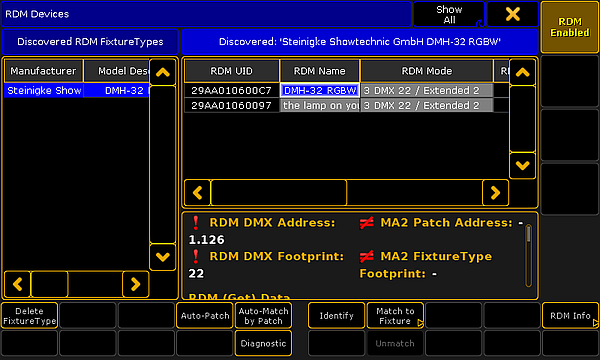 *Discovered RDM devices* **Requirement:** RDM is turned on. 1. To open the RDM devices window press Setup and tap under **Show** at Patch & Fixture Schedule.\ The **Edit Setup** opens. 2. Tap in the lower right corner at RDM devices.\ The **RDM devices window** opens. 3. To select the fixture type you like to match tap at the corresponding fixture type under **Discovered RDM FixtureTypes**.\ The fixtures of the selected fixture type are displayed on the right side of the RDM devices window. 4. To select the fixture tap at the fixture in the table on the right screen side. 5. If you want to identify this fixture in the lighting-rig tap at Identify.\ The identify mode of the selected fixture starts. For more information about the identify mode see the fixtures manual. 6. If you have the to be matched fixture selected in the table tap at Match to Fixture.\ The **Match to MA Fixture** pop-up opens. This pop-up displays all fixtures in your patch.\ For a better overview you can:\ \- Search in the green search field for fixture or channel ID.\ \- Select in the title bar one of the patched layers.\ \- Choose in the title bar if you want to see **All** fixtures, **Unmatched** fixtures or **Current FixtureType only**. 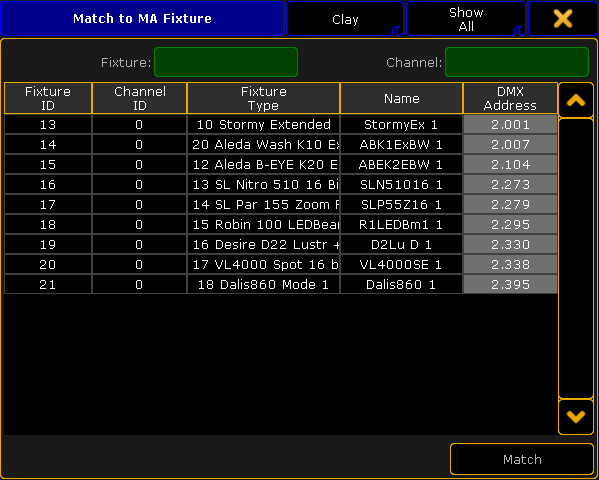 *Match to MA fixture pop-up* 7. Tap in the table at the fixture you like to match and tap Match. **Important:**\ RDM universe and DMX universe has to be the same. If they are not the same, double-check the network configuration under **Setup -> Network -> MA Network Configuration** and / or the DMX wiring. The patch of the selected fixtures matches to the RDM device. A successful match is indicated by green check marks in the field below the fixture table.  *Matched RDM devices* The fixtures are matched. *** ## Auto-Match by Patch[]() [Section titled “Auto-Match by Patch”](#auto-match-by-patch) **Important:**\ Make sure that the MA Fixture and RDM Fixture have the same DMX address and the same DMX footprint. If they are not the same [match the fixture manually](#Match%20to%20Fixture%20manually). The auto-match by patch is a fast way to match fixtures. 1. To open the RDM devices window press Setup and tap under **Show** at Patch & Fixture Schedule.\ The **Edit Setup** opens. 2. Tap in the lower right corner at RDM devices.\ The **RDM devices window** opens. 3. To select the fixture type you like to match tap under **Discovered RDM FixtureTypes** at the fixture type.\ The fixtures to the selected fixture type are displayed on the right side of the RDM devices window. 4. To select the fixture tap at the fixture in the table on the right screen side. 5. If you want to identify this fixture in the lighting-rig tap at Identify.\ The identify mode of the selected fixture starts. For more information about the identify mode see the fixtures manual. 6. Tap Auto-Match by Patch. The software checks if there is a matched MA fixture with the same DMX address and DMX footprint available. If a matched fixture is found the auto-match is successful. A successful match is indicated by green check marks in the field below the fixture table.  *Matched RDM devices* **Hint:**\ You can also use the [keyword RdmAutomatch](/grandma2/key_keyword_rdmautomatch/) to auto-match RDM devices by using the command line.
# Configure RDM notifications
> You can add or delete RDM notifications to or from the fixture types. RDM notification can be add for RDM parameters and for RDM sensors. Choose if the notifica
You can add or delete RDM notifications to or from the fixture types. RDM notification can be add for RDM parameters and for RDM sensors. Choose if the notification should be an RDM alert (displayed in red) or an RDM warning (displayed in yellow). The RDM notification are applied for all fixtures of the fixture type. Depending on the settings in the windows, the RDM notifications icons are displayed in the: * [Fixture Sheet](/grandma2/key_of_fixture_sheet/) * [Layout View](/grandma2/key_layouts/) * [Command line](/grandma2/key_widget_command_line/) The RDM notifications themselves are displayed in the: * [Message Center](/grandma2/key_message_center/) * RDM Messages, go to **Setup -> Patch & Fixture Schedule -> RDM Devices -> RDM Info -> Messages** or type [RdmInfo](/grandma2/key_keyword_rdminfo/) in the command line and tap **Messages**. *** ## Add RDM notifications [Section titled “Add RDM notifications”](#add-rdm-notifications) The following example will explain how to add an RDM notification. **Requirements:** * RDM is turned on * Fixture is matched * Fixture is patched 1. Open the **Fixture Type Editor**.\ \- Press Setup, and tap under **Show** at Patch & Fixture Schedule.\ \- Tap on the right screen side at Fixture Types.\ \- Tap at the fixture type in the table you like to add a notification to and tap Edit.\ The **Fixture Type Editor** opens. 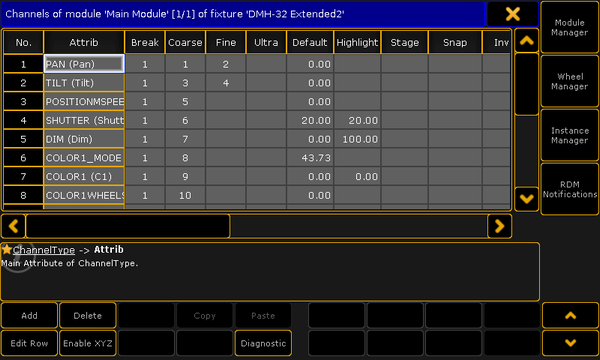 *Fixture Type Editor* 2. Tap on the right screen side RDM Notifications. 3. The **Configure RDM Notifications window** opens.\ Absent is an RDM warning by default and can not be deleted. You can change the RDM Notification Type. The Absent warning appears if the RDM device is not reachable anymore. 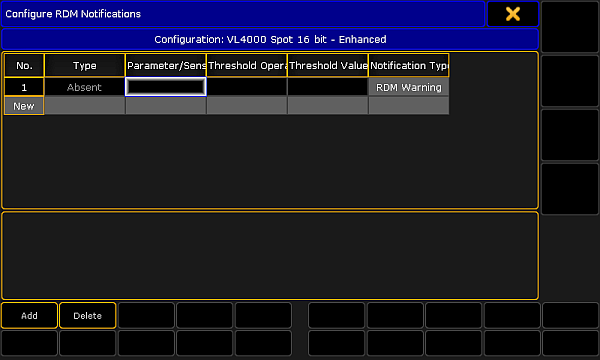 *Configure RDM Notifications window* 4. Tap Add or tap in the cell of the column Type and press the screen encoder.\ The **Select RDM Notification Type pop-up** opens. 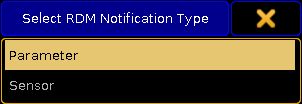 *Select RDM Notification Type pop-up* 5. Tap at Parameter or Sensor, depending for what type you want to add an RDM notification. To edit the next cell, tap at the Parameter/Sensor ID cell and press the screen encoder.\ The **Select RDM Notification ID pop-up** opens. 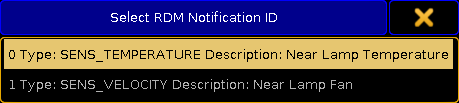 *Select RDM Notification ID pop-up* 6. Tap at the Parameter or Sensor you like to add an RDM notification for. To edit the next cell, tap at the Threshold Operator cell and press the screen encoder.\ The **Select RDM Notification Threshold Operator pop-up** opens. 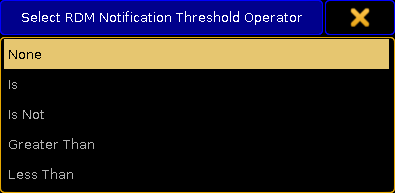 *Select RDM Notification Threshold Operator* 7. Select when the RDM notification should appear:\ **- None:** No RDM Notificaiton.\ **- Is:** If exactly the threshold value is reached.\ **- Is Not:** If any value but not the threshold value is reached.\ **- Greater Than:** If a value greater than the threshold value is reached.\ **- Less Than:** If a value less than the threshold value is reached.\ To edit the next cell, tap at the Threshold Value cell and press the screen encoder.\ The **Calculator** opens. 8. Enter the threshold value in the calculator. The title bar displays the allowed value range. To edit the next cell, tap at the Notification Type cell and press the screen encoder.\ The **Select RDM Notification Type pop-up** opens. 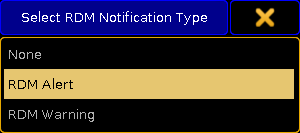 *Select RDM Notification Type pop-up* 9. Tap at RDM Alert (red) or RDM Warning (yellow). The RDM notification is added. *** ## Delete RDM notifications [Section titled “Delete RDM notifications”](#delete-rdm-notifications) If you do not need a previous added RDM notification anymore, you can delete the RDM notification from the fixture type. The following example will explain how to delete an RDM notification. 1. Open the **Configure RDM Notifications window**.\ \- Press Setup, and tap under **Show** at Patch & Fixture Schedule.\ \- Tap on the right screen side at Fixture Types.\ \- Tap at the fixture type in the table you like to add a notification to and tap Edit.\ \- Tap on the right screen side RDM Notifications.\ The **Configure RDM Notifications window** opens. 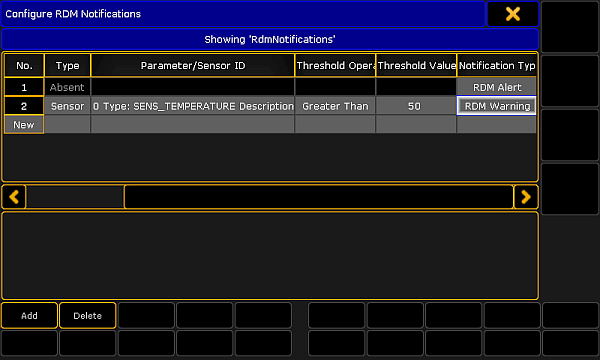 *Configure RDM Notifications window* 2. Tap in the table at the to be deleted notification. 3. Tap Delete. The RDM notification is deleted.
# Use the RDM sheet
> To open the RDM sheet tap at an empty space in the user defined area, tap at Sheets and then RDM.
To open the **RDM sheet** tap at an empty space in the user defined area, tap at Sheets and then RDM. 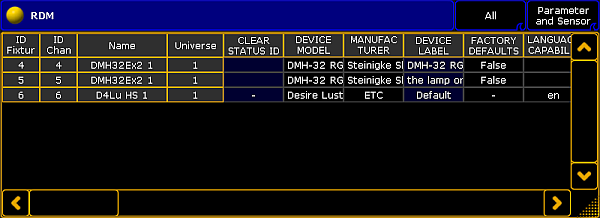 *RDM sheet* * The RDM sheet is used to have a quick overview about the discovered RDM devices, their parameters, and their sensors. * You can set RDM parameter, see [work with RDM parameters](/grandma2/key_rdm_setparameter/). * You can monitor RDM sensors, see [work with RDM sensors](/grandma2/key_rdm_sensors/). * The first title bar button in the RDM sheet allows to filter the RDM sheet by:\ \- **All:** Displays all RDM discovered RDM devices\ \- **Current Fixture Type:** Displays to the selected fixture or channel the RDM devices with the same fixture type.\ \- **Selection:** Displays only the RDM devices of the fixture or channel selection\ \- **Alerts/Warnings:** Displays only the RDM devices with a notification\ \- **Unmatched Fixtures:** Displays only the unmatched RDM devices * The second title bar button in the RDM sheet allows to filter the RDM sheet by:\ \- **Parameters and Sensors**\ \- **Parameters**\ \- **Sensors** * For a better overview, you can sort every column up-and-down. To sort a column tap and hold in a header cell of the RDM sheet or right mouse click in the header cell.
# Work with RDM sensors
> After the RDM fixture is matched, you can:
After the RDM fixture is matched, you can: * [Monitor RDM sensors via the RDM sheet](#Monitor%20RDM%20sensors) * [Monitor RDM sensors via Edit Setup / Reset RDM sensors](#Reset%20RDM%20sensors) *** ## []()Monitor RDM sensors via the RDM sheet [Section titled “Monitor RDM sensors via the RDM sheet”](#monitor-rdm-sensors-via-the-rdm-sheet) The following example explains how to monitor RDM sensors. **Requirements:** * RDM is turned on * Fixture is matched * Fixture is patched 1. Open the RDM sheet. Tap on an empty space in the user-defined area, tap at Sheets and then at RDM. 2. The **RDM sheet** opens. 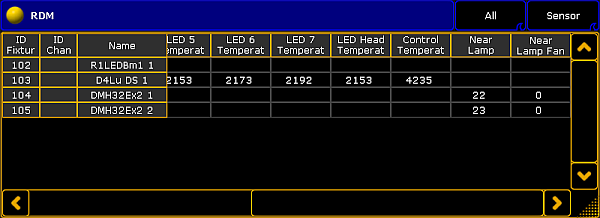 *RDM sheet - Sensors* 3. To get the sensors displayed, tap at the right title bar button at Sensor or Parameters and Sensors. In default the transmitted sensor data are displayed at the far right of the RDM sheet. Hint:\ You can also monitor the RDM sensors by using the [RDMInfo keyword](/grandma2/key_keyword_rdminfo/). *** ## []()Monitor RDM sensors via the Edit Setup / Reset RDM sensors [Section titled “Monitor RDM sensors via the Edit Setup / Reset RDM sensors”](#monitor-rdm-sensors-via-the-edit-setup--reset-rdm-sensors) The following example explains how to reset an RDM sensor. This is also the way to monitor RDM sensors via the Edit Setup. 1. Open the RDM devices window. Press Setup and tap under **Show** at Patch & Fixture Schedule.\ The **Edit Setup** opens. 2. Tap in the lower right corner at RDM devices.\ The **RDM devices window** opens.  *RDM devices window* 3. To select the fixture type you like to reset the sensor for tap at the corresponding fixture type under **Discovered RDM FixtureTypes**.\ The fixtures to the selected fixture type are displayed on the right side of the RDM devices window. 4. To select the fixture, tap at the fixture in the table on the right screen side. 5. Tap at RDM Info.\ The **RDM Parameters** window opens. 6. Tap on the right screen side at Sensors. This window displays the transmitted data to the sensors of the RDM device to monitor them. 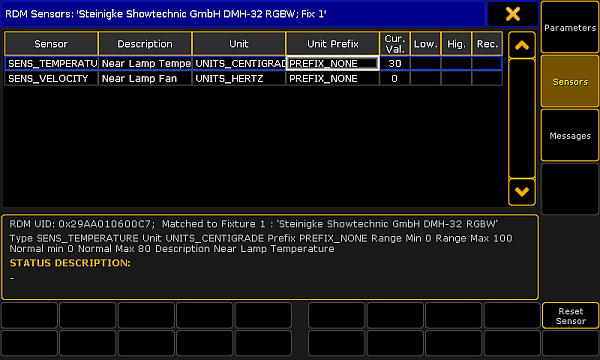 *RDM sensors window* 7. To clear the low and high values of a sensor, tap at the sensor in the table and tap Reset Sensor. You have reset a sensor.
# Work with RDM parameters
> After the RDM is turned on and an RDM fixture is discovered, you can:
After the RDM is turned on and an RDM fixture is discovered, you can: * Send RDM commands to the RDM fixture see [Set RDM parameter](#Set%20RDM%20parameters) * Add RDM parameter used by the fixture see [Add RDM parameter](#Add%20RDM%20parameter) * Delete previous added parameters see [Delete RDM parameter](#Delete%20RDM%20parameter) *** ## Set RDM parameters[]() [Section titled “Set RDM parameters”](#set-rdm-parameters) The following examples will explain the set parameter function with the example of changing the fixture mode. There are two ways to set RDM parameter. **Requirement:** RDM is turned on and at least one RDM fixture is discovered. Way A: 1. Open the RDM sheet. Tap on an empty space in the user defined area, tap at Sheets and then at RDM. 2. The **RDM sheet** opens.  *RDM sheet* 3. Scroll with the scroll bar to the column DMX PERSONALITY and tap at the cell you like to change the fixture mode. Press the screen encoder. 4. The **Select RDM Mode** pop-up opens. 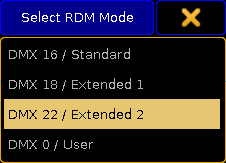 *Select RDM Mode pop-up* 5. Tap at the mode the fixture should use. A new mode is set and transmitted via RDM to the RDM fixture. Way B: 1. Open the RDM devices window. Press Setup, and tap under **Show** at Patch & Fixture Schedule.\ The **Edit Setup** opens. 2. Tap in the lower right corner at RDM devices.\ The **RDM devices window** opens. In this window, you can set the parameter of the DMX personality and the DMX start address of the RDM fixture.  *RDM devices window* 3. To select the fixture type you like set parameters to, tap at under **Discovered RDM FixtureTypes** at the fixture type.\ The fixtures to the selected fixture type are displayed on the right side of the RDM devices window. 4. To select the fixture, tap at the fixture in the table on the right screen side. 5. Tap in the lower right corner at RDM Info.\ The **RDM Parameters** window opens. In the title bar, you can choose between **Show only Set**, **Show only Get**, **Show All**, and **FixtureType Messages**. 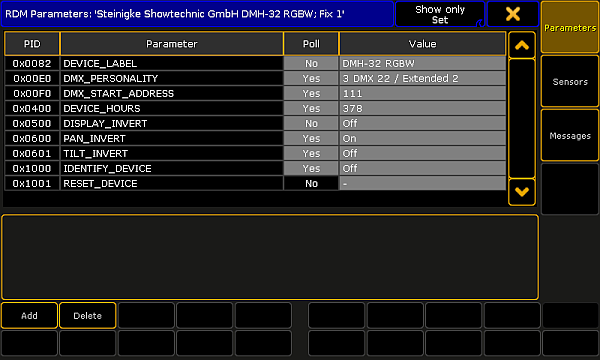 *RDM Parameters window* 6. Tap and hold the **value** cell in the row **DMX\_PERSONALITY**.\ The **Select RDM Mode** pop-up opens.  *Select RDM Mode pop-up* 7. Tap at the mode the fixture should use. 8. Double-check if **Yes** is set in the cell of the column **Poll**.\ Yes means, that the information is collected from the fixture. If Poll is set to No, you can change the parameter but the changes are not visible in the console.\ If **No** is set, tap and hold in the cell until **Yes** is set. A new mode is set and transmitted via RDM to the RDM fixture. *** ## Add RDM parameter[]() [Section titled “Add RDM parameter”](#add-rdm-parameter) If the fixture uses RDM parameters but those parameters are not transmitted, you can add RDM parameter. 1. Open the RDM devices window.\ \- Press Setup, and tap under **Show** at Patch & Fixture Schedule.\ \- Tap in the lower right corner at RDM devices. 2. To select the fixture type you like to add parameters to, tap at under **Discovered RDM FixtureTypes** at the fixture type.\ The fixtures to the selected fixture type are displayed on the right side of the RDM devices window. 3. To select the fixture, tap at the fixture in the table on the right screen side. 4. Tap in the lower right corner at RDM Info.\ The **RDM Parameters** window opens. 5. Tap Add.\ The **calculator** opens. 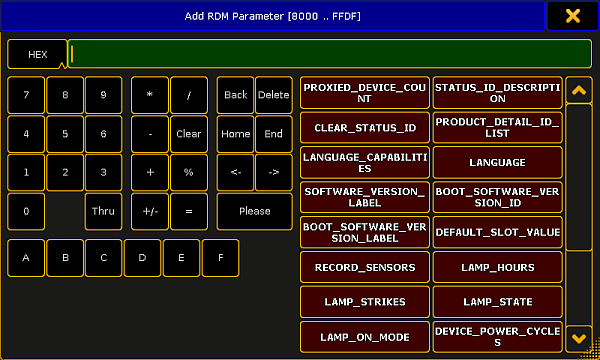 *Calculator - Add RDM parameter* 6. Enter the hex value or tap at one of the standard RDM parameters. The RDM parameter is added and visible in the RDM parameters window. *** ## Delete RDM parameter[]() [Section titled “Delete RDM parameter”](#delete-rdm-parameter) **Important:**\ The delete RDM parameters functions is not oopsable. You can delete previous added RDM parameters. 1. Open the RDM devices window.\ \- Press Setup, and tap under **Show** at Patch & Fixture Schedule.\ \- Tap in the lower right corner at RDM devices. 2. To select the fixture type you like to delete parameters from, tap at under **Discovered RDM FixtureTypes** at the fixture type.\ The fixtures to the selected fixture type are displayed on the right side of the RDM devices window. 3. To select the fixture, tap at the fixture in the table on the right screen side. 4. Tap in the lower right corner at RDM Info.\ The **RDM Parameters** window opens. 5. Tap at the to be deleted parameter. 6. Tap Delete. The parameter is deleted.
# Turn RDM off
> To ensure a trouble-free DMX signal and to minimize network traffic, we recommend to turn RDM off for universes including only fixtures NOT providing RDM functi
To ensure a trouble-free DMX signal and to minimize network traffic, we recommend to turn RDM off for universes including only fixtures NOT providing RDM functionality. *** ## Turn off RDM per universe [Section titled “Turn off RDM per universe”](#turn-off-rdm-per-universe) There are two ways to do this. Way A: 1. Tap on an empty space in the screen, tap **Pools**, and then item Universes.\ The **universe pool** opens. 2. Press Edit and tap at the universe you want to turn off RDM.\ The **Edit universe pop-up** opens. 3. Tap in the RDM cell until the cell is empty. RDM is turned off for the selected universe. The **green RDM icon**  is not visible anymore in the universe pool - pool style. Way B: 1. Press Setup and tap under **Show** Patch only (Live).\ The **Live Setup** opens. 2. Tap DMX List.\ The **DMX list** opens. 3. Under List of Universes is a column RDM. Tap in the RDM cell until the cell is empty for that universe you want to turn off RDM. RDM is turned off for the selected universe. The **green RDM icon**  is not visible anymore in the universe pool - pool style. *** ## Turn off RDM global [Section titled “Turn off RDM global”](#turn-off-rdm-global) There are two ways to turn off RDM global. Way A: 1. Press Setup and tap under **Console** Global Settings.  *Setup global settings* 2. Tap at Enable RDM until the **Off** is yellow. RDM is global turned off. The **red RDM icon**  is displayed in the universe pool - pool style, if RDM is on for that universe. Way B: 1. Press Setup and tap under **Show** Patch & Fixture Schedule.\ The **Edit Setup** opens. 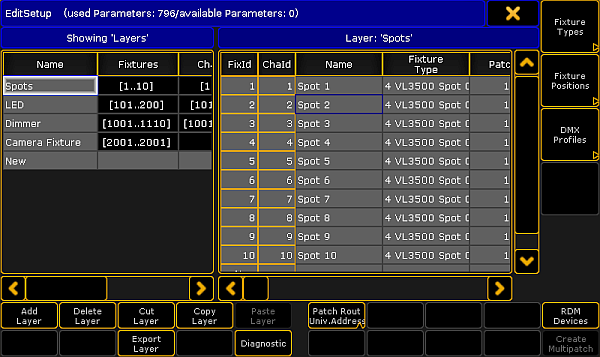 *Setup patch & fixture schedule (edit setup)* 2. Tap in the lower right corner at RDM Devices.\ The **RDM Devices window** opens.  *Setup - patch & fixture schedule - RDM devices* 3. Tap at RDM Enabled until **RDM Disabled** is displayed. RDM is global turned off. The **red RDM icon**  is displayed in the universe pool - pool style, if RDM is on for that universe.
# Turn RDM on
> To use RDM (= Remote Device Management Protocol) you need to turn on RDM global. By default RDM is turned off.
To use RDM (= Remote Device Management Protocol) you need to turn on RDM global. By default RDM is turned off. *** ## []()Turn on RDM global [Section titled “Turn on RDM global”](#turn-on-rdm-global) **Requirements:**\ \- One connected RDM device.\ \- One patched fixture or channel to have an outgoing DMX signal. 1. Press Setup and tap under **Console** Global Settings. 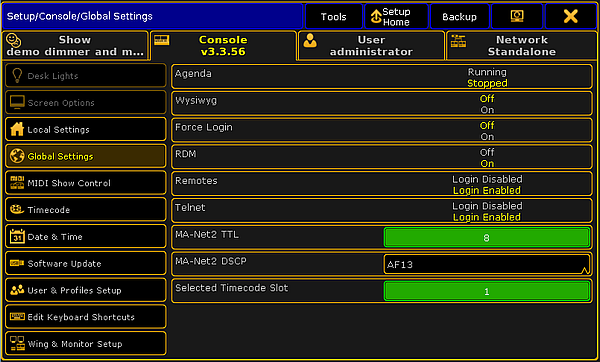 *Setup global settings* 2) Tap at Enable RDM until the **On** is yellow. RDM is global turned on for all universes. The console starts to discover RDM devices. **Hint:**\ To turn on RDM global, you can also go to **Setup -> Patch & Fixture Schedule -> RDM Devices** and tap RDM Disabled until **RDM Enabled** is displayed. *** ## []()Turn on RDM per universe [Section titled “Turn on RDM per universe”](#turn-on-rdm-per-universe) If RDM is turned off in global settings, then it’s indicated by a red **RDM icon**  in the universe pool, the following example explains how to turn on RDM per universe. **Requirement:** RDM is global turned on. For more information, see [turn on RDM global](#Turn%20on%20RDM%20global). There are two ways to turn on RDM per universe. Way A: 1. Tap on an empty space in the screen, tap **Pools**, and then item Universes.\ The **universe pool** opens. 1.  *Universe pool* 2. Press Edit and tap at the universe you want to turn on RDM.\ The **Edit universe pop-up** opens.  *Edit universe* 3. Tap and hold in the RDM cell until **On** is displayed. **Hint:**\ To edit more universes at once, use the sheet style of the universe pool. Open the universe pool, tap at the **yellow ball** in the title bar, and tap at **Sheet Style**. Swipe to select the cells you like to edit. **Important:**\ If the **On** is displayed in red, RDM is global turned off. For more information, see [turn on RDM global](#Turn%20on%20RDM%20global). RDM is turned on for the selected universe. A **green RDM icon**  is displayed in the universe tile. Way B: 1. Press Setup and tap under **Show** Patch only (Live).\ The **Live Setup** opens. 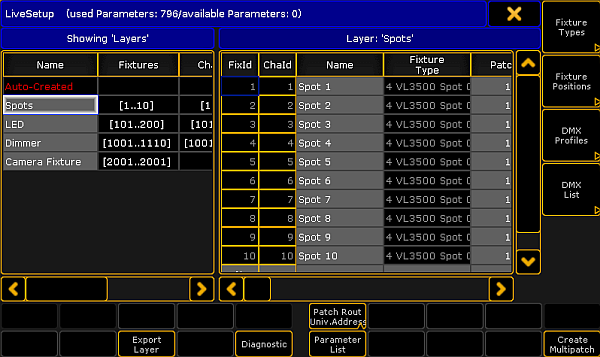 *Live setup* 2. Tap DMX List.\ The **DMX list** opens. 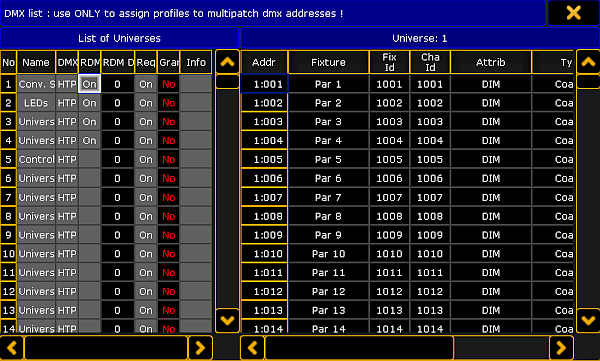 *DMX list* 3. Under List of Universes is a column RDM. Tap and hold in the cell until **On** is displayed for that universe you want to turn on RDM. RDM is turned on for the selected universe. A **green RDM icon**  is displayed for this universe in the universe pool.
# Unmatch RDM devices
> To unmatch RDM devices from the patch:
To unmatch RDM devices from the patch: 1. Open the RDM devices window. Press Setup, and tap under **Show** at Patch & Fixture Schedule.\ The **Edit Setup** opens. 2. Tap in the lower right corner at RDM devices.\ The **RDM devices window** opens. 3. To select the fixture type you like to unmatch, tap at under **Discovered RDM FixtureTypes** at the fixture type.\ The fixtures to the selected fixture type are displayed on the right side of the RDM devices window. 4. To select the fixture, tap at the fixture in the table on the right screen side. 5. Tap Unmatch. The selected fixture is unmatched from the patch.  *Unmatched RDM device* **Hint:**\ You can also unmatch RDM devices by using the [keyword RdmUnmatch](/grandma2/key_keyword_rdmunmatch/).
# Remote Controlling the System
> There are several ways to remote control grandMA2.
There are several ways to remote control grandMA2. This section describes them. There is a [Remote Input](/grandma2/key_remote_control_input/) part in the setup that allows simple DMX, Contact Closure and MIDI notes to trigger actions. A more complex method is to use [MIDI Show Control - MSC](/grandma2/key_remote_control_msc/). This can be used to trigger cues, macros, control faders, and turn off executors. There is a description of the [Web Remote](/grandma2/key_remote_control_web_remote/) - a browser interface that allows control and visualization of information - fixture and cue feedback. The [Telnet](/grandma2/key_remote_control_telnet/) connection allows the execution of any command in grandMA2. This can be very useful with 3rd party controllers - for instance a house control system. Finally this section also has a very useful [Decimal, Hex, ASCII conversion table](/grandma2/key_remote_control_hex_table/). ## Subtopics [Section titled “Subtopics”](#subtopics) * [Remote input](/grandma2/key_remote_control_input/) * [MIDI show control (MSC)](/grandma2/key_remote_control_msc/) * [Web remote](/grandma2/key_remote_control_web_remote/) * [Telnet remote](/grandma2/key_remote_control_telnet/) * [Decimal – hex table](/grandma2/key_remote_control_hex_table/)
# Decimal – hex table
> This is a table that compares Decimal, Hex, Art-Net, and ASCII numbers.
This is a table that compares Decimal, Hex, Art-Net, and ASCII numbers. It might be useful when there are two systems that uses different number systems. | Decimal (beginning at 0) | Decimal (beginning at 1) | Art-Net (HEX) | Art-Net (Decimal) | Hex | ASCII | | ------------------------ | ------------------------ | ------------- | ----------------- | --- | ------- | | 0 | 1 | 0 : 0 | 0 : 0 | 00 | NULL | | 1 | 2 | 0 : 1 | 0 : 1 | 01 | SOH | | 2 | 3 | 0 : 2 | 0 : 2 | 02 | STX | | 3 | 4 | 0 : 3 | 0 : 3 | 03 | ETX | | 4 | 5 | 0 : 4 | 0 : 4 | 04 | EOT | | 5 | 6 | 0 : 5 | 0 : 5 | 05 | ENQ | | 6 | 7 | 0 : 6 | 0 : 6 | 06 | ACK | | 7 | 8 | 0 : 7 | 0 : 7 | 07 | BEL | | 8 | 9 | 0 : 8 | 0 : 8 | 08 | BS | | 9 | 10 | 0 : 9 | 0 : 9 | 09 | TAB | | 10 | 11 | 0 : A | 0 : 10 | 0A | LF | | 11 | 12 | 0 : B | 0 : 11 | 0B | VT | | 12 | 13 | 0 : C | 0 : 12 | 0C | FF | | 13 | 14 | 0 : D | 0 : 13 | 0D | CR | | 14 | 15 | 0 : E | 0 : 14 | 0E | SO | | 15 | 16 | 0 : F | 0 : 15 | 0F | SI | | 16 | 17 | 1 : 0 | 1 : 0 | 10 | DLE | | 17 | 18 | 1 : 1 | 1 : 1 | 11 | DC1 | | 18 | 19 | 1 : 2 | 1 : 2 | 12 | DC2 | | 19 | 20 | 1 : 3 | 1 : 3 | 13 | DC3 | | 20 | 21 | 1 : 4 | 1 : 4 | 14 | DC4 | | 21 | 22 | 1 : 5 | 1 : 5 | 15 | NAK | | 22 | 23 | 1 : 6 | 1 : 6 | 16 | SYN | | 23 | 24 | 1 : 7 | 1 : 7 | 17 | ETB | | 24 | 25 | 1 : 8 | 1 : 8 | 18 | CAN | | 25 | 26 | 1 : 9 | 1 : 9 | 19 | EM | | 26 | 27 | 1 : A | 1 : 10 | 1A | SUB | | 27 | 28 | 1 : B | 1 : 11 | 1B | ESC | | 28 | 29 | 1 : C | 1 : 12 | 1C | FS | | 29 | 30 | 1 : D | 1 : 13 | 1D | GS | | 30 | 31 | 1 : E | 1 : 14 | 1E | RS | | 31 | 32 | 1 : F | 1 : 15 | 1F | US | | 32 | 33 | 2 : 0 | 2 : 0 | 20 | (space) | | 33 | 34 | 2 : 1 | 2 : 1 | 21 | ! | | 34 | 35 | 2 : 2 | 2 : 2 | 22 | ” | | 35 | 36 | 2 : 3 | 2 : 3 | 23 | # | | 36 | 37 | 2 : 4 | 2 : 4 | 24 | $ | | 37 | 38 | 2 : 5 | 2 : 5 | 25 | % | | 38 | 39 | 2 : 6 | 2 : 6 | 26 | & | | 39 | 40 | 2 : 7 | 2 : 7 | 27 | ’ | | 40 | 41 | 2 : 8 | 2 : 8 | 28 | ( | | 41 | 42 | 2 : 9 | 2 : 9 | 29 | ) | | 42 | 43 | 2 : A | 2 : 10 | 2A | \* | | 43 | 44 | 2 : B | 2 : 11 | 2B | + | | 44 | 45 | 2 : C | 2 : 12 | 2C | , | | 45 | 46 | 2 : D | 2 : 13 | 2D | - | | 46 | 47 | 2 : E | 2 : 14 | 2E | . | | 47 | 48 | 2 : F | 2 : 15 | 2F | / | | 48 | 49 | 3 : 0 | 3 : 0 | 30 | 0 | | 49 | 50 | 3 : 1 | 3 : 1 | 31 | 1 | | 50 | 51 | 3 : 2 | 3 : 2 | 32 | 2 | | 51 | 52 | 3 : 3 | 3 : 3 | 33 | 3 | | 52 | 53 | 3 : 4 | 3 : 4 | 34 | 4 | | 53 | 54 | 3 : 5 | 3 : 5 | 35 | 5 | | 54 | 55 | 3 : 6 | 3 : 6 | 36 | 6 | | 55 | 56 | 3 : 7 | 3 : 7 | 37 | 7 | | 56 | 57 | 3 : 8 | 3 : 8 | 38 | 8 | | 57 | 58 | 3 : 9 | 3 : 9 | 39 | 9 | | 58 | 59 | 3 : A | 3 : 10 | 3A | : | | 59 | 60 | 3 : B | 3 : 11 | 3B | ; | | 60 | 61 | 3 : C | 3 : 12 | 3C | < | | 61 | 62 | 3 : D | 3 : 13 | 3D | = | | 62 | 63 | 3 : E | 3 : 14 | 3E | > | | 63 | 64 | 3 : F | 3 : 15 | 3F | ? | | 64 | 65 | 4 : 0 | 4 : 0 | 40 | @ | | 65 | 66 | 4 : 1 | 4 : 1 | 41 | A | | 66 | 67 | 4 : 2 | 4 : 2 | 42 | B | | 67 | 68 | 4 : 3 | 4 : 3 | 43 | C | | 68 | 69 | 4 : 4 | 4 : 4 | 44 | D | | 69 | 70 | 4 : 5 | 4 : 5 | 45 | E | | 70 | 71 | 4 : 6 | 4 : 6 | 46 | F | | 71 | 72 | 4 : 7 | 4 : 7 | 47 | G | | 72 | 73 | 4 : 8 | 4 : 8 | 48 | H | | 73 | 74 | 4 : 9 | 4 : 9 | 49 | I | | 74 | 75 | 4 : A | 4 : 10 | 4A | J | | 75 | 76 | 4 : B | 4 : 11 | 4B | K | | 76 | 77 | 4 : C | 4 : 12 | 4C | L | | 77 | 78 | 4 : D | 4 : 13 | 4D | M | | 78 | 79 | 4 : E | 4 : 14 | 4E | N | | 79 | 80 | 4 : F | 4 : 15 | 4F | O | | 80 | 81 | 5 : 0 | 5 : 0 | 50 | P | | 81 | 82 | 5 : 1 | 5 : 1 | 51 | Q | | 82 | 83 | 5 : 2 | 5 : 2 | 52 | R | | 83 | 84 | 5 : 3 | 5 : 3 | 53 | S | | 84 | 85 | 5 : 4 | 5 : 4 | 54 | T | | 85 | 86 | 5 : 5 | 5 : 5 | 55 | U | | 86 | 87 | 5 : 6 | 5 : 6 | 56 | V | | 87 | 88 | 5 : 7 | 5 : 7 | 57 | W | | 88 | 89 | 5 : 8 | 5 : 8 | 58 | X | | 89 | 90 | 5 : 9 | 5 : 9 | 59 | Y | | 90 | 91 | 5 : A | 5 : 10 | 5A | Z | | 91 | 92 | 5 : B | 5 : 11 | 5B | \[ | | 92 | 93 | 5 : C | 5 : 12 | 5C | \\ | | 93 | 94 | 5 : D | 5 : 13 | 5D | ] | | 94 | 95 | 5 : E | 5 : 14 | 5E | ^ | | 95 | 96 | 5 : F | 5 : 15 | 5F | \_ | | 96 | 97 | 6 : 0 | 6 : 0 | 60 | \` | | 97 | 98 | 6 : 1 | 6 : 1 | 61 | a | | 98 | 99 | 6 : 2 | 6 : 2 | 62 | b | | 99 | 100 | 6 : 3 | 6 : 3 | 63 | c | | 100 | 101 | 6 : 4 | 6 : 4 | 64 | d | | 101 | 102 | 6 : 5 | 6 : 5 | 65 | e | | 102 | 103 | 6 : 6 | 6 : 6 | 66 | f | | 103 | 104 | 6 : 7 | 6 : 7 | 67 | g | | 104 | 105 | 6 : 8 | 6 : 8 | 68 | h | | 105 | 106 | 6 : 9 | 6 : 9 | 69 | i | | 106 | 107 | 6 : A | 6 : 10 | 6A | j | | 107 | 108 | 6 : B | 6 : 11 | 6B | k | | 108 | 109 | 6 : C | 6 : 12 | 6C | l | | 109 | 110 | 6 : D | 6 : 13 | 6D | m | | 110 | 111 | 6 : E | 6 : 14 | 6E | n | | 111 | 112 | 6 : F | 6 : 15 | 6F | o | | 112 | 113 | 7 : 0 | 7 : 0 | 70 | p | | 113 | 114 | 7 : 1 | 7 : 1 | 71 | q | | 114 | 115 | 7 : 2 | 7 : 2 | 72 | r | | 115 | 116 | 7 : 3 | 7 : 3 | 73 | s | | 116 | 117 | 7 : 4 | 7 : 4 | 74 | t | | 117 | 118 | 7 : 5 | 7 : 5 | 75 | u | | 118 | 119 | 7 : 6 | 7 : 6 | 76 | v | | 119 | 120 | 7 : 7 | 7 : 7 | 77 | w | | 120 | 121 | 7 : 8 | 7 : 8 | 78 | x | | 121 | 122 | 7 : 9 | 7 : 9 | 79 | y | | 122 | 123 | 7 : A | 7 : 10 | 7A | z | | 123 | 124 | 7 : B | 7 : 11 | 7B | { | | 124 | 125 | 7 : C | 7 : 12 | 7C | \| | | 125 | 126 | 7 : D | 7 : 13 | 7D | } | | 126 | 127 | 7 : E | 7 : 14 | 7E | \~ | | 127 | 128 | 7 : F | 7 : 15 | 7F | DEL | | 128 | 129 | 8 : 0 | 8 : 0 | 80 | Ç | | 129 | 130 | 8 : 1 | 8 : 1 | 81 | ü | | 130 | 131 | 8 : 2 | 8 : 2 | 82 | é | | 131 | 132 | 8 : 3 | 8 : 3 | 83 | â | | 132 | 133 | 8 : 4 | 8 : 4 | 84 | ä | | 133 | 134 | 8 : 5 | 8 : 5 | 85 | à | | 134 | 135 | 8 : 6 | 8 : 6 | 86 | å | | 135 | 136 | 8 : 7 | 8 : 7 | 87 | ç | | 136 | 137 | 8 : 8 | 8 : 8 | 88 | ê | | 137 | 138 | 8 : 9 | 8 : 9 | 89 | ë | | 138 | 139 | 8 : A | 8 : 10 | 8A | è | | 139 | 140 | 8 : B | 8 : 11 | 8B | ï | | 140 | 141 | 8 : C | 8 : 12 | 8C | î | | 141 | 142 | 8 : D | 8 : 13 | 8D | ì | | 142 | 143 | 8 : E | 8 : 14 | 8E | Ä | | 143 | 144 | 8 : F | 8 : 15 | 8F | Å | | 144 | 145 | 9 : 0 | 9 : 0 | 90 | É | | 145 | 146 | 9 : 1 | 9 : 1 | 91 | æ | | 146 | 147 | 9 : 2 | 9 : 2 | 92 | Æ | | 147 | 148 | 9 : 3 | 9 : 3 | 93 | ô | | 148 | 149 | 9 : 4 | 9 : 4 | 94 | ö | | 149 | 150 | 9 : 5 | 9 : 5 | 95 | ò | | 150 | 151 | 9 : 6 | 9 : 6 | 96 | û | | 151 | 152 | 9 : 7 | 9 : 7 | 97 | ù | | 152 | 153 | 9 : 8 | 9 : 8 | 98 | ÿ | | 153 | 154 | 9 : 9 | 9 : 9 | 99 | Ö | | 154 | 155 | 9 : A | 9 : 10 | 9A | Ü | | 155 | 156 | 9 : B | 9 : 11 | 9B | ø | | 156 | 157 | 9 : C | 9 : 12 | 9C | £ | | 157 | 158 | 9 : D | 9 : 13 | 9D | Ø | | 158 | 159 | 9 : E | 9 : 14 | 9E | × | | 159 | 160 | 9 : F | 9 : 15 | 9F | ƒ | | 160 | 161 | A : 0 | 10 : 0 | A0 | á | | 161 | 162 | A : 1 | 10 : 1 | A1 | í | | 162 | 163 | A : 2 | 10 : 2 | A2 | ó | | 163 | 164 | A : 3 | 10 : 3 | A3 | ú | | 164 | 165 | A : 4 | 10 : 4 | A4 | ñ | | 165 | 166 | A : 5 | 10 : 5 | A5 | Ñ | | 166 | 167 | A : 6 | 10 : 6 | A6 | ª | | 167 | 168 | A : 7 | 10 : 7 | A7 | º | | 168 | 169 | A : 8 | 10 : 8 | A8 | ¿ | | 169 | 170 | A : 9 | 10 : 9 | A9 | ® | | 170 | 171 | A : A | 10 : 10 | AA | ¬ | | 171 | 172 | A : B | 10 : 11 | AB | ½ | | 172 | 173 | A : C | 10 : 12 | AC | ¼ | | 173 | 174 | A : D | 10 : 13 | AD | ¡ | | 174 | 175 | A : E | 10 : 14 | AE | « | | 175 | 176 | A : F | 10 : 15 | AF | » | | 176 | 177 | B : 0 | 11 : 0 | B0 | ░ | | 177 | 178 | B : 1 | 11 : 1 | B1 | ▒ | | 178 | 179 | B : 2 | 11 : 2 | B2 | ▓ | | 179 | 180 | B : 3 | 11 : 3 | B3 | │ | | 180 | 181 | B : 4 | 11 : 4 | B4 | ┤ | | 181 | 182 | B : 5 | 11 : 5 | B5 | Á | | 182 | 183 | B : 6 | 11 : 6 | B6 | Â | | 183 | 184 | B : 7 | 11 : 7 | B7 | À | | 184 | 185 | B : 8 | 11 : 8 | B8 | © | | 185 | 186 | B : 9 | 11 : 9 | B9 | ╣ | | 186 | 187 | B : A | 11 : 10 | BA | ║ | | 187 | 188 | B : B | 11 : 11 | BB | ╗ | | 188 | 189 | B : C | 11 : 12 | BC | ╝ | | 189 | 190 | B : D | 11 : 13 | BD | ¢ | | 190 | 191 | B : E | 11 : 14 | BE | ¥ | | 191 | 192 | B : F | 11 : 15 | BF | ┐ | | 192 | 193 | C : 0 | 12 : 0 | C0 | └ | | 193 | 194 | C : 1 | 12 : 1 | C1 | ┴ | | 194 | 195 | C : 2 | 12 : 2 | C2 | ┬ | | 195 | 196 | C : 3 | 12 : 3 | C3 | ├ | | 196 | 197 | C : 4 | 12 : 4 | C4 | ─ | | 197 | 198 | C : 5 | 12 : 5 | C5 | ┼ | | 198 | 199 | C : 6 | 12 : 6 | C6 | ã | | 199 | 200 | C : 7 | 12 : 7 | C7 | Ã | | 200 | 201 | C : 8 | 12 : 8 | C8 | ╚ | | 201 | 202 | C : 9 | 12 : 9 | C9 | ╔ | | 202 | 203 | C : A | 12 : 10 | CA | ╩ | | 203 | 204 | C : B | 12 : 11 | CB | ╦ | | 204 | 205 | C : C | 12 : 12 | CC | ╠ | | 205 | 206 | C : D | 12 : 13 | CD | ═ | | 206 | 207 | C : E | 12 : 14 | CE | ╬ | | 207 | 208 | C : F | 12 : 15 | CF | ¤ | | 208 | 209 | D : 0 | 13 : 0 | D0 | ð | | 209 | 210 | D : 1 | 13 : 1 | D1 | Ð | | 210 | 211 | D : 2 | 13 : 2 | D2 | Ê | | 211 | 212 | D : 3 | 13 : 3 | D3 | Ë | | 212 | 213 | D : 4 | 13 : 4 | D4 | È | | 213 | 214 | D : 5 | 13 : 5 | D5 | ı | | 214 | 215 | D : 6 | 13 : 6 | D6 | Í | | 215 | 216 | D : 7 | 13 : 7 | D7 | Î | | 216 | 217 | D : 8 | 13 : 8 | D8 | Ï | | 217 | 218 | D : 9 | 13 : 9 | D9 | ┘ | | 218 | 219 | D : A | 13 : 10 | DA | ┌ | | 219 | 220 | D : B | 13 : 11 | DB | █ | | 220 | 221 | D : C | 13 : 12 | DC | ▄ | | 221 | 222 | D : D | 13 : 13 | DD | ¦ | | 222 | 223 | D : E | 13 : 14 | DE | Ì | | 223 | 224 | D : F | 13 : 15 | DF | ▀ | | 224 | 225 | E : 0 | 14 : 0 | E0 | Ó | | 225 | 226 | E : 1 | 14 : 1 | E1 | ß | | 226 | 227 | E : 2 | 14 : 2 | E2 | Ô | | 227 | 228 | E : 3 | 14 : 3 | E3 | Ò | | 228 | 229 | E : 4 | 14 : 4 | E4 | õ | | 229 | 230 | E : 5 | 14 : 5 | E5 | Õ | | 230 | 231 | E : 6 | 14 : 6 | E6 | µ | | 231 | 232 | E : 7 | 14 : 7 | E7 | þ | | 232 | 233 | E : 8 | 14 : 8 | E8 | Þ | | 233 | 234 | E : 9 | 14 : 9 | E9 | Ú | | 234 | 235 | E : A | 14 : 10 | EA | Û | | 235 | 236 | E : B | 14 : 11 | EB | Ù | | 236 | 237 | E : C | 14 : 12 | EC | ý | | 237 | 238 | E : D | 14 : 13 | ED | Ý | | 238 | 239 | E : E | 14 : 14 | EE | ¯ | | 239 | 240 | E : F | 14 : 15 | EF | ´ | | 240 | 241 | F : 0 | 15 : 0 | F0 | | | 241 | 242 | F : 1 | 15 : 1 | F1 | ± | | 242 | 243 | F : 2 | 15 : 2 | F2 | ‗ | | 243 | 244 | F : 3 | 15 : 3 | F3 | ¾ | | 244 | 245 | F : 4 | 15 : 4 | F4 | | | 245 | 246 | F : 5 | 15 : 5 | F5 | § | | 246 | 247 | F : 6 | 15 : 6 | F6 | ÷ | | 247 | 248 | F : 7 | 15 : 7 | F7 | ¸ | | 248 | 249 | 15 : 8 | 15 : 8 | F8 | ° | | 249 | 250 | F : 9 | 15 : 9 | F9 | ¨ | | 250 | 251 | F : A | 15 : 10 | FA | · | | 251 | 252 | F : B | 15 : 11 | FB | ¹ | | 252 | 253 | F : C | 15 : 12 | FC | ³ | | 253 | 254 | F : D | 15 : 13 | FD | ² | | 254 | 255 | F : E | 15 : 14 | FE | ■ | | 255 | 256 | F : F | 15 : 15 | FF | |
# Remote input
> The Remote Input section can be found by pressing the Setup key and then Remote Input Setup in the Show tab.
The **Remote Input** section can be found by pressing the Setup key and then Remote Input Setup in the **Show** tab. There are three tabs: **Analog Remotes**, **MIDI Remotes**, and **DMX Remotes**. The three tabs are very similar. The only difference is the remote source. A remote tab could look like this: 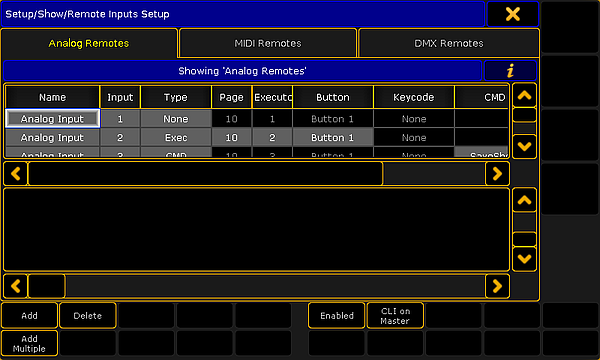 *Remote Input Setup - Analog Remote* Each row in the table is a remote input. Each remote type is described below but first is short description of the common columns in the three tabs: * **Name**:\ Each remote input can have a custom name. * **Type**:\ Tapping here will open the **Select Type pop-up**: 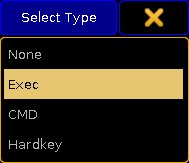 *Select Type pop-up* The options are: **None**, **Exec** (executor), **CMD** (command), and **Hardkey**. * **Page** (relevant if Exec type is selected):\ Here the executor page can be set. It can be a specific number or **Current Page on Master**. * **Executor** (relevant if Exec type is selected):\ This is the executor number. * **Button** (relevant if Exec type is selected):\ This is used to set the executor button number or fader. Tapping here opens the **Select Button pop-up**: 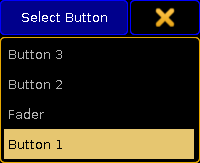 *Select Button pop-up* The options are: **Button 1**, **Fader**, **Button 2**, and **Button 3**. * **Keycode** (relevant if Hardkey type is selected):\ Tapping this cell will open the **Select Keycode pop-up**: 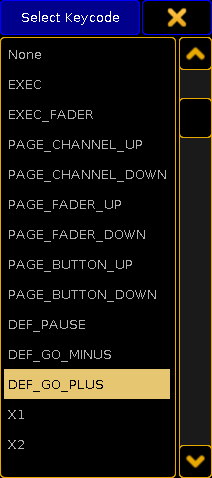 *Select Keycode pop-up* Here the desired key can be selected. * **CMD** (relevant if CMD type is selected):\ Any command typed here will be executed when the the input is triggered. * **Info**:\ This is multi line information that can be written to each row. There are five buttons at the bottom of the menus. They can be tapped on the screen or maybe by using the X-Keys if the menu is on screen 1 (depending on “Xkeys” setting the [User settings](/grandma2/key_single_multi_systems_user_settings/)). This is a short description of the buttons: * **Add**:\ This will add one more row in the table. * **Add Multiple**:\ This will add multiple rows in the table. * **Delete**:\ Tapping this deletes the selected row. * **Enable**:\ This toggle button will enable or disable the remote input for the entire tab. Yellow text is active (enabled). * **CLI on Master**:\ This toggle button will enable or disable the input actions interaction with the command line input. Yellow text is active. Each input can have multiple lines doing different actions. ## Analog Remote [Section titled “Analog Remote”](#analog-remote) The **Analog Remotes** tab is used to configure the DC Remote Control input on the back of grandMA2 consoles, grandMA2 replay units (RPU), and MA onPC command wings. The consoles and the RPUs has 16 contact closure inputs. The MA onPC command wings has 12 contact closure inputs. The input triggers when the pin receives between 5 volt and 15 volt DC (direct current). It is not a variable input. If enough voltage is there, then the input is triggered. If the input receives more than 15 volts, then it could be damaged. Please read the [Connect Analog Remote Control topic](/grandma2/key_fs_connect_analog_remote_control/) to learn more about the hardware part of the input. The Analog Remotes tab has a column called **Input**. Here the input number is written. ## MIDI Remote [Section titled “MIDI Remote”](#midi-remote) The **MIDI Remotes** tab used received MIDI notes as the input. There are two special columns in this tab. They are called **Note** and **Channel**. These are used to set the MIDI note and channel. If the **Type** is set to **Exec** and the **Button** is set to **Fader**, then the velocity of the MIDI note is used to set the position of the executor fader. All other inputs are simple triggers. ## DMX Remote [Section titled “DMX Remote”](#dmx-remote) The **DMX Remotes** tab uses DMX channels as remote triggers. The DMX source can be the console itself. The remote input has a special column called **DMX**. Here a DMX universe and channel is defined. If the DMX value is 128 and above then the input is triggered. If it triggers a **Fader** then the DMX values is used to position the fader.
# MIDI show control (MSC)
> MIDI Show Control (MSC) is a different way to remote control the system.
**MIDI Show Control (MSC)** is a different way to remote control the system. It was released in 1991 as an extension to the MIDI protocol. The grandMA2 system is capable of receiving and transmitting MSC. There are a lot of settings to MSC. Most of these are setting to be able to match the transmitting and receiving devices. Please read below. Below the settings there is a description of the [MSC concept](#msc_concept) and then some words about transporting [MIDI using Ethernet](#midi_ethernet). ## Setting up MSC [Section titled “Setting up MSC”](#setting-up-msc) To access these settings, press the Setup key and then the Midi Show Control button under the **Console** tab. The settings could look like this: 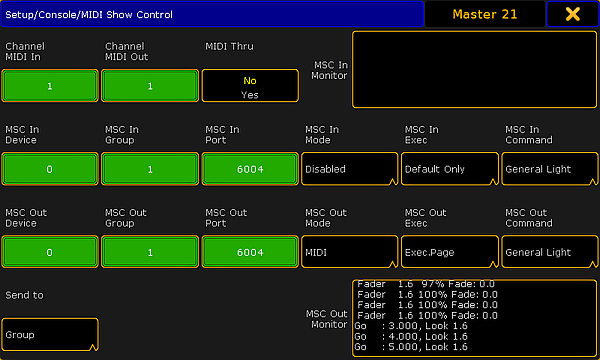 *MIDI Show Control* There are four rows with different settings and two monitor fields. The monitor fields display the incoming and outgoing MSC. They display the data as interpreted data, meaning that it does not show the raw hex data. The top row has two input fields and one toggle button: * **Channel MIDI In:**\ There are 16 different channels in MIDI. The number in the In field needs to match the channel number from the transmitter. * **Channel MIDI Out:**\ The channel number in this field need to match the channel number of the MSC receiver. * **MIDI Thru:**\ This toggle button turn On or Off is any incoming MIDI should also be sent out of the MIDI output. **Important:**\ If MSC commands are transmitted and received on the same MIDI channel, then a loop will be created. The next two lines are the same except the first is the settings for any incoming MSC and the second is the outgoing MSC. * **Device**:\ There are 112 different devices in MSC. MSC also specifies an “All” option. This is set in the **Send to** button at the lower left corner - read about it below. This input accepts values from 0 to 111. * **Group**:\ The MSC standard has the option to organize the devices in 15 different groups. Here it is possible to set a group number from 1 to 15. Please read about the **Send to** setting below. * **Port**:\ If MSC is to be sent using an Ethernet connection, then there needs to be an IP port number. This can be set here. The default number is 6004. The port number needs to be between 6000 and 6100. * **Mode**:\ Tapping here opens a Select MSC Mode pop-up:  *Select MSC (In) Mode pop-up* There are three options here: * **Disabled** - this is the same turning off the MSC input or output. * **Ethernet** - This will use MSC via Ethernet - Please read more about MSC via Ethernet [below](#midi_ethernet). * **MIDI** - This will use the MIDI ports on the station to transmit or receive MSC. * **Exec**:\ Tapping here opens the Select MSC Exec pop-up:  *Select MSC (In) Exec pop-up* There are three options here: * **Default Only** - This option will make the MSC commands go to and from the selected executors on the **Master** station only. * **Exec.Page** - This option can be used if the commands should be sent to a specific executor. The page and executor number must be separated by a “period” character (Hex = 2E). * **Exec Page** - This option can be used if the commands should be sent to a specific executor. The page and executor number must be separated by a “NULL” character (Hex = 00). * **Command**:\ Tapping here opens the Select MSC Command pop-up:  *Select MSC (In) Command pop-up* There are three options here: * **Moving Light** - This option will select moving light command format (hex 02). * **General Light** - This option will select the general lights command format (hex 01). * **All** - This will use the all type format (hex 7F). The button in the fourth row is called **Send to**. Tapping it open a **Select Send to pop-up** like this:  *Select Send to pop-up* There are three options: * **Group**:\ Selecting this will make the station transmit MSC to the specified group number (1 to 15). * **Device**:\ Selecting this will make the station transmit MSC to the specific device number (0 to 111). * **All**:\ This option will transmit the the MSC to all connected devices. ## []()The MSC Concept [Section titled “The MSC Concept”](#the-msc-concept) The MSC command structure and syntax is based on the general SysEx structure defined by MMA (MIDI Manufacturers Association). It was released in 1991 as an extension to the general MIDI. The raw MIDI information is written in hex octets (two hexadecimal numbers). Different software manufacturers might present the MSC in an interpreted way and show the data in a more human readable form. This can of course be nice, but since we cannot describe every way this can be presented, this manual is looking at the raw data. The message format looks like this: | F0 7F | Device ID | 02 | Command Format | Command | Data | F7 | | ----- | --------- | -- | -------------- | ------- | ---- | -- | | | | | | | | | * **F0 7F** is the header that identifies the message as “universal system exclusive” and a “real time” message. * **Device ID** is the device or group number. * **02** is a hex octet specifying that the message is MSC. * **Command Format** is an octet that specifies the equipment type. * **Command** is an octet that defines the command type * **Data** is the actual data. This might change depending on the command type. * **F7** is a closing octet finishing the message. ### Device ID [Section titled “Device ID”](#device-id) The device ID is an octet actually divided into three different sections: * **00 to 6F**:\ This is the 112 different specific devices that can be identified. * **70 to 7E**:\ This is the 15 group numbers. * **7F**:\ This is a broadcast ID that all devices listen to. In grandMA2 the device ID and group ID can be set for both incoming and outgoing messages. For transmitting MSC it can only transmit one octet in the **Device ID** location. The **Send to** setting (described above) selects which one of the three different sections Id that should be transmitted. ### Command Format [Section titled “Command Format”](#command-format) The command format octet denotes the type of equipment that should receive the message (or at least respond). grandMA2 only transmit and respond to three different formats: * **01**:\ This is the **General Lighting** format * **02**:\ This is **Moving Lights** format. * **7F**:\ This is an **All** format that all equipment should respond to. ### Command [Section titled “Command”](#command) The command octet denotes the type of command in the message. The command type will dictate the data information. grandMA2 supports 7 different command types: * **01 (Go)**:\ This is the same as a Goto command in grandMA2. It needs to be followed by a cue number. * **02 (Stop)**:\ This is the same as a Pause command in grandMA2. This can be followed by a cue number. * **03 (Resume)**:\ This will “un-plause” a cue. If a specific cue has been paused, then the cue number needs to be specified with this command. * **04 (Timed\_Go)**:\ This can be used to perform a Goto with a specific fade time. It needs both the time and the cue number - in that order. * **06 (Set)**:\ Set can be used to set the position of faders. It needs the fader number and page followed by the position. * **07 (Fire)**:\ This can be used to trigger macros. The macro number needs to follow the command. Only macro 1 to 255 can be triggered. * **0B (Go\_Off)**:\ This command can be used “Off” executors. This needs to followed by a cue number. ### Data [Section titled “Data”](#data) **01 (Go):** As stated above: This is interpreted as a GOTO command. A cue number needs to be specified. The cue number also needs to be transmitted in hex octets and the complete cue number including the decimals needs to be transmitted. If cue number 4 is to be triggered then the complete number is **4.000** - the number with all decimal numbers separated by a dot (Hex value 2E). Decimal numbers in hex is some of the easiest to convert. It needs a “3” in front. This means that decimal **4** becomes **34** in hex. The complete cue number including the dot is then: **34 2E 30 30 30**. See [this table](/grandma2/key_remote_control_hex_table/) for a complete decimal to hex translation. If the station is set to **Default Only** in the Send MSC In Exec option, then this all that needs to be added after the command. **Example:** Triggering cue number **21.5** on the default executor (**All Devices**, **All Format**, and **Default Only** setting): | F0 7F | Device ID | 02 | Command Format | Command | Data | F7 | | ----- | --------- | -- | -------------- | ------- | ----------------- | -- | | F0 7F | 7F | 02 | 7F | 01 | 32 31 2E 35 30 30 | F7 | If the setting is not Default Only, then an executor and page needs to be specified. There are two options for separating the executor number and the page number. It can be separated by a “period” character (hex = 2E) or by a “NULL” character (hex = 00). The cue number and the executor/page data needs to be separated by a “NULL” character (hex = 00). **Example:** Triggering cue number **37.2** on executor 5 on page 1 (**All Devices**, **All Format**, and **Exec.Page** setting): | F0 7F | Device ID | 02 | Command Format | Command | Data | F7 | | ----- | --------- | -- | -------------- | ------- | ----------------------------- | -- | | F0 7F | 7F | 02 | 7F | 01 | 33 37 2E 32 30 30 00 35 2E 31 | F7 | Same example but with a “Null” separated executor and page: | F0 7F | Device ID | 02 | Command Format | Command | Data | F7 | | ----- | --------- | -- | -------------- | ------- | ----------------------------- | -- | | F0 7F | 7F | 02 | 7F | 01 | 33 37 2E 32 30 30 00 35 00 31 | F7 | **02 (Stop):** This is like hitting the pause button. Please read the section above for a better understanding of the hex cue numbering system. With the **Default Only** option there does not need to be any extra data since it is the executor that is paused. **Example:** Stopping the default executor (**All Devices**, **All Format**, and **Default Only** setting): | F0 7F | Device ID | 02 | Command Format | Command | Data | F7 | | ----- | --------- | -- | -------------- | ------- | ---- | -- | | F0 7F | 7F | 02 | 7F | 02 | | F7 | If the station is transmitting MSC, then it will transmit a cue number **0.000**. This is like sending a “pause running cue” command. If the settings are not **Default Only** but one of the two Exec/Page options, then the cue 0 also needs to be transmitted. **Example:** Stopping executor 5 on page 1 (**All Devices**, **All Format**, and **Exec.Page** setting): | F0 7F | Device ID | 02 | Command Format | Command | Data | F7 | | ----- | --------- | -- | -------------- | ------- | -------------------------- | -- | | F0 7F | 7F | 02 | 7F | 02 | 30 2E 30 30 30 00 35 2E 31 | F7 | **03 (Resume):** This is the only way to continue a paused cue. The only difference between the Stop and Resume commands are the “02” and “03”. **Example:** Continuing the fade paused above (**All Devices**, **All Format**, and **Exec.Page** setting): | F0 7F | Device ID | 02 | Command Format | Command | Data | F7 | | ----- | --------- | -- | -------------- | ------- | -------------------------- | -- | | F0 7F | 7F | 02 | 7F | 03 | 30 2E 30 30 30 00 35 2E 31 | F7 | If the Default Only setting is chosen then the command is **F0 7F 7F 02 7F 03 F7** to continue the fade. **04 (Timed\_Go):** This is the same as the **01 (Go)** command but with a specified time. Please read (and understand) about the **01 (GO)** command and data above. Just to make this a bit simpler we are going to pretend that the “Default Only” option is turned on in the MSC options in Setup. To transmit a timed Goto the time needs to be specified first and then the cue number. The time is specified by five hex octets. They represent (in order) **Hour**, **Minute**, **Second**, **Frame**,\*\*\*\* and **Fraction**. The hour, minute, and second sections are very strait forward. The number needs to be transmitted in hex numbers. It is possible to transmit a value above the normal limit for example 64 seconds (hex = 40). The station will transmit this as 1 minute and 4 seconds. Right now the console will not accept any time specified in the Frame and Fraction sections. But it transmit values below a second in the Frame section. The console divides the second into 24 frames. So 0.5 seconds is 12 Frames and the received hex number would be **0C**. **Example:** Goto cue 75 with the fade time of 20 seconds (**All Devices**, **All Format**, and **Default Only** setting): | F0 7F | Device ID | 02 | Command Format | Command | Data | F7 | | ----- | --------- | -- | -------------- | ------- | -------------------------------- | -- | | F0 7F | 7F | 02 | 7F | 04 | 00 00 14 00 00 37 35 2E 30 30 30 | F7 | **Example:** Goto cue 5.4 with the fade time of 1 minute on executor 3 on page 1 (**All Devices**, **All Format**, and **Exec.Page** setting): | F0 7F | Device ID | 02 | Command Format | Command | Data | F7 | | ----- | --------- | -- | -------------- | ------- | ----------------------------------------- | -- | | F0 7F | 7F | 02 | 7F | 04 | 00 01 00 00 00 35 2E 34 30 30 00 33 2E 31 | F7 | **06 (Set):** The set command is used to move a fader to specific position. The 06 command is followed by two hex octets that indicates the fader and then two more octets that dictates the position. The first of the two numbers for the fader is the fader number (on a page). The fader number 1 is hex number **00**, the second is **01** and so on. Remember that this is a hex number so fader 16 have hex number **0F** and decimal 17 is hex **10**. The second of the two numbers for the faders are the page number. This is a little different page 1 is hex number **01**and page 2 is hex **02** and so on. So executor 1 on page 1 is **00 01**. Calculating the position in hex numbers is a bit more tricky. The faders position is defined by a coarse and fine value. The scale for both values is 128 steps (most MIDI is in 128 steps). The fine value is transmitted first followed by the coarse value. The desired fader position (in decimal) need to be multiplied by 1.28. The resulting integer is the coarse value. The remainder (everything on the right side of the separator) should be multiplied by 128 to get the fine value. The two decimal numbers then needs to be converted to hex. **Example:** The fader 3 on page 2 needs to be moved to 45%. First convert the position. 1. Multiply 45 by 1.28 = 57.6 2. Coarse value is 57. 3. Multiply 0.6 by 128 = 76.8 4. Fine value is 76. 5. Convert decimal 57 to hex = 39. 6. Convert decimal 76 to hex = 4C. 7. Fine is transmitted before coarse so the position is: 4C 39 The MSC message is (**All Devices** and **All Format** setting): | F0 7F | Device ID | 02 | Command Format | Command | Data | F7 | | ----- | --------- | -- | -------------- | ------- | ----------- | -- | | F0 7F | 7F | 02 | 7F | 06 | 02 02 4C 39 | F7 | A fade time can be added after the fader and position data. The time format explained in the 04 command is used. **Example:** Moving fader 15 on page 1 to 100% in 5 seconds (**All Devices** and **All Format** setting): | F0 7F | Device ID | 02 | Command Format | Command | Data | F7 | | ----- | --------- | -- | -------------- | ------- | -------------------------- | -- | | F0 7F | 7F | 02 | 7F | 06 | 0E 01 7F 7F 00 00 05 00 00 | F7 | The console only transmit the position of some faders - executors with sequences and all the green colored special masters (for the selected executor), but it accepts positions for all faders that have something assigned. **07 (Fire):** Macros can be fired by this command. It needs to be followed by a single octet specifying the macro number. Macro number 1 is hex number **01**. Hex number **FF** is macro number 255. **Example**: Triggering macro number 64 (**All Devices** and **All Format** setting): | F0 7F | Device ID | 02 | Command Format | Command | Data | F7 | | ----- | --------- | -- | -------------- | ------- | ---- | -- | | F0 7F | 7F | 02 | 7F | 07 | 40 | F7 | **0B (Go\_Off):** Executors can be turned off using the **0B** command. A cue number needs to be transmitted - cue 0 can be used. **Example**: Send an Off command to executor 9 on page 5 (**All Devices**, **All Format**, and **Exec.Page** setting): | F0 7F | Device ID | 02 | Command Format | Command | Data | F7 | | ----- | --------- | -- | -------------- | ------- | -------------------------- | -- | | F0 7F | 7F | 02 | 7F | 0B | 30 2E 30 30 30 00 39 2E 35 | F7 | ## []()MIDI via Ethernet [Section titled “MIDI via Ethernet”](#midi-via-ethernet) MSC can sent using Ethernet. It is transmitted as a UDP message. The MSC message is the same as described above, but the MSC message needs a header for the date to be accepted by the grandMA2. The header separated into two parts. The first is identifying the message as a grandMA2 MSC message: **47 4D 41 00 4D 53 43 00** - it translates to GMA MSC. The second part is four octets describing the length of the message - including the header. It is written as little endian byte format (least significant first). This is calculated by counting the number of octets and then convert the decimal number into hex. Usually we only needs the first octet (it allows for messages up to 255 octets) although all four needs to be sent. **Examples:** Send a go command to cue 35. The MSC message is: **F0 7F 7F 02 7F 01 33 35 2E 30 30 30 F7**. This is 13 octets. The header is always 12 octets. So the combined length is 25 octets. Decimal 25 is **18** in hex. The entire message is: **47 4D 41 00 4D 53 43 00 18 00 00 00 F0 7F 7F 02 7F 01 33 35 2E 30 30 30 F7** Trigger macro 1 is: **F0 7F 7F 02 7F 07 01 F7** - 8 octets. Plus the 12 from the header is decimal 20 = 13 hex. The message is: **47 4D 41 00 4D 53 43 00 13 00 00 00 F0 7F 7F 02 7F 07 01 F7**
# Telnet remote
> The grandMA2 can be remote controlled via Telnet.
The grandMA2 can be remote controlled via Telnet. This gives access to command line. Any command that can be executed locally in the command line on a station, can also be done using the Telnet connection. It needs to be enabled in the Global Settings: **Setup -> Console -> Global Settings -> Telnet** Here is a setting called “Telnet” with two options: **Login Disabled** and **Login Enabled**. When it is enabled, then the station (Console or onPC) can be reached by its IP address and the IP port number 30000 - do not use the Telnet default IP port 23. **Hint:**\ Using port 30001 gives read only access to the [System Monitor](/grandma2/key_ost_system_monitor/). Using this IP address and port number will give access to the command line. Using a telnet program like PuTTy the feedback from the grandMA2 will look like this:  *PuTTy Telnet feedback* It is not actually logged in as the default **guest** user, even though the feedback writes it. Before any commands can be sent to the system, there needs to be a [login command](/grandma2/key_keyword_login/) for one of the users in the show. **Hint:**\ In installations where Telnet is used to control a grandMA2 system, it might be a good idea to create a special user for the Telnet commands. Be aware that the telnet connection is case sensitive with the username and password. After the login, any commands can be written to the system. **Restriction:**\ Pay close attention when accessing the fixture setup and schedule from the telnet connection. It lock access for other users and there is no explaining warning.
# Web remote
> The stations can be remote controlled by any browser connected to the system.
The stations can be remote controlled by any browser connected to the system. The web remote is very flexible. Depending on the screen size and resolution it will try do display as much information as possible. This means that many of the views can show a lot of information - especially on high resolution screens. The images used in the description below are typically show with the minimum size possible. It needs to be enabled in the Global Settings: **Setup -> Console -> Global Settings -> Remotes** Here is a setting called “Remotes” with two options: **Login Disabled** and **Login Enabled**. Simply open a browser on a computer or handheld device and type the IP address of the station that needs to be remote controlled. Then a login pop-up appears:  *Web remote login* It is not possible to login as the default “Administrator” user. There is a limit of three remote users logged in at the same time. After a login with a valid user the web remote interface is accessible. ## Navigating the remote [Section titled “Navigating the remote”](#navigating-the-remote) The [Main Menu](#main_menu) gives access to the Settings. Here it is possible to change between two different modes: **Phone** and **Tablet**. This changes a few of the windows. It also changes the navigation bar at the top. This is the **Phone** mode:  *Navigation bar - phone mode* And this is the **Tablet** mode:  *Navigation bar - tablet mode* Both modes have a Command Line input bar at the top. Tapping this will open the keyboard and allow any typed commands. On the right side of both versions are a button called Wheels. this gives access to virtual [Wheel Control](#wheels). On the phone version there are two buttons with arrows that allows the user to toggle through the different views. The big blue are shows the name of the current view and tapping it opens the [Main Menu](#main_menu). On the tablet version the two buttons are replaced by a bar with buttons for the different views. There is a blue are in the left side. tapping this opens the [Main Menu.](#main_menu) At the bottom of almost every window there are three buttons with the [Set](/grandma2/key_key_set/), [Next](/grandma2/key_key_next/), and [Previous](/grandma2/key_key_previous/) functions. ## CMD 1 and CMD 2 [Section titled “CMD 1 and CMD 2”](#cmd-1-and-cmd-2) The CMD or **Command** windows gives access to the most used command keys. In Phone mode it is split up in two windows. In Tablet mode they are on one screen. It provides access to a virtual level wheel on the right hand side of the screen. On CMD 2 or the CMD on the tablet there is access to select the different Preset Types on the left side of the screen. There is a special button that toggle between three different keywords. It is the Channel / Fixture / DMX button. Tapping it will toggle through the different keywords. Keep an eye on the command line input. **Phone Mode:**  *CMD 1 - Phone mode*  *CMD 2 - Phone mode* **Tablet Mode:**  *CMD - Tablet mode* ## Fixture sheet [Section titled “Fixture sheet”](#fixture-sheet) The fixture sheet displays the fixture information. For details about the **Fixture Sheet** please follow this link to the [Fixture Sheet topic](/grandma2/key_of_fixture_sheet/). There are some special buttons at the top of the window in the phone mode and they are added at to bottom on the tablet mode. The following is a show description of them: * **Clear:**\ This is like the normal Clear key. * **Highlight:**\ This toggles the **Highlight** function - just like the normal Highlight key. * **Fixture Sort:**\ This is the **Fixture Sort** function in the fixture. Learn about it by following the link above. * **Feature Sort:**\ This is the **Feature Sort** function in the fixture. Learn about it by following the link above. * **Prg Only:**\ This toggles a **Programmer Only** mask. * **Preset Value selector:**\ Tapping this swipe button toggles through the following layers: **Value**, **Fade**, **Delay**, and **Output**. Swiping it opens a small pop-up that allows you to select the desired layer directly. Read about the layers in the [Layers in Sheets topics](/grandma2/key_of_layers_in_sheets/). **Phone mode:**  *Fixture Sheet - Phone mode* **Tablet mode:**  *Fixture Sheet - Tablet mode* The tablet mode provides easy access to change the preset type. ## Channel Sheet [Section titled “Channel Sheet”](#channel-sheet) The channel sheet displays the channel information. For details about the **Channel Sheet** please follow this link to the [Channel Sheet topic](/grandma2/key_of_channel_sheet/). As described above about the fixture sheet, there are some special buttons also in the channel sheet. There are two that are different that ones in the fixture sheet. They are: * **Hide name:**\ This toggle button will hide or show the name of the channels. * **Channel Sort:**\ This will sort the sheet to display the selected channels at the top. **Phone mode:**  *Channel Sheet - Phone mode* **Tablet mode:**  *Channel Sheet - Tablet mode* ## Group Pool [Section titled “Group Pool”](#group-pool) The group pool displays the groups. Read details about it in the [Groups topics](/grandma2/key_groups/). There are two special buttons here: Clear and Highlight. They have the same functions as the real hard keys. **Phone mode:**  *Group Pool - Phone mode* **Tablet mode:**  *Group Pool - Tablet mode* ## Preset Pool [Section titled “Preset Pool”](#preset-pool) This is the different preset pools. The windows works as the **Dynamic** pool in the console - read about it in the [Dynamic preset topic](/grandma2/key_presets_dynamic_pool/). The preset types can be selected on the left hand side in both modes. There is currently no access to the **All Presets**. **Phone mode:**  *Preset Pools - Phone mode* **Tablet mode:**  *Preset Pools - Tablet mode* ## Macro Pool [Section titled “Macro Pool”](#macro-pool) This is the macro pool - read about it in the [Macro topics](/grandma2/key_macro/). It displays all the macros. It is not possible to edit macros using the remote. **Phone mode:**  *Macro Pool - Phone mode* **Tablet mode:**  *Macro Pool - Tablet mode* ## World Pool [Section titled “World Pool”](#world-pool) This is the world pool - learn about worlds in the [What are Worlds topic](/grandma2/key_wfm_what_are_worlds/). **Phone mode:**  *World Pool - Phone mode* **Tablet mode:**  *World Pool - Tablet mode* ## Executor Sheet [Section titled “Executor Sheet”](#executor-sheet) The Executor Sheet displays the [Sequence Executor Sheet](/grandma2/key_cs_cue_sequence/). There is no playback control in this window. It only shows the sequence status of the selected executor (remember this can be different for each user). There are four predefined masks for this window: **All**, **Info**, **CMD**, and **Time**. They cannot be edited. **Phone mode:**  *Executor Sheet - Phone mode* **Tablet mode:**  *Executor Sheet - Tablet mode* ## Playbacks [Section titled “Playbacks”](#playbacks) This windows shows the virtual executors - read more about it in the [Executors on the Screens topic](/grandma2/key_exec_on_screen/). On the left hand side there are some special buttons: * **Previous:**\ This is used to change to the previous set of executors on the current page. * **Next:**\ Tapping this will change the next set of executors on the current page. * **Previous page:**\ Tapping this will change to the previous executor page. * **Next page:**\ This will change to the next executor page. * **Fader:**\ This is connected with the last button (Button) - only one of them can be selected. Tapping this will display **Fader Executors.** * **Button:**\ This is connected with the button above - only one of them can be selected. Tapping this will display **Button Executors**. **Phone mode:**  *Playbacks / Executors - Phone mode* **Tablet mode:**  *Playbacks / Executors - Tablet mode* ## []()Main Menu [Section titled “Main Menu”](#main-menu) The **Main Menu** can be used select a specific window to jump to. There are three buttons called **Additional operations** - they are: * **Login:**\ Tapping this button will open the Login pop-up * **Connected… - Disconnected:**\ Tapping this will disconnect or reconnect the remote to the console. This can be useful if moving outside the reach of the WiFi. * **Settings:**\ This will open the setting that allows to change between the two modes: **Phone** and **Tablet**. **Phone mode:**  *Main Menu - Phone mode* **Tablet mode:**  *Main Menu - Tablet mode* ## []()Wheels [Section titled “Wheels”](#wheels) This window displays virtual wheels that function as the encoders. It can be used to change values in the selected fixtures. It is possible to select the different preset types on the right hand side. There is also a **Feature** swipe button - this can be used to change between the different features in the preset type. **Phone mode:**  *Wheels - Phone mode* **Tablet mode:**  *Wheels - Tablet mode*
# Safety Information
> This device is conform to the following harmonized standards:
This device is conform to the following harmonized standards: * EN 60065 (Safety Requirements) , * EN 60950-1 (Information Technology Equipment Safety) * EN 55103-1:2009 (Electromagnetic Compatibility) * EN 55103-2:2009 (Electromagnetic Compatibility) * 2014/30/EG (Electromagnetic Compatibility) * 2011/65/EU (RoHS II) * 2014/35/EU (Low Voltage Directive) This device is state-of-the-art technology. However, residual risks cannot be ruled out. To avoid risks, follow the safety instructions.\ MA Lighting does not cover damages which can be the result of an inobservance of the safety instructions. ## Subtopics [Section titled “Subtopics”](#subtopics) * [Symbols used](/grandma2/key_safety_information_symbols_used/) * [Intended use](/grandma2/key_safety_information_intended_use/) * [Dangers caused by electric current](/grandma2/key_safety_information_dangers_caused_by_electric_cur/) * [General safety instructions](/grandma2/key_safety_information_general_safety_instructions/)
# Dangers caused by electric current
> Defective device or defective power cable poses a risk of severe or fatal injury due to electrical shock.
Defective device or defective power cable poses a risk of severe or fatal injury due to electrical shock. Follow the safety instructions to avoid the risks caused by electric current. * Do not use a damaged power cable. * Do not open screwed covers from the housing. * Use the device only if it is in a technically perfect condition. * A broken device can be repaired only by an authorized dealer. Do not repair the device on your own. * Do not make changes to the device, its components, and accessories. * Do not expose the device to rain or moisture. * Do not submerge the device in water.
# General safety instructions
> Follow the safety instructions to avoid injury or material damage:
Follow the safety instructions to avoid injury or material damage: * Do not grab inside the device during operation. * Device and power cable must be kept away from children under the age of 8. * Children are not allowed to play with the device. * Disconnect the power supply from electric voltage if it is unattended for a longer period of time. * Do not use any liquid or spray cleanser. Use a dry cloth only. * Do not block or cover any ventilation holes in the housing. These are essential for the airflow within the unit and protect the device from overheating. * Place the device on stable surfaces only. If it is placed on unstable surfaces, it may fall and break.
# Intended use
> This device is intended for control of all kinds of lighting genres such as conventional, moving lights, LEDs, video and media via DMX signal or within a networ
This device is intended for control of all kinds of lighting genres such as conventional, moving lights, LEDs, video and media via DMX signal or within a network environment.\ This device is intended for indoor use only. Every other use is not intended and could lead to injury and damage to property. MA Lighting does not cover damages which can result from misuse of the console.
# Symbols used
> The following symbols display possible danger, useful hints and information when using the device.
The following symbols display possible danger, useful hints and information when using the device. **Warning:**\ The warning sign displays possible injury and hazard. \*\* Restriction:\*\*\ The restriction sign displays known limitations of functions. **Important:**\ The important sign displays important information during the usage of the console. **Hint:**\ The hint sign displays additional hints when using the console.
# Search and Replace
> The two functions Search and Replace are two very powerful tools in the grandMA2.
The two functions **Search** and **Replace** are two very powerful tools in the grandMA2. **Search** can be used to find a where different elements are used. **Replace** is also doing a search, but it then uses the search result to replace one element with another. This can also be ranges of elements. There is no graphic interface for these two functions. It is all done by typing in the command line entry. There are some nice predefined macros for many of the search and replace functions - please read more about loading predefined macros in the [Import Predefined Objects topic](/grandma2/key_ei_import_predefined/). ## Subtopics [Section titled “Subtopics”](#subtopics) * [Search](/grandma2/key_search_replace_search/) * [Replace](/grandma2/key_search_replace_replace/)
# Replace
> The Replace mechanism is used to replace some objects with other objects (or values with other values), using the With keyword, and it might be limited to a def
The **Replace** mechanism is used to replace some objects with other objects (or values with other values), using the [With keyword](/grandma2/key_keyword_with/), and it might be limited to a defined scope using the [If keyword](/grandma2/key_keyword_if/). The syntax is: \*\*Replace \[\*\*search for objects/values] \*\*( With \[\*\*replace with objects/values] ( If \*\* \[\*\*search in objects] )) Details about the syntax can be read in the [Replace keyword](/grandma2/key_keyword_replace/) topic. The Replace command can be accessed by pressing the Move key twice. The replace will search for the objects (could be fixtures, groups, presets, or any object) or values and the search result will be exchanged with similar objects or values. Just like the regular [search function](/grandma2/key_search_replace_search/), it might be limited to a certain area in the show (for instance a specific sequence, group, world, or any object). All this might sound complex but it does not have to be. ## Replacing objects [Section titled “Replacing objects”](#replacing-objects) If Fixture 1 needs to be replaced by Fixture 2 in the entire show then type the following: \[Channel]> Replace Fixture 1 With Fixture 2 Doing the replace will open a confirmation pop-up like this: 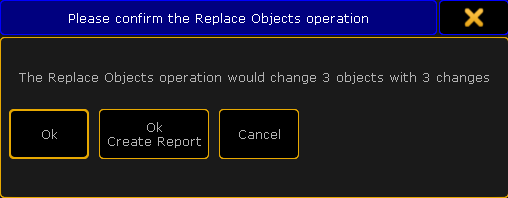 *Confirm Replace pop-up* Tapping the Ok button will perform the replace action. Tapping the Ok Create Report button will also perform the replace, but in addition it will create and open a report showing what the replace action did - it is similar to the search report described in the [Search topic](/grandma2/key_search_replace_search/). Tapping the Cancel button will cancel the replace action - it is same result if the X in the upper left corner is tapped. If the replace action is performed, then the result is that the values fixture number 1 had is now transferred to fixture number 2 and fixture number 1 is no longer used in the show. If the replace is only supposed to happen in sequence number 3 then use the following command: \[Channel]> Replace Fixture 1 With Fixture 2 If Sequence 3 If a fixture is replaced by nothing then the stored values are just removed. The following two commands will remove any stored data from fixture 1: \[Channel]> Replace Fixture 1 \[Channel]> Replace Fixture 1 With The **With** keyword is optional when the object is not replaced with something else. **Presets** can also be changed with replace. For example replacing position preset 2 with preset 4 in sequence 5 can be written like this: \[Channel]> Replace Preset 2.1 With Preset 2.4 If Sequence 5 If the preset is only suppose to be replaced for fixture 8 in sequence 5 then it is a two step process: 1. First do a search for fixture 8 in sequence 5 \[Channel]> Search Fixture 8 If Sequence 5 2. Then use the **SearchResult** (the virtual world created by a search action) as the limiting object in the replace: \[Channel]> Replace Preset 2.1 With Preset 2.4 If SearchResult **Hint:**\ The SearchResult command can be accessed by pressing the  key while pressing the Group key twice. ## Replacing values [Section titled “Replacing values”](#replacing-values) Values can also be replaced by other values. **Restriction:**\ Use the keyboard for the following example. If the command keys are used then the At key will interrupt the replace command. A single value can be replaced by another: \[Channel]> Replace At 50 With 55 This would change all the places where the dimmer value 50 are stored to a value of 55. What is perhaps more interesting is changing value ranges with a different value range. For instance if all dimmer values should be raised 20% in sequence 4 (a dimmer value of 10 will become 12) then the following command can be used: \[Channel]> Replace Value 0 Thru 100 With 0 Thru 120 If Sequence 4 Or if only fixture 1 and 2 are suppose to get a 20% (a dimmer value of 100 will become 80) lower value in sequence 4: \[Channel]> Replace Fixture 1 + 2 Value 0 Thru 100 With 0 Thru 80 If Sequence 4 Remember that when using more complex limitations it might be a good idea to used the SearchResult from a limiting search as the limiting scope. **Important:**\ If the attribute is not specified, it will be searched for the dimmer attribute. Other attributes can also be replaced. Making the stored **Pan** range smaller for a fixture range of 1 through 10, can be done like this: \[Channel]> Replace Fixture 1 Thru 10 Attribute “Pan” At -270 Thru 270 With -200 Thru 200 Or it can be shifted +20 degrees: \[Channel]> Replace Fixture 1 Thru 10 Attribute “Pan” At -270 Thru 270 With -250 Thru 290 **Important:**\ It is very important that there is no space between the minus symbol and the number. The attributes are different depending on what fixture types are patched in the show. The list of attributes and their (screen)names can be seen using the [List keyword](/grandma2/key_keyword_list/): \[Channel]> List Attribute The names listed in the column called **LibraryName** needs to be used with the replace function - do not use the ScreenName. ## Replacing values with presets (objects) [Section titled “Replacing values with presets (objects)”](#replacing-values-with-presets-objects) As a rule it is only possible to replace values with values and objects with objects. So replacing a stored value with a preset is not possible as a direct action. But there is a way by first searching the value maybe limited to a specific object like a sequence. In this example the stored dimmer value of 50 is to be replaced by a dimmer preset. First the value is searched in sequence number 8: \[Channel]> Search Value 50 If Sequence 8 Then the result is used to limit where the replace is performed and the dimmer attribute (object) is replaced with the preset: \[Channel]> Replace Attribute “Dim” With Preset 1.5 If SearchResult
# Search
> Search can be used to find almost anything in a show file.
Search can be used to find almost anything in a show file. The general idea behind search is that an object is searched - maybe with a limited scope - the result is displayed and the result can be used as a basis for further action. The result can be viewed in a report that can be used as a world or saved in text file. The result is stored in a (hidden) world called SearchResult. This can be used to limit the search even more. The syntax is: \*\*Search \[\*\*search for objects] ( **At** \[search values] ) \*\*If \[\*\*search in objects] The [Search keyword](/grandma2/key_keyword_search/) has a description of how it is used and some nice examples. The Search command can be reached by pressing and holding the  key while pressing the Move key. ## Searching for values [Section titled “Searching for values”](#searching-for-values) Searching where values are used is very easy. For instance a search for the dimmer value of 100 can be done like this: \[Channel]> Search Value 100 The result will be a listing of all the locations the dimmer value 100 is used (including the programmer). **Hint:**\ If the attribute is not specified, it will be searched for the dimmer attribute. The result of the search appears in a **Search pop-up** like this: 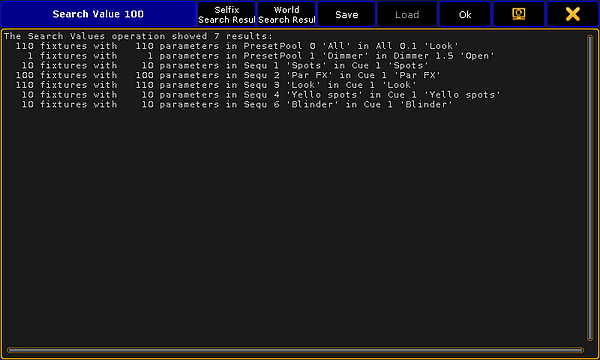 *Search pop-up - value 100* In the image above the search resulted in 7 results. The title bar of the **Search** pop-up has some special buttons - besides the two standard **move the pop-up** and **close the pop-up** buttons. The following is a short description of the special buttons: * **Selfix Search Result**:\ This will take any fixtures represented in the search result as a selection. * **World Search Result**:\ This will create a hidden world with the fixtures and attributes in the search result. This world can also be accessed using the [SearchResult command.](/grandma2/key_keyword_searchresult/) * **Save**:\ Tapping this button will open the browser pop-up that allows you to select a location to save a text file (txt) with the result. * **Load**:\ This function is not implemented. * **Ok**:\ Tapping this button is the same as closing the pop-up. A search can be limited to only search in a specific range of objects. For instance searching for a Zoom value of 40 in the All Presets (preset pool number 0): \[Channel]> Search Attribute “Zoom” At 40 If Preset 0.”\*” ## Searching for objects [Section titled “Searching for objects”](#searching-for-objects) **Important:**\ Searching for presets or effects is an OBJECT Search - not a value search! Nearly any kind of object can be searched. Use the following command to see where dimmer preset number 2 is used: \[Channel]> Search Preset 1.2 It is also possible to limit the search inside a different object. For instance searching for the preset only in sequence number 6: \[Channel]> Search Preset 1.2 If Sequence 6 Fixtures can be searched. For instance searching fixture 1 through 10: \[Channel]> Search Fixture 1 Thru 10 This search could give the following result:  *Search pop-up - fixture 1 through 10* Here we can see where the ten objects (the fixtures) are used.
# Shut Down the System
> Important:
**Important:**\ Once you have finished your show, make sure to adequately shut down the system. ## []()grandMA2 and grandMA2 onPC [Section titled “grandMA2 and grandMA2 onPC”](#grandma2-and-grandma2-onpc) 1. Press the power key on the right of the monitor wing or the gray cross in the upper right corner of the grandMA2 onPC. 2. A warning pop-up appears.  *Shut down the system* 3. If you forgot to save the show, tap Save Showfile. The console or the onPC then saves the show file and powers down.\ To cancel the shutdown, tap Cancel.\ To proceed with the shutdown without saving the show, tap Do not Save. **Important:**\ -If the onPC is set to **MultiScreen**, the window \*\*Command \*\*is the main window that closes the application.\ -In **SingleScreen**, all views are displayed in the main window, hence, every window closes the application.\ -In **SingleScreen (internal only)**, all windows, except for Extern 1 and Extern 2, close the application. \ Please note that whenever changing the mode, a restart is required. 4. The console is successfully powered down. 5. Turn off the power switch on the rear panel and disconnect the plug. For more information on the location of the power key and the power switch see [grandMA2 console](/grandma2/key_device_overview_grandma2_console/). *** ## []()MA VPU (Video Processing Unit) plus [Section titled “MA VPU (Video Processing Unit) plus”](#ma-vpu-video-processing-unit-plus) 1. To power down the MA VPU plus, tap Shutdown on the touch screen of the device. 2. A warning pop-up appears.  *Warning pop-up –MA VPU plus* 3. Tap Shutdown. 4. The MA VPU plus is now powered down. *** ## []()MA VPU basic and MA VPU light [Section titled “MA VPU basic and MA VPU light”](#ma-vpu-basic-and-ma-vpu-light) **Requirement:** * Connect a monitor, keyboard, and mouse to the MA VPU basic or light. 1. To power down, click \*\*File \*\*in the upper left corner of the graphic user interface. 2. A drop-down menu opens.  *Powering down via the graphic user interface* 3. Click **Exit**. 4. A warning pop-up appears.  *Warning pop-up – MA VPU basic and light* 5. Click Shutdown. 6. The MA VPU basic or light is now powered down. *** ## Power Down at a Distance [Section titled “Power Down at a Distance”](#power-down-at-a-distance) If the MA VPUs are not located in close proximity to the area you operate in, there are two possibilities to power down at a distance. 1. Power down using the command line 2. Power down using the master fixture ### 1. Power Down Using the Command Line [Section titled “1. Power Down Using the Command Line”](#1-power-down-using-the-command-line) To power down the MA VPU at a distance, type the following command and the IP address of the MA VPU into the command line: \[Channel]> Shutdown “IP Address” ### 2. Power Down Using the Master Fixture [Section titled “2. Power Down Using the Master Fixture”](#2-power-down-using-the-master-fixture) **Requirement:** * Create a master fixture first For more information on how to create a master fixture see [MA VPU – Data Management –Layer Properties](https://help.malighting.com/grandMA2/en/help/ma_vpu/key_layer-properties.html). 1. To power down the MA VPU, type the number of the master fixture into the command line and press Please. 2. Tap Control in the preset type bar. 3. A calculator opens displaying several channel sets on the right.  *Shut down the system using the master fixture* **Hint:**\ It is also possible to arrange these channel sets in a smart view. For more information see [Using the smart view](/grandma2/key_of_smart_view/). 4. Tap Shutdown. 5. A countdown starts counting down from 10 seconds on. **Important:**\ It is possible to stop the countdown by tapping No Operation. 6. The system is powered down after the countdown has ended. *** ## []()MA 3D [Section titled “MA 3D”](#ma-3d) To power down the MA 3D application: 1. Click **File** in the left upper left corner of the graphic user interface. 2. A drop-down menu opens. 3. Click **Exit**. 4. A warning pop-up appears.  *Warning pop-up – MA 3D* 5. Click Yes to save the show file and power down the application. 6. The MA 3D application is now powered down. *** ## []()MA NDP, MA xPort WM and MA Network Switch [Section titled “MA NDP, MA xPort WM and MA Network Switch”](#ma-ndp-ma-xport-wm-and-ma-network-switch) NDP, xPort WM, and the Switch are connected via a power cable or an Ethernet cable to power. * To power down the MA NDP or the MA Network Switch, unplug the power cable. * To power down the xPort WM, unplug the Ethernet cable. The devices are now powered down. *** ## []()MA xPort Node [Section titled “MA xPort Node”](#ma-xportnode) * To power down an xPort Node, turn off the switch on the rear panel of the device. The xPort Node is now powered down.
# Single User and Multi User Systems
> The grandMA2 system can handle small and big systems, with one or many user at the same time.
The grandMA2 system can handle small and big systems, with one or many user at the same time. This section deal with the [difference between a system with a single user and one with multiple users](/grandma2/key_single_multi_systems_difference/). There is a topic about how to [create User Profiles and Users](/grandma2/key_single_multi_systems_create/). A page about the [different User Settings](/grandma2/key_single_multi_systems_user_settings/). And finally a look at [different ways to login](/grandma2/key_single_multi_systems_login/). ## Subtopics [Section titled “Subtopics”](#subtopics) * [The difference between a single user and a multi user system](/grandma2/key_single_multi_systems_difference/) * [Create user profiles and users](/grandma2/key_single_multi_systems_create/) * [User settings](/grandma2/key_single_multi_systems_user_settings/) * [Login](/grandma2/key_single_multi_systems_login/)
# Create user profiles and users
> The user system is divided into two different parts - The User and the User Profile.
The user system is divided into two different parts - The User and the User Profile. A User have a User Profile assigned. Many Users can have the same User Profile assigned. Each User have their own programmer and can have different selected elements (Executors, Worlds, Filters, and so on). But if they use the same User Profile, then the Users share the Views and View Button assignment and a lot of other settings. ## User & Profiles Setup [Section titled “User & Profiles Setup”](#user--profiles-setup) The User & Profiles Setup is where you control the Users and the User Profiles. It can be opened by pressing Setup and then User & Profiles Setup in the Console section. Or by typing Menu UserProfiles in the command line. This is what it look like: 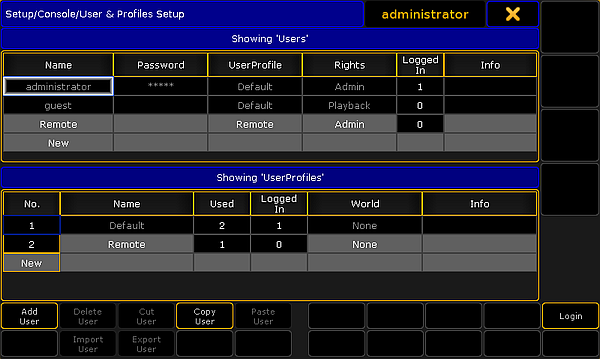 *User & Profiles Setup* This menu offers a lot of information and some possibilities. But the main purpose of this menu is to create Users and User Profiles. The main part of this menu is separated into two sections. The top section is about the **User** and the bottom part is about the **User Profile**. The general background color rule applies here. A cell with a black background cannot be edited. Gray background allows you to edit the cell content. There are two Users and one User Profile that is in all shows and cannot be delete or changed. It is the Administrator and Guest users. When a User is logged in, then some settings are locked and cannot be changed and if changes are made to a user that is logged in, then that user might need to login again before the changes are applied. In the title bar you can see what user is currently logged in on the station you are standing or sitting in front (in the image above is “administrator”). ### Button explanation [Section titled “Button explanation”](#button-explanation) There is a set of buttons at the bottom of the menu. They change depending on what is selected. This is a short description of them: * **Add \[Profile/User]** - This will create a new user or user profile (depending where the focus last was). * **Delete \[Profile/User]** - This will delete the selected user or user profile (the one with the white frame). * **Cut \[Profile/User]** - This will move the selected user or user profile in the clipboard - ready to be pasted somewhere. * **Copy \[Profile/User]** - This will make a copy of the selected user or user profile into the clipboard - ready to be pasted somewhere. * **Paste \[Profile/User]** - This will paste the user or user profile from the clipboard to the selected location. * **Import \[Profile/User]** - This allows you to import a previously exported user profile. * **Export \[Profile/User]** - This will export the selected user profile. A pop-up might appear asking where it should be exported: the internal memory or to any detected USB sticks. * **Login** - Pressing this button will login the station with the user selected in the User list. ### Column explanation [Section titled “Column explanation”](#column-explanation) Each of the two sections have some columns. This is a short explanation of the columns in the UserProfile section: * **No.** - This is the profile number. It cannot be edited. * **Name** - This is the name of the profile. * **Used** - This is for information. Here you can see how many users have this profile assigned (read below). * **Logged In** - Here you can see how many stations are currently logged in with a user with this profile. * **World** - A world can be assigned to a User Profile. This will only allow access to the fixtures and attributes in this specific world. Read more below. * **Info** - Here you can type some information text. This is a short explanation of the columns in the Users section: * **Name** - This is the name of the user - this is the name used when logging in. * **Password** - Passwords can be added to a User. This password needs to be type when logging in. Leave this empty if you do not want a password. * **UserProfile** - All Users need to have one of the UserProfiles assigned. Editing this cell will open the **Select User Profile** pop-up. * **Rights** - Here you can select the level of rights the user should have. Editing this cell will open the **Select Rights** pop-up. Please read the section below to learn more. * **Logged In** - Here you can see how many stations are currently logged in with this user. * **Info** - Here you can type some information text to the user. ### User rights [Section titled “User rights”](#user-rights) There are seven different levels of user rights. When editing the Rights cell in a User, then you will get a small pop-up that lists the following users: * **Admin** - This is full rights to change everything in the console, system and show. * **Setup** - This will limit access to some of the elements in the console. The user cannot access the User & Profile Setup! There are other console settings that can be accessed. * **Program** - In this level the user cannot do major changes to the Fixture Schedule. It only gives access to the “Patch Only”. Most programming operations can be done. * **Presets** - This level allows to update existing presets. But the user cannot edit the cue content. * **Playback** - This level allows to playback and run a programmed show. But the user cannot store anything. * **None** - With this user right it is not allowed to use a programmer. The user is allowed to run executors and change views. You can only change the rights when the user is not logged in. ## Assigning worlds to User Profiles [Section titled “Assigning worlds to User Profiles”](#assigning-worlds-to-user-profiles) Assigning a world to a User Profile will limit the Users assigned to this User Profile to only use the assigned World. It is not possible for the user to change world. The default option is **None**. This means that the user is not limited. Editing a cell in the World column will open up a small **Select World pop-up**. This will list the None option and all the created worlds in the show file. Selecting the “Full 1” world will give the user access to every fixture and attribute, but the user is locked from changing world. Worlds can be assigned using the command line. To assign world number 4 to user profile number 3 use the following command: \[Channel]> Assign World 4 UserProfile 3 ## Create a new User Profile and a User [Section titled “Create a new User Profile and a User”](#create-a-new-user-profile-and-a-user) To create a new user with a new user profile you will need to do the following (you need to be logged in as a user with Admin rights): 1. Press the Setup key. 2. Tap the User & Profiles Setup. 3. Tap the cell with “New” in the lowest “**UserProfiles**” section - you might need to scroll down. 4. Tap the Add Profiles button. 5. Change the Name of the user profile to something that makes sense. 6. Tap the cell with “New” in the top “**Users**” section - you might need to scroll down. 7. Tap the Add User button. 8. Change the Name of the user to something that makes sense. 9. Add a password if you want one. 10. Select the User Profile you just created. 11. Change the user Rights if you need to. 12. Tap the Login button if you want to login immediately as this new user.
# The difference between a single user and a multi user system
> When talking about a system, we often actually mean a session.
When talking about a system, we often actually mean a session. An Ethernet network can have several sessions running. A session can have one, some or many MA devices as members or listeners. This page is attempt to describe some of the differences between the two systems. ## Single User session [Section titled “Single User session”](#single-user-session) In a single user session there is one operator/programmer. This person might have one or several stations (consoles or onPC). When there is only one user, then all stations are logged in as the same user. This have also been called a “Full Tracking Backup”. The stations are all in sync and share the different views and the programmer content is the same on all stations. This is useful for the single operator. If one station fails, then the operator can move to the other station and continue working without loosing anything. This operator will usually have full rights to the entire system. ## Multi User session [Section titled “Multi User session”](#multi-user-session) In a multi user session, there are several operators. They might use the same stations and take turns (working in shifts or at different phases of the process). It can also be a system with multiple users working at the same time on different stations. For this setup the operators need to create more Users and most likely more User Profiles. Each operator will then log into the station using their User and may control the complete system or just a part of the system. The stations share the show file and the Executors are all in sync, but the users can have different views on the screens and their programmer is not shared - the output is. Sometimes the systems are a combination; There are several operators (Multi User), but each operator have two (or more) stations logged in with their User (Full Tracking Backup). In a Multi User system, you can have users with different operator rights. There are several levels of rights. They span from complete access to only being allowed to change the view. The User Profiles can also be limited to only a specific world. This would only allow the user to access a part of the fixtures.
# Login
> There are two ways to log into a station.
There are two ways to log into a station. Before logging in, you will need to know a User name. To learn more about the Users and the creation of Users and User Profiles, please read the [Create User Profiles and Users](/grandma2/key_single_multi_systems_create/) topic. **Important:**\ There are two default users in every show file. You can always login as “Guest” with limited access or as Administrator (password: admin) with full access. ## Log in using the GUI [Section titled “Log in using the GUI”](#log-in-using-the-gui) The main way to login using the GUI is to press the Tools key and the Login button. This will open this pop-up on all screens:  *Login screen* A valid user name and (if there is a) password needs to be typed in. One other option is when in the User & Profile Setup (follow link above) then you can select a User and tap the Login button in the lover right corner. ## Log in using the command line [Section titled “Log in using the command line”](#log-in-using-the-command-line) Login can also be done using the [Login](/grandma2/key_keyword_login/) command. Follow the link to read the details about it. The general use is that “Login” is typed followed by the user name and the password (if any) and then executes the command with Please/Enter. ### Example: [Section titled “Example:”](#example) If you wanted to log in as administrator then you would type: \[Channel]> login administrator admin
# User settings
> There are a lot of settings that follow the User (Profile).
There are a lot of settings that follow the User (Profile). Most are found in Setup and in the User tab. In the User tab you can also see the name of the currently logged in user. ## Defaults [Section titled “Defaults”](#defaults) The default section contains all the settings used when creating different elements. It is separated into four sub sections. ### Sequence Defaults [Section titled “Sequence Defaults”](#sequence-defaults) The sequence defaults are the settings used when storing cues. It is mainly the different timings used for fades and delays. It also has the default trigger. [Follow this link to read more about the Sequences.](/grandma2/key_cues_and_sequences/) ### Preset Defaults [Section titled “Preset Defaults”](#preset-defaults) The Preset defaults contain four different settings. They are not described here, please read the [Presets](/grandma2/key_presets/) topics instead. ### Layout Defaults [Section titled “Layout Defaults”](#layout-defaults) Tapping the Layout Defaults will open the settings for the Layout View on the entire screen. [Follow this link to read more about the Layouts.](/grandma2/key_layouts/) ### Command At Defaults [Section titled “Command At Defaults”](#command-at-defaults) This section only have one setting. It is the preferred color engine when using the Color Picker or when grabbing a color from a different fixture. ## Window Settings [Section titled “Window Settings”](#window-settings) This section keeps all the user settings for the different windows. The settings can be changed here, but it could make more sense to change them in the actual sheets and windows. There you open the options and in the title bar of the options, you can tap the Save to Default button. These are the settings that are stored to default. Read about the different settings in each of the help pages describing the different windows. ## Grand Master & Misc. Keys [Section titled “Grand Master & Misc. Keys”](#grand-master--misc-keys) This section contains settings for some of the hard keys. Many of the keys can be disabled, including the Grand Master fader. The keys that can be disabled are: Blackout, Solo, Highlight, Channels Page + (Ch Pg +) and Channel Page - (Ch Pg -). As mentioned it is also possible to disable the **Grand Master fader**. This will force the physical fader at full. It is still an option to assign the Grand Master function to one of the executors. If the Grand Master is moved on one of the other executors, then the physical Grand Master will still move. Moving the physical Grand Master will make the fader jump back when it is released. There is a setting called **Link Fader & Button Page**, this will always change the Executor Fader and Executor Button pages together, when it is turned On. Then it does not matter if you use the one or the other sets of page keys, they will change to the same page. The last option here is **Blind**. It has three different options: * **Disabled** - This disables the Blind key. * **BlindEdit only** - This setting only gives access to the BlindEdit mode. You still need to keep the key pressed for a second to enter the BlindEdit mode. * **Enabled** - This is the default setting. This gives access to both the normal Blind and the BlindEdit mode. ## Oops Settings [Section titled “Oops Settings”](#oops-settings) The Oops key gives access to undo certain things. It can remember 100 steps backwards. The oops’able elements are divided into three different sections: **General**, **Views** and **Programmer**. You can activate if the oops function should use all of these sections or just some of them. Many users turn off the Views section. Then some of the 100 steps are wasted on view changes. ## []()Store Options [Section titled “Store Options”](#store-options) This is where the store options are saved. These are the settings used when storing cues or presets. All the settings are not described here. Please read the [Cues and Sequences](/grandma2/key_cues_and_sequences/) and [Presets](/grandma2/key_presets/) topics instead. ## []()Settings [Section titled “Settings”](#settings) This section contains different settings all related to the User (Profile). * **MessageBox on all screens** - This can be **On** or **Off**. When this is On, the message boxes will appear on all screens.\ * **Default MixColor Readout** - There are two options here: **RGB** or **CMY**. This is used to select the default color system. If you mostly deal with RGB colors or CMY colors, then it is possible to change what sheets and encoders displays.\ * **Speed Mode** - Selects the speed mode in Effects, Bitmap Effects and Speed Groups. Tapping it opens the **Select Speed Mode** pop-up. Here the options are:\ **Hz** (Hertz)\ **BPM** (Beats Per Minute)\ **Sec** (Seconds) 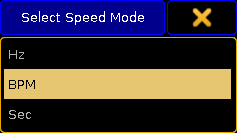 *Select Speed Mode pop-up* * **Trackball Function** - Opens the **Select Trackball Function** pop-up. Here you can select the mode sequence for your trackball when you press the Mouse key. The trackball can have four different modes:\ **Off** - no function\ **Mouse** - normal trackball mouse function\ **Pan/Tilt** - this will move the selected moving lights\ **Wheel** - emulates the level wheel 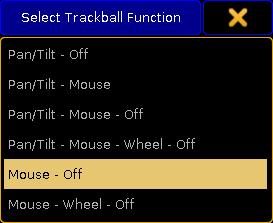 *Select Trackball Function pop-up* * **Trackball Resolution** - Opens the **Select Trackball Resolution** pop-up. This is used to select the default resolution of the trackball. This can also be change on the fly by pressing the  (encoder) key and holding it, then selecting one of the resolutions in the pop-up - more about the [Encoder key](/grandma2/key_key_encoder/) following the link.There are three different resolutions:\ **Fine** (0.1% of the range)\ **Normal** (1% of the range)\ **Coarse** (5% of the range)  *Select Trackball Resolution pop-up* * **Trackball Rotation** - This is used to rotate the orientation of the trackball in the pan/tilt mode. It opens a **Trackball Rotation** pop-up:  *Trackball Rotation pop-up* Here you can press the small green circle and rotate the orientation of the trackball. When you are happy, press the “Please” button to confirm the choice.\ There are four quick options that allow for fast selection of one out of four quarters on the circle. Pressing the yellow X in the upper right corner cancels any changes.\ * **Dimmer Wheel Mode** - Tapping this opens the **Select Dimmer Wheel Mode** pop-up. This is used to select the wheel mode of the level wheel. There are four options:\ **Additive** - This will allow you to use the level wheel to set the value of dimmers. It will keep the individual levels until reaching 0% or 100%. Then it will level them out. For example: fixture 1 has a value of 50 and fixture 2 is at 60. When using the level wheel to take them both up to 100, and then back down, they both go down from 100 at the same time and at the same level.\ **Incremental** - This will basically do the same as ‘Additive’, but it remembers the individual values going beyond 0% and 100%. For example: fixture 1 has a value of 50 and fixture 2 is at 60. When using the level wheel to take them both up to 100, and then back down, fixture 1 will start coming down first and then fixture 2 will follow when fixture 1 is at 90.\ **Prop. +** (Proportional positive) - When using the level wheel to turn up the value the individual difference in value will increase. Turning down the values will make all channels reach 0% at the same time.\ **Prop. -** (Proportional negative) - When using the level wheel to turn the values up the individual difference in value will decrease. Turning up to 100% will make all channels reach 100% at the same time.  *Select Dimmer Wheel Mode pop-up* * **Dimmer Wheel Resolution** - This is used to select the default resolution of the Level Wheel. This can also be change on the fly by pressing the  (Encoder) key and holding it, then selecting one of the resolutions in the pop-up - more about the [Encoder key](/grandma2/key_key_encoder/) following the link.There are three different resolutions:\ **Fine** (0.1% of the range)\ **Normal** (1% of the range)\ **Coarse** (5% of the range)  *Select Dimmer Wheel Resolution* * **Channel Page Width** - Opens the **Select Channel Page Width** pop-up. Here the width of the channel pages can be selected. The options are:\ **Default** - This will add the amount of your current console.\ **Half Page** (15 faders) - This will scale down a grandMA2 full-size or grandMA2 onPC to match a grandMA2 light or grandMA2 ultra-light.\ **Full Page** (30 faders) - This will not add more faders to your grandMA2 light or grandMA2 ultra-light, but it will spread it out as if it was a grandMA2 full-size. 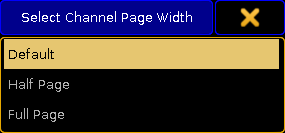 *Select Channel Page Width pop-up* This cannot add more faders to your console. If there only are 15 faders then you do not get 30 - but you can scale down a grandMA2 full-size.\ * **Dynamic Channel Page Shows Only Selected** - When this is On then the console will only display the selected fixtures in “Dynamic Channel Pages” - read more about the Dynamic Channel Pages in the [Channel Pages topic](/grandma2/key_adv_exec_ch_pages/).\ * **At Normal Percent** - Here you can define what percent should be considered “[At Normal](/grandma2/key_keyword_normal/)”. This is used when the At key is pressed twice.\ * **Single Digit Value** - All numeric value input below 10 will be a multiplication of 10; for example: channel 1 at 5 = channel 1 gets value 50.\ * **Max. Program Time** - This is the maximum allowed Program time for the **Program Time Special Master**. Follow this link [Time Control](/grandma2/key_ws_time_control/) to read more about the Program Time.\ * **Max. Exec Time** - This is the maximum allowed Executor time for the **Executor Time Special Master**. Follow this link [Time Control](/grandma2/key_ws_time_control/) to read more about the Executor Time.\ * **Special Fader Buttons** - Here you can Enable or Disable the extra buttons above the 100mm faders. Follow this link [Master Section](/grandma2/key_widget_master_section/) to read more about this area.\ * **Disable View Button and View CLI** - With this option activated Views and Viewbuttons will not interact with the command line anymore. For example hitting the store button to store a group and realizing you have to change the View to get a group pool would not accidently store a view.\ * **Patch Column Readout is absolute DMX address** - This will set the Patch columns to display the absolute DMX address instead of a universe and address split. For example with this On you will see the DMX address “2.1” (universe.address) as “513”.\ * **XKeys always for Exec** - When this is **On**, then the X-Keys (below screen 1) will always work as the Executor Buttons. It will **not** automatically follow the content on the lower part of screen 1.\ * **3D Items Unit** - This will change the units in the MA 3D (and Stage View). There are two options:\ **Scale** - The visible number will be a scale of the item size.\ **Size(m)** - The visible number will be in meters.\ * **CurrentChannelPage** - This is this users current Channel Page.\ * **CurrentFaderPage** - This is this users current Executor Fader Page.\ * **CurrentButtonPage** - This is this users current Executor Button Page.\ * **EncoderLink** - The encoder link is used when working in the Fade, Delay and Effect layers. It has several options:\ **Single** - Only sets the value for the attribute you change.\ **Single Active** - Same as above, but limited to parameters that are already active in programmer.\ **Feature** - Sets the value for all attributes in the selected feature. For example if you set a delay time for ‘Pan’ it will also set the time for ‘Tilt’.\ **Feature Active** - Same as above, but limited to parameters that are already active in programmer.\ **All** - This sets the value for all attributes.\ **All Active** - Same as above, but limited to parameters that are already active in programmer.\ **Filter** - Sets the value for the attributes selected in the current filter from the filter pool or at filter.\ **Filter Active** - Same as above, but limited to parameters that are already active in programmer. 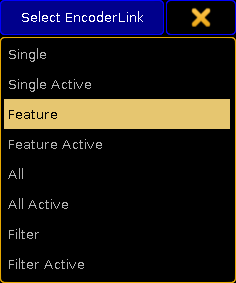 *Select Encoder Link pop-up* * **Programmer Colors** - This setting allows to change between two different set of visual color feedback regarding the programmer. The two options are **Standard** and **High Contrast**. Read about the in the [System Colors topic](/grandma2/key_ws_colors_system/).
# Big systems
> There are some limitation to consider when using the grandMA2 in big systems.
There are some limitation to consider when using the grandMA2 in big systems. The following is exploring some of these limitations running one session in a good **Gigabit** network. There is the general limitation regarding the parameter count: It can control a maximum of 65 536 parameters. Then there is the limit of 256 DMX universes - It is only possible to patch your fixtures in a maximum of 256 universes. The devices are separated into different classes. There is a limit of how many devices of each class can be in one session. * **Class A** are grandMA2 full-size, grandMA2 light, grandMA2 ultra-light, grandMA2 replay unit, grandMA2 onPC and MA NPU.\ Maximum 31 Class A devices in a session. 8 of the 31 are reserved for **Stations** (grandMA2 consoles and grandMA2 onPC), the 23 remaining devices can be any Class A device. * **Class B** are MA VPU, MA 3D and MA NDP.\ Maximum 64 Class B devices in a session. * **Class C** are MA Nodes and MA VPU in “Show mode”.\ Maximum 255 Class C devices in a session. The amount of RAM or memory is important. It is recommended to have a minimum of 8GB in every class A device in the session. If one device has lower memory, then the entire system can only utilize the lowest amount of memory. For instance if one MA NPU only has 4GB, then the entire session can only use 4GB. Memory is related to the size of the show file. If the maximum amount of parameters is used, then the amount of cues that can be stored is lower. User Profiles, the amount of fixtures patched, 3D objects in the show file, bitmaps, and so on all affects the memory use. The current memory use and the free memory can be monitored in the [Desk Status window](/grandma2/key_ost_desk_status/). For big systems it is always recommended to have an entire system running minimum 1 Gbit/s speed. This goes for all devices including the DMX nodes. It is not recommended to use older nodes that only run 100Mbit/s or 10Mbit/s speed. For a synchronized real time DMX output only use MA Nodes. If you are in a situation where you need to build a big system, it is a very good idea to have an experienced **MA System Specialist** involved in the design and implementation of the system and network. There are a lot of other considerations regarding building a network that can handle the traffic especially if there is a high demand for redundancy. A **MA System Specialist** has the required knowledge to help with all these considerations. It is not recommended to run more than 3 (very) big sessions in one gigabit network. If more than that is needed, please contact our technical support or a **MA System Specialist**.
# Media systems and CITP
> A media server can be many things.
## Media Systems - Media Servers / Players [Section titled “Media Systems - Media Servers / Players”](#media-systems---media-servers--players) A media server can be many things. It can be a simple DMX controlled box that can display video and maybe still images. It can also be a big expensive system with multiple synchronized outputs and everything in between and beyond. There is no universal solution that fits all and makes everyone happy. MA VPUs are made to be controlled and programmed from the grandMA2 system. Media servers from other manufactures can be integrated into the MA system. They can be controlled via direct DMX, Art-Net, sACN or other network protocols. Some are even capable of listening to DMX information in MA-Net2. ## CITP [Section titled “CITP”](#citp) The CITP protocol suite allows to exchange images, stream videos and configure fixture information. If a 3rd party media system supports the full CITP protocol, then thumbnails can be exchanged for each of the video/image files on the media device. It is also possible to watch a video stream from the media device on a console and on a surface in MA 3D. For more about getting thumbnails via CITP have a look at the [CITP connection](/grandma2/key_network_citp/) topic. Have a look at the description of the [CITP viewer](/grandma2/key_network_citp_stream/) to learn more about watching a CITP video stream on the console. Some visualizers can also display the CITP video stream from media systems.
# Network systems
> When more devices are connected with each other in a session, then it is a networked system.
When more devices are connected with each other in a session, then it is a networked system. There are so many possible combinations that it does not make sense to try and list them all. The smallest network system is a computer with onPC running a session and connected to a MA 2Port Node onPC 1K. Most systems have 1 console with 1 backup console or onPC and some networked devices to output the DMX. If the devices that translate Ethernet data to DMX are MA nodes, then the DMX output is in sync, no matter where the DMX is output. So a blackout cue on LED fixtures is in sync when some LEDs got signal from the Console and some LEDs from a node somewhere in the system. In all network systems, you have one console or onPC that is the session master. This is the one that is in charge of the communication and the one that is executing commands triggered by remote inputs or from a command in a sequence. It is recommended to use a good network switch when connecting different devices. Besides the consoles, there are a lot of different devices that can be added to the system. Read the sub topics to get a short explanation of the different devices. Learn more about setting up a session [here](/grandma2/key_network_session_create/). Learn more about parameter expansion [here](/grandma2/key_so_parameter_expansion/). Learn more about the considerations in big network systems [here](/grandma2/key_so_big_systems/). ## Subtopics [Section titled “Subtopics”](#subtopics) * [What is the replay unit (RPU)](/grandma2/key_so_what_is_the_replay_unit_rpu/) * [What is the network processing unit (NPU)](/grandma2/key_so_what_is_the_network_processing_unit_npu/) * [What is the MA video processing unit (VPU)](/grandma2/key_so_what_is_the_video_processing_unit_vpu/) * [What is the network dimmer processor (NDP)](/grandma2/key_so_what_is_the_network_dimmer_processor_ndp/) * [What is MA 3D](/grandma2/key_so_what_is_ma_3d/) * [What are the MA nodes](/grandma2/key_so_what_are_the_ma_nodes/)
# Parameter expansion
> This page is a closer look at how many parameters can be controlled and how it can be expanded. At the bottom of this page there is a link to a page that explai
This page is a closer look at how many parameters can be controlled and how it can be expanded. At the bottom of this page there is a link to a page that explains the difference between “Parameter” and “DMX universe”. If you have any doubts in this area, you should take the time to read it. ## Parameter count [Section titled “Parameter count”](#parameter-count) This section is about the parameter count for single units. Beginning at the top end and working the way down the ranks: * **grandMA2 full-size:**\ 8 192 parameters. * **grandMA2 light**:\ 4 096 parameters. * **grandMA2 ultra-light:**\ 4 096 parameters. * **grandMA2 replay unit:**\ 4 096 parameters. * **MA NPU (Network Processing Unit):**\ 4 096 parameters (also with grandMA2 onPC). * **MA onPC command wing:**\ 2 048 parameters (only when connected with grandMA2 onPC). * **MA onPC fader wing:**\ 2 048 parameters (only when connected with grandMA2 onPC). * **MA 8Port Node onPC:**\ 2 048 parameters (only when connected with grandMA2 onPC). * **MA 4Port Node onPC:**\ 2 048 parameters (only when connected with grandMA2 onPC). * **MA NSP (in grandMA2 4Port Node mode):**\ 2 048 parameters (only when connected with grandMA2 onPC). * **MA 2Port Node onPC 2K:**\ 2 048 parameters (only when connected with grandMA2 onPC). * **MA 2Port Node onPC 1K:**\ 1 024 parameters (only when connected with grandMA2 onPC). * **MA 2Port Node onPC Pro (old version):**\ 1 024 parameters (only when connected with grandMA2 onPC). * **MA 2Port Node onPC (old gray version):**\ 512 parameters (only when connected with grandMA2 onPC). * **MA 8Port Node (not onPC version):**\ Does not provide parameter expansion. * **MA 4Port Node (not onPC version):**\ Does not provide parameter expansion. * **MA 4Port Node WM (Wall Mount) (not onPC version):**\ Does not provide parameter expansion. * **MA 2Port Node (not onPC version):**\ Does not provide parameter expansion. * **MA 2Port Node WM (Wall Mount) (not onPC version):**\ Does not provide parameter expansion. * **MA 2Port Node Rig mount version (old version - not onPC):**\ Does not provide parameter expansion. * **MA 2Port Node Flush mount version (old version - not onPC):**\ Does not provide parameter expansion. ## Parameter expansion [Section titled “Parameter expansion”](#parameter-expansion) The MA NPU is the **only unit** that expands the parameter count when using a grandMA2 console. **Every MA NPU added to the network also adds 4 096 parameters!** A maximum of 15 MA NPUs can be added to give parameters; depending on the biggest console. There is a **maximum limit of 65 536 parameters** in a grandMA2 session. The MA NPUs help with parameter calculations. ### Examples: [Section titled “Examples:”](#examples) 1 grandMA2 full-size (8 192 parameters) + 1 NPU (4 096) = 12 288 parameters 1 grandMA2 full-size (8 192 parameters) + 14 NPUs (4 096) = 65 536 parameters (the limit) 1 grandMA2 light (4 096) + 1 NPU (4 096) = 8 192 parameters 1 grandMA2 light (4 096) + 15 NPUs (4 096) = 65 536 parameters (the limit) 1 grandMA2 full-size (8 192 parameters) + 1 grandMA2 light (4 096) = 8 192 parameters (Consoles cannot expand the parameter count so the parameters from the console with the highest number are unlocked) 1 grandMA2 light (4 096) + 15 2Port Node onPC 2K (2 048) = 4 096 parameters (Nodes cannot expand the parameter count, so the parameters from the console is used - onPC nodes cannot give parameters to consoles) 1 grandMA2 light (4 096) + 1 onPC computer with a Command Wing (2 048) = 4 096 parameters (Wings cannot expand the parameter count, so the parameters from the console are used - onPC Wings cannot give parameters to consoles) ## Using a grandMA2 onPC with wings, nodes and NPU [Section titled “Using a grandMA2 onPC with wings, nodes and NPU”](#using-a-grandma2-onpc-with-wings-nodes-and-npu) When a grandMA2 onPC is used some MA hardware is needed to unlock parameters. **The maximum number of parameters that is allowed in a grandMA2 onPC system is 4 096!** Any number of onPC hardware can be used with your computer. Every piece of hardware will add its parameters until the limit of 4 096 parameters is reached. This is the only two rules for parameters with grandMA2 onPC. Remember more units can be added to get more DMX ports. ### Examples: [Section titled “Examples:”](#examples-1) grandMA2 onPC + MA onPC command wing = 2 048 parameters grandMA2 onPC + MA onPC command wing + MA 2Port Node onPC Pro = 3 072 parameters grandMA2 onPC + MA onPC Fader Wing = 2 048 parameters grandMA2 onPC + MA 2Port Node onPC + MA 2Port Node onPC = 1 024 parameters grandMA2 onPC + MA onPC command wing + Fader Wing + MA 8Port node onPC = 4 096 parameters (you have reached the limit) grandMA2 onPC + MA onPC command wing + MA NPU = 4 096 (you have reached the limit) ## MA VPU and grandMA2 onPC [Section titled “MA VPU and grandMA2 onPC”](#ma-vpu-and-grandma2-onpc) If a MA VPU is used, it will supply its own parameters and does not affect the limit. Several MA VPUs can be controlled using a grandMA2 onPC. If however a mix of VPUs and other fixtures are used, then some MA hardware is needed to unlock the parameters for the fixtures. Even though the MA VPU does not count in your parameter limit, it is a good idea to patch the MA VPU on a higher universe than the other fixtures. There is a risk that it will steal the parameters from the other fixtures, if it is on a lower universe than the fixtures. Please have a look at [DMX Channels vs. Parameters topic](/grandma2/key_so_parameters_vs_dmx_channels/) for more about the difference between DMX channels and Parameters.[](/grandma2/key_so_parameters_vs_dmx_channels/)
# Parameters vs. DMX channels
> Most people are used to think in DMX channels when considering how many fixtures can be controlled with system.
Most people are used to think in DMX channels when considering how many fixtures can be controlled with system. MA Lighting are/is more concerned with **Parameters**. ## What are Parameters [Section titled “What are Parameters”](#what-are-parameters) Parameters are also called Attributes in the software. A dimmer function is a parameter and a pan function is also a parameter. The software is calculating the different attributes using a higher precision than what is being output via DMX. So the software is calculating the parameter or attribute once and it is then scaled to the amount of DMX channels a fixture uses - typically one or two per attribute. ## Why counting in Parameters and not DMX [Section titled “Why counting in Parameters and not DMX”](#why-counting-in-parameters-and-not-dmx) It is to your advantage. In the MA world you do not pay extra for using fixtures that are running 16 or 24 bit instead of the 8 bit used by one DMX channel. There might be a need to add more networked nodes or devices to output all the parameters that are allowed to be controlled. **Example:** A simple moving head with a dimmer might use 5 DMX channels. The channels can be defined like this: | Definition: | DMX Channel: | | ----------- | ------------ | | Dimmer | 1 | | Pan | 2 | | Pan Fine | 3 | | Tilt | 4 | | Tilt Fine | 5 | The Pan and Tilt is one attribute each. Even though both pan and tilt each use two DMX channels it is only counted as one each in the parameter count. This means that the fixture only costs 3 parameters. | Definition: | DMX Channel: | Parameter cost: | | ----------- | ------------ | --------------- | | Dimmer | 1 | 1 | | Pan | 2 | 2 | | Pan Fine | 3 | free | | Tilt | 4 | 3 | | Tilt Fine | 5 | free | This can be a big advantage when there is a lot of fixtures that has a lot of 16-bit (or fine) channels. ## What about preprograming and parameters? [Section titled “What about preprograming and parameters?”](#what-about-preprograming-and-parameters) The show can be preprogramed and MA 3D can be used without any parameter unlocking hardware. The lights are still visualized. But if 3-party visualizers are used, then the hardware might be needed to give access to the parameters. MA Lighting is working with many visualizer manufactures to allow them to read the DMX data without hardware. Learn more about parameter expansion [here](/grandma2/key_so_parameter_expansion/).
# Standalone systems
> If a console is not connected to anything, then it is a Standalone system. It is also a standalone system using a grandMA2 onPC with one or more grandMA2 onPC w
If a console is not connected to anything, then it is a **Standalone** system. It is also a standalone system using a grandMA2 onPC with one or more grandMA2 onPC wings connected. A console is in standalone mode when it is not a part of a session. So a console that is connected to network, but not in a running session is also considered as Standalone. The current status can be seen in the Setup menu (press the Setup key). The right tab will display: **Network Standalone**. If the console is in a session and you want to set it to Standalone mode, then you can leave the session. This can be done using the [GUI](/grandma2/key_network_session_end_leave/) or the command line ([LeaveSession](/grandma2/key_keyword_leavesession/)). In the Standalone mode the console is limited to only controlling the amount of [parameters](/grandma2/key_so_parameters_vs_dmx_channels/) the console / onPC unlocks. You can only use the DMX ports on the console / wings. If DMX is output via an Ethernet connection, then the console needs to be in a session. Enable the Network DMX if Alone button in the Setup->Network->Network Protocols. Even though not connected to anything else, it still needs to run an active session. For more about setting up DMX ports, please have a look at the [Configure the DMX ports on MA devices](/grandma2/key_network_dmx_configure_ports/) topic.
# System Overview
> This section takes a look at the different possibilities with a standalone console but also the options when expanding the system.
This section takes a look at the different possibilities with a standalone console but also the options when expanding the system. ## Subtopics [Section titled “Subtopics”](#subtopics) * [Standalone systems](/grandma2/key_so_standalone_systems/) * [Network systems](/grandma2/key_so_network_systems/) * [Parameters vs. DMX channels](/grandma2/key_so_parameters_vs_dmx_channels/) * [Parameter expansion](/grandma2/key_so_parameter_expansion/) * [Big systems](/grandma2/key_so_big_systems/) * [Media systems and CITP](/grandma2/key_so_media_systems_and_citp/)
# What are the MA nodes
> The nodes from MA Lighting work as a translator between the network data and the DMX.
The nodes from MA Lighting work as a translator between the network data and the DMX. A node is connected to the network and it listens to the DMX data in the network. It is configured to handle some specific DMX universes. It can be used to output a DMX universe. It will listen to the DMX data stream on the network and translate that information into a DMX512-A signal. A node can also input a DMX signal into the network. Then it receives a DMX signal and translates it into a network data stream. When nodes are used in a MA-Net2 system, then the advantage is that the DMX ports can be configured from the system and the DMX output is synchronized in the entire network. Nodes can also work with other network protocols. They can run in Art-Net and sACN. Configuration is still done via the grandMA2 software (for example a computer running the grandMA2 onPC software) or from a browser. The older MA nodes from grandMA1 can also run in MA-Net1 mode. Then they can talk with the grandMA1 systems. The older NSPs can be used as a MA 4Port Node in a grandMA2 system. The older NSPs and nodes from grandMA1 only have a 100Mbit/s network card. The new nodes use a Gigabit network adaptor. There is no guarantee that the grandMA1 devices will continue to work with MA-Net2 in the future. They will however always be able to run Art-Net and sACN.
# What is MA 3D
> The MA 3D is a free visualizer that can connect to the MA system and can simulate lights in a 3D environment.
The MA 3D is a free visualizer that can connect to the MA system and can simulate lights in a 3D environment. The software needs to be installed on a computer connected to your lighting network. The 3D is invited into a session and it is then considered a member in the session that can be used to position lighting fixtures in a 3D environment. The 3D can be used to preprogram a show and/or have it onsite for Blind and Preview editing. MA 3D can connect to grandMA2 onPC (also free) and does not need parameters to visualize the lighting. You can add a virtual camera dolly and program a moving camera. An object in MA 3D can be used as a surface that can display video or images. It can also display the CITP video stream from a media system. Read more about CITP in the [Streaming CITP topic](/grandma2/key_network_citp_stream/). MA 3D can create screenshots. If a video capture is needed, then additional capture software is needed.
# What is the network dimmer processor (NDP)
> The Network Dimmer Processor (NDP) is the processor used to control dimMA dimmer system.
The **Network Dimmer Processor (NDP)** is the processor used to control dimMA dimmer system. The NDP provides access to the dimmers via the MA-Net. Dimmers can be monitored and changed through the setup and configuration from the consoles. It is also possible to see error messages from the dimmers in the consoles. NDPs also have DMX connectors. This allows to control the dimmers using a standard DMX signal. It can receive Art-Net and sACN data as well. It is a device from the grandMA1 system and it has a 100Mbit/s network adaptor.
# What is the network processing unit (NPU)
> A MA Network Processing Unit (NPU) is for parameter expansion and to add DMX ports in a network solution.
A **MA Network Processing Unit (NPU)** is for [parameter expansion](/grandma2/key_so_parameter_expansion/) and to add DMX ports in a network solution. It is a 19” 3 Unit rack mount processor. It got 8 female DMX ports and 1 female etherCON connector for network. It cannot function as a standalone unit. It has to be connected to a session to do anything.
# What is the replay unit (RPU)
> A grandMA2 replay unit (RPU) is considered as a console in the system.
A **grandMA2 replay unit (RPU)** is considered as a console in the system. It has the same software and capabilities as the consoles. It is a 19” 3 Unit rack-mount version of the console, without all the user interface and physical controls. It has almost the same connectors on the rear panel as a console (with fewer USB connectors). It functions exactly like a console in the system. For more information see grandMA2 replay unit (RPU) [general description](/grandma2/key_device_overview_grandma2_replay_unit_rpu/) and [technical data](/grandma2/key_technical_data/#grandMA2%20replay%20unit).
# What is the MA video processing unit (VPU)
> The MA Video Processing Unit (VPU) is a Media Server that was designed to be fully integrated into the MA system.
The **MA Video Processing Unit (VPU)** is a Media Server that was designed to be fully integrated into the MA system. The MA VPU comes in three sizes: * MA VPU plus * MA VPU basic * MA VPU light There is a second generation of the plus and basic called MK2. The MA VPUs are media servers capable of handling a 3D environment. It has all the normal features for media servers. Effects, Soft edge, Pixel mapping, Warping, and so on. One of the big advantages of the MA VPU is the option to use the pixel mapper internally. This means that fixtures can be positioned in a 3D environment in the console and then the MA VPU software can be used to run complex video content, mapped to the fixtures. The MA VPU is a feature-rich software and hardware and it got its own manual.
# Technical Data
## grandMA2 full-size [Section titled “grandMA2 full-size”](#grandma2-full-size) | Technical Data | | | ----------------- | -------------------------------------------------------------------------------------------------------------------------------------------- | | Operating Voltage | 120 V / 230 V | | Supply Voltage | 50 / 60 Hz (automatic detection) | | Net weight | 46 kg / 101 lbs | | Power | 350 VA | | Dimensions | 1,284 x 204 x 661 mm / 50.6 x 8 x 26 inches | | Output Connectors | 6 x XLR 5pin (DMX) 2 x DVI (external monitor) 2 x etherCON 1 x MA Link (grandMA2 fader wing) 5 x USB 1 x DIN (MIDI) 2 x XLR 4pin (desk lamp) | | Input Connectors | 1 x XLR 5pin (DMX) 1 x XLR 3pin (Sound) 1 x XLR 3pin (SMPTE) 1 x DIN (MIDI) 1 x Sub-D 25pin (Analog Remote) 1 x powerCON | *** ## grandMA2 light [Section titled “grandMA2 light”](#grandma2-light) | Technical Data | | | ----------------- | -------------------------------------------------------------------------------------------------------------------------------------------- | | Operating Voltage | 120 V / 230 V | | Supply Voltage | 50 / 60 Hz (automatic detection) | | Net weight | 37 kg / 81.6 lbs | | Power | 350 VA | | Dimensions | 935 x 204 x 652 mm / 36.8 x 8 x 25.7 inches | | Output Connectors | 6 x XLR 5pin (DMX) 2 x DVI (external monitor) 2 x etherCON 1 x MA Link (grandMA2 fader wing) 5 x USB 1 x DIN (MIDI) 2 x XLR 4pin (desk lamp) | | Input Connectors | 1 x XLR 5pin (DMX) 1 x XLR 3pin (Sound) 1 x XLR 3pin (SMPTE) 1 x DIN (MIDI) 1 x Sub-D 25pin (Analog Remote) 1 x powerCON | *** ## grandMA2 ultra-light [Section titled “grandMA2 ultra-light”](#grandma2-ultra-light) | Technical Data | | | ----------------- | -------------------------------------------------------------------------------------------------------------------------------------------- | | Operating Voltage | 120 V / 230 V | | Supply Voltage | 50 / 60 Hz (automatic detection) | | Net weight | 30 kg / 66.1 lbs | | Power | 350 VA | | Dimensions | 935 x 204 x 652 mm / 36.8 x 8 x 25.7 inches | | Output Connectors | 6 x XLR 5pin (DMX) 2 x DVI (external monitor) 2 x etherCON 1 x MA Link (grandMA2 fader wing) 4 x USB 1 x DIN (MIDI) 2 x XLR 4pin (desk lamp) | | Input Connectors | 1 x XLR 5pin (DMX) 1 x XLR 3pin (Sound) 1 x XLR 3pin (SMPTE) 1 x DIN (MIDI) 1 x Sub-D 25pin (Analog Remote) 1 x powerCON | *** ## grandMA2 replay unit (RPU) [Section titled “grandMA2 replay unit (RPU)”](#grandma2-replay-unit-rpu) | Technical Data | | | ----------------- | -------------------------------------------------------------------------------------------------------------------------------------------- | | Operating Voltage | 120 V / 230 V | | Supply Voltage | 50 / 60 Hz (automatic detection) | | Net weight | 11.3 kg / 25 lbs | | Power | 150 VA | | Dimensions | 485 x 445 x 126 mm / 19 x 17.5 x 5 inches | | Output Connectors | 6 x XLR 5pin (DMX) 2 x DVI (external monitor) 2 x etherCON 1 x MA Link (grandMA2 fader wing) 3 x USB 1 x DIN (MIDI) 2 x XLR 4pin (desk lamp) | | Input Connectors | 1 x XLR 5pin (DMX) 1 x XLR 3pin (Sound) 1 x XLR 3pin (SMPTE) 1 x DIN (MIDI) 1 x Sub-D 25pin (Analog Remote) 1 x powerCON | *** ## grandMA2 fader wing [Section titled “grandMA2 fader wing”](#grandma2-fader-wing) | Technical Data | | | ----------------- | -------------------------------------------- | | Operating Voltage | 120 V / 230 V | | Supply Voltage | 50 / 60 Hz (automatic detection) | | Net weight | 4.5 kg / 9.9 lbs | | Power | 40 VA | | Dimensions | 365 x 395 x 70 mm / 14.4 x 15.6 x 2.8 inches | | Output Connectors | 4 x XLR 5pin (DMX)2 x USB | | Input Connectors | 1 x USB | *** ## MA onPC command wing [Section titled “MA onPC command wing”](#ma-onpc-command-wing) | Technical Data | | | ----------------- | ------------------------------------------------------------------------------------------------------------------------ | | Operating Voltage | 120 V / 230 V | | Supply Voltage | 50 / 60 Hz (automatic detection) | | Net weight | 6 kg / 13.2 lbs | | Power | 40 VA | | Dimensions | 540 x 400 x 75 mm / 21.3 x 15.7 x 3 inches | | Output Connectors | 2 x XLR 5pin (DMX) 1 x USB 1 x DIN (MIDI) | | Input Connectors | 1 x XLR 5pin (DMX) 1 x XLR 3pin (SMPTE) 1 x DIN (MIDI) 1 x Sub-D 15pol (Analog Remote)1 x IEC 60320 C13 / C14 (IEC cord) | *** ## MA onPC fader wing [Section titled “MA onPC fader wing”](#ma-onpc-fader-wing) | Technical Data | | | ----------------- | -------------------------------------------- | | Operating Voltage | 120 V / 230 V | | Supply Voltage | 50 / 60 Hz (automatic detection) | | Net weight | 4.5 kg / 9.9 lbs | | Power | 40 VA | | Dimensions | 365 x 395 x 70 mm / 14.4 x 15.6 x 2.8 inches | | Output Connectors | 4 x XLR 5pin (DMX) 2 x USB | | Input Connectors | 1 x USB |
# Timecode
> The timecode section describes all the details for running cues or executors using a timecode source.
The timecode section describes all the details for running cues or executors using a timecode source. The [What is Timecode and Timecode Show topic](/grandma2/key_timecode_what_is/) describes the concept behind the different things involved with timecode controlled shows. In [Record a Timecode Show](/grandma2/key_timecode_record/) the two different ways to record cues are described. For details about editing a timecode show please read the [Edit a Timecode Show topic](/grandma2/key_timecode_editor/) - here is the description of the timecode editor and the “options for timecode shows”. How to run or playback the recorded timecode shows is described in the [Playing Back a Timecode Show topic](/grandma2/key_timecode_playing/). This topic also describes the timecode generator. Finally there is a topic with a few ideas or thoughts about shows with multiple timecode shows - [Organize Your Show with Multiple Timecode Shows](/grandma2/key_timecode_organize/). ## Subtopics [Section titled “Subtopics”](#subtopics) * [What is timecode and timecode shows](/grandma2/key_timecode_what_is/) * [Record a timecode show](/grandma2/key_timecode_record/) * [Edit a timecode show](/grandma2/key_timecode_editor/) * [Playing back a timecode show](/grandma2/key_timecode_playing/) * [Organize the show with multiple timecode shows](/grandma2/key_timecode_organize/)
# Edit a timecode show
> Editing a timecode show opens the Timecode Editor pop-up.
Editing a timecode show opens the **Timecode Editor** pop-up. ## Timecode Show Editor [Section titled “Timecode Show Editor”](#timecode-show-editor) The editor could look like this:  *Timecode Editor pop-up - Graphic style* It has two modes that can be changed using the buttons on the right side. The only difference is in the [Main part](#main_part). Above is the **Graphic** style. Below is the **Text** style:  *Timecode Editor pop-up - Text style* ### Title Bar [Section titled “Title Bar”](#title-bar) The left side of the title bar has the standard yellow ball that will open the **Options** when it is tapped. Continuing from left to right in the title bar, the next ting is the name and number of the timecode show. There is a area that displays the playback status (Stop, Play, Pause, and Record icons) and the current time. If there is a ”+” in front of the time then a time offset is added. There are three buttons that zoom the timeline in the graphic viewer. The first two zoom buttons (from left) is normal zoom in and out. The next button will zoom to view the entire recorded timecode show. The next “zoom” button is actually a toggle button - this is called **Follow Time**. When it is active, the display always shows the active cue or time. Like **Auto Scroll** in a sheet. It moves the the green time marker and line from the left side and into the center of the screen when the show is recording or playing. The last two buttons in the title bar are the standard buttons for moving the editor to a different screen, and the big X that closes the editor. Remember that if the editor is on screen 1 then the right side buttons and possibly the bottom buttons can be operated by the U-keys and the X-keys. It is always possible to tap the buttons on the screens. ### Right side buttons [Section titled “Right side buttons”](#right-side-buttons) As mentioned briefly above, there are two buttons on the right side of the editor that changes the mode of the main part between a **Graphic** and **Text** mode. The **Label** button opens an **Enter Name pop-up** that will label the timecode show. ### Bottom buttons [Section titled “Bottom buttons”](#bottom-buttons) At the bottom there are a lot of buttons that allows for editing and controlling the timecode show. They are divided into three sections: Direct Tools, Track Tools, and Playback Controls. **Direct Tools:** Tapping these buttons will add, copy/paste, select and delete events. * **Add Here**:\ Adds an event at the current frame. If there is already an event at this time frame, it will add the event at the next frame. It will not create an event, if there is also something at the next frame. It will automatically add a Goto next cue or insert a marker on the current fader position. * **Add Multiple**:\ This opens the **Create Multiple Events pop-up**. 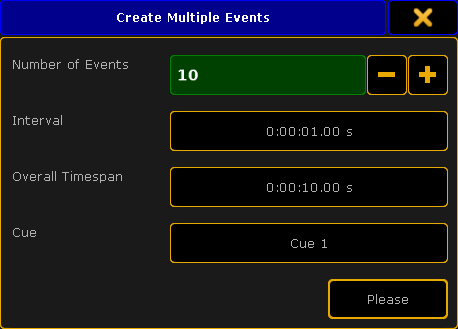 *Create Multiple Events pop-up* Here you can add more than one event at the same time. Set the **Number of Events** needed. Set an **Interval** or an **Overall Timespan** - they are linked based on the number of events. Finally set first cue for the events. The following cues will be added based on the number of events. If there are not enough cues, then the sequence in wrapped and the cues from the top are used. * **Delete Selected**:\ Deletes all selected events. * **Manual Record**:\ This function is currently not implemented. * **Clear Selection**:\ Pressing this will deselect all selected events. * **Create Selection**:\ This will open the **Create Selection pop-up**. 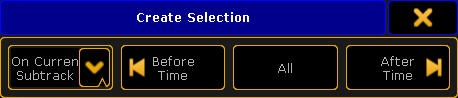 *Create Selection pop-up* Here you can select multiple events. The left drop down list allows to select if the selection will be made **On Current Subtrack**, **On Selected Tracks**, or **On All Tracks**. The next three buttons allows to select all events **Before** (and including) the time marker, select **All** events, or all events **After** (and including) the time marker. * **Copy Events**:\ Tapping this button will copy the currently selected events. It will copy all events in the selected track if there are no selected events. It is possible to select events from several tracks. * **Paste Events**:\ This button inserts the copied events at the current time marker. If entire tracks have been copied, then it will offset the events and paste them with the 0 frame at the current time marker position. If several tracks are copied, it will paste into the respective new tracks. **Track Tools:** These are buttons that control how tracks are played back and it can be used to manually add or delete tracks. * **Activate All Tracks**:\ This will display all tracks in the **Text** mode of the editor. * **Sort Tracks**:\ This will allow you to sort tracks in numerical order. Non-active tracks will be moved to the bottom of the list. * **Deactivate All Tracks**:\ This will hide all tracks in the **Text** mode of the editor (recorded events will be executed). * **Track Functions**:\ Gives you the **Track Functions pop-up**. There are a lot of track functions. This pop-up opens other pop-ups and can do more complex operations. Please read more about the track functions [below](#track_functions). **Playback Controls:** These buttons control the playback and record state of the timecode show. * **Rewind (to the beginning)**:\ Rewinds to the 0 (zero) time. * **Stop**:\ Stop the running/playback or recording of the show. * **Record**:\ Records the show from the current time. If the show is rewound and recorded again then it is possible to record more actions into the show. It will not delete what previously recorded. * **Pause**:\ Temporary stops the running time or recording at the current time. * **Forward (to the end)**:\ Moves the time marker to the end of the show. * **Play**:\ Plays the timecode show. Read more in the [Playing Back a Timecode Show topic](/grandma2/key_timecode_playing/). ### []()Track Functions [Section titled “Track Functions”](#track-functions) The Track Functions are opened by tapping the Track Functions button. It could look like this: 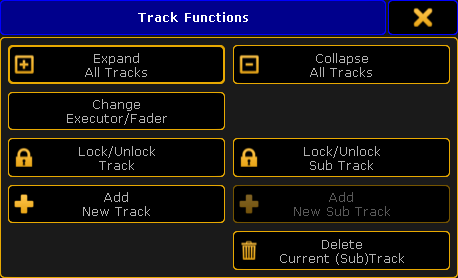 *Track Functions pop-up* There are eight different buttons here: * **Expand All Tracks**:\ This will expand all the sub tracks in the timecode show. * **Collapse All Tracks**:\ This will collapse (hide) all the sub tracks in the timecode show. * **Change Executor/Fader**:\ Pressing this will open a **Select executor for existing track pop-up**. It could look like this: 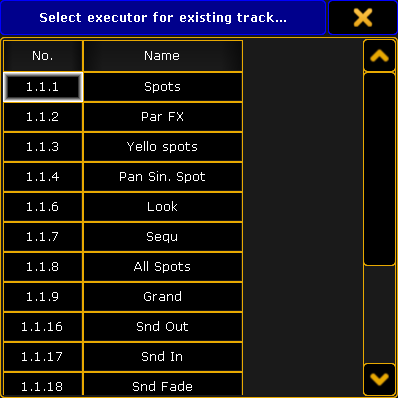 *Select Executor for Existing Track pop-up* Here one of the existing executors can be selected for the currently selected timecode track. * **Lock/Unlock Track**:\ Pressing this will lock or unlock the main AND sub tracks. Locked tracks get a yellow padlock icon. * **Lock/Unlock Sub Track**:\ Pressing this will lock or unlock only the selected track or sub track. Be aware that a sub track can be locked by both lock buttons. Locked subtracks gets a yellow padlock icon. * **Add New Track**:\ Pressing this will open a **Select executor for new track pop-up**. It looks exactly the same as the **Select executor for existing track pop-up** shown above.\ Here a track can be selected from the list of executors. The selected executor will be added as a new track to the timecode show. * **Add New Sub Track**:\ Pressing this will open a **Select New Sub Track pop-up**. 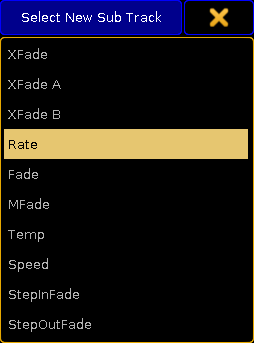 *Select New Sub Track pop-up* Here a fader function can be selected to be added as a new sub track to the timecode show. * **Delete Current (Sub) Track**:\ Pressing this will delete the track. If the current track is the main track then it will also delete the sub tracks. ### []()Main part [Section titled “Main part”](#main-part) The main part of the **Timecode Editor** has a time line at the top. With a green marker displaying the current position. This marker cannot have a minus value - since timecode cannot be a negative value. On the left side there is a small area displaying the different tracks. There are at least one track that have all the executor actions (key presses and releases). The main track is represented by an area with a dark background. There is the executor number on the top line and the sequence number and name on the next line. Below this there might be subtracks. Subtracks contain fader movement. The executor can be changed using the [Track Functions](#track_functions) or by pressing the Edit key and then press one of the tracks (or right-click them with the mouse), this will open pop-ups that can be used to select a new executor or subtrack type. On the far left side next to each main track there are four different symbols. One of them is a small square with a plus or minus. This will expand or collapse the subtracks of the current track. There is also a small square with either a small check mark or it is empty. This will display or hide the track in the **Text** mode of the editor. Then there is the small “play” icon. If this has a disabled symbol across it, then this track and subtracks will not be executed when the show is played back. The last icon is a “record” icon. If this has en disabled symbol across it, then this track and subtracks will not be changed during a recording. These icons are changed by tapping them. The rest of the main part is different depending on what mode is selected. ### Graphic Mode [Section titled “Graphic Mode”](#graphic-mode) In the Graphic mode there are tracks expanding from the areas with the executor numbers and (if expanded) the faders. The events are displayed with different symbols. 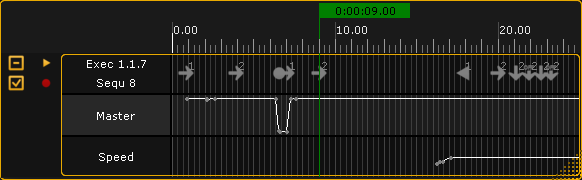 *Timecode Editor pop-up - Main part Graphics mode* The picture above shows the expanded track. The top row displays some of the different events. The subtrack rows displays the fader movement. All the events can be edited by right clicking them with a mouse. The green vertical line is the current time. There is one time marker for each timecode show in a network session. If **Follow Time** is activated (in the title bar) then the last played action in the main track is automatically selected during playback. If the timecode source is the internal source, then the time will be paused if the 4th (right most) encoder is turned and this also moves the position of the last event. The symbols in the top row differs with the different actions. The number next to some of the symbols is the cue number. There might also be a text, this is the cue name. Right clicking one of the events opens the **Event Command pop-up**.  *Event Command pop-up* Here it is possible to select a different action for the event. **Important:**\ Event when the **Go** key was pressed during the recording then the stored action is actually a **Goto** action. This is to make sure that the recorded cue is the one being played back. ### Text Mode [Section titled “Text Mode”](#text-mode) The text mode changes the main part to something like this: 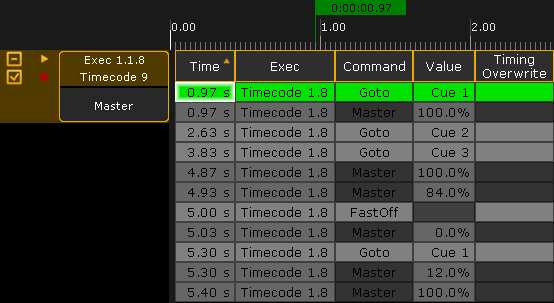 *Timecode Editor pop-up - Main part Text mode* This is the events represented in a spread sheet style. There are 5 columns: * **Time**:\ This is the time for the action or command. * **Exec**:\ This is the name of the sequence and the number of the executor. * **Command**:\ This is the command or action that is performed. * **Value**:\ The value is the cue number or the fader position connected to the command/action. * **Timing Overwrite**:\ A value here will open the **Calculator pop-up**. It can be used to write a new value that will be used as **Fade** time for cues actions instead of the otherwise stored time.\ It overwrites the stored cue timing. All delays are set to 0 (zero) and individual times are ignored. It affects all cue parts. Each row is an event in the timecode show. The rows with the light gray background are the events in the selected track. The row with the green background are the selected event. Rows with a darker gray color is events in a not selected track. The last executed event is automatically selected when the show is running. If the time source is the internal clock and the 4th encoder is turned during playback then the time will automatically pause and the selected event is moved. Everything that does not have a very dark gray background can be edited. Editing a cell will open a pop-up that can edit the values. For instance editing a value cell that is a cue, will open the **Select Cue pop-up**. It could look like this:  *Select Cue pop-up* Here a different cue can be selected. The columns can be sorted by tapping the column title and swiping up or down. This will sort the column ascending or descending and is also symbolized with a small arrow pointing up or down. ## []()Timecode Show Options [Section titled “Timecode Show Options”](#timecode-show-options) Tapping the yellow ball in the upper left corner of the **Timecode Editor** opens the options. The options could look like this: 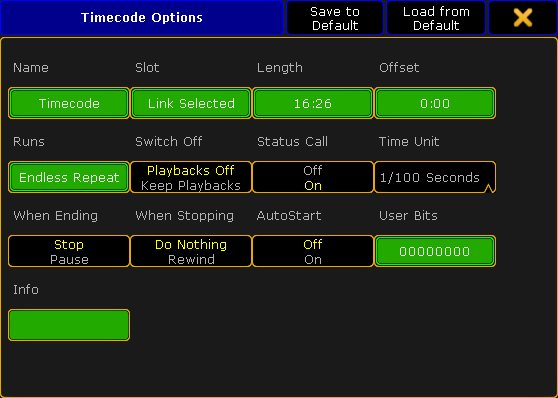 *Timecode Options pop-up* This is a short description of the different options: * **Name:**\ Here the name of the timecode show can be edited. * **Slot:**\ Tapping this field will open the **Select Timecode Slot pop-up**. Here it can be selected if the time source is internal, linked to the selected slot or fixed to one of the 8 slots. The pop-up looks like this: 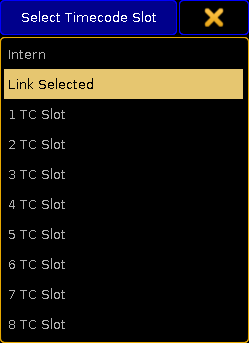 *Select Timecode Slot pop-up* - **Length:**\ The total length of the show. - **Offset:**\ Allows to set a (positive) time offset for the entire timecode show. For instance adding an hour to the entire show without having to move all the events. - **Runs:**\ This is used if the time source is internal. Then the timecode show can be set to loop a number of times or do an endless loop (until stopped manually). - **Switch Off**:\ This has two options: **Playback Off** or **Keep Playbacks**. This defines what happens with playbacks (started by the timecode show) when the timecode show is turned off. - **Status Call**:\ When **Status Call** is turned on, then the timecode show will sync with the timecode signal instantly. When it is off it will execute the action when the event is reached. Example: The timecode show is turned on when the time is between a “Goto Cue 1” and a “Goto Cue 2”. With **Status call On**, a Goto Cue 1 is immediately executed - it is the status the timecode show is suppose to have. When it is **Off**, it will not run cue 1 but wait till it reaches the “Goto Cue 2” event. - **Time unit**:\ Pressing here opens the **Select Time Unit pop-up**. It looks like this:  *Select Time Unit pop-up* Here the displayed time unit can be selected. The options are: **1/100 Seconds**, **30 FPS**, **25 FPS**, or **24 FPS**. This is not depended on the incoming time signal. This is only for the graphic display mode. (FPS = frames per second). - **When Ending**:\ This has two different options: **Stop** or **Pause**. This decides what happens when the timecode show runs out of recorded time. This option does not have any effect when using an external time source! - **When Stopping**:\ This has two different options: **Do Nothing** or **Rewind**. This decides what should happen when the timecode show is stopped. - **Autostart**:\ This has an **On** or **Off** option. Should the timecode show begin automatically when the time source is running. This option is not available when using an internal time source. - **User Bits**:\ Beside the 32 Bit for 8 digit timecode time, timecode executes 32 **User Bits** (8 digit) per frame. Use User Bits to mark a timecode signal. For example, use User Bit 1 for light, and User Bit 2 for pyro. This is not available when using an internal timecode source. Do not change this, unless you are expressively told to do so by the timecode supplier. - **Info**:\ Here it is possible to add some info text to timecode show. The options can be closed by tapping the yellow “X” in the upper right corner.
# Organize the show with multiple timecode shows
> This topic has a few tips and tricks when the show contains multiple timecode shows.
This topic has a few tips and tricks when the show contains multiple timecode shows. ## Separate into songs or sections [Section titled “Separate into songs or sections”](#separate-into-songs-or-sections) Multiple timecode shows implies this. It is a good idea to separate the performance into smaller sections. If it is for a concert, then it is an obvious choice to make a timecode show for each song. If it is a theatrical or musical performance, then it might be more tricky but there is often obvious time to make separations. For music it might also be a good idea to put each song on separate pages. For an overview it can be a good idea to create a view with the timecode pool displaying all the recorded timecode shows. This makes it easy to see the play mode of the timecode show. ## Offset the start time [Section titled “Offset the start time”](#offset-the-start-time) It is a good idea to agree with the ones supplying the time source signal that each section or song starts at a different time instead of all of them starting at time 0 (zero). This can help void running the wrong tracks at the wrong time. ## Use Link Selected [Section titled “Use Link Selected”](#use-link-selected) If the time source is external, then it might be a good idea to set all the timecode shows to **Link Selected**. That makes it very easy to **Turn Off** the external source if changes are needed or if there are rehearsals where the timecode starts and stop at different times without the need for the light to follow. Simply tap the relevant slot in the timecode slot pool. ## Consider not recording the Master intensity [Section titled “Consider not recording the Master intensity”](#consider-not-recording-the-master-intensity) Depending on the situation it might be an idea to not have the intensity **Masters** track stored in the timecode show. If it is stored in the timecode show, then it is “locked” to the recorded position as long a the track is running. If it is not in the timecode show then it is possibly to adjust the master level while the tracks are running. But this is a matter of preferences. Other likes to have the master track stored, so they know that it is up and they do not forget to bring up the master. ## Macros can be a big help [Section titled “Macros can be a big help”](#macros-can-be-a-big-help) Macros can be a big help in shows with multiple timecode shows. It could be macros that selects the correct timecode show, changes the page, and maybe even set the play mode for the selected timecode show. Macros that changes the play mode for the selected timecode show is very useful, just as macros that turns off all timecode shows can be really good. It can also be macros that selects the timecode slot. This was some inspiration or thoughts that might help you organizing a show with multiple timecode shows.
# Playing back a timecode show
> The timecode shows can be controlled using the Timecode Encoder Toolbar or by the command line.
The timecode shows can be controlled using the **Timecode Encoder Toolbar** or by the command line. When a timecode show is tapped in the timecode pool then the encoder toolbar changes to this:  *Encoder Toolbar - Timecode Show* This can be used to control the playmode of the show. This is a short description of the buttons in the top row (left to right): * **Show info button**:\ This button does not do anything when tapped. It displays the name and number of the timecode show. * **Edit Timecode Show**:\ Tapping this button will open the timecode editor - please read the [Edit a Timecode Show topic](/grandma2/key_timecode_editor/) for details. * **Jump to Start**:\ This will set the **Time** to 0 (zero). * **Stop**:\ This button will stop the timecode show. * **Pause**:\ This will pause the timecode show. * **Play**:\ This will set the timecode show in play mode. If the source is external then it will wait for the timecode source to begin. If the source is an “Intern” source then it will start to run from the position of the **Time marker**. * **Jump to End**:\ Tapping this will jump to the end of the timecode show. * **Record**:\ Tapping this will set the timecode show in **Record mode** - read more about recording a timecode show in the [Record a Timecode Show topic](/grandma2/key_timecode_record/). The four encoders has the following functions: * **Time**:\ This is the **Time marker**. It displays the current time. If the source is “Intern” then the encoder can be used to set the current time. * **Track**:\ This is used to select a track - read more in the [Edit a Timecode Show topic](/grandma2/key_timecode_editor/). * **Event**:\ This is used to select events - read more in the edit topic liked above. * **Move**:\ This can be used to move the selected events - read more in the edit topic liked above. The encoders are primarily used together with the timecode editor. ### Using command line [Section titled “Using command line”](#using-command-line) A timecode show can also be controlled by the command line. A [Go](/grandma2/key_keyword_go/) command will set the timecode show in play mode. For example if you want to play **Timecode Show 2**: \[Channel]> Go Timecode 2 If you want to play **Timecode Show 3** from a certain time and it is the **Intern** source, then the following command can be used (3 hours and 30 minutes): \[Channel]> Go Timecode 3 Time 3h30m The show needs to have a lengths larger than the specified time. It can also be paused to a specific time by using the command above but with [Pause](/grandma2/key_keyword_pause/) instead of Go. [<<<](/grandma2/key_keyword_skipminus/) will jump to the time 0 (zero). \[Channel]> <<< Timecode 4 [>>>](/grandma2/key_keyword_skipplus/) will jump to the end time (length in the options). [Off](/grandma2/key_keyword_off/) can be used to stop a timecode show. ## []()Timecode Generator [Section titled “Timecode Generator”](#timecode-generator) Each [timecode slot](/grandma2/key_timecode_what_is/#timecode_slots) can generate a timecode signal for the session. This signal will not be output by the LTC or MIDI ports, but it will be distributed in a session. Tapping a timecode slot in the pool will change the encoder toolbar to look like this:  *Encoder Toolbar - Timecode Generator* In the top row there are a lot of buttons. This is a short description of then from left to right: * **Slot Number Info**: * This information button displays the timecode slot number and it writes **Emulated** and a frame per second if the generator is running. * **Time format** - swipe button: * This is used to set the generated frames per second (FPS). The options are: **24 FPS**, **25 FPS**, **30 FPS**, and **1/100s**. * **Loop** - toggle button:\ When this is active then the generator will jump back to the **Start Time** (set be the center left encoder) when it reaches the **End Time** (set by the center right encoder). * **Jump to Start**- also in the title bar of the clock when displaying the timecode slot:\ This will jump to the **Start Time**. * **Rewind**:\ Holding this button will rewind the time. * **Stop**:\ It stops the generator and sets the time to the **Start Time**. * **Pause** - also in the title bar of the clock when displaying the timecode slot:\ This will pause the generator at the current time. * **Play**- also in the title bar of the clock when displaying the timecode slot:\ Tapping this will start the timecode generator. * **Fast forward**:\ Holding this button will fast forward the time. * **Jump to End**- also in the title bar of the clock when displaying the timecode slot:\ This will make the generator jump to the **End Time**. If loop is active then it will jump back to the **Start Time** if the generator is running. Three of the encoders can be used with the timecode generator. The left encoder does not do anything, but the label of the encoder displays the time for the slot. The next encoder can be used to set a **Start Time** for the generator. The third one can be used to set an **End Time** for the generator. ### Using command line [Section titled “Using command line”](#using-command-line-1) The generator can also be controlled using commands. To play or generate timecode slot 1 use the [Go](/grandma2/key_keyword_go/) command: \[Channel]> Go TimecodeSlot 1 Use [Off](/grandma2/key_keyword_off/) to stop the generator. [Pause](/grandma2/key_keyword_pause/) will pause the generator.
# Record a timecode show
> There are two ways a timecode signal can trigger cues. One is to set "Timecode" as the trigger for the cues and then add a time in the "Trig Time column". The o
There are two ways a timecode signal can trigger cues. One is to set “Timecode” as the trigger for the cues and then add a time in the “Trig Time column”. The other is to record a timecode show. ## Use timecode as cue trigger [Section titled “Use timecode as cue trigger”](#use-timecode-as-cue-trigger) A simple way to trigger cues using a timecode signal is the **Timecode** trigger in the [Sequence Executor Sheet](/grandma2/key_cs_cue_sequence/). Read about the triggers in the [Playing Back Cues topic](/grandma2/key_cs_playback/). Each sequence can be assigned a timecode slot - see how in the [What are Cues and Sequences topic](/grandma2/key_cs_what_are/). The time is then set in the “Trig Time” column in the **Sequence Executor Sheet**. When the assigned timecode slot reaches the time then the cue is triggered - it does not matter if the executor is active or not. The time can be typed manually or it can be recorded. To do a recording the trigger needs to be set to **Timecode** and the executor needs to set in record mode. Even though the time is recorded into the sequence, it is still the executor that needs to be set into record mode: Press +Store to get the [Record keyword](/grandma2/key_keyword_record/), then press any of the keys associated with the executor where the sequence is assigned. It can also be typed as a command: Record Executor \[number] **Hint:**\ Executing the Record command without a reference to a specific executor will toggle the record mode of the selected executor. Now trigger the cues using a normal **GO** command and then the current received time is stored in the Trig Time column. The recording mode is turned off by another **Record** command to the executor. *** ## Record a Timecode Show [Section titled “Record a Timecode Show”](#record-a-timecode-show) This can do a lot more than just trigger cues. A timecode show will store information as when different actions was performed on executors, this includes fader movement and position. A timecode show can run with an external time source or using “internal” time. This means that each timecode show can run on its own or follow an external synced source. See more about running the timecode show in the [Playing Back a Timecode Show topic](/grandma2/key_timecode_playing/). The best way to record a new timecode show is to open the timecode pool on one of the screens and press the Store key then tap one of the empty pool objects. This creates the new show. Now tap it again so it gets a green background. Now it is the selected timecode show. The **Encoder Toolbar** changes to the timecode version. It could look like this:  *Timecode Encoder Toolbar* Now it is possible to control the playback of the timecode show. To start the recording tap the **Record** (Red circle) button on the right side. If the timecode show uses an internal time source, the the time will start running. Internal time source is the default. If the time source is external, then the time is only running if the assigned timecode slot has a running time. The source can be changed in the options for the timecode show or if the timecode show pool is in “Sheet Style”. The options are explained in the [Edit a Timecode Show topic](/grandma2/key_timecode_editor/). When the recording is running then all executor actions are recorded. **Important:**\ The timecode show is recording a **Goto** command and the cue number when running a **Go** command to the executor. This is to make sure the actual cue is triggered when the show is played back. The difference between a Go and the Goto is that a Goto is actually a jump in the cue list (even though it might be the next cue), which might look different then a Go. Please read about the difference in the description of the [Go command](/grandma2/key_keyword_go/) and the [Goto command](/grandma2/key_keyword_goto/). When the recording is done then tap the **Stop** (yellow square) button in the timecode encoder bar. All these action can of cause also be done from the command line. Please see the [Timecode Keyword](/grandma2/key_keyword_timecode/) description for examples of all of the actions mentioned regarding the timecode show.
# What is timecode and timecode shows
> Timecode is a timing signal. The signal can come from an external source (SMPTE or MTC) or it can be generated from the grandMA2 software.
Timecode is a timing signal. The signal can come from an external source (SMPTE or MTC) or it can be generated from the grandMA2 software. This timing signal can be used as a trigger for cues. It can also be used to create complex executor operations, stored as [Timecode Shows](#timecode_shows). The grandMA2 is capable of receiving 8 different external timecode signals at the same time. They are organized in the [Timecode Slots](#timecode_slots). ## []()Timecode Slots [Section titled “Timecode Slots”](#timecode-slots) The 8 timecode slots are organized in a pool. It could look like this: 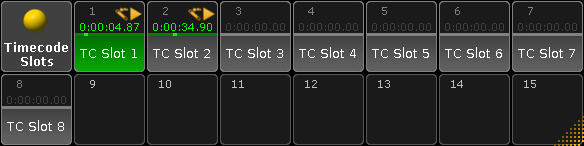 *Timecode Slots pool - pool style* This pool is different than all other pools. It is not possible to Delete, Add, Move, Copy, or alter anything that would change the amount of the pool objects. There are 8 and they can be used and controlled, but the amount cannot be changed. Other pool options apply and they are described in the [Pools in General section](/grandma2/key_pools/). The pool can be changed to the “Sheet Style” in the options. Then it could look like this: 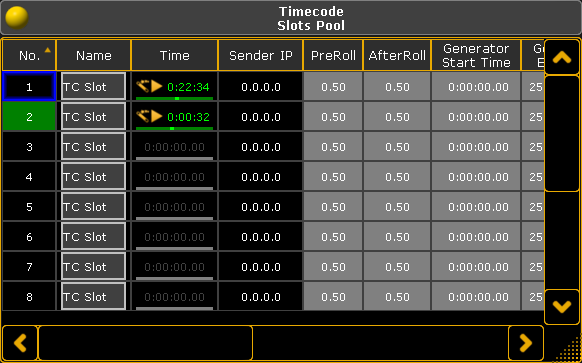 *Timecode Slots pool - sheet style* Now it is possible to a see a lot that actually can be changed for each of the 8 timecode slots. They are all explained in the [Playing Back a Timecode Show topic](/grandma2/key_timecode_playing/). The time and status for each timecode slot is distributed in a session. This means that the time is shared by all stations in the session. The signal can enter the session at any station. The one that “hears” the signal first is the one distributing it to the others. The timecode slot can also generate a time signal. This means that one operator in a session can start the generation of time and then all other stations can see and run shows based on this time signal. Read more about the generator in the [Playing Back a Timecode Show topic](/grandma2/key_timecode_playing/). The clock can be used to display the time of the timecode slots. This also offers fast access to the basic generate control. It could look like this (generated time signal):  *Clock with Timecode Slot 1* The second button from the right in the clock title bar is used to select which slot is displayed. In the picture above it is linked to the **selected** timecode slot. The selected one is the one with the green background in the name part of the timecode slot pool (green number if in the “Sheet Style”). The default in a new show is that the SMPTE or LTC input on the station is assigned to slot number 1. The MIDI In port is assigned to slot number 2. This can be changed in the **Setup -> Network -> MA Network Configuration -> Console** or **onPC**. There are two columns here called **MIDI TC** and **SMPTE TC**. Here it is possible to select different timecode slots that the incoming signal should be routed to. *** ## []()Timecode Shows [Section titled “Timecode Shows”](#timecode-shows) Timecode shows are a recording of possibly complex executor actions. It can store any executor actions, like Go and Goto, but it also stores the fader position and movement. They are organized in the timecode pool. It could look like this when in pool style: 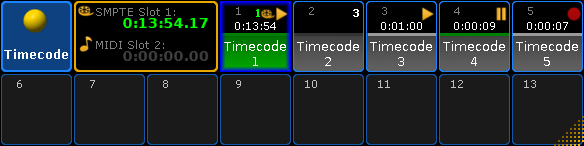 *Timecode pool - pool style* It looks different than most pools, since the two first pool objects are replaced with a time information object. This area displays the time from the slots assigned to the inputs on your station - read about the timecode slots above. It is only for information, It cannot do anything. The time format and colors are discussed more in the [Playing Back a Timecode Show topic](/grandma2/key_timecode_playing/). The pool behaves otherwise like most other pools - please read the [Pools in General section](/grandma2/key_pools/). The timecode pool could look like this if changed to the “Sheet Style”: 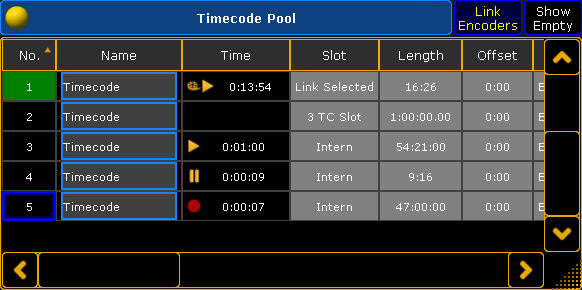 *Timecode pool - sheet style* Now it is possible to see a lot more options about each timecode show. All these things are explained in the following topics. Notice the “Slot” column. Here it is possible to selected if the timecode thow should run using an internal time signal or it should be linked to one of the timecode slots - possibly linked to the selected slot. The timecode pool objects gives a lot of information even when in the pool style. The lower half of the pool object displays the same information as in the Name column - the name of the timecode show. The middle line will start as light gray and get a green bar moving from left to right as the time passes through the length of the show. The line can be dark gray for show that are inactive. Above the line is displayed the current time of the timecode show - same as the Time column. The pool object can also have some playback symbols in the top right side of the pool object. The same symbols will be displayed in the Time column. If the timecode show is linked to a timecode slot, then this will be indicated by an extra number in the pool object. The number is green if it is the selected timecode slot, otherwise it will be white. *** ## []()Timecode View [Section titled “Timecode View”](#timecode-view) A recorded timecode show can be viewed in the **Timecode View window**. It could look like this: 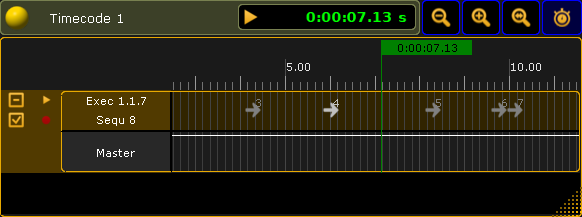 *Timecode View window* This window shows the playback status and current time of the timecode show. The show cannot be edited in this window it is “read only”. The timecode view is very similar to the timecode editor, except the editor has more options. Please read the [Edit a Timecode Show topic](/grandma2/key_timecode_editor/) for more information about the editor and thereby also this viewer.
# Timer
> Use Timer to set and manage stopwatches and countdowns.
Use Timer to set and manage stopwatches and countdowns. Control the timers using the [Timer keyword](/grandma2/key_keyword_timer/). ## Subtopics [Section titled “Subtopics”](#subtopics) * [Timer pool](/grandma2/key_timers_timer_pool/) * [Timer pool options](/grandma2/key_timers_timer_pool_options/)
# Timer pool
> Manage the stopwatch and the countdowns in the timer pool.
Manage the stopwatch and the countdowns in the timer pool. 1. Open the timer pool:\ -Tap Pools in **Create Basic Window**. For more information on how to open a basic window see [Manage windows](/grandma2/key_windows/).\ -Tap Time and the timer pool opens. 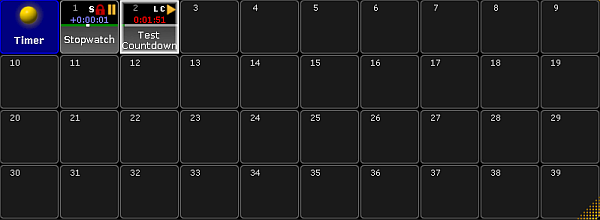 *Open the timer pool* 2. Set a new timer, for example **Countdown**:\ -Press Edit and then tap an empty cell in the timer pool.\ -The **pop-up Edit Timer** opens.  *Edit the timer Countdown* 3) Now, select the timer mode:\ -Tap the drop-down and tap **Countdown**. 4) Set the time unit:\ -To set the time, tap **Time Unit**.\ -The **pop-up Select Time Unit** opens. 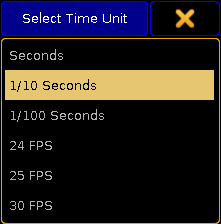 *Select unit* -Tap to select the unit, for example 1 / 10 Seconds. 5) To continue the countdown after restart, tap **When Restarting**. The button toggles between **Continue** or **Reset**. 6) To set a link to an executor, tap **Exec Trigger**.\ -The **pop-up Select Exec Trigger** opens. 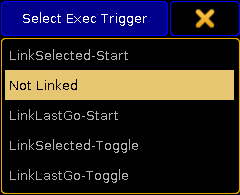 *Link timer to an executor* -If you do not want to set a link to an executor, tap **Not linked**. *** ## Exec Triggers [Section titled “Exec Triggers”](#exec-triggers) * **LinkSelected-Start** and **LinkSelected-Toggle** are linked to the executors you have selected.\ -If an executor is linked as **LinkSelected-Start**, the commands GO, GOTO, and TOP start the timer. \ -If an executor is linked as **LinkSelected-Toggle**, the timer toggles between start and pause. * **LinkLastGo-Start** and **LinkLastGo-Toggle** are linked to all executors, also the ones you have selected. \ -If the link is set as **LinkLastGo-Start**, the commands GO, GOTO, and TOP start the timer on all executors. \ -If the link is set as **LinkLastGo-Toggle**, the timer toggles between start and pause on all executors. *** 7. Label the timer you have set: 8. -Tap Label and an editor opens.\ -Type the name of the timer and press Please. 9. Set countdown time and alert duration:\ -Tap the green button below **Countdown Time** and the calculator opens.\ -Enter the time of the countdown.\ -Tap the green button below **Alert Duration** and the calculator opens.\ -Enter the duration of the alert. 10. Now, select the type of the alert:\ -Tap **Alert Type** and the **pop-up Select Alert Type** opens. 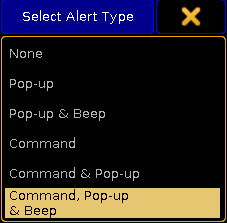 *Setting the type of an alert* -Tap **Command, Pop-up & Beep**.\ -The alert can now be set off via the command line simultaneously displaying a warning pop-up and an audio signal on the console. 11. Set the range of the alert:\ -To toggle the range of the alert to **Local**, tap **Alert Range**.\ -The alert only sets off on the console currently in use. 12. Type the command that is to be executed in the session master:\ -Tap the green button below **Alert Command executed on Master** and an editor opens.\ -Enter the command. 13. Enter the message that is to be displayed in the warning pop-up as soon as the alert sets off.\ -Tap the green button below **Alert Text**.\ -An editor opens. \ -Enter the message of the pop-up. 14. The countdown is now set. **Hint:**\ The current time of the timer can be assigned as the timing of a cue. Use the following syntax “Assign fade $timer1 cue 1 please” or Assign Time TimerPoolObject Cue 1 Please. **Hint:**\ You can play back a stopwatch or a countdown saved in the timer pool in the Clock. For more information see [Other System Tools - Clock](/grandma2/key_ost_clock/).
# Timer pool options
> To open the options of the timer pool, tap the ! in the upper left corner of the pool.
To open the options of the timer pool, tap the  in the upper left corner of the pool. The option dialog opens.  *Setting the options of the timer pool* 1. To adjust the general settings such as the frame color, sheet style, font or the reset of colors, see [Adjust pool options](/grandma2/key_pools_options/). 2. To start or pause the timer directly in the pool, swipe the button Select to Start / Stop.\ -To start the timer, tap the pool object once.\ -To pause it, tap it once again. **Hint:**\ If you swipe the button back to Select, tapping the timer in the timer pool selects it.
# Update the Software
> The chapter gives you information about how to update the grandMA2 if a new software version is available.
The chapter gives you information about how to update the grandMA2 if a new software version is available. To double-check what version you are using, enter the [version keyword](/grandma2/key_keyword_version/) in the command line. ## Check for updates and download the latest version [Section titled “Check for updates and download the latest version”](#check-for-updates-and-download-the-latest-version) To check if a new update for the grandMA2 software is available and download them: 1. Go to [www.malighting.com](http://www.malighting.com), click **Support and Downloads**, and click under MA Software Release Package complete at **+** .\ The first displayed version is the latest version. 2. Click at the version. The download process start. Follow the on screen instructions. ## Subtopics [Section titled “Subtopics”](#subtopics) * [Update via setup](/grandma2/key_update_setup/) * [Format a USB stick for Linux](/grandma2/key_update_format/) * [Update or factory reset via boot menu](/grandma2/key_update_boot_menu/) * [Restart from Linux](/grandma2/key_update_restart_linux/)
# Update or factory reset via boot menu
> This topic describes how to update the grandMA2 software or do a factory reset via the boot menu.
This topic describes how to update the grandMA2 software or do a factory reset via the boot menu. **Important:**\ Before you start to update your grandMA2 software or doing a factory reset, save your show files and any other user created data on a USB stick. If you do not save the show files first, the show files can be deleted or broken and cannot be recoverd anymore. **Requirements:** A Linux formatted USB stick with a software vesion. For more information, see [format a USB stick](/grandma2/key_update_format/). 1. Insert the formatted USB stick at a USB port on the grandMA2 console or grandMA2 RPU. 2. To turn the console on, press the power button. 3. When the startup screen appears, have a look the last sentence on the bottom of the screen. This sentence tells what key you have to press to go to the boot menu. It could be F8, F11, F12, or Esc.\ \ **Important:**\ If the console asks to press F11 or F12 and you have no external keyboard connected, connect an external keyboard.\ \ Press the key several times until the boot menu appears.  *Select boot device* 4. Select you USB stick and press **Enter** or Please.\ The **MA installer screen** opens. 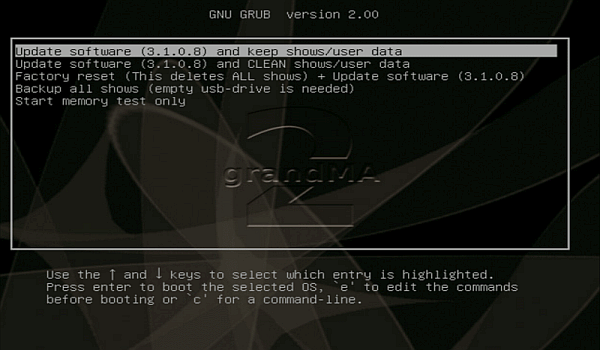 *MA installer screen* 5. Choose one of the following options:\ \- If you want to update and keep the show data, choose **update software and keep shows/user data**.\ The touch screen calibration, the network station name, and the IP address will be remained.\ \- If you want to update and delete the show data, choose **update software and CLEAN shows/user data**.\ The touch screen calibration, the network station name, and the IP address will be remained.\ \- If you want to update on a clean hard drive, choose **factory reset**.\ The hard drive will get a new partition and it will be formatted. All data will be deleted.\ You have to calibrate the touch screens. The factory reset will set a DHCP IP address.\ \- If you want to backup all show files first before doing an update or factory reset, choose **backup all shows**.\ \- The memory test is for service members only. 6. Follow the on screen instructions. The console is updated.
# Format a USB stick for Linux
> This topic describes how to format a USB stick for Linux. This is necessary for a later update via boot menu or a factory reset.
This topic describes how to format a USB stick for Linux. This is necessary for a later update via boot menu or a factory reset. **Requirements:** * An empty USB stick * A software version .imgz file (download the latest software version at [www.malighting.com](http://www.malighting.com)) * MA stickMAker (download the MA stickMAker at [www.malighting.com](http://www.malighting.com) under **Utilities**) To format a USB stick for a later grandMA2 update: 1. Install the MA stickMAker by double click at the **StickMaker-x.x.x.x.exe.**\ You will be guided through the installation process. 2. Insert an empty USB stick in your computer. 3. Open the MA stickMAker by a right mouse click, and then click at **Run as administrator**.\ The **MA stickMAker** opens. 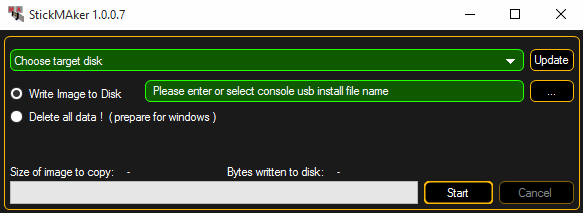 *MA stickMAker* 4. Select the **USB drive** in the green target field, then click at the three dots and select the **gMA2Console\_v\*.imgz** file. Click **Start**.\ The stick will be formatted to a Linux stick and the image will be written to the stick. This process takes about three minutes. When the copy operation is succeeded, a pop-up opens. 5. Click **Ok**. 6. Remove the USB stick from the computer. The USB stick is formatted into a Linux USB stick and ready for a grandMA2 update or a factory reset.
# Restart from Linux
> If an unexpected software crash happens, you can restart the console direct from the Linux operating system.
If an unexpected software crash happens, you can restart the console direct from the Linux operating system. You can indicate the Linux operating system if you have only a white text visible on screen 1.\ The bottom line displays **“root@\[station name] #”**. ## Restart with show load [Section titled “Restart with show load”](#restart-with-show-load) **Requirement** only for grandMA2 ultra-light and grandMA2 replay unit: Connected external keyboard. 1. Press **arrow-up**. The word autostart is displayed. 2. Press **Enter** or Please. The grandMA2 restarts and loads a backup copy of the show file from the backup menu. The show load can take a few seconds. *** ## Restart without show load [Section titled “Restart without show load”](#restart-without-show-load) If the grandMA2 console crashes immediately again after a restart with show load, there could be something wrong with the show file. A restart without a load show is necessary: **Requirement** only for grandMA2 ultra-light and grandMA2 replay unit: Connected external keyboard. 1. Press **arrow-up**. The word autostart is displayed. 2. Enter the word **noload** after autostart. 3. Press **Enter** or Please. The grandMA2 restart with an empty show file.
# Update via setup
> Important:
**Important:**\ This update process is available beginning with software version 2.8. If you have a software version 2.7 or older, use the update process via boot menu. For more information, see [update via boot menu](/grandma2/key_update_boot_menu/). This topic describes how to update the grandMA2 console via the Setup. **Requirement:** A software version .update file (download the latest version at [www.malighting.com](http://www.malighting.com)). 1. Copy the **.update** file on an empty USB stick and insert the USB stick in a USB port of the console. 2. Press Setup and tap under consoles Software Update.\ The software update window opens. 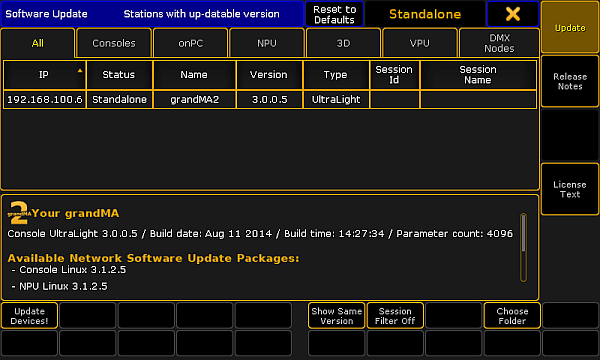 *Software Update* 3. Every device with an older version is listed.\ To see also the devices with the same version, tap Show Same Version.\ To see only the devices from a specific session number, tap Session Filter Off. The calculator opens and you can insert the session number you would like to see. 4. To choose a specific folder on the USB stick with the .update file, tap Choose Folder.\ The **Select Folder on Drive** pop-up opens. 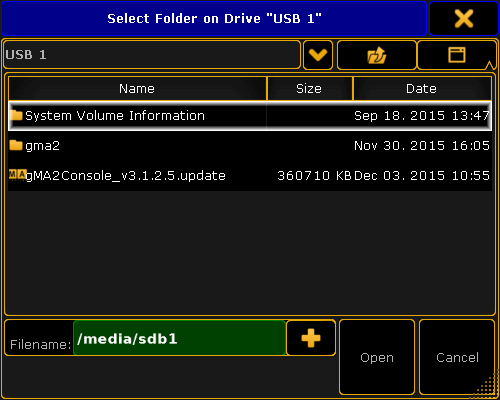 *Select Folder on Drive pop-up* Select the .update file and tap Open.\ You are back in the Software Update window. 5. Tap at the devices you want to update and tap Update Devices!.\ A pop-up opens and asks if you want to save the show file first. 6. Tap Save Showfile.\ The update process starts. After the update process is finished, the console asks to reboot now. 7. Tap Reboot Now. The console reboots and the update process is finished. You can also update the consoles software via command line.\ For more information, see:\ \- [UpdateSoftware Keyword](/grandma2/key_keyword_updatesoftware/)\ \- [Reboot Keyword](/grandma2/key_keyword_reboot/)
# Apply worlds or filters to executors and sequences
> Worlds and filters can be assigned to Executors or Sequences.
Worlds and filters can be assigned to Executors or Sequences. If you have come to this page without knowing about worlds and filters, then you should read the [What are Worlds topic](/grandma2/key_wfm_what_are_worlds/) and [What are Filters topic](/grandma2/key_wfm_what_are_filters/). ## Playback Filter [Section titled “Playback Filter”](#playback-filter) Assigning a world or filter to an executor will use the world or filter when the executor is running the sequence. For example a sequence might have stored colors and dimmer values. But if you assign a filter that does not allows color information to pass to the executor with the sequence then it will not execute the color information but only the dimmer information. It does not remove the color information from the sequence. This is called a **Playback Filter**. Playback filters only works by attributes not by layers (Value, Value Times and Effects). For Worlds this means that if you have applied a world that only contains the Effect layers, then everything is still played back. But a world that only have Fixture 1, then only the values for Fixture 1 will be played back. For Filters it means that applying a filter that only contains the timing layers will still play back everything. Using Filters allows you to filter what attributes are played back from the executor. ## Input Filter [Section titled “Input Filter”](#input-filter) Assigning a world or filter to a sequence will use that world or filter when you add (store or update) values to the sequence. For example a sequence might have a world assigned that only contains some fixtures. In your programmer you have values for those fixtures but also other fixtures. If you store a new cue in the sequence then you will only store the values for the fixtures in the assigned world. This is called an **Input Filter**. Since the Input Filter is applied to the sequence then it is also applied at all the executors that uses this sequence. ## []()Assigning Worlds and Filters [Section titled “Assigning Worlds and Filters”](#assigning-worlds-and-filters) You can assign the world or filter using the Assign key (read more below) or by opening the assign menu of a relevant executor. You can open the Assign menu by pressing Assign followed by any key on the relevant executor. Now make sure you have selected the Options button on the right side of the menu. It could look like this: 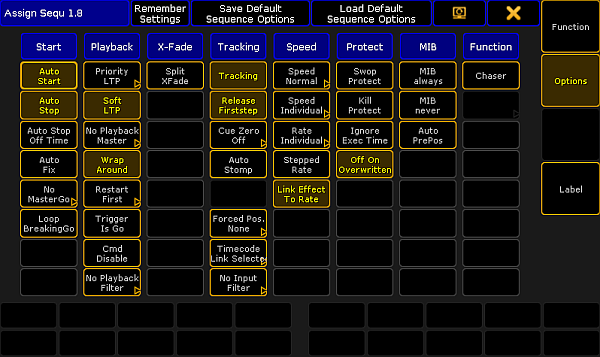 *Assign Menu - Options* This menu contains a lot of settings and options. The two we are interest in are the two bottom buttons in the Playback column and the Tracking Column. Tapping one of these will open a **Select Playback Filter pop-up** or **Select Input Filter pop-up** - respectively. It could look like this: 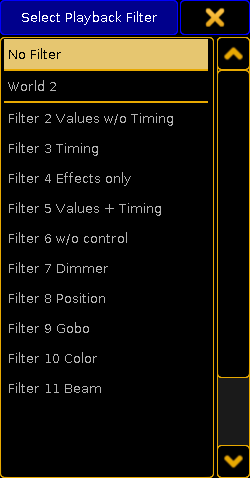 *Select Playback Filter pop-up* This will list all the Worlds and Filters in your show file. At the top is also the “No Filter” option - this allows you to remove a playback or input filter. When you have set up your filters to your linking, then you can close the assign menu. You can also assign the filters directly using the Assing key. ### Playback Filter: [Section titled “Playback Filter:”](#playback-filter-1) 1. Have the World or Filter pool visible. 2. Press the Assign key. 3. Tap the World or Filter you want to assign. 4. Press an executor button on the executor where you want to assign the world or filter. ### Input Filter: [Section titled “Input Filter:”](#input-filter-1) 1. Have the World or Filter pool visible. 2. Have the Sequence pool visible 3. Press the Assign key. 4. Tap the World or Filter you want to assign. 5. Tap the sequence you want to use the world or filter. You can of coarse also use the command line: Assign Filter 7 Sequence 8 You can see in the mini executor if one or both of the filters are applied. It is a marking of ether the executor number (Playback Filter) or sequence number (Input Filter). Read more in the [Sequence mini executor topic](/grandma2/key_cs_sequence_mini_executor/).
# Auto create worlds
> grandMA2 can automatically create worlds, based on the selections.
grandMA2 can automatically create worlds, based on the selections. It is done from the Auto Create menu. It is found by pressing the Setup key and then tapping the Auto Create button under Show. The menu could look like this: 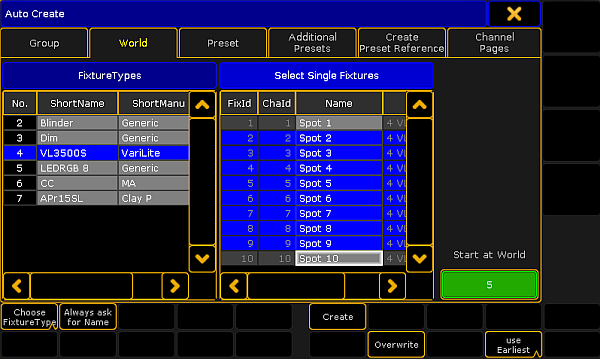 *Auto Create menu - World tab* This menu has two different sides. The left one displays the Fixture Types or the Layers (depending on your settings - read below). The right side displays the content of the selection made on the left side. There is a green input field where you can type the starting world - this is the worlds number where the created worlds will begin. Everything, in the lists, that has a blue background is selected. Multiple selection is possible using the Ctrl key on a keyboard. The idea is that worlds are created based on the Fixture Type or the Layers. The fixtures that is selected in each of the Fixture Types or Layers are the ones that will be in the worlds. Auto created worlds contains the attributes relevant for the selected fixtures. There are some buttons at the bottom of the window. The buttons are: **Choose:** This button has two different modes: **Fixture Type** and **Layer**. It chooses what the left side displays. **Always ask for Name:** When this is On (yellow text and background), you will get a name pop-up when you create worlds. **Create:** This will create worlds for each of the selected Fixture Types or Layers. **Overwrite:** This will allow for auto created worlds to overwrite existing worlds. If this is off, and if there is a conflict, then a Auto Create Conflict pop-up appears - read about it in the [Auto Create Groups topic](/grandma2/key_groups_auto_create/#auto_create_conflict). **Use:** This button have two modes. When it is **Earliest** the console will use the first free pool object. When it is **Latest** the console will use the first pool object after the last one used. To cancel the auto creation, press the yellow X in the upper right corner.
# Create filters
> There are two different ways to create filters in the filter pool. You can edit one of the pool objects. This will give you the Edit Filter pop-up. The other wa
There are two different ways to create filters in the filter pool. You can edit one of the pool objects. This will give you the Edit Filter pop-up. The other way is when making a temporary filter using the Store key or the At key, you have the option to store it as a new (first available) filter - read more about the temporary filters in the [Use temporary filters topic](/grandma2/key_wfm_temporary_filters/). The Edit Filter pop-up could look like this: 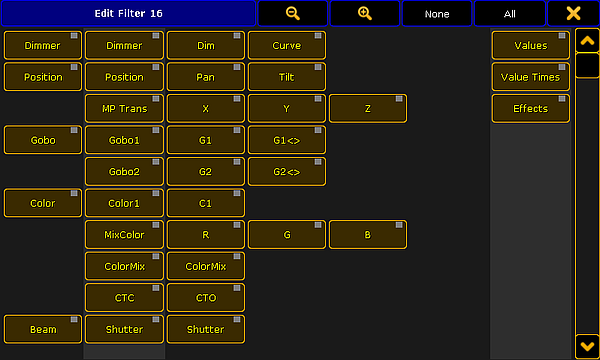 *Edit Filter pop-up* This pop-up is almost the same if you make temporary filters or if you are creating filters in the pool. The idea about this pop-up is that you turn off the elements that you want the filter to block. The attributes that have a yellow text are the ones that are selected and they will allow information to pass through the filter. It is a little bit hard to see but there are some columns in this pop-up. The buttons on the left side is all the Preset Types in the system. The column of buttons on the right side of those are the Features in the system. The next (up to) four columns of buttons are all the Attributes in the system. The elements in this list changes with your fixture setup. On the right side you have three buttons to filter Value, Value Times and/or Effect data layers. To learn more about Preset Type, Feature and Attribute, please read the [What are attributes, features and preset types topic](/grandma2/key_basic_fixture_attribute_feature_preset/). To learn more about the data layers, please read the [Layers in Sheets topic](/grandma2/key_of_layers_in_sheets/). ## Title bar [Section titled “Title bar”](#title-bar) In the title bar there are several buttons. The first two are for zooming in the window. This will decrease or increase the size of the buttons. There are also two buttons that allow you to select None or All of the attributes. The last button closes the pop-up. ## Selecting what to filter [Section titled “Selecting what to filter”](#selecting-what-to-filter) When creating the filter you can turn off the elements you do not want passing through. If you turn off an preset type then you actually turn off the features and the attributes in the preset type. But if you have turned off one element in a preset type then it shows that the preset type (and feature) is turned off. ### Example [Section titled “Example”](#example) In the “Demo Dimmer and More” demo show you have two attribute in the “Dimmer” Feature. They are “Dim” and “Curve”. If you create a filter without “Curve” then the settings will look like this:  *Filter without “Curve” attribute* “Curve” is turned off this also turns off the indication in both “Dimmer” Preset Type and “Dimmer” Feature. The “Dim” attribute is still On and dimmer values will pass the filter. Preset Type and Feature buttons are only On if all attributes inside them are On.
# Create masks
> You can create masks in the pool or in the individual windows. The workflow is the same.
You can create masks in the pool or in the individual windows. The workflow is the same. If you do not know about the mask pool then please read the [What are masks topic](/grandma2/key_wfm_what_are_masks/). Press the Edit key followed by one of the Mask Pool objects to open the Mask Editor:  *Edit Mask pop-up* The mask editor has two sections. The top part have the mask settings and the bottom part have buttons that allows you to work faster and do other things. The lower part changes a bit depending on from where you access the editor. ## The Mask section [Section titled “The Mask section”](#the-mask-section) The left side masks fixtures. The right side masks attributes. Each side has four rows and up to four columns. Each row is a mask criterion. A mask can have up to four criteria. That means that in order for a fixture or attribute to be visible it needs to follow one of the four criteria or rules.  *Mask rules* The left most column is used to decide if the row shows or hides the fixtures or attribute, depending on the rule in the third column. The next column is used to invert the rule in the third column. The third column is the rule column. Tapping the up arrow gives you a small select pop-up that allows you to choose the rule. The different options are almost the same for the fixture side and the attribute side: **(none) - both:** The row doesn’t contain any mask criterion. **Active - both:** Displays fixtures and attributes that will be stored. **In Programmer - both:** Displays fixtures and attributes that are in the programmer. **Parked - both:** Displays parked fixtures and Attributes. **Used in Sel. Sequ (Selected Sequence) - both:** Displays the fixtures and attributes that are stored in the selected sequence. **Used in Show - both:** Displays all fixtures or attributes stored in cues, selective Effects, or selective Presets. **Selected - both:** Displays all (attributes of) selected fixtures. **DMX-tested - both:** Display all fixtures with attributes that currently have values in the DMX tester. And on the attribute mask it displays all the attributes that have values in the DMX tester. **Fade/Delay - both:** This will display all the fixtures and attributes with individual fade or delay timing in currently active cues or is active in the programmer. **Effect - both:** Displays all fixtures and attributes currently using effect parameters at the output. **In Object… - both:** This will give you the fourth column. Here you will get a button that opens the **Select Object pop-up**. Here you can select a specific Group, Effect, Preset, Sequence or World as your object. This will then display all fixtures or attributes currently using the defined object. The pop-up could look like this:  *Select Object pop-up* In this pop-up there are five different tabs with the different object types you can select. In each tab you will find the different object that exists in your show. **Look - both:** This can be used to display fixtures and attributes that will be affected by the same options as when using the Look options when storing. Applying this filter to the fixture side means: * Show all fixtures with dimmer attributes. * Show all fixtures without dimmer attributes but other active programmer content. * Hide all fixtures without dimmer and no programmer content. For the attribute side this means: * Show all dimmer attributes. * Show all attributes of fixtures with dimmer values above zero. **Live - fixture side:** Displays the fixtures with a dimmer value above 0% or with a stored 0% value in the current cue. **In Saved Selection - fixture side:** This will give you a new button in the fourth column called “Take Selection”. Pressing this will store the current selection of fixtures. If none is selected, then the sheets will be empty! **Moved - fixture side:** This will display all the fixtures that have stored changing (blocked) non dimmer values active at the output. **Full Patched - fixture side:** Displays fixtures that are fully patched. They need to be patched in all DMX breaks to be fully patched. **Virtual Fixtures - fixture side:** This will give you a button in the fourth column. Tapping this button allows you to make a selection of which type of fixture you want to see. The Select Virtual Fixture Types pop-up could look like this: 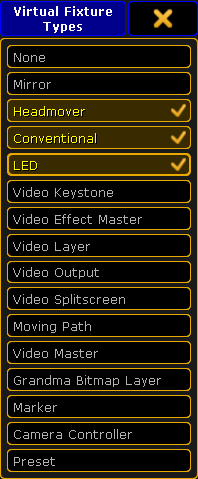 *Select Virtual Fixture Types pop-up* These are not exactly a question of the imported fixture types in your show file. It has to do with what class of fixture they are. This is defined in each of the fixture profiles. The list have all the possible fixture classes in the console. You can select multiple classes in this pop-up. When you are happy with your selection, then you close the pop-up by tapping the “X” in the upper right corner. **No Parameter - fixture side:** This will display the fixtures that have the “No Parameter” option in the[ EditSetup](/grandma2/key_patch_add_fixtures/). This can be useful when you have fixtures that are only controlled by the MA VPU (=video processing unit) through the console, and you want to see what they do. **RDM Notification - fixture side:** This will display fixtures with active RDM notifications. Selecting this will give you a new button in the fourth column. Tapping this will open the **Select RDM Display Mask pop-up**. It looks like this: 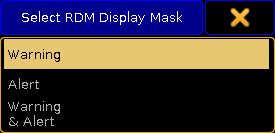 *Select RDM Display Mask pop-up* Here are three options. **Warning**, **Alert**, and **Warning & Alert**. Select the notification level you want in the pop-up. The select option is now displayed in the button in the fourth column. **At NonDefault - attribute side:** Displays all attributes that currently have other than default values. **Of Current PresetType **-** attribute side:** Displays the currently selected PresetType - for example Color. **Of Current FeatureType **-** attribute side:** Displays the currently selected Feature - for example ColorMix. **In Saved Attributes - attribute side:** Gives you a new button in the fourth column called “Define Mask”. This will open a pop-up where you can selected one or more of the attributes in the show. The pop-up is just like the attribute part of the Edit Filter pop-up. Read more about this in the [Create filters Topic](/grandma2/key_wfm_create_filters/). ## The Lower part [Section titled “The Lower part”](#the-lower-part) The lover part changes a little depending on how you get the mask editor. The different ways to get to the editor is discussed in the [Use masks in sheets topic](/grandma2/key_wfm_use_masks/). There are four buttons that are almost always visible:  *Four buttons from the Mask Editor pop-up* The two “Clear” buttons will clear all the criterions in each of they own sides. The two “Copy” buttons are used to copy the criterions from one side to the other. The arrows in the buttons shows the direction it will be copied. Only common rules can be copied. The other buttons that can be in the lower part is: **Label:** Tapping this allows you to label the mask. This button is only an option when you edit a mask from the mask pool. **Save to:** This button is available when you edit a mask from a sheet. This allows you to save the current criterions as a new mask in the pool. Tapping this open a **Select Mask pop-up**. It lists all the unlocked pool objects in the mask pool. It could look like this: 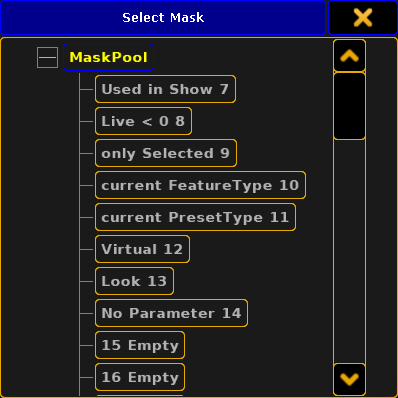 *Small Select Mask pop-up* **Load From:** This button is available when you edit a mask from a sheet. This allows you to load a set of mask criterions from the mask pool. Tapping this also opens a Select Mask pop-up - except this lists all the available masks. **Save Always:** This button is only available if you have loaded a mask from the pool. This check box allows you to automatically save any changes you make back to the mask loaded from the pool. **Save:** This button is only available if you have loaded a mask from the pool. This allows you to save the current criterions back to the loaded mask - if you have not activated “Save Always”. Please read the[ Use Masks in Sheets topic](/grandma2/key_wfm_use_masks/) to learn more about how it use the masks in the different sheets and windows.
# Create worlds
> Worlds are created in the programmer, and stored in the World Pool.
Worlds are created in the programmer, and stored in the World Pool. Worlds may be thought of as matrix with rows (fixtures) and columns (attributes), and you may eliminate rows and/or columns. The created world will contain the rows of the current selection, and the columns of any active attribute. If no attributes were active, all columns/attributes will be included in the created world. Try this: 1. Select fixture 1 Thru 5 (or any 5 fixtures in your show). 2. Press Store followed by an empty world in the **World Pool**. 3. Tap the new world. You will now only have programming access to fixture 1 thru 5, which is reflected by the [Fixture Sheet Window](/grandma2/key_of_fixture_sheet/). You have access to all attributes. Worlds do not contain any values, but you need to have active attribute values if you want to have the attribute information or filtering in the world. Try this: 1. Tap world 1 (Full) in the Worlds Pool. 2. Select fixture 1 Thru 5 (or any 5 fixtures in your show). 3. Give the fixtures a dimmer value - does not matter what value. 4. Press Store followed by an empty world in the World Pool. 5. Tap the new world. Look in a Fixture Sheet. Here you can see that it is only allowed to select the five fixtures and it is only possible to control the dimmer values. A world is updated simply by restoring the world. If this is done while you are in the world, then you need to select a different world, and then re-select the world you want, before you can see the changes. As usual it is really a good idea to name the worlds as soon as they are created.
# Use temporary filters
> Besides the filter pool with the defined or prepared filters, you can also use temporary filters.
Besides the filter pool with the defined or prepared filters, you can also use temporary filters. They are used in the same actions as the filters from the filter pool. The following text describes how to open a temporary filter pop-up. But you can also have the [Command Filter window](/grandma2/key_wfm_create_filters/#command_filter) on one of your screens and use this. In the following text we are going to explore the temporary filters using the same examples as in the [Use Filters when programming topic](/grandma2/key_wfm_use_filter/). If you have not read that, it is a strong suggestion to do that first. ## Temporary Store Filter [Section titled “Temporary Store Filter”](#temporary-store-filter) You can access the temporary Store filter by pressing the Store key. Now you got the [Store Encoder Toolbar](/grandma2/key_cs_store_options_default/) visible at the bottom of screen 2. In this toolbar you will find a button called Store Filter. Tapping this will open a filter editor pop-up. It works just as explained in the [Create filters topic](/grandma2/key_wfm_create_filters/). There are two extra buttons on the right side of the pop-up. They are called “Reset Filter on Clear” and “Store Filter and Select”. **Reset Filter on Clear:** Usually the filter will reset back to the selected filter when you do the (store) action, but if you want to keep the filter. then you can activate this button. Then it is only the Clear(All) command that will reset to the selected filter. **Store Filter and Select:** Tapping this button will store the current filter settings as the next free available filter and you are prompted for a name. Also be aware that this new filter will be the Selected one. Not just the Applied filter. ### Example of the temporary store filter [Section titled “Example of the temporary store filter”](#example-of-the-temporary-store-filter) The following example is the same as the one used in the [Use filters when programming topic](/grandma2/key_wfm_use_filter/). We are going to look at a practical situation where filters can help you work more efficient. 1. Use the “Demo Dimmer and more” demo show or a show with some fixtures. 2. Make sure the Selected filter is the “All” filter so nothing is filtered already. 3. Select a fixture and give it values on several attributes including Dimmer. So now we imagine that this is the look we want in a cue - it is going to be cue number 2. We do not want to use the move in black function but we want the fixture to already be pre-positioned when we run cue number 2. So we are going to store all data except the dimmer in cue number 1 and then the dimmer value in cue number 2. 4. Press Store and then the Store Filter button in the Encoder Toolbar. 5. Turn off the “Dim” attribute in the Store filter pop-up. 6. Press an empty executor button - creating a new cue 1 in a new sequence and executor. Now you have stored all values except the dimmer in cue number 1. You still have the dimmer values active in your programmer, the rest is stored. The temporary filter is now gone and noting is filtered anymore. 7. Press Store and then the same executor button. 8. In the pop-up select Create Second Cue. That was the second cue. Clear your programmer and try to run the cues. *** ## Temporary At Filter [Section titled “Temporary At Filter”](#temporary-at-filter) The temporary At filter works just like the filter used as if you had it in a Filter pool. Keeping the At key pressed for about 1 second will open the filter pop-up. This pop-up also have the two extra buttons described in the temporary store filter above. And at the bottom you will find three extra buttons. They are color transform buttons. They are used to select how to transform the color if the source and destination fixtures do not have the same color attributes. **MixColor:** This will use the MixColor system. Depending on your settings it will also set an Open value in any color wheels. **Color Wheel:** This will use the nearest color on the color wheels. Depending on your settings it will also set an Open value to the MixColor system. **MixColor + Col Wheel:** This will use both the MixColor and the Color Wheels to create the best result. ### Example [Section titled “Example”](#example) The following example is the same as the one used in the [Use filters when programming topic](/grandma2/key_wfm_use_filter/). In this example we are going to grab only the color values from one fixture and apply it to another. 1. Use the “Demo Dimmer and more” demo show or a show with some fixtures and some filters. 2. Make sure the Selected filter is the “All” filter. 3. Select a fixture and give it values on several attributes including Dimmer, Position, and use the MixColor attributes to blend a new color. 4. Select a different fixture and give it another position and dimmer values. Now we would like to grab the color values only from the first fixture. We do not want to grab the position and dimmer values from the fixture, only the color. 5. Press and hold the At key until the filter pop-up appears. 6. Tap the None button on the title bar so no attributes are selected. 7. Tap the Color preset type so it turns on. This will allow all color information to pass the filter. 8. Tap the first fixture on the screens (or use the keys - Fixture \[number] Please). Now both fixtures have the same color values. *** ## Temporary filtering using the If key [Section titled “Temporary filtering using the If key”](#temporary-filtering-using-the-if-key) While storing or using the At command you can include an encapsulated condition. The condition can be almost anything and can include many different elements. The condition is encapsulated using the If key. You can keep the key pressed if you are making a complex condition or press it shortly if it is a more simple condition. The encapsulation is between the [If command](/grandma2/key_keyword_if/) and the [EndIf command](/grandma2/key_keyword_endif/). EndIf is available as a command using the If key after you have typed the first If command. Sometimes the software will automatically add the EndIf command. The condition is usually made by pressing different elements on the screens, but it can just as well be written commands. The condition can be positive or negative. For example: If you want to only have position values then you can simply tap the Position button in the Preset Control Bar. If you want everything except the position values, then you can press the - key and then the Position button to get the following command: If - PresetType “POSITION” EndIf in the command line. ### Examples [Section titled “Examples”](#examples) The two examples used above can also be achieved using the If key. 1. Use the “Demo Dimmer and more” demo show or a show with some fixtures. 2. Make sure the Selected filter is the “All” filter so nothing is filtered already. 3. Select a fixture and give it values on several attributes including Dimmer. So now we imagine that this is the look we want in a cue - it is going to be cue number 2. We do not want to use the move in black function but we want the fixture to already be pre-positioned when we run cue number 2. So we are going to store all data except the dimmer in cue number 1 and then the dimmer value in cue number 2. 4. Press Store. 5. Press If and then -. Now the filtering is active and we have already selected that we want to exclude something. 6. We want to exclude the dimmer so now you can tap the Dimmer button in the [Preset Control Bar](/grandma2/key_ws_preset_control_bar/). 7. Finish the temporary filter by pressing the If key again. Now the command line should read: Store If - PresetType “DIMMER” EndIf. 8. Press an empty executor button - creating a new cue 1 in a new sequence and executor. Now you have stored all values except the dimmer in cue number 1. You still have the dimmer values active in your programmer, the rest is stored. The temporary filter is now gone and noting is filtered anymore. 9. Press Store and then the same executor button. 10. In the pop-up select Create Second Cue. This was an example on how to use the If command to exclude an attribute - actually an entire preset type. The next example is about allowing some attributes to pass the filter. In this example we are going to grab only the color values from one fixture and apply it to another. 1. Use the “Demo Dimmer and more” demo show or a show with some fixtures and some filters. 2. Make sure the Selected filter is the “All” filter. 3. Select fixture 1 and give it values on several attributes including Dimmer, Position, and use the MixColor attributes to blend a new color. 4. Select a different fixture and give it another position and dimmer values. Now we would like to grab the color values only from the first fixture. We do not want to grab the position and dimmer values from the fixture, only the color. 5. Press At Fixture 1 If. Now you can select the filter you want to use. 6. We need all the color information so tap the Color button in the Preset Control Bar. The “EndIf” command is automatically added when a single thing is tapped after pressing the If key 7. Press the Please keys to execute the command. Now both fixtures have the same color values.
# Use filters when programming
> The active filter is used when you store values and data. It is also used when you use the At command.
The active filter is used when you store values and data. It is also used when you use the [At command](/grandma2/key_keyword_at/). If your active filter is the first one, called “All”, then it does not filter any data and you do not notice the filter is there. As mentioned in the [What are filters topic](/grandma2/key_wfm_what_are_filters/), The filters can be selected and applied. The selected one is the one with the green background and the applied one is the one with a green line above the name. ## When Storing [Section titled “When Storing”](#when-storing) When you store something, then the Applied filter is used and the Selected filter will become the Applied filter, ready for your next action. When you do Store actions then both the Attributes and data Layer parts of the filters are used. ### Example [Section titled “Example”](#example) In the following example we are going to look at a practical situation where filters can help you work more efficient. 1. Use the “Demo Dimmer and more” demo show or a show with some fixtures and some filters. 2. If you do not have it, then create a filter that blocks the dimmer attributes but allows everything else including all Layers. 3. Make sure the Selected filter is the “All” filter. 4. Select a fixture and give it values on several attributes including Dimmer and maybe an effect. So now we imagine that this is the look we want in a cue - it is going to be cue number 2. We do not want to use the move in black function but we want the fixture to already be pre-positioned when we run cue number 2. So we are going to store all data except the dimmer in cue number 1 and then the dimmer value in cue number 2. 5. Tap the no-dimmer filter making it the Applied filter. 6. Press Store and then an empty executor button - creating a new cue 1 in a new sequence and executor. Now you have stored only the values the filter allow in cue number 1 (everything but dimmer). You still have the dimmer values active in your programmer, but the rest is stored. Also now the selected “All” filter is Applied filter. 7. Press Store and then the same executor button. 8. In the pop-up select Create Second Cue. That was the second cue. Clear your programmer and try to run the cues. *** ## When using the At command [Section titled “When using the At command”](#when-using-the-at-command) When you use the At command to get values from one object to another, then the Applied filter is also used, and it jumps back to the Selected filter after use. ### Example [Section titled “Example”](#example-1) In the following example we are going to grab only the color values from one fixture and apply it to another. 1. Use the “Demo Dimmer and more” demo show or a show with some fixtures and some filters. 2. If you do not have it, then create a filter that only contains the color attributes and all layers. 3. Make sure the Selected filter is the “All” filter. 4. Select a fixture and give it values on several attributes including Dimmer, Position, and use the MixColor attributes to blend a new color. 5. Select a different fixture and give it another position and dimmer values. Now we would like to grab the color values only from the first fixture. We do not want to grab the position and dimmer values from the fixture, only the color. 6. Tap the Color Only filter - making it the Applied filter. 7. Press the At key. 8. Tap the first fixture on the screens (or use the keys - Fixture \[number] Please). Now both fixtures have the same color values. *** Please also have a look at the [Use temporary filters topic](/grandma2/key_wfm_temporary_filters/) and the [Apply worlds and filters to executors and sequences topic](/grandma2/key_wfm_apply_to_exec_seq/).
# Use masks in the sheets
> If you come to this page without any knowledge about Masks then please read the What are masks topic and the Create masks topic.
If you come to this page without any knowledge about Masks then please read the [What are masks topic](/grandma2/key_wfm_what_are_masks/) and the [Create masks topic](/grandma2/key_wfm_create_mask/). ## Where can Masks be used [Section titled “Where can Masks be used”](#where-can-masks-be-used) Mask can be used in the following sheets and windows: * [Channel Sheet](/grandma2/key_of_channel_sheet/) * [Fixture Sheet](/grandma2/key_of_fixture_sheet/) * [Sequence Content Sheet](/grandma2/key_cs_cue_content/) * [Sequence Tracking Sheet](/grandma2/key_cs_cue_content/) * [Stage View window](/grandma2/key_patch_stage/) All of these windows can have a local mask that only works for that view or they can follow the mask pool. A local mask only works in that version of the window. This means that you can have two fixture sheets but only one of them have a mask. ## Window options [Section titled “Window options”](#window-options) Turning off or on the mask settings are gone from the windows options. They are opened by tapping the yellow ball in the upper right corner. The options have three tabs that are interesting regarding masks. The first one is called **LayerMask** the second one is called **Title Buttons** and the last one is **Mask (Local)**. The [Layer Mask topic](/grandma2/key_of_sheet_options_layer_mask/) describes the options that are relevant for the mask function. This is where you can turn On or Off mask functions. The [Title Button topic](/grandma2/key_of_sheet_options_title_buttons/) describes how you enable the buttons that gives fast access to turning On or Of the mask function. The [Mask (Local)](/grandma2/key_of_sheet_options_mask_local/) tab is where you can create a local mask. The [Create Masks topic](/grandma2/key_wfm_create_mask/) has the actual description about creating the mask. ## Assigning a mask on the fly [Section titled “Assigning a mask on the fly”](#assigning-a-mask-on-the-fly) You do not need to go through the process of entering the options if you want to use a mask from the pool in one of the five windows mentioned above. Simply press the Assign Key and then the mask you want to assign and finally the title bar of window where you want to use the mask. For example if you want to assign the **Programmer Only** mask to a **Channel Sheet**, then do the following: 1. Have both the Mask Pool and the Channel Sheet visible. 2. Press Assign. 3. Tap the Prog Only mask 4. Tap the title bar of the Channel Sheet. This can of cause be done using command line input (using the [Mask command](/grandma2/key_keyword_mask/)) or better yet a combination of command line input and touching the Channel Sheet. Same example: 1. Type assign mask 2 - The Programmer Only mask is locked as mask number 2. 2. Tap the title bar of the Channel Sheet. How you want to set up your sheets are completely up to you and it is often also a question about what kind of a show you are doing. This means that there is no one preferred solution or one way that most programmers or operators set up their views. It is completely user definable and up to your own preferences.
# Use worlds when programming
> Worlds are a great tool when programming.
Worlds are a great tool when programming. The point about the worlds is to apply a limitation to what fixtures and attributes you are affecting. This can be very useful if you have a lot of different values in your programmer, but you only want to store some of the values. For instance if you want to store a color preset for some of your fixtures before storing all values in a cue. Let us have a closer look at this example. Make sure you have a show with some different fixtures - you could load the “demo dimmer and more” show from the Demo shows. Create a world for each of the different fixture types. Name the worlds: Spot, LED, Blinder, Par This is the setup needed for all the following examples. ### Preset example [Section titled “Preset example”](#preset-example) 1. Make sure you are in the “Full” world. 2. Give your spots a dimmer value, a position value, and a color (do not use an existing color preset). 3. Give some of the other fixtures some colors and dimmer values. This is our look on the stage that everyone is happy about. But you want to be a cool and organized programmer, so instead of just storing these values in the cue, you want to make color presets for the spots and use the preset in the cue. 4. Select your “Spots” world. Notice that now you can only see your sports in the Fixture Sheet and in the Stage View. But a DMX Sheet will show you that you are still outputting all the other values as well. 5. Store a color preset. 6. If you do not use the “Keep activation” setting, then apply the preset, so you have preset link in your programmer. 7. Select the “Full” world Now you are back to where you where. The output to the stage never changed! Entering a world do not change the output. You can now store a cue that uses the color preset for the spots. ### Delete example [Section titled “Delete example”](#delete-example) Using the same setup as mentioned above. In the demo show there is a sequence called “Look”. In this sequence there is something programmed for the Blinders. The Look only contains one cue, but let us imagine that it was a bigger sequence and we wanted to remove the Blinders from this sequence. 1. Select the “Blinder” world 2. Delete the “Look” sequence - Del Sequ 3 Please 3. Confirm the deletion in the pop-up 4. Select the “Full” world You did not actually delete the entire Sequence 3 (“Look”). You only deleted the fixtures and attributes that you could control. The Blinders are no longer in the “Look” sequence. ### Unwanted attributes example [Section titled “Unwanted attributes example”](#unwanted-attributes-example) Most of the time it is not desired to program fixture control channel information in a cue list. It is not fun when a fixture suddenly turns off the lamp or resets because it accidentally was programmed in the cues. Worlds can be used to avoid this. 1. Select all your fixtures. 2. Make sure you have some values in your programmer for all attributes except the Control preset type. 3. Store a new world. 4. Select this world. Now the Control Preset Type disappeared from the Preset Control Bar above your encoders. And you cannot accidentally get those attributes in your programmer and store it somewhere. ### Multi User example [Section titled “Multi User example”](#multi-user-example) In bigger shows it can be very useful and efficient to have multiple programmers working in the same show file. Often each programmer will have responsibility to program a smaller section of all the lights. To avoid interfering with each other it is a good idea to create worlds with the sections of the rig for each programmer and then the programmers can comfortably work with their fixtures and not be disturbed by each other. They still share the executors, so there is not a complete separation. *** There are many other situations where worlds can help you work better. There are two predefined macros called “World is Full” and “World is Selection”. The first one selects world number one (“Full”). The second one creates a world based on your current selection (world number 999) and enters this world. This can be a very nice tool if you want to do something where a worlds would be nice and you do not have one that matches. Each time you use “World is Selection” then world number 999 is overwritten. If you use a different default world then number one then you might want to edit the “World is Full” macro to select the world you use (remember macros are shared among all Users). Remember that the world you select only affects your programmer and what is displayed on some windows. Executors and already programmed elements are not affected by the worlds you have selected. But you can assign a world to an executor or a sequence. Read more about that in the [Apply worlds or filters to executors and sequences topic](/grandma2/key_wfm_apply_to_exec_seq/).
# What are filters
> The Filters are used to limit what can be stored, played back or retrieved using the "At" key.
The Filters are used to limit what can be stored, played back or retrieved using the “At” key. Filters contain a selection of Attributes and data Layers (Value, Value Times and Effects). It does not contain any fixture information. Filters are organized in a Filter pool. Since this is a pool it might be a good idea to read to [Pools in General section](/grandma2/key_pools/). The Filter Pool could look like this: 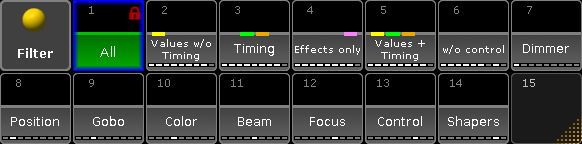 *Filter pool - pool style* It can be changed to “Sheet Style” in the pool options. Then it could look like this: 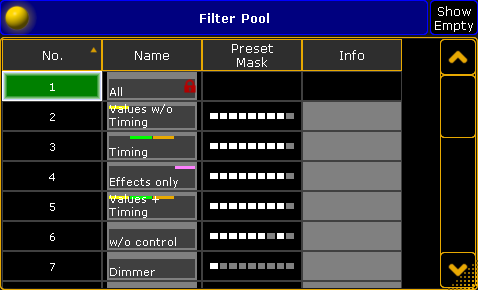 *Filter pool - sheet style* The filter pool is a global pool that is shared by all users. Filters in the pool are used when you store values ([Use filter when storing topic](/grandma2/key_wfm_use_filter/)), make a circular copy, retrieve data using the At key ([Use filter when grabbing values topic](https://help.malighting.com/grandMA2/en/help/ef223894-b4ed-4a33-8b8e-4e4340d91a4c.html)), or as a filter on Executors and Sequences ([Apply worlds and filters to executors and sequences topic](/grandma2/key_wfm_apply_to_exec_seq/)). There is always one active filter. The first pool object is called “All” and it contains all attributes and layers. This means that it does not filter any data. It is also locked and cannot be edited. A filter can be applied(called) and/or permanently selected. An applied filter have a green bar in the middle (behind the colored markers). A selected filter have a green background color in the name area (or number area in sheet style). You can select a different filter by pressing Select followed by the desired filter button. You can call a different filter temporarily by just pressing one of the filters. A called filter overwrites the selected filter, but will only be used the next time an action is performed that uses the filter - then it will jump back to using the selected filter. When a different filter than the “All” filter is selected, then the At key will flash and the filter icon  is in the command line and Message Center (default setting). For more information about the colors and markers please read the [System Colors topic](/grandma2/key_ws_colors_system/). The data Layer Markers are only visible if there is one or more being filtered. It will then display the allowed layers. If all layers are Off (filtered) then there is also no markers. This would block all value data from passing the filter! *** ## []()The Command Filter window [Section titled “The Command Filter window”](#the-command-filter-window) It is possible to create a window that displayed the filter settings. It’s called **Command Filter** and can be found in the “Other” tab in the Create Basic Window pop-up. It could look like this:  *Command Filter window* The primary functions of this window is described in the [Create filters topic](/grandma2/key_wfm_create_filters/). This window will always show you the current filtering, and allow you to do temporary modifications.
# What are masks
> Masks are a way to hide fixtures and attributes in some sheets and the Stage window.
Masks are a way to hide fixtures and attributes in some sheets and the Stage window. Mask can be local to the window, but they can also be in the mask pool. Sheets and Stage can then listen to the selected mask in the pool and apply it to the sheet or stage window. If you do not know about pools, then it is strongly suggested that you first read the [Pools in General section](/grandma2/key_pools/). The Mask pool could look like this: 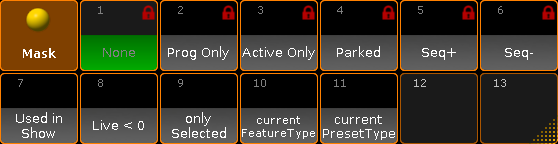 *Mask pool - pool style* As with all pools, this can also be changed into Sheet style in the pool options. Then it could look like this: 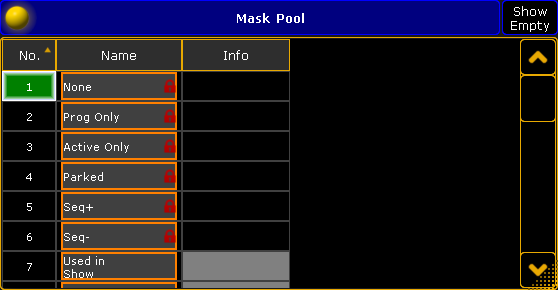 *Mask pool - sheet style* The selected mask is the one with the green background. You can simple select a mask by tapping it in the pool or by using the Mask command followed by the number or name. See more in the [Mask Keyword topic](/grandma2/key_keyword_mask/). Hiding fixtures and attributes in windows does not restrict your access to fixtures or attributes, it just hides it. There are 6 predefined masks in the pool. The following is a short description of the masks: * **None:**\ This does not hide anything. * **Prog Only:**\ This hides everything that is not in your programmer. * **Active Only:**\ This hides everything that is not active values in your programmer. * **Parked:**\ This will hide everything that does not have any parked values. * **Seq+:**\ This mask will only show the fixtures and attributes that are stored in the selected sequences - including any default fixture values. * **Seq-:**\ This mask will only show the fixtures and attributes that are stored in the selected sequences - but it will also hide any default fixture values stored. Please read the [Create Masks topic](/grandma2/key_wfm_create_mask/) to learn how to create your own and the [Use Masks in sheets topic](/grandma2/key_wfm_use_masks/) to learn about using the masks in the sheets and Stage window.
# What are worlds
> Worlds are a functionality in the grandMA2 that allows you to limit what is possible to access and what is displayed in windows.
Worlds are a functionality in the grandMA2 that allows you to limit what is possible to access and what is displayed in windows. Worlds are organized in a World pool. Since it is a pool, it might be a good idea to read the [Pools in General section](/grandma2/key_pools/). It could look like this:  *World pool - pool style* It can be changed to “Sheet Style” in the pool options. Then it could look like this: 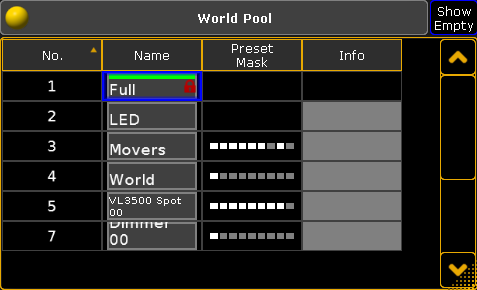 *World pool - sheet style* The first world in the pool is locked from the factory. It contains everything and is used when you do not want to exclude anything - it is called **Full**. The world pool is shared among all users in the show, but each user can have different worlds selected. You can select a different world by simply pressing the pool object. The green line indicates the selected world. If a world, other than number one (Full), is selected, then there is a World Icon  in the title bar of sheets and other windows that is affected by the world selection. The icon might also be in the Command Line Input - it depends on your Message Center settings. Worlds can contain a selection of fixtures and/or a selection of Attributes. If a world only have some (not all) Attributes then the pool object will display the [Preset Type Marker](/grandma2/key_ws_colors_system/#preset_type_marker) at the bottom of the pool object. Using different worlds can be a big help in multi user environment. It can be used to separate the lighting rig into different parts for different programmers. Another good use is to be in a world without the attributes that is undesired to get programmed in sequences. This could be control channels to accidentally resets fixtures or turns off the lamps. Selecting a world will hide fixtures, that are not a part of this world, in sheets and stage view/MA 3D. Attributes that are not in the world will not be visible in sheets. It is important to know that you can only affect the fixtures and attributes in your selected world. This is valid for programming actions. Read more in the [Use worlds when programming topic](/grandma2/key_wfm_use_worlds/). Playback actions (executors and sequences) are not directly affected by your selected world. You can assign a world to an executor or a sequence - but it is not linked to the worlds your user has selected. Read more in the [Apply worlds or filters to executors and sequences topic](/grandma2/key_wfm_apply_to_exec_seq/). Worlds can be assigned to User Profiles. Then the users, with this User Profile, will be limited to only the assigned world and cannot select a different world. Read about it in the [Create User Profiles and Users topic](/grandma2/key_single_multi_systems_create/). Read the next page for more on how to [Create worlds](/grandma2/key_wfm_create_worlds/).
# Worlds, Filters and Masks
> The grandMA2 have three different functions that can help you work faster and more efficient.
The grandMA2 have three different functions that can help you work faster and more efficient. They are called Worlds, Filters, and Masks. [Worlds](/grandma2/key_wfm_what_are_worlds/) are used to limit the access to fixtures and attributes. [Filters](/grandma2/key_wfm_what_are_filters/) are used to filter attribute values when doing different actions. [Masks](/grandma2/key_wfm_what_are_masks/) are used to hide fixtures and attributes from your views. ## Subtopics [Section titled “Subtopics”](#subtopics) * [What are worlds](/grandma2/key_wfm_what_are_worlds/) * [Create worlds](/grandma2/key_wfm_create_worlds/) * [Auto create worlds](/grandma2/key_wfm_auto_create_worlds/) * [Use worlds when programming](/grandma2/key_wfm_use_worlds/) * [What are filters](/grandma2/key_wfm_what_are_filters/) * [Create filters](/grandma2/key_wfm_create_filters/) * [Use filters when programming](/grandma2/key_wfm_use_filter/) * [Use temporary filters](/grandma2/key_wfm_temporary_filters/) * [What are masks](/grandma2/key_wfm_what_are_masks/) * [Create masks](/grandma2/key_wfm_create_mask/) * [Use masks in the sheets](/grandma2/key_wfm_use_masks/) * [Apply worlds or filters to executors and sequences](/grandma2/key_wfm_apply_to_exec_seq/)
# Command line
> The command line is located in the bottom area of screen 1 and screen 2.
The command line is located in the bottom area of screen 1 and screen 2.  *Command Line* *** ## Set the Cursor in the Command Line [Section titled “Set the Cursor in the Command Line”](#set-the-cursor-in-the-command-line) To enter keywords into the command line set the cursor in the command line first. For more information see [Command Syntax and Keywords](/grandma2/key_command_syntax_and_keywords/). To set the cursor into the command line: * Tap the command line. \- or- * Press and hold  and press Please.  *Command line with blinking cursor* The cursor is blinking in the command line. *** ## Open the Pop-Up Commandline Feedback [Section titled “Open the Pop-Up Commandline Feedback”](#open-the-pop-upcommandline-feedback) To see command line feedback and history open the pop-up Command Line Feedback. To open the command line feedback: * Tap  on the left of the the command line. * Or tap Command Line in **Create Basic Window**. For more Information see [Create and manage basic window](/grandma2/key_windows_create_manage/). The window Command Line Feedback opens. 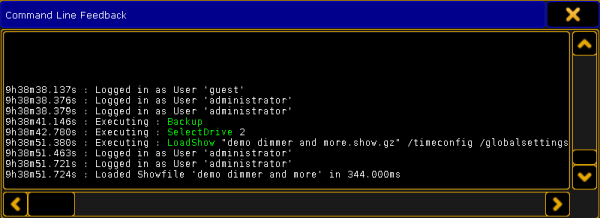 *Pop-Up Commandline Feedback* To close the pop-up tap the  once again in the command line. *** ## Open the Message Center [Section titled “Open the Message Center”](#open-the-message-center) To have an overview of the messages and descriptions of the icons in the command line open the message center. For more information see [Message Center](/grandma2/key_message_center/). To open the message center: * Tap one of the visible icons in the command line. The message center opens above the command line.  *Message Center* To close the message center tap one of the icons in the command line once again. *** ## Open the Virtual Keyboard [Section titled “Open the Virtual Keyboard”](#open-the-virtual-keyboard) To expand the command line by a virtual keyboard: * Tap  on the right of the command line. The virtual keyboard opens above the command line.  *Virtual Keyboard* To close the virtual keyboard tap  in the upper right corner of the window. *** ## Change the Default Keyword [Section titled “Change the Default Keyword”](#change-the-default-keyword) The default keyword is the keyword displayed in square brackets on the left of the command line. If the default keyword is Fixture and you only enter a number, for example number 1, into the command line, Fixture 1 will be entered into the command line. You can change the default keyword of the command line to: * View * Effect * Goto * Page * Macro * Preset * Sequ * Cue * Executor * Channel * Fixture * Group To change the default keyword: 1. Press a key with a default keyword on it, for example Fixture. 2. Press Please.
# Master section
> The master section is located in the corner on the left of screen 2.
The master section is located in the corner on the left of screen 2. It consists of three areas. 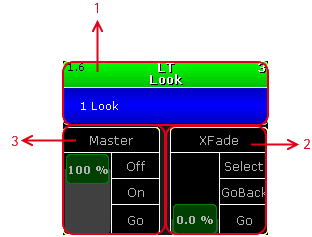 \_Areas in the Master Section \_ 1. [Selected Executor](#Selected%20Executor) 2. [Function of the Left 100 mm Fader](#Fader%20Function) 3. [Function of the Right 100 mm Fader](#Fader%20Function) []()The master section is also displayed in the Command Section View along with [Program Time](/grandma2/key_ws_time_control/#program_time) and [Exec Time](/grandma2/key_ws_time_control/#exec_time). * Open the Command Section View via the **pop-up Create Basic Window**. For more information see [Create and Manage Basic Windows](/grandma2/key_windows_create_manage/). 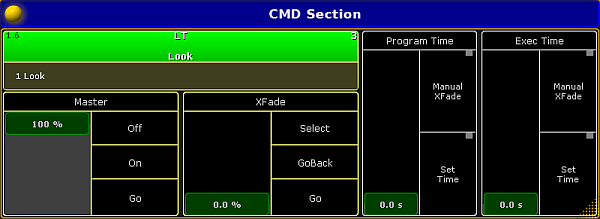 Open the Command Section View *** ## []()Selected Executor [Section titled “Selected Executor”](#selected-executor) The selected executor has two areas. 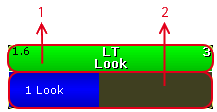 *Selected Executor Areas* 1. Sequence 2. Cue If you tap at the sequence area, the [assign menu](/grandma2/key_exec_assign/) opens.\ If you tap at the cue area, the [edit menu](/grandma2/key_cs_cue_content/) opens. For more information, see [Mini Executor Bar](/grandma2/key_ws_mini_executor_bar/). *** ## []()Fader Function [Section titled “Fader Function”](#fader-function) The two faders display the current fader function of the 100 mm faders. You can move the slider up or down and tap at the function buttons right beside the slider. If you tap in the fader description field, the fader assignment opens. 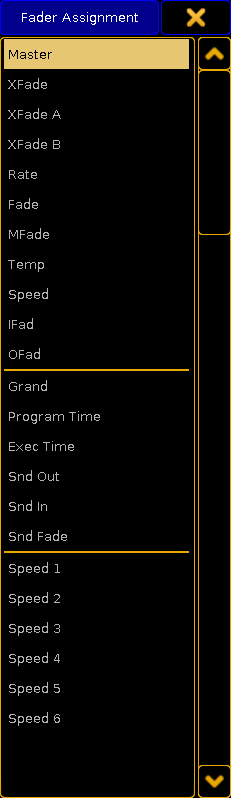 *Fader Assignment* For more information, see [executor - assign a function](/grandma2/key_exec_assign/).
# User-defined area
> The user defined area is available on every screen. To manage windows in the user defined area see manage windows.
The user defined area is available on every screen. To manage windows in the user defined area see [manage windows](/grandma2/key_windows/).  *Empty user defined area*
# View buttons
> There are two kinds of view buttons in the grandMA2 user interface:
There are two kinds of view buttons in the grandMA2 user interface: * [View Buttons on the Right Screen Side](#View%20Buttons%20on%20the%20Right%20Screen%20Side) * [X-Keys as View Buttons](#X-Keys%20as%20View%20Buttons) If you tap on a view button, the [ViewButton keyword](/grandma2/key_keyword_viewbutton/) will be executed. For more information about the function of the view buttons, see [use view buttons](/grandma2/key_ws_work_with_views/). *** ## View Buttons on the Right Screen Side [Section titled “View Buttons on the Right Screen Side”](#view-buttons-on-the-right-screen-side) The view buttons are located on the right side of screen 2 through screen 6.  *View Buttons on the right side of screen 2 trough screen 6.* To change the view page, see [ViewPage keyword](/grandma2/key_keyword_viewpage/). On screen 2 are the view buttons \[viewpage].1 through \[viewpage].10.\ On screen 3 are the view buttons \[viewpage].11 through \[viewpage].20.\ On screen 4 are the view buttons \[viewpage].21 through \[viewpage].30.\ On screen 5 are the view buttons \[viewpage].31 through \[viewpage].40.\ On screen 6 are the view buttons \[viewpage].41 through \[viewpage].50. 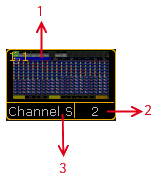 *Areas of a view button.* A view button is structured in three areas: 1. \[ViewPage] . \[ViewButton] Number along with a screenshot as the view was stored 2. View Pool Number 3. View Pool Label For more information about views, see [work with views](/grandma2/key_ws_work_with_views/). *** ## X-Keys as View Buttons [Section titled “X-Keys as View Buttons”](#x-keys-as-view-buttons) If you press User1 or User2, the [X-Keys](/grandma2/key_key_xkey/) works as view buttons as well. These view buttons are located at the bottom of screen 1.  *X-Keys as view buttons.* If you press User1, you get view button 11.1 through 11.20. If you press User2, you get view button 11.21 through 11.40. 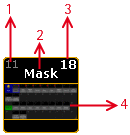 *Areas of view button X-Key.* The view button X-Key is structured in four areas. 1. View Button Number 2. View Pool Label 3. View Pool Number 4. Screenshot as the view was stored For more information about views, see [work with views](/grandma2/key_ws_work_with_views/).
# X-Key labels
> The X-Key labels are located at the bottom of screen 1.
The X-Key labels are located at the bottom of screen 1. In the middle of the X-Key labels is the page displayed. Three pages are available: * User1 * User2 * Button Page 1 thru 9999. If you press User1, the X-Key labels displays the function of [view button](/grandma2/key_widget_view_buttons/) 11.1 - 11.20.\ If you press User2, the X-Key labels displays the function of [view button](/grandma2/key_widget_view_buttons/) 11.21 - 11.40.  *X-Key Labels for User 1* If you press List, the X-Key labels displays the [mini executor bar](/grandma2/key_ws_mini_executor_bar/) for the executor buttons 201 - 220 on the current button page. To change the button page, press Bt Pg + or Bt Pg -.  *X-Key Labels for Mini Executor Bar*
# Adjust the intensity of desk lights
> The intensity of the desk lights is located in the Setup I Desk Lights.
## Use the Setup Menu [Section titled “Use the Setup Menu”](#use-the-setup-menu) The intensity of the desk lights is located in the **Setup I Desk Lights**.  *Setup – Adjusting desk lights* Adjust the intensity of the: * Background of keys and buttons * Executor LEDs * Screens * Desk lamp To adjust the intensity of the desk lights: 1. Open the Setup by pressing Setup. 2. Then, tap Desk Lights. 3. To dim the light of your desk, tap the fader and move it downward.\ To lighten the desk, tap the fader and move it upward. The light of your desk has now been adjusted.
# Wing & monitor setup
> Assign wings to an executor or assign external displays to internal screens in Wing & Monitor Setup.
Assign wings to an executor or assign external displays to internal screens in Wing & Monitor Setup. **Requirements:** * The resolution of the external screen has to be set to 1280 x 800 before assigning the internal screen to it. * The external screen has to be calibrated before assigning the internal screen. For more information on how to set the resolution see [Change Screen Resolution for External Screens](/grandma2/key_window_screenoptions/#resolution_external_screen). Open the Wing & Monitor Setup: 1. Press Setup. 2. Tap Wing & Monitor Setup in the column Console. 3. The menu **FaderWing and CommandWing** **Setup** opens in the graphic mode.  *Display of a current surface in grandMA2 – graphic mode* 4. To remove the write protection and to add a new screen, tap Add Surface. 5. Assign the internal screen to an external screen:\ -Tap and hold an external screen displayed in the menu above.\ -A pop-up opens displaying the screens.  *Assign a screen to an external screen* -Tap for example Screen 1.\ -The internal screen 1 is now assigned to an external screen. 6. Tap and move an external screen to a favored position in menu.\ -If en external screen is moved to the side, using the tracking ball or a mouse moves the cursor to the side.\ -If an external screen is moved to the top, using the tracking ball or a mouse moves the cursor to the top.\ -When operating a console move an external screen using a wing. Use the encoder of the wing to navigate in the screen. 7. Configure an internal or external wing:\ -Edit the command wing displayed at the bottom of the current surface.\ -A pop-up opens displaying the configuration.  *Configuration of wings* -Tap to select a wing. 8. To label the surface, tap Label on the right of the menu. 9. Change surfaces:\ -To return to the previous surface, tap Previous Surface.\ -To jump to the next surface, tap Next Surface. You can also call a surface using the command line. For more information see the [Surface keyword](/grandma2/key_keyword_surface/). 10. To delete a surface, tap Delete Surface. The settings are now applied. *** ## Table Mode [Section titled “Table Mode”](#table-mode) 1. To display the settings in a table, tap Table Mode on the right of the menu. 2. The menu opens.  *Wing & monitor setup – table mode* 3. Add a surface:\ -Tap Add Surface or tap and hold the cell **New** in the column **No.** or an empty cell in the column **Name**. 4. Label the surface:\ -After adding a surface, tap the cell **Surface**.\ -A pop-up **Edit Name** opens. \ -Enter the name.\ -The surface is now labeled. 5. Apply a surface:\ -Tap Select Surface. The cell you have tapped is now applied. 6. Edit cells:\ -To edit single cells, tap and hold the cell.\ -A pop-up opens displaying the wings.\ -Tap to select a wing.\ -The wing you have selected is now applied. 7. To revert to the graphic mode, tap Graphic Mode. All settings are now applied.
# Change screen options
> The screen options are located in the Setup I Screen Options.
The screen options are located in the **Setup I Screen Options**.  *Setup – Screen Options* In this view you can * [Calibrate screens](#Calibrate%20Internal%20Screens) * [Change the touch function](#Disable%20the%20Touch%20Function) * [Change mouse settings](#Change%20Mouse%20Function) * [Assign external touchscreens](#Assign%20External%20Touchscreens) * [Change screen resolution for external screens](#resolution_external_screen) * [Turn on screensaver](#Turn%20on%20Screensaver) *** ## []()Calibrate Screens [Section titled “Calibrate Screens”](#calibrate-screens) You can calibrate the internal and external screens if assigned. To adjust how accurately your screen senses when using a pen or finger: 1. Open the Setup by pressing the Setup key, then tap Screen Options, and select the screen you would like to calibrate. 2. Follow the on-screen instructions. The screen selected is now calibrated. *** ## []()Change the Touch Function [Section titled “Change the Touch Function”](#change-the-touch-function) You can disable and / or enable the touch function for every screen on the console.\ By default, the touch function is enabled. To change the touch function: * Open the Setup by pressing the Setup key, then tap Screen Options, and tap at the screen you would like to change the touch function, for example Left Touch Enabled. The touch function of the screen selected is disabled or enabled. *** ## []()Change Mouse Settings [Section titled “Change Mouse Settings”](#change-mouse-settings) You can choose if the mouse should or should not follow the touch.\ By default, the mouse does not follow the touch. Change the mouse setting to follow the touch: * Open the Setup by pressing the Setup key, then tap Screen Options, and tap Mouse does not follow touch. The mouse follows the touch. *** ## []()Assign External Touch Screens [Section titled “Assign External Touch Screens”](#assign-external-touch-screens) **Requirement:** [Connected external touchscreen](/grandma2/key_fs_connect_external_screens/). To assign an external touch screen: 1. Open the Setup by pressing the Setup key, then tap Screen Options, and tap on the screen you want to assign, for example Assign Right Touchscreen. 2. Follow the on-screen instructions. The selected touch screen is now assigned. *** ## []()Change Screen Resolution for External Screens [Section titled “Change Screen Resolution for External Screens”](#change-screen-resolution-for-external-screens) Screen resolution refers to the acuity of the text and images displayed on your screen. At higher resolutions, such as 1600 x 1200 pixels, items appear sharper. The larger the monitor the higher the resolution. Increase of screen resolution depends on the size and capability of your monitor. **Requirement:** [Connected External Screen](/grandma2/key_fs_connect_external_screens/). To change the screen resolution: 1. Open the Setup by pressing the Setup key, then tap Screen Options, and then tap the current screen resolution, for example 1920x1080.\ A list with all available screen resolutions opens. 2. Choose a screen resolution. The screen resolution is changed. *** ## []()Turn on Screen Saver [Section titled “Turn on Screen Saver”](#turn-on-screen-saver) The grandMA2 console comes with a screen saver.\ 5 minutes after the screen saver starts, the backlight of the 15-inch (381 mm) screens shuts down. To turn on the screen saver : 1. Open the Setup by pressing the Setup key, then tap Screen Options, and then tap Screensaver Off.\ The calculator opens. 2. In the green edit line, type in after how many minutes the screen saver should turn on. 3. Tap Please. The screen saver turns on after the timeout selected. ***
# Windows in General
> This topic deals with windows, sheets, and pools you can create in the user-defined area.
This topic deals with windows, sheets, and pools you can create in the [user-defined area](/grandma2/key_widget_user_defined_area/). Create custom views by moving or adjusting windows. Save settings to default or load settings that were previously saved from the default. There are 6 different tabs that consist of several windows. For more information on the single tabs see the following links: * **Sheets** * [Channel sheet](/grandma2/key_of_channel_sheet/) * [DMX sheet](/grandma2/key_patch_dmx_sheet/) * [Fixture sheet](/grandma2/key_of_fixture_sheet/) * [Sequence content sheet](/grandma2/key_of_layers_in_sheets_content_and_tracking/) * [Sequence executor sheet](/grandma2/key_cs_cue_sequence/) * [Sequence tracking sheet](/grandma2/key_of_layers_in_sheets_content_and_tracking/) * [RDM sheet](/grandma2/key_rdm_rdm_sheets/) * **Pools** * [Camera](/grandma2/key_patch_camera/) * [Effects](/grandma2/key_effects_predefined/) * [Filters](/grandma2/key_wfm_what_are_filters/) * [Forms](/grandma2/key_effects_create_forms/) * [Groups](/grandma2/key_groups/) * [Images](/grandma2/key_image/) * [Layout](/grandma2/key_layouts_create/) * [Macros](/grandma2/key_macro_what_are/) * [Masks](/grandma2/key_wfm_what_are_masks/) * [MAtricks](/grandma2/key_matricks_pool/) * [Pages Channel](/grandma2/key_adv_exec_ch_pages/) * [Pages Executor](/grandma2/key_adv_exec_pages/) * [Sequence](/grandma2/key_cs_what_are/) * [Timecode](/grandma2/key_timecode_what_is/#timecode_shows) * [Timecode Slots](/grandma2/key_timecode_what_is/#timecode_slots) * [Timer](/grandma2/key_timers_timer_pool/) * [Views](/grandma2/key_ws_work_with_views/) * [Universes](/grandma2/key_patch_universe_pool/) * [Worlds](/grandma2/key_wfm_what_are_worlds/) * **Presets** * [Preset pools](/grandma2/key_presets_pools/) * **Playbacks** * [Action buttons](/grandma2/key_exec_on_screen/) * [Playback big](/grandma2/key_exec_on_screen/#playback_big) * [Playback small](/grandma2/key_exec_on_screen/#playback_small) * [Running effects](/grandma2/key_effects_running/) * [Running playbacks](/grandma2/key_exec_running_playbacks/#running_playbacks) * **Other** * [Agenda](/grandma2/key_agenda_what_is/) * [CITP video viewer](/grandma2/key_network_citp_stream/) * [Clock](/grandma2/key_ost_clock/) * [Color picker](/grandma2/key_of_color_picker/) * [Command filter](/grandma2/key_wfm_what_are_filters/#command_filter) * [Command section](/grandma2/key_widget_master_section/#command_section_view) * [Command wing bar](/grandma2/key_ws_command_wing_bar/) * [Encoder bar](/grandma2/key_ws_encoder_bar/) * [Info](/grandma2/key_ws_info/) * [Layout view](/grandma2/key_layouts_edit/) * [Masters](/grandma2/key_adv_exec_master_window/) * [Sequence info](/grandma2/key_adv_seq_info/) * [Smart](/grandma2/key_of_smart_view/) * [Stage](/grandma2/key_patch_stage/) * [Timecode view](/grandma2/key_timecode_what_is/#timecode_view) * [VPU pixel mapper view](/grandma2/key_keyword_vpupixelmapperview/) * **System** * [Command line](/grandma2/key_widget_command_line/) * [Desk Status](/grandma2/key_ost_desk_status/) * [Help](/grandma2/key_ost_help_viewer/) * [Message center](/grandma2/key_message_center/) * [Network dimmer](/grandma2/key_ost_network_dimmer/) * [Performance](/grandma2/key_ost_performance_window/) * [Plugins](/grandma2/key_plugins_edit/) * [Sound input](/grandma2/key_ost_sound_input_window/) * [System monitor](/grandma2/key_ost_system_monitor/) ## Subtopics [Section titled “Subtopics”](#subtopics) * [Create and manage basic windows](/grandma2/key_windows_create_manage/) * [Clear the screen or delete windows](/grandma2/key_windows_clear_delete/)
# Clear the screen or delete windows
> Clear the entire screen in the user-defined area occupied by different windows.
## Clear the Screen [Section titled “Clear the Screen”](#clear-the-screen) Clear the entire screen in the user-defined area occupied by different windows. To clear the entire screen: 1\. Tap  in a window. 2\. Tap Delete Window in the title bar. The window is deleted. 3\. Tap the screen in place of the window that has just been deleted. The **pop-up Create Basic Window** opens. 4\. Tap Clear Screen. The user-defined area is empty. **Hint:**\ Alternatively clear the entire screen by pressing and holding  and tapping Clear Screen. *** ## Delete Windows [Section titled “Delete Windows”](#delete-windows) To delete windows from the user-defined area: * Tap  and then tap Delete Window in the title bar of the window.\ \- or - * Press Del and tap the title bar of the window. The window is deleted in the user-defined area.
# Create and manage basic windows
> You can create a basic window in the user-defined area on every screen.
## []()Create Basic Windows [Section titled “Create Basic Windows”](#create-basic-windows) You can create a basic window in the user-defined area on every screen. To create a basic window: 1\. Tap an empty area of the screen.\ The **pop-up Create Basic Window** opens.  \_ Open a basic window\_ 2\. Select a category in the tabs.\_ \_ 3\. Select the window you would like to be displayed. A basic window is created in the user-defined area. *** ## Move Windows to Another Position on the Screen [Section titled “Move Windows to Another Position on the Screen”](#move-windows-to-another-position-on-the-screen) You can move windows around in the user-defined area. If you tap and hold and then move a window, its frame is highlighted. 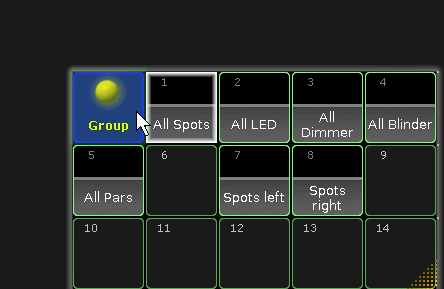 *Move window* 1. To move a window, tap and hold the blue title bar or the blue area of a pool and move it to its new position. 2. Release the finger from the screen. The window is moved to its new position. *** ## Move Menus to Different Screens [Section titled “Move Menus to Different Screens”](#move-menus-to-different-screens) You can move menus from one screen to another screen. To move a menu to another screen: 1. Tap the **screen icon**  in the title bar of the menu. 2. The **pop-up Change Screen** opens.  *Change scree pop-up* 3. Tap the screen number which you would like to move the menu to. The menu opens on the screen selected. *** ## Adjust the Size of Windows [Section titled “Adjust the Size of Windows ”](#adjust-the-size-of-windows) To adjust the size of a window: 1\. Tap and hold the dots in lower right corner of the window.\ The frame around the window and the dots become brighter.  *Adjust window size* 2\. To expand or minimize the window, move your finger. The window size is adjusted. *** ## Save Window Options to Default [Section titled “Save Window Options to Default”](#save-window-options-to-default) Save the settings to default in windows with multiple settings. These settings are saved in the user profile. There are two examples on how to save window settings to default: ### 1. Example [Section titled “1. Example”](#1-example) 1. Tap  in the title bar of the window and adjust the window options. 2. Tap Save to Default in the title bar of the window options.  *Save to default using the title bar* Window settings are saved to default in the user profile. ### 2. Example [Section titled “2. Example”](#2-example) 1. Press Setup, tap User, and then Window Settings. 2. Adjust the window settings. Window settings are saved to default in the user profile. *** ## Load Window Options From Default [Section titled “Load Window Options From Default”](#load-window-options-from-default) Window options that can be saved to default can also be loaded from default. To load window options from default: * Tap  in the title bar of the window options and tap Load from Default. Window options are loaded from default. ##
# Workspace
> The chapter workspace deals in general with:
The chapter workspace deals in general with: 1. Non-modifiable elements of visual display such as:\ -The executor bar **Important:**\ The executor bar cannot be resized, hidden or moved. 2. Modifiable elements of visual display such as:\ -Windows\ -Views **Important:**\ Windows and views can be resized and moved. 3. Coloring in user interface 4. Input modes such as:\ -Touch gestures\ -Keyboard shortcuts ## Subtopics [Section titled “Subtopics”](#subtopics) * [User interface](/grandma2/key_ws_user_interface/) * [Encoder bar](/grandma2/key_ws_encoder_bar/) * [Encoder settings](/grandma2/key_ws_encoder_settings/) * [Command wing bar](/grandma2/key_ws_command_wing_bar/) * [Command section](/grandma2/key_ws_command_section/) * [Mini executor bar](/grandma2/key_ws_mini_executor_bar/) * [Work with views](/grandma2/key_ws_work_with_views/) * [Touch gestures](/grandma2/key_ws_touch_gestures/) * [Calculator](/grandma2/key_ws_calculator/) * [Info](/grandma2/key_ws_info/) * [Oops and undo](/grandma2/key_ws_oops/) * [Colors](/grandma2/key_ws_colors/) * [Text indicators and symbols](/grandma2/key_ws_text_indicators/) * [Icons](/grandma2/key_ws_icons/) * [Keyboard shortcuts](/grandma2/key_ws_keyboard_shortcuts/)
# Calculator
> The calculator appears always if you need to enter or edit values.
The calculator appears always if you need to enter or edit values. The calculator is a dynamic view. The buttons changes regarding the to be entered value. 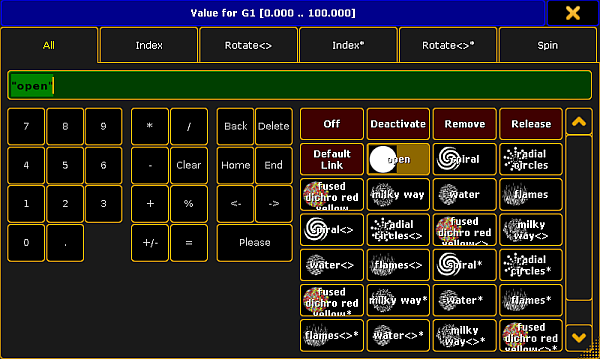 *Calculator for gobo values* The title bar displays the attribute, the unit, and sometimes the range of the values. If the fixture or channel has channel functions, the function sets are displayed in different tabs. Below the tabs, on the left side of the calculator, is the green edit line to enter values or ranges, e.g. 1 Thru. The calculator includes always a number pad at the left of the view. On the right side are the function buttons. The applied function has a brown background.  *Applied calculator function* ## Default calculator buttons [Section titled “Default calculator buttons”](#default-calculator-buttons) The following buttons are in all calculator views available. The buttons are located right beside the number pad and they are interacting with the edit line. **Back:**\ Tap to delete the next sign left from the cursor. **Delete:**\ Tap to delete marked values or the next sign right from the cursor. **Home:**\ Tap to go at the beginning of the edit line. **End:**\ Tap to go at the end of the edit line. **<-:**\ Tap to go one sign back. **->:**\ Tap to go one sign forward. **+/-:**\ Tap to insert a prefix. Do not use the **-** button to enter a negative prefix. **Please:**\ Tap to confirm and apply the value. The calculator closes. ## Attribute function buttons [Section titled “Attribute function buttons”](#attribute-function-buttons) The following buttons are always available for editing attribute values. **Off:**\ Tap to clear the values from the programmer. **Deactivate:**\ Tap to deactivate the values in the programmer. The value is not active anymore in the programmer. **Remove:**\ Tap to enter remove values in the programmer. For more information, see [Remove keyword](/grandma2/key_keyword_remove/). **Release:**\ Tap to enter release values in the programmer. For more information, see [Release keyword](/grandma2/key_keyword_release/). **Default Link:**\ Tap that the attribute links to their default values. For more information, see [Default keyword](/grandma2/key_keyword_default/).\*\*\*\*
# Colors
> This chapter gives you an overview about the different colors used in the grandMA2.
This chapter gives you an overview about the different colors used in the grandMA2. The colors are there to gives directly information about something what happened. This could be either the status of values in the programmer, or where are they coming from, and so on. There are a lot of different colors and they gives you a lot of useful information. ## Subtopics [Section titled “Subtopics”](#subtopics) * [System](/grandma2/key_ws_colors_system/) * [Marker](/grandma2/key_ws_colors_marker/) * [Cue](/grandma2/key_ws_colors_cue/)
# Cue
> The cue colors are value and background colors for the selected executors.
The cue colors are value and background colors for the selected executors. The cue colors are visible in the: * [Fixture Sheet](/grandma2/key_of_fixture_sheet/) * [Channel Sheet](/grandma2/key_of_channel_sheet/) * [DMX Sheet](/grandma2/key_patch_dmx_sheet/) (Programmer Colors) * Sequence Content Sheet * Sequence Tracking Sheet * [Layout View](/grandma2/key_layouts/) (only for dimmer values) * [Encoder Bar](/grandma2/key_ws_touch_gestures/) (linked to the focused sheet) There are four cue colors available: **Magenta:**\  \ *Magenta Value - Magenta Background*\ Magenta values or backgrounds indicates a tracked value from a selected executor. **Cyan:**\  \ *Cyan Value - Cyan Background*\ Cyan values or backgrounds indicates altered values in the cue from a selected executor.\ For dimmer attributes, a cyan value indicates an increasing dimmer value. **Green:**\  \ \_Green Value \_*- Green Background*\ Green values or backgrounds indicates a decreasing dimmer value from a selected executor. **White:**\  \ *White Value - White Background*\ White values or backgrounds indicates the same value is stored a second time (blocked value) from a selected executor. *** ## Change Cue Color Options [Section titled “Change Cue Color Options”](#change-cue-color-options) To change the cue color options in the * [Fixture Sheet](/grandma2/key_of_fixture_sheet/) * [Channel Sheet](/grandma2/key_of_channel_sheet/) * Sequence Content Sheet * Sequence Tracking Sheet tap at the **yellow ball** , tap Display and then in the field Cue Colors. *** **Requirement for layout view**:\ The layout elements shows dimmer values.\ To change the cue color options in the [layout view](/grandma2/key_layouts/), tap at the **yellow ball** , tap Tools and in the field Cue Colors. *** To change the cue color options in the [DMX sheet](/grandma2/key_patch_dmx_sheet/), tap at the **yellow ball** , tap Display and then in the field Programmer Colors. *** * To have no cue colors displayed, tap Off.\ All values from all user profiles will be displayed in yellow. * To have the cue colors from the selected executor always displayed, tap On.\ All other executors, will be displayed in yellow. * **Except DMX sheet:**\ To have the cue colors from the selected executor and all other executors in yellow, started by the own user profile, select My Exec.\ Executors run by other user profiles, will be displayed in gray. For more information to the colors, see [system colors](/grandma2/key_ws_colors_system/). The cue color options are changed. To save the cue color option, save the option as default or save the view.
# Marker
> Markers are color indicators in form of a bar, square, or a thin line. Markers are visible in:
Markers are color indicators in form of a bar, square, or a thin line. Markers are visible in: * [Channel Sheet](/grandma2/key_of_channel_sheet/) * [Fixture Sheet](/grandma2/key_of_fixture_sheet/) * [Sequence Content Sheet](/grandma2/key_cs_cue_content/#content_sheet) * [Sequence Tracking Sheet](/grandma2/key_cs_cue_content/#tracking_sheet) * [Layout View](/grandma2/key_layouts/) The name column in the fixture sheet displays a maker summery of all attribute markers of the fixture. There are the following markers there: **Red:**  *Red Marker* Red markers indicate active programmer values (storable). **Pink and Red:**  *Pink and Red Marker* \_ \_First Pink and then a red marker indicate active effect values in the programmer (storable). **Big Cyan:**  *Big Cyan Marker* Big cyan markers in the fixture sheet indicate preset values in the programmer.\ Big cyan markers in the sequence tracking sheet indicate preset values in a sequence. **Small Cyan** (except for the sequence tracking sheet):  *Small Cyan Marker* Small cyan markers indicate preset values from a sequence. **Blue:**  *Blue Marker* Blue markers indicate parked values – no matter the size of the marker. **Big Pink:**  *Big Pink Marker* Big pink markers indicate effect values. **Small Pink:**  *Small Pink Marker* Small pink markers indicate stomped effect values. For more information on this effect see [Stomp Keyword](/grandma2/key_keyword_stomp/). **White:**  *White Marker* White markers indicate programmer values which cannot be stored. **Green:**  *Green Marker* Green markers indicate active individual (= storeable) fade times in the programmer. **Pink, Red, and Green:**  *Pink, Red, and Green Marker* Pink, red, and green markers in the combination from left to right indicate active effect fade times in the programmer. **Orange:**  *Orange Marker* Orange markers indicate active individual (= storeable) delay times in the programmer. **Pink, Red, and Orange:**  *Pink, Red, and Orange Marker* Pink, red, and orange markers in the combination from left to right indicate active effect delay times in the programmer. **Small Yellow:**  *Small Yellow Marker* Small yellow markers in the fixture sheet, channel sheet, or layout view, indicate values from a sequence. **Big Yellow:**  *Big Yellow Marker* Big yellow markers in the sequence tracking sheet or sequence content sheet indicate stored values. **Gray:**  *Gray Marker* Gray markers indicate that at least one attribute of a fixture uses a DMX profile. This marker is only visible in output layers. **Purple:**  *Purple Marker* Purple markers indicate attributes that were calculated in the bitmap fixture. *** ## Pool Object Marker Colors [Section titled “Pool Object Marker Colors”](#pool-object-marker-colors) The pool object markers are used in pool objects and they indicate which values are stored in the pool object, in the preset pools and in the filter pools. For more information see [What are Filters?](/grandma2/key_wfm_what_are_filters/) and [Preset Pools](/grandma2/key_presets_pools/). **Yellow Pool Object Marker:**  *Yellow Pool Object Marker* Yellow pool object markers indicate that attribute values are stored in the pool object. **Important:**\ If a pool object just contains values , the yellow marker will not be displayed. **Pink Pool Object Marker:**  *Pink Pool Object Marker* Pink pool object markers indicate that effect values are stored in the pool object. **Green Pool Object Marker:**  *Green Pool Object Marker* Green pool object markers indicate that individual fade times are stored in the pool object. **Orange Pool Object Marker:**  *Orange Pool Object Marker* Orange pool object markers indicate that individual delay times are stored in the pool object. *** ## Shapes Of Markers [Section titled “Shapes Of Markers”](#shapes-of-markers) **Bar:**  *Bar – Marker Shape* If a marker is displayed in form of a bar – in red or white – the value is in the programmer. **Square:**  *Square – Marker Shape* If a marker is displayed in form of a square – no matter the color – the value is in the playback. **Thin Line:**  *Thin Line – Marker Shape* If a marker is displayed in form of a thin line (here: the thin line in cyan in the upper left corner of the value) – no matter the color – the value is tracked. *** ## Enable or Disable Markers [Section titled “Enable or Disable Markers”](#enable-or-disable-markers) You can enable or disable the markers. By default, the markers are enabled. To enable or disable the markers in the: * [Fixtures Sheet](/grandma2/key_of_fixture_sheet/) * [Channel Sheet](/grandma2/key_of_channel_sheet/) * [Sequence Content Sheet](/grandma2/key_cs_cue_content/#content_sheet) * [Sequence Tracking Sheet](/grandma2/key_cs_cue_content/#tracking_sheet) \- Tap the **yellow ball** , tap Display and then at **Enable Marker** tap On or Off. \- To enable or disable the marker in the [Layout View](/grandma2/key_layouts/), tap at the **yellow ball** , tap Layout Data and at **Marker** tap Yes or No. The markers are enabled or disabled. To save the the settings, save the settings as default or save the view.
# System
> Some system colors can be changed or adjusted in the grandMA2.
Some system colors can be changed or adjusted in the grandMA2. *** ## ID Colors [Section titled “ID Colors”](#id-colors) The channel or fixture IDs can have two different colors. **Gray:**  *Gray fixture or channel ID* Gray fixture or channel IDs indicate fixtures or channel that are not selected. It is the default color. **Yellow:**  *Yellow fixture or channel ID* Yellow fixture or channel IDs indicate fixtures or channels that are selected. *** ## Background Colors of IDs and Names [Section titled “Background Colors of IDs and Names”](#background-colors-of-ids-and-names) The background color of the IDs and names can have three different colors. **Dark Blue:**  *Dark blue background color* Dark blue background indicates that the cell can be edited. **Black:**  *Black background color* Black background indicates that there is no object to be edited. **Lavender:**  *Lavender background color* Lavender background indicates fixtures or channels that are limited by a group master. For more information see [group masters](/grandma2/key_groups_master/). **Dark Purple:**  *Dark purple background color* Dark purple background indicates fixtures or channels that are limited by an additive group master. For more information see [group masters](/grandma2/key_groups_master/). **Blue:**  *Blue background color* Blue background indicates fixtures or channels with the option **React to Master off**. *** ## Value Colors and Background Colors of Attributes [Section titled “Value Colors and Background Colors of Attributes”](#value-colors-and-background-colors-of-attributes) The values of attributes from fixtures or channels can have six different system colors. Some of the value colors are also displayed as background colors if the layer **Value Exec ID** or **Effect Exec ID** is selected. For more information on the layers see [control channels and fixtures](/grandma2/key_operate_fixtures/). Furthermore, values and background can have cue colors. For more information about cue colors see [cue colors](/grandma2/key_ws_colors_cue/). **Gray:**  *Gray value* Gray values indicate default values and effect values in the programmer. **Red and White:**  *Red value*  White value  *Red background* Red values and white values indicate that this value is in the programmer.\ Red background indicates that this value is in the programmer and that it is possible to store this value.\ This is an active value in the programmer. **Hint:**\ It is possible to change the color of the value to a high-contrast color in Setup – User administrator – Settings – Programmer Colors. **Pink:**  *Pink value*  *Pink background* Pink values or background indicate a selectively assigned effect value from an executor. **Yellow:**  *Yellow value*  *Yellow background* Yellow values indicate values from an executor, but not from the selected executor. **Dark Yellow:**  *Dark yellow value*  *Dark yellow background* Dark yellow values or backgrounds indicate tracked values from an executor, but not from the selected executor. **Pale Yellow:**  *Pale yellow value*  *Pale yellow background* Pale yellow values or backgrounds indicate that MIB was enabled from an executor, but not from the selected executor. **Hint:**\ Descending and ascending values and their backgrounds, such as green and cyan, are also displayed in a slightly paler shade if MIB function was enabled. **White and Grey:**  *White value and gray background* White value along with gray background indicate values in the programmer from another user profile. **Dark Blue:**  *Dark blue value* Dark blue values indicate attributes that cannot be controlled. For more information see [TakeControl keyword](/grandma2/key_keyword_takecontrol/). *** ## Pool Object Number Colors [Section titled “Pool Object Number Colors”](#pool-object-number-colors) The pool object number colors are used in pool objects. **Gray Pool Object Number:**  *Gray pool object number* Gray pool object numbers indicate that this pool object is not assigned to a button or an executor. It is not used in the show. **Cyan Pool Object Number:**  *Cyan pool object number* Cyan pool object numbers indicate that this pool object is assigned to a button or an executor. This pool object is used in the show. *** ## Included Preset Types [Section titled “Included Preset Types”](#included-preset-types) Included preset type markers indicate which preset types are stored in the pool object. Beginning from left, preset type 1 through 9. Included preset type markers appear in preset pools and filter pools.  *White preset type markers indicate included position preset type*
# Command section
> The command section is the area used to enter complex commands into the command line using keys.
The command section is the area used to enter complex commands into the command line using keys. This section is located on the right side of the console.  *Command section* To open the command section on the onPC press Command Overlay and the window **Command Overlay** opens. **Important:**\ Single keys can have several functions depending on how often or how long you press and hold them. For more information on the keys and their commands see [Key overview](/grandma2/key_keys_key_overview/). *** ### ### 1. Example: [Section titled “1. Example:”](#1-example) * Pressing Channel 1 At 50 enters the command into the command line. * Pressing Please consequently sets the dimmer in channel 1 to 50 percent. ### 2. Example: [Section titled “2. Example:”](#2-example) * Pressing Store Executor 5 Cue 3 enters the command into the command line. * Pressing Please consequently stores cue 3 on the executor 5.
# Command wing bar
> With the command wing bar you control the faders 1 to 6 and the buttons 101 to 106.
With the command wing bar you control the faders 1 to 6 and the buttons 101 to 106. ## MA onPC command wing and external screen [Section titled “MA onPC command wing and external screen”](#ma-onpc-command-wing-and-external-screen) If you use a MA onPC command wing along with an external screen, open the command wing bar window. * Tap in the **user defined area**, select tab Other and then Command Wing Bar. The command wing bar window is open.  *Command wing bar window* ## Command wing grandMA2 onPC [Section titled “Command wing grandMA2 onPC”](#command-wing-grandma2-onpc) If you use a grandMA2 onPC along with a MA onPC command wing, turn the command wing bar on. To turn the command wing bar on screen 2 on: 1. Click the **yellow ball**  in the upper left corner of the window one in the grandMA2 on PC.  *grandMA2 onPC options* 2. Click Options… 3. Click at tab View and select under CmdWing Bar On. The command wing bar is visible at the bottom of screen 2, left beside the encoder bar, in the grandMA2 onPC. 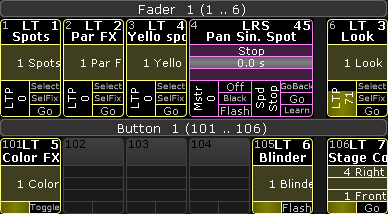 *Command wing bar grandMA2 onPC*
# Encoder bar
> The encoder bar is located below the command line on screen 2.
The encoder bar is located below the command line on screen 2. You can also open the encoder bar in the user defined area. To open the encoder bar in the user defined area: * Tap on an empty space on one of the screens, tap Other, tap Encoder Bar. The encoder bar is open.  *Encoder Bar Window* The encoder bar is structured in two areas: 1. [Preset Control Bar](/grandma2/key_ws_preset_control_bar/) 2. [Encoder Toolbar](/grandma2/key_ws_encoder_toolbar/) ## Subtopics [Section titled “Subtopics”](#subtopics) * [Preset control bar](/grandma2/key_ws_preset_control_bar/) * [Encoder toolbar](/grandma2/key_ws_encoder_toolbar/)
# Encoder settings
> To go to the encoder settings, press and hold the !encoder. The pop-up is visible as long as you press the key.
To go to the encoder settings, press and hold the . The pop-up is visible as long as you press the key. The encoder bar settings has two part. The bigger part and the smaller part.  *Encoder settings - bigger part*  *Encoder settings - smaller part* The smaller part is visible at all screens. The bigger part is visible only at screen 2. *** ## Adjust dimmer wheel mode [Section titled “Adjust dimmer wheel mode”](#adjust-dimmer-wheel-mode) The dimmer wheel mode can be set in the encoder settings or in the Setup , tab **User**, item Settings. You can choose between four different dimmer wheel modes: **Additive** (= default):\ Additive keeps the difference between the dimmer values until you reach 0% or 100%, by using the dimmer wheel. After 0% or 100 % are reached, the values will be leveled out. Example:\ Channel 1 has a value of 50 and channel 2 is at 60. When you use the dimmer wheel to take them both up to 100, and then back down, they both go down from 100 at the same time and at the same level. **Incremental:**\ Incremental keeps the difference between the dimmer values always, even if you reached 0% or 100% by using the dimmer wheel. Example:\ Channel 1 has a value of 50 and channel 2 is at 60. When you use the dimmer wheel to take them both up to 100, and then back down, channel 1 will start coming down first and then channel 2 will follow when channel 1 is at 90. **Prop.+** (Proportional positive):\ When using the dimmer wheel to turn up the dimmer values, the difference in the dimmer values will **increase**. Turning down the values will make all channels reach 0% at the same time. **Prop.-** (Proportional negative):\ When using the dimmer wheel to turn up the dimmer values, the difference in the dimmer values will **decrease**. Turning up to 100% will make all channels reach 100% at the same time. *** ## Adjust dimmer wheel resolution [Section titled “Adjust dimmer wheel resolution”](#adjust-dimmer-wheel-resolution) The dimmer wheel resolution can be set in the encoder settings or in the Setup , tab **User**, item Settings. With the dimmer wheel resolution you can set if the dimmer wheel should work: * Fine * Normal (= default) * Coarse *** ## Adjust trackball resolution [Section titled “Adjust trackball resolution”](#adjust-trackball-resolution) The trackball resolution can be set in the encoder settings or in the Setup , tab **User**, item Settings. With the trackball resolution you can set if the trackball should work: * Fine * Normal (= default) * Coarse *** ## []()Adjust encoder resolution [Section titled “Adjust encoder resolution”](#adjust-encoder-resolution) With the lower buttons of the bigger part of the encoder settings pop-up, you can adjust the encoder resolution. You can set the encoder resolution for each attribute. That means dimmer can be set to fine and pan to normal. You can also set the encoder resolution in the [encoder toolbar](/grandma2/key_ws_encoder_toolbar/). Another way to set the encoder resolution is to press Setup, tap Patch & Fixture Schedule, tap Fixture Types, tap Attributes & Encoder Grouping, tap at the **preset type** and in the table **Attributes of Feature** is a column **Encoder Resolution**. There are three different encoder resolutions available: **Ultra:**\ An encoder step equates 0.4. **Fine:**\ Every second encoder step equates 0.1. **Normal:**\ An encoder step equates 0.5. *** ## Disable touch function for screen 1 [Section titled “Disable touch function for screen 1”](#disable-touch-function-for-screen-1) To disable the touch function on screen 1: * Press and hold  and tap at Disable Multi Touch. The touch function screen 1 is disabled. *** ## Switch dialogs to default screen [Section titled “Switch dialogs to default screen”](#switch-dialogs-to-default-screen) This function is used to bring the dialog back to their default screen. The defaults for most of the screens is screen 1.\ \ Switch dialogs to default screens could be useful if you had external screens connected and moved dialogs maybe to screen 5. Now, you are sitting on a console without external screens and you cannot reach the dialogs. To bring the dialogs back to their default screens: * Press and hold  and tap at Switch Dialogs to Def. Screen. The will be open the next time on their default screen. Another way to switch the dialog to default screen is, using the [Menu Keyword](/grandma2/key_keyword_menu/). *** ## Clear screen [Section titled “Clear screen”](#clear-screen) To clear the screen by using the encoder settings pop-up: * Press and hold  and tap at Clear Screen. The screen on that you tapped the button is cleared. For another way to clear the screen, see [user defined area](/grandma2/key_widget_user_defined_area/). *** ## Clear all screens [Section titled “Clear all screens”](#clear-all-screens) To clear all screens: * Press and hold  and tap at Clear All Screens. All screens are cleared.
# Encoder toolbar
> The following topic describes the default encoder toolbar.
The following topic describes the default encoder toolbar. The encoder toolbar is context sensitive - it changes depending on the focused view. The encoder toolbar is part of the encoder bar and located below the preset control bar.  *Encoder Toolbar* 1. Features of the preset type. If more features are available, swipe to change the feature. 2. Attributes of feature. 3. Displays the value. To change the value, turn the encoder left or right. To open the calculator, tap in the field or press the encoder. 4. Choose the encoder resolution. 5. Choose between value layer or effect layer. 6. Select the layer. For more information, see [control fixtures and channels (value layer)](/grandma2/key_operate_fixtures/) or [live edit an effect (effect layer)](/grandma2/key_effects_live_edit/). 7. Select the Align mode. For more information to the Align mode, see [Align key](/grandma2/key_key_align/). 8. Opens the MAtricks Toolbar. For more information, see [MAtricks toolbar](/grandma2/key_matricks_toolbar/). 9. Opens the Special Dialog. If its grayed out, there is no special dialog available. *** ## []()Change Encoder Link Setting [Section titled “Change Encoder Link Setting”](#change-encoder-link-setting) If the layer fade, delay, or any effect layer is selected, the encoder link button appears in the encoder bar.  *Encoder Toolbar with Encoder Link Button* There are eight encoder link settings available: **Requirement:**\ \- Selected fixtures or channels.\ \- Selected layer is fade, delay, or any effect layer. Choose the encoder link option you like to have. * **Link Single:**\ Set the value for the single attribute. * **Link Single Active:**\ Set the value for the single attribute, only if the parameters are already active in programmer. * **Link Feature:**\ Set the value for all attributes of the feature. E.g. if you set a delay time for Pan it will also set the time for Tilt. * **Link Feature Active:**\ Set the value for all attributes of the feature, only if the parameters are already active in programmer. * **Link All:**\ Set the value for all attributes. * **Link All Active:**\ Set the value for all attributes, only if the parameters are already active in programmer. * **Link Filter:**\ Set the value for the attributes matching the selected filter . * **Link Filter Active:**\ Set the value for the attributes matching the selected filter, only if the parameters are already active in programmer. The encoder link option is saved in the user settings.
# Icons
> The following icons are used in the grandMA2 series.
The following icons are used in the grandMA2 series. ## Title Bar Icons [Section titled “Title Bar Icons”](#title-bar-icons) The title bar provides you with information icons and icons with a function. The following table explains what the icons in title bar mean. | Icon | Meaning | | ----------------------------------------------------- | ----------------------------------------------------------------------------------------------------------------------------------------------------------------- | |  | A world is active. For more information, see [World Keyword](/grandma2/key_keyword_world/) or [Worlds, Filters, and Masks](/grandma2/key_wfm_world_filter_mask/). | |  | A mask is in use. For more information, see [Use Masks in the Sheets](/grandma2/key_wfm_use_masks/). | |  | A mask is assigned. For more information, see [Use Masks in the Sheets](/grandma2/key_wfm_use_masks/). | |  | Go home to the Setup start screen. | |  | Opens the change screen pop-up. | |  | Deletes the window or closes pop-ups. | |  | Opens the virtual keyboard. | |  | Closes the virtual keyboard. | |  | Zooms in the window. | |  | Zooms out the window. | |  | Adjusts the zoom in that way that the entire recorded timecode show is visible in the window. | |  | Follows the time marker and sets it to the middle of the window. | |  | Opens the window options. | ## Pool Object Icons [Section titled “Pool Object Icons”](#pool-object-icons) The pool objects provides you with information about the object itself. | Icon | Meaning | | ---------------------------------------------------- | ----------------------------------------------------------------------------------------------------------------------- | |  | Pool object is locked. To unlock a pool object, see [Unlock Keyword](/grandma2/key_keyword_unlock/). | |  | Pool object is fixed locked by default. It can not be unlocked. | |  | Pool object contains additional information. | |  | Camera pool object is linked to a camera fixture. For more information, see [Camera Pool](/grandma2/key_patch_camera/). | |  | - Timecode slot pool object with incoming SMPTE timecode. | * Timecode pool object linked to a timecode slot with incoming SMPTE timecode.For more information, see [timecode](/grandma2/key_timecode/). | |  | \* Timecode slot pool object with incoming MIDI timecode. - Timecode pool object linked to a timecode slot with incoming MIDI timecode.For more information, see [timecode](/grandma2/key_timecode/). | |  | Sequence pool object with input filter. For more information, see [cues and sequences](/grandma2/key_cues_and_sequences/). | |  | - Paused timer pool object. For more information, see [timer](/grandma2/key_timer/). * Paused timecode slot pool object. For more information, see [timecode](/grandma2/key_timecode/). * Paused timecode pool object. For more information, see [timecode](/grandma2/key_timecode/). | |  | \* Running timer pool object. For more information, see [timer](/grandma2/key_timer/). - Running timecode slot pool object. For more information, see [timecode](/grandma2/key_timecode/). - Running timecode pool object. For more information, see [timecode](/grandma2/key_timecode/). | |  | Timer pool object is off. For more information, see [timer](/grandma2/key_timer/). | |  | Running record for macro pool object. For more information, see [record keyword](/grandma2/key_keyword_record/) or [macros](/grandma2/key_macro/). | |  | - Blinking: Refresh DMX signal for a universe pool object * Permanent: Change DMX values for DMX channels in the universe pool object | |  | Universe pool object with running RDM. For more information, see [RDM](/grandma2/key_rdm/). | |  | Universe pool object with RDM on for this universe and global RDM off. For more information, see [RDM](/grandma2/key_rdm/). | ## Command Line and Message Center Icons [Section titled “Command Line and Message Center Icons”](#command-line-and-message-center-icons) The [command line](/grandma2/key_widget_command_line/) and the message center provides you with information about the: * Network * Show * Power * Chat * CITP Some icons can be disabled or enabled in the message center options. For more information, see [Message Center](/grandma2/key_message_center/). The following table explains what the icons in the command line and in the message center mean. | Icon | Meaning | | ------------------------------------------------------------- | ------------------------------------------------------------------------------------------------------------------------------------------------------------------------------------------------------------- | |  | The console runs from the battery power only. | |  | The console is in a standalone mode. For more information, see [Create a Session](/grandma2/key_network_session_create/). | |  | The console is master of a session. For more information, see [Session Control](/grandma2/key_network_session/). | |  | The console is slave of a session. For more information, see [Session Control](/grandma2/key_network_session/). | |  | Invite is disabled in the Setup - MA Network Control. | |  | A new message is received. For more information, see [Chat Keyword](/grandma2/key_keyword_chat/). | |  | Network cable or connection is missing or defect. | |  | Receive CITP video. | |  | DMX tester output is active. | |  | Receive timecode SMPTE signal. | |  | Receive timecode MIDI signal. | |  | A timecode record is active. For more information, see [Timecode Keyword](/grandma2/key_keyword_timecode/) or [Record Keyword](/grandma2/key_keyword_record/). | |  | There are fixtures or channels in the Patch & Fixture Schedule without a patch address. For more information, see [Patching](/grandma2/key_patch/). | |  | A patched universe has no output on a DMX port. | |  | More DMX channels are patched than available parameters. | |  | The Exec CLI (= Command Line Interaction) or the Default Go, GoBack, Pause CLI is off. For more information, see [Local Settings](/grandma2/key_local_settings/). | |  | A world is active. For more information, see [World Keyword](/grandma2/key_keyword_world/) or [Worlds, Filters, and Masks](/grandma2/key_wfm_world_filter_mask/). | |  | DMX channels are parked. To unpark DMX channels, see [Unpark Keyword](/grandma2/key_keyword_unpark/). | |  | Preview is on. For more information, see [Preview Keyword](/grandma2/key_keyword_preview/). | |  | A filter from the filter pool or a command filter is active. For more information, see [Filter Keyword](/grandma2/key_keyword_filter/) or [Worlds, Filters, and Masks](/grandma2/key_wfm_world_filter_mask/). | |  | Blind mode or blind edit mode is on. For more information, see [Blind Keyword](/grandma2/key_keyword_blind/). | |  | A macro record is active. For more information, see [Record Keyword](/grandma2/key_keyword_record/) or [Macros](/grandma2/key_macro/). | |  | A group master or grand master is active. | |  | Highlight is active. For more information, see [Highlight Keyword](/grandma2/key_keyword_highlight/). | |  | Solo is active. For more information, see [Solo Keyword](/grandma2/key_keyword_solo/). | |  | Backup file server is unavailable. For more information, see [Setting up a File Server](/grandma2/key_backup_menu_file_server/). | |  | A previous available station is missing or the IP address of a station changed. For more information, see Networking. | |  | At least two devices with the same IP address are in the network. Double-check the IP addresses. For more information, see [Networking](/grandma2/key_network/). | |  | A RDM device sends an alert. For more information, see [RDM](/grandma2/key_rdm/). | |  | A RDM device sends a warning. For more information, see [RDM](/grandma2/key_rdm/). | ## Encoder Toolbar Icons [Section titled “Encoder Toolbar Icons”](#encoder-toolbar-icons) The following table explains what the icons in the [encoder toolbar](/grandma2/key_ws_encoder_bar/) mean. | Icon | Meaning | | -------------------------------------------------- | ----------------------------------------------------------------------------------------------------------------- | |  | Executes a GoFastBack. For more information, see [<<< GoFastBack Keyword](/grandma2/key_keyword_skipminus/). | |  | Executes a GoBack. For more information, see [GoBack Keyword](/grandma2/key_keyword_goback/). | |  | Executes a Pause. For more information, see [Pause Keyword](/grandma2/key_keyword_pause/). | |  | Executes an Off. For more information, see [Off Keyword](/grandma2/key_keyword_off/). | |  | Executes a Go. For more information, see [Go Keyword](/grandma2/key_keyword_go/). | |  | Executes a GoFastForward. For more information, see [>>> GoFastForward Keyword](/grandma2/key_keyword_skipplus/). | |  | Select to draw rectangles in the [Layout View](/grandma2/key_layouts/). | |  | Select to create text boxes in the [Layout View](/grandma2/key_layouts/). |
# Info
> By using the info window, you can easily assign information to an object or view information of an object.
By using the info window, you can easily assign information to an object or view information of an object. You can add object info such as a what a macro does, what fixtures are included in a universe, what device creates a timecode slot, where a cue is used, and so on. *** ## []()Open the info window [Section titled “Open the info window”](#open-the-info-window) * Tap on an empty space on one of the screens, tap Other, tap Info.\ The info window opens and views by default the info of the object on the selected executor. This is indicated in the title bar by the button Link Selected.  *Empty info window* The info window is open and views the info to the object the selected executor. *** ## Assign info to the object on the selected executor [Section titled “Assign info to the object on the selected executor”](#assign-info-to-the-object-on-the-selected-executor) **Requirement:** Existing object on the selected executor. * [Open the info window](#Open%20info%20window) and type the info in the info window (black area). 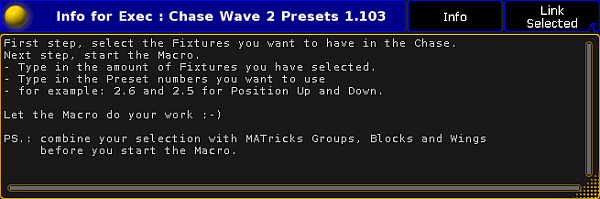 *Assigned info in the info window* The info is assigned to the object on the selected executor. The pool object has a **information icon**  in the upper right corner. If the sheet style is selected for pool, the info is displayed in the info column. **Hint:**\ You can also assign info by using the command line along with the object keyword and the parameter **info**. See as an example the [Preset keyword](/grandma2/key_keyword_preset/). *** ## Assign info to an object (not selected executor) by using the info window [Section titled “Assign info to an object (not selected executor) by using the info window”](#assign-info-to-an-object-not-selected-executor-by-using-the-info-window) **Requirement:** Existing pool object. 1. [Open the info window](#Open%20info%20window) and tap in the title bar the button Info.\ The words **Select something** appears in the info window and the button in the title bar changes to Not Linked. The [Info keyword](/grandma2/key_keyword_info/) is in the command line.  *Select something to assign info in the info window* 2. Tap in a pool at the pool object to assign the information.\ The title bar in the information window displays the pool object label and the pool object number. 3. Type the info in the info window (black area).  *Assigned info in the info window* The info is assigned to the selected object. The pool object has a **information icon**  in the upper right corner. If the sheet style is selected for pool, the info is displayed in the info column. **Hint:**\ You can also assign info by using the command line along with the object keyword and the parameter **info**. See as an example the [Preset keyword](/grandma2/key_keyword_preset/). *** ## Assign info to an object (not selected executor) by using the pool [Section titled “Assign info to an object (not selected executor) by using the pool”](#assign-info-to-an-object-not-selected-executor-by-using-the-pool) **Requirement:** Existing pool object. 1. Open the pool of the stored pool object. 2. To turn the pool window into a sheet style, tap at the **yellow ball**  and then tap Sheet Style. 3. Type the info in the **info column**. 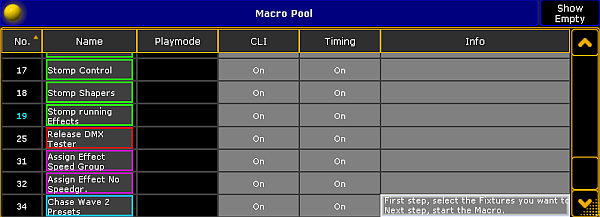 *Macro pool sheet style* The info is assigned to the pool object. *** ## View info of the last go [Section titled “View info of the last go”](#view-info-of-the-last-go) **Requirement:** A recently started sequence or cue. * [Open the info window](#Open%20info%20window) and swipe the button in the title bar to select Link Last Go. The info window displays the info to the recently started sequence or cue. *** ## View info of the current cue [Section titled “View info of the current cue”](#view-info-of-the-current-cue) **Requirement:** A running cue. * [Open the info window](#Open%20info%20window) and swipe the button in the title bar to select Link Current Cue. The info window displays the info to the current running cue. If no cue is running, **No Info** is displayed in the title bar. *** ## View info of the next cue [Section titled “View info of the next cue”](#view-info-of-the-next-cue) **Requirement:** Selected executor. * [Open the info window](#Open%20info%20window) and swipe the button in the title bar to select Link Next Cue. The info window displays the info to the next cue of the selected executor.
# Keyboard shortcuts
> Important:
**Important:**\ 1\. Keyboard shortcuts are only available on a grandMA2 onPC.\ 2\. Keyboards that have a different keyboard layout, as opposed to German keyboards, do not support all default keyboard shortcuts. \ If this should be the case with your keyboard, adjust the shortcuts affected. To transfer these to other show files and/or stations, use the Import/Export function. For more information on how adjust the shortcuts see [export or import keyboard shortcuts](/grandma2/key_ws_keyboard_shortcuts_export_import/). The go to the keyboard shortcuts press the Setup and under tab **Console** tap Edit Keyboard Shortcuts. 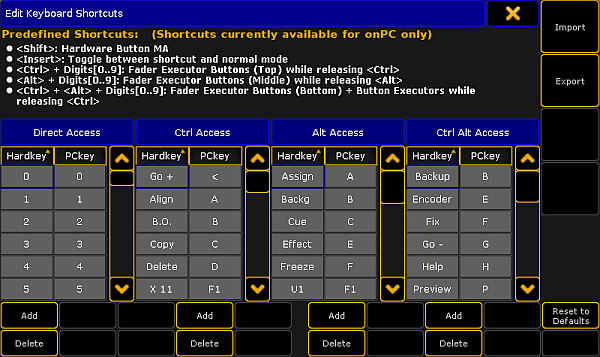 *Edit Keyboard Shortcuts window* The following tables displays the default grandMA2 onPC keyboard shortcuts. ## Shortcuts for command area keys [Section titled “Shortcuts for command area keys”](#shortcuts-for-command-area-keys) | Key | Shortcut | | ---------------------------------------------- | -------------- | | Blind | B | | Freeze | Alt + F | | Prevw | Ctrl + Alt + P | | Assign | Alt + A | | Align | Ctrl + A | | U1 | Alt + F1 | | U2 | Alt + F2 | | U3 | Alt + F3 | | U4 | Alt + F4 | | Fix | Ctrl + Alt + F | | Select | Ctrl + S | | Off | O | | Temp | Ctrl + Alt + T | | Top | Alt + T | | On | Ctrl + O | | <<< | Alt + < | | Learn | Ctrl + L | | >>> | Ctrl + Alt + < | | Small Go - | < | | Small Pause | Ctrl + P | | Small Go + | Ctrl + < | | View | V | | Effect | Alt + E | | Goto | Alt + G | | Page | Alt + P | | Macro | M | | Preset | P | | Sequ | Alt + S | | Cue | Alt + C | | Exec | X | | Channel | C | | Fixture | F | | Group | G | | Delete | Ctrl + D | | Move | Ctrl + M | | Copy | Ctrl + C | | Full | Ctrl + F | | Highlt | H | | Solo | Ctrl + Alt + S | | Backg | Alt + B | | User1 | Ctrl + U | | User2 | Alt + U | | Time | Ctrl + T | | Esc | Esc | | Edit | E | | Oops | Backspace | | Update | U | | Clear | Delete | | List | L | | Store | S | |  | Shift | | Please | Enter | | . | . | | If | I | | At | A | | Thru | / (number pad) | | + | + | | - | - | | 0 | 0 | | 1 | 1 | | 2 | 2 | | 3 | 3 | | 4 | 4 | | 5 | 5 | | 6 | 6 | | 7 | 7 | | 8 | 8 | | 9 | 9 | | Up | Arrow up | | Down | Arrow down | | Prev | Arrow left | | Next | Arrow right | | Set | End | |  | Ctrl + Alt + E | ## Shortcuts for menu keys [Section titled “Shortcuts for menu keys”](#shortcuts-for-menu-keys) | Key | Shortcut | | ------ | -------------- | | Tools | Ctrl + F12 | | Setup | F12 | | Backup | Ctrl + Alt + B | | Help | Ctrl + Alt + H | ## Shortcuts for X-keys [Section titled “Shortcuts for X-keys”](#shortcuts-for-x-keys) | Key | Shortcut | | --- | ---------- | | X1 | F1 | | X2 | F2 | | X3 | F3 | | X4 | F4 | | X5 | F5 | | X6 | F6 | | X7 | F7 | | X8 | F8 | | X9 | F9 | | X10 | F10 | | X11 | Ctrl + F1 | | X12 | Ctrl + F2 | | X13 | Ctrl + F3 | | X14 | Ctrl + F4 | | X15 | Ctrl + F5 | | X16 | Ctrl + F6 | | X17 | Ctrl + F7 | | X18 | Ctrl + F8 | | X19 | Ctrl + F9 | | X20 | Ctrl + F10 | ## Shortcuts for master section keys [Section titled “Shortcuts for master section keys”](#shortcuts-for-master-section-keys) | Result | Shortcut | | ----------- | ------------- | | Ch Pg+ | Alt + PgUp | | Ch Pg- | Alt + PgDown | | Fd Pg+ | PgUp | | Fd Pg- | PgDown | | Bn Pg+ | Ctrl + PgUp | | Bn Pg- | Ctrl + PgDown | | Large Pause | Alt + Space | | Large Go- | Ctrl + Space | | Large Go | Space | ## Shortcuts for grandMA2 onPC screen buttons [Section titled “Shortcuts for grandMA2 onPC screen buttons”](#shortcuts-for-grandma2-onpc-screen-buttons) | Result | Shortcut | | --------------------------- | --------------- | | Extern 1 | Ctrl + Alt + F5 | | Extern 2 | Ctrl + Alt + F6 | | Executor 1 - 15, 101 - 115 | Ctrl + Alt + F7 | | Executor 16 - 30, 116 - 130 | Ctrl + Alt + F8 | | Screen 2 | Ctrl + Alt + F2 | | Screen 3 | Ctrl + Alt + F3 | | Screen 4 | Ctrl + Alt + F4 | ## Reset keyboard shortcuts to defaults [Section titled “Reset keyboard shortcuts to defaults”](#reset-keyboard-shortcuts-to-defaults) To reset the keyboard shortcuts to their defaults: 1. Click Setup and then under tab **console** click Edit Keyboard Shortcuts.\ The Edit Keyboard Shortcuts window opens. 2. Click Reset to Defaults. The keyboard shortcuts are reset to their defaults. ## Subtopics [Section titled “Subtopics”](#subtopics) * [Turn on or turn off the keyboard shortcuts](/grandma2/key_ws_keyboard_shortcuts_on_off/) * [Edit keyboard shortcuts](/grandma2/key_ws_keyboard_shortcuts_edit/) * [Add or delete keyboard shortcuts](/grandma2/key_ws_keyboard_shortcuts_add_delete/) * [Export or import keyboard shortcuts](/grandma2/key_ws_keyboard_shortcuts_export_import/)
# Add or delete keyboard shortcuts
> Important:
**Important:**\ Keyboard shortcuts are only available on a grandMA2 onPC. You can add more keyboard shortcuts or delete existing keyboard shortcuts. ## Add keyboard shortcuts [Section titled “Add keyboard shortcuts”](#add-keyboard-shortcuts) 1. Click Setup and then under tab **console** click Edit Keyboard Shortcuts.\ The Edit Keyboard Shortcuts window opens. 2. Choose if you would like to add a shortcut with:\ \- Direct Access\ \- Ctrl Access\ \- Alt Access\ \- Ctrl Alt Access 3. Click Add below the table you like to add the shortcut.\ The **Add Shortcut** pop-up opens regarding to the selected table.  *Add Direct Access Shortcut pop-up* 4. Click at the hardkey you like to add.\ The **Select Virtual Key Code** pop-up opens.  *Select Virtual Key Code pop-up* 5. Click at the PCkey you like to have.\ The Select Virtual Key Code pop-up closes. The keyboard shortcut is added. *** ## Delete keyboard shortcuts [Section titled “Delete keyboard shortcuts”](#delete-keyboard-shortcuts) 1. Click Setup and then under tab **console** click Edit Keyboard Shortcuts.\ The Edit Keyboard Shortcuts window opens. 2. Click at the keyboard shortcut you like to delete. 3. Click below the table of the to delete shortcut at Delete. The keyboard shortcut is deleted.
# Edit keyboard shortcuts
> Important:
**Important:**\ Keyboard shortcuts are only available on a grandMA2 onPC. You can edit the default keyboard shortcuts and customize them to your needs. 1. Click Setup and then under tab **console** click Edit Keyboard Shortcuts.\ The Edit Keyboard Shortcuts window opens. 2. Search for the keyboard shortcut you like to change and make a right mouse click in either the cell of the **Hardkey** column or in the cell of the **PCkey** column.\ If you have clicked in the Hardkey column, the **Change Direct Access Shortcut** pop-up opens.  *Change Direct Access Shortcut pop-up* **Information:**\ Keys that are already assigned to another virtual key code are not listed anymore, and vice versa. If you need a key or virtual keycode what is not listed, you have to modify or delete the keyboard shortcut where it is in use. If the key or virtual keyboard is free, you can assign it.\ \ If you have clicked in the PCkey column, the **Select Virtual Key Code** pop-up opens.  *Select Virtual Key Code pop-up* 3. Click at the Hardkey or PCkey you like to have.\ The Change Direct Access Shortcut or Select Virtual Key Code pop-up closes. The keyboard shortcut is edited and saved in the show file.
# Export or import keyboard shortcuts
> Important:
**Important:**\ Keyboard shortcuts are only available on a grandMA2 onPC. You can export your customized keyboard shortcuts for a later import in another show file. ## Export keyboard shortcuts [Section titled “Export keyboard shortcuts”](#export-keyboard-shortcuts) 1. Click Setup and then under tab **console** click Edit Keyboard Shortcuts.\ The **Edit Keyboard Shortcuts** window opens. 2. Click Export.\ The **Export Keyboard Shortcuts** pop-up opens. 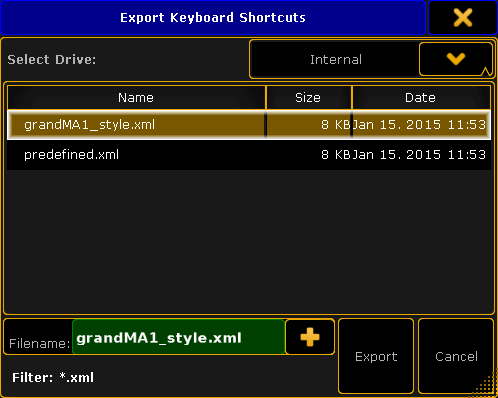 *Export Keyboard Shortcuts pop-up* 3. Select the drive for the exported keyboard shortcuts. 4. If you want to overwrite an existing keyboard shortcuts .xml file, click at the file you want to overwrite. If you want to create a new file, enter the new file name in the **green edit line**. 5. Click Export. The keyboard shortcuts .xml file is exported. If you have exported the keyboard shortcuts .xml file on a drive of your PC, the export file is in the hidden folder **C:\ProgramData\MA Lighting Technologies\grandma\gma2\_V\_3.1.2\shortcuts**. If you have exported the keyboard shortcuts .xml file on a USB stick, the export file is in the **E:\gma2\shortcuts**. ## Import keyboard shortcuts [Section titled “Import keyboard shortcuts”](#import-keyboard-shortcuts) 1. Click Setup and then under tab **console** click Edit Keyboard Shortcuts.\ The **Edit Keyboard Shortcuts** window opens. 2. Click Import.\ The **Import Keyboard Shortcuts** pop-up opens. 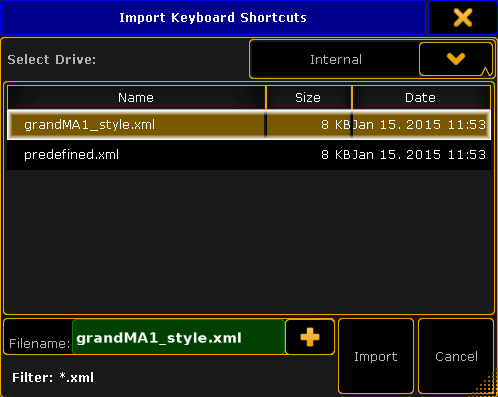 *Import Keyboard Shortcuts pop-up* 3. Select the drive from which the keyboard shortcuts are to be imported. 4. Click at the file and click Import. The selected keyboard shortcuts are imported.
# Turn on or turn off the keyboard shortcuts
> Shortcut Button
 *Shortcut Button* ## Turn the keyboard shortcuts on [Section titled “Turn the keyboard shortcuts on”](#turn-the-keyboard-shortcuts-on) * Click Shortcut in the grandMA2 onPC or press **Insert** on your keyboard. The keyboard shortcuts are turned on for the grandMA2 onPC. The shortcuts are displayed in brackets below the keys. *** ## Turn the keyboard shortcuts off [Section titled “Turn the keyboard shortcuts off”](#turn-the-keyboard-shortcuts-off) * Click Shortcut in the grandMA2 onPC or press **Insert** on your keyboard. The keyboard shortcuts are turned off for the grandMA2 onPC.
# Mini executor bar
> Mini executor bars are visible at the bottom of screen 3 (grandMA2 light and grandMA2 full-size) and screen 4 (grandMA2 full-size). Furthermore, they are visibl
Mini executor bars are visible at the bottom of screen 3 (grandMA2 light and grandMA2 full-size) and screen 4 (grandMA2 full-size). Furthermore, they are visible in the command wing bar and in the playback windows. The mini executor displays valuable information about the content and functions of the executor. You can assign functions to the executors using the **Assign Menu**, or you can use the Assign key. For more information, see [Assign key](/grandma2/key_key_assign/).To open the Assign Menu by using the mini executor, tap in the upper area of the mini executor.  *Tap the upper area to open the Assign menu* The look and the information of the mini executors changes, depending on what is assigned to the executor.  *Mini executor bar or command wing bar* For more information, see: * [Sequence mini executor](/grandma2/key_cs_sequence_mini_executor/) * [Assign effect to executor](/grandma2/key_effects_assign_to_executor/) * [Assign macro to a button](/grandma2/key_macro_assign/) * [Chaser mini executor](/grandma2/key_chaser_mini_executer/) * [Group master mini executor](/grandma2/key_groups_master/)
# Oops and undo
> By using the oops functions, you can easily undo actions.
By using the oops functions, you can easily undo actions. ## Oops / undo the latest action [Section titled “Oops / undo the latest action”](#oops--undo-the-latest-action) **Important:**\ An oopsed / undone action cannot be reversed. To oops / undo the latest actions: 1. Press Oops.\ The **Confirm Undo** pop-up opens.  *Confirm Undo pop-up* 2. Tap Ok or press Please. The latest action is undone. *** ## Oops / undo more actions [Section titled “Oops / undo more actions”](#oops--undo-more-actions) **Important:**\ After saved changes in the Patch & Fixture Schedule, the Oops list begins of new. **Important:**\ An oopsed / undone action cannot be reversed. To oops / undo more actions: 1. Press and hold the Oops key until the **Multi-Oops** pop-up opens.  *Multi-Oops pop-up* **Note:**\ To select more actions, you have to start from the latest action and go backwards.\ It is not possible to select just one action in the middle of the list and undo them.\ 2. Select the action you want to undo by tap in the list or turn the screen encoder.\ The selected actions have a green background. The amount of the selected actions is displayed in the button in the bottom left corner of the window. 3. Tap Undo x Actions. The selected actions are undone. *** ## Set oops settings [Section titled “Set oops settings”](#set-oops-settings) By default, everything the following actions will be list in the oops list: * General (Setup settings) * Views (View changes) * Prog (Programmer Actions) You can customize the oops settings to your need. For example, if you want to have only the programmer actions in the oops list and not every view change, deactivate the views from the oops settings. To change the oops settings: 1. Press Setup, tap at **User**, and tap at Oops Settings.\ The **Oops Settings** menu opens. 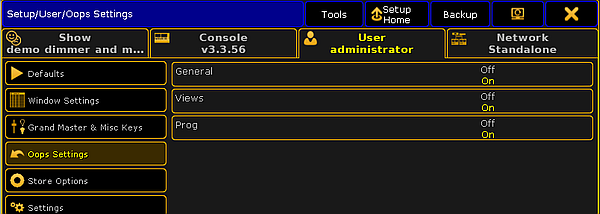 *Oops Settings menu* 2) Tap at the settings you want to enable or disable. The oops settings are changed and saved in the show file and in the user profile. *** ## Revert to a previously saved show file version [Section titled “Revert to a previously saved show file version”](#revert-to-a-previously-saved-show-file-version) Every time you saved the show, the previous state of the show file will be saved as a .backup file. The grandMA2 creates up to ten .backup files. After the tenth .backup file is created, the first .backup file will be deleted. This allows to revert a previously saved show file version. 1. Press Backup.\ The **Backup** menu opens. 2. Select the drive tab and tap at Load Show. 1.  *Load Show - Viewing Shows & Backups* 2. Tap at the view button until Viewing Shows & Backups or Viewing Backups appears.\ Now, you can see all saved shows as .show\.gz file and their backups as .backup file. 3. Tap at the .backup file you want to revert and select the data you want to load.\ \ **Hint:**\ If you are not sure what data you have changed, we recommend to load all data. Tap Check All.\ 4. Tap Load Show. The selected backup is reverted.
# Preset control bar
> The preset control bar is a part of the encoder bar.
The preset control bar is a part of the encoder bar. You can also turn the preset control bar on or off for the: * [Fixture Sheet](/grandma2/key_of_fixture_sheet/) * [Channel Sheet](/grandma2/key_of_channel_sheet/) * Sequence Content Sheet * Sequence Tracking Sheet \ *Preset Control Bar* The preset control bar displays the available presets types in the show, according to the patched fixtures or channels.\ If only fixture or channels with dimmer attributes are patched in the show, there is only the Dimmer preset type in the preset control bar. The preset control bar follows the fixtures or channels according to the selected world. For more information, see [World, Filters, and Masks](/grandma2/key_wfm_world_filter_mask/). Each preset has a preset type number. 1. Dimmer 2. Position 3. Gobo 4. Color 5. Beam 6. Focus 7. Control 8. Shapers 9. Video Green box frame indicates the available preset types to the selected fixture or channel. Gray box frame indicates that this preset types are not available to the selected fixture or channel. Red indicator displays active programmer values to this preset type in the programmer. *** ## Select a Preset Type [Section titled “Select a Preset Type”](#select-a-preset-type) To select a preset type in the preset control bar: * Tap at the preset box. The preset type is selected. The encoder toolbar changes according to the selected preset type. The preset type number and name are displayed yellow. You can also select the preset type by using the keys, see [MA key](/grandma2/key_key_ma/). *** ## Get Active Programmer Values [Section titled “Get Active Programmer Values”](#get-active-programmer-values) To get active programmer values for a preset type in the programmer for the selected fixtures or channels: * Double tap at the preset type in the preset control bar. The values to the preset type for the selected fixtures or channels are active in the programmer.\ The red indicator is visible. *** ## Change values in the programmer [Section titled “Change values in the programmer”](#change-values-in-the-programmer) You can change programmer values by using the preset type bar for these functions: * [On](/grandma2/key_keyword_on/) * [Off](/grandma2/key_keyword_off/) * [Park](/grandma2/key_keyword_park/) * [Unpark](/grandma2/key_keyword_unpark/) * [Remove](/grandma2/key_keyword_remove/) * [Release](/grandma2/key_keyword_release/) * [Stomp](/grandma2/key_keyword_stomp/) * [Default](/grandma2/key_keyword_default/) ### Example [Section titled “Example”](#example) To remove all dimmer values for the fixture selection in the programmer: * Press Off and tap Dimmer in the preset type bar. The dimmer values are removed from the programmer for the fixture selection. *** ## Turn the Preset Control Bar on or off in Sheets [Section titled “Turn the Preset Control Bar on or off in Sheets”](#turn-the-preset-control-bar-on-or-off-in-sheets) **Requirement:**\ An open fixture sheet, channel sheet, sequence content sheet, or sequence tracking sheet. To turn the preset control bar on or off in the sheets: * Tap at the **yellow ball** , tap Tools and then tap in the filed below **Preset Control** On or Off. The preset control bar is on or off in the sheet. To save the preset control bar settings, save the setting as default or save the view.
# Screen layout
> This topic provides information on the screen layouts of the different screens.
This topic provides information on the screen layouts of the different screens. ## Screen 1 [Section titled “Screen 1”](#screen-1) The screen 1 or command screen is structured in three 3 areas starting at the bottom and ending at the top. 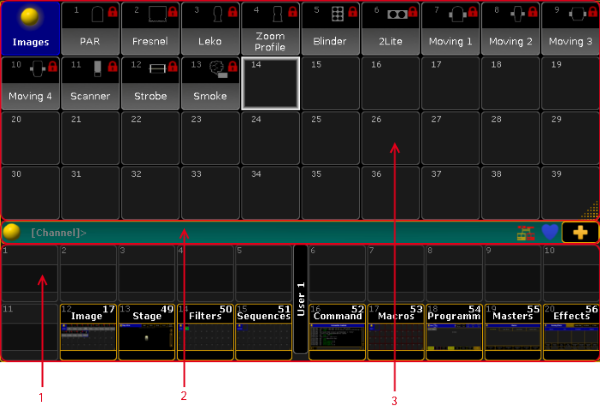 *Screen Layout of Screen 1 - Command Screen* 1. [X-Key Labels](/grandma2/key_widget_x_key_labels/) to label X-Keys. 2. [Command Line](/grandma2/key_widget_command_line/) to enter keywords, open the command line feedback, or to open the message center. 3. [User Defined Area](/grandma2/key_widget_user_defined_area/) to create and arrange windows. *** ## []()Screen 2 [Section titled “Screen 2”](#screen-2) The screen 2 is structured in seven areas. 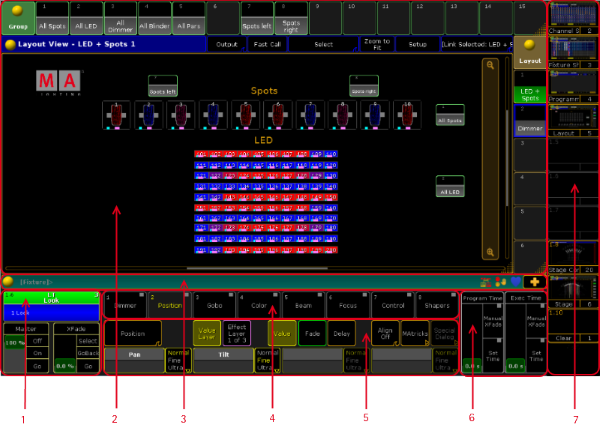 *Screen Layout of Screen 2* 1. [Master Section](/grandma2/key_widget_master_section/) displays the selected executor. 2. [User Defined Area](/grandma2/key_widget_user_defined_area/) to create and arrange windows. 3. [Command Line](/grandma2/key_widget_command_line/) to enter keywords, open the command line feedback, or to open the message center. 4. [Preset Control Bar](/grandma2/key_ws_preset_control_bar/) to select a preset type. 5. [Encoder Toolbar](/grandma2/key_ws_encoder_bar/) to control attributes. 6. [Time Control](/grandma2/key_ws_time_control/) to control program time and exec time. 7. [View Buttons](/grandma2/key_widget_view_buttons/) to recall user defined window arrangements. *** ## []()Screen 3 and Screen 4 (only grandMA2 light or grandMA2 full-size) [Section titled “Screen 3 and Screen 4 (only grandMA2 light or grandMA2 full-size)”](#screen-3-and-screen-4-only-grandma2-light-or-grandma2-full-size) Screen 3 and screen 4 are structured in three areas. 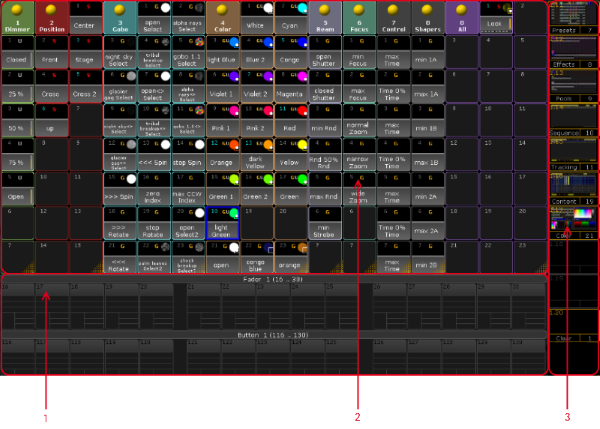 *Screen Layout of Screen 3 and Screen 4* 1. [Mini Executor Bar](/grandma2/key_ws_mini_executor_bar/) to get information about the content and functions of the executor. 2. [User defined area](/grandma2/key_widget_user_defined_area/) to create and arrange windows. 3. [View Buttons](/grandma2/key_widget_view_buttons/) to recall user defined window arrangements. *** ## []()Screen 5 and Screen 6 (external screens) [Section titled “Screen 5 and Screen 6 (external screens)”](#screen-5-and-screen-6-external-screens) The external screens are structured in two areas.  *Screen Layout of Screen 5 and Screen 6* 1. [User defined area](/grandma2/key_widget_user_defined_area/) to create and arrange windows. 2. [View Buttons](/grandma2/key_widget_view_buttons/) to recall user defined window arrangements.
# Text indicators and symbols
> This topic provides an overview of the different text indicators and symbols used in the grandMA2.
This topic provides an overview of the different text indicators and symbols used in the grandMA2. The text indicators display information about actions in form of letters or symbols. This could be either additional information or the priority. There are the following text indicators there: ## Text indicators in pool objects, preset objects and mini executors [Section titled “Text indicators in pool objects, preset objects and mini executors”](#text-indicators-in-pool-objects-preset-objects-and-mini-executors) ## Letters [Section titled “Letters”](#letters) | Text indicator | Description | | -------------- | --------------------------------------------------------------------------------------------------------------------------------------------------------- | | A | Effect pool objects with an absolute effect. For more information see [effects](/grandma2/key_effects/). | | B (green) | Executor page pool objects with an active button page. For more information see [executor pages](/grandma2/key_adv_exec_pages/). | | B (gray) | Executor page pool object with a non-active button page. For more information see [executor pages](/grandma2/key_adv_exec_pages/). | | C (green) | Channel page pool object with an active channel page. For more information see [channel pages](/grandma2/key_adv_exec_ch_pages/). | | C (gray) | Channel page pool object with a non-active channel page. For more information see [channel pages](/grandma2/key_adv_exec_ch_pages/). | | C (red) | Macro pool object with deactivated CLI (= Command Line Interaction). For more information see [macros](/grandma2/key_macro/). | | C (white) | Timer pool object as countdown timer. For more information see [timers](/grandma2/key_timer/). | | U (white) | Sequence pool object with Priority High. For more information see [what are cues and sequences](/grandma2/key_cs_what_are/). | | D (white) | Sequence pool object with Priority Low. For more information see [what are cues and sequences](/grandma2/key_cs_what_are/). | | F (green) | Executor page pool object with an active fader page. | | F (gray) | Executor page pool object with a non-active fader page. | | G (orange) | Preset pool object as global preset. For more information see [presets](/grandma2/key_presets/). | | G (white) | Timer pool object as global timer. For more information see [timer](/grandma2/key_timer/). | | H (white) | Sequence pool object with Priority HTP (= Highest Takes Precedence). For more information see [what are cues and sequences](/grandma2/key_cs_what_are/). | | H | Universes pool object with an HTP (= Highest Takes Precedence) DMX in merge. | | L (white) | Timer pool object as local timer. For more information see [timer](/grandma2/key_timer/). | | L (white) | Universe pool object with a LoTP (= Lowest Takes Precedence) DMX in merge. | | L (white) | Sequence pool object with Priority LTP (=Last Takes Precedence). For more information see [what are cues and sequences](/grandma2/key_cs_what_are/). | | P | Universe pool object with parked DMX channels. | | R (red) | Universe pool object not requested. | | R (green) | Effect pool object with a relative effect. For more information see [effects](/grandma2/key_effects/). | | S (white) | Sequence pool object with Priority Swap. For more information see [what are cues and sequences](/grandma2/key_cs_what_are/). | | S (red) | Effect pool object with a selective effect. For more information see [effects](/grandma2/key_effects/). | | S (red) | Preset pool object as selective preset. For more information see [presets](/grandma2/key_presets/). | | S (white) | Timer pool object as stopwatch. For more information see [timer](/grandma2/key_timer/). | | T (gray) | Sequence pool object with tracking. For more information see [what is tracking](/grandma2/key_cs_what_is_tracking/). | | T (white) | Effect pool object with a template effect. For more information see [effects](/grandma2/key_effects/). | | T (red) | Macro pool object with deactivated timing. For more information see [macros](/grandma2/key_macro/). | | U | Preset pool object with a universal preset. For more information see [presets](/grandma2/key_presets/). | ## Symbols [Section titled “Symbols”](#symbols) | Text indicators | Descriptions | | -------------------------------------- | ------------------------------------------------------------------------------------------------------------------------------------------- | | ! (white exclamation mark) | Sequence pool object with Priority Super. For more information see [what are cues and sequences](/grandma2/key_cs_what_are/). | | Triangle (white and pointing upward) | Priority High in mini executor of a sequence. For more information see [sequence mini executor](/grandma2/key_cs_sequence_mini_executor/). | | Triangle (white and pointing downward) | Priority Low in mini executor of a sequence. For more information see [sequence mini executor](/grandma2/key_cs_sequence_mini_executor/). |
# Time control
> The time control is located right beside the encoder bar on screen 2.
The time control is located right beside the encoder bar on screen 2. It is two on-screen faders controlling two different timing elements. They are called **Program Time** and **Exec Time** (Executor Time). It could look like this: 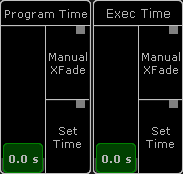 *Time Control* The faders can be assigned to any Fader Executor. This will give physical fader control. Please read the [Grand Masters topic](/grandma2/key_adv_exec_spec_master_grand/). The two faders can be used to set a time. The default maximum is 10 seconds. This maximum value can be changed in Setup->User->[Settings](/grandma2/key_single_multi_systems_user_settings/#settings). The bottom of screen 2 can be changed on the grandMA2 onPC. This will make it fit the hardware on a grandMA2 onPC Command Wing. This will hide the Time Control. Please read the [grandMA2 onPC details topic](/grandma2/key_onpc_details/) for details about turning this On or Off. The fader can still be assigned to physical faders. The virtual control can be created on any screen using the **CMD Section window**. This can be found in the **Other** tab in the [Create Basic Windows pop-up](/grandma2/key_windows/). ## []()Program Time [Section titled “Program Time”](#program-time) The Program Time can be used to add a fade time to changes in programmer values. Set the fader to the desired value and activate the Program Time by pressing the On executor key or tap the Set Time button so there is a red marker. Now the set time will be used for all value changes in the Programmer. To deactivate it tap the Set Time button again or press the Off executor key. The red marker should disappear. It is also possible to use the fader as a manual cross fade from old to new values. Tap the Manual Xfade button or press the MFX executor key to activate the crossfade function - a green marker appears. The master will move to the lowest position (if it is not already there). Change the value to the new values - the output will not change! Move the fader from the lowest to the highest position to fade into the new values. The green marker will flash while the cross fade is active. Tap or press the same button to deactivate the manual cross fade - green marker disappears. ## []()Exec Time (Executor Time) [Section titled “Exec Time (Executor Time)”](#exec-time-executor-time) The Exec Time can be used to add a different fade time to changes in cue values. Set the fader to the desired value and activate the Exec Time by pressing the On executor key or tap the Set Time button so there is a red marker. Now all cues will change values using the set time. Delay and individual times are ignored. Cues with Follow or Time triggers use the stored time. To deactivate it tap the Set Time button again or press the Off executor key. The red marker should disappear. It is also possible to use the fader as a manual cross fade from old to new values. Tap the Manual Xfade button or press the MFX executor key to activate the cross fade function - a green marker appears. The master will move to the lowest position (if it is not already there). Run the desired cues - the output will not change! Move the fader from the lowest to the highest position to fade into the new cues. The green marker will flash while the cross fade is active. Tap or press the same button to deactivate the manual cross fade - green marker disappears. An Executor can be set to ignore the Exec Time. This is done in the [Executor Options](/grandma2/key_adv_exec_options/). This will make the Executor run as normal using the stored cue timings.
# Touch gestures
> The grandMA2 comes with one multi-touch screen (screen 1) and at least one internal TFT wide mode touchscreens (screen 2 to screen 4). Furthermore, you can conn
The grandMA2 comes with one multi-touch screen (screen 1) and at least one internal TFT wide mode touchscreens (screen 2 to screen 4). Furthermore, you can connect two external touchscreens. You can use the multi-touch function in the special dialogs: * Color picker - Fader - Move two or more color faders simultaneously. * Shaper - Fader Mode - Move two or more shaper parameter fader simultaneously. If you want to know what we mean when we mention swipe, tap or other ways of interacting with the grandMA2, have a look at this table. ## Tap [Section titled “Tap”](#tap)  *Multi state toggle button is indicated by an arrow down* Tap once on a button. Opens, select, activates, or toggles whatever you tap. Similar to click with a mouse. ## Slide to rearrange [Section titled “Slide to rearrange”](#slide-to-rearrange)  *Move window* Tap and briefly drag a window in the new direction. Moves a window. Similar to dragging with a mouse. ## Swipe to open options [Section titled “Swipe to open options”](#swipe-to-open-options)  *Swipe button indicated by a small wave* Tap and swipe your finger quickly upwards in the wave direction like the wave icon is.  *Opens the available options* ## Swipe to select [Section titled “Swipe to select”](#swipe-to-select)  *Swipe to select in the layout view* Tap your finger on the screen and move it from the top left corner to the bottom right corner, like you would draw a rectangle. Select the fixtures or channels in the layout view, fixture sheet, or channel sheet. It defines the selection order.
# User interface
> This chapter gives you an understanding of the grandMA2 user interface, the different elements such as the command line, and how to work with these elements.
This chapter gives you an understanding of the grandMA2 user interface, the different elements such as the command line, and how to work with these elements. ## Subtopics [Section titled “Subtopics”](#subtopics) * [Screen layout](/grandma2/key_ws_screen_layout/) * [User-defined area](/grandma2/key_widget_user_defined_area/) * [Command line](/grandma2/key_widget_command_line/) * [X-Key labels](/grandma2/key_widget_x_key_labels/) * [View buttons](/grandma2/key_widget_view_buttons/) * [Master section](/grandma2/key_widget_master_section/) * [Time control](/grandma2/key_ws_time_control/)
# Work with views
> You can store the current size and position of the windows from one or more screens on a view button or in the view pool.
You can store the current size and position of the windows from one or more screens on a [view button](/grandma2/key_widget_view_buttons/) or in the [view pool](#). You can call them later even if you moved or deleted a window. To export or import stored view, see [import user profiles](/grandma2/key_ei_import_gui/) or [export user profiles](https://help.malighting.com/grandMA2/en/help/a4d582c3-5638-4573-b9e9-20ead78a4386.html). *** ## []()The view pool [Section titled “The view pool”](#the-view-pool) All views are stored in the view pool for the current user profile. Assigned views to a view button or an a X-key will be automatically stored on the next empty tile in the view pool. 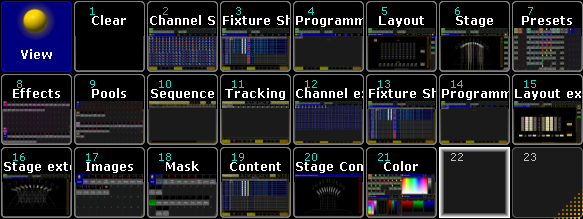 *View pool* To get an overview about all stored views, open the view pool. * Tap in the user defined area, tap at the Pools tab and tap at Views. The view pool is open. For more information about colors in the pools, see [system colors](/grandma2/key_ws_colors_system/). *** ## Store custom views in the view pool [Section titled “Store custom views in the view pool”](#store-custom-views-in-the-view-pool) **Requirement:**\ \- A created view on a screen that you like to store. For more information, see [Mange windows](/grandma2/key_windows/).\ \- An open [view pool](#View%20Pool). 1. Press Store and then tap on a empty tile in the view pool.\ The Store View Options pop-up opens. 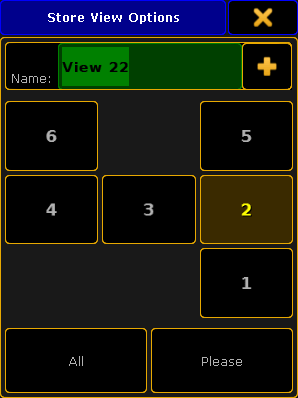 *Store View Options pop-up* 2. Type the view name in the green edit line. 3. Tap at the screens you want to store or if you want to store all screens tap All. 4. Tap Please. The view is store in the view pool. *** ## Assign views on a view button [Section titled “Assign views on a view button”](#assign-views-on-a-view-button) **Requirement:**\ A created view on a screen that you like to store. For more information, see [Mange windows](/grandma2/key_windows/). 1. Press Store . 2. Press either a [V-key](/grandma2/key_key_v1-v10/) or a [X-key](/grandma2/key_key_xkey/), or tap a [view button](/grandma2/key_widget_view_buttons/). 3. The Store View Options pop-up opens.  *Store View Options pop-up* 4. Type the view name in the green edit line. 5. Tap at the screens you want to store or if you want to store all screens tap All. 6. Tap Please. The view is assigned to the view button and stored in the view pool on the next empty tile. *** ## Call views [Section titled “Call views”](#call-views) **Requirement:** A stored view. * If the view is stored in the [view pool](#View%20Pool), tap on the tile in the view pool. * If the view is assigned to a [view button](/grandma2/key_widget_view_buttons/), tap on the view button or press the respective [V-key](/grandma2/key_key_v1-v10/) or [X-key](/grandma2/key_key_xkey/). The stored view is called. *** ## Delete views from view buttons [Section titled “Delete views from view buttons”](#delete-views-from-view-buttons) * Press Delete and tap on the view button or press the respective [V-key](/grandma2/key_key_v1-v10/) or [X-key](/grandma2/key_key_xkey/). The view is deleted from the view button but still stored in the [view pool](#View%20Pool). *** ## To delete views from the view pool [Section titled “To delete views from the view pool”](#to-delete-views-from-the-view-pool) **Requirement:** Open [view pool](#View%20Pool). * Press Delete and then tap on the view tile in the view pool. The view is deleted from the view pool and from all assigned [view buttons](/grandma2/key_widget_view_buttons/).
# XYZ
> XYZ adds virtual channels to the fixtures.
XYZ adds [virtual channels](#virtual_channels) to the fixtures. **Requirements:** * Patch fixtures that have pan and tilt attributes. For more information on patching see [Adding fixtures to your show](/grandma2/key_patch_add_fixtures/). **Activate XYZ in fixture types:** 1. Press Setup.\ The main menu opens. 2. Tap Patch & Fixtures Schedule.\ The **dialog Edit Setup** opens. 3. Tap Fixture Types on the right of the window.\ The **dialog Fixture Types** opens. 4. Tap and hold a grayed out cell in the **column XYZ**. \ -or-\ Tap a grayed out cell in the column XYZ and then tap Enable XYZ. 5. XYZ is now enabled and the cell displays **On**. 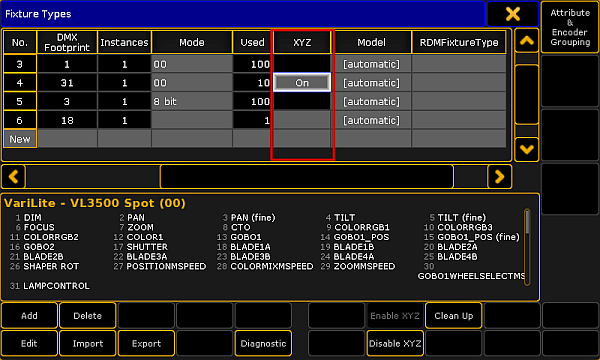 *Enable XYZ* 6. To save the changes in the **Patch & Fixture Schedule**, close the **dialog Fixture Types**:\ -Tap  in the upper right corner of the dialog.\ -The **dialog Edit Setup** appears.\ -Tap  in the upper right corner of the dialog.\ -A warning pop-up appears. \ -Tap Yes. 7. The changes are now saved. 8. Select fixtures. 9. Tap Position in the preset control bar.\ For more information see [Preset control bar](/grandma2/key_ws_preset_control_bar/). 10. Tap the feature Position below the preset **Position**.\ -If you tap Position, the button toggles between the features **Position**, **Stage A**, and **Stage B**. 11. Adjust the attributes of **Stage A** for example.\ -Tap X and the calculator opens.\ -Type the value for the x-coordinate or select a preset on the right of the calculator. 12. The values are now adjusted. *** ## []()Virtual Channels [Section titled “Virtual Channels”](#virtual-channels) If XYZ is enabled, the following virtual channels are added to the fixtures: * **Stage (X):**\ X is the horizontal direction on the stage. * **Stage (Y):**\ Y is the direction that runs toward or away from the audience. * **Stage (Z):**\ Z is the vertical direction on the stage. * **Flip:**\ Is the parameter to select the flip position. This parameter switches over between the flip modes:\ Auto flip, Center, and No tilt flip.\ **Auto flip**: Fixture can automatically flip to reach the required XYZ position. It uses both axes to flip, pan, and tilt.\ **No tilt flip**: The fixture uses the pan axis only.\ **Center**: The fixture flips the same amount of times in each direction. That is, the flip value is 0. * **Mark:**\ Sets the stage marker the beam of the fixture is to point at. * **Pan:**\ Fixture moves in the horizontal direction. * **Tilt:**\ Fixture moves in the vertical direction. * **Dist:**\ Is the distance between the point that the beam of the fixture points at and the fixture itself. Dist is used when converting pan and tilt to XYZ and vice versa. * **PosMode:**\ Switches over between the XYZ and pan/tilt values. For information on different combinations of pan/tilt see [the Flip keyword](/grandma2/key_keyword_flip/). ## Subtopics [Section titled “Subtopics”](#subtopics) * [XYZ vs. pan/tilt](/grandma2/key_xyz_vs_pan_tilt/) * [XYZ and pan/tilt in cues and sequences](/grandma2/key_xyz_pan_tilt_in_cues_sequences/) * [Use stage markers](/grandma2/key_xyz_use_stage_markers/) * [Link objects to stage markers in MA 3D](/grandma2/key_xyz_link_object_to_stage_markers/)
# Link objects to stage markers in MA 3D
> You can link objects to stage markers in the MA 3D.
You can link objects to stage markers in the MA 3D. For more information on the stage markers in MA 3D see the [MA 3D Manual – Moving Paths](https://help.malighting.com/grandMA2/en/help/ma_3d/key_movingpaths.html). **Requirements:** * Add 3D to the session.\ For more information on how to add 3D to the session see [Networking – Session Control – Adding devices to your session](/grandma2/key_network_session_add_device/). * Take over objects into the 3D show.\ For more information on how to take over objects into a 3D show see the [MA 3D Manual – Media Database](https://help.malighting.com/grandMA2/en/help/ma_3d/key_mediadatabase.html). To control the objects in MA 3D via a stage marker in the grandMA2, import the objects into the 3D: 1. Click the object in the view **Assets** on the right of the user interface in the MA 3D and drag and drop it into the fixture Stage Marker in the **folder Stage Markers**.  *Drag and drop object into the fixture in the folder Stage Markers* 2. To display the object that has been linked to the stage marker, click the tab **Stage View** in the upper left corner below the title bar with icons.  *Object linked to a stage marker* For more information on how to control the object via the stage marker see [Use stage markers](/grandma2/key_xyz_use_stage_markers/#move_stage_marker).
# XYZ and pan/tilt in cues and sequences
> It is possible to individually set the position mode in a cue or a sequence.
It is possible to individually set the position mode in a cue or a sequence. Set the position mode when storing a cue using the temporary store options. 1. Open the **Store Options**. For more information on the store options in cues and sequences and how to open them see [Store options and defaults](/grandma2/key_cs_store_options_default/).  *Set position mode when storing a cue or a sequence* 2. To toggle between the position modes when storing a cue or a sequence, tap Active position data. 3. Press Please. 4. The position mode you have selected is now applied. *** ## Position Modes [Section titled “Position Modes”](#position-modes) * **Active position data:**\ Stores position data as they are – XYZ or pan and tilt. * **XYZ:**\ Converts the pan and tilt values to XYZ values and stores them. * **Pan/Tilt:**\ Converts the XYZ values to pan and tilt and stores them. *** ## Set Position Modes in a Sequence [Section titled “Set Position Modes in a Sequence”](#set-position-modes-in-a-sequence) Set a default position mode in the Assign Menu of a sequence for the entire sequence. **Requirement:** [Assign a sequence to an executor](/grandma2/key_exec_assign/) 1. Open the **Assign Menu** of the sequence:\ -Tap Assign and press the executor you have saved the sequence on.\ -The **Assign Menu** opens.\ -Tap Options on the right of the menu.  *Set a default position mode in a sequence* 2. Tap the button Forced Pos. Mode in the column **Tracking** and the **pop-up Select Forced Position Mode** opens. 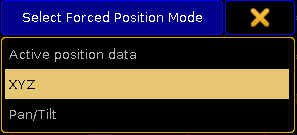 *Select position mode* 3. Tap the position mode you would like to set as the default of the sequence. 4. The default is now set. *** ## Set Position Modes in the Sequence Executor Sheet [Section titled “Set Position Modes in the Sequence Executor Sheet”](#set-position-modes-in-the-sequence-executor-sheet) The **Forced Position Mode** in the sequence executor sheet allows to adjust the position in single cues after the positions were saved. It defines how pan and tilt is executed onstage. **Requirement:** [Store cues](/grandma2/key_cs_store/) 1. Open the sequence executor sheet. For more information see [Manage windows – Create Basic Window](/grandma2/key_windows/).  *Open sequence executor sheet* 2. Tap All in the title bar and scroll to the column **Forced Pos. mode**.  *Adjust forced position mode in a single cue* 3. Tap and hold the cell below **Forced Pos. mode** and the **pop-up Select Forced Pos. mode** opens. 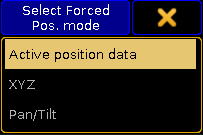 *Select the position mode of a cue* 4. Tap the position you would like to set for the current cue. 5. The position has been adjusted.
# Use stage markers
> A stage marker is a virtual fixture.
A stage marker is a virtual fixture. It is used to operate objects such as singers or fixtures in a 3D space via the console. Fixtures can direct their beams to a stage marker. **Requirement:** * Patch the fixtures Stage Marker or Stage Marker II in the Patch & Fixture Schedule. For more information on patching see [Adding fixtures to your show](/grandma2/key_patch_add_fixtures/). **Hint:**\ The fixture Stage Marker moves in the position mode XYZ and the Stage Marker II moves in the position mode XYZ, rotates and can be scaled. *** ## []()Move the Stage Marker [Section titled “Move the Stage Marker”](#move-the-stage-marker) 1. Select the stage marker for example in the fixture sheet. 2. Open the stage view:\ -Tap Other and then tap Stage in the [Create Basic Window](/grandma2/key_windows/).\ -The stage marker is displayed in form of a square at the bottom of the stage view. 3. Tap Position. 4. To move the stage marker, activate MP Trans and use the three encoders from left that are located below screen 2. 5. To adjust the size of the stage marker, tap **MP Trans** to toggle it to MP Scale and use the encoders. 6. To rotate the stage marker about the axes, tap **MP Scale** to toggle it to MP Rot and use the encoders. The position of the marker has been adjusted.  *Move the stage marker* *** ## Transition, Scale, Rotation [Section titled “Transition, Scale, Rotation”](#transition-scale-rotation) **MP Trans**, **MP Scale**, and **MP Rot** are position features of the stage markers. Access them via the preset type **Position**. **MP Trans:** * To move the stage marker to the left or right, use the first encoder from left. * To move the stage marker forward or backward, use the second encoder from left. * To move the stage marker upward or downward, use the third encoder form the left. **MP Scale:** * To expand the sides of the stage marker on the X-axis, use the first encoder from left. * To expand the sides of the stage marker on the Y-axis, use the second encoder from left. * To expand the sides of the stage marker on the Z-axis, use the third encoder from left. **MP Rot:** * To rotate the stage marker about the X-axis, use the first encoder from left. * To rotate the stage marker about the Y-axis, use the second encoder from left. * To rotate the stage marker about the Z-axis, use the third encoder from left. *** ## Direct the Fixtures´ Beams to a Stage Marker [Section titled “Direct the Fixtures´ Beams to a Stage Marker”](#direct-the-fixtures-beams-to-a-stage-marker) To apply the stage marker: 1. Select the fixtures that are to point to the stage marker in the fixture sheet and turn them on. **Important:**\ Note that XYZ has to be activated in the fixtures that point to the stage marker. For more information see [XYZ](/grandma2/key_xyz/). 2. Tap the preset type Position and then tap Stage B. 3. Tap Mark and the calculator opens displaying the channel sets of markers. 4. Select a stage marker. 5. Tap Stage B to toggle it to Stage A. **Hint:**\ The calculator that opens in **Stage B** displays the names of the stage markers. 6. To direct all the fixtures toward the stage marker, set XYZ to 0 in **Stage A**. **Important:**\ The XYZ position of the beam of fixtures that are assigned to a stage marker are relative to the position of the stage marker. The fixtures are now pointing to the stage marker you have set.  *Direct the beams to a stage marker* \*\* Hint:\*\*\ You can link objects to stage markers. For more information see [Link objects to stage markers in MA 3D](/grandma2/key_xyz_link_object_to_stage_markers/).
# XYZ vs. pan/tilt
> Note that a fixture always receives pan and tilt values.
Note that a fixture always receives pan and tilt values. However, if XYZ is activated, the pan and tilt values are converted to coordinates on stage.