Choose Delete Method
If you try to delete a cue from a cue list, the console ask to choose the delete method.
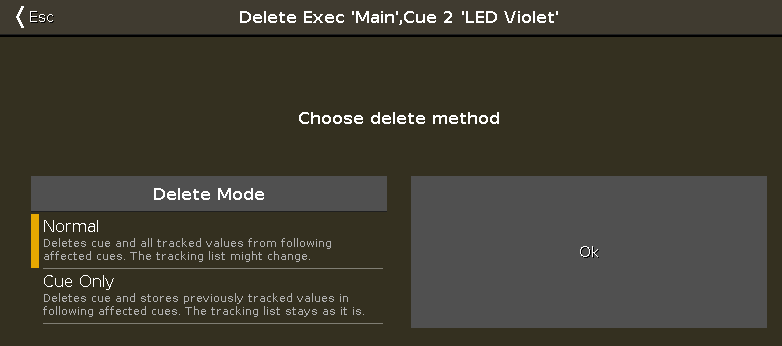 Figure 1: Choose Delete Method Window
There are two delete methods available.
To leave the window, tap Esc in the title bar or press Esc on the console.
The delete process is canceled.
For more information about delete, refer to Delete Command and Delete Key.
The following tables explains the functions of the two methods on an example.
Initial Situation
Section titled “Initial Situation”| Cue list | Fixture 1 | Fixture 2 | Fixture 3 |
|---|---|---|---|
| Cue 1 | 100 % | 0 % | 0 % |
| Cue 2 | 100 % tracked value | 50 % | 0 % |
| Cue 3 | 100 % tracked value | 50 % tracked value | 25 % |
Normal Delete
Section titled “Normal Delete”| Cue list | Fixture 1 | Fixture 2 | Fixture 3 |
|---|---|---|---|
| Cue 1 | 100 % | 0 % | 0 % |
| Cue 2 | Normal delete | Normal delete | Normal delete |
| Cue 3 | 100 % tracked value | 0 % | 25 % |
Delete Cue Only
Section titled “Delete Cue Only”| Cue list | Fixture 1 | Fixture 2 | Fixture 3 |
|---|---|---|---|
| Cue 1 | 100 % | 0 % | 0 % |
| Cue 2 | Delete cue only | Delete cue only | Delete cue only |
| Cue 3 | 100 % tracked value | 50 % | 25 % |