Navigate in the Help
Buttons in the Title Bar
Section titled “Buttons in the Title Bar”To increase or decrease the size of the content displayed within the help window:
- Tap
 (plus) or
  (minus)
 - Tap on Zoom Factor and swipe left or right
- Tap Zoom Factor and choose a percentage in the drop-down list
Tap  (left arrow) to reverse through the history of previously viewed help topics.
Tap  (right arrow) to advance through the history of previously viewed help topics.
Scrolling in the Help
Section titled “Scrolling in the Help”- Two-finger tap and swipe in X or Y direction to scroll through a help topic.
- Use the screen encoder to scroll through a help topic in the XY direction. For more information, see User Settings.
Topics Tab
Section titled “Topics Tab”The topics tab in the help window displays the available topics in a tree structure. Single topics are indicated by  next to them. Multiple topics of the same category are sorted within a folder (
 ) and are called subtopics.
Tap > to the left of any topic to show or hide any related subtopics. Tap the name of any topic to display its content in the main area of the window. Subtopics are also displayed in a bullet list at the end of the topic.
If the help window is too small to display both the main area and the topics and search tabs, a burger menu ( ) appears in the upper left corner. It contains the topic and search tabs.
The root topics in the tree structure are divided into the different products within the family. These main sections include:
- grandMA3 User Manual
- grandMA3 Quick Start Guide
- grandMA3 Quick Manual consoles
- grandMA3 Quick Manual processing
- grandMA3 Quick Manual Nodes
- grandMA3 Quick Manual Nodes DIN-Rail
- grandMA3 Quick Manual onPC command wing XT
- grandMA3 Quick Manual onPC command wing
- grandMA3 Quick Manual onPC fader wing
- grandMA3 Quick Manual viz-key
- grandMA3 Quick Manual onPC Rack-Unit
- grandMA3 Quick Manual I/O Nodes
- Release Notes
 | Important: |
| The complete grandMA3 documentation consists of the grandMA3 User Manual and the respective grandMA3 Quick Manual with technical specifications, safety instructions, and declaration of conformity. |
Search Tab
Section titled “Search Tab”To find topics containing a specific search term, use the search function:
- Open the search tab in the help window.
- Tap into the white field.
- Type the term, such as cue, in the search box.
- Press Please. The search results are shown.
To open a virtual keyboard in the software, tap on the keyboard icon on the left of the search box.
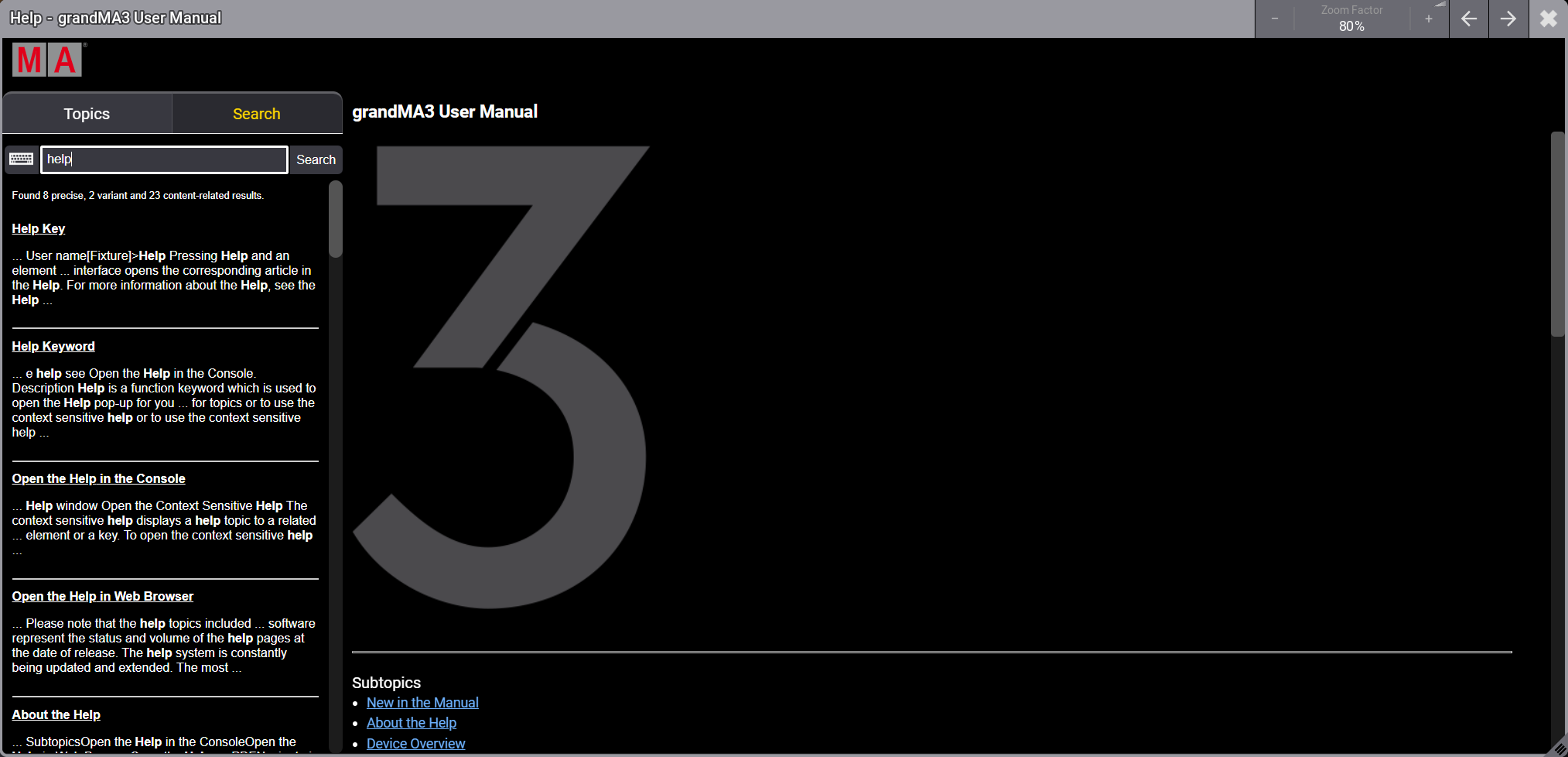
Help window - Search tab
To search for a specific product or search term, the brand name or the series name (for example grandMA3) is not necessary.
Listed Subtopics
Section titled “Listed Subtopics”A list of subtopics that are related to the current topic is displayed at the bottom of the help page.
To open a related topic, tap it in the list.
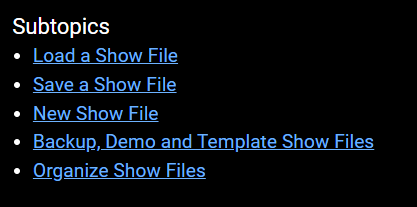
Listed subtopics
Breadcrumbs
Section titled “Breadcrumbs”Breadcrumbs are navigation elements that provide links to the related sections of the current topic and subtopics. Breadcrumbs are located at the top of each topic.
To go back in a topic, tap the corresponding section in the breadcrumbs.

Breadcrumbs to navigate in the help