Adjustable Columns
In certain windows and sheets, the column arrangements can be customized. The following sections will be covered in this topic:
 | Hint: |
| To save and recall your arrangements, store them as Views or use Preferences. For more information, see Store and Recall Views, Store Settings, and Store Preferences |
There are two ways to customize the columns: enable column editing in the grid and use gestures, or define the column arrangements in column sets.
The following windows and sheets in the Add Window pop-up use column editing to adjust the columns. See gestures for more information.
- Content Sheet
- Fixture Sheet
- Track Sheet
- Layouts and Layout Editor
- Timecode Editor and Timecode Viewer
In addition, the following windows and sheets are using Column Sets:
- Agenda Viewer.
- RDM Devices Viewer.
- Sequence Sheet.
- Track Sheet.
Column Editor in the Grid
Section titled “Column Editor in the Grid”The following video provides a basic overview of the column editing feature using gestures.
Open Column Editing
Section titled “Open Column Editing”To edit specific columns, open column edit mode in the corresponding window.
To open column editing:
- Open the corresponding window, for example, the fixture sheet via the Add window dialog.
- Perform a 2-finger scroll gesture in the header row of the window. A gear icon (
 ) appears in the top left corner of the header.
 - Tap within three seconds. Three available buttons for column editing are shown.
- Tap Enter Column Editing. The window contents will be displayed in light gray, and the columns are now ready for editing, as shown in the image below.
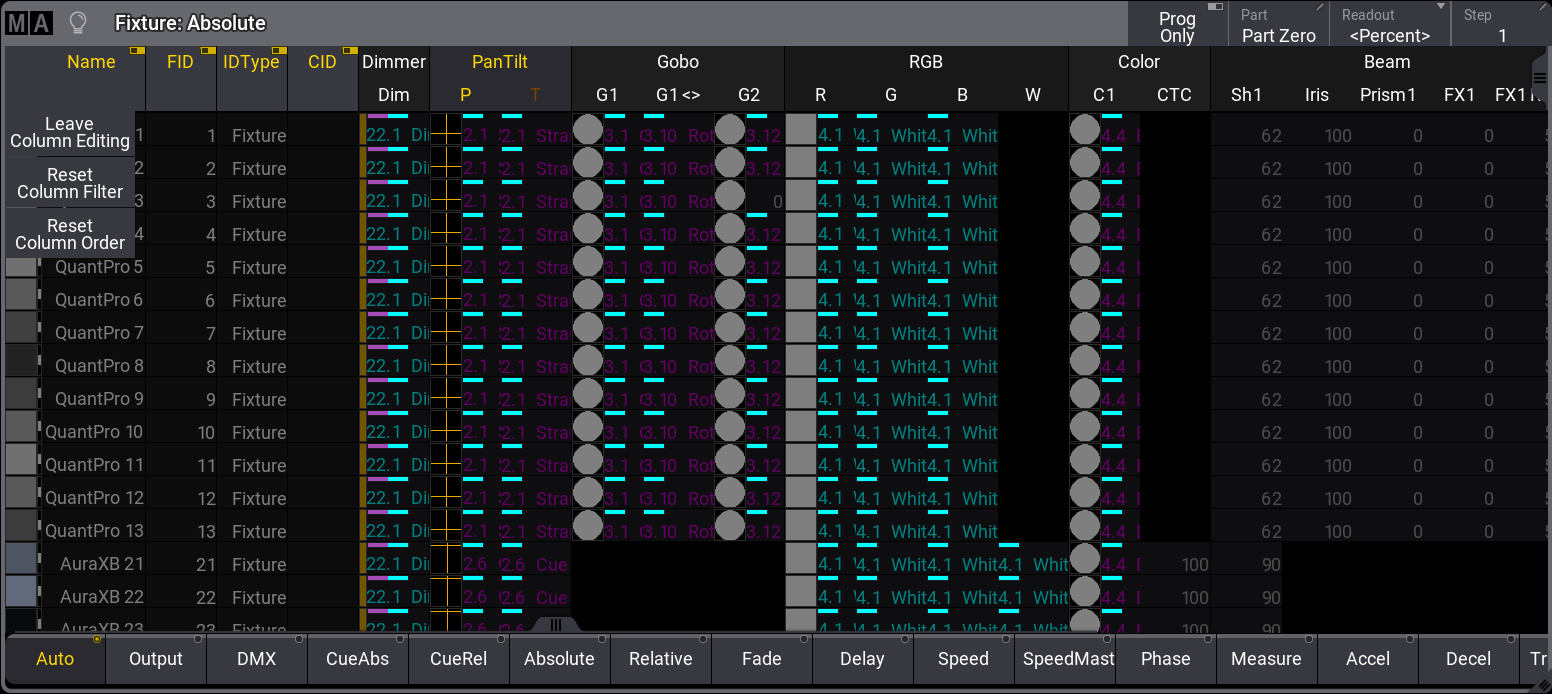
Fixture Sheet - Column Editing
Edit Columns
Section titled “Edit Columns”A drag-and-drop gesture is used to change the column order.
To change the column order in the corresponding window, for example, the fixture sheet:
- Tap and hold a column header with one finger, for example, the Color header.
- Drag the column left or right to the desired position. A red vertical line indicates the potential position of the column when releasing the finger.
- Release the finger. The column has now moved to the new position. To reset all columns to their initial positions, tap Reset Column Order.
- Tap Leave Column Editing. The edit column mode is closed.
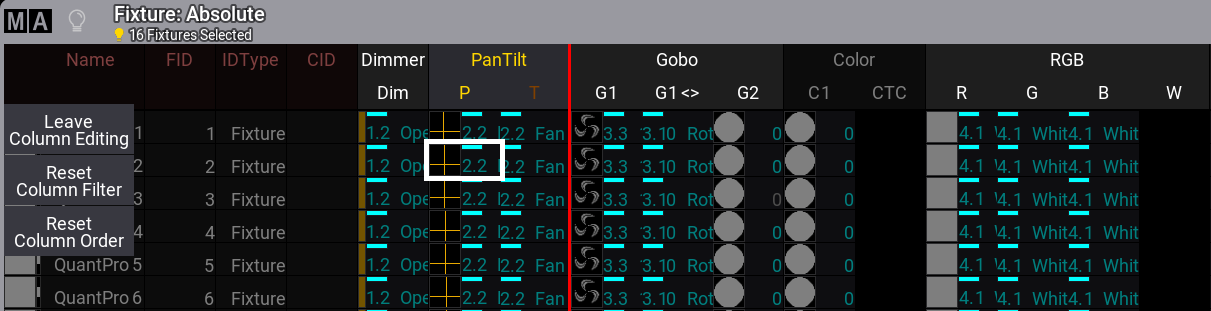
Fixture Sheet - Column Editing mode with a red vertical line