17 - Recipes
In Chapter 15, we created a sequence with multiple cues using different presets.
Recipes can produce a similar result, but in a very flexible setup. This means we can program a show knowing that our fixtures might adjust in the future - both the amount and type. We can then choose to program our show so we are ready for future adjustments.
Let us have a look at the theory behind the recipes.
A recipe line can contain a set of information. This often involves a selection of fixtures (possibly from a group), a set of values (often from a preset), and information on how to apply those values to the fixtures. This information is then “cooked” into a cue or a new preset.
If an element is changed, the recipe can be re-cooked, and the cue or preset will reflect the updated information. The element containing information about how to apply the values to the selection is what makes the recipe unique compared to using all presets with embedded presets (like we did in chapter 13) and the flexibility in updating a few groups and then re-cooking an entire sequence, makes the recipes a unique and very flexible tool when you often have to make adjustments to your show setup - for instance in a touring show.
A recipe can contain multiple recipe lines. Each line can contain one set of information, making the entire recipe capable of having multiple sets of information.
This graphic is from the recipe topic:
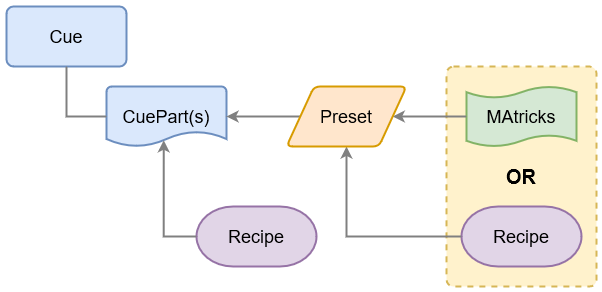
This shows us that a recipe can be stored in a cue part or preset, which can then be used in a cue part. It also shows an element called “MAtricks”, which is currently out of the scope of the quick start guide.
If a cue part contains its own recipes and uses recipe-based presets, it can be complex for the software to determine what output the fixture should produce. Ultimately, each fixture can only have output from one source at any given time.
So I suggest keeping it as simple as possible. You can create incredibly complex programming, and the software will still figure out what to do. There is a greater risk of confusing yourself and your colleagues.
Okay, let us do something and look at how it works.
View Setup
Section titled “View Setup”We should set up a view with the elements we will use.
We need a sequence sheet to look at the sequence - create one on an empty user area or call a view with a sequence sheet.
We also need a group pool with an empty group pool object. And we need the All preset pool number 1. It might also be useful to have a 3D Viewer visible.
We need to make sure the sequence sheet displays the recipe lines. It might show this by default, but to ensure it does, click the MA logo in the upper left corner of the sheet, then click the Mask tab. This tab contains settings for customizing the appearance of the sequence sheet. Click Show Recipes to toggle it On. This setting might also have a button in the title bar called ‘Show Recipe’. This toggles the same setting as the one in ‘Mask’.
We also want to set how presets are displayed in the recipe lines. Change the setting called Recipe Preset until it says ID+Name.
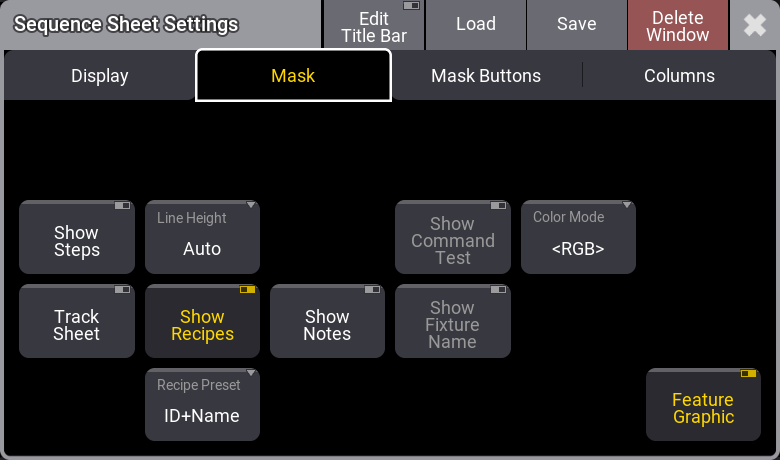
Close the settings.
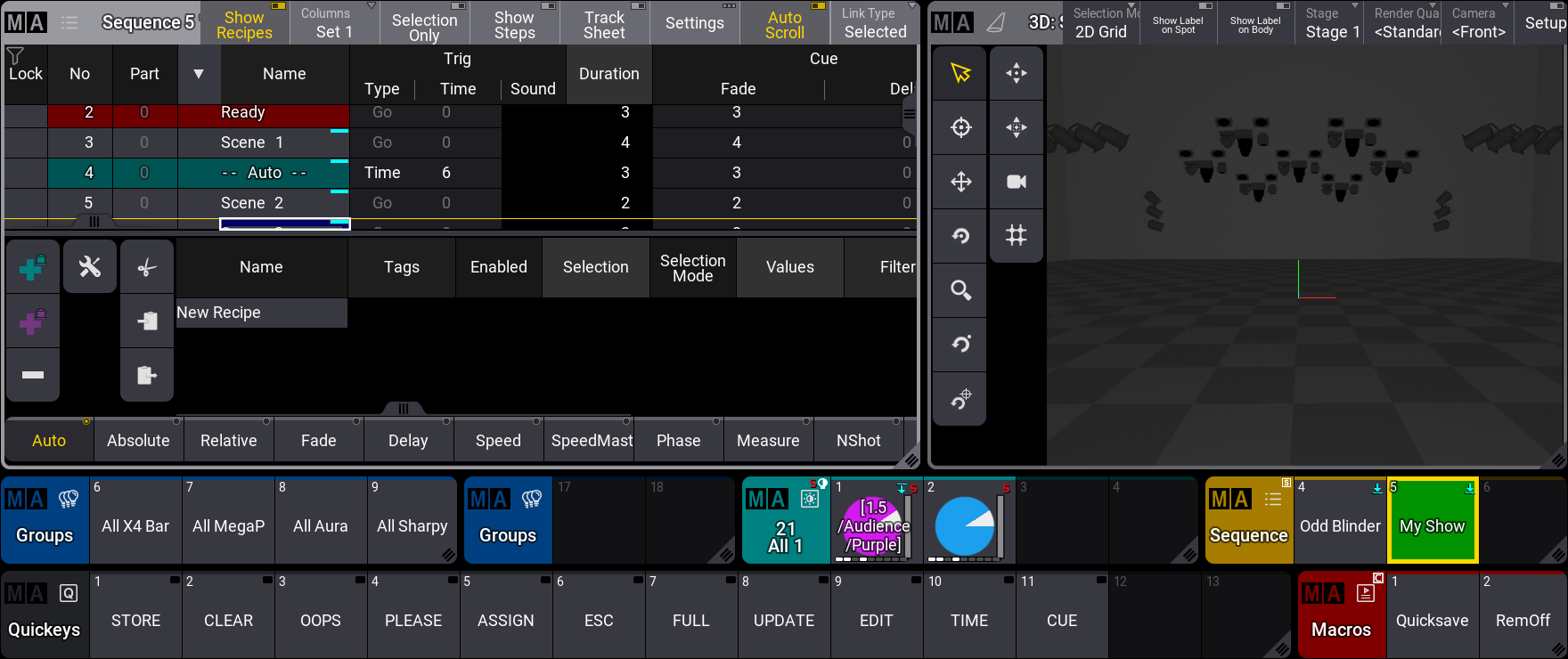
Now, the bottom part of the sequence sheet shows an area where recipes can be created and edited.
My view looks like this:
Cue with a Recipe
Section titled “Cue with a Recipe”We are going to create a cue that uses a recipe.
Start by clearing the programmer and turn off any active sequences.
Then, store a new sequence and select it. For me, it will be sequence number 6.
The new sequence should contain an empty cue 1. You can assign an executor to control the sequence if you want.
We are going to create a recipe that uses a group. Select fixtures 201 and 202 and store this as a new group. This will be my group number 17.
We now have all the building blocks we need for our cue recipe.
You can see the recipe area at the bottom of the sequence sheet. Click cue 1 to select it - you may need to click the cue part number.
The separation between the normal sequence sheet and the recipe area can be adjusted by clicking and moving the gray bar, separating the two areas up or down.
Right-click New Recipe in the recipe area. Select Standard Recipe in the small pop-up.
This line has a lot of columns that can contain settings for the recipe line. It is outside the scope of this quick start guide to explain what each column does.
Right-click (or Edit) the field in the “Selection” column. This opens a selection pop-up with all the groups. Select the new group with the two Mega Pointes. Now right-click the “Values” field and select a color preset.
Now we can see the cue name changed, and it got a small “pot” ( ) icon.
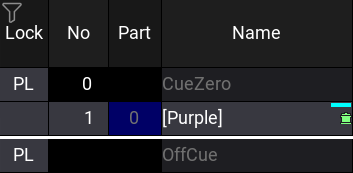
Run the first cue of the sequence. We don’t see anything. Select the group and give the fixtures a dimmer value. Store this into cue 1 using merge and clear the programmer.
We can see that the fixtures get the color from the preset cooked into the cue, and the dimmer values are stored directly into the cue without referencing a preset or a recipe. Turn on Track Sheet to see what is stored in the cue. It appears that the color is just coming from the preset, just like if we stored it manually into the cue. Only the small green dot in the upper right corner of the value and the pot icon in the name indicate that some attributes are affected by a recipe. Notice that the pot has changed color (orange). This is because we now have a mix of values from a cooked preset and those stored directly in the cue.
You should have some dimmer presets, including one with a low level and one with 100%. If you do not, then please create these (as universal presets).
Let us create a new recipe line for cue 1, so we have two lines. This time, do this by clicking the existing recipe line, then the dark cyan plus icon in the menu on the left.

We also want the group to be the “selection” for this line. It might automatically already be the case, it not, use the swipey menu of the group and select Assign. Now, click the new recipe line. This assigns the group as the selection.
Use either of the two methods to select a dimmer preset with a lower dimmer value as the “value”.

Notice that this does not change the output. This is because the cue’s manually stored “hard” values have a higher priority than the recipe data.
The second line’s name is red, and the pot icon in the cues’ name is red. This indicates that some recipe values are not cooked.
Let us try to change the fixture selection in the group. Select group 7 and store the new selection into the group used in the recipe - in my example, group 17. You can choose to merge or overwrite the group.
The result is that the other spots turn on in my selected color and the lower dimmer value - they reference both the dimmer and color preset. The pot icon turned orange. That is because the cue contains cooked recipe data, and there is selective data overwriting some recipe data.
We will now remove the stored “hard” dimmer values from the cue.
With the group selection, give the fixtures a dimmer value - the actual value does not matter; we just need the active programmer value.
Execute the following command:
 | User name[Fixture]>Store Cue 1 /Remove |
Clear the programmer.
All the “hard-coded” dimmer values are now removed from the cue, and the fixtures have the dimmer values from the recipe. The recipe was automatically cooked with the store action, and the pot is green again. We can also manually cook the cue or sequence again.
Let us try the manual approach. Execute the following command:
| User name[Fixture]>Cook Sequence 6 |
If your sequence is not number 6, please adjust the number to match.
This gives us a pop-up:
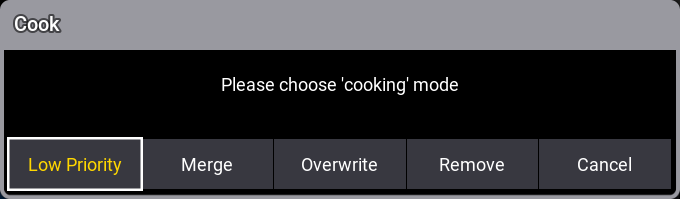
We did not specify how the values should be cooked into the cue in our command, so the software asks us what we want. Note that we can also use the cook command to remove recipe data.
We want to merge the recipe data, so click Merge.
The fixture now uses the dimmer preset.
Let us try to change the dimmer preset in the second recipe line. Select a different dimmer preset with a high output. You can use the assign method or right-click the values field in the line and select the desired preset. Notice how the cue name adjusts to represent the referenced presets.
Add a third recipe line and use the same group as the selection and a position preset as the value.
When the value and selection are added, it is automatically cooked into the cue, and the fixtures reflect the output.
The final change we will make is adjusting the fade and delay times for the dimmer recipe line.
Scroll the recipe to the right to show the MAtricks section. Click the black triangle icon to unfold all the MAtricks columns. Scroll to the “Fade X” and “Delay X” columns.
It is outside the scope to explain the X, but the fade and delay allow us to add a value range for the selection. Edit the “Fade X” cell and in the calculator pop-up click 3 Thru 1 0 Please. The “Delay X” value should be 1.
The result should look like this:
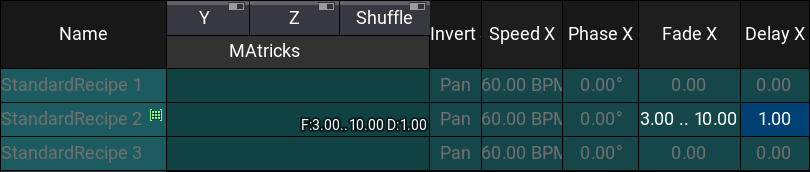
Try to turn off the sequence and then run the cue. You can see that the individual fixtures use the individual fade times, matching the range in the recipe. It might be easier to see in a fixture sheet.
Finally, edit the group (Group 17) to contain only fixtures 201 and 202, and use the “overwrite” method to store only these two fixtures in the group.
The output is now updated. If not, try turning off the sequence and running the cue again to see how the output adjusts to the new selection.
Preset Recipe
Section titled “Preset Recipe”We are going to create a preset containing a recipe.
Clear the programmer and turn off the sequence.
We are going to adjust the view to include the “Recipe Editor” window found in the Tools section. We do not need the preset pools. My view looks like this:
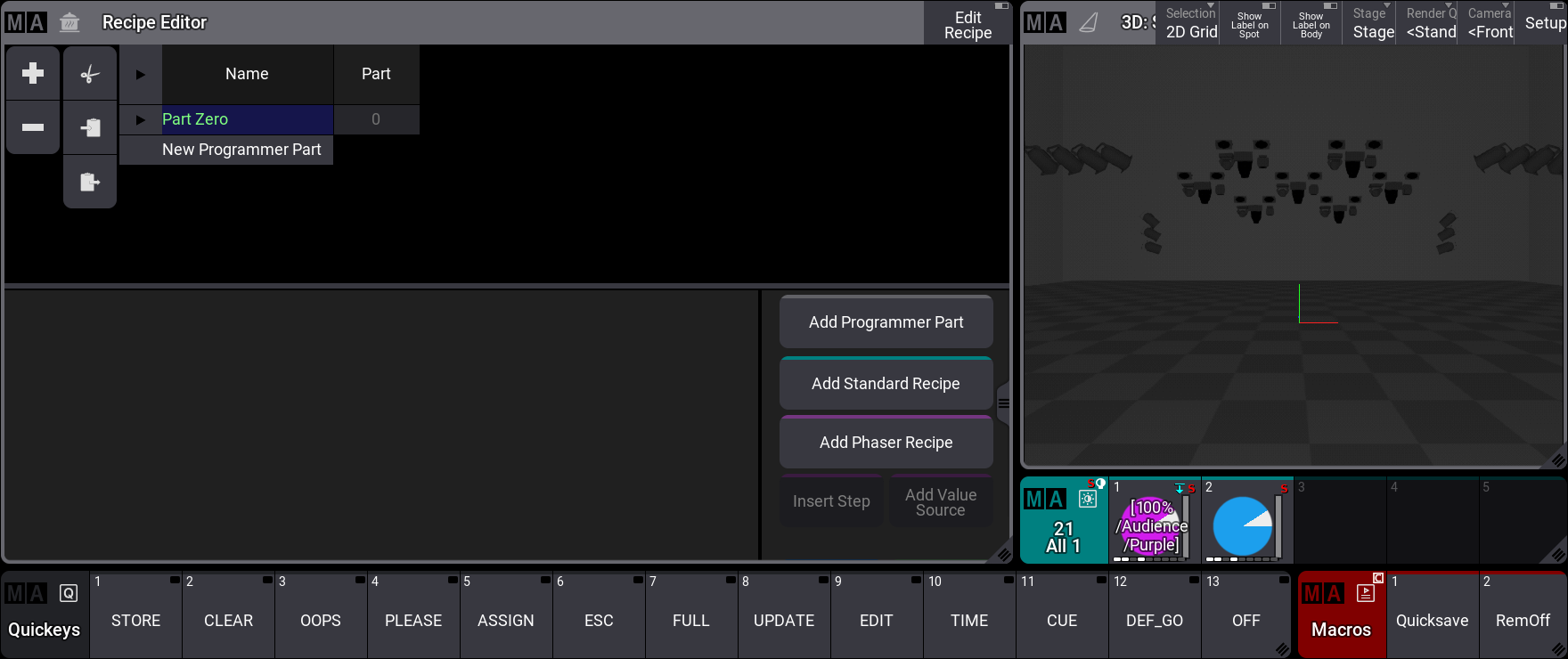
The Recipe Editor is a window we can use to build and edit a recipe in the programmer. We will use this to create a new recipe and store it in a new preset.
Now we can build a recipe in the programmer.
Click Add Standard Recipe. This adds a recipe line.
Click the “Selection” cell. Now, the bottom part lets you select one of the groups. The bottom part changes to display the relevant pool or editor depending on the selected cell.
On the bottom left, there are three buttons that control how the pools are displayed or whether a relevant editor is displayed.
Click the group with the two fixtures (my group 17). Click the “Values” cell in the same recipe line.
At the top of the bottom part, we can now select a preset pool in a bar that can be hard to read. We need a dimmer preset, so click 1 Dimmer in the bar, then select one of the high value presets.
Now we need the second line. Click Add Standard Recipe again.
The group should be added automatically, so we need to click the color preset button 4 Color, and then one of the color presets.
My result looks like this:
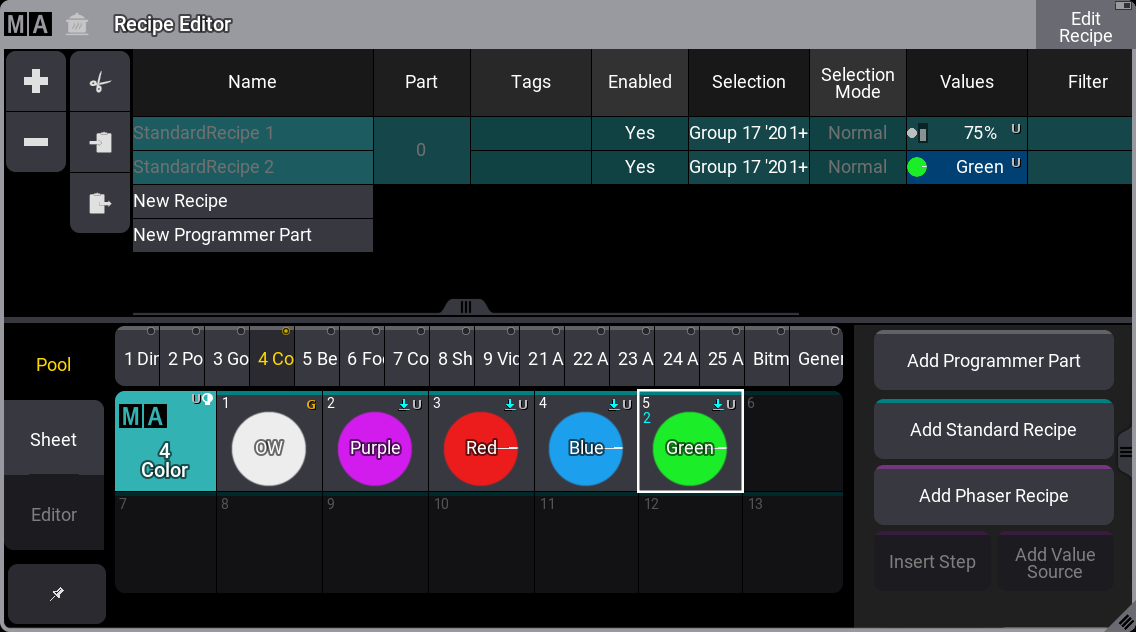
These are programmer values, and they can be stored in a cue or a preset. Store this as a new “All 1” preset. My first available preset is number 3.
The preset is created, and the active programmer values are removed.
Clear the programmer.
Now, try the preset by clicking it twice. The fixture should turn on in the selected color. Let us try to adjust the preset.
Right-click the preset. The recipe lines are called back into the Recipe Editor, and the editor has a green frame to indicate the general edit mode.
We want to add a fade value for the color. This can be done by selecting the “Name” column in the color preset row.
Now the bottom part displays an MAtricks editor. Here, we need to change the “Fade From X” value to 2.
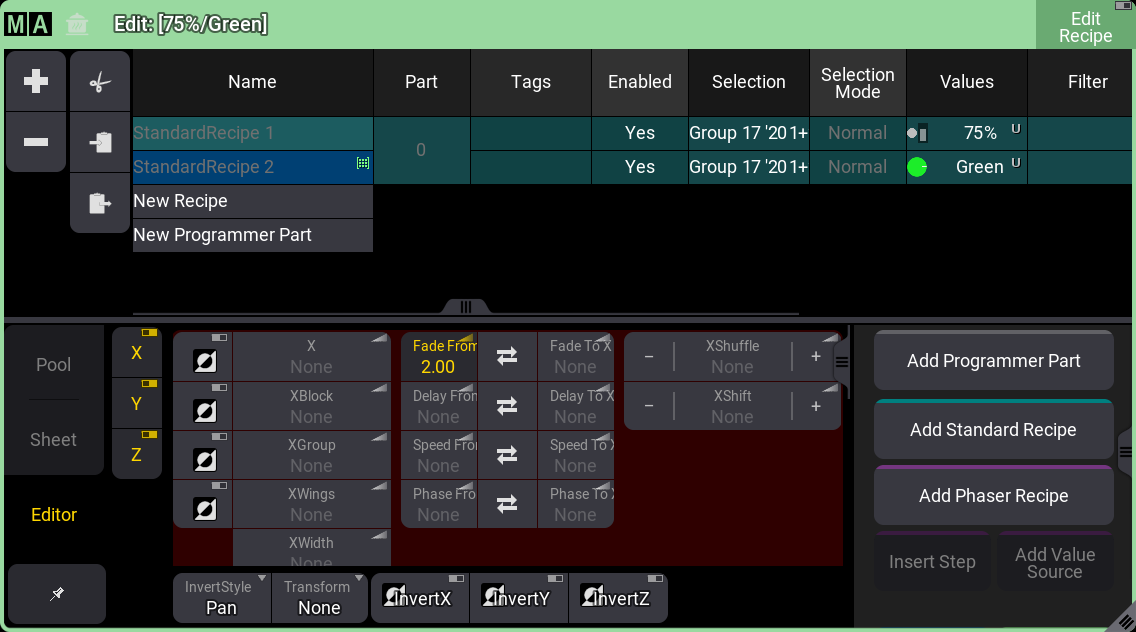
Click Update and then OK to update the preset. Clear the programmer and try clicking the preset twice to test the change. The color should fade in.
Click the group with all the Mega Pointe (Group 7) and store (merge) the selection into the group used in the recipe (my group 17).
This does not update the output. The programmer still only has the recipe information for the two fixtures. The added fixtures are not automatically cooked into our programmer. Click the preset to call the recipe values for the entire group.
Recipe Preset without a Selection
Section titled “Recipe Preset without a Selection”Clear the programmer again.
We will now create a recipe preset that does not contain a selection. A preset without a selection can be applied to the current selection. The valid values are then cooked into the programmer.
Use the swipey menu on an empty preset in the All 1 preset pool. For me, the first empty pool object is number 4. In the swipey menu, select Edit Settings. This opens an editor for the pool object.
This is a big editor that uses a lot of space. We can get a bit more space for our needs if we turn off the ‘Settings’ in the title bar.
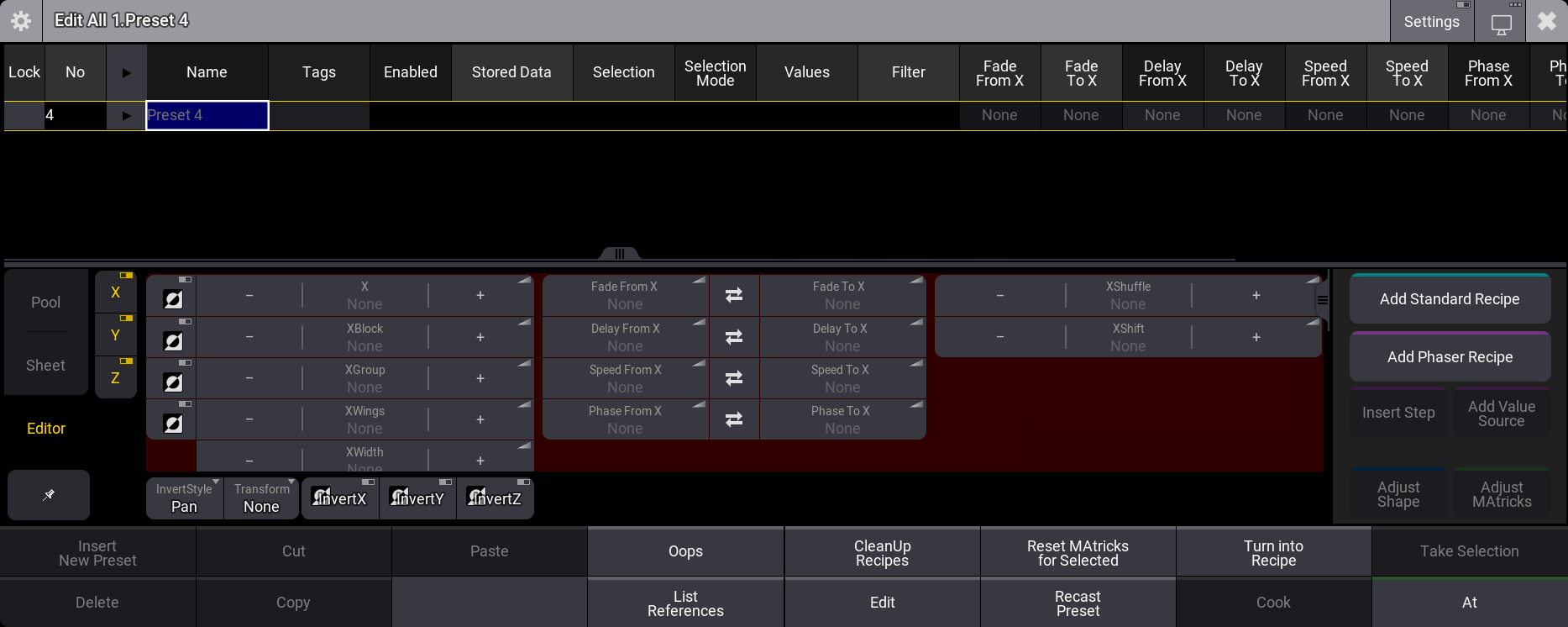
This big editor has the same recipe section as the Recipe Editor.
We need to add a recipe line. Click Add Standard Recipe.
This gives us the first recipe line. The input defaults to the selection, but we want to add a value. Please select the “Values” cell. Select a color preset as the value.
Select the name cell and in the MAtricks editor at the bottom, please edit the “XWings” to a value of 2 and the “Fade From X” value to 3, the “Delay From X” to 0 and “Delay To X” to 5.
Add an extra standard recipe line and a dimmer preset with a high value for the recipe line.
The result should look something like this:
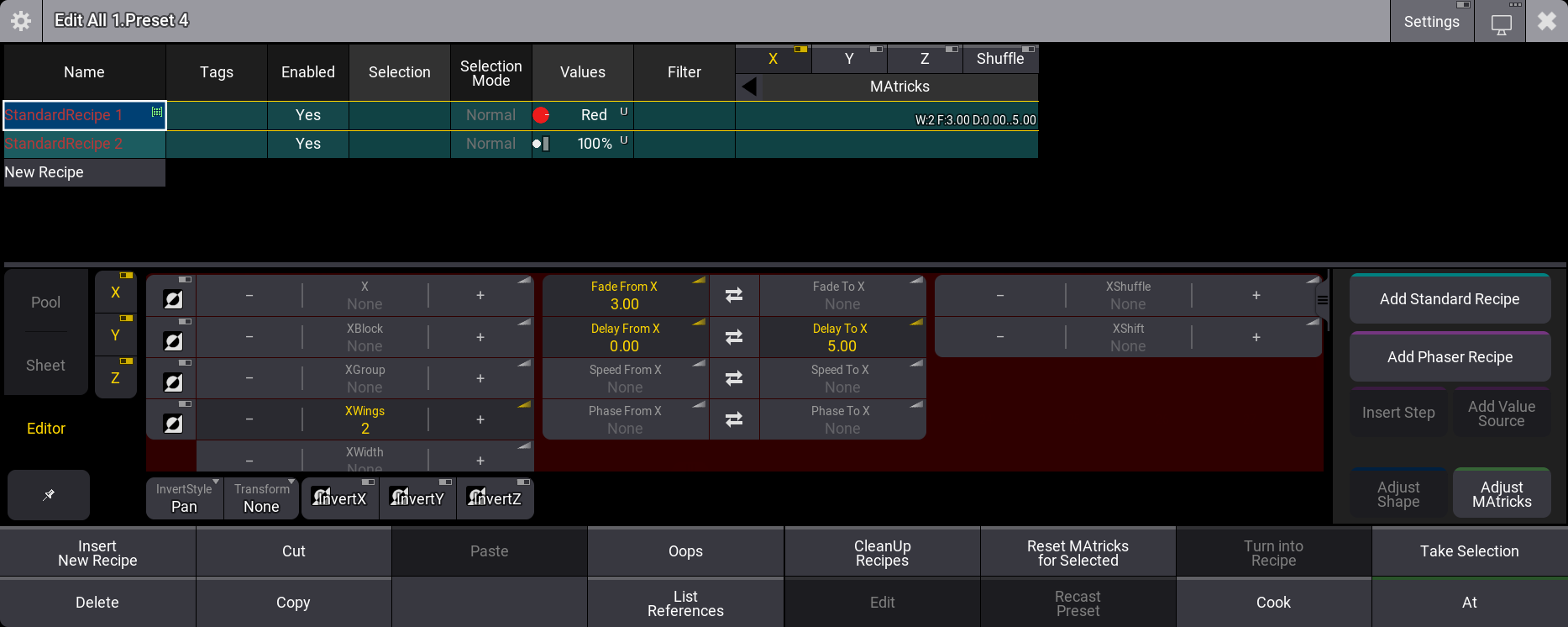
Notice the MAtricks part changes to show the settings for the selected line.
Close the editor.
Ensure the programmer is empty. Select the group containing all the Auras, then click the new preset.
This calls the preset into the programmer using the fade and delay times and the recipe values. The programmer content does not refer to the recipe preset but to the content of the recipe preset. This can be seen in the Fixture Sheet.
A preset like this can be used to busk and play back values on the fly or to build other presets.
Clear the programmer.
Add Recipe Preset to the Sequence
Section titled “Add Recipe Preset to the Sequence”Click the first preset we created twice.
Store this as cue number 2 in our recipe sequence.
Clear the programmer and run the two cues. It seems to work. The fixtures do what we wanted.
Turn off the sequence again.
Select fixtures 201 and 202 and store (Overwrite) the selection in the recipe group (Group 17).
Clear the programmer and run the two cues again.
Cue 1 looks as expected, but cue 2 still affects all the fixtures. Clicking the preset twice confirms that the preset actually updated to use the new group.
The problem with cue 2 is that the link to the preset was never updated to the new group content. The cue does not know that the recipe preset was changed to a smaller selection.
Let us fix the problem and simply add a recipe for the second cue.
The recipe line in the second cue should have our recipe group (Group 17) as the selection and the All preset as the “values”.
Now we need to cook the sequence using the following command:
| User name[Fixture]>Cook Sequence 6 /Overwrite |
If your sequence is not number 6, please adjust the number to match.
Overwrite can be a very dangerous function, but in this case, it makes a lot of sense to use it because we only want the cues to contain the recipe content. The output is updated, but turn Off the sequence, clear the programmer, and try running the two cues again.
You can continue to play around with recipes if you want to explore further.
Remember to store your show when you are done.
This final chapter was a big one. Recipes can be an extensive topic, and we only scratched the surface.
There are many more details to recipes, but the hope is that you can see some of the advantages of using recipes in a show where flexibility is needed.
Recipes are explained in more detail in the Recipes topics. Using recipes in cues is explained in the Cue Recipes topic. Using them in presets is described in the Recipe Presets topic.
Finally
Section titled “Finally”This is the end of the Quick Start Guide. Thank you for reading it. I hope you have enjoyed it and learned something.
We did not create the best show ever, but that was not really the goal. The goal was to introduce you to some of the many features and functions of the software.
The manual is a great resource to get detailed information about grandMA3. There are also the release notes with each new release to keep you updated on changes.
If you want to learn more, there is online E-learning and in-classroom learning - see more on MA Lightings website and possibly contact your local distributor.
I also want to mention the official forum. It is a great resource for getting help from other users and professionals.
There are also a lot of different videos online - both official and unofficial that provide great insight and information about grandMA3.
Happy Programming