Create a Layout
Layouts are created in the Layout pool and can be edited in the Layout window or the Layout editor.
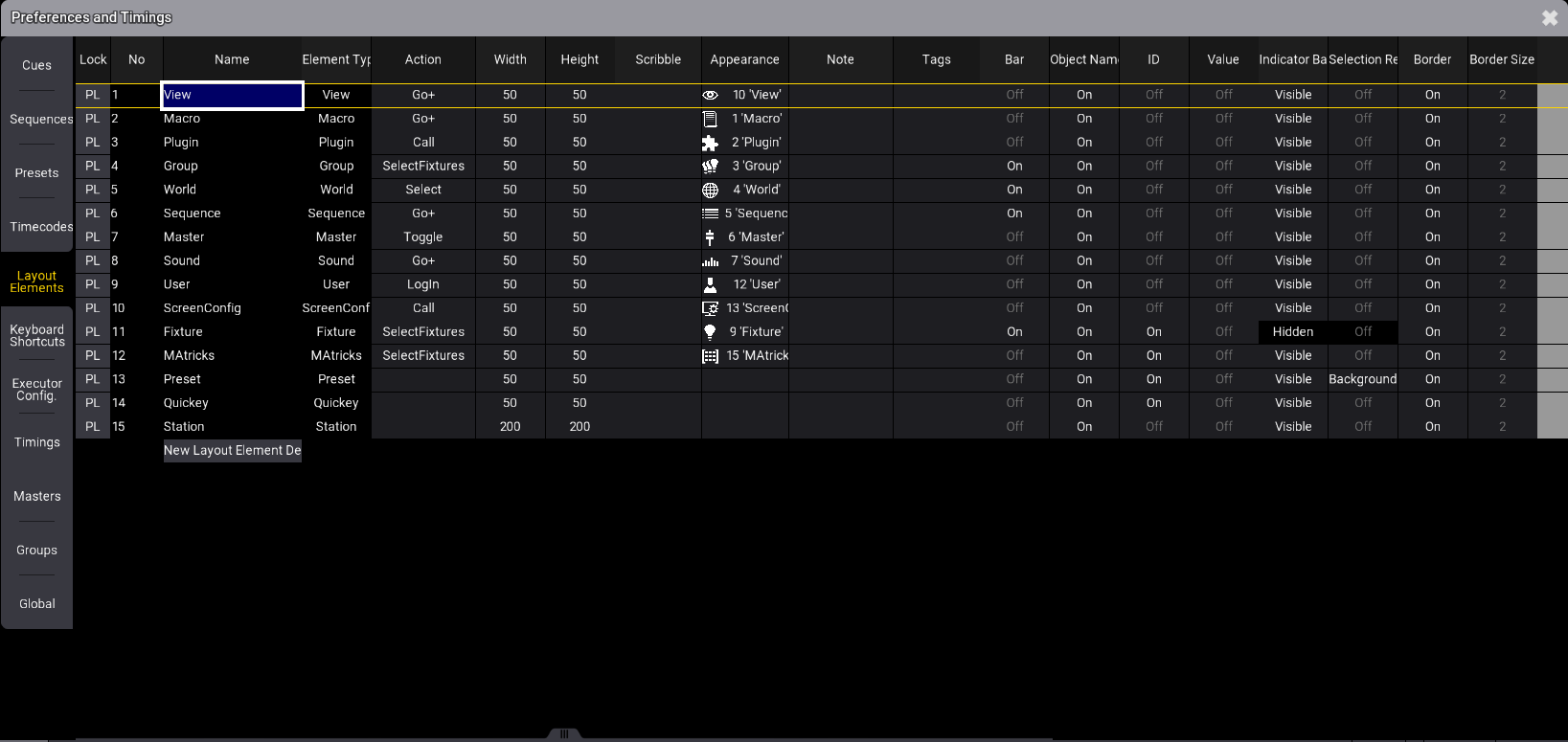
Default layout elements can be defined in the Preferences and Timings menu:
Press Menu and tap Preferences and Timings, then tap Layout Elements on the left side of the menu:
Arrange the layout pool and the layout viewer on one screen to operate the layouts more efficiently and have them all in view at a glance. See Add Window.
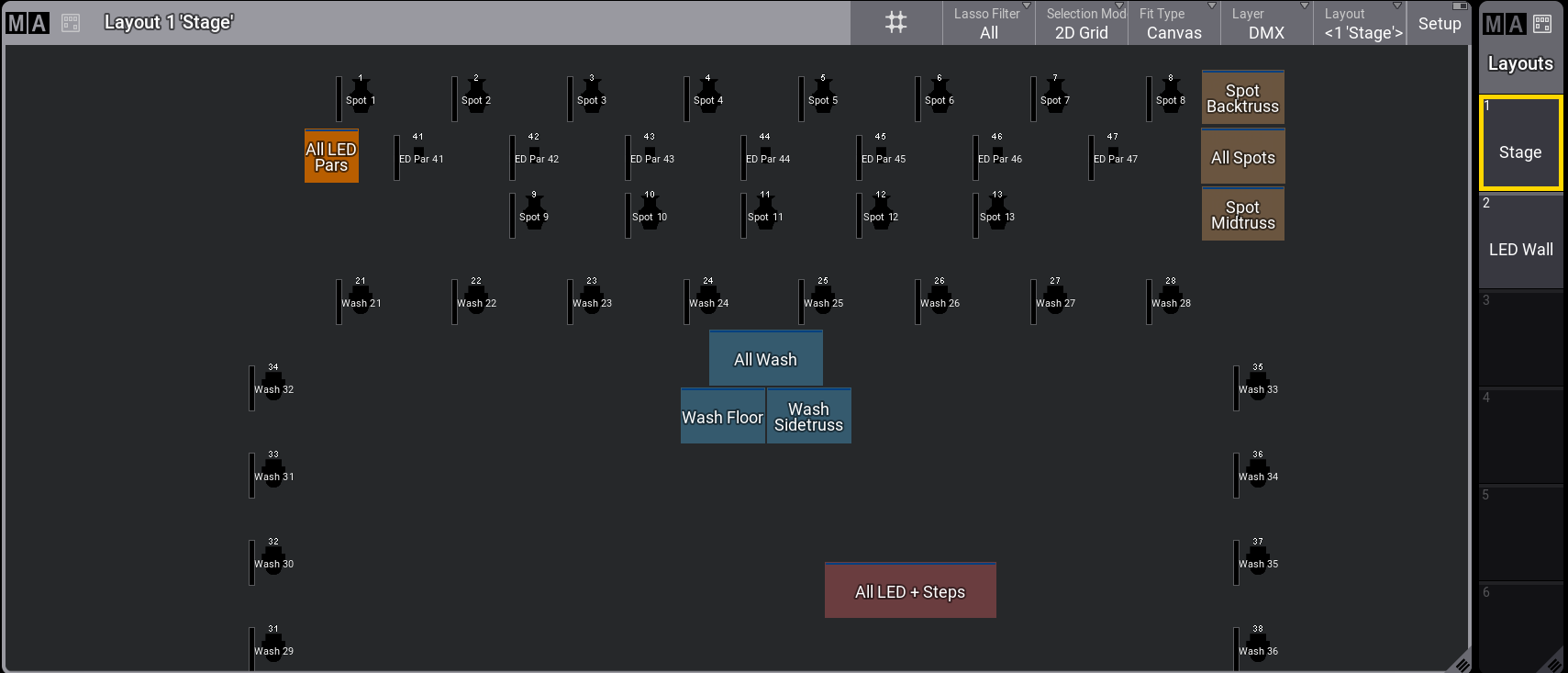
Layout viewer and layout pool
Adding fixtures to Layouts
Section titled “Adding fixtures to Layouts”- Select the fixtures you want to assign to the layout. The selected fixtures’ selection grid positions are assigned to layouts. For more information, refer to the Selection Grid.
- Press Assign and tap an empty layout poll object, or tap the area in the layout viewer where you want to assign them.
- A new layout pool is created with the selected fixtures.
- Label the new layout pool. See Label Pool Objects.
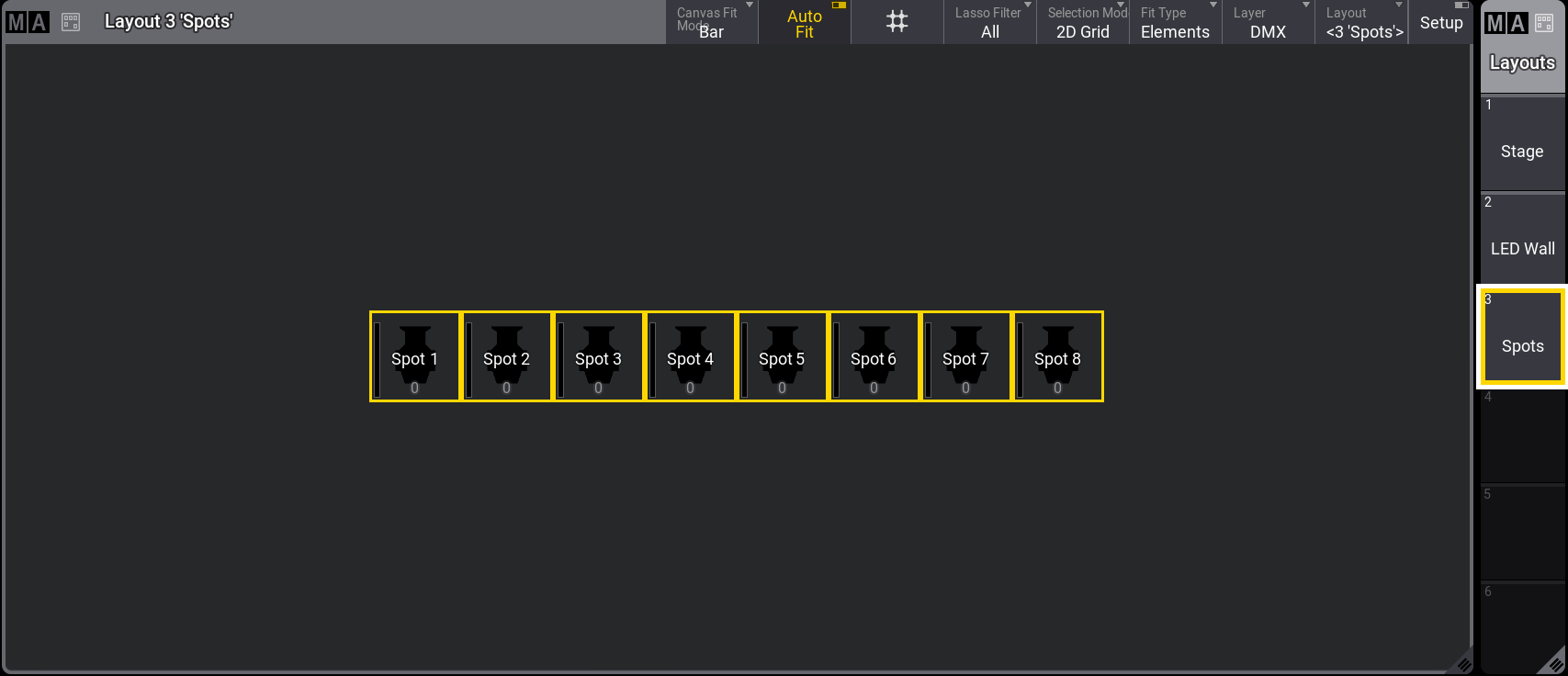
Layout viewer and layout pool
Adding subfixtures to Layouts
Section titled “Adding subfixtures to Layouts”Some fixtures may comprise several subfixtures that can also be assigned to layouts.
For the following example, patch eight Ayrton AlienPix and select “Extended - 8bit” mode.
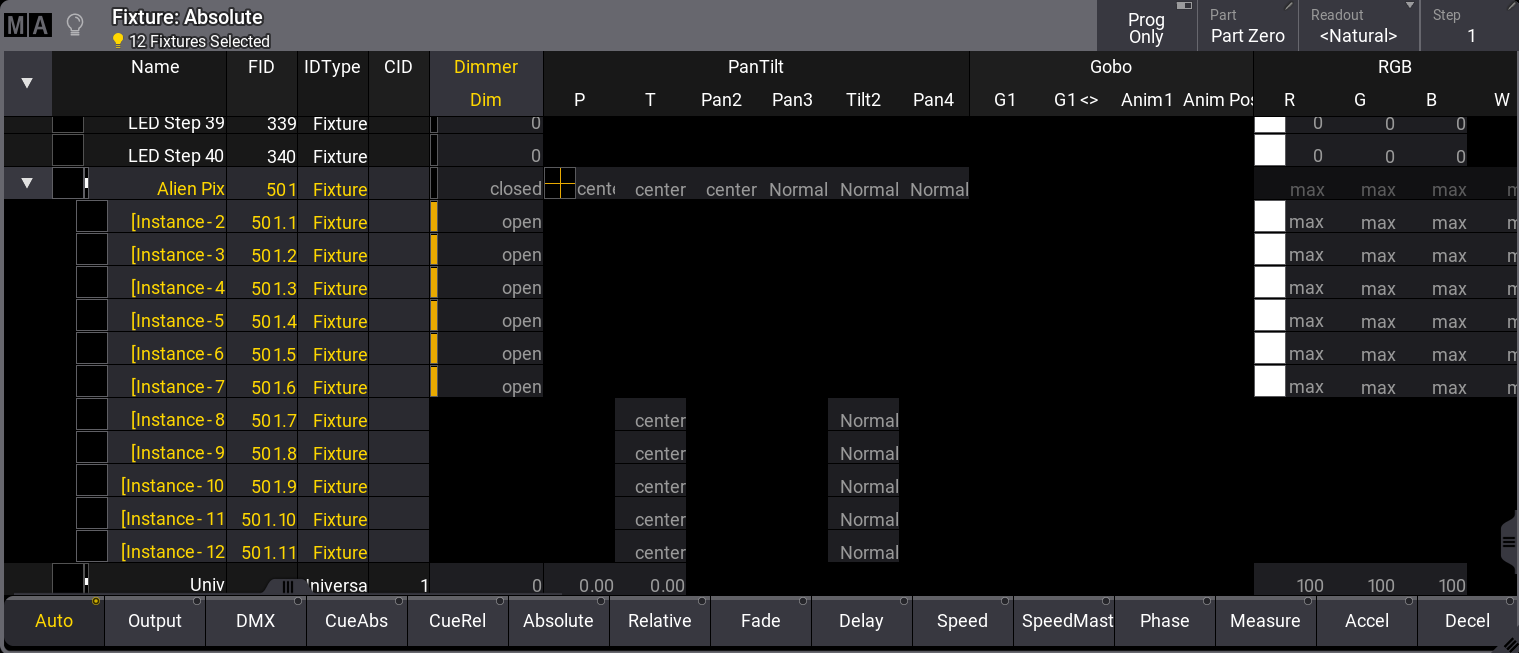
To add subfixtures, repeat steps 1 and 2 above; this is what it looks like in the fixture sheet:
- A new layout pool is created with the selected fixtures.
- Label the new layout pool. See Label Pool Objects.
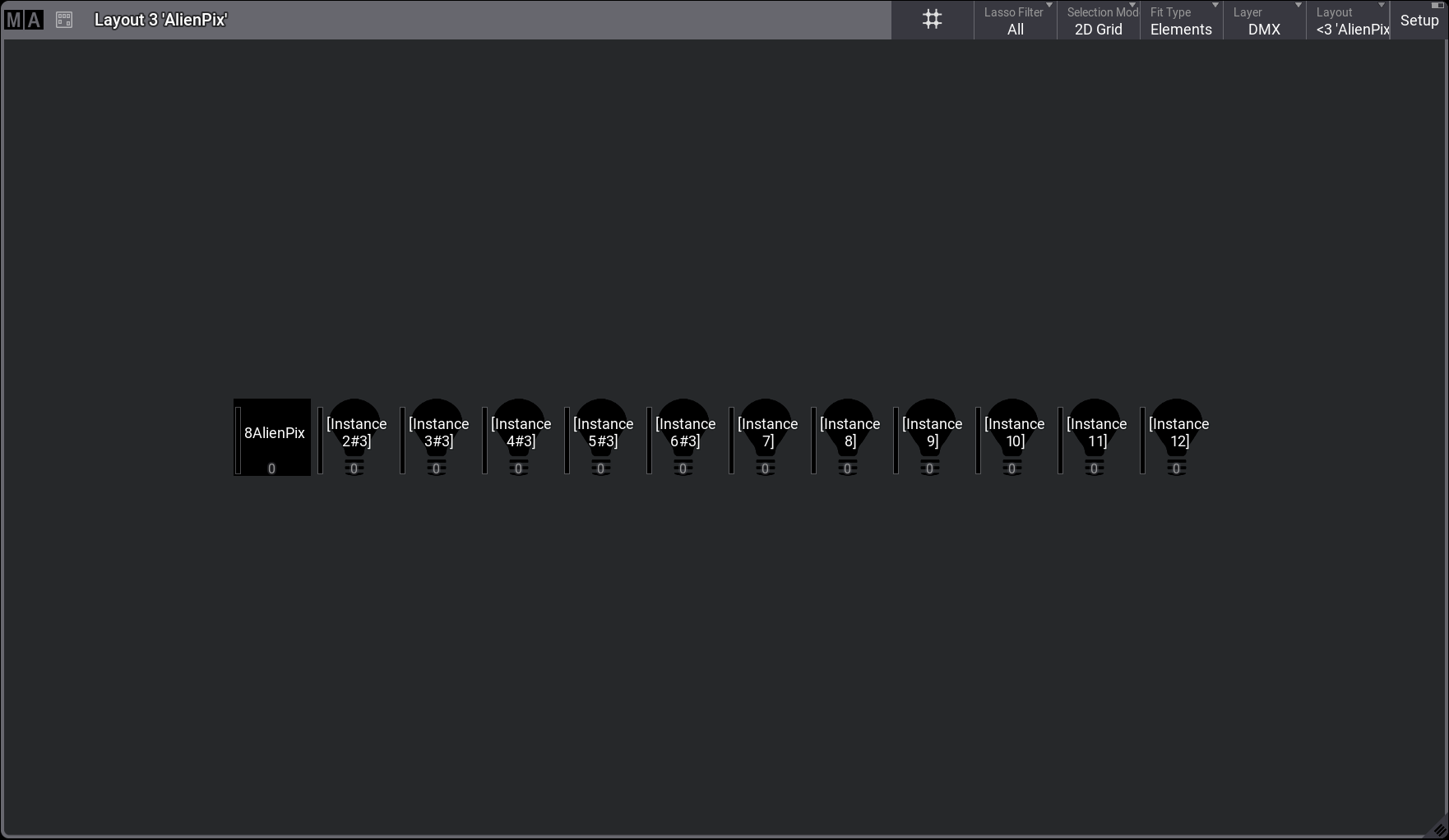
Layout viewer with the prominent fixture and its subfixtures added