Shut Down the System
Before shutting down the system, save the show file via the Backup menu.
To start the shutdown procedure, use one of the following options:
Use the Software User Interface
Section titled “Use the Software User Interface”- Tap the
 icon at the top of the control bar.
 Paste to Command Line
The shutdown menu opens:
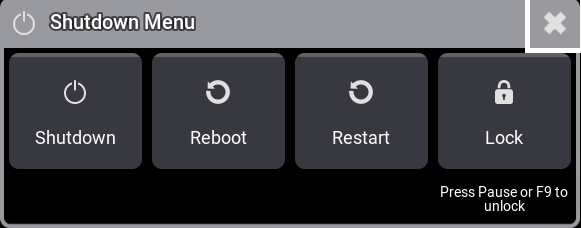
Shutdown Menu - Buttons
- To shut down, tap the icon.
- To reboot, tap the Reboot
 icon. This button is only available on consoles.
 - To restart, tap the Restart icon.
- To lock the desk, tap the
 icon. For more information, see desk lock.
Use the Power Key
Section titled “Use the Power Key”- Press the power key on the front panel.
Use a Keyword
Section titled “Use a Keyword”Shutdown Warning Pop-Up
Section titled “Shutdown Warning Pop-Up”One of the following warning pop-ups appears:
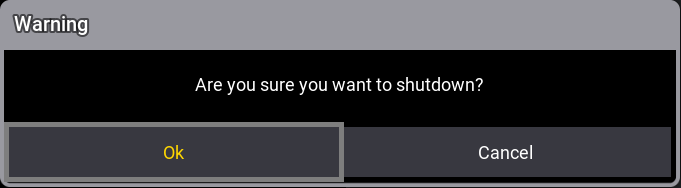
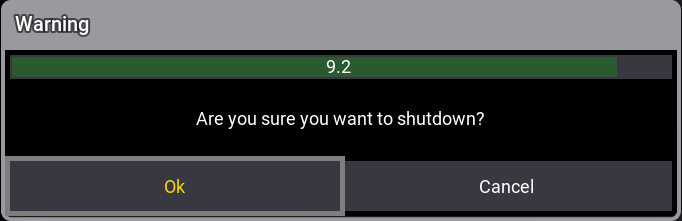
- Tap OK.
The grandMA3 device shuts down.
 | Hint: |
| When using the ShutDown keyword, you can choose an option without a shutdown pop-up or without timer. |
| Hint: |
| If an attempt is made to shut down before saving the show file, a save show file pop-up will appear. For more information, see Save Show File. |
- To shut down the current station without confirmation, type:
 | User name[Fixture]>ShutDown /NoConfirmation |
- To shut down the current station without a timer, type:
| User name[Fixture]>ShutDown /NoAutoClose |