Organize Show Files
Show File History
Section titled “Show File History”To display the show file history:
- Tap Load in the backup menu. Enable Show History in the bottom left corner of the menu.
- Select a show file. The history of the selected show file is displayed at the bottom of the backup menu.
When loading the show file, the history gives information regarding:
- Date: Shows the date and time the show file was saved.
- Version: This shows the software version in which the show file was saved.
- Type: This shows the software type, for example, Release.
- Name: This shows the name of the show file.
- Description: This shows the description of the show file.
- TZ: This shows the time zone.
- UTC: This shows the date and time in UTC.
A new entry within the history will be entered when the show file is saved again, and one of these criteria has changed:
- Version
- Type
- Name
- Time zone
- Description
The newest entry is at the top of the history list.

Show file name with description and time stamp
Add a Description
Section titled “Add a Description”To add a description to the current show file, use the description area at the top of the backup menu. To add another line, press Please.
Modifying or entering a description will only be applied to the show file when saving it afterward.
 | Hint: |
| When you create a new show file with kept show segments, the defined show segments are displayed in the Description area. For more information, see New Show File. |
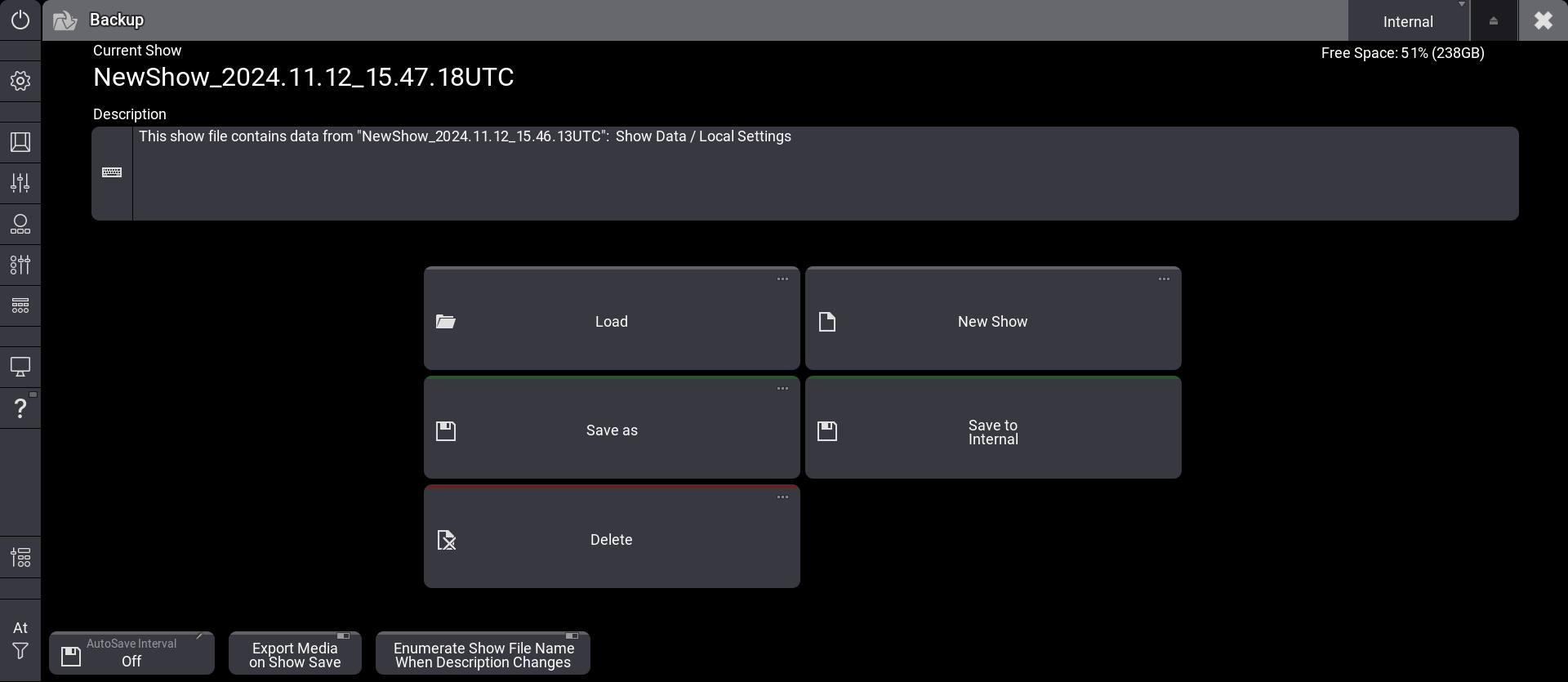
Show file name with description line
Display the Description
Section titled “Display the Description”To see the description of a show file:
- Press Menu and then tap Backup. The backup menu opens.
- Tap Load. The first line of the description is already shown in the Description column.
- Enable Show Description and select a show file. The whole description of the selected show file is shown.
The description can also be edited via Save As and displayed via Delete in the backup menu.
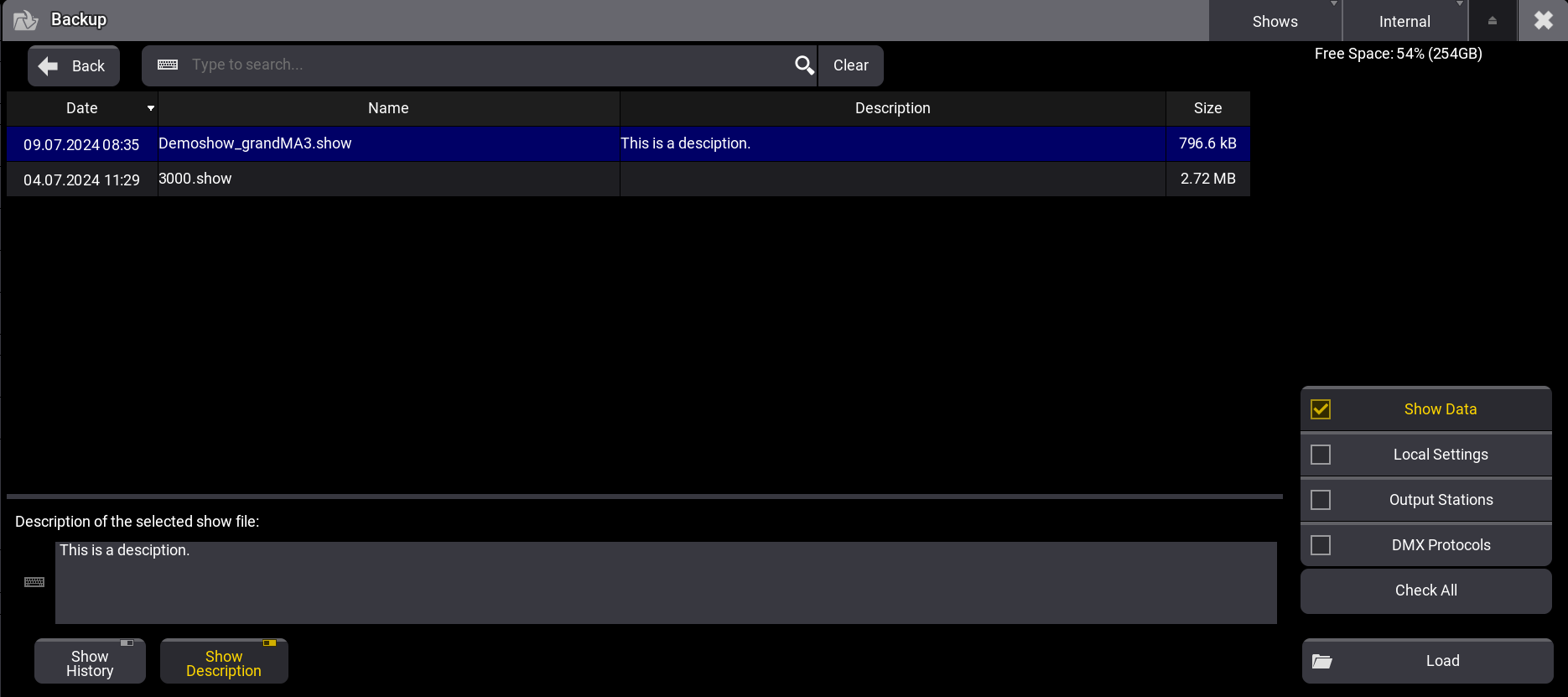
Backup menu - Show file description
Add Automatic Numbering
Section titled “Add Automatic Numbering”The setting Enumerate Show File Name When Description Changes in the backup menu automatically increments a 3-digit number. The number will be appended to the show file name if the description is changed when saving the show.
- To separate the show file name from the number, add a hyphen (-), an underscore (_), or any other character to separate the name from the numbers at the end of the show file name.
- Enumerating a show file can also be called with the /Enumerate option. For more information, see /Enumerate option keyword.
| Hint: |
| If the original show file name is too long to add the number, the command line will return an error. In this case, the former show file name will be used again. |