QLab is sound, video, and lighting control for macOS by qlab.app.
QLab is fairly simple to use with OSC. The QLab network settings are shown below.
To configure the network:
-
Click
 in the bottom right corner of the window. The workspace settings pop-up opens.
 -
Click Network. The network setting opens:
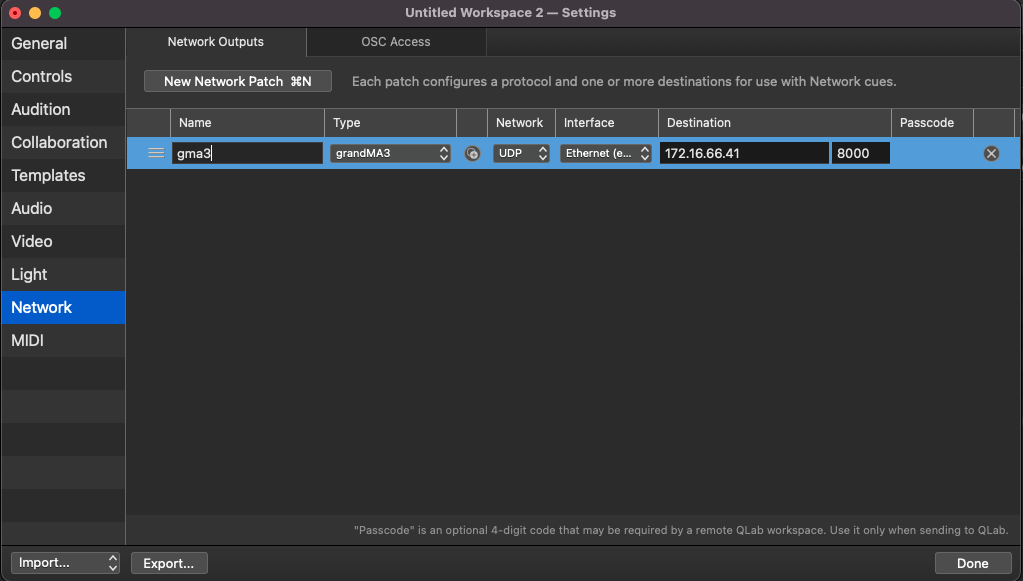
QLab - Network Settings
-
Set a Name, for example, gma3.
-
Select the Type, grandMA3.
-
Select the Network protocol.
-
Select the Interface. The network interface on your computer connected to the grandMA3 system.
-
Select the Destination.
- The IP address of the grandMA3 system.
- The Port should match the setting in the OSC menu of the grandMA3 system. The default is 8000.
-
The Passcode should be empty.
-
Click Done. The network is configured.
 | Hint: |
| Make sure you use the same IP range for communication between grandMA3 and Qlab. For more information, see Interfaces and IP. |
Example 1
To configure a cue to trigger the grandMA3 system:
- Click the Network icon. A new cue is generated.
- Click the newly generated cue. The cue settings open.
- Click the Settings tab. The settings mask opens.
- Set the Patch to the configured network configuration; in our case, it is gma3.
- Set the Category to Command line control.
- Set Use Prefix to Yes.
- Set a Prefix, such as gma3.
- Set a Command, such as Go Sequence 2
- Click Send. The command is sent.
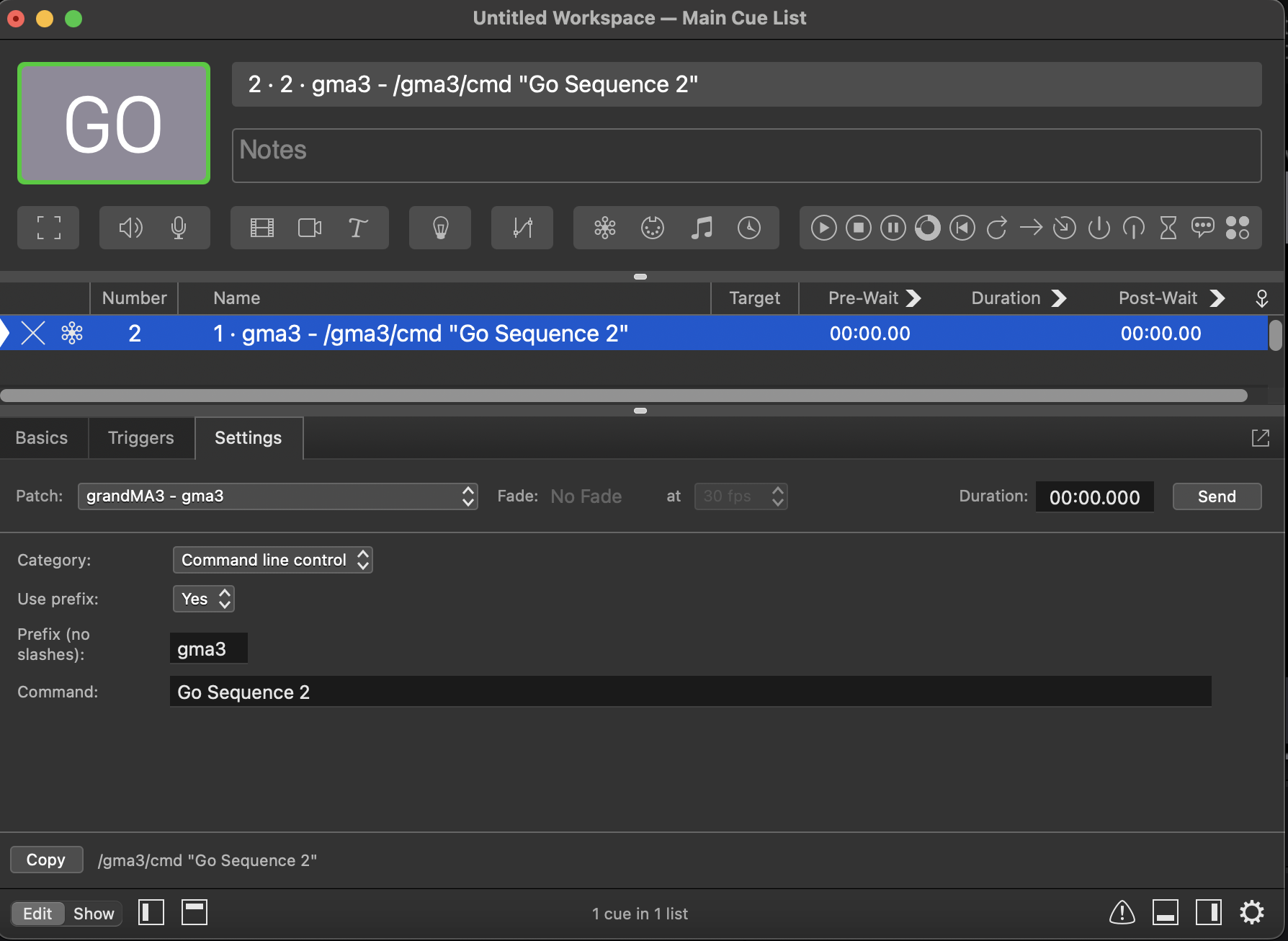
QLab - Cue Settings