Folder Structure
The grandMA3 software uses a default set of folders to help maintain a predictable structure when saving data to any internal or external drives.
 | Hint: |
| This topic, and other topics in the manual, lists a particular folder name as gma3_x.y.z. In this name, the “x.y.z” portion takes the place of the actual installed version number. If the installed version is v1.4.2.1, the name of this folder is gma3_1.4.2. |
Main Folder
Section titled “Main Folder”The main folder where all grandMA3 user data is stored by default appears using different labels depending upon the type of drive. This folder can be found under the following names and locations:
On USB Drives:
Section titled “On USB Drives:”The main folder on any USB drive connected to either a console or a computer running grandMA3 onPC appears at the root of the drive with the name grandMA3.
The full folder structure is created once the drive is connected to the station and selected in the system. There are many ways to select the drive, including the Backup menu, any menu allowing import or export, or the Select Drive [Drive Number] command. For more information on the Drive keyword, see the Drive keyword topic.
On Internal Drives of Computers Running grandMA3 onPC:
Section titled “On Internal Drives of Computers Running grandMA3 onPC:”The full folder structure is created as part of the software installation process.
The main folder on the internal drive of any computer running grandMA3 onPC appears with the name MALightingTechnology.
On computers running macOS, the main folder is found at the following location:
[System HD]/Users/[User Name]/MALightingTechnology
On computers running Windows, the main folder is found at the following location:
C:\ProgramData\MALightingTechnology
On the Internal Drive of the Console:
Section titled “On the Internal Drive of the Console:”When logged into the console via SFTP, the console presents the main grandMA3 folder as the root directory, using the name /. For more information about SFTP, see the SFTP Connection topic.
Shows and Backups
Section titled “Shows and Backups”Show files and backup show files are saved in dedicated folders, which appear in the following locations:
On USB Drives:
Section titled “On USB Drives:”grandMA3/shared/shows
grandMA3/shared/backups
On Internal Drives of Computers Running grandMA3 onPC:
Section titled “On Internal Drives of Computers Running grandMA3 onPC:”MALightingTechnology/gma3_x.y.z/shared/shows
MALightingTechnology/gma3_x.y.z/shared/backups
On the Internal Drive of the Console:
Section titled “On the Internal Drive of the Console:”/actual/shared/shows
/actual/shared/backups
 | Warning: Moving, altering, or deleting any files other than show files or backup show files within the gma3_x.y.z folder of an onPC station or the actual folder of a console may make the software unstable or render the system unable to boot. |
Library
Section titled “Library”When exporting smaller portions of data from the show file (including objects such as fixture profiles, user profiles, and macros), these files are saved into the gma3_library folder of the selected drive unless an alternate destination is specified during the export. Most object types have dedicated default sub-folders within the library.
The complete list of automatically generated library folders and sub-folders includes:
-
agendas
-
appearances
-
certificates
-
colorthemes
-
datapools
- executorconfigurations
- executorpages
- filters
- groups
- layouts
- macros
- matricks
- plugins
- presets
- sequences
- timecodes
- worlds
-
fixturetyperesources
- gobos
- meshes
-
fixturetypes
-
inout
- artnet
- dcremotes
- dmxremotes
- midiremotes
- osc
- outputconfigurations
- sacn
-
media
- images
- sounds
- symbols
- videos
-
mvr
-
netkeys
-
patch
- dmxcurves
- stages
-
scribbles
-
userprofiles
- cameras
- renderqualities
- screenconfigurations
- viewbuttons
- views
-
users
Exceptions to the Default Library Structure
Section titled “Exceptions to the Default Library Structure”Exporting any objects, that do not have a dedicated sub-folder within the gma3_library, saves the files directly to the gma3_library folder unless an alternate destination is specified during the export.
Exporting either the parent of multiple objects, which each have their dedicated folders, (for example, exporting DMXProtocols as one file rather than separate exports of Art-Net and sACN) or children of objects where those children do not have their dedicated folder (for example, exporting one or more cues rather than a whole sequence), automatically adds a descriptive sub-extension to the file name while saving the file to the most appropriate folder.
Automatic Folder Structure Migration
Section titled “Automatic Folder Structure Migration”The default folder structure used by version 1.5 and later of the grandMA3 software is different than the structure used in previous versions. When the software recognizes a USB drive, which includes the older structure but not the newer structure, the software presents a pop-up with options for automatically migrating the existing data to the new structure.
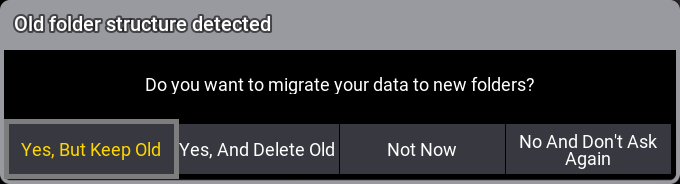
Old folder structure pop-up
Options in the pop-up include:
- Yes, But Keep Old: Tap to copy files to the new structure while also maintaining copies in the old structure. This allows both older and newer software versions to continue using the drive.
- Yes, And Delete Old: Tap to move files to the new structure and delete the old structure.
- Not Now: Tap to make no changes to the current structure. The next time the USB drive is recognized by the software, the same pop-up will appear.
- No And Don’t Ask Again: Tap to make no changes to the current structure. The software will not present this pop-up when the USB drive is recognized in the future.