Running Playbacks
There are two ways to see the different running playbacks. This can be useful when trying to find out what is running and also to quickly turn off different playbacks.
Running Playback Window
Section titled “Running Playback Window”It can be a window on a screen. This is called Running Playbacks and can be created like any other window. It is in the “More” tab.
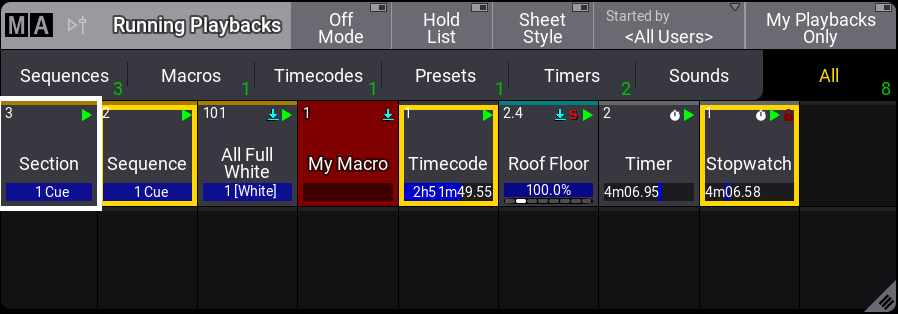
_Running playback window _
Each running object is displayed as a pool object and can be interacted with like any other pool object. For instance, it is possible to use the Off keyword to turn off an object by pressing Off and then tapping the object in the window.
This window can show different types of objects: Sequences, Macros, Timecodes, Presets, Timers, SoundFiles, and Generators.
Toggle between them by tapping the Sequence, Macros, Timecodes, Presets, Timers, or SoundFiles tabs or select All to see all the different types.
The title bar has a button that can activate the “Off Mode”. With this On, objects are immediately turned off when tapped in the window. Tap Off Mode to toggle between the On and Off states.
After Hold List is enabled, playbacks that are switched off will be grayed out.
This stops the Running Playbacks window from constantly updating the list of running playbacks, especially when many sequences are flashing.
It is possible to filter the objects in the window to display only the playbacks started by a specific user by changing the Started by setting in the title bar or in the window settings. This can be overridden to only show playback triggered by the user currently logged in on the station, by tapping My Playbacks Only in the title bar. Disabling My Playbacks Only again resets Started by to its previous value.
The number in the lower right corner of each tab indicates how many playbacks of its object type are currently running. As soon as My Playbacks Only is active, or Started by is set to something else than <All Users> , or SelectedDataPool in the Window Settings** **is set to something else than All DataPools, two numbers will be displayed: x / y.
- x: Represents the number of running playbacks based on the made settings.
- y: Represents the number of all running playbacks.
The title bar also has a Sheet Style button. This turns the sheet style On or Off for this window. The default style is pool style, like the image above. Sheet style could look like this:
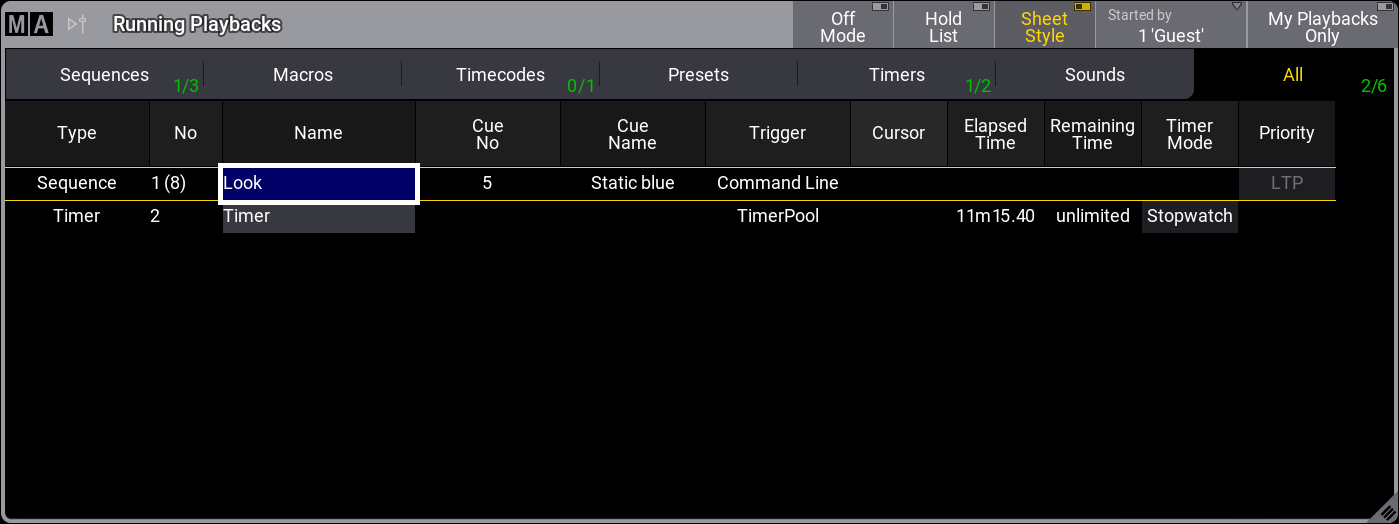
Running playbacks window in sheet style - one sequence and one timer started by Guest
This mode shows more details and displays all the extra information available on pool objects. For example, the Trigger column indicates which object started the playback.
Selecting a specific data pool and changing the font size are the only other options for the Running Playbacks window. All settings can be found in the Running Playback Settings, which can be opened by tapping the MA logo in the upper left corner of the title bar.
Off Menu
Section titled “Off Menu”The other way to see running playbacks is to open a temporary version of the window. This is called the Off Menu. It is opened by pressing Off twice:
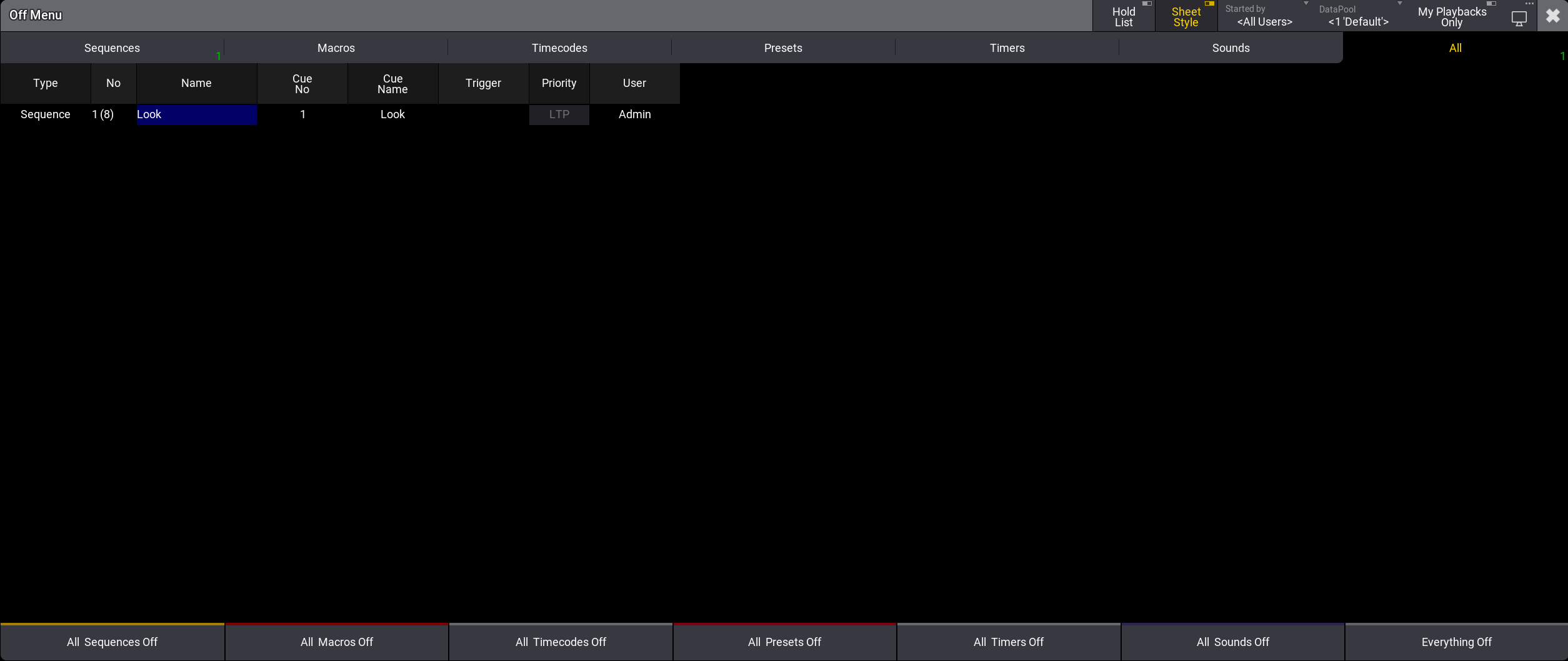
Off Menu in <All Users> mode