Transform is a setting in the MAtricks window. It is found in the Invert Options at the bottom of the MAtricks window.
If Transform is set to Mirror, the values will be mirrored depending on the other MAtricks settings, such as Blocks, Groups, and Wings.
Transform allows:
- Quickly create symmetrical objects.
- Keep a symmetrical impression with an odd fixture selection.
Example
Section titled “Example”How to set Transform in a simple example:
- Select some fixtures and set the dimmer to full.
- Open a Phaser Editor window using the Add Window pop-up. Or tap the Phaser button in the Encoder Bar.
- Select 2D and then tap the
 button in the left tool button bar of the phaser window.
 - Set two points, “1” and “2,” like in the image below:
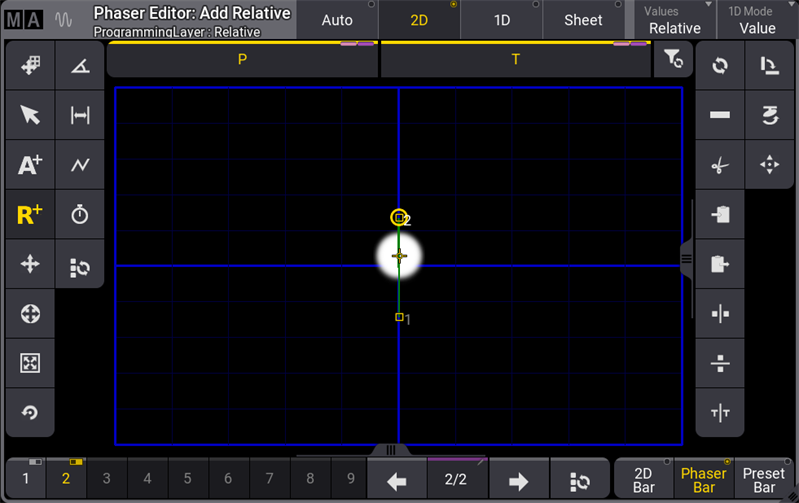
Phaser with relative position.
- To change the phaser to a circle form, select
 in the left button toolbar and then select
  on the right button toolbar in the phaser window.
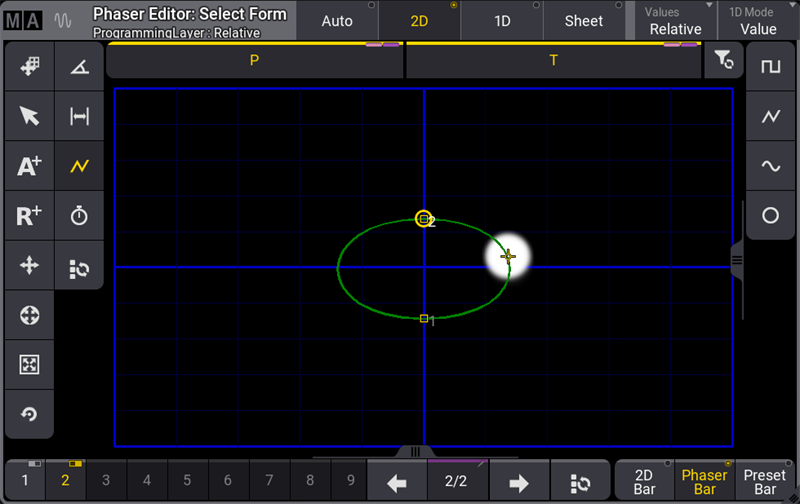
Phaser with circle form
- Open the MAtricks window and set XWings to 2.
- To set Transform to Mirror, tap and hold Transfom. A pop-up opens. Tap Mirror.
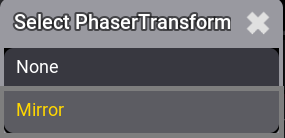
Transform Mirror pop-up
- The result is shown in the image below:
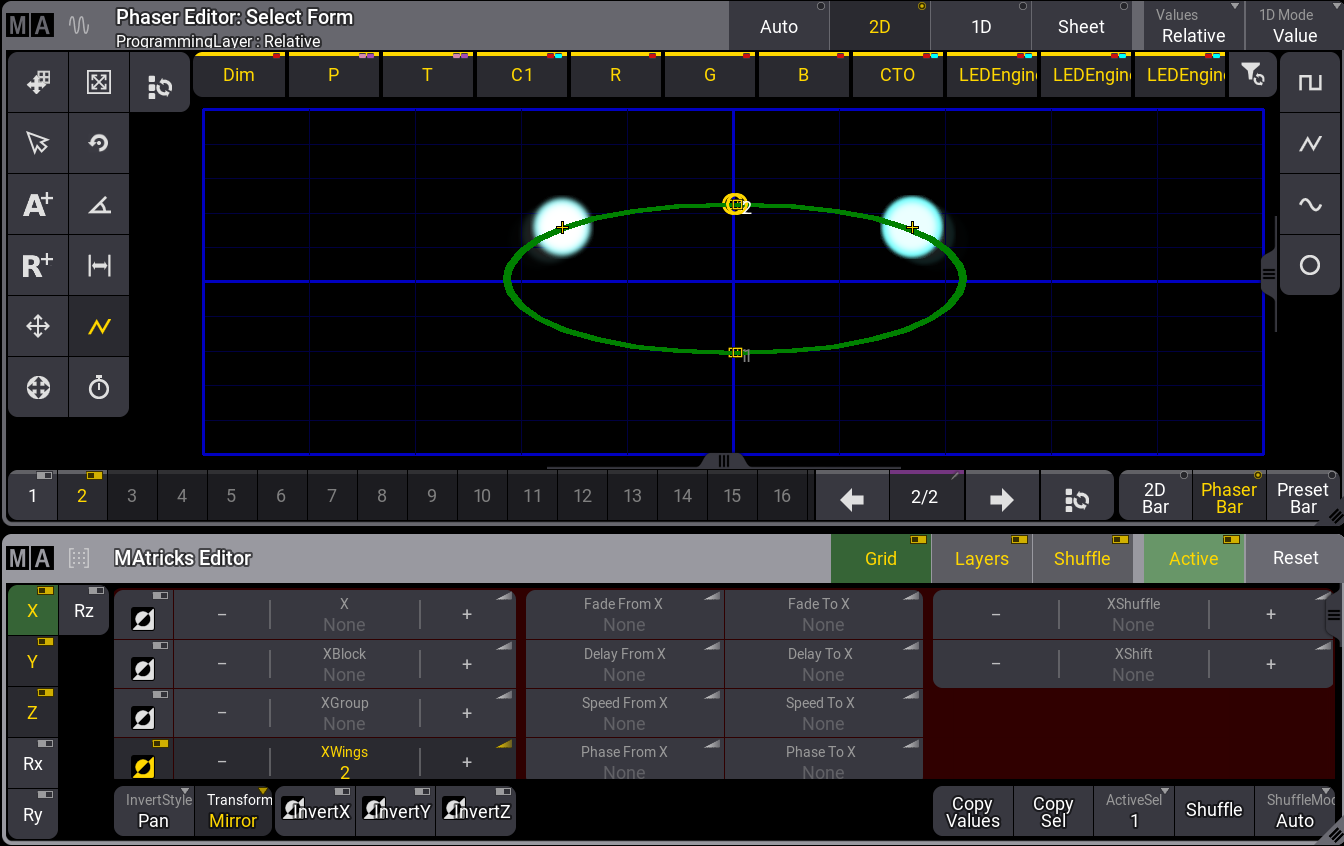
If Transform is set to Mirror:
- The font color of the Transform button is yellow.
- InvertStyle changes to Pan.
If Transform is set to None:
- Inverts are switched off.