Create a Circle Phaser Around a Position Preset
This topic presents an example of one method for creating a simple relative circle phaser.
 | Hint: |
| Combining relative phasers with separate absolute presets provides greater flexibility for creating dynamic looks. |
Requirements:
- Have a show with some moving lights patched. The following examples reference presets included in the demo show.
- An open Phaser Editor window is needed.
- Arranging the fixtures in the 3D window can be useful, but it is not a requirement.
This example shows one possible workflow for creating a relative phaser. Alternate workflows can also produce the same results.
Follow these steps to create a relative circle preset:
- Select all of the desired fixtures.
- Tap R+ on the left side menu in the Phaser Editor.
- Tap just above the center of the blue 2D grid.
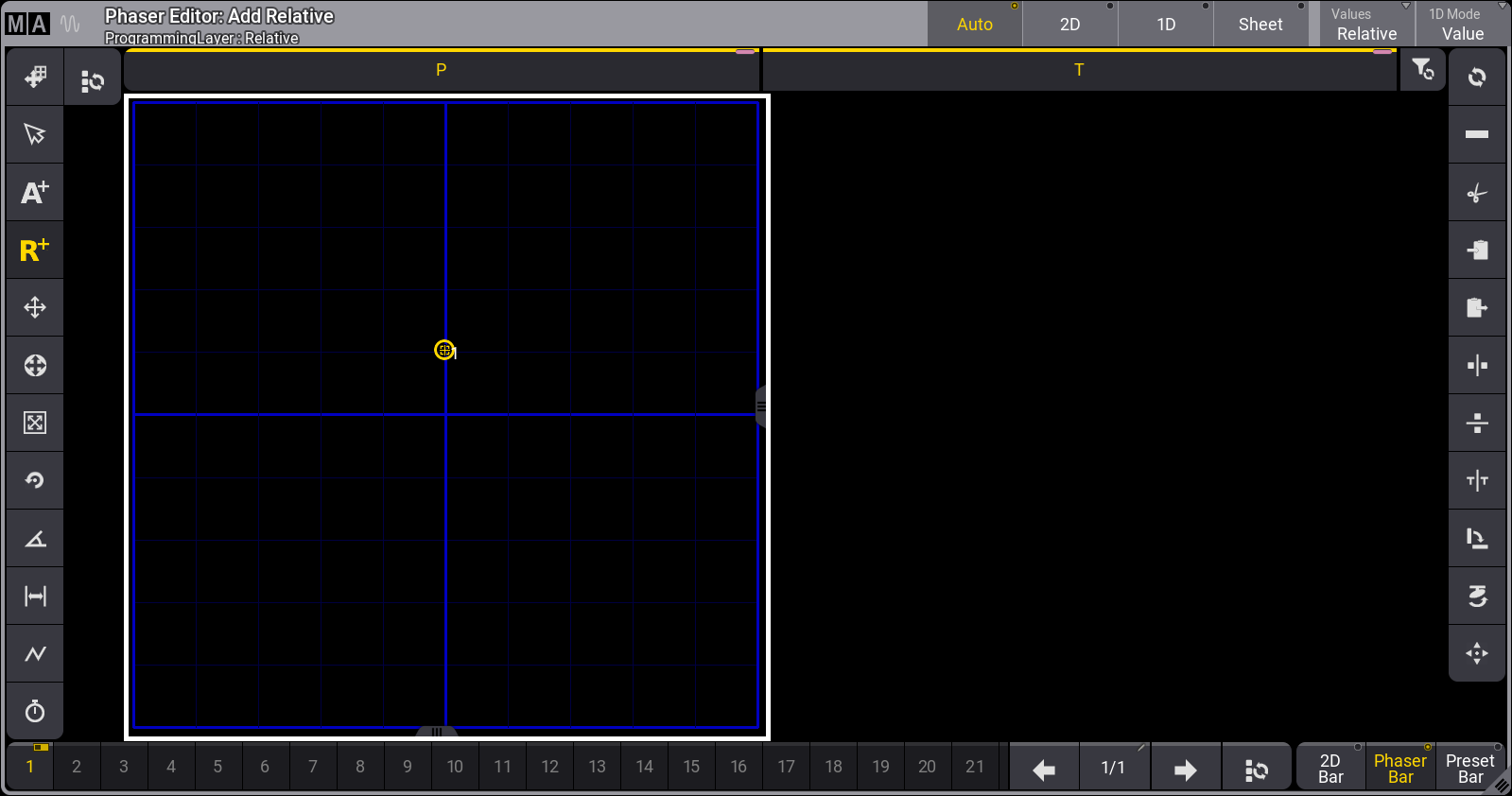
The first point in a relative circle
- Tap just below the center of the blue 2D grid.
This creates two relative position points.
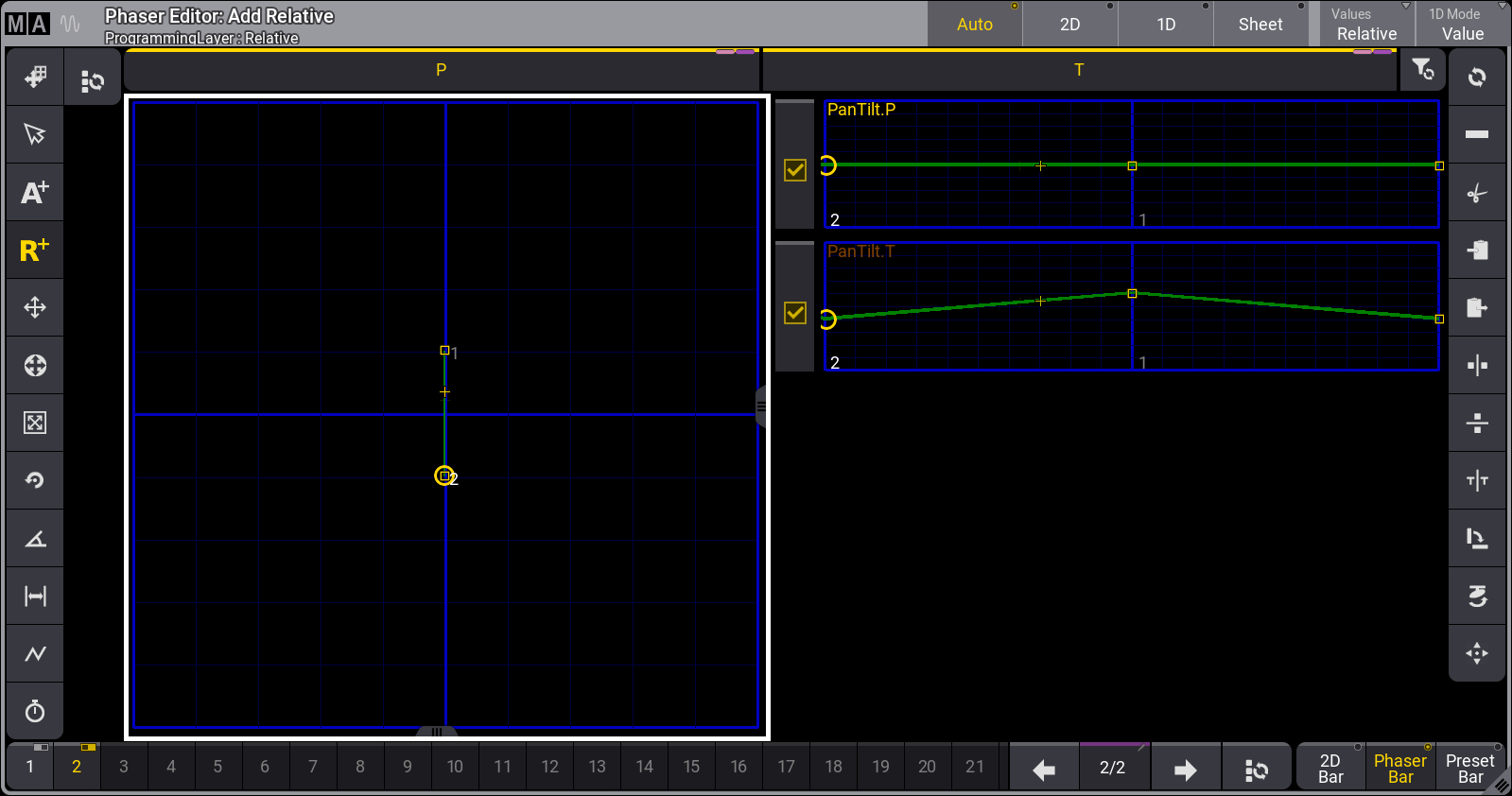
Two steps /points are the basis for the circle
- Tap the Select Form (
 ) button.
 - Tap the Circle (
 ) button.
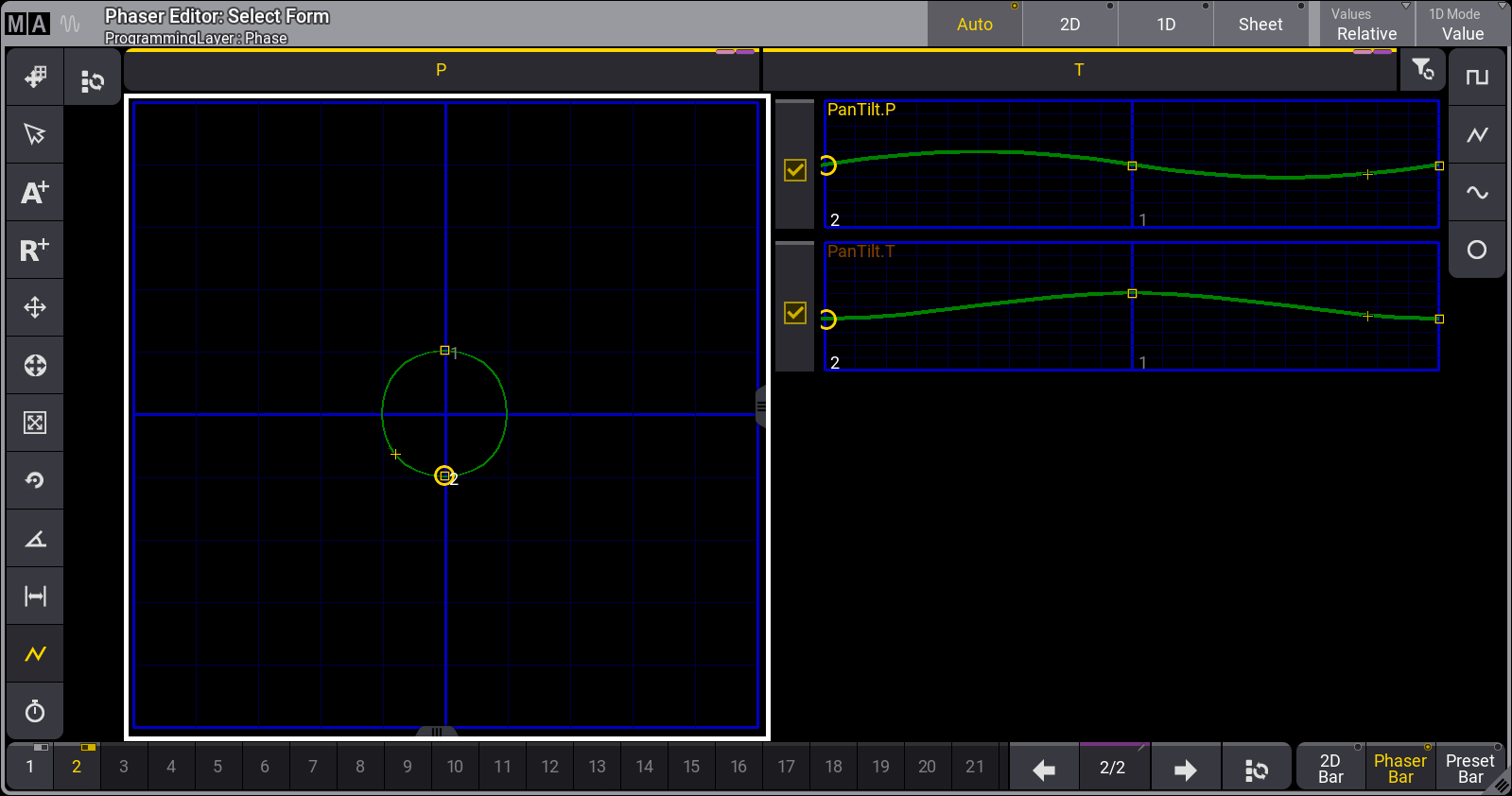
The relative circle with all selected fixtures moving simultaneously.
- Tap the Change Phase (
 ) button on the left menu.
 - Tap 360 in the menu on the right.
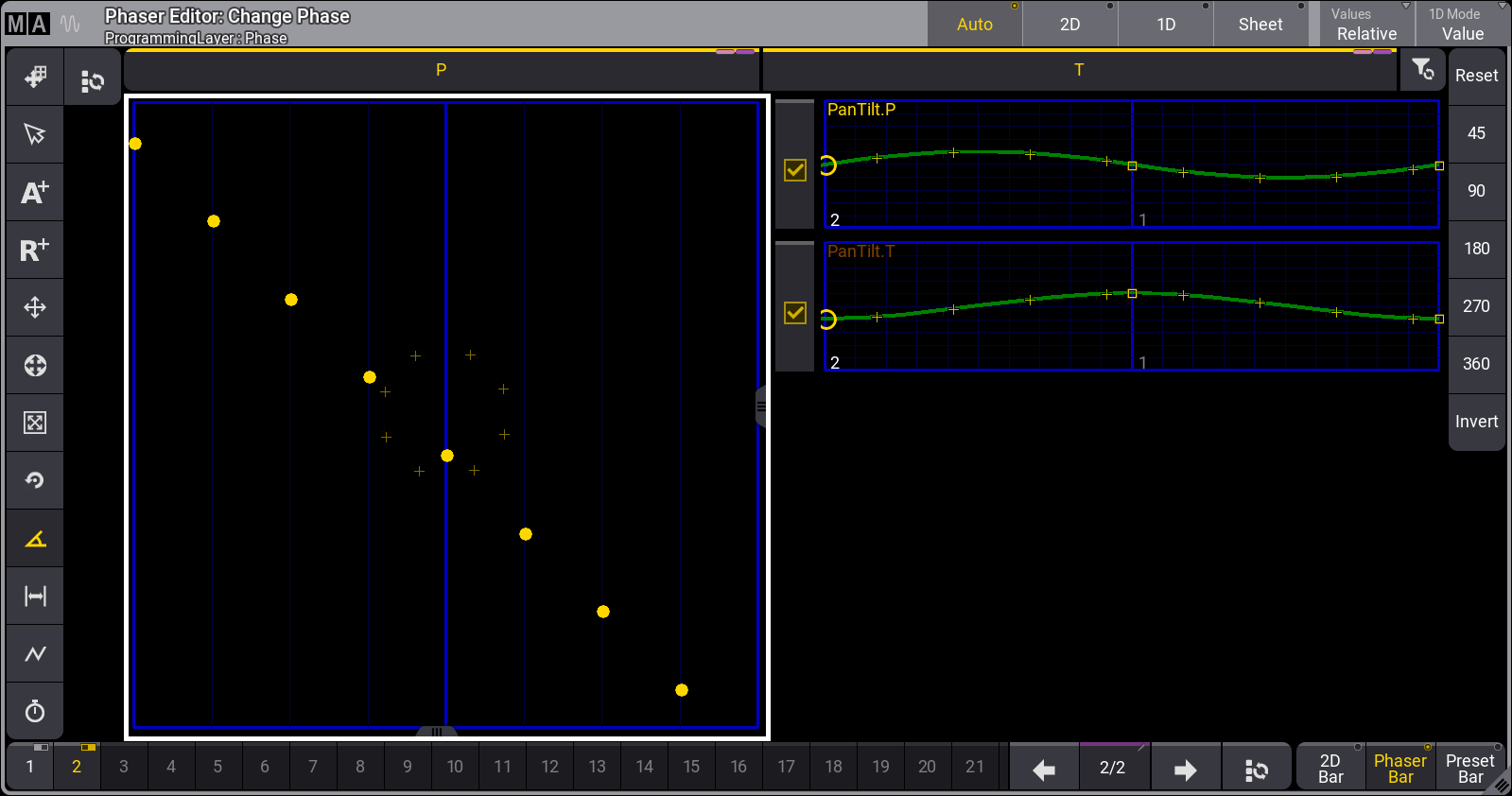
The relative circle with selected fixtures aligned evenly around the form.
- Store this as a preset.
Follow these steps to create a cue combining this relative circle phaser with a static absolute position:
- Select the desired fixtures.
- Tap dimmer preset 2 “Open” to bring the fixtures to full.
- Tap position preset 3 “Center” to move the lights to the downstage-center position.
- Tap the new preset with the relative circle.
The resulting output shows the fixtures moving in a circle around the downstage-center position.
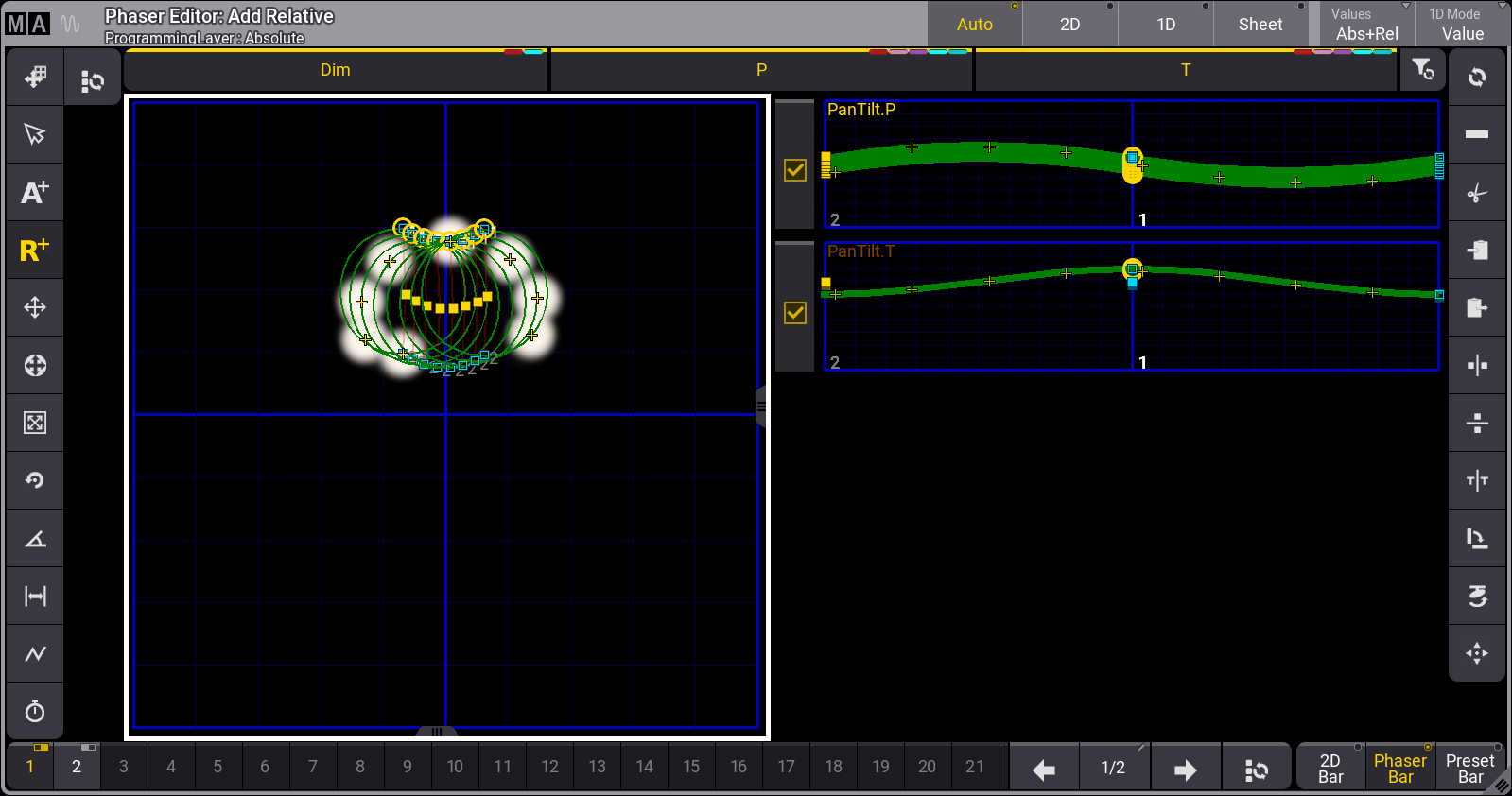
Fixtures moving in a circle around the downstage-center position.
Continue editing as desired or store this as a new preset or store as a cue.