Save a Show File
Save To a Drive
Section titled “Save To a Drive” | Hint: |
| Saving a show file to an external drive automatically saves it to the internal drive. |
To select and change the drive to save a show file on, for example, the USB drive:
- Open the Backup menu.
- Tap and hold Internal in the top right corner. A dropdown menu opens.
- Select a drive, for example, the external USB drive Removable D:\. Save To Internal automatically changes its name to the drive name.
- Tap Save to Removable D:/ to save the show on the selected USB drive.
Quick Save
Section titled “Quick Save”To save the show file quickly:
- Press Menu and tap Quick Save.
- OR-
- Pressing Menu 2x quickly also creates a Quick Save.
To save a show by using the command line, use the SaveShow keyword.
Auto Save
Section titled “Auto Save”To save the show automatically in regular intervals:
-
Press Menu. The menu opens.
-
Tap Backup and AutoSave Interval. A dropdown menu opens.
-
Select the desired Auto Save Interval, for example, 15 Minutes.
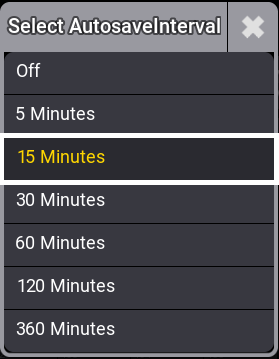
AutoSave Interval
-
Auto save is enabled, and a countdown to the next auto save will be displayed in the title bar of the Backup menu.

Backup menu - Titlebar with Autosave Interval enabled.