The Oops menu displays the history of completed actions. Completed actions are displayed as a list and in chronological order. The action at the bottom shows the latest entry.
The latest action or multiple actions can be Oopsed. It is also possible to use Oops filters for various actions.
For more information about Oops, see Oops keyword and Oops hardkey.
 | Important: |
| All Oops entries are cleared when changing the Patch or loading a show file. |
To get a first impression of the Oops menu, watch the video below:
To open the Oops menu:
- Press and hold Oops.
- Open the add window dialog. Tap More and then tap Oops.
- Execute the command Menu “OopsOverlay”.
 Paste to Command Line
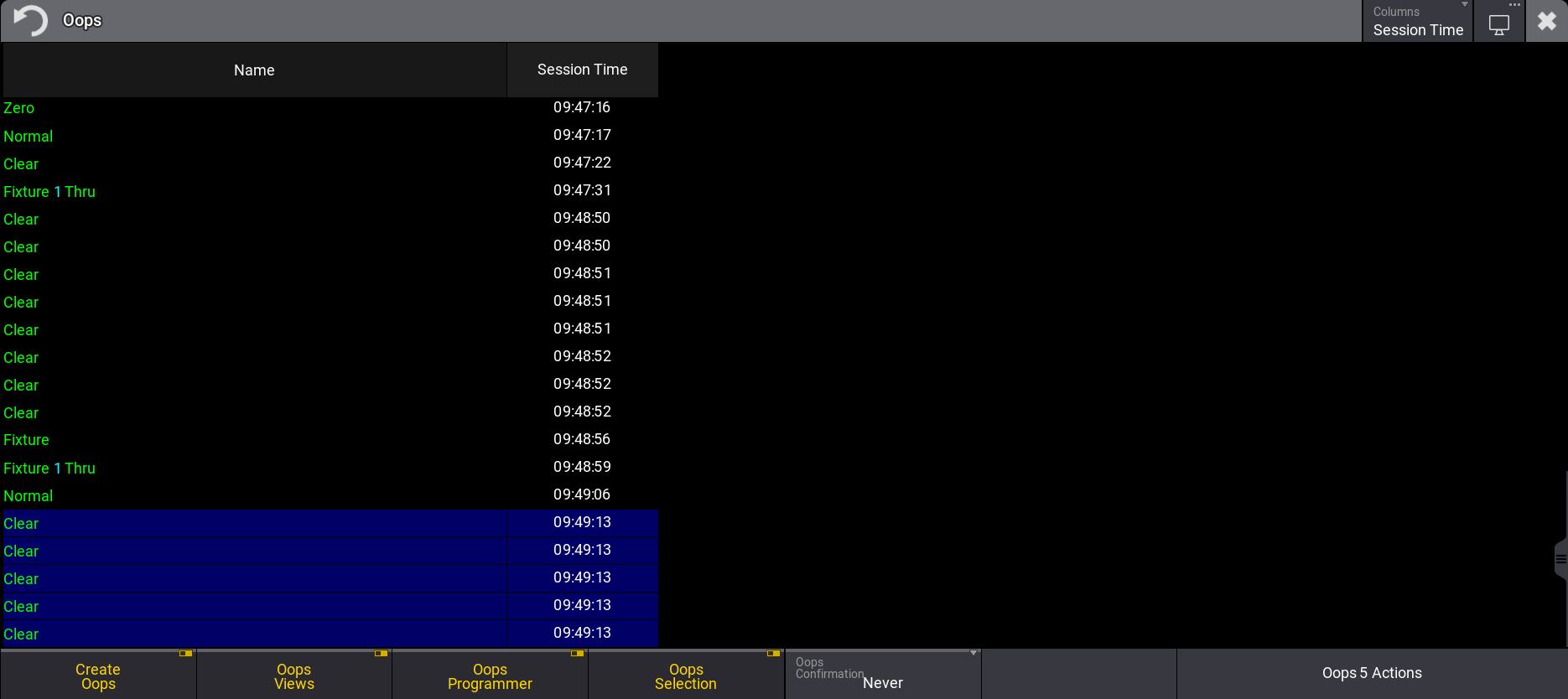
Oops menu
The menu is separated into two columns:
- Name: Shows the executed command or the action that has been done.
- Elapsed Time / Session Time: Shows the elapsed time since the action has been executed.
To toggle between different time units, tap Columns in the title bar:
- Elapsed Time: