13 - Presets
We have looked at storing values in cues.
There is another option - storing the values in presets.
Presets are pool objects that can contain values and a selection of fixtures that can use the values.
These are often created as building blocks in cues but can also be used for busking shows.
One of the advantages of using presets as building blocks in cues is that the cue stores a reference to the preset and not the value stored in the preset. Should the preset values change, the cue will still look in the preset for the values. There is no need to update the cue.
A preset pool looks a lot like the other ones we have looked at. There are several preset pools, so they have their own tab in the Add Window pop-up. The preset pools are created as windows in the user-defined area.
Each feature group has its own preset pool. The default setting is that you can only store values from a feature group in its respective pool. There are also five All preset pools. They can store values from all feature groups.
Let us have a look at color presets.
Clear your programmer if you still have values there.
Create a color preset pool on your screen.

Press Group 6 Please.
Press Full to turn them On.
Tilt them forward a little (a negative tilt value).
Finally, give them a nice color.
Now, we have active programmer values in dimmer, tilt, and colors.
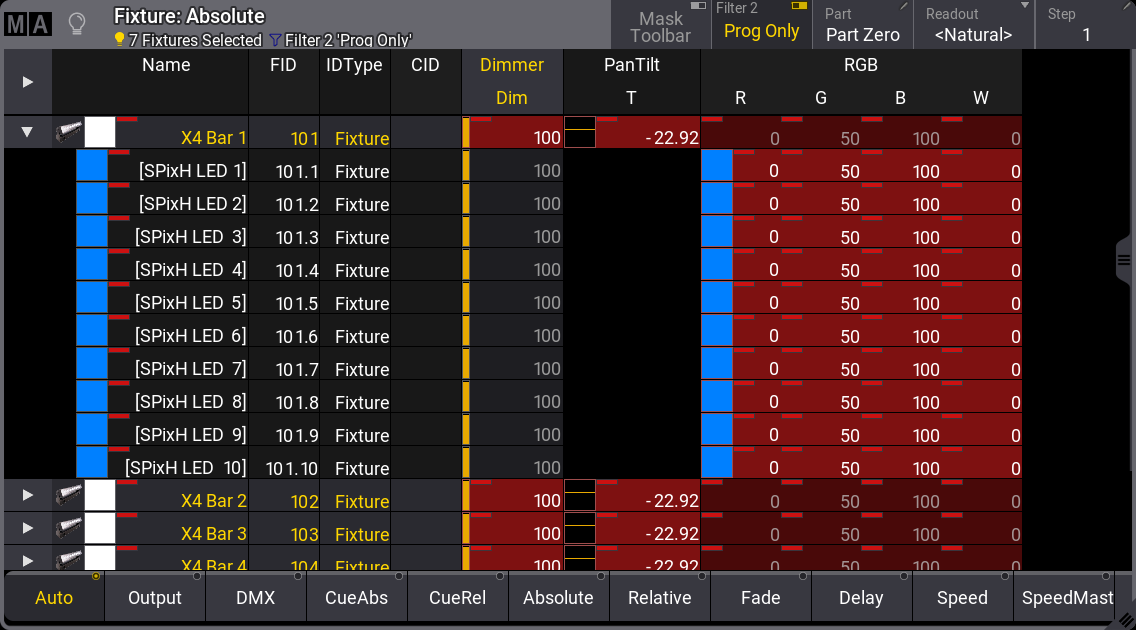
My fixture sheet uses the “Value” option in the “ChannelSet” setting in the Fixture Sheet Settings, and I have activated ‘Prog Only’ in the title bar. Prog Only means programmer only, and this filters the sheet to display only the programmer content.
Notice that we have selected the “main” part of the X4 fixtures. The dimmer and tilt are part of this main part. The main part does not have any color attributes. The values shown for the row with the main part are slightly dimmed. This indicates that the value shown is actually from the child or subfixture. The color attributes are actually in the subfixtures. We do not need to select the subfixtures explicitly to apply the color. Since the main fixture does not have this attribute, it is passed on to the subfixtures when applied to the main fixture. Have a look at the dimmer attribute. The main fixture and subfixtures all have dimmer attributes. The value is only applied to the selected (main) fixture. The subfixtures’ default dimmer value is at 100%, so the result is a colored light output.
Ok, back to presets.
Press Store and click the first preset pool object in the color preset pool - not the title field, but the one with a small “1” in the upper left corner.
Two things happened.
First, our fixture sheet changed.
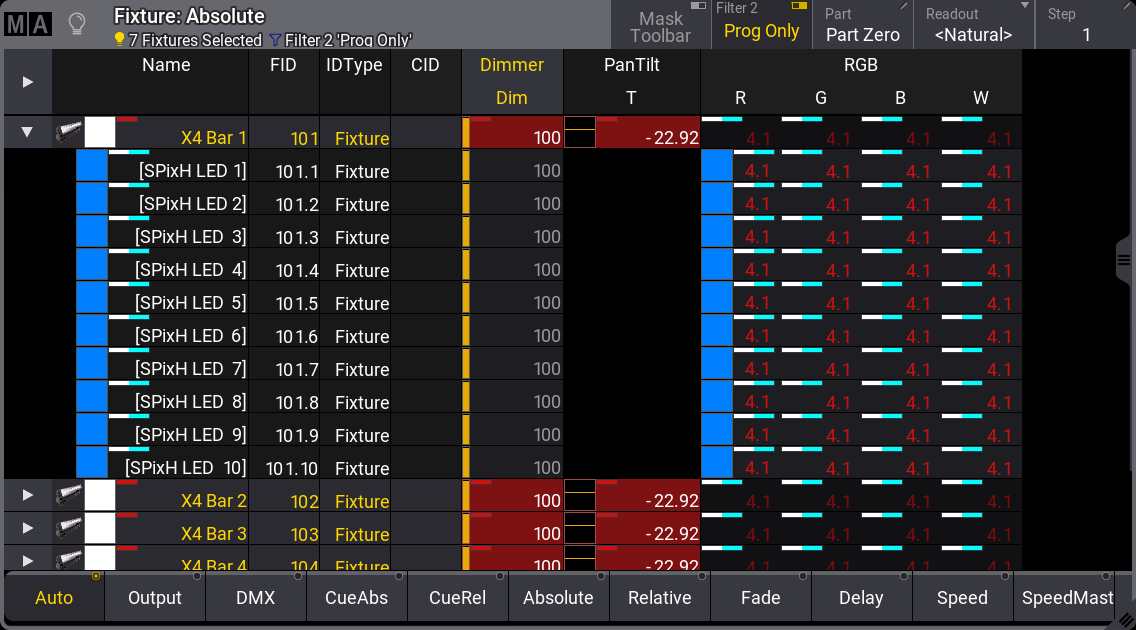
The color values are now inactive values in the programmer. The dimmer and tilt attributes are still active values. This indicates that the color values have gone somewhere, and the dimmer and tilt have not.
Also, the color values are replaced with “4.1”. This is the number of the preset where the color values have gone.
The first number is the feature group / preset pool number. The second number is the pool object.

So we got this new color preset.
Notice the small “U” in the upper right corner of the preset. This indicates that the preset is a Universal preset.
Let us have a look at what is actually stored in the preset.
Clear the programmer.
Press Edit and then click the preset.
Now the fixture sheet changes and looks like this:

These are now values in our programmer, and it is actually output.
We see here that the value is only stored for the last subfixture of the last X4 fixture, and there is are two small square yellow color indicators above each value.
This indicates that a value is a universal value.
All fixtures that have these attributes can use the universal values.
Clear your programmer and press Esc.
Click the color preset.
This first preset “call” selects all the fixtures that can use a preset - when we do not already have a selection of fixtures. Notice that we select all the subfixtures and all the Mega Pointe and Auras.
We only want the X4 Bars, so clear the programmer again and then click group 6.
Click the preset again.
Now, we have called the preset reference into our programmer for the selected fixtures (group 6).
Notice that the preset number shows in the fixture sheet value cells.
If we want to turn On and tilt the X4 bars again, we can press Full to turn them On and use the tilt encoder to tilt them forward.
Now, we are going to store a couple of other presets. Please make a Position preset pool and a Dimmer preset pool.
Now press Store and click the first preset in the position pool. And we are going to store the first dimmer preset as well.
Now you should have presets that look like this (The color preset might not be the same):
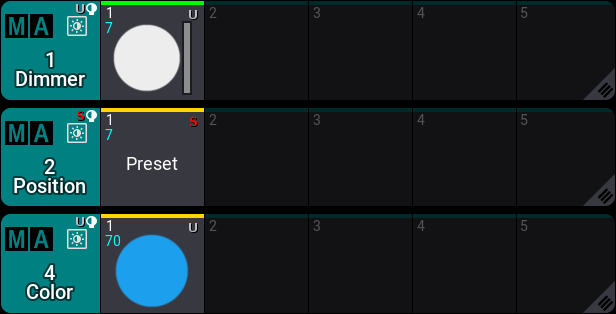
The position preset got a small red “S”. This tells us it is a Selective preset. Selective presets only contain values that can be used by the fixtures that had the values when the preset was stored.
Try to clear your programmer completely and click the position preset once. Now, you have selected all the X4 main fixtures. Clicking it again assigns the reference to the preset.
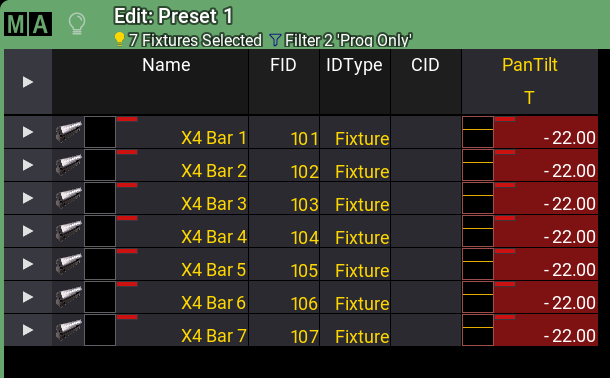
If you edit the preset, you can see in the fixture sheet that the same tilt value is stored for all the X4 fixtures.
The fixture sheet can be expanded or collapsed by tapping the white triangle arrow in the upper left corner.
Clear the programmer again and exit the edit mode by pressing Esc.
Now click the dimmer preset once.
This selects all the fixtures. That is because all the fixtures we have patched have a dimmer attribute, and the preset can be applied to all dimmer attributes. Notice that it also has the small “U” in the upper right corner.
Clicking it again. Now, all the fixtures are at full.
Clear the programmer.
There is a third mode called Global. This means that the preset has stored values for a specific fixture type. It is indicated by a small “G” in the preset’s upper right corner and as a single small yellow square when editing the preset.
So, we could simplify it like this: Universal means stored values for the attribute. Any fixture with that attribute can use the preset. Global means values stored for a specific fixture type. Any fixture of the same type as the stored one can use the preset. Selective means stored value for the specific fixtures stored in the preset. There are details to this that make it less strict when the preset is called, but these are the general rules.
Why did the presets get stored with these different preset modes? It is because we did not change the default store settings. These say that the preset should be stored using the “Auto” option for the preset mode. Auto means that the preset pool mode is used.
Each preset pool title field also has one of the mode letters showing the mode for the entire pool. This can be changed by clicking the MA logo in the title field for the pool. This opens the pool settings.
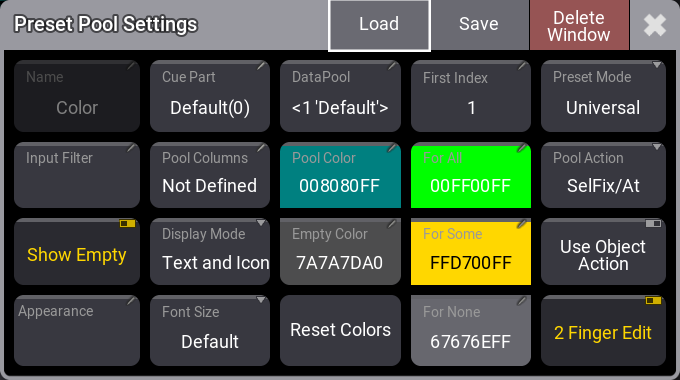
I am not going to explain all the different settings. But there is the Preset Mode for the entire pool. Clicking the button toggles between the three different modes. Please leave it in the mode it was.
Close the settings pop-up by clicking the  in the upper right corner of the pop-up.
Let us move on.
Create an All preset pool. There are five different All preset pools. They do the same; it does not matter which one you choose to create. There are several ways to organize the pools and store different content in different pools - should you choose to.
If we want to recreate the first look with the X4 bar, we need to select the X4 fixtures and apply the three presets. You could do this by clicking group 6, but we can also click the position preset first to select the X4 bars.
After making the selection, you can click the three presets.
Now, we have the references to the three presets in our programmer.
We want to store this in an All preset, but we would like to keep the references to presets - just like if we stored a cue.
To do this, we need to make a small change to the store settings.
Press and hold the Store key until the store options open.
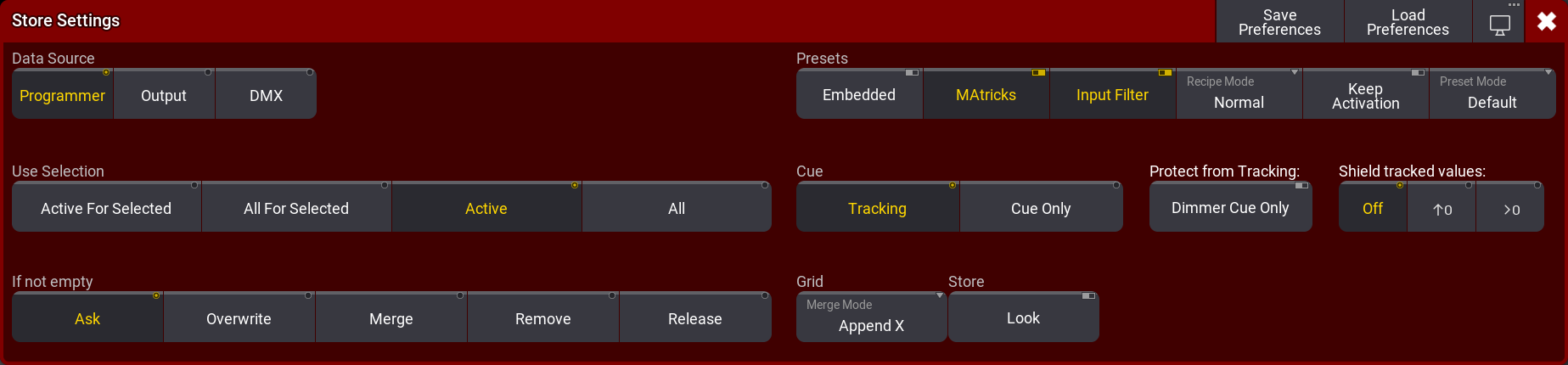
The store options are separated into different areas. One of them is about the preset. In this area, there is a button called “Embedded”. Click it to activate it. Now, click the first preset in the All preset pool. You might need to close the Store Settings to click the preset pool.
We will do this again - almost and create a second All preset, and then we can look at what happened.
Clear the programmer. Click the position preset twice and then the dimmer and color preset.
Now store the second All preset without changing the store settings.
The result should look something like this:
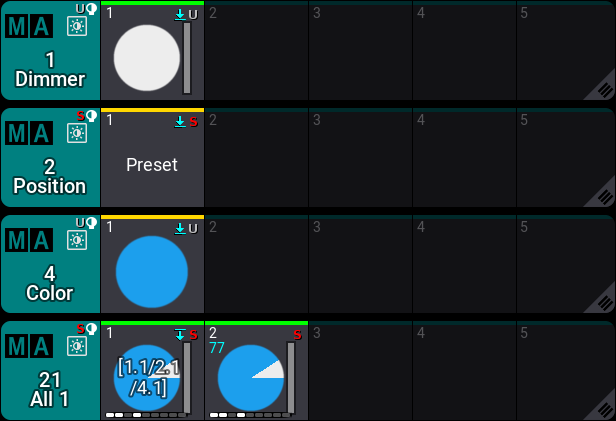
The first All preset got an icon in the upper right corner area with a horizontal line and a down-pointing arrow below the line. This means that the preset is referencing other objects. The three presets we started with each have a different icon with a horizontal line and a down-pointing arrow above the line. This means that the preset is used as a reference somewhere else.
Clearing the programmer and clicking any of the two All presets gives the same output. But try to use the edit method and look at the two presets in the fixture sheet.
The first All preset has the references as values, and the second preset has values for the attributes. This means that the default when storing presets is that we extract the values from any selected preset and store these values in the new preset.
To explore this further, clear your programmer and exit the edit mode.
Select group 6 and click the color preset (not any of the All presets).
Change the color to something different.
Now the ‘Update’ key is flashing. This means that we can update something.
Press Update.
This opens the update menu.
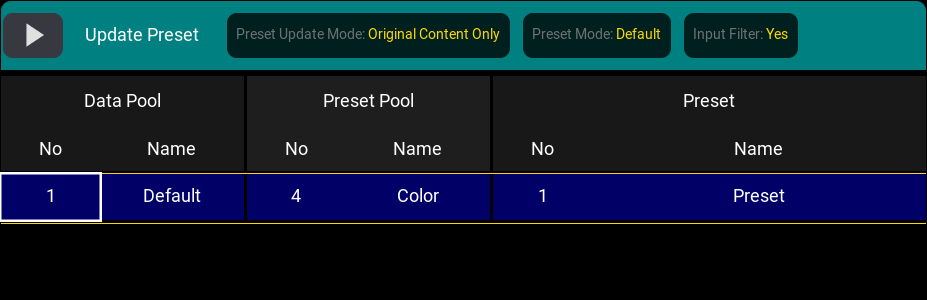
The left side shows the color preset (shown in the image above). Click the preset.
Now we have updated the color preset, and it could look something like this:
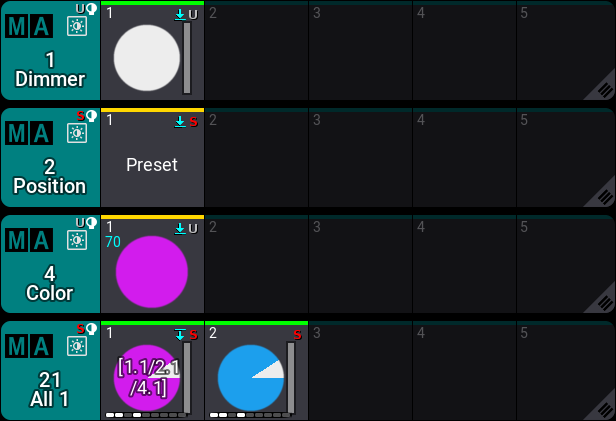
Notice that nothing in the two All presets has actually changed! But the output is obviously different. The first All preset is still just referencing the first color preset - and this color preset has changed. The second All preset has attribute values stored, which have not changed.
Alright, this is all the preset knowledge we need at the moment.
Please create five different color presets, including all the fixtures that can change color.
Also, create five position presets, some gobo presets, and some All presets. Please create the position preset for all the fixtures that can move.
Having presets with the default values (Open white, No Gobo, Home position, etc) is always a good idea.
When you have created the desired presets, please clear your programmer, and do not forget to save the show once in a while.
In this chapter, we looked at different presets and made some presets for use in later chapters.
We touched on different areas, including the Update Menu and the Store Settings.
The manual has an entire section with details about presets.
In the Next Chapter, we are going to look at Phasers.