Create Macros
Create a macro using the GUI editor or the command line.
For a better understanding of macros, see the Macros topic.
Create a Macro
Section titled “Create a Macro”Requirement:
A visible macro pool. Open the Add window dialog, tap Data Pools, then tap Macros.
- Pressing Edit, then tapping an empty macro pool object, creates a new macro and opens the editor:
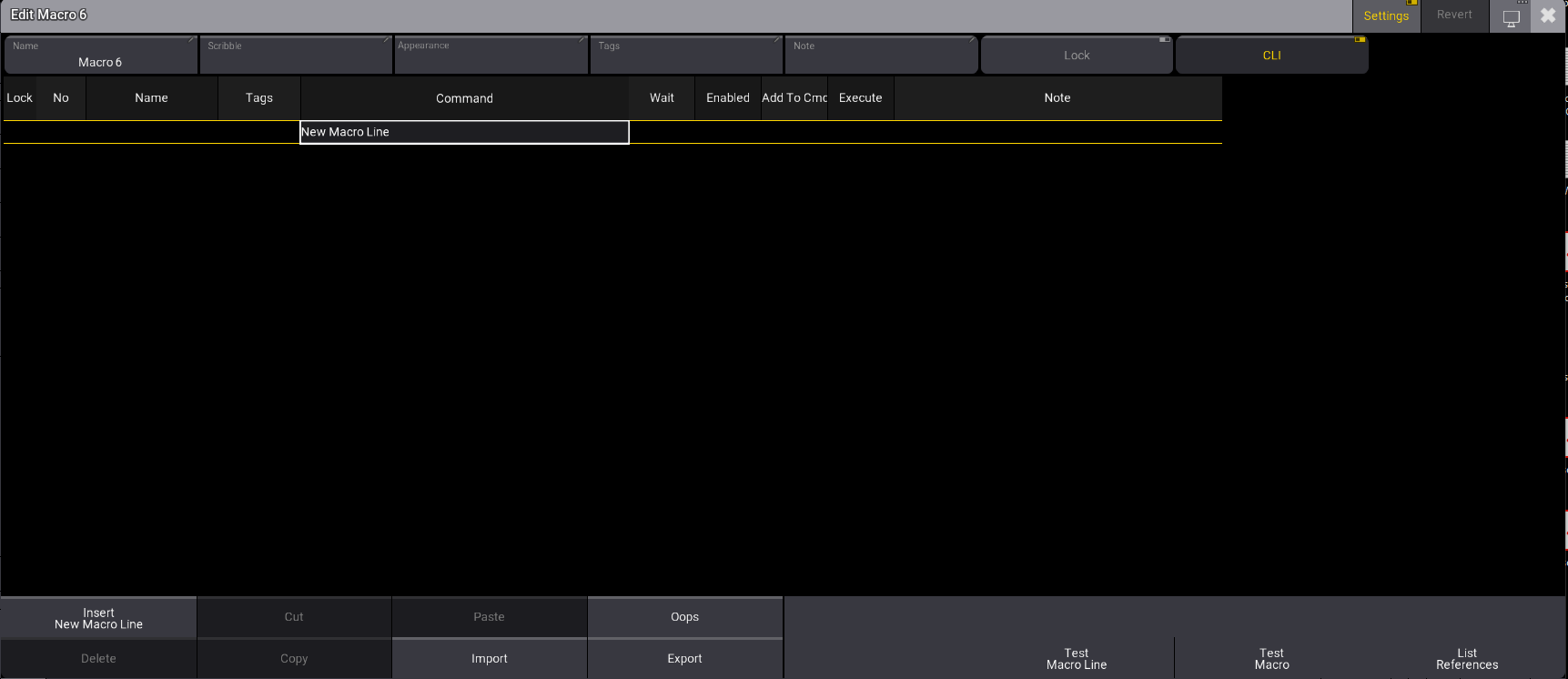
- Tap Insert New Macro Line. The command editor opens:

- Write a command in the editor. See Examples for more information.
- Repeat steps 2 and 3 to add several lines.
There are several buttons in the editor. Here is a short explanation of the specific buttons:
- Settings:**** Enable Settings in the title bar to display the Name, Scribble, Appearance, Note, Lock, and CLI buttons.
- Test Macro Line:**** Tests only the selected line.
- Test Macro:**** Tests the macro.
- List References: For more information, see Info Window.
- Tapping Import will open a pop-up containing predefined macros. See Import Macros.
- CLI: Command Line Interaction. See Command Line Interaction.