Using the Color Picker
The Color Picker is part of the Special Dialog window and can be selected by tapping on the left side of the window or via the window settings. For more information, see Special Dialog.
 | Important: |
| Color Picker windows in show files created in software version 1.9.7.0 or earlier are migrated to the Special Dialog window when the show file is loaded in software version 2.0 or later. |
The Color picker can select a color in fixtures with a mixed color system or color wheel(s).
The color picker provides convenient access to mix the desired color using several color mixing and selection options. The method is independent of the fixture’s color mix system (LED emitters or color subtraction) and color wheel.
Open the Color Picker
Section titled “Open the Color Picker”Open a Special Dialog window. See Add window.
Tap Color on the left side of the window.
RGB and HSB color space:
Tap Color Space in the color picker’s title bar to switch the color picker’s color space. There are four options:
- Fixture Type**:** The color space is defined by the emitters of the respective fixture type.
- Standard: Plasa Standard E1.54 for Color Communication in Entertainment Lighting.
- Rec.2020: ITU-R BT.2020 or** **Rec. 2020 is an audiovisual industry standard for ultra-high definition (UHDTV).
- Rec.709: ITU-R BT 709 or Rec. 709 is an audiovisual industry standard for high definition (HDTV).
Tap MA in the top left corner of the Special Dialog window to open the settings.
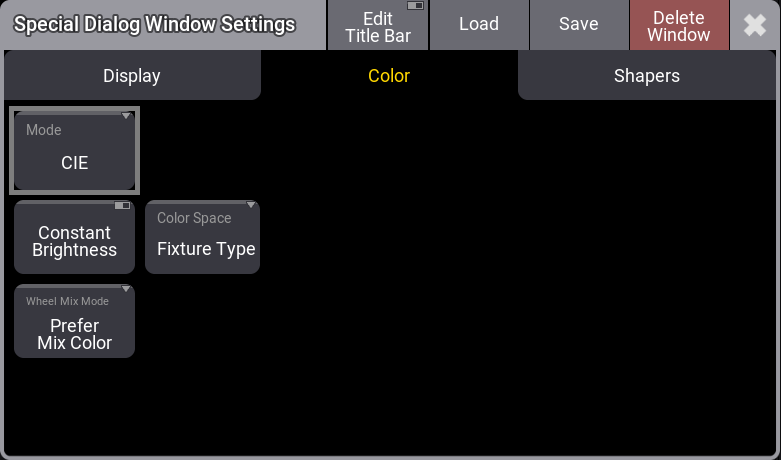
Special Dialog Window Settings - Color
The Mode can be selected using the buttons in the title bar. This is a short description of the different modes.
- CIE: A CIE color space area picker with Brightness, Quality, x, and y on-screen faders.
- HSB: An HSB area with Brightness and Quality on-screen faders.
- Fader: On-screen faders to adjust RGB, CMY, HSB, Brightness, and Quality.
- Book: This is a swatch book with colors from different gel manufacturers.
Tap Edit Title Bar to define which buttons appear in the color picker window’s title bar.
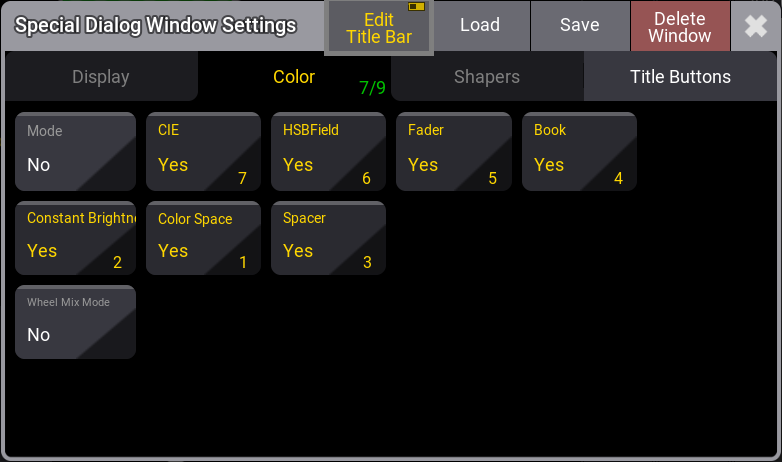
Special Dialog Window Settings - Edit Title Bar
Quality
Section titled “Quality”The Q fader, or Quality fader, is available when the fixtures have a color-mixing system with more than three colors. It controls how the colors are mixed.
Q at 100 results in small-band mixing (the specialized emitters are used). 0% results in a broadband mix. That uses as many emitters as possible to mix the color.
CIE
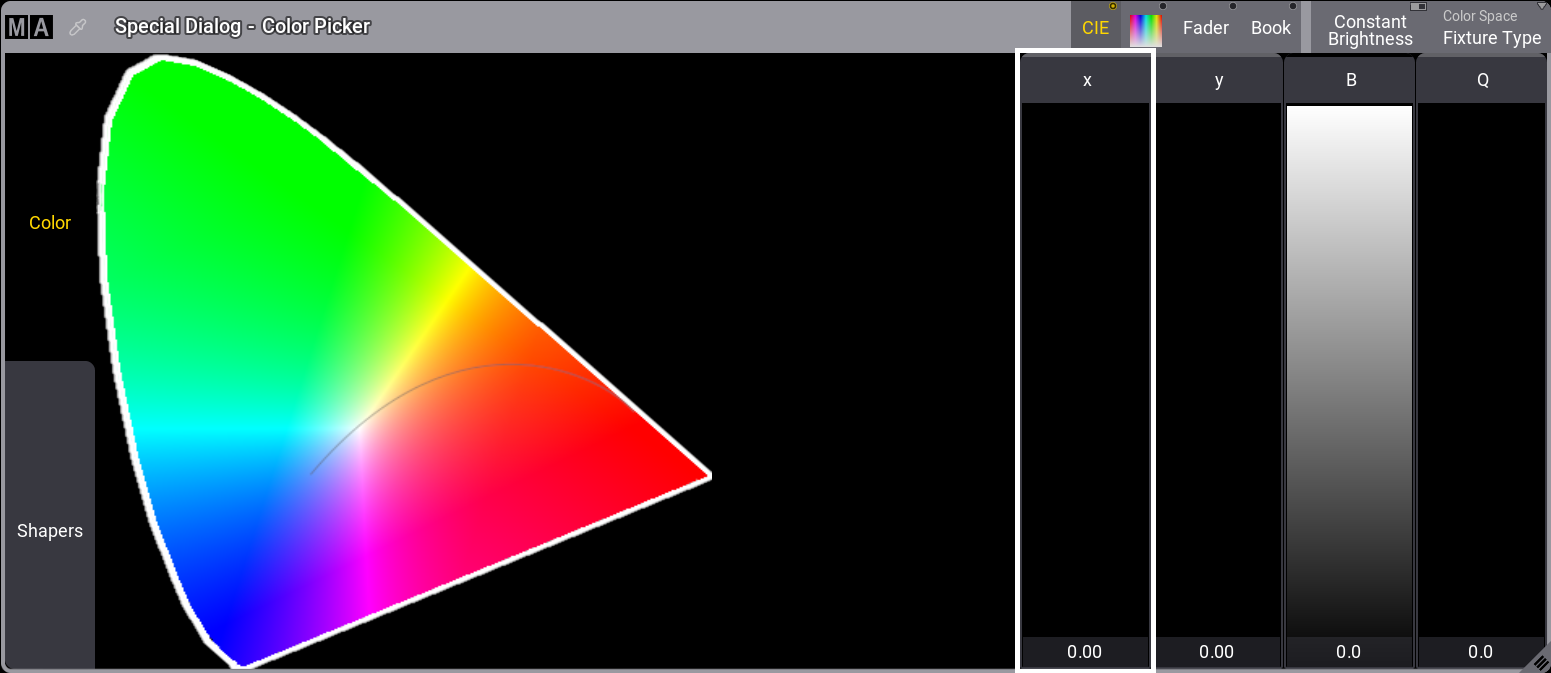
Special Dialog - Color Picker CIE mode
The CIE (Commission Internationale de l’éclairage) standard uses a figure depicting the visible spectrum.
The RGB triangle shows the colors that the specific fixture can mix.
Requirements:
Fixtures with color attributes are selected.
- To select a color, tap inside this area.
If the fixture has more than three mixing colors, the shaded part will become smaller.
 | Hint: |
| The Align function can be used together with the color picker. |
Tap the video below to see the example.
The color picker offers the Constant Brightness Mode, which can be enabled by tapping Constant Brightness in the title bar. The default setting is off.
If Constant Brightness is disabled, the selected color is mixed with maximum brightness when the brightness fader is set to 100%. In this case, the fixture’s output intensity is not kept constant but changes with the color. If the constant brightness mode is enabled, the maximum overall brightness is limited to the darkest emitter’s brightness. Changing the color in constant-brightness mode does not change the fixture’s output intensity.
| Hint: |
| When enabling the constant brightness mode while the brightness fader is positioned above the constant brightness color mixing range, the CONST B fader turns red, indicating a value > 100 %. The fader must be set to <= 100 % to ensure constant brightness when mixing colors. |
| Hint: |
| Color mixing and constant brightness mode work better the more accurate the emitter data for the fixture type is. |
Except for the Fixture Type color space, the gamut of the selected color space is displayed in the CIE color picker with a white line. The shaded area only depends on the fixture’s emitters. It does not change with the Color Space (only the small white triangle changes with the selected color space). Color mixing in the RGB tab and the HSB Color Picker depends on the color coordinates of the RGB primaries of the selected color space.
| Hint: |
| If a color is picked in the CIE Color picker outside of the gamut of the selected color space, the faders in the RGB tab will show values below 0% or above 100%. |
The CIE Color Picker displays the spectral profile (or curve) at a specific temperature corresponding to a specific peak wavelength and vice versa. As the temperature of the black body increases, the peak wavelength decreases (Wien’s Law). The intensity (or flux) at all wavelengths increases as the temperature of the black body increases. That is what we call the black body curve.
HSB Field
Section titled “HSB Field”Tap the HSB field symbol in the title bar to adjust the color mix, also known as a Color Picker.
Here, you can tap a color in the HSB field. The x-axis (left/right) is the Hue value. The y-axis (up/down) is the Saturation value, and Brightness is the B-fader on the right side.
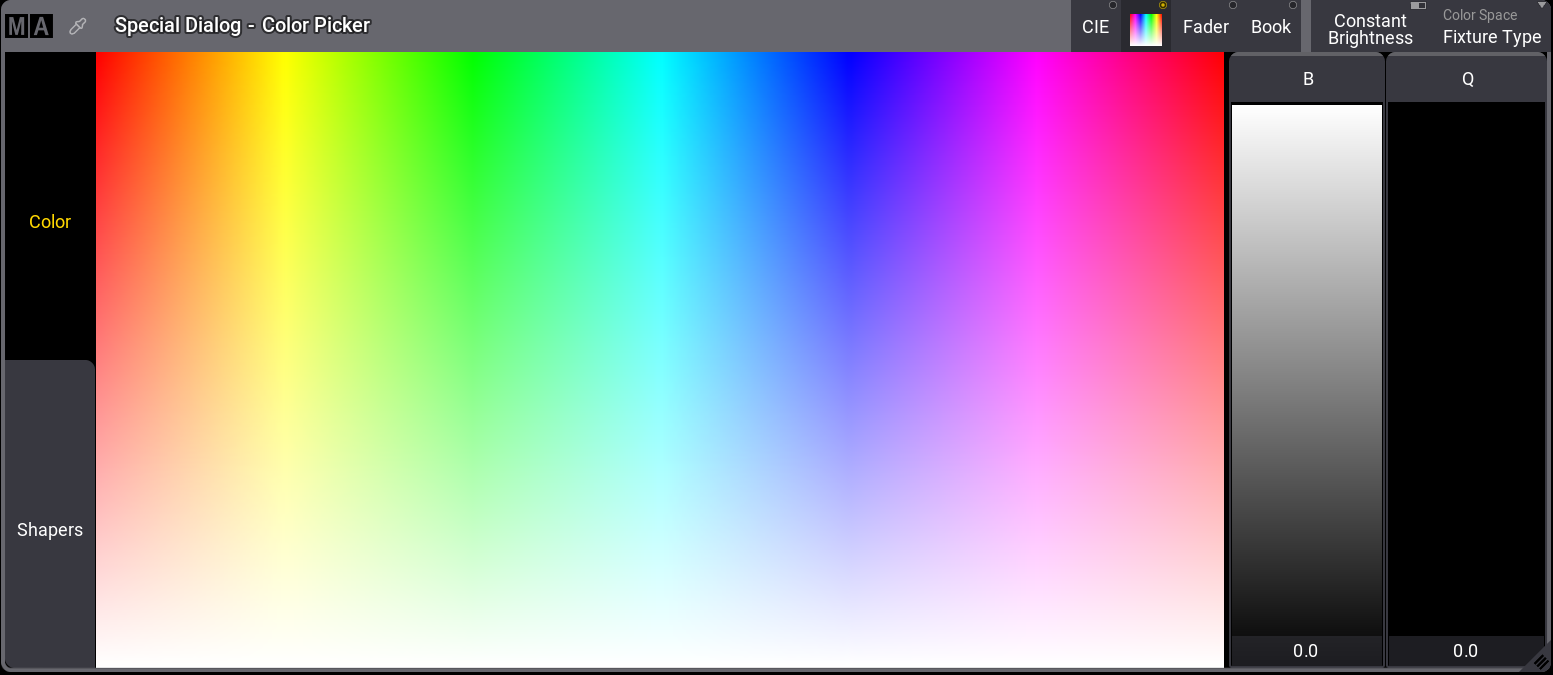
Special Dialog - Color Picker HSB mode
Fader
On-screen RGB, CMY, HSB, Brightness, and Quality faders.