Selection Grid Tool Bar
Selection Grid Tool Bar
Section titled “Selection Grid Tool Bar”When the Selection Grid Tool Bar is enabled, it is visible on the left side of the Selection Grid window. The tools can be used to modify the arrangement of the selected fixtures.
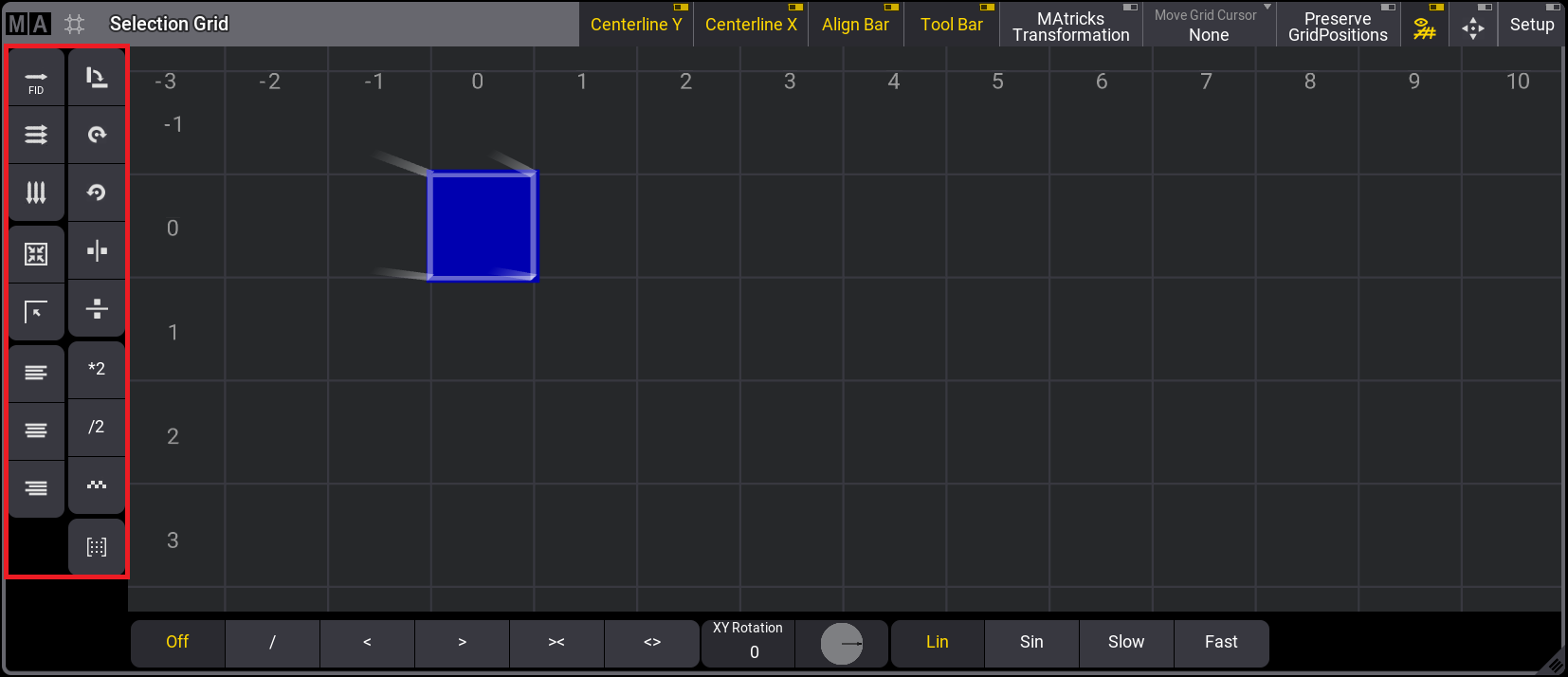
Selection Grid toolbar
Here’s a description of what the tools can do:
 Linearize Grid Numerical: The currently selected fixtures are rearranged into a line starting at Grid 0/0/0. The new fixture order is in ascending order by Fixture ID (and, secondarily, by CID).
 Linearize Grid Left To Right, then Top to Bottom: The currently selected fixtures are rearranged into a line starting at Grid 0/0/0. Based on the current grid arrangement, the new fixture order is determined to work from left to right first, then from top to bottom.
 Linearize Grid Top to Bottom, then Left to Right: The currently selected fixtures are rearranged into a line starting at Grid 0/0/0. Based on the current grid arrangement, the new fixture order is determined to work from top to bottom first, then from left to right.
 Remove Gaps: Remove gaps between fixtures.
 Remove Offset: Removes the offset between the origin and the selection**.**
 Apply Left Alignment to Grid: Align the selection to the left of the whole selection.
 Apply Center Alignment to Grid: Align the selection at the center of the grid.
  Apply Right Alignment to Grid: Align the selection to the right of the whole selection.
  Transpose Grid: Interchanges the X and Y grid coordinates of every selected fixture.
 Rotate Grid by 90 Degrees to the right: Rotate the currently selected fixtures 90° clockwise in the XY plane.
 Rotate Grid by 90 Degrees to the left: Rotate the currently selected fixtures 90° counterclockwise about the XY plane.
 Mirror Grid at X-axis: Mirrors the fixtures in the grid along a vertical mirror line.
 Mirror Grid at Y-axis: Mirrors the fixtures in the grid along a horizontal mirror line.
- *2 Multiply Grid Coordinates by 2: Relatively multiplies the space between fixtures on the x-axis.
- /2 **Divide Grid Coordinates by 2: **Relatively divide the space between fixtures on the x-axis.
 Make Grid Symmetrical: Transforms the current selection to be symmetrical.
  Use MAtricks Positions and Reset MAtricks: keep the fixtures at their MAtricks transformed coordinates and remove MAtricks.
Use the Grid keyword to trigger the grid tools from the command line. For example, to trigger the Transpose tool, type:
 | User name[Fixture]>Grid “Transpose” |
These are the commands for each tool:
- Linearize Grid Numerical: Grid “Linearize” “Numerical”
- Linearize Grid Left To Right, then Top to Bottom: Grid “Linearize” “LeftToRight”
- Linearize Grid Top to Bottom, then Left to Right: Grid “Linearize” “TopToBottom”
- Remove Gaps: Grid “RemoveGaps”
- Remove Offsets: Grid “RemoveOffset”
- Apply Left Alignment to Grid: Grid “Align” “Left”
- Apply Center Alignment to Grid: Grid “Align” “Center”
- Apply Right Alignment to Grid: Grid “Align” “Right”
- Transpose Grid: Grid “Transpose”
- Rotate Grid by 90 Degrees to the right: Grid “Rotate” “Right”
- Rotate Grid by 90 Degrees to the left: Grid “Rotate” “Left”
- Mirror Grid at X-axis: Grid “Flip” “X”
- Mirror Grid at Y-axis: Grid “Flip” “Y”
- Multiply grid coordinates by 2: Grid “Multiply” 2
- Divide grid Coordinate by 2: Grid “Divide” 2
- Make grid symmetrical: Grid “MakeSymmetrical”
- Use matricks positions and reset matricks: Grid “UseMatricksPositions”
Grid Coordinates can be multiplied or divided by values other than 2. For example, to multiply the grid coordinates by the factor 6, type:
| User name[Fixture]>Grid “Multiply” 6 |