Calculator
When editing a field that accepts numeric values, the calculator appears. This includes pressing one of the dual encoders while it is displaying an editable value.
The calculator is a dynamic window, and its appearance changes depending upon the edited item and the type of value to be entered.
Example
Section titled “Example”- Edit a dimmer attribute
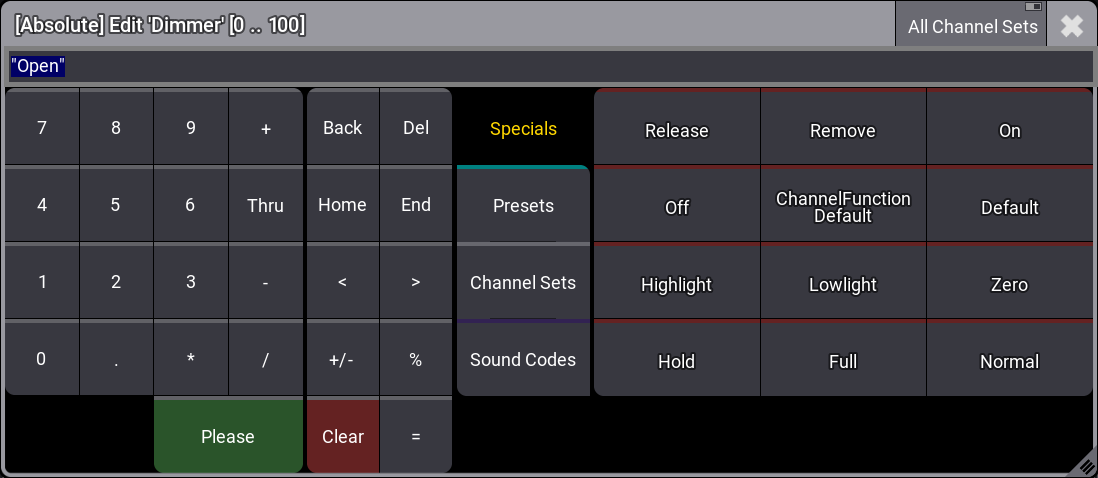
The calculator editing a dimmer attribute
The title bar displays several useful pieces of information about what the calculator is currently editing:
- Layer: If applicable, the first set of brackets contains the value layer.
- Attribute or parameter: The name of the attribute or parameter appears after the word “Edit.”
- Value Range: The last set of brackets contains the allowed range of input values.
All Channel Sets: Shows the channel sets of all channel functions per attribute. For more information, see Encoder Resolution.
 : A filter icon in the title bar indicates a filter selection.
Input Field
Section titled “Input Field”The input field appears below the title bar. When the calculator opens, the input field displays the current value of the edited object. The text of this value is completely selected so that any immediate entry will replace the existing value. Alternatively, the text can be deselected and retained as part of the entry.
Entering values with a percentage sign (%) in front of the value scales the former value by the new value. For example, the old value is 50, and entering % 50 results in a value of 25.
Standard Buttons
Section titled “Standard Buttons”The following buttons appear in all calculators.
Number Pad
Section titled “Number Pad”The calculator displays a number pad on the left. These buttons share the same functions in the calculator as the number keypad in the command section of the console.
Function Buttons
Section titled “Function Buttons”Function buttons appear to the right of the number pad. These buttons include:
- Back: Tap to delete characters to the left of the cursor.
- Del: Tap to delete characters to the right of the cursor.
- Home: Tap to set the cursor at the beginning of the input field.
- End: Tap to set the cursor at the end of the input field.
- <: Tap to move the cursor to the left.
- >: Tap to move the cursor to the right.
- +/-: Tap to insert a negative or a positive value. For more information see - [Minus] Key or the + [Plus] Key.
- %: Tap to enter the percent sign.
- =: Tap to enter the equals sign.
- Clear: Tap to delete the entire entry.
- Please: Tap to confirm and apply the value. The calculator closes.