Timing Masters
There are 50 different timing masters.
They can have values between 0 seconds and 10 seconds.
Timing masters can be set for playback timings instead of a numeric value. They can also be used for timings in combination with playback commands.
The following properties can be set to a timing master:
- Timings in sequences: CueIn Fade, CueOut Fade, CueIn Delay, CueOut Delay, Feature Group Fade, and Feature Group Delay
For more information about using timing masters in sequences see Cue Timing – Timing Masters. - Playback timings in Preferences and Timings:
To show and edit these default playback timings, go to** Menu - Preferences and Timings - Timings**.
For more information about default playback timings see Cue Timing – Playback Timing.
To set a timing master, edit the value of one of these properties and select a timing master in the calculator.
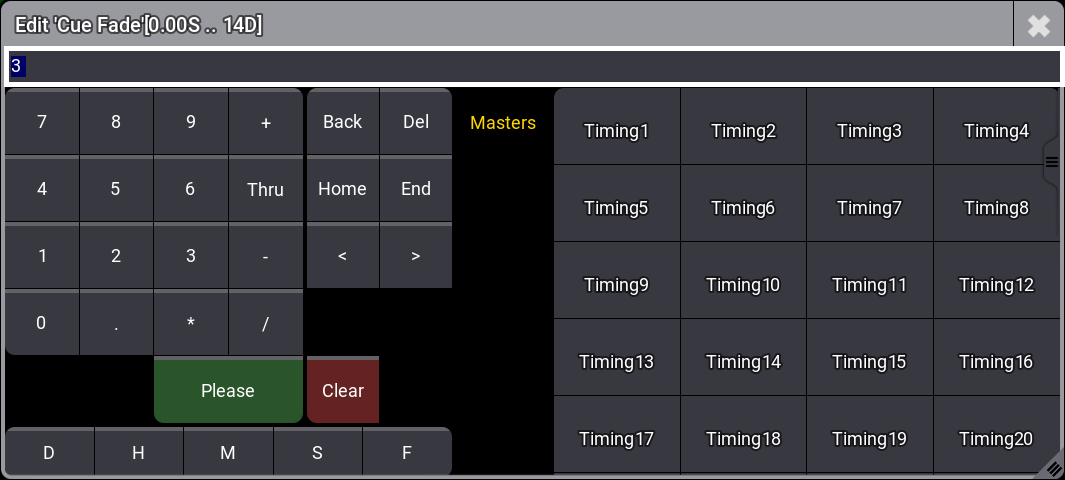
Calculator Cue Fade with timing masters
To set different timing masters for in and out timings when C****ondensed Timing is enabled in the sequence sheet, type manually into the Cue Fade or Cue Delay calculators. For example, Timing1/Timing2 (no spaces between name and number).
To use a timing master in combination with playback commands, type the timing master instead of a numeric value.
Example:
 | User name[Fixture]>Goto Cue 5 Fade “Timing5” |
Timing masters can be assigned to executors. Read more about assigning masters to executors in the Assign Object to an Executor topic.
To change the name of a timing master or add a scribble, an appearance, a note, or tags go to the Edit Setting tab of the assign menu or use the Label keyword.