Create Quickey
Requirements
Section titled “Requirements”- The demo show is loaded.
- The fixture sheet is open.
- The Quickeys pool is open.
- Clear the Programmer and turn off any active playbacks. For more details, refer to the sections Clear Key and Running Playbacks.
Fixture Selection
Section titled “Fixture Selection”To select fixtures 9 through 13:
- Type
Fixture 9 Thru 13into the command line. - Press Please to confirm.
Creating a Quickey
Section titled “Creating a Quickey”- To open the Quickey editor, use Swipey on an empty pool object and release your finger above Edit.
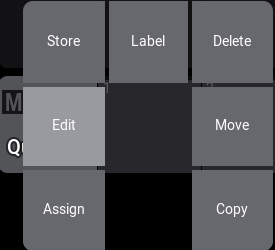
Swipey
- To open the code list, tap Code.
- To open the filter bar, tap
 and type “full”:
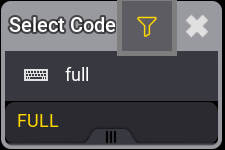
Filter
- Tap FULL. The code list closes.
- Tap
 to close the editor. A new Quickey pool object is created.
- Create a second Quickey with the BLIND function. The pool should look like this:
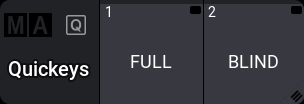
Quickey pool
- To set the dimmer of the selected fixtures to 100%, tap FULL in the Quickey pool.
- To toggle blind, tap BLIND repeatedly.
For more detailed information on the keywords used, see Full and Blind.