16 - Network and How to Output DMX
This chapter is only information. We are not going to add anything to the show.
It is possible to connect multiple grandMA3 hardware devices on a network.
This allows multiple operators to work together on the same showfile.
It also offers backup in case some hardware stops working.
There are two directions to go in a grandMA3 network.
The first direction is a grandMA3 onPC solution where the computing hardware is a Windows or Mac computer running the grandMA3 onPC software.
We are not permitted to output anything from the grandMA3 onPC software unless we have some grandMA3 hardware that unlocks parameters/attributes for us. If we use an onPC solution, the limit is 4 096 parameters. We can patch these parameters in any of the 1 024 universes available to the system. We need something that can convert the DMX into actual physical DMX universe outputs if we need to control fixtures without an Ethernet port.
The other direction is using grandMA3 consoles as the primary computing hardware. A console-based system can have grandMA3 onPC in the same system, but the limitation mentioned above is not valid.
The console system provides you with certain parameters from the start, depending on the console model. The way to expand the parameters in a console system is by adding grandMA3 processing units - this is the only way to add more parameters when there is a console in the system. Much of the grandMA3 hardware has physical DMX ports. These can (as a general rule) be used as DMX inputs or outputs.
Session
Section titled “Session”The grandMA3 devices need to be connected to a network switch and have IP addresses. We are not going into details on how to do this.
Then, a Session needs to be set up. There is always a master device in a session - this needs to be what we call a station. A Station is any grandMA3 device capable of creating and running a session. Other grandMA3 hardware in the network can join the session.
This is controlled from the Network Menu.
Click the gear icon  in the control bar or press the Menu key, and then click Network.
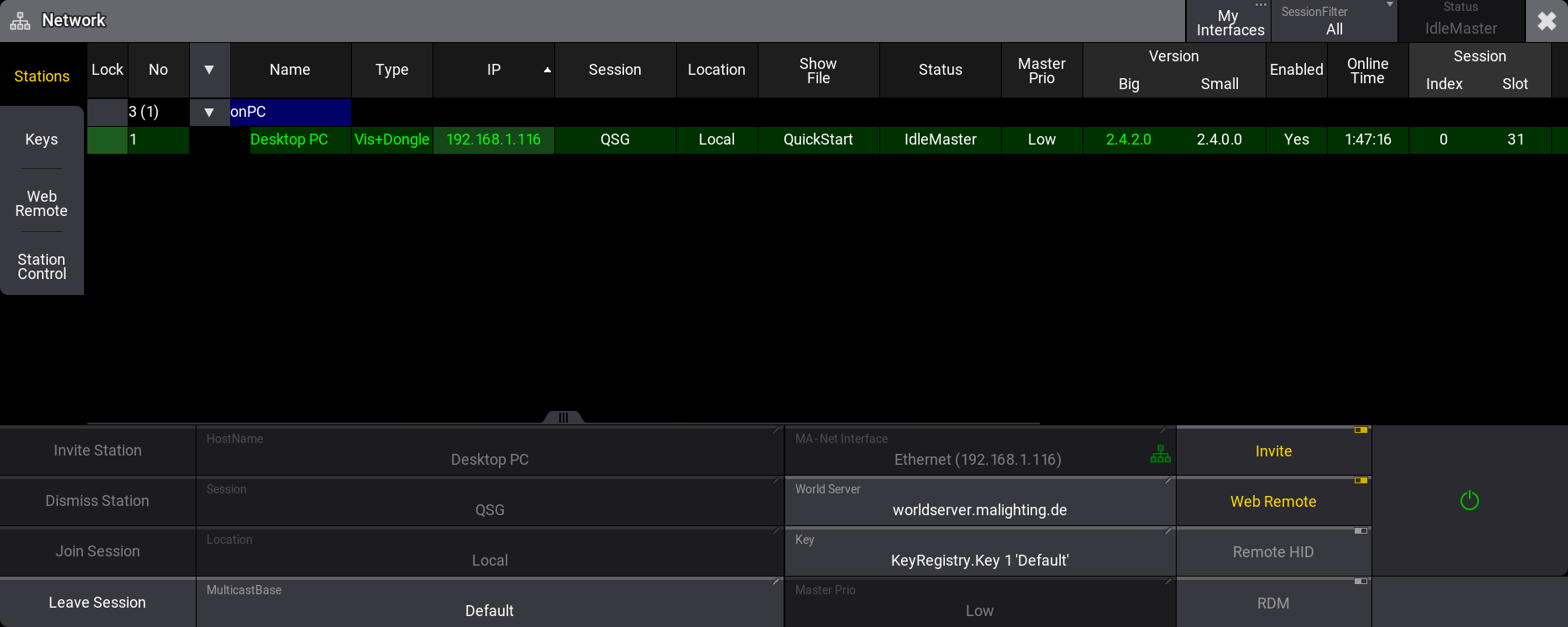
Other grandMA3 hardware on the network will appear in this menu and can be selected and invited into the session.
Configuring a DMX Port on grandMA3 Hardware
Section titled “Configuring a DMX Port on grandMA3 Hardware”The DMX ports on any connected grandMA3 hardware can be configured from any station.
Open the menu pop-up again, and this time, click Connector Configuration.
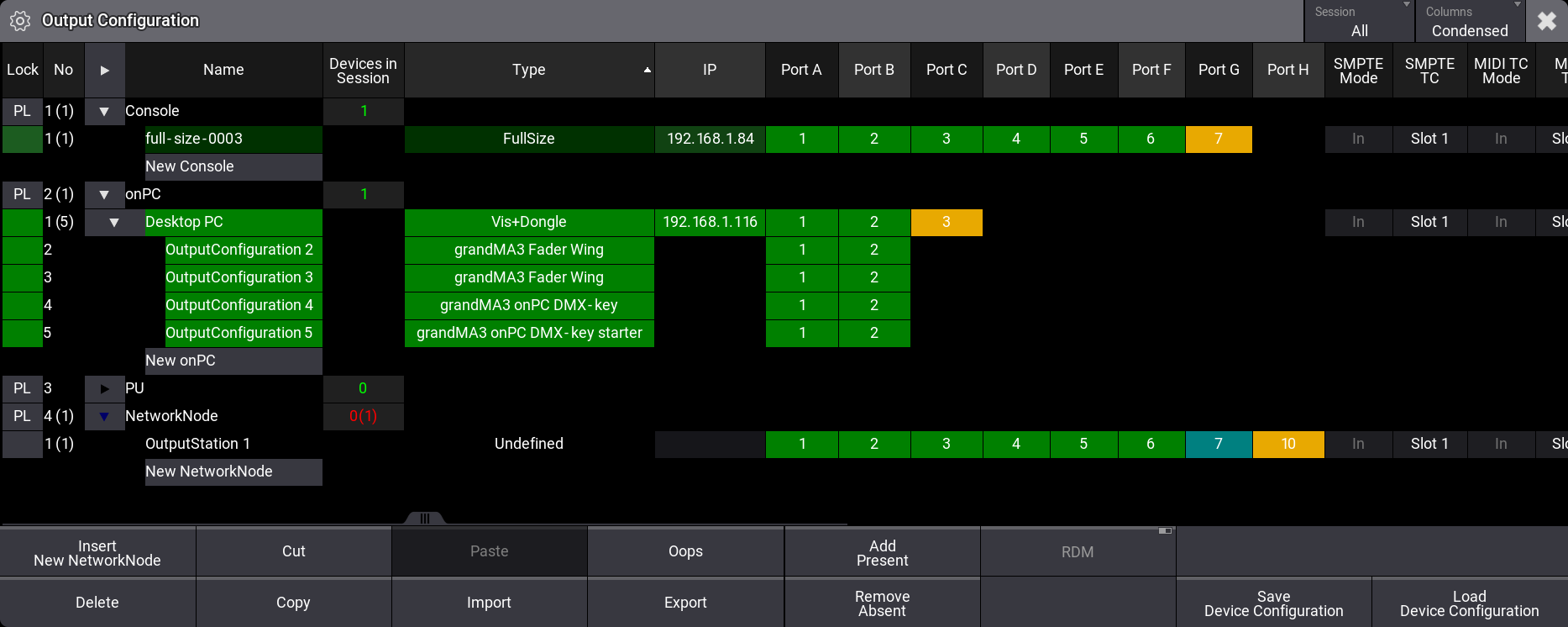
In the example image above, you can see a full-size console with DMX ports. The onPC has ports that match a grandMA3 onPC command wing and all possible connected grandMA3 onPC devices. A grandMA3 onPC command wing is not connected in my current setup; instead, a grandMA3 Viz-key is connected. Up to two grandMA3 onPC fader wings can be connected to each grandMA3 onPC station. One of each of the two different grandMA3 onPC DMX-keys can also be connected to each grandMA3 onPC station. Their ports appear as children of the onPC station.
A (not connected) Network Node with a port configuration also exists.
Editing the fields for any port allows you to select which universe it should output or input DMX into.
Network DMX
Section titled “Network DMX”Another option is to output (or input) DMX using Art-Net or sACN. To do this, open the menu pop-up again and then click DMX Protocols.
There are two options on the left side where you can select Art-Net or sACN.
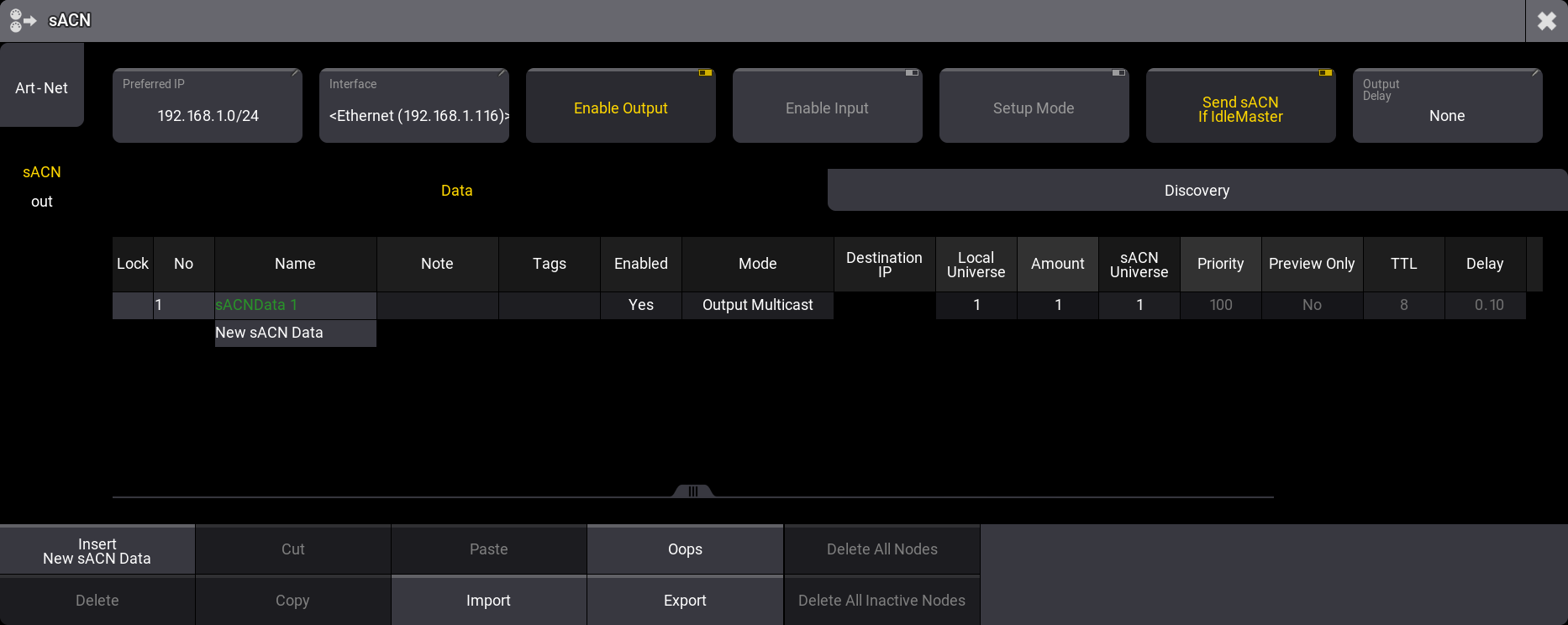
It is outside the scope of this Quick Start Guide to describe this in detail. There is a link below to learn details about the Art-Net and sACN.
But generally, you can set up the grandMA3 system to output any combination of universes. Then, you will need a DMX node from any manufacturer that supports Art-Net or sACN, and remember that you need some grandMA3 hardware to unlock the parameters, even when using Art-Net or sACN to output DMX.
In this chapter, we looked at what is needed to output DMX. A session, unlocked parameters, grandMA3 DMX ports, or DMX via a network.
Learn more about unlocking parameters in the Parameters topic and the sub-topics.
You can see the grandMA3 hardware lineup on MA Lighting’s website (External Web Link).
The Network menu is described in detail in the Networking section.
Details about setting up output from the grandMA3 hardware can be found in the DMX Port Configuration topic.
The Ethernet DMX and its sub-topics describe DMX output via the network.
This was the final chapter in the original version of the Quick Start Guide. Since then, we have added a new chapter about recipes. Future chapters might also get added as new chapters at the end of the guide. The idea is to let users skip the entire quick start guide and just load their “old” quick start showfile to continue learning about the new stuff. This does not mean that the previous chapters do not contain new information (for instance, Quickeys was added since the first versions of this Quick Start Guide), but these new functions that deserve a chapter will be added at the end.
So, the next chapter is about Recipes.