Parent Child Concept
The general selection syntax is not only applying to fixtures (Parent) and their levels of sub-fixtures (Child), but furthermore the general selection syntax applies to all types of objects that use a hierarchic structure. Objects that use hierarchic structures are, for example:
- Preset Pools with Presets.
- Pages with Executors.
- Macro with Macro lines.
 | Hint: |
| To learn more about selecting fixtures and its sub-fixtures using syntax commands, see Select Fixtures topic. |
To gain a faster and more logical way (for example to select, copy, move or delete objects) in the hierarchical structure, the dot (.) is an important tool in the selection syntax:
- The dot (.) ends the selection on the current level and then steps one level down in the hierarchical structure.
Instead of using the dot (.) as a separator, dedicated keywords for the objects in the next level of the hierarchy can be used. For example, Page 1 Executor 201.
To restart at the top level of the hierarchy within one command, the starting keyword (for example Fixture) has to be entered again. For example, Fixture 5.2 Fixture 3 .
To select fixtures in the same hierarchic structure within one command, (+) can be used. For example, Fixture 5.2 + 3.
Dot Selection Behavior
Section titled “Dot Selection Behavior”It is not necessary to recall the subcategory of an object in a syntax command, after the subcategory is already called using the dot (.). This behavior is shown in the examples below.
Do not use the following command:
Clone Fixture 101 At Fixture 102 If Preset 21.101 Thru 21.105
Use a command with a omission of “21.” instead:
Clone Fixture 101 At Fixture 102 If Preset 21.101 Thru 105
Do not use the following command:
Move Preset 1.1 Thru 1.3 At 1.5
Use a command with a omission of “1.” instead:
Move Preset 1.1 Thru 3 At 1.5
Examples for Selection Syntax
Section titled “Examples for Selection Syntax”To recreate the examples, the following should be prepared:****
-
The grandMA3 demo show file is loaded.
-
A fixture sheet window is open.
-
The following fixture type is patched:
- Ayrton Alienpix - RS Ex 16 Bit
- Quantity: 3
- FID: 301 - 303
- To select the second sub-fixture of fixture 301.1, type:
 | User name[Fixture]>Fixture 301.1.2 |
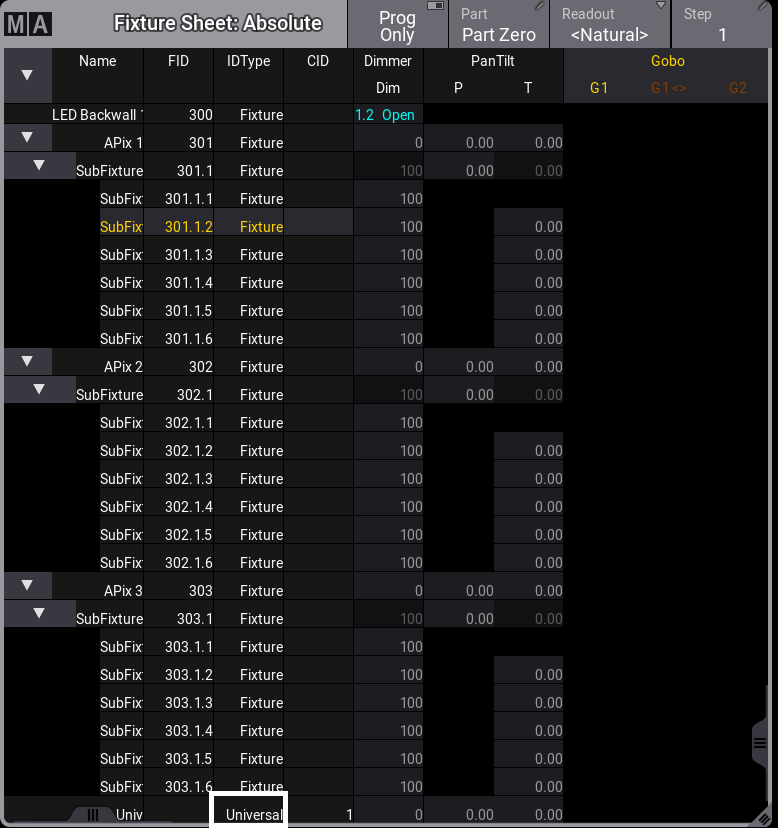
Second sub-sub-fixture of fixture 301 is selected
- To select only the sub-sub-fixtures 2 to 4 of fixtures 301 to 303, type:
| User name[Fixture]>Fixture 301 Thru 303.1.2 Thru 4 |
In this example all fixtures on the top level have to be selected: Fixture 301 Thru 303.1..
And after the dot, the sub-fixtures are selected: 2 Thru 4.
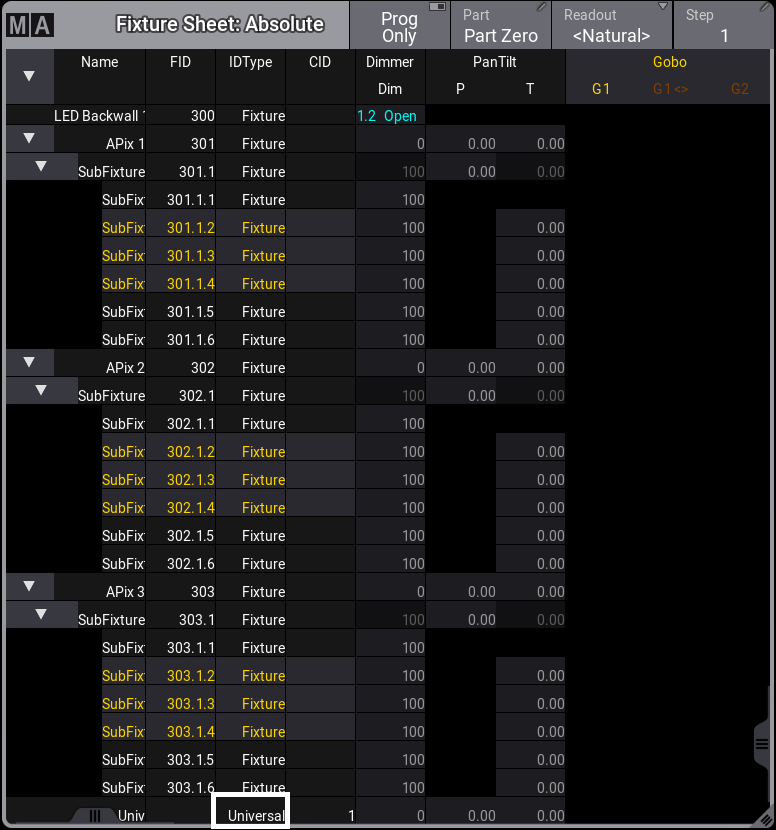
Sub-sub-fixtures 2 to 4 are selected.
- To select sub-sub-fixtures 4 to 6 of fixture 301, all sub-fixtures of fixture 302, and sub-sub-fixtures 1 to 5 of fixture 303, type:
| User name[Fixture]>Fixture 301.1.4 Thru 6 Fixture 302.1. Thru Fixture 303.1. Thru 5 |
In this example the . 4 in Fixture 301.1.4 steps down to the sub-fixture level. Fixture 302.1. needs to be entered to restart at the top level with fixture 302.
If Fixture 302 would not be entered, the second sub-fixture of sub-fixtures 4 to 6 would be selected.
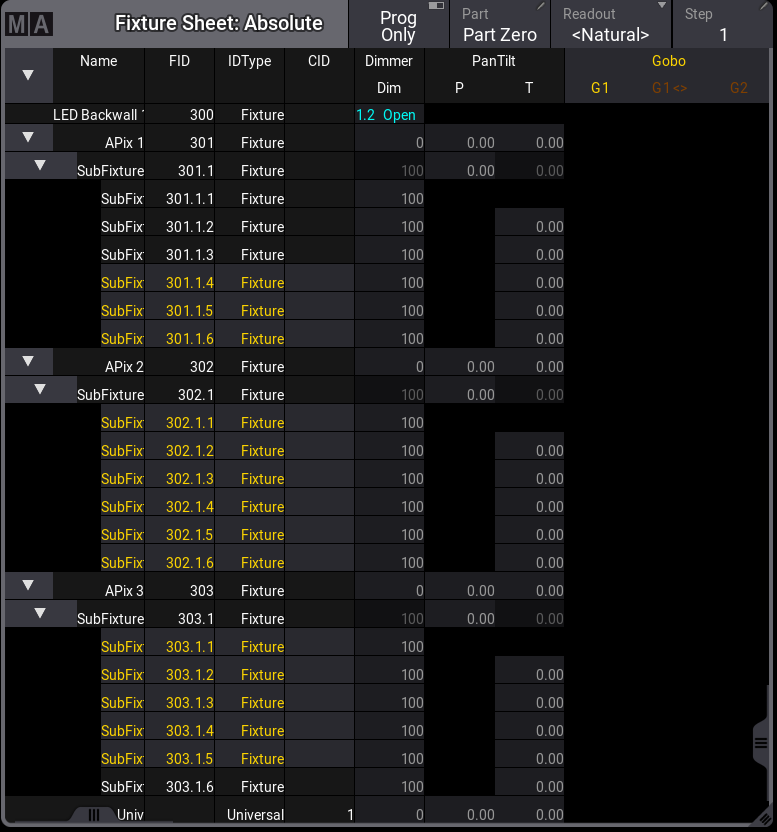
Different sub-sub-fixtures are selected for each fixture type
- To select the fixtures as a replacement for a lasso selection, starting at fixture 302 and ending it at fixture 303.1 including the parent fixtures as a replacement for a lasso selection, type:
| User name[Fixture]>Fixture 302. Fixture 303 Fixture 303.1 |
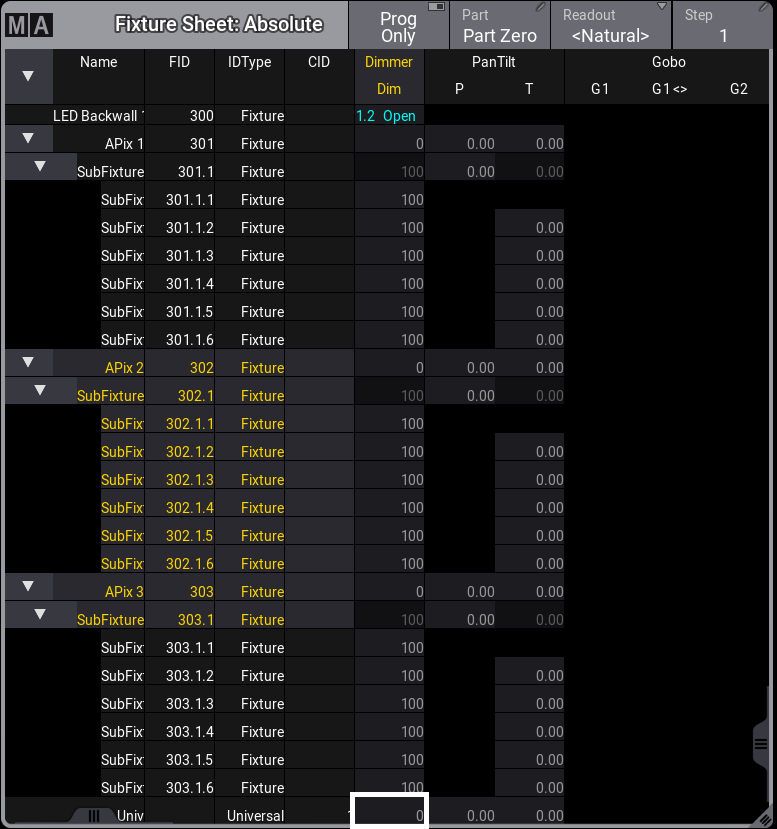
This fixture selection is a replacement for a lasso selection.
- To select all sub-fixtures on the first sub-fixture level for all fixtures, type:
| User name[Fixture]>Fixture Thru.Thru |
Deleting Syntax
Section titled “Deleting Syntax”- The following examples are used in general, and are not in correspondence with the demo show file.
To delete executor 201 on all pages, type:
| User name[Fixture]>Delete Page Thru.201 |
or type:
| User name[Fixture]>Delete Page Thru Executor 201 |
This second example describes the additional rule of the first rule from above: Instead of using Page x.y, the Executor keyword is used to address the executors.