Imported images are in the Image Pool. For more information, see Pool Windows.
 | Important: |
| The overall size of the media pool is a maximum of 300 MB. |
We advise that you keep the image pool as small as possible. For example, keep the maximum image size below 64 MB, and do not exceed a resolution of 1 920 x 1 080.
Images can be used for appearances. Read more in the Create Appearances topic.

Example of the images pool
Edit an image pool object using one of two options:
- Press Edit and then tap the desired pool object.
- Open the swipey commands on the pool object and choose Edit.
The Edit Images pop-up opens:
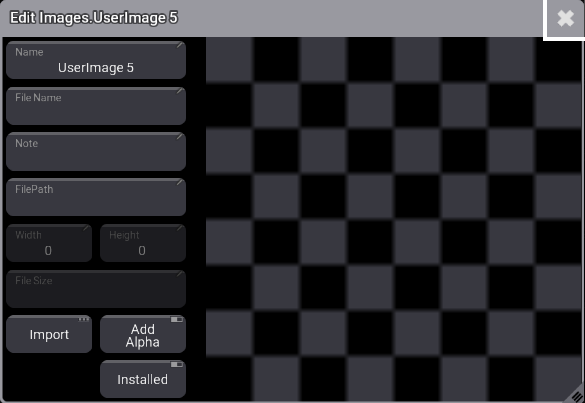
Edit Images pop-up window
Import Images Using the Image Pool
Section titled “Import Images Using the Image Pool”Workflow:
- Edit an empty pool object.
- Tap the Import button.
- Tap Internal in the top-right of the title bar to change the drive to the desired source.
- Select the desired image.
- Tap Import.
- Close the Edit Image pop-up.
- Before closing the Edit Image pop-up, it is possible to edit the name.
Tap the video below to see the example: