Create Macros
Create a macro using the GUI editor or the command line.
For a better understanding of macros, see the Macros topic.
Create a Macro
Section titled “Create a Macro”Requirement:
A visible macro pool. Open the Add window dialog, tap Data Pools, then tap Macros.
- Pressing Edit, then tapping an empty macro pool object, creates a new macro and opens the editor:
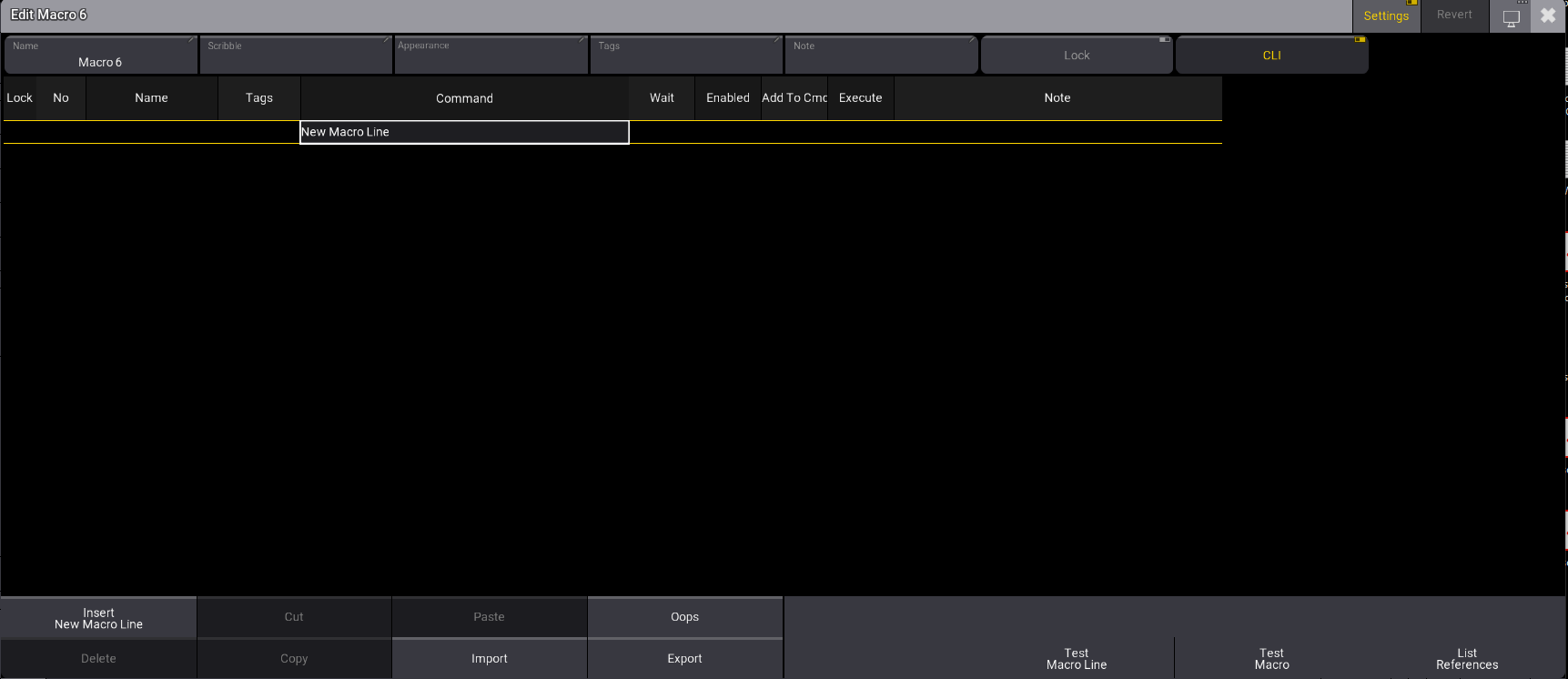
- Tap Insert New Macro Line. The command editor opens:

- Write a command into the editor. See Examples for more information.
- Repeat steps 2 and 3 to add several lines.
There are several buttons in the editor. Here is a short explanation of the specific buttons:
- Settings:**** Enable Settings in the title bar to display the Name, Scribble, Appearance, Note, Lock, and CLI buttons.
- Test Macro Line:**** Tests only the selected line.
- Test Macro:**** Tests the macro.
- List References: For more information, see Info Window.
- Tapping Import will open a pop-up containing predefined macros. See Import Macros.
When CLI is disabled (it is enabled by default), CLI is displayed in red text on the pool object, and the macro is executed without affecting the command line.

Macro 3 with CLI deactivated