Selection Grid
Fixtures can have information about their position in a 3D selection grid.
Each fixture is symbolized as a box using a space in the grid.
The grid organizes the fixtures in relation to each other, but not necessarily their position in the 3D Viewer. A helpful tool for positioning fixtures in the selection grid according to their position in 3D space is called the 3D view to Selection Grid. For more information about this tool, see 3D Viewer.
Tap a space on one of the screens to add the Selection Grid window. See Add Window.
Adjust the Selection Grid
Section titled “Adjust the Selection Grid”The grid can be rotated by pressing the window with a single finger and moving the finger around the screen.
The grid can be zoomed using a pinch motion with two fingers on the touch screens or by scrolling the wheel on a mouse.
The grid can be moved by touching the screen with two fingers and moving them around the screen. Alternatively, you can move it with a mouse by keeping the right mouse button pressed while moving the mouse.
Grid Cursor
Section titled “Grid Cursor”Fixtures are positioned based on the position of the grid cursor, which is the blue cell in the grid.
The grid origin, 0/0/0, is marked with a white frame.
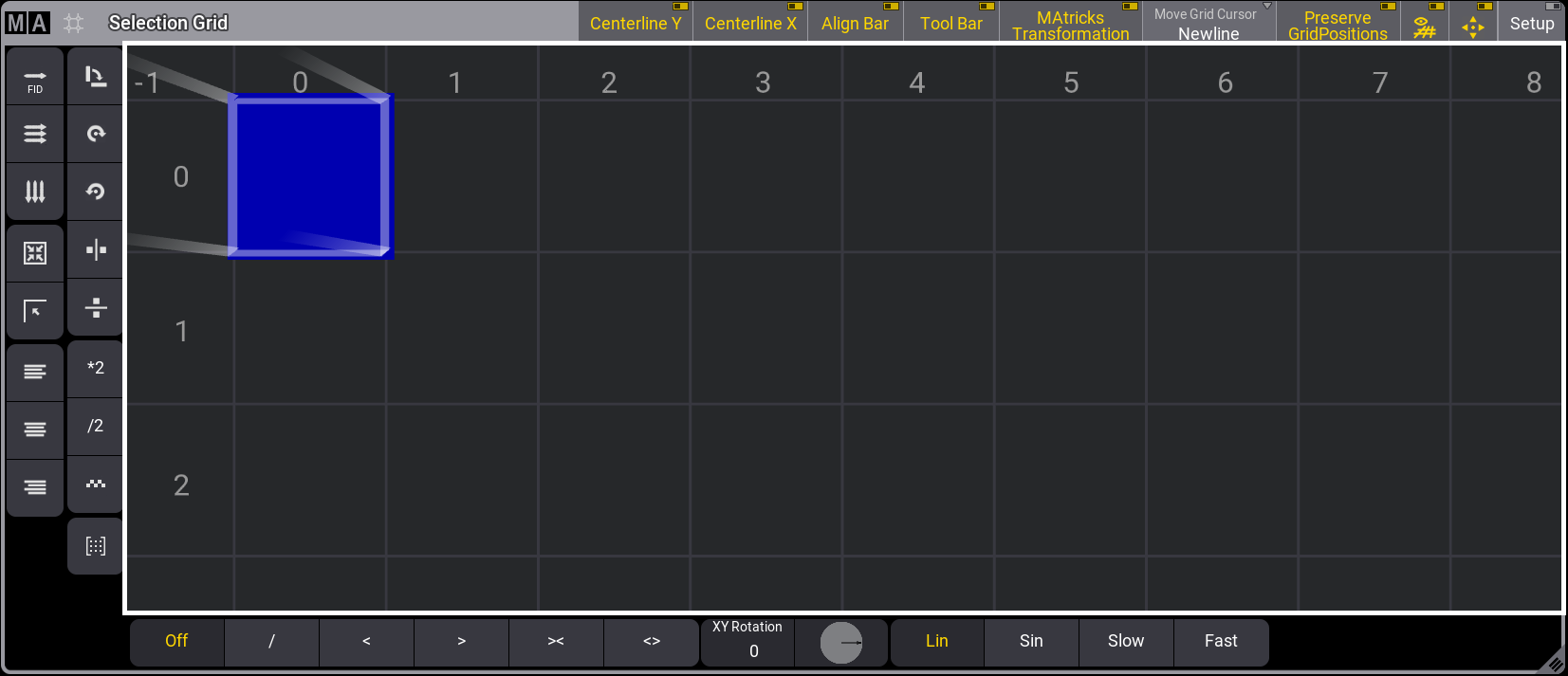
Selection Grid window
When a cell other than the origin 0/0/0 is selected, Preserve GridPositions in the title bar will be enabled. When it’s disabled, all gaps and offsets to the origin will be removed.
The state of Preserve GridPosition can be recalled if it is disabled before storing the selection into an object.
When selecting fixtures, the Move Grid Cursor setting in the title bar will work as specified in the user profile. For more information, see User Settings.
These are the three modes for the Move Grid Cursor.
After a selection is made:
- None: The cursor will stay at its position when the selection is made.
- Append X: The Cursor will move to the next available X-axis cell on the grid.
- Newline: The cursor will move to X=0 on the following line.
 (Toggle grid lines): Toggles the visibility of the grid.
 (Toggle view autoscroll): The window is reset to fit all the fixtures and the grid cursor in the selection grid window.
Tap the MA logo on the left side of the Selection Grid window’s title bar to open the Selection Grid Window Settings.
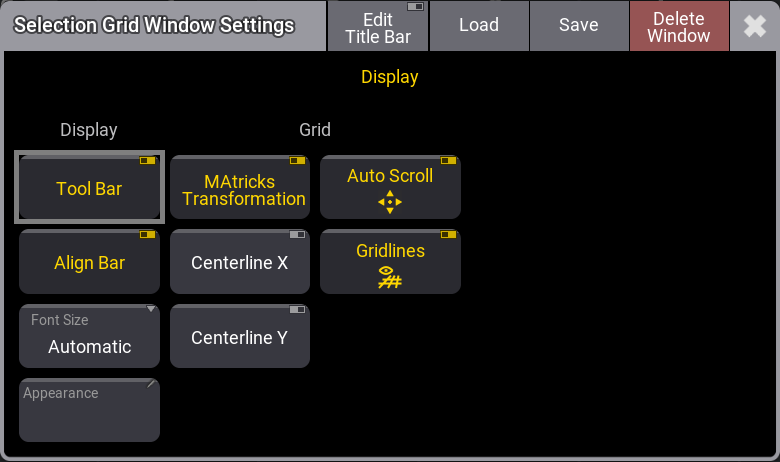
Selection Grid Window Settings
Buttons in the display column: