Network Update
Use Software Update to update one or more stations on a network.
 | Important: |
| Make sure that all devices are in the same network (check network adapter). To learn more about network settings, read the Networking, Interfaces and IP topic. |
Preliminary Procedures
Section titled “Preliminary Procedures”- Connect all grandMA3 devices to a network with an etherCON/RJ45 connector.
- Download the required installation packages from www.malighting.com, **Downloads. **
- Copy all installation packages for grandMA3 software into the root directory of your USB flash drive. For more information, see Update the Software.
- Insert the USB flash drive in the device’s USB port.
- For Windows systems, copy the zipped files from the ma folder into the directory C:\ProgramData\MALightingTechnology\installation_packages.
- For macOS systems, copy the files from the ma folder into the directory ~/MALightingTechnology/installation_packages.
Procedure
Section titled “Procedure”To update the grandMA3 device, follow the onscreen instructions that appear during the update.
To access Software Update:
- Press Menu or tap
 .
. - Tap Settings and then tap Software Update. The Software Update window opens, as shown in the image below:
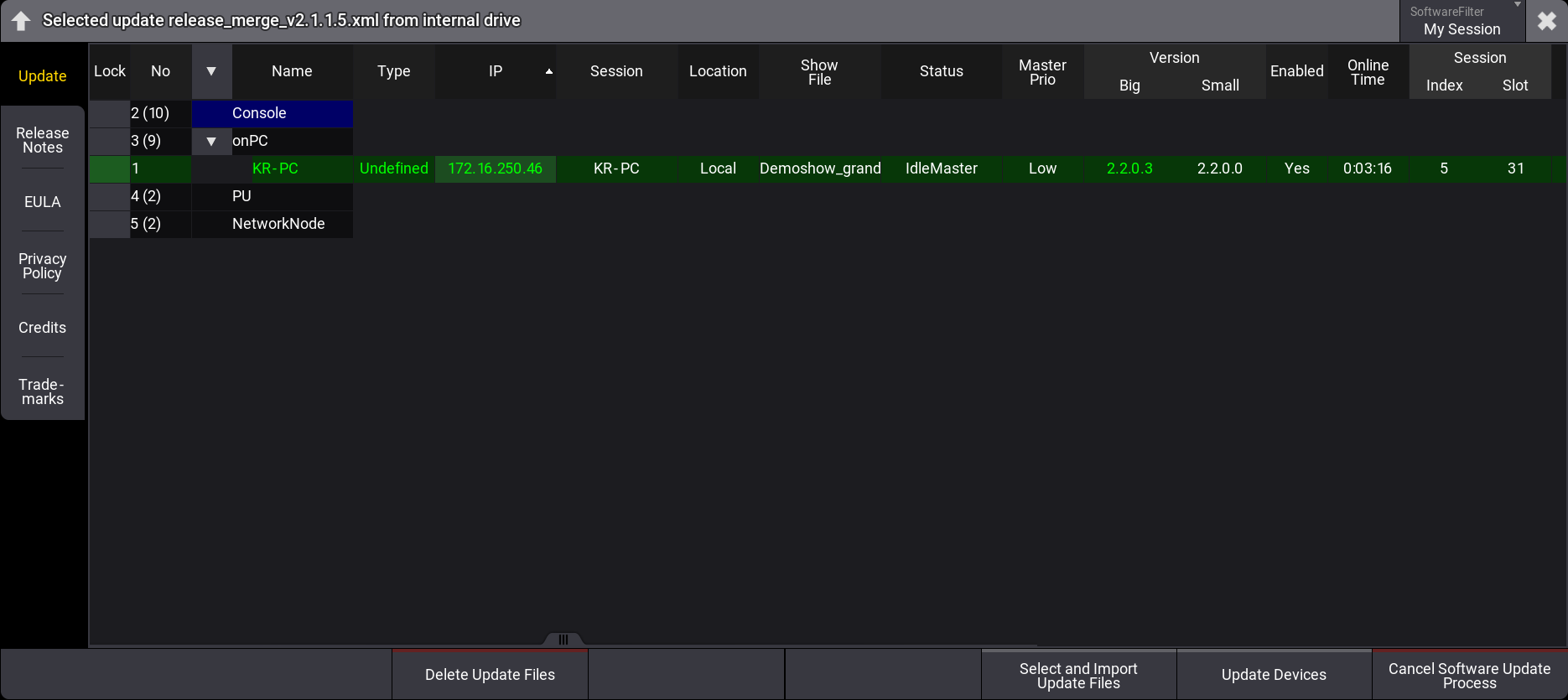
Software Update window
- To select a file, tap Select and Import Update File. The Select Update pop-up opens:
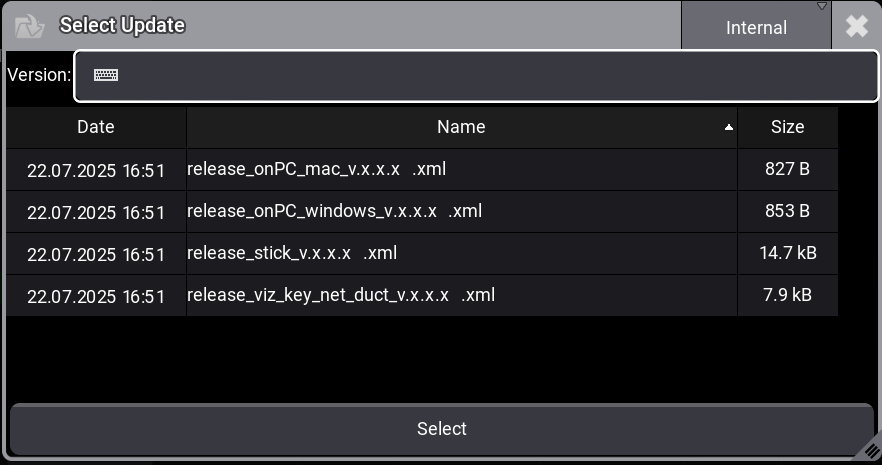
Select Update pop-up
- Make sure the correct update file location is selected (Internal or external device). Select the desired update file.
- Tap Select. The pop-up closes and the End User License Agreement (EULA) opens.
- Scroll down to read the complete EULA. The button I agree in the upper right corner of the pop-up turns white. To close the EULA, tap I agree.
- Select the desired device(s). The selected devices are marked in blue.
- Tap Update Devices. The software update starts copying files.
 | Hint: |
| The selected update file will be displayed in the title bar of the software update menu. |
- Cancel Software Update Process: Tap to cancel the current update process. For more information, see CancelSoftwareUpdate keyword.
| Important: |
| It is also possible to update the grandMA3 onPC, consoles, xPort Nodes, onPC command wing XT, processing unit and onPC rack-unit directly. Select the correct XML file for each device. For more information on which XML file to use for which device, see Update the Software. |
Update Confirmation
After copying the files to the grandMA3 device, a warning pop-up will appear:
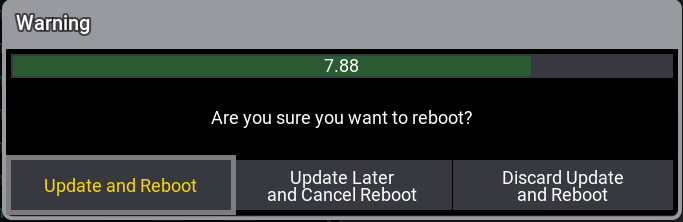
Pop-up in the update process
- Update and Reboot: Updates and reboots the device.
- Update Later and Cancel Reboot: Delays the update and leaves a red indicator in the control bar
 .
. - Discard Update and Reboot: Aborts the update and reboots the device.
| Hint: |
| The update will start automatically when the countdown in the pop-up window expires. |
Tap in the Shutdown Menu to install delayed updates. This will open a second warning pop-up.
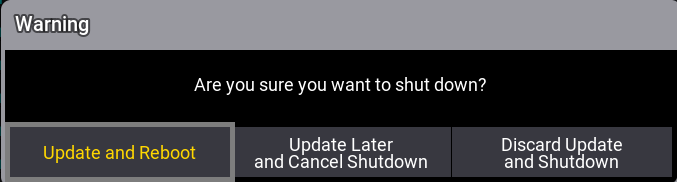
Shutdown pop-up
- Update and Reboot: Updates and reboots the device.
- Update Later and Cancel Shutdown: Delays the update and leaves a red indicator in the control bar .
- Discard Update and Shutdown: Aborts the update and shuts down the device.
| Hint: |
Tapping  (Restart) in the Shutdown Menu opens an Update Confirmation pop-up as well. (Restart) in the Shutdown Menu opens an Update Confirmation pop-up as well. |
For more information about shutting down, see Shut Down the System.