Message Center
The message center displays information on processes in the software.
It also allows you to configure the information displayed on your screens.
The message center is divided into two categories:
- Messages
The messages section displays messages produced by the system. - Status
Configure how status icons are displayed in the command line in the status section.
Read more about these two sections below, under Messages and Status.
Open the Message Center
Section titled “Open the Message Center”To open the message center window, tap Message Center in the More tab in the Add Window pop-up. For more information on adding windows, see Add Window.
To open a temporary version of the message center:
- Tap the envelope icon (
 ).
). - Tap any of the status icons on the right side of the command line.
To close the temporary message center, tap one of the icons in the command line again or tap  in the upper right corner of the window.
To select a different screen to display the message center:
- Tap
 in the title bar.
 - Tap the screen you want to display the message center on.
The message center is displayed on the selected screen every time you open a temporary version of the message center. To reset the display selection to default, tap and then tap Clear.
Messages
Section titled “Messages”The messages section displays messages produced by the system.
The envelope icon () on the right side of the command line changes color to indicate new messages in the message center.
The icon is displayed in the color of the new message with the highest priority.
A number underneath the envelope icon indicates the number of new messages, except spam messages.
The categories for messages are:
- System
- Command Line
- Power
- MA-Net
- USB
- Chat
Messages have different priorities.
- Spam (green): Information about internal system processes that generally don’t require user activity or input.
- Warning (yellow): Information that is important and should be taken care of.
- Error (brown): Information on invalid actions and malfunctions in the software.
- Alert (red): Information on critical events. Messages in the alert category generally require immediate action.
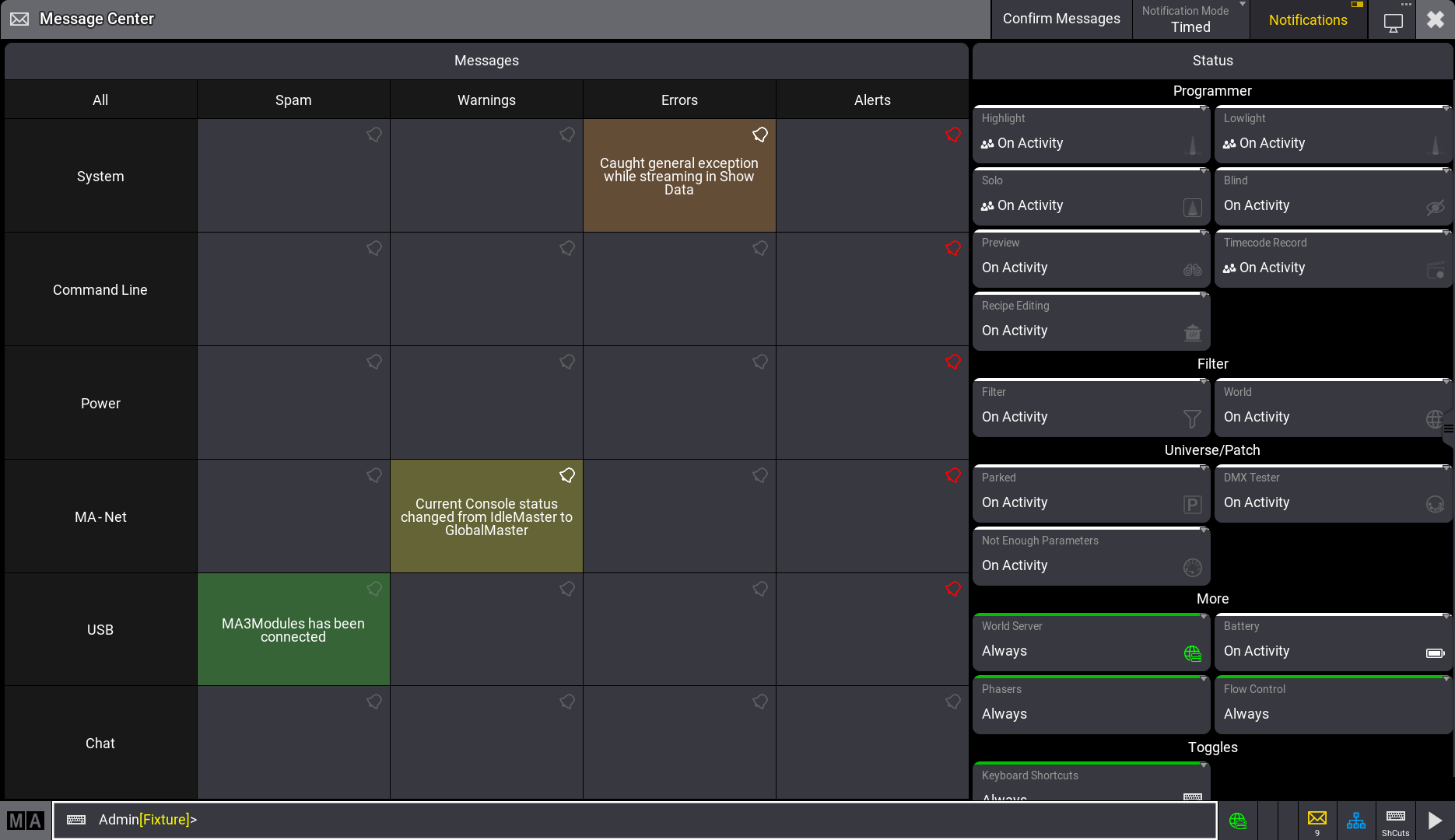
Message center